

Sie können Ihre MemberPress-Mobilnavigation personalisieren, indem Sie Ihre eigenen benutzerdefinierten Symbole für die Registerkartenleiste und den Mehr-Bildschirm hochladen. Dies verleiht Ihrer App ein markengerechtes, ausgefeiltes Aussehen, das mit Ihrer visuellen Identität übereinstimmt.
Diese Anleitung führt Sie durch das Hochladen von benutzerdefinierten Symbolen, die Anwendung der Farbfüllfunktion und das Testen auf iOS- und Android-Geräten.
Verständnis der Funktion "Benutzerdefiniertes Symbol
Die Anforderungen an benutzerdefinierte Symbole definieren Konfigurationen für ein personalisiertes Navigations-Branding durch hochgeladene Symbole und Farbanpassungen.
Möglichkeit zum Hochladen von Symbolen ermöglicht den Ersatz der Standard-Navigationssymbole durch benutzerdefinierte Bilder in der gesamten App-Oberfläche. Benutzerdefinierte Icons stärken die Markenidentität und die visuelle Konsistenz der Navigationselemente.
Farbfüllfunktionalität konvertiert weiße Icon-Bereiche in transparente und überlagert Markenfarben für ein kohärentes Styling. Die Farbanwendung stellt sicher, dass die Symbole zum Gesamtthema und Farbschema der App passen.
Anpassung der Beschneidung ermöglicht die Änderung der Symbolgrenzen, um die korrekte Anpassung an die Navigationsbeschränkungen zu gewährleisten. Der richtige Zuschnitt verhindert Verzerrungen und erhält die Klarheit der Symbole auf allen Geräten.
Stil-Anpassung bietet ausgefüllte oder umrissene Symbolvarianten mit quadratischen oder runden Containern. Die Flexibilität des Stils passt sich unterschiedlichen Designvorlieben und Markenrichtlinien an.
Plattformübergreifende Konsistenz stellt sicher, dass benutzerdefinierte Symbole sowohl auf iOS- als auch auf Android-Geräten korrekt angezeigt werden. Ein einheitliches Erscheinungsbild sorgt für die Wiedererkennung der Marke unabhängig von der Benutzerplattform.
Öffnen der Registerkartenleiste Einstellungen
Der Zugriff auf die Einstellungen der Registerkartenleiste ermöglicht das Hochladen von benutzerdefinierten Symbolen und die Konfiguration von Navigationsmenüpunkten.
- Gehen Sie in Ihrem WordPress-Dashboard zu Dashboard > MP AppKit > Menü > Registerkartenleiste.
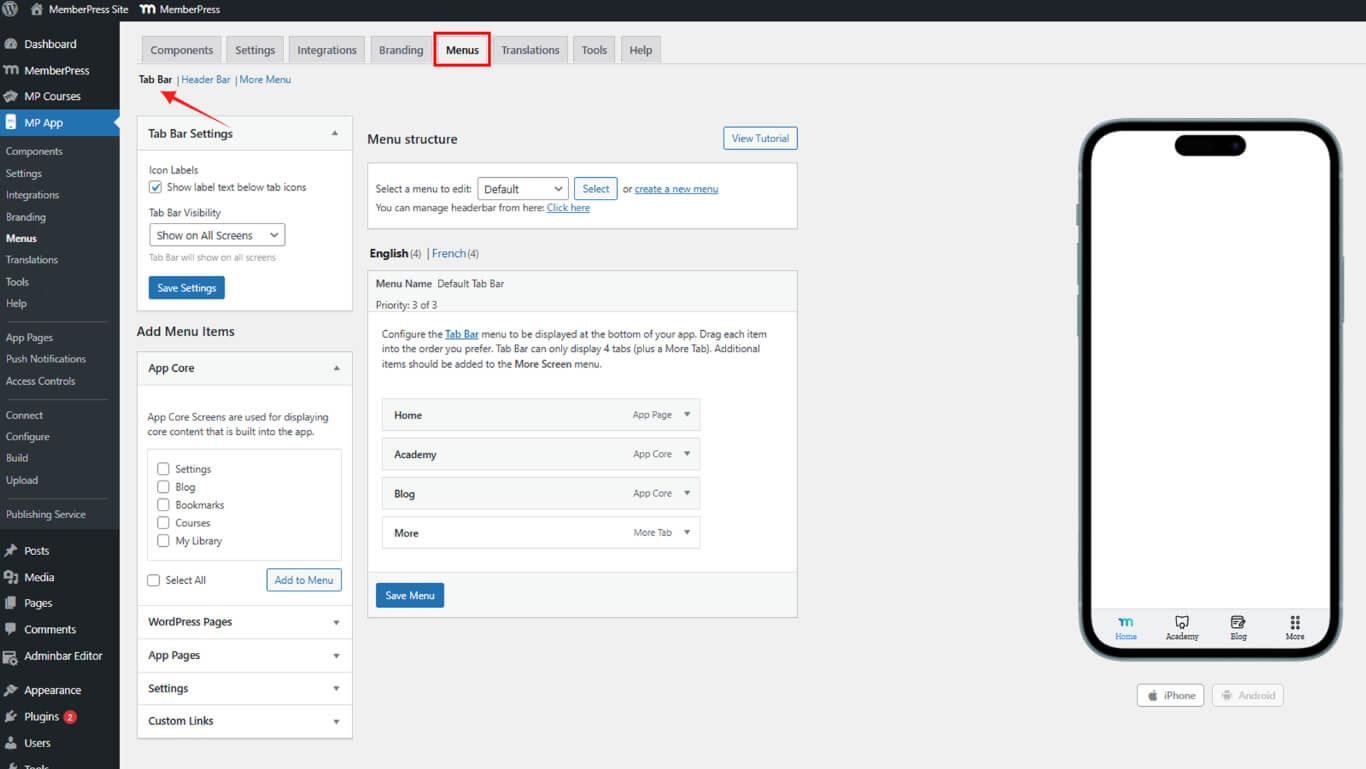
- Auf der rechten Seite wird die Live-Vorschau der Registerkartenleiste angezeigt.
- Schalten Sie die Vorschau um auf Mehr Bildschirm nach Bedarf.
Hochladen eines benutzerdefinierten Symbols
Der Upload von benutzerdefinierten Symbolen ersetzt die Standard-Navigations-Symbole durch gebrandete Bild-Assets für ein individuelles Erscheinungsbild.
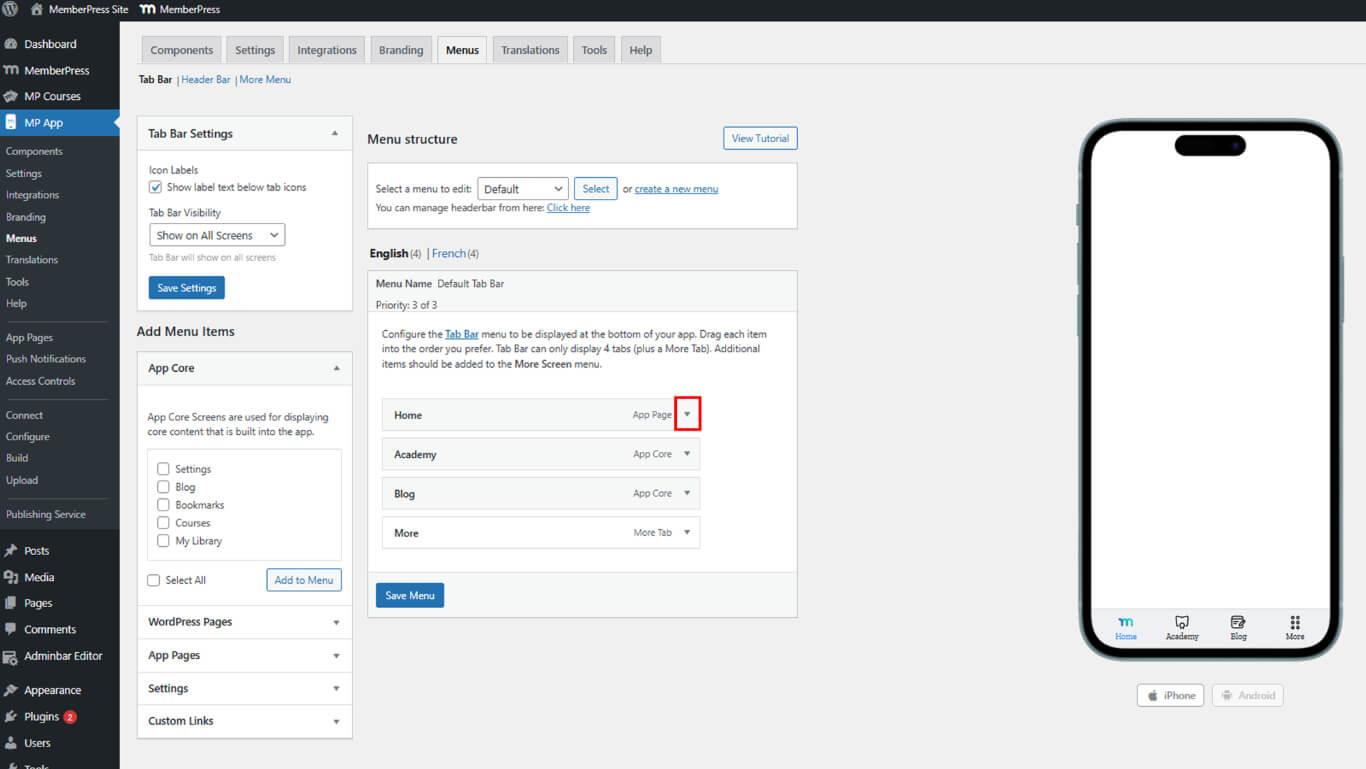
- Klicken Sie auf den Dropdown-Pfeil neben einem Menüpunkt der Registerkartenleiste (z. B. Home).
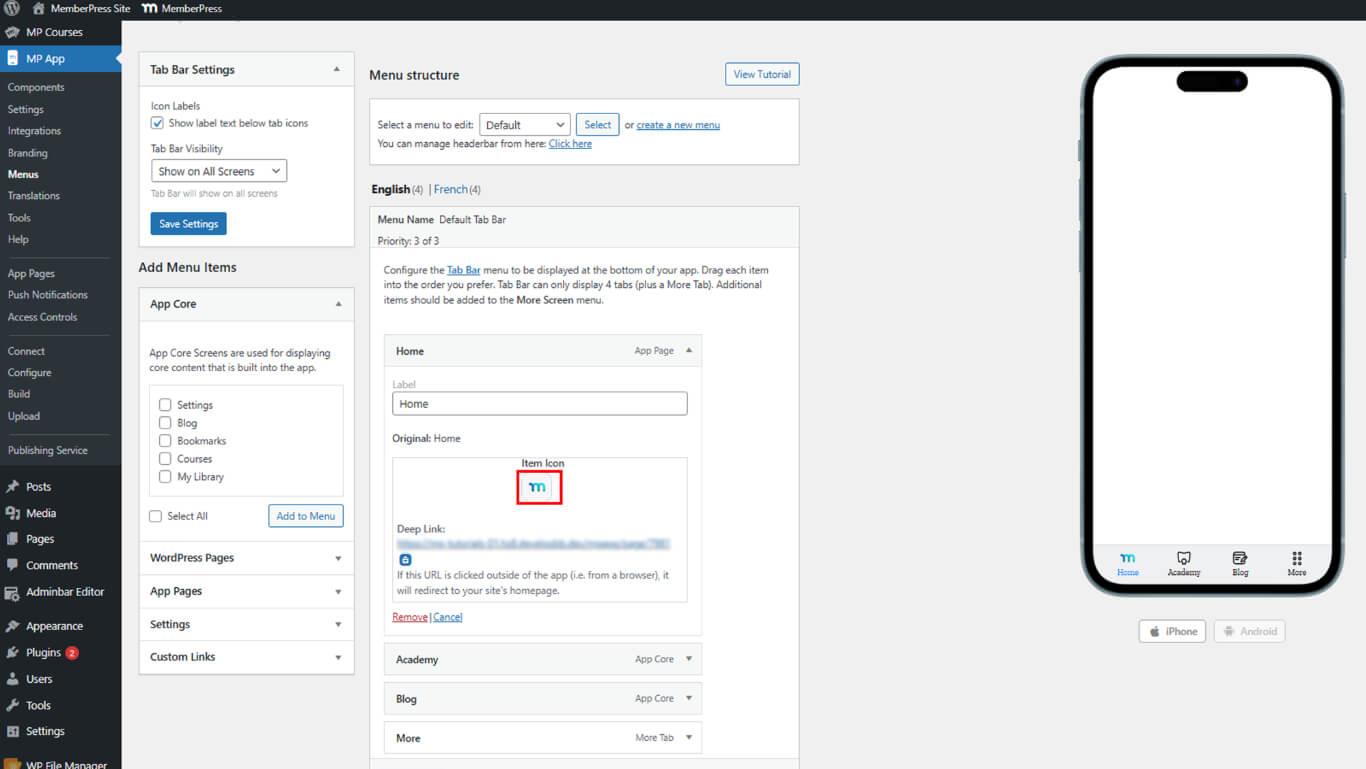
- Klicken Sie auf Symbol für den Artikel.
- Gehe zu der Zoll tab.
- Klicken Sie auf die Upload-Symbol, und wählen Sie dann eine PNG-, SVG- oder JPEG-Datei mit transparentem Hintergrund.
Zuschneiden und Anwenden von Symbolen
Das Zuschneiden von Symbolen passt die Grenzen der hochgeladenen Bilder an und sorgt dafür, dass sie in die Navigationsoberfläche passen und angezeigt werden.
- Passen Sie im Dialogfeld "Zuschneiden" die Ränder des Symbols so an, dass sie in das Quadrat passen.
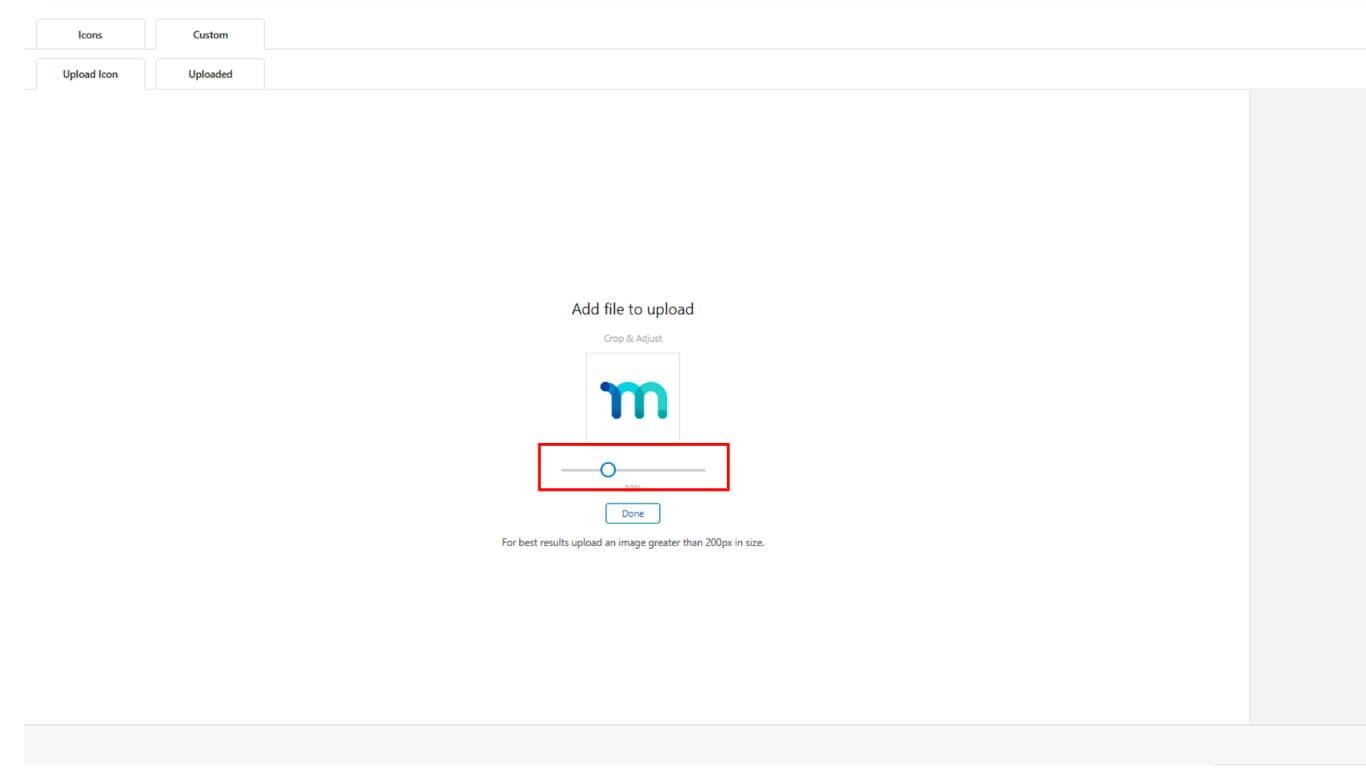
- Klicken Sie auf Erledigt, dann klicken Sie auf Dieses Symbol verwenden.
- Wenn die Größe nicht stimmt, löschen Sie das Symbol und laden Sie es mit einem besseren Zuschnitt erneut hoch.
- Klicken Sie auf Menü aktualisieren um die Änderungen zu speichern.
Farbige Füllung zur Anpassung an Stile verwenden
Die Farbfüllanwendung konvertiert weiße Symbolbereiche in transparente und überlagert Markenfarben für ein kohärentes Styling.
- Öffnen Sie die Symboleinstellungen für Ihr benutzerdefiniertes Symbol.
- Aktivieren Sie die Farbe Füllung Kontrollkästchen.
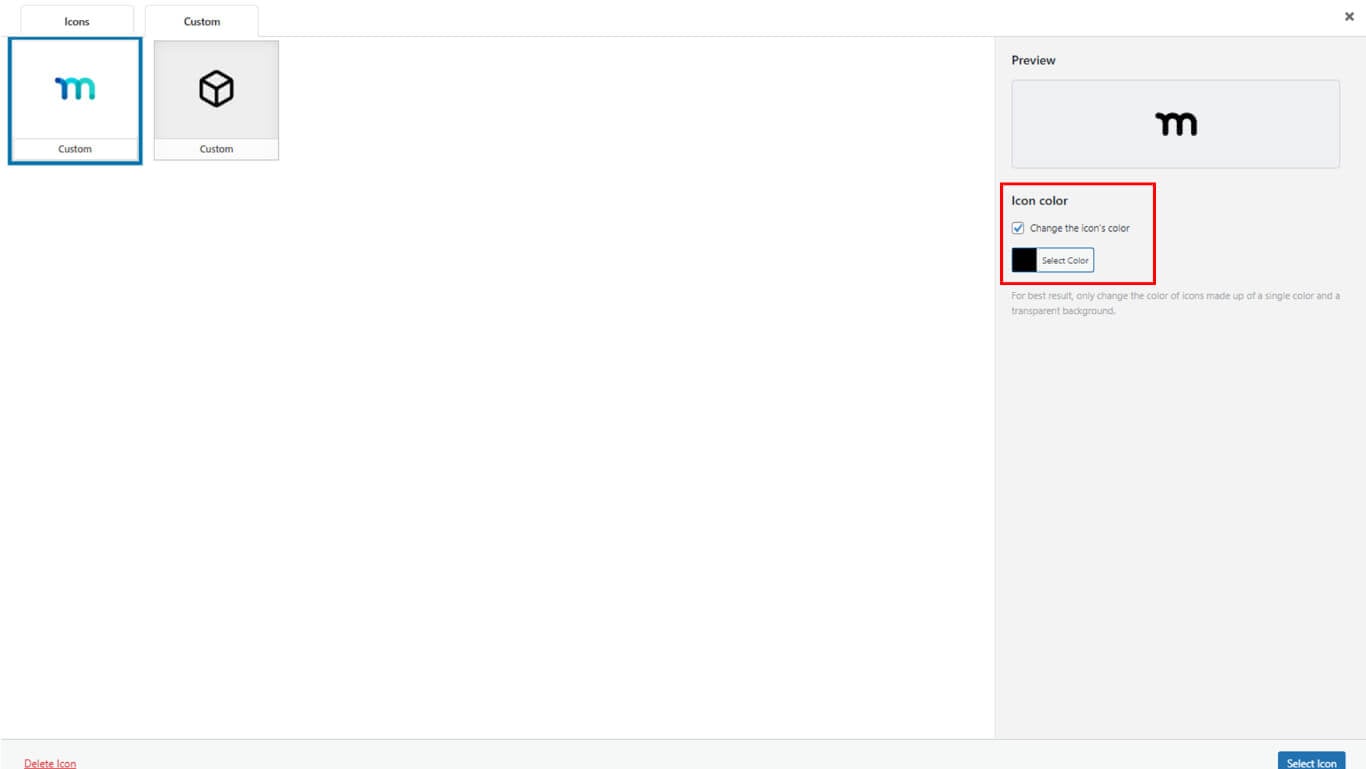
- Klicken Sie auf die Icon Farbe und wählen Sie Ihren Markenfarbton aus.
- Wählen Sie Ikonen-Stil (Ausgefüllt oder Gliederung) und Box-Stil (quadratisch oder kreisförmig).
- Klicken Sie auf Dieses Symbol verwendendann Menü aktualisieren zu speichern.
Wiederholung für weiteres Bildschirmmenü
Bei der Konfiguration des Menüs "More Screen" werden benutzerdefinierte Symbole auf sekundäre Navigationselemente angewendet, um ein einheitliches Branding zu gewährleisten.
- Wechseln Sie zum Mehr Bildschirm-Menü Reiter unter Dashboard > MP AppKit > Menü > Registerkartenleiste.
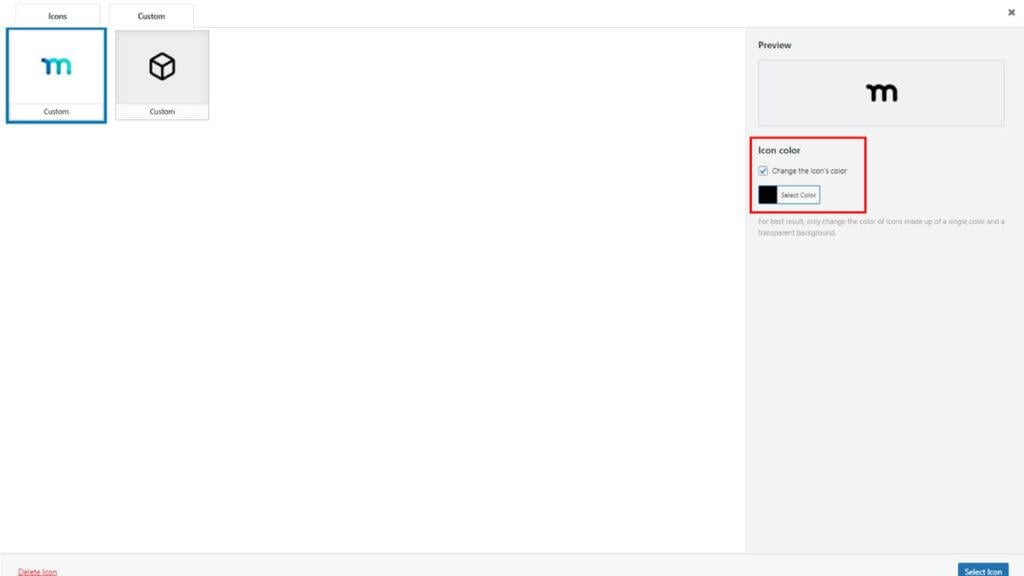
- Wiederholen Sie die Schritte Hochladen, Zuschneiden und Farbfüllung für jeden Menüpunkt "Mehr Bildschirm".
- Klicken Sie auf die Menü speichern wenn alle Symbole platziert sind.
Testen in der App
App-Tests überprüfen die korrekte Anzeige von benutzerdefinierten Symbolen auf verschiedenen Plattformen und gewährleisten die korrekte Implementierung und Darstellung.
- Schließen Sie die MemberPress iOS/Android-App auf Ihrem Gerät mit Gewalt.
- Öffnen Sie die App erneut, um die neuesten Symboleinstellungen zu laden.
- Bestätigen Sie, dass benutzerdefinierte Symbole auf der Registerkartenleiste und dem Mehr-Bildschirm unter iOS und Android korrekt angezeigt werden.










 DE
DE  EN
EN  ES
ES  FR
FR  PT
PT 