

Mit MemberPress Android App Testing können Sie Ihre App vor einer öffentlichen Freigabe mit ausgewählten Nutzern testen. Neue individuelle Google Developer-Konten, die nach dem 13. November 2023 erstellt werden, müssen vor dem Produktionszugang geschlossene Testanforderungen erfüllen.
In diesem Dokument wird erklärt, wie man geschlossene Teststrecken erstellt, Tester hinzufügt, Freigaben verwaltet und den Produktionszugang beantragt.
Verständnis der Anforderungen für geschlossene Tests
Der Google Play Store verlangt den Abschluss von geschlossenen Tests für neue individuelle Entwicklerkonten, die nach dem 13. November 2023 registriert werden. Geschlossene Tests erfordern die Nutzung der App durch mindestens 12 Tester an mindestens 14 aufeinanderfolgenden Tagen. Der Zugriff auf die Produktionsschiene wird erst nach erfolgreichem Abschluss der geschlossenen Tests und der Genehmigung freigeschaltet.
Entwicklerkonten von Organisationen sind von der Pflicht zu geschlossenen Tests befreit. Entwicklerkonten, die vor dem 13. November 2023 registriert wurden, sind ebenfalls von der Pflicht zu geschlossenen Tests befreit. Einzelne Konten, die nach dem Anforderungsdatum erstellt wurden, müssen vor der Produktionsveröffentlichung geschlossene Tests durchlaufen.
Geschlossene Teststrecke erstellen
Durch die Erstellung einer geschlossenen Teststrecke wird die Testumgebung für die Vorabveröffentlichung einer Anwendung eingerichtet.
- Melden Sie sich bei Google Play Console an unter play.google.com/console.
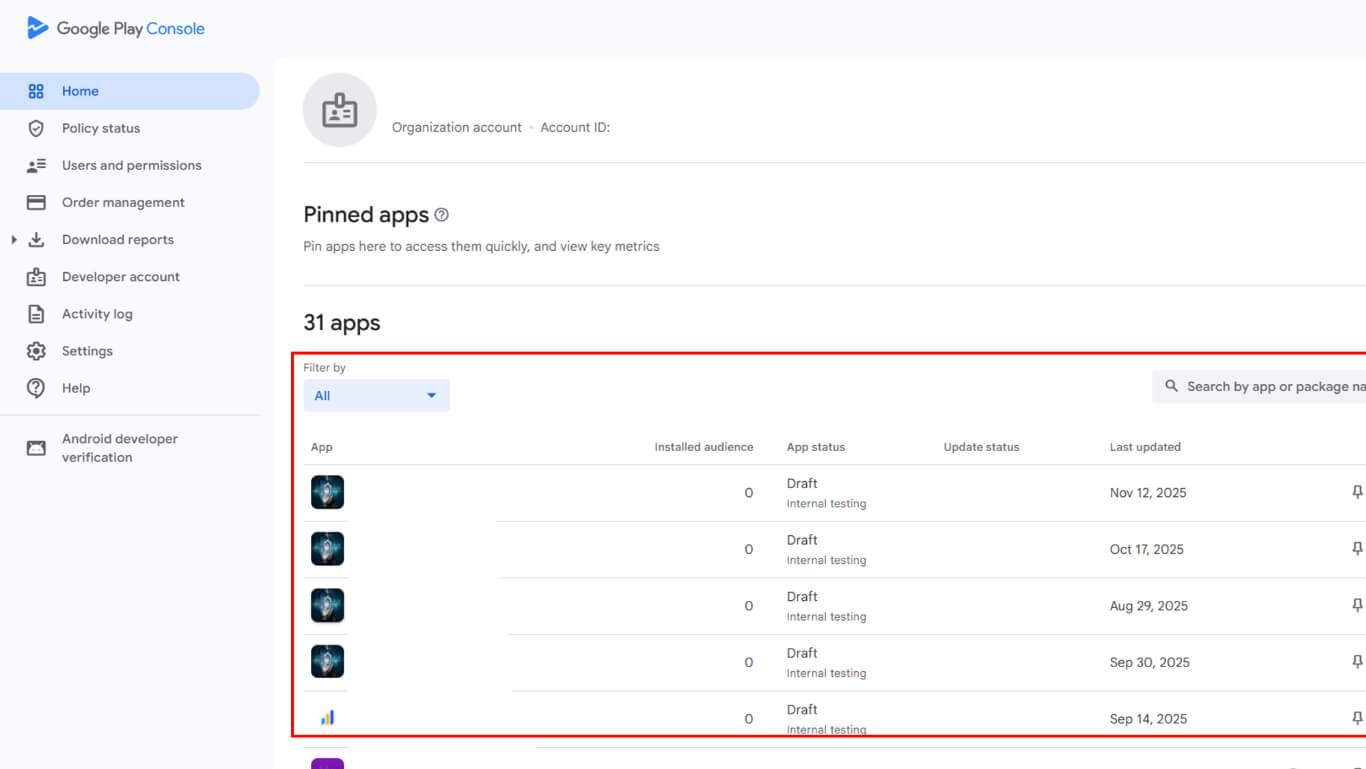
- Wählen Sie die App aus der Liste der Apps aus.
- Navigieren Sie zu Freigabe > Tests > Abgeschlossene Tests in der linken Seitenleiste.
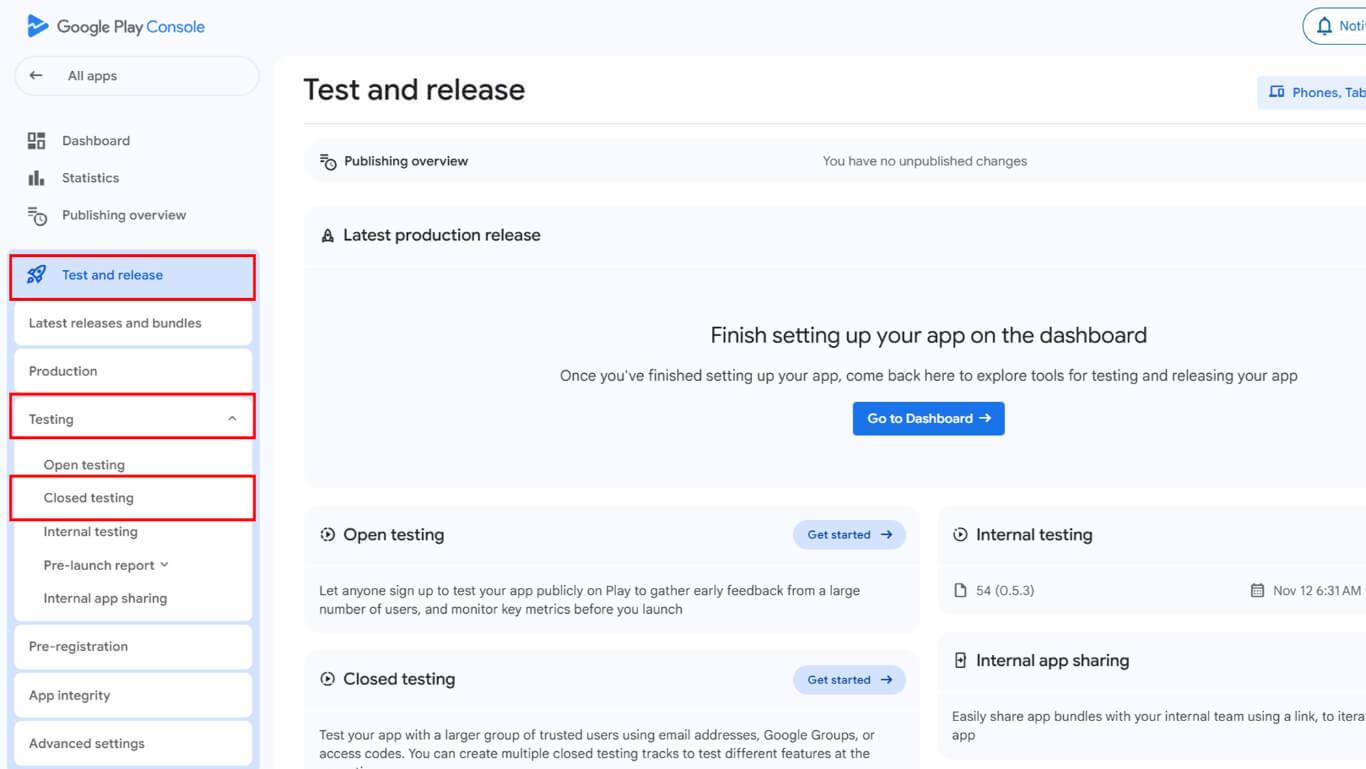
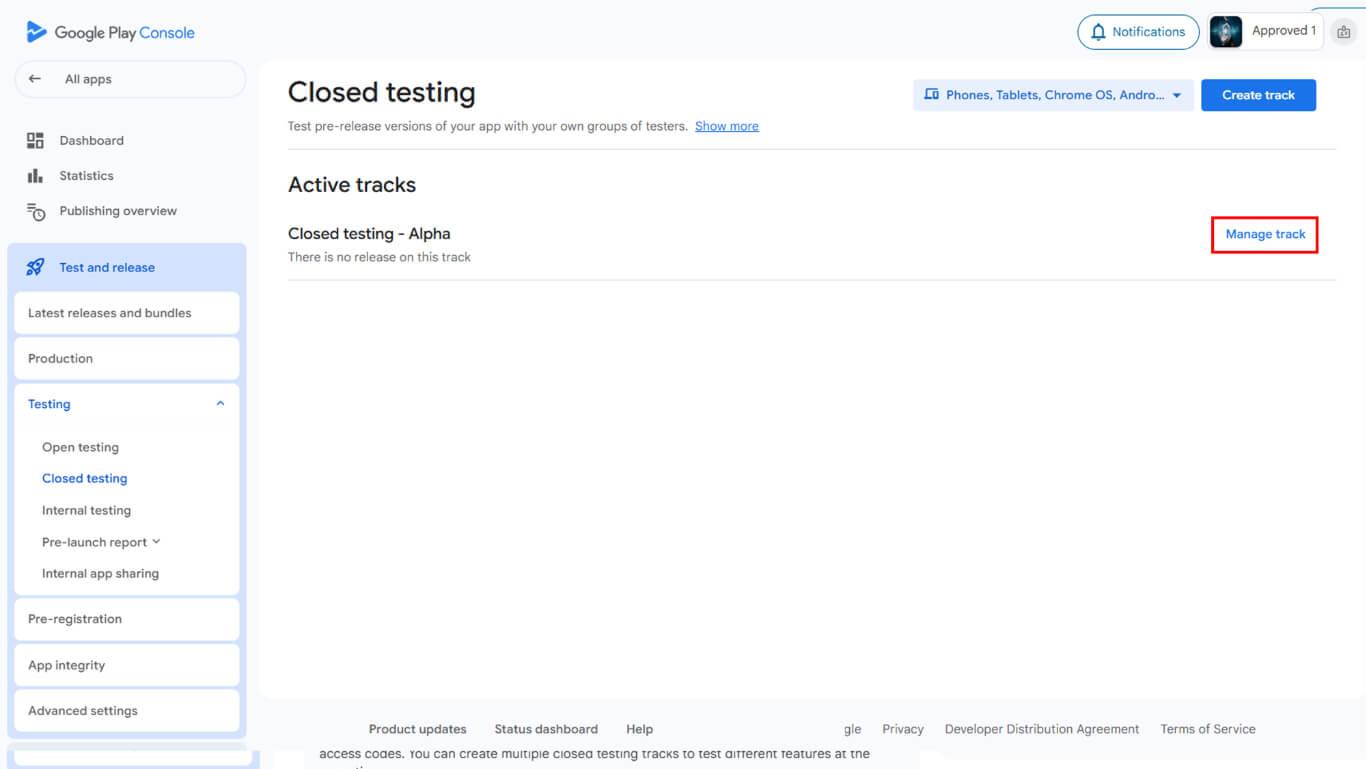
- Überprüfen Sie die verfügbaren aktiven Teststrecken.
- Klicken Sie auf Track verwalten wenn eine vorhandene Spur vorhanden ist.
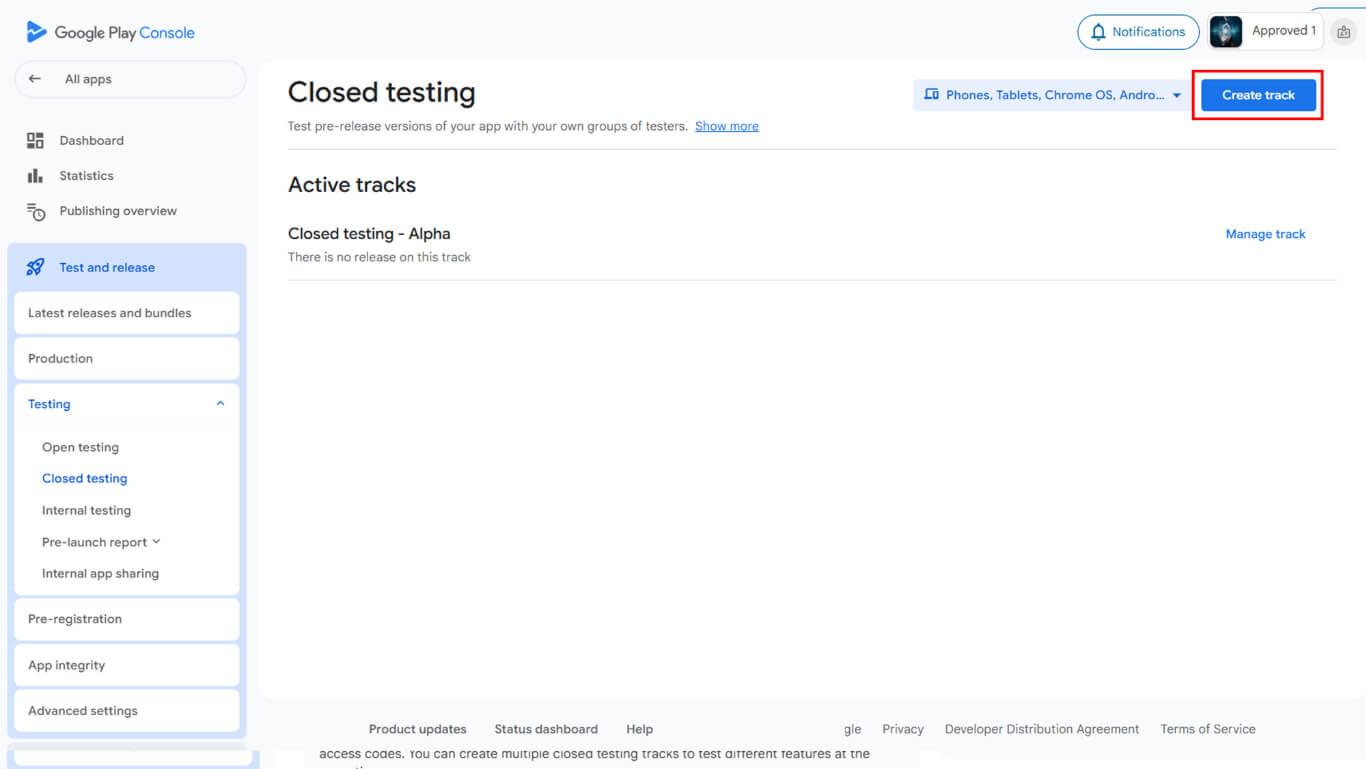
- Klicken Sie auf Spur erstellen wenn Sie eine neue Teststrecke erstellen.
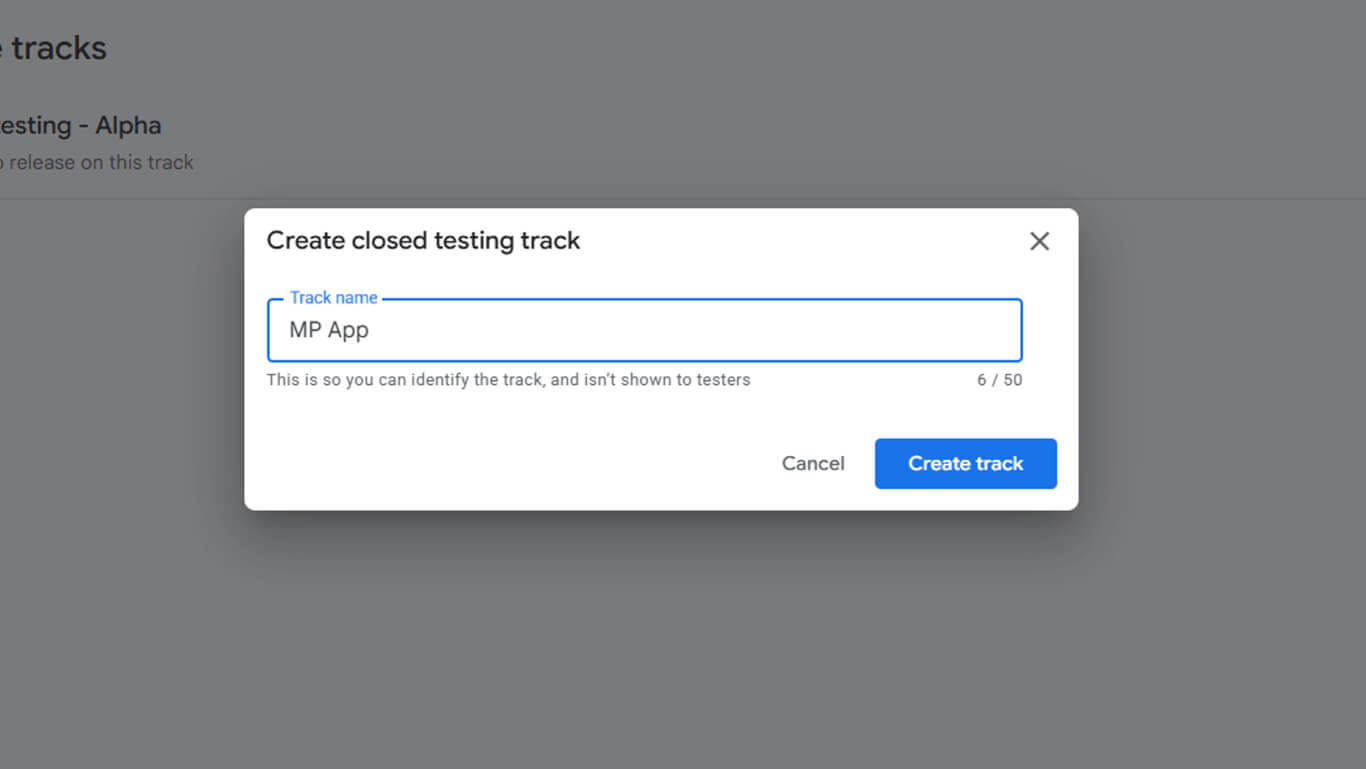
- Geben Sie einen beschreibenden Namen in das Feld Name der Spur Feld.
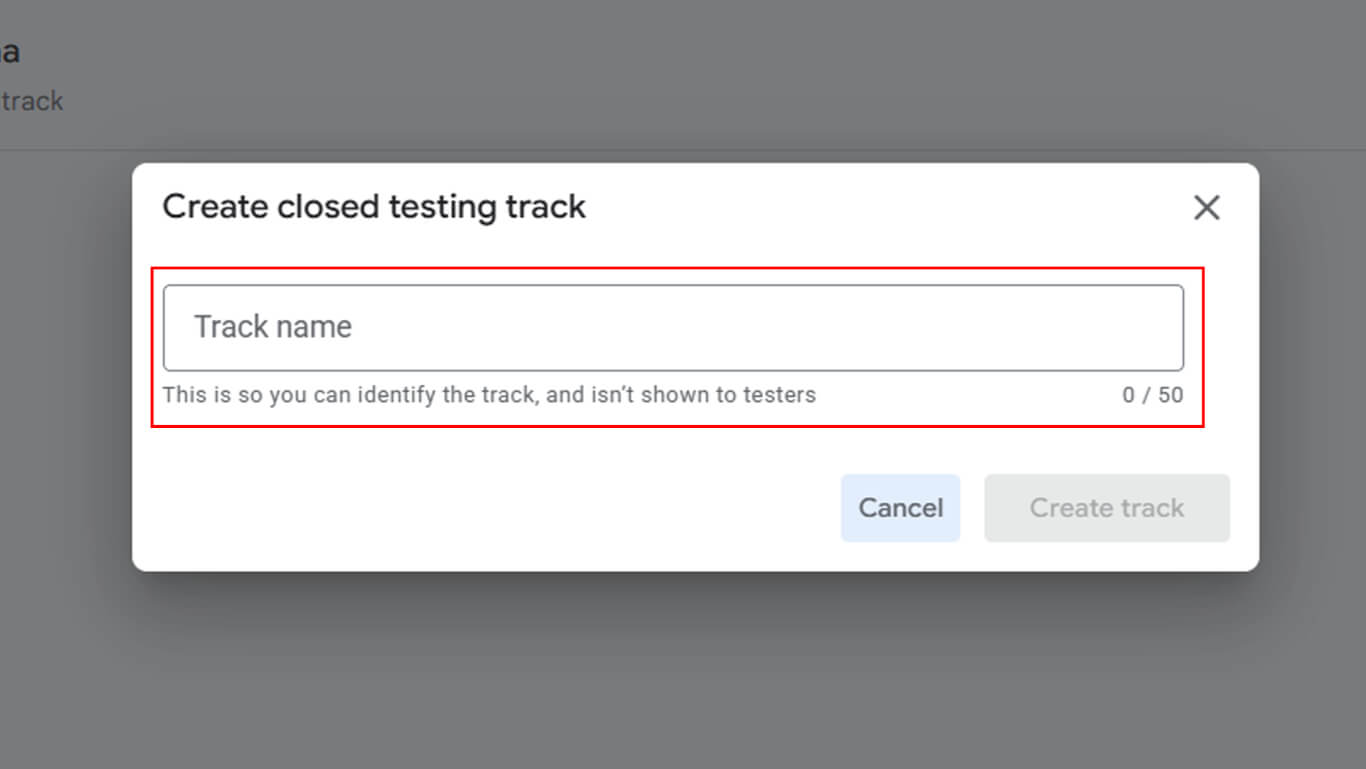
- Klicken Sie auf Spur erstellen um die Trackerstellung abzuschließen.
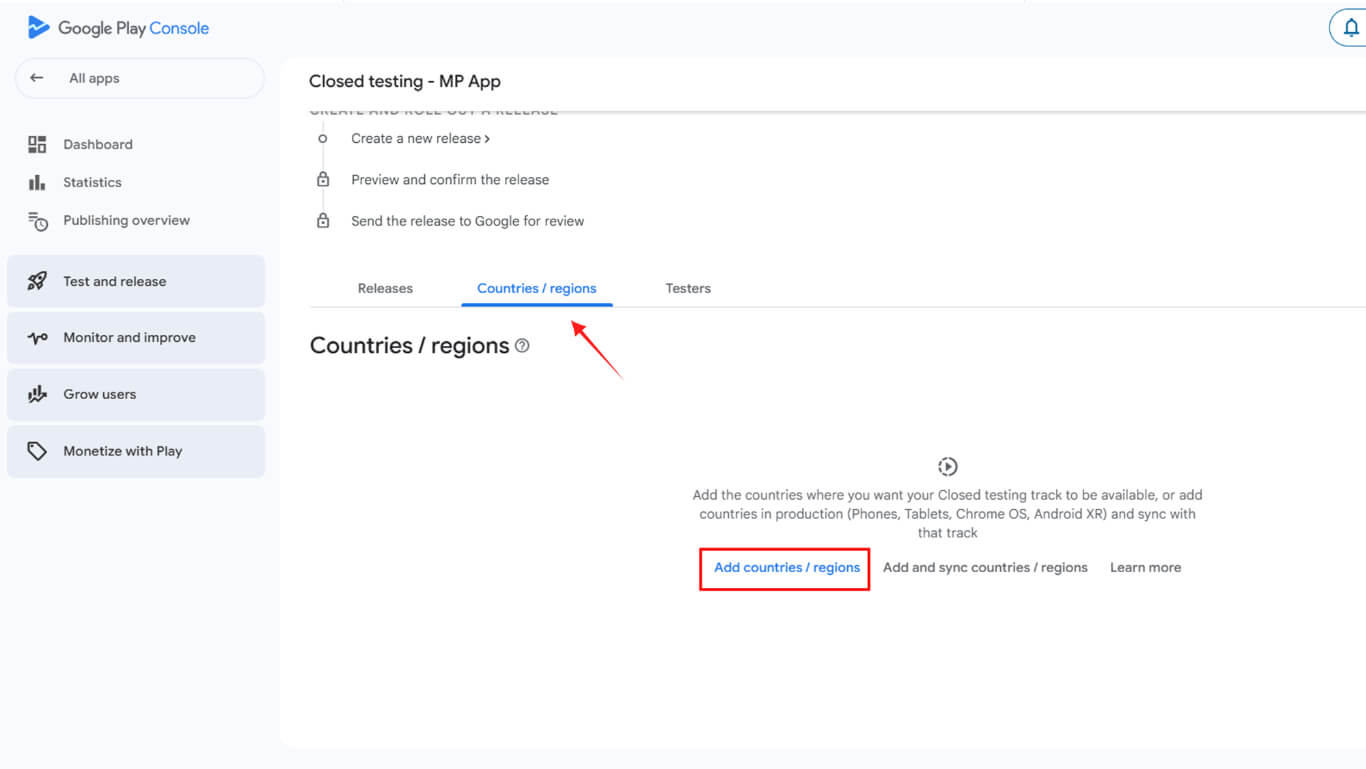
- Navigieren Sie zum Länder/Regionen tab.
- Klicken Sie auf Hinzufügen Länder/Regionen.
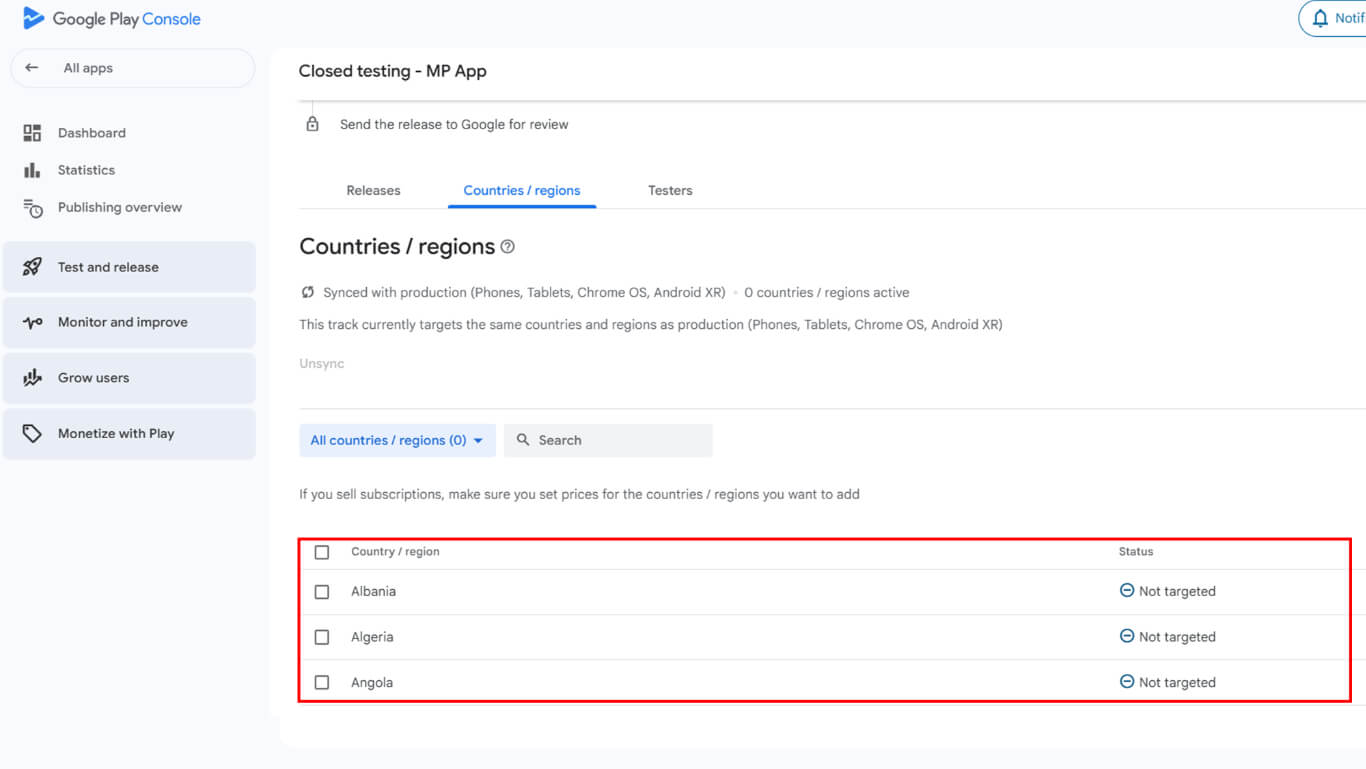
- Wählen Sie die Länder aus, in denen die App zum Testen verfügbar sein soll.
- Aktivieren Sie das Kontrollkästchen, um alle Länder für die weltweite Verfügbarkeit der Tests auszuwählen.
Hinzufügen von Prüfern zum geschlossenen Test
Mit dem Zusatz Tester können bestimmte Benutzer auf die App zugreifen und sie testen.
- Navigieren Sie zur Registerkarte Tester in der geschlossenen Testspur.
- Überprüfung bestehender E-Mail-Listen
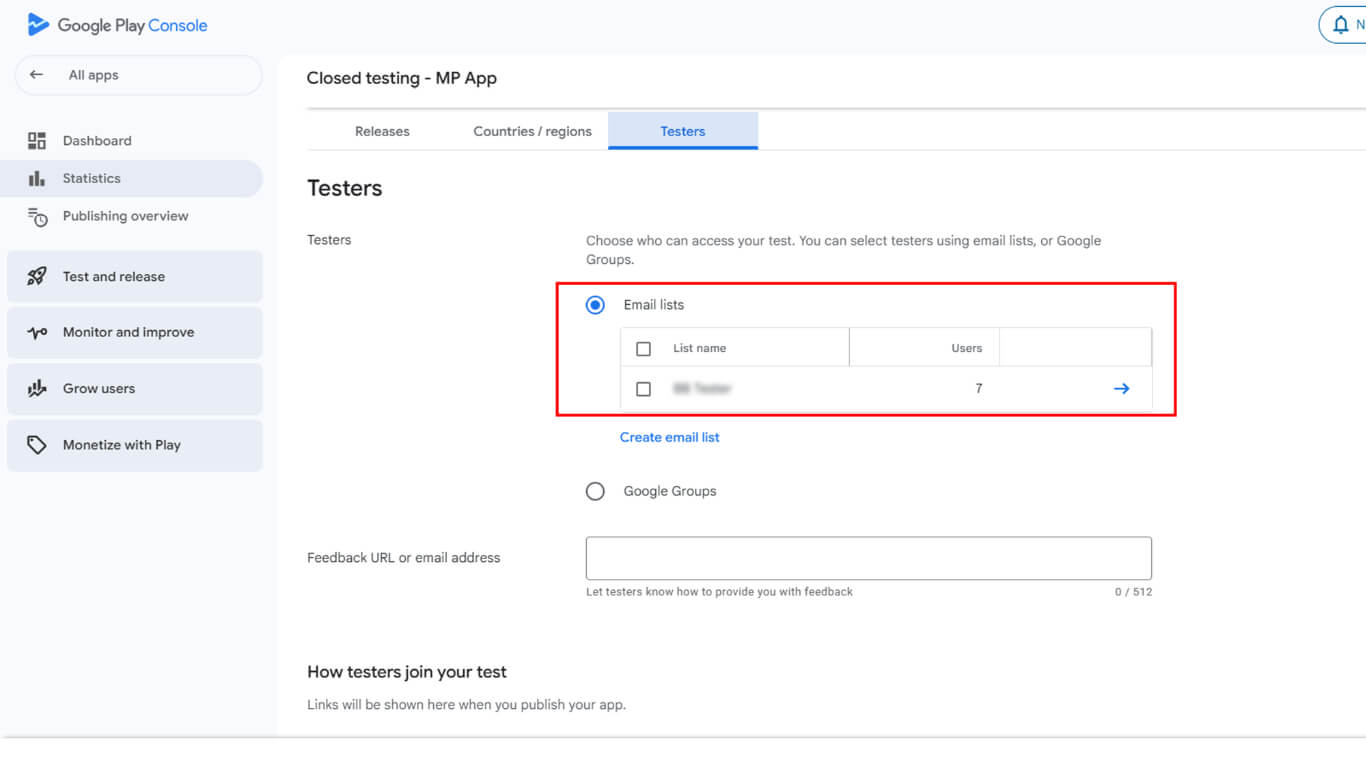
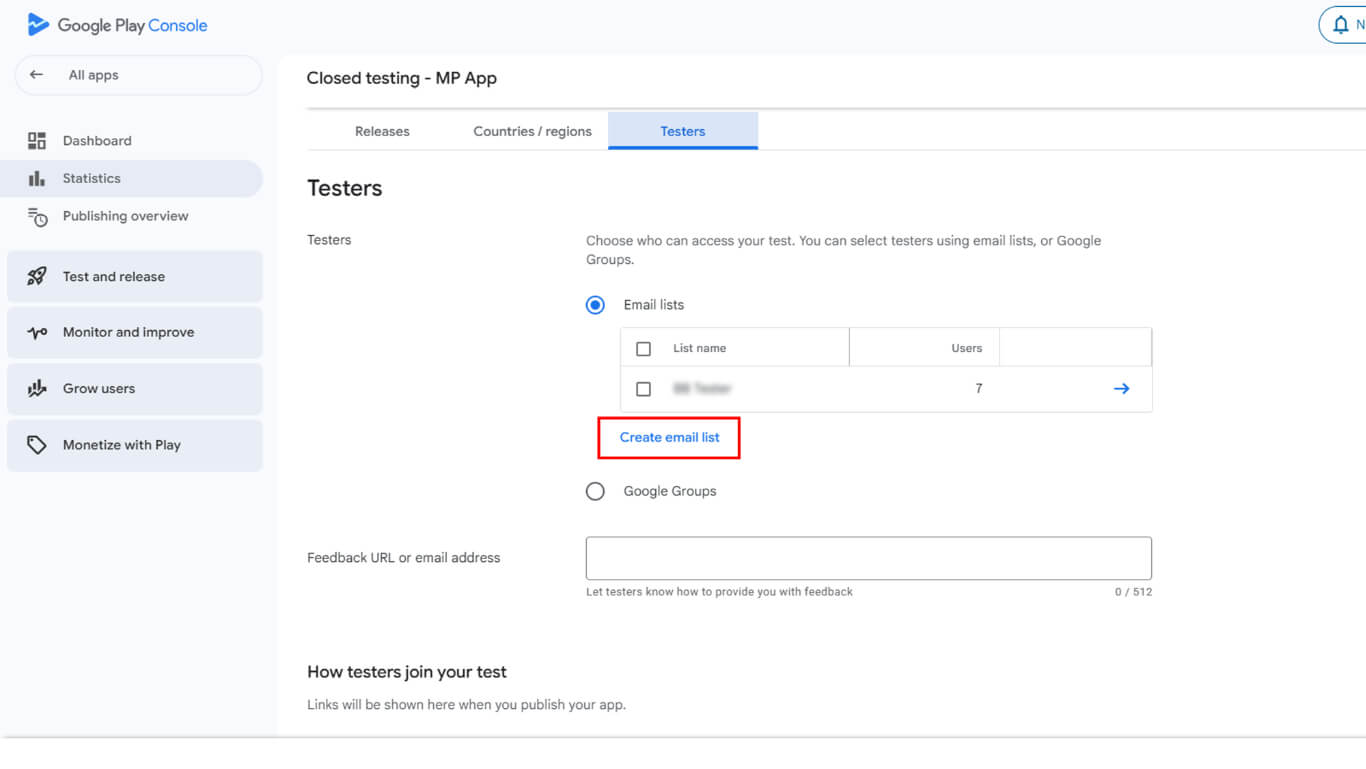
- Oder anklicken. erstellen. E-Mail-Liste.
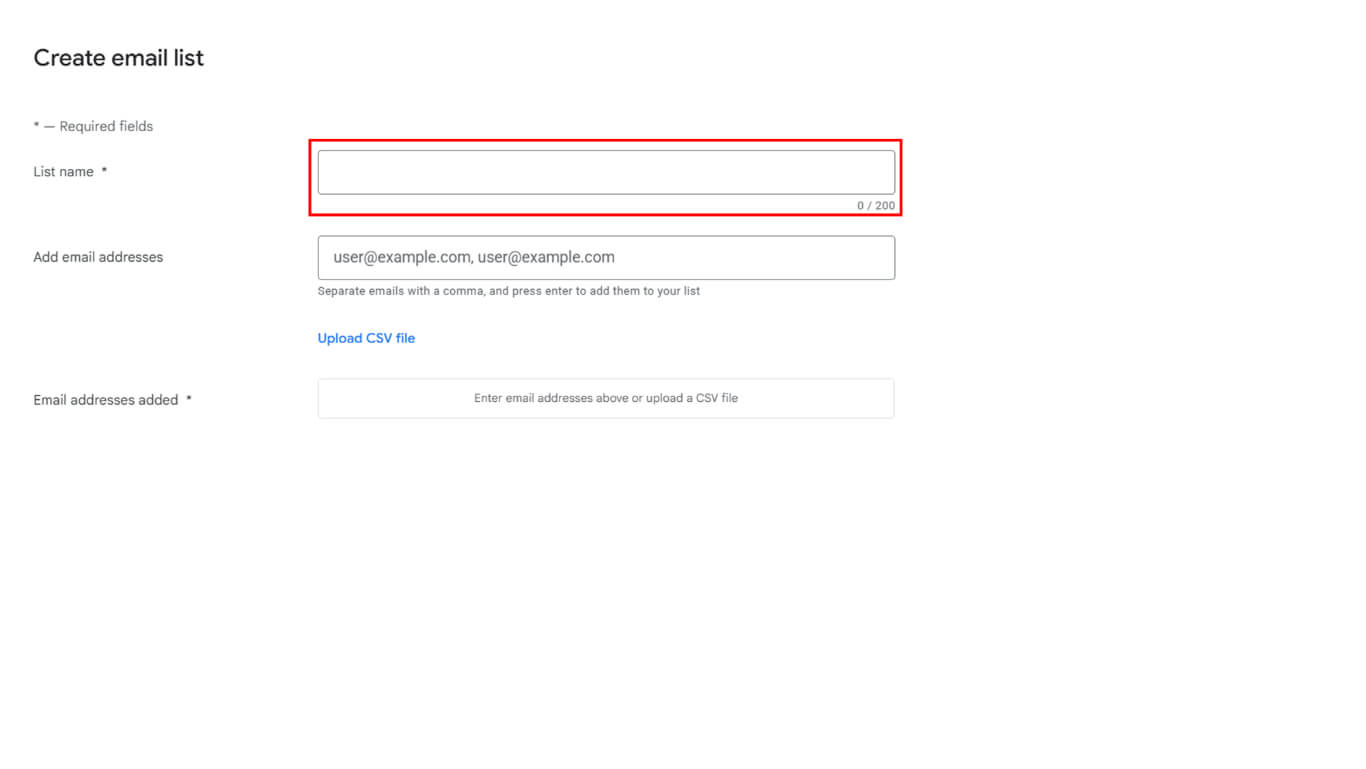
- Geben Sie einen beschreibenden Namen in das Feld Feld Listenname.
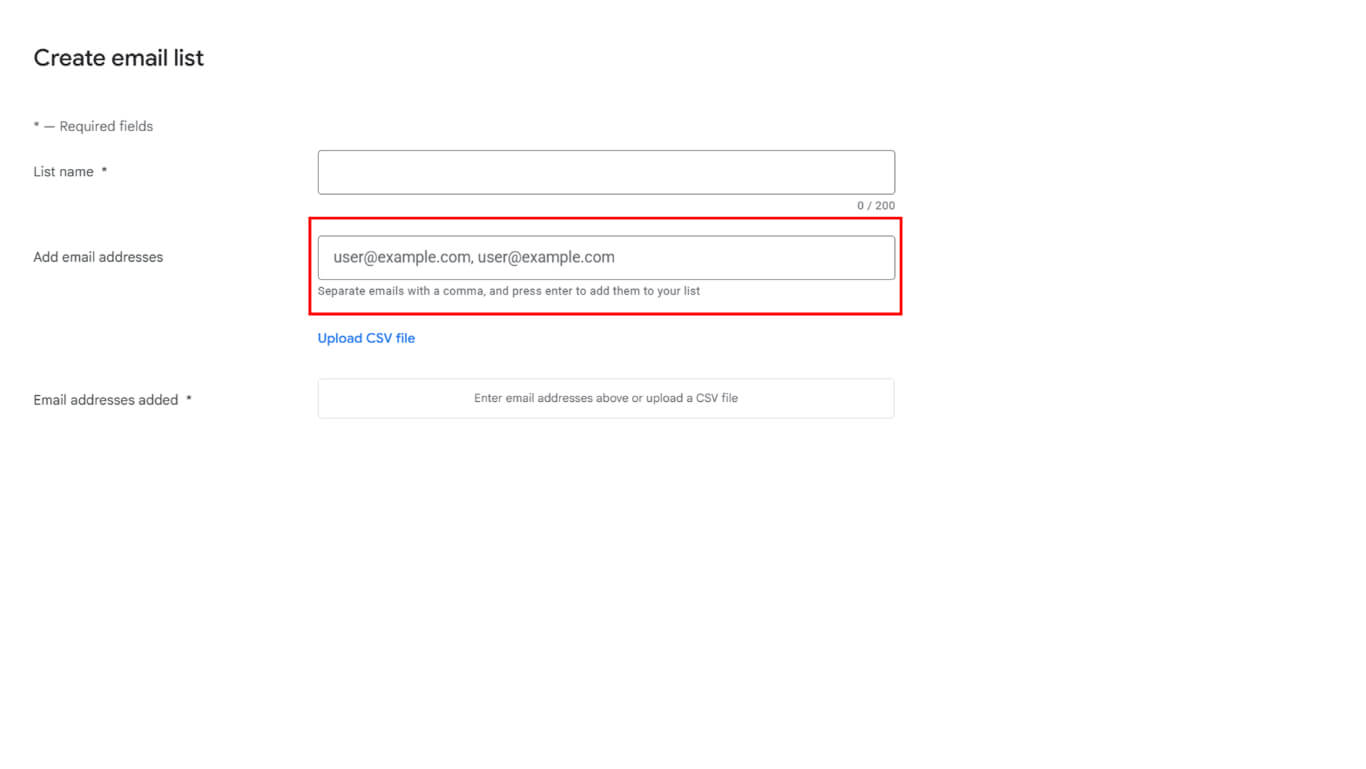
- Fügen Sie der Testerliste mindestens 12 E-Mail-Adressen hinzu, oder laden Sie eine CSV-Liste hoch.
- Klicken Sie auf Änderungen speichern, um die E-Mail-Liste zu speichern.
- Klicken Sie auf Erstellen, um die Erstellung der Liste abzuschließen.
- Geben Sie eine Feedback-URL oder eine E-Mail-Adresse für die Übermittlung von Tester-Feedback ein.
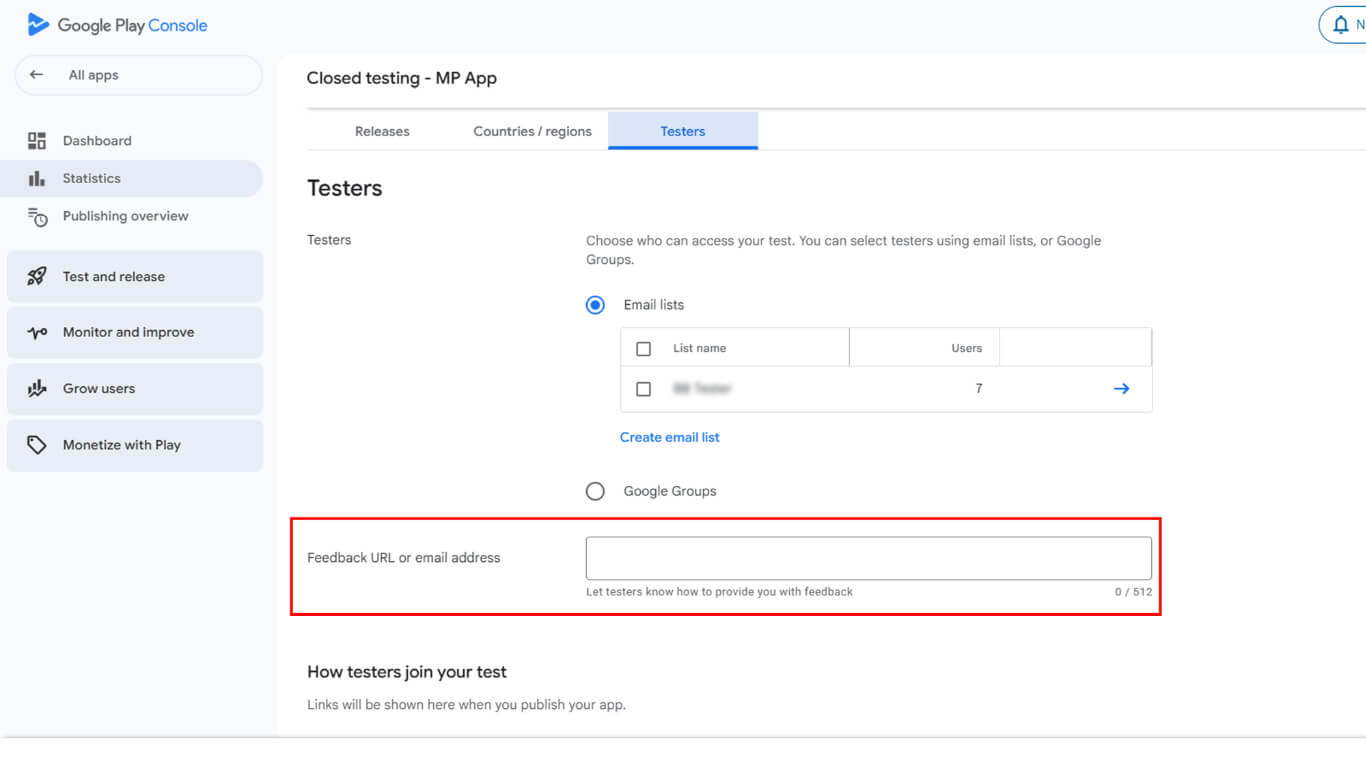
- Klicken Sie auf Speichern, um die Feedback-Informationen zu speichern.
- Klicken Sie auf Zur Übersicht gehen, wenn Sie dazu aufgefordert werden.
Neues Release für geschlossene Tests erstellen
Bei der Erstellung der Freigabe wird der App-Build für die Verteilung an die Tester vorbereitet.
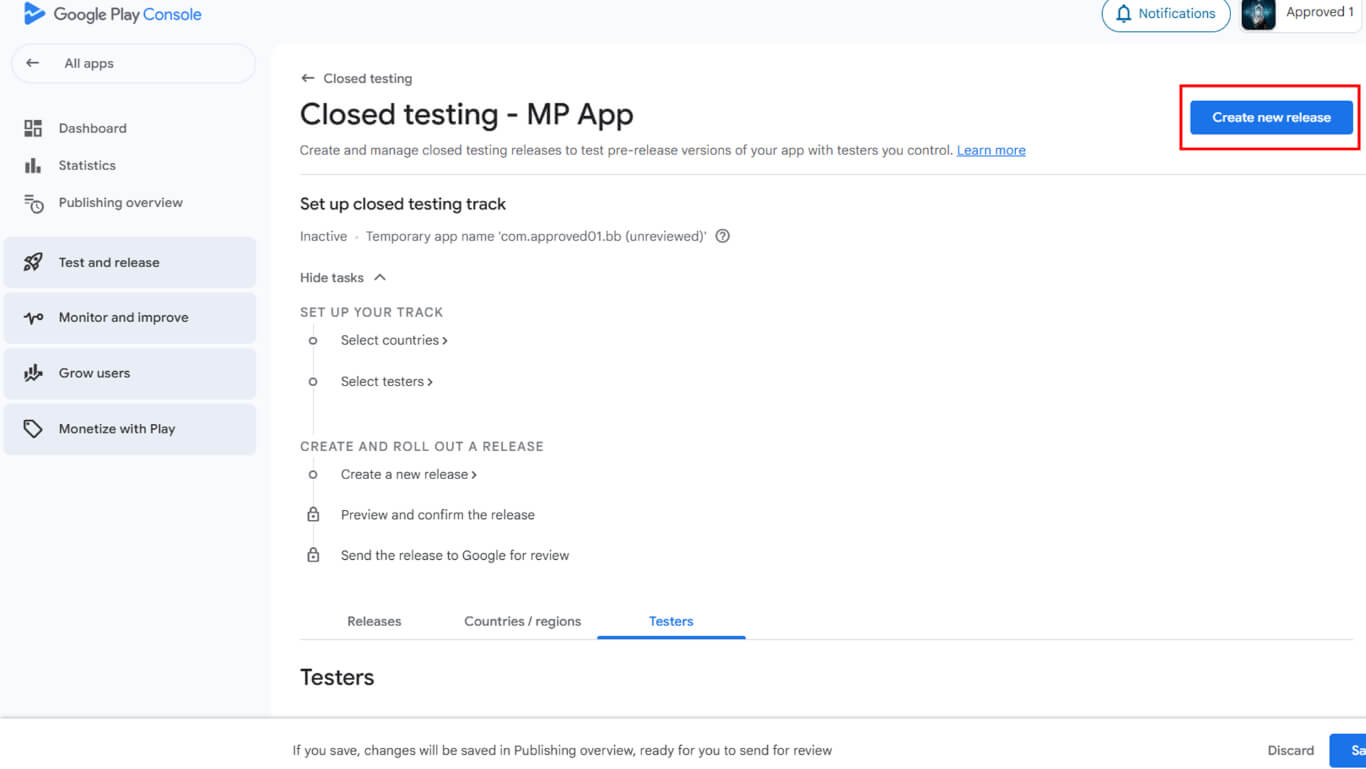
- Navigieren Sie in der Google Play Console zur geschlossenen Teststrecke.
- Klicken Sie auf die Neue Freigabe erstellen Taste.
- Blättern Sie zum App-Bündel Abschnitt.
- Klicken Sie auf Hochladen um die AAB-Datei auf dem Gerät auszuwählen.
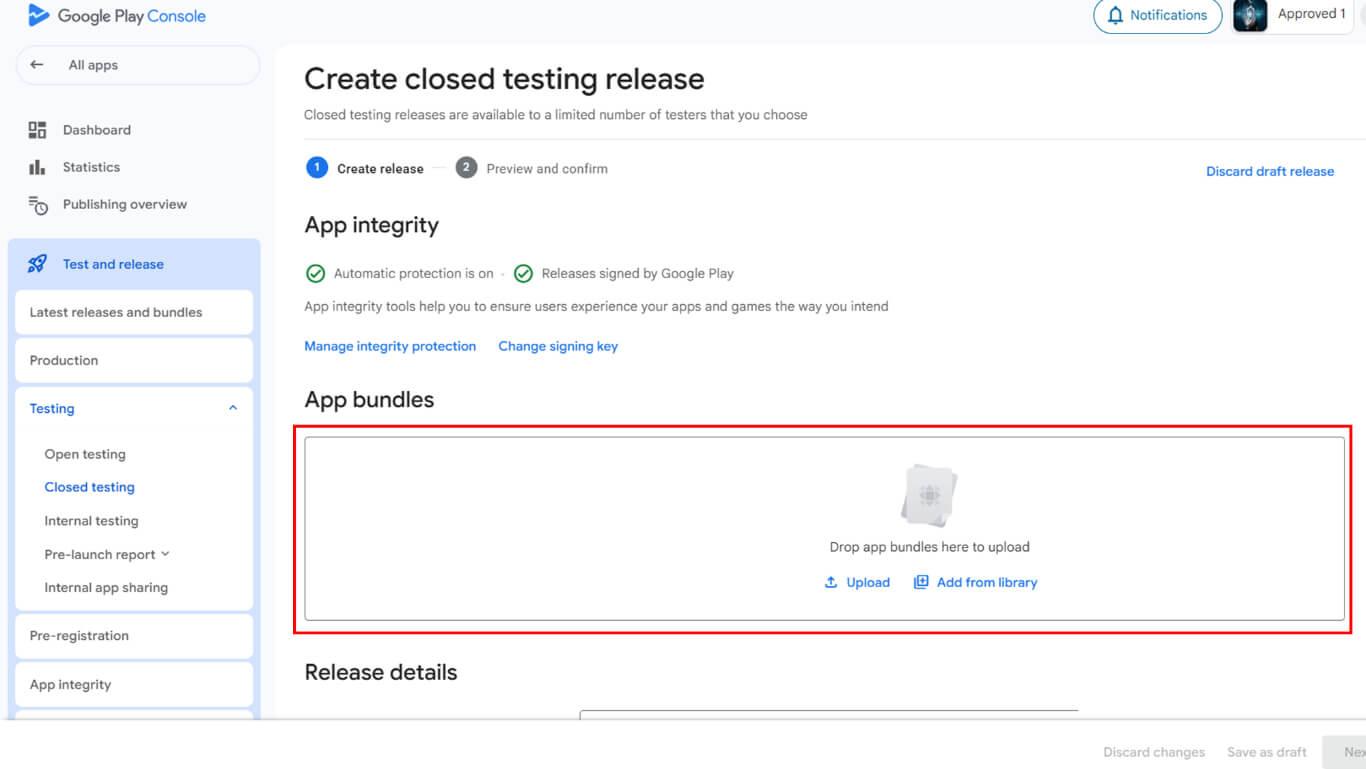
- Alternativ können Sie auch einen bestehenden AAB aus der Bibliothek auswählen.
- Klicken Sie auf Zur Freigabe hinzufügen nach Auswahl des Builds.
- Navigieren Sie zum Details zur Veröffentlichung Abschnitt.
- Überprüfen Sie, ob die automatisch ausgefüllte Versionsnummer korrekt ist.
- Eingabe Anmerkungen zur Veröffentlichung Beschreibung von Änderungen oder Merkmalen.
- Klicken Sie auf Weiter um mit der Überprüfung fortzufahren.
- Klicken Sie auf Speichern Sie um Freigabeinformationen zu speichern.
- Klicken Sie auf Zur Übersicht in dem Bestätigungs-Pop-up.
- Klicken Sie auf Änderungen zur Überprüfung senden zur Genehmigung vorzulegen.
- Bestätigen Sie die Übermittlung im Bestätigungsdialog.
Konfigurieren der Lizenzprüfung
Beim Lizenztest wird der Zugriff auf die Anwendung während des Testzeitraums auf autorisierte Tester beschränkt.
- Navigieren Sie zu Alle Apps in der linken Seitenleiste der Google Play-Konsole.
- Klicken Sie auf Einstellungen > Lizenzprüfung in der Navigation.
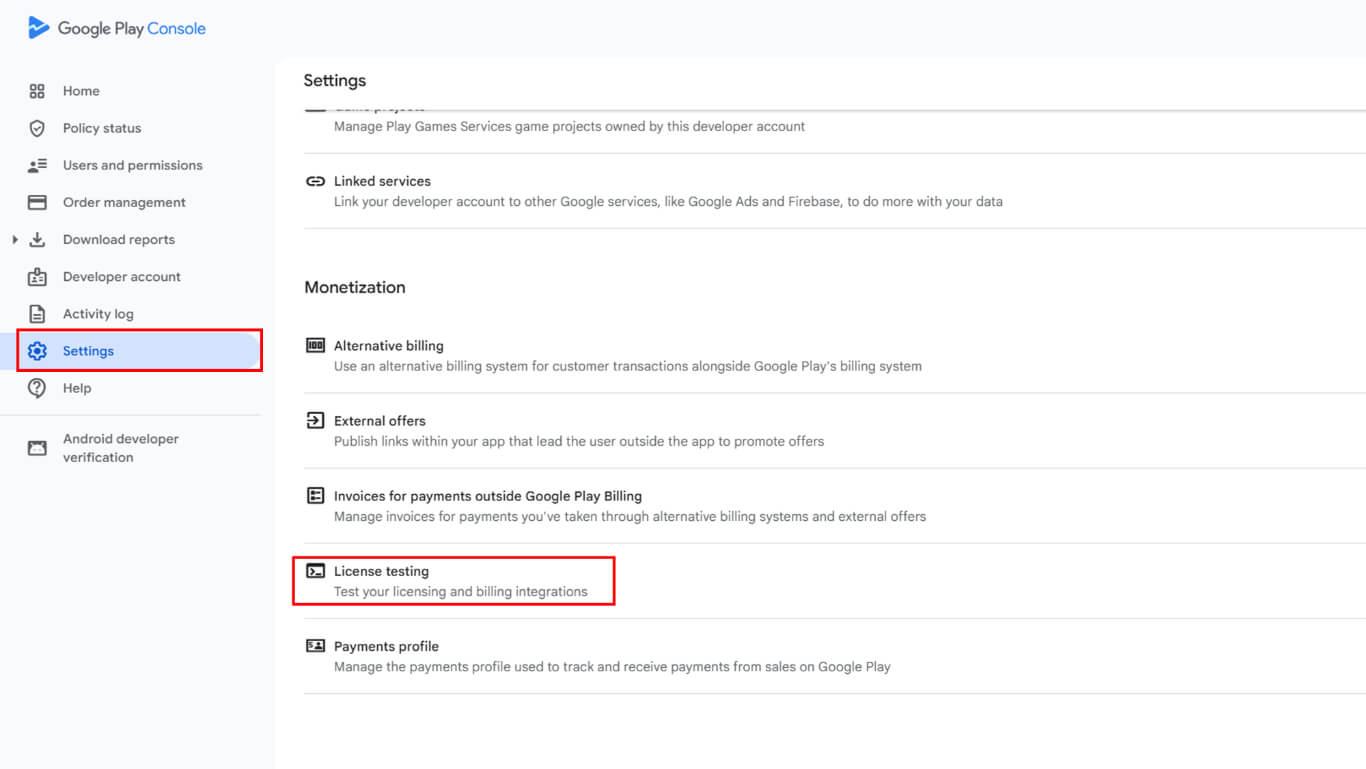
- Wählen Sie die E-Mail-Liste des Testers aus den verfügbaren Optionen aus.
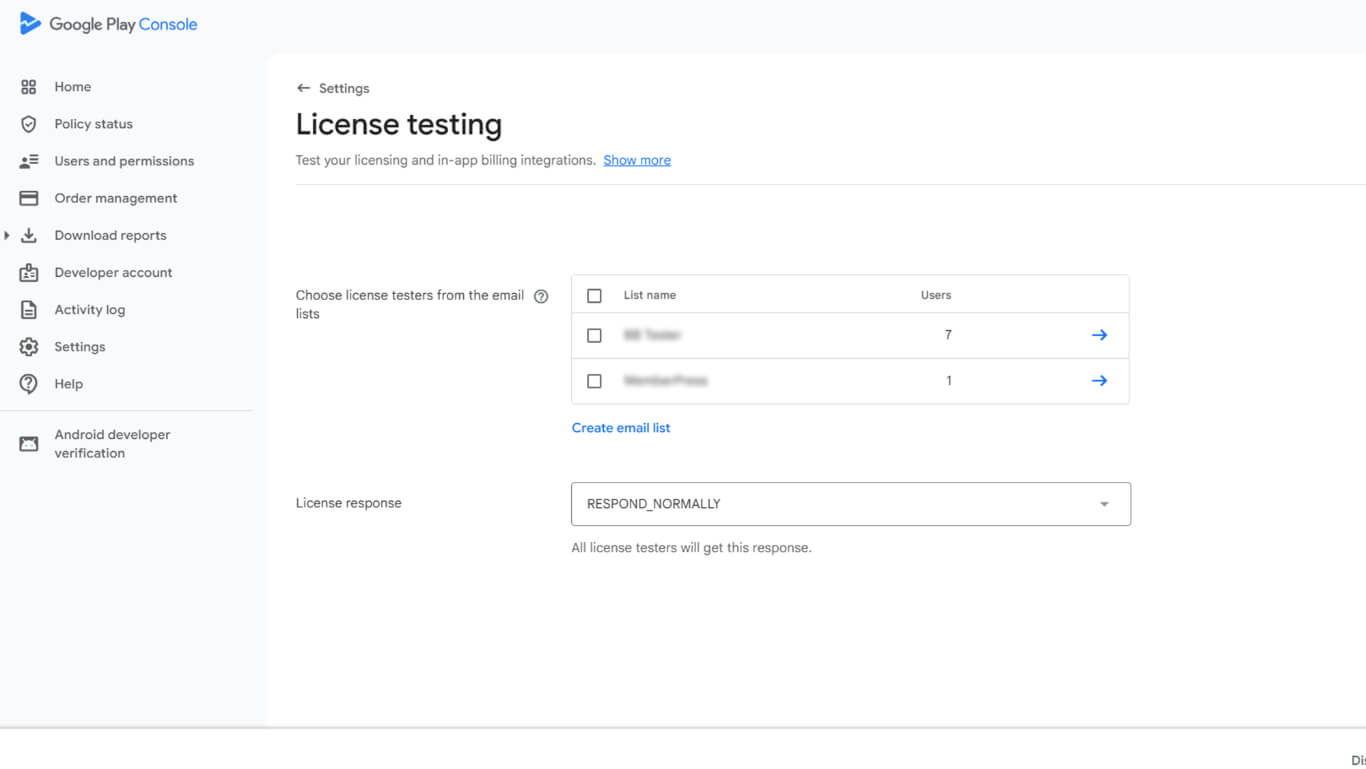
- Klicken Sie auf Änderungen speichern die Konfiguration der Lizenzprüfung fertigzustellen.
Die Lizenzprüfung stellt sicher, dass nur autorisierte Tester die Anwendung während der geschlossenen Testphase installieren und darauf zugreifen können.
Laufende 14-tägige geschlossene Testphase
In der Testphase wird Feedback gesammelt und die Funktionalität der Anwendung vor der Produktion überprüft.
- Warten Sie auf die Bestätigung der geschlossenen Testfreigabe durch Google.
- Kopieren Sie den Testlink aus der Übersicht der geschlossenen Teststrecken.
- Teilen Sie den Testlink allen 12 oder mehr Testern per E-Mail mit.
- Vergewissern Sie sich, dass die Prüfer sich über den Link für den geschlossenen Test anmelden.
- Überwachen Sie das Engagement der Tester während des 14-tägigen Mindestzeitraums.
- Sammeln Sie Feedback von den Testern über den vorgesehenen Feedback-Kanal.
- Prüfen Sie das Feedback, um Verbesserungen vor der Produktionsfreigabe zu ermitteln.
- Sorgen Sie dafür, dass mindestens 12 Testpersonen die App 14 Tage lang aktiv nutzen.
Beantragung des Produktionszugangs
Anträge auf Produktionszugang schalten die Produktionsspur für die Veröffentlichung von Anwendungen frei.
- Navigieren Sie zum Dashboard der Anwendung in Google Play-Konsole nach Erfüllung der Prüfungsanforderungen.
- Klicken Sie auf die Bewerbung für Produktion Taste.
- Überprüfen Sie den Fragebogen zum Antrag auf Produktionszugang.
- Beantworten Sie Fragen zum Ablauf und zu den Ergebnissen des geschlossenen Tests.
- Geben Sie Einzelheiten zu den Funktionen und Merkmalen der App oder des Spiels an.
- Bestätigung der Produktionsbereitschaft und der Qualitätsstandards.
- Klicken Sie auf Einreichen um die Bewerbung zur Überprüfung an Google zu senden.
- Warten Sie die Entscheidung von Google über den Produktionszugang ab.
Google prüft Anträge auf Produktionszugang in der Regel innerhalb von 7 Tagen oder weniger. Der Produktionszugang wird nach der Genehmigung freigeschaltet und ermöglicht die Vorbereitung der öffentlichen Freigabe.
Veröffentlichung nach dem Produktionszugang
Die Vorbereitung der Produktionsfreigabe erfolgt nach der Genehmigung des Produktionszugangs.
- Navigieren Sie zum Produktion nach der Genehmigung in der Google Play-Konsole verfolgen.
- Klicken Sie auf Neue Freigabe erstellen in der Produktionsschiene.
- Laden Sie die endgültige AAB-Datei für die App hoch.
- Vollständige Versionsangaben, einschließlich Versionsinformationen und Versionshinweise.
- Speichern Sie die Konfiguration der Produktionsfreigabe.
- Navigieren Sie zu Dashboard > MP AppKit > Veröffentlichungsdienst > Google Play Store in WordPress.
- Klicken Sie auf Einreichen um einen Veröffentlichungsauftrag zu erstellen.
- Das Publishing Team verwaltet die Einreichung von Apps im Google Play Store.
- Überwachen Sie Ihre E-Mails, um vom Veröffentlichungsteam über den Stand der Einreichung informiert zu werden.
Das Publishing Team kümmert sich um die endgültige Einreichung der App und die Kommunikation mit dem Google Play Store Review Team.










 DE
DE  EN
EN  ES
ES  FR
FR  PT
PT 