

Eingeschränkte Inhalte erfordern eine klare Kommunikation, die die Zugangsbeschränkungen und die nächsten Schritte erklärt. Die Standardmeldung "Gesperrt" wird angezeigt, wenn Mitglieder auf gesperrte Inhalte in der App stoßen.
In diesem Dokument wird erläutert, wie Sie den Inhalt von Nachrichten konfigurieren, Call-to-Action-Schaltflächen anpassen und Content Teasers für eingeschränkte Seiten aktivieren.
Verstehen der standardmäßigen eingeschränkten Nachricht
Die standardmäßige Meldung "Zugriffsbeschränkung" wird angezeigt, wenn Benutzer versuchen, auf durch Zugriffsregeln geschützte Inhalte zuzugreifen. Diese Meldung teilt mit, warum der Zugriff verweigert wird, und leitet die Benutzer zu Aktionen an, die den Zugriff ermöglichen. Einzelne Zugriffsregeln können die Standardmeldung mit benutzerdefinierten Inhalten überschreiben, aber die Standardmeldung bietet eine einheitliche Meldung für alle eingeschränkten Inhalte ohne spezifische Anpassungen.
Zugriff auf die Standard-Nachrichteneinstellungen
Die Standardeinstellungen für eingeschränkte Nachrichten steuern die globale Nachrichtenübermittlung für alle geschützten Inhalte.
- Navigieren Sie zu Dashboard > MP AppKit > Einstellungen > Zugriffskontrollen.
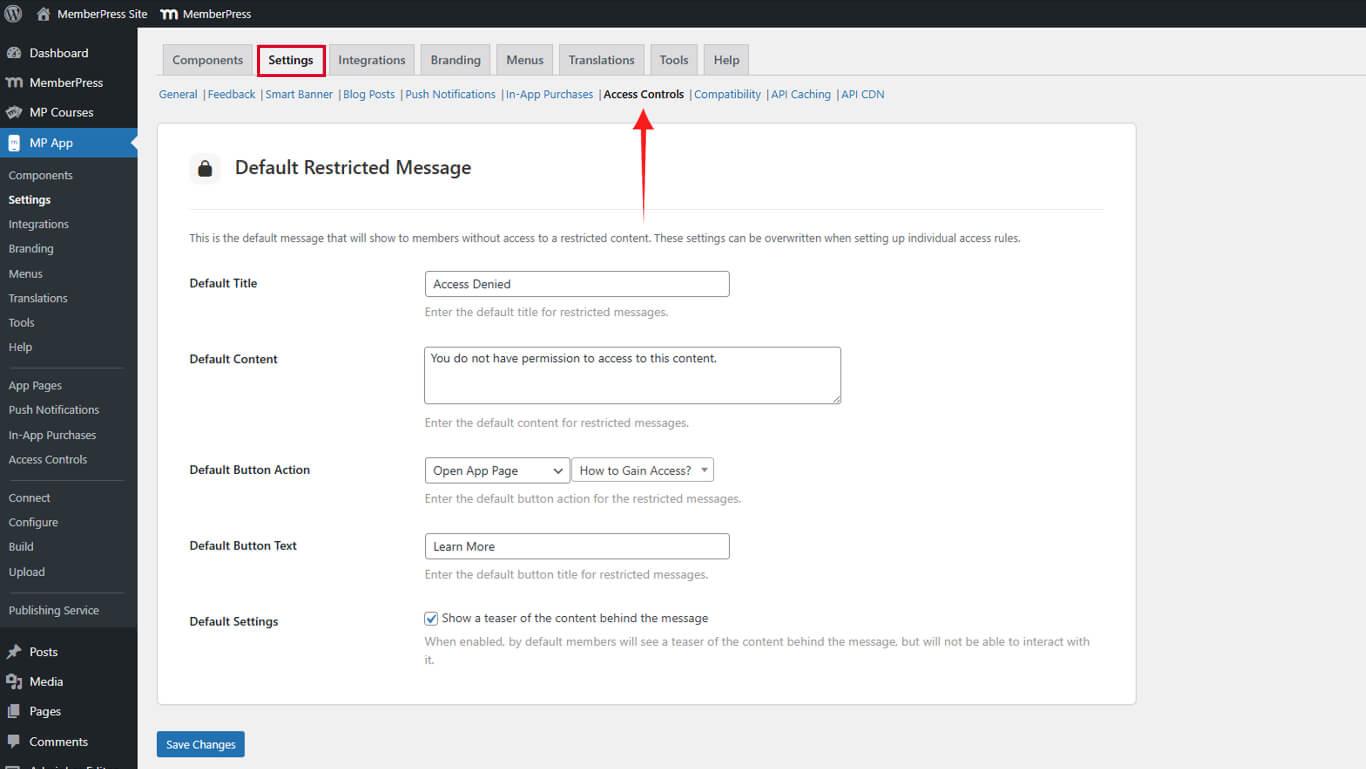
- Suchen Sie die Standardmäßige eingeschränkte Nachricht Abschnitt.
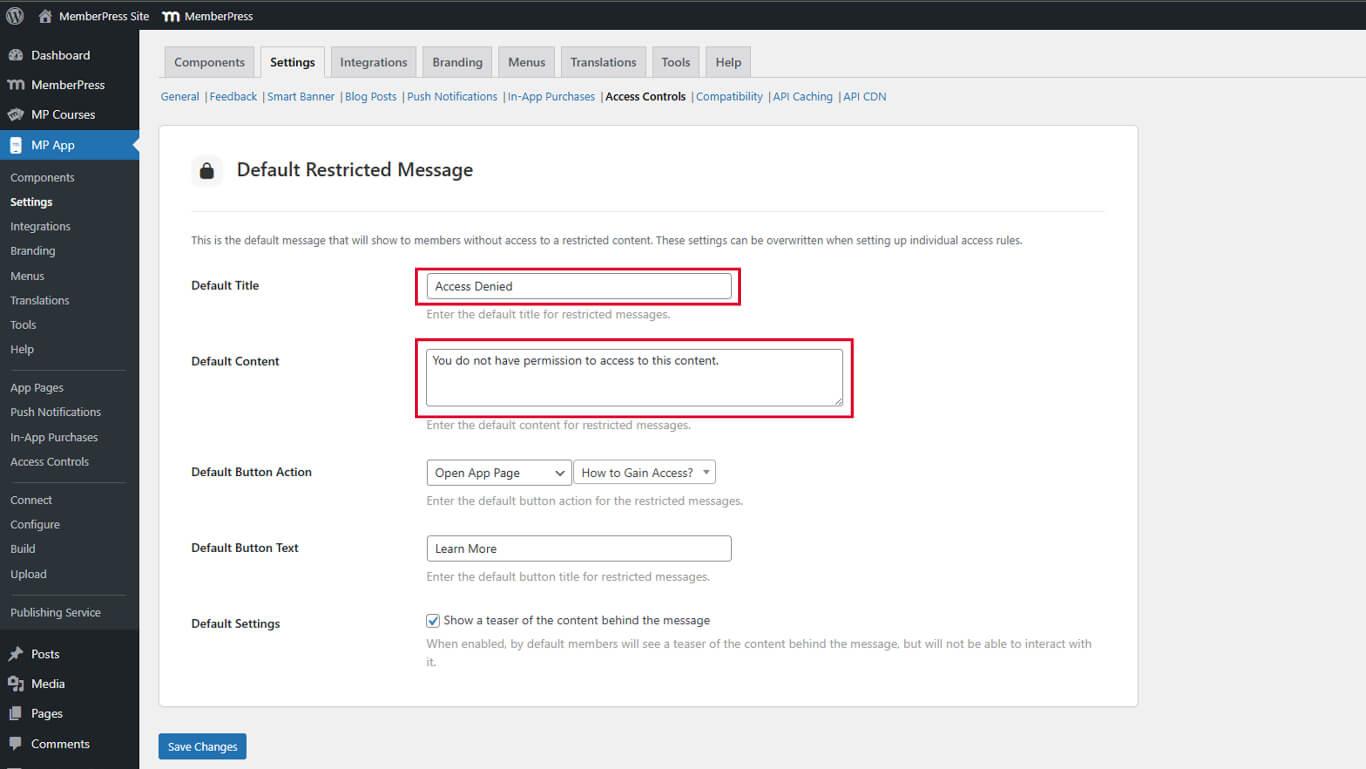
- In der Standard-Titel geben Sie einen klaren, prägnanten Titel ein, der die Zugangsbeschränkung beschreibt.
- In der Standard-Inhalt geben Sie einen erläuternden Text ein, in dem die Zugangsvoraussetzungen beschrieben werden.
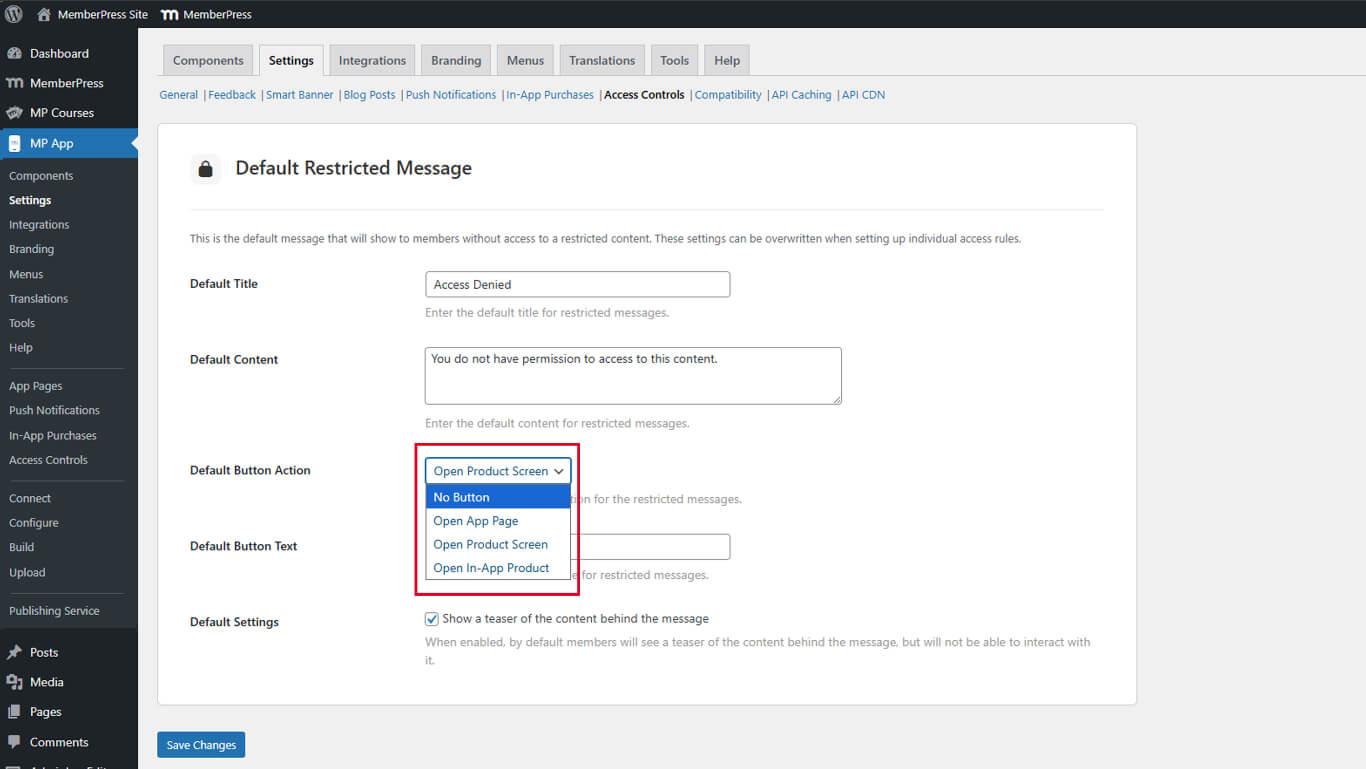
- Unter Standard-Schaltflächenaktion, wählen Sie das entsprechende Verhalten aus der Dropdown-Liste:
- Keine Taste: Zeigt keine Aufforderung zum Handeln an.
- App-Seite öffnen: Leitet die Nutzer zu einer benutzerdefinierten App-Seite.
- Produktbildschirm öffnen: Zeigt die verfügbaren Mitgliedschaftsoptionen an.
- In-App Produkt öffnen: Zeigt ein bestimmtes Mitgliedschaftsangebot an.
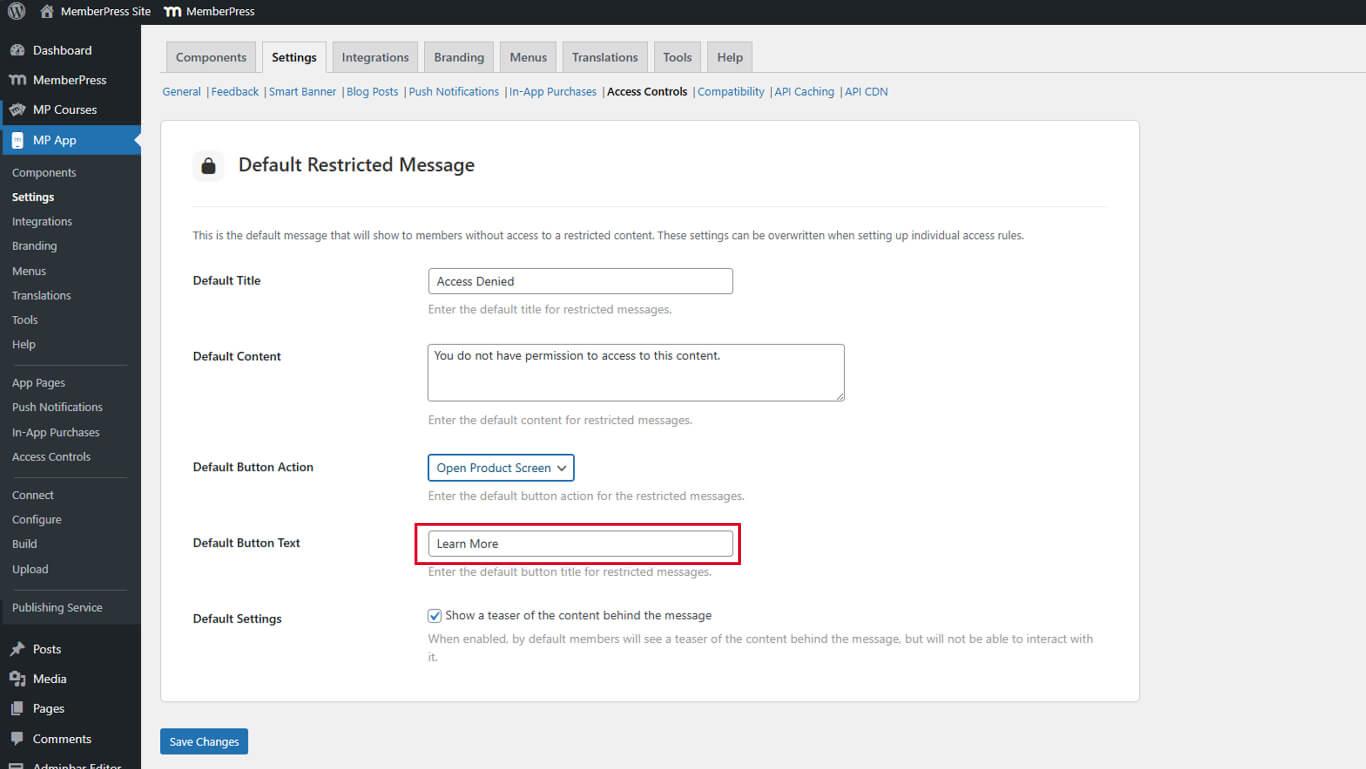
- In der Schaltfläche Text geben Sie die beschreibende Bezeichnung für die Call-to-Action-Schaltfläche ein.
- Suchen Sie die Teaser anzeigen Kontrollkästchen unter Eingeschränkte Standardnachricht.
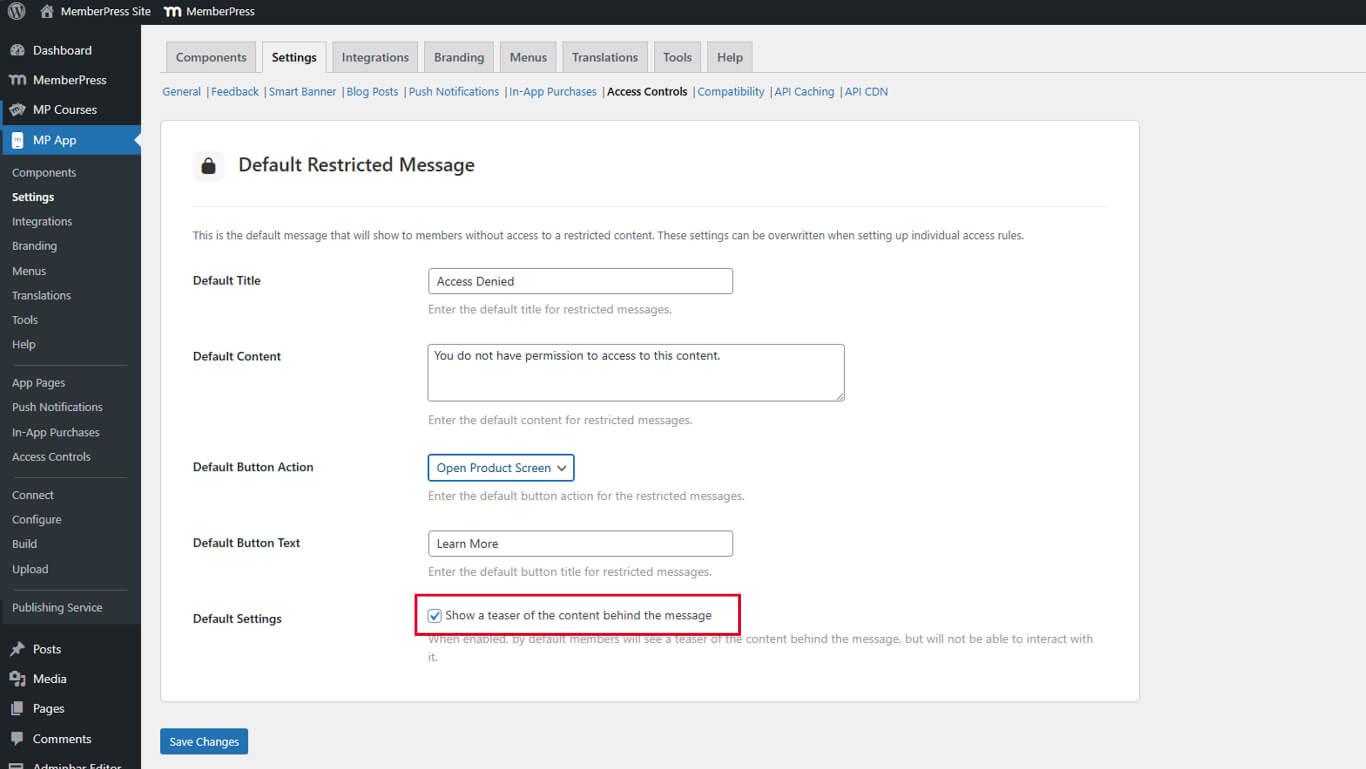
- Aktivieren Sie das Kontrollkästchen, um die Inhaltsvorschau zu aktivieren.
- Klicken Sie auf Änderungen speichern.










 DE
DE  EN
EN  ES
ES  FR
FR  PT
PT 