

Zugriffsregeln steuern, welche Mitglieder bestimmte App-Inhalte sehen können. Diese Regeln schränken den Zugriff auf Anmeldebildschirme, App-Seiten, Blog-Posts und Mitgliederinhalte basierend auf dem Anmeldestatus oder der Mitgliedschaft in der Zugangsgruppe ein.
In diesem Dokument wird erläutert, wie Sie Zugriffsregeln konfigurieren, Beschränkungen auf verschiedene Inhaltstypen anwenden und Beschränkungsmeldungen für nicht autorisierte Benutzer anpassen können.
Verstehen der Zugangsregeln
Zugriffsregeln definieren die Sichtbarkeitsbedingungen für App-Inhalte. Jede Regel legt fest, welche Mitglieder auf bestimmte Seiten, Beiträge oder Funktionen zugreifen können. Die Regeln können eine Anmeldeauthentifizierung, eine Mitgliedschaft in bestimmten Zugriffsgruppen oder eine Kombination mehrerer Bedingungen erfordern. Wenn Benutzer versuchen, auf eingeschränkte Inhalte zuzugreifen, werden sie durch benutzerdefinierte Meldungen zu den entsprechenden Aktionen geleitet.
Aktivieren der Komponente Zugriffskontrollen
Zugriffskontrollen müssen aktiviert werden, bevor Zugriffsregeln erstellt werden können.
- Navigieren Sie zu Dashboard > MP AppKit > Komponenten.
- Lokalisieren Zugangskontrollen in der Komponentenliste.
- Klicken Sie auf Aktivieren Sie neben Zugriffskontrollen.
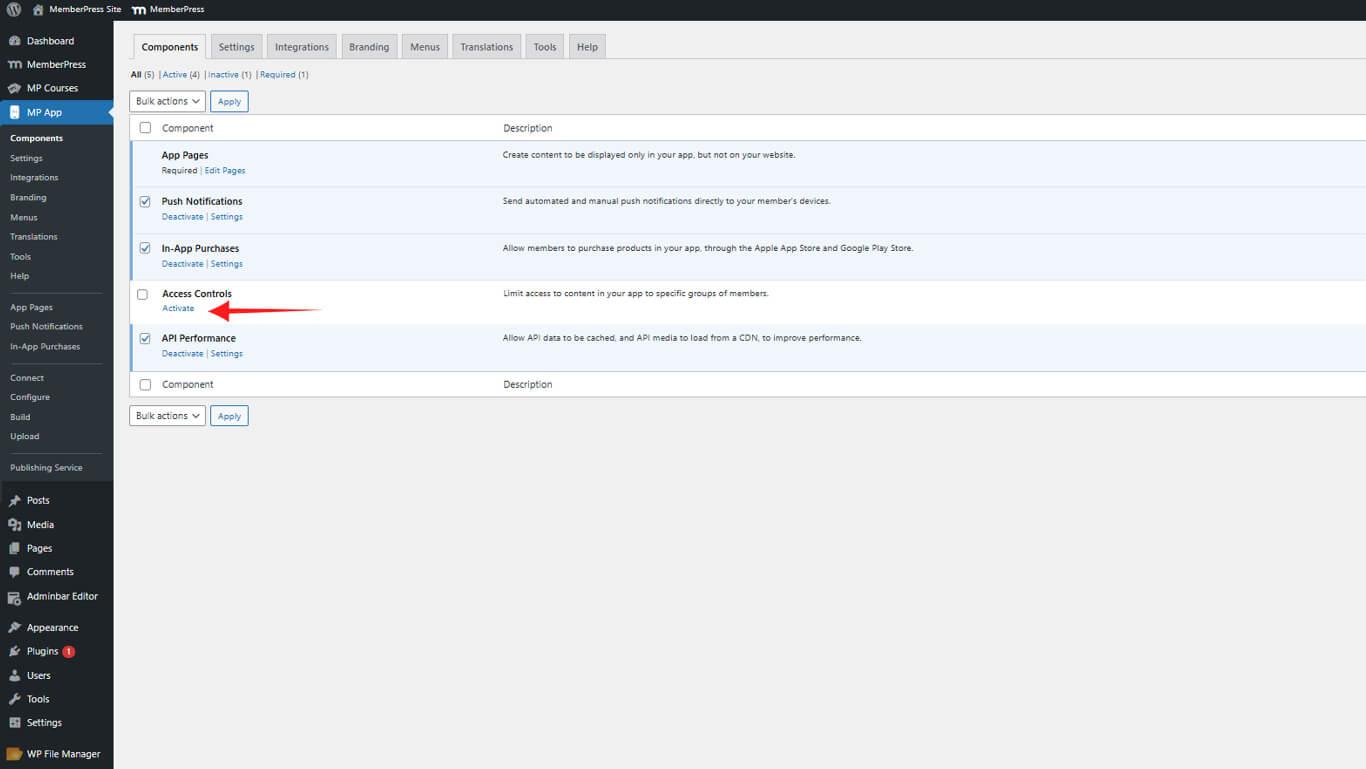
Nach der Aktivierung wird die Zugangskontrollen erscheint im WordPress-Administrationsmenü unter dem Menüpunkt MP AppKit.
Konfigurieren des allgemeinen App-Zugriffs
Allgemeine Zugriffskontrollen für die Anwendung bestimmen, wer die Anwendung betreten darf. Diese Regeln gelten für die gesamte Anwendung, bevor Benutzer auf bestimmte Inhalte zugreifen.
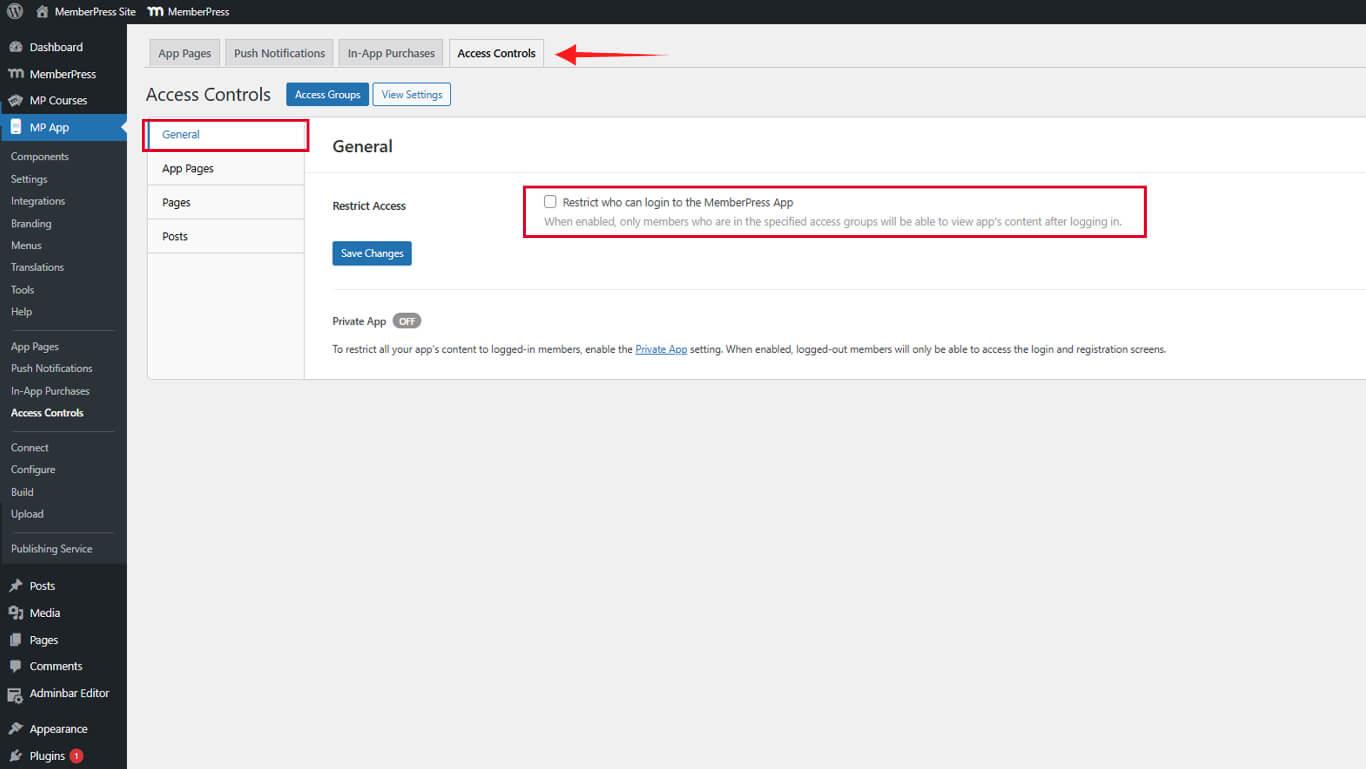
- Navigieren Sie zu Dashboard > MP AppKit > Zugriffskontrollen > Allgemein.
- Prüfen Sie die Zugang einschränken um Einschränkungen auf Anwendungsebene zu aktivieren.
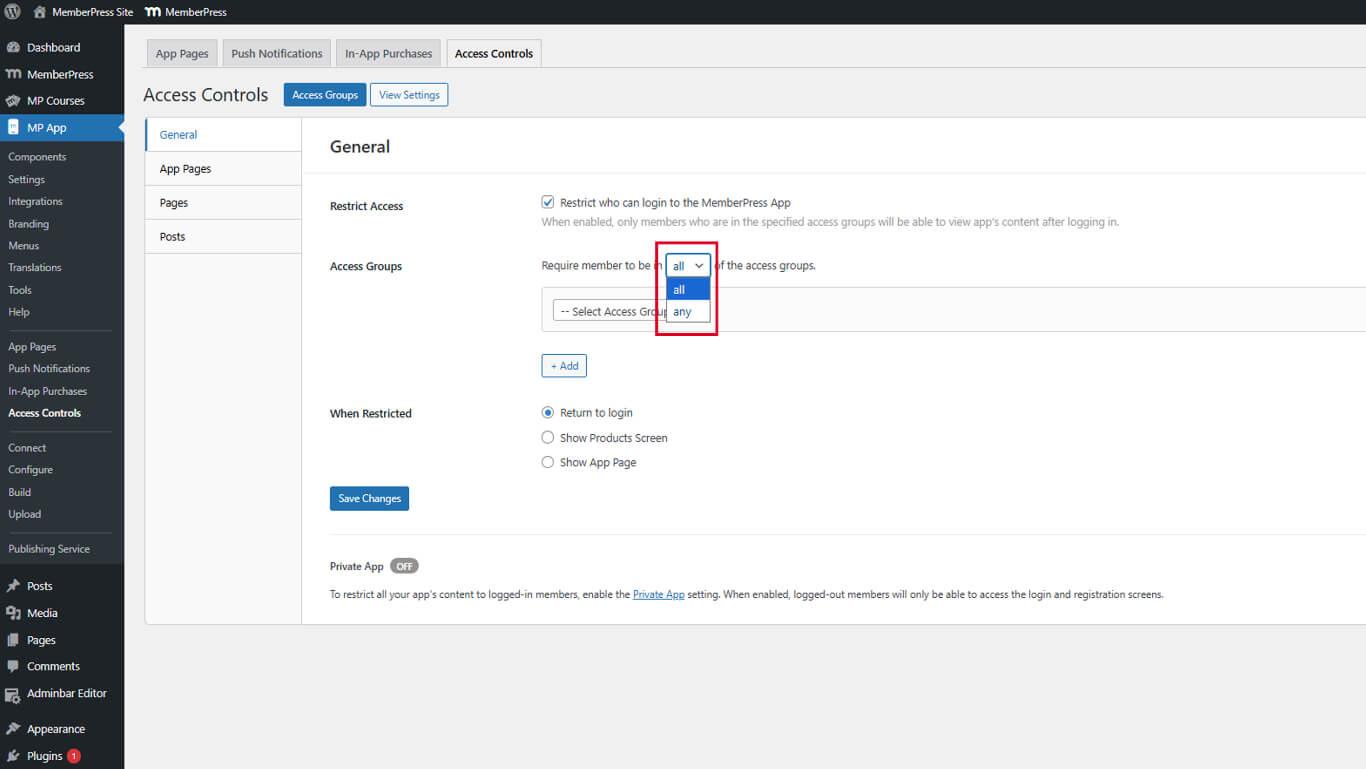
- Wählen Sie die gewünschte Zugriffsstufe unter Zugang Gruppen:
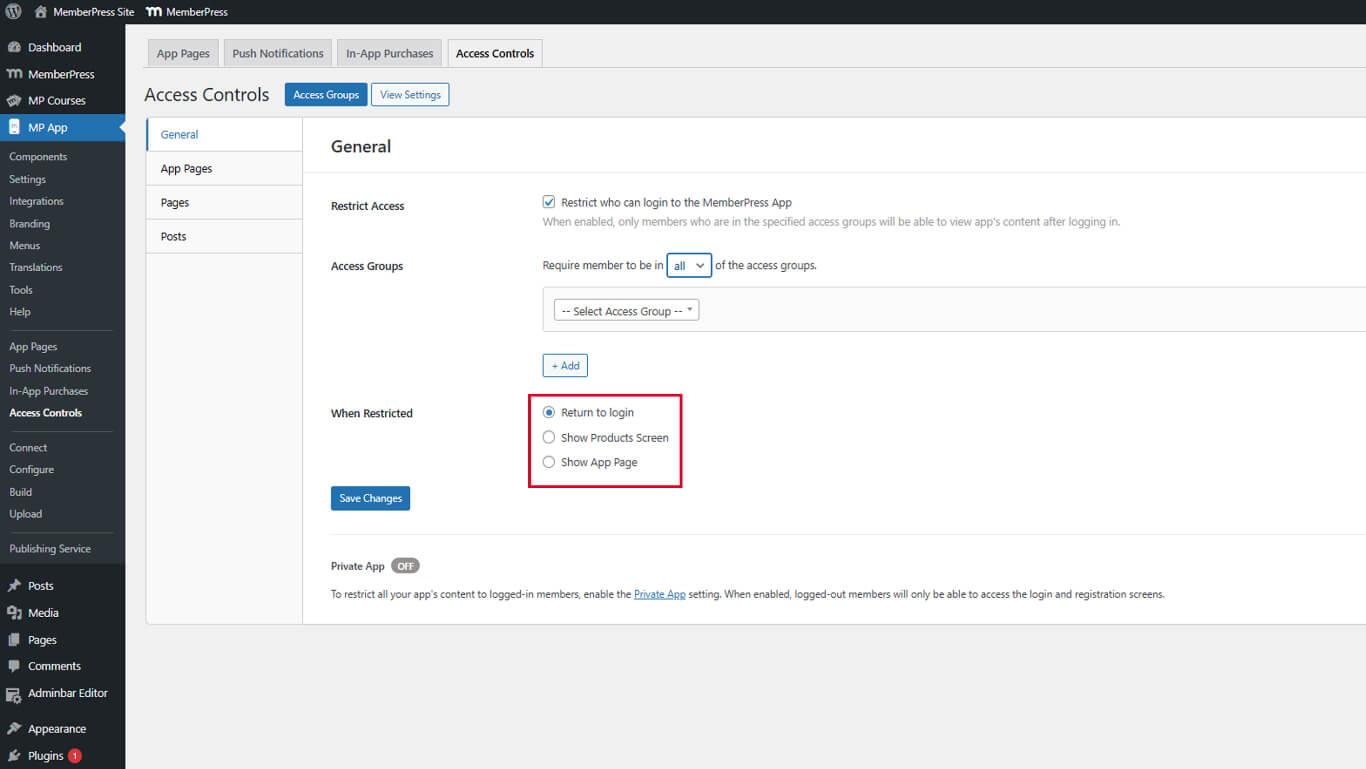
- Wählen Sie eine Eingeschränkte Aktion für nicht autorisierte Benutzer:
- Zurück zum Login leitet die Benutzer zum Anmeldebildschirm weiter;
- Produktbildschirm anzeigen zeigt die verfügbaren Mitgliedschaftsoptionen an;
- App-Seite anzeigen leitet die Nutzer auf eine benutzerdefinierte Informationsseite weiter.
- Klicken Sie auf Änderungen speichern.
Aktivieren des privaten App-Modus
Der private App-Modus verbirgt die App vollständig vor abgemeldeten Benutzern.
- Navigieren Sie zu Dashboard > MP AppKit > Einstellungen > Allgemein > Datenschutz.
- Prüfen Sie die Private App Kontrollkästchen.
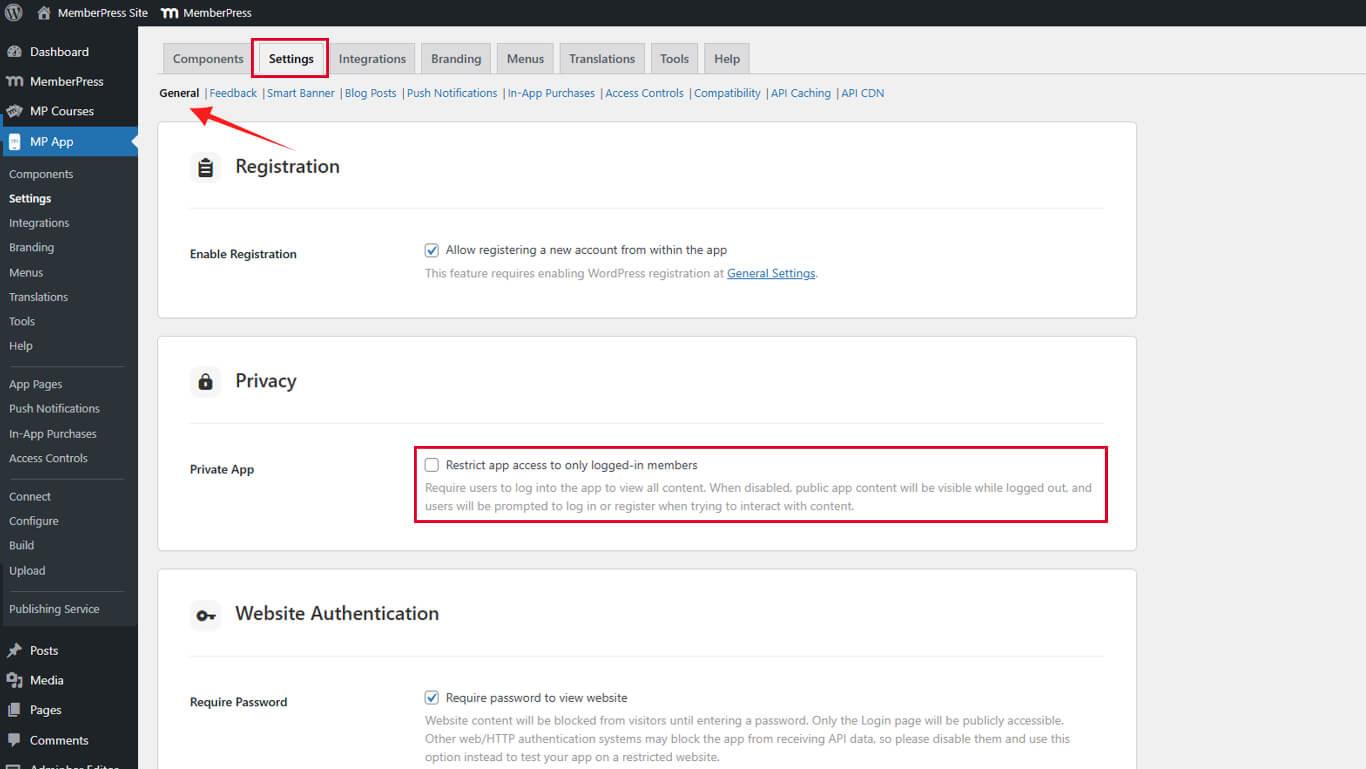
- Klicken Sie auf Änderungen speichern.










 DE
DE  EN
EN  ES
ES  FR
FR  PT
PT 