

API-Caching reduziert Datenbankabfragen, indem API-Antworten im Schnellzugriffsspeicher gespeichert werden. Diese Optimierung beschleunigt die Ladezeiten für Feeds, Menüs, Seiten und Mitgliederinhalte.
In diesem Dokument wird erläutert, wie Sie das API-Caching aktivieren, die Installation überprüfen, die Cache-Einstellungen konfigurieren und allgemeine Caching-Probleme beheben.
Verstehen des API-Caching
API-Caching speichert häufig abgerufene Daten im Speicher, anstatt die WordPress-Datenbank bei jeder Anfrage abzufragen. Die erste Anfrage ruft Daten aus der Datenbank ab und speichert sie im Cache. Nachfolgende Anfragen rufen die Daten direkt aus dem Cache ab, was zu schnelleren Antwortzeiten und geringerer Serverlast führt.
Aktivieren der API-Leistungskomponente
Die Komponente API-Leistung muss aktiviert werden, bevor die Caching-Konfiguration beginnen kann.
- Navigieren Sie zu Dashboard > MP AppKit > Komponenten.
- Lokalisieren API-Leistung in der Komponentenliste.
- Klicken Sie auf Aktivieren Sie.
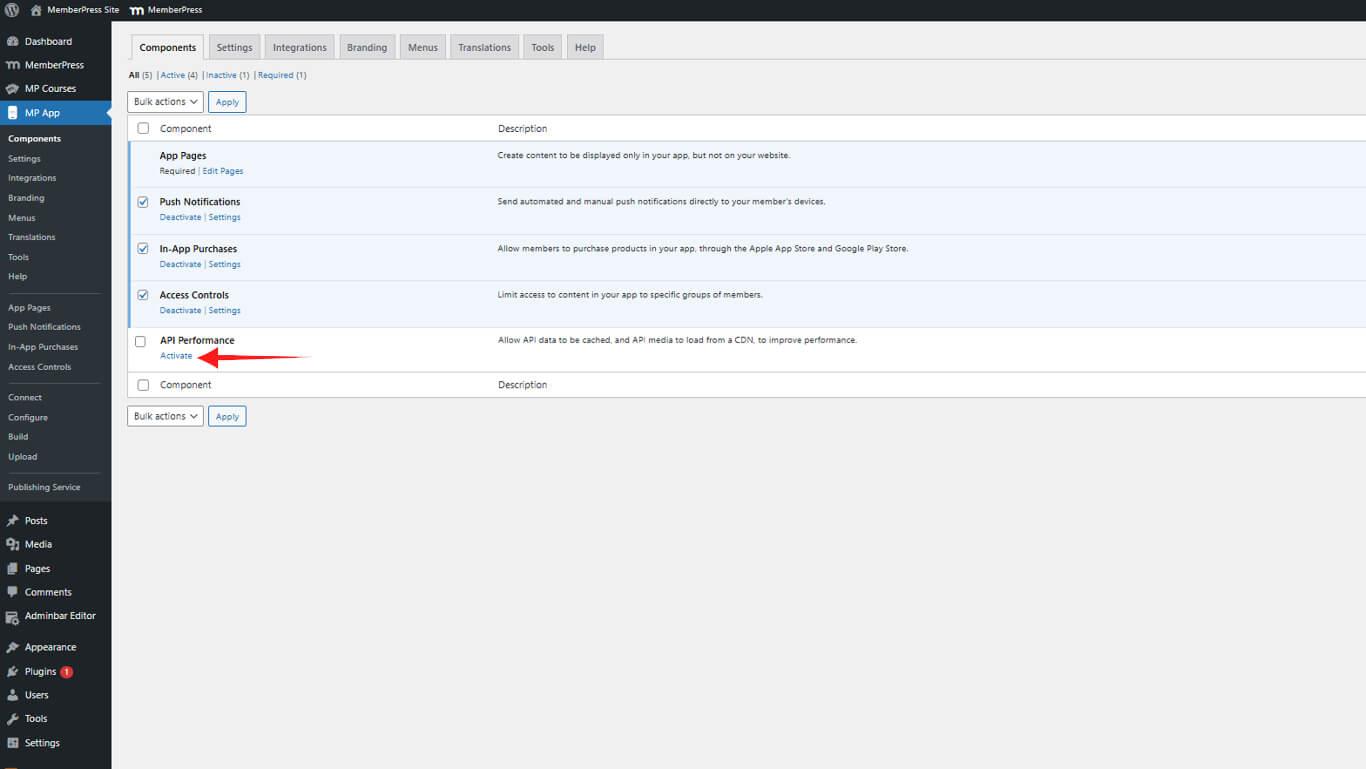
Die Komponente API Performance bietet Caching-Funktionen und andere Optimierungsfunktionen für die Anwendung.
Überprüfen der Installation von Must-Use-Plugins
API Caching erfordert ein Plugin, das Sie unbedingt verwenden müssen, um korrekt zu funktionieren. Die Überprüfung stellt sicher, dass das Plugin richtig installiert ist.
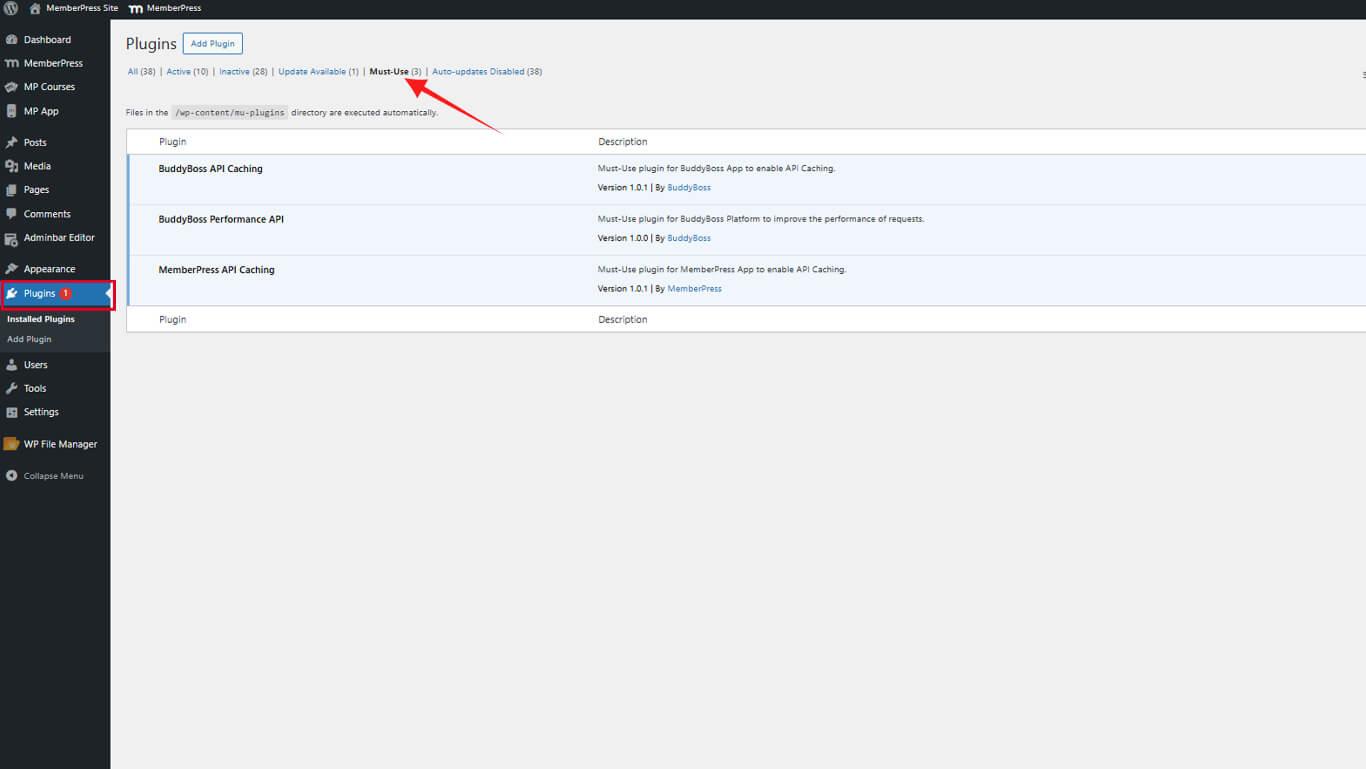
- Navigieren Sie zu Dashboard > Plugins > Must-Use.
- Bestätigen Sie, dass MemberPress API-Zwischenspeicherung erscheint in der Plugin-Liste.
Konfigurieren der Cache-Einstellungen
Die Cache-Einstellungen bestimmen, welche Inhaltstypen die Cache-Funktion nutzen.
- Navigieren Sie zu Dashboard > MP AppKit > Einstellungen > API-Caching.
- Aktivieren Sie die Kontrollkästchen für die zu cachenden Inhaltstypen:
- MemberPress
- App-Seiten
- Blog-Beiträge
- Blog-Kommentare
- Blog-Kategorien
- Lesezeichen setzen
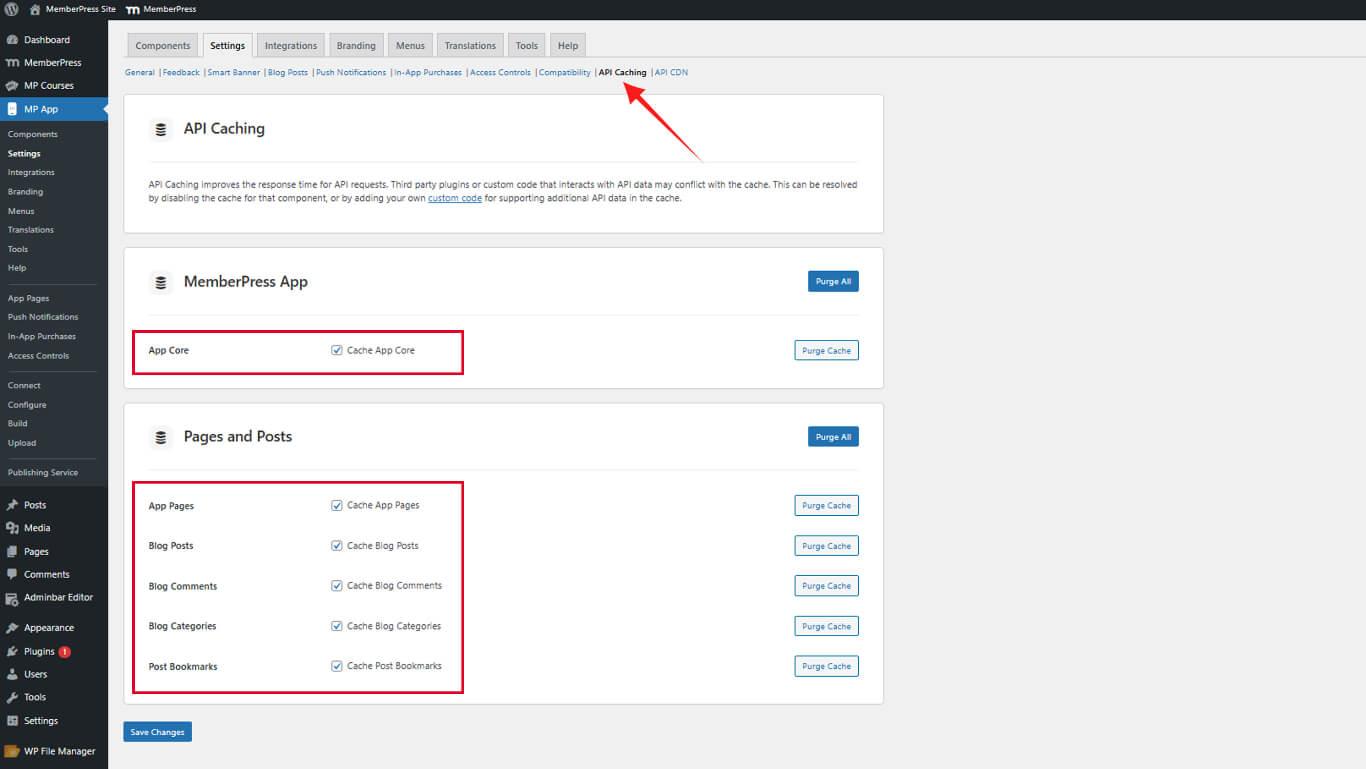
- Klicken Sie auf Änderungen speichern.
Verwalten zwischengespeicherter Daten
Zwischengespeicherte Daten müssen gelöscht werden, wenn Inhalte aktualisiert werden, damit die Benutzer aktuelle Informationen sehen.
Löschen von einzelnen Cache-Elementen
- Navigieren Sie zu Dashboard > MP AppKit > Einstellungen > API-Caching.
- Suchen Sie den Cache-Inhaltstyp, der bereinigt werden muss.
- Klicken Sie auf Cache leeren neben dem jeweiligen Element.
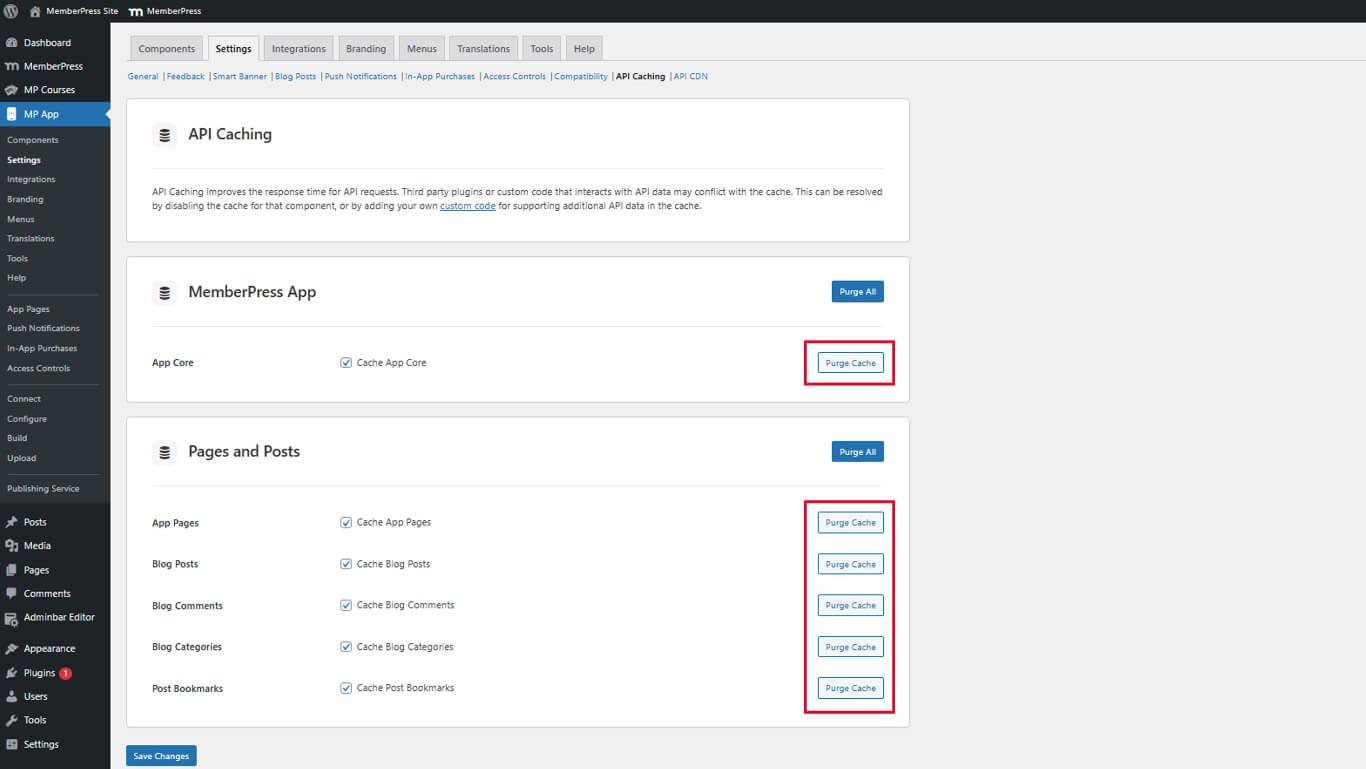
Die individuelle Cache-Löschung ermöglicht eine selektive Löschung, ohne andere Cache-Inhalte zu beeinträchtigen.
Bereinigung aller zwischengespeicherten Daten
- Navigieren Sie zu Dashboard > MP AppKit > Einstellungen > API-Caching.
- Klicken Sie auf Alle bereinigen am Anfang der Caching-Einstellungen.
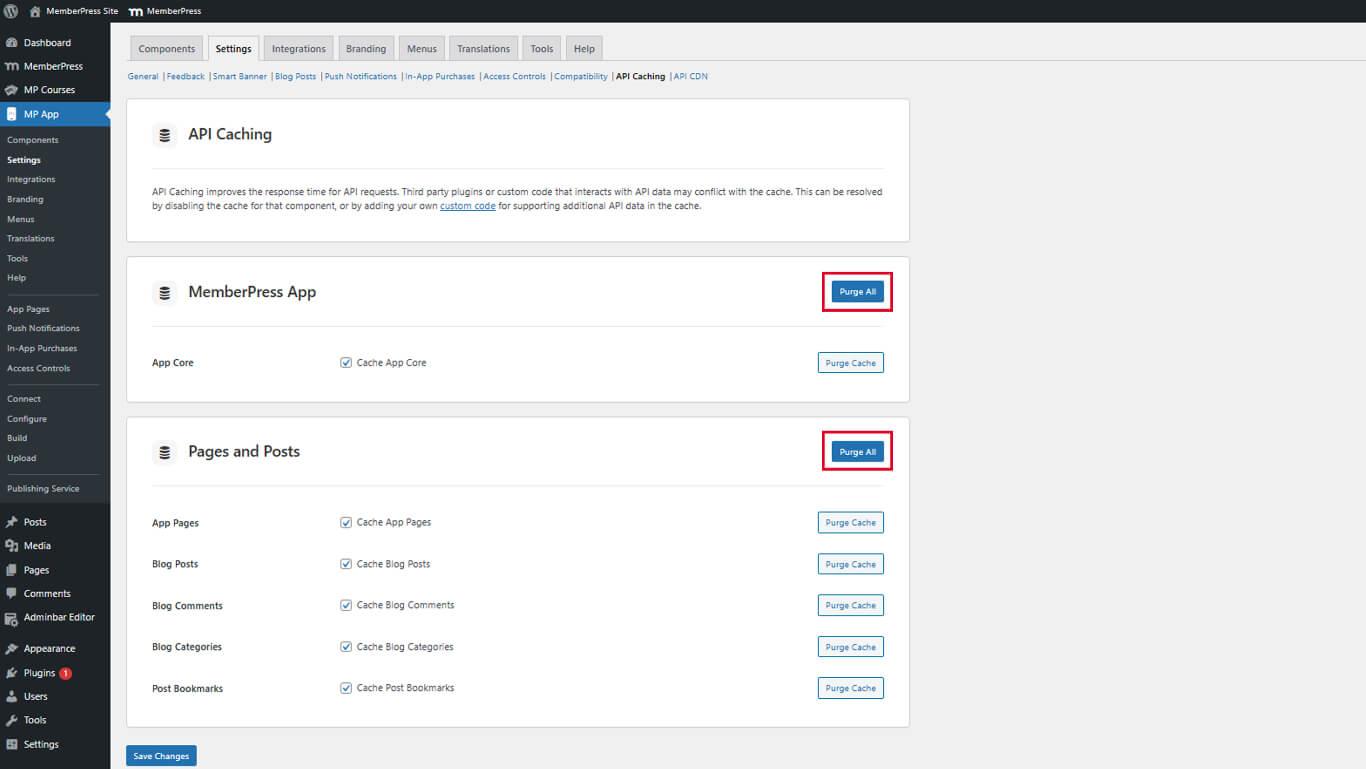
Alle zwischengespeicherten Daten werden sofort gelöscht, und bei der nächsten API-Anfrage werden neue Daten hinzugefügt.
Verständnis des Cache-Verhaltens
Die API-Zwischenspeicherung folgt einem vorhersehbaren Arbeitsablauf, der Leistung und Datenaktualität in Einklang bringt.
Prozess der Erstanfrage
Wenn ein Benutzer zum ersten Mal zwischengespeicherte Inhalte anfordert:
- Die API erhält die Anfrage von der Anwendung.
- Die API fragt die WordPress-Datenbank nach den angeforderten Daten ab.
- Die API speichert die Antwort im Cache-System.
- Die API gibt die Daten an den Nutzer zurück.
Für diese erste Anfrage gelten die üblichen Zeiten für Datenbankabfragen.
Prozess der nachträglichen Anfrage
Nachdem die Daten zwischengespeichert wurden, folgen zukünftige Anfragen einem optimierten Pfad:
- Die API erhält die Anfrage von der Anwendung.
- Die API ruft Daten direkt aus dem Cache-Speicher ab.
- Die API gibt die zwischengespeicherten Daten sofort an den Benutzer zurück.
Zwischengespeicherte Anfragen werden wesentlich schneller abgeschlossen als Datenbankabfragen.
Automatische Cache-Löschung
Der Cache wird automatisch gelöscht, wenn sich der Inhalt ändert:
- Neue Beiträge oder Seiten werden veröffentlicht;
- Vorhandene Inhalte werden aktualisiert oder gelöscht;
- Die Mitgliedschaftsstufen ändern sich;
- Plugin-Einstellungen werden geändert.
Die automatische Bereinigung stellt sicher, dass die Benutzer aktuelle Daten erhalten, ohne dass sie manuell eingreifen müssen.










 DE
DE  EN
EN  ES
ES  FR
FR  PT
PT 