

Konsistente Markenfarben verbessern das App-Design, stärken die Identität und verbessern die Benutzerfreundlichkeit. Die MemberPress AppKit-Farbeinstellungen ermöglichen die Anpassung von Hintergründen, Schaltflächen, Navigationselementen und hervorgehobenen Inhalten.
In diesem Dokument wird erläutert, wie Sie Farbschemata für alle App-Abschnitte konfigurieren und Änderungen auf iOS- und Android-Plattformen in der Vorschau anzeigen können.
Verstehen der Farbkonfiguration
Die Farbeinstellungen steuern das visuelle Erscheinungsbild der gesamten App, einschließlich Hintergründen, Text, Schaltflächen, Navigationsleisten und interaktiven Elementen. Jede Farbeinstellung wirkt sich auf bestimmte Oberflächenkomponenten aus. Echtzeit-Vorschauen zeigen Farbänderungen auf iOS- und Android-Mockups an. Die richtige Farbkonfiguration sorgt für Markenkonsistenz und erhält die Lesbarkeit über verschiedene Bildschirmkontexte hinweg.
Zugriff auf die Farbeinstellungen
Die gesamte Farbkonfiguration erfolgt über die Schnittstelle für Branding-Farben.
- Navigieren Sie zu Dashboard > MP AppKit > Branding > Farben.
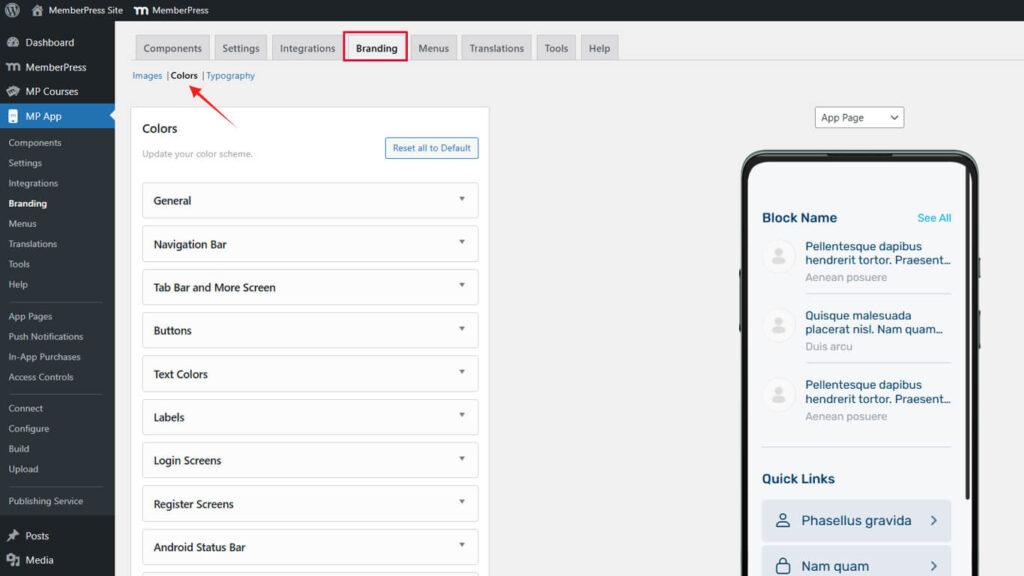
Allgemeine Farben konfigurieren
Allgemeine Farben definieren primäre Oberflächenelemente in der gesamten App.
- Navigieren Sie zu Dashboard > MP AppKit > Branding > Farben.
- Suchen Sie die Allgemein Abschnitt.
- Klicken Sie auf die Hintergrundfarbe swatch.
- Wählen Sie eine Farbe mit dem Farbwähler oder geben Sie einen Hex-Code ein.
- Klicken Sie auf die Alternative Hintergrundfarbe swatch.
- Wählen Sie eine kontrastierende Farbe für die alternativen Inhaltsbereiche.
- Klicken Sie auf die Farbiger Bildhintergrund swatch.
- Wählen Sie eine Farbe für die Hintergründe der Bildplatzhalter.
- Klicken Sie auf die Farbe der Umrandung swatch.
- Wählen Sie eine dezente Farbe für Elementränder und Trennlinien.
- Klicken Sie auf die Akzentfarbe swatch.
- Wählen Sie eine auffällige Farbe zur Hervorhebung und Betonung.
Änderungen werden sofort in der Vorschau der App-Seite, der Verzeichnis-Seite und der Menü-Seite angezeigt.
Verstehen allgemeiner Farbzwecke
Jede allgemeine Farbe dient spezifischen Schnittstellenfunktionen.
Hintergrundfarbe füllt primäre Inhaltsbereiche und Seiten. Diese Farbe sollte einen optimalen Kontrast zu den Textfarben bieten, um die Lesbarkeit zu gewährleisten.
Alternative Hintergrundfarbe unterscheidet Abschnitte oder Karten innerhalb von Seiten. Diese Farbe sollte einen subtilen Kontrast zum primären Hintergrund bilden und gleichzeitig ein kohärentes Erscheinungsbild beibehalten.
Farbiger Bildhintergrund wird beim Laden oder wenn keine Bilder verfügbar sind, hinter den Bildern angezeigt. Diese Farbe sollte typische Bildinhalte ergänzen, ohne störende Übergänge zu schaffen.
Farbe der Umrandung definiert Elementgrenzen und Trennlinien. Diese Farbe sollte dezent genug sein, um nicht zu dominieren, aber sichtbar genug, um für Struktur zu sorgen.
Akzentfarbe hebt interaktive Elemente und wichtige Informationen hervor. Diese Farbe sollte hervorstechen und gleichzeitig das allgemeine Farbschema ergänzen.
Anpassen der Farben der Navigationsleiste
Die Farben der Navigationsleiste wirken sich auf die Kopfzeilen der App und die oberen Navigationselemente aus.
- Navigieren Sie zu Dashboard > MP AppKit > Branding > Farben.
- Suchen Sie die Navigationsleiste Abschnitt.
- Klicken Sie auf die Hintergrundfarbe swatch.
- Wählen Sie eine Farbe für die Hintergründe der Navigationsleisten.
- Klicken Sie auf die Textfarbe swatch.
- Wählen Sie eine Farbe, die sich gut vom Hintergrund abhebt.
- Klicken Sie auf die Link Farbe swatch.
- Wählen Sie eine Farbe für Navigationslinks und interaktiven Text.
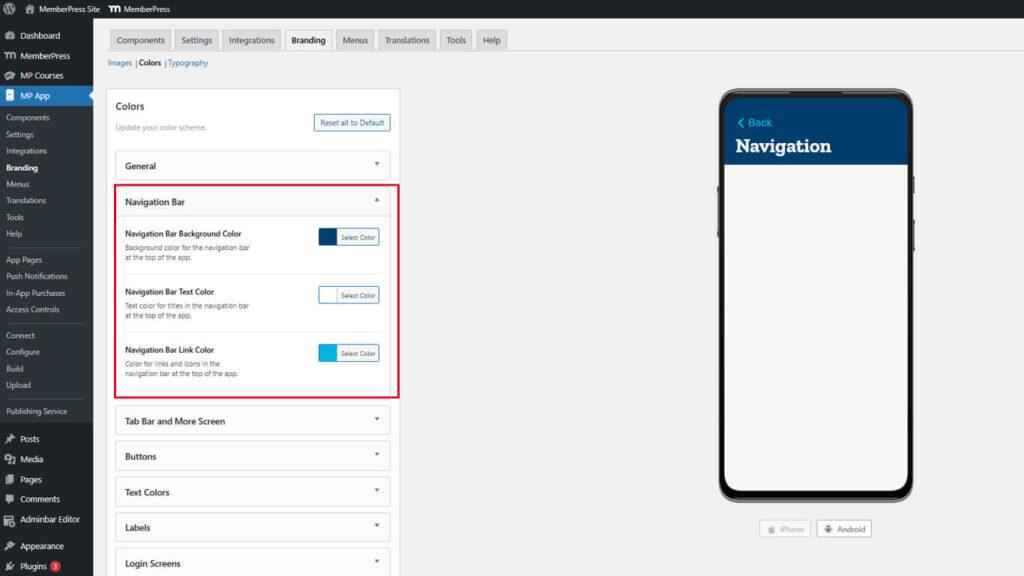
Die Vorschau der Navigationsleiste wird sofort im Header Mockup aktualisiert.
Sicherstellung der Lesbarkeit der Navigation
Die Farben der Navigation müssen einen ausreichenden Kontrast aufweisen, um die Zugänglichkeit zu gewährleisten.
Gestalten der Registerkartenleiste und des Bildschirms "Mehr
Die Farben der Registerkartenleiste und des weiteren Bildschirms steuern das Aussehen der unteren Navigation und des Überlaufmenüs.
- Navigieren Sie zu Dashboard > MP AppKit > Branding > Farben.
- Suchen Sie die Tab Bar & Mehr Abschnitt.
- Klicken Sie auf die Hintergrundfarbe der Registerkartenleiste swatch.
- Wählen Sie eine Farbe für den Hintergrund der Registerkartenleiste.
- Klicken Sie auf die Icon Standardfarbe swatch.
- Wählen Sie eine Farbe für inaktive Navigationssymbole.
- Klicken Sie auf die Icon Aktive Farbe swatch.
- Wählen Sie eine auffällige Farbe für aktive Navigationssymbole.
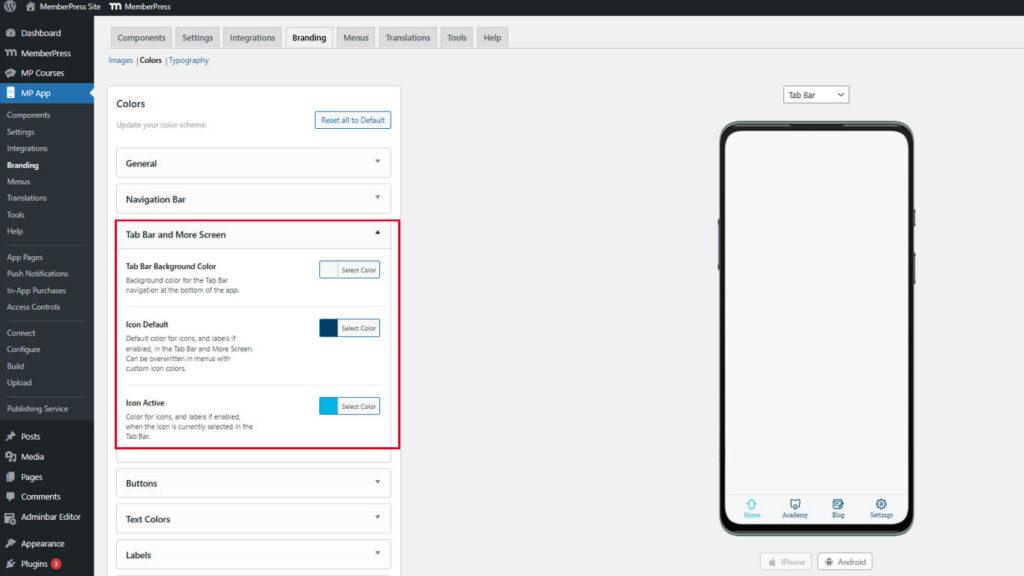
Vorschaumodelle werden aktualisiert, um das Aussehen der Registerkartenleiste mit den ausgewählten Farben zu zeigen.
Unterscheidung zwischen aktiven und inaktiven Icons
Die Farben der Icons sollten den Navigationszustand deutlich anzeigen.
Die Farbe des aktiven Symbols sollte sich stark von der Standardfarbe abheben, um den aktuellen Standort anzuzeigen. Die Mitglieder sollten sofort erkennen, welchen Bereich sie gerade sehen. Eine unzureichende Unterscheidung führt zu Verwirrung bei der Navigation und einem schlechten Nutzererlebnis.
Anpassen von Schaltflächenstilen
Die Farben der Schaltflächen bestimmen das Aussehen der interaktiven Elemente in der gesamten App.
- Navigieren Sie zu Dashboard > MP AppKit > Branding > Farben.
- Suchen Sie die Knöpfe Abschnitt.
- Klicken Sie auf die Hintergrundfarbe der primären Schaltfläche swatch.
- Wählen Sie eine auffällige Farbe für primäre Aktionsschaltflächen.
- Klicken Sie auf die Primäre Schaltflächentextfarbe swatch.
- Wählen Sie eine kontrastierende Farbe für den Text der Schaltfläche.
- Klicken Sie auf die Hintergrundfarbe der sekundären Schaltfläche swatch.
- Wählen Sie eine dezente Farbe für sekundäre Aktionsschaltflächen.
- Klicken Sie auf die Textfarbe der sekundären Schaltfläche swatch.
- Wählen Sie eine geeignete Textfarbe für sekundäre Schaltflächen.
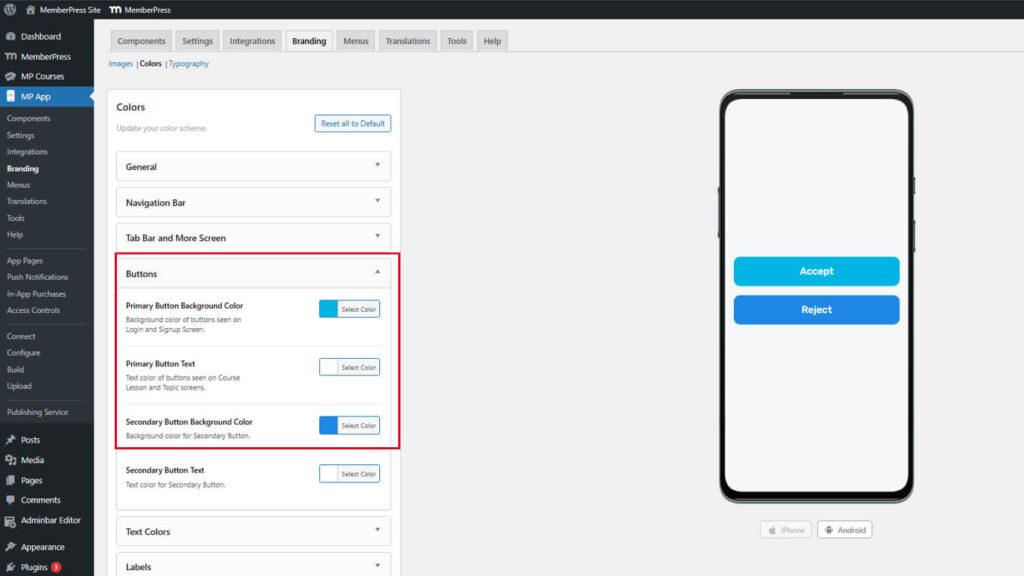
Aktualisierte Schaltflächenvorschauen zeigen, wie Schaltflächen in verschiedenen Kontexten aussehen.
Unterscheidung von Schaltflächenhierarchien
Primäre und sekundäre Schaltflächen sollten deutlich auf die Bedeutung der Aktion hinweisen.
Primäre Schaltflächen stehen für Hauptaktionen wie “Kaufen”, “Absenden” oder “Weiter”. Diese Schaltflächen sollten in kräftigen, aufmerksamkeitsstarken Farben gehalten sein. Sekundäre Schaltflächen stehen für alternative Aktionen wie “Abbrechen” oder “Zurückgehen”. Diese Schaltflächen sollten in gedeckteren Farben gehalten sein, die die primären Schaltflächen ergänzen, aber nicht mit ihnen konkurrieren.
Anpassen von Textfarben
Die Textfarben steuern die Lesbarkeit und die Hierarchie des Inhalts in der gesamten App.
- Navigieren Sie zu Dashboard > MP AppKit > Branding > Farben.
- Suchen Sie die Textfarben Abschnitt.
- Klicken Sie auf die Überschrift Textfarbe swatch.
- Wählen Sie eine auffällige Farbe für Abschnittsüberschriften und Titel.
- Klicken Sie auf die Textfarbe swatch.
- Wählen Sie eine gut lesbare Farbe für den Hauptinhaltstext.
- Klicken Sie auf die Beschreibung Textfarbe swatch.
- Wählen Sie eine leicht gedämpfte Farbe für ergänzende Beschreibungen.
- Klicken Sie auf die Meta-Textfarbe swatch.
- Wählen Sie eine dezente Farbe für Zeitstempel und Metadaten.
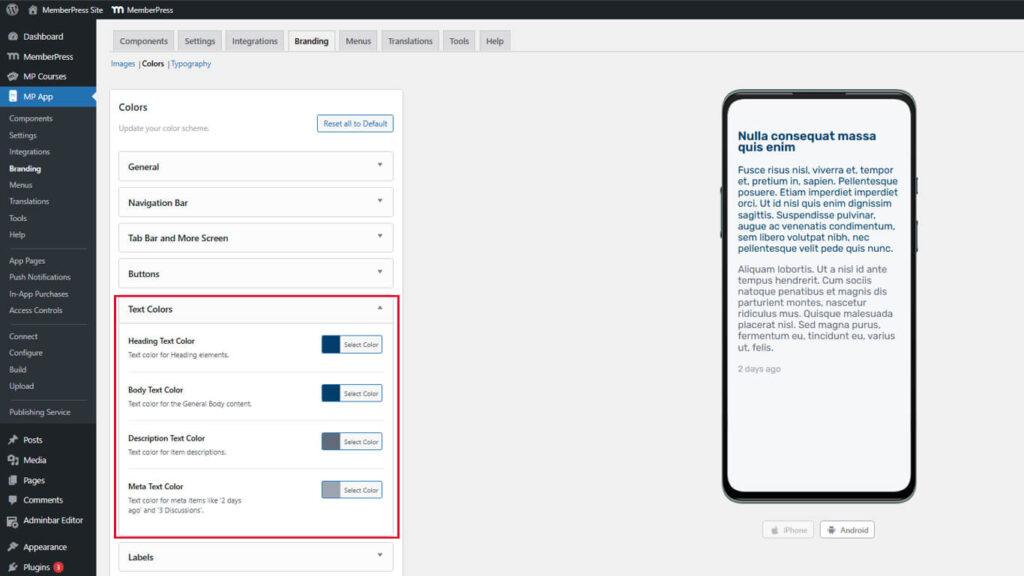
Die Textvorschau zeigt an, wie verschiedene Textebenen mit den ausgewählten Farben aussehen.
Festlegen der Texthierarchie
Textfarben sollten eine klare visuelle Hierarchie für das Scannen von Inhalten schaffen.
Der Überschriftstext sollte am deutlichsten sein, um den Beginn eines Abschnitts anzuzeigen. Der Fließtext sollte eine optimale Lesbarkeit für längeres Lesen bieten. Der Beschreibungstext sollte gut erkennbar sein, aber weniger auffällig als der Haupttext. Der Metatext sollte so dezent sein, dass er nicht vom Hauptinhalt ablenkt.
Styling-Etiketten
Die Etikettenfarben wirken sich auf Tags, Abzeichen und Statusanzeigen in der gesamten App aus.
- Navigieren Sie zu Dashboard > MP AppKit > Branding > Farben.
- Suchen Sie die Etiketten Abschnitt.
- Klicken Sie auf die Hintergrundfarbe des Etiketts swatch.
- Wählen Sie eine Farbe für den Etikettenhintergrund.
- Klicken Sie auf die Textfarbe des Etiketts swatch.
- Wählen Sie eine kontrastierende Farbe für den Etikettentext.
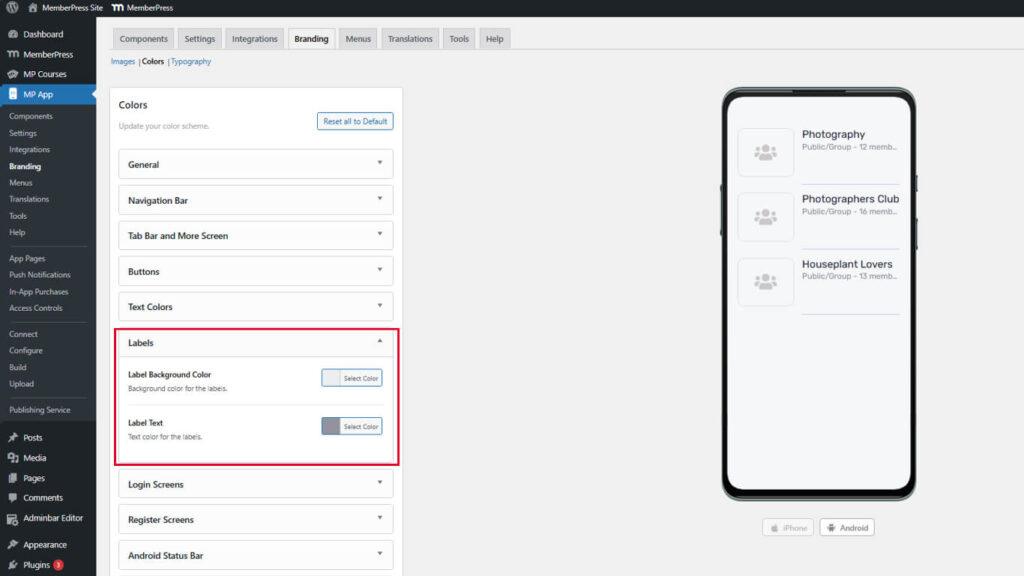
Die Etikettenvorschau zeigt das Erscheinungsbild sowohl in der Listen- als auch in der Detailansicht.
Sicherstellung der Sichtbarkeit von Etiketten
Die Beschriftungen müssen auf verschiedenen Seitenhintergründen sichtbar bleiben.
Die Hintergrundfarbe des Etiketts sollte einen Kontrast zu den Seitenhintergründen bilden, auf denen die Etiketten erscheinen. Der Etikettentext sollte einen starken Kontrast zum Etikettenhintergrund aufweisen, um die Lesbarkeit zu gewährleisten. Etiketten erscheinen oft auf unterschiedlichen Hintergründen, daher sollte die Farbauswahl mehrere Kontexte berücksichtigen.
Farben des Anmeldebildschirms anpassen
Die Farben des Anmeldebildschirms bestimmen das Aussehen der Authentifizierungsseite.
- Navigieren Sie zu Dashboard > MP AppKit > Branding > Farben.
- Suchen Sie die Anmeldebildschirme Abschnitt.
- Konfigurieren Sie die folgenden Farbfelder:
- Hintergrundfarbe für den Hintergrund der Anmeldeseite;
- Eingabefeld Hintergrund für Formularfeldhintergründe;
- Rand des Eingabefeldes für Feldumrisse;
- Eingabefeld Text für die eingegebene Textfarbe;
- Schaltfläche Hintergrund für Hintergründe von Aktionsschaltflächen;
- Schaltfläche Text für die Textfarbe der Schaltfläche.
- Überprüfen Sie die Vorschaubilder der Bildschirme Anmeldung und Passwort vergessen.
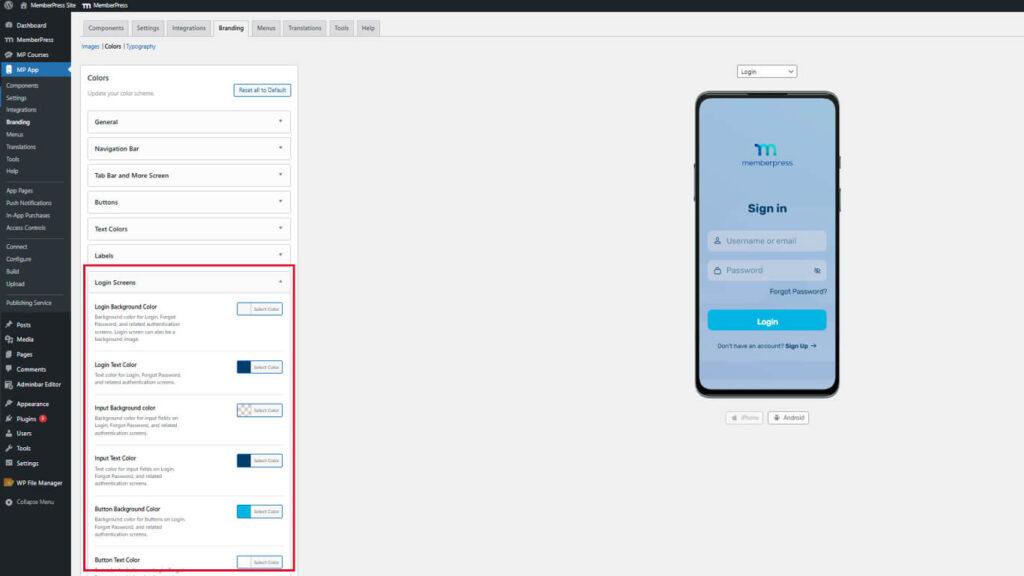
Die Vorschau des Anmeldebildschirms zeigt Authentifizierungsseiten mit ausgewählten Farben an.
Gestaltung der Farben des Registrierungsbildschirms
Die Farben des Registrierungsbildschirms bestimmen das Aussehen der Seite für die Kontoerstellung.
- Navigieren Sie zu Dashboard > MP AppKit > Branding > Farben.
- Suchen Sie die Register-Bildschirme Abschnitt.
- Konfigurieren Sie die folgenden Farbfelder:
- Hintergrundfarbe für den Hintergrund der Registrierungsseite;
- Eingabefeld Hintergrund für Formularfeldhintergründe;
- Rand des Eingabefeldes für Feldumrisse;
- Eingabefeld Text für die eingegebene Textfarbe;
- Schaltfläche Hintergrund für Hintergründe von Aktionsschaltflächen;
- Schaltfläche Text für die Textfarbe der Schaltfläche.
- Sehen Sie sich die Vorschau des Registrierungsbildschirms an.
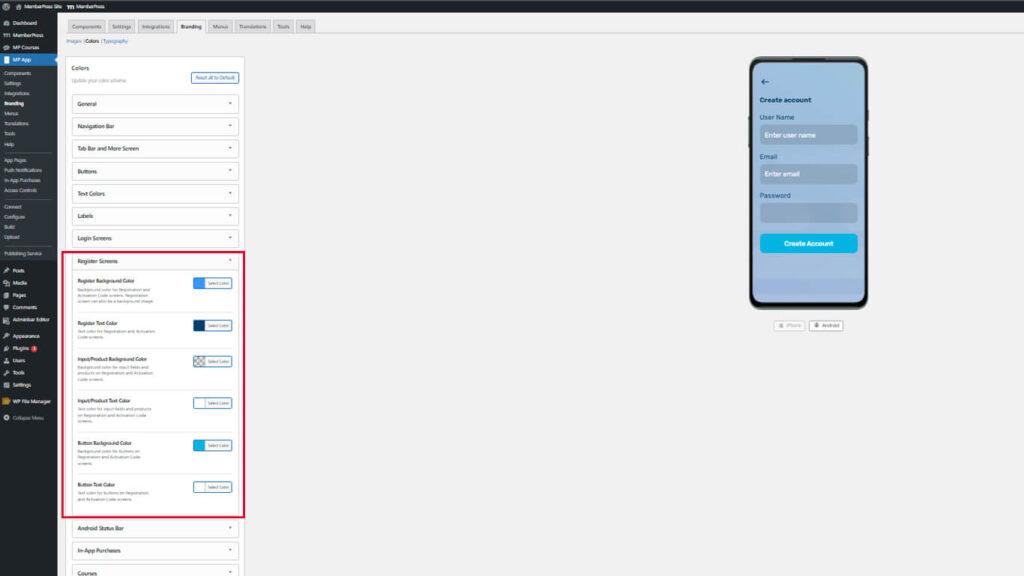
Die Verwendung einheitlicher Farben auf den Anmelde- und Registrierungsbildschirmen sorgt für ein einheitliches Authentifizierungserlebnis.
Konfigurieren der Farbe der Android-Statusleiste
Die Farbe der Android-Statusleiste wirkt sich auf die Darstellung der Statusleiste des Geräts am oberen Bildschirmrand aus.
- Navigieren Sie zu Dashboard > MP AppKit > Branding > Farben.
- Suchen Sie die Android-Statusleiste Abschnitt.
- Klicken Sie auf die Status Hintergrundfarbe swatch.
- Wählen Sie eine Farbe, die zur Navigationsleiste passt oder sie ergänzt.
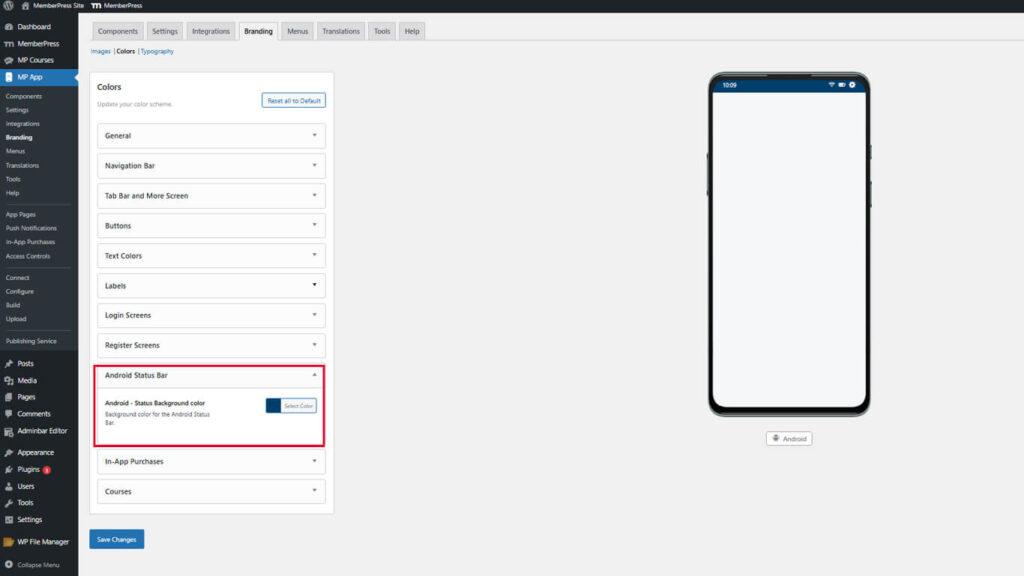
Die Farbvorschau der Statusleiste wird nur auf dem Android-Geräte-Mockup aktualisiert. Diese Einstellung wirkt sich nicht auf iOS-Geräte aus.
Farben für In-App-Käufe anpassen
In-App-Käufe heben Produkte und Vorteile der Mitgliedschaft farblich hervor.
- Navigieren Sie zu Dashboard > MP AppKit > Branding > Farben.
- Suchen Sie die In-App-Käufe Abschnitt.
- Klicken Sie auf die Gekauft Status Häkchen Farbe swatch.
- Wählen Sie eine Farbe für die Häkchen, die gekaufte Mitgliedschaften anzeigen.
- Klicken Sie auf die Vorteile Prüfzeichen Farbe swatch.
- Wählen Sie eine Farbe für die Häkchen, die die Vorteile der Mitgliedschaft auflisten.
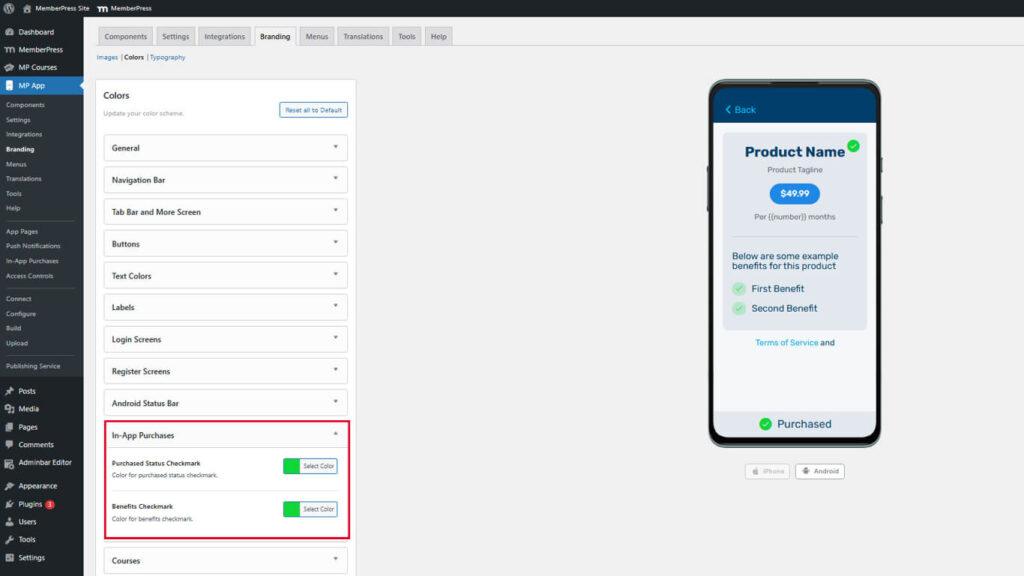
Die Vorschau des Kaufbildschirms zeigt Produktlisten mit konfigurierten Häkchenfarben an.
Kaufstatus hervorheben
Die Farben der Häkchen sollten den Abschluss des Kaufs und den Einschluss der Leistungen deutlich anzeigen.
Bei der Markierung des Kaufstatus sollten positive, bestätigende Farben wie Grün verwendet werden, um erfolgreiche Transaktionen anzuzeigen. Die Prüfzeichen für die Vorteile sollten die Farbe des Kaufstatus ergänzen, aber dennoch eindeutig sein. Ein ausreichender Kontrast zu den Hintergrundfarben gewährleistet die Sichtbarkeit in verschiedenen Bildschirmkontexten.
Speichern der Farbkonfiguration
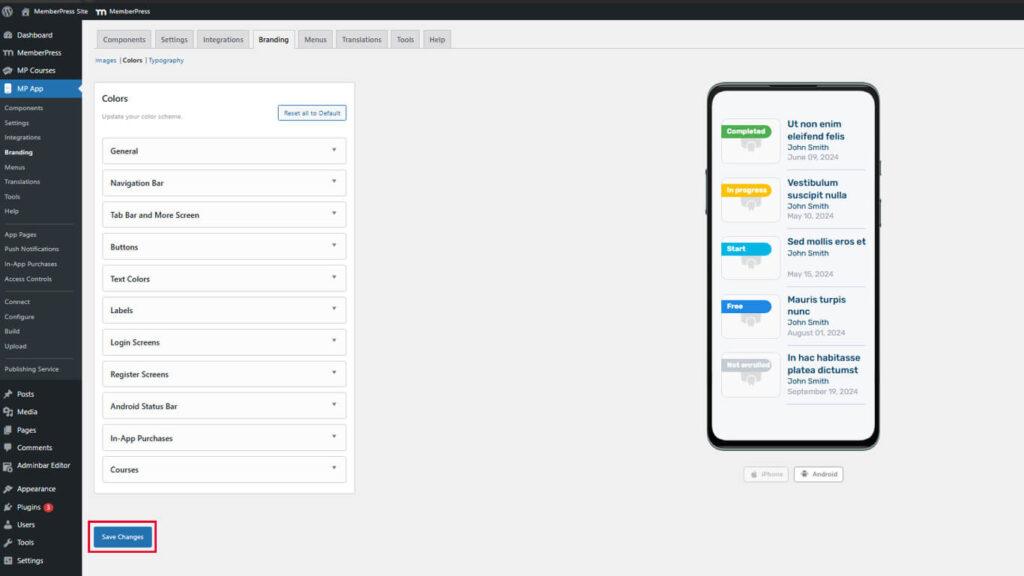
Alle Farbauswahlen müssen gespeichert werden, bevor sie wirksam werden.
- Überprüfen Sie alle konfigurierten Farben in den Vorschau-Mockups.
- Blättern Sie bis zum Ende der Dashboard > MP AppKit > Branding > Farben Seite.
- Klicken Sie auf Änderungen speichern.
- Warten Sie auf die Bestätigungsmeldung, die das erfolgreiche Speichern anzeigt.










 DE
DE  EN
EN  ES
ES  FR
FR  PT
PT 