

Benutzerdefinierte Logos, Startbildschirme und Icons verbessern die Markenidentität und das Benutzererlebnis in mobilen Anwendungen. MemberPress AppKit unterstützt die Bildanpassung für Startseiten, Anmeldeseiten, App-Symbole und Startbildschirme.
In diesem Dokument werden die empfohlenen Bildspezifikationen, Branding-Richtlinien und Konfigurationsschritte für alle visuellen Elemente erläutert.
Visuelle Assets der App verstehen
Visuelle Assets schaffen Markenerlebnisse für iOS- und Android-Plattformen. Unterschiedliche Asset-Typen dienen bestimmten Zwecken, z. B. Navigations-Branding, Authentifizierungsbildschirme, Startanimationen und Symbole für den Startbildschirm. Die richtige Konfiguration der Assets gewährleistet ein konsistentes Branding bei allen Interaktionen der Mitglieder mit der App.
Empfohlene Bildspezifikationen
Verschiedene visuelle Elemente erfordern bestimmte Abmessungen und Formate für eine optimale Darstellung.
| Element | Größe (Pixel) | Format |
| Startbildschirm Logo | 1200 × 180 | PNG oder PSD |
| Anmelde-Logo | 1200 × 774 | PNG oder PSD |
| Login-Hintergrund | 2732 × 2732 | PNG oder PSD |
| Registrierung Hintergrund | 2732 × 2732 | PNG oder PSD |
| Startbildschirm-Hintergrund | 2732 × 2732 | PNG oder PSD |
| iOS-App-Symbol | 1024 × 1024 | PNG |
| Android-App-Symbol | 1024 × 1024 | PNG |
| Adaptives Android-Symbol | 1024 × 1024 | PNG |
| Android-Benachrichtigungssymbol | 256 × 256 | PNG |
Anforderungen an AppKit-Symbole verstehen
Standard MemberPress AppKit-Symbol (iOS und Android)
- Größe: 1024 × 1024 px
- Sichere Zone: 682 × 682 px Mitte
- Format: PNG (32-bit), sRGB
- iOS: Keine Transparenz
- Android: Transparenz erlaubt
Adaptives Android-Symbol
Erforderlich auf Android 8+ für Formflexibilität und Parallaxe.
- Vorderseite: Transparentes Logo, 1024 × 1024 px
- Hintergrund: Undurchsichtiges Bild, 1024 × 1024 px
- Sichere Zone: 683 × 683 px Mitte (170 px Rand)
Start / Splash Screen
Wird sofort beim Starten der MemberPress-App angezeigt.
- Größe: 2732 × 2732 px
- Sichere Zone: 1200 × 2732 px Mitte
- Format: PNG (32-bit), sRGB
Anmeldebildschirm
- Logo: Maximal 200 × 150 px im Hintergrund
- Hintergrund: 2732 × 2732 px
- Format: PNG (32-bit), sRGB
Zugriff auf Branding-Einstellungen
Die gesamte Konfiguration von Bildern und Symbolen erfolgt über die Schnittstelle für die Branding-Einstellungen.
- Navigieren Sie zu Dashboard > MP AppKit > Branding > Bilder.
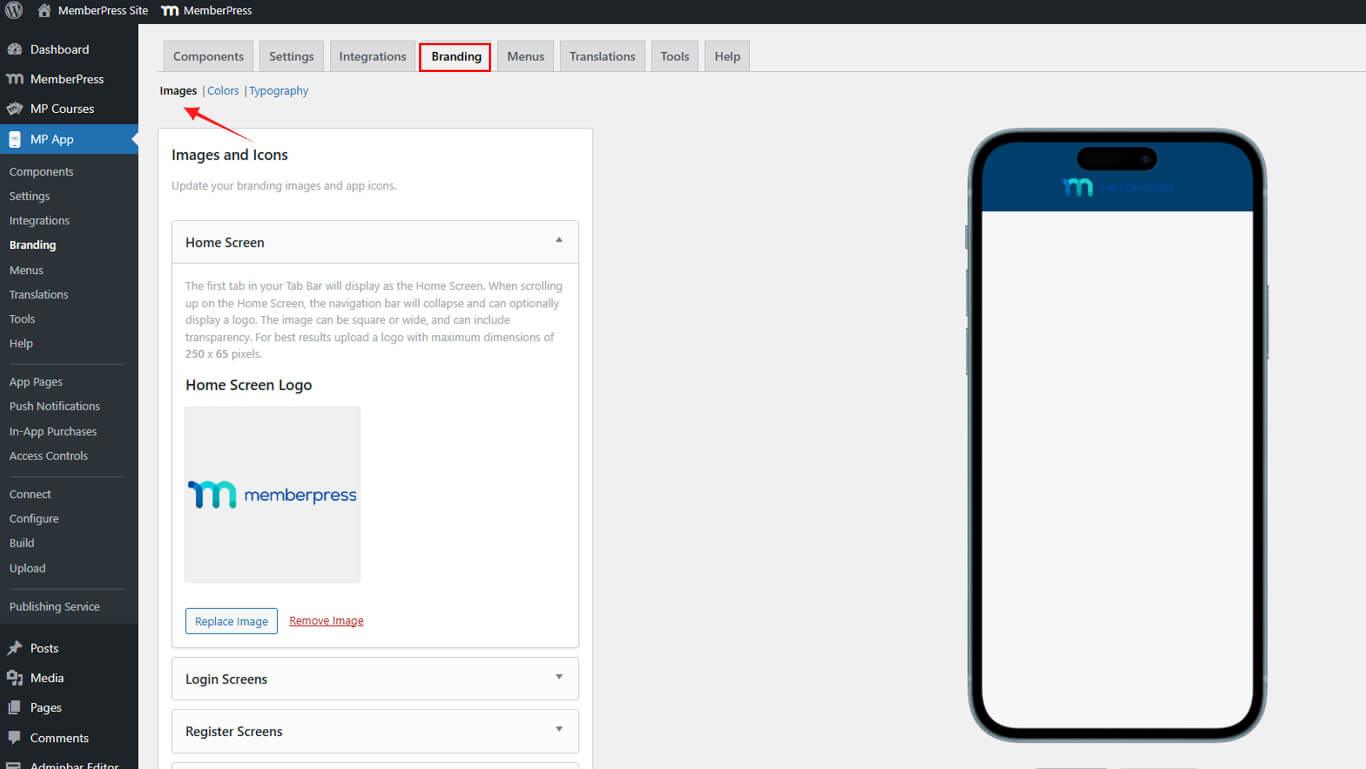
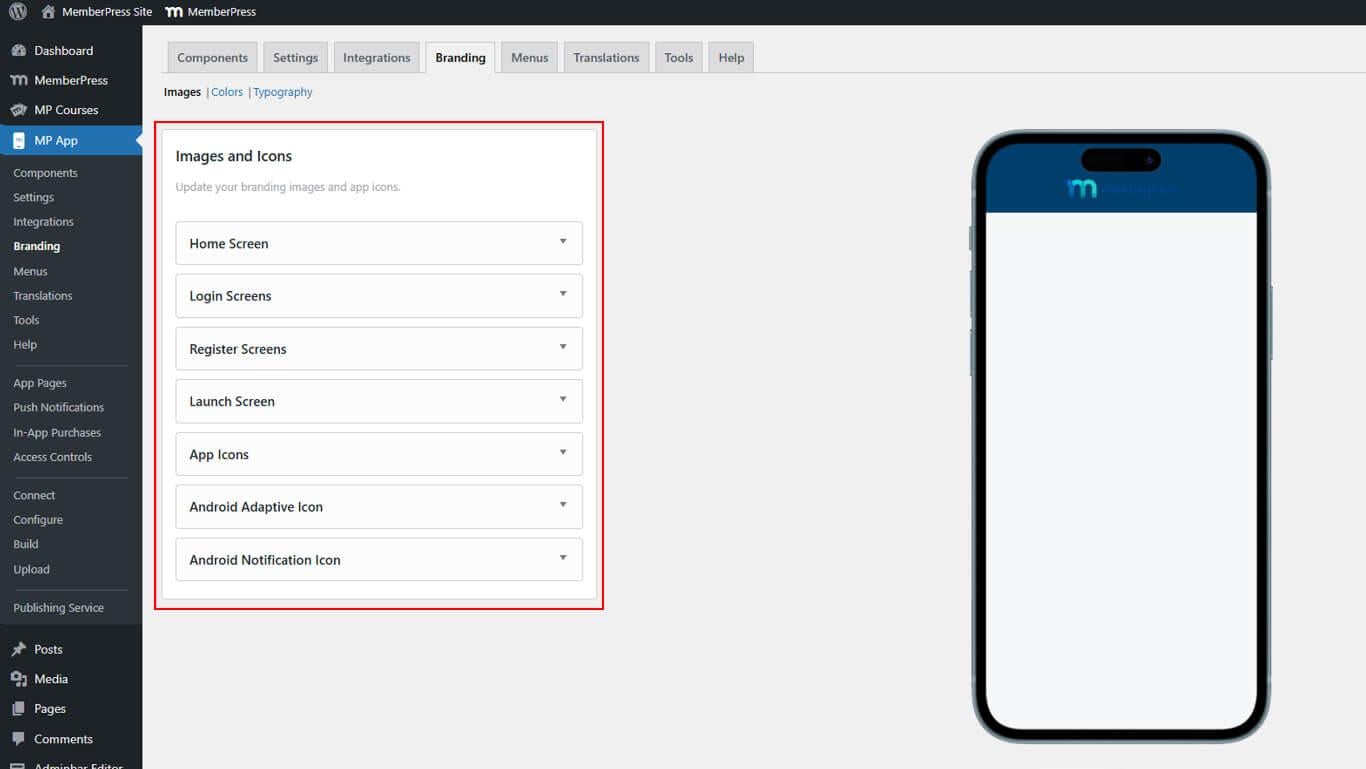
- Überprüfen Sie, ob alle Konfigurationsabschnitte angezeigt werden:
- Startbildschirm für das Navigationslogo;
- Anmeldebildschirme für das Branding der Authentifizierung;
- Register-Bildschirme für das Branding der Registrierung;
- Startbildschirm für die Konfiguration des Begrüßungsbildschirms;
- App-Symbole für die Symbole des Startbildschirms;
- Adaptive Android-Symbole für adaptive Symbolebenen;
- Benachrichtigungssymbol für die Anzeige der Benachrichtigungsleiste.
Logo für den Startbildschirm konfigurieren
Das Logo des Startbildschirms wird in den Kopfzeilen der App-Navigation angezeigt.
- Navigieren Sie zu Dashboard > MP AppKit > Branding > Bilder.
- Suchen Sie die Startbildschirm Abschnitt.
- Klicken Sie auf Bild hochladen.
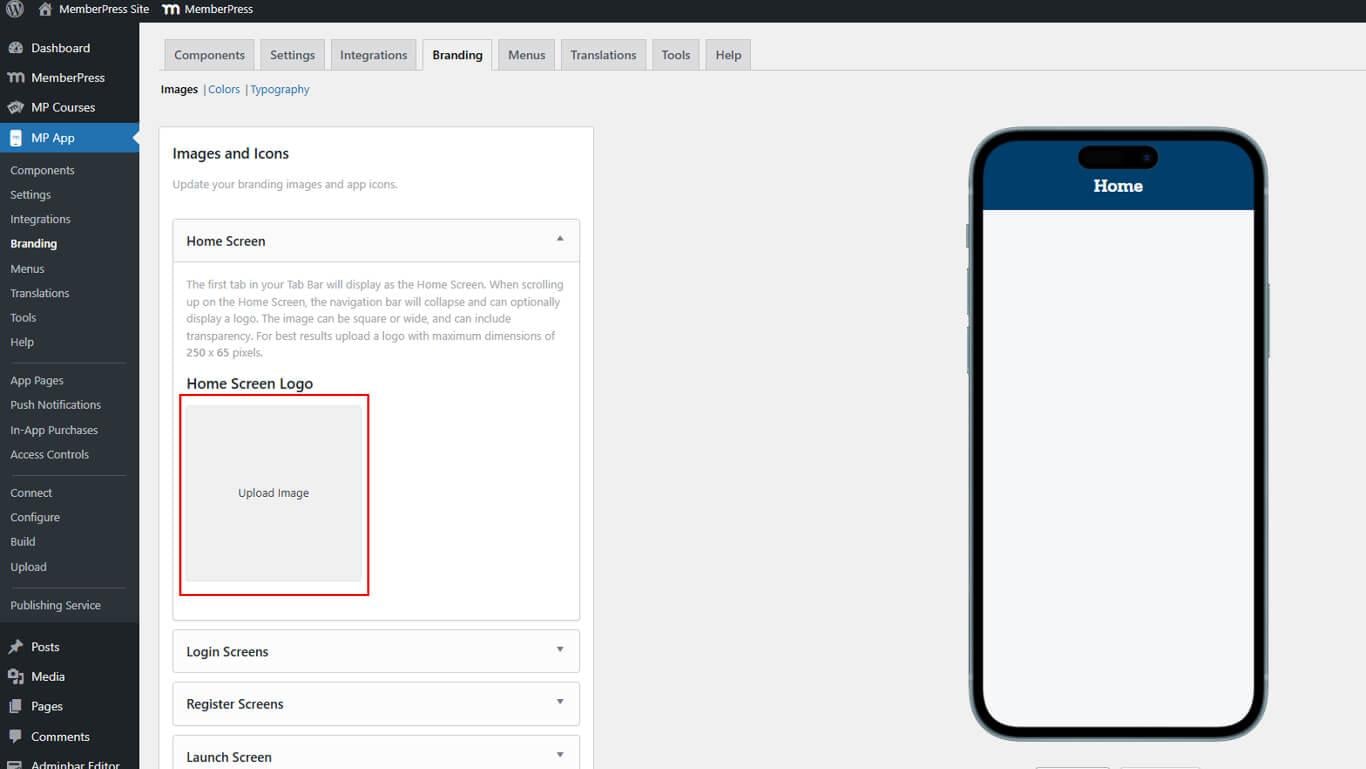
- Wählen Sie die Logodatei auf dem Gerät oder in der Medienbibliothek aus.
- Ändern Sie bei Bedarf die Größe des Bildes mit dem Zuschneidewerkzeug.
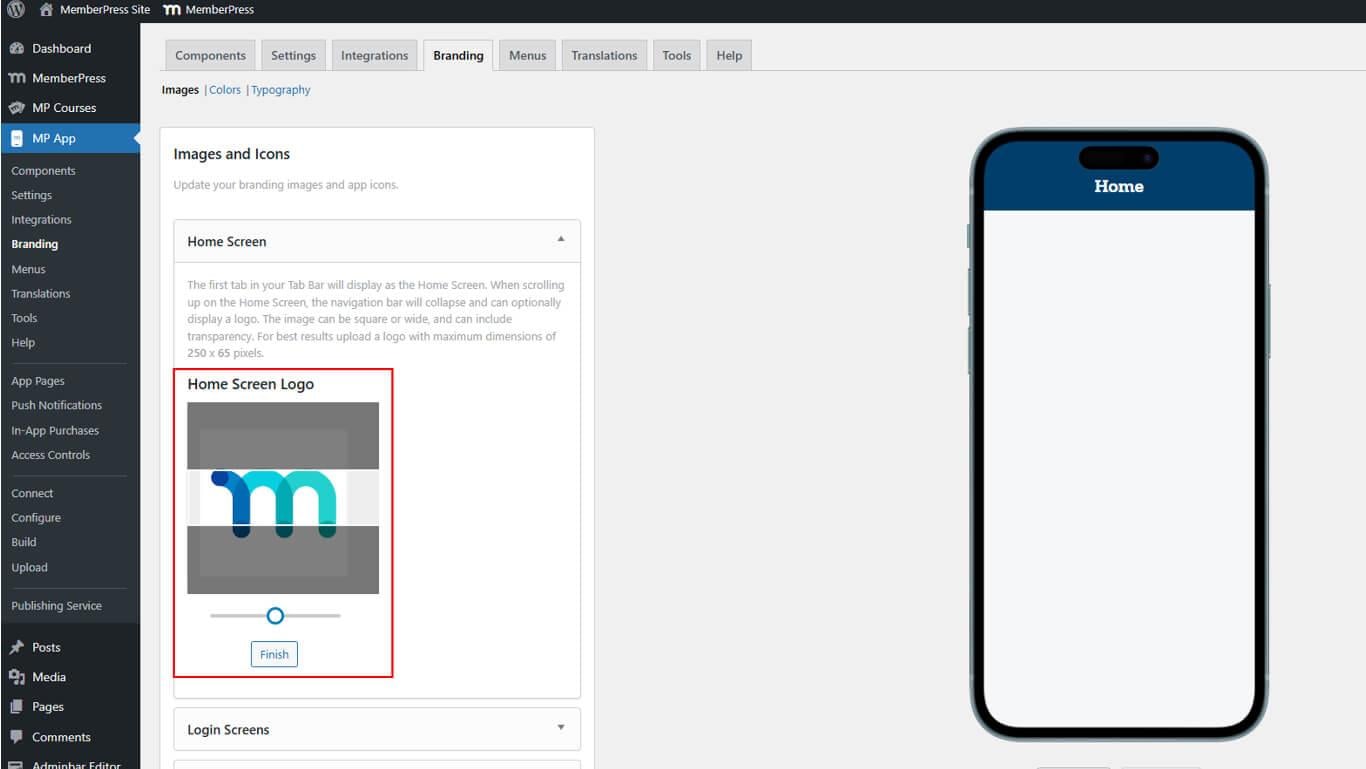
- Klicken Sie auf Fertigstellen um den Upload abzuschließen.
- Überprüfen Sie das Logo in iOS- und Android-Vorschau-Mockups.
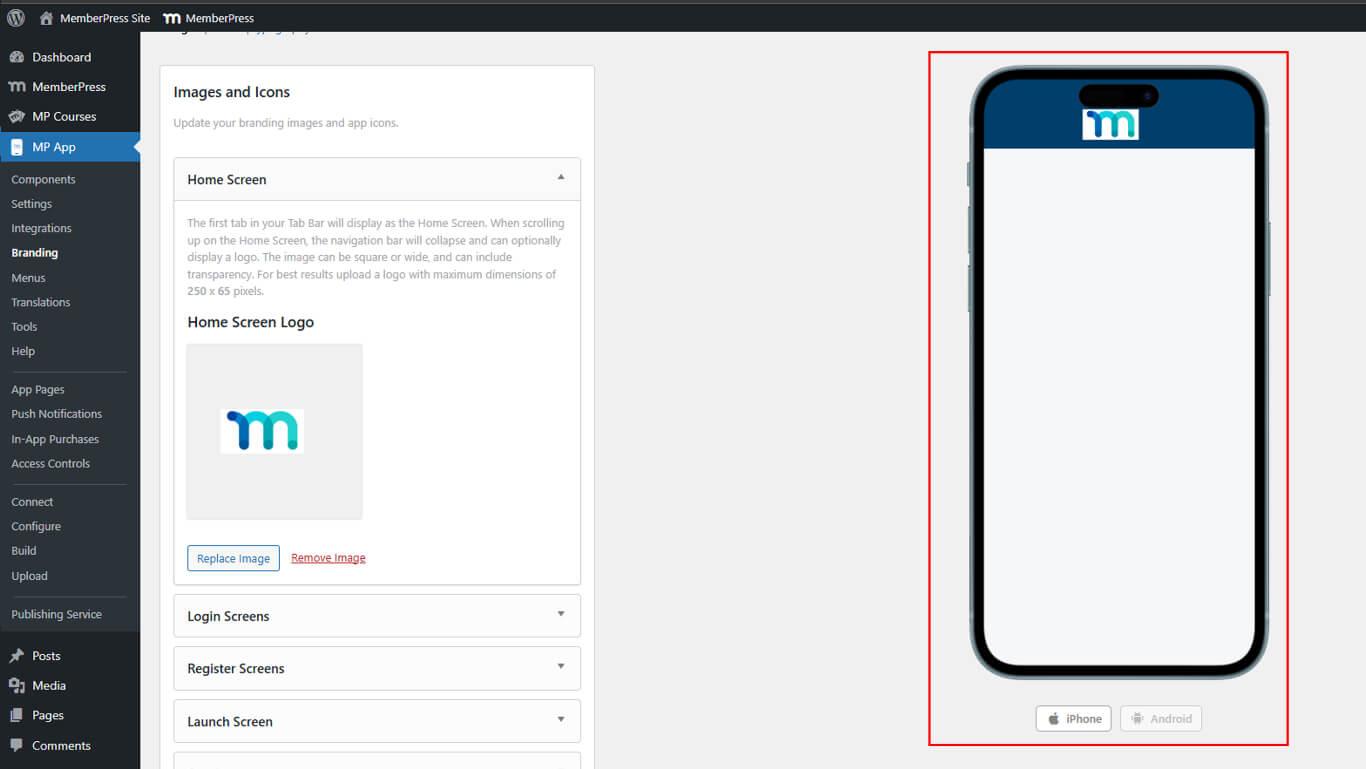
Das Logo des Startbildschirms erscheint einheitlich auf allen App-Seiten in der Kopfzeile der Navigation.
Konfigurieren von Anmeldebildschirm-Assets
Die Assets für den Anmeldebildschirm umfassen das Logo und die Hintergrundbilder für die Authentifizierungsseiten.
- Navigieren Sie zu Dashboard > MP AppKit > Branding > Bilder.
- Suchen Sie die Anmeldebildschirme Abschnitt.
- Klicken Sie auf Bild hochladen neben dem Login-Logo.
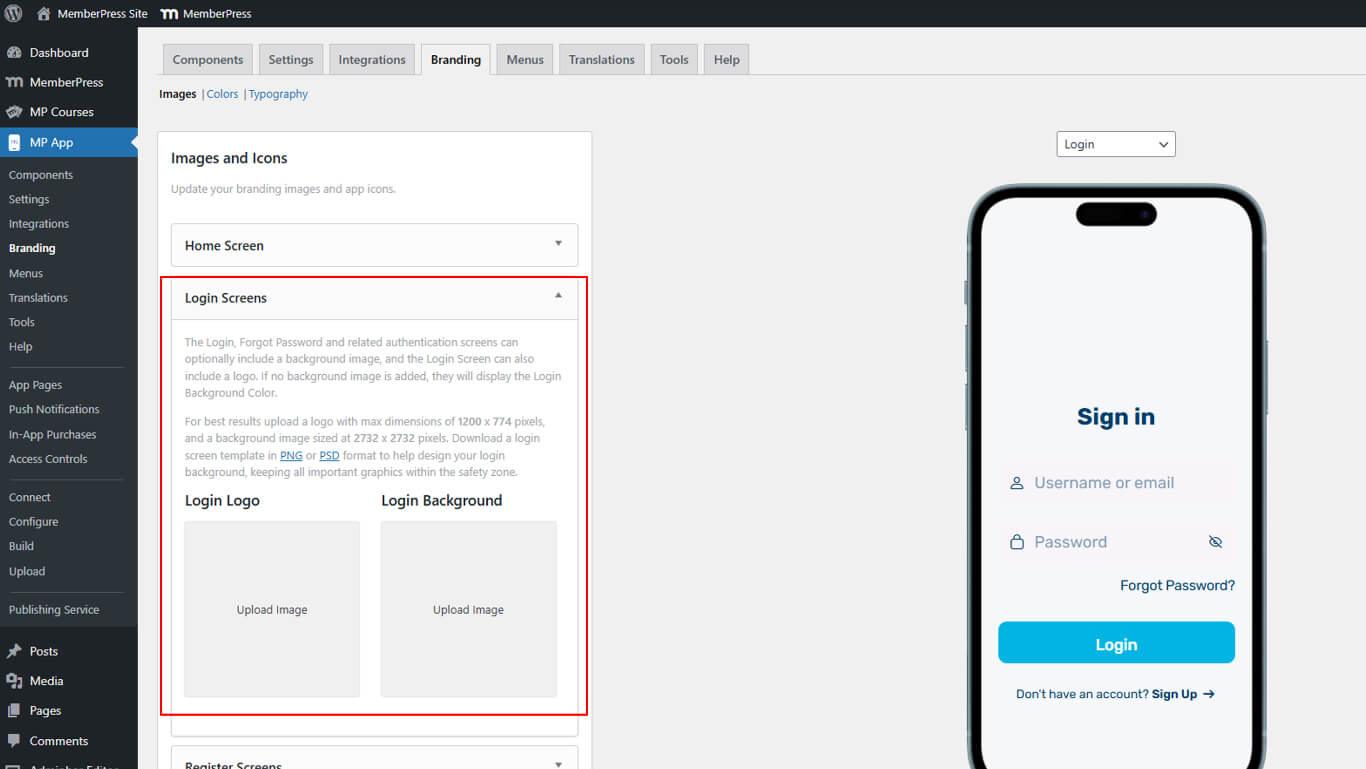
- Wählen Sie die Logodatei aus und klicken Sie auf Fertigstellen nach etwaigen Anpassungen.
- Klicken Sie auf Bild hochladen.
- Wählen Sie die Hintergrunddatei und klicken Sie auf Fertigstellen nach Anpassungen.
- Wechseln Sie zwischen den Anmeldung und Passwort vergessen Seitenvorschauen.
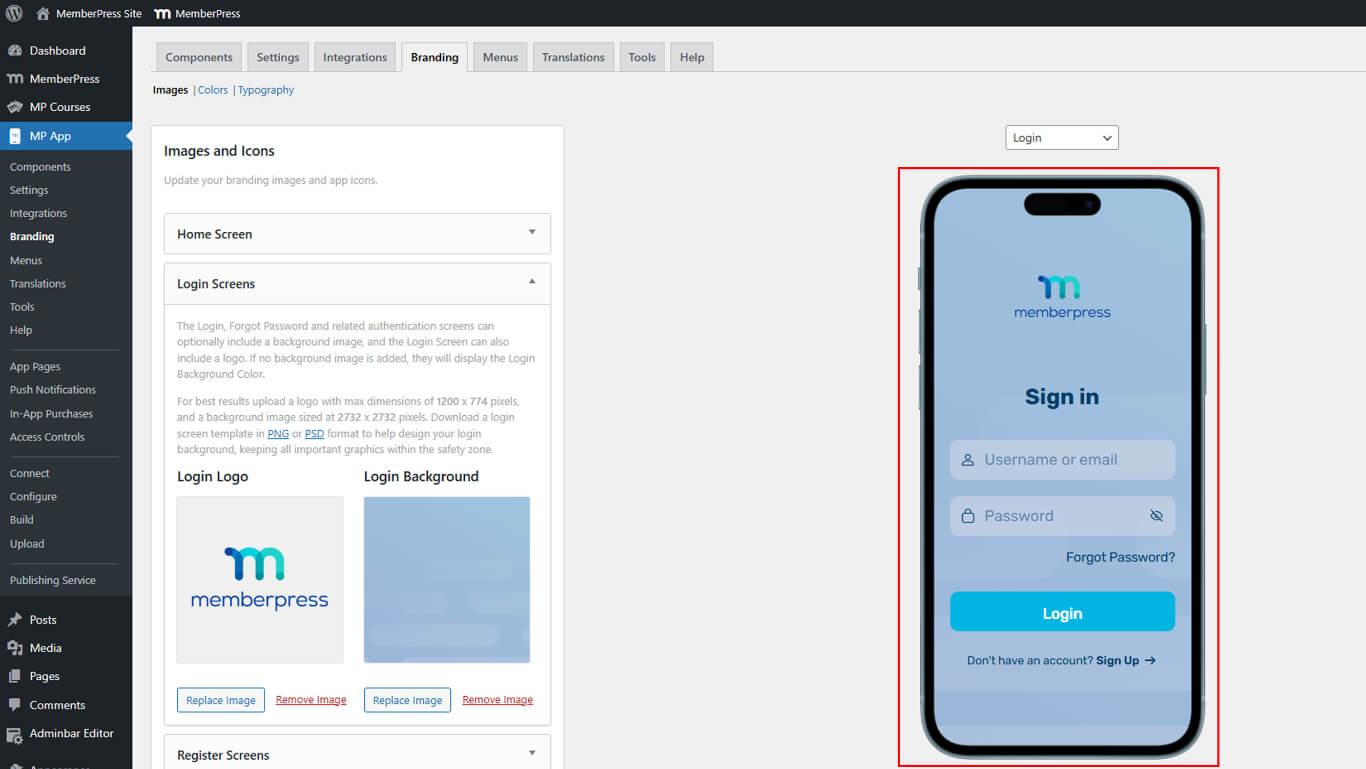
Login-Assets werden auf Authentifizierungsseiten angezeigt, einschließlich der Bildschirme zum Anmelden, Passwort vergessen und Zurücksetzen des Passworts.
Konfigurieren der Assets auf dem Registrierungsbildschirm
Zu den Assets für den Registrierungsbildschirm gehören auch Hintergrundbilder für Seiten zur Kontoerstellung.
- Navigieren Sie zu Dashboard > MP AppKit > Branding > Bilder.
- Suchen Sie die Register-Bildschirme Abschnitt.
- Klicken Sie auf Bilder hochladen.
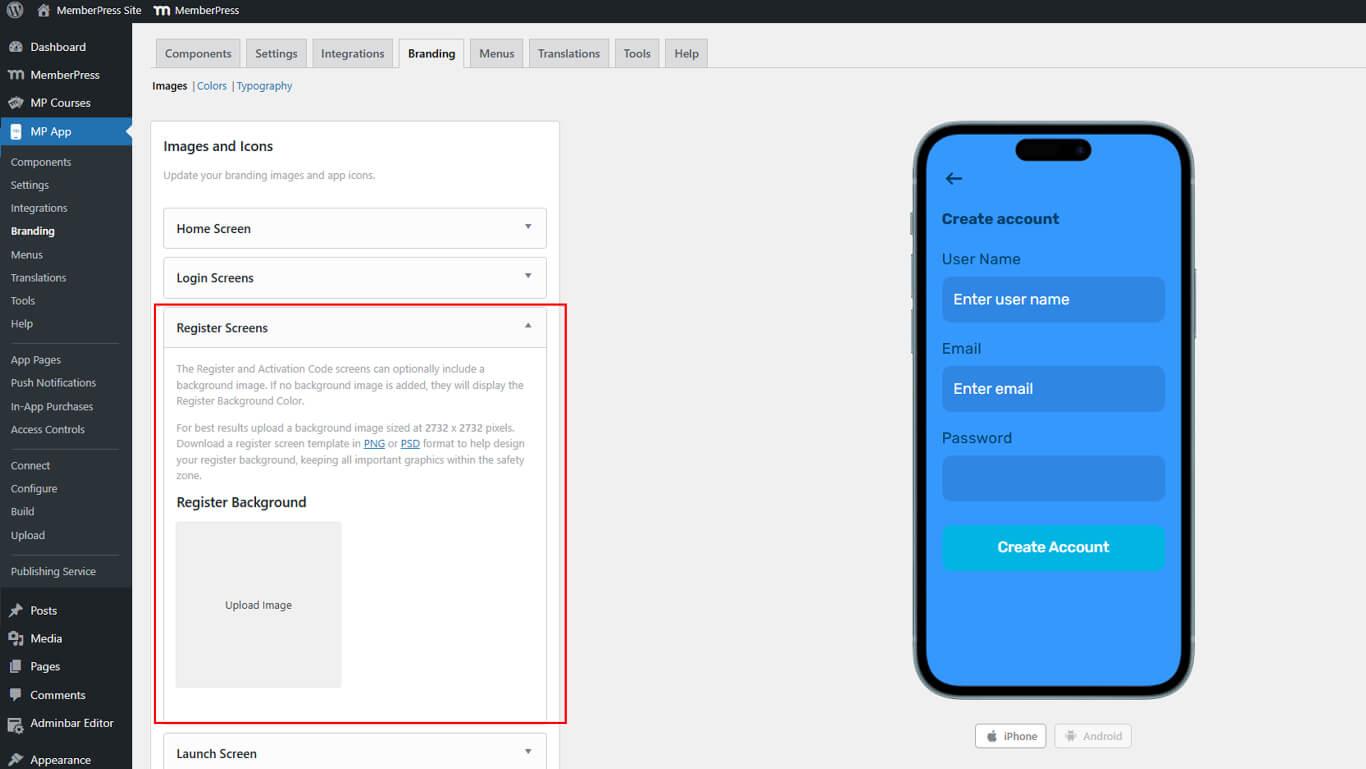
- Wählen Sie die Hintergrunddatei und klicken Sie auf Fertigstellen nach Anpassungen.
- Überprüfen Sie den Hintergrund in der Vorschau der Registrierungsseite.
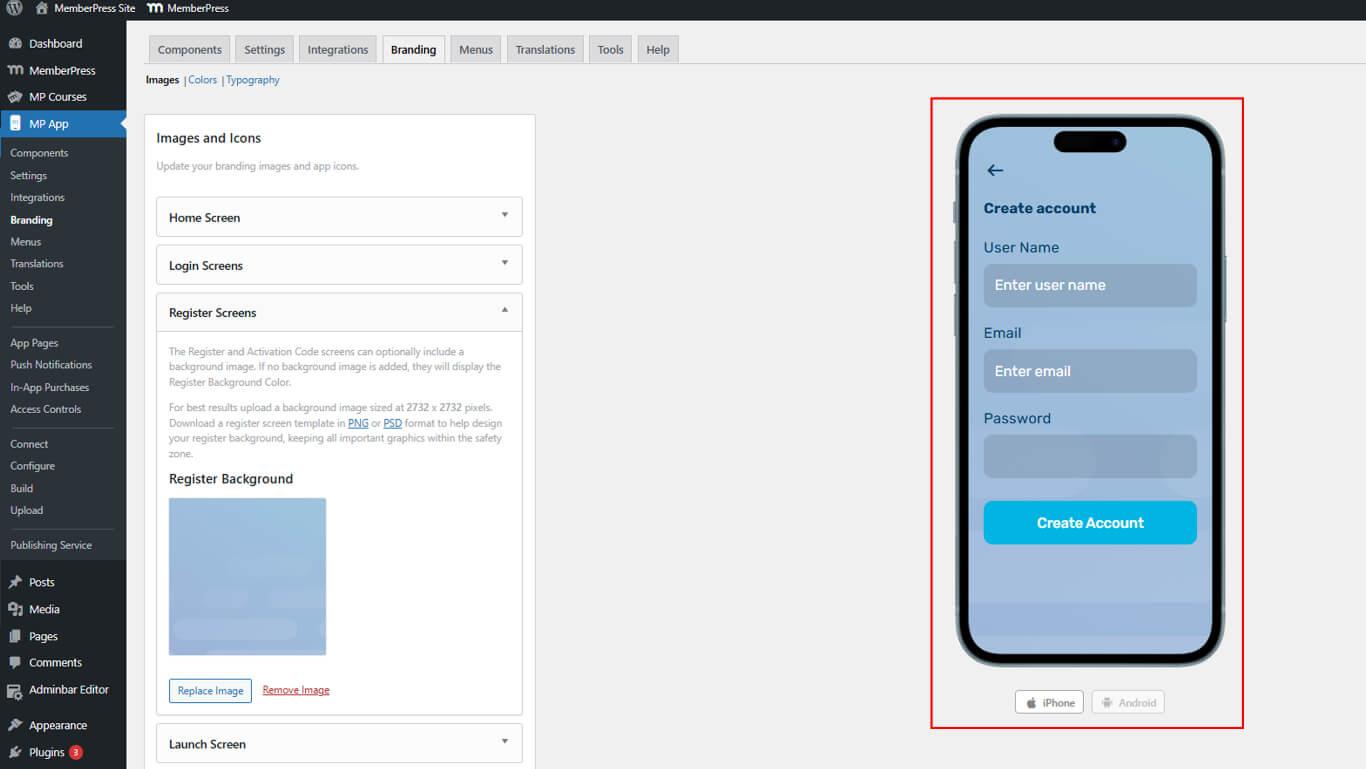
Die Verwendung desselben Bildes für Anmelde- und Registrierungshintergründe sorgt für ein einheitliches Authentifizierungs-Branding.
Konfigurieren der Startbildschirm-Assets
Startbildschirm-Assets werden während der Initialisierung der App angezeigt, bevor der Inhalt geladen wird.
- Navigieren Sie zu Dashboard > MP AppKit > Branding > Bilder.
- Suchen Sie die Startbildschirm Abschnitt.
- Klicken Sie auf Bild hochladen.
- Wählen Sie die Hintergrunddatei aus.
- Prüfen Sie die Spinner anzeigen an, um die Ladeanimation zu aktivieren.
- Wählen Sie Spinner Farbe mit dem Farbwähler.
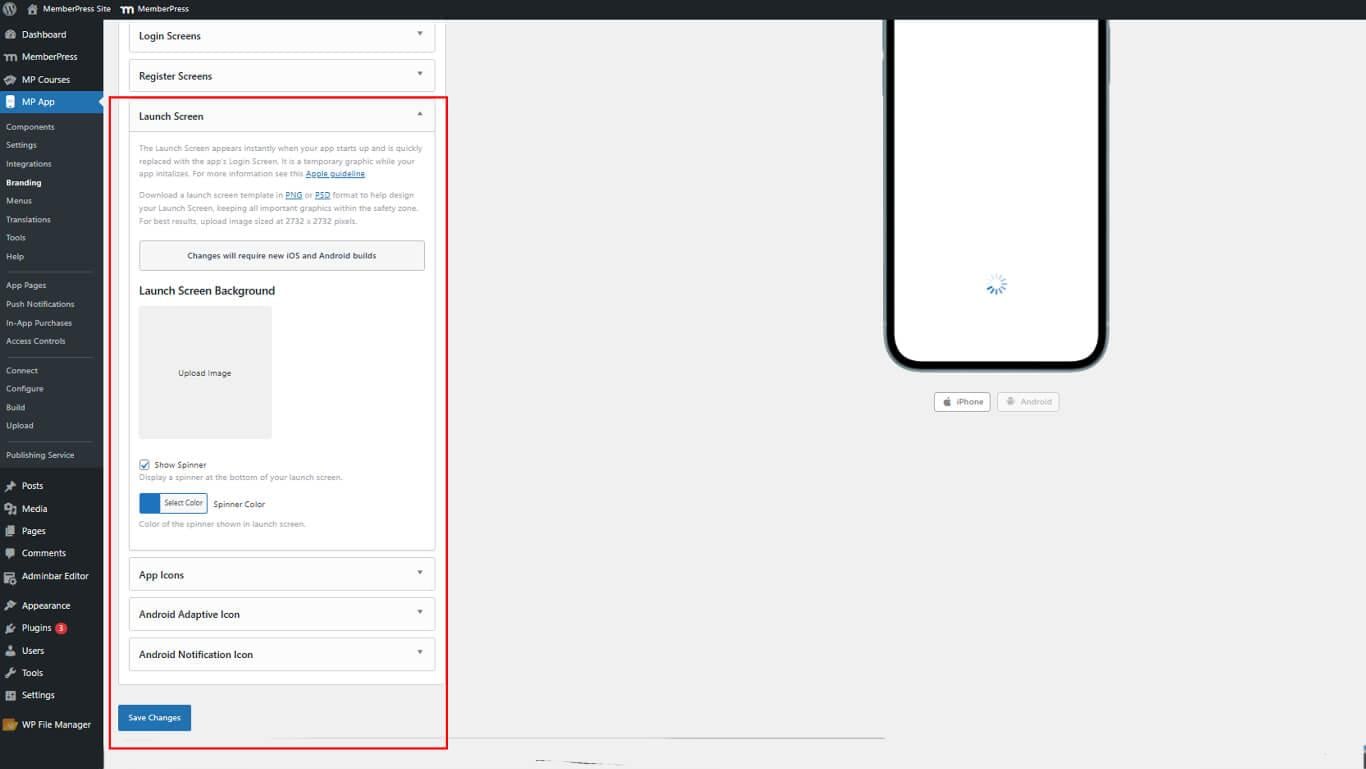
- Sehen Sie sich die animierte Vorschau an, die das Verhalten des Spinners zeigt.
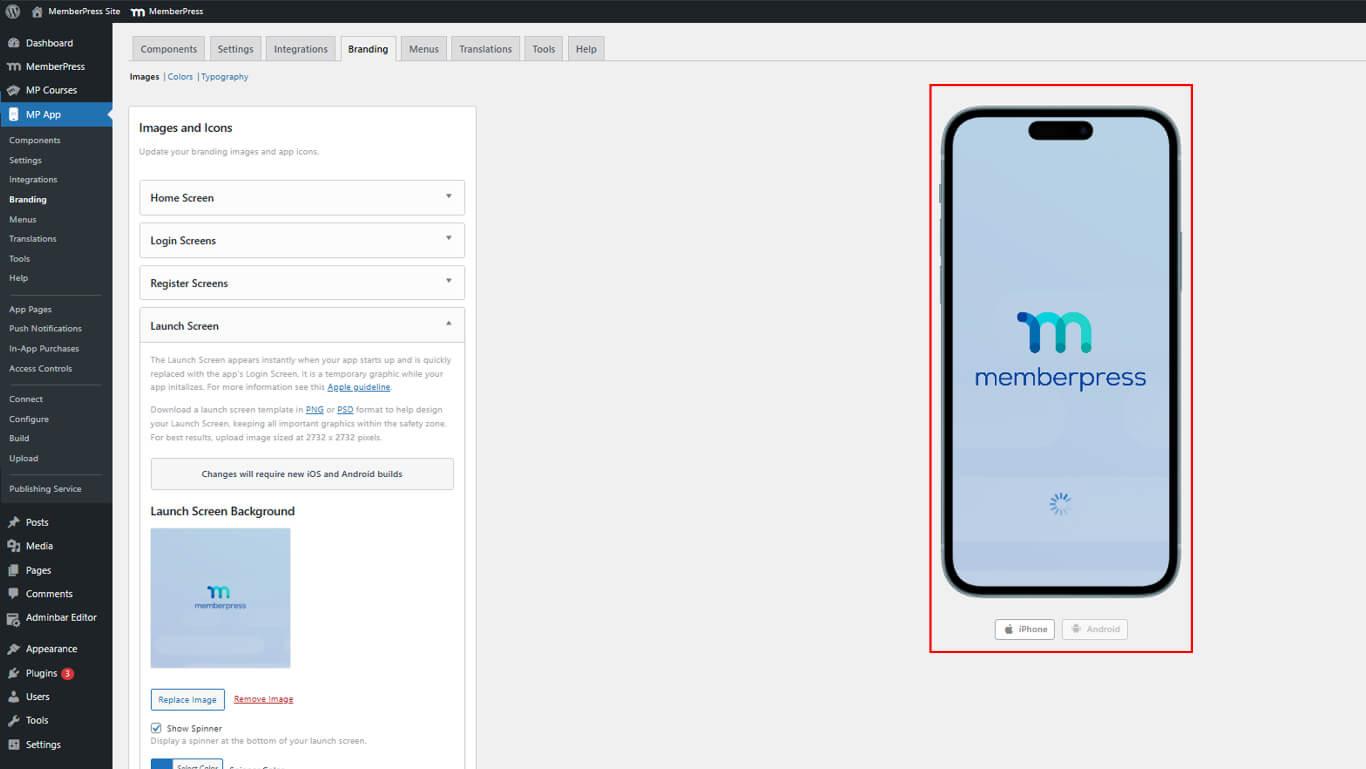
App-Symbole konfigurieren
App-Symbole werden auf den Startbildschirmen der Geräte und in den App-Stores angezeigt.
- Navigieren Sie zu Dashboard > MP AppKit > Branding > Bilder.
- Suchen Sie die App-Symbole Abschnitt.
- Klicken Sie auf Bild hochladen.
- Klicken Sie auf die Bild hochladen neben dem Android-App-Symbol.
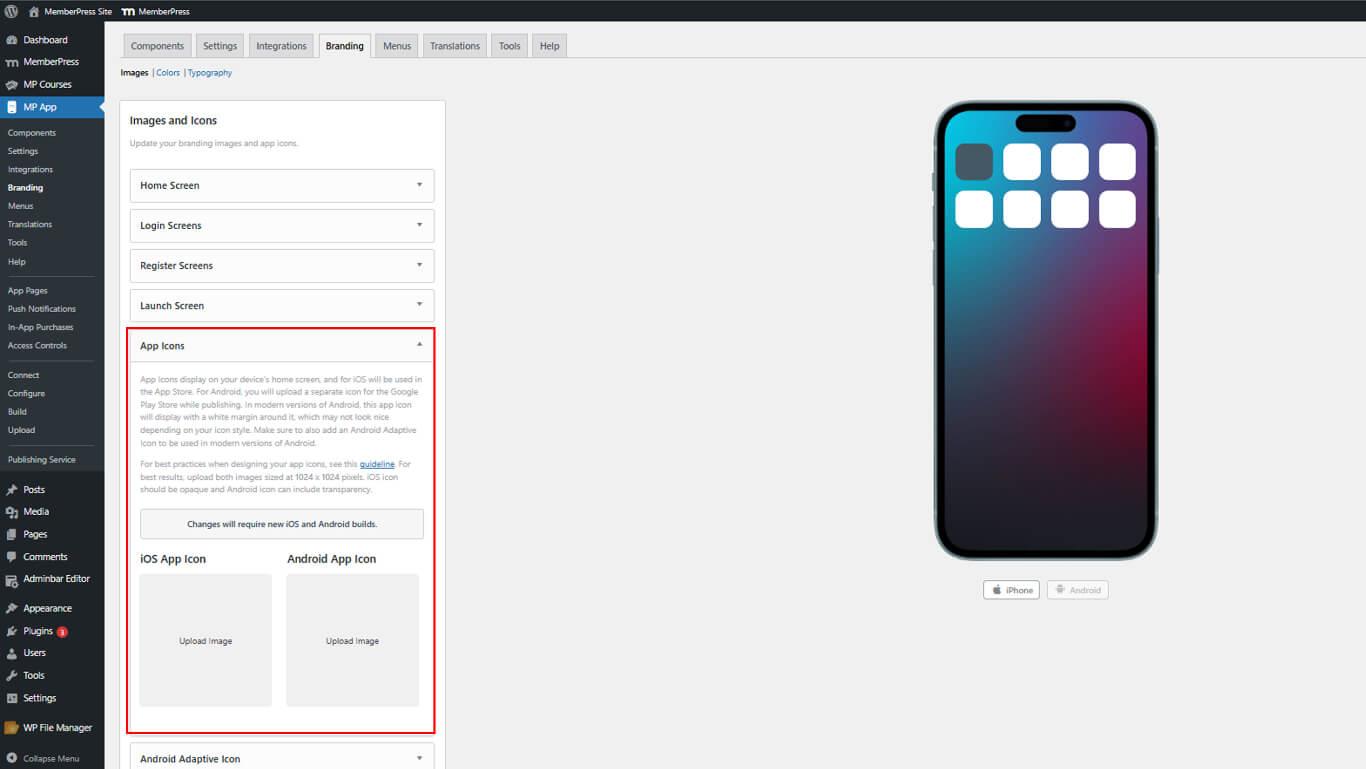
- Ändern Sie bei Bedarf die Größe und klicken Sie auf Fertigstellen.
- Überprüfen Sie Symbole in iPhone- und Android-Geräte-Mockups.
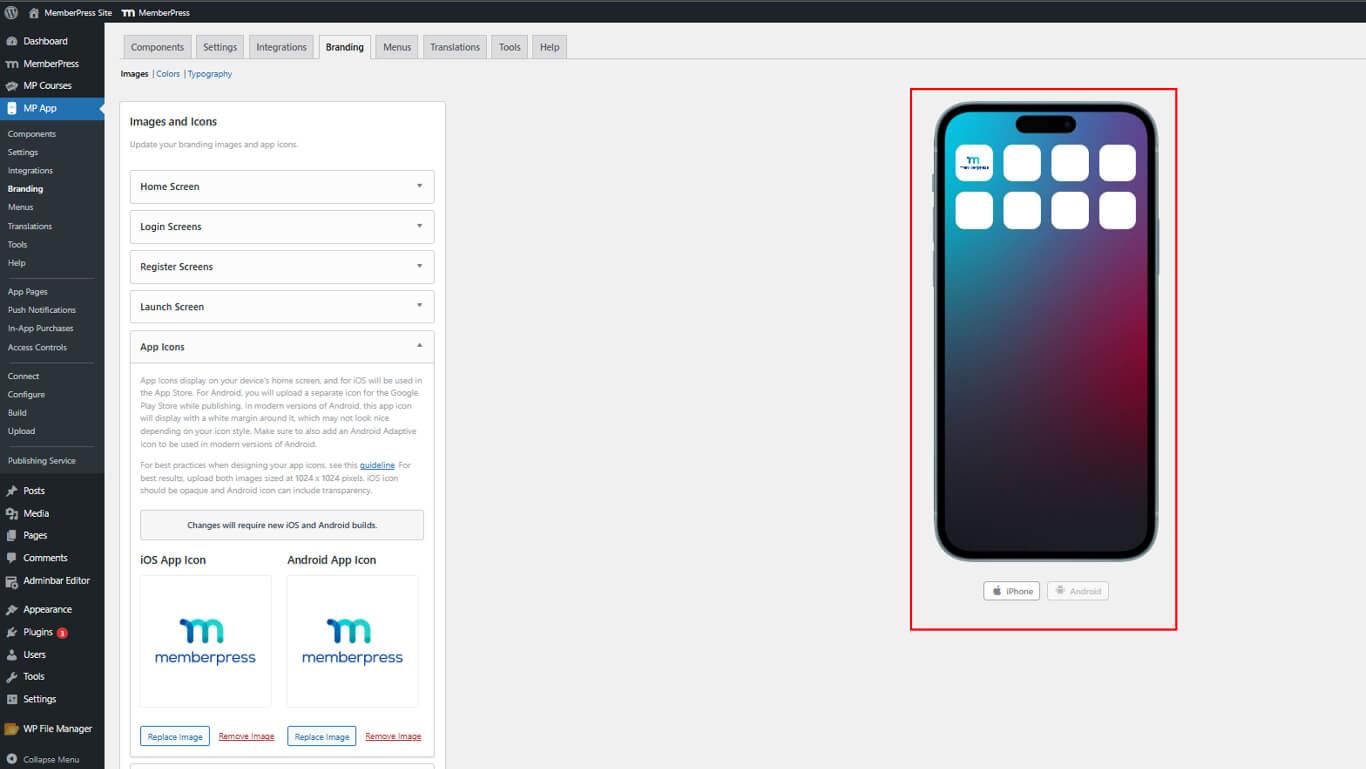
Getrennte iOS- und Android-Symbole ermöglichen eine plattformspezifische Handhabung der Transparenz.
Konfigurieren der adaptiven Android-Symbole
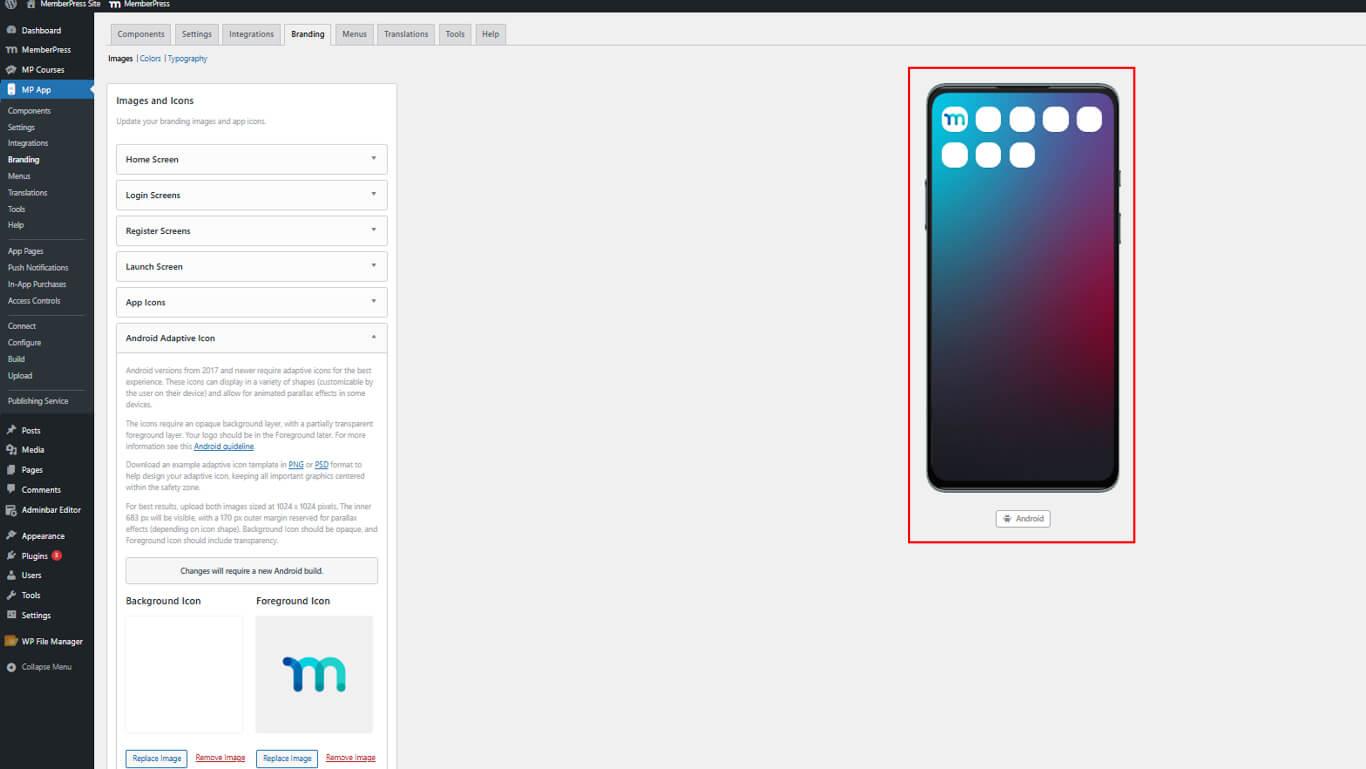
Die adaptiven Android-Symbole bieten Vorder- und Hintergrundebenen für eine flexible Anzeige.
- Navigieren Sie zu Dashboard > MP AppKit > Branding > Bilder.
- Suchen Sie die Adaptives Android-Symbol Abschnitt.
- Klicken Sie auf Bild hochladen.
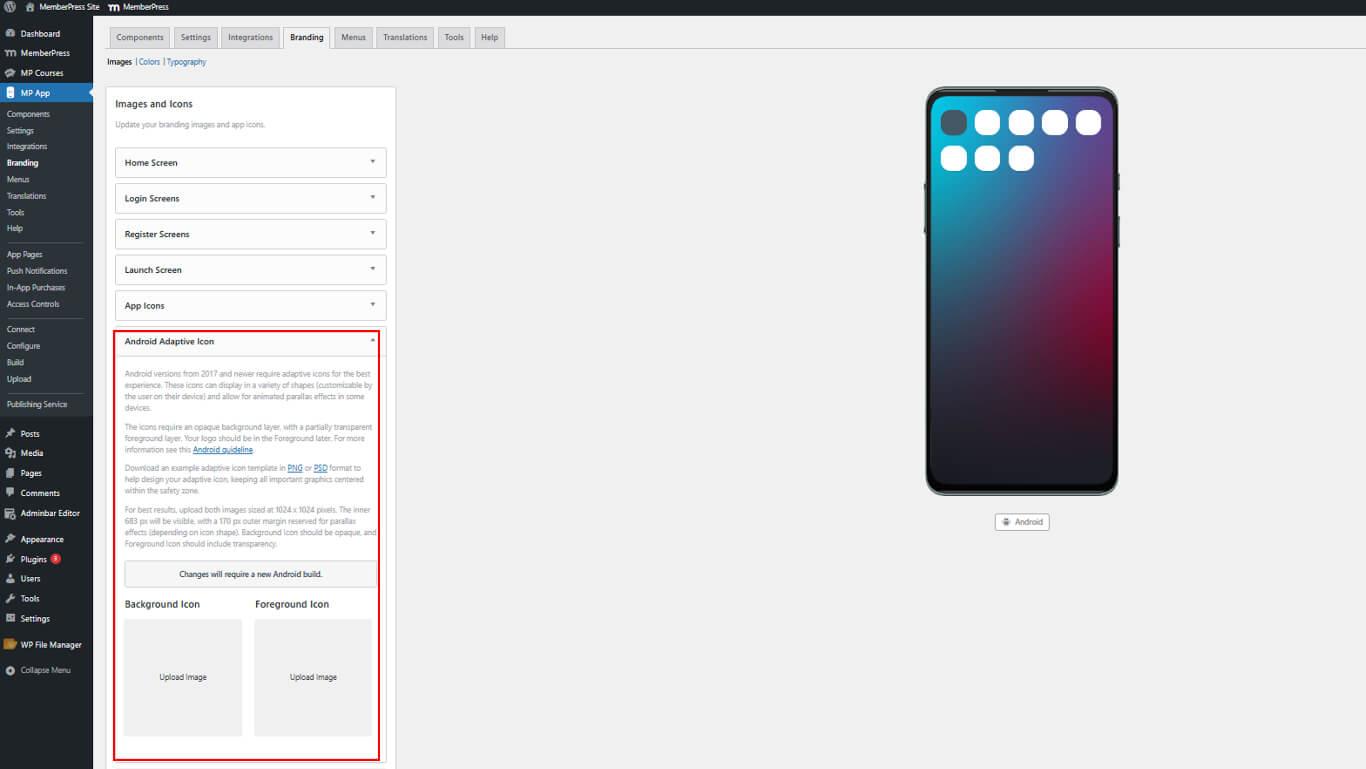
- Klicken Sie auf Fertigstellen nach etwaigen Anpassungen.
- Überprüfen Sie die Vorschau des adaptiven Symbols, das das Verhalten der Ebene zeigt.
Konfigurieren des Android-Benachrichtigungssymbols
Benachrichtigungssymbole werden in der Android-Benachrichtigungsleiste angezeigt.
- Navigieren Sie zu Dashboard > MP AppKit > Branding > Bilder.
- Suchen Sie die Benachrichtigungssymbol Abschnitt.
- Klicken Sie auf Bild hochladen.
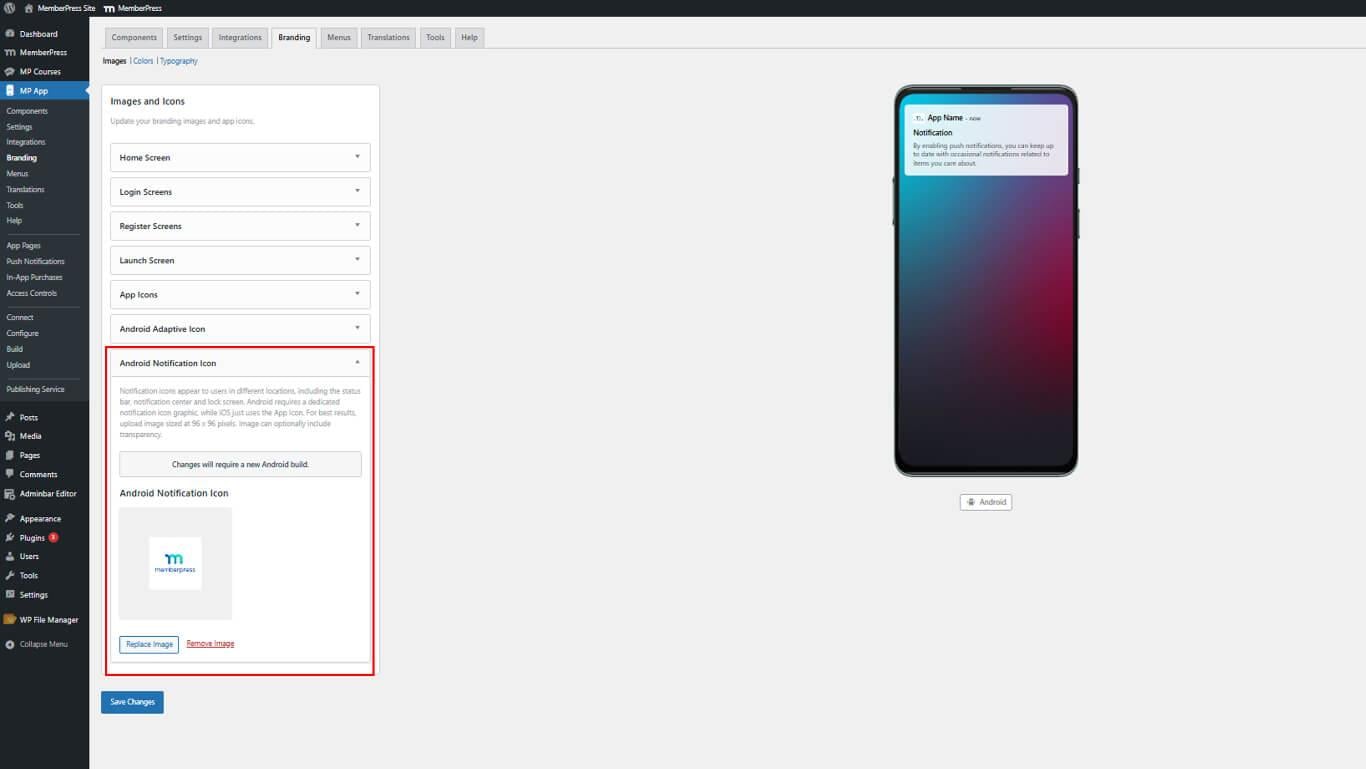
- Klicken Sie auf Fertigstellen nach etwaigen Anpassungen.
- Überprüfen Sie das Symbol in der Vorschau des Infobereichs.
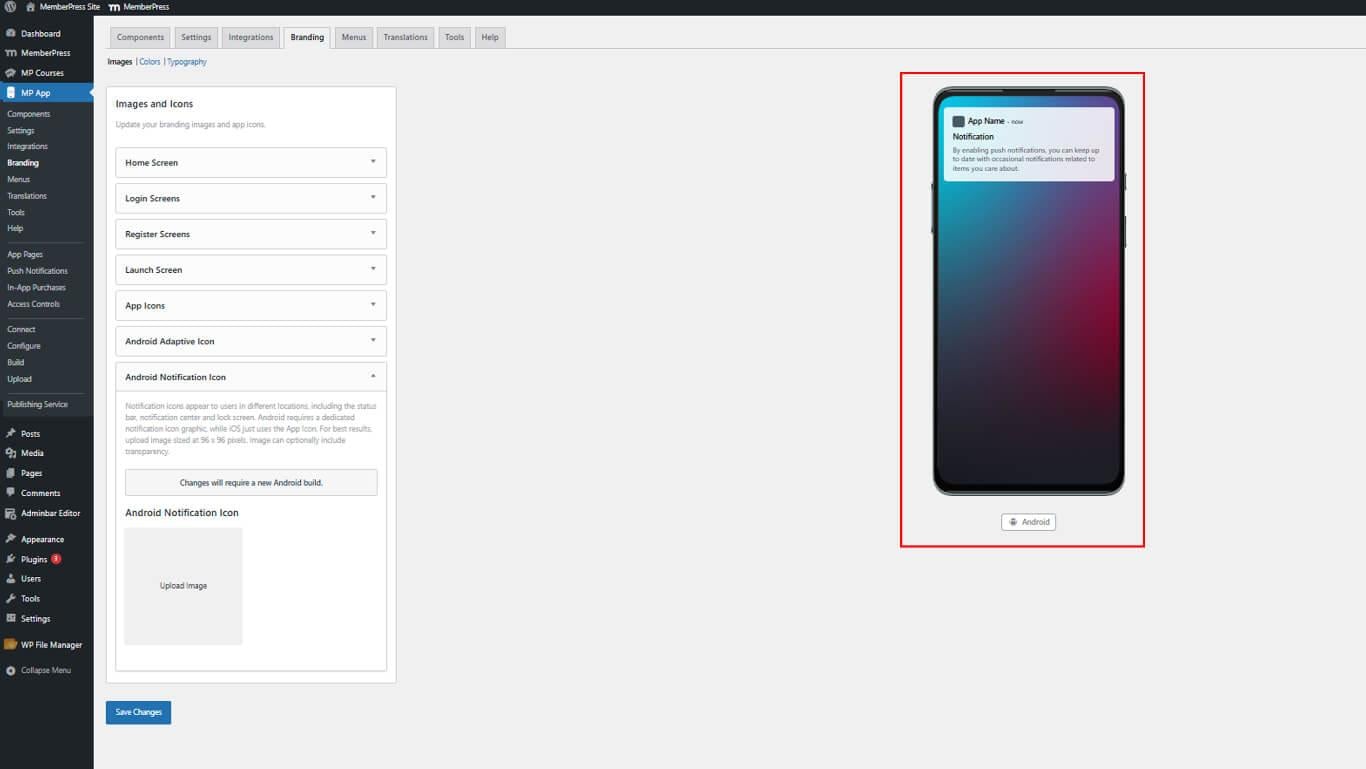
Benachrichtigungssymbole sollten ein einfaches, wiedererkennbares Design haben, das auch in kleinen Größen sichtbar ist.
Speichern von Konfigurationsänderungen
Alle hochgeladenen Bilder und Symbole müssen gespeichert werden, bevor sie wirksam werden.
- Blättern Sie bis zum Ende der Dashboard > MP AppKit > Branding > Bilder Seite.
- Klicken Sie auf Änderungen speichern.
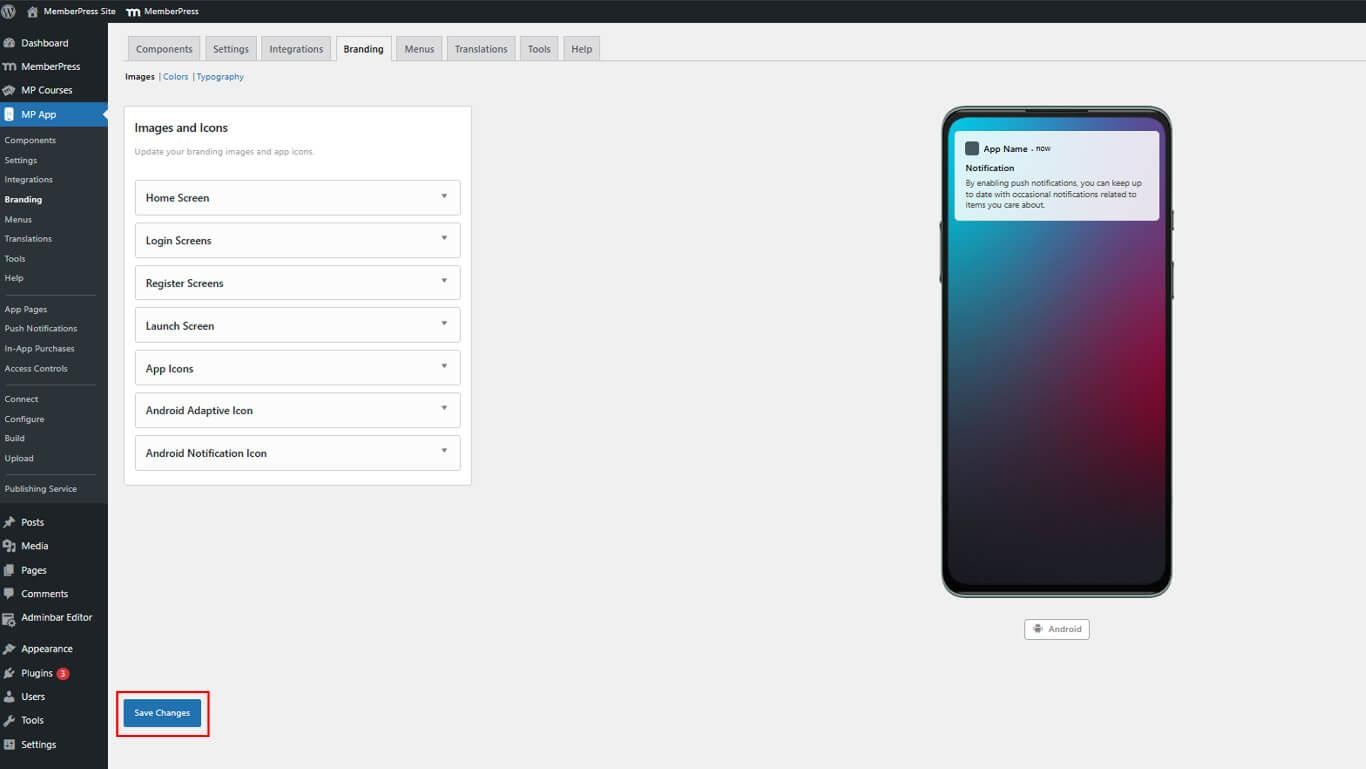
- Warten Sie auf die Bestätigungsmeldung, die das erfolgreiche Speichern anzeigt.










 DE
DE  EN
EN  ES
ES  FR
FR  PT
PT 