

Die Integration von Google Fonts ermöglicht eine benutzerdefinierte Typografie, die den Stilrichtlinien der Marke entspricht. Für den Schriftimport ist ein gültiger Google Fonts API-Schlüssel erforderlich.
In diesem Dokument wird erklärt, wie man den API-Schlüssel konfiguriert, Schriftarten importiert und die Typografie in der gesamten App anwendet.
Google Fonts-Integration verstehen
Google Fonts bietet umfangreiche Schriftartenoptionen für die Anpassung der Typografie von Apps. Durch die Konfiguration eines API-Schlüssels wird die App mit der Google Fonts-Bibliothek verbunden. Importierte Schriftarten können auf verschiedene Elemente der Benutzeroberfläche angewendet werden, darunter Fließtext, Überschriften und Navigationsbeschriftungen.
Konfigurieren des Google Fonts API-Schlüssels
Die API-Schlüsselkonfiguration ermöglicht das Durchsuchen und Importieren von Schriftarten.
- Navigieren Sie zu Dashboard > MP AppKit > Integrationen > Google-Schriftarten.
- Klicken Sie auf Schlüssel erhalten neben dem Feld „Google Fonts API Key“.
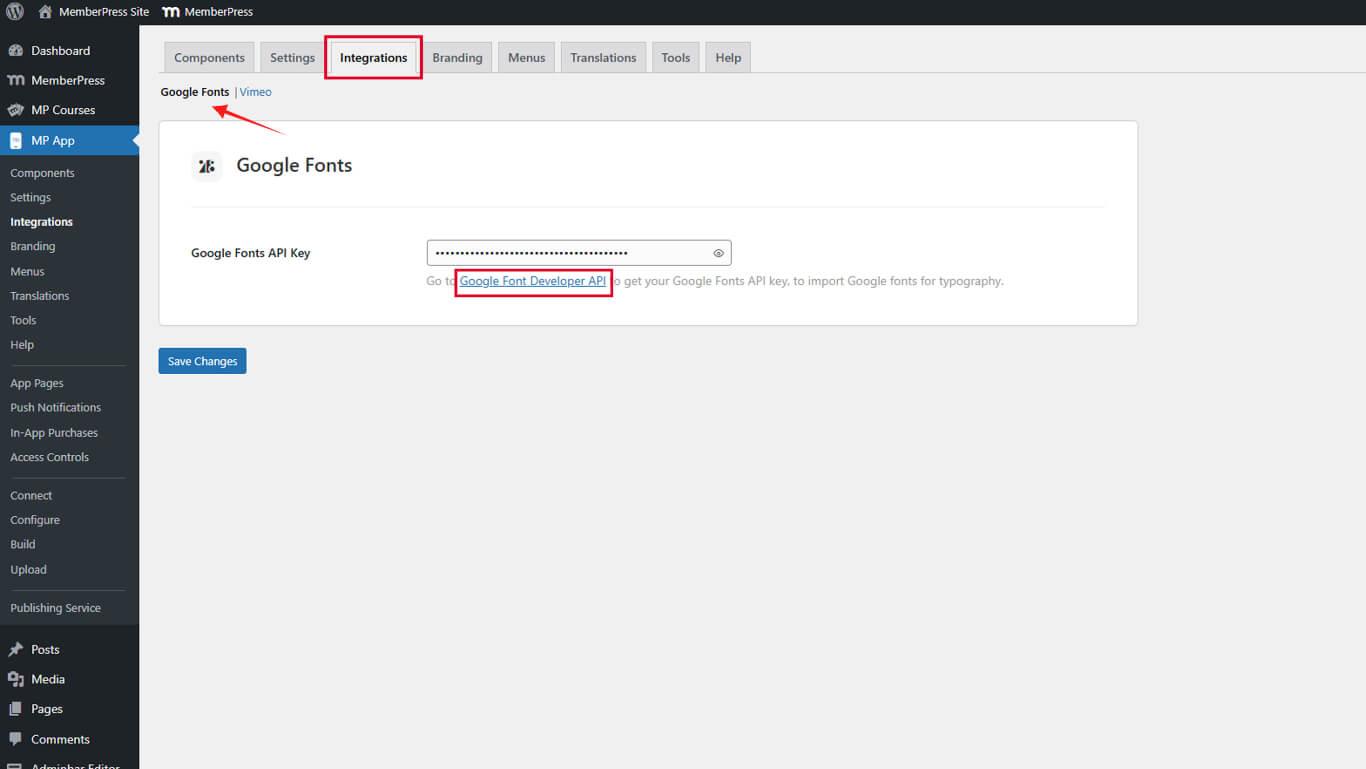
- Die Google Developers Console wird in einem neuen Browser-Tab geöffnet.
- Scrollen Sie nach unten und klicken Sie auf Schlüssel erhalten auf der Seite „API-Schlüssel erwerben und verwenden“.
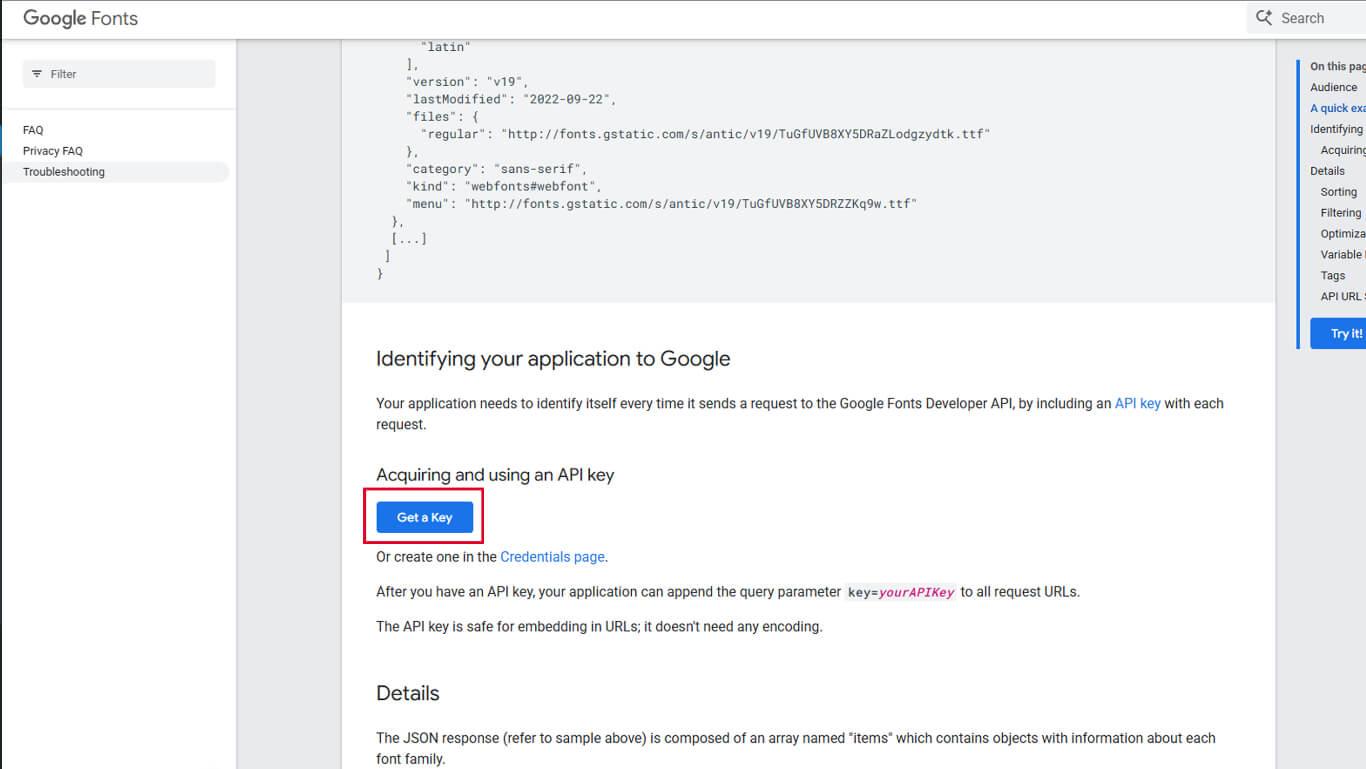
- Melden Sie sich mit einem Google-Konto an, wenn Sie dazu aufgefordert werden.
- Erstellen Sie ein neues Projekt oder wählen Sie ein bestehendes Projekt aus der Liste aus.
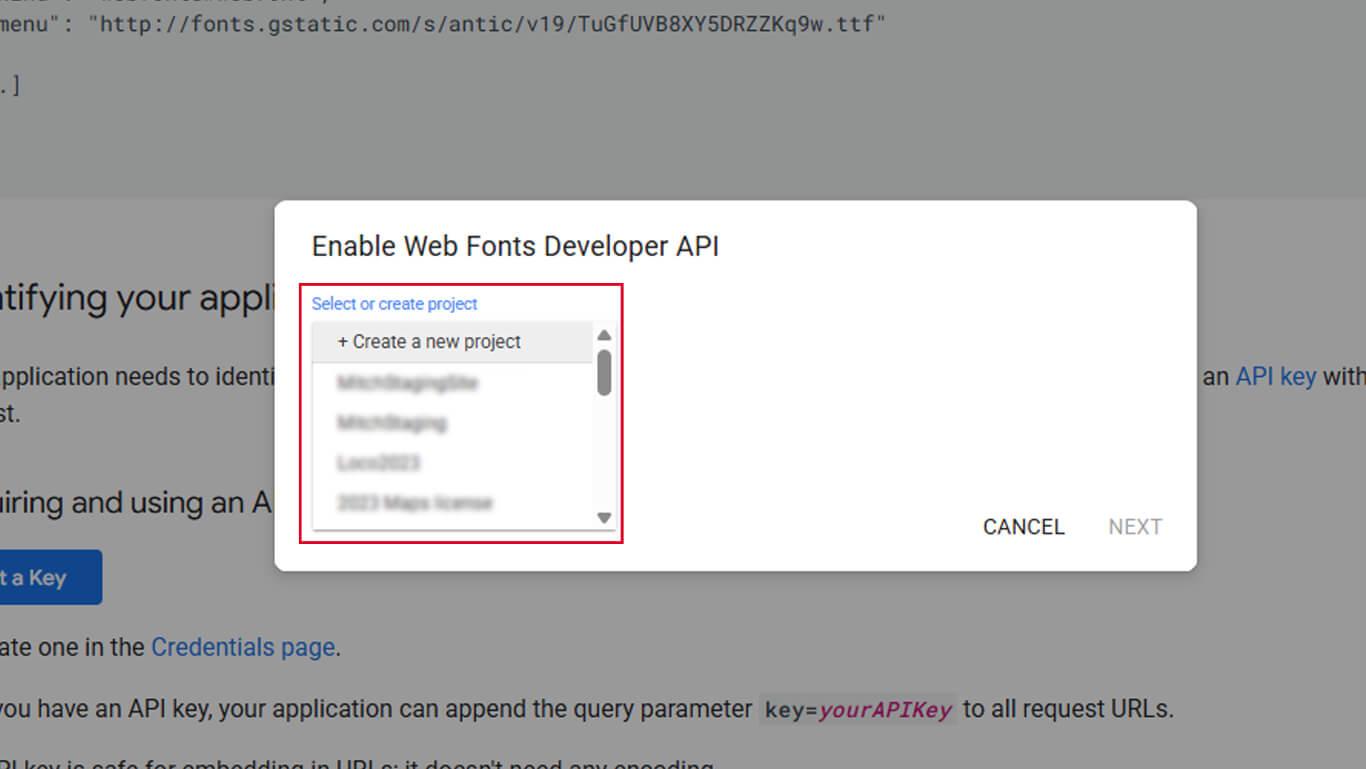
- Geben Sie einen Projektnamen in das Feld „Projektname“ ein.
- API-Aktivierung bestätigen.
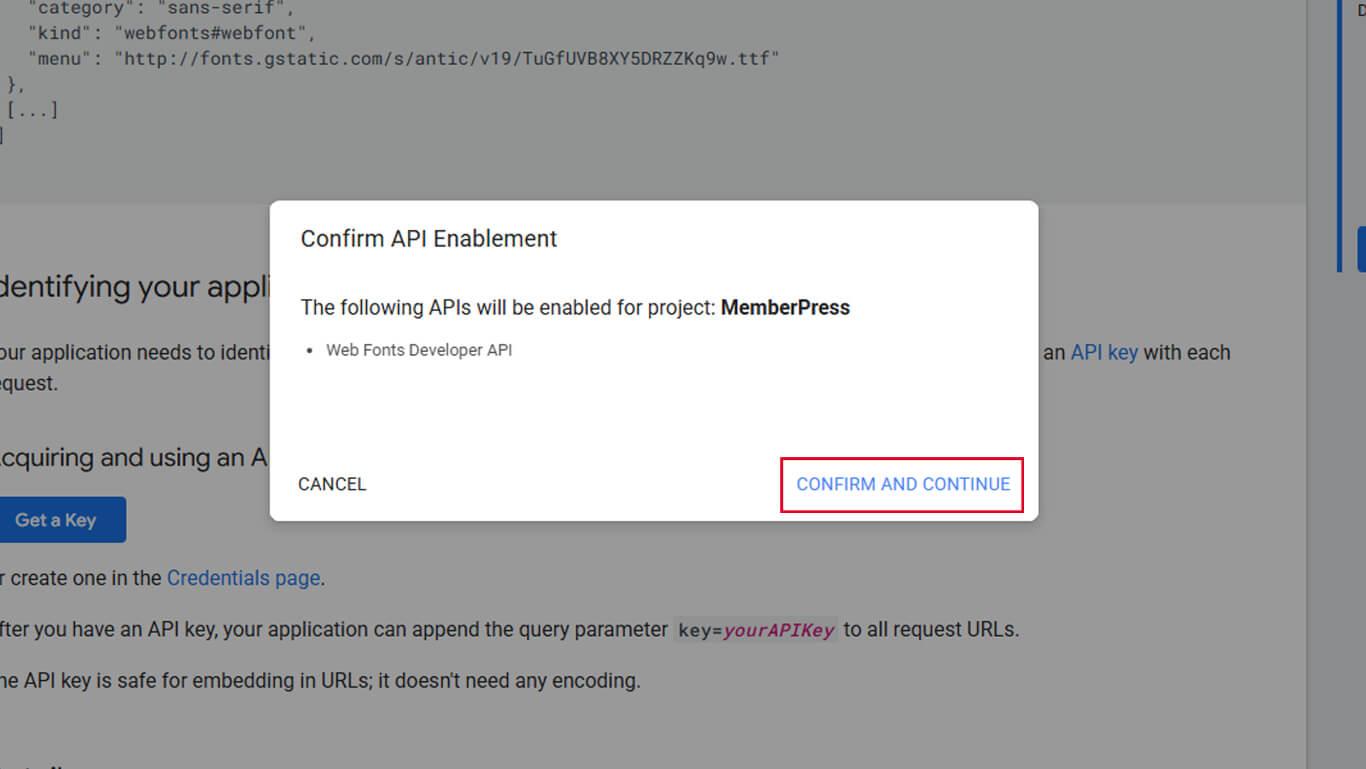
- Klicken Sie auf Schlüssel anzeigen.
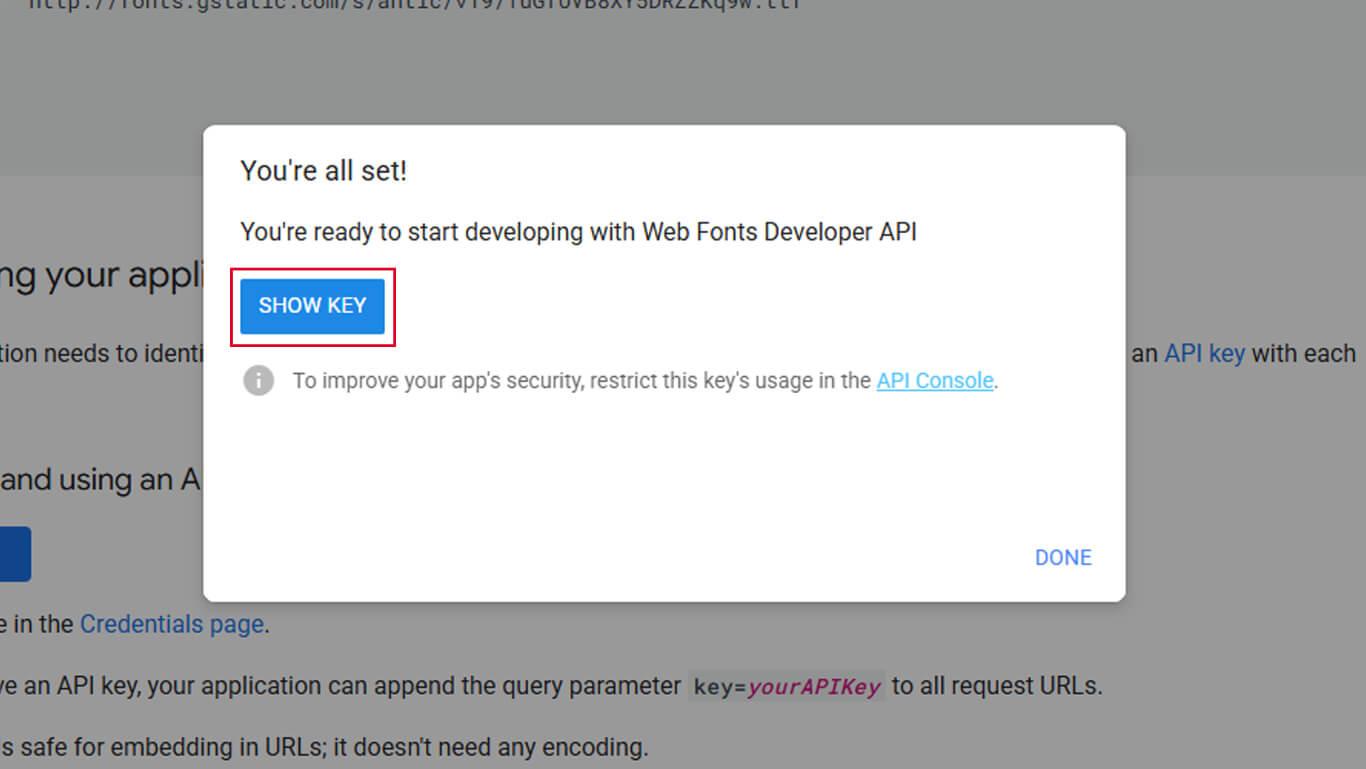
- Kopieren Sie den generierten API-Schlüssel aus dem angezeigten Feld.
- Zurück zu Dashboard > MP AppKit > Integrationen > Google-Schriftarten.
- Fügen Sie den API-Schlüssel in das Feld „Google Fonts API Key“ ein.
- Klicken Sie auf Änderungen speichern.
Importieren von Google-Schriftarten
Der Font-Import fügt Schriftarten zur Liste der verfügbaren Schriftarten für die App-Typografie hinzu.
- Navigieren Sie zu Dashboard > MP AppKit > Branding > Typografie.
- Suchen Sie die Google-Schriftarten importieren Abschnitt.
- Klicken Sie auf Google-Schriftarten importieren um den Schriftarten-Browser zu öffnen.
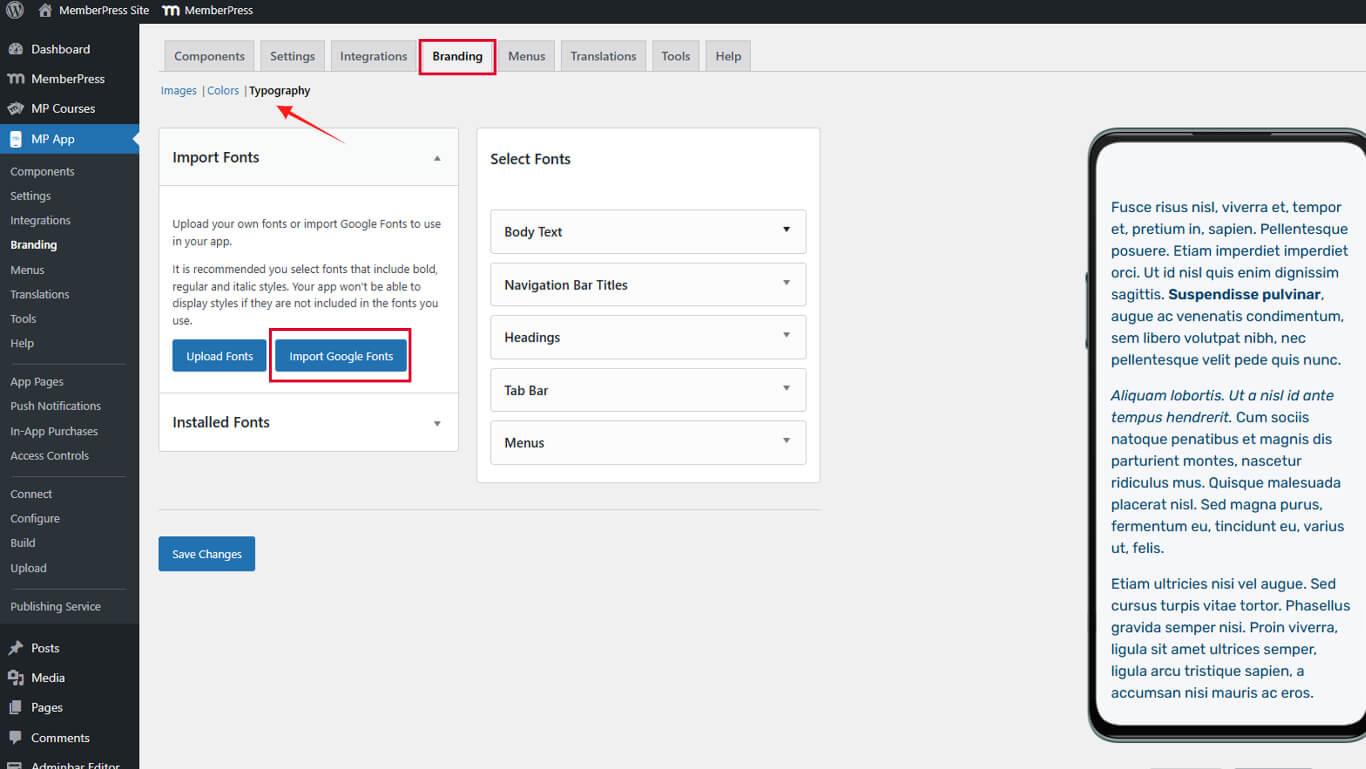
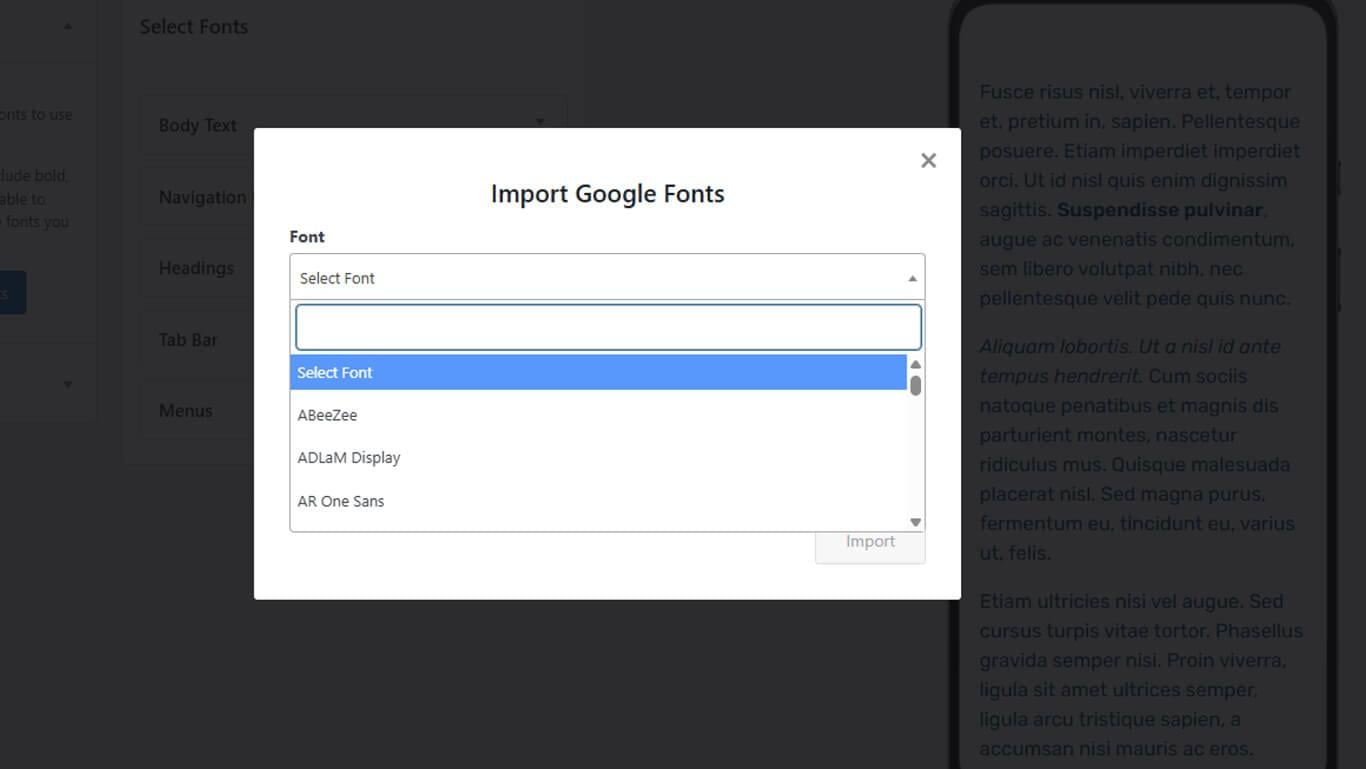
- Durchsuchen Sie die verfügbaren Schriftarten oder verwenden Sie das Suchfeld, um bestimmte Schriftarten zu finden.
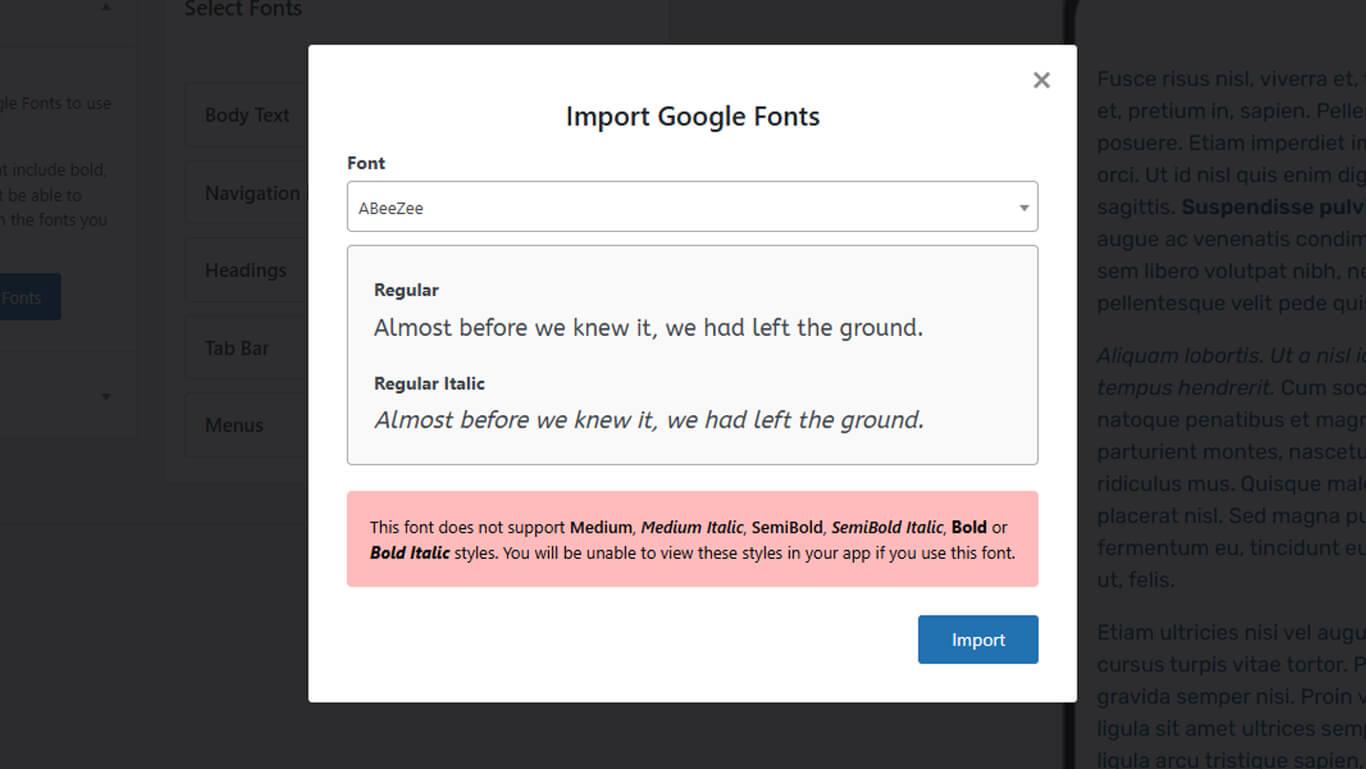
- Wählen Sie die gewünschte Schriftart aus den Suchergebnissen oder der Liste aus.
- Klicken Sie auf Importieren die Schriftart zu den verfügbaren Schriftarten hinzufügen.
Importierte Schriftarten anwenden
Importierte Schriftarten werden in den Typografieeinstellungen angezeigt, um sie Schnittstellenelementen zuzuweisen.
- Navigieren Sie zu Dashboard > MP AppKit > Branding > Typografie.
- Scrollen Sie zu dem Interface-Element, dem eine Schriftart zugewiesen werden soll.
- Wählen Sie die gewünschte Schriftart aus der Dropdown-Liste der Schriftfamilien aus für:
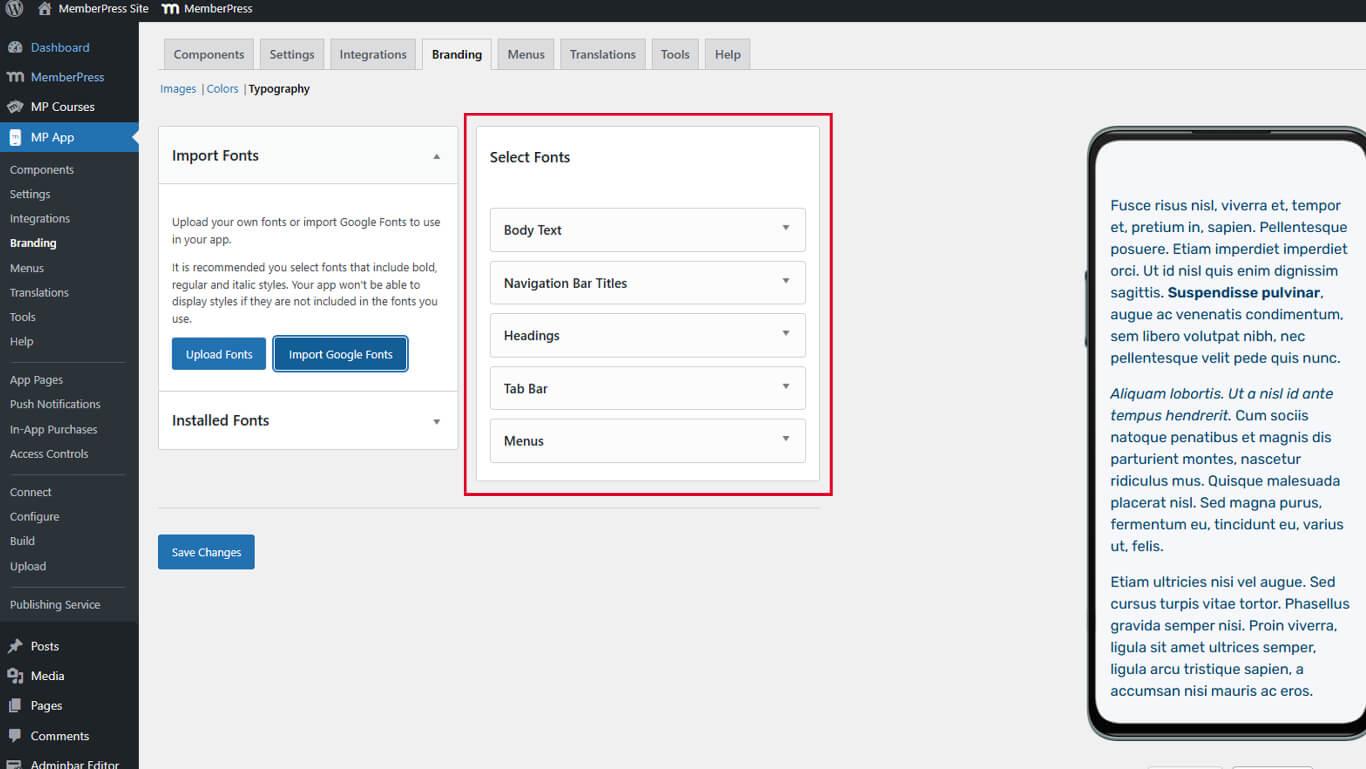
- Fließtext für die Typografie des Hauptinhalts;
- Überschriften für die Überschriftenebenen H1 bis H6;
- Navigationsleisten-Titel für Kopfzeilentext;
- Registerkartenbeschriftungen für den Text der unteren Navigation;
- Menüs für Menüpunkttext.
- Passen Sie die Schriftgröße bei Bedarf in den Größenfeldern an.
- Konfigurieren Sie nach Bedarf zusätzliche Schriftstile.
- Klicken Sie auf Änderungen speichern Schriftarten auswählen.
Schriftartänderungen gelten global für alle App-Bildschirme, die die ausgewählten Interface-Elemente verwenden.










 DE
DE  EN
EN  ES
ES  FR
FR  PT
PT 