

Push-Benachrichtigungen liefern Echtzeit-Warnungen an die Mobilgeräte der Mitglieder. Diese Benachrichtigungen informieren die Mitglieder über neue Inhalte, Aktualisierungen der Mitgliedschaft und wichtige Kontoereignisse.
In diesem Dokument wird erläutert, wie Sie Push-Benachrichtigungen aktivieren, die Firebase-Integration konfigurieren, automatische Benachrichtigungstypen verwalten und manuelle Benachrichtigungen an Mitglieder senden.
Push-Benachrichtigungen verstehen
Push-Benachrichtigungen erreichen die Mitglieder sofort, ohne dass eine App verwendet werden muss. Die Benachrichtigungen erscheinen auf dem Sperrbildschirm des Geräts und in der Benachrichtigungszentrale. Mitglieder können auf Benachrichtigungen tippen, um relevante App-Inhalte direkt zu öffnen. Firebase Cloud Messaging ermöglicht die Zustellung von Benachrichtigungen auf iOS- und Android-Plattformen. Eine ordnungsgemäße Konfiguration gewährleistet eine zuverlässige Zustellung von Benachrichtigungen und die Einbindung der Mitglieder.
Aktivieren der Komponente Push-Benachrichtigungen
Die Push-Benachrichtigungen müssen aktiviert werden, bevor die Konfiguration beginnen kann.
- Navigieren Sie zu Dashboard > MP AppKit > Komponenten.
- Lokalisieren Push-Benachrichtigungen in der Komponentenliste.
- Schalten Sie die Aktivieren Sie umschalten Auf.
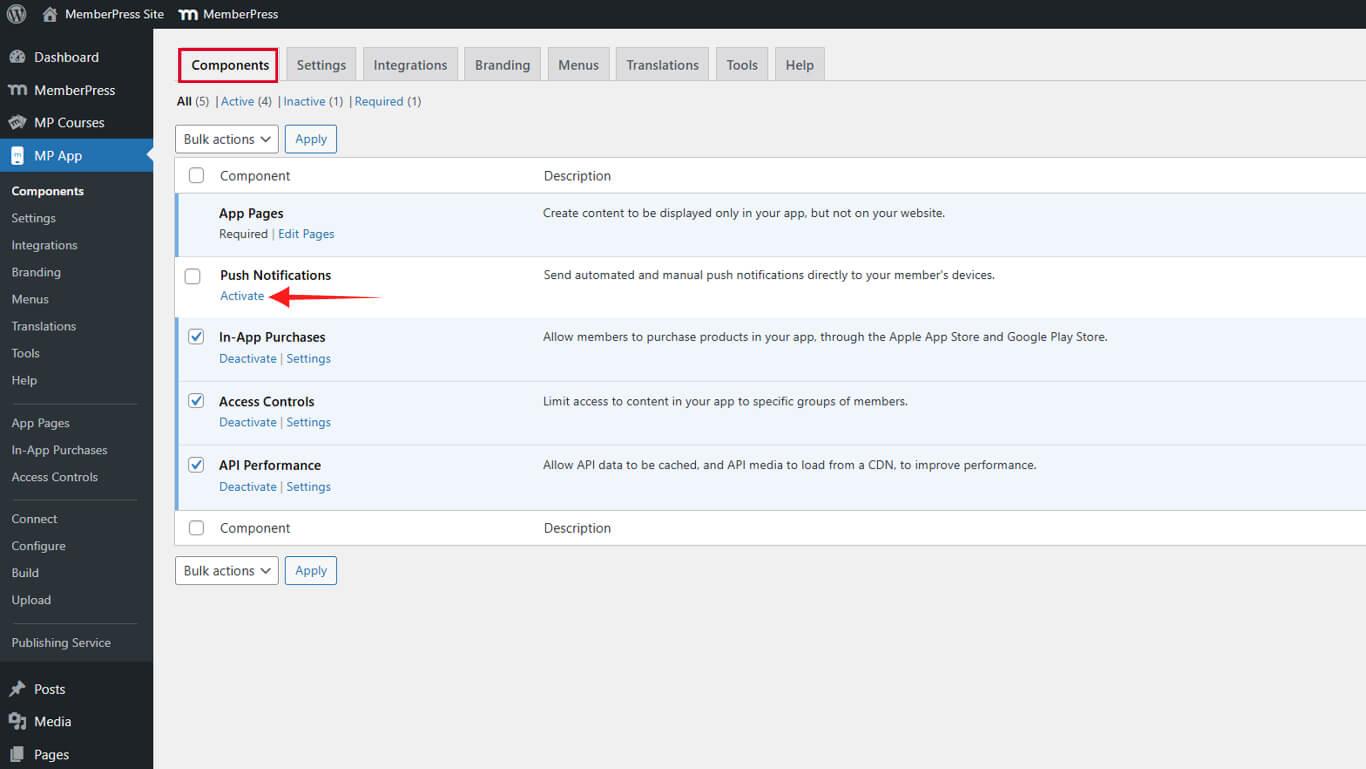
Das Menü Push-Benachrichtigungen erscheint nach der Aktivierung im WordPress-Dashboard.
Verbindung mit Firebase für die Zustellung von Benachrichtigungen
Firebase Cloud Messaging übernimmt die Zustellung von Benachrichtigungen an iOS- und Android-Geräte. Die Verbindung erfordert eine Firebase-Projektkonfiguration und den Upload von Anmeldeinformationen.
Firebase-Projekt erstellen
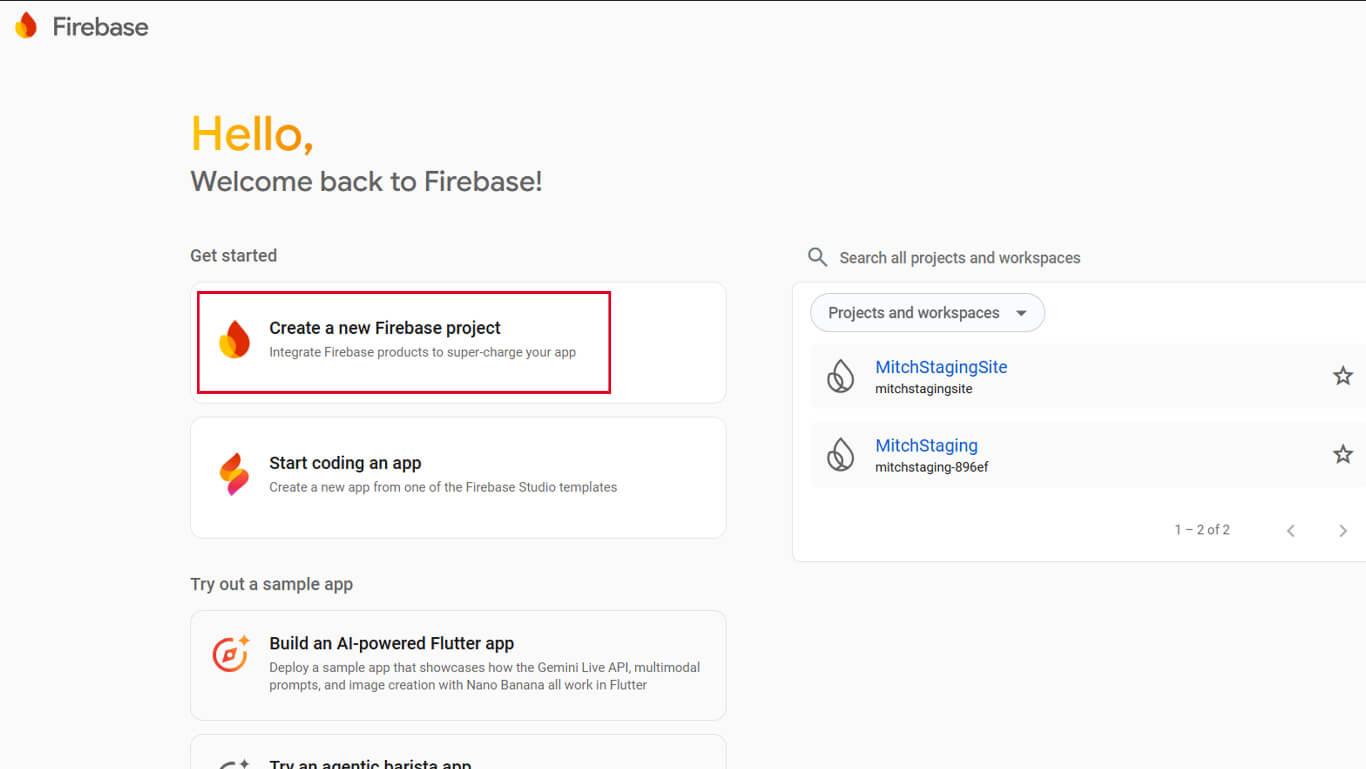
- Besuchen Sie die Firebase-Konsole unter konsole.firebase.google.de.
- Klicken Sie auf Erstellen Sie ein neues Firebase-Projekt oder wählen Sie ein bestehendes Projekt aus.
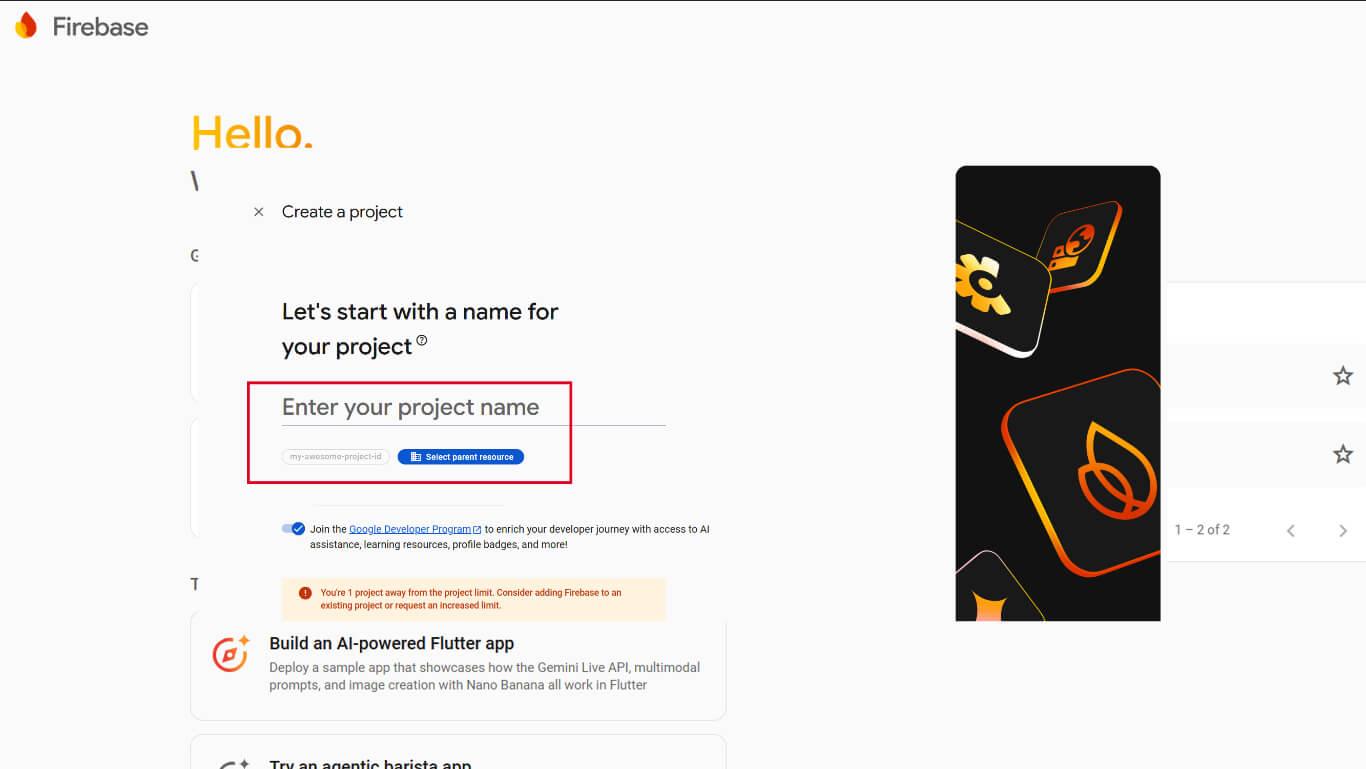
- Geben Sie einen Projektnamen ein und klicken Sie auf Weiter.
- Warten Sie, bis die Erstellung des Projekts abgeschlossen ist.
Die Einrichtung des Firebase-Projekts bildet die Grundlage für die Infrastruktur zur Bereitstellung von Benachrichtigungen.
Hinzufügen einer iOS-App zu Firebase
- Wählen Sie in der Firebase-Konsole das erstellte Projekt aus.
- Klicken Sie auf App hinzufügen.
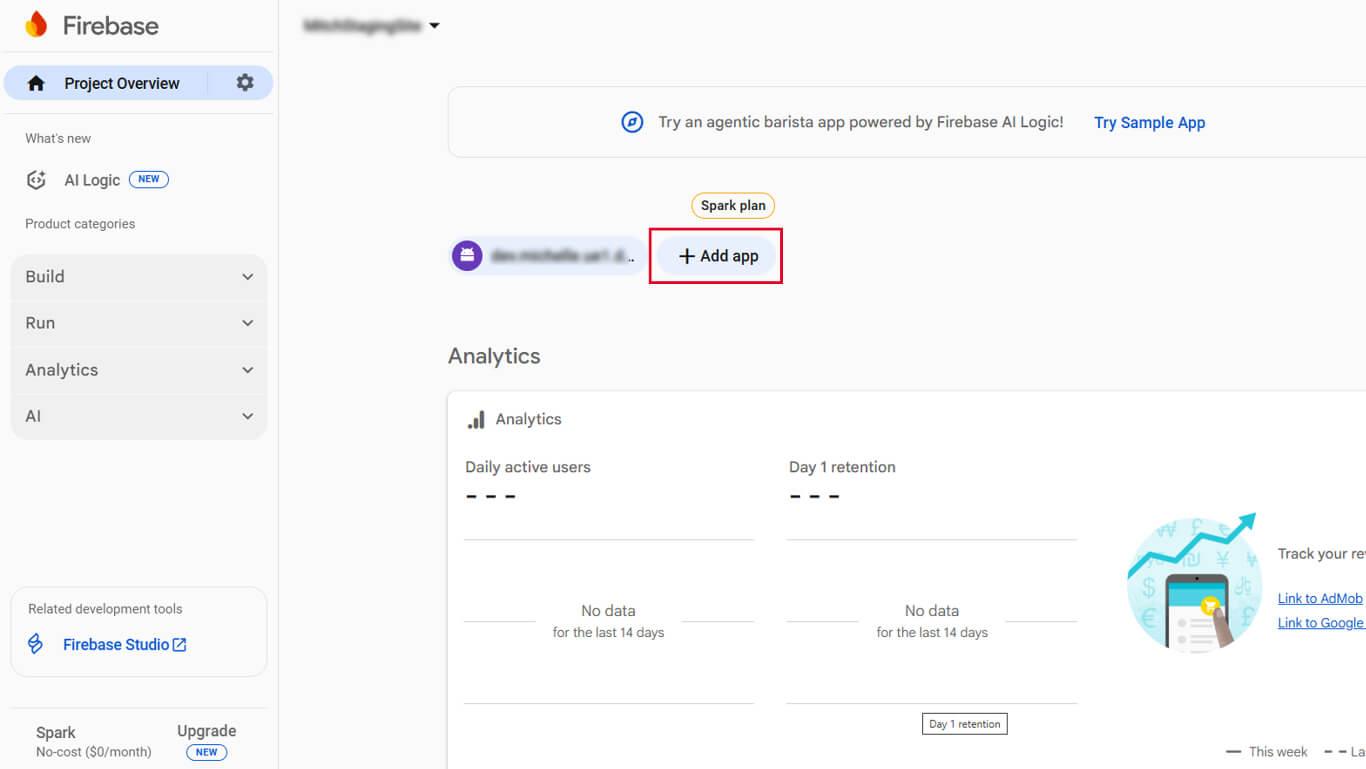
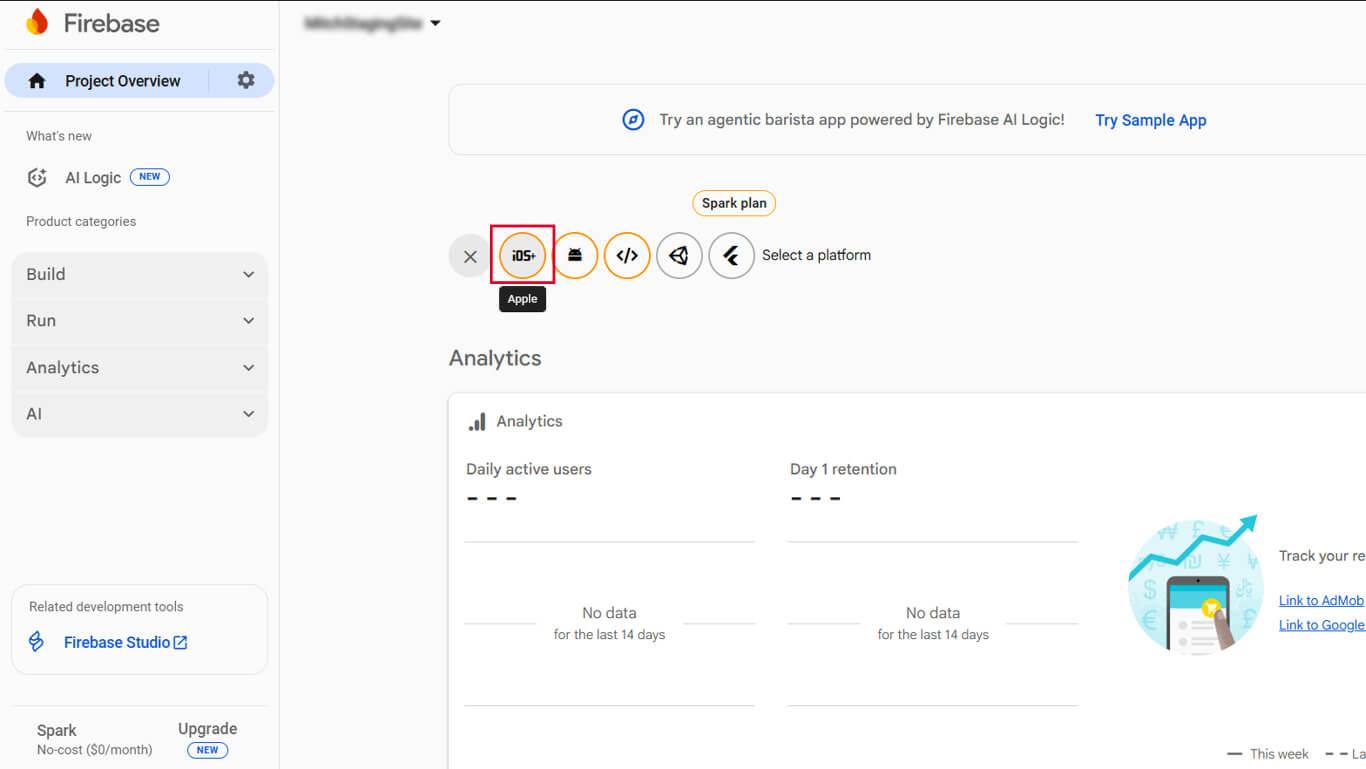
- Klicken Sie auf die iOS Symbol, um eine iOS-App hinzuzufügen.
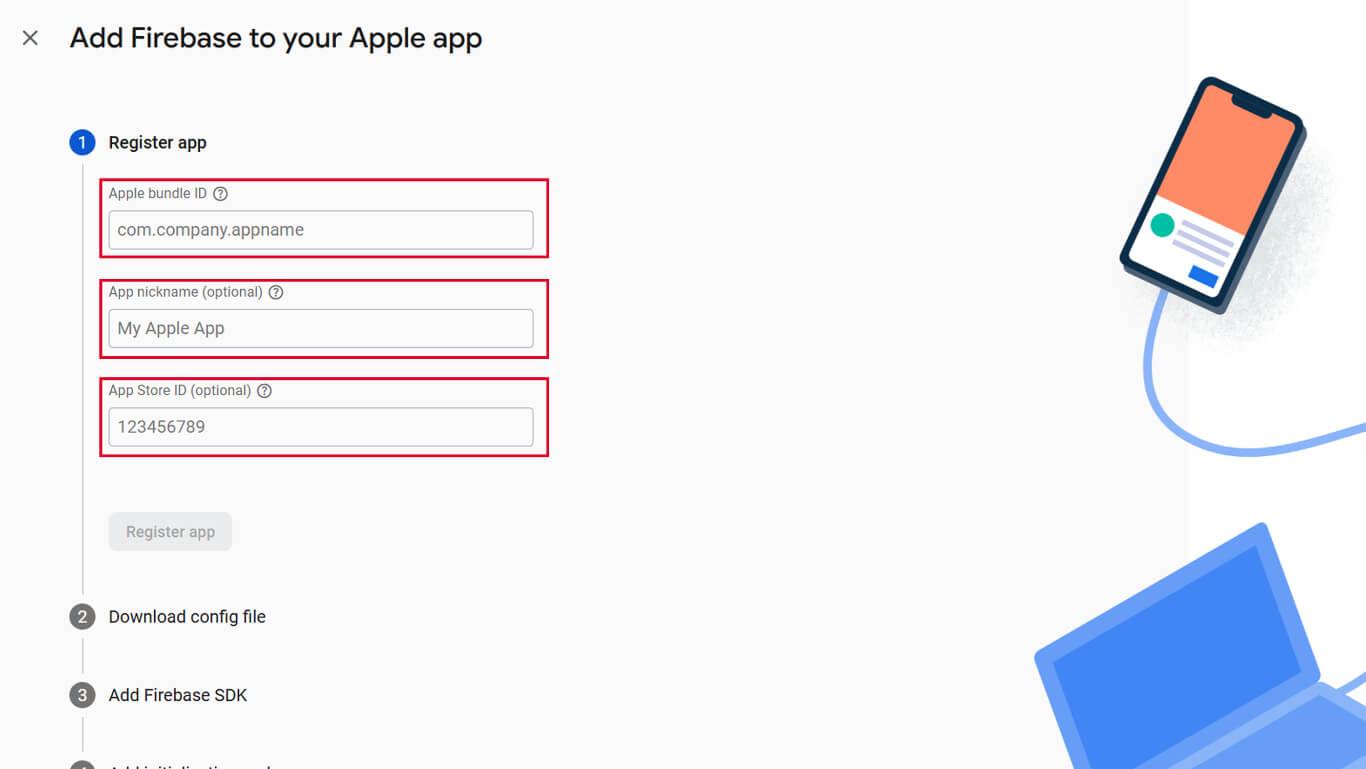
- Geben Sie die iOS-Bundle-ID aus den MemberPress-App-Einstellungen ein.
- Geben Sie einen App-Nickname ein und klicken Sie auf App registrieren.
- Herunterladen der GoogleService-Info.plist Datei.
- Klicken Sie auf Weiter durch die restlichen Einrichtungsschritte.
Hinzufügen einer Android-App zu Firebase
- Wählen Sie in der Firebase-Konsole das Projekt aus.
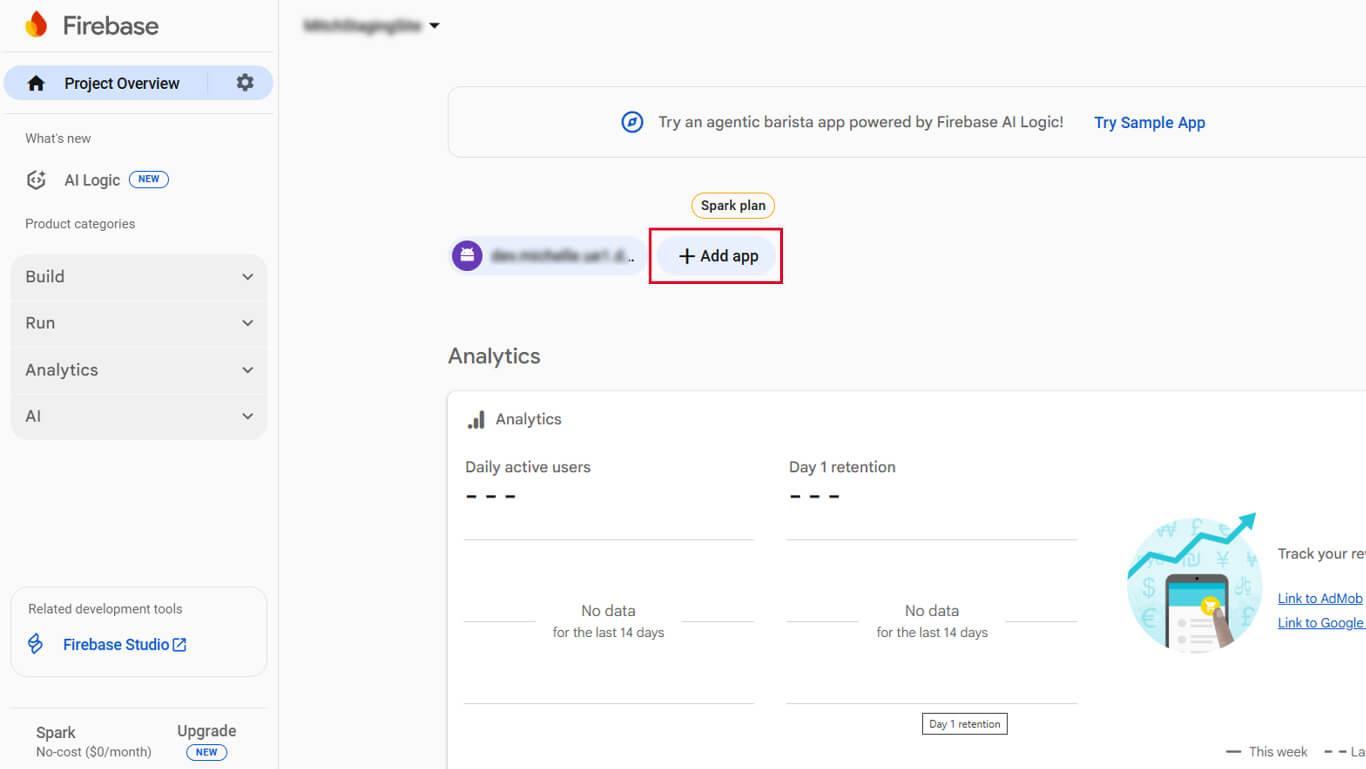
- Klicken Sie auf App hinzufügen.
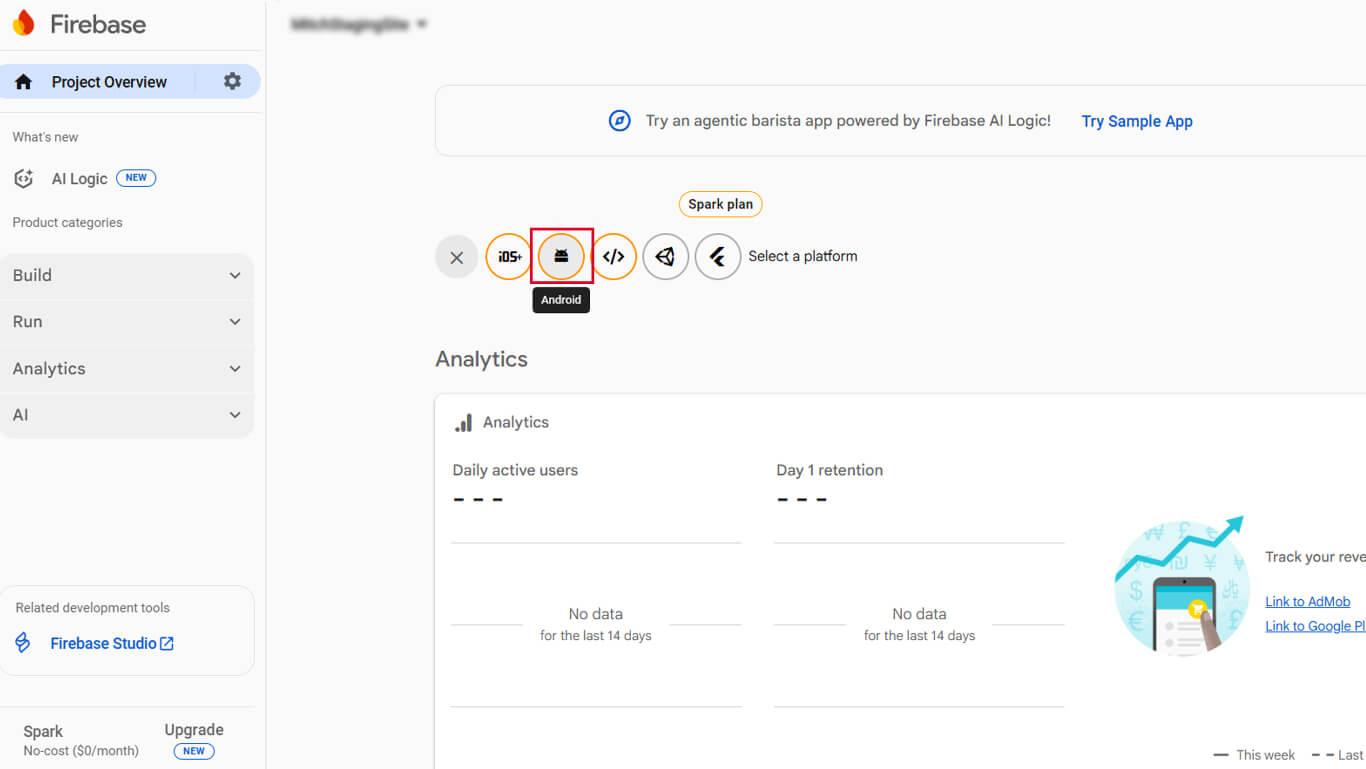
- Klicken Sie auf die Android Symbol, um eine Android-App hinzuzufügen.
- Geben Sie den Android-Paketnamen aus den MemberPress AppKit-Einstellungen ein.
- Geben Sie einen App-Nickname ein und klicken Sie auf App registrieren.
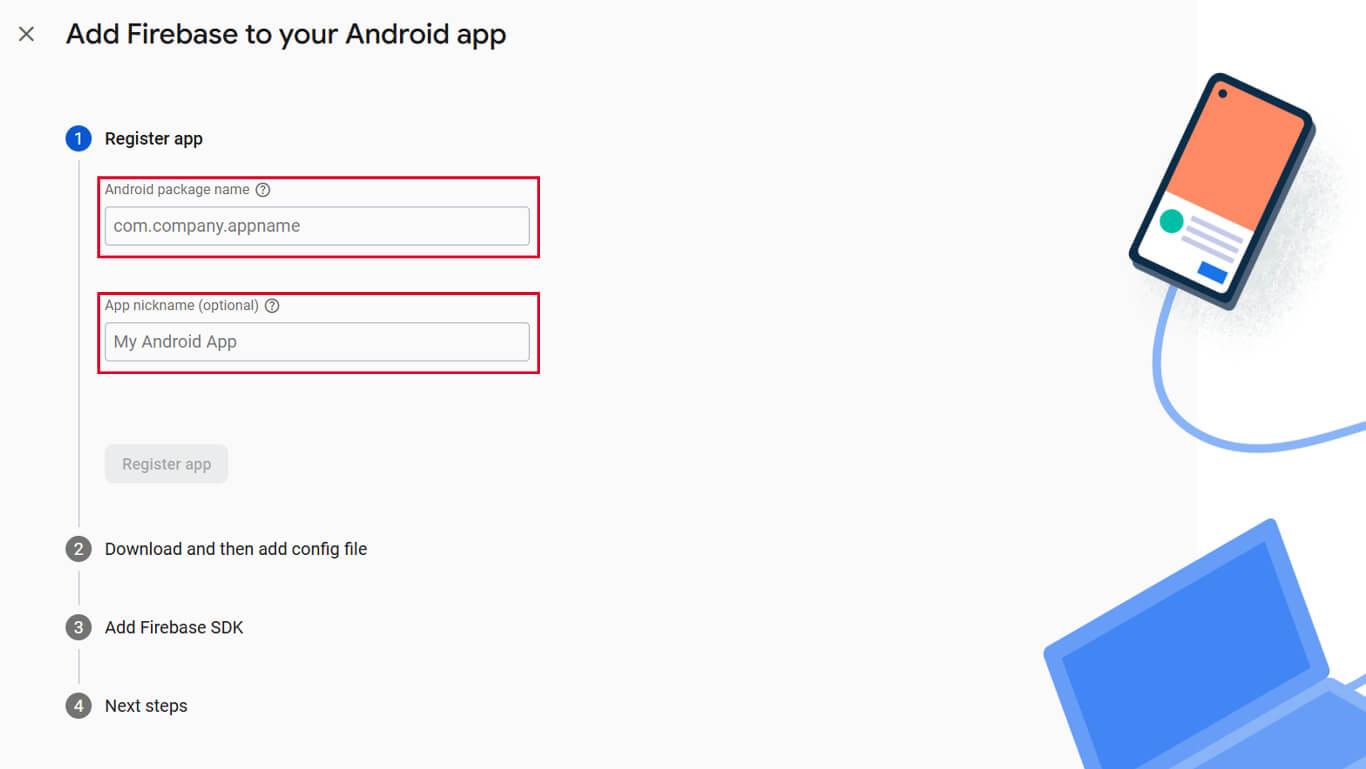
- Herunterladen der google-services.json Datei.
- Klicken Sie auf Weiter durch die restlichen Einrichtungsschritte.
Abrufen von Firebase-Server-Anmeldeinformationen
- Navigieren Sie in der Firebase-Konsole zu Projekt-Einstellungen.
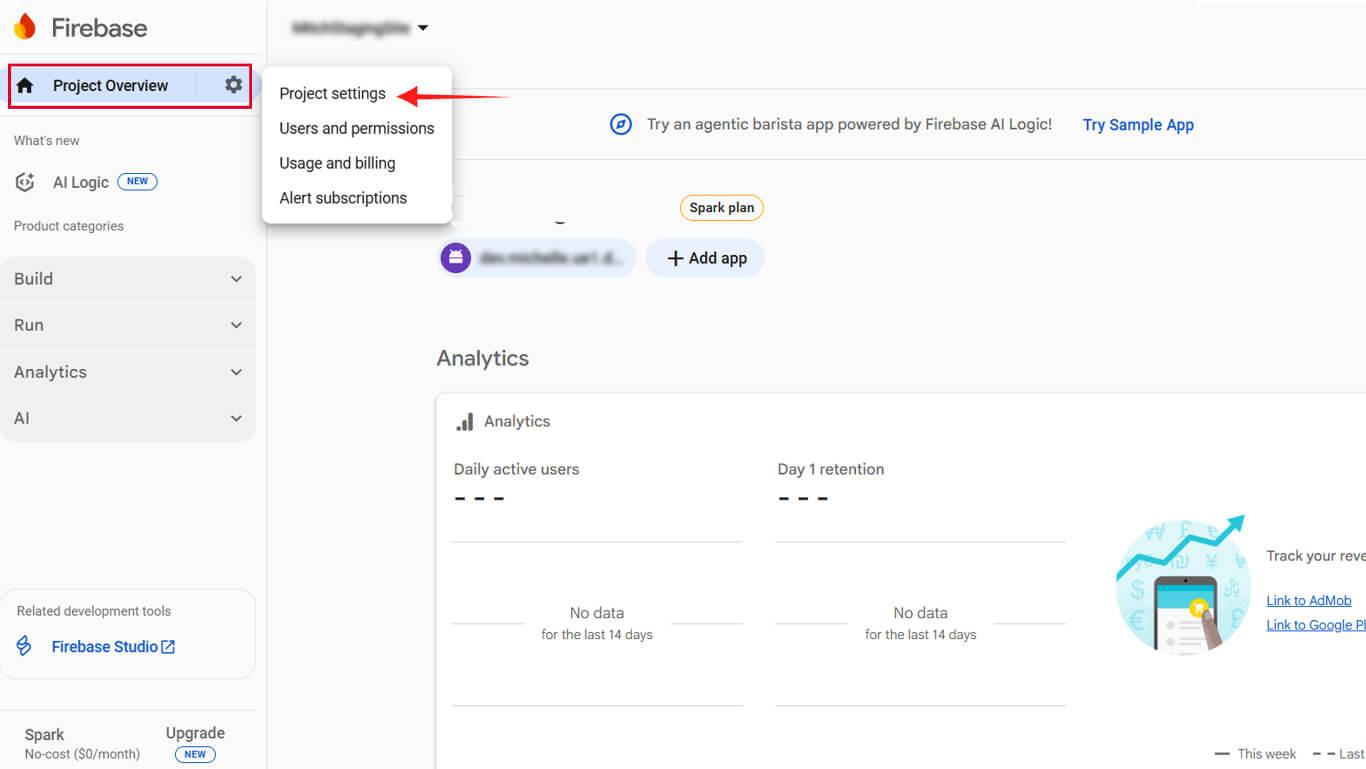
- Klicken Sie auf die Cloud-Messaging tab.
- Kopieren Sie die Server-Schlüssel Wert.
- Kopieren Sie die Absender-ID Wert.
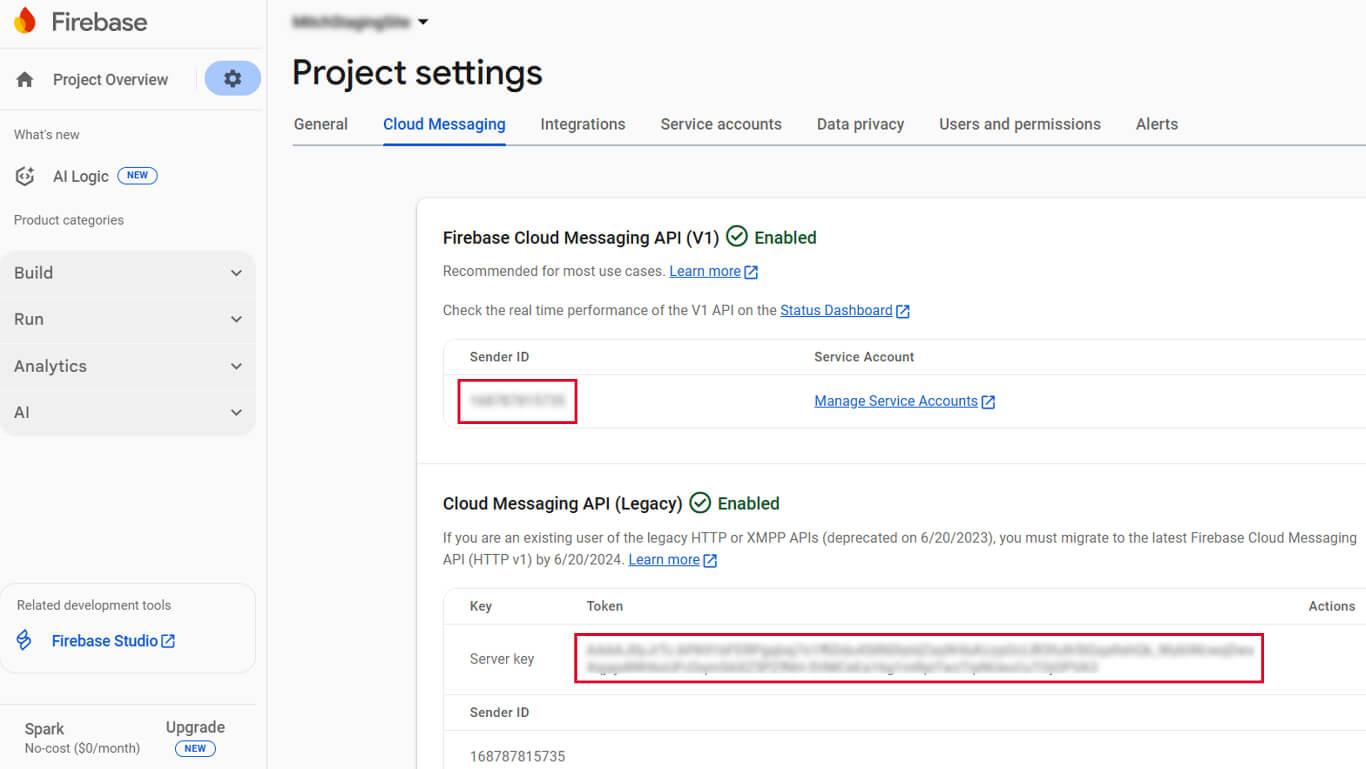
- Halten Sie diese Werte für die WordPress-Konfiguration zugänglich.
Server-Anmeldedaten authentifizieren die WordPress-Kommunikation mit Firebase-Servern.
Hochladen der Firebase-Konfiguration in WordPress
- Navigieren Sie zu Dashboard > MP AppKit > Konfigurieren > Google Firebase.
- Klicken Sie auf Datei auswählen unter Android-Konfigurationsdatei.
- Wählen Sie die heruntergeladene google-services.json Datei.
- Klicken Sie auf Datei auswählen unter iOS-Konfigurationsdatei.
- Wählen Sie die heruntergeladene GoogleService-Info.plist Datei.
- Geben Sie die Server-Schlüssel in das Feld Serverschlüssel ein.
- Geben Sie die Absender-ID in das Feld Absender-ID ein.
- Klicken Sie auf Änderungen speichern.
Nach erfolgreicher Konfiguration können Push-Benachrichtigungen an die Geräte der Mitglieder gesendet werden.
Automatisierte Benachrichtigungstypen konfigurieren
Automatisierte Benachrichtigungen werden bei bestimmten Ereignissen ohne manuelles Eingreifen ausgelöst. Die Konfiguration bestimmt, welche Arten von Benachrichtigungen Mitglieder erhalten können.
- Navigieren Sie zu Dashboard > MP AppKit > Einstellungen > Push-Benachrichtigungen.
- Suchen Sie die Automatische Benachrichtigungen Abschnitt.
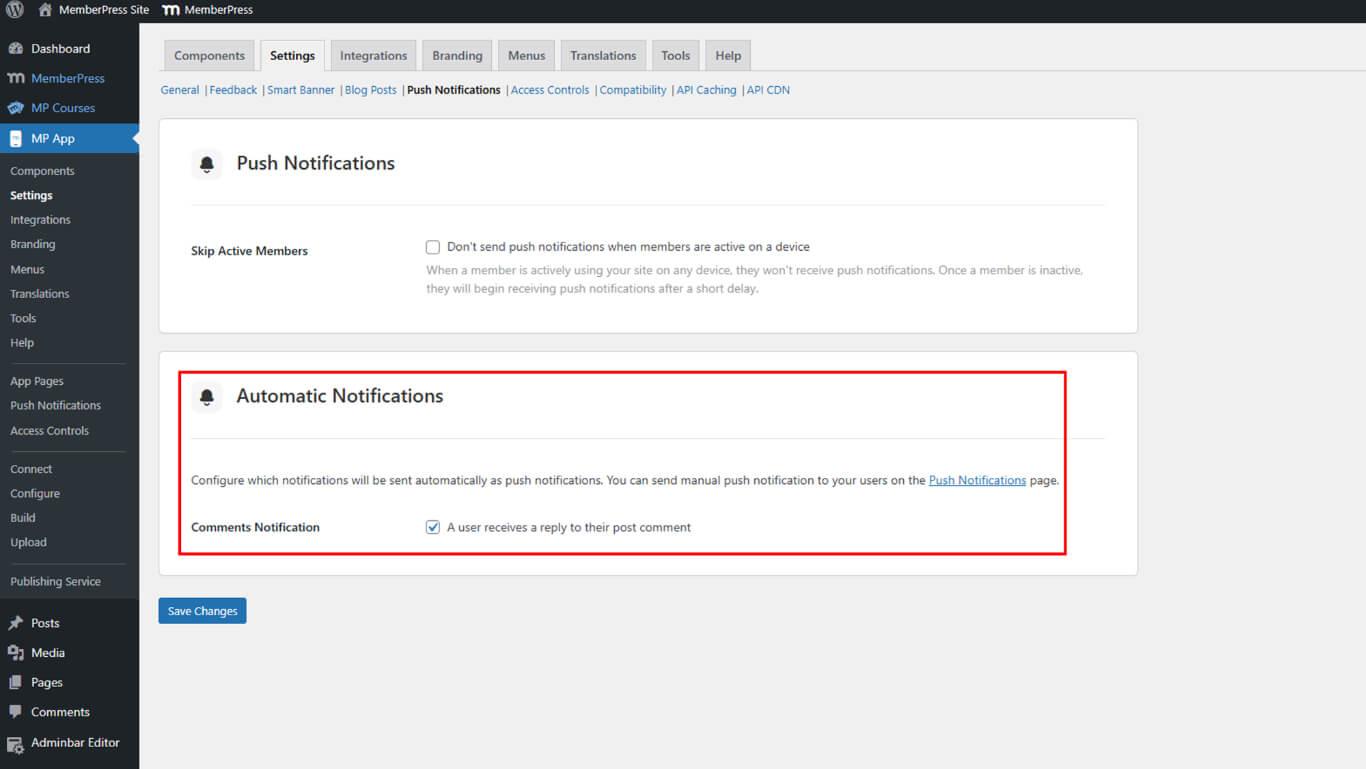
- Klicken Sie auf Änderungen speichern.










 DE
DE  EN
EN  ES
ES  FR
FR  PT
PT 