

Tab Bar- und More Screen-Menüs bieten primäre und sekundäre Navigation in mobilen Anwendungen. Durch die Anpassung der Menüs entstehen markenbezogene Navigationserlebnisse, die auf die Organisationsstruktur und die Bedürfnisse der Mitglieder abgestimmt sind.
In diesem Dokument wird erläutert, wie Sie Navigationselemente konfigurieren, Menüabschnitte organisieren, Symbole und Farben anpassen und eine Vorschau der Navigationsänderungen anzeigen.
Tab-Leiste und weitere Bildschirmnavigation verstehen
Die Tab-Leiste wird am unteren Rand des Mobilbildschirms angezeigt und ermöglicht einen schnellen Zugriff auf die wichtigsten Bereiche der App. Die Tab-Leiste kann bis zu vier Elemente enthalten, wobei die fünfte Position für das Menü „Mehr“ reserviert ist. Die Navigation im Bildschirm „Mehr“ enthält sekundäre Elemente, auf die über das Symbol „Mehr“ zugegriffen werden kann. Die Menüorganisation und die Auswahl der Symbole sorgen für ein einheitliches Navigationserlebnis, das die Interaktion der Mitglieder und die Entdeckung von Inhalten fördert.
Zugriff auf die Menüeinstellungen
Die Menükonfiguration erfolgt über die Schnittstelle für die Menüeinstellungen.
- Navigieren Sie zu Dashboard > MP AppKit > Menüs.
- Überprüfen Sie die Registerkartenmenü Die Registerkarte ist aktiv.
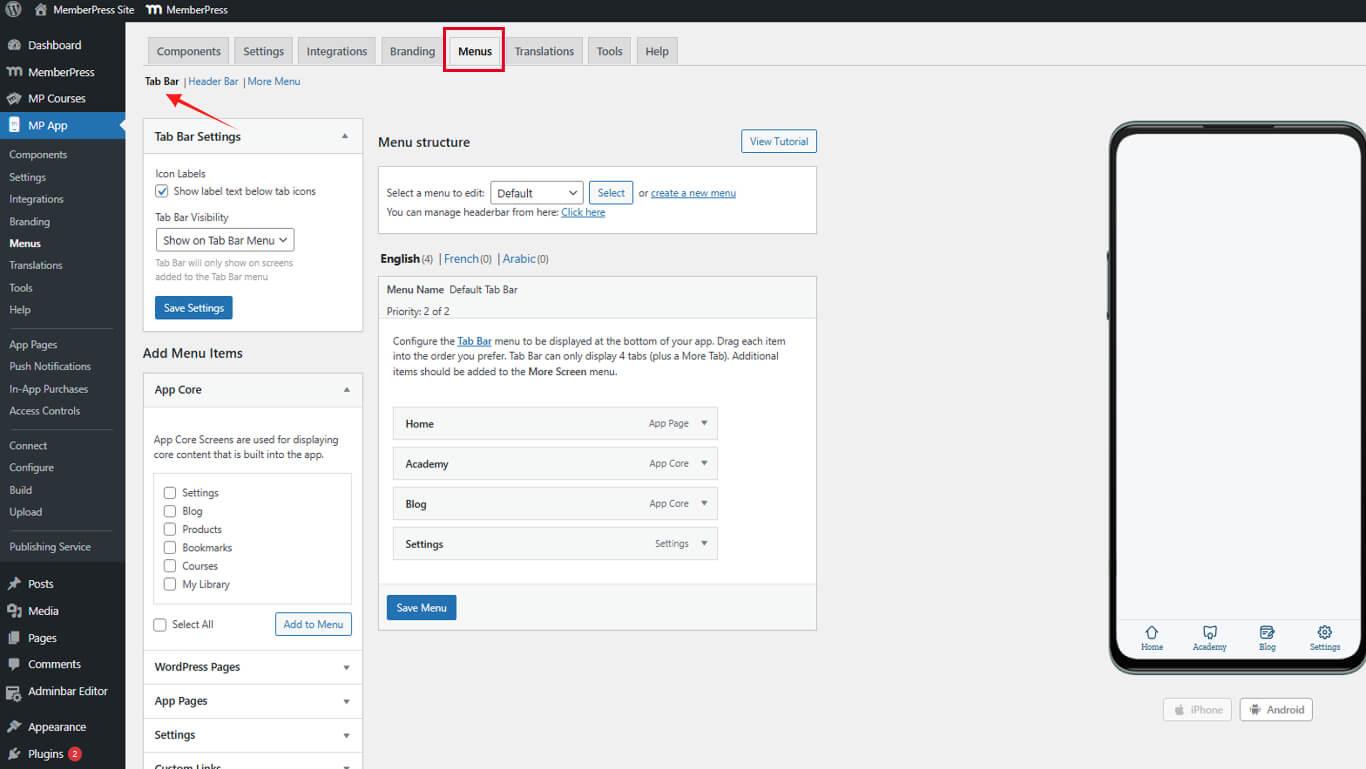
- Klicken Sie auf die Mehr Bildschirm-Menü Registerkarte, um zur sekundären Navigation zu gelangen.
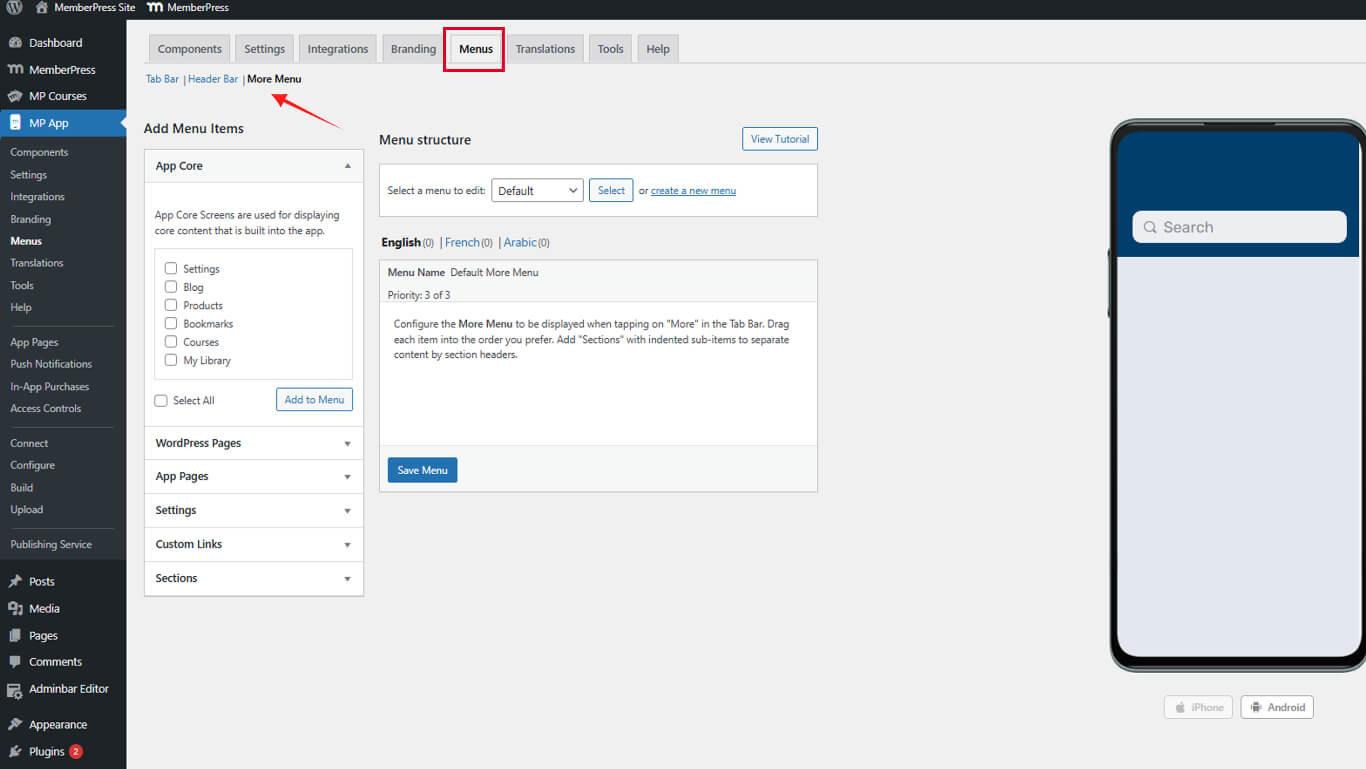
Die Menüs „Tab-Leiste“ und „Weitere Bildschirme“ werden unabhängig voneinander mit unterschiedlichen Organisationsstrukturen konfiguriert.
Vorhandene Navigationselemente löschen
Das Starten mit leeren Menüs vereinfacht die Neukonfiguration der Navigation.
Menü der Registerkartenleiste löschen
- Navigieren Sie zu Dashboard > MP AppKit > Menüs.
- Klicken Sie auf die Menü-Dropdown, dann wählen Sie entfernen für jeden Artikel.
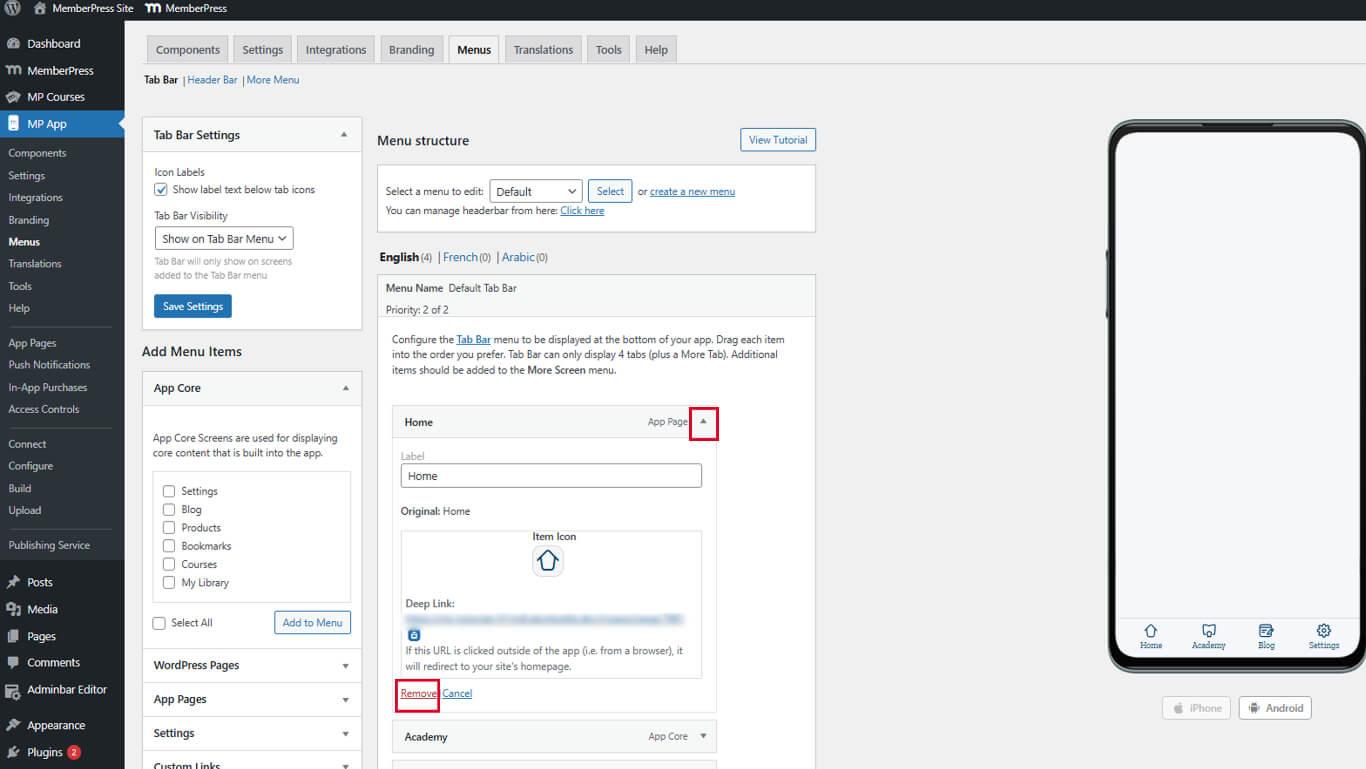
- Wiederholen Sie diesen Vorgang, bis das Tab-Bar-Menü leer ist.
Das Löschen vorhandener Elemente verhindert Konflikte bei der Neukonfiguration.
Menü „Mehr Bildschirm freigeben“
- Klicken Sie auf die Mehr Bildschirm-Menü tab.
- Suchen Sie alle vorhandenen Menüelemente.
- Klicken Sie auf entfernen neben jedem Artikel.
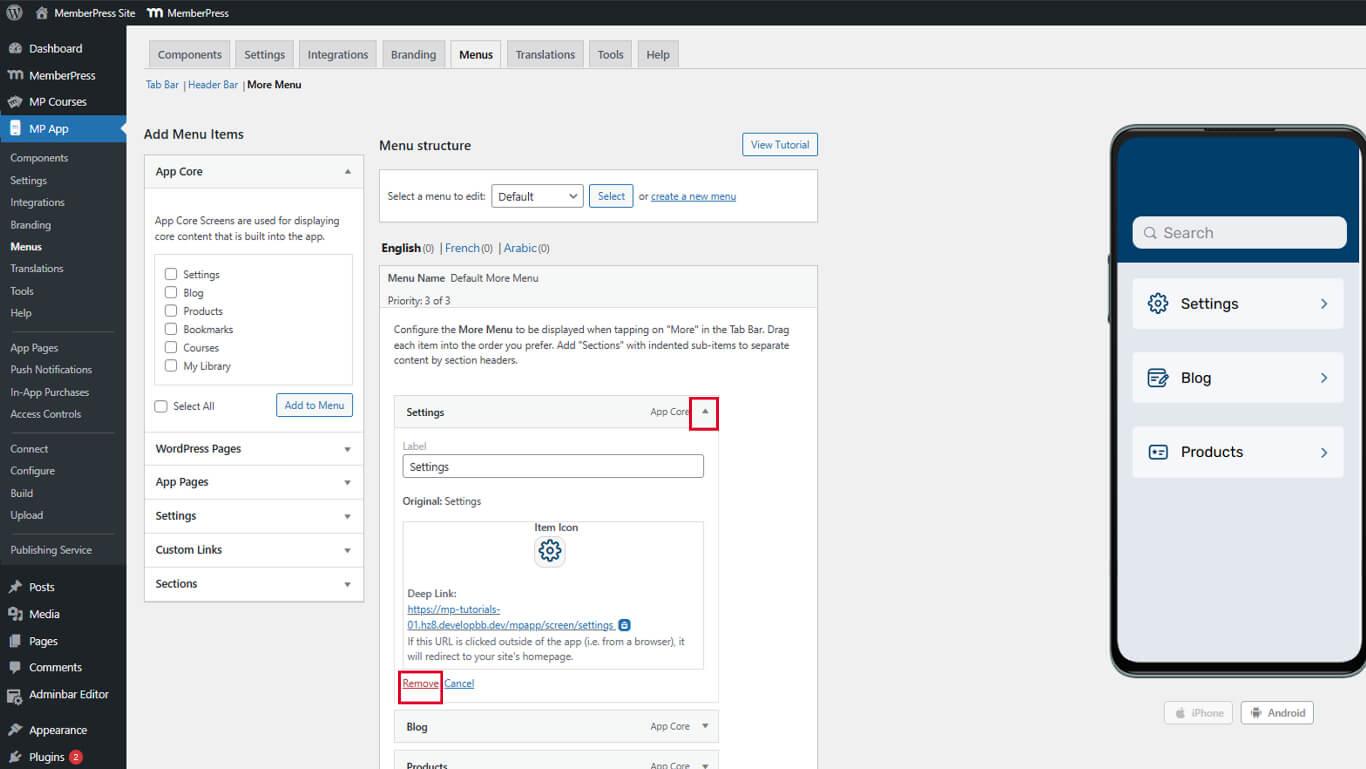
- Wiederholen Sie diesen Vorgang, bis das Menü „Mehr“ leer ist.
Leere Menüs bieten eine klare Grundlage für eine durchdachte Navigationsstruktur.
Hinzufügen von Elementen zum Menü der Registerkartenleiste
Die Elemente der Registerkartenleiste bieten eine primäre Navigation zu häufig aufgerufenen Bereichen.
Hinzufügen von Kern-App-Bildschirmen
- Navigieren Sie zu Dashboard > MP AppKit > Menüs.
- Suchen Sie die App-Kern Abschnitt in den verfügbaren Artikeln.
- finden. Einstellungen und klicken Sie Zum Menü hinzufügen.
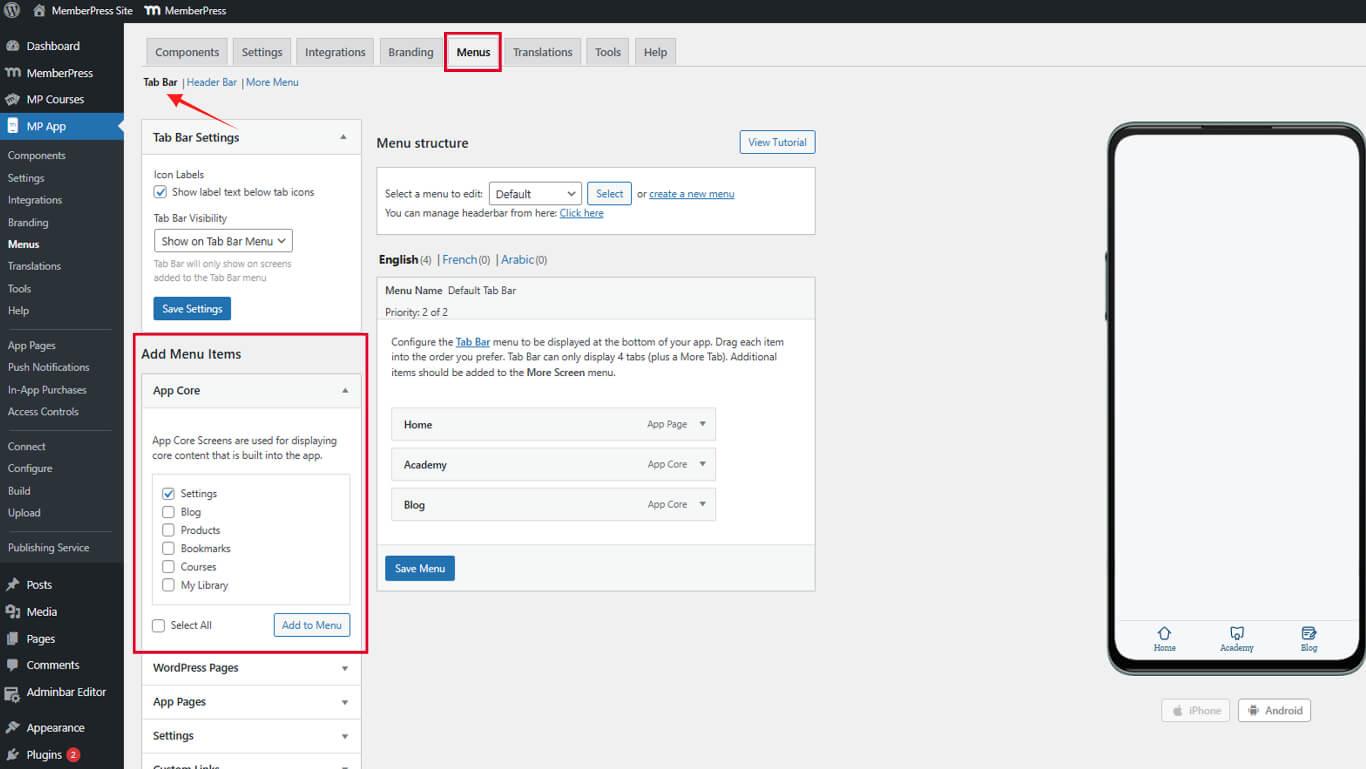
- Ziehen Sie Menüelemente, um die Anzeigereihenfolge zu ändern.
- Klicken Sie auf die Menü speichern.
Die Einstellungen sollten für die Kontoverwaltung und die App-Konfiguration weiterhin zugänglich bleiben.
App-Seiten hinzufügen
- Suchen Sie die App-Seiten Abschnitt in verfügbaren Artikeln.
- Finden Sie die Startseite oder die App-Seite der Mitgliedergruppe.
- Aktivieren Sie das Kontrollkästchen neben dem Seitennamen.
- Klicken Sie auf Zum Menü hinzufügen.
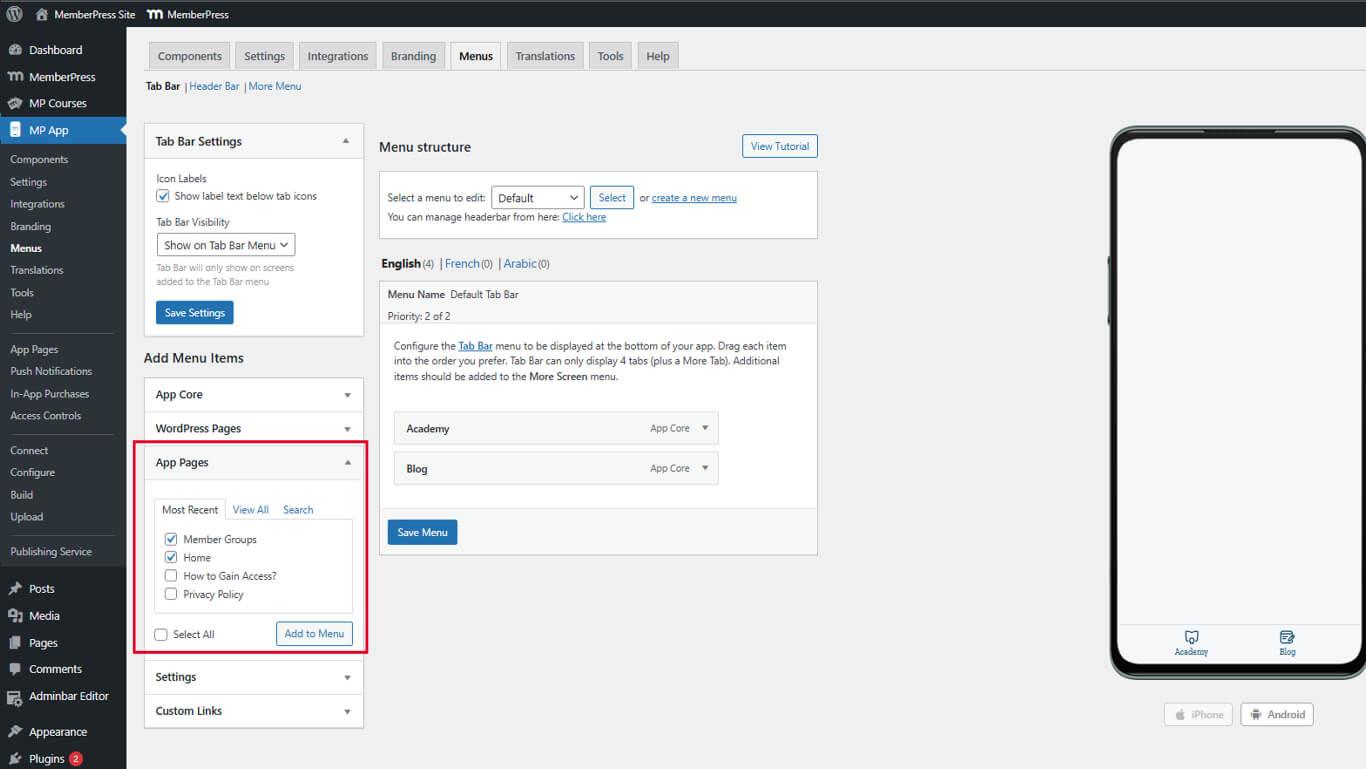
- Ziehen Sie das Element an die gewünschte Position in der Menüordnung.
- Klicken Sie auf die Menü speichern.
App-Seiten bieten benutzerdefinierte Inhaltsziele für Navigationselemente.
Blog-Zugriff hinzufügen
- Navigieren Sie zu Dashboard > MP AppKit > Menüs und blättern Sie zum App-Kern Abschnitt.
- finden. Blog in der Liste der verfügbaren Artikel.
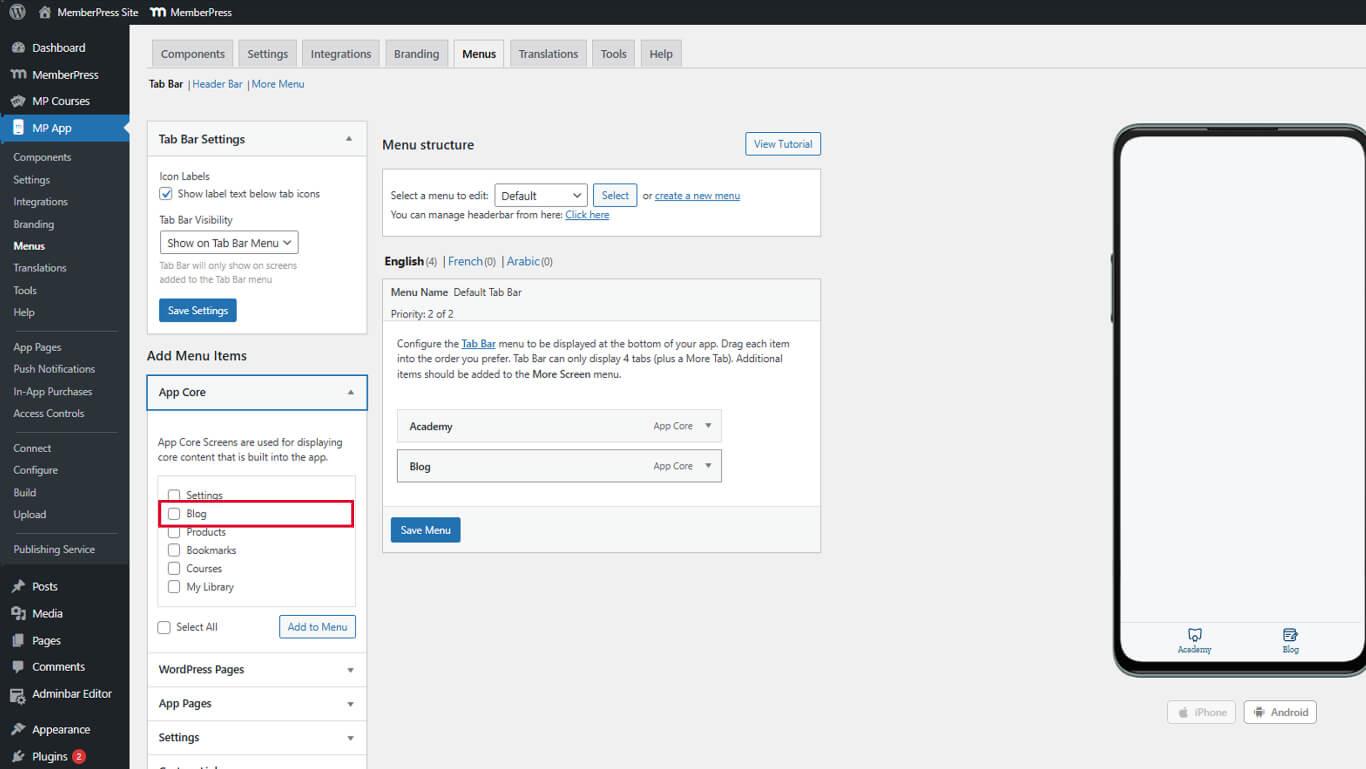
- Klicken Sie auf Zum Menü hinzufügen.
- Ziehen Sie den Blog an die gewünschte Position in der Tab-Leiste.
- Klicken Sie auf die Menü speichern.
Der Zugang zum Blog fördert die Interaktion mit den Inhalten und die Mitgliederbindung.
Hinzufügen von Elementen zum Menü „Mehr“
Weitere Bildschirmelemente bieten eine sekundäre Navigation zu ergänzenden Abschnitten.
Hinzufügen von Kontoverwaltungselementen
- Navigieren Sie zu Dashboard > MP AppKit > Menüs.
- Klicken Sie auf die Mehr Bildschirm-Menü tab.
- Suchen Sie die App-Kern Abschnitt.
- finden. Produkte oder Lesezeichen in den verfügbaren Artikeln.
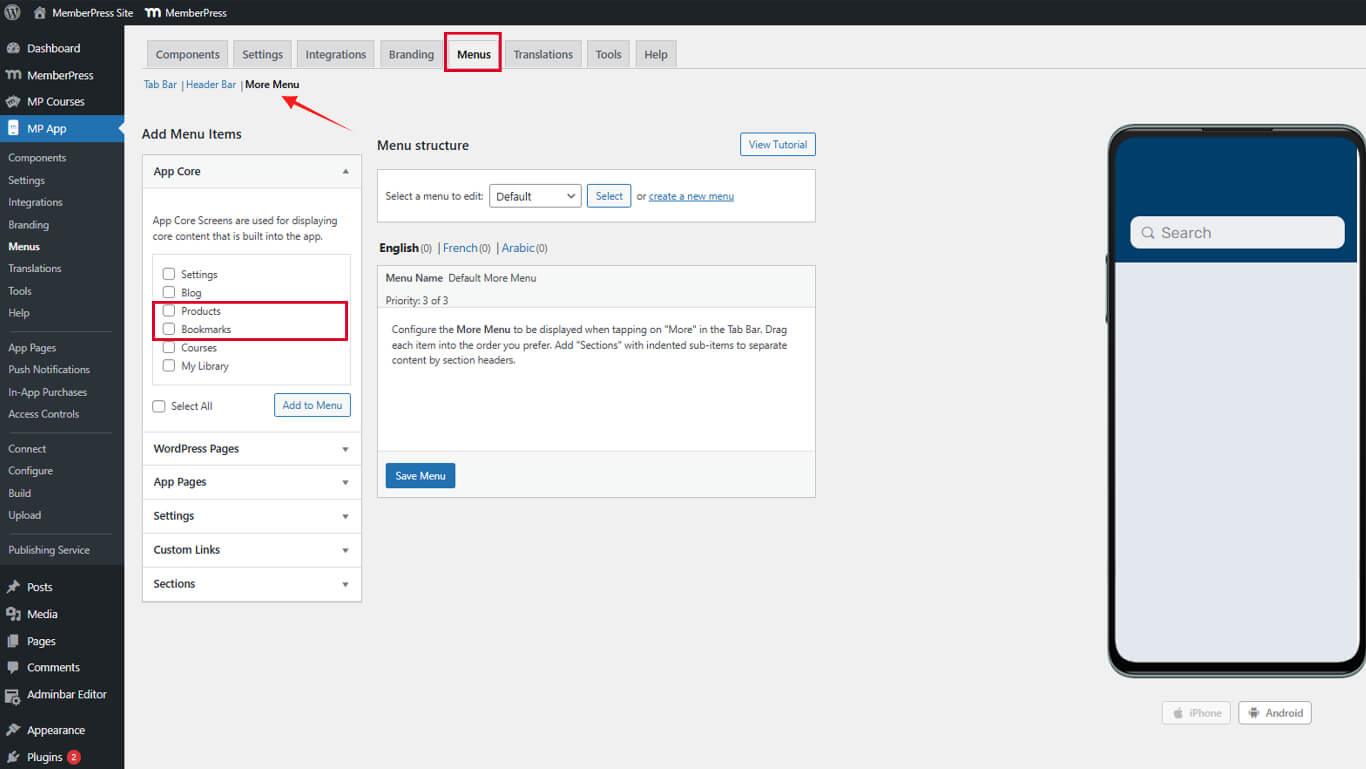
- Klicken Sie auf Zum Menü hinzufügen.
- Klicken Sie auf Zum Menü hinzufügen neben „Einstellungen“.
- Klicken Sie auf die Menü speichern.
Die Elemente der Kontoverwaltung sollten auch in der sekundären Navigation leicht zugänglich bleiben.
Menüabschnitte erstellen
Abschnitte organisieren „Mehr Bildschirm“-Elemente in logischen Gruppierungen.
Abschnittsüberschriften hinzufügen
- Navigieren Sie zu Dashboard > MP AppKit > Menüs.
- Klicken Sie auf die Mehr Menü tab.
- Lokalisieren Rubrikenund klicken Sie auf Abschnitt hinzufügen über der Liste der Menüpunkte.
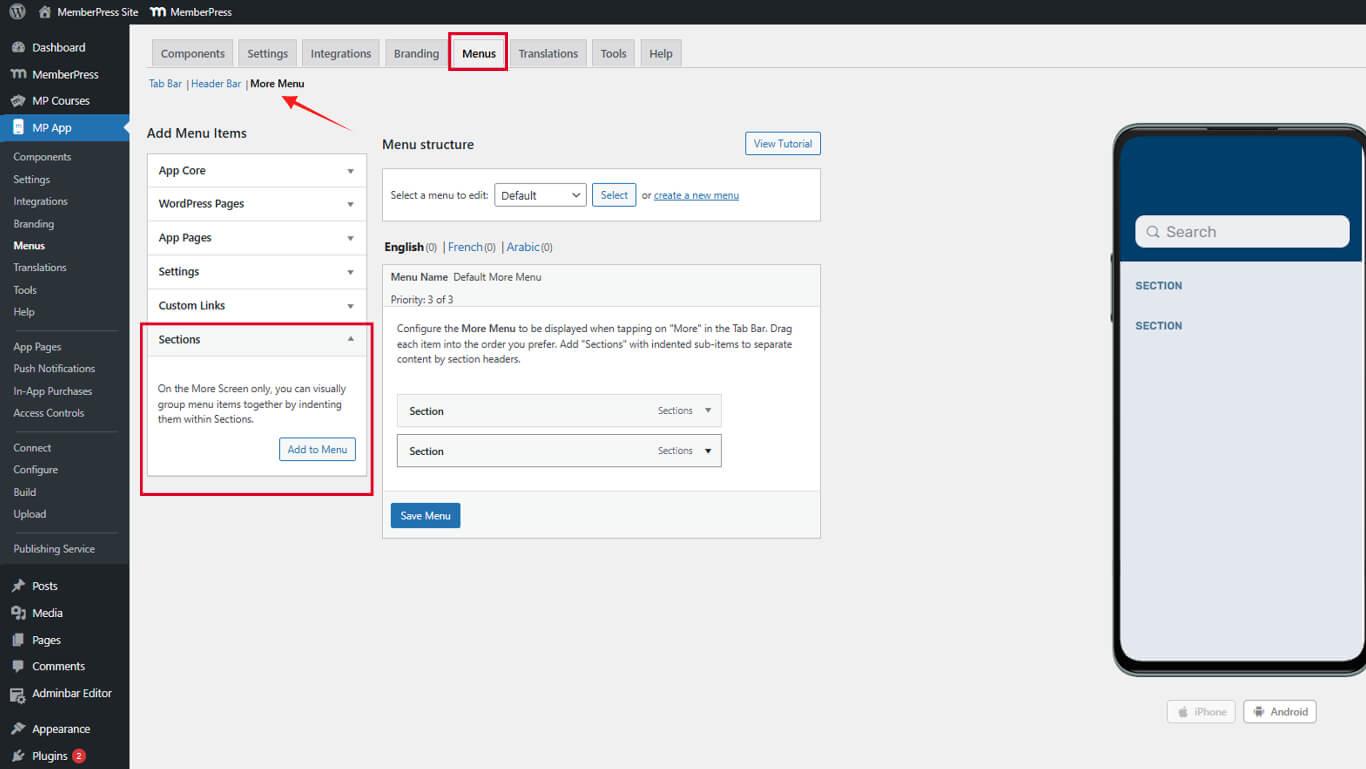
- Geben Sie einen Abschnittsnamen in das Feld Abschnittstitel Feld.
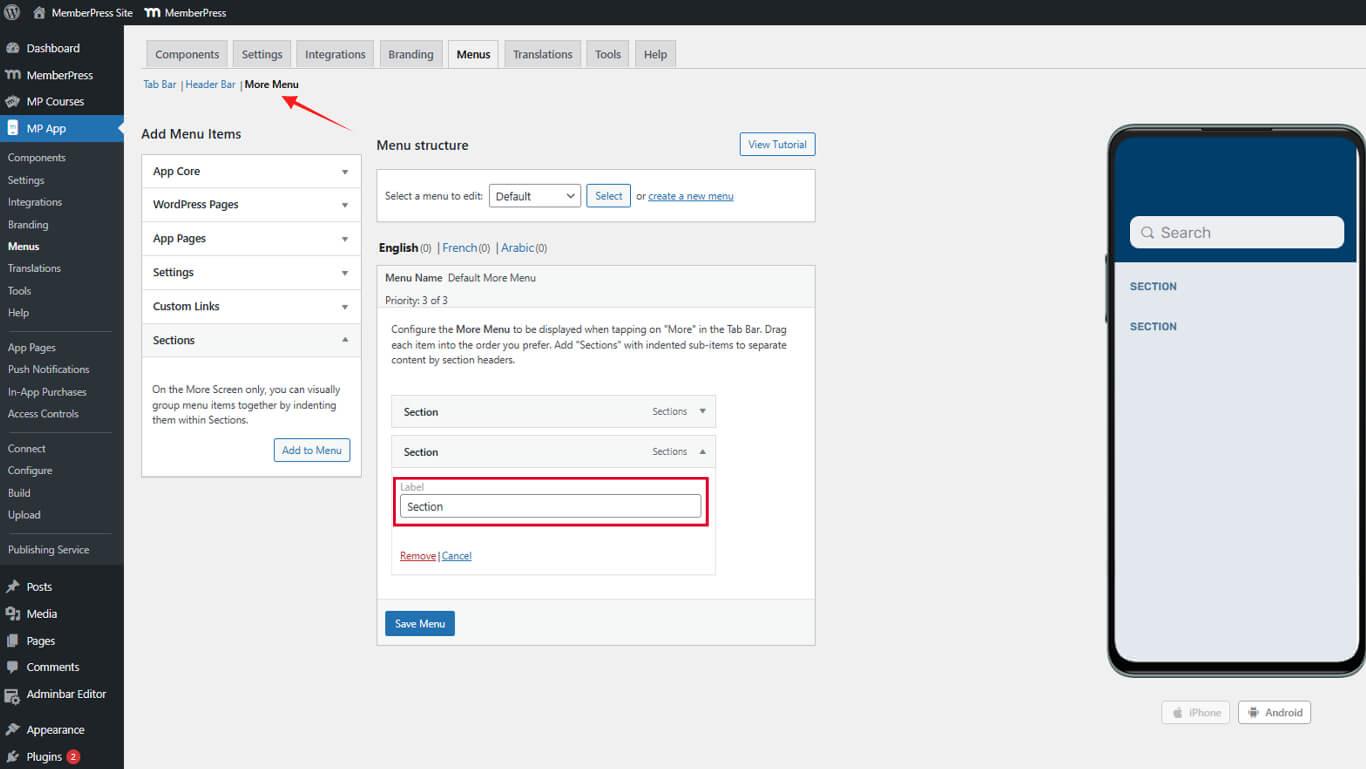
- Klicken Sie auf Abschnitt hinzufügen um den Abschnitt zu erstellen.
Abschnittsüberschriften werden im Menü „Mehr“ als nicht anklickbare Beschriftungen angezeigt.
Elemente unter Abschnitten organisieren
- Menüelemente suchen, die unter einem Abschnitt gruppiert werden sollen.
- Ziehen Sie die Elemente unter die entsprechende Überschrift.
- Wiederholen Sie diesen Vorgang für alle Elemente, die in Abschnitte unterteilt werden müssen.
- Klicken Sie auf die Menü speichern.
Visuelle Einrückungen zeigen hierarchische Beziehungen zwischen Abschnitten und Elementen an.
Menüpunkt-Symbole anpassen
Symbole bieten visuelle Navigationshilfen und sorgen für Markenkonsistenz.
Auswählen von Symbolen für Registerkartenelemente
- Navigieren Sie zu Dashboard > MP AppKit > Menüs.
- Suchen Sie einen Menüpunkt, für den eine Symbolanpassung erforderlich ist.
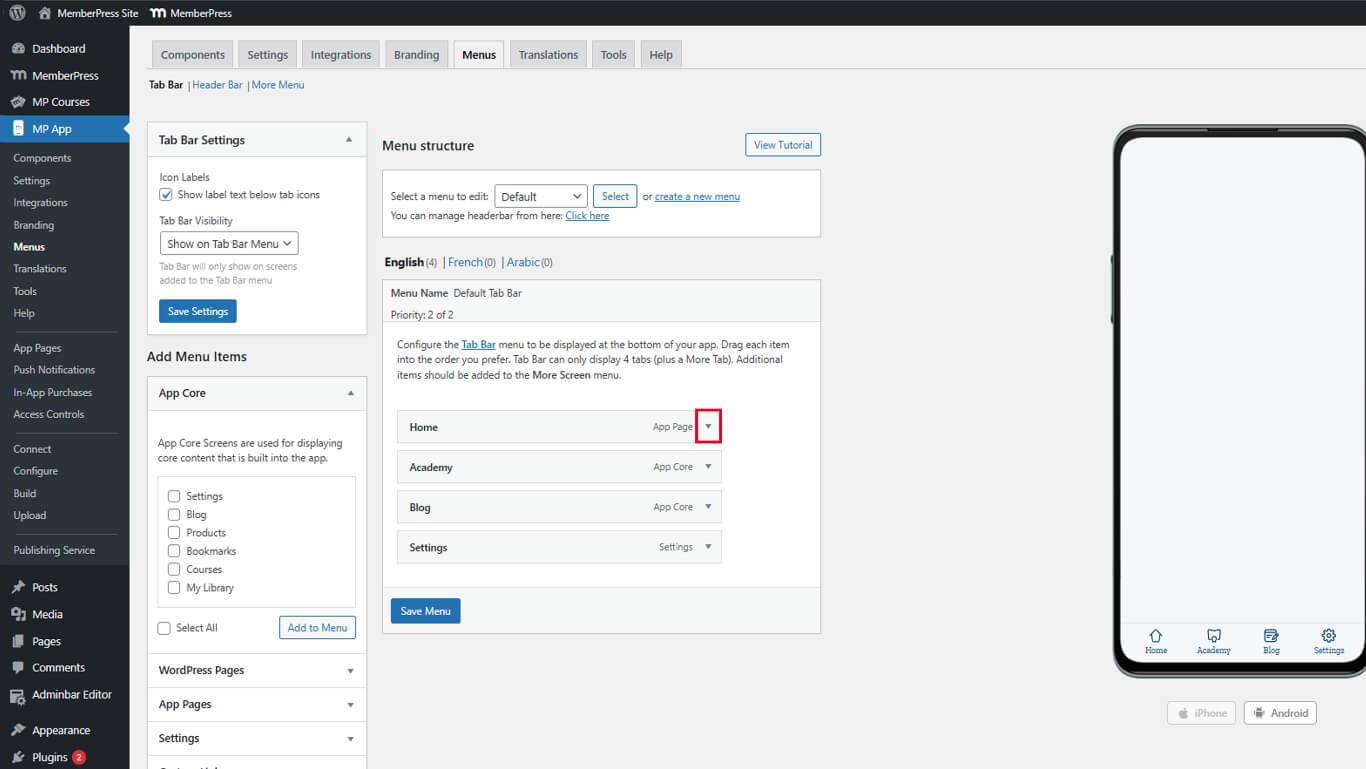
- Klicken Sie auf den Dropdown-Pfeil neben dem Namen des Elements.
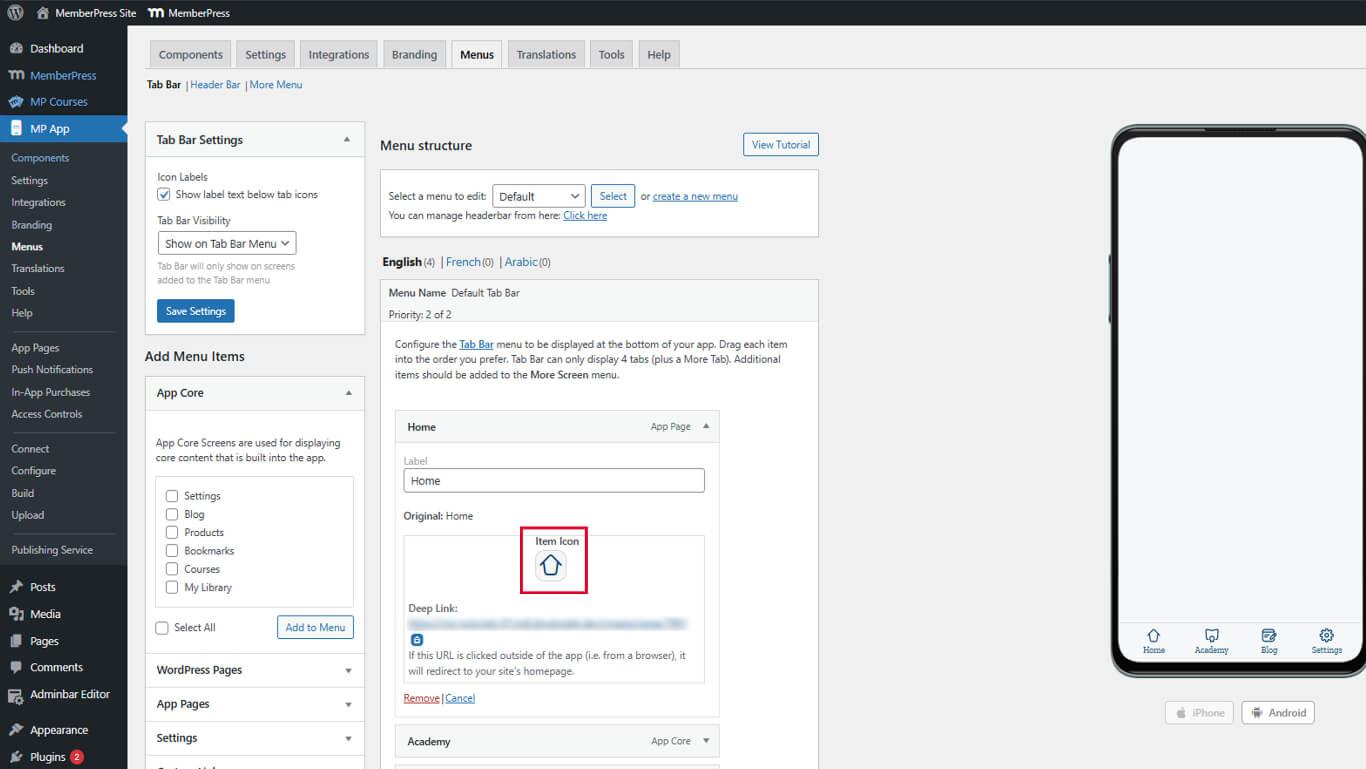
- Finden Sie die Element-Symbol Abschnitt in den erweiterten Einstellungen.
- Klicken Sie auf das Symbolfeld, um das Symbolauswahlfeld zu öffnen.
- Durchsuchen Sie die verfügbaren Symbole im Symbolpaket.
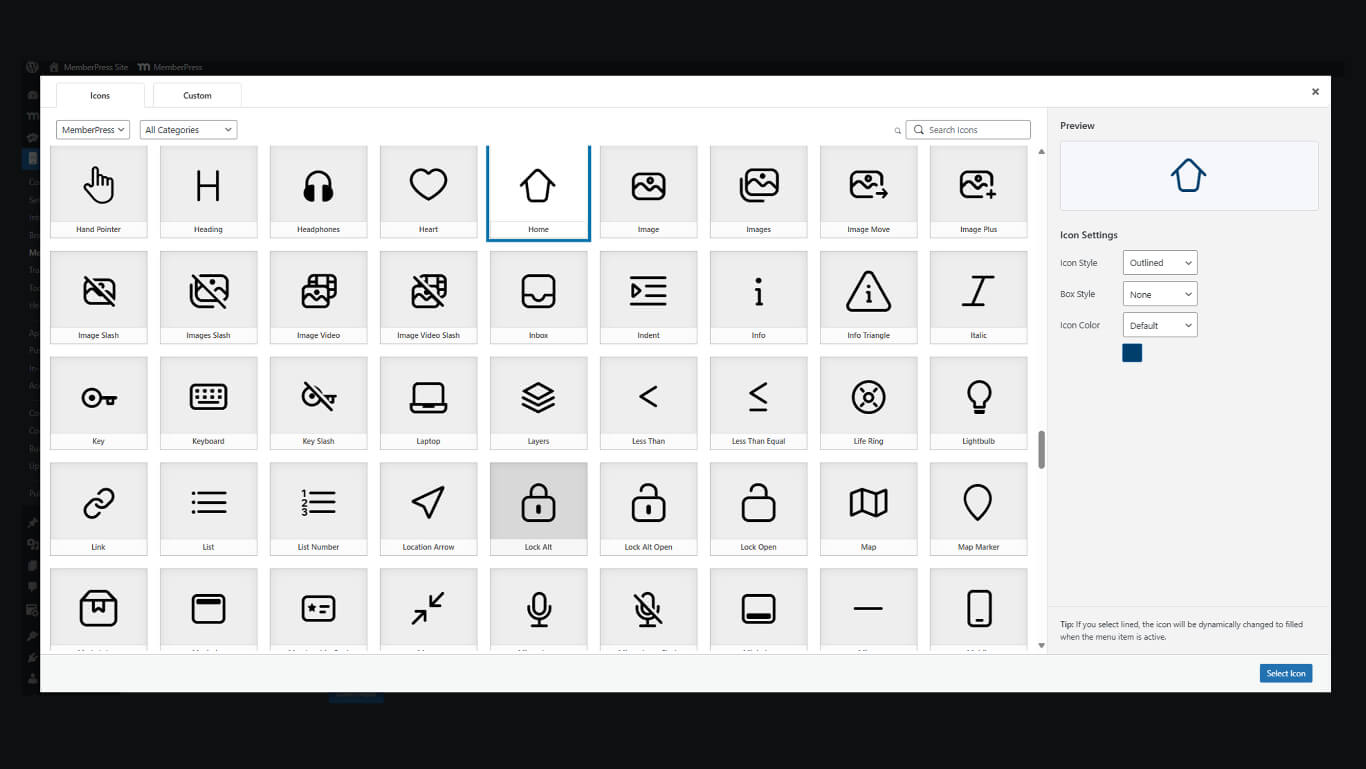
- Klicken Sie auf ein Symbol, um es auszuwählen.
- Klicken Sie auf die Symbol auswählen das Symbol anwenden.
- Klicken Sie auf die Menü speichern.
Wiederholen Sie diesen Vorgang für alle Tab-Bar-Elemente, für die benutzerdefinierte Symbole erforderlich sind.
Weitere Bildschirm-Symbolauswahl
- Klicken Sie auf die Mehr Bildschirm-Menü tab.
- Suchen Sie einen Menüpunkt, für den eine Symbolanpassung erforderlich ist.
- Klicken Sie auf den Dropdown-Pfeil neben dem Namen des Elements.
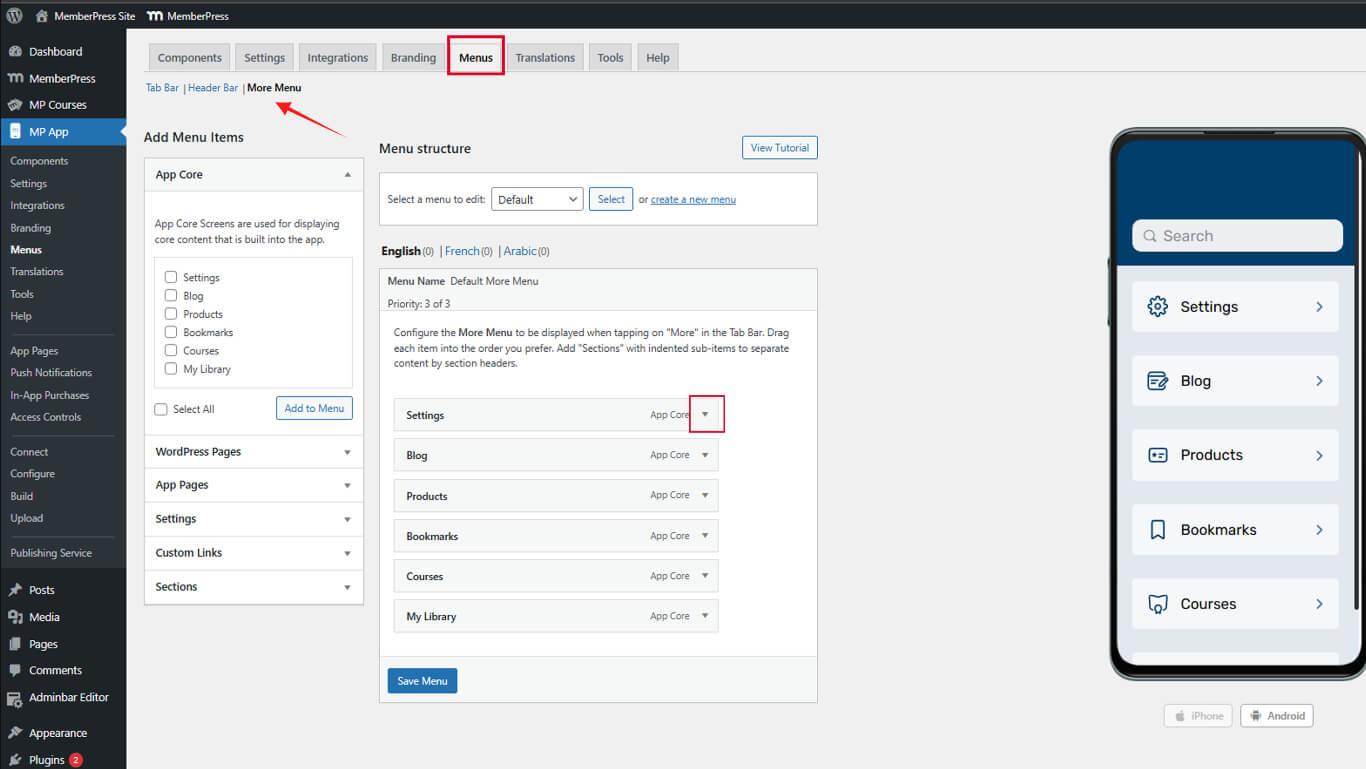
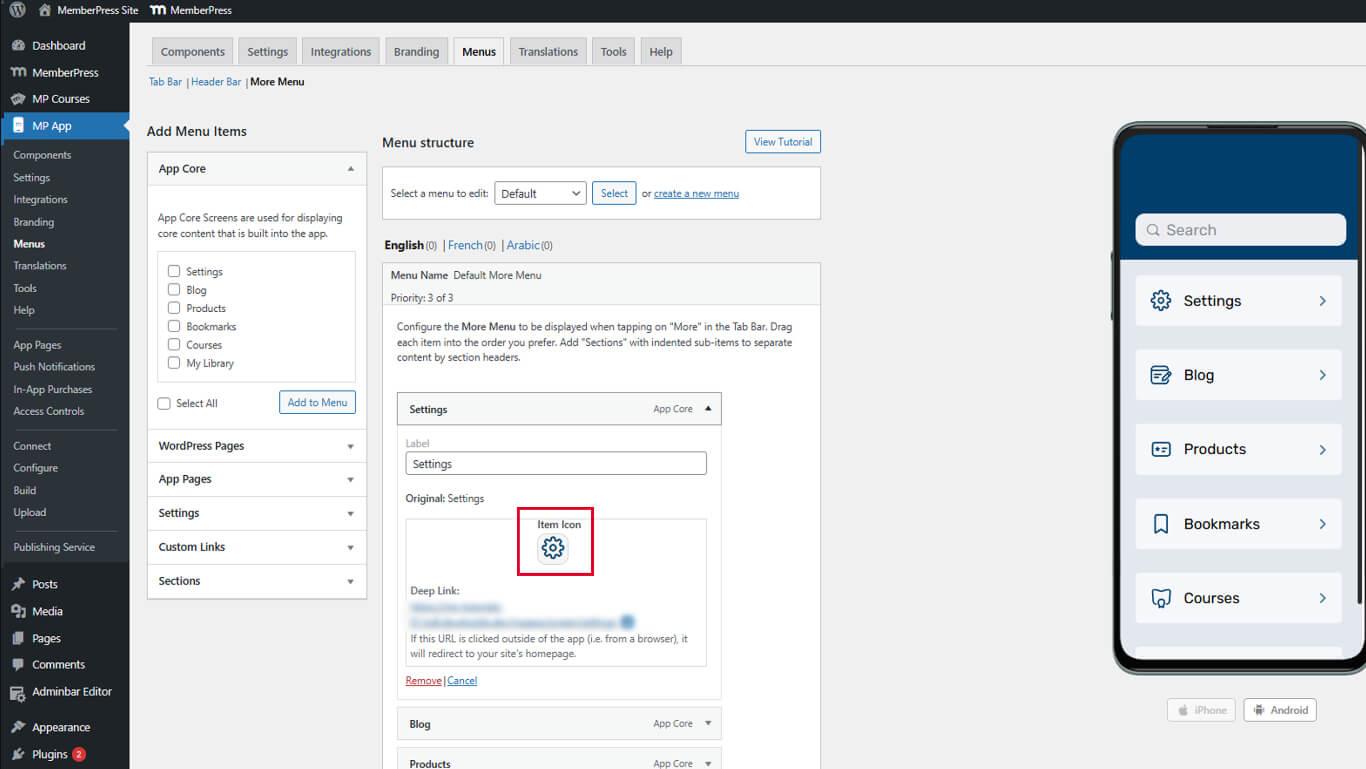
- Finden Sie die Element-Symbol Abschnitt.
- Klicken Sie auf das Symbolfeld, um das Symbolauswahlfeld zu öffnen.
- Wählen Sie ein passendes Symbol aus.
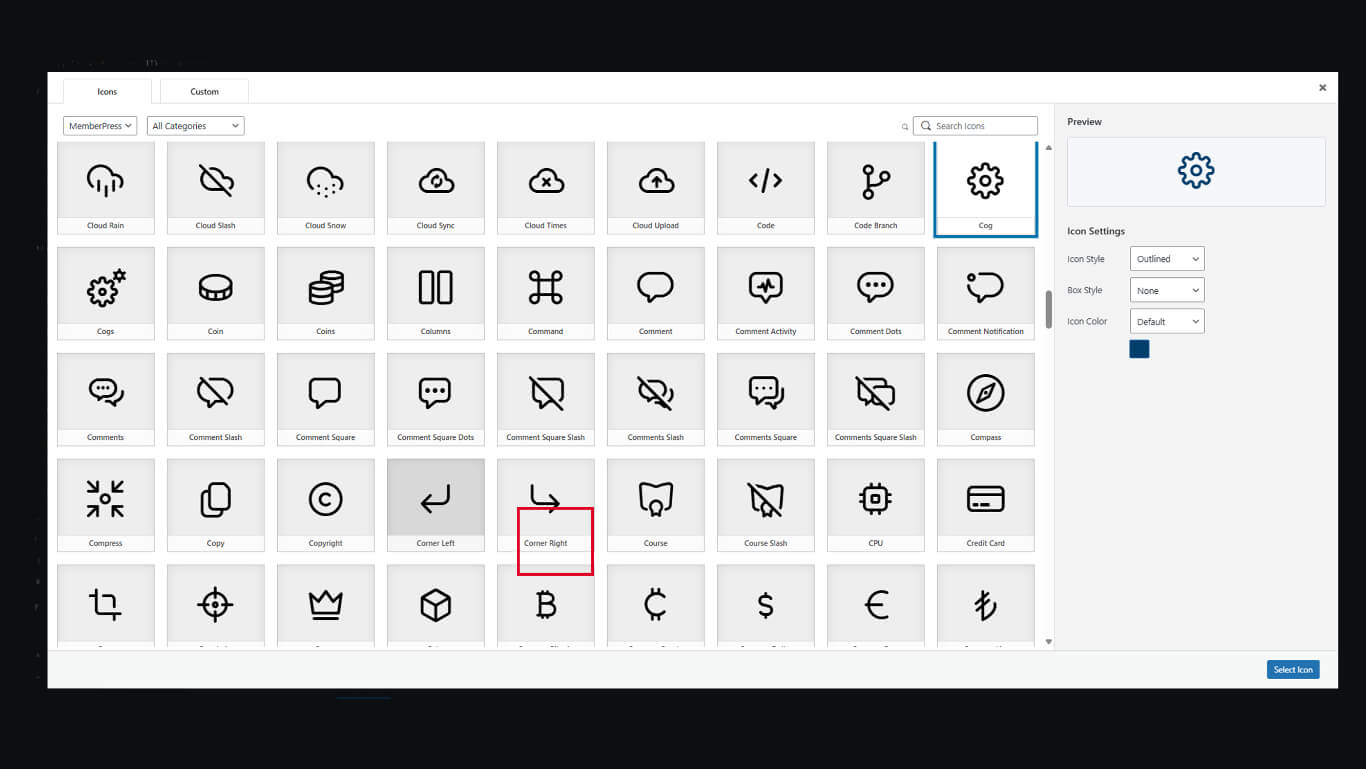
- Klicken Sie auf die Symbol auswählen.
- Wiederholen Sie diesen Vorgang für weitere Artikel.
- Klicken Sie auf die Menü speichern.
Weitere Bildschirmsymbole sind optional, verbessern jedoch die visuelle Übersichtlichkeit der Navigation.
Anpassen des Menüpunkt-Textes
Der Text der Menüelemente dient als Navigationsbezeichnung und unterstützt die Barrierefreiheit.
Bearbeiten von Artikelbeschriftungen
- Navigieren Sie zu Dashboard > MP AppKit > Menüs.
- Suchen Sie einen Menüpunkt, dessen Bezeichnung geändert werden muss.
- Klicken Sie auf den Dropdown-Pfeil neben dem Namen des Elements.
- Finden Sie die Etikett Feld.
- Geben Sie einen benutzerdefinierten Beschriftungstext ein, der den Standardtext ersetzt.
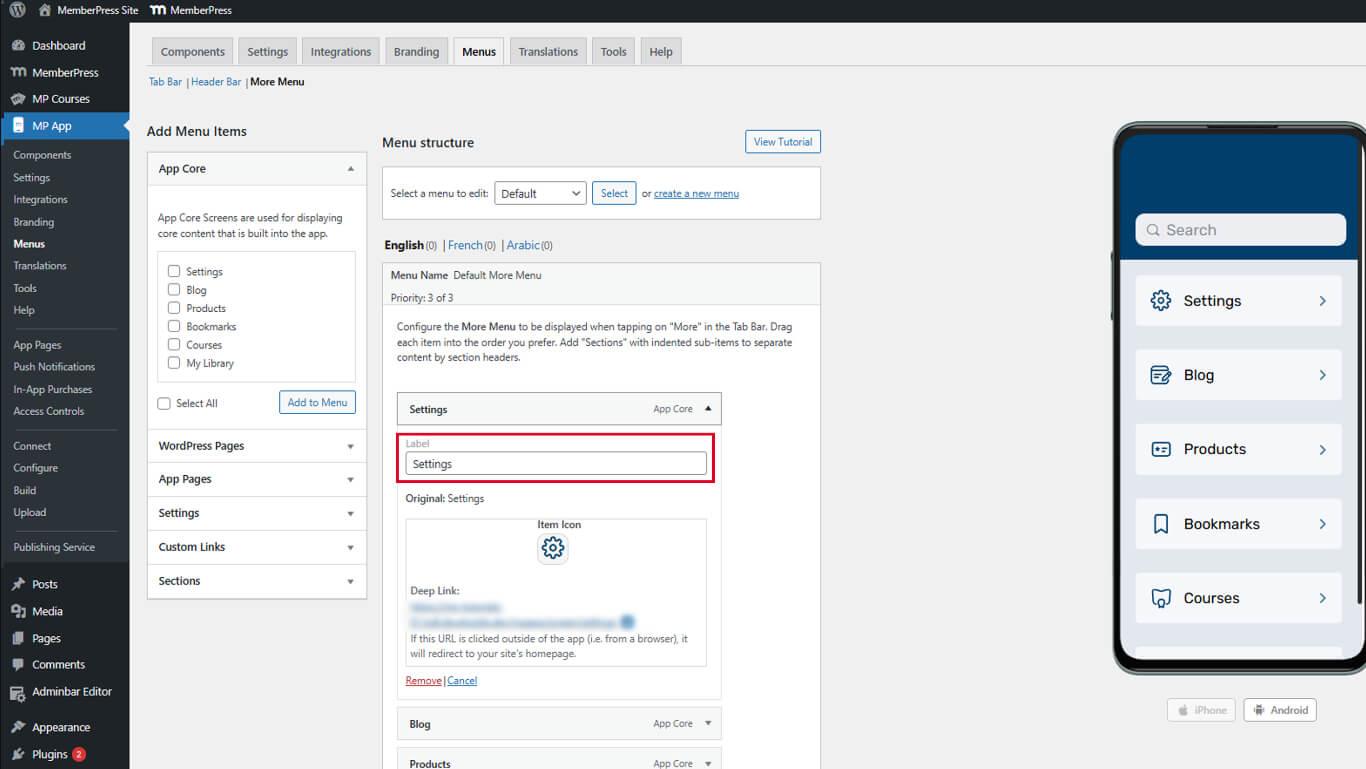
- Klicken Sie auf die Menü speichern.
Benutzerdefinierte Bezeichnungen verdeutlichen die Navigationszwecke, wenn die Standardnamen mehrdeutig sind.
Menüpunkt-Reihenfolge organisieren
Die Reihenfolge der Elemente beeinflusst die Zugänglichkeit der Navigation und den Arbeitsablauf der Mitglieder.
Anordnen von Tab-Leistenelementen
- Navigieren Sie zu Dashboard > MP AppKit > Menüs.
- Überprüfen Sie die Registerkartenmenü Die Registerkarte ist aktiv.
- Klicken und ziehen Sie Menüelemente, um ihre Position zu ändern.
- Platzieren Sie die am häufigsten verwendeten Elemente ganz links.
- Klicken Sie auf die Menü speichern nach dem Ordnen der Gegenstände.
Weitere Bildschirmelemente anordnen
- Klicken Sie auf die Mehr Bildschirm-Menü tab.
- Klicken und ziehen Sie Elemente, um sie innerhalb der Abschnitte neu anzuordnen.
- Ziehen Sie Abschnitte, um die Gruppierung der Abschnitte neu anzuordnen.
- Ordnen Sie die Elemente in logischer oder frequenzbasierter Reihenfolge an.
- Klicken Sie auf die Menü speichern.
Die Reihenfolge der Bildschirme sollte logische Zusammenhänge oder die Häufigkeit der Nutzung widerspiegeln.










 DE
DE  EN
EN  ES
ES  FR
FR  PT
PT 