

Registerkartensymbole dienen der primären Navigation in mobilen Anwendungen. Die Anpassung von Symbolen verbessert die visuelle Konsistenz und die Markenausrichtung. In diesem Dokument wird erläutert, wie Sie die Symbole der Registerkartenleiste anpassen, Anzeigestile anwenden und eine Vorschau der Symboländerungen in der App anzeigen.
Verständnis der Konfiguration der Registerkartenleistensymbole
Tab Bar-Symbole werden am unteren Rand von mobilen Bildschirmen angezeigt und ermöglichen einen schnellen Zugriff auf die Navigation. Das Icon Pack bietet mehrere Stiloptionen, darunter ausgefüllte, umrissene, runde und quadratische Varianten. Die alten Symbole bleiben weiterhin verfügbar, um das gewohnte Erscheinungsbild beizubehalten. Die Anpassung der Icons wirkt sich sowohl auf das visuelle Erscheinungsbild als auch auf die Navigation der Mitglieder aus.
Verstehen der Struktur der Registerkartenleiste
Die Struktur der Registerkartenleiste begrenzt die Anzahl der direkt zugänglichen Navigationselemente.
Höchstens vier Gegenstände können in der Hauptregisterkartenleiste angezeigt werden. Die fünfte Position ist automatisch für das Menü "Mehr" reserviert.
Mehr Menüüberlauf enthält zusätzliche Navigationselemente, die über die vier Steckplätze der Registerkartenleiste hinausgehen. Mitglieder tippen auf das Symbol Mehr, um auf die Überlaufnavigation zuzugreifen.
Icon-Konsistenz verbessert die Übersichtlichkeit der Navigation. Verwenden Sie ähnliche Symbolstile für alle Elemente der Registerkartenleiste, um ein einheitliches Erscheinungsbild zu gewährleisten.
Zugriff auf die Einstellungen der Registerkartenleiste
Die Konfiguration der Symbole für die Registerkartenleiste erfolgt über die Schnittstelle für die Menüeinstellungen.
- Navigieren Sie zu Dashboard > MP AppKit > Menüs.
- Suchen Sie die Registerkartenmenü Abschnitt.
- Überprüfen Sie, ob die Navigationselemente zum Menü der Registerkartenleiste hinzugefügt wurden.
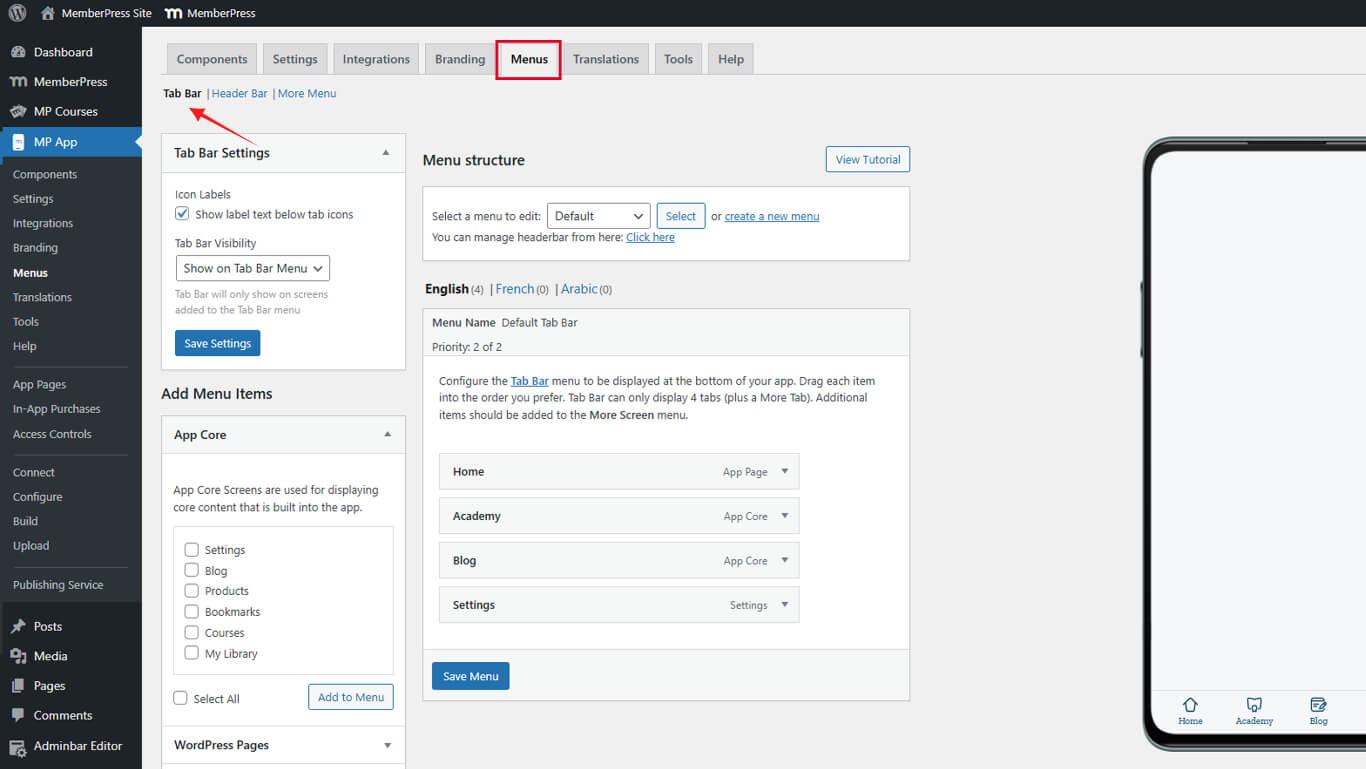
Anpassen von Symbolen für Menüelemente der Registerkartenleiste
Jeder Menüpunkt der Registerkartenleiste unterstützt die individuelle Anpassung der Symbole.
- Navigieren Sie zu Dashboard > MP AppKit > Menüs.
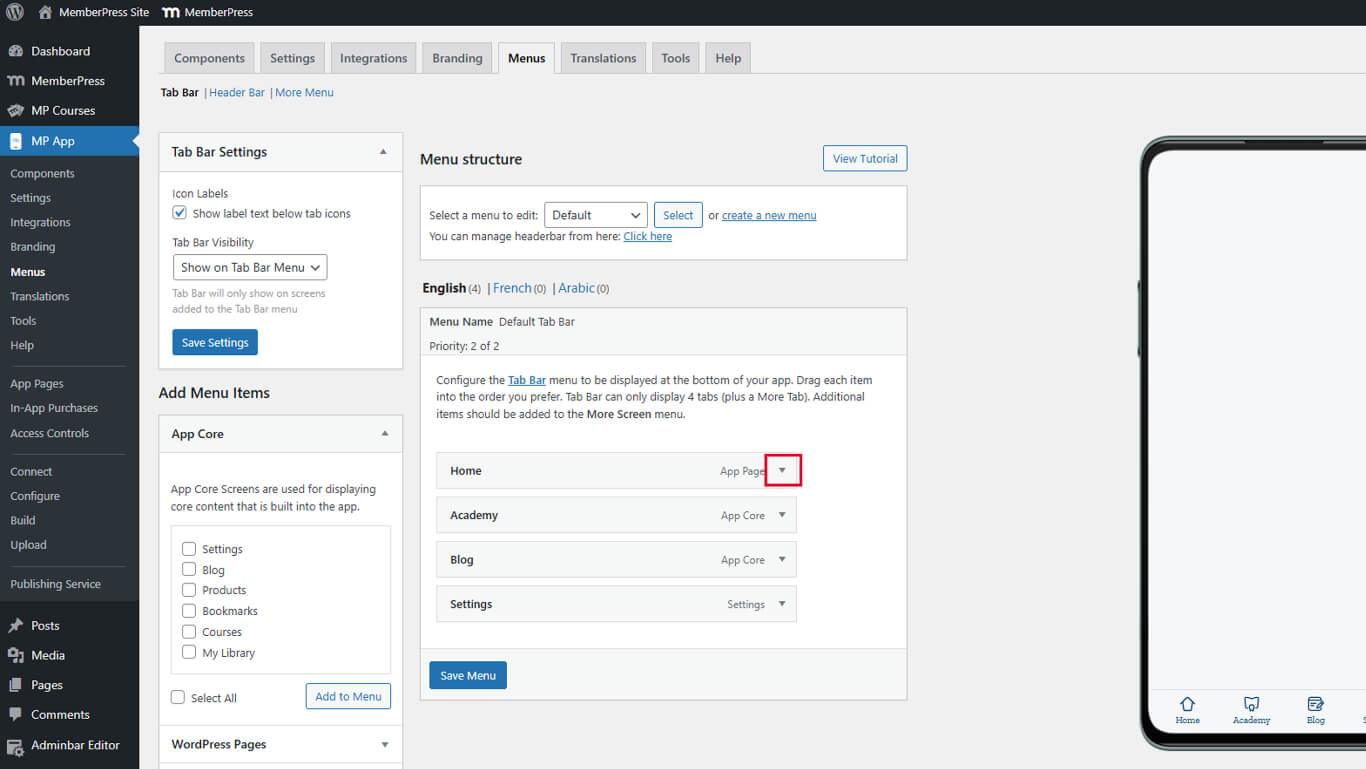
- Suchen Sie den Menüpunkt der Registerkartenleiste, der eine Anpassung des Symbols erfordert.
- Klicken Sie auf den Dropdown-Pfeil neben dem Namen des Menüpunkts.
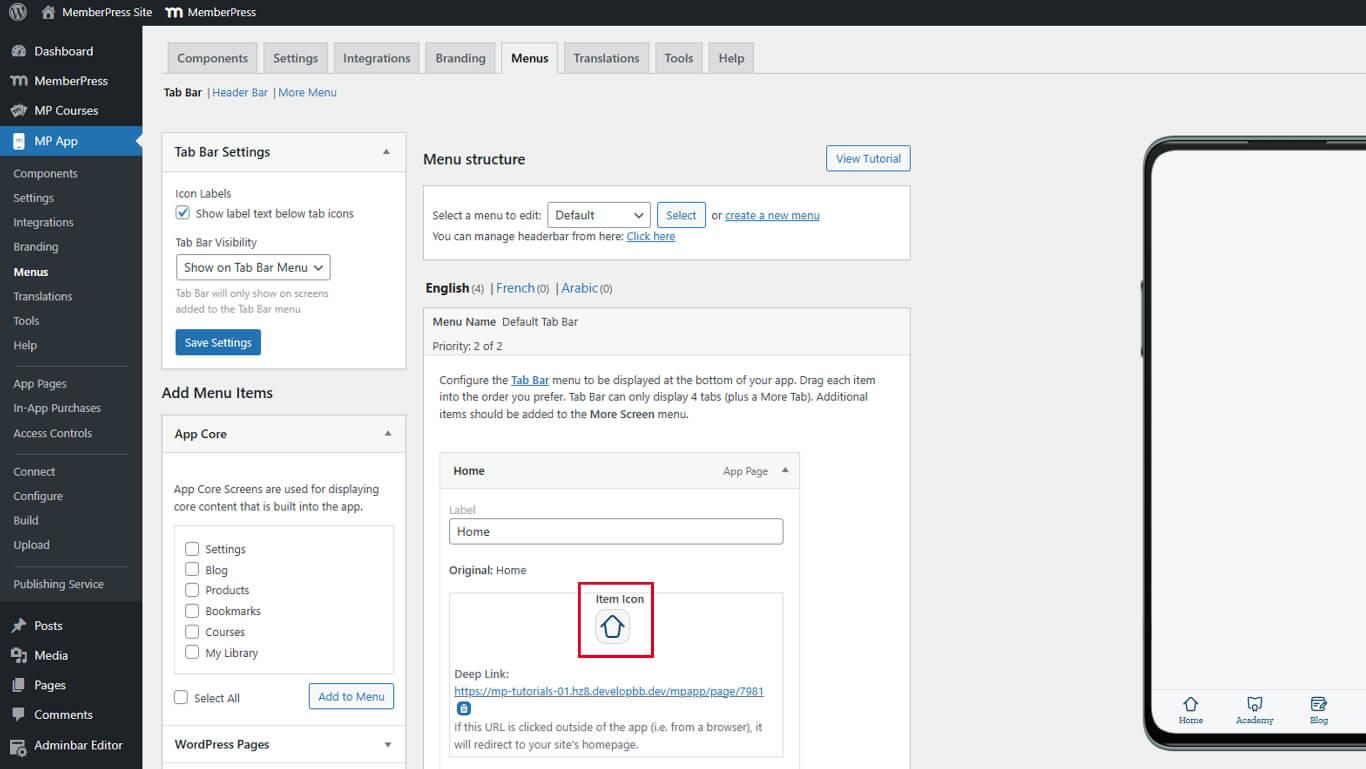
- Finden Sie die Element-Symbol Abschnitt in den erweiterten Einstellungen.
- Klicken Sie auf das Symbolfeld, um das Fenster Icon-Auswahltafel.
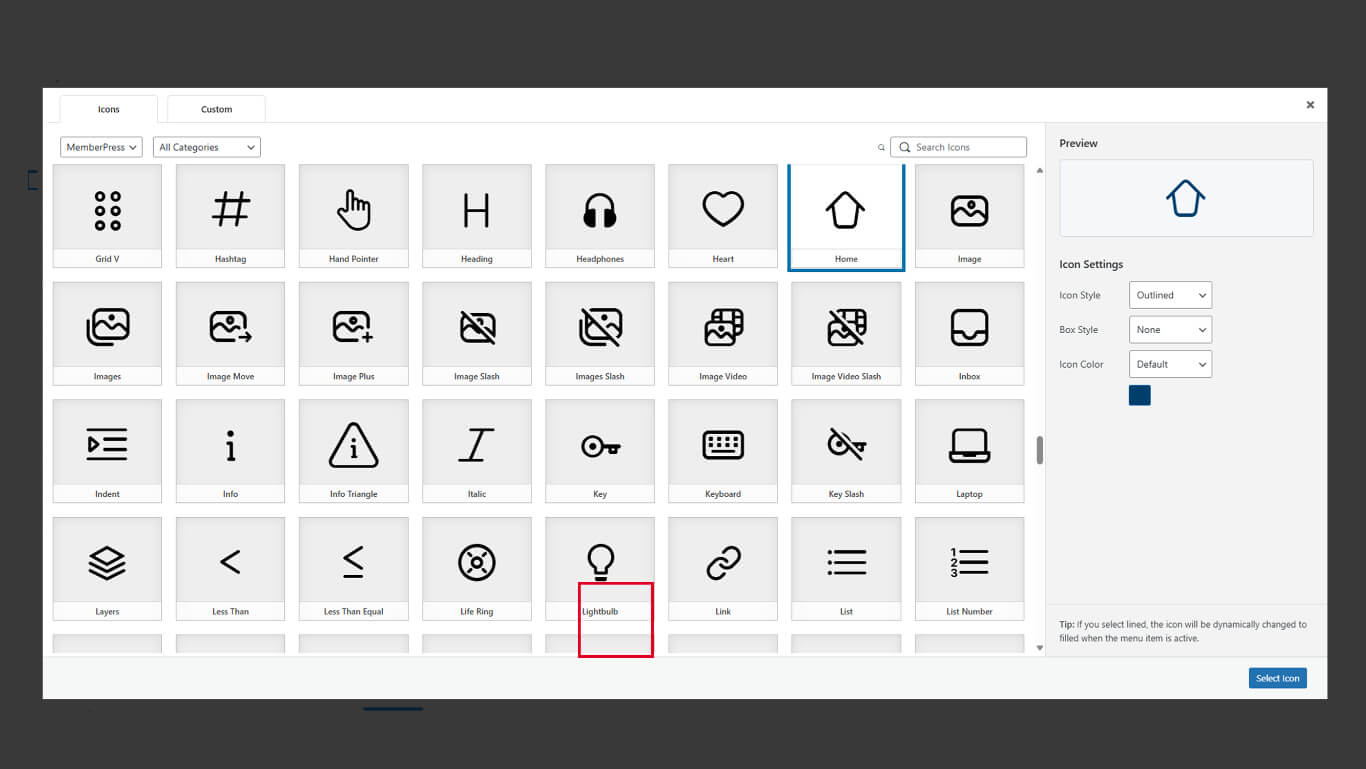
- Suchen Sie ein Symbol, das die Funktion des Menüpunkts darstellt, und wählen Sie es aus.
Konfigurieren von Icon-Anzeigestilen
Anzeigestile steuern das Aussehen und die visuelle Betonung von Symbolen.
Einstellen des Icon-Stils
- Suchen Sie die Ikonen-Stil Dropdown-Menü in der Symbolauswahltafel.
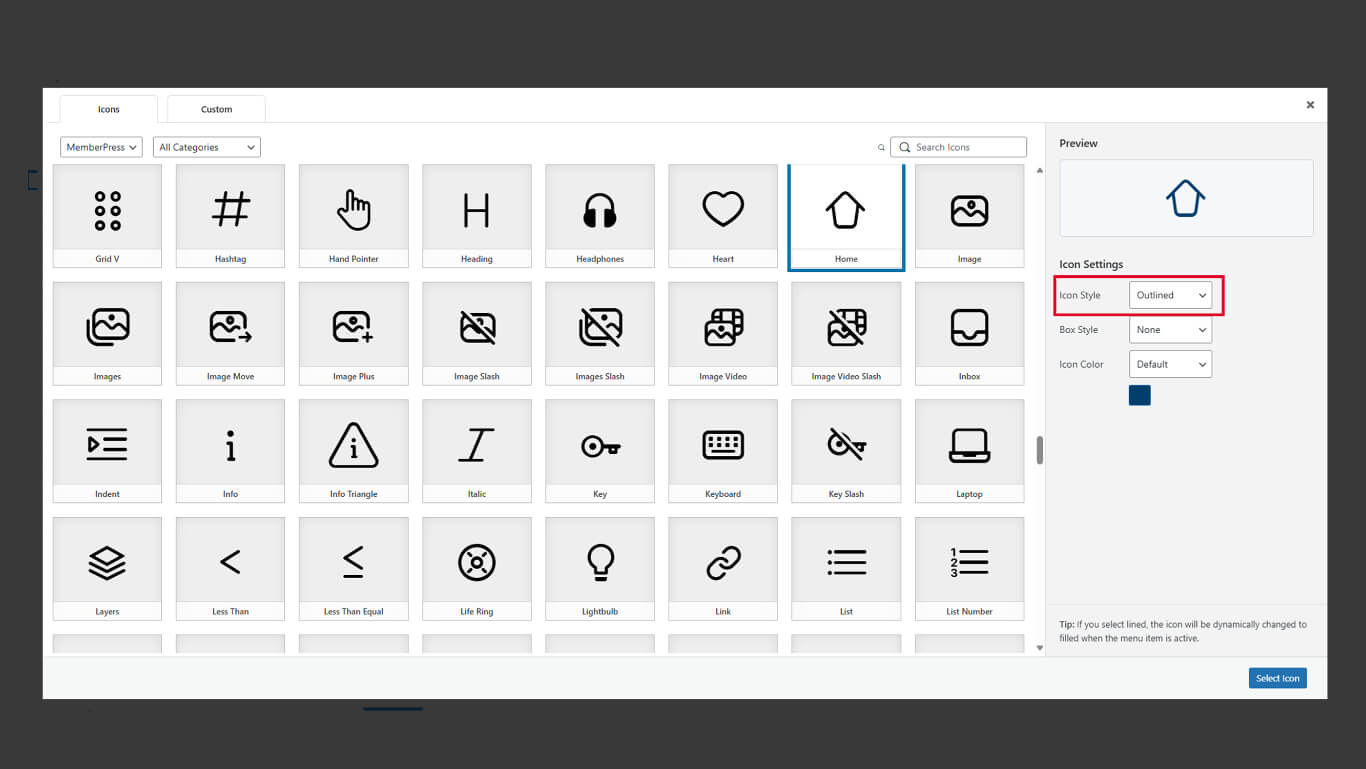
- Wählen Sie den gewünschten Stil:
- Gefüllt für solide Symbolformen;
- Gliederung für linienbasierte Symbolformen.
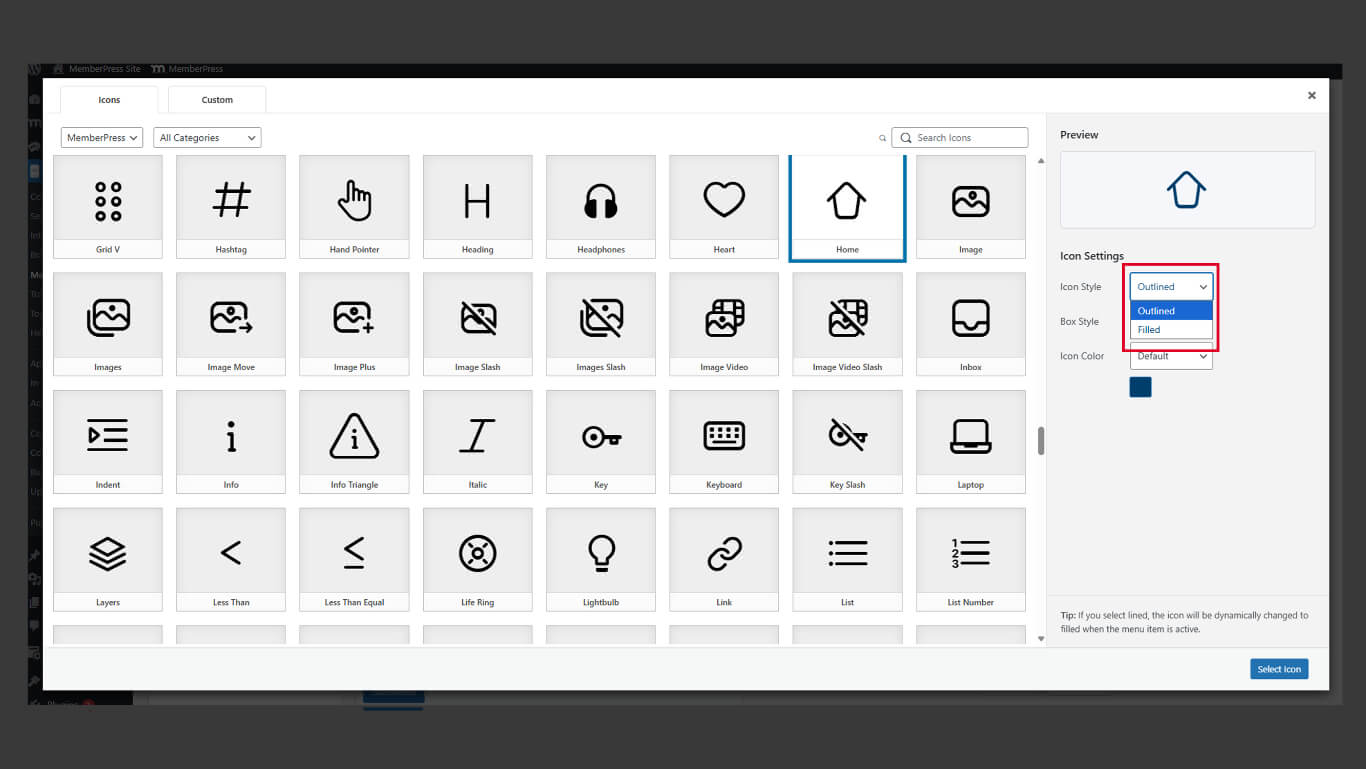
- Überprüfen Sie die Symbolvorschau mit dem ausgewählten Stil.
Gefüllte Stile bieten ein stärkeres visuelles Gewicht für aktive Zustände. Gliederungsstile bieten ein leichteres Erscheinungsbild für inaktive Zustände.
Box-Stil einstellen
- Suchen Sie die Box-Stil Dropdown-Menü in der Symbolauswahltafel.
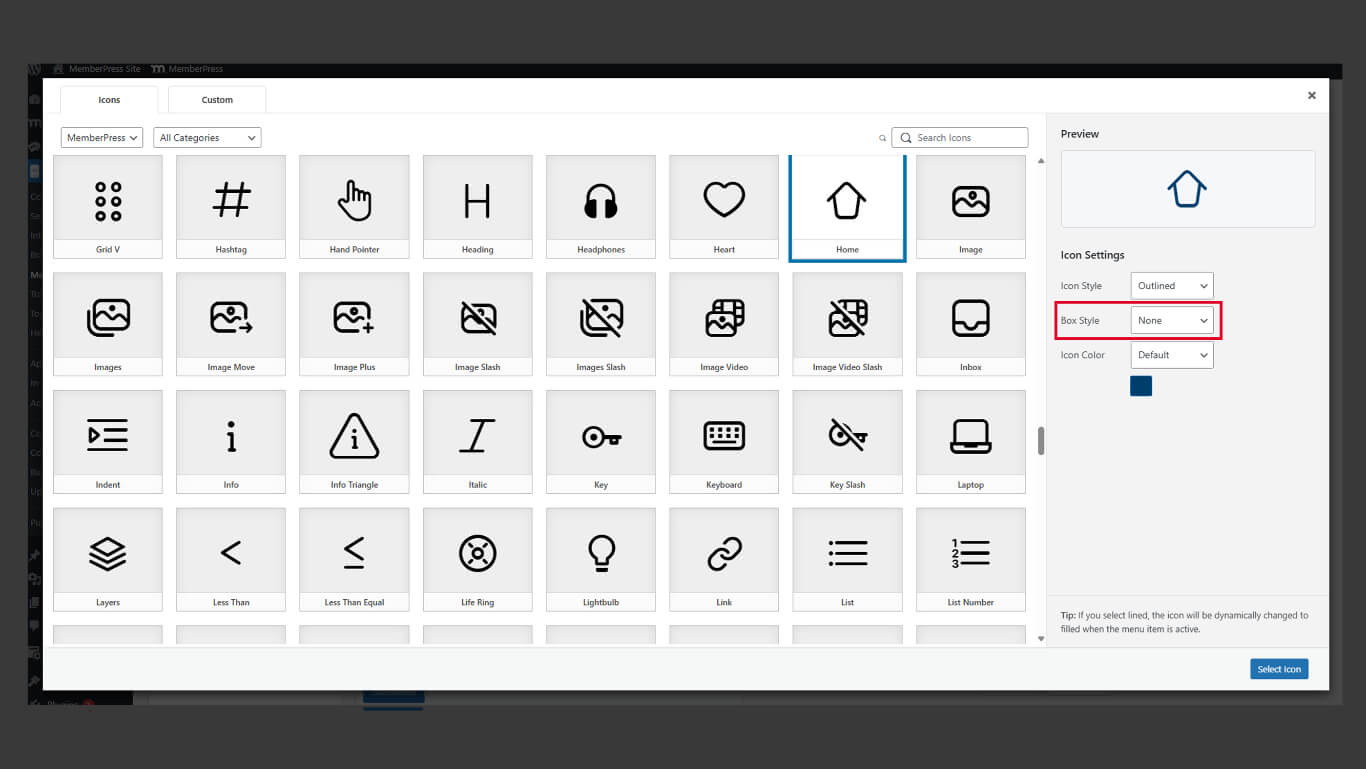
- Wählen Sie den gewünschten Stil:
- Rundschreiben für runde Symbolhintergründe;
- Quadratisch für rechteckige Symbolhintergründe;
- Keine für Icons ohne Hintergrundformen.
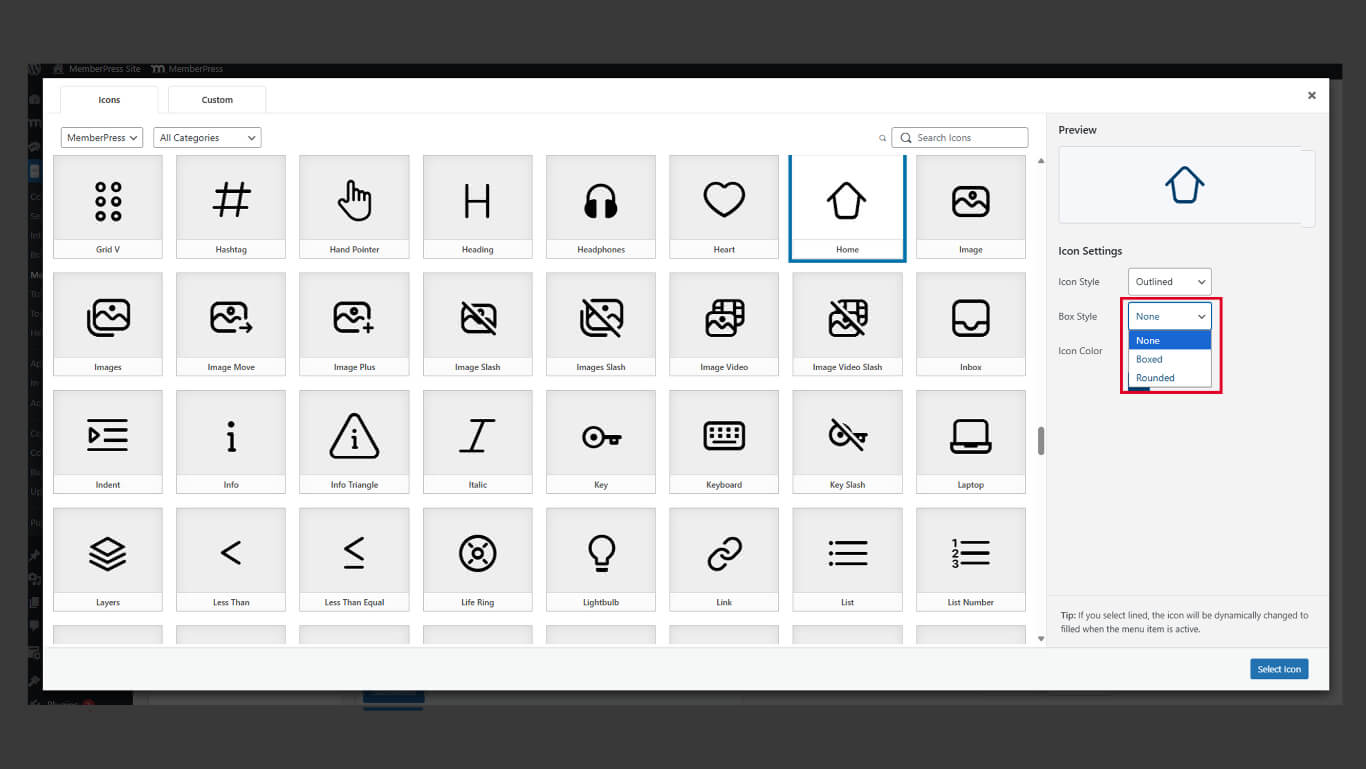
- Überprüfen Sie die Vorschau des Symbols mit dem ausgewählten Kastenstil.
Box-Stile fügen visuelle Container um Symbole hinzu. Hintergrundformen verbessern die Größe und die visuelle Konsistenz von Tap-Targets.
Farbe des Symbols einstellen
- Suchen Sie die Icon Farbe in der Icon-Auswahltafel.
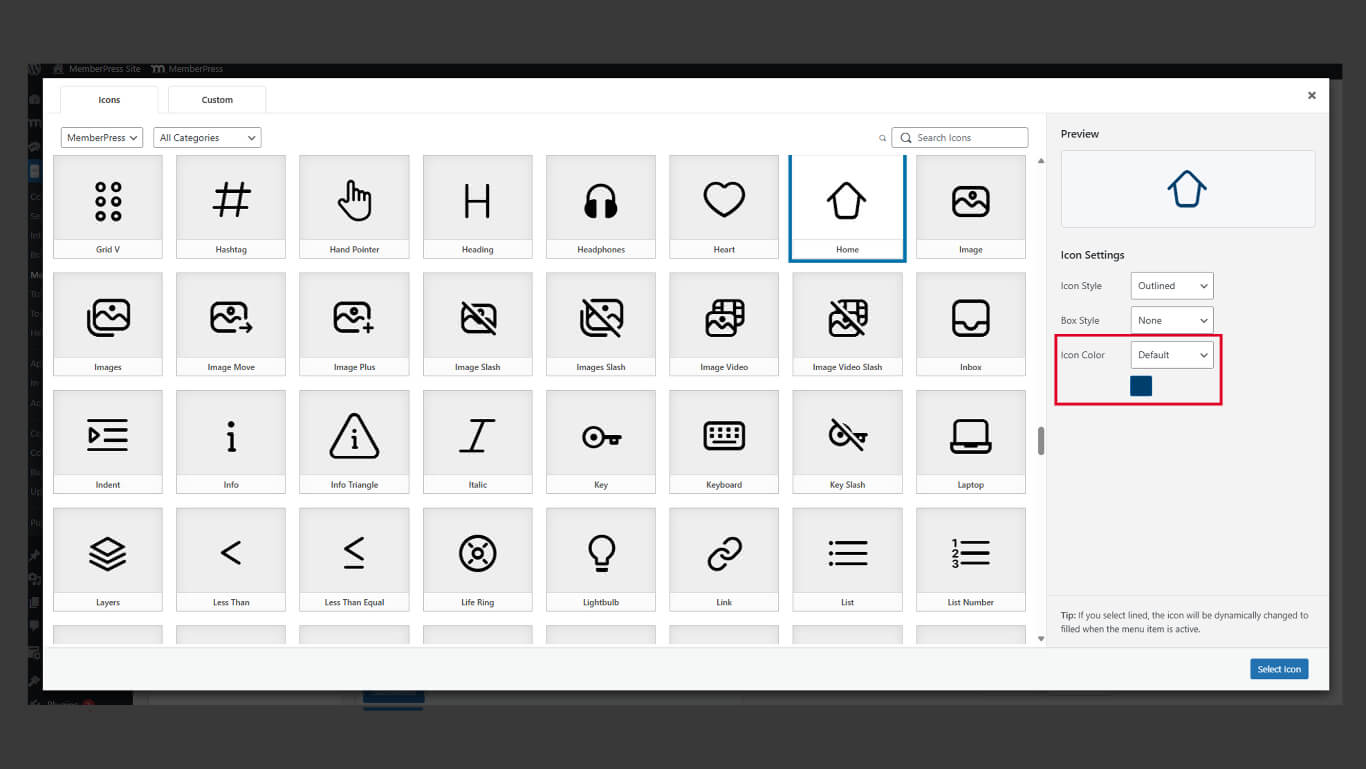
- Wählen Sie, ob Sie den Standard- oder den benutzerdefinierten Farbstil verwenden möchten.
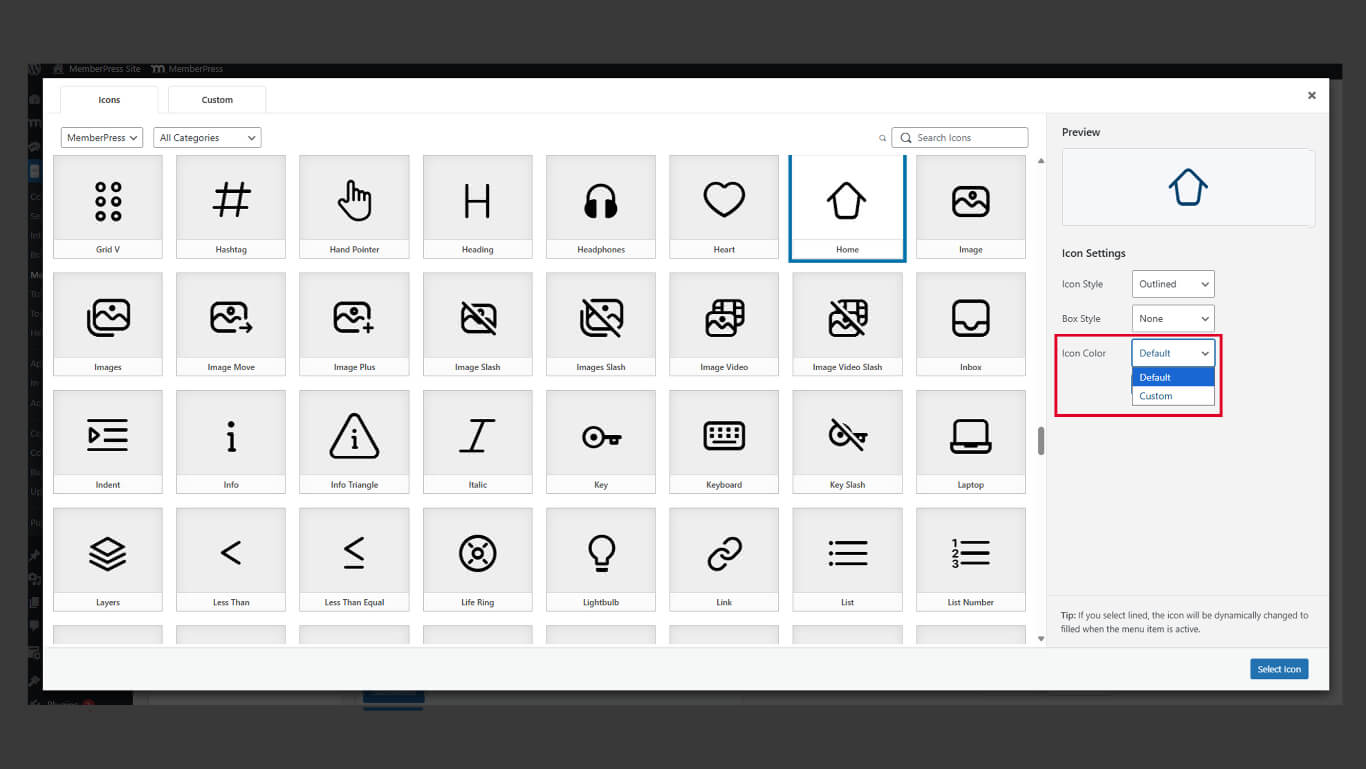
Die Farben der Symbole sollten einen ausreichenden Kontrast zum Hintergrund der Registerkartenleiste aufweisen, damit sie gut sichtbar sind.
Legacy Icon Pack verwenden
Legacy-Symbole bieten ein vertrautes Aussehen für Anwendungen, die frühere Symbol-Designs verwenden.
- Navigieren Sie zu Dashboard > MP AppKit > Menüs.
- Öffnen Sie die Dropdown-Liste der Menüpunkte.
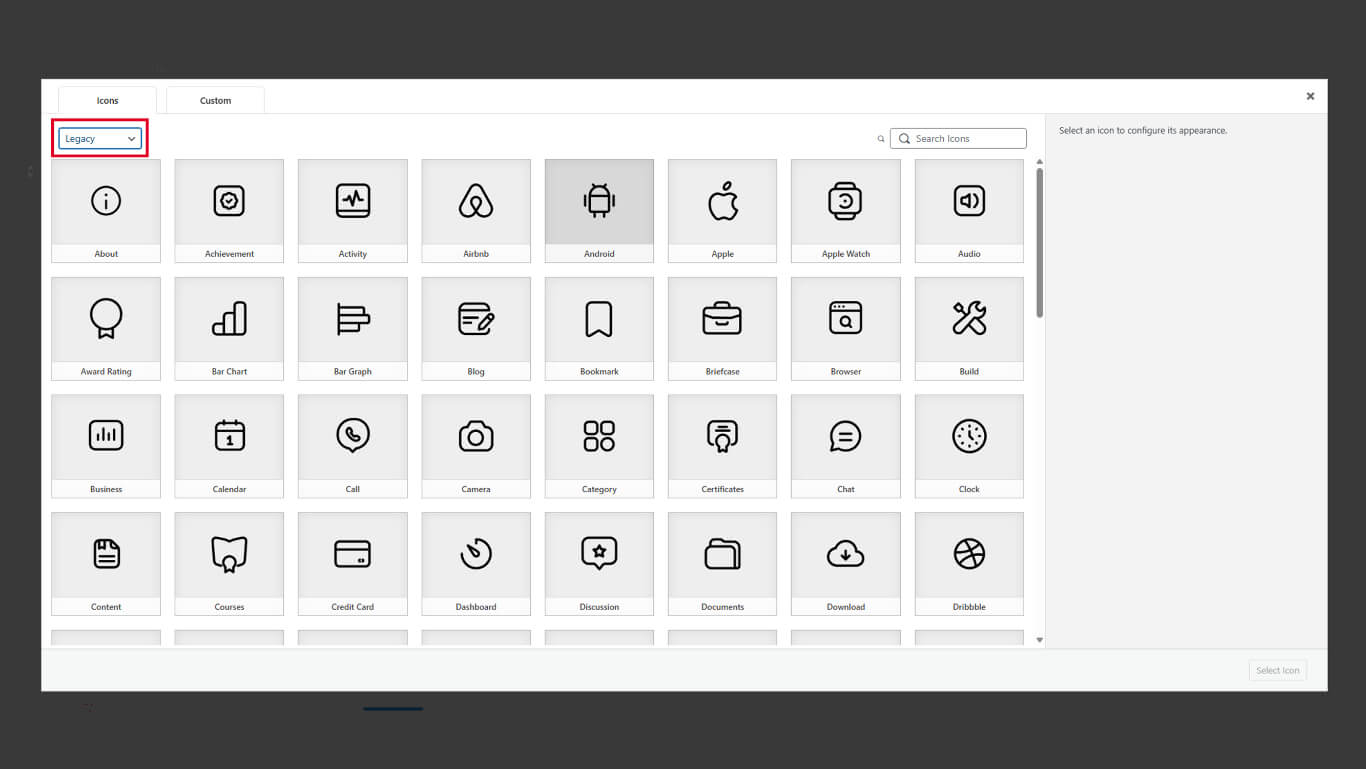
- Klicken Sie auf die Erbe tab.
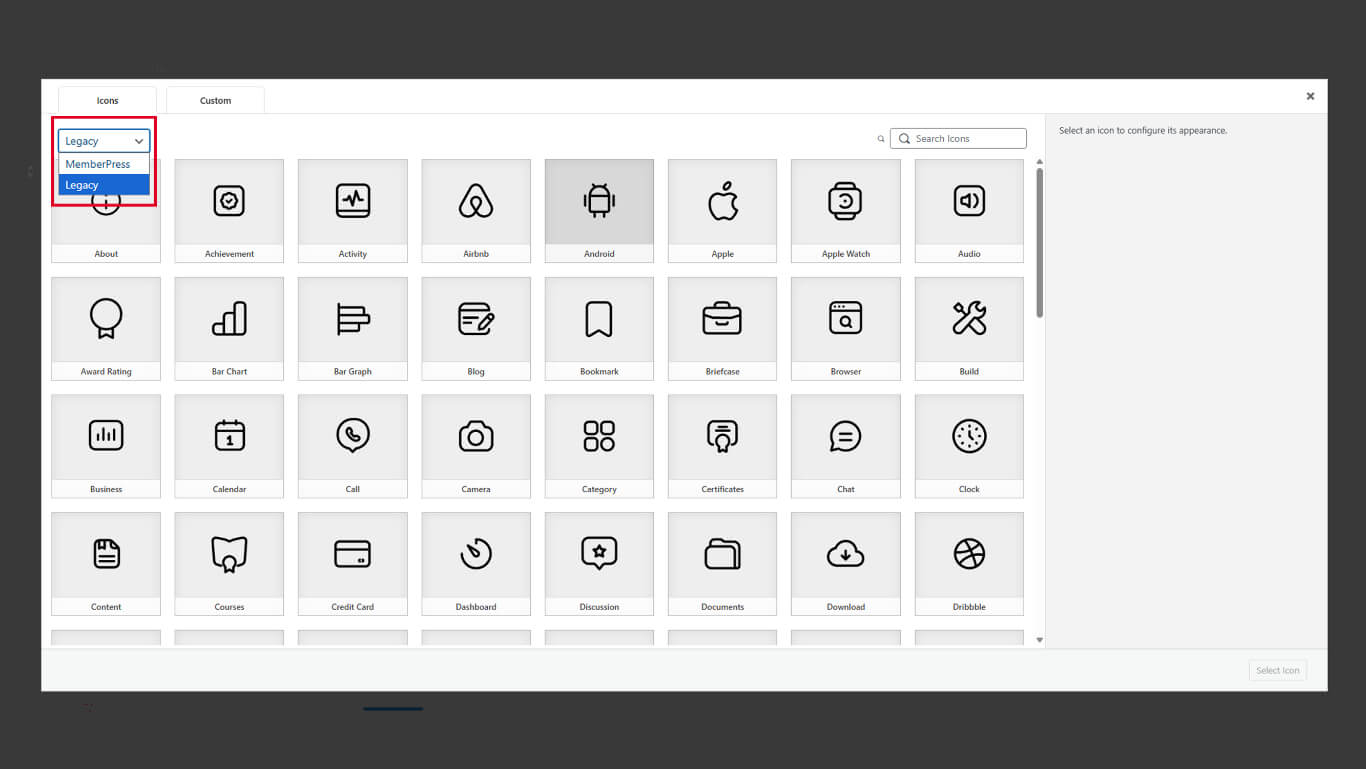
- Wählen Sie ein Symbol aus dem klassischen Symbolsatz.
- Klicken Sie auf die Symbol auswählen um die Auswahl zu bestätigen.
- Klicken Sie auf die Menü speichern um die Änderungen anzuwenden.
Ältere und aktualisierte Symbole können innerhalb desselben Registerkartenmenüs gemischt werden. Die konsistente Auswahl des Stils verbessert die visuelle Kohärenz.










 DE
DE  EN
EN  ES
ES  FR
FR  PT
PT 