

Der Verzeichnisblock zeigt archivähnliche Auflistungen von WordPress-Inhalten innerhalb von App-Seiten an. Dieser Block erstellt organisierte Inhaltsverzeichnisse mit anpassbaren Metadaten, Suchfunktionen und Filteroptionen.
In diesem Dokument wird erklärt, wie man den Verzeichnisblock hinzufügt, die Anzeigeeinstellungen konfiguriert und die Verzeichniseinträge für das Engagement der Mitglieder optimiert.
Verstehen des Verzeichnisblocks
Der Verzeichnisblock stellt Sammlungen von WordPress-Beiträgen, Seiten oder benutzerdefinierten Beitragstypen in strukturierten Listenformaten dar. Mitglieder können Inhalte in Verzeichnissen durchsuchen und filtern. Der Block unterstützt hervorgehobene Bilder, Autorenavatare, Metadatenanzeige und Sortieroptionen. Verzeichnisblöcke müssen aufgrund der Anforderungen an ein bildschirmfüllendes Layout ganze App-Seiten ohne andere Blöcke einnehmen.
Verzeichnisblock-Beschränkungen
Verzeichnisblöcke erfordern die ausschließliche Belegung einer Seite. Mehrere Blöcke können nicht mit Verzeichnisblöcken auf derselben Seite koexistieren.
Anforderung eines einzelnen Blocks: Verzeichnisblöcke müssen der einzige Block auf einer App-Seite sein. Das Hinzufügen weiterer Blöcke führt zu Konfigurationsfehlern.
Vollbildschirm-Layout: Verzeichnisblöcke nutzen den gesamten Bildschirmbereich für eine optimale Inhaltssuche. Gemischte Layouts mit anderen Blöcken beeinträchtigen die Verzeichnisfunktionalität.
Fehlervermeidung: Entfernen Sie alle anderen Blöcke, bevor Sie Verzeichnisblöcke hinzufügen. Fügen Sie Verzeichnisblöcke nur zu leeren App-Seiten hinzu.
Hinzufügen des Verzeichnisblocks
Verzeichnisblöcke werden über die Oberfläche des App-Seiten-Editors hinzugefügt.
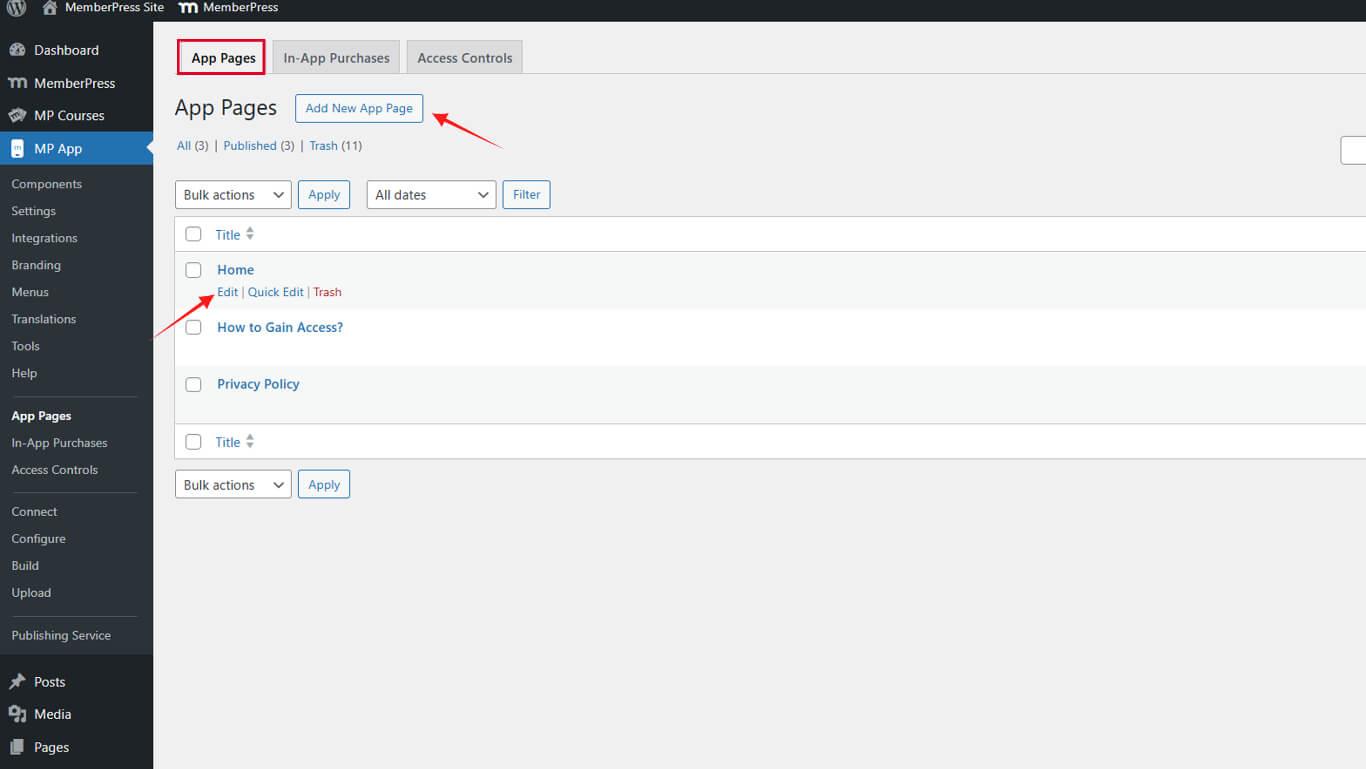
- Navigieren Sie zu Dashboard > MP AppKit > App-Seiten.
- Klicken Sie auf Neu hinzufügen um eine neue App-Seite zu erstellen oder bearbeiten eine bestehende leere Seite.
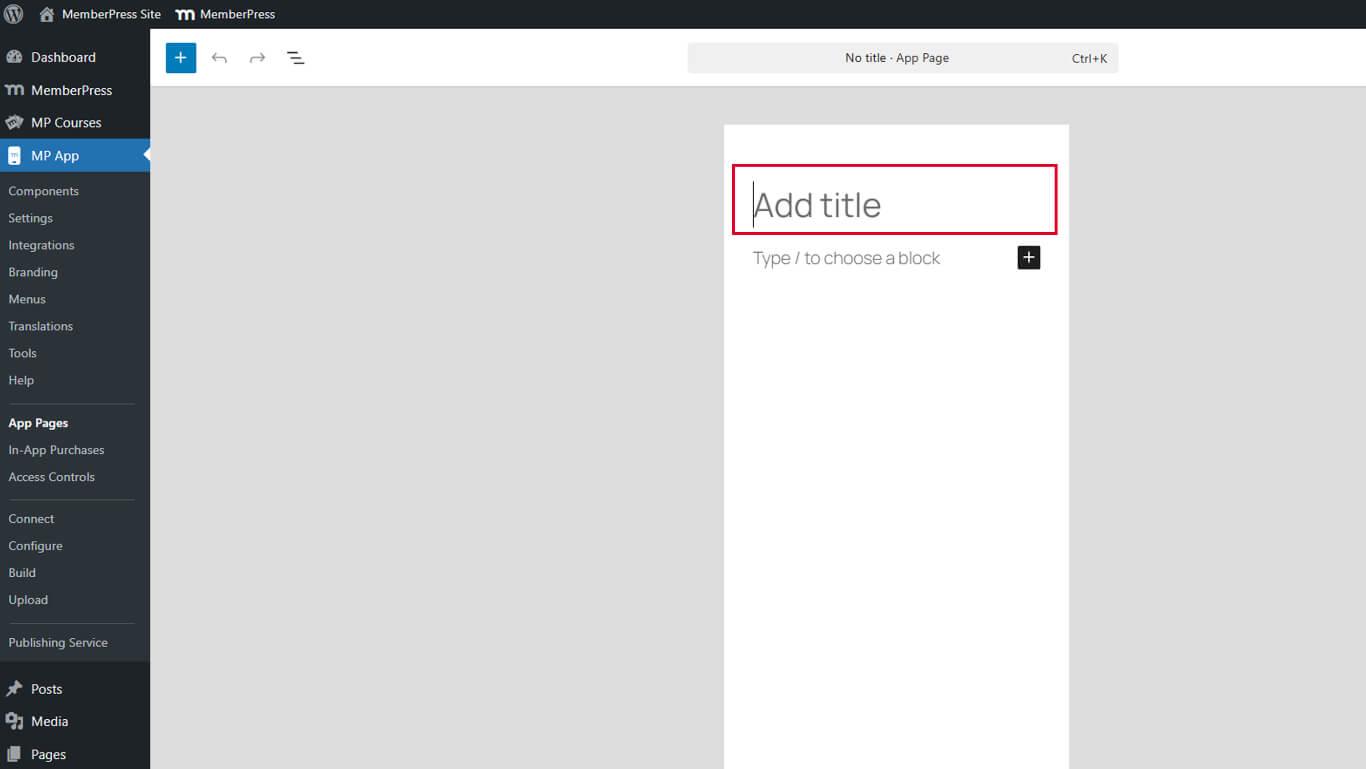
- Geben Sie einen Seitentitel in das Feld Titel Feld.
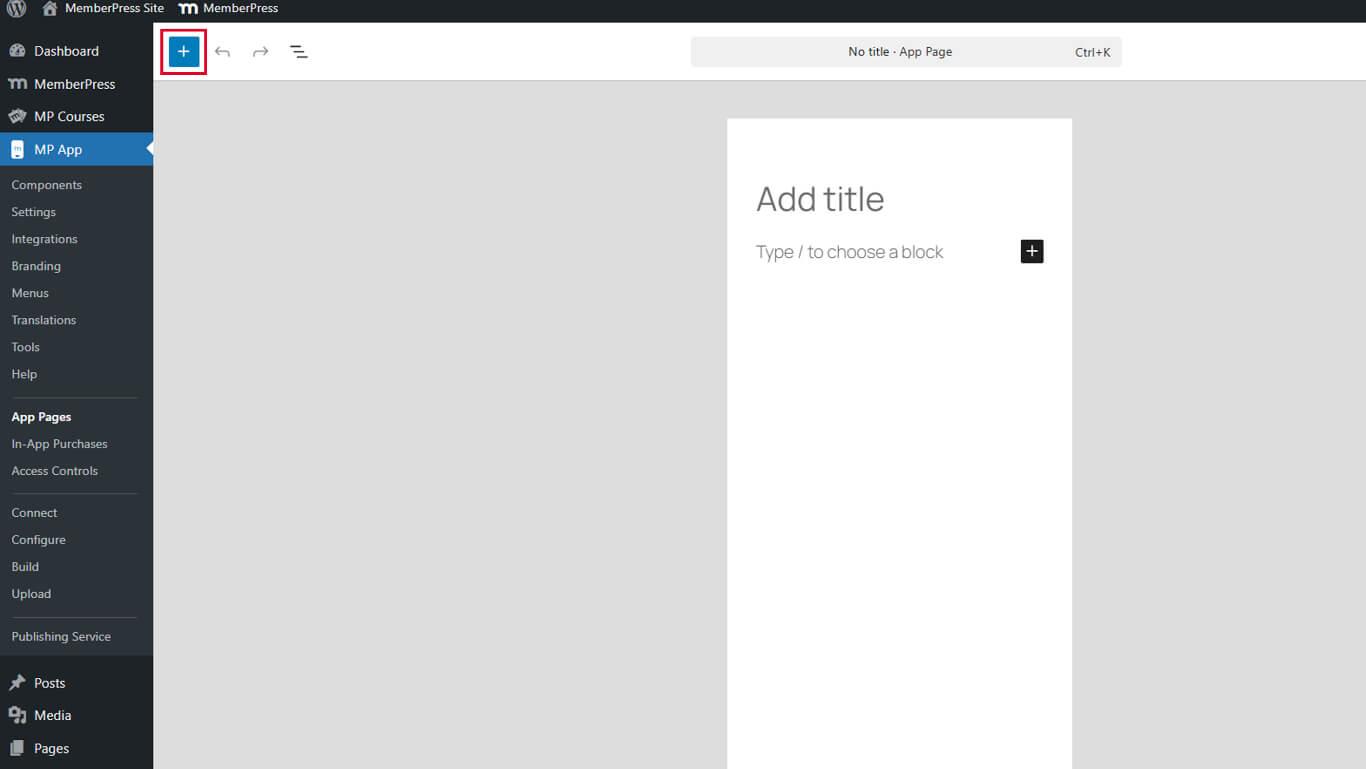
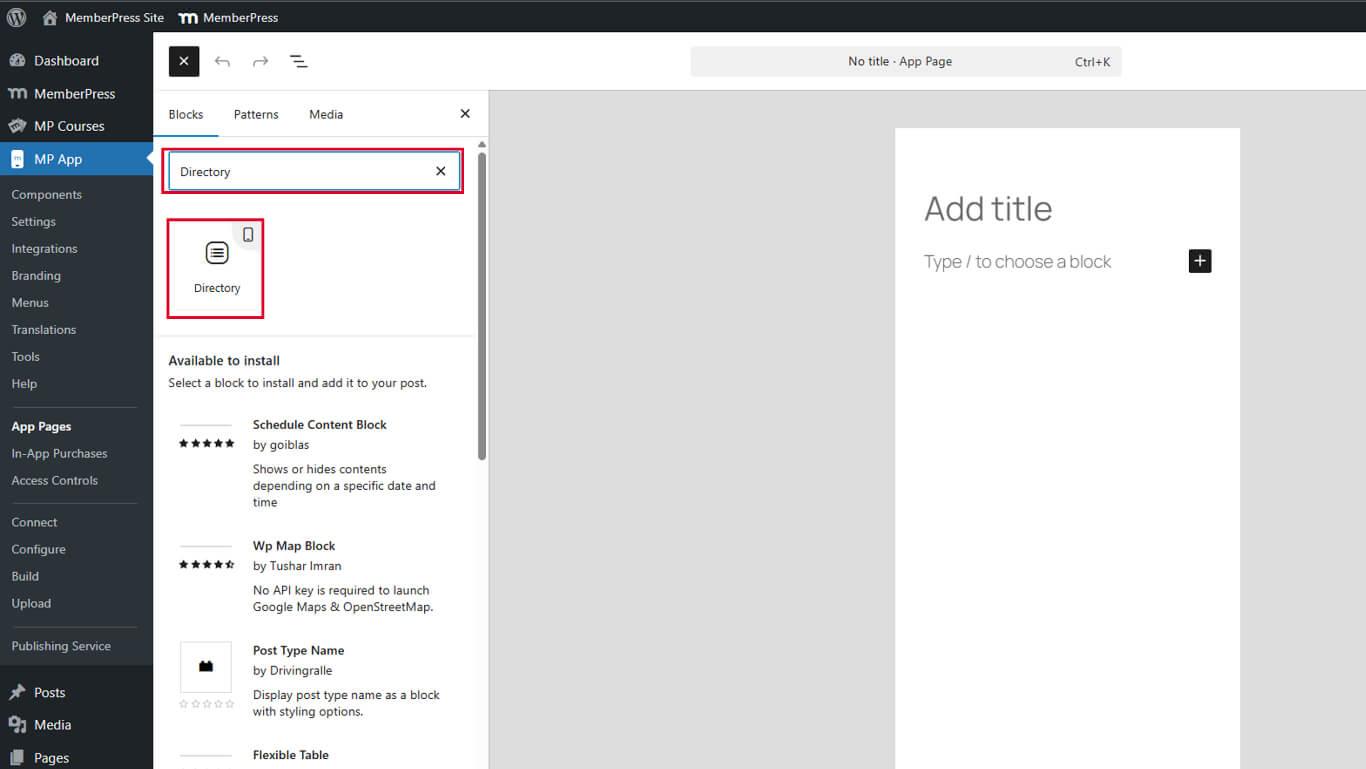
- Klicken Sie auf die Toggle Block Inserter in der Editor-Symbolleiste.
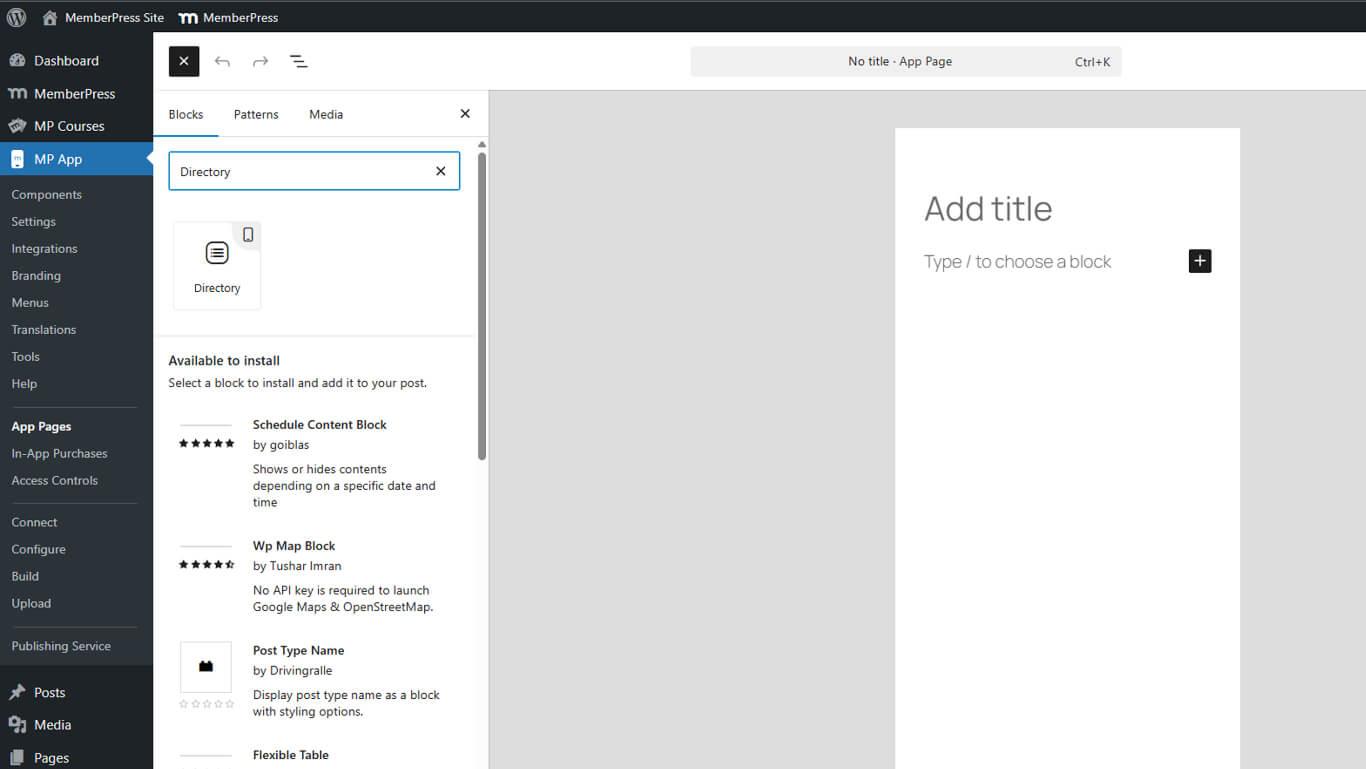
- Eintreten “Verzeichnis” in das Feld für die Blocksuche ein.
- Ziehen Sie die Verzeichnis-Block auf die Seitenleinwand.
- Klicken Sie auf veröffentlichen. oder Update um die Seite zu speichern.
Der Verzeichnisblock zeigt nach dem Einfügen eine Skelettvorschau mit Platzhalter-Metadatenbeschriftungen an.
Verstehen der Verzeichnisvorschau
Die Skelettvorschau zeigt die Struktur des Verzeichnislayouts während der Konfiguration.
Platzhalter-Etiketten geben die Positionen der Metadatenfelder an. Die Bezeichnungen “META 1”, “META 2”, “META 3” und “META 4” stehen für die verfügbaren Metadatenfelder.
Layout-Vorschau zeigt, wie der Inhalt im Verzeichnis erscheinen wird. Der tatsächliche Inhalt füllt diese Platzhalter in der veröffentlichten App aus.
Anleitung zur Konfiguration hilft, Anpassungsmöglichkeiten zu erkennen. Platzhalter zeigen visuell an, wo die Metadatenfelder angezeigt werden.
Konfigurieren von Verzeichnisblockeinstellungen
Die Einstellungen für Verzeichnisblöcke steuern die Inhaltsquelle, die Anzeigeoptionen und das Sortierverhalten.
Beitragstyp auswählen
Die Auswahl des Beitragstyps bestimmt, welche Inhalte in das Verzeichnis aufgenommen werden.
- Wählen Sie den Verzeichnisblock im Seiteneditor.
- Suchen Sie die Block-Einstellungen Seitenleiste auf der rechten Seite.
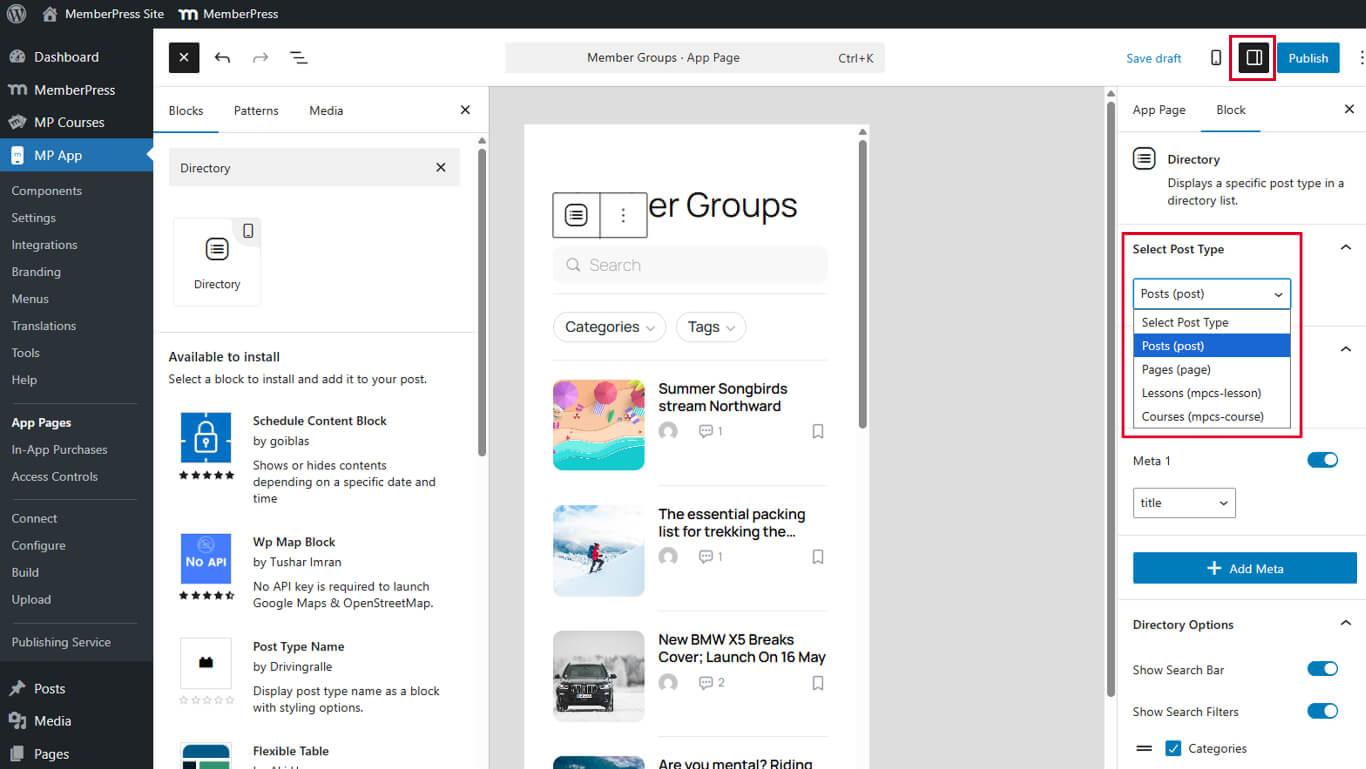
- Finden Sie die Beitragstyp auswählen Dropdown-Menü unter Blockeinstellungen.
- Wählen Sie den gewünschten Beitragstyp aus den verfügbaren Optionen:
- Beiträge für Blogbeiträge;
- Seiten für WordPress-Seiten;
- Benutzerdefinierte Beitragstypen für spezielle Inhaltstypen.
- Klicken Sie auf Aktualisieren/Veröffentlichen um die Seite zu speichern.
Der Inhalt des Verzeichnisses wird auf der Grundlage des ausgewählten Beitragstyps sofort aktualisiert.
Aktivieren von Featured Images
Hervorgehobene Bilder bieten visuellen Kontext in Verzeichniseinträgen.
- Wählen Sie im Seiteneditor den Verzeichnisblock aus.
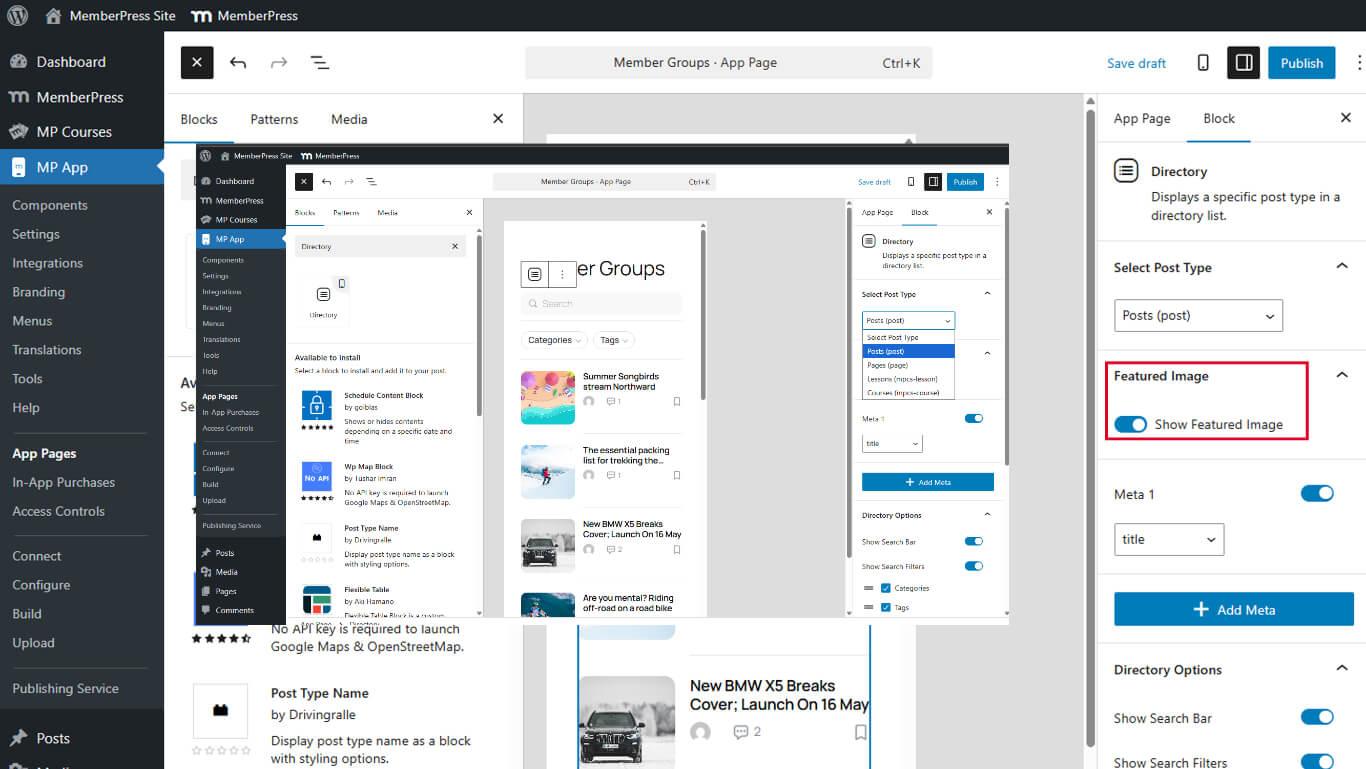
- Suchen Sie die Gezeigtes Bild anzeigen in den Blockeinstellungen umzuschalten.
- Schalten Sie den Schalter auf Auf um die Anzeige von Sonderbildern zu aktivieren.
- Klicken Sie auf Update um die Seite zu speichern.
Hervorgehobene Bilder werden als Miniaturansichten in Verzeichnislistenelementen angezeigt, sofern verfügbar. Inhalte ohne besondere Bilder werden als Platzhaltergrafiken angezeigt.
Konfigurieren der Anzeige von Metadaten
Metadatenfelder liefern zusätzlichen Kontext zu den Verzeichniseinträgen. Es können bis zu vier Metadatenfelder pro Objekt angezeigt werden.
Erstes Metadatenfeld hinzufügen
- Wählen Sie im Seiteneditor den Verzeichnisblock aus.
- Blättern Sie zum Metadaten im Abschnitt Blockeinstellungen.
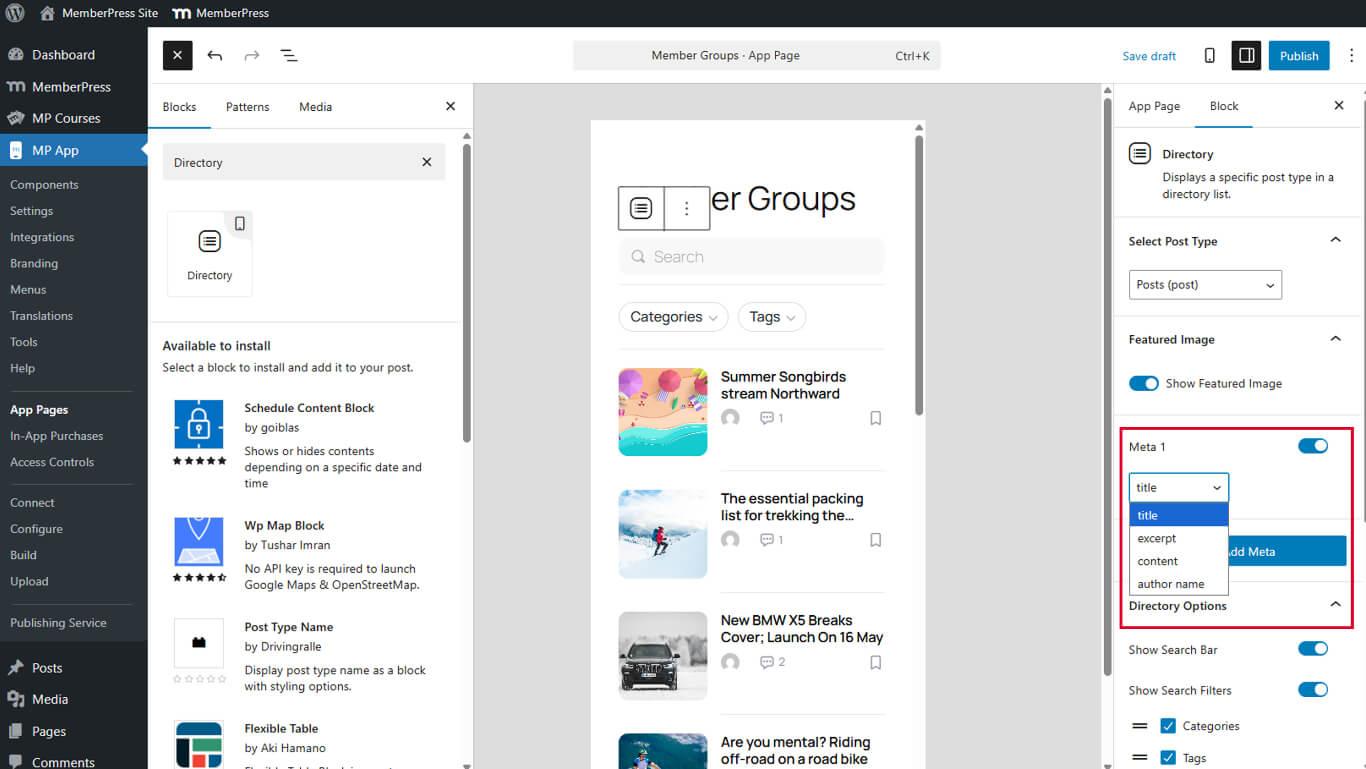
- Umschalten auf Meta 1 zu Auf.
- Wählen Sie das gewünschte Metadatenfeld aus der Liste Meta 1 Dropdown:
- Titel
- Auszug
- Inhalt
- Name des Autors
- Klicken Sie auf Update um die Seite zu speichern.
Das erste Metadatenfeld wird an der Position des Platzhalters META 1 angezeigt.
Hinzufügen zusätzlicher Metadatenfelder
- Klicken Sie auf Meta hinzufügen unterhalb des ersten Metadatenfeldes.
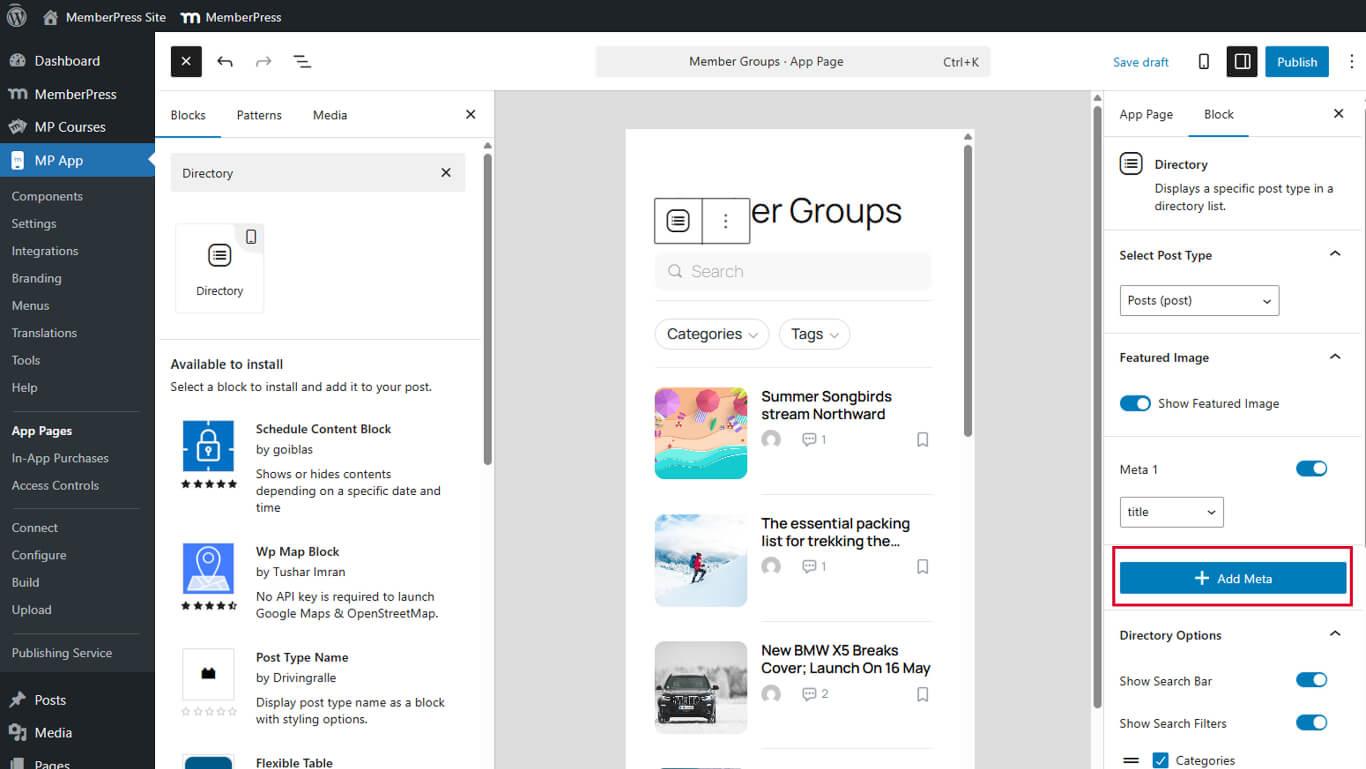
- Wählen Sie das gewünschte Feld aus der Dropdown-Liste aus.
- Wiederholen Sie die Schritte 1-3, um insgesamt bis zu vier Metadatenfelder hinzuzufügen.
- Klicken Sie auf Update um die Seite zu speichern.
Metadatenfelder werden in der Reihenfolge angezeigt, in der sie hinzugefügt werden. Ordnen Sie Felder neu an, indem Sie ihre Konfigurationsreihenfolge ändern.
Konfigurieren von Verzeichnisoptionen
Die Verzeichnisoptionen ermöglichen interaktive Funktionen und Anzeigeverbesserungen.
Aktivieren der Suchfunktionalität
Suchleisten ermöglichen es den Mitgliedern, bestimmte Inhalte in Verzeichnissen zu finden.
- Umschalten auf Suchleiste anzeigen zu Auf.
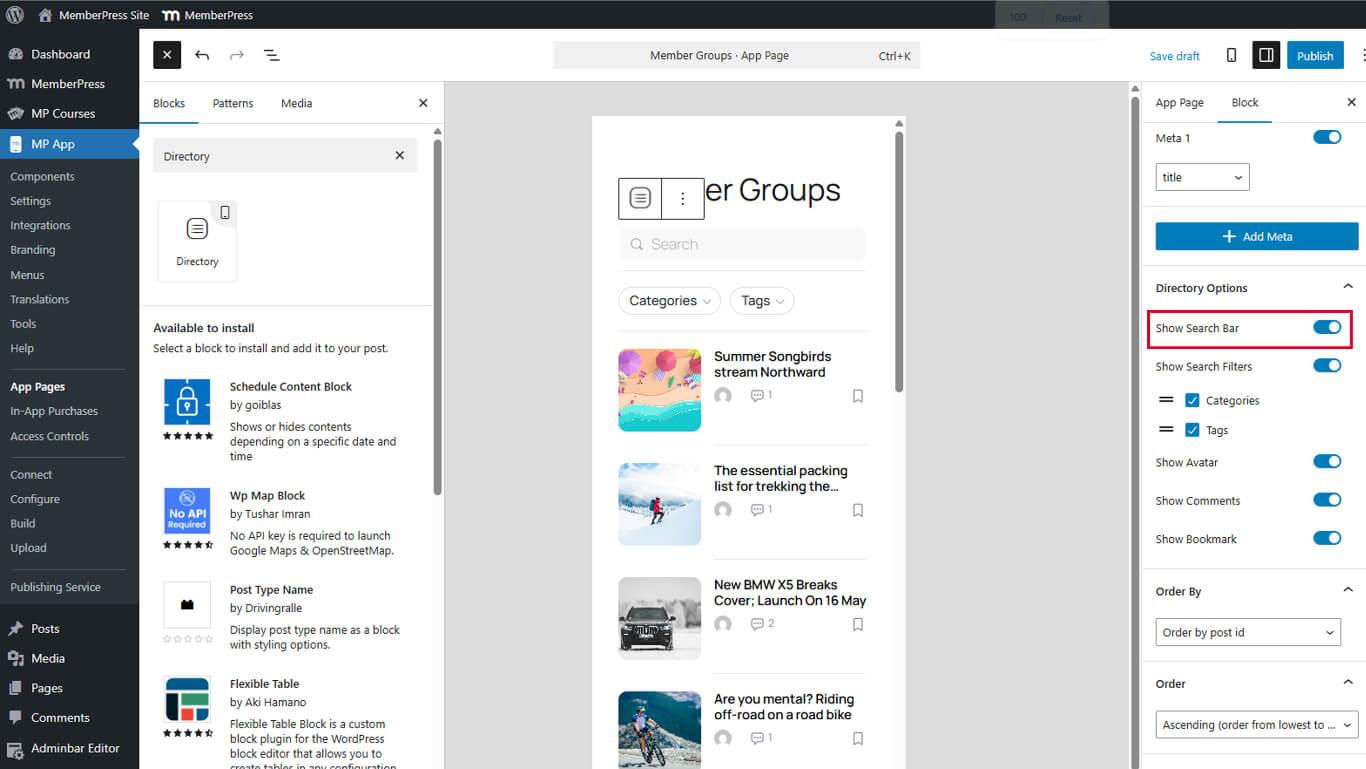
- Klicken Sie auf Update um die Seite zu speichern.
In der veröffentlichten App erscheinen Suchleisten am oberen Rand der Verzeichnisbildschirme.
Aktivieren von Suchfiltern
Suchfilter verfeinern die Suchergebnisse nach Kategorien oder Taxonomien.
- Umschalten auf Suchfilter anzeigen zu Auf in den Verzeichnisoptionen.
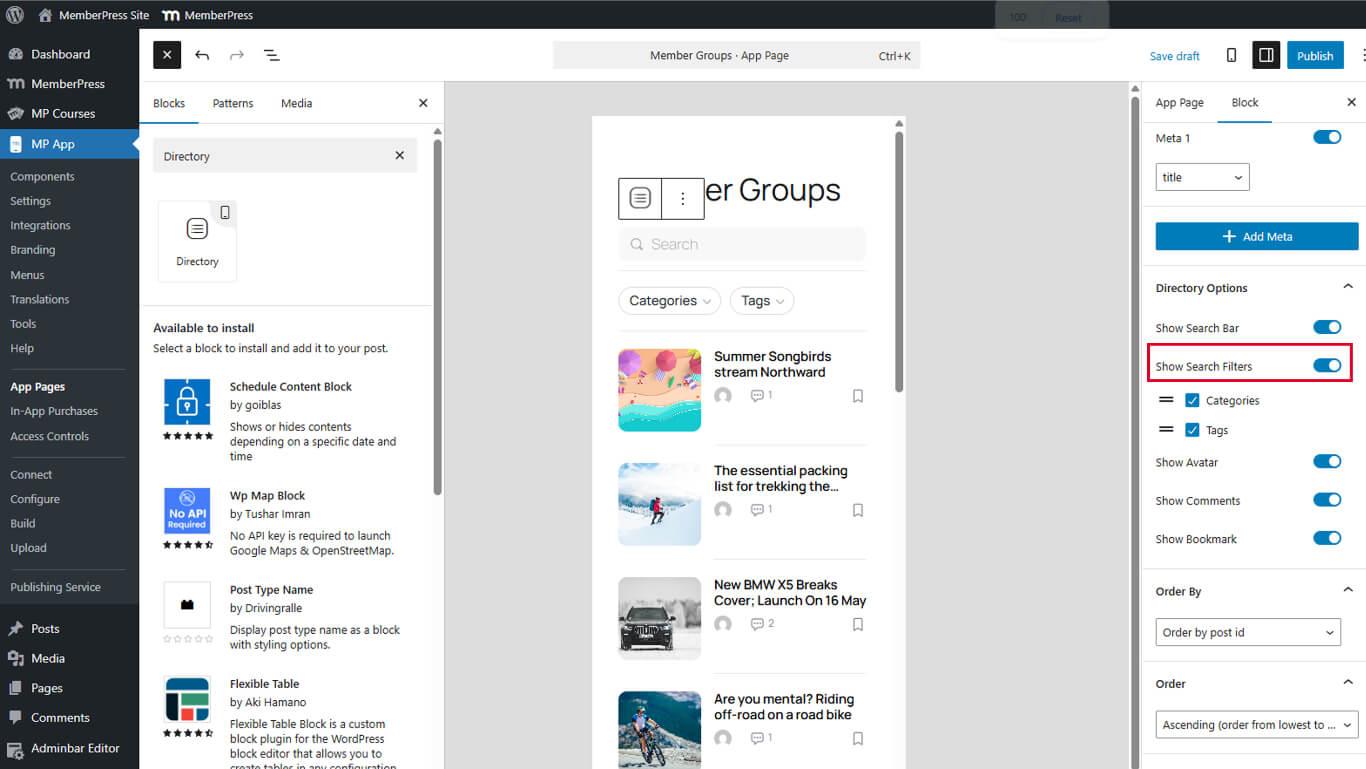
- Klicken Sie auf Update um die Seite zu speichern.
Suchfilter erscheinen neben den Suchleisten, wenn beide Optionen aktiviert sind. Filter ermöglichen die Auswahl von Kategorien oder Tags zur Eingrenzung der Ergebnisse.
Autoren-Avatare aktivieren
Autoren-Avatare identifizieren die Ersteller von Inhalten visuell in Verzeichnislisten.
- Umschalten auf Avatar zu Auf in den Verzeichnisoptionen.
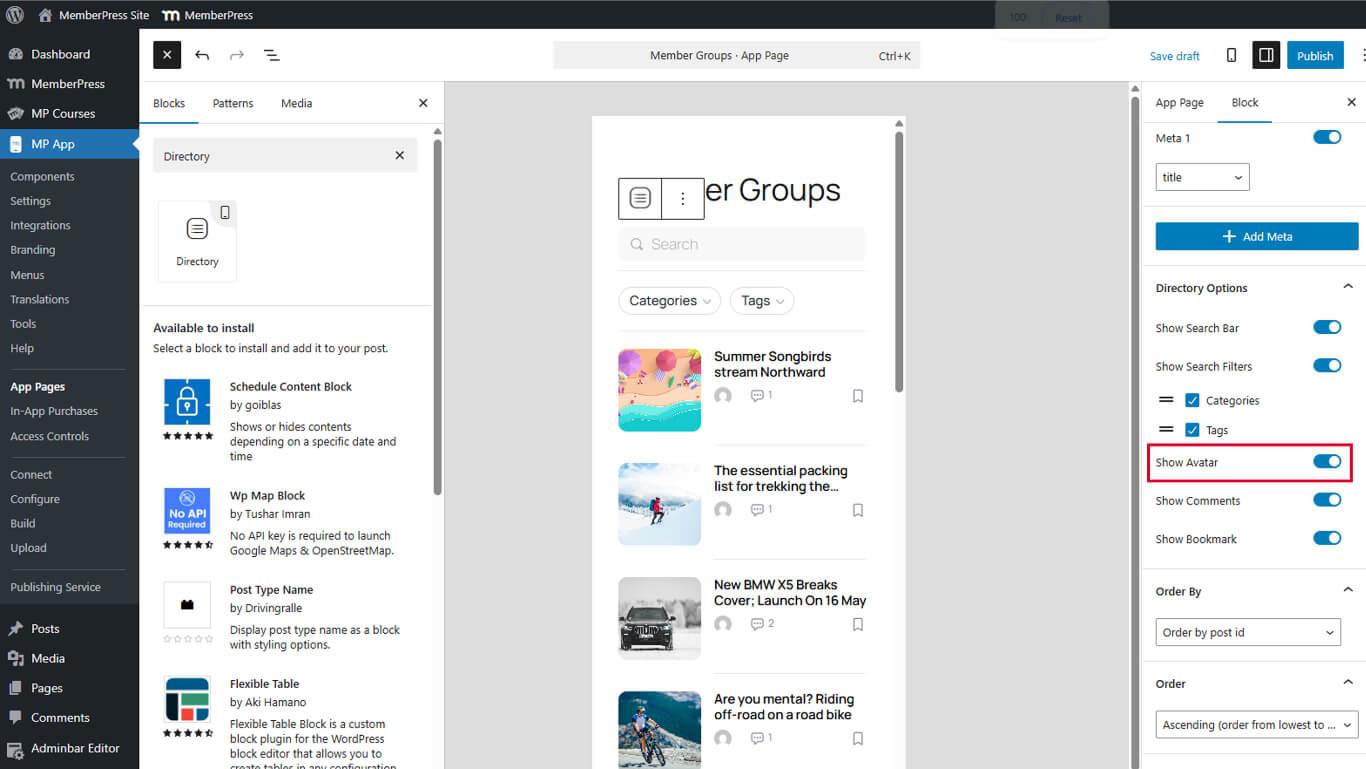
- Klicken Sie auf Update um die Seite zu speichern.
Autorenavatare werden als kleine runde Bilder neben den Inhaltstiteln angezeigt. Für Avatare sind in WordPress konfigurierte Autorenprofilbilder erforderlich.
Aktivieren der Kommentarzählung
Die Anzahl der Kommentare zeigt die Diskussionsaktivität zu inhaltlichen Themen an.
- Umschalten auf Kommentar anzeigen zu Auf in den Verzeichnisoptionen.
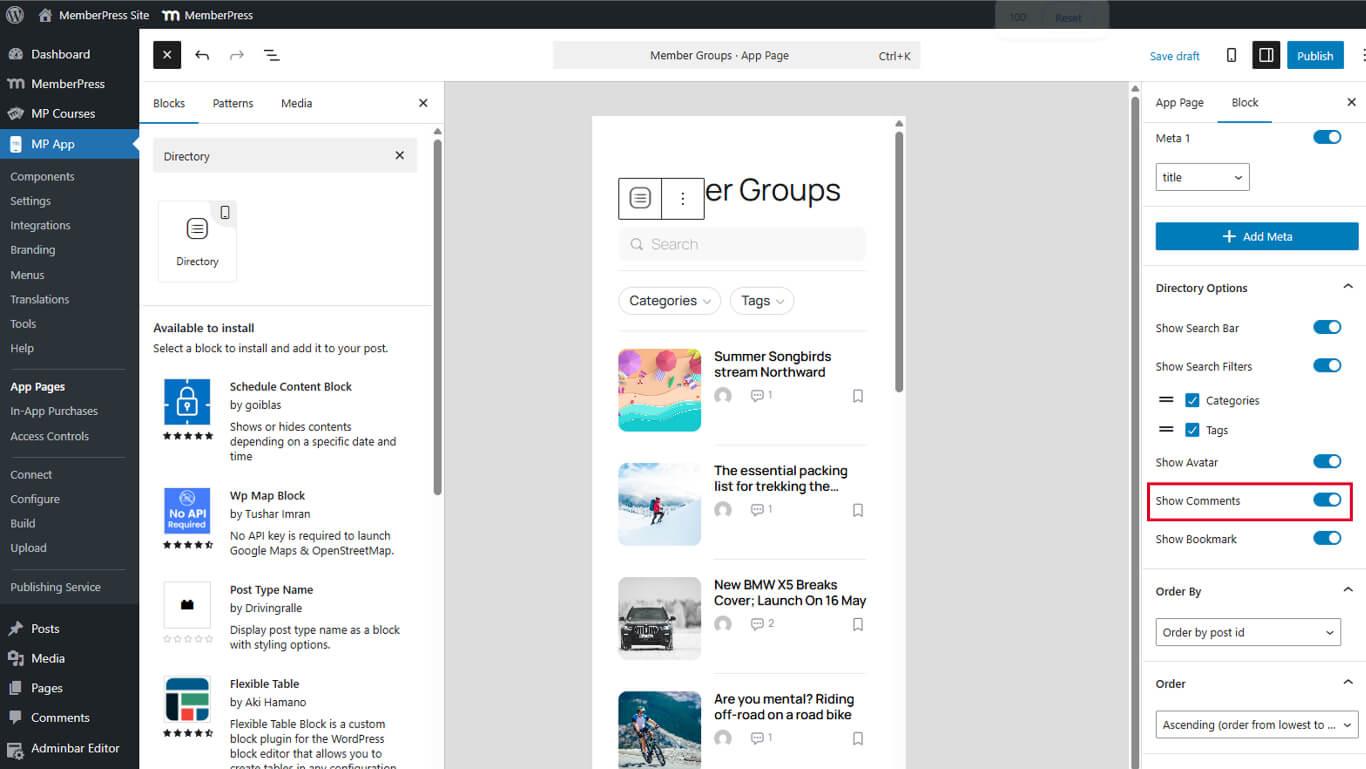
- Klicken Sie auf Update um die Seite zu speichern.
Die Anzahl der Kommentare wird als Zahlen mit Kommentarsymbolen in den Verzeichniseinträgen angezeigt. Die Zählungen werden aktualisiert, wenn Mitglieder Kommentare hinzufügen.
Aktivieren von Lesezeichen
Lesezeichen ermöglichen es den Mitgliedern, Inhalte für den späteren Zugriff zu speichern.
- Umschalten auf Lesezeichen anzeigen zu Auf in den Verzeichnisoptionen.
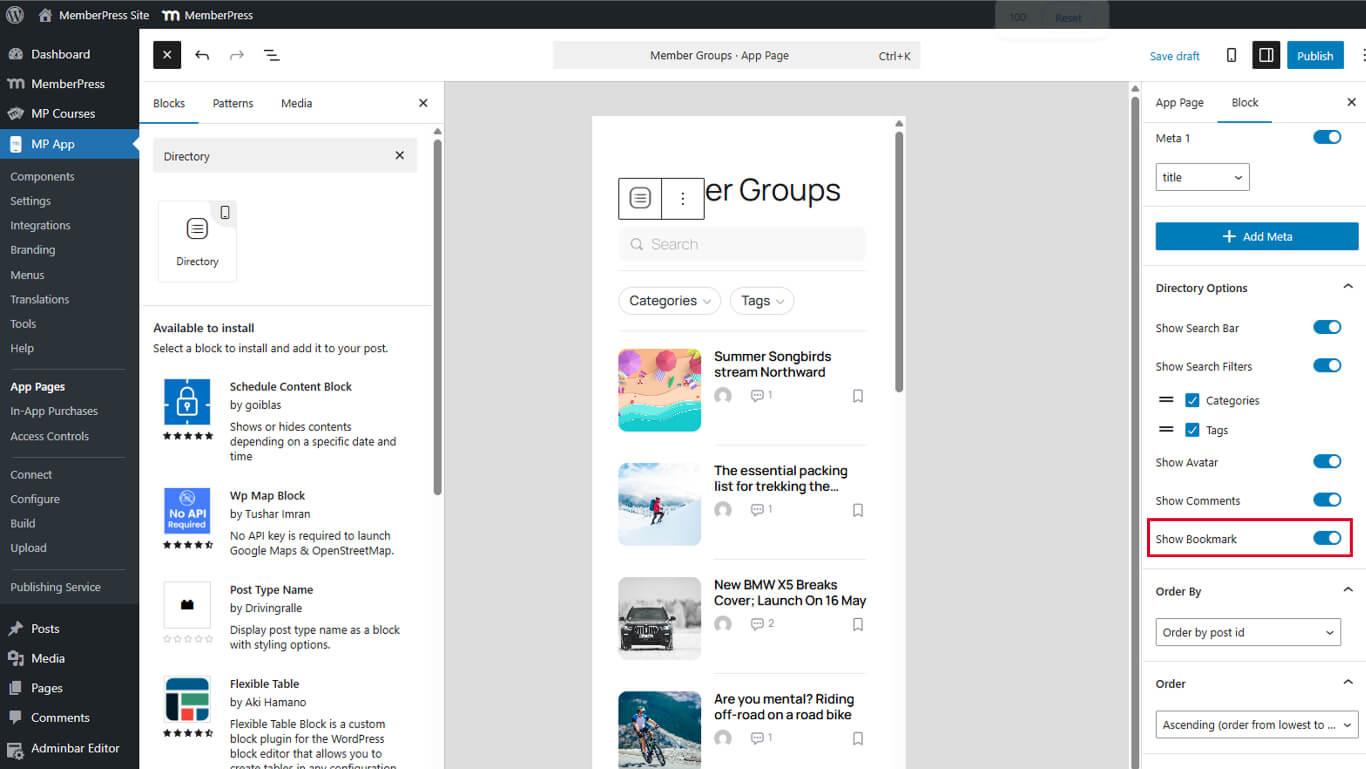
- Klicken Sie auf Update um die Seite zu speichern.
Lesezeichensymbole werden in Verzeichnislisten angezeigt. Mitglieder tippen auf die Symbole, um Inhalte zu markieren oder die Markierung aufzuheben.
Sortieroptionen konfigurieren
Die Sortieroptionen steuern die Reihenfolge der Inhalte in den Verzeichnissen.
Einstellen des Feldes Bestellen nach
- Wählen Sie den Verzeichnisblock im Seiteneditor.
- Suchen Sie die Bestellen nach Dropdown-Menü in den Blockeinstellungen.
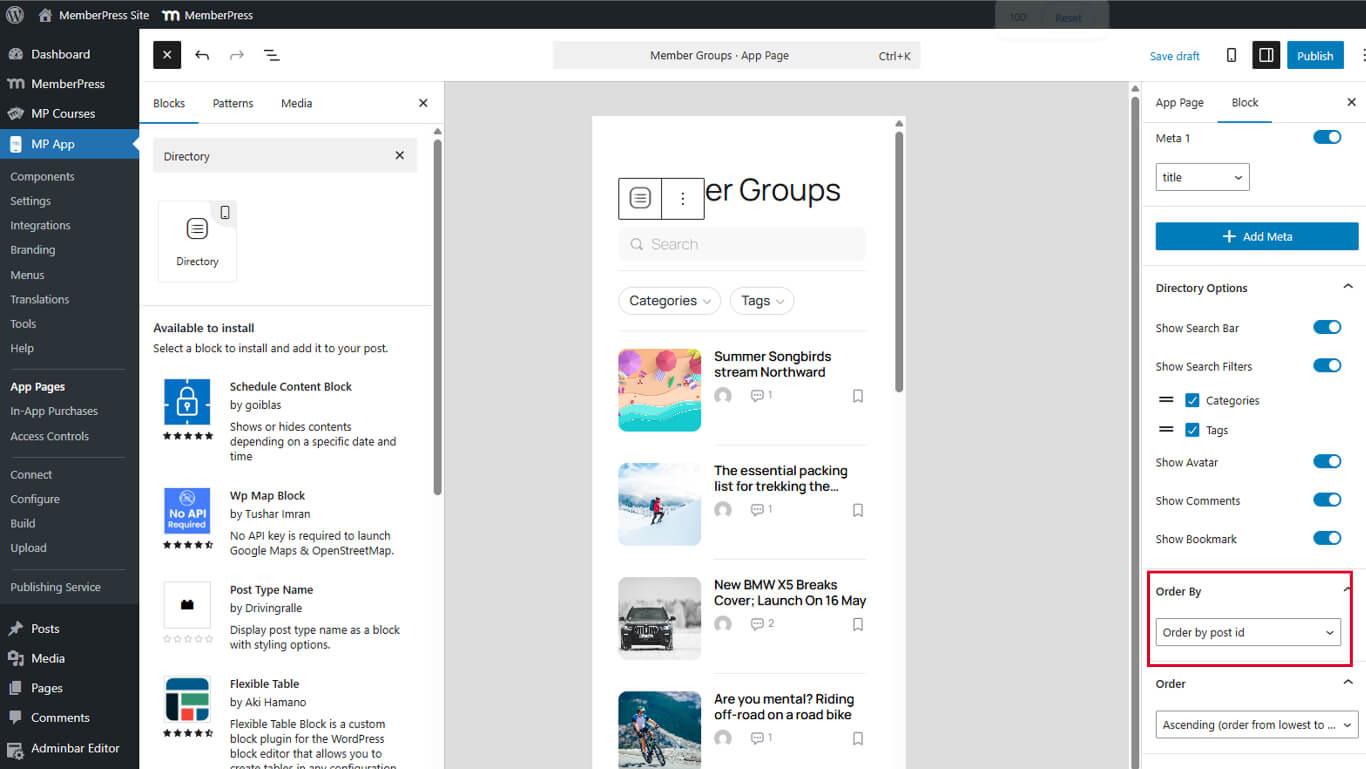
- Wählen Sie das Sortierfeld aus:
- Datum für die chronologische Sortierung;
- Titel für die alphabetische Sortierung;
- Geändert für kürzlich aktualisierte Inhalte;
- Menü Bestellung für die manuelle Bestellung.
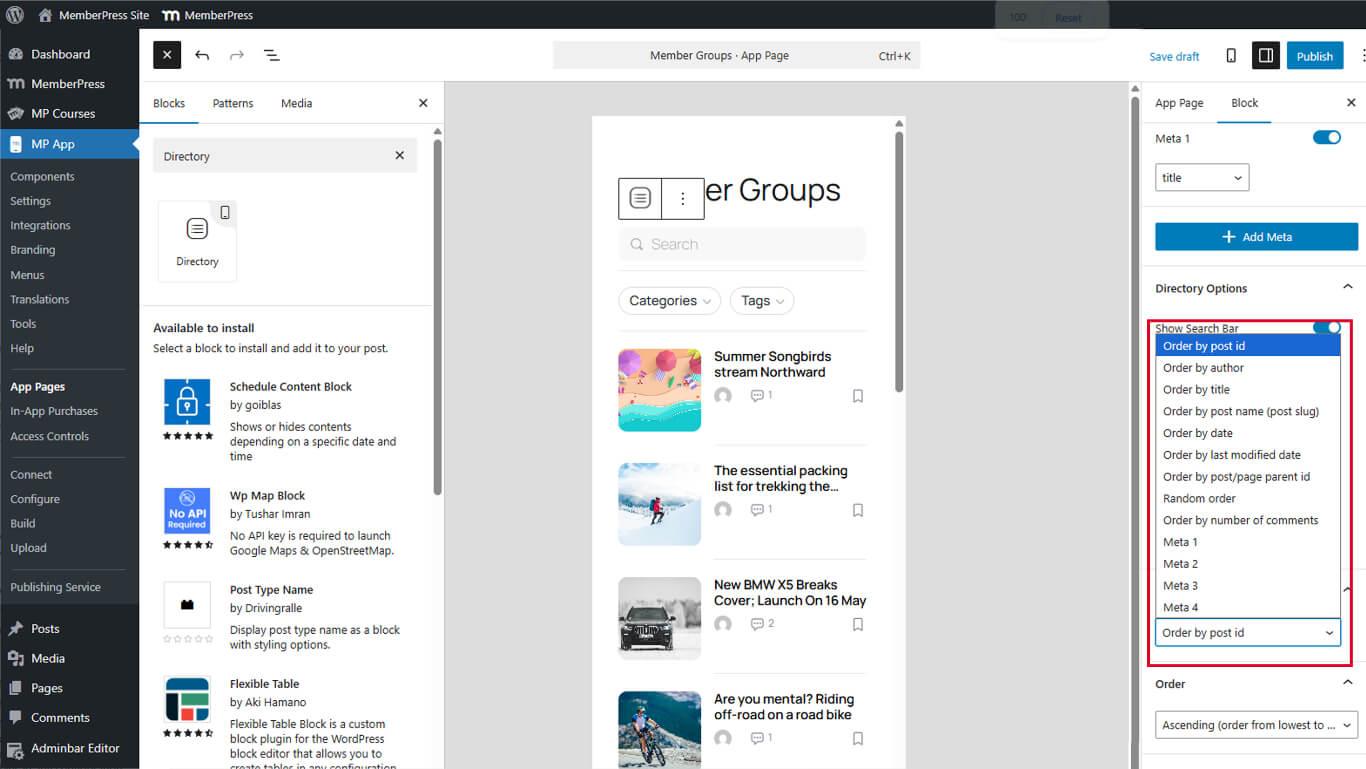
- Klicken Sie auf Update um die Seite zu speichern.
Das Sortierfeld bestimmt, welches Inhaltsattribut die Anzeigereihenfolge steuert.
Einstellung der Auftragsrichtung
- Suchen Sie die Bestellung Dropdown-Menü unter Bestellen nach.
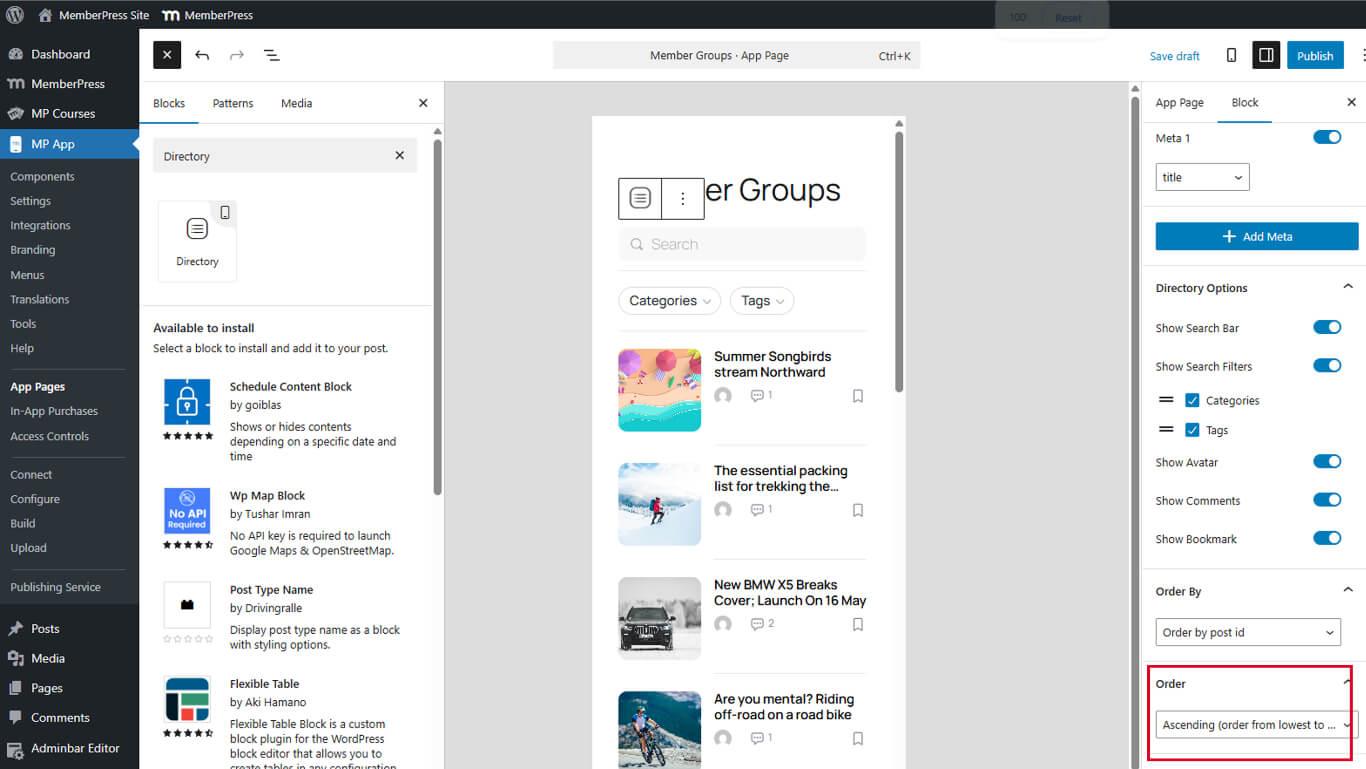
- Wählen Sie die Sortierrichtung:
- Aufsteigend für A-Z oder älteste-erste Sortierung;
- Absteigend für die Reihenfolge Z-A oder neueste zuerst.
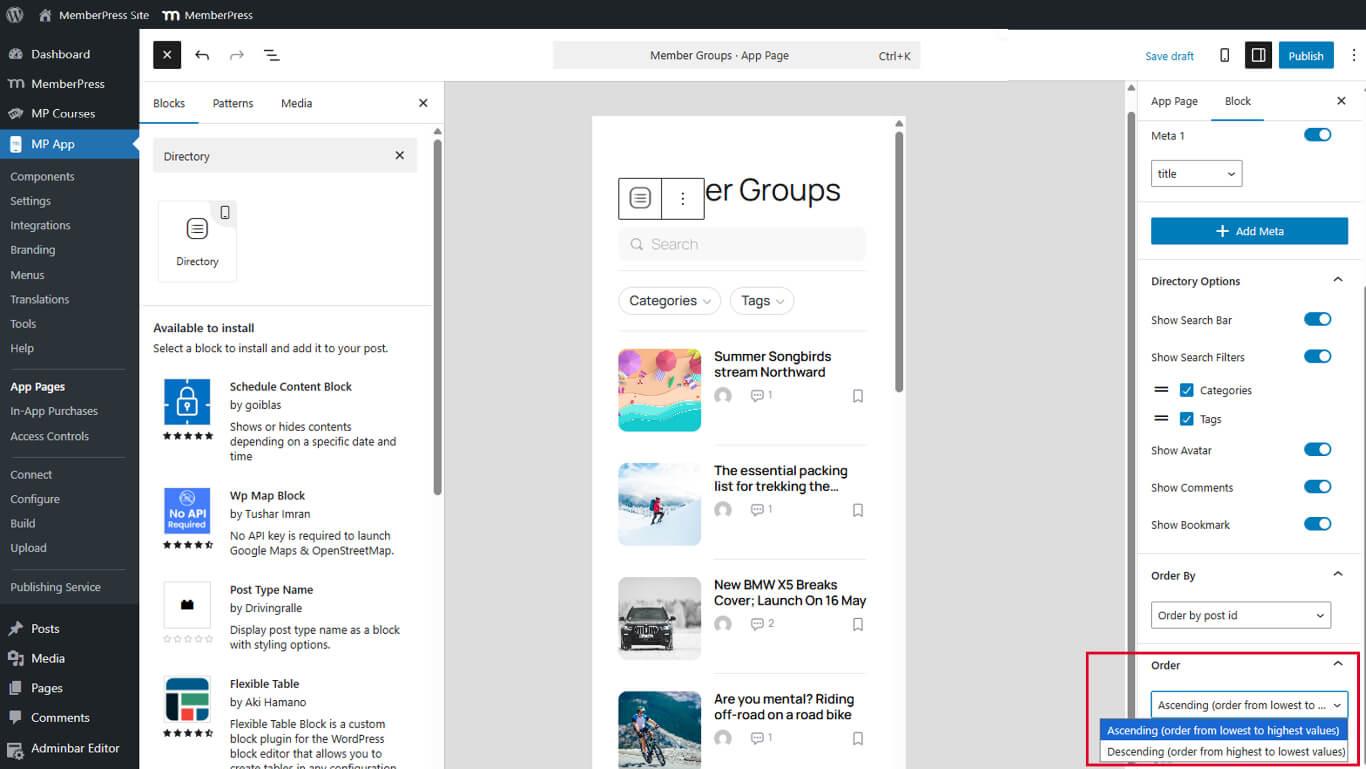
- Klicken Sie auf Update um die Seite zu speichern.
Die Sortierrichtung (Reihenfolge) funktioniert in Kombination mit dem Sortierfeld. Bei absteigendem Datum wird der neueste Inhalt zuerst angezeigt.
Löschen von Verzeichnisblöcken
Verzeichnisblöcke können entfernt werden, wenn sie nicht mehr benötigt werden.
- Navigieren Sie zu Dashboard > MP AppKit > App-Seiten.
- Öffnen Sie die Seite die den Verzeichnisblock enthält.
- Wählen Sie den Verzeichnisblock im Editor.
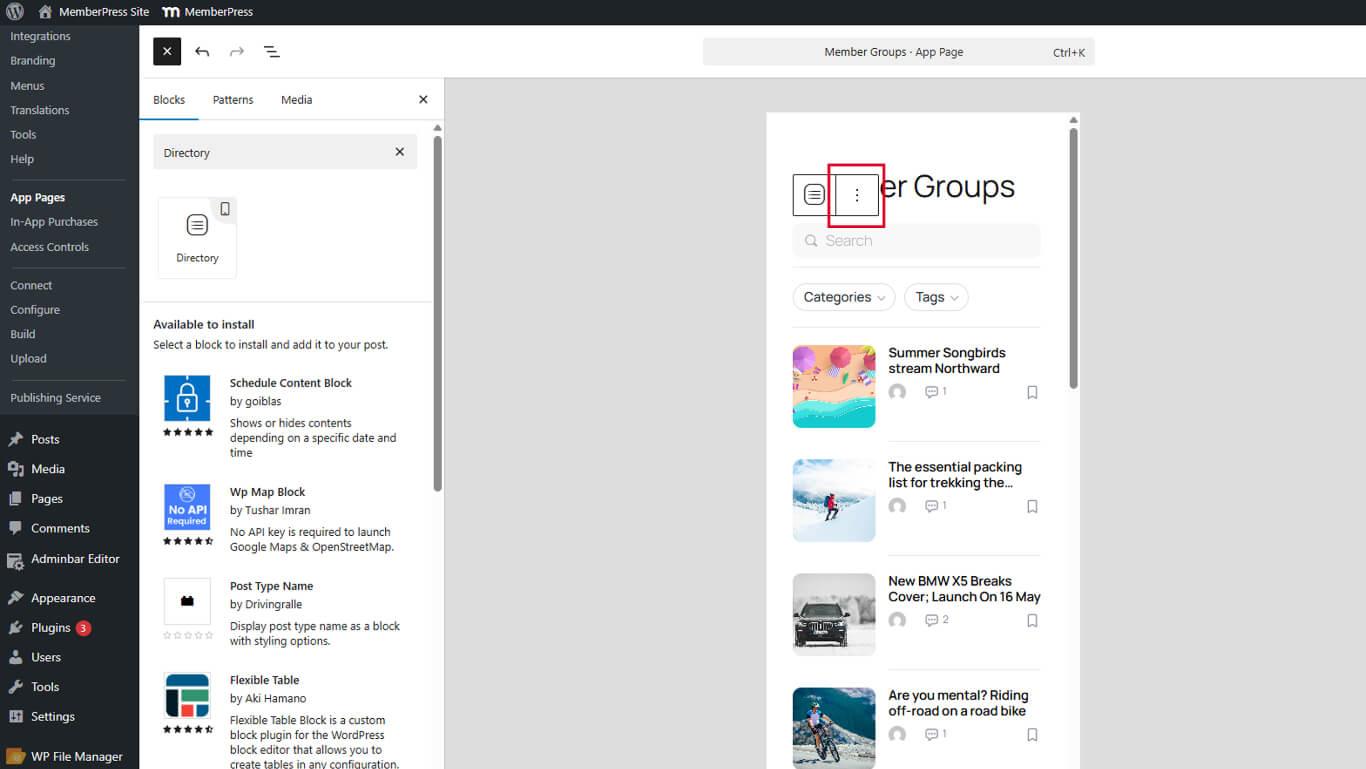
- Klicken Sie auf die Optionen (drei vertikale Punkte) in der Symbolleiste des Blocks.
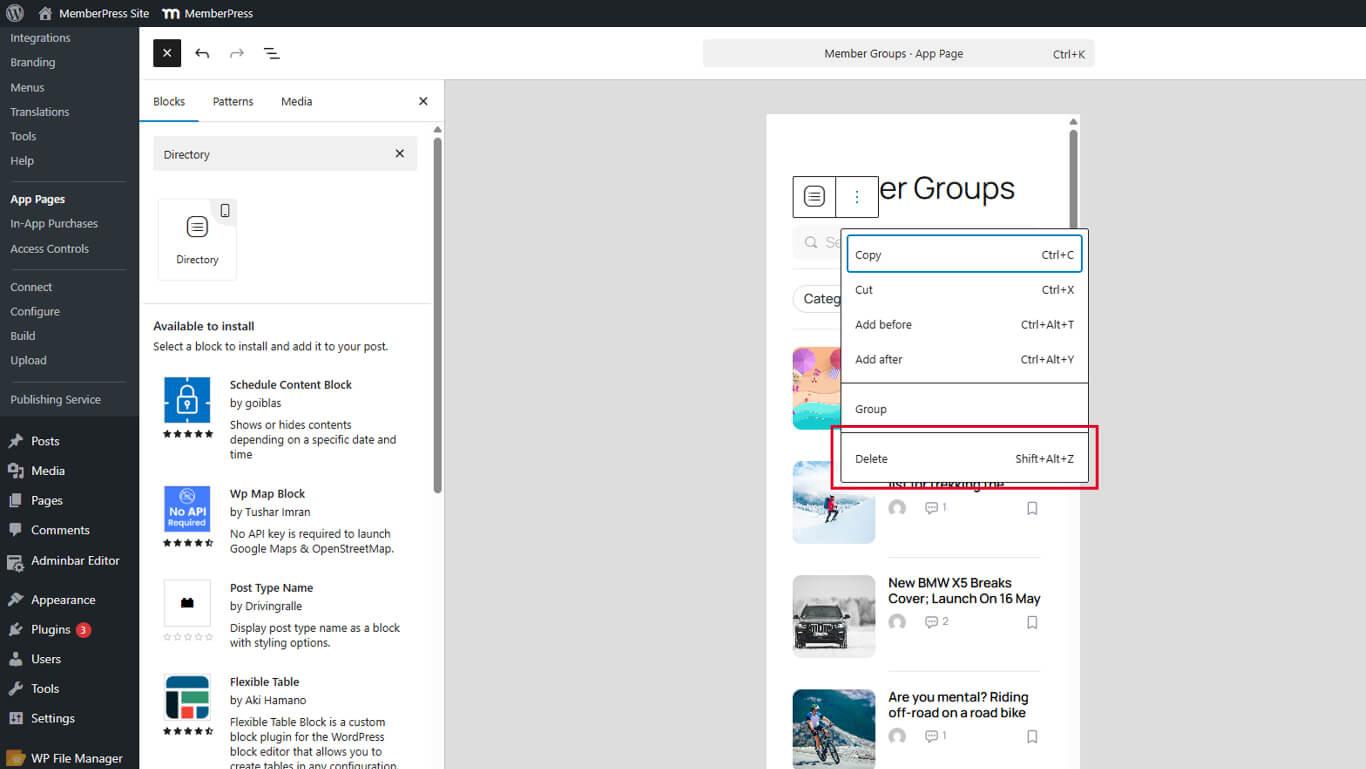
- Klicken Sie auf Löschen.
- Klicken Sie auf Update um die Seite zu speichern.
Das Entfernen von Verzeichnisblöcken ermöglicht das Hinzufügen anderer Blocktypen auf der Seite.










 DE
DE  EN
EN  ES
ES  FR
FR  PT
PT 