

Typografie schafft Markenidentität und verbessert die Lesbarkeit von Inhalten in mobilen Anwendungen. MemberPress AppKit unterstützt die benutzerdefinierte Konfiguration von Schriften mit Google Fonts oder hochgeladenen Schriftdateien.
In diesem Dokument wird erläutert, wie Sie Schriftarten importieren, App-Abschnitten Typografie zuweisen und die Textanzeige für die Mitgliederbeteiligung optimieren können.
Verstehen der Typografie Konfiguration
Die Konfiguration der Typografie steuert Schriftfamilien, -stile und -größen in der gesamten App. Benutzerdefinierte Schriftarten passen das Erscheinungsbild der App an Markenrichtlinien an und verbessern die visuelle Konsistenz. Die Integration von Google Fonts bietet umfangreiche Schriftartenoptionen ohne Dateiverwaltung. Der Upload benutzerdefinierter Schriften unterstützt markeneigene Schriftarten. Die korrekte Konfiguration der Typografie verbessert die Lesbarkeit und stärkt die Markenidentität auf allen Bildschirmen der App.
Typografie verstehen Vorteile
Benutzerdefinierte Typografie bietet zahlreiche Vorteile für die Benutzererfahrung und das Branding.
Stärkung der Markenidentität erfolgt durch die einheitliche Verwendung von Schriftarten. Die Mitglieder assoziieren bestimmte Schriftarten mit Markenbekanntheit und Vertrauen.
Optimierung der Lesbarkeit verbessert sich durch die richtige Wahl der Schriftart. Gut gestaltete Schriftarten verbessern die Verständlichkeit und verringern die Belastung der Augen.
Konsistenz der Gestaltung entsteht durch eine einheitliche Typografie auf allen Bildschirmen. Die kohärente Verwendung von Schriften sorgt für ein professionelles, ausgefeiltes Erscheinungsbild.
Verbesserung der Barrierefreiheit ergibt sich aus der richtigen Größe und dem richtigen Gewicht der Schrift. Eine gut lesbare Typografie dient Mitgliedern mit unterschiedlichen Sehfähigkeiten.
Zugriff auf Typografie-Einstellungen
Die gesamte Konfiguration der Typografie erfolgt über die Schnittstelle für die Markentypografie.
- Navigieren Sie zu Dashboard > MP AppKit > Branding > Typografie.
- Suchen Sie die Schriftarten importieren Abschnitt.
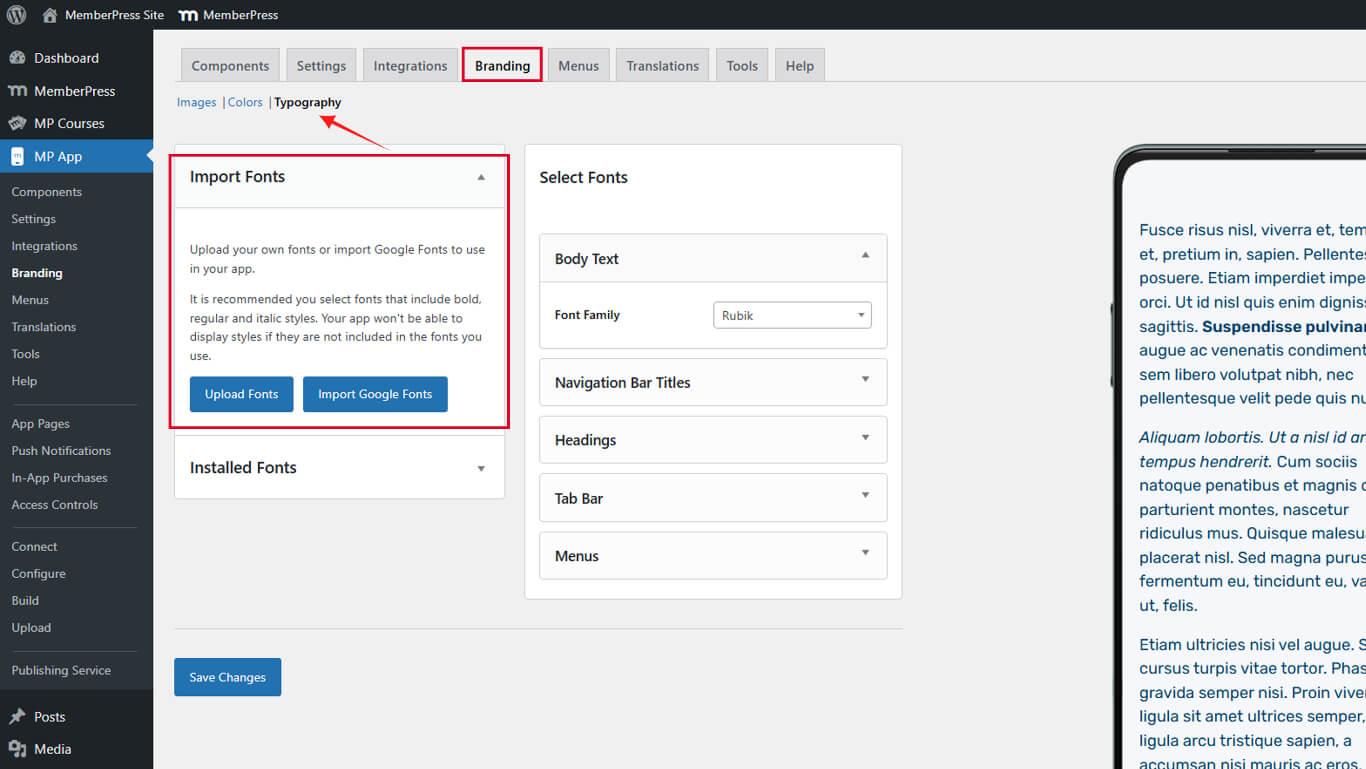
Die Typografieeinstellungen steuern sowohl den Schriftimport als auch die abschnittsspezifische Zuordnung von Schriften.
Benutzerdefinierte Schriftarten hochladen
Benutzerdefinierte Schriftarten fügen der App-Schriftartenbibliothek eigene Schriftarten hinzu.
- Navigieren Sie zu Dashboard > MP AppKit > Branding > Typografie.
- Klicken Sie auf Schriftarten hochladen im Abschnitt Schriftarten importieren.
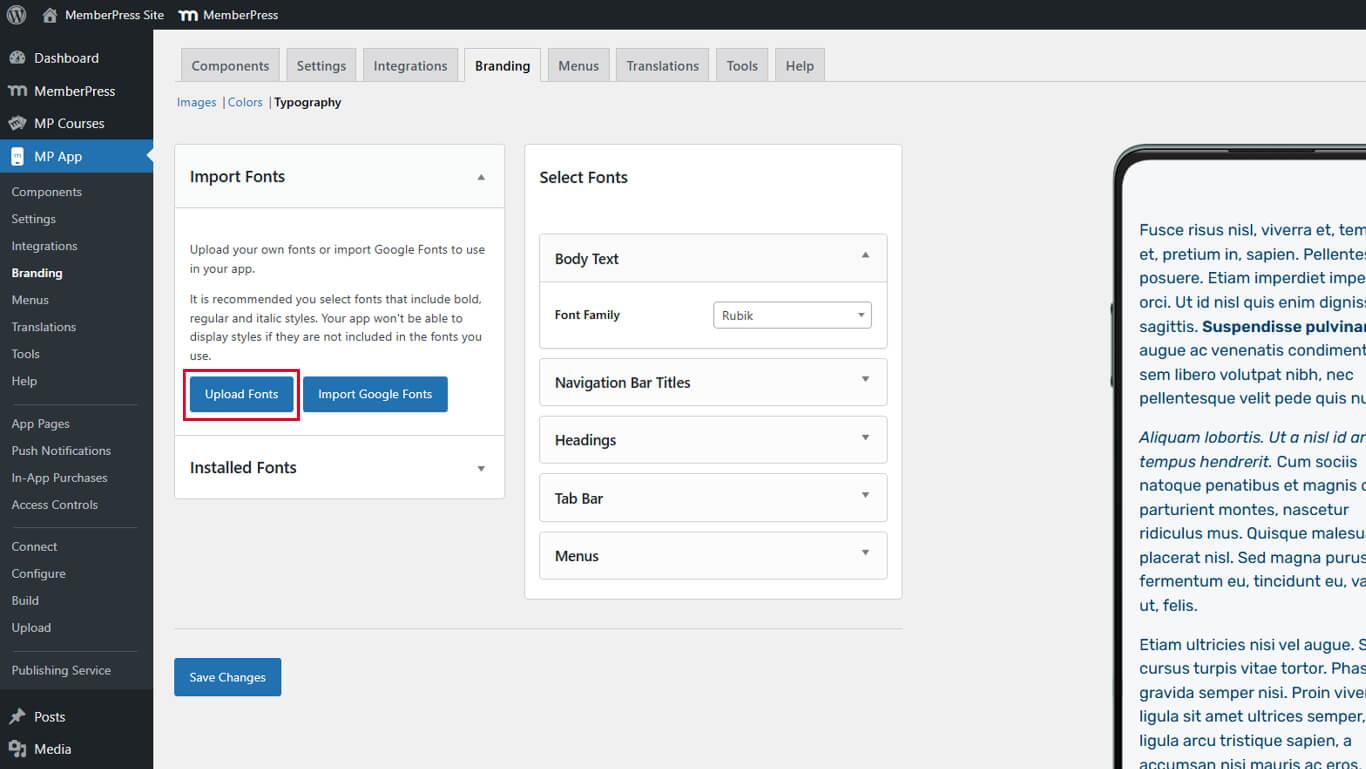
- Klicken Sie auf Datei auswählen im Upload-Dialog.
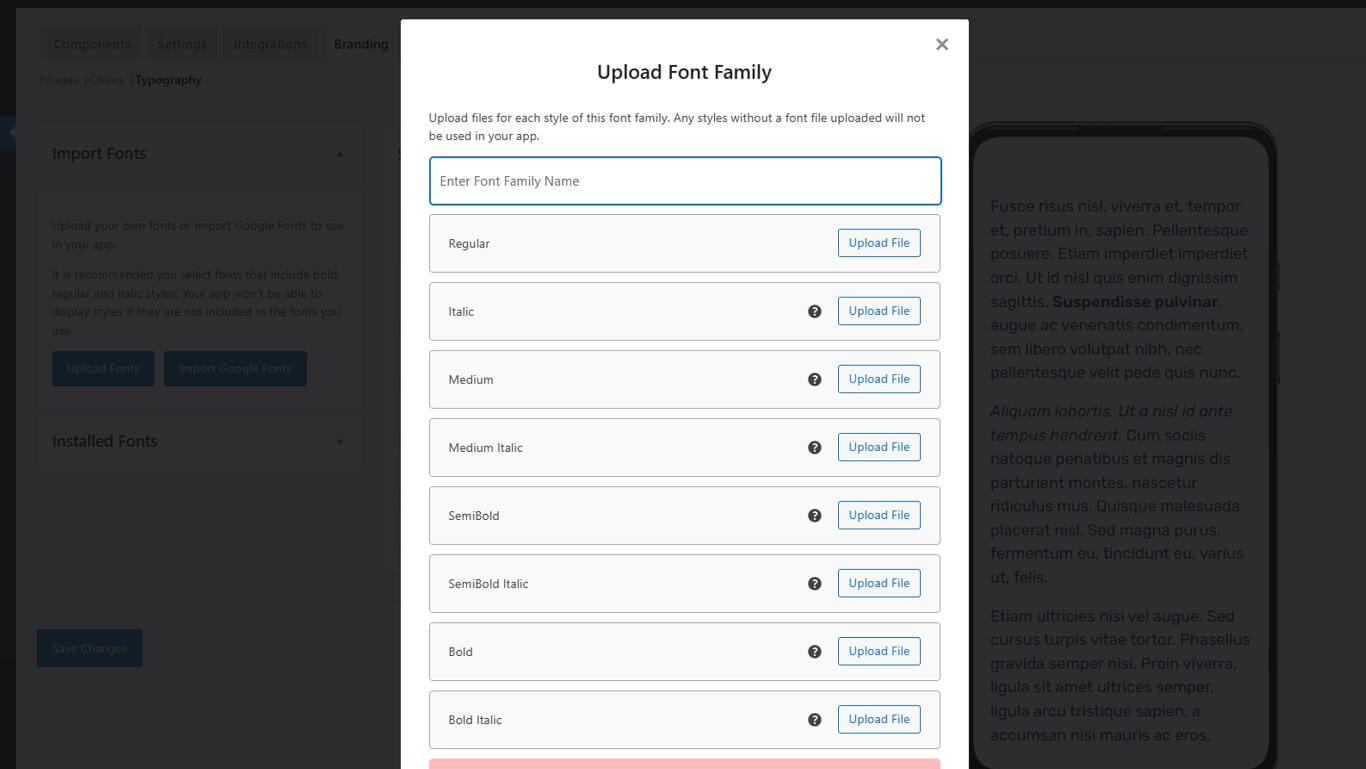
- Wählen Sie eine Schriftdatei auf dem Gerät aus.
- Stellen Sie sicher, dass das Dateiformat TTF, OTF oder WOFF ist.
- Klicken Sie auf Hochladen um den Import abzuschließen.
- Überprüfen Sie, ob die Schriftart unter Importierte Schriftarten.
Hochgeladene Schriften stehen sofort für die Zuordnung zu Anwendungsbereichen zur Verfügung.
Unterstützte Schriftdateiformate
Verschiedene Schriftformate bieten unterschiedliche Kompatibilität und Funktionen.
TrueType-Schriftart (TTF) bietet breite Kompatibilität über alle Plattformen hinweg. TTF-Dateien funktionieren in den meisten Kontexten zuverlässig.
OpenType-Schriftart (OTF) bietet erweiterte typografische Funktionen. OTF unterstützt erweiterte Zeichensätze und Ligaturen.
Web Open Font Format (WOFF) optimiert die Bereitstellung von Schriften für Webkontexte. WOFF-Dateien werden effizient komprimiert, um sie zu verkleinern.
Laden Sie Schriftarten in dem Format hoch, das den Quelldateien entspricht. Vermeiden Sie die Konvertierung zwischen Formaten, da dies die Qualität beeinträchtigen kann.
Importieren von Google-Schriftarten
Die Integration von Google Fonts fügt der Schriftbibliothek der App Web-Schriften hinzu.
- Navigieren Sie zu Dashboard > MP AppKit > Branding > Typografie.
- Klicken Sie auf Google-Schriftarten importieren im Abschnitt Schriftarten importieren.
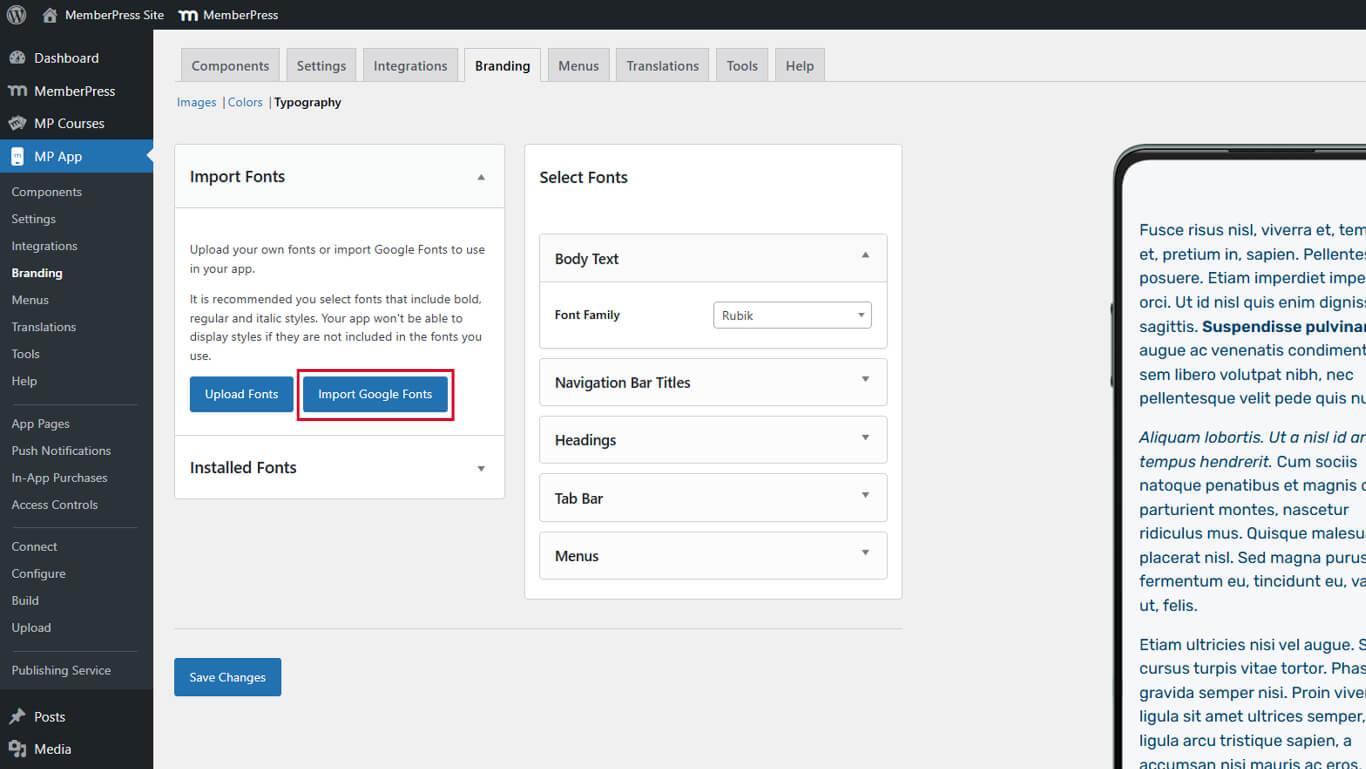
- Durchsuchen Sie die verfügbaren Schriftarten oder verwenden Sie das Suchfeld.
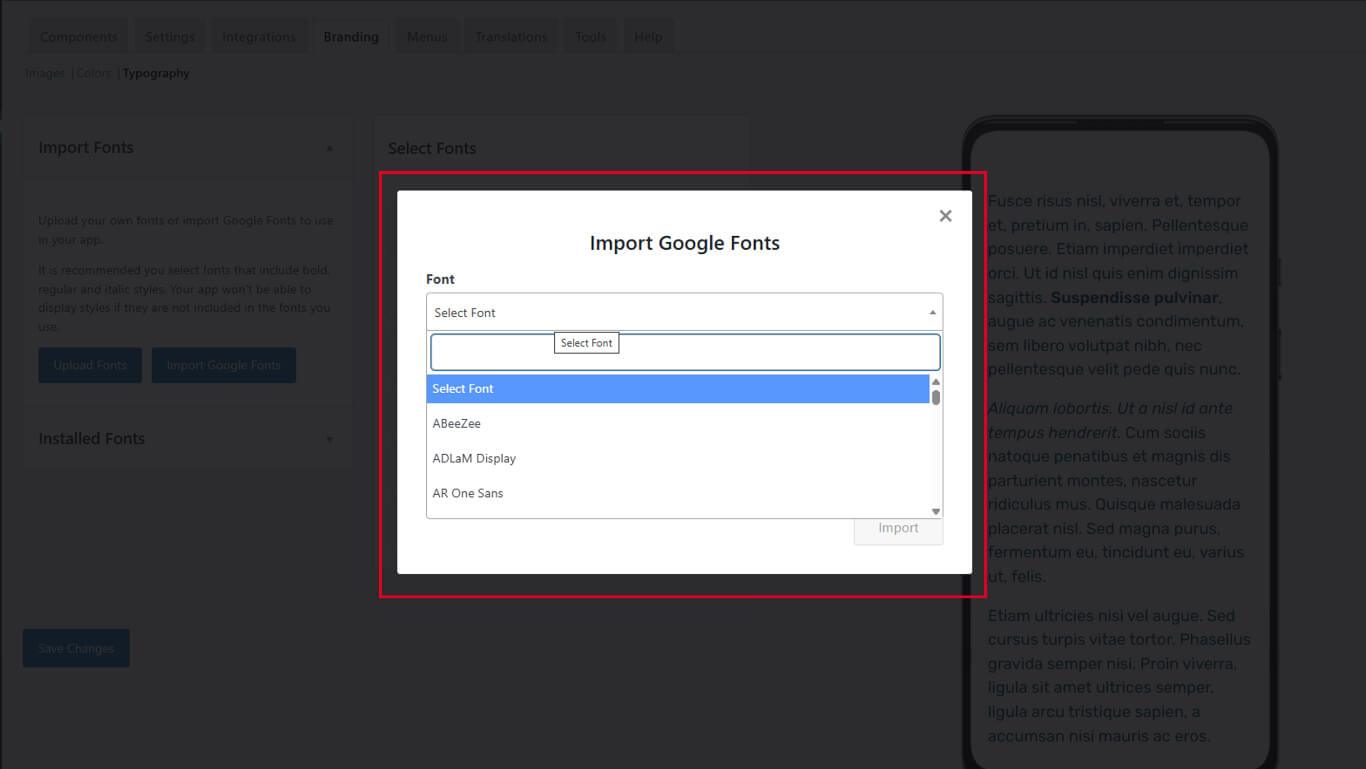
- Geben Sie einen Schriftnamen in das Suchfeld ein, um die Ergebnisse zu filtern.
- Klicken Sie auf einen Schriftnamen, um eine Vorschau der Stile und Details anzuzeigen.
- Überprüfen Sie die verfügbaren Schriftschnitte und -arten in der Vorschau.
- Beachten Sie alle Kompatibilitätswarnungen für die ausgewählte Schriftart.
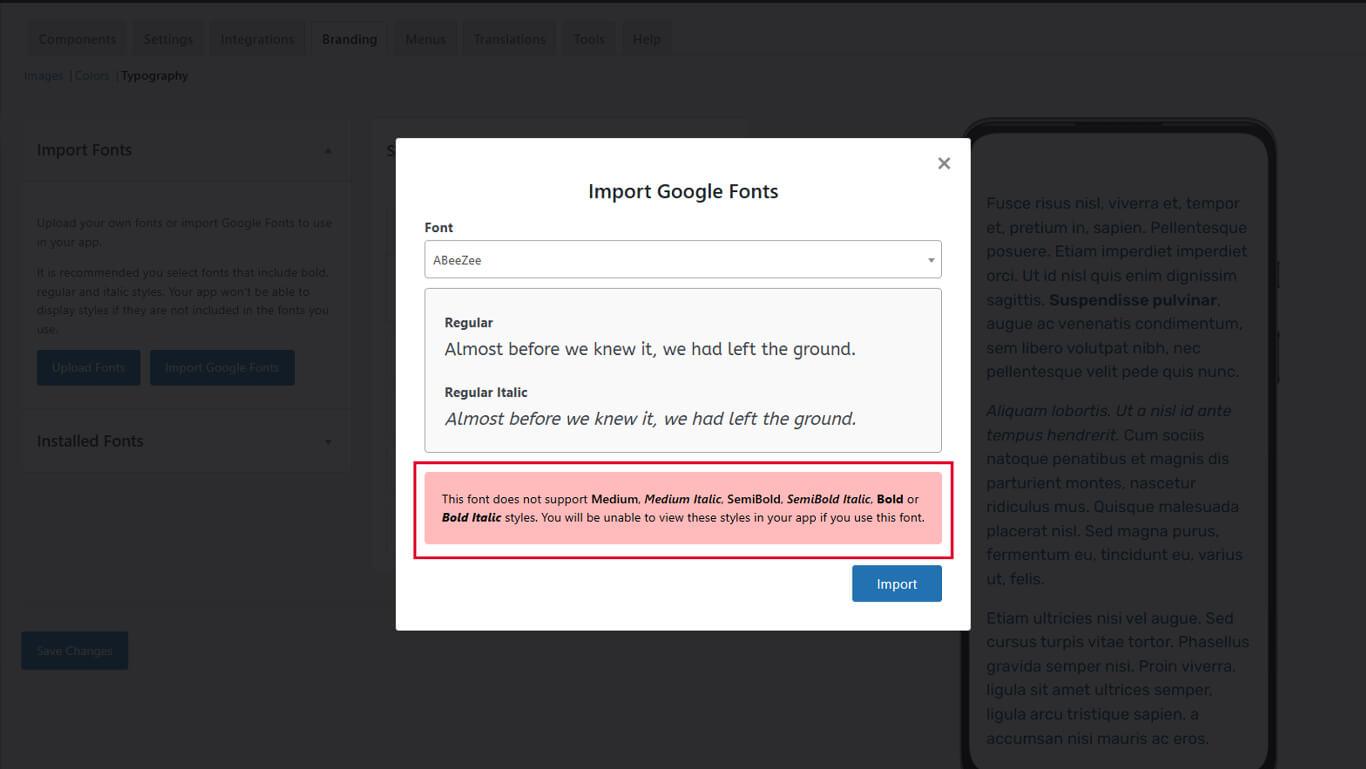
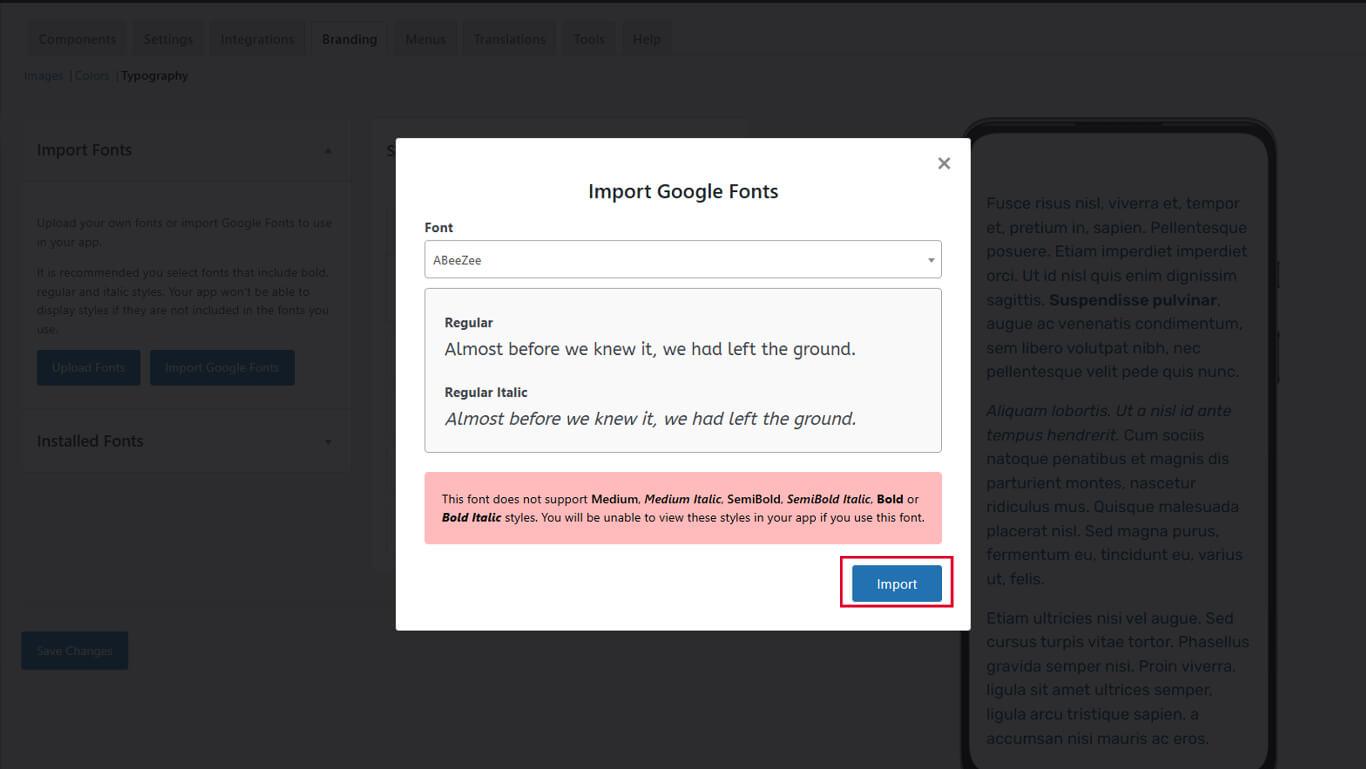
- Klicken Sie auf Importieren um die Schriftart zur Bibliothek hinzuzufügen.
- Überprüfen Sie, ob die Schriftart unter Importierte Schriftarten.
Importierte Google Fonts enthalten automatisch alle verfügbaren Schriftschnitte und Stile.
Zuweisung von Schriftarten zu App-Abschnitten
Schriftartenzuweisungen steuern die Typografie für bestimmte Oberflächenelemente.
Schriftart für Fließtext zuweisen
Der Fließtext dient als Hauptinhalt der gesamten App.
- Navigieren Sie zu Dashboard > MP AppKit > Branding > Typografie.
- Blättern Sie zum Fließtext Abschnitt.
- Klicken Sie auf die Schriftfamilie Dropdown.
- Wählen Sie eine Schriftart.
- Überprüfen Sie die Live-Vorschau zur Kontrolle des Erscheinungsbildes.
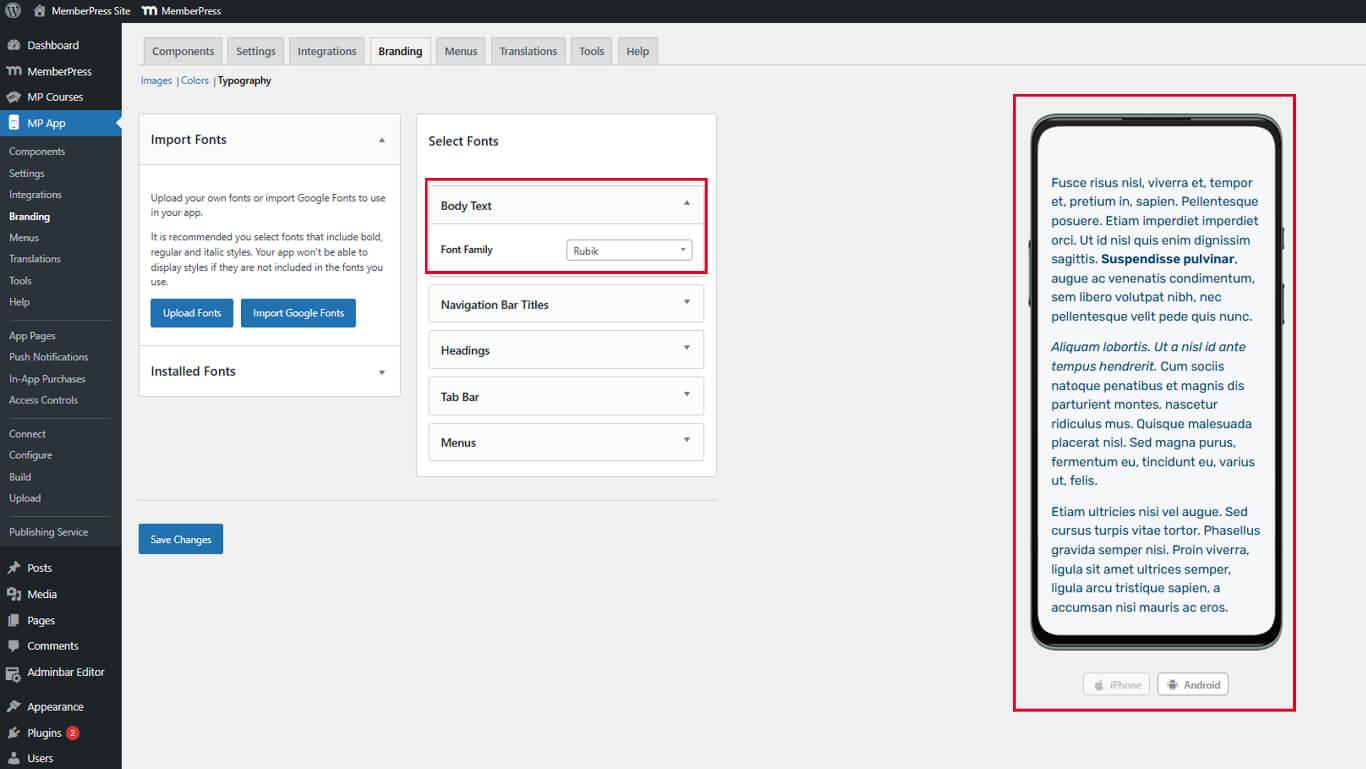
Die Schriftart des Fließtextes wirkt sich auf Blogbeiträge, Seiteninhalte und allgemeinen Text in der gesamten App aus.
Zuweisung der Schriftart für die Titel der Navigationsleiste
Die Titel der Navigationsleiste erscheinen in den Kopfzeilen der Anwendungen und in den Seitentiteln.
- Suchen Sie die Navigationsleisten-Titel Abschnitt.
- Klicken Sie auf die Schriftfamilie Dropdown.
- Wählen Sie eine Schriftart.
- Überprüfen Sie die Vorschau der Navigationsleiste im Live-Vorschaufenster.
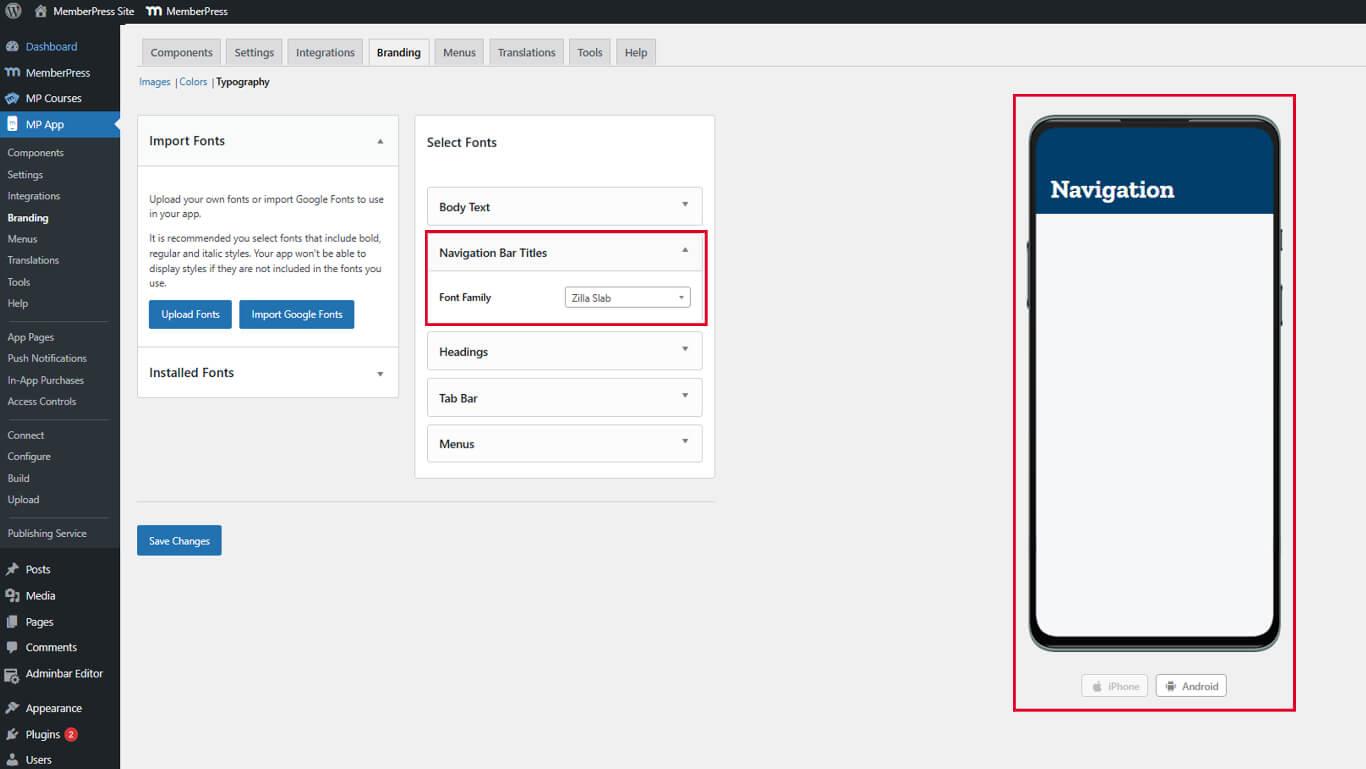
Die Typografie der Navigationsleiste sollte bei typischen Betrachtungsabständen klar und deutlich lesbar sein.
Schriftart für Überschriften zuweisen
Überschriften organisieren den Inhalt durch visuelle Darstellung.
- Suchen Sie die Überschriften Abschnitt.
- Klicken Sie auf die Schriftfamilie Dropdown.
- Wählen Sie eine Schriftart.
- Überprüfen Sie die Überschriftenhierarchie in der Live-Vorschau.
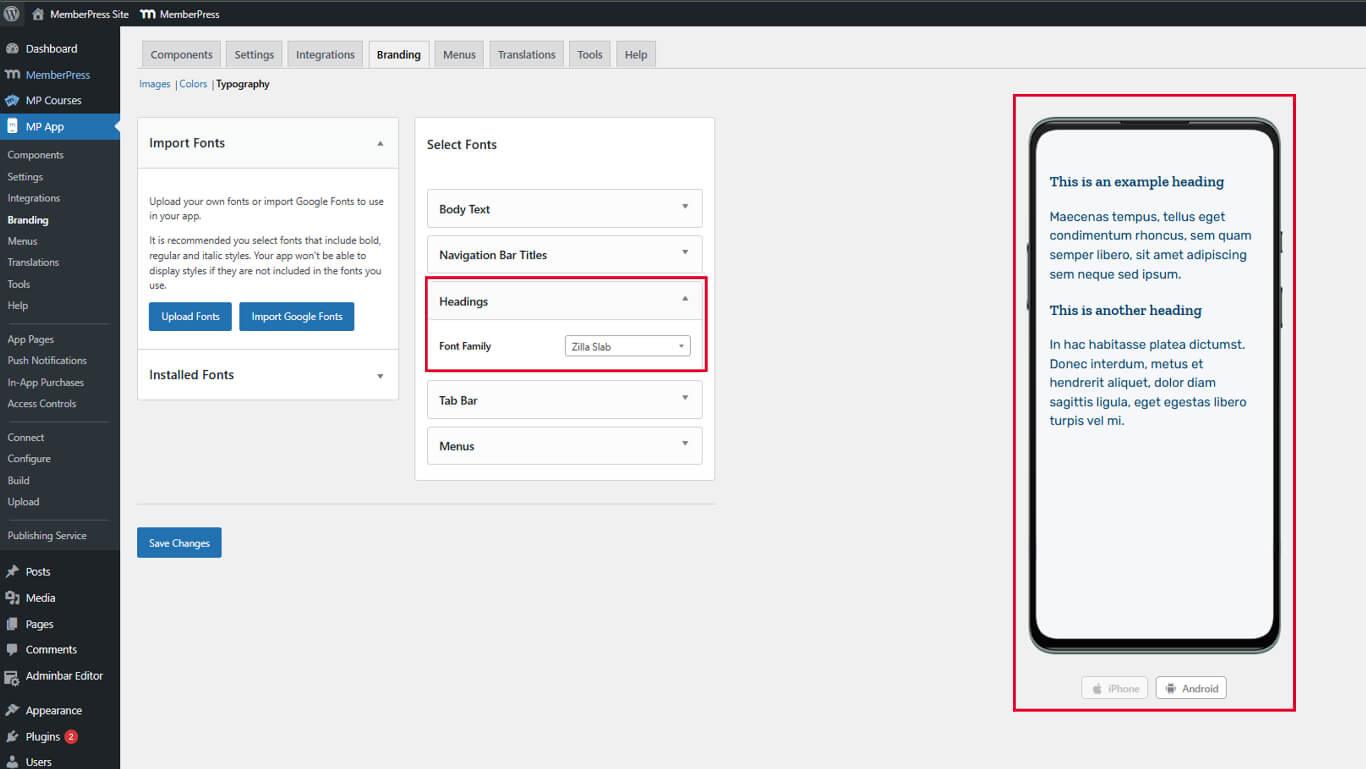
Die Schriftart der Überschriften sollte sich optisch deutlich vom Fließtext abheben.
Zuweisen von Tabulatorleistenbeschriftungen Schriftart
Die Beschriftung der Registerkartenleiste kennzeichnet die unteren Navigationsoptionen.
- Suchen Sie die Registerkartenbeschriftungen Abschnitt.
- Klicken Sie auf die Schriftfamilie Dropdown.
- Wählen Sie eine Schriftart.
- Überprüfen Sie die Vorschau der Registerkartenleiste im Live-Vorschaufenster.
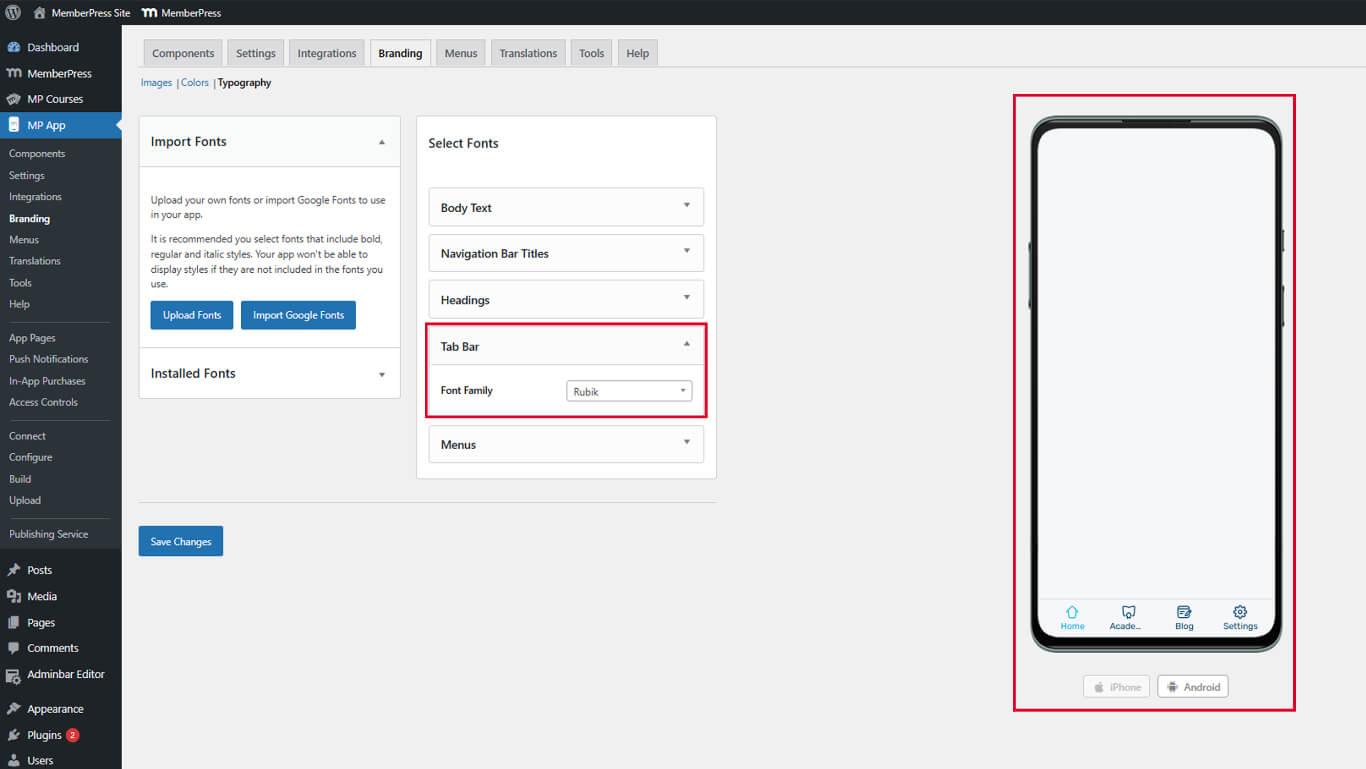
Die Schriftarten der Tab Bar sollten auch bei kleinen Größen auf mobilen Bildschirmen lesbar bleiben.
Menüs Schriftart zuweisen
Menü-Schriftarten steuern den Text der Navigationselemente in der Registerkartenleiste und im Menü "Mehr".
- Suchen Sie die Menüs Abschnitt.
- Klicken Sie auf die Schriftfamilie Dropdown.
- Wählen Sie eine Schriftart.
- Überprüfen Sie die Menüvorschau im Live-Vorschaufenster.
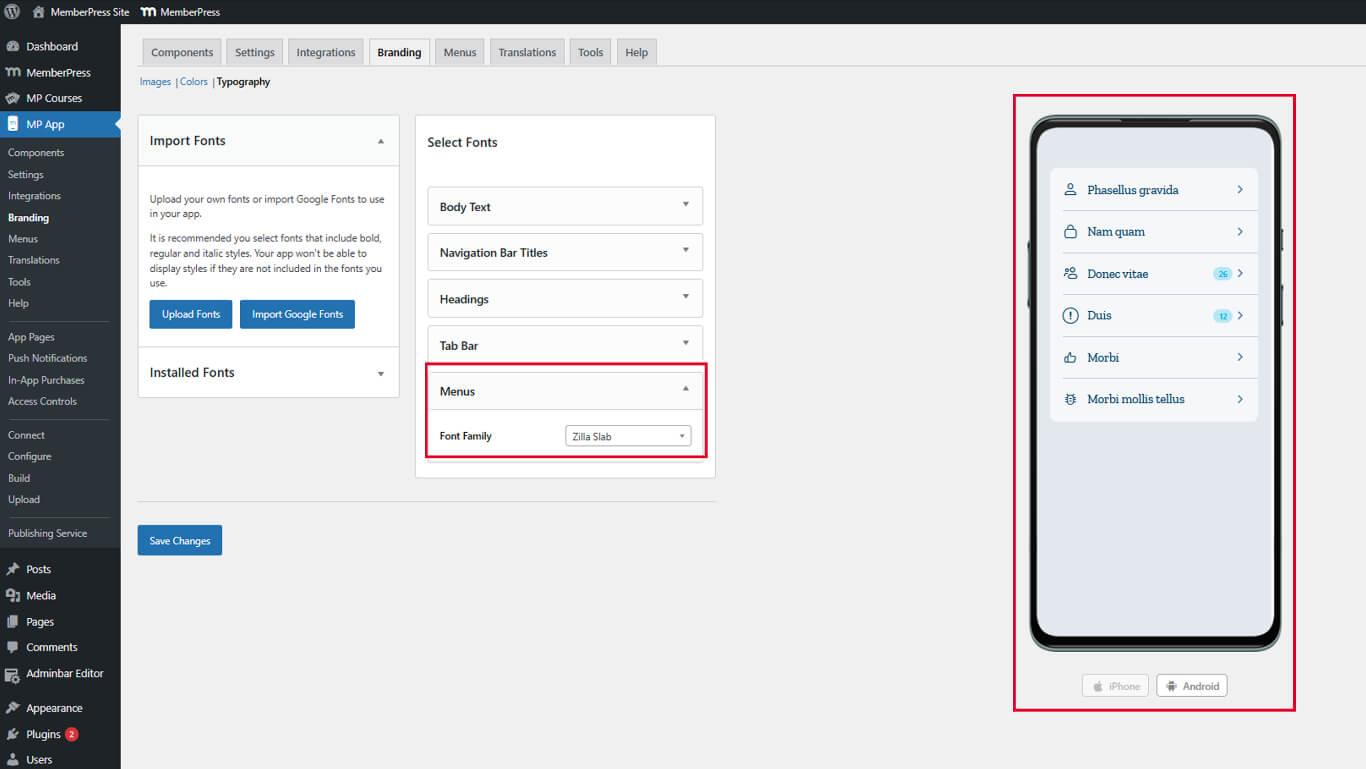
Die Schriftarten der Menüs sollten gut lesbar sein, um eine schnelle Navigation zu ermöglichen.










 DE
DE  EN
EN  ES
ES  FR
FR  PT
PT 