

Die benutzerdefinierte Navigation erhöht die Benutzeraktivität, indem sie relevante Menüoptionen auf der Grundlage von Mitgliederattributen anzeigt. Mehrere Menüversionen ermöglichen unterschiedliche Navigationsstrukturen für abgemeldete Gäste, angemeldete Mitglieder und bestimmte Zugangsgruppen.
In diesem Dokument wird erklärt, wie man Menüvariationen erstellt, die Menügestaltung konfiguriert und die Menüpriorität verwaltet, wenn sich Mitglieder für mehrere Versionen qualifizieren.
Verstehen mehrerer Menüversionen
Mehrere Menüversionen ermöglichen ein personalisiertes Navigationserlebnis innerhalb der App. Jede Menüversion wird Mitgliedern angezeigt, die bestimmte Kriterien erfüllen, z. B. den Anmeldestatus oder die Mitgliedschaft in einer Zugangsgruppe. Die Registerkartenleiste bietet eine primäre Navigation am unteren Rand des Bildschirms, während das Weitere Menü sekundäre Navigationsoptionen bietet. Beide Menütypen unterstützen mehrere Versionen, die auf verschiedene Mitgliedersegmente zugeschnitten sind.
Menüs für abgemeldete Mitglieder erstellen
Die Menüs für ausgeloggte Mitglieder werden für Gäste angezeigt, die sich nicht authentifiziert haben. Diese Menüs enthalten in der Regel Optionen für die Anmeldung, Registrierung und öffentliche Informationen.
- Navigieren Sie zu Dashboard > MP AppKit > Menüs > Registerkartenleiste oder Mehr Menü.
- Klicken Sie auf Ein neues Menü erstellen.
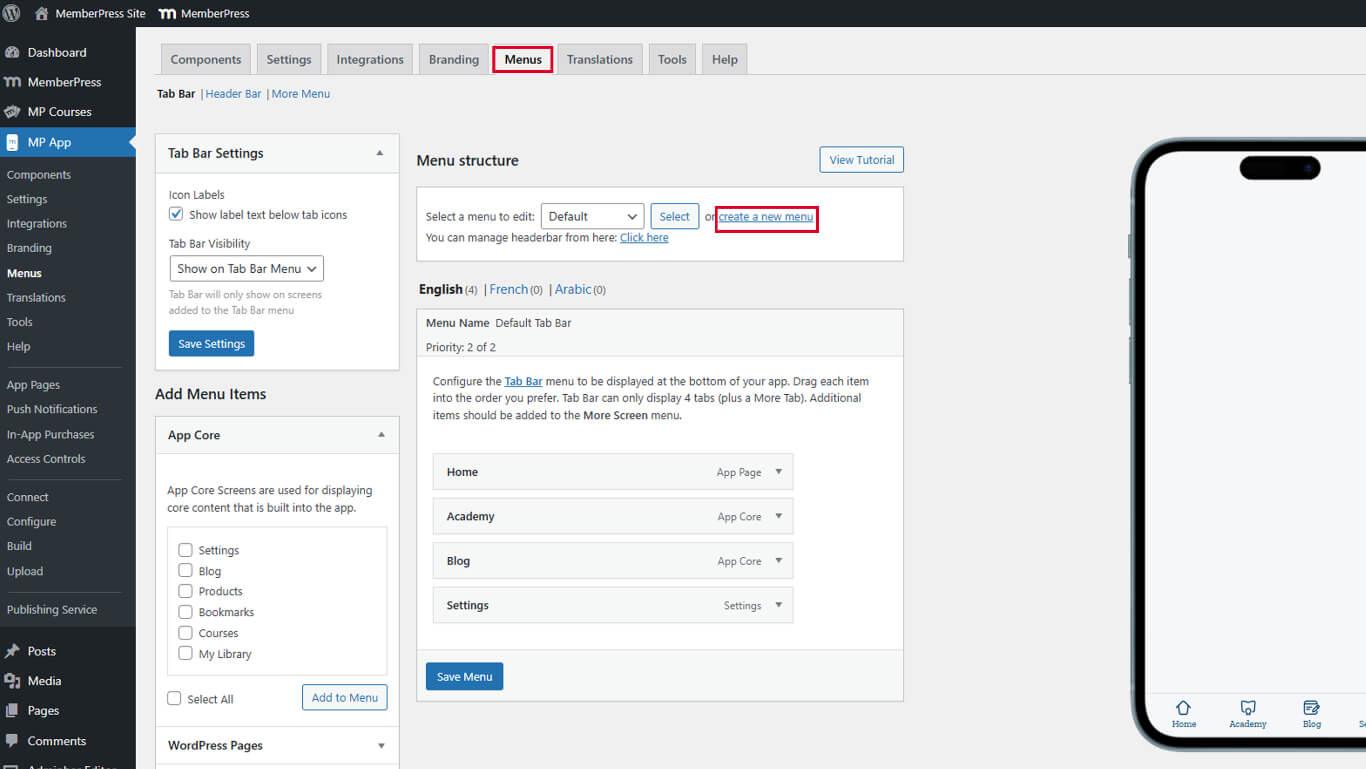
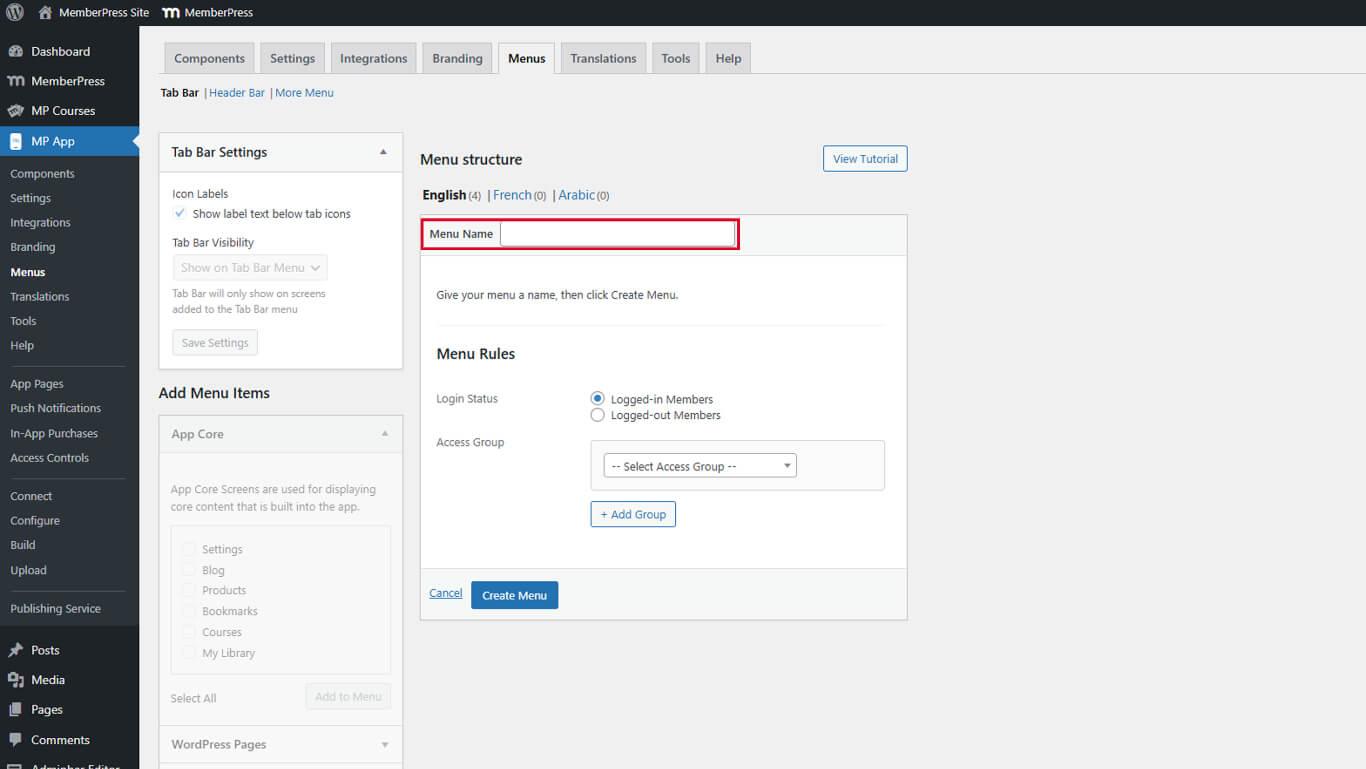
- Geben Sie einen beschreibenden Namen in das Feld Menü Name Feld.
- Wählen Sie Abgemeldete Mitglieder von der Login-Status Dropdown.
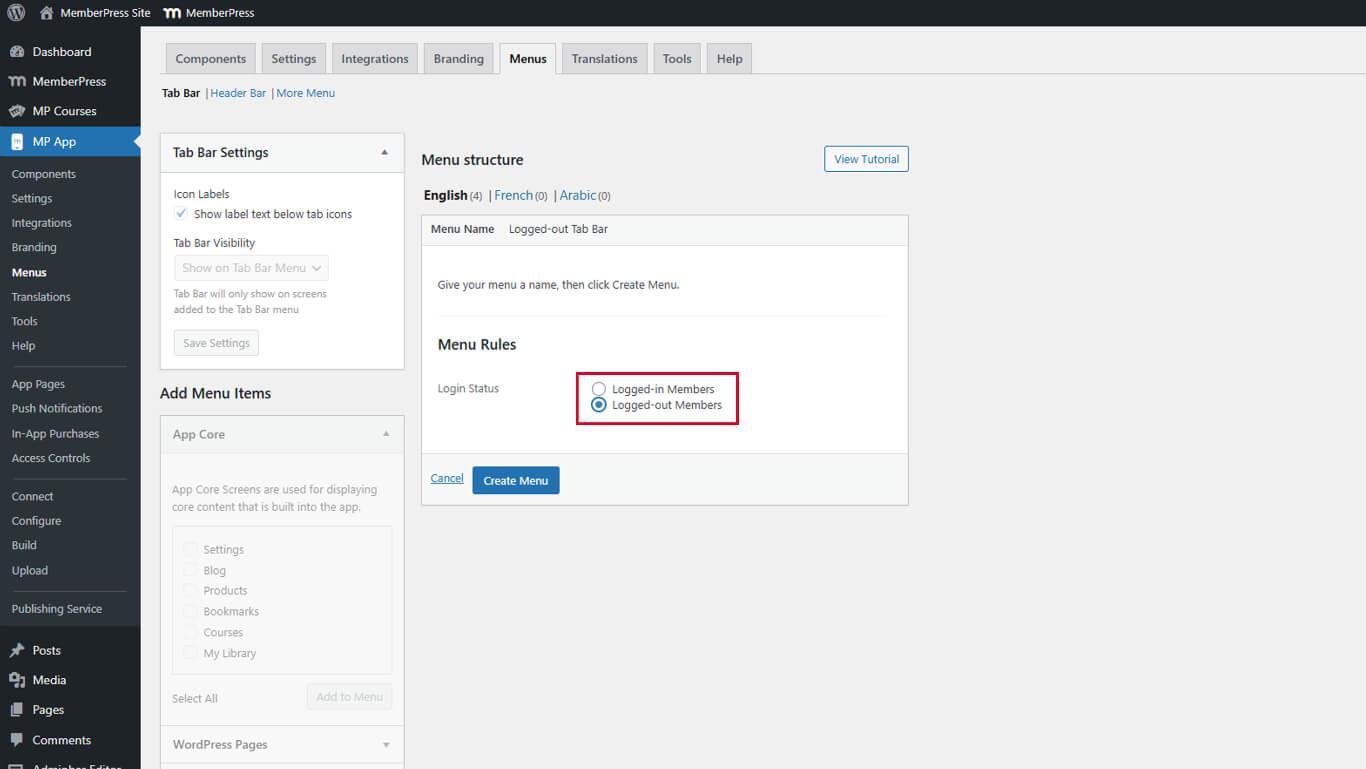
- Klicken Sie auf Menü erstellen.
- Klicken Sie auf Menüpunkte hinzufügen um die Navigationsoptionen auszuwählen.
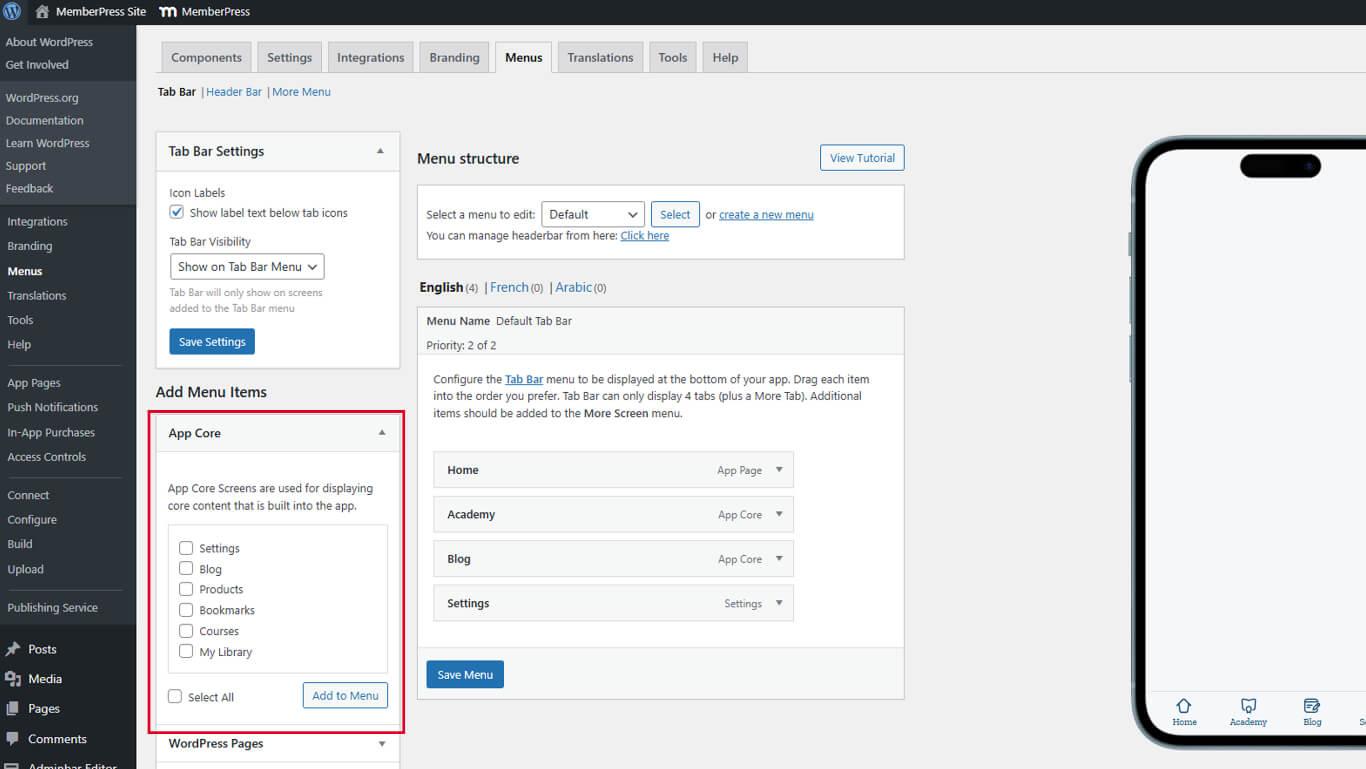
- Ziehen Sie Menüelemente, um die Anzeigereihenfolge zu ändern.
- Klicken Sie auf die Menü speichern.
Anforderungen an die Sichtbarkeit des Gästemenüs
Gastmenüs werden nur angezeigt, wenn die Einstellung Private App deaktiviert ist.
- Navigieren Sie zu Dashboard > MP AppKit > Einstellungen > Allgemein > Datenschutz.
- Überprüfen Sie die Private App das Kontrollkästchen nicht markiert ist.
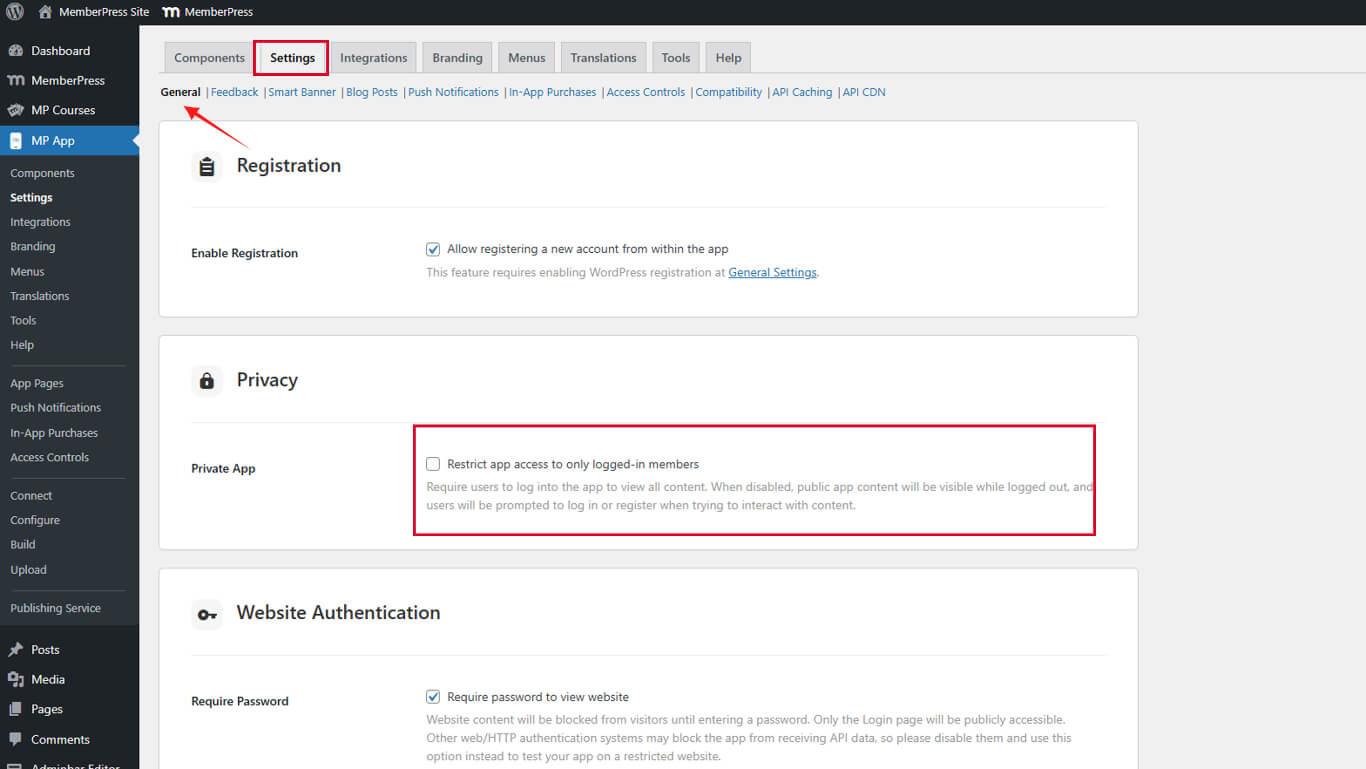
- Klicken Sie auf Änderungen speichern wenn Änderungen vorgenommen wurden.
Menüs für eingeloggte Mitglieder erstellen
Die Menüs für angemeldete Mitglieder werden für authentifizierte Benutzer angezeigt. Diese Menüs können je nach Mitgliedschaft in der Zugangsgruppe angepasst werden.
- Navigieren Sie zu Dashboard > MP AppKit > Menüs > Registerkartenleiste oder Mehr Menü.
- Klicken Sie auf Ein neues Menü erstellen.
- Geben Sie einen beschreibenden Namen in das Feld Menü Name Feld.
- Wählen Sie Eingeloggte Mitglieder von der Login-Status Dropdown.
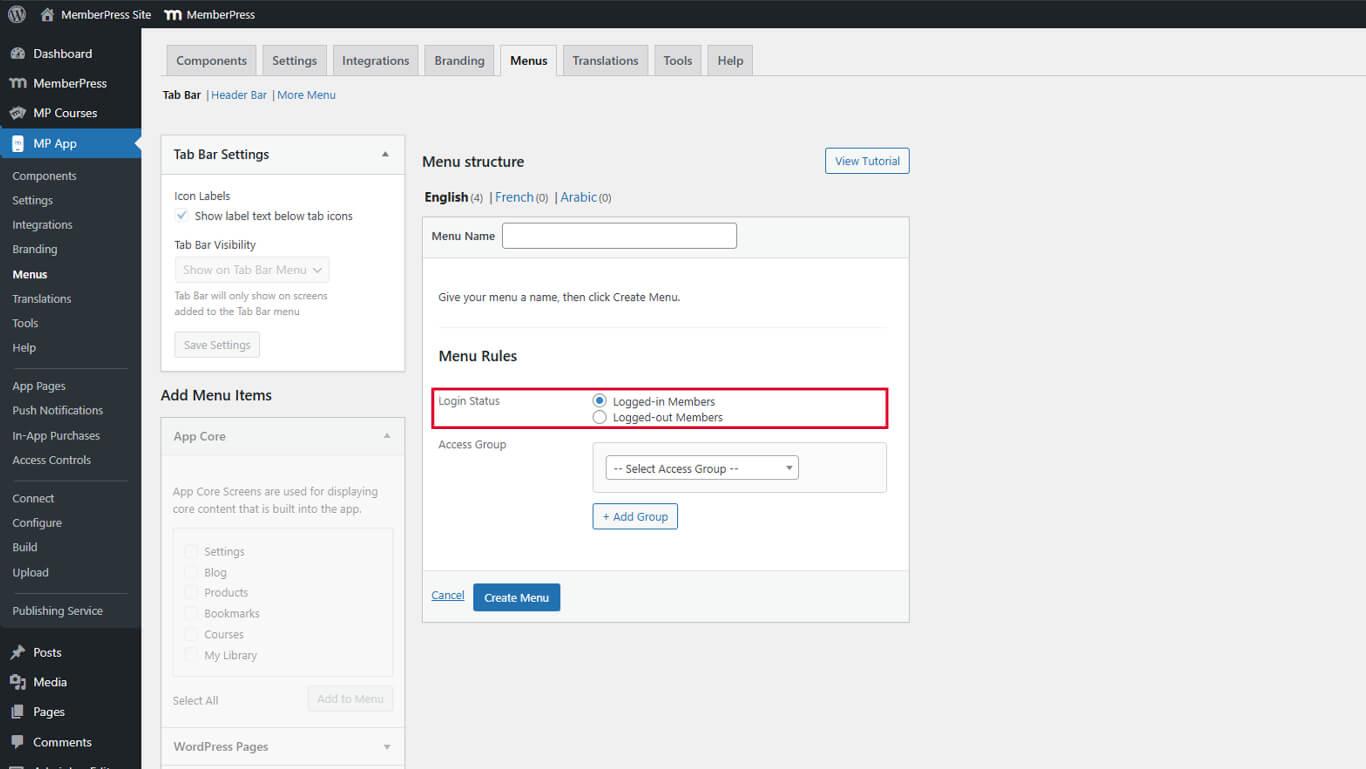
- Klicken Sie auf Menü erstellen.
- Klicken Sie auf Menüpunkte hinzufügen um die Navigationsoptionen auszuwählen.
- Ziehen Sie Menüelemente, um die Anzeigereihenfolge zu ändern.
- Klicken Sie auf die Menü speichern.
Dieses Menü wird allen authentifizierten Benutzern angezeigt, unabhängig von der Mitgliedschaft in der Zugriffsgruppe. Verwenden Sie diese Option für die gemeinsame Navigation aller angemeldeten Mitglieder.
Konfigurieren der Gestaltung der Registerkartenleiste
Die Gestaltung der Registerkartenleiste steuert das Aussehen aller Versionen des Registerkartenmenüs.
- Navigieren Sie zu Dashboard > MP AppKit > Menüs > Registerkartenleiste.
- Umschalten auf Icon-Etiketten um Textbeschriftungen unter den Symbolen ein- oder auszublenden.
- Set Sichtbarkeit der Registerkartenleiste:
- Auf der Registerkarte Menü anzeigen zeigt die Registerkartenleiste nur auf bestimmten Bildschirmen an;
- Auf allen Bildschirmen anzeigen zeigt die Tab-Leiste in der gesamten App an.
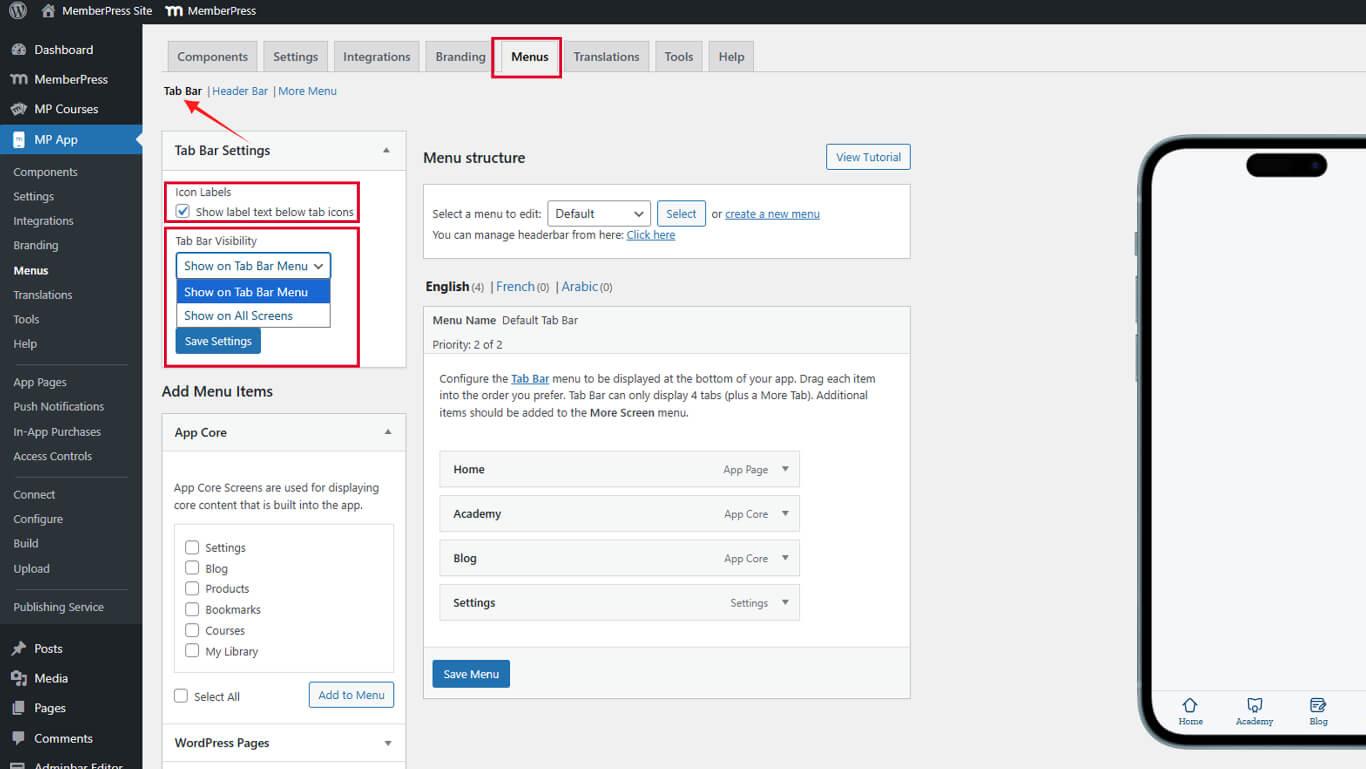
- Klicken Sie auf Einstellungen speichern.










 DE
DE  EN
EN  ES
ES  FR
FR  PT
PT 