

Die Anpassung der Navigationskopfzeile verbessert die Benutzerfreundlichkeit und stärkt das Branding in mobilen Anwendungen. Der App-Navigationskopf unterstützt die flexible Platzierung von More Menu und die Anpassung von Symbolen.
In diesem Dokument wird erläutert, wie Sie die Kopfzeileneinstellungen konfigurieren, das Menü "Mehr" verlagern und die Kopfzeilensymbole anpassen können, um die Benutzerfreundlichkeit zu verbessern.
Verständnis des MemberPress AppKit Navigations-Headers
Der Navigationskopf erscheint oben auf den Bildschirmen mobiler Apps und zeigt Seitentitel und Navigationselemente an.
Die Kopfzeilenkonfiguration steuert die Titelausrichtung, das Bildlaufverhalten und die Platzierung des Menüs "Mehr".
Durch das Verschieben des Menüs "Mehr" von der Registerkartenleiste in die Kopfzeile wird ein Platz in der Registerkartenleiste für zusätzliche primäre Navigation frei. Die richtige Kopfzeilenkonfiguration schafft ein Gleichgewicht zwischen Funktionalität und sauberem Oberflächendesign.
Verständnis der Vorteile der Kopfzeilenkonfiguration
Die Anpassung der Kopfzeile bietet zahlreiche Vorteile für die Benutzerfreundlichkeit und das Branding.
Verschiebbar Mehr Menü Flexibilität wirkt sich auf die Kapazität der Registerkartenleiste aus. Wenn Sie das Menü "Mehr" in die Kopfzeile verschieben, wird die fünfte Position der Registerkartenleiste für primäre Navigationselemente frei.
Erweiterung der Registerkartenleiste ermöglicht fünf benutzerdefinierte Navigationselemente, wenn More Menu in die Kopfzeile verschoben wird. Die erweiterte Kapazität verbessert den Zugriff auf die Primärnavigation.
Icon-Anpassung gleicht das Erscheinungsbild der Kopfzeile an die Markenidentität an. Standard-Symbole können durch markengerechte Auswahlen ersetzt werden.
Visuelle Kohärenz behält die Zugänglichkeit von More Menu unabhängig vom Standort bei. Mitglieder greifen über ein vertrautes Symbol auf die sekundäre Navigation zu.
Zugriff auf die Einstellungen der Kopfleiste
Die Kopfzeilenkonfiguration ist in der Schnittstelle für die Menüeinstellungen verfügbar.
- Navigieren Sie zu Dashboard > MP AppKit > Menüs.
- Klicken Sie auf die Kopfleiste tab.
- Suchen Sie die Einstellungen für die Kopfleiste Abschnitt.
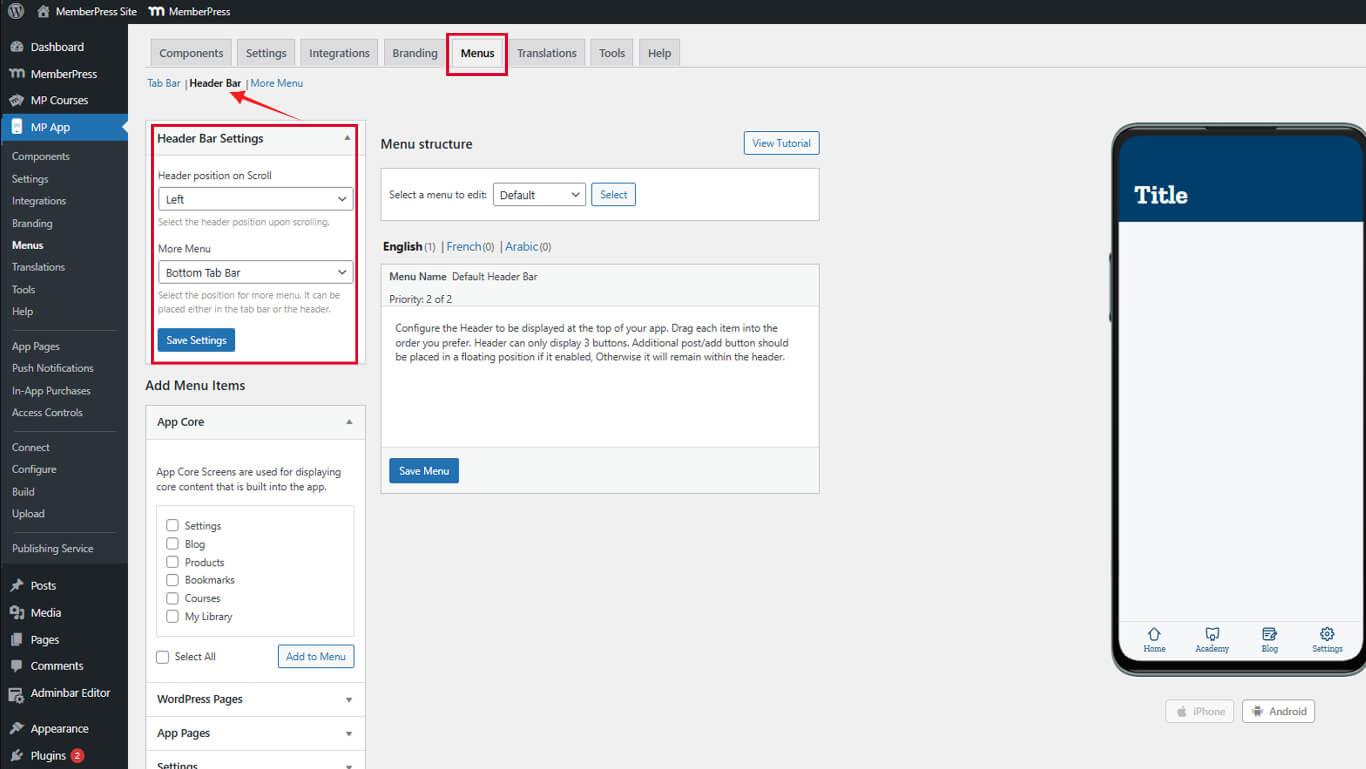
Die Einstellungen für die Kopfleiste steuern die Ausrichtung, die Sichtbarkeit und die Platzierung des Menüs "Mehr".
Konfigurieren der Kopfzeilenausrichtung
Die Ausrichtung der Kopfzeile wirkt sich auf die Positionierung des Titels und das visuelle Gleichgewicht aus.
- Suchen Sie die Einstellungen für die Kopfleiste Abschnitt.
- Wählen Sie die gewünschte Ausrichtungsoption:
- Linksbündig hält die Seitentitel linksbündig;
- Versteckt blendet die Kopfzeile während des Scrollens aus, um mehr Platz für den Inhalt zu schaffen.
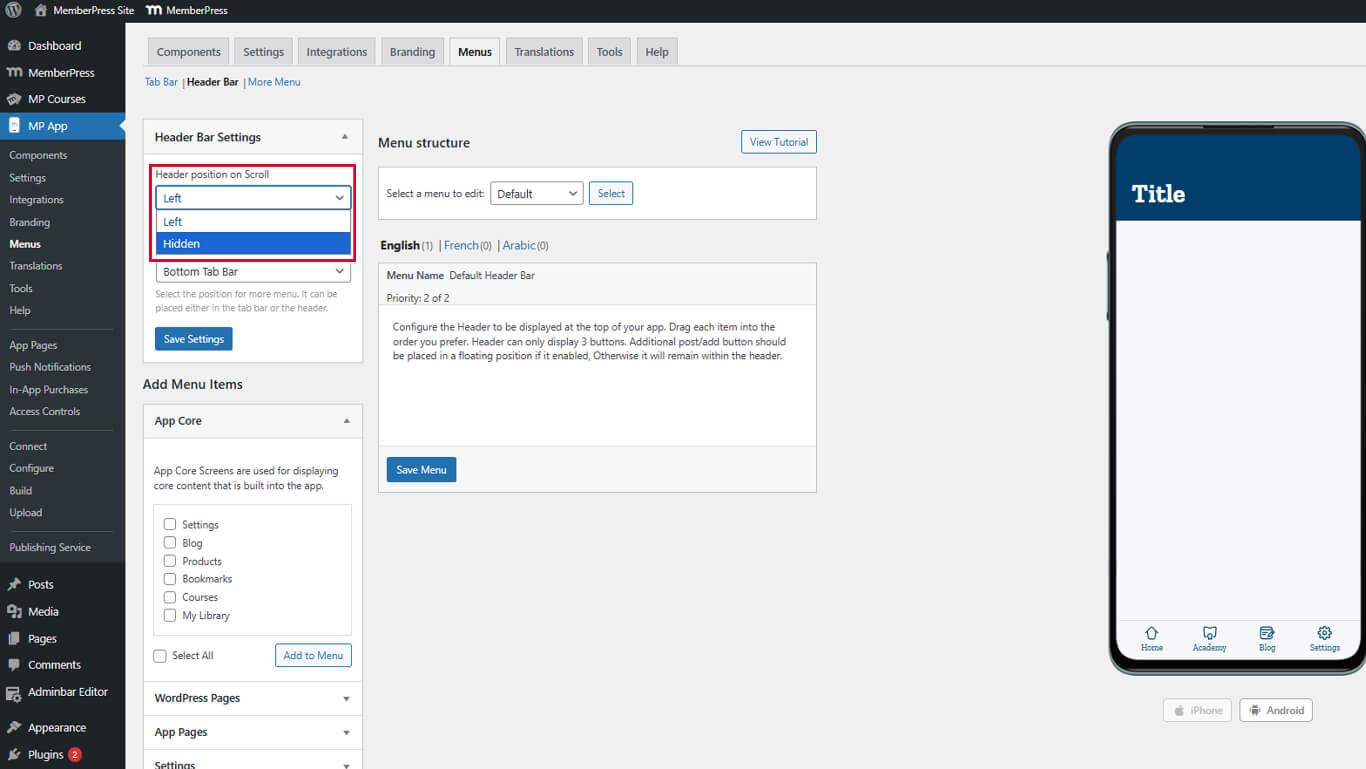
- Klicken Sie auf Einstellungen speichern.
Die linke Ausrichtung sorgt für Konsistenz mit den Standard-Designmustern für mobile Geräte.
Weitere Menüplatzierung konfigurieren
Weitere Menüplatzierung bestimmt, ob die sekundäre Navigation in der Registerkartenleiste oder in der Kopfzeile erscheint.
- Navigieren Sie zu Dashboard > MP AppKit > Menüs > Kopfleiste.
- Suchen Sie die Mehr Menüplatzierung Dropdown-Menü in den Einstellungen der Kopfleiste.
- Wählen Sie die gewünschte Platzierung:
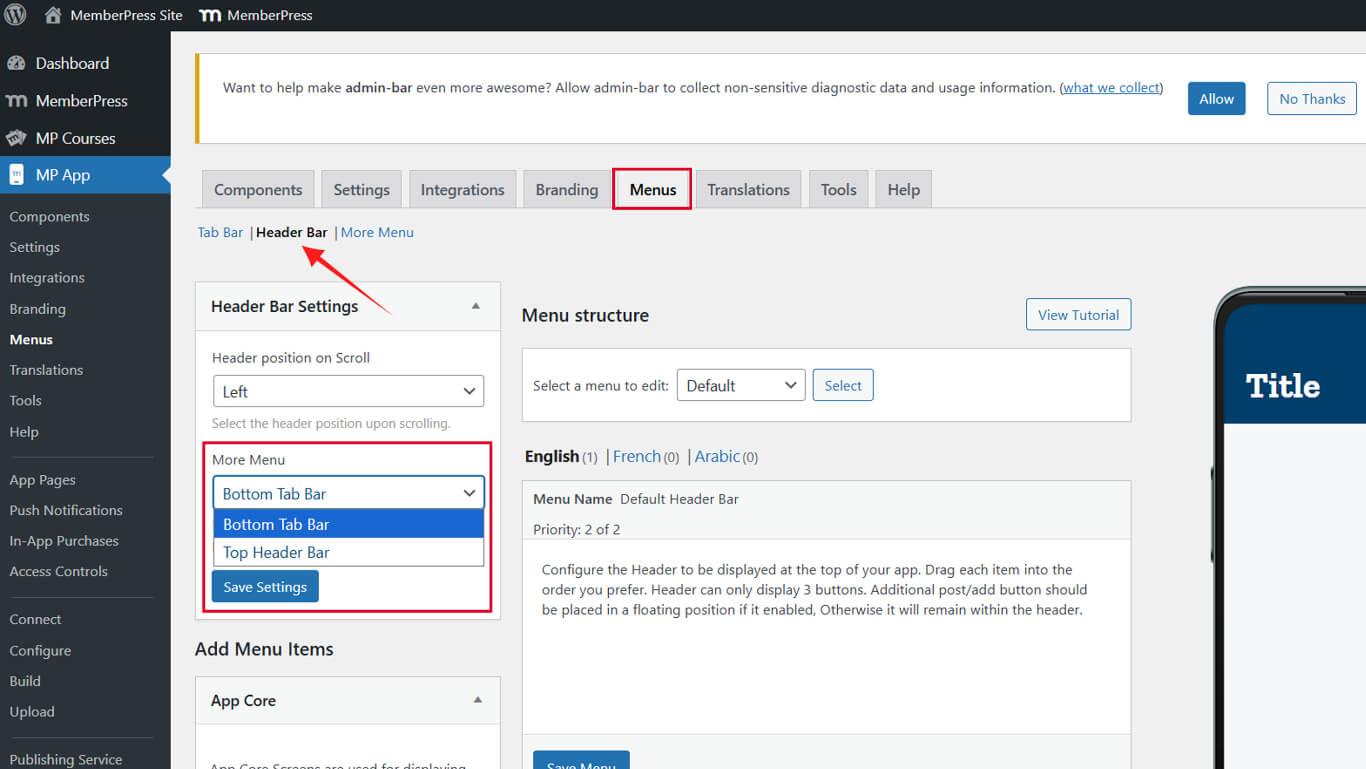
- Untere Registerkartenleiste hält das Menü "Mehr" an der fünften Position der Registerkartenleiste;
- Kopfzeilenleiste oben verschiebt das Symbol Mehr Menü in die Kopfzeile.
- Klicken Sie auf Einstellungen speichern.
Die Platzierung weiterer Menüs wirkt sich auf die Kapazität der Registerkartenleiste und die gesamte Navigationsorganisation aus.
Aktualisieren von Kopfzeilenmenüpunkten
- Gehen Sie zum Menü der Kopfleiste tab.
- Finden Sie die Mehr Menü Element (in der Regel der Benutzeravatar).
- Klicken Sie auf den Dropdown-Pfeil > Elementsymbol > Symbol auswählen.
- Wählen Sie ein Symbol aus dem Icon Pack oder laden Sie Ihr eigenes hoch.
- Klicken Sie auf die Symbol auswählen, dann ist die Menü speichern.
Wiederholen Sie dies für jede Aktionstasten (z. B., Beitrag erstellen, Gruppe hinzufügen, Nachricht senden):
- Klicken Sie auf die Dropdown-Pfeile.
- Neue Icons auswählen oder hochladen.
- Klicken Sie auf die Symbol auswählen, dann ist die Menü speichern.
Aktualisieren des Menüs der Registerkartenleiste
- Wechseln Sie zum Registerkartenmenü tab.
- Klicken Sie auf Zum Menü hinzufügen für ein Element (z. B. Benachrichtigungen) aus den verfügbaren Menüelementen, die im Fenster MemberPress AppKit oder Eingeloggtes Mitglied Abschnitte.
- Sicherstellen, dass es nicht mehr als vier Elemente insgesamt in der Registerkartenleiste.
- Klicken Sie auf die Menü speichern.
Die Kapazität der Registerkartenleiste erhöht sich nur, wenn das Menü Mehr erfolgreich in die Kopfzeile verschoben wird.










 DE
DE  EN
EN  ES
ES  FR
FR  PT
PT 