

Der Wartungsmodus schränkt den App-Zugriff während Updates, Fehlerbehebungen oder Backend-Änderungen vorübergehend ein. Die Benutzer sehen während der Wartungszeiträume einen gebrandeten Haltebildschirm.
In diesem Dokument wird erklärt, wie Sie den Wartungsmodus aktivieren, den Wartungsbildschirm anpassen und den normalen App-Zugriff wiederherstellen können.
Verständnis des Wartungsmodus
Der Wartungsmodus verhindert die Benutzerinteraktion und bewahrt gleichzeitig die Markenkonsistenz. Der Wartungsbildschirm zeigt das App-Logo, die Hintergrundfarbe und eine anpassbare Nachricht an. Diese Funktion ermöglicht technische Arbeiten, ohne dass unvollständige Änderungen sichtbar werden oder die Benutzererfahrung gestört wird.
Aktivieren des Wartungsmodus
Die Aktivierung des Wartungsmodus schränkt den Zugriff auf die App für alle Benutzer sofort ein.
- Navigieren Sie zu Dashboard > MP AppKit > Konfigurieren > Allgemein.
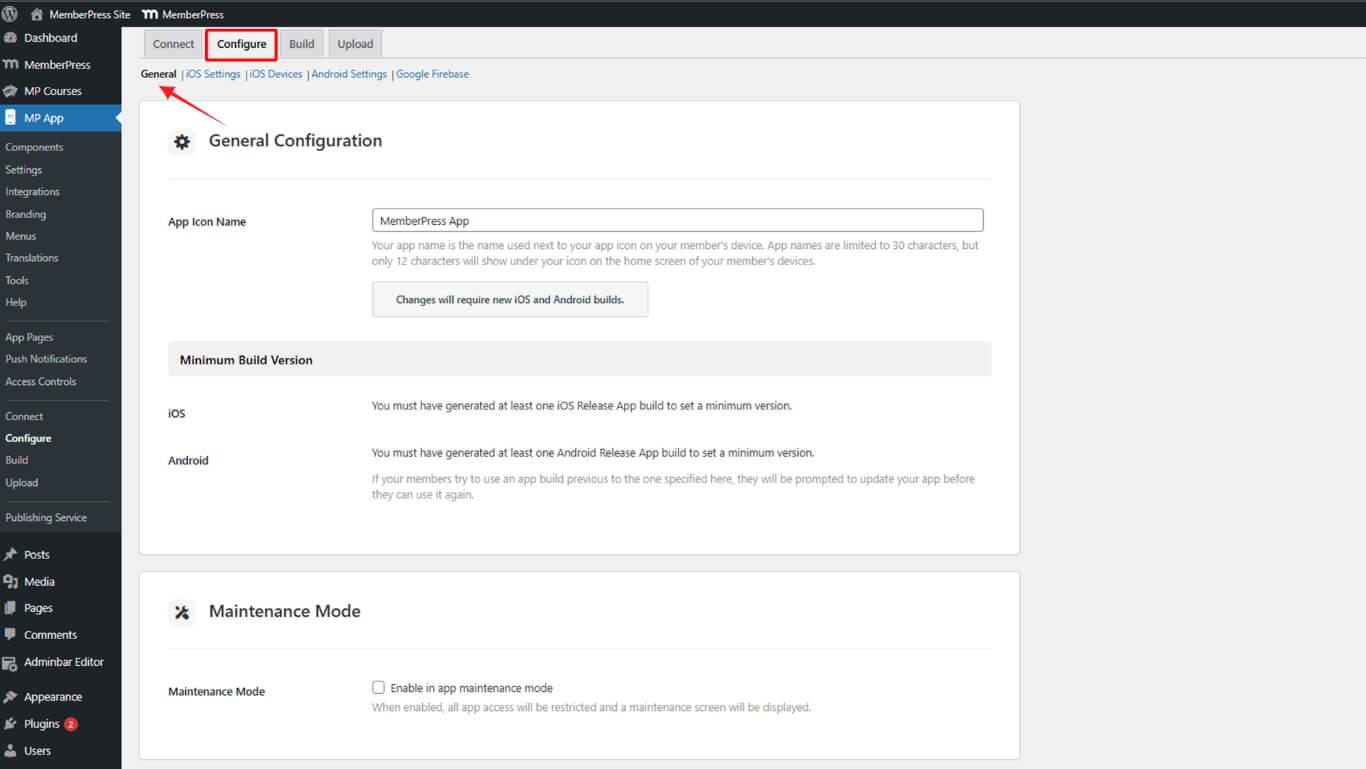
- Blättern Sie zum Wartungsmodus Abschnitt.
- Prüfen Sie die Aktivieren des Wartungsmodus Kontrollkästchen.
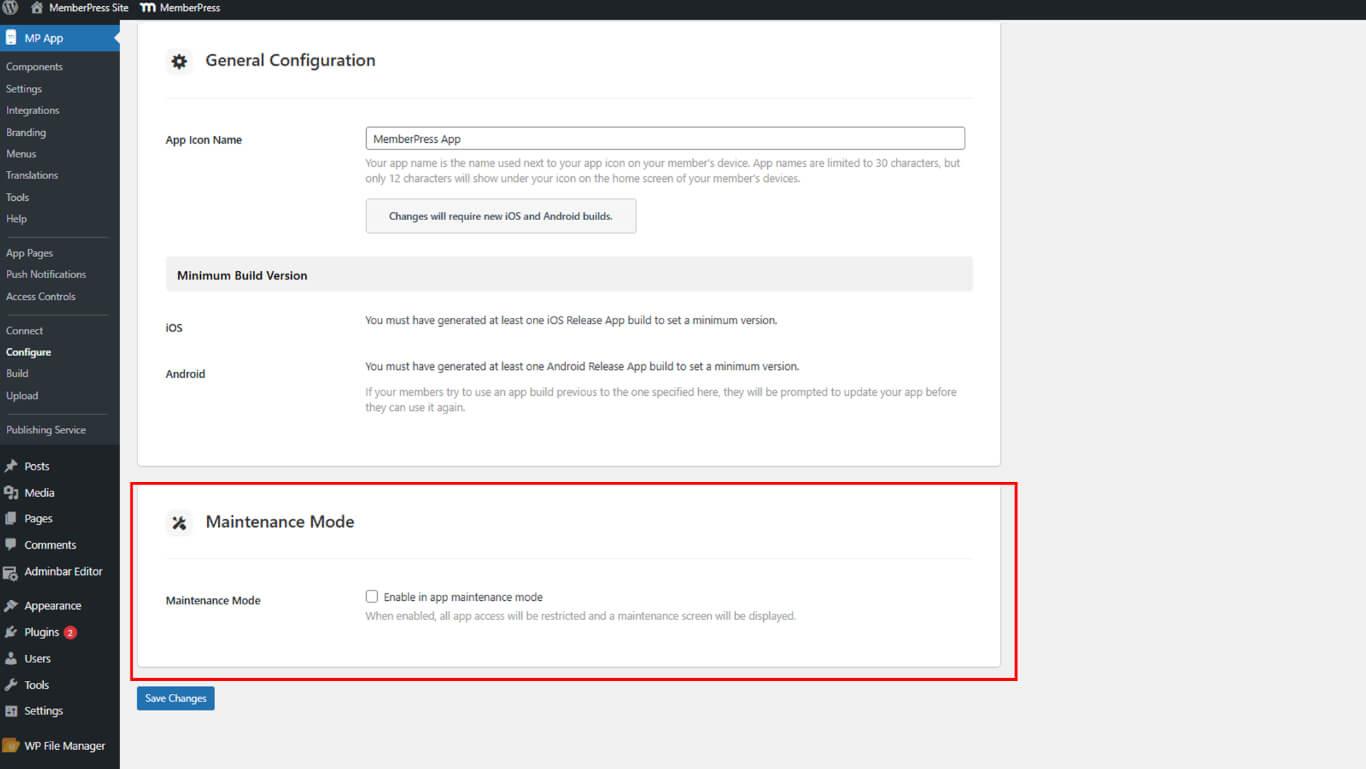
- Klicken Sie auf Änderungen speichern.
Alle Benutzer, die versuchen, auf die App zuzugreifen, sehen nach der Aktivierung den Wartungsbildschirm.
Verstehen der Elemente des Wartungsbildschirms
Auf dem Wartungsbildschirm werden während der Ausfallzeit drei Markenelemente angezeigt.
- App-Logo wird zentriert auf dem Bildschirm angezeigt. Das System ruft dieses Logo ab von Dashboard > MP AppKit > Branding > Anmeldebildschirm > Logo. Wenn kein Logo konfiguriert ist, wird ein Standardplatzhalter angezeigt;
- Hintergrundfarbe füllt den Bildschirm hinter dem Logo und der Nachricht aus. Das System wendet die Farbe aus Dashboard > MP AppKit > Branding > Allgemeine Hintergrundfarbe. Der Standardhintergrund der Anwendung wird angezeigt, wenn keine benutzerdefinierte Farbe eingestellt ist;
- Wartungsmeldung erscheint unterhalb des Logos als zentrierter Text. Die Standardmeldung lautet “Der Wartungsmodus ist aktiviert. Bitte versuchen Sie es später noch einmal.” Diese Nachricht kann durch Übersetzungen angepasst werden.
Deaktivieren des Wartungsmodus
Die Deaktivierung des Wartungsmodus stellt den normalen App-Zugriff für alle Benutzer wieder her.
- Navigieren Sie zu Dashboard > MP AppKit > Konfigurieren > Allgemein.
- Blättern Sie zum Wartungsmodus Abschnitt.
- Deaktivieren Sie das Kontrollkästchen Aktivieren des Wartungsmodus Kontrollkästchen.
- Klicken Sie auf Änderungen speichern.










 DE
DE  EN
EN  ES
ES  FR
FR  PT
PT 