

Android-App-Updates stellen sicher, dass Mitglieder Zugang zu den neuesten Funktionen, Fehlerbehebungen und aktualisierten Preisen haben. Regelmäßige Updates gewährleisten die Funktionalität der App und die Einhaltung der Anforderungen des Google Play Store.
In diesem Dokument wird erklärt, wie man neue Android-Versions-Builds erstellt, AAB-Dateien herunterlädt, Aktualisierungen an die Google Play Console sendet und Überprüfungsfeedback behandelt.
App-Updates verstehen
App-Updates liefern Verbesserungen und Fehlerbehebungen für bestehende Installationen über den Google Play Store. Updates behalten dieselbe Anwendungskennung und denselben Signaturschlüssel wie die ursprüngliche Veröffentlichung bei. Die Versionscodes müssen mit jedem Update erhöht werden, um eine ordnungsgemäße Erkennung und Installation des Updates zu ermöglichen.
Erstellen einer neuen Android-Release-Build
Die Release-Build-Generierung erstellt das aktualisierte App-Paket für die Einreichung bei Google Play.
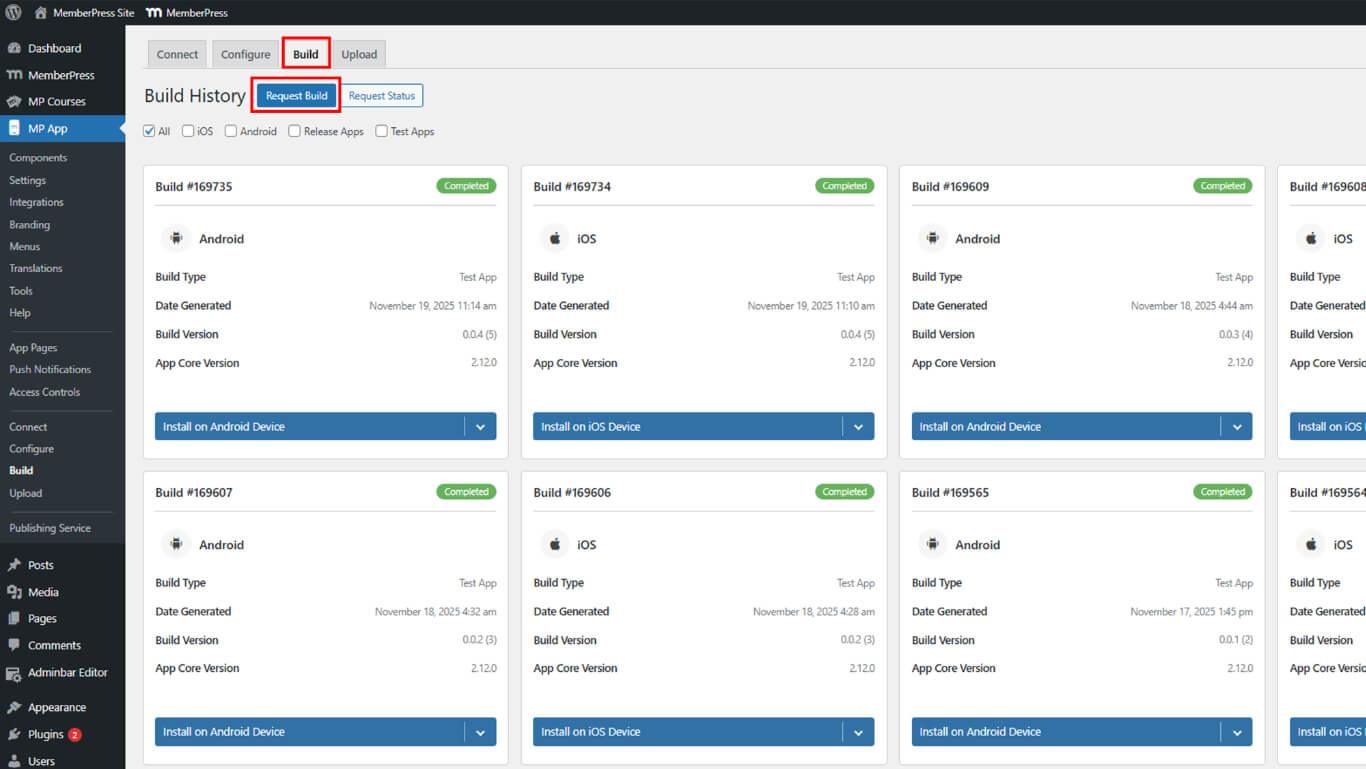
- Navigieren Sie zu Dashboard > MP AppKit > Bauen.
- Klicken Sie auf die Erstellen anfordern Taste.
- Prüfen Sie die Android Kontrollkästchen als Plattform.
- Wählen Sie App veröffentlichen als Build-Typ.
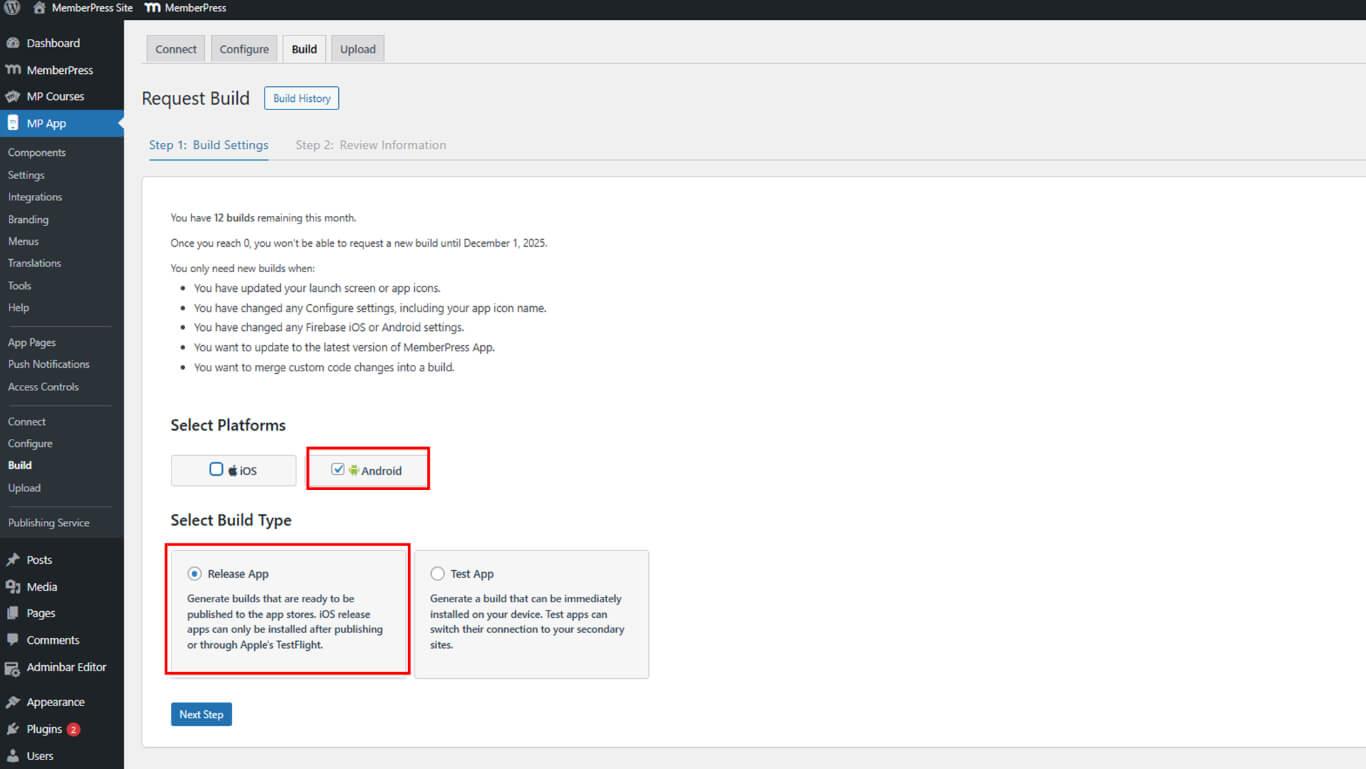
- Klicken Sie auf Nächster Schritt mit der Konfiguration fortfahren.
- Klicken Sie auf Build-Anfrage senden die Build-Anforderung zu übermitteln.
- Überwachen Sie den Fortschritt der Erstellung unter Entstehungsgeschichte.
- Warten Sie, bis der Build abgeschlossen ist.
Die Fertigstellung erfolgt in der Regel innerhalb von 5 bis 10 Minuten nach Einreichen der Anfrage.
AAB-Build-Datei herunterladen
Der Download der AAB-Datei bereitet das aktualisierte App-Paket für den Upload in die Google Play Console vor.
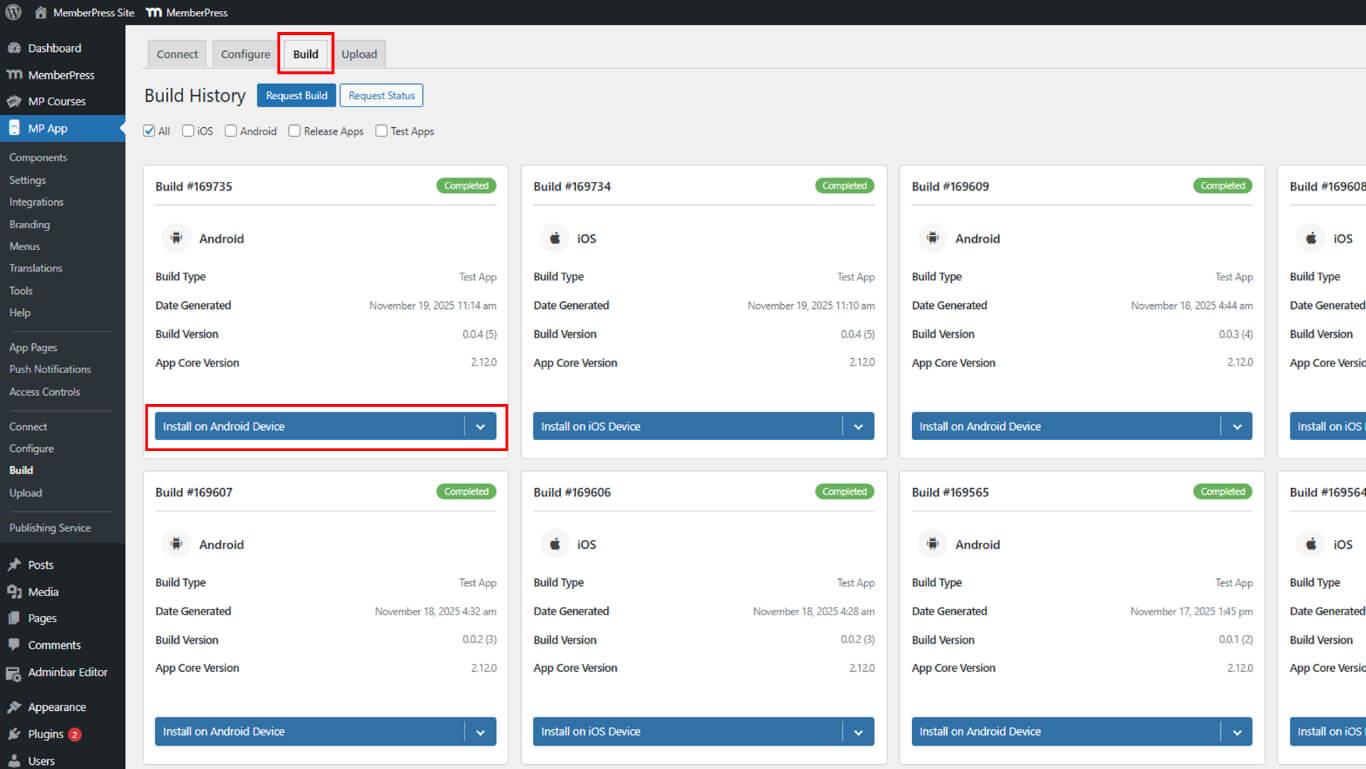
- Navigieren Sie zu Dashboard > MP AppKit > Bauen.
- Suchen Sie den fertigen Release-Build in der Build-Liste.
- Klicken Sie auf Auf Android-Gerät installieren.
- Click AAB-Datei herunterladen neben der Release-Version.
- Speichern Sie die AAB-Datei an einem sicheren Ort auf dem Gerät.
Aktualisierung an Google Play Console senden
Durch das Senden des Updates wird die neue App-Version zur Überprüfung an Google gesendet.
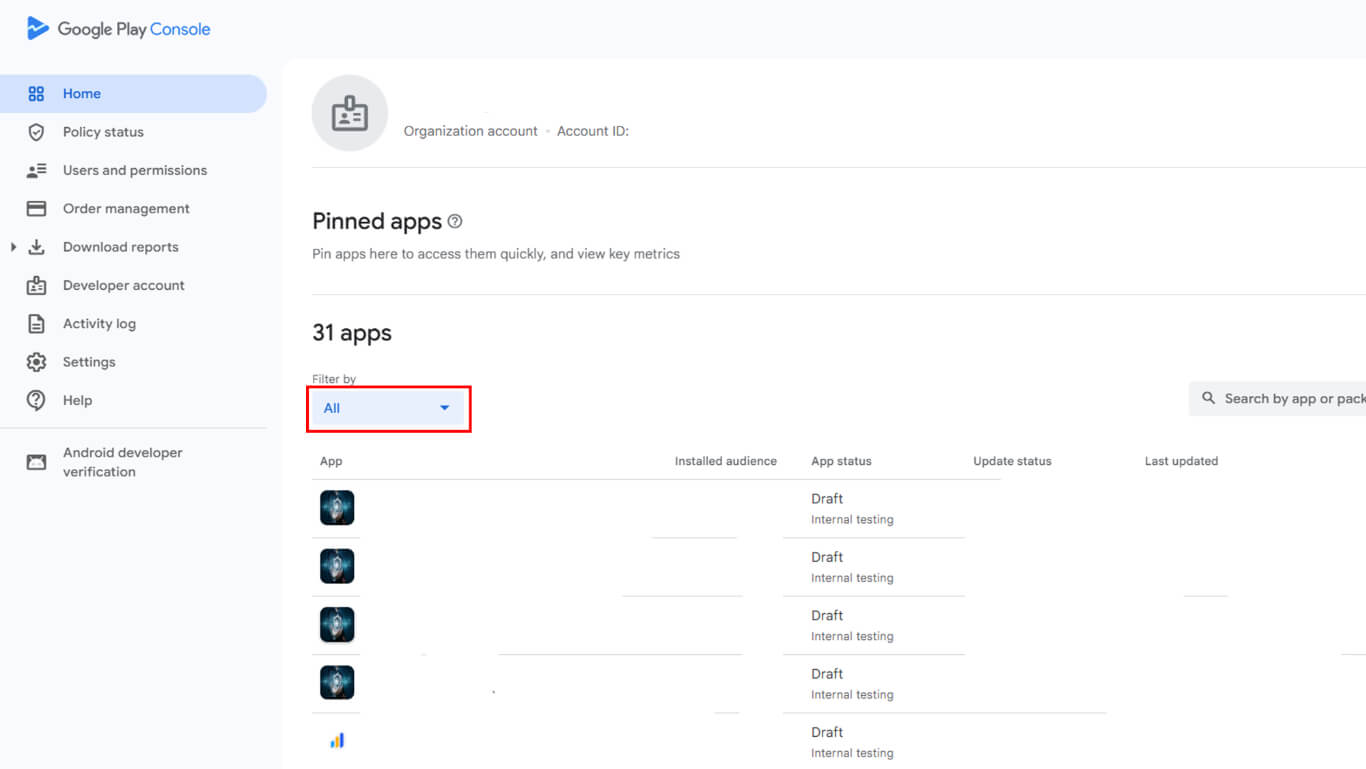
- Melden Sie sich bei Google Play Console an unter play.google.com/console.
- Navigieren Sie zu Alle Apps und wählen Sie die App aus der Liste aus.
- Klicken Sie auf Freigabe > Produktion in der linken Seitenleiste.
- Klicken Sie auf Neue Version erstellen für die Einreichung neuer Updates.
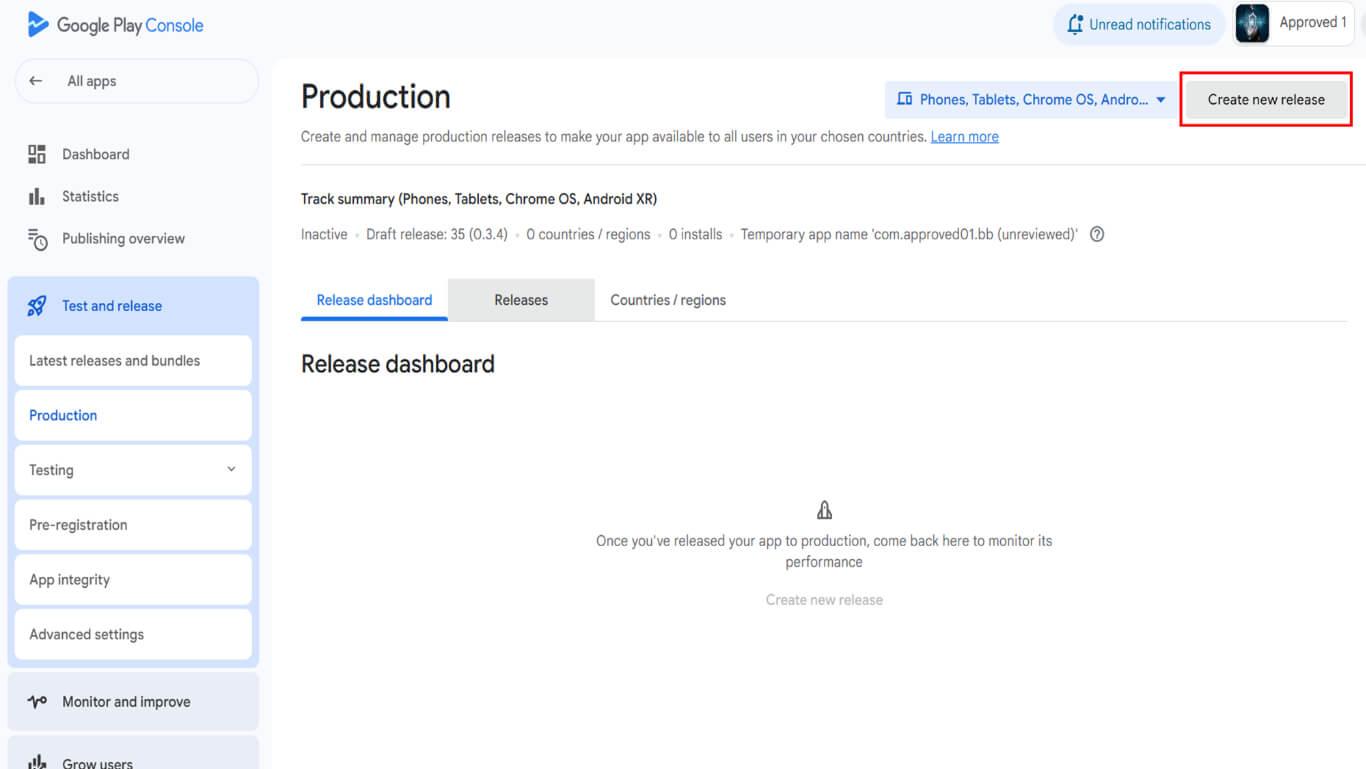
- Klicken Sie auf Veröffentlichung bearbeiten wenn ein bestehender Entwurf vorhanden ist.
- Blättern Sie zum App-Bundles und APKs Abschnitt.
- Klicken Sie auf Hochladen Dateiauswahl öffnen.
- Wählen Sie die heruntergeladene AAB-Datei auf dem Gerät aus.
- Warten Sie, bis der Upload abgeschlossen ist und die Datei verarbeitet wurde.
- Eingabe einer Name der Veröffentlichung im Feld „Name der Version“.
- Eingabe Versionshinweise Beschreibung von Änderungen und Verbesserungen.
- Klicken Sie auf Speichern Sie die Veröffentlichung als Entwurf speichern.
- Klicken Sie auf Veröffentlichung der Rezension zur Überprüfung der Einreichung übergehen.
Aktualisierung der Konfiguration überprüfen
Die Aktualisierungsprüfung überprüft die Versionskompatibilität und die Freigabeanforderungen.
- Überprüfen Sie die Zusammenfassungsseite der Veröffentlichung auf Fehler oder Warnungen.
- Überprüfen Sie, ob der Versionscode höher ist als bei früheren Versionen.
- Beheben Sie alle erforderlichen Fehler vor der Einreichung.
- Optional können Warnungen behoben werden, um die Qualität der Aktualisierung zu verbessern.
- Bestätigen Sie, dass die Versionshinweise die Änderungen korrekt beschreiben.
- Überprüfen Sie Länder und Regionen auf verfügbare Updates.
Aktualisierung zur Überprüfung einreichen
Durch das Senden des Updates wird die Version an das Überprüfungsteam von Google weitergeleitet.
- Überprüfen Sie alle aktualisierten Details auf der Überprüfungsseite.
- Überprüfen Sie, ob keine Blockierungsfehler in der Konfiguration verbleiben.
- Klicken Sie auf Start der Einführung in die Produktion die Aktualisierung einzureichen.
- Bestätigen Sie die Übermittlung im Bestätigungsdialog.
- Überwachen Sie den Einreichungsstatus in der Google Play Console.
Arten der Ablehnung verstehen
Google kann Update-Einreichungen aufgrund von Compliance- oder technischen Problemen ablehnen.
Metadatenprobleme betreffen Store-Listing-Inhalte, Aktualisierungen der Datenschutzrichtlinie oder Änderungen der Inhaltsbewertung. Bei Ablehnungen aufgrund von Metadaten sind Aktualisierungen in der Play Console erforderlich, ohne dass neue App-Builds erstellt werden müssen.
App-Probleme beinhalten Code-Probleme, Verstöße gegen Richtlinien oder Funktionsfehler. Bei Ablehnungen von App-Problemen sind Code-Korrekturen, neue Builds und eine vollständige erneute Einreichung erforderlich.
Lösen von Metadatenproblemen
Bei der Lösung von Metadatenproblemen werden Speicherinformationen aktualisiert, ohne dass die Anwendung neu erstellt werden muss.
- Melden Sie sich bei Google Play Console an unter play.google.com/console.
- Navigieren Sie zu der abgelehnten App in der App-Liste.
- Überprüfen Sie die Ablehnungs-E-Mails auf spezifische Metadatenprobleme.
- Klicken Sie auf Ladenpräsenz > Ladenverzeichnis um den Inhalt der Liste zu aktualisieren.
- Korrigieren Sie problematische Felder, die in Ablehnungsrückmeldungen identifiziert wurden.
- Aktualisieren Sie die URL der Datenschutzrichtlinie, wenn Probleme mit der Richtlinie festgestellt wurden.
- Aktualisierung der Inhaltsbewertungen, wenn Probleme bei der Bewertung festgestellt wurden.
- Klicken Sie auf Speichern Sie nachdem Sie alle erforderlichen Änderungen vorgenommen haben.
- Rückkehr zum Freigabe > Produktion Seite.
- Klicken Sie auf Start der Einführung in die Produktion um die bestehende Freigabe erneut einzureichen.
Behebung von App-Problemen
Die Lösung von App-Problemen erfordert Code-Korrekturen und eine neue Build-Generierung.
- Überprüfen Sie die Ablehnungs-E-Mails auf spezifische Probleme und Verstöße bei der Anwendung.
- Navigieren Sie zu Dashboard > MP AppKit in WordPress.
- Behebung festgestellter Probleme bei der Einhaltung von Vorschriften oder Richtlinien.
- Navigieren Sie zu Dashboard > MP AppKit > Erstellen.
- Klicken Sie auf Erstellen anfordern um eine korrigierte Version zu erstellen.
- Wählen Sie die Android Plattform und App veröffentlichen Bauart.
- Füllen Sie die Build-Anfrage aus und warten Sie, bis sie abgeschlossen ist.
- Laden Sie die neue AAB-Datei herunter von Entstehungsgeschichte.
- Navigieren Sie zur Seite der Google Play Console-Produktionsfreigabe.
- Klicken Sie auf Neue Version erstellen um eine neue Eingabe zu beginnen.
- Laden Sie die korrigierte AAB-Datei hoch.
- Geben Sie Versionshinweise ein, die die Fehlerbehebungen erklären.
- Klicken Sie auf Veröffentlichung der Rezension und dann Start der Einführung in die Produktion.
Verständnis für das Verhalten nach der Genehmigung
Das Aktualisierungsverhalten nach der Genehmigung hängt von der Konfiguration der verwalteten Veröffentlichung ab.
Automatische Veröffentlichung erfolgt für Anwendungen ohne aktiviertes Managed Publishing. Genehmigte Updates werden sofort in allen konfigurierten Regionen live geschaltet.
Verwaltete Veröffentlichung erfordert eine manuelle Genehmigung, bevor die Veröffentlichung aktualisiert werden kann. Aktualisierungen müssen vor der Verteilung auf der Seite "Verwaltete Veröffentlichung" vom Herausgeber genehmigt werden.
Genehmigung von Managed Publishing-Updates
Aktualisierungen für Managed Publishing erfordern eine manuelle Genehmigung für die Verteilung.
- Navigieren Sie zur Google Play Console unter play.google.com/console.
- Wählen Sie die App aus der Liste der Apps aus.
- Klicken Sie auf Überblick über die Veröffentlichung in der linken Seitenleiste.
- Suchen Sie die genehmigte und zur Veröffentlichung anstehende Aktualisierung.
- Überprüfen Sie die Aktualisierungsdetails und den Genehmigungsstatus.
- Klicken Sie auf Live gehen um die genehmigte Aktualisierung zu veröffentlichen.
- Bestätigen Sie die Veröffentlichung im Bestätigungsdialog.










 DE
DE  EN
EN  ES
ES  FR
FR  PT
PT 