

Obwohl MemberPress und die Amelia Buchung Die Plugins sind nicht offiziell integriert, funktionieren aber gut zusammen. Durch die Verknüpfung von Amelia mit MemberPress können Sie anhand von Benutzerrollen und Mitgliedschaften verwalten, wer Veranstaltungen und Termine buchen darf.
Dieses Dokument erklärt, wie Sie MemberPress mit Amelia verbinden, damit nur autorisierte Mitglieder Buchungen vornehmen können. MemberPress kann Abonnenten bestimmter Mitgliedschaften eine zusätzliche Rolle zuweisen. Darüber hinaus stellen die Regeln von MemberPress sicher, dass nur diejenigen mit dieser Rolle auf die Buchungsseite zugreifen können.
Dieses Dokument enthält die folgenden Themen:
- Konfigurieren von MemberPress-Mitgliedschaften
- Amelia-Ereignisse und Shortcodes konfigurieren
- Zugriff einschränken (MemberPress-Regeln)
- Hinzufügen von Amelia-Frontend-Panels zum MemberPress-Konto Seite
Konfigurieren von MemberPress-Mitgliedschaften
MemberPress Mitgliedschaften Sie können eine zusätzliche Benutzerrolle und Zugriff auf Buchungsseiten zuweisen. Erstellen Sie Mitgliedschaftsstufen für Amelia.
Um eine Mitgliedschaft bei MemberPress zu erstellen, führen Sie die folgenden Schritte aus:
- Navigieren Sie zu Dashboard > MemberPress > Mitgliedschaften.
- Klicken Sie auf die Neue Mitgliedschaft hinzufügen Taste.
- Eine neue Mitgliedschaft anlegen (z. B., “Premium-Mitglied”).
- Beim Erstellen der Mitgliedschaft scrollen Sie nach unten zu Mitgliedschaftsoptionen > Erweitert und markieren Sie das Feld Benutzerrollen für diese Mitgliedschaft Option.
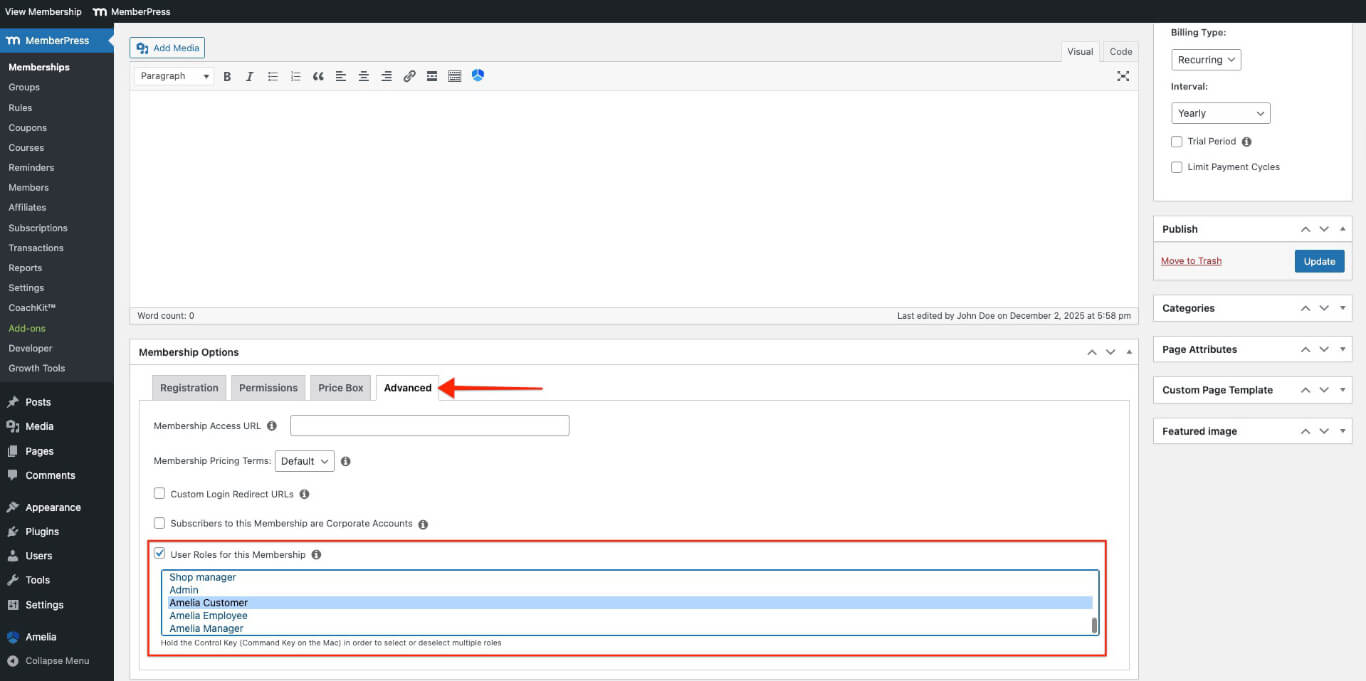
- Wählen Sie die Amelia Kunde Rolle für Kunden oder die Amelia Mitarbeiterin Rolle für Mitarbeiter.
- Klicken Sie auf die veröffentlichen. Schaltfläche, um die Mitgliedschaft zu speichern.
Wiederholen Sie diese Schritte, um weitere Mitgliedschaftsstufen für verschiedene Benutzerrollen hinzuzufügen.
Amelia-Ereignisse konfigurieren
Amelia bietet Shortcodes, mit denen Buchungsformulare auf Seiten oder in Beiträgen angezeigt werden können. Richten Sie das Plugin ein und fügen Sie bei Bedarf Buchungsfunktionen hinzu.
Erstellen eines Amelia-Events
- Navigieren Sie zu Dashboard > Amelia > Ereignisse.
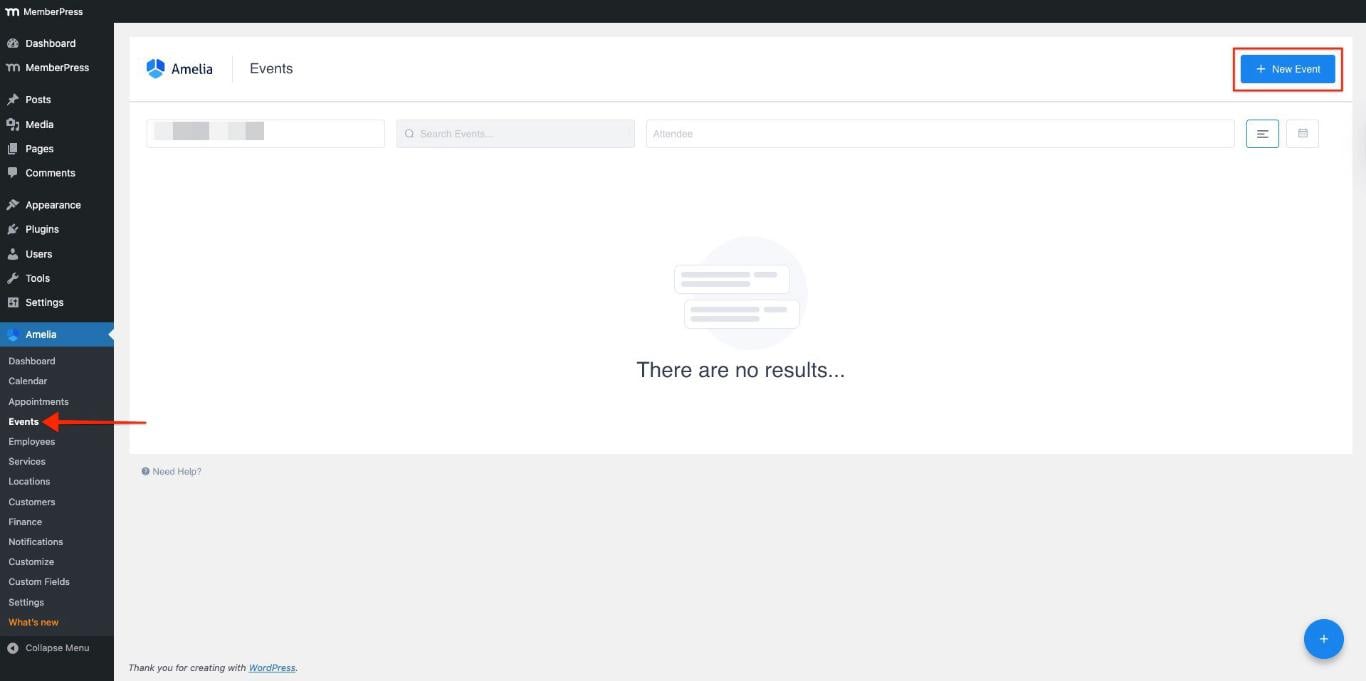
- Klicken Sie auf die + Neues Ereignis Schaltfläche zum Veranstaltung(en) erstellen.
- Geben Sie die Veranstaltungsdetails ein, wie z. B. Name, Datumund Zeit.

- Diese Optionen sind standardmäßig aktiviert. Sie können sie deaktivieren, um benutzerdefinierte Daten auszuwählen:
- Die Buchung ist ab sofort möglich.;
- Die Buchung schließt, wenn die Veranstaltung beginnt..
- Fügen Sie die Preise und die maximal zulässige Teilnehmerzahl für die Veranstaltung hinzu.
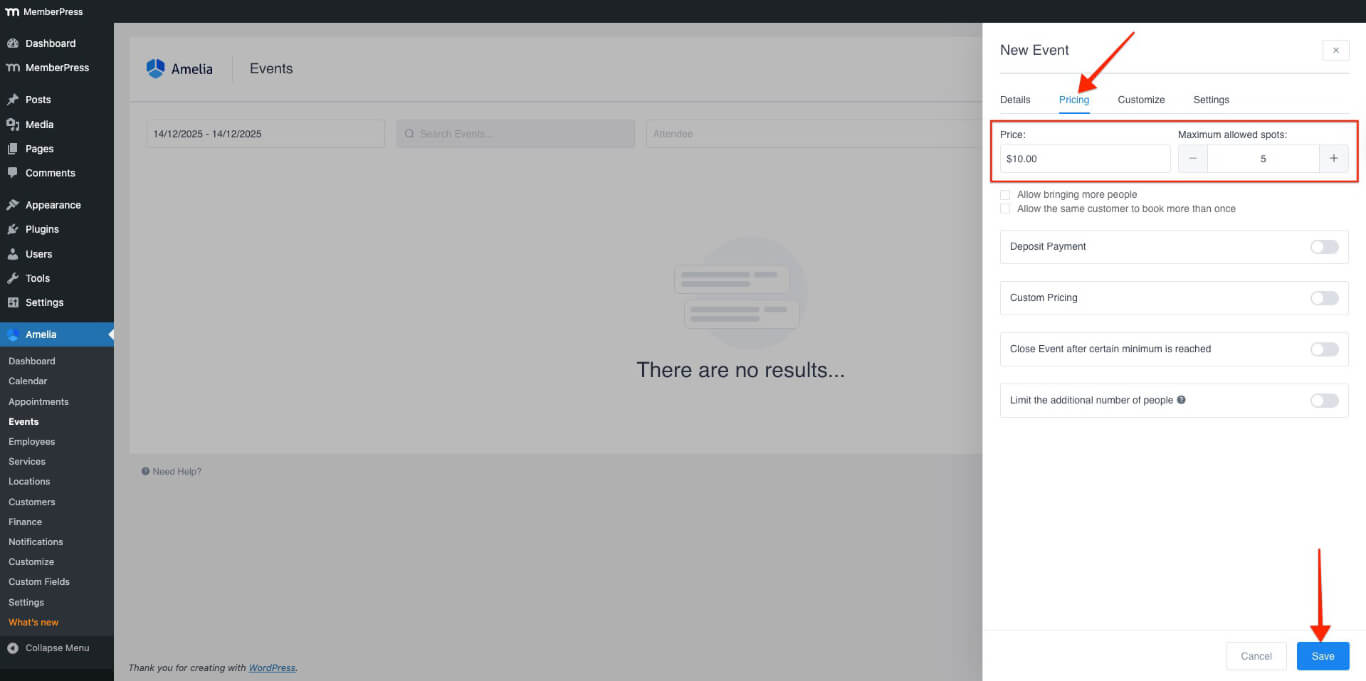
- Klicken Sie auf die Speichern Sie Taste.
Hinzufügen eines Ereignis-Shortcodes zu einer Seite
- Navigieren Sie zu einer bestehenden Seite oder erstellen Sie eine neue Seite.
- Klicken Sie im Seiteneditor auf die Schaltfläche Amelia Symbolschaltfläche (bei Verwendung der Klassischer Editor) oder fügen Sie ein Amelia – Veranstaltungsliste Block (bei Verwendung des Block-Editors).
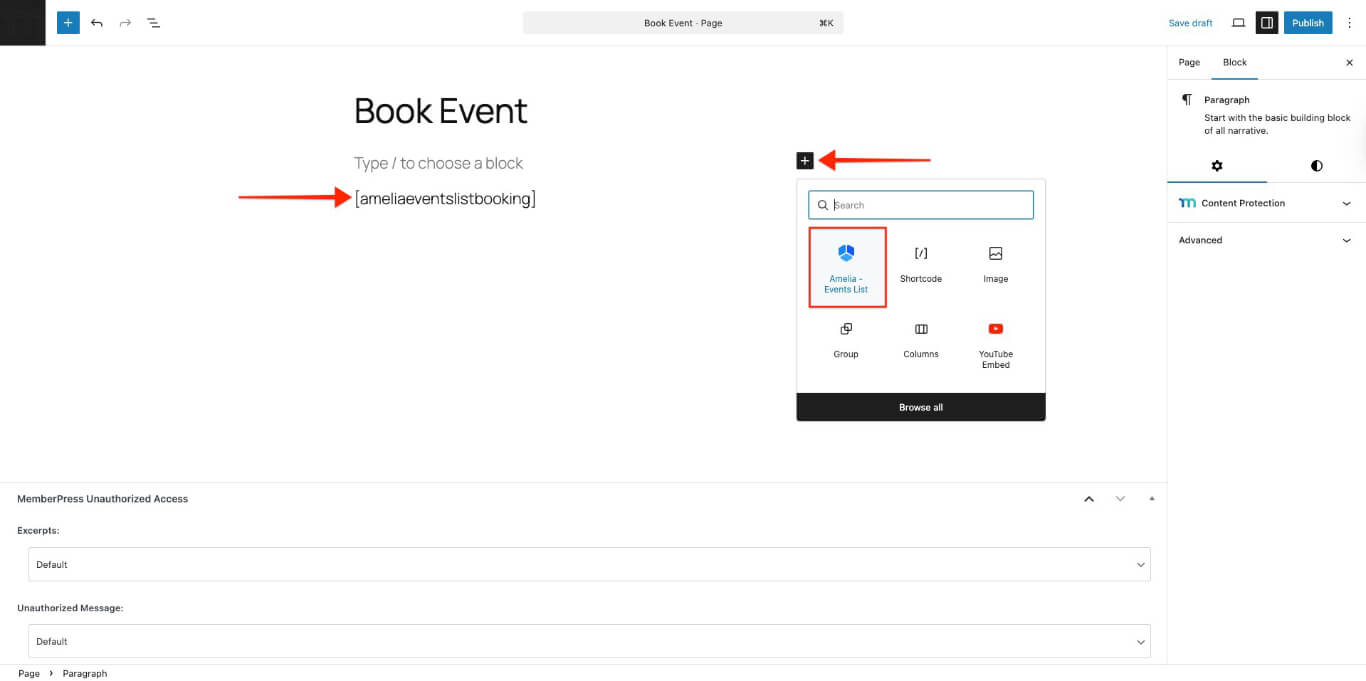
- Der Shortcode wird automatisch in die Seite eingefügt.
- Für die manuelle Eingabe kopieren Sie den folgenden Code und fügen Sie ihn ein: Amelia-Veranstaltungsliste Buchungs-Shortcode im Seiteneditor:
[ameliaeventslistbooking]- Klicken Sie auf veröffentlichen. die Seite live schalten.
Im folgenden Abschnitt wird erläutert, wie Sie diese Seite schützen können, indem Sie MemberPress-Regeln.
Zugriff auf Buchungsseiten mithilfe von MemberPress-Regeln einschränken
MemberPress-Regeln Steuern Sie, welche Inhalte Mitglieder sehen können. Verwenden Sie Regeln, um Seiten mit Amelia-Buchungsformularen zu schützen.
Erstellen Sie eine Schutzregel
- Navigieren Sie zu Dashboard > MemberPress > Regeln.
- Klicken Sie auf die Neu hinzufügen Taste.
- In der Geschützter Inhalt Dropdown-Menü, wählen Sie die Eine einzige Seite Option.
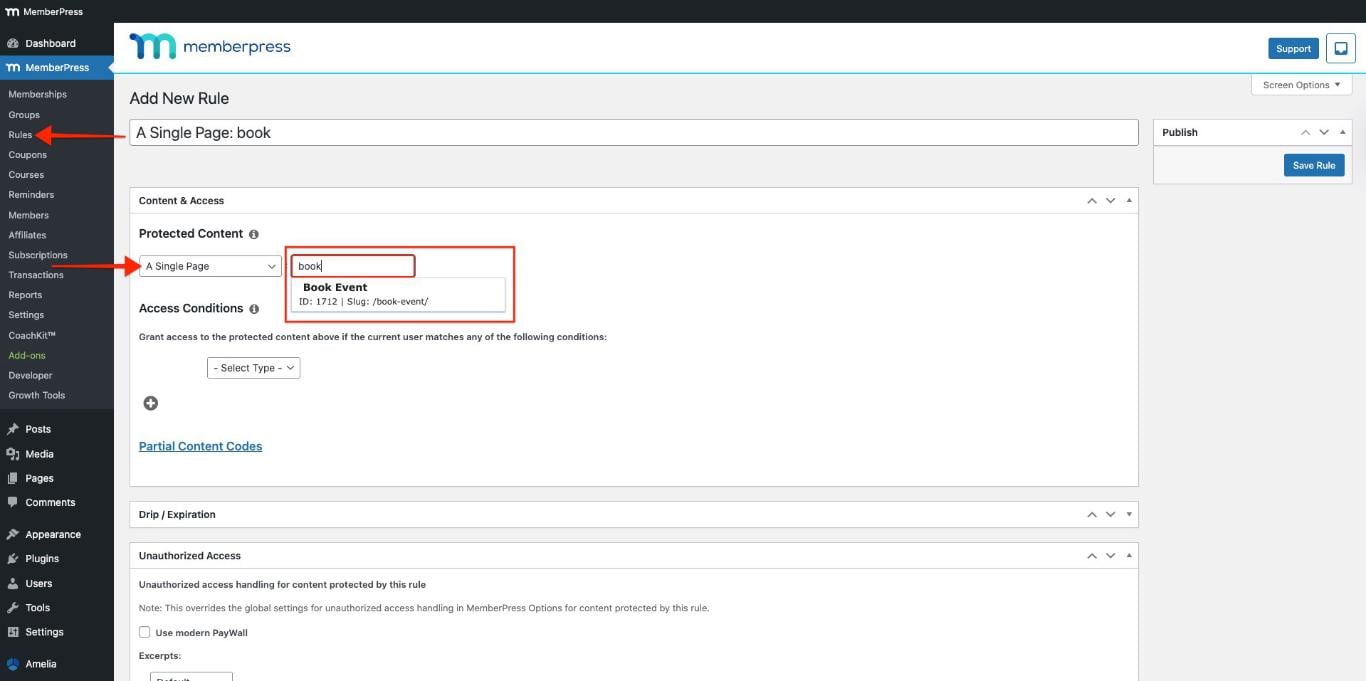
- Geben Sie den Namen der Seite in das Feld Beginnen Sie mit der Eingabe des Titels Feld und wählen Sie die Seite aus dem Dropdown-Menü aus.
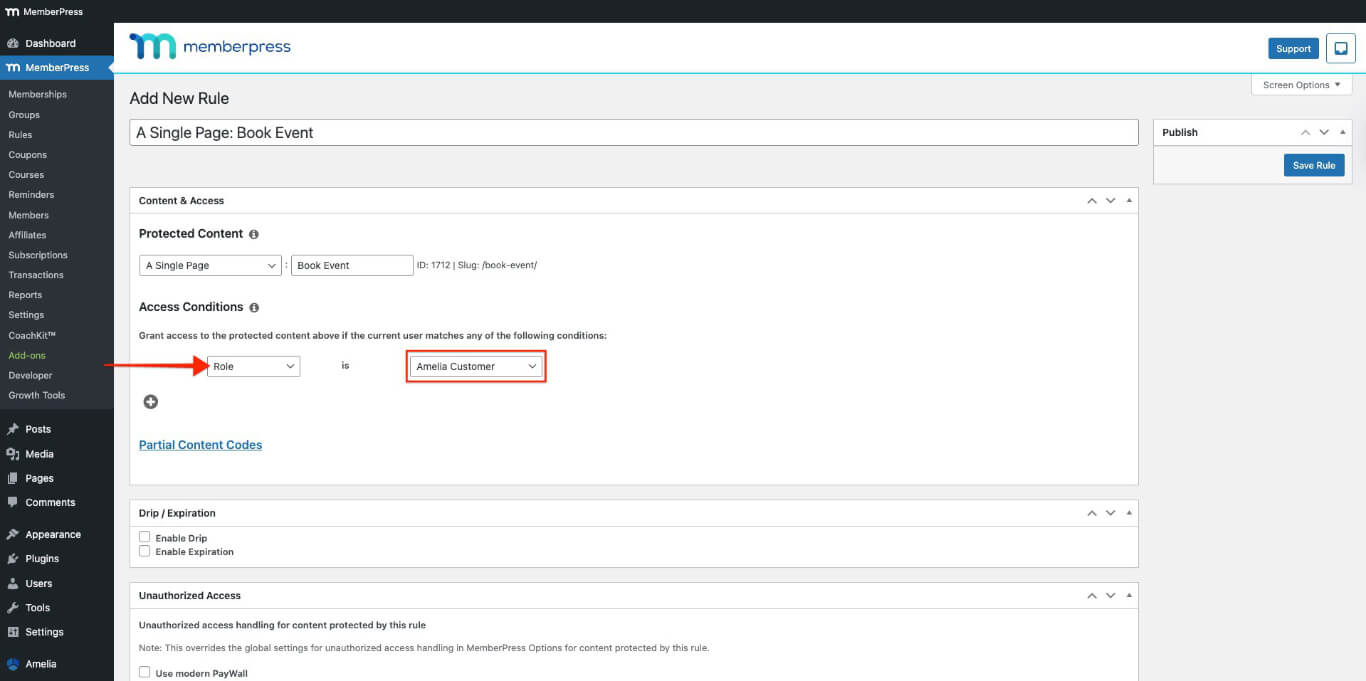
- In der Zugangsbedingungen Abschnitt:
- Wählen Sie Mitgliedschaft aus dem ersten Dropdown-Menü und Amelia Kunde aus dem zweiten Dropdown-Menü;
- Wählen Sie die Mitgliedschaft aus, die Zugriff auf die Buchungsseite haben soll.
- Blättern Sie nach unten zum Unbefugter Zugriff Abschnitt.
- In der Unerlaubte Meldung Dropdown-Menü, wählen Sie die Benutzerdefiniert Option.
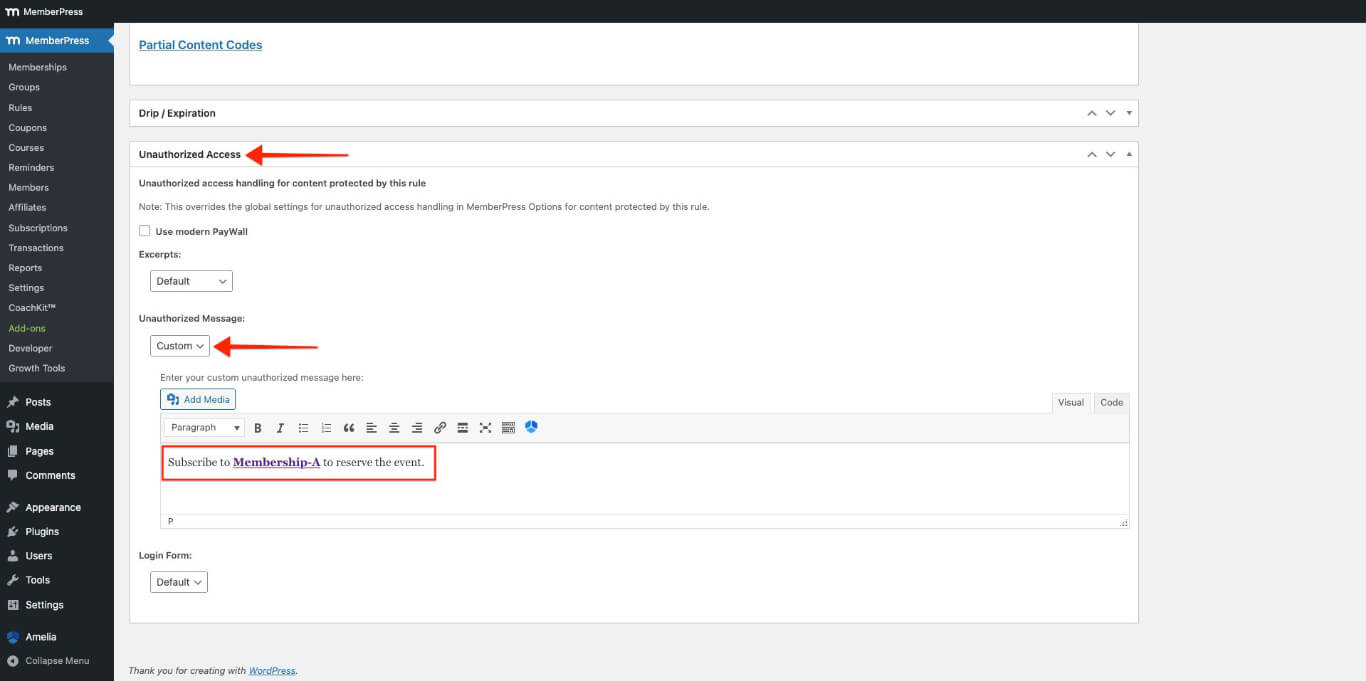
- Geben Sie Ihre benutzerdefinierte Nachricht für nicht autorisierte Benutzer ein, die auf diese Seite zugreifen.
- Klicken Sie auf die Regel speichern Schaltfläche oben rechts.
Anmeldung für die Mitgliedschaft und Buchung der Veranstaltung
- Gehe zu Dashboard > MemberPress > Mitgliedschaften.
- Öffnen Sie die Mitgliedschaft in Ihrem Browser. Inkognito-Fenster (privates Fenster).
- Geben Sie die erforderlichen Daten ein, um sich als Testbenutzer anzumelden, und wählen Sie dann entweder Offline-Zahlungsmethode oder Streifen. Sie können verwenden Stripe-Testkartennummern sich anmelden.
- Besuchen Sie die Veranstaltungsbuchungsseite mit dem Shortcode.

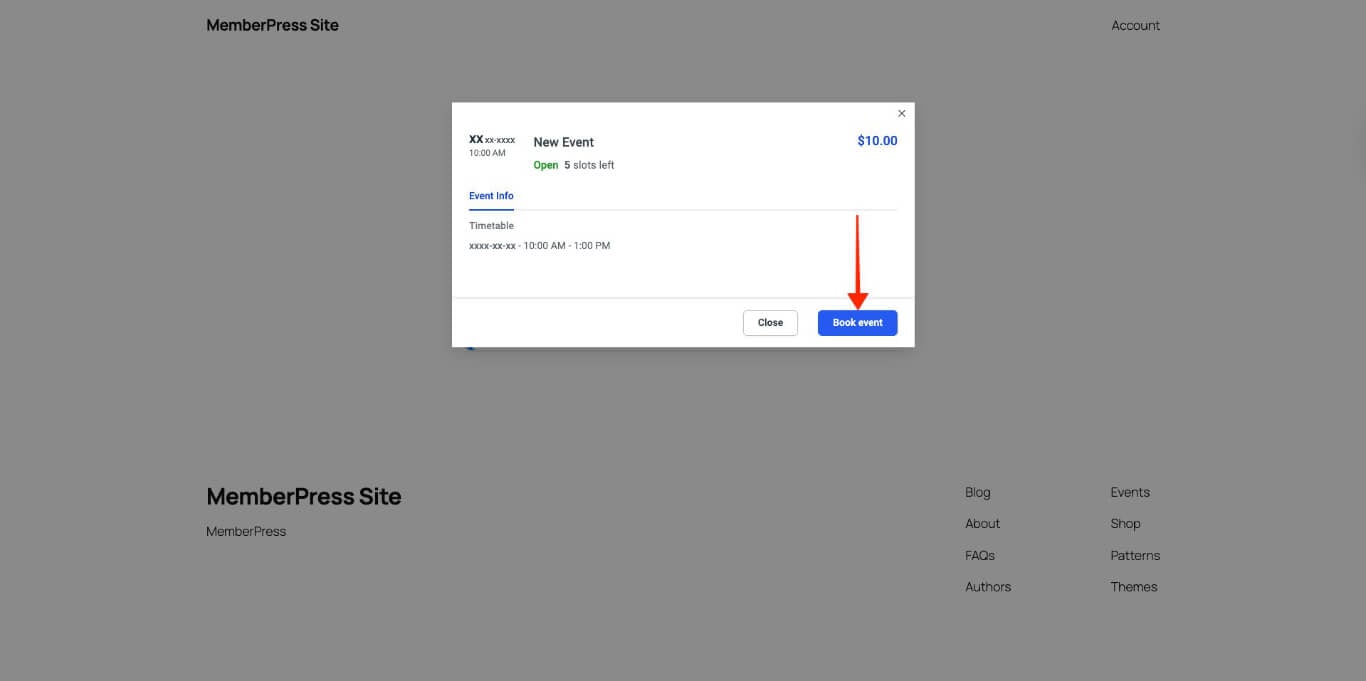
- Klicken Sie auf die Weiterlesen Schaltfläche, um das Ereignis zu überprüfen.
- Klicken Sie auf die Veranstaltung buchen Taste.
- Geben Sie alle erforderlichen Informationen ein und klicken Sie dann auf die Schaltfläche Weiter Taste.
- Klicken Sie auf die Veranstaltung buchen Taste.

- Klicken Sie auf die Fertigstellen Taste oder die Kundenforum Taste.
Testen der Buchungsseiten
Durch Tests wird sichergestellt, dass die MemberPress-Regeln den Zugriff auf die Buchungsseiten von Amelia blockieren.
Erstellen Sie mehrere Testkonten. mit verschiedenen Mitgliedschaftsstufen.
- Öffnen Sie Ihre Website in einem Browser. Inkognito-Fenster (privates Fenster).
- Melden Sie sich mit einem Testkonto an, das über die erforderliche Mitgliedschaft verfügt.
- Gehen Sie zur Buchungsseite und überprüfen Sie, ob das Amelia-Buchungsformular sichtbar ist und funktioniert.
- Melden Sie sich ab und melden Sie sich mit einem Testkonto an, das keine Mitgliedschaft hat.
- Gehen Sie zur Buchungsseite und überprüfen Sie, ob die Meldung über unbefugten Zugriff erscheint anstelle des Buchungsformulars.
Wenn die Zugriffsbeschränkungen nicht funktionieren, überprüfen Sie die MemberPress-Regeln um sicherzustellen, dass die richtigen Mitgliedschaftsstufen und Seiten ausgewählt werden.
Hinzufügen von Amelia-Frontend-Panels zur MemberPress-Kontoseite
Sie können Amelia-Kunden- und Mitarbeiterpanels hinzufügen zu MemberPress-Konto-Navigationsregisterkarten als benutzerdefinierte Registerkarten. Dadurch können Mitglieder Termine und Veranstaltungen direkt über ihre MemberPress-Kontoseite verwalten.
Bevor Sie Amelia-Panels zur Kontoseite hinzufügen, stellen Sie sicher, dass die Das Add-on „MemberPress Account Navigation Tabs“ ist installiert und aktiviert..
Stellen Sie außerdem sicher, dass Sie über die Premium-Version des Amelia-Plugins um auf die Amelia Frontblende Merkmale.
Amelia Panel-Shortcodes verstehen
Amelia bietet zwei Frontend-Panel-Shortcodes zum Einbetten von Kunden- und Mitarbeiterportalen.
Amelia Kundenpanel-Shortcodes
Das Kundenpanel zeigt die Termine und Veranstaltungen der Mitglieder an. Verwenden Sie die folgenden Shortcode-Varianten entsprechend den inhaltlichen Anforderungen.
Dieser Shortcode zeigt an sowohl Termine als auch Veranstaltungen im Amelia-Kundenpanel:
[Amelia-Kundenpanel Termine=1 Veranstaltungen=1]Mit diesen Optionen können Sie entweder Termine oder Ereignisse im Kundenbereich anzeigen:
- Entfernen von events=1 wird angezeigt nur nach Vereinbarung:
[Amelia-Kundenpanel Termine=1]- Termine entfernen=1 wird angezeigt nur Veranstaltungen:
[Amelia-Kundenpanel events=1]Amelia Mitarbeiter-Panel-Shortcodes
Das Mitarbeiter-Panel zeigt Termine und Veranstaltungen der Mitarbeiter an. Verwenden Sie je nach Inhaltsanforderungen die folgenden Shortcode-Varianten:
Dieser Shortcode zeigt an sowohl Termine als auch Veranstaltungen im Amelia-Mitarbeiterforum:
[Amelia-Mitarbeiterforum Termine=1 Veranstaltungen=1]Mit diesen Optionen können Sie entweder Termine oder Ereignisse im Mitarbeiterbereich anzeigen:
- Entfernen von events=1 wird angezeigt nur nach Vereinbarung:
[Amelia-Mitarbeiterforum Termine=1]- Termine entfernen=1 wird angezeigt nur Veranstaltungen:
[Amelia-Mitarbeiterforum events=1]Amelia-Panels als Registerkarten zur Kontoseite hinzufügen
Befolgen Sie diese Schritte, um Amelia-Panels zur MemberPress-Kontoseite hinzuzufügen:
- Navigieren Sie zu Dashboard > MemberPress > Konto.
- Aktivieren Sie die Registerkarten „Konto“ und fügen Sie eine neue Registerkarte hinzu..

- Einfügen der Amelia Front-End-Kundenpanel Shortcode für Veranstaltungen.
[ameliacustomerpanel events=1]- Klicken Sie auf die Optionen aktualisieren Taste.
- Erstellen Sie eine weitere Registerkarte für die Mitarbeiterforum, indem Sie die oben genannten Schritte 1 bis 4 befolgen.
Die neuen Registerkarten werden auf der MemberPress Konto Seite.
Aktivieren der Mitarbeiter- und Kundenpanels
Befolgen Sie diese Schritte, um Amelias Mitarbeiter- und Kundenbereich zu aktivieren.
Aktivieren Sie das Mitarbeiter-Panel
- Gehen Sie zum MemberPress Konto Seite.
- Klicken Sie auf die Mitarbeiterforum Registerkarte erstellt in der vorheriger Abschnitt aus der linken Seitenleiste.
- Kopieren Sie die URL aus der URL-Leiste des Browsers.
- Navigieren Sie zum Dashboard > Amelia > Einstellungen.
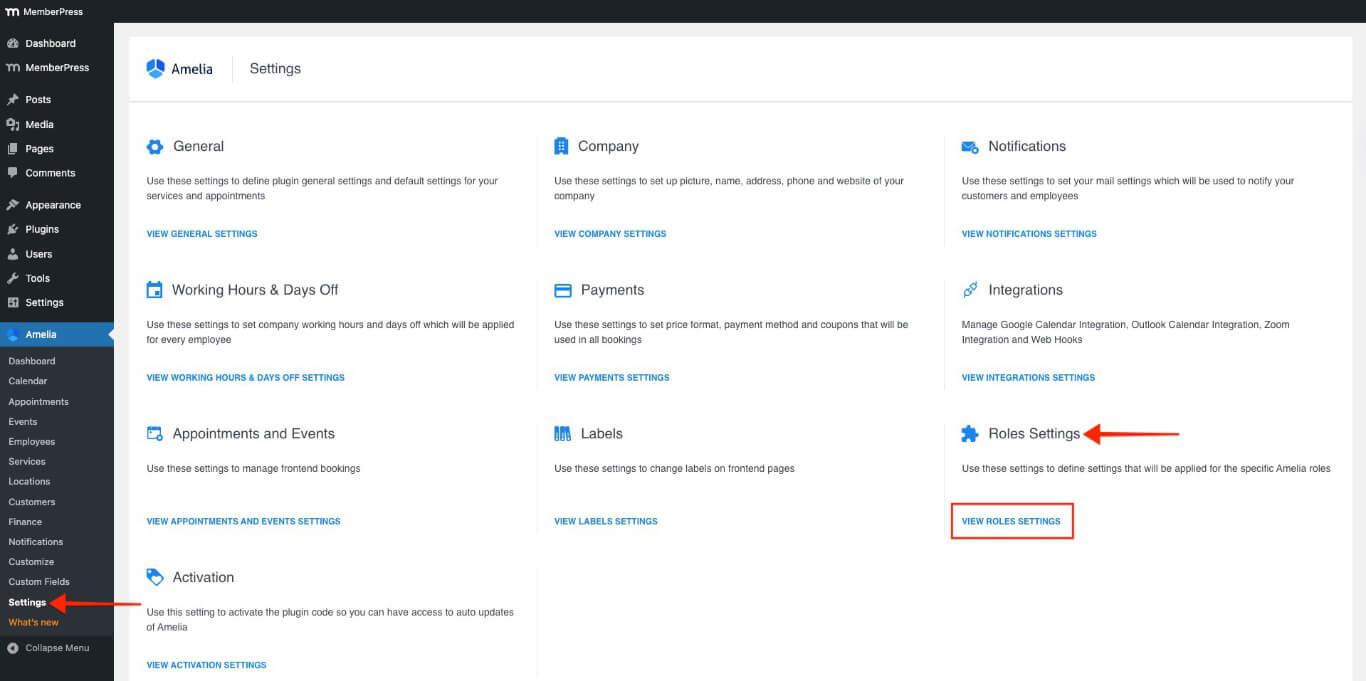
- Im Rahmen der Rolleneinstellungen Abschnitt, klicken Sie auf die Rollen-Einstellungen anzeigen Taste.
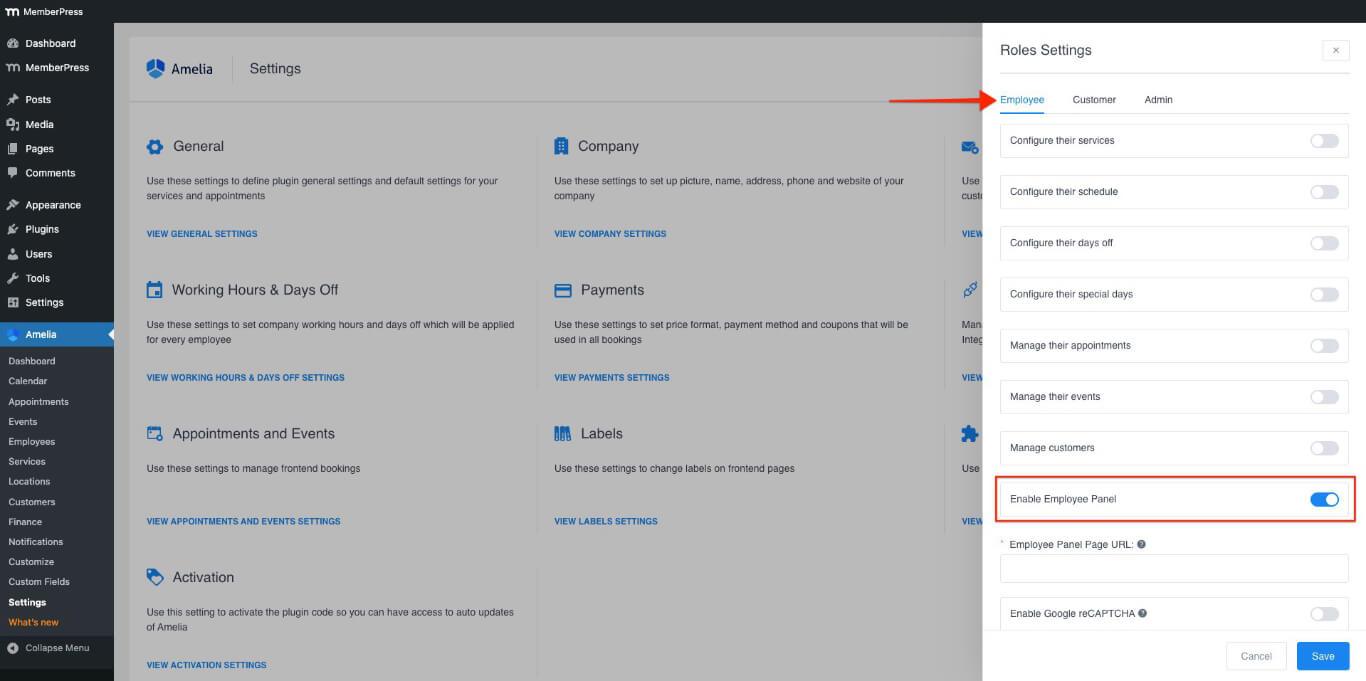
- Von der Mitarbeiter Registerkarte, umschalten Mitarbeiter-Panel aktivieren Option ON. Die URL der Mitarbeiter-Panel-Seite Das Feld wird angezeigt.
- In der URL der Mitarbeiter-Panel-Seite Feld die URL für die Mitarbeiterforum tab.
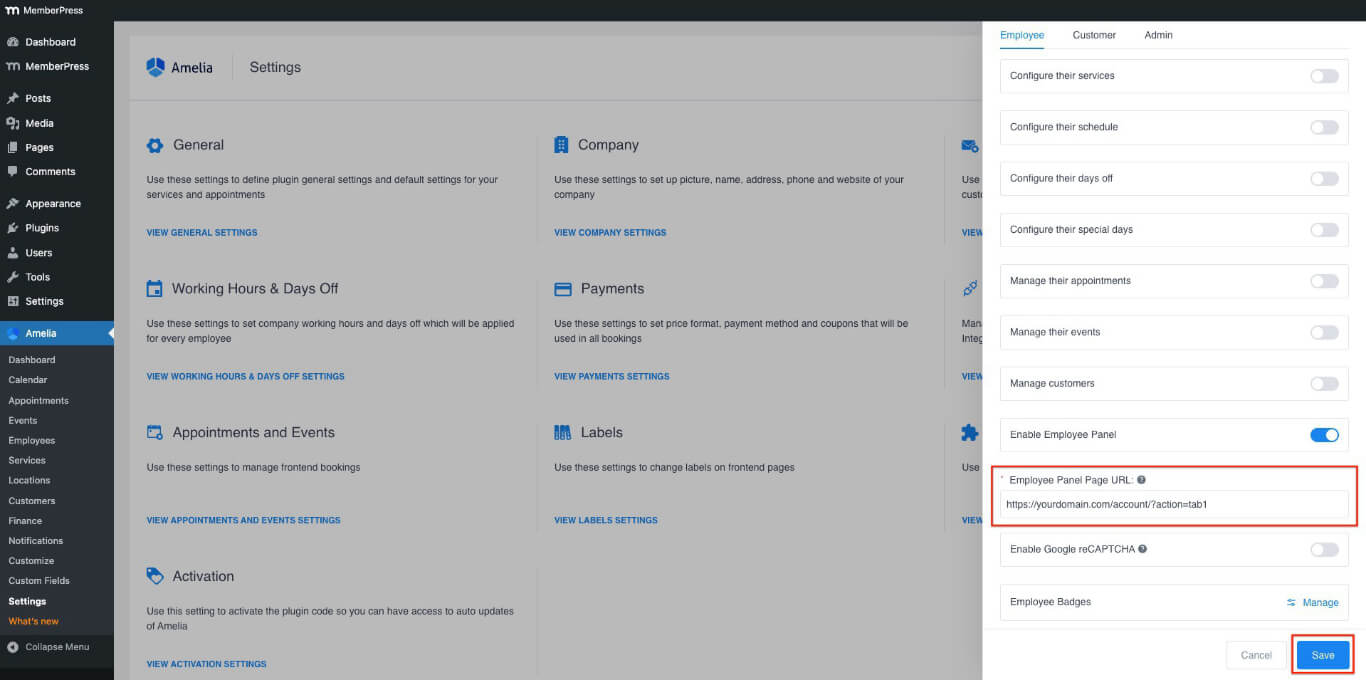
- Klicken Sie auf die Speichern Sie Taste.
Kundenbereich aktivieren
- Gehen Sie zum MemberPress Konto Seite.
- Klicken Sie auf die Kundenforum Registerkarte erstellt in der vorheriger Abschnitt aus der linken Seitenleiste.
- Kopieren Sie die URL aus der URL-Leiste des Browsers.
- Navigieren Sie zum Dashboard > Amelia > Einstellungen.
- Im Rahmen der Rolleneinstellungen Abschnitt, klicken Sie auf die Rollen-Einstellungen anzeigen Taste.
- Von der Kunden Registerkarte, umschalten Kundenbereich aktivieren Option ON. Die URL der Kundenpanel-Seite Das Feld wird angezeigt.
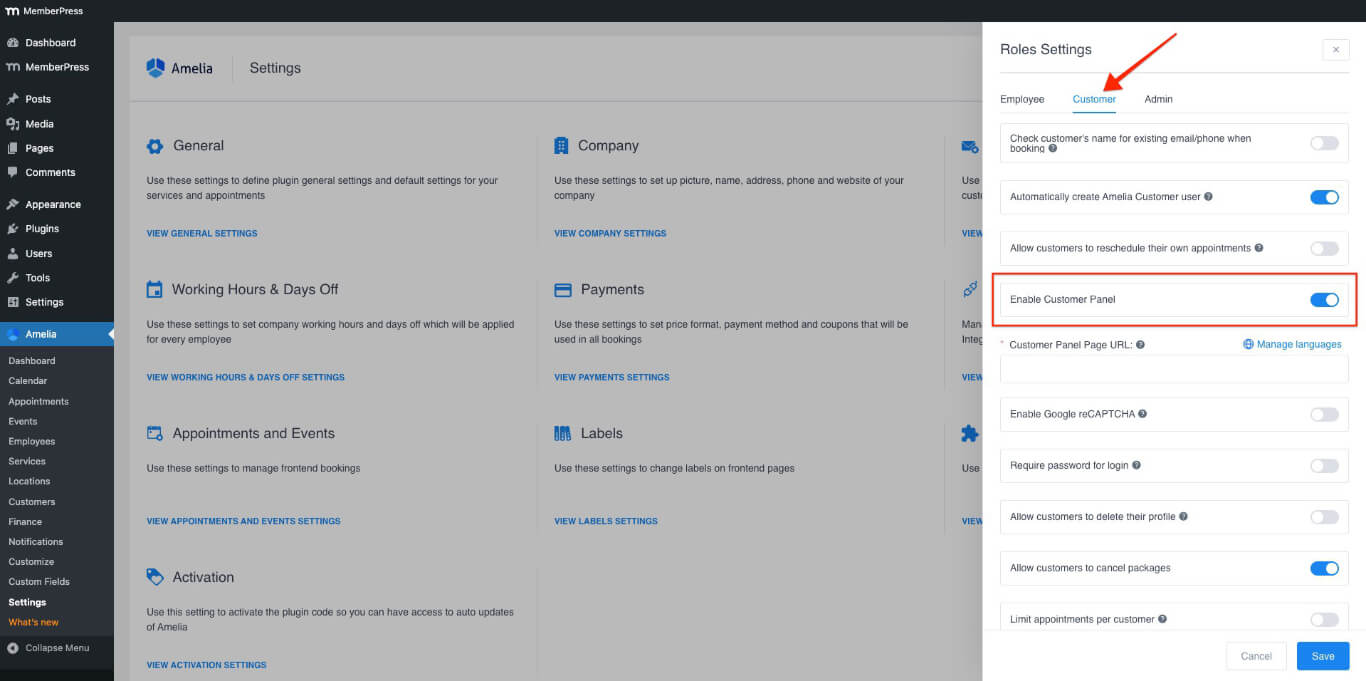
- In der URL der Kundenpanel-Seite Feld die URL für die Kundenforum tab.
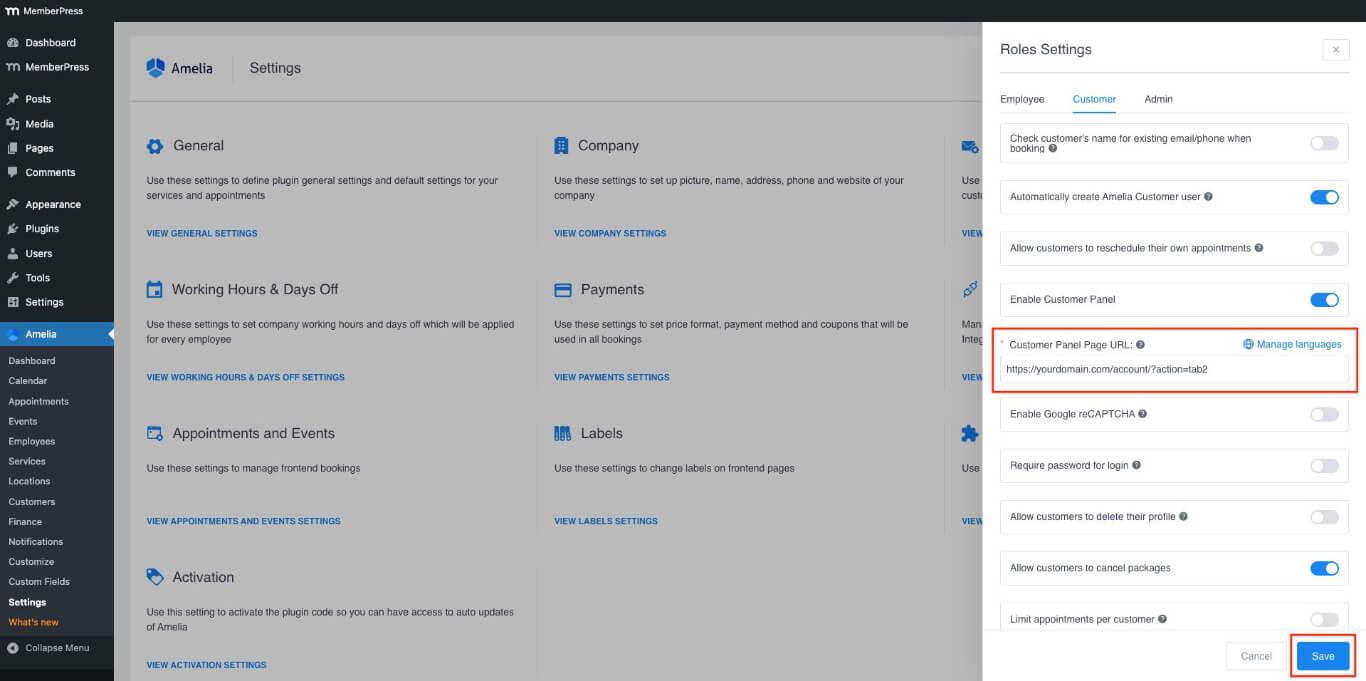
- Klicken Sie auf die Speichern Sie Taste.
Testen des Amelia-Frontend-Panels
Nachdem Sie Amelia-Panels zur Kontoseite hinzugefügt haben, überprüfen Sie die Integration, indem Sie die folgenden Schritte ausführen:
- Öffnen Sie Ihre Website in einem Browser. Inkognito-Fenster (privates Fenster).
- Melden Sie sich mit einem Testkonto an, das über die erforderliche Mitgliedschaft und die Möglichkeit zur Buchung von Veranstaltungen/Terminen verfügt.
- Navigieren Sie zum Konto Seite auf der Vorderseite.
- Klicken Sie auf die Kundenforum Registerkarte in der linken Seitenleiste.
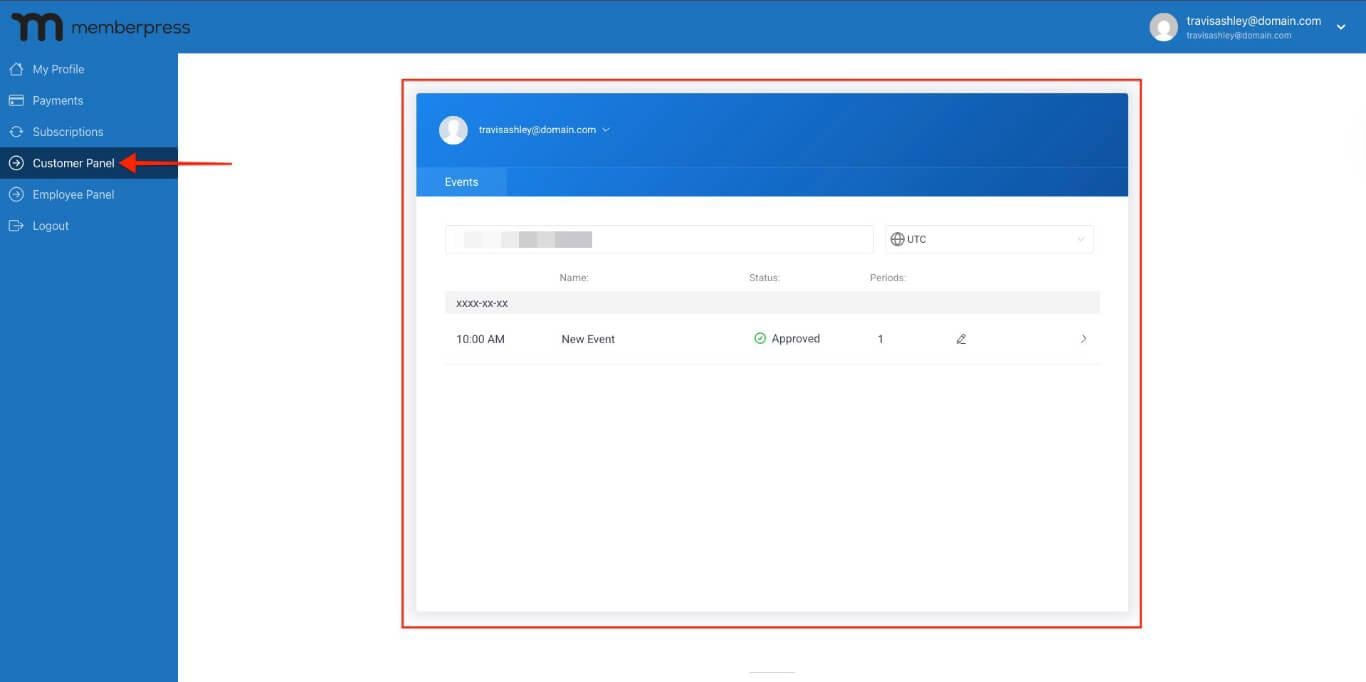
- Überprüfen Sie, ob Termine und Ereignisse entsprechend der Shortcode-Konfiguration korrekt angezeigt werden.
Einschränken der Tab-Sichtbarkeit
Mit MemberPress-Regeln können Sie festlegen, welche Mitglieder benutzerdefinierte Registerkarten sehen. Sie können beispielsweise die Mitarbeiterforum Registerkarte der Benutzer mit dem Amelia Kunde Rolle. Um die Sichtbarkeitseinstellungen zu konfigurieren, erstellen Sie eine neue MemberPress-Regel zum Schutz der Registerkarten.










 DE
DE  EN
EN  ES
ES  FR
FR  PT
PT 