

Bien que MemberPress et le Réservation d'Amelia Même si ces plugins ne sont pas officiellement compatibles, ils fonctionnent bien ensemble. En associant Amelia à MemberPress, vous pouvez gérer les personnes autorisées à réserver des événements et des rendez-vous en fonction des rôles et des adhésions des utilisateurs.
Ce document explique comment connecter MemberPress à Amelia afin que seuls les membres autorisés puissent effectuer des réservations. MemberPress peut attribuer un rôle supplémentaire aux abonnés de certaines adhésions. De plus, les règles MemberPress garantissent que seules les personnes ayant ce rôle peuvent accéder à la page de réservation.
Ce document contient les rubriques suivantes :
- Configuration des adhésions MemberPress
- Configuration des événements et des codes courts Amelia
- Restriction d'accès (règles MemberPress)
- Ajout de panneaux frontaux Amelia au compte MemberPress Page
Configuration des adhésions MemberPress
MemberPress adhésions peut attribuer un rôle utilisateur supplémentaire et un accès aux pages de réservation. Créer des niveaux d'adhésion pour Amelia.
Pour créer un compte membre sur MemberPress, suivez les étapes ci-dessous :
- Naviguez jusqu'à Tableau de bord > MemberPress > Adhésions.
- Cliquez sur le bouton Ajouter une nouvelle adhésion bouton.
- Créer une nouvelle adhésion (par exemple, “ Membre Premium ”).
- Lors de la création du compte, faites défiler vers le bas jusqu'à Options d'adhésion > Avancées et vérifiez l'onglet Rôles des utilisateurs pour cette adhésion option.
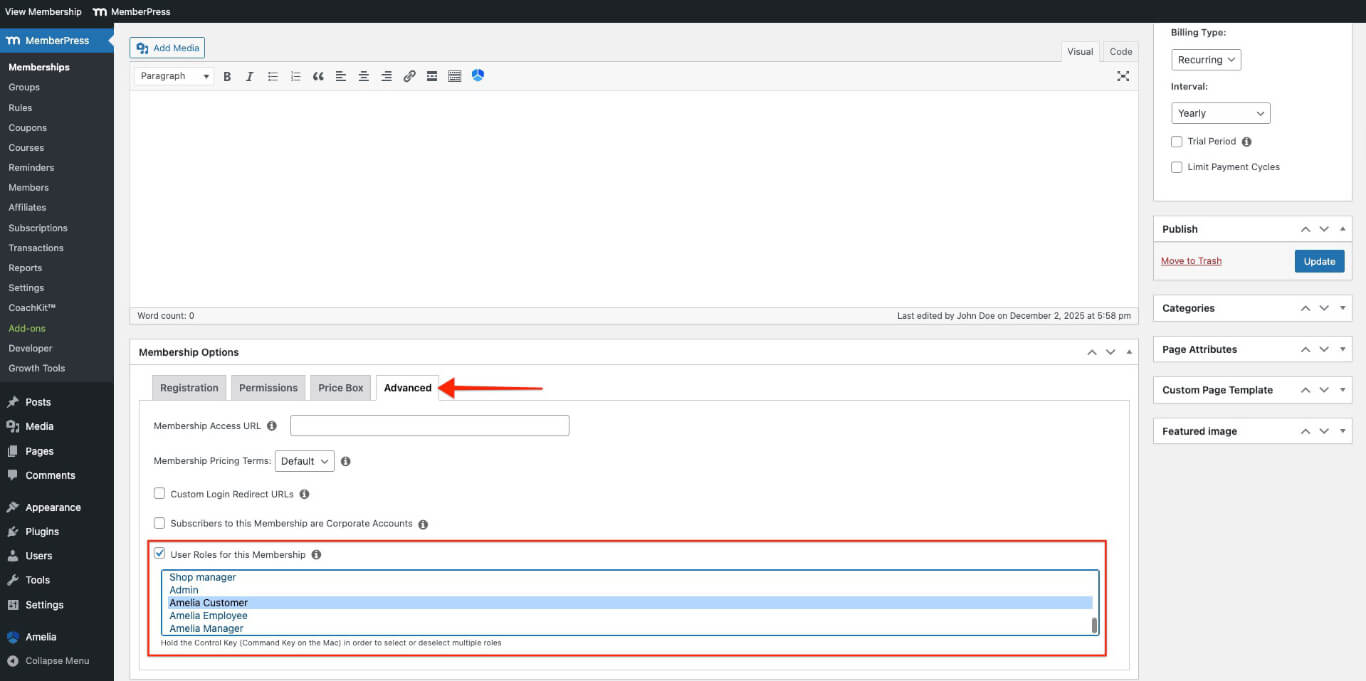
- Sélectionnez l'option Amelia Client rôle pour les clients ou le Employée d'Amelia rôle pour le personnel.
- Cliquez sur le bouton Publier bouton pour enregistrer l'adhésion.
Répétez ces étapes pour ajouter d'autres niveaux d'adhésion pour différents rôles d'utilisateurs.
Configuration des événements Amelia
Amelia propose des codes courts qui affichent des formulaires de réservation sur les pages ou les articles. Configurez le plugin et ajoutez des fonctionnalités de réservation là où vous en avez besoin.
Créer un événement Amelia
- Naviguez jusqu'à Tableau de bord > Amelia > Événements.
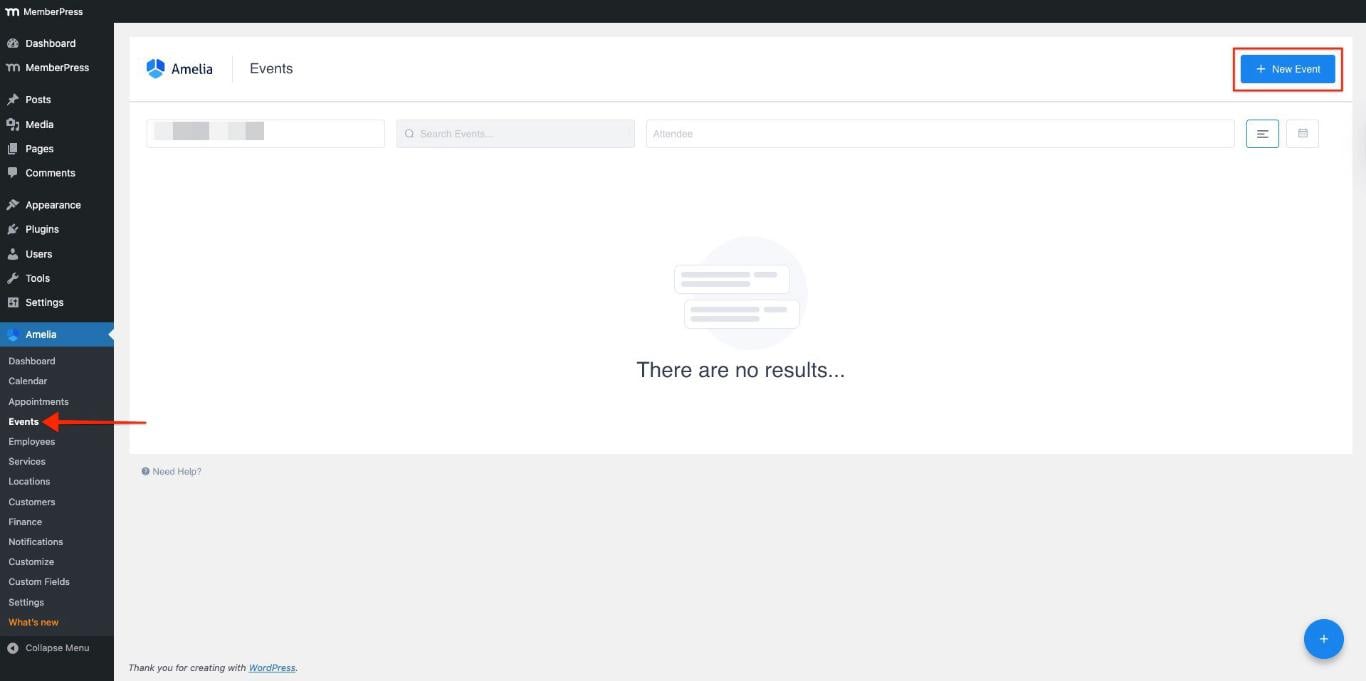
- Cliquez sur le bouton + Nouvel événement bouton pour créer un ou plusieurs événements.
- Entrez les détails de l'événement, tels que Nom, Dateet Temps.

- Ces options sont activées par défaut. Vous pouvez les désactiver pour sélectionner des dates personnalisées :
- Les réservations ouvrent immédiatement;
- Les réservations ferment lorsque l'événement commence..
- Ajoutez le prix et le nombre maximum de participants autorisés pour l'événement.
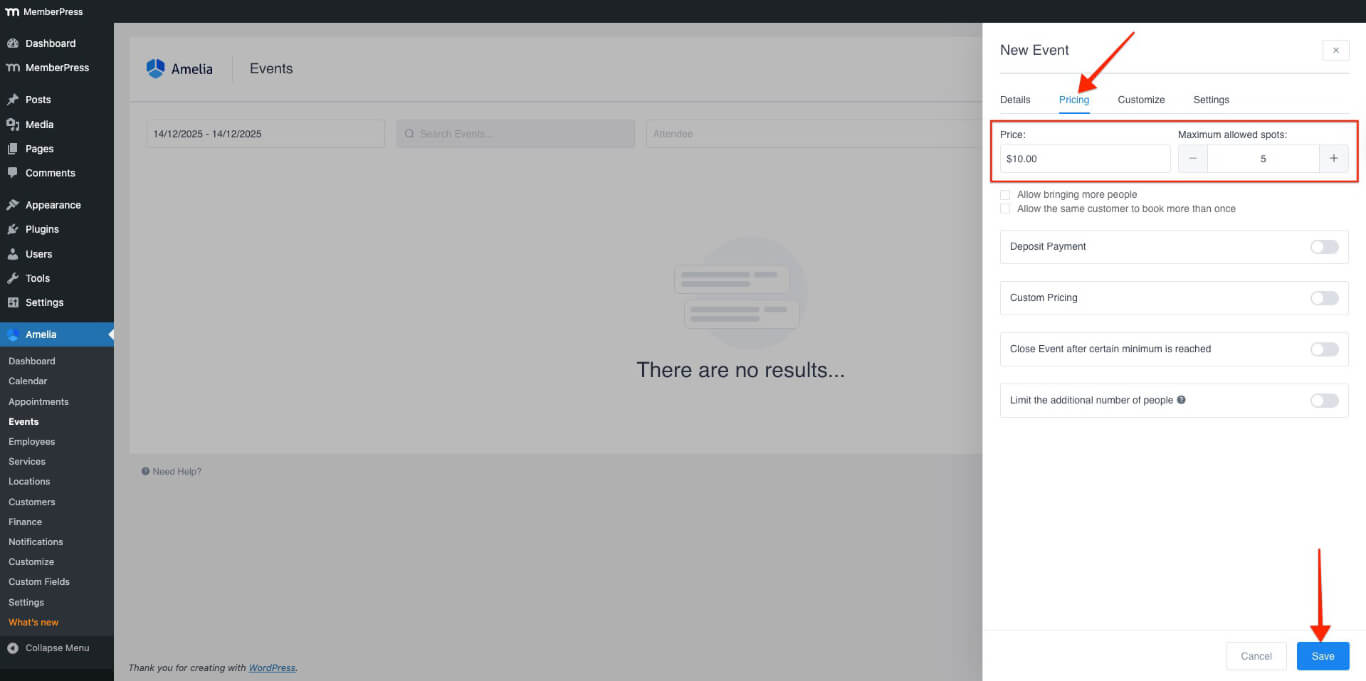
- Cliquez sur le bouton Économiser bouton.
Ajouter un code court d'événement à une page
- Accédez à une page existante ou créez une nouvelle page.
- Dans l'éditeur de page, cliquez sur le bouton Amelia bouton icône (si vous utilisez le Éditeur classique) ou ajouter un Amelia – Liste des événements bloc (si vous utilisez l'éditeur de blocs).
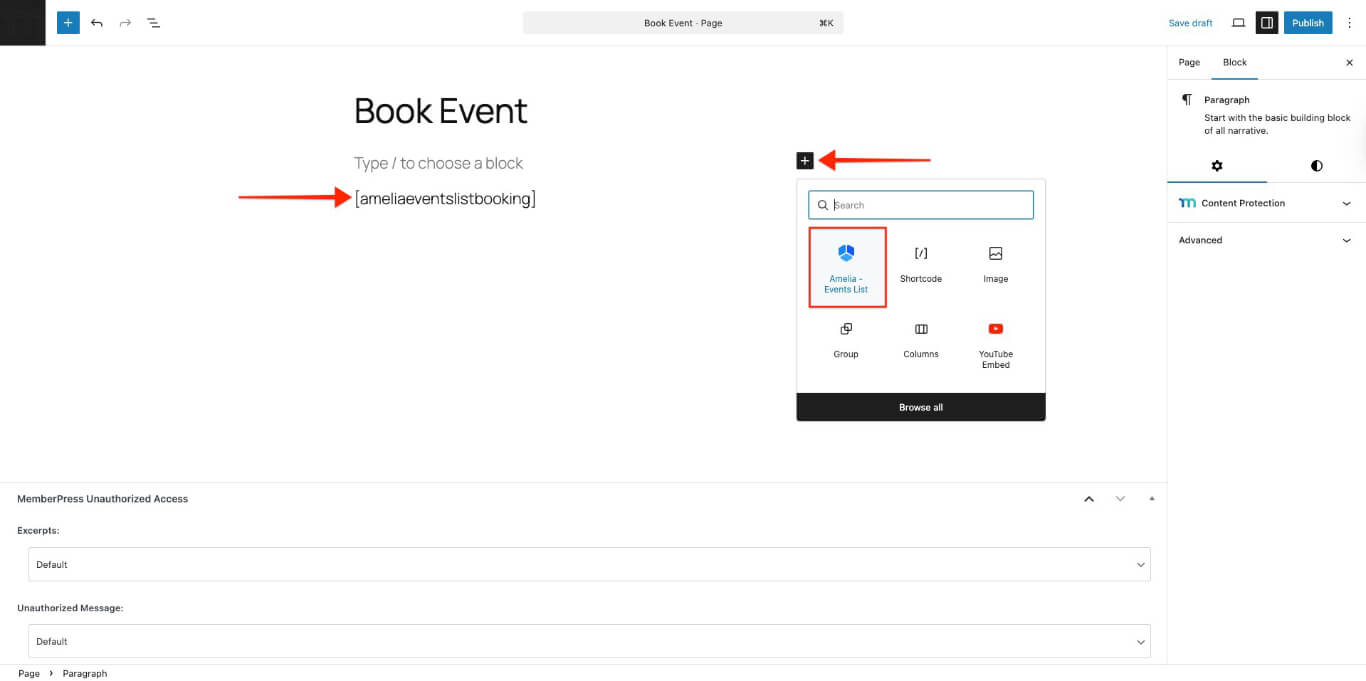
- Le shortcode sera automatiquement inséré dans la page.
- Pour l'insertion manuelle, copiez et collez le Code court pour la réservation de la liste des événements Amelia dans l'éditeur de page :
[ameliaeventslistbooking]- Cliquez sur Publier pour mettre la page en ligne.
La section suivante explique comment vous pouvez protéger cette page à l'aide de MemberPress Règles.
Restriction de l'accès aux pages de réservation à l'aide des règles MemberPress
MemberPress Règles Contrôlez le contenu que les membres peuvent voir. Utilisez les règles pour protéger les pages contenant des formulaires de réservation Amelia.
Créer une règle de protection
- Naviguez jusqu'à Tableau de bord > MemberPress > Règles.
- Cliquez sur le bouton Ajouter un nouveau bouton.
- Dans le cadre de la Contenu protégé dans le menu déroulant, sélectionnez le Une seule page option.
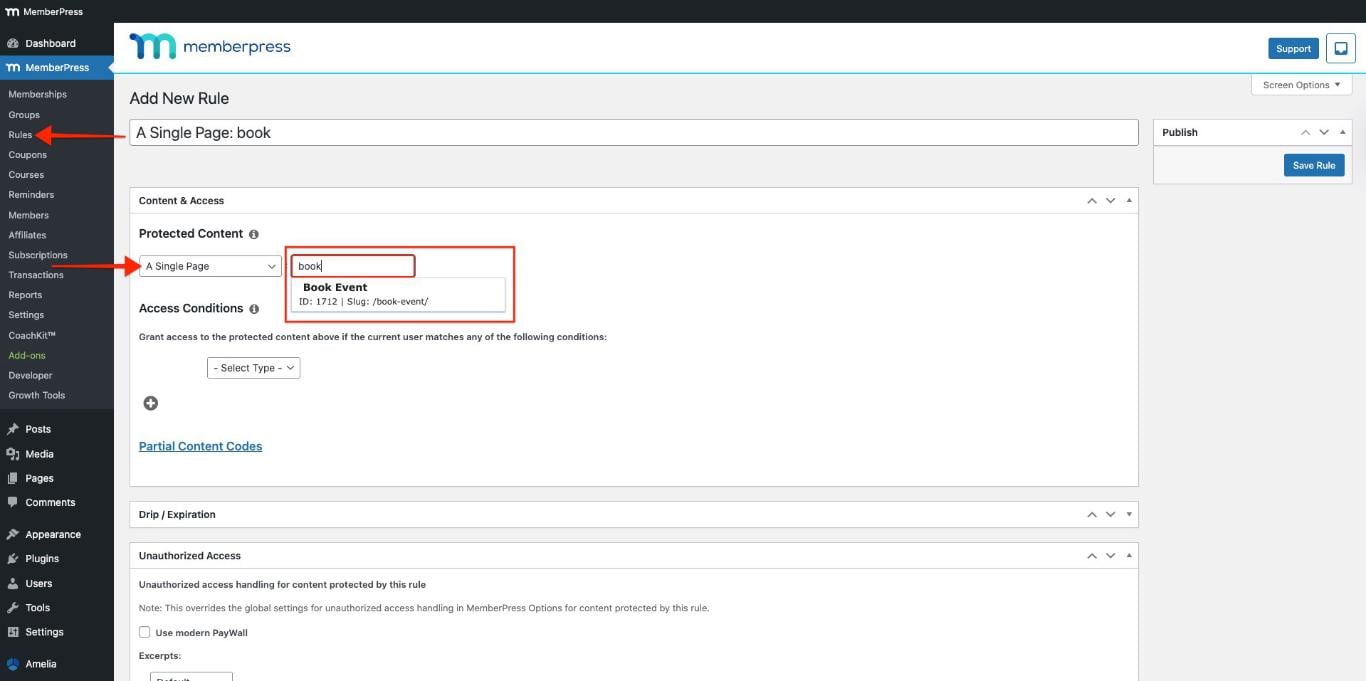
- Tapez le nom de la page dans le Commencez à saisir le titre champ et sélectionnez la page dans le menu déroulant.
- Dans le cadre de la Conditions d'accès section :
- Choisir L'adhésion dans le premier menu déroulant et Amelia Client dans le deuxième menu déroulant ;
- Sélectionnez les membres qui doivent avoir accès à la page de réservation.
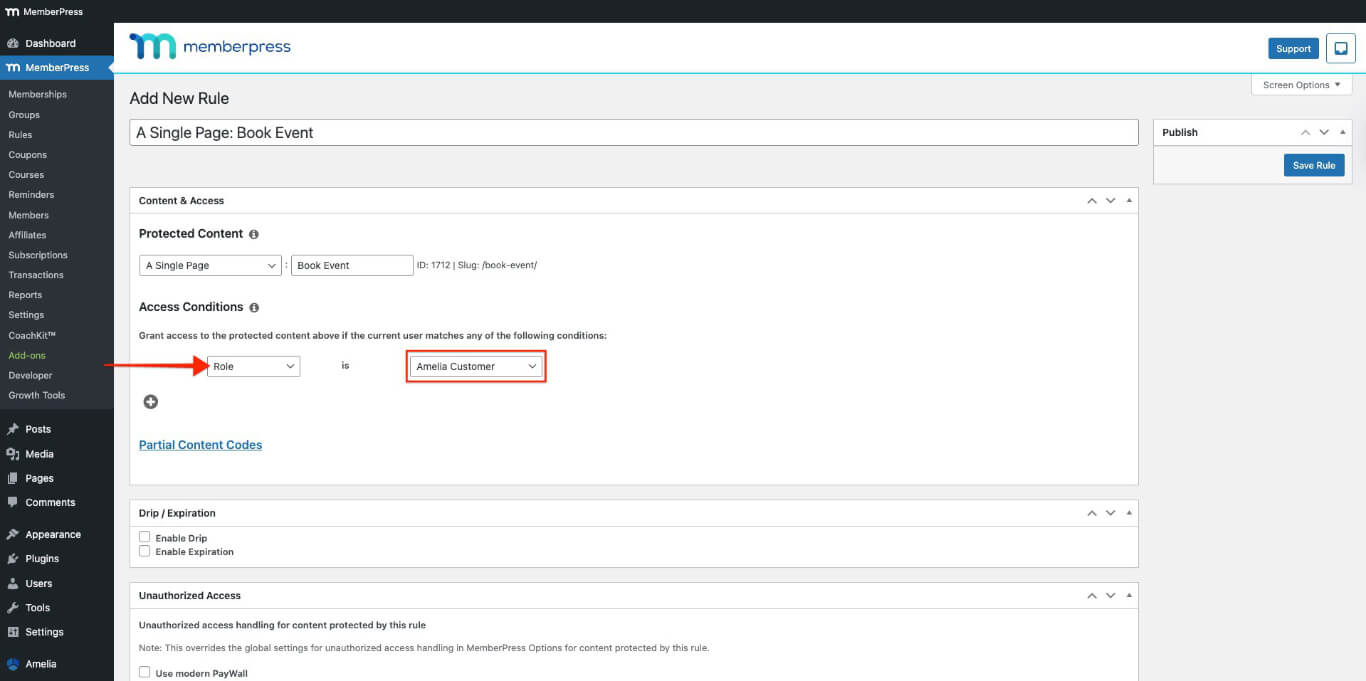
- Faites défiler vers le bas jusqu'à la rubrique Accès non autorisé section.
- Dans le cadre de la Message non autorisé dans le menu déroulant, sélectionnez le Sur mesure option.
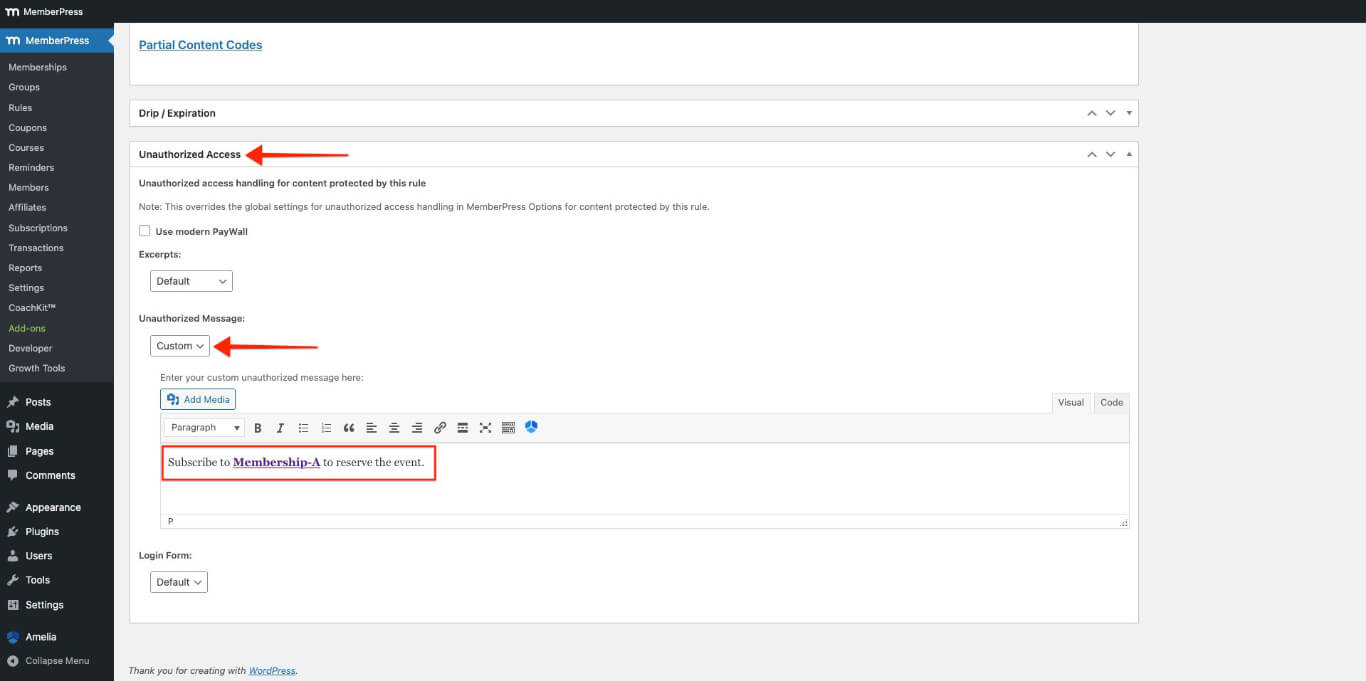
- Entrez votre message personnalisé pour les utilisateurs non autorisés qui accèdent à cette page.
- Cliquez sur le bouton Sauvegarder la règle bouton en haut à droite.
Inscription à l'adhésion et réservation de l'événement
- Aller à Tableau de bord > MemberPress > Adhésions.
- Ouvrez l'adhésion dans votre navigateur. Fenêtre Incognito (privée).
- Entrez les informations requises pour vous inscrire en tant qu'utilisateur test, puis sélectionnez l'une des options suivantes : Mode de paiement hors ligne ou Rayure. Vous pouvez utiliser Numéros de la carte de test Stripe pour s'inscrire.
- Visitez le page de réservation d'événement avec le shortcode.

- Cliquez sur le bouton En savoir plus bouton pour revoir l'événement.
- Cliquez sur le bouton Réserver un événement bouton.
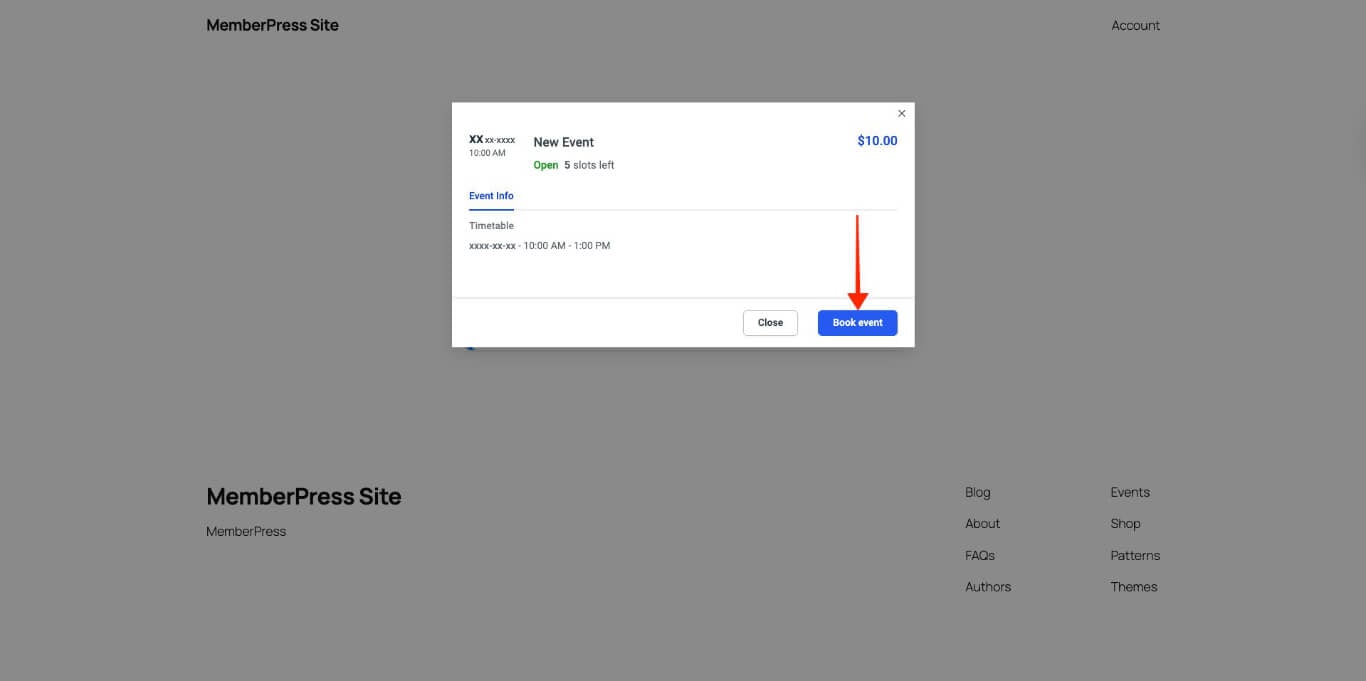
- Entrez toutes les informations requises, puis cliquez sur le bouton Continuer bouton.
- Cliquez sur le bouton Réserver un événement bouton.

- Cliquez sur le bouton Fin bouton ou le Panel de clients bouton.
Test des pages de réservation
Les tests permettent de s'assurer que les règles MemberPress bloquent l'accès aux pages de réservation Amelia.
Créer plusieurs comptes test avec différents niveaux d'adhésion.
- Ouvrez votre site dans un navigateur. Fenêtre Incognito (privée).
- Connectez-vous avec un compte test disposant de l'adhésion nécessaire.
- Accédez à la page de réservation et vérifiez que le formulaire de réservation Amelia est visible et fonctionne.
- Déconnectez-vous, puis reconnectez-vous avec un compte de test qui ne dispose pas de l'abonnement.
- Rendez-vous sur la page de réservation et vérifiez si le message d'accès non autorisé apparaît à la place du formulaire de réservation.
Si les restrictions d'accès ne fonctionnent pas, vérifiez le MemberPress Règles pour s'assurer que les niveaux d'adhésion et les pages appropriés sont sélectionnés.
Ajout des panneaux frontaux Amelia à la page du compte MemberPress
Vous pouvez ajouter les panneaux clients et employés Amelia à Onglets de navigation du compte MemberPress sous forme d'onglets personnalisés. Cela permet aux membres de gérer leurs rendez-vous et leurs événements directement depuis leur page de compte MemberPress.
Avant d'ajouter des panneaux Amelia à la page du compte, assurez-vous que le Le module complémentaire MemberPress Account Navigation Tabs est installé et activé..
De plus, assurez-vous que vous disposez du version premium du plugin Amelia pour accéder au Panneau avant Amelia caractéristiques.
Comprendre les codes courts du panneau Amelia
Amelia fournit deux codes courts de panneau frontal pour intégrer les portails clients et employés.
Amelia Customer Panel Shortcodes
Le panneau ’ Clients » affiche les rendez-vous et les événements des membres. Utilisez les variantes de shortcode suivantes en fonction des besoins de contenu.
Ce shortcode affiche les rendez-vous et les événements dans le panel clients Amelia :
[panneau client Amelia rendez-vous=1 événements=1]Vous pouvez afficher les rendez-vous ou les événements dans le panneau client à l'aide des options suivantes :
- Suppression de events=1 s'affichera sur rendez-vous uniquement:
[panneau client Amelia rendez-vous=1]- Suppression des rendez-vous=1 s'affichera événements uniquement:
[panneau client Amelia événements=1]Amelia Employee Panel Shortcodes
Le panneau ’ Employés » affiche les rendez-vous et les événements du personnel. Utilisez les variantes de shortcode suivantes en fonction des besoins de contenu :
Ce shortcode affiche les rendez-vous et les événements dans le panel des employés d'Amelia :
[ameliaemployeepanel rendez-vous=1 événements=1]Vous pouvez afficher les rendez-vous ou les événements dans le panneau des employés à l'aide des options suivantes :
- Suppression de events=1 s'affichera sur rendez-vous uniquement:
[ameliaemployeepanel rendez-vous=1]- Suppression des rendez-vous=1 s'affichera événements uniquement:
[ameliaemployeepanel événements=1]Ajouter des panneaux Amelia comme onglets de la page Compte
Suivez ces étapes pour ajouter des panneaux Amelia à la page du compte MemberPress :
- Naviguez jusqu'à Tableau de bord > MemberPress > Compte.
- Activer les onglets de navigation du compte et ajouter un nouvel onglet de navigation.

- Coller le Panneau client frontal Amelia code court pour les événements.
[ameliacustomerpanel events=1]- Cliquez sur le bouton Options de mise à jour bouton.
- Créer un autre onglet pour le Panel d'employés, en suivant les étapes 1 à 4 ci-dessus.
Les nouveaux onglets apparaîtront sur le MemberPress Page du compte.
Activation des panneaux Employés et Clients
Suivez ces étapes pour activer les panneaux « Employés » et « Clients » d’Amelia.
Activer le panneau Employé
- Aller à la page MemberPress Page du compte.
- Cliquez sur le bouton Panel d'employés onglet créé dans le section précédente dans la barre latérale gauche.
- Copier le URL à partir de la barre d'adresse du navigateur.
- Naviguez jusqu'à la page Tableau de bord > Amelia > Paramètres.
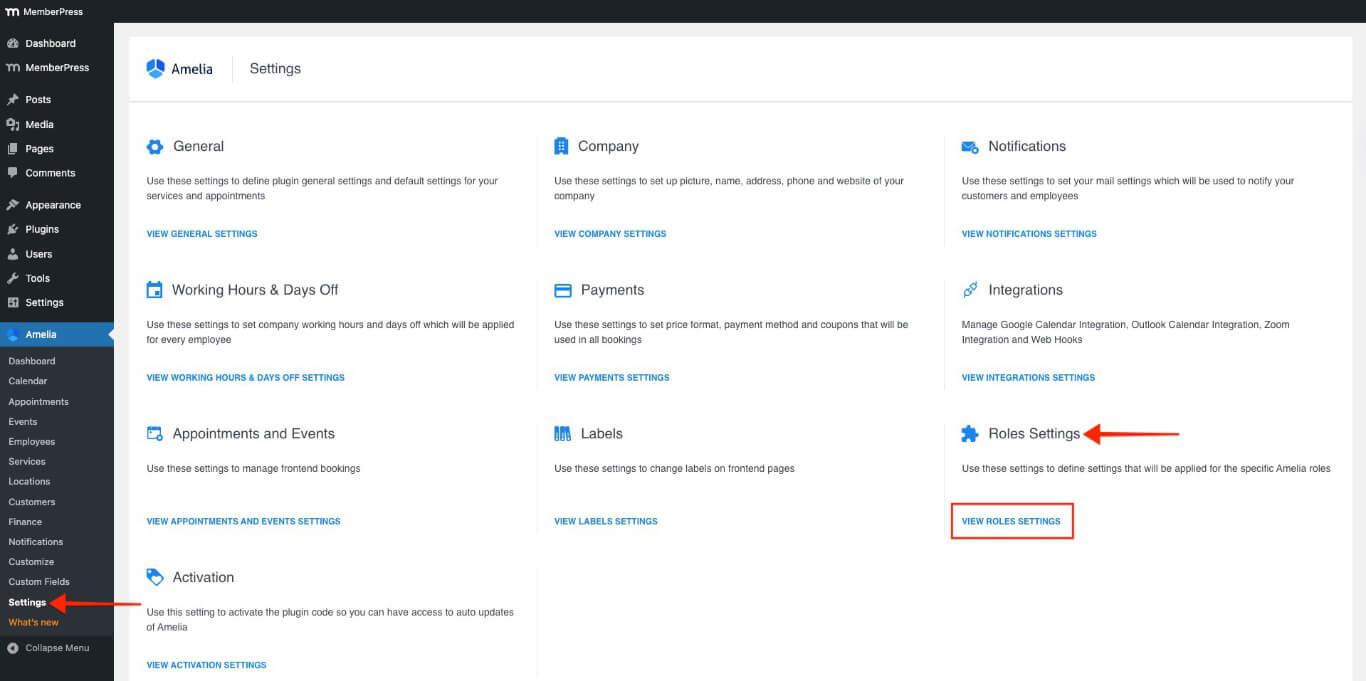
- Dans le cadre de la Paramètres des rôles Cliquez sur la section Afficher les paramètres des rôles bouton.
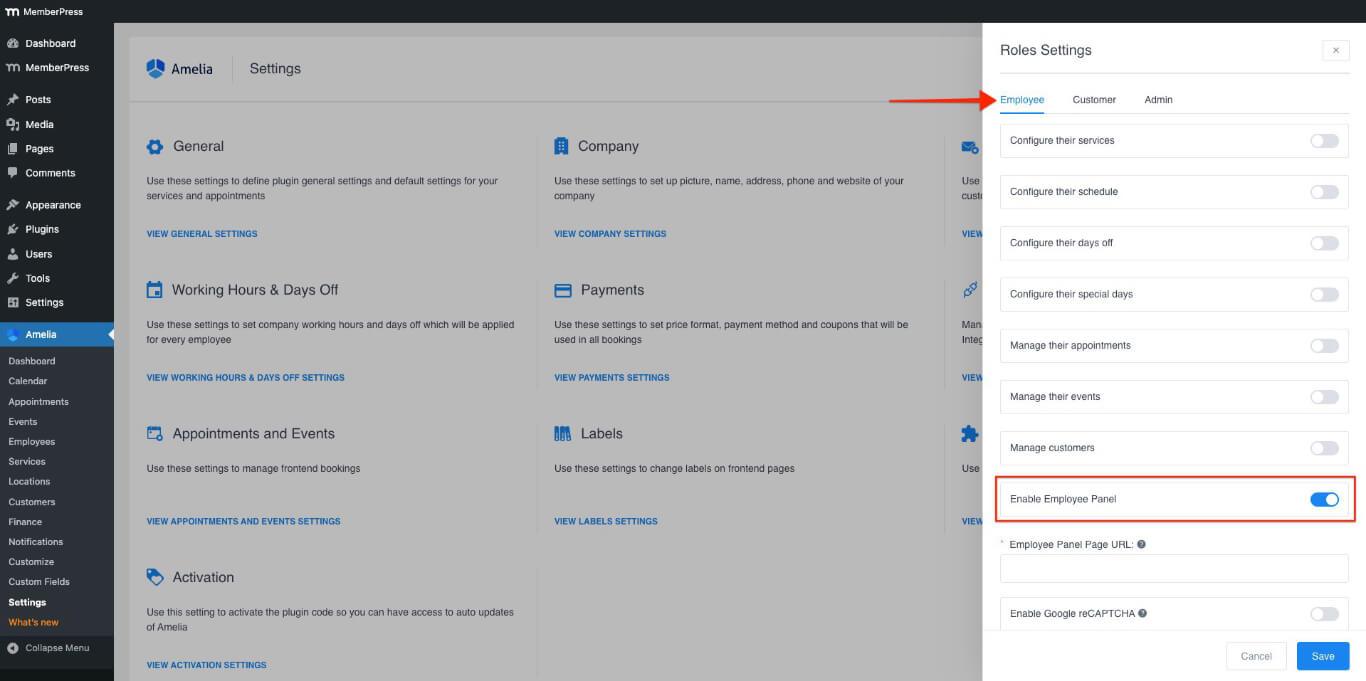
- A partir de la Employé onglet, basculez le Activer le panneau des employés option ON. Les URL de la page du panel des employés apparaîtra.
- Dans le cadre de la URL de la page du panel des employés champ, collez l'URL du Panel d'employés tabulation.
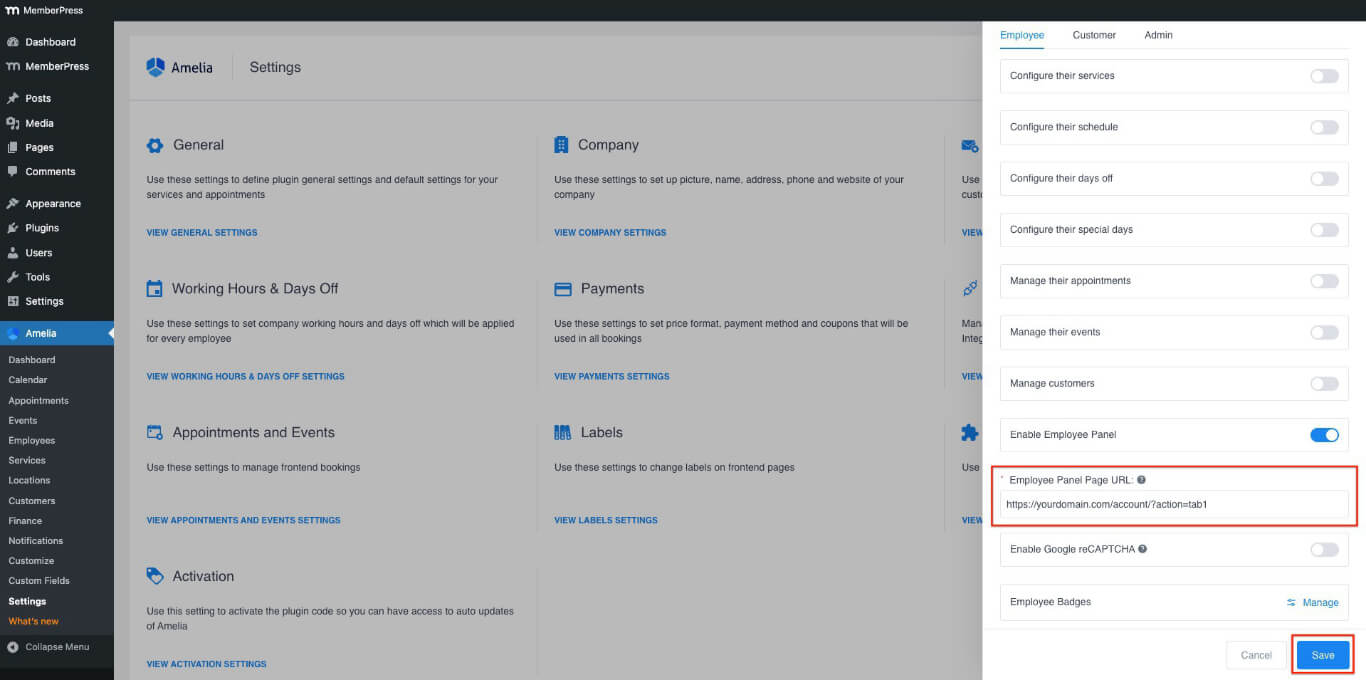
- Cliquez sur le bouton Économiser bouton.
Activer le panneau client
- Aller à la page MemberPress Page du compte.
- Cliquez sur le bouton Panel de clients onglet créé dans le section précédente dans la barre latérale gauche.
- Copier le URL à partir de la barre d'adresse du navigateur.
- Naviguez jusqu'à la page Tableau de bord > Amelia > Paramètres.
- Dans le cadre de la Paramètres des rôles Cliquez sur la section Afficher les paramètres des rôles bouton.
- A partir de la Clients onglet, basculez le Activer le panneau client option ON. Les URL de la page du panel client apparaîtra.
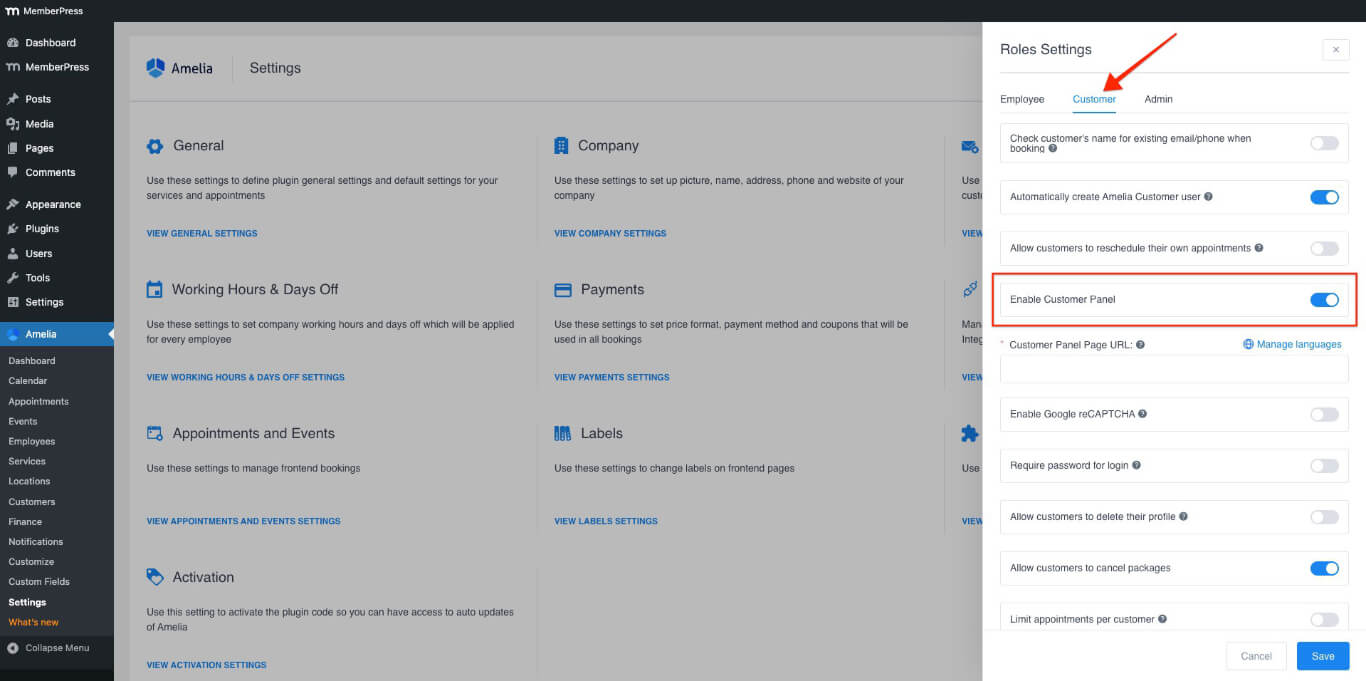
- Dans le cadre de la URL de la page du panel client champ, collez l'URL du Panel de clients tabulation.
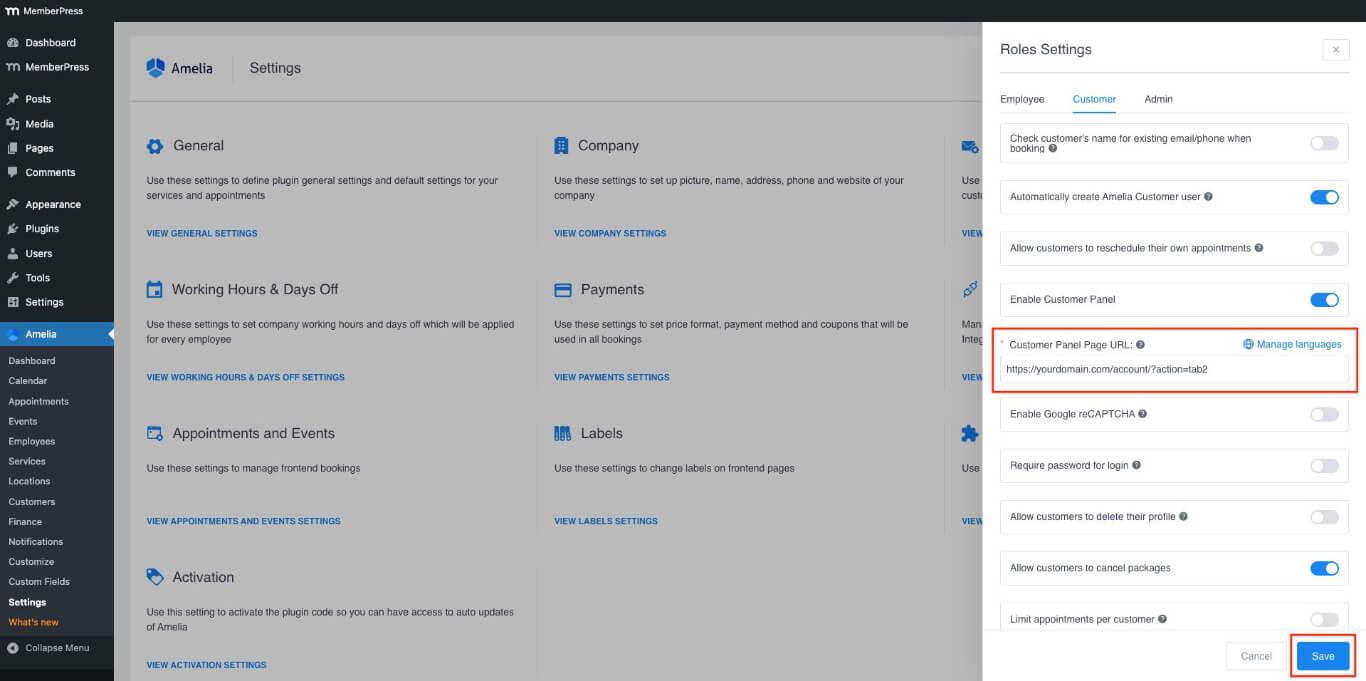
- Cliquez sur le bouton Économiser bouton.
Test du panneau avant Amelia
Après avoir ajouté les panneaux Amelia à la page du compte, vérifiez l'intégration en suivant ces étapes :
- Ouvrez votre site dans un navigateur. Fenêtre Incognito (privée).
- Connectez-vous avec un compte test disposant de l'adhésion nécessaire et de la réservation d'événement/rendez-vous.
- Naviguez jusqu'à la page Page du compte à l'avant.
- Cliquez sur le bouton Panel de clients onglet dans la barre latérale gauche.
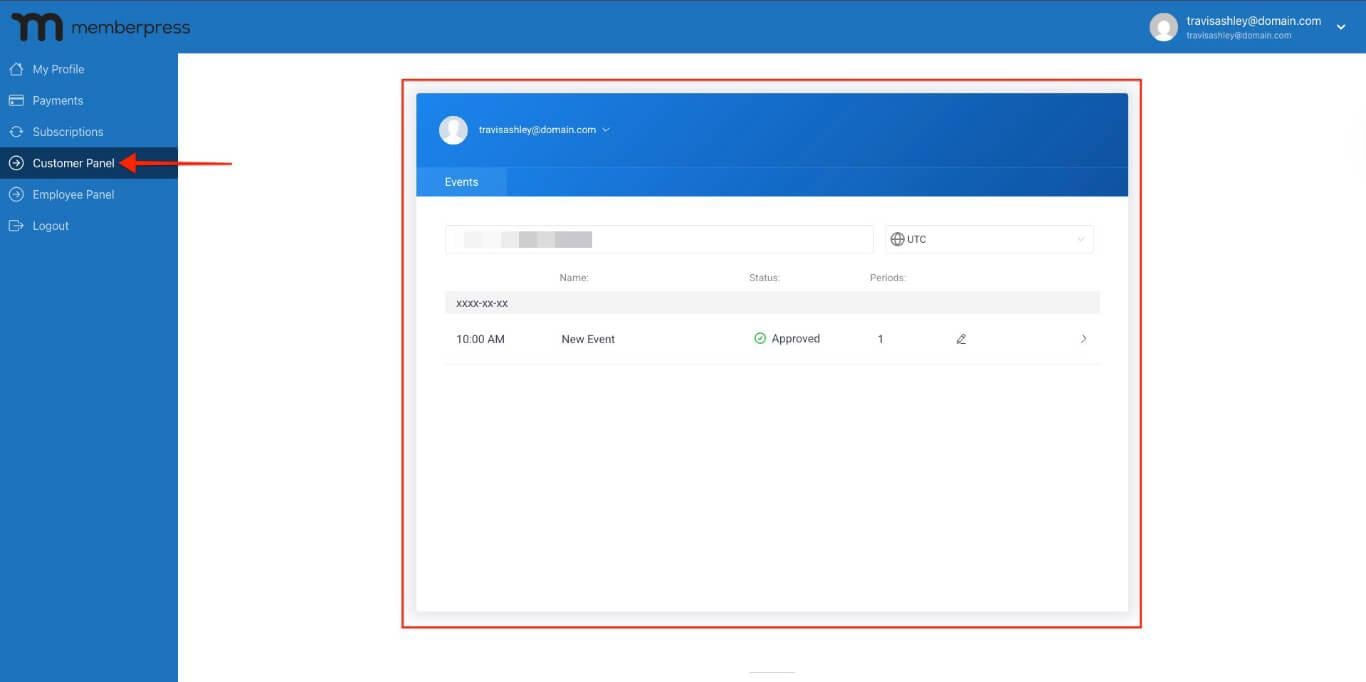
- Vérifiez que les rendez-vous et les événements s'affichent correctement en fonction de la configuration du shortcode.
Restriction de la visibilité des onglets
Vous pouvez gérer les membres qui voient les onglets personnalisés à l'aide des règles MemberPress. Par exemple, vous pouvez masquer le Panel d'employés onglet des utilisateurs avec le Amelia Client rôle. Pour configurer les paramètres de visibilité, créez un nouveau Règle MemberPress pour protéger les onglets.










 FR
FR  EN
EN  ES
ES  DE
DE  PT
PT 