

Vous pouvez personnaliser votre navigation mobile MemberPress en téléchargeant vos propres icônes personnalisées pour la barre d'onglets et l'écran More. Cela donne à votre application une image de marque et un aspect soigné qui s'harmonise avec votre identité visuelle.
Ce guide vous aide à télécharger des icônes personnalisées, à appliquer la fonction Color Fill et à les tester sur les appareils iOS et Android.
Comprendre la fonction d'icône personnalisée
Les exigences en matière d'icônes personnalisées définissent les configurations pour la personnalisation de la marque de navigation par le biais de ressources d'icônes téléchargées et de la personnalisation des couleurs.
Possibilité de télécharger des icônes permet de remplacer les icônes de navigation par défaut par des images personnalisées dans l'ensemble de l'interface de l'application. Les icônes personnalisées renforcent l'identité de la marque et la cohérence visuelle des éléments de navigation.
Fonctionnalité de remplissage des couleurs convertit les zones blanches des icônes en zones transparentes et superpose les couleurs de la marque pour un style cohérent. L'application des couleurs garantit que les icônes correspondent au thème général de l'application et à la palette de couleurs.
Ajustement du recadrage permet de modifier les limites des icônes et de les adapter aux contraintes de la navigation. Un recadrage approprié évite les distorsions et préserve la clarté des icônes sur tous les appareils.
Personnalisation du style propose des variantes d'icônes remplies ou de contours avec des options de conteneurs carrés ou circulaires. La flexibilité du style permet de s'adapter aux différentes préférences en matière de conception et aux directives de la marque.
Cohérence entre les plates-formes garantit que les icônes personnalisées s'affichent correctement sur les appareils iOS et Android. L'apparence uniforme maintient la reconnaissance de la marque quelle que soit la plateforme de l'utilisateur.
Ouverture des paramètres de la barre d'onglets
L'accès aux paramètres de la barre d'onglets permet de télécharger et de configurer des icônes personnalisées pour les éléments du menu de navigation.
- Dans votre tableau de bord WordPress, rendez-vous dans Tableau de bord > MP AppKit > Menu > Barre d'onglets.
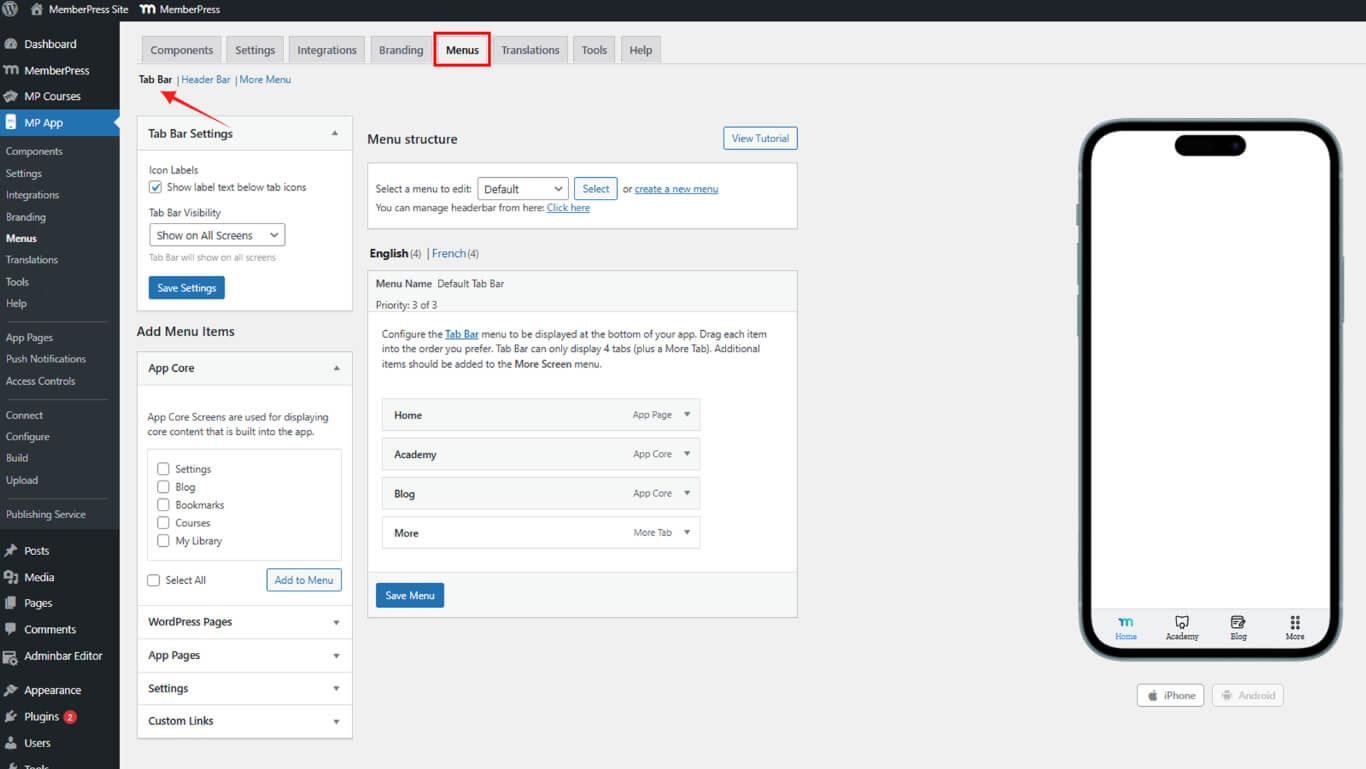
- L'aperçu de la barre d'onglets apparaît à droite.
- Faire basculer l'aperçu sur Plus d'écran si nécessaire.
Téléchargement d'une icône personnalisée
Le téléchargement d'icônes personnalisées remplace les icônes de navigation par défaut par des images de marque pour une apparence personnalisée.
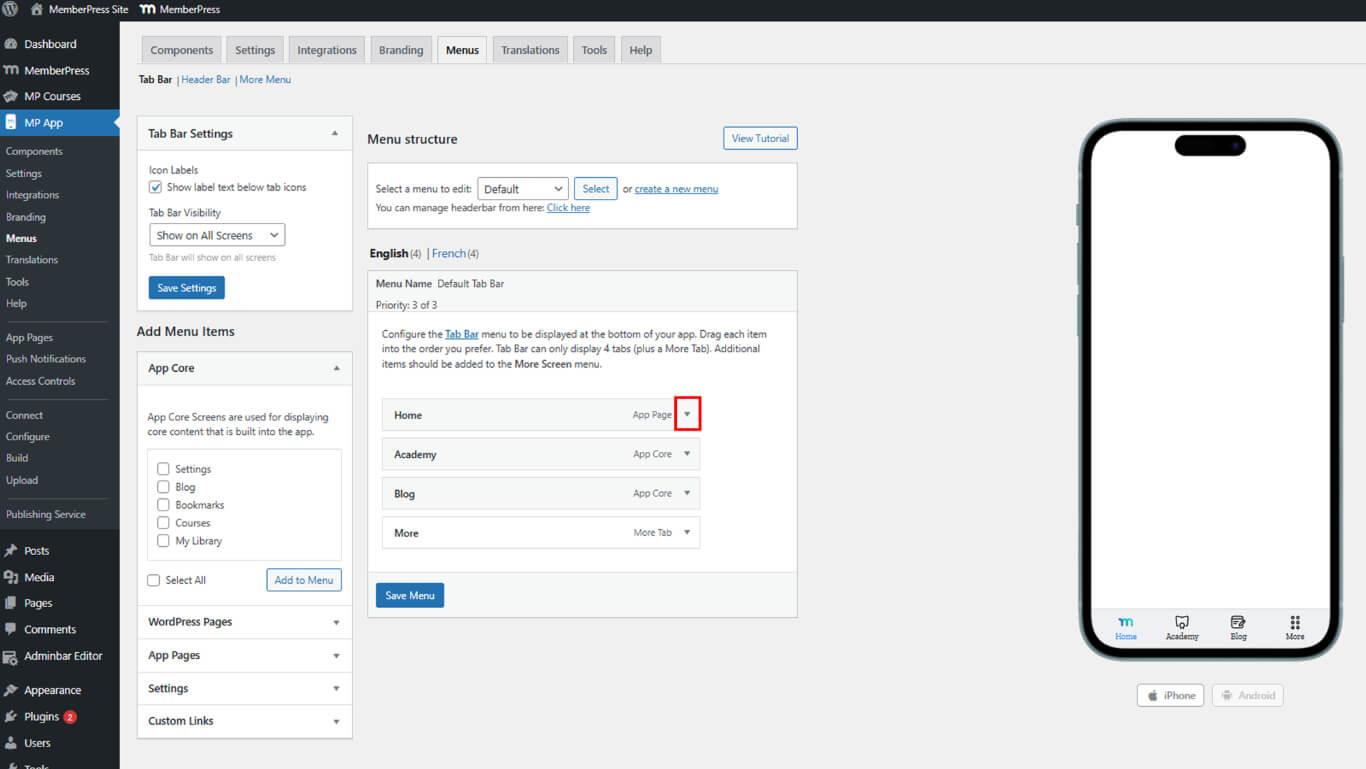
- Cliquez sur la flèche déroulante située à côté d'un élément de menu de la barre d'onglets (par exemple, Accueil).
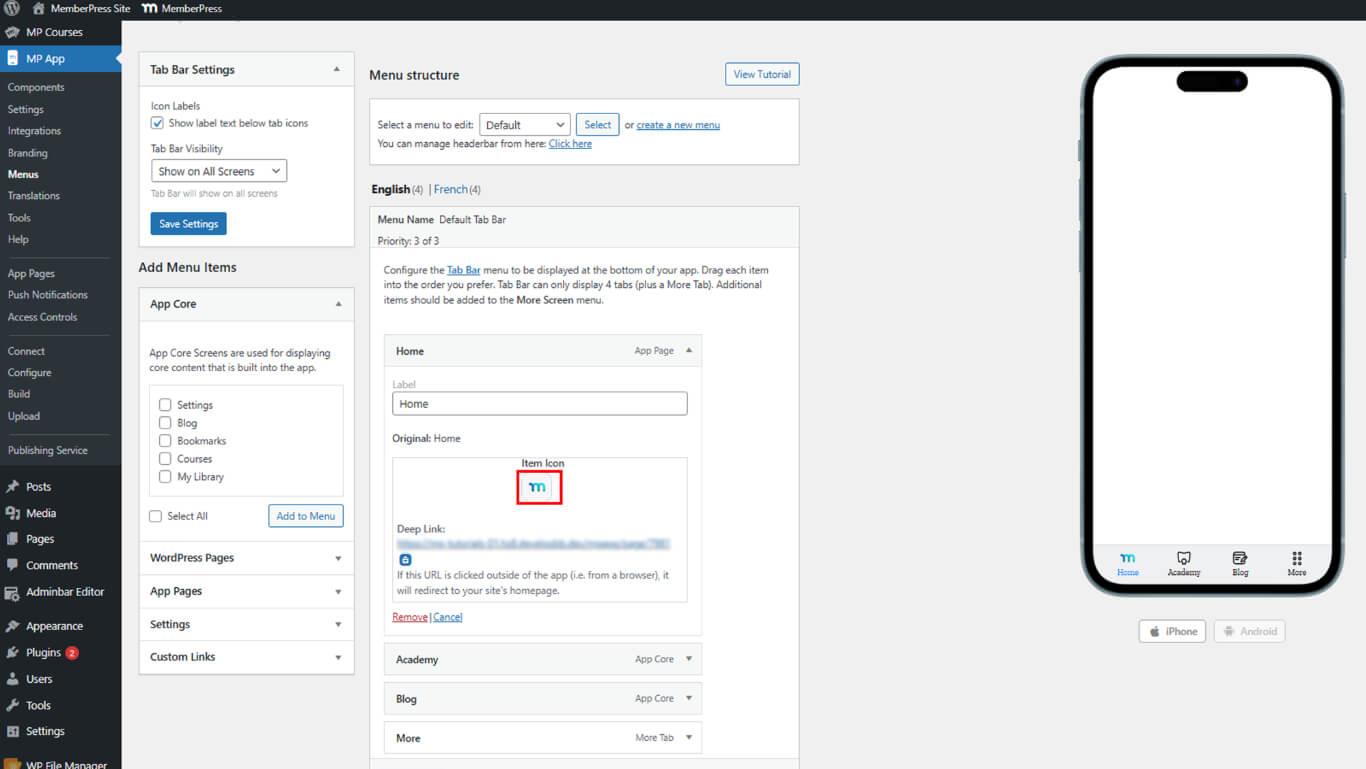
- Cliquez sur Icône de l'article.
- Aller à La coutume tabulation.
- Cliquez sur le bouton Icône de téléchargement, puis sélectionnez un fichier PNG, SVG ou JPEG avec un arrière-plan transparent.
Recadrage et application d'une icône
Le recadrage des icônes permet d'ajuster les limites de l'image téléchargée, garantissant ainsi un ajustement et un affichage corrects dans l'interface de navigation.
- Dans la boîte de dialogue de recadrage, ajustez les bords de l'icône pour qu'elle tienne dans le carré.
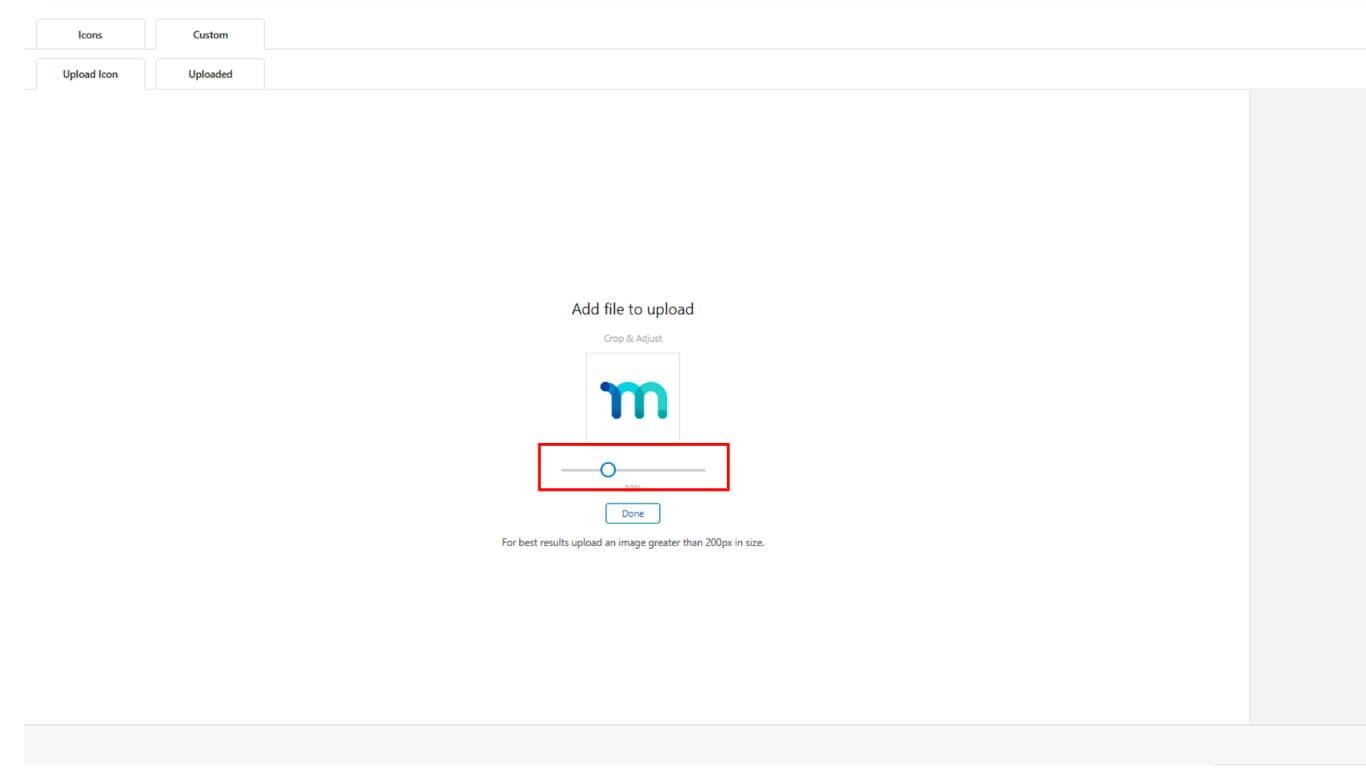
- Cliquez sur Terminé, puis cliquez sur Utiliser cette icône.
- Si la taille vous semble incorrecte, supprimez l'icône et téléchargez-la à nouveau avec un meilleur cadrage.
- Cliquez sur Menu de mise à jour pour enregistrer les modifications.
Utilisation du remplissage de couleur pour faire correspondre les styles
L'application de remplissage de couleur convertit les zones d'icônes blanches en zones transparentes et superpose les couleurs de la marque pour un style cohérent.
- Ouvrez les paramètres de l'icône pour votre icône personnalisée.
- Activer le Remplissage des couleurs case à cocher.
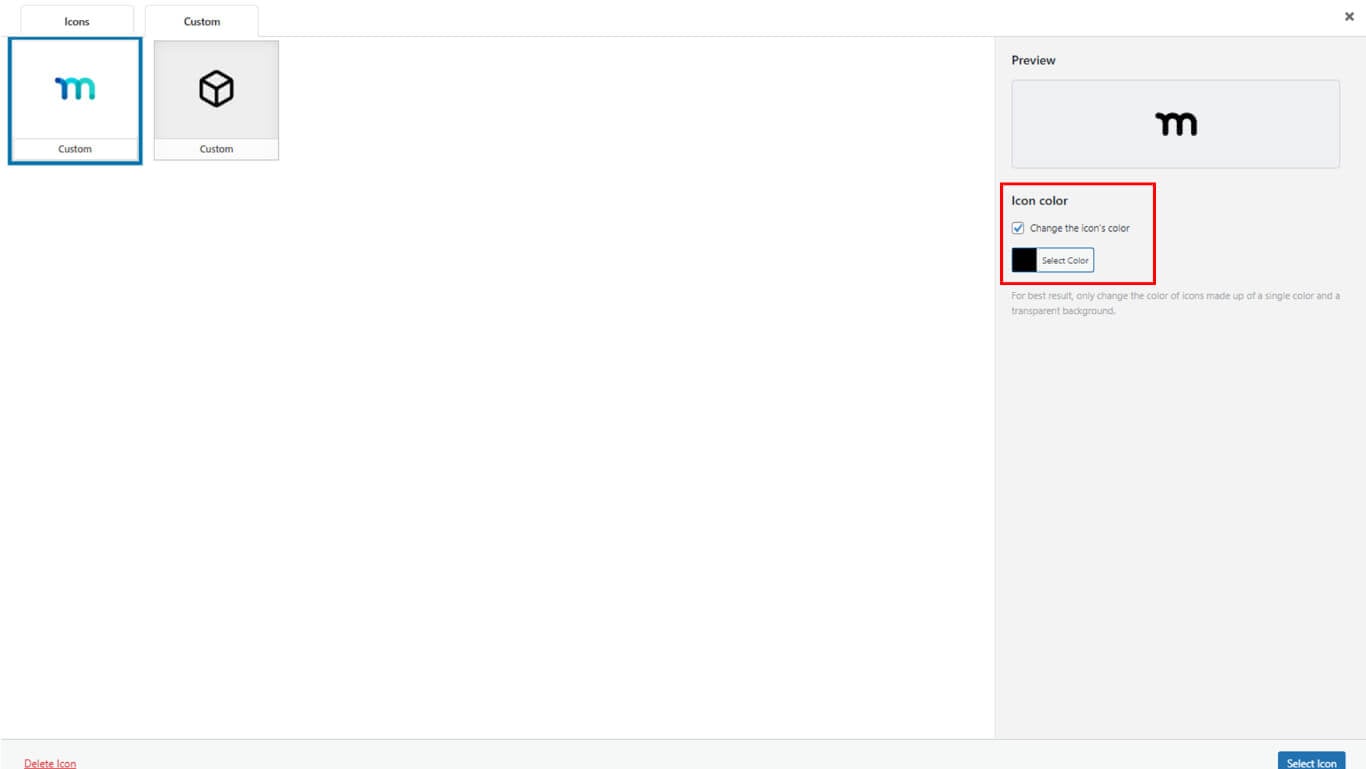
- Cliquez sur le bouton Couleur de l'icône et choisissez la teinte de votre marque.
- Choisir Style icône (Rempli ou Contour) et Style boîte (carrée ou circulaire).
- Cliquez sur Utiliser cette icônealors Menu de mise à jour à épargner.
Répéter pour plus d'écran Menu
La configuration du menu More Screen applique des icônes personnalisées aux éléments de navigation secondaires, ce qui permet de maintenir une image de marque cohérente.
- Passez à l'option Menu Plus d'écran onglet sous Tableau de bord > MP AppKit > Menu > Barre d'onglets.
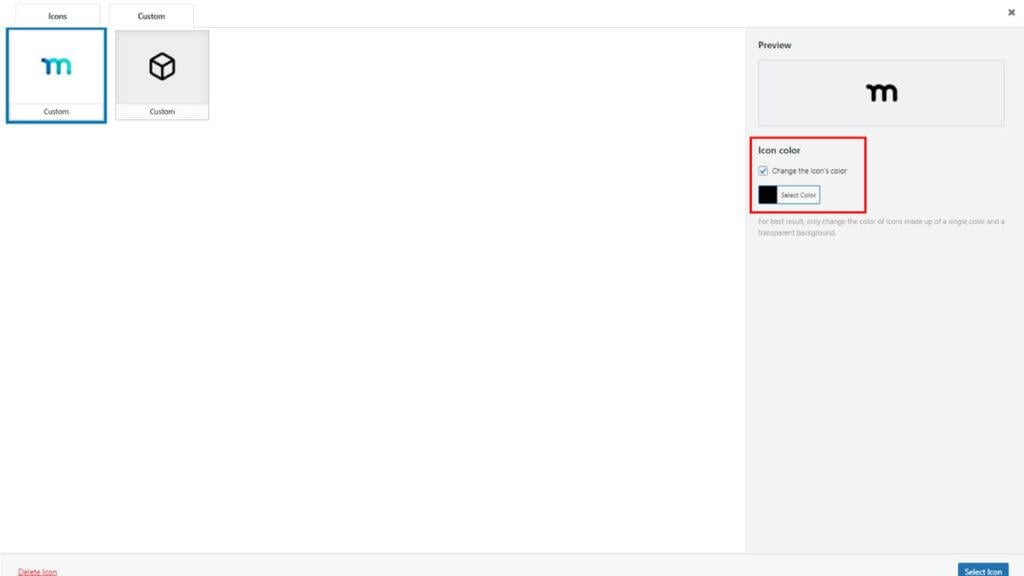
- Répétez les étapes de téléchargement, de recadrage et de remplissage des couleurs pour chaque élément du menu Plus d'écran.
- Cliquez sur le bouton Sauvegarder le menu lorsque toutes les icônes sont en place.
Test dans l'application
Les tests d'application vérifient l'affichage correct des icônes personnalisées sur toutes les plateformes, garantissant ainsi une mise en œuvre et une apparence correctes.
- Fermez de force l'application MemberPress iOS/Android sur votre appareil.
- Rouvrez l'application pour charger les derniers paramètres de l'icône.
- Confirmer que les icônes personnalisées s'affichent correctement dans la barre d'onglets et l'écran Plus sur iOS et Android.










 FR
FR  EN
EN  ES
ES  DE
DE  PT
PT 