

La préparation de l'application iOS MemberPress pour l'App Store d'Apple nécessite des paramètres MemberPress AppKit et App Store Connect appropriés. Les étapes de configuration garantissent la conformité avec les directives d'Apple et rationalisent le processus de révision.
Ce document explique comment préparer l'application dans MemberPress AppKit, configurer les paramètres dans App Store Connect et la soumettre à l'examen de l'App Store.
Comprendre les exigences de l'App Store
La soumission à l'App Store d'Apple nécessite des configurations et des informations spécifiques avant d'être approuvée. Les applications doivent respecter les directives d'Apple, y compris les politiques de confidentialité, les classifications par âge et les restrictions de contenu. La configuration des achats in-app, la documentation relative à la politique de confidentialité et les identifiants d'accès des évaluateurs sont obligatoires pour la soumission. Une bonne préparation réduit les risques de rejet et accélère les délais d'approbation.
Configuration des achats intégrés
La configuration des achats in-app permet la monétisation par le biais de la facturation de l'App Store, le cas échéant.
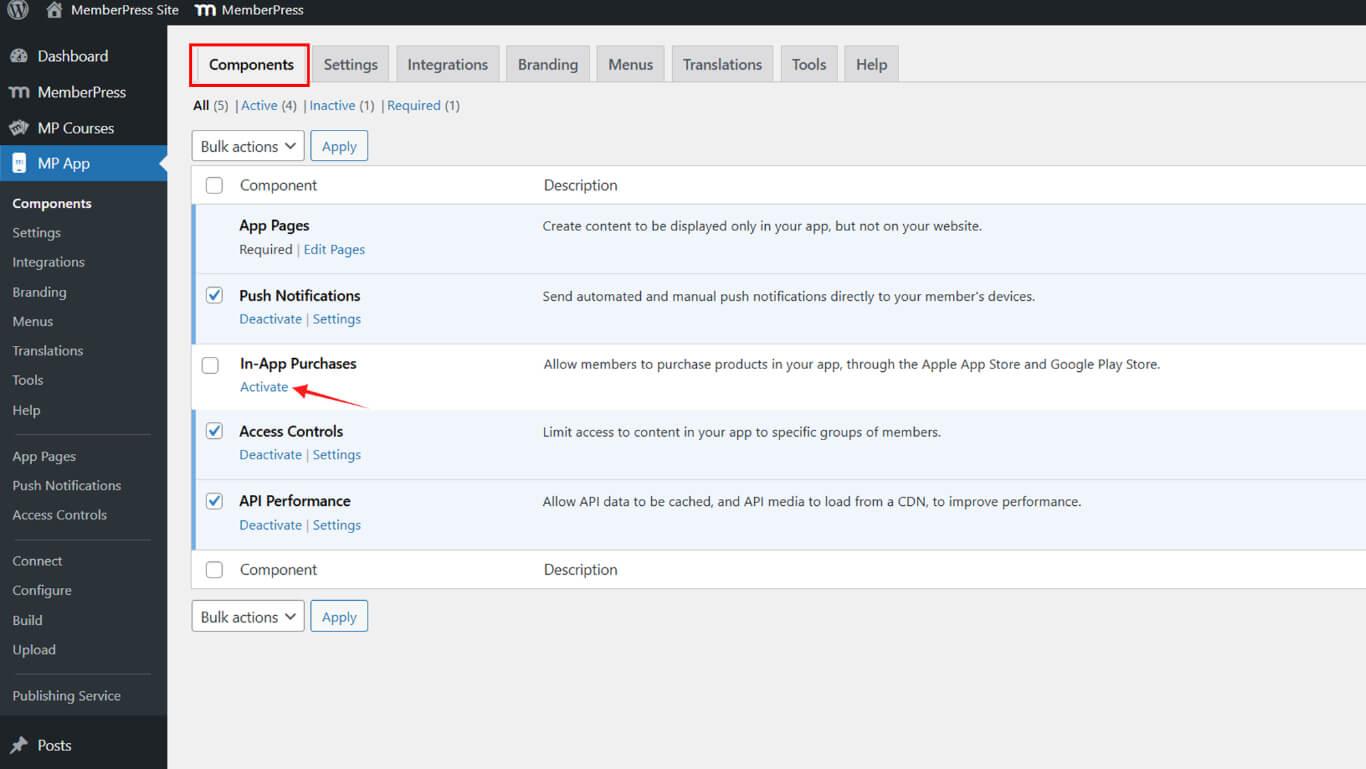
- Naviguez jusqu'à Tableau de bord > MP AppKit > Composants.
- Activer Achats intégrés.
Génération d'une version d'iOS
La création de la version iOS prépare le fichier de l'application pour la soumission à l'App Store.
- Naviguez jusqu'à Tableau de bord > MP AppKit > Construire.
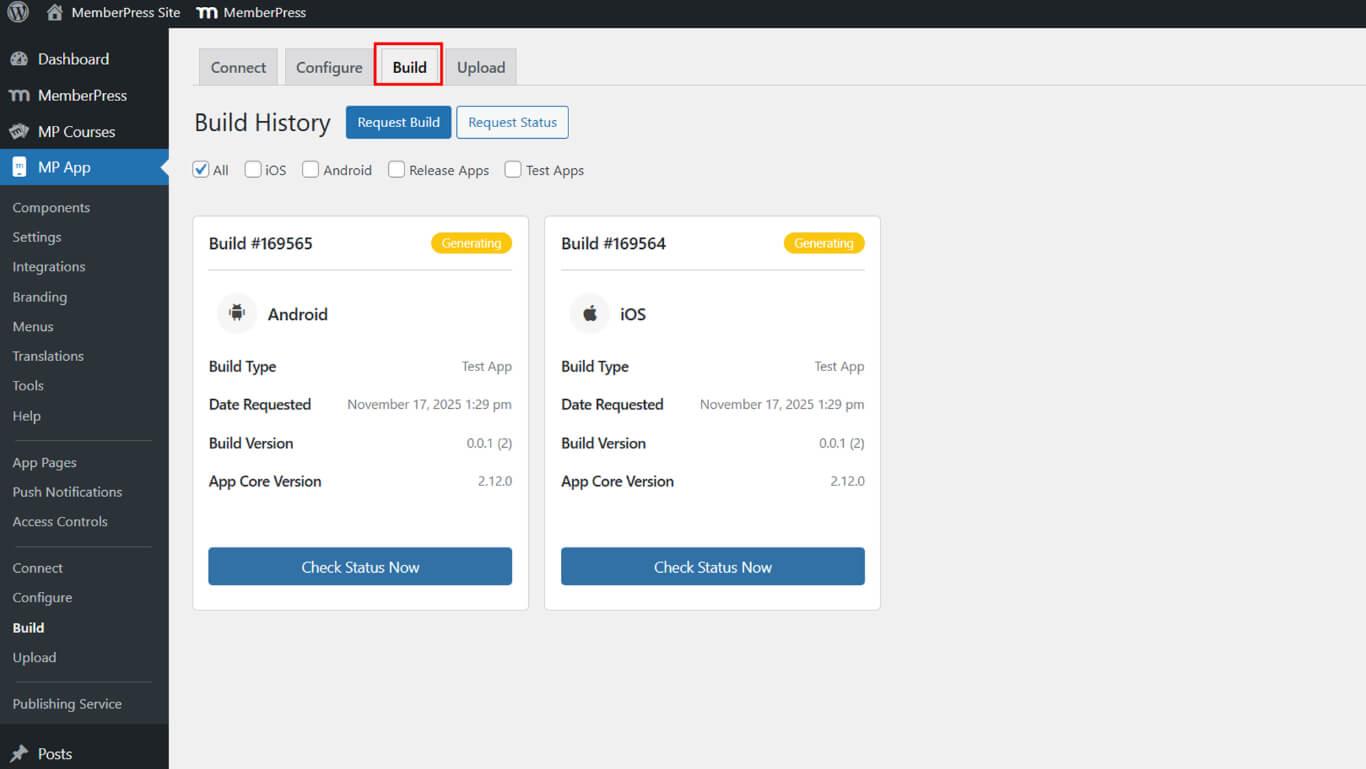
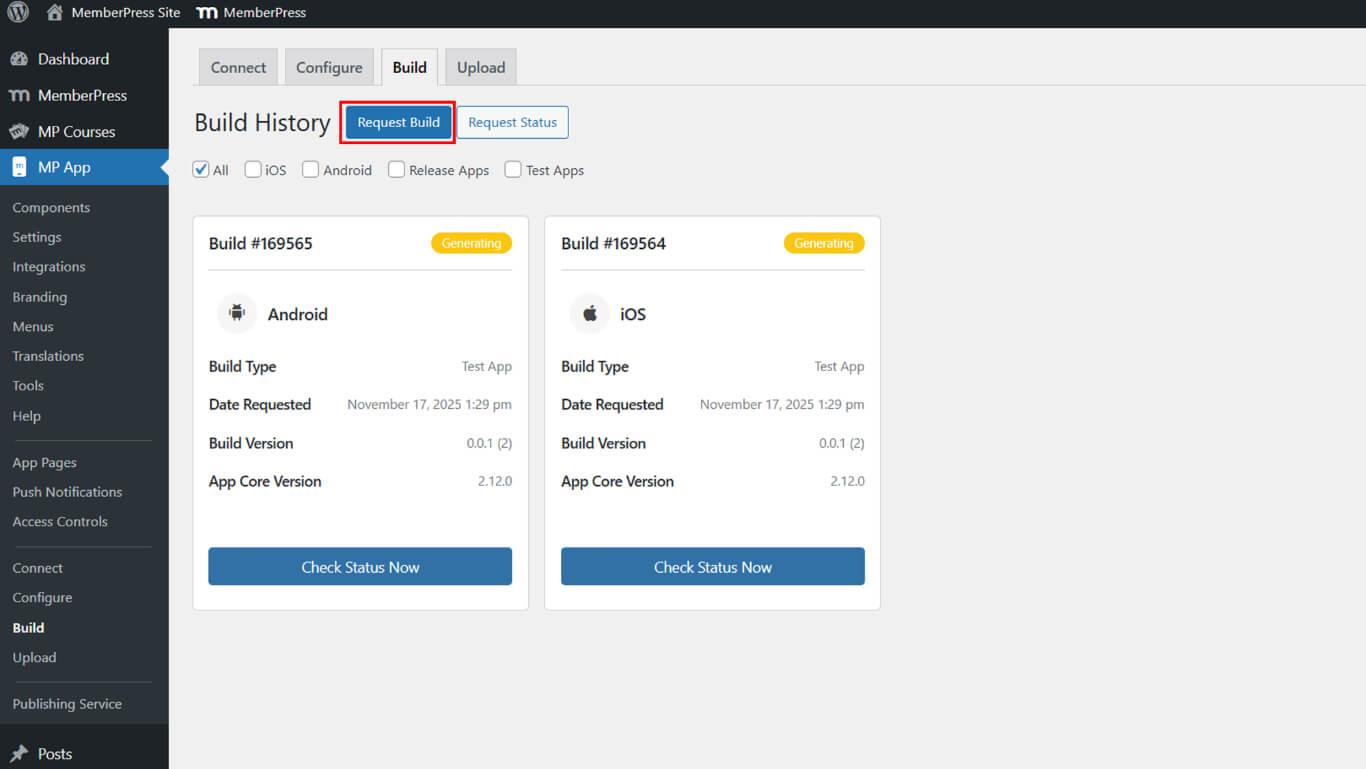
- Cliquez sur le bouton Demande Construire bouton.
- Vérifier le iOS case à cocher comme plateforme.
- Sélectionner Lancer l'application comme type de construction.
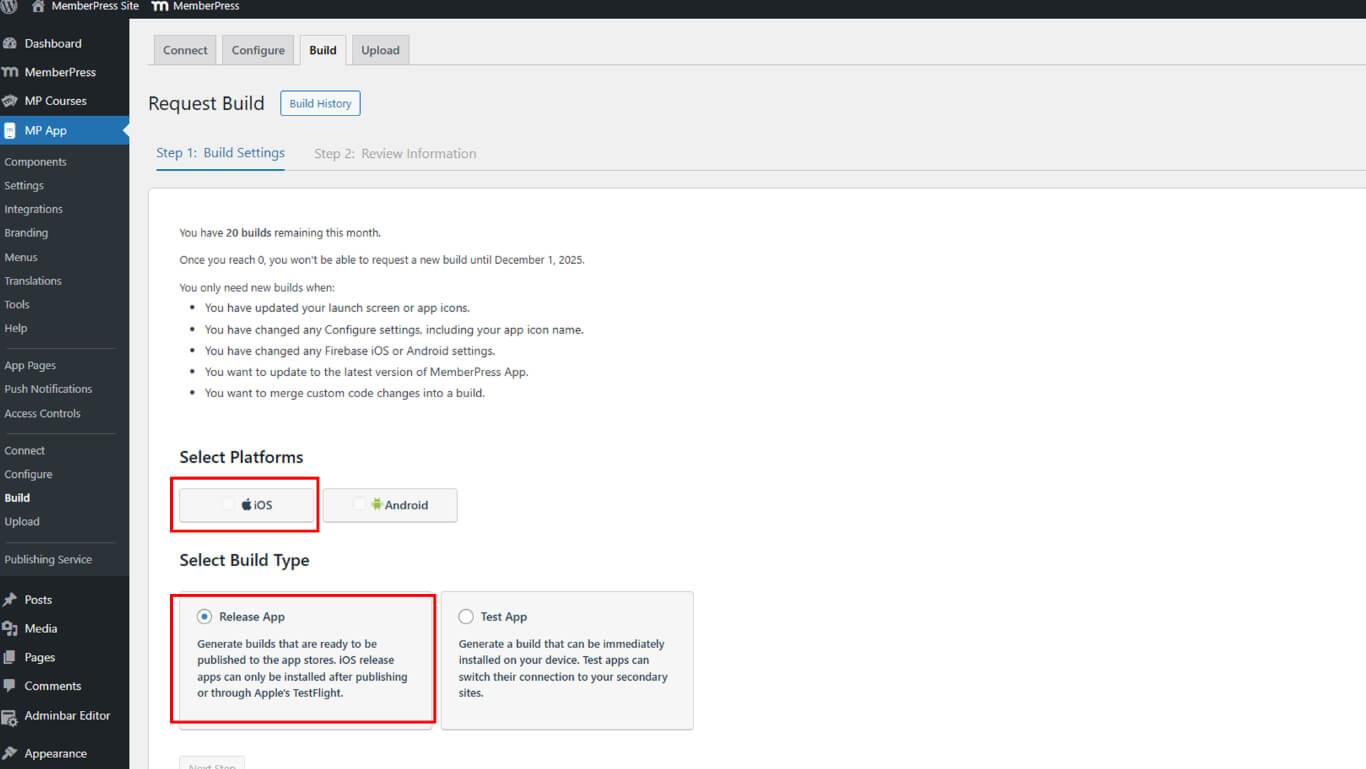
- Cliquez sur Suivant de procéder.
- Cliquez sur Envoyer une demande de construction pour soumettre la demande.
- Surveiller l'état de la construction sous Historique de construction.
La construction est généralement terminée dans les 5 à 10 minutes suivant la soumission de la demande.
Accès aux informations sur l'application
La configuration des informations sur l'application permet d'établir les détails de base de l'application dans App Store Connect.
- Connectez-vous à App Store Connect à l'adresse appstoreconnect.apple.com.
- Cliquez sur Applications dans la navigation.
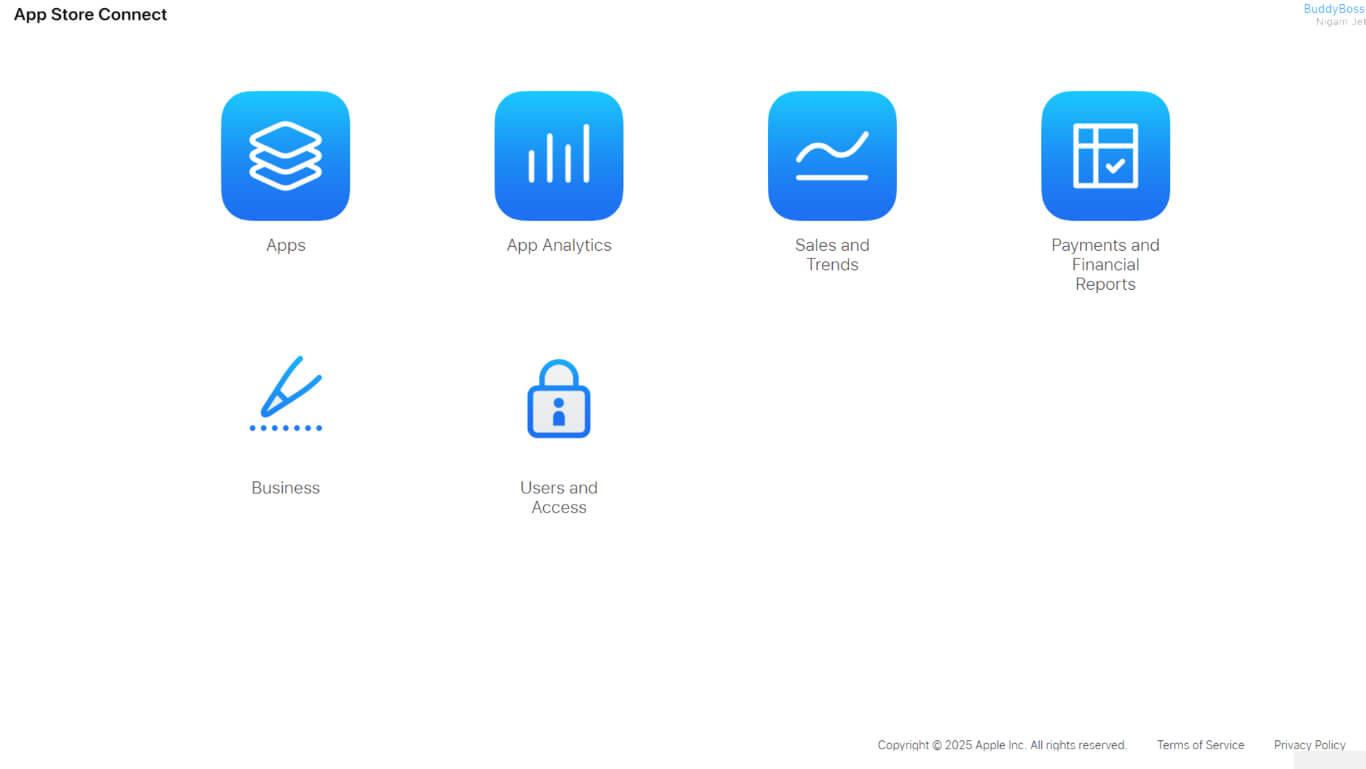
- Sélectionnez l'application dans la liste des applications.
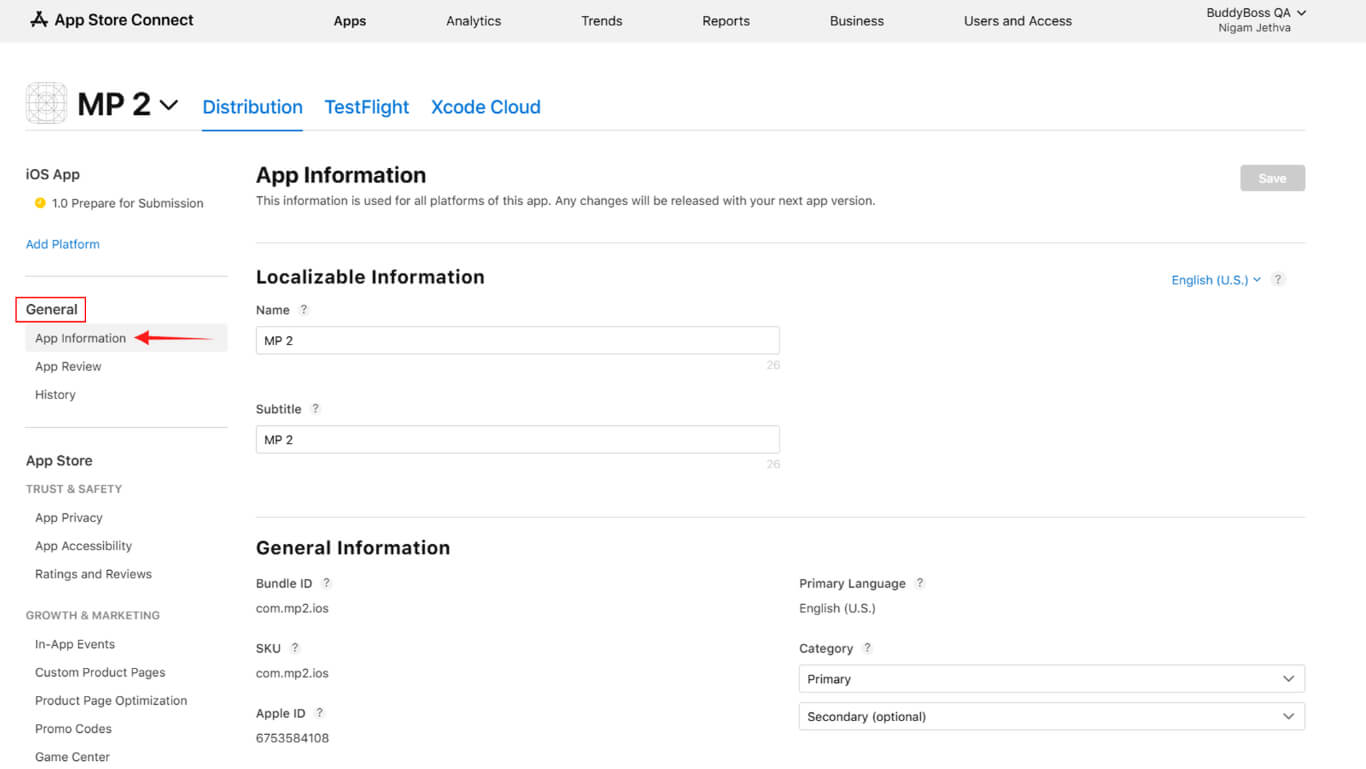
- Cliquez sur Informations sur l'application dans la section "Généralités".
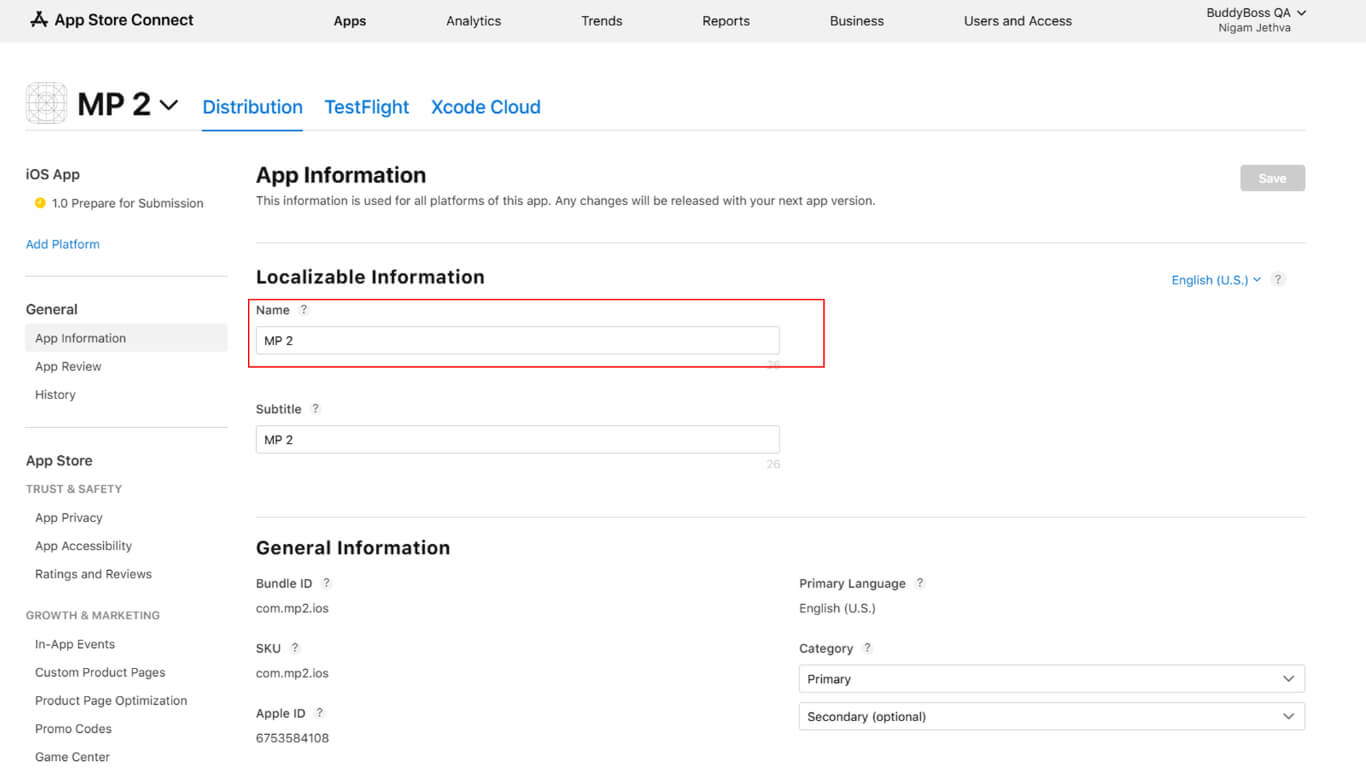
- Confirmer ou mettre à jour les Nom de l'application dans le champ du nom.
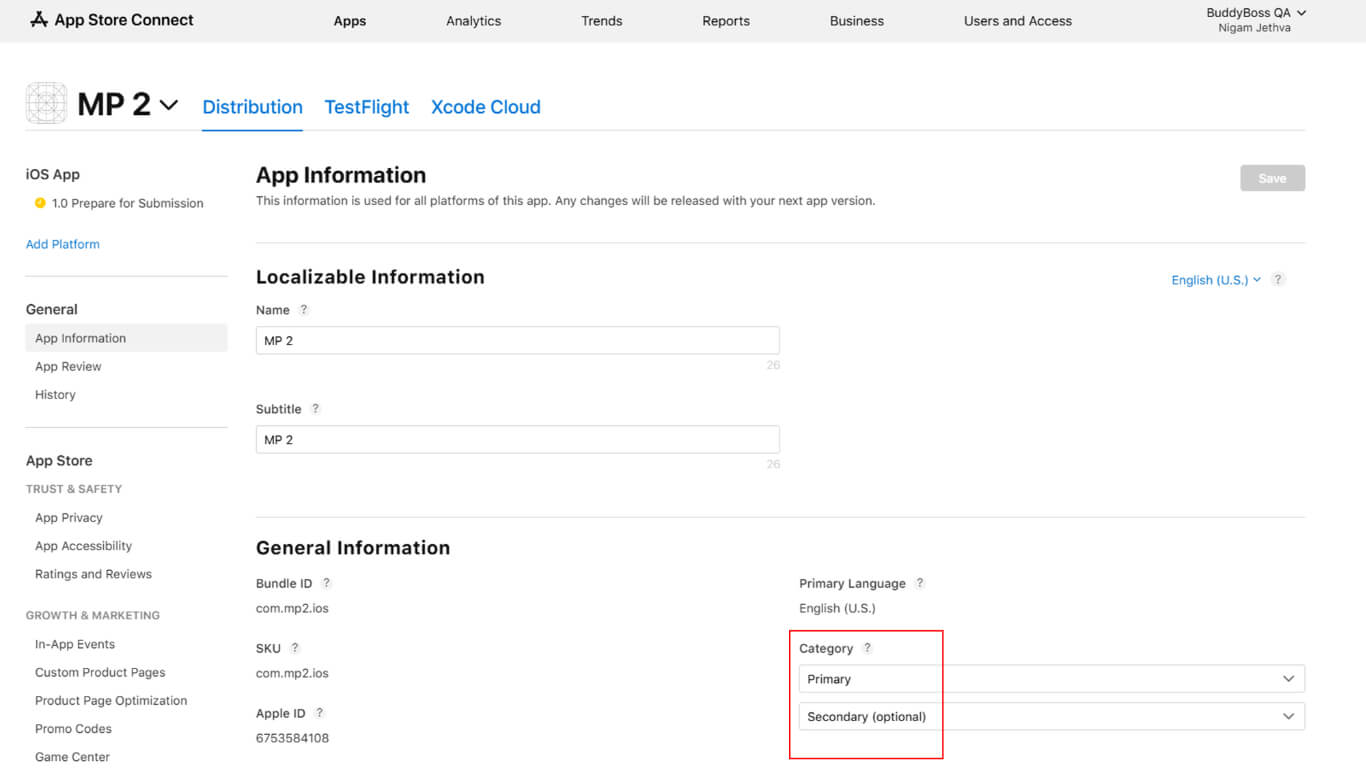
- Sélectionnez l'option Catégorie primaire dans la liste déroulante des catégories.
- Sélectionner Catégorie secondaire le cas échéant.
- Indiquer les droits sur les contenus de tiers si l'application contient des contenus sous licence.
- Sélectionnez le type d'accord de licence :
- CLUF standard d'Apple pour les conditions par défaut ;
- CLUF personnalisé s'il s'agit d'un accord de licence personnalisé.
- Compléter le Classification par âge questionnaire avec précision.
- Cliquez sur Économiser pour stocker les informations relatives à l'application.
Fixer les prix et la disponibilité
La configuration de la tarification détermine le coût de l'application et la disponibilité régionale.
- Naviguez jusqu'à Monétisation > Prix et disponibilité dans App Store Connect.
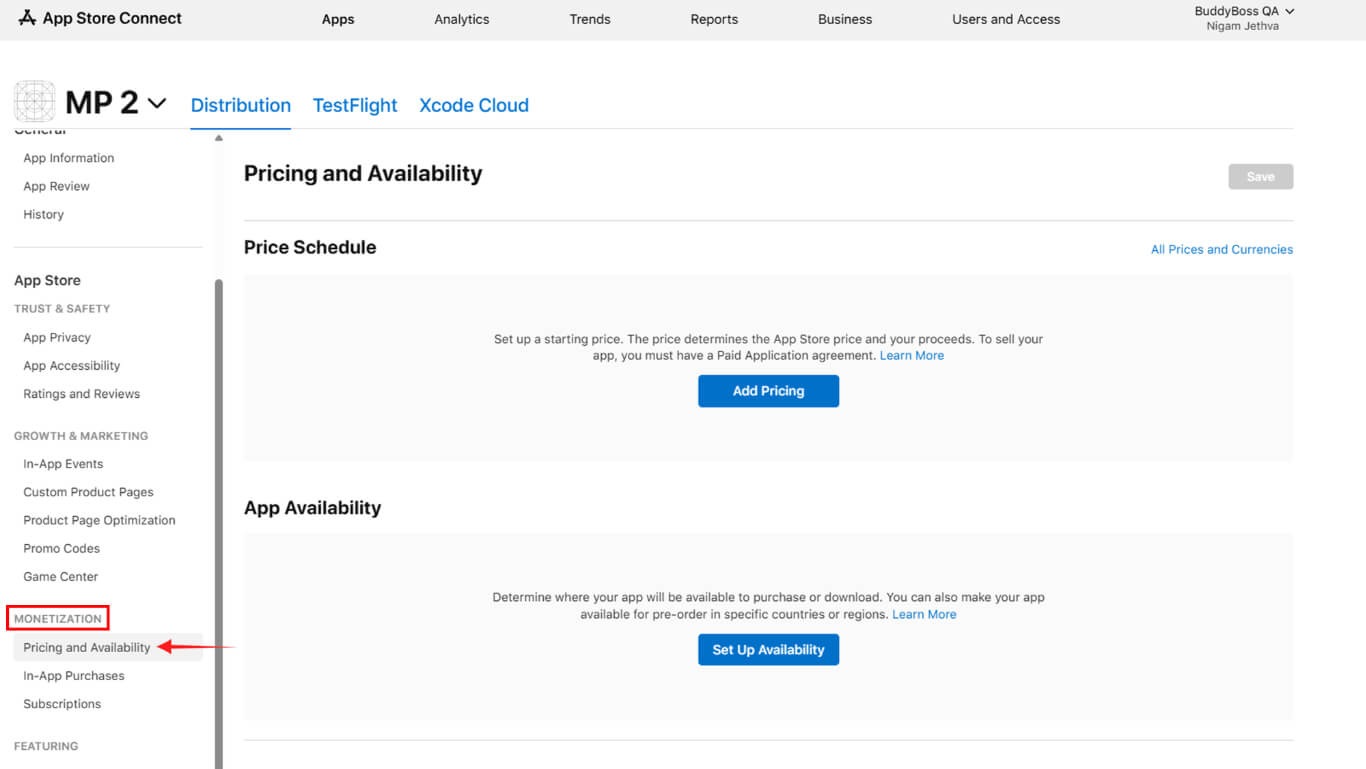
- Sélectionnez le niveau de prix :
- Gratuit pour des applications gratuites ;
- Payé pour les applications payantes.
- Complétez l'accord sur les applications payantes si vous choisissez la tarification payante.
- Configurer les options de disponibilité :
- Toutes les régions pour une disponibilité mondiale ;
- Régions sélectionnées pour des pays spécifiques ;
- Pré-commande s'il est possible d'effectuer des achats avant la publication.
- Cliquez sur Suivant pour revoir les sélections.
- Cliquez sur Confirmer pour finaliser la configuration de la tarification.
Compléter les informations sur la confidentialité de l'application
La configuration de la confidentialité de l'application divulgue les pratiques de collecte et d'utilisation des données.
- Naviguez jusqu'à Confidentialité de l'application > Confiance et sécurité dans App Store Connect.
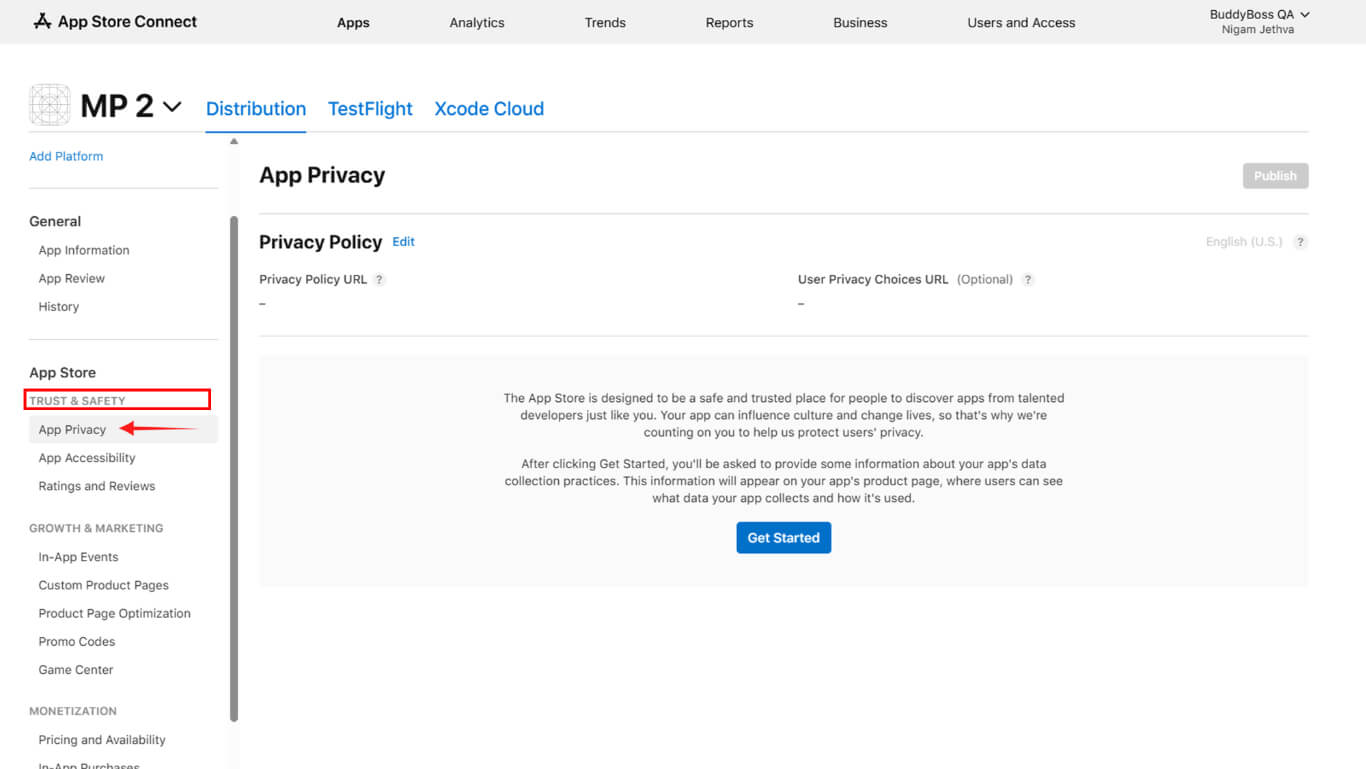
- Saisir l'intégralité de la URL de la politique de confidentialité dans le champ URL.
- Cliquez sur Commencer pour commencer le questionnaire sur la protection de la vie privée.
- Indiquez tous les types de données collectées par l'application.
- Précisez l'objectif de chaque type de collecte de données.
- Indiquer si les données sont liées à l'identité de l'utilisateur.
- Indiquez si les données sont utilisées à des fins de suivi.
- Cliquez sur Économiser après avoir rempli toutes les sections du questionnaire.
Préparation de la version de l'application
La préparation de la version de l'application crée le conteneur de soumission pour les builds et les métadonnées.
Les nouvelles applications incluent la version 1.0, créée automatiquement lors de la configuration initiale. Les applications existantes nécessitent la création manuelle d'une version pour les mises à jour.
- Naviguez jusqu'à la page application dans App Store Connect.
- Cliquez sur le bouton + à côté des versions si vous créez une mise à jour.
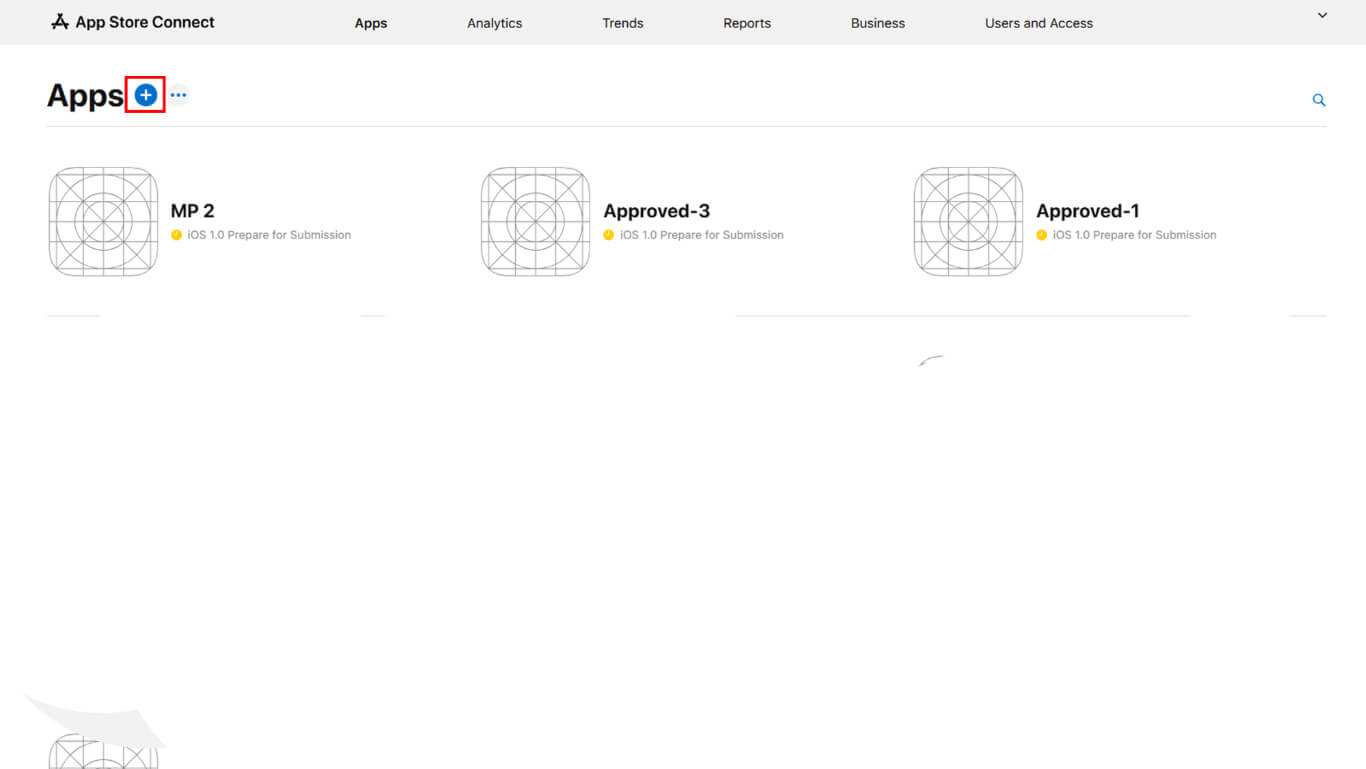
- Saisissez le nouveau numéro de version si vous y êtes invité.
- Attendez que les révisions en cours soient terminées avant de créer de nouvelles versions.
- Une autre solution consiste à annuler les révisions en cours avant la création de la version.
Téléchargement de captures d'écran
Le téléchargement de captures d'écran permet de présenter l'interface de l'application aux utilisateurs potentiels.
- Accédez à la page de la version dans App Store Connect.
- Faites défiler jusqu'à la Aperçus et captures d'écran section.
- Cliquez sur Ajouter dans la catégorie de taille d'appareil appropriée.
- Téléchargez au moins une capture d'écran pour les tailles d'affichage requises :
- iPhone 6,5 pouces: 1242×2688 pixels en portrait ou 2688×1242 pixels en paysage ;
- iPhone 6,9 pouces: 1290×2796 pixels en portrait ou 2796×1290 pixels en paysage.
- Vérifiez que le format de la capture d'écran est JPG ou PNG dans l'espace colorimétrique RVB.
- Faites glisser les captures d'écran pour réorganiser l'ordre d'affichage si plusieurs captures d'écran sont téléchargées.
Ajouter des détails sur l'application
Les détails de l'application fournissent un contenu descriptif pour la liste de l'App Store.
- Accédez à la page de la version dans App Store Connect.
- Entrer Texte promotionnel mettre en évidence les principales caractéristiques de l'application dans le champ de texte promotionnel.
- Saisir une information complète Description expliquer les fonctionnalités de l'application dans le champ de description.
- Entrer Mots clés séparés par des virgules pour l'optimisation de la recherche.
- Entrez le URL du support des liens vers des ressources d'assistance à la clientèle.
- Saisir le numéro de téléphone facultatif URL marketing l'établissement d'un lien vers le site web promotionnel.
- Entrez le Droit d'auteur y compris l'année et le nom de l'entreprise.
- Mettre à jour le Version s'il est différent de la version initiale.
- Cliquez sur Économiser pour stocker les détails de l'application.
Fournir des informations sur l'examen des applications
App Review Information permet aux évaluateurs d'Apple de tester toutes les fonctionnalités de l'application.
- Accédez à la page de la version dans App Store Connect.
- Faites défiler jusqu'à la Informations sur l'examen de l'application section.
- Vérifier Inscription obligatoire si l'application nécessite une authentification.
- Saisir un numéro de téléphone valide Nom d'utilisateur dans le champ nom d'utilisateur du compte démo.
- Saisir un numéro de téléphone valide Mot de passe dans le champ du mot de passe du compte démo.
- Entrer Notes de révision expliquant les instructions spéciales pour les tests.
- Téléchargez les pièces jointes si des documents supplémentaires facilitent l'examen.
- Saisir le contact Nom pour la communication avec les examinateurs.
- Saisir le contact Numéro de téléphone pour les questions urgentes des examinateurs.
- Saisir le contact Courriel pour la correspondance avec les réviseurs.
- Cliquez sur Économiser pour stocker les informations relatives à l'examen.
Sélection des options de libération
Les options de publication déterminent le moment où l'application devient disponible après son approbation.
- Accédez à la page de la version dans App Store Connect.
- Faites défiler jusqu'à la Version Release section.
- Sélectionner les préférences en matière de délai de libération :
- Déclenchement manuel de publier manuellement après approbation ;
- Déclenchement automatique à publier immédiatement après approbation ;
- Publication prévue à publier à une date et une heure précises.
- Saisissez la date et l'heure de diffusion si vous sélectionnez une diffusion programmée.
- Cliquez sur Économiser pour enregistrer les préférences de libération.
La validation manuelle permet de contrôler le moment exact de la publication après approbation. La validation automatique publie les applications immédiatement après leur approbation, sans aucune autre action.
Soumission pour examen
La soumission de l'évaluation envoie l'application à Apple pour évaluation.
- Naviguez jusqu'à Tableau de bord > MP AppKit > Service de publication > Apple App Store dans WordPress.
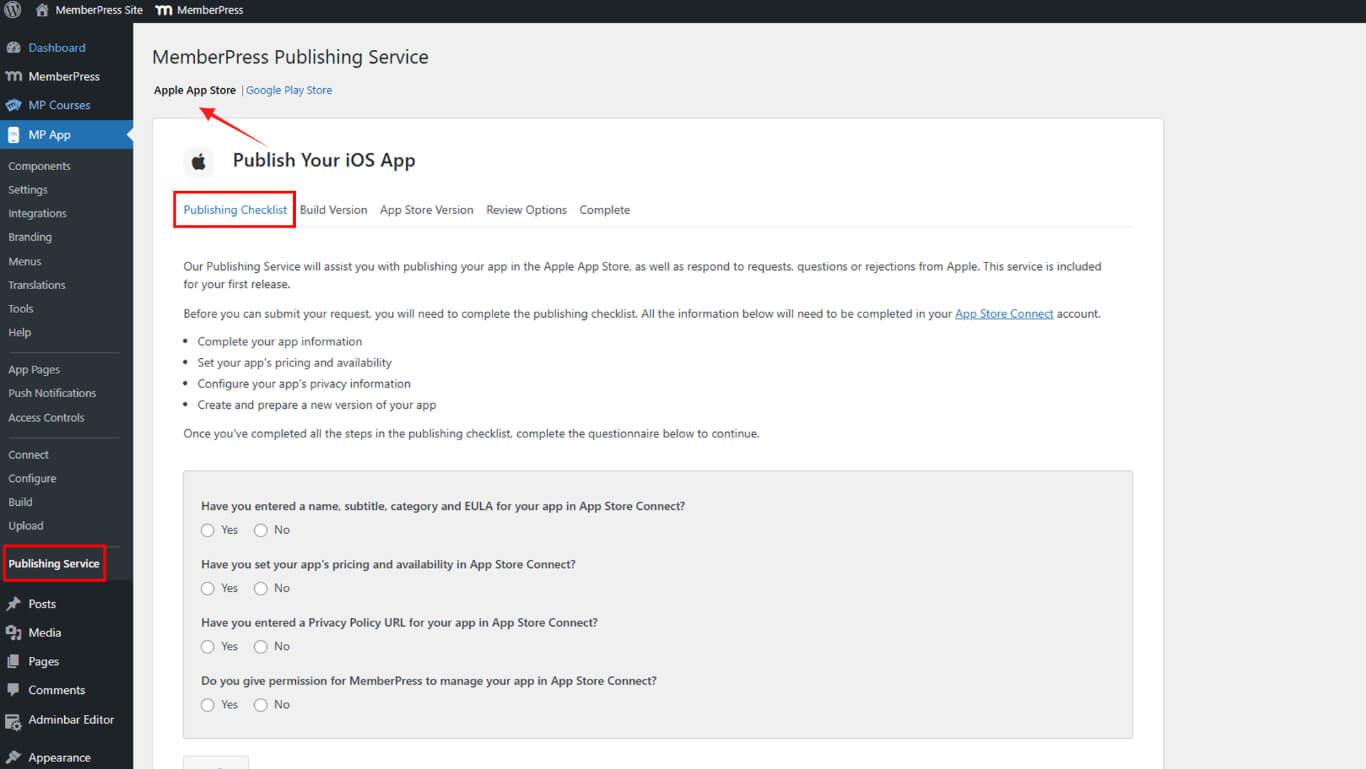
- Examinez la liste de contrôle pour vérifier que toutes les conditions sont remplies.
- Cliquez sur Soumettre pour entamer le processus de soumission.
- Demandez éventuellement un examen préalable à la soumission afin d'améliorer les chances d'approbation.
- L'équipe chargée de la publication télécharge la version et prépare la publication.
- L'équipe d'édition soumet l'application à Apple pour examen.
- Contrôler l'état de la soumission dans App Store Connect.
L'équipe d'édition s'occupe du téléchargement de la version, de la préparation du lancement et de la soumission officielle à Apple. Les mises à jour de l'état de l'application apparaissent dans App Store Connect pendant le processus de révision.










 FR
FR  EN
EN  ES
ES  DE
DE  PT
PT 