

La configuration d'une application Android nécessite la configuration de l'identifiant d'application, la génération de certificats KeyStore et l'enregistrement de l'identifiant d'application dans la Google Play Console. Ce document explique comment configurer l'identifiant d'application, générer et importer des certificats KeyStore et enregistrer l'identifiant d'application.
Comprendre les exigences en matière d'identification de l'application
L'identifiant de l'application identifie de manière unique l'application sur le Google Play Store. L'identifiant de l'application doit être composé d'au moins deux segments séparés par des points, conformément à des règles de formatage spécifiques. Une configuration correcte de l'identifiant d'application permet d'éviter les conflits avec d'autres applications.
Les exigences en matière de formatage de l'identifiant de l'application sont les suivantes
- Au moins deux segments séparés par des points ;
- Chaque segment commence par une lettre ;
- Ne contient que des lettres, des chiffres et des caractères de soulignement ;
- Aucune autre application sur Google Play ne l'utilise ;
- Les versions de test ajoutent .test à l'identifiant de l'application.
Définition de l'ID de l'application
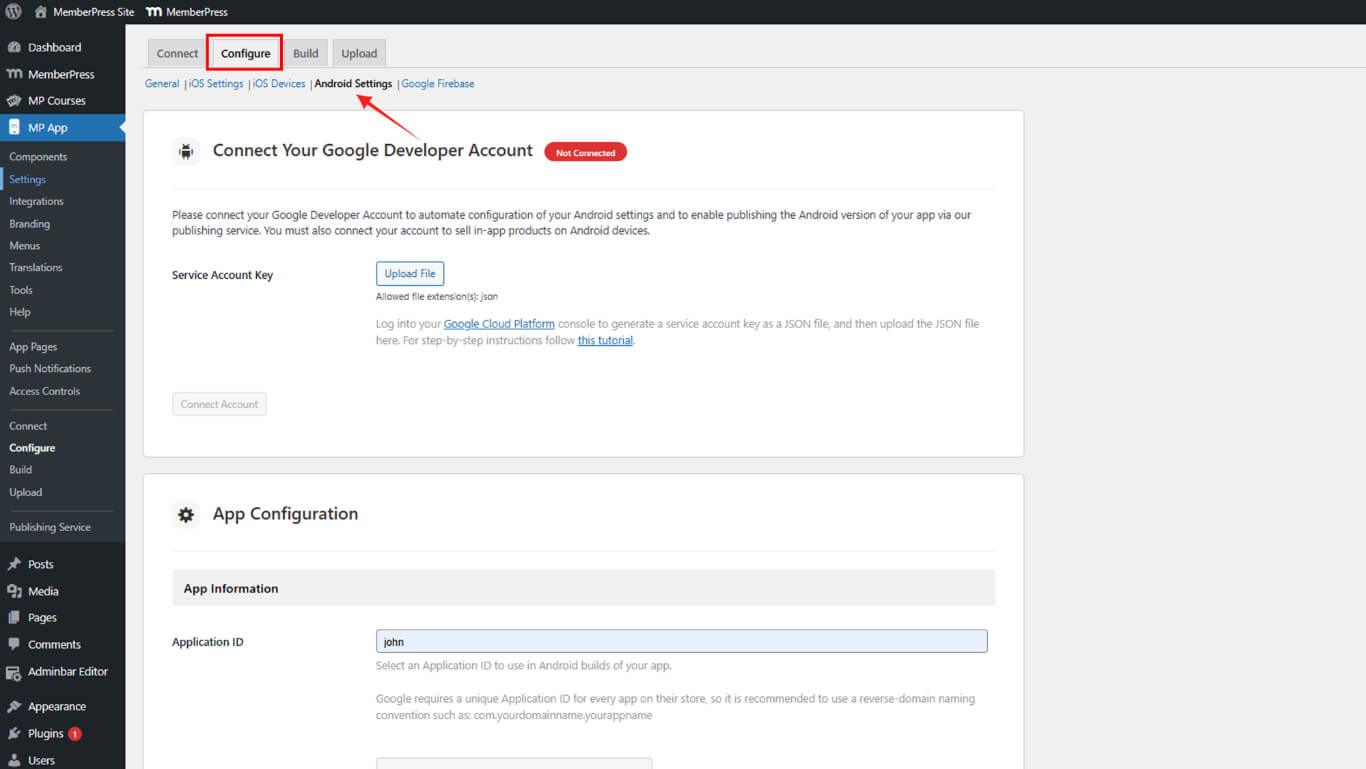
La configuration de l'identifiant de l'application s'effectue dans les paramètres d'Android.
- Naviguez jusqu'à Tableau de bord > MP AppKit > Configurer > Paramètres Android.
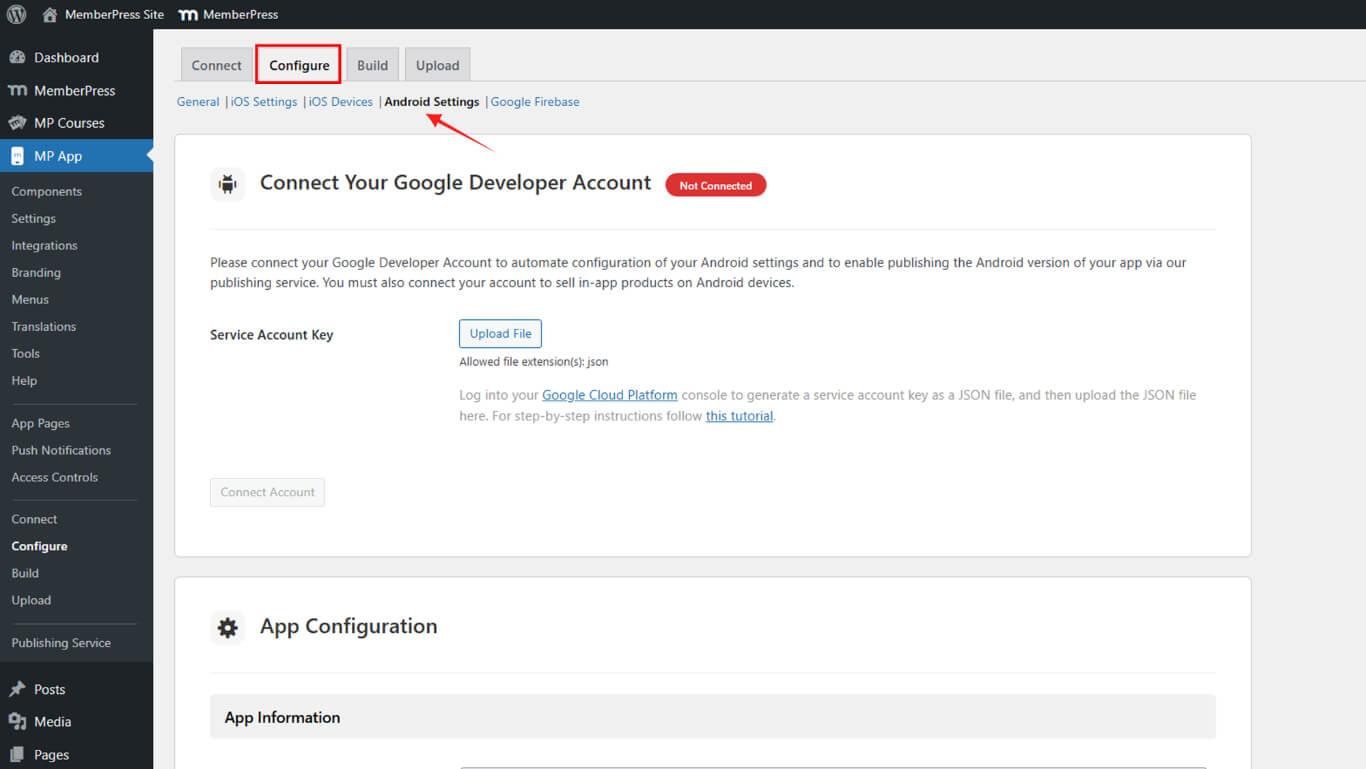
- Localiser le Configuration de l'application section.
- Saisissez l'ID de l'application choisie dans le champ ID de l'application.
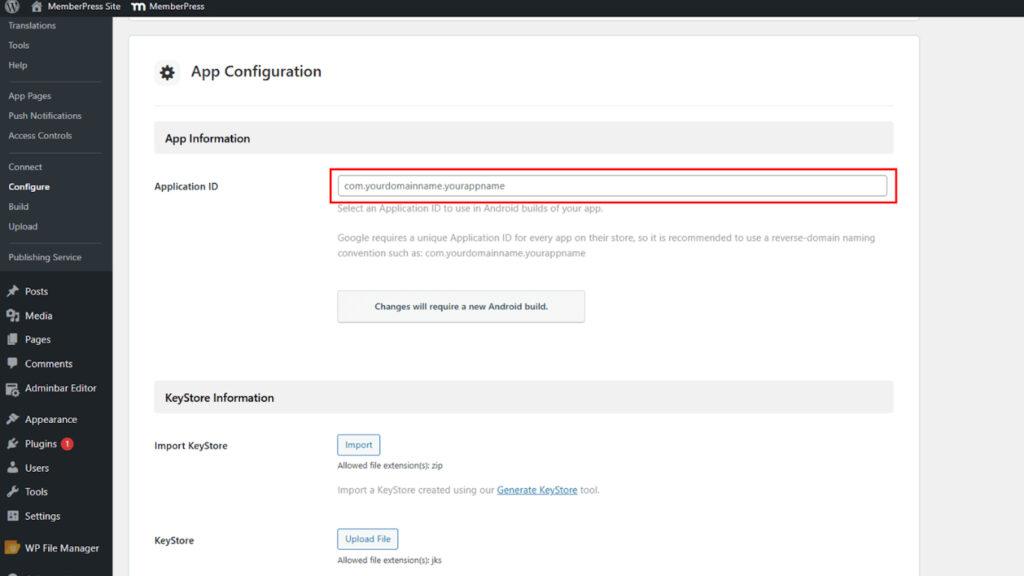
- Cliquez sur Enregistrer les modifications.
La réservation de l'identifiant de l'application se fait par le biais de l'enregistrement dans la console Google Play afin d'éviter les conflits avec d'autres applications.
Génération du certificat du KeyStore
La génération de certificats KeyStore permet de créer le certificat de signature nécessaire à la création d'applications Android.
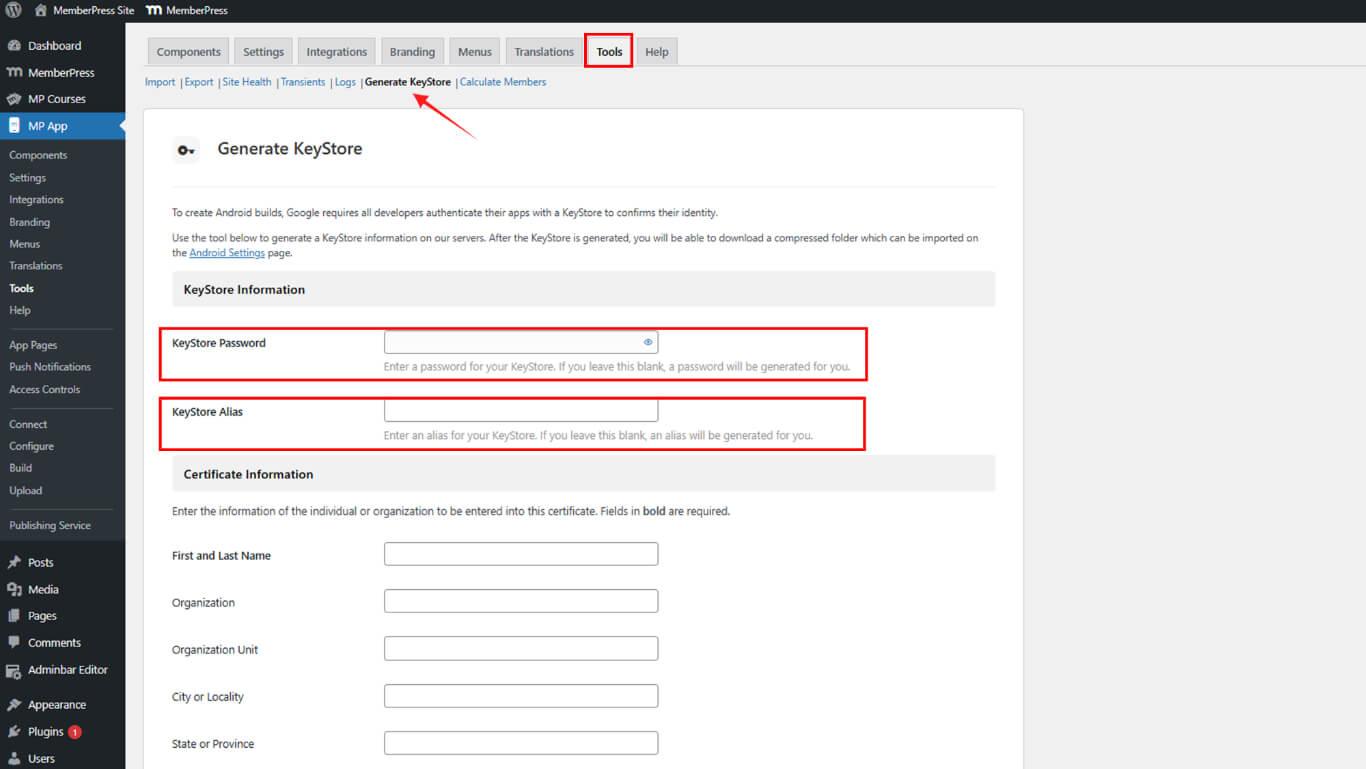
- Naviguez jusqu'à Tableau de bord > MP AppKit > Outils > Générer un porte-clés.
- Saisir un Mot de passe du KeyStore dans le champ du mot de passe.
- Saisir un Alias du magasin de clés dans le champ alias ou laisser vide pour une génération automatique.
- Entrer Prénom dans le champ du prénom.
- Entrer Nom de famille dans le champ du nom de famille.
- Il est possible de saisir Organisation dans le domaine de l'organisation.
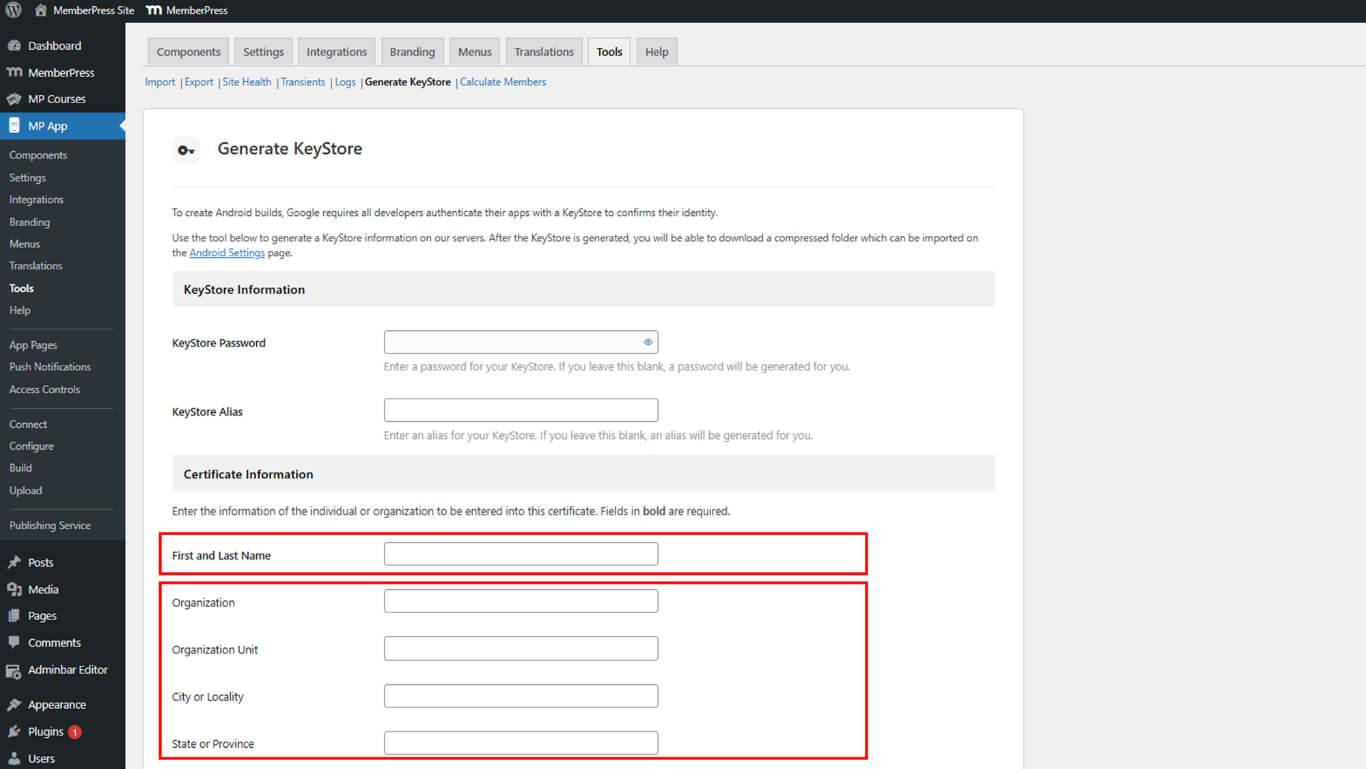
- Complétez les autres détails du certificat comme vous le souhaitez.
- Cliquez sur Générer pour créer le KeyStore.
- Cochez la case de confirmation de la responsabilité de la sauvegarde du KeyStore.
- Cliquez sur Télécharger pour enregistrer le fichier ZIP contenant le KeyStore.
Importation d'un certificat de KeyStore
L'importation du KeyStore ajoute le certificat généré à WordPress pour la signature de la construction.
- Naviguez jusqu'à Tableau de bord > MP AppKit > Configurer > Paramètres Android.
- Localiser le Informations sur le KeyStore section.
- Cliquez sur Importation pour ouvrir le sélecteur de fichiers.
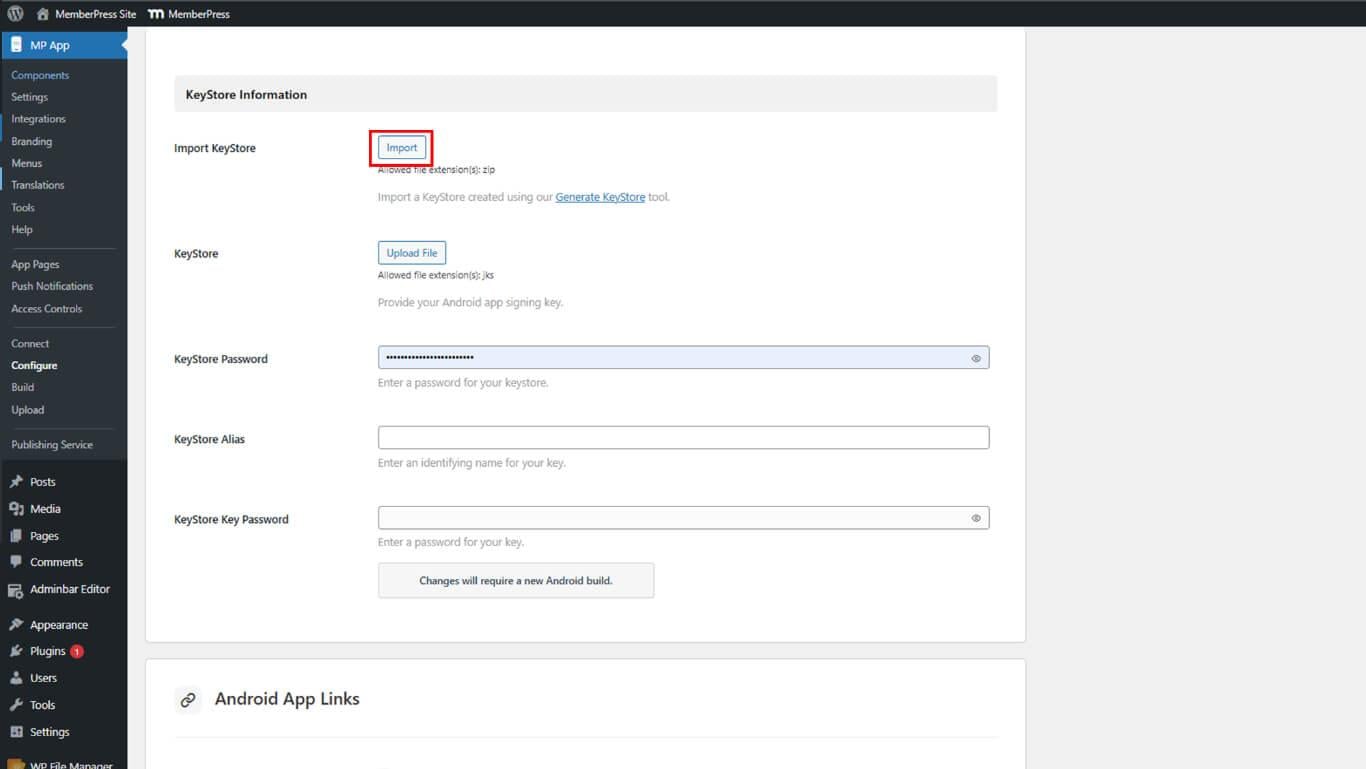
- Sélectionnez le fichier ZIP KeyStore téléchargé.
- Cliquez sur Enregistrer les modifications pour finaliser l'importation.
Enregistrement de l'identifiant de l'application auprès de Google Play
L'enregistrement de l'identifiant de la demande réserve l'identifiant et empêche d'autres personnes de le revendiquer.
- Générer un build de Release App sous Tableau de bord > MP AppKit > Construire.
- Connectez-vous à Google Play Console à l'adresse play.google.com/console.
- Naviguez jusqu'à Toutes les applications et sélectionnez l'application.
- Cliquez sur Publication > Production dans la barre latérale.
- Cliquez sur Créer une nouvelle version pour commencer à créer le communiqué.
- Localiser le Offres groupées d'applications section.
- Cliquez sur Télécharger pour ouvrir le sélecteur de fichiers.
- Sélectionnez le fichier AAB créé avec l'ID de l'application.
- Cliquez sur Économiser pour enregistrer l'identifiant de l'application.










 FR
FR  EN
EN  ES
ES  DE
DE  PT
PT 