

La mise en cache de l'API réduit les requêtes de base de données en stockant les réponses de l'API dans une mémoire à accès rapide. Cette optimisation accélère les temps de chargement des flux, des menus, des pages et du contenu des adhésions.
Ce document explique comment activer la mise en cache de l'API, vérifier l'installation, configurer les paramètres de la mise en cache et résoudre les problèmes courants de mise en cache.
Comprendre la mise en cache des API
La mise en cache API stocke les données fréquemment consultées dans la mémoire plutôt que d'interroger la base de données WordPress pour chaque requête. La première requête récupère les données de la base de données et les met en cache. Les requêtes suivantes fournissent les données directement à partir du cache, ce qui accélère les temps de réponse et réduit la charge du serveur.
Activation du composant de performances API
Le composant API Performance doit être activé avant que la configuration de la mise en cache puisse commencer.
- Naviguez jusqu'à Tableau de bord > MP AppKit > Composants.
- Localiser Performances de l'API dans la liste des composants.
- Cliquez sur Activer.
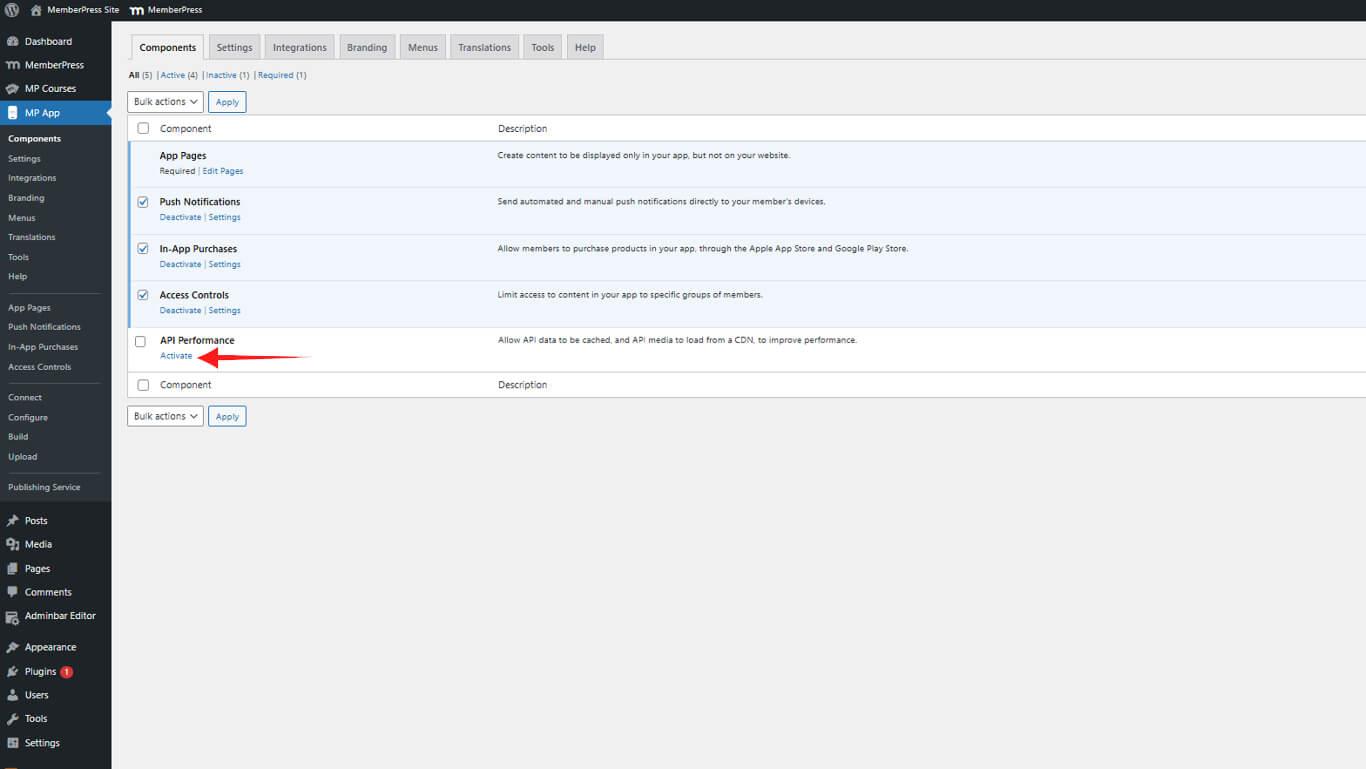
Le composant API Performance fournit des capacités de mise en cache et d'autres fonctionnalités d'optimisation pour l'application.
Vérification de l'installation du plugin obligatoire
La mise en cache API nécessite un plugin indispensable pour fonctionner correctement. La vérification permet de s'assurer que le plugin est correctement installé.
- Naviguez jusqu'à Tableau de bord > Plugins > Indispensables.
- Confirmez que MemberPress API Caching apparaît dans la liste des plugins.
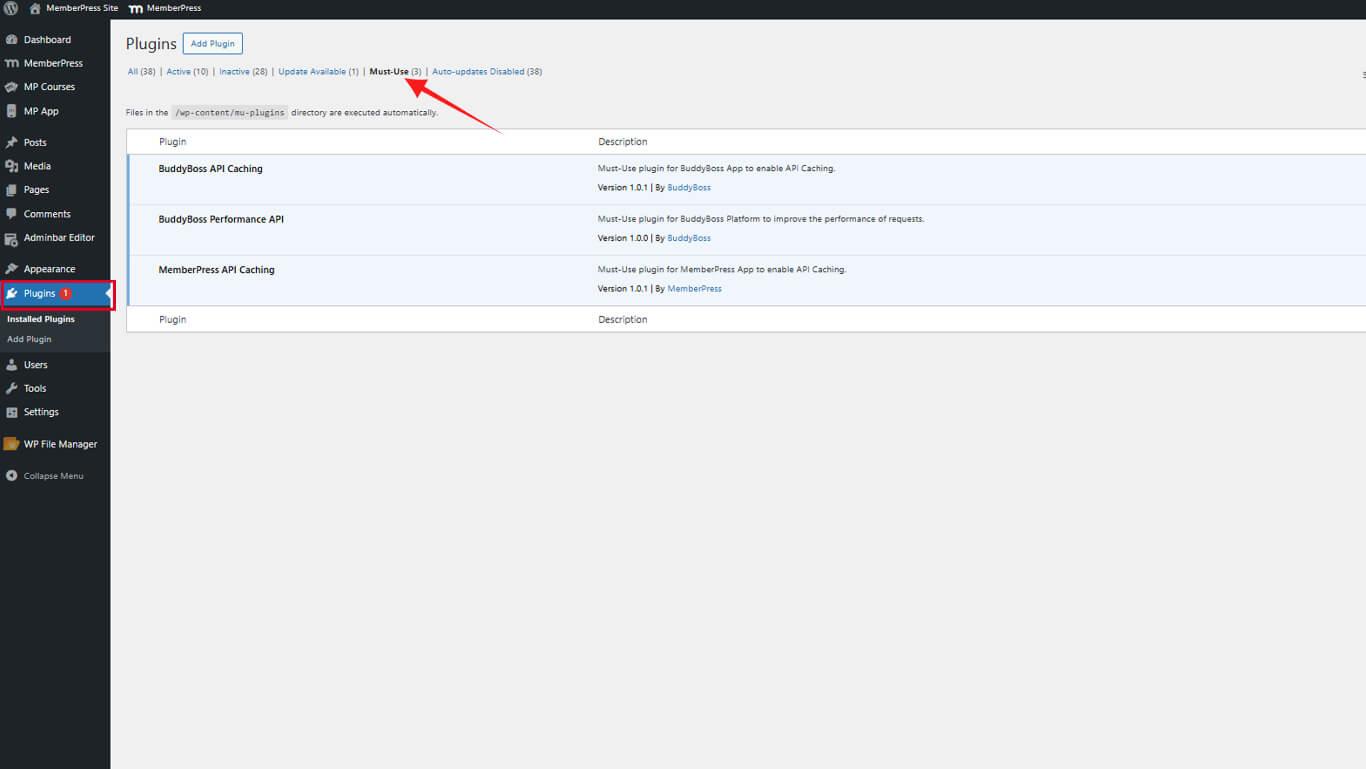
Configuration des paramètres du cache
Les paramètres de cache déterminent les types de contenu qui utilisent la fonctionnalité de mise en cache.
- Naviguez jusqu'à Tableau de bord > MP AppKit > Paramètres > Mise en cache de l'API.
- Cochez les cases correspondant aux types de contenu à mettre en cache :
- MemberPress
- Pages de l'application
- Articles de blog
- Commentaires sur le blog
- Catégories du blog
- Ajouter aux favoris
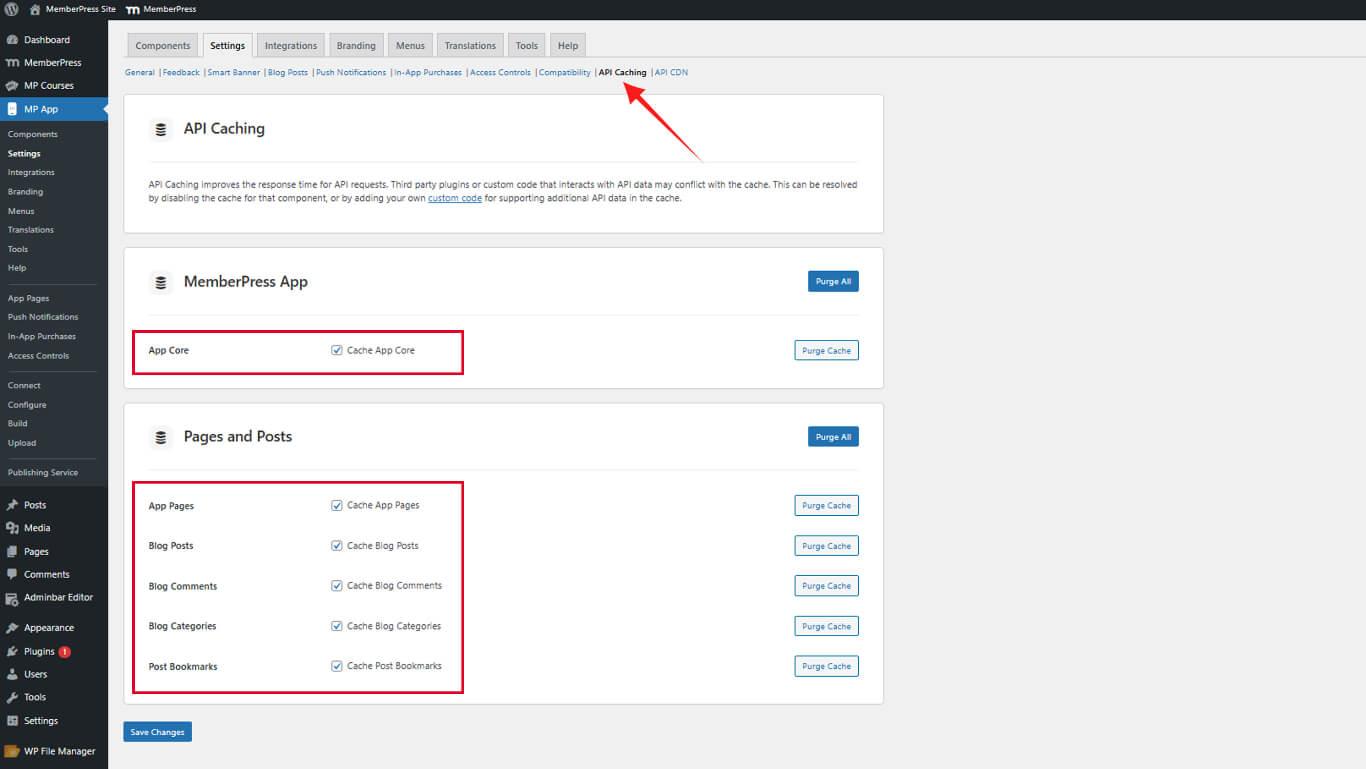
- Cliquez sur Enregistrer les modifications.
Gestion des données mises en cache
Les données mises en cache doivent être purgées lorsque le contenu est mis à jour afin de garantir que les utilisateurs voient les informations actuelles.
Purge des éléments individuels du cache
- Naviguez jusqu'à Tableau de bord > MP AppKit > Paramètres > Mise en cache de l'API.
- Localisez le type de contenu mis en cache qui doit être purgé.
- Cliquez sur Vider le cache à côté de l'élément spécifique.
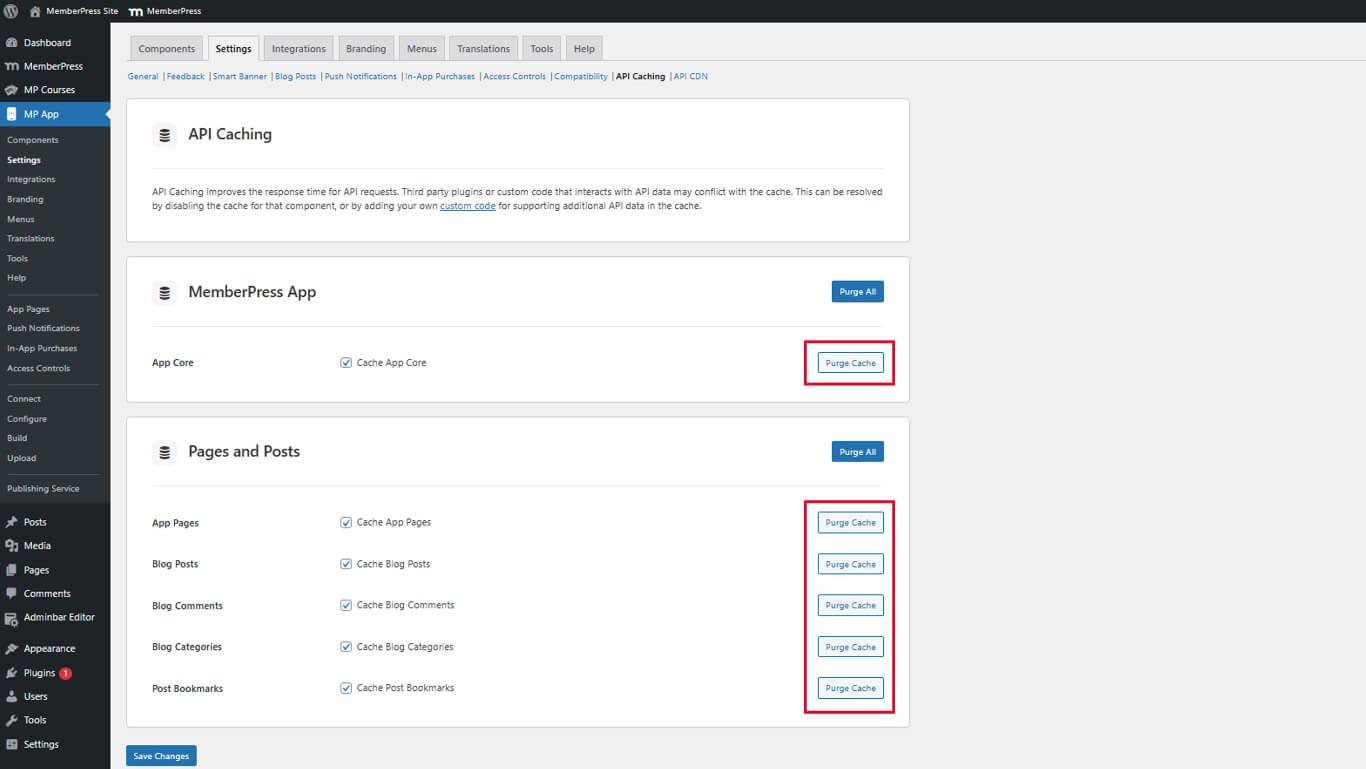
La purge individuelle du cache permet un effacement sélectif sans affecter les autres contenus mis en cache.
Suppression de toutes les données mises en cache
- Naviguez jusqu'à Tableau de bord > MP AppKit > Paramètres > Mise en cache de l'API.
- Cliquez sur Tout purger en haut des paramètres de mise en cache.
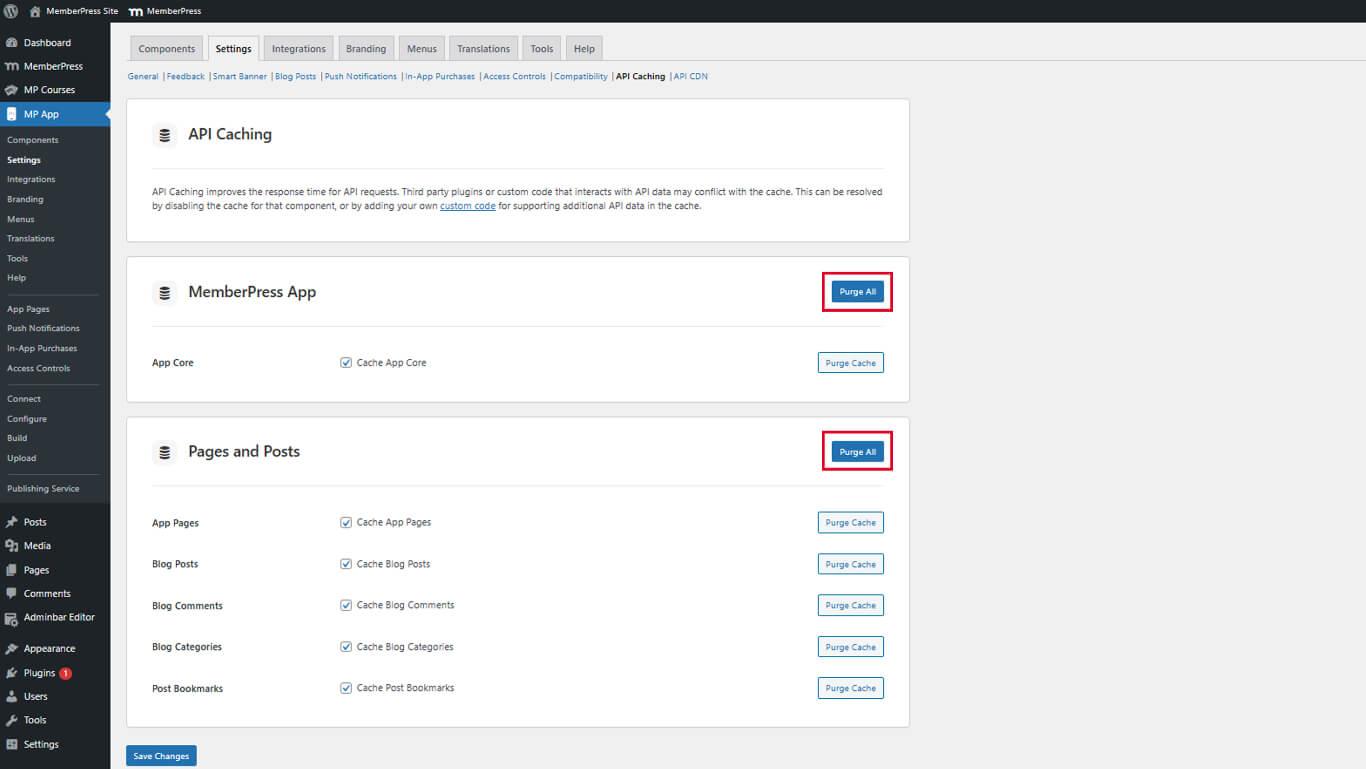
Toutes les données mises en cache sont immédiatement effacées, et les nouvelles données sont renseignées lors de la prochaine requête API.
Comprendre le comportement du cache
La mise en cache API suit un flux de travail prévisible qui équilibre les performances et la fraîcheur des données.
Processus de demande initiale
Lorsqu'un utilisateur demande pour la première fois du contenu mis en cache :
- L'API reçoit la requête de l'application.
- L'API interroge la base de données WordPress pour obtenir les données demandées.
- L'API stocke la réponse dans le système de cache.
- L'API renvoie les données à l'utilisateur.
Cette requête initiale est soumise aux délais standard de requête de base de données.
Processus de demande ultérieure
Une fois les données mises en cache, les requêtes futures suivent un chemin optimisé :
- L'API reçoit la requête de l'application.
- L'API récupère les données directement depuis la mémoire cache.
- L'API renvoie instantanément les données mises en cache à l'utilisateur.
Les requêtes mises en cache sont traitées beaucoup plus rapidement que les requêtes de base de données.
Purge automatique du cache
Le cache est automatiquement purgé lorsque le contenu change :
- De nouveaux articles ou pages sont publiés ;
- Mises à jour ou suppressions de contenu existant ;
- Les niveaux d'adhésion changent ;
- Les paramètres du plugin sont modifiés.
La purge automatique garantit aux utilisateurs la réception des données actuelles sans intervention manuelle.










 FR
FR  EN
EN  ES
ES  DE
DE  PT
PT 