

Des couleurs de marque cohérentes améliorent la conception des applications, renforcent l'identité et améliorent la convivialité. Les paramètres de couleurs de MemberPress AppKit permettent de personnaliser les arrière-plans, les boutons, les éléments de navigation et la mise en valeur du contenu.
Ce document explique comment configurer les jeux de couleurs pour toutes les sections de l'application et prévisualiser les changements sur les plateformes iOS et Android.
Comprendre la configuration des couleurs
Les paramètres de couleur contrôlent l'aspect visuel de l'application, y compris les arrière-plans, le texte, les boutons, les barres de navigation et les éléments interactifs. Chaque paramètre de couleur affecte des composants d'interface spécifiques. Des aperçus en temps réel affichent les changements de couleur sur les maquettes iOS et Android. Une configuration correcte des couleurs assure la cohérence de la marque et maintient la lisibilité dans différents contextes d'écran.
Accès aux paramètres de couleur
Toute la configuration des couleurs se fait dans l'interface de branding colors.
- Naviguez jusqu'à Tableau de bord > MP AppKit > Image de marque > Couleurs.
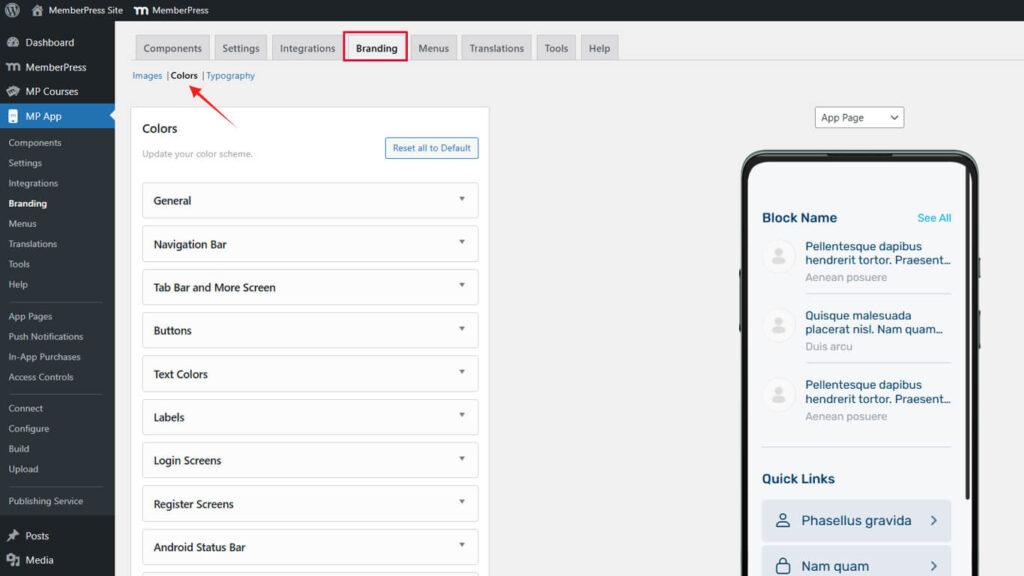
Configuration des couleurs générales
Les couleurs générales définissent les éléments primaires de l'interface dans l'ensemble de l'application.
- Naviguez jusqu'à Tableau de bord > MP AppKit > Image de marque > Couleurs.
- Localiser le Général section.
- Cliquez sur le bouton Couleur de fond swatch.
- Sélectionnez une couleur à l'aide du sélecteur de couleurs ou entrez un code hexagonal.
- Cliquez sur le bouton Autre couleur d'arrière-plan swatch.
- Choisissez une couleur contrastante pour les sections de contenu alternatif.
- Cliquez sur le bouton Couleur de l'arrière-plan de l'image swatch.
- Sélectionnez une couleur pour les arrière-plans des espaces réservés aux images.
- Cliquez sur le bouton Couleur de la bordure swatch.
- Choisissez une couleur discrète pour les bordures des éléments et les séparateurs.
- Cliquez sur le bouton Couleur d'accent swatch.
- Choisissez une couleur dominante pour mettre en évidence les points forts et les points forts.
Prévisualisation immédiate des changements sur les maquettes App Page, Directory Page et Menu Page.
Comprendre les objectifs généraux de la couleur
Chaque couleur générale remplit des fonctions d'interface spécifiques.
Couleur de fond remplit les zones de contenu et les pages principales. Cette couleur doit offrir un contraste optimal avec les couleurs du texte pour une meilleure lisibilité.
Autre couleur d'arrière-plan différencie les sections ou les cartes à l'intérieur des pages. Cette couleur doit contraster subtilement avec l'arrière-plan principal tout en conservant une apparence cohérente.
Couleur de l'arrière-plan de l'image s'affiche derrière les images pendant le chargement ou lorsque les images ne sont pas disponibles. Cette couleur doit compléter le contenu typique de l'image sans créer de transitions gênantes.
Couleur de la bordure définit les limites et les séparations des éléments. Cette couleur doit être suffisamment subtile pour ne pas dominer, mais suffisamment visible pour fournir une structure.
Couleur d'accent met en évidence les éléments interactifs et les informations importantes. Cette couleur doit ressortir de manière évidente tout en complétant la palette de couleurs globale.
Personnalisation des couleurs de la barre de navigation
Les couleurs de la barre de navigation affectent les en-têtes des applications et les éléments de navigation supérieurs.
- Naviguez jusqu'à Tableau de bord > MP AppKit > Branding > Couleurs.
- Localiser le Barre de navigation section.
- Cliquez sur le bouton Couleur de fond swatch.
- Sélectionnez une couleur pour l'arrière-plan des barres de navigation.
- Cliquez sur le bouton Couleur du texte swatch.
- Sélectionnez une couleur qui assure la lisibilité par rapport à l'arrière-plan.
- Cliquez sur le bouton Couleur du lien swatch.
- Sélectionnez une couleur pour les liens de navigation et le texte interactif.
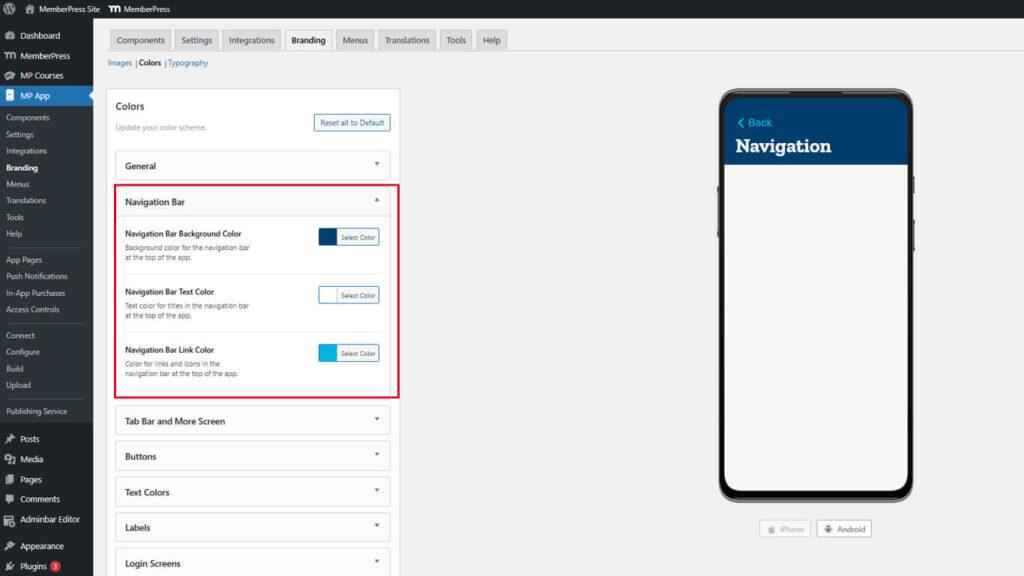
L'aperçu de la barre de navigation est mis à jour immédiatement dans la maquette de l'en-tête.
Assurer la lisibilité de la navigation
Les couleurs de navigation doivent être suffisamment contrastées pour être accessibles.
Style de la barre d'onglets et de l'écran More
Les couleurs de la barre d'onglets et de l'écran supplémentaire contrôlent l'apparence de la navigation inférieure et du menu de débordement.
- Naviguez jusqu'à Tableau de bord > MP AppKit > Image de marque > Couleurs.
- Localiser le Tab Bar & More section.
- Cliquez sur le bouton Couleur d'arrière-plan de la barre d'onglets swatch.
- Sélectionnez une couleur pour l'arrière-plan des barres d'onglets.
- Cliquez sur le bouton Icône Couleur par défaut swatch.
- Sélectionnez une couleur pour les icônes de navigation inactives.
- Cliquez sur le bouton Icône Couleur active swatch.
- Sélectionnez une couleur dominante pour les icônes de navigation actives.
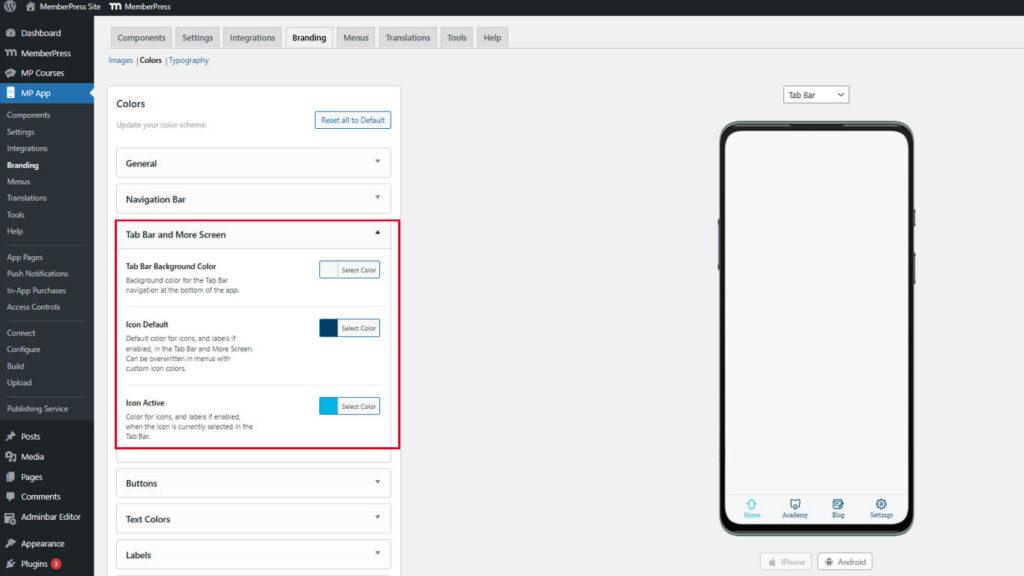
Mise à jour des maquettes de prévisualisation pour montrer l'apparence de la barre d'onglets avec les couleurs sélectionnées.
Différencier les icônes actives et inactives
Les couleurs des icônes doivent indiquer clairement l'état de la navigation.
La couleur de l'icône active doit contraster fortement avec la couleur par défaut pour indiquer l'emplacement actuel. Les membres doivent pouvoir reconnaître immédiatement la section qu'ils consultent. Une différenciation insuffisante entraîne une confusion dans la navigation et une mauvaise expérience pour l'utilisateur.
Personnalisation des styles de boutons
Les couleurs des boutons définissent l'apparence des éléments interactifs dans l'application.
- Naviguez jusqu'à Tableau de bord > MP AppKit > Image de marque > Couleurs.
- Localiser le Boutons section.
- Cliquez sur le bouton Couleur d'arrière-plan du bouton primaire swatch.
- Sélectionnez une couleur dominante pour les boutons d'action principaux.
- Cliquez sur le bouton Couleur du texte du bouton primaire swatch.
- Sélectionnez une couleur contrastante pour le texte du bouton.
- Cliquez sur le bouton Couleur d'arrière-plan du bouton secondaire swatch.
- Choisissez une couleur subtile pour les boutons d'action secondaires.
- Cliquez sur le bouton Couleur du texte du bouton secondaire swatch.
- Sélectionnez une couleur de texte appropriée pour les boutons secondaires.
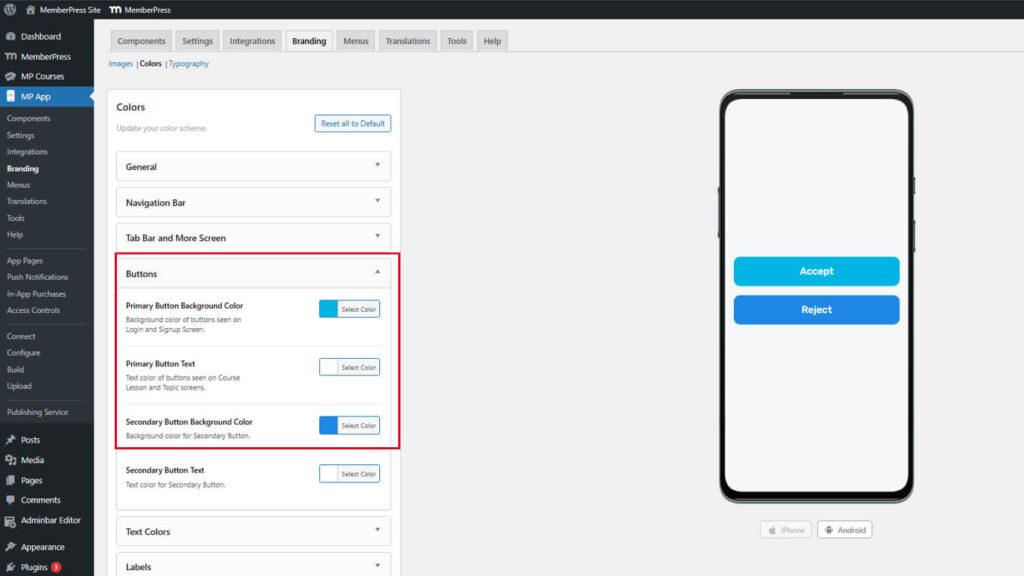
Les mises à jour de l'aperçu des boutons montrent comment les boutons apparaissent dans différents contextes.
Distinguer les hiérarchies de boutons
Les boutons principaux et secondaires doivent indiquer clairement l'importance de l'action.
Les boutons primaires représentent les actions principales telles que “Acheter”, “Soumettre” ou “Continuer”. Ces boutons doivent utiliser des couleurs vives qui attirent l'attention. Les boutons secondaires représentent des actions alternatives telles que “Annuler” ou “Revenir en arrière”. Ces boutons doivent utiliser des couleurs plus discrètes qui complètent les boutons principaux sans les concurrencer.
Ajustement des couleurs du texte
Les couleurs du texte contrôlent la lisibilité et la hiérarchie du contenu dans l'application.
- Naviguez jusqu'à Tableau de bord > MP AppKit > Image de marque > Couleurs.
- Localiser le Couleurs du texte section.
- Cliquez sur le bouton Couleur du texte de l'en-tête swatch.
- Choisissez une couleur dominante pour les titres de section.
- Cliquez sur le bouton Couleur du texte du corps swatch.
- Choisissez une couleur très lisible pour le texte du contenu principal.
- Cliquez sur le bouton Description Couleur du texte swatch.
- Sélectionnez une couleur légèrement atténuée pour les descriptions supplémentaires.
- Cliquez sur le bouton Couleur du méta texte swatch.
- Sélectionnez une couleur subtile pour les horodatages et les métadonnées.
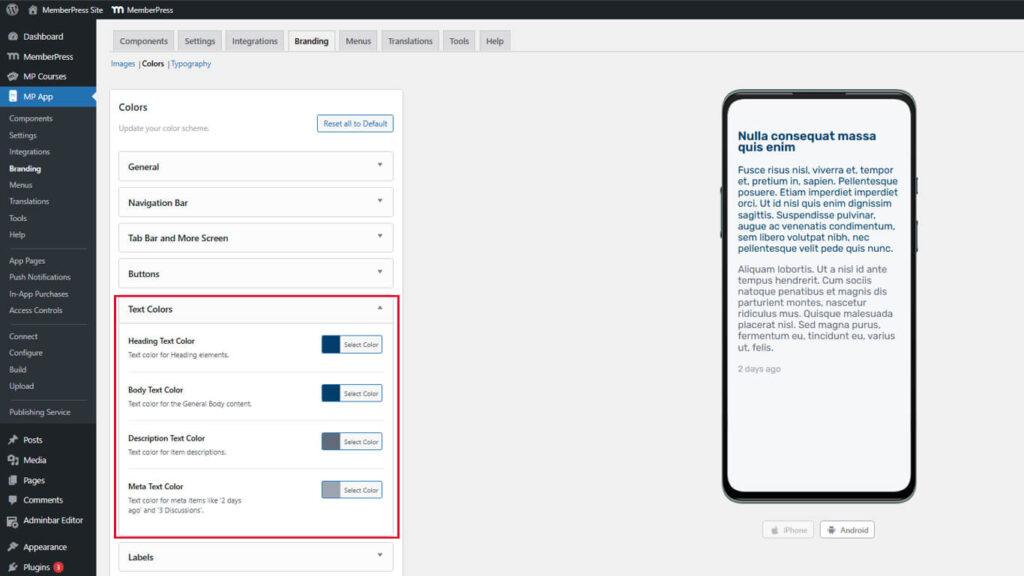
L'aperçu du texte affiche l'apparence des différents niveaux de texte avec les couleurs sélectionnées.
Établissement d'une hiérarchie de texte
Les couleurs du texte doivent créer une hiérarchie visuelle claire pour la lecture du contenu.
Le texte de l'en-tête doit être le plus visible pour indiquer les débuts de section. Le corps du texte doit offrir une lisibilité optimale pour une lecture prolongée. Le texte descriptif doit être distinct, mais moins visible que le corps du texte. Le méta-texte doit être suffisamment subtil pour ne pas détourner l'attention du contenu principal.
Étiquettes de style
Les couleurs des étiquettes affectent les étiquettes, les badges et les indicateurs d'état dans l'ensemble de l'application.
- Naviguez jusqu'à Tableau de bord > MP AppKit > Image de marque > Couleurs.
- Localiser le Étiquettes section.
- Cliquez sur le bouton Couleur d'arrière-plan de l'étiquette swatch.
- Sélectionnez une couleur pour l'arrière-plan des étiquettes.
- Cliquez sur le bouton Couleur du texte de l'étiquette swatch.
- Sélectionnez une couleur contrastante pour le texte de l'étiquette.
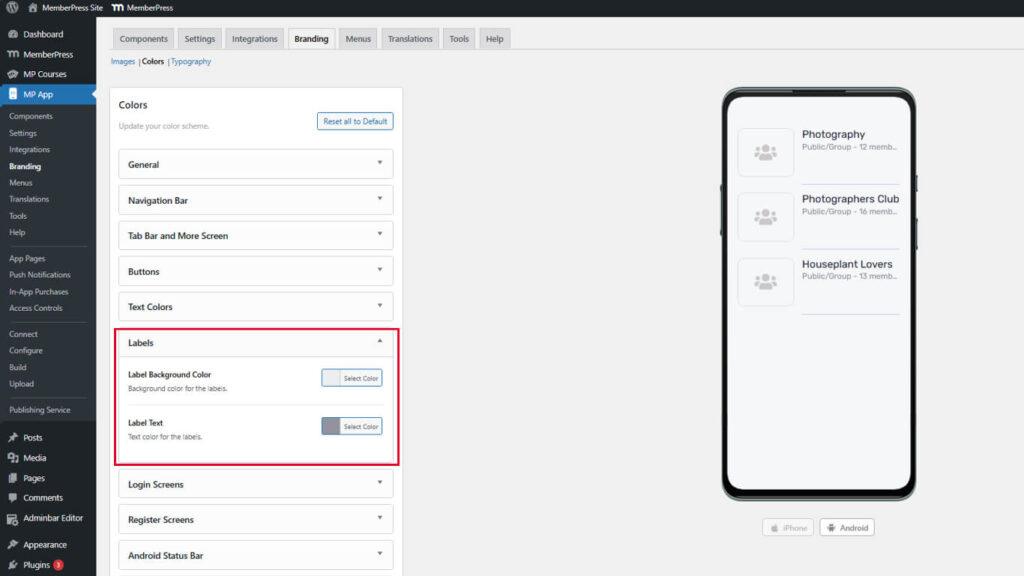
L'aperçu de l'étiquette montre l'apparence dans les vues de liste et de détail.
Assurer la visibilité des étiquettes
Les étiquettes doivent rester visibles sur différents fonds de page.
La couleur d'arrière-plan de l'étiquette doit contraster avec les fonds de page où apparaissent les étiquettes. Le texte de l'étiquette doit être fortement contrasté par rapport à l'arrière-plan de l'étiquette afin d'en faciliter la lecture. Les étiquettes apparaissent souvent sur des arrière-plans différents, de sorte que la sélection des couleurs doit tenir compte de contextes multiples.
Personnalisation des couleurs de l'écran de connexion
Les couleurs de l'écran de connexion définissent l'apparence de la page d'authentification.
- Naviguez jusqu'à Tableau de bord > MP AppKit > Image de marque > Couleurs.
- Localiser le Écrans de connexion section.
- Configurez les échantillons de couleurs suivants :
- Couleur de fond pour l'arrière-plan de la page de connexion ;
- Arrière-plan du champ de saisie pour les arrière-plans des champs de formulaire ;
- Bordure des champs de saisie pour les grandes lignes du champ ;
- Texte du champ de saisie pour la couleur du texte saisi ;
- Bouton d'arrière-plan pour les arrière-plans des boutons d'action ;
- Texte du bouton pour la couleur du texte du bouton.
- Examinez les aperçus des écrans Connexion et Mot de passe oublié.
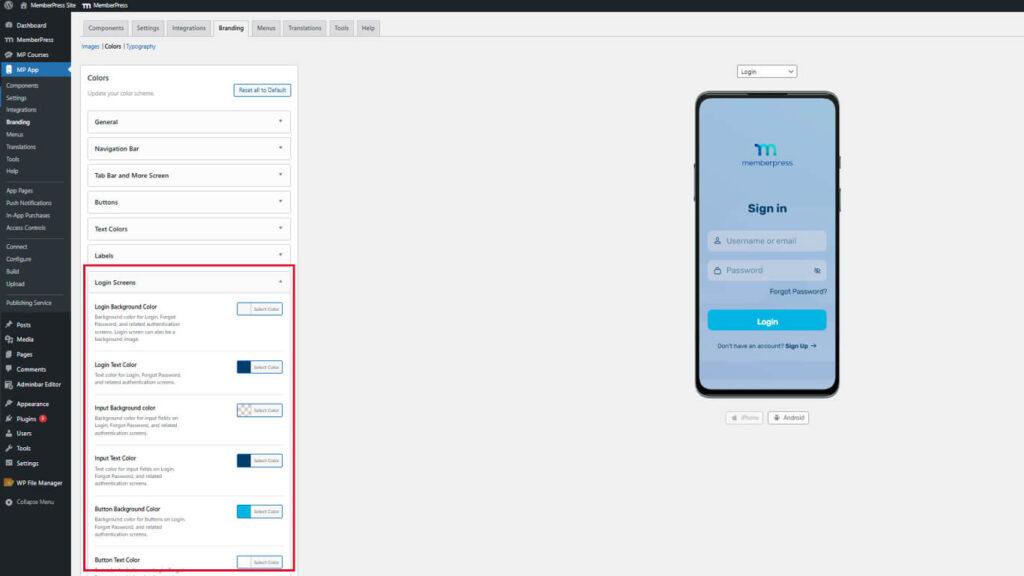
L'aperçu de l'écran de connexion affiche les pages d'authentification avec les couleurs sélectionnées.
Couleurs de l'écran d'enregistrement
Les couleurs de l'écran d'enregistrement définissent l'apparence de la page de création de compte.
- Naviguez jusqu'à Tableau de bord > MP AppKit > Branding > Couleurs.
- Localiser le Écrans d'enregistrement section.
- Configurez les échantillons de couleurs suivants :
- Couleur de fond pour l'arrière-plan de la page d'enregistrement ;
- Arrière-plan du champ de saisie pour les arrière-plans des champs de formulaire ;
- Bordure des champs de saisie pour les grandes lignes du champ ;
- Texte du champ de saisie pour la couleur du texte saisi ;
- Bouton d'arrière-plan pour les arrière-plans des boutons d'action ;
- Texte du bouton pour la couleur du texte du bouton.
- Examinez l'aperçu de l'écran d'enregistrement.
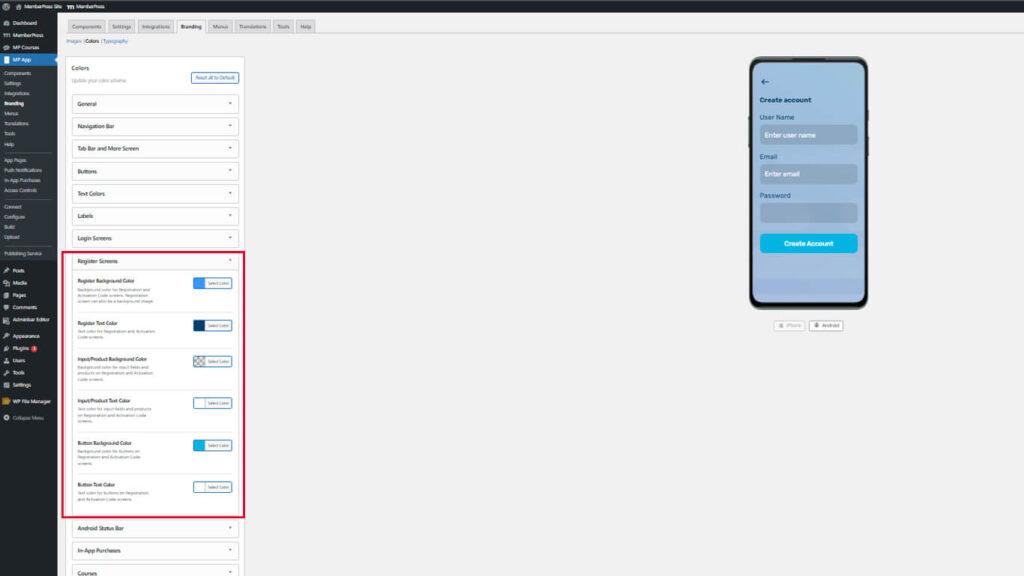
L'utilisation de couleurs cohérentes entre les écrans de connexion et d'enregistrement crée des expériences d'authentification cohérentes.
Configuration de la couleur de la barre d'état d'Android
La couleur de la barre d'état d'Android affecte l'apparence de la barre d'état de l'appareil en haut de l'écran.
- Naviguez jusqu'à Tableau de bord > MP AppKit > Image de marque > Couleurs.
- Localiser le Barre d'état Android section.
- Cliquez sur le bouton Couleur d'arrière-plan de l'état swatch.
- Sélectionnez une couleur qui s'harmonise avec la barre de navigation ou qui la complète.
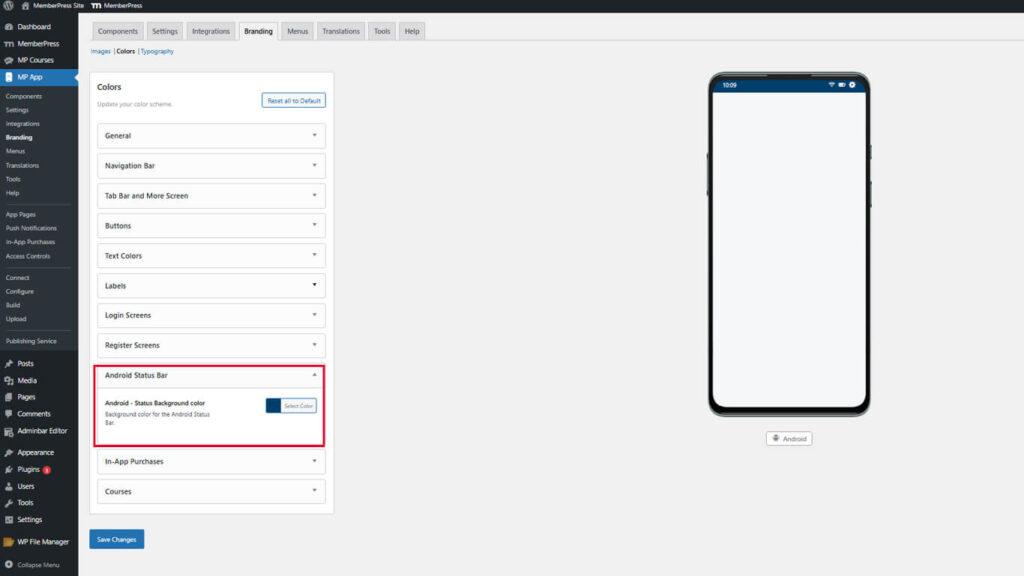
L'aperçu de la couleur de la barre d'état est mis à jour uniquement sur la maquette de l'appareil Android. Ce paramètre n'affecte pas les appareils iOS.
Personnaliser les couleurs des achats In-App
Les couleurs des achats en ligne mettent en valeur les produits et les avantages liés à l'adhésion.
- Naviguez jusqu'à Tableau de bord > MP AppKit > Image de marque > Couleurs.
- Localiser le Achats intégrés section.
- Cliquez sur le bouton Statut des achats Couleur de la coche swatch.
- Sélectionnez une couleur pour les coches indiquant les adhésions achetées.
- Cliquez sur le bouton Avantages Couleur de la coche swatch.
- Sélectionnez une couleur pour les cases à cocher énumérant les avantages de l'adhésion.
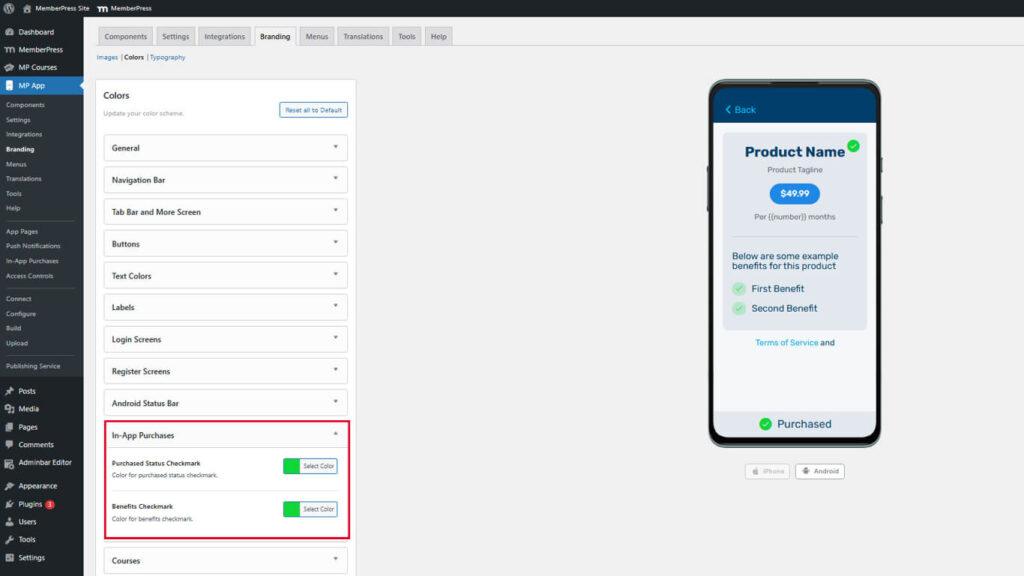
L'aperçu de l'écran d'achat affiche les listes de produits avec des couleurs de coche configurées.
Mise en évidence du statut d'achat
La couleur des coches doit indiquer clairement que l'achat a été effectué et que les prestations ont été incluses.
Les marques de contrôle de l'état des achats doivent utiliser des couleurs positives, comme le vert, pour indiquer les transactions réussies. Les marques de contrôle des avantages doivent compléter la couleur de l'état des achats tout en restant distinctes. Un contraste suffisant avec les couleurs d'arrière-plan garantit la visibilité dans différents contextes d'écran.
Sauvegarde de la configuration des couleurs
Toutes les sélections de couleurs doivent être sauvegardées avant de prendre effet.
- Passez en revue toutes les couleurs configurées dans les maquettes de prévisualisation.
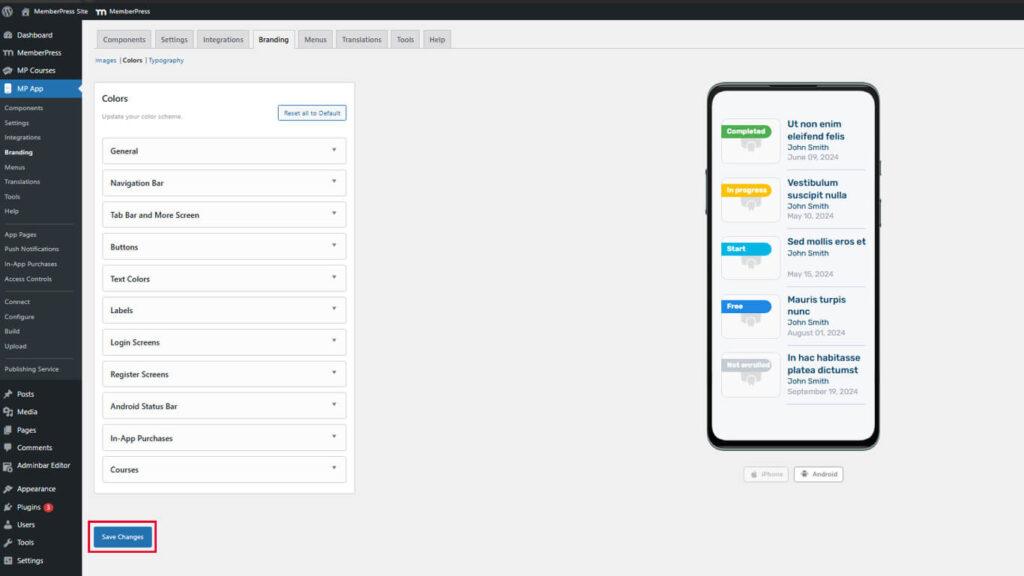
- Faites défiler l'écran jusqu'au bas de la page Tableau de bord > MP AppKit > Branding > Couleurs page.
- Cliquez sur Enregistrer les modifications.
- Attendez le message de confirmation indiquant que l'enregistrement a réussi.










 FR
FR  EN
EN  ES
ES  DE
DE  PT
PT 