

Les logos, écrans d'accueil et icônes personnalisés améliorent l'identité de la marque et l'expérience de l'utilisateur dans les applications mobiles. MemberPress AppKit prend en charge la personnalisation des images pour les écrans d'accueil, les pages de connexion, les icônes des applications et les écrans de lancement.
Ce document explique les spécifications recommandées pour les images, les lignes directrices en matière d'image de marque et les étapes de configuration pour toutes les ressources visuelles.
Comprendre les ressources visuelles de l'application
Les ressources visuelles créent des expériences de marque sur les plateformes iOS et Android. Différents types de ressources servent des objectifs spécifiques, notamment la marque de navigation, les écrans d'authentification, les animations de lancement et les icônes de l'écran d'accueil de l'appareil. Une configuration adéquate des ressources permet d'assurer la cohérence de la marque tout au long des interactions des membres avec l'application.
Spécifications recommandées pour les images
Les différents éléments visuels requièrent des dimensions et des formats spécifiques pour une présentation optimale.
| Élément | Taille (pixels) | Format |
| Logo de l'écran d'accueil | 1200 × 180 | PNG ou PSD |
| Logo de connexion | 1200 × 774 | PNG ou PSD |
| Historique de la connexion | 2732 × 2732 | PNG ou PSD |
| Historique de l'enregistrement | 2732 × 2732 | PNG ou PSD |
| Arrière-plan de l'écran de lancement | 2732 × 2732 | PNG ou PSD |
| Icône d'application iOS | 1024 × 1024 | PNG |
| Icône d'application Android | 1024 × 1024 | PNG |
| Icône adaptative Android | 1024 × 1024 | PNG |
| Icône de notification Android | 256 × 256 | PNG |
Comprendre les exigences des icônes AppKit
Icône AppKit standard MemberPress (iOS et Android)
- Taille: 1024 × 1024 px
- Zone de sécurité: 682 × 682 px centre
- Format: PNG (32 bits), sRGB
- iOS: Pas de transparence
- Android: Transparence autorisée
Icône adaptative Android
Nécessaire sur Android 8+ pour la flexibilité des formes et la parallaxe.
- Premier plan: Logo transparent, 1024 × 1024 px
- Contexte: Image opaque, 1024 × 1024 px
- Zone de sécurité: 683 × 683 px au centre (marge de 170 px)
Écran de lancement / écran d'accueil
Affiché instantanément au démarrage de l'application MemberPress.
- Taille: 2732 × 2732 px
- Zone de sécurité: 1200 × 2732 px centre
- Format: PNG (32 bits), sRGB
Écran de connexion
- Logo: Max 200 × 150 px en arrière-plan
- Contexte: 2732 × 2732 px
- Format: PNG (32 bits), sRGB
Accès aux paramètres de l'image de marque
Toute la configuration des images et des icônes s'effectue dans l'interface de paramétrage de la marque.
- Naviguez jusqu'à Tableau de bord > MP AppKit > Image de marque > Images.
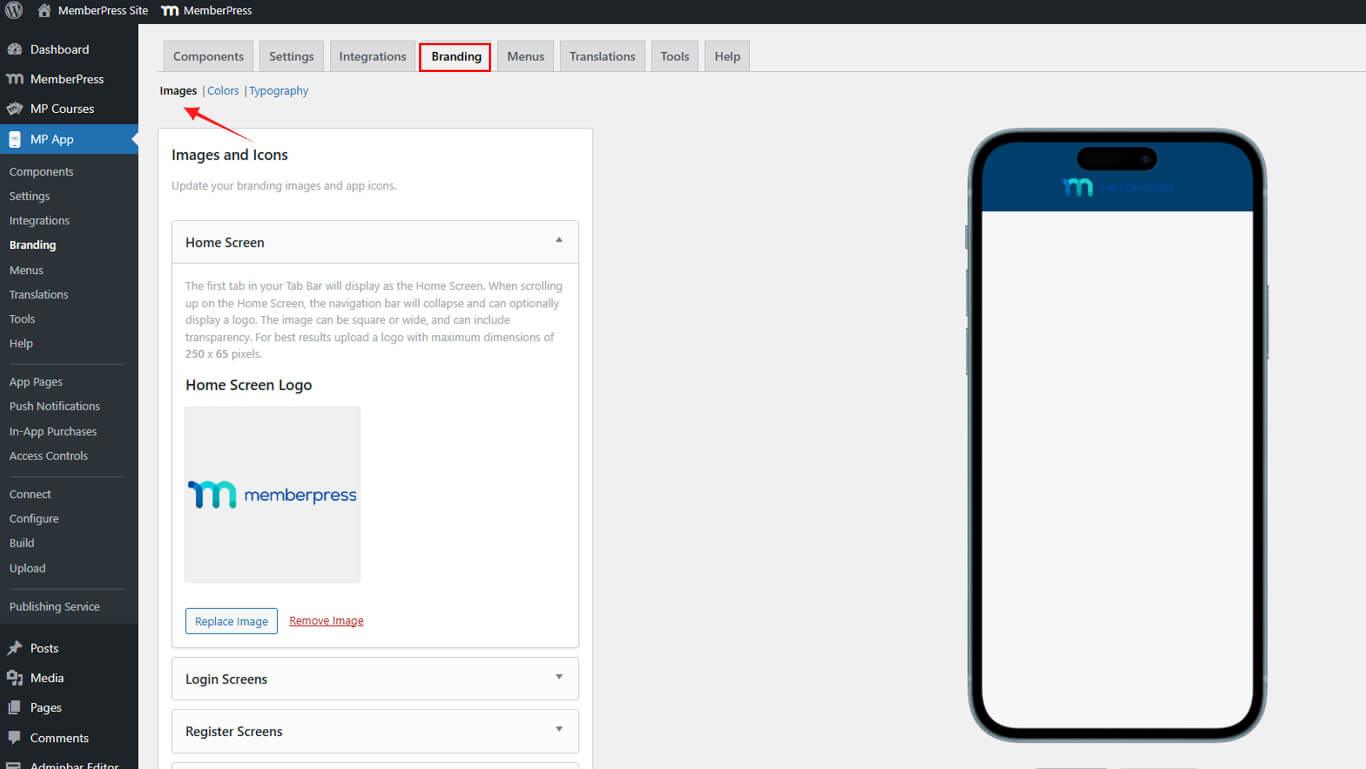
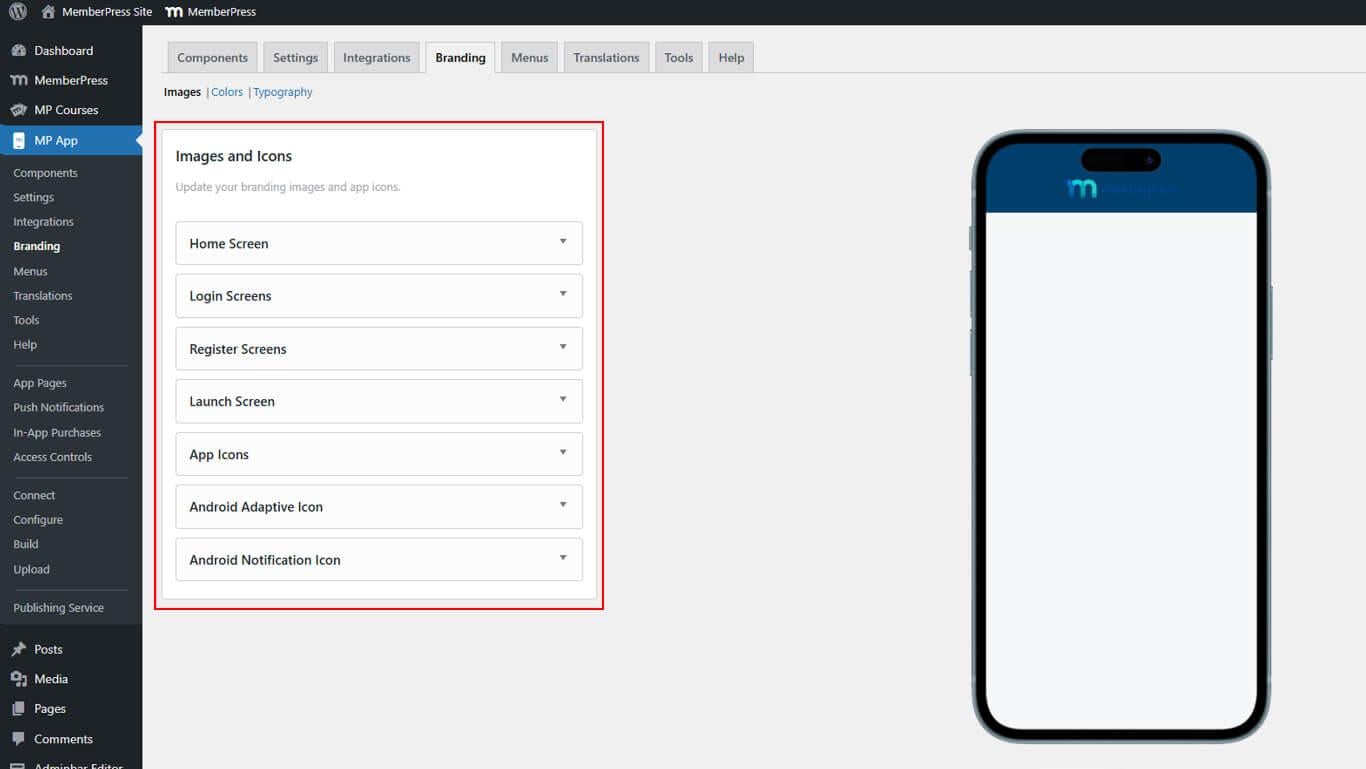
- Vérifiez que toutes les sections de la configuration apparaissent :
- Écran d'accueil pour le logo de navigation ;
- Écrans de connexion pour l'authentification de la marque ;
- Écrans d'enregistrement pour l'image de marque de l'enregistrement ;
- Écran de lancement pour la configuration de l'écran de démarrage ;
- Icônes d'application pour les icônes de l'écran d'accueil ;
- Icônes adaptatives Android pour les couches d'icônes adaptatives ;
- Icône de notification pour l'affichage du plateau de notification.
Configuration du logo de l'écran d'accueil
Le logo de l'écran d'accueil s'affiche dans les en-têtes de navigation des applications.
- Naviguez jusqu'à Tableau de bord > MP AppKit > Image de marque > Images.
- Localiser le Écran d'accueil section.
- Cliquez sur Télécharger l'image.
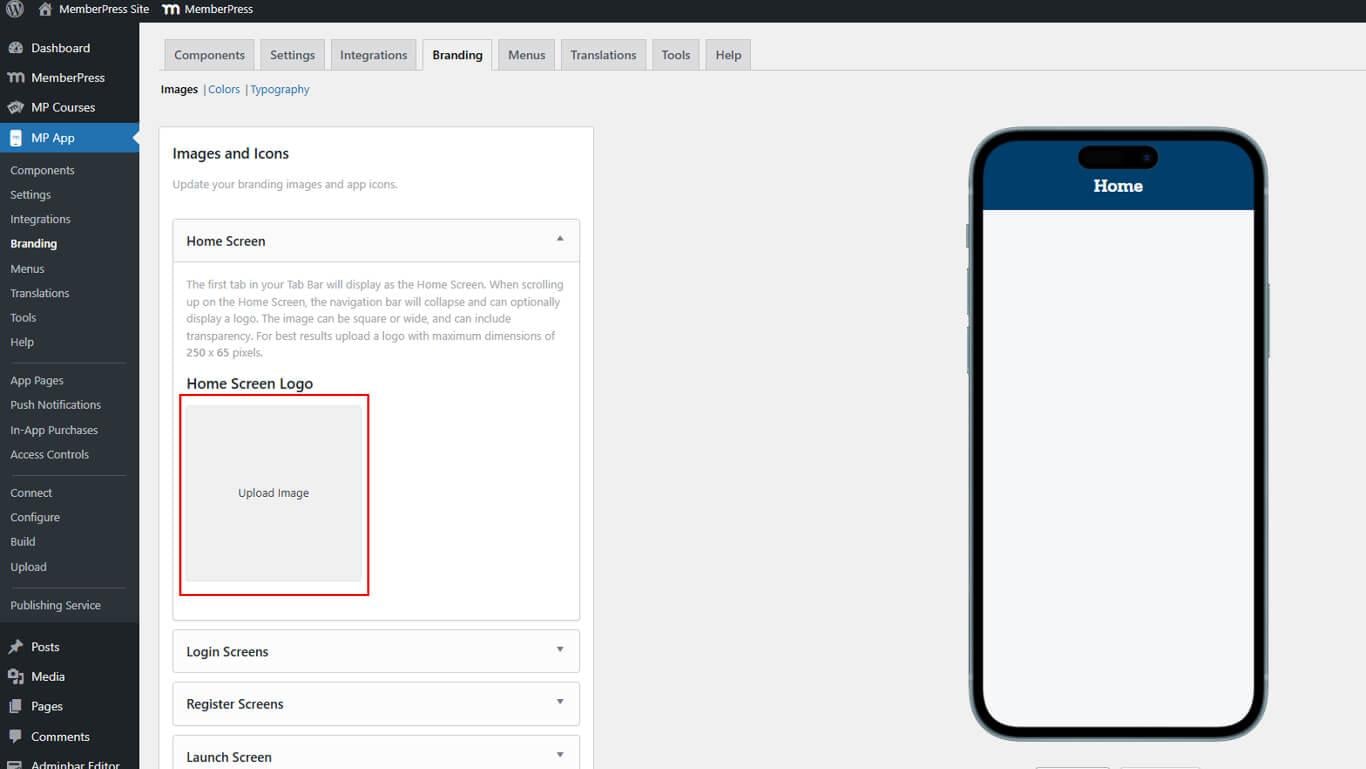
- Sélectionnez le fichier logo sur l'appareil ou dans la bibliothèque multimédia.
- Redimensionnez l'image à l'aide de l'outil de recadrage si nécessaire.
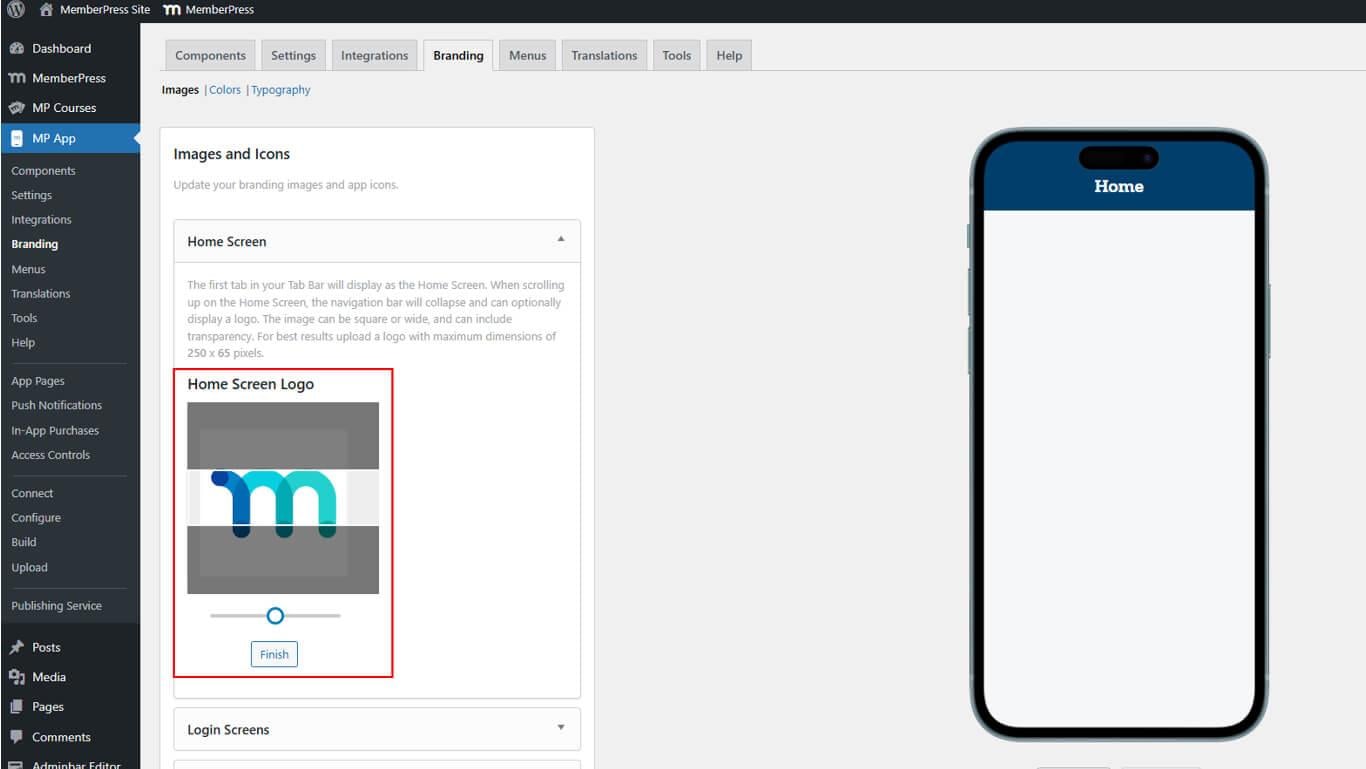
- Cliquez sur Fin pour terminer le téléchargement.
- Examinez le logo dans les maquettes de prévisualisation iOS et Android.
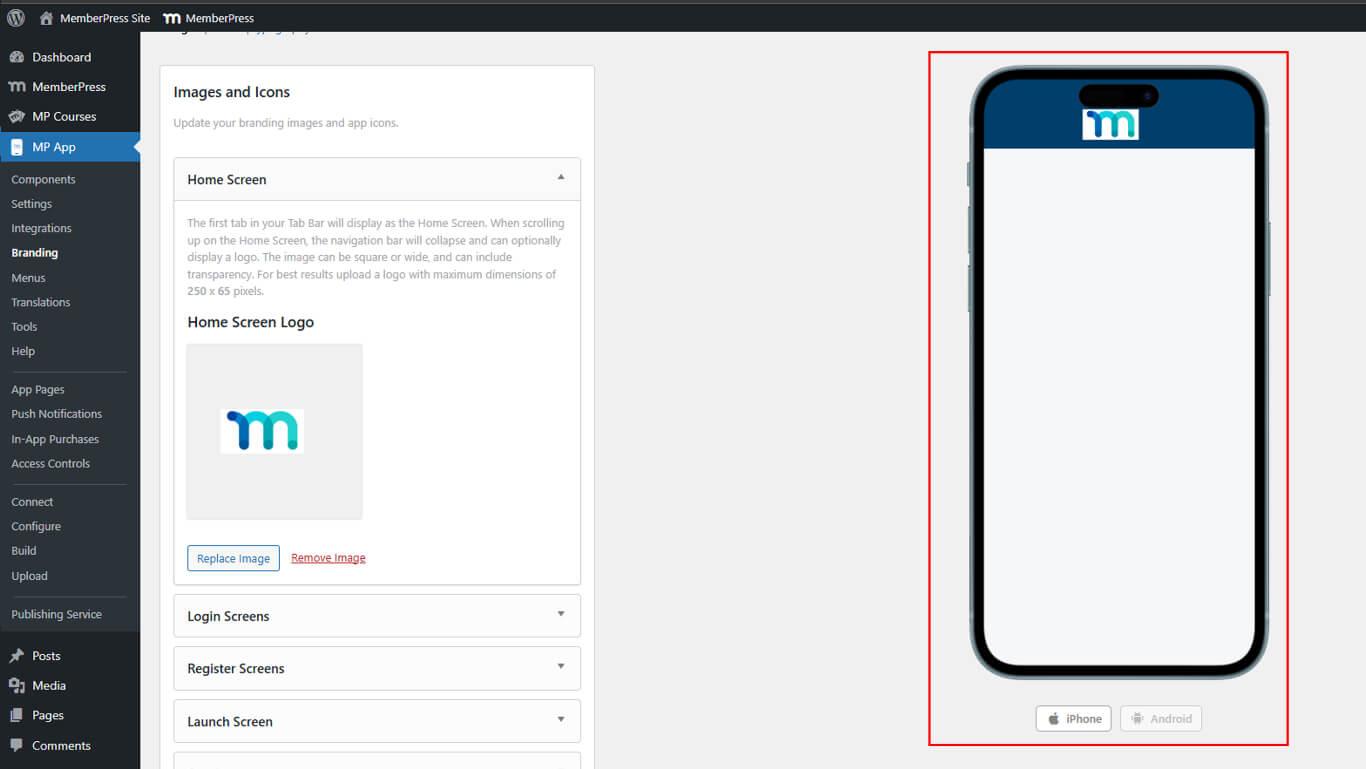
Le logo de l'écran d'accueil apparaît de manière cohérente sur toutes les pages de l'application dans l'en-tête de navigation.
Configuration des actifs de l'écran de connexion
Les ressources de l'écran de connexion comprennent le logo et les images d'arrière-plan des pages d'authentification.
- Naviguez jusqu'à Tableau de bord > MP AppKit > Image de marque > Images.
- Localiser le Écrans de connexion section.
- Cliquez sur Télécharger l'image à côté du logo de connexion.
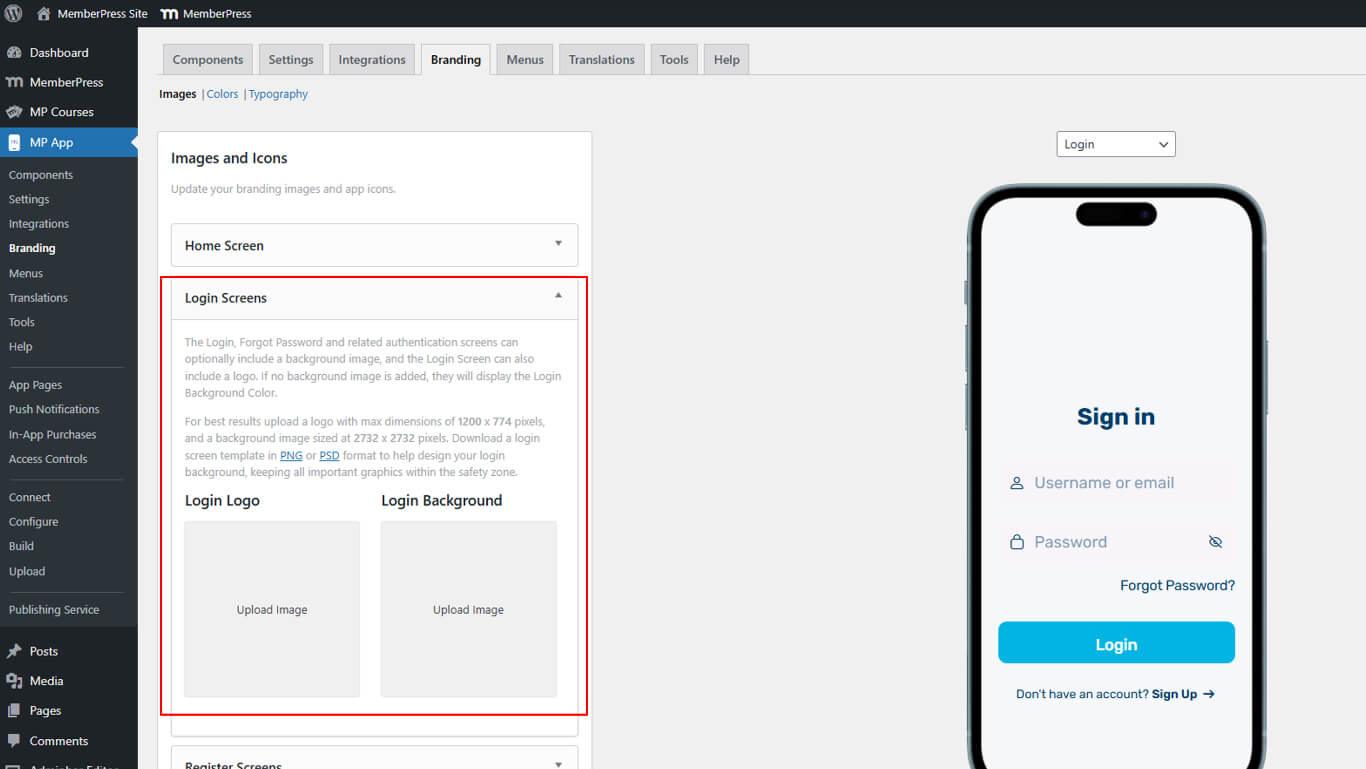
- Sélectionnez le fichier du logo et cliquez sur Fin après les ajustements éventuels.
- Cliquez sur Télécharger l'image.
- Sélectionnez le fichier d'arrière-plan et cliquez sur Fin après les ajustements.
- Basculer entre les Connexion et Mot de passe oublié prévisualisation des pages.
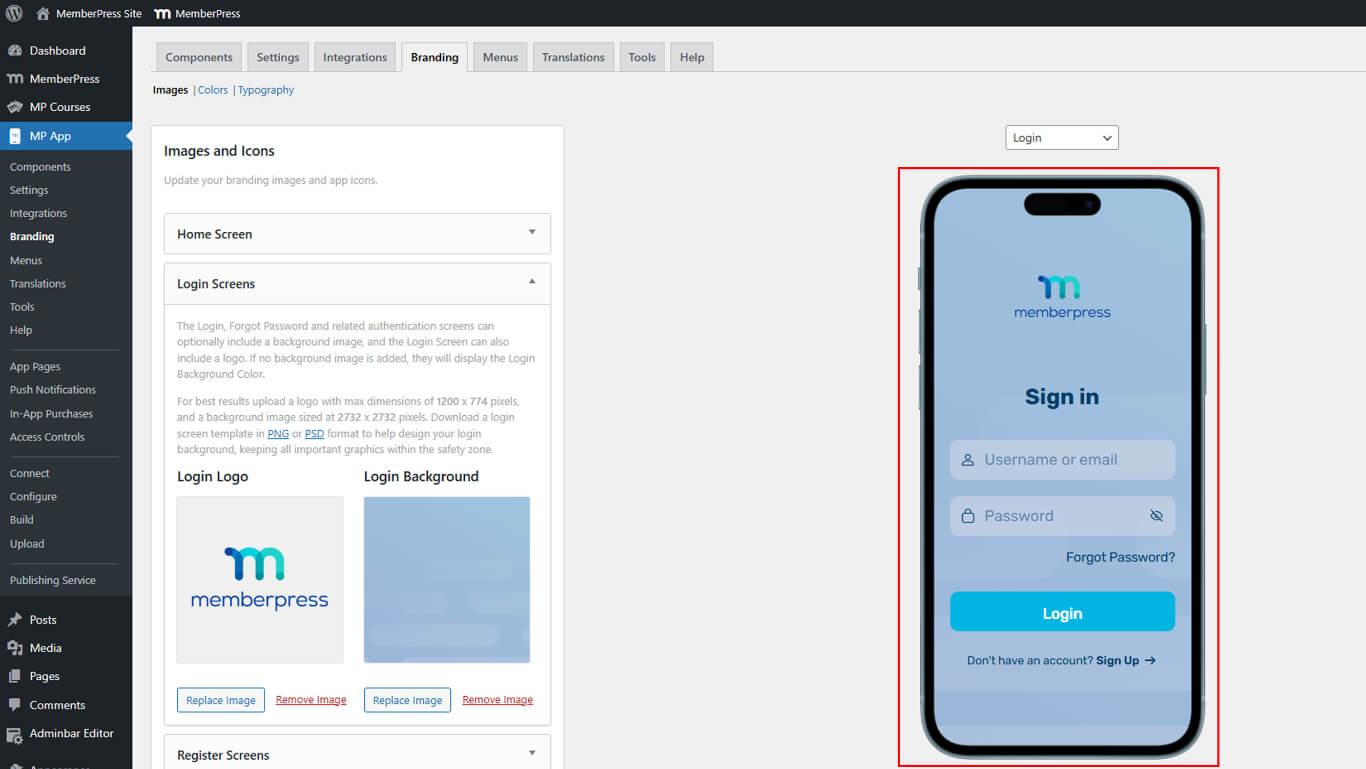
Les actifs de connexion s'affichent sur les pages d'authentification, y compris les écrans de connexion, de mot de passe oublié et de réinitialisation du mot de passe.
Configuration des actifs de l'écran d'enregistrement
Les ressources de l'écran d'enregistrement comprennent des images d'arrière-plan pour les pages de création de compte.
- Naviguez jusqu'à Tableau de bord > MP AppKit > Image de marque > Images.
- Localiser le Écrans d'enregistrement section.
- Cliquez sur Télécharger des images.
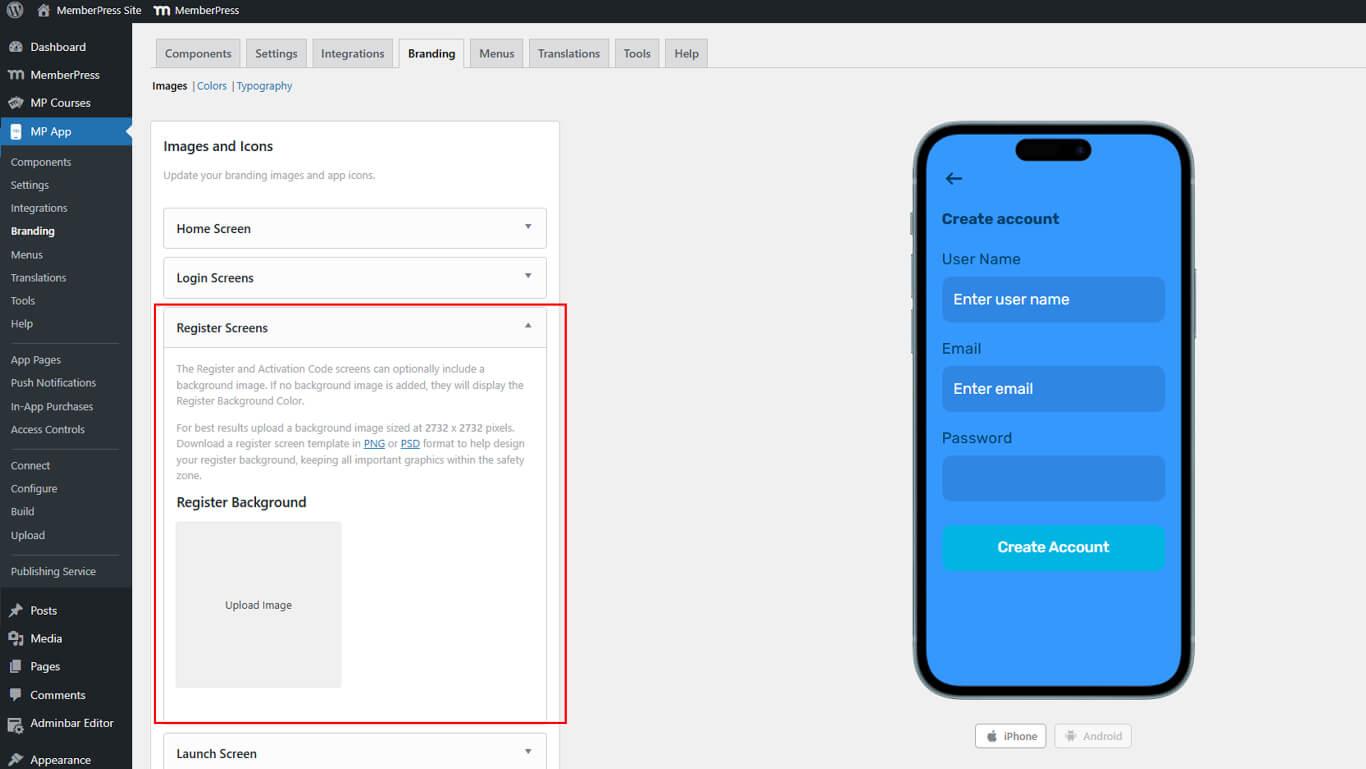
- Sélectionnez le fichier d'arrière-plan et cliquez sur Fin après les ajustements.
- Examinez l'arrière-plan dans l'aperçu de la page d'enregistrement.
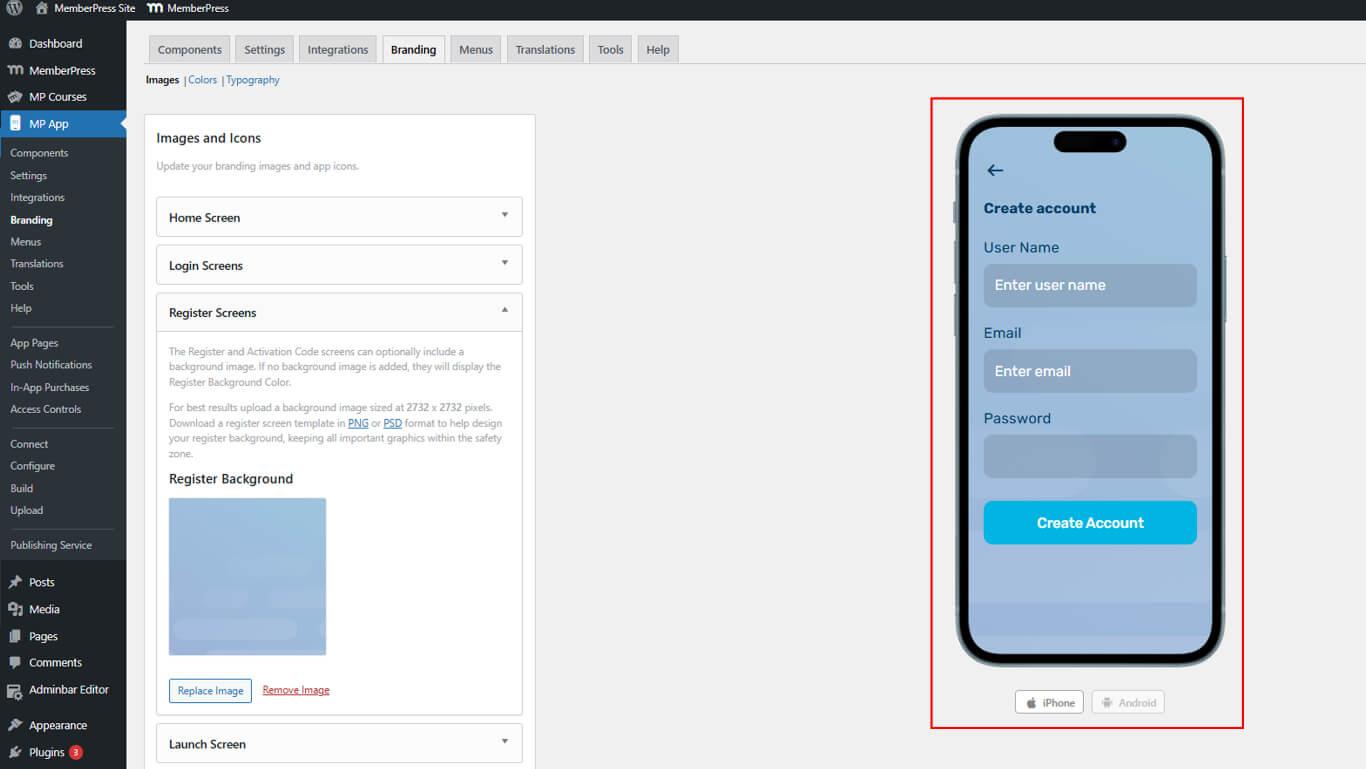
L'utilisation de la même image pour les arrière-plans de connexion et d'enregistrement permet de créer une marque d'authentification cohérente.
Configuration des actifs de l'écran de lancement
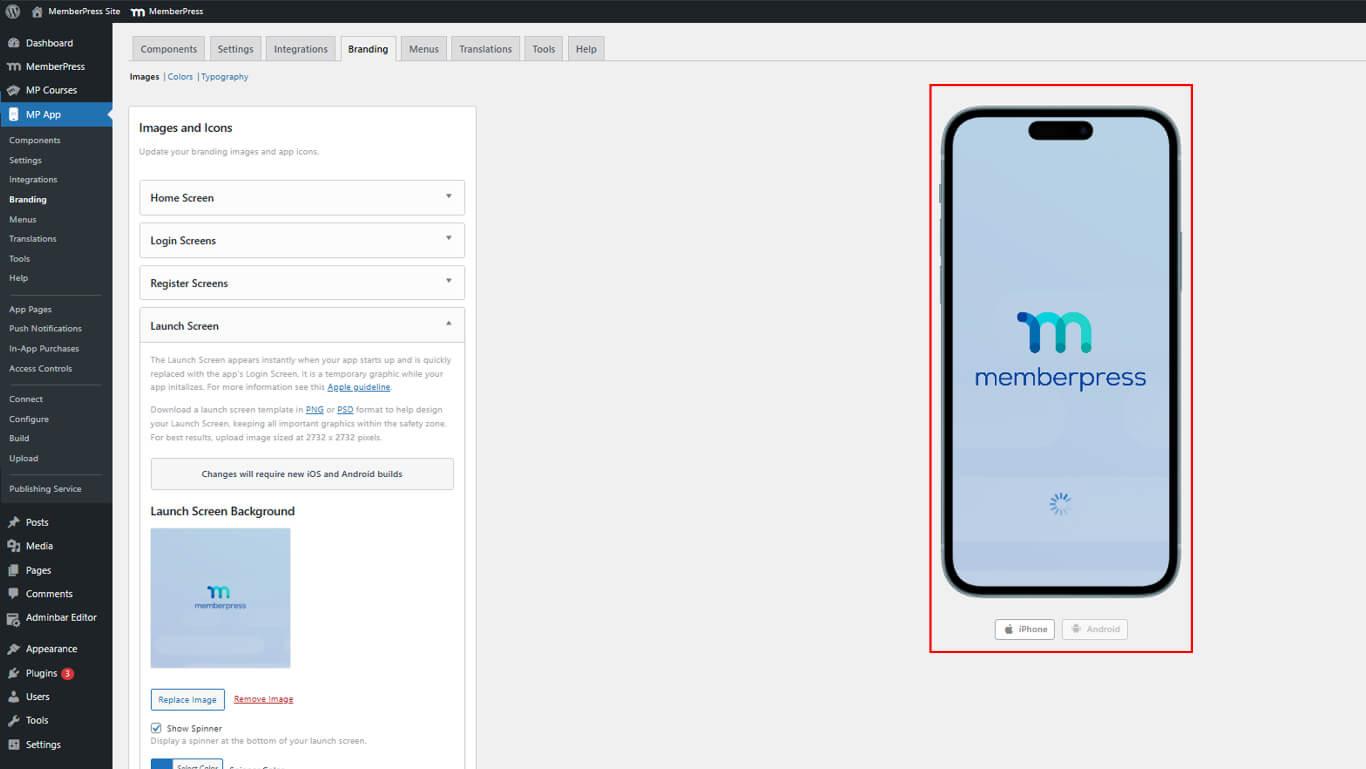
Les éléments de l'écran de lancement s'affichent lors de l'initialisation de l'application avant que le contenu ne soit chargé.
- Naviguez jusqu'à Tableau de bord > MP AppKit > Image de marque > Images.
- Localiser le Écran de lancement section.
- Cliquez sur Télécharger l'image.
- Sélectionnez le fichier d'arrière-plan.
- Vérifier le Show Spinner pour activer l'animation de chargement.
- Sélectionner Couleur de la roulette en utilisant le sélecteur de couleurs.
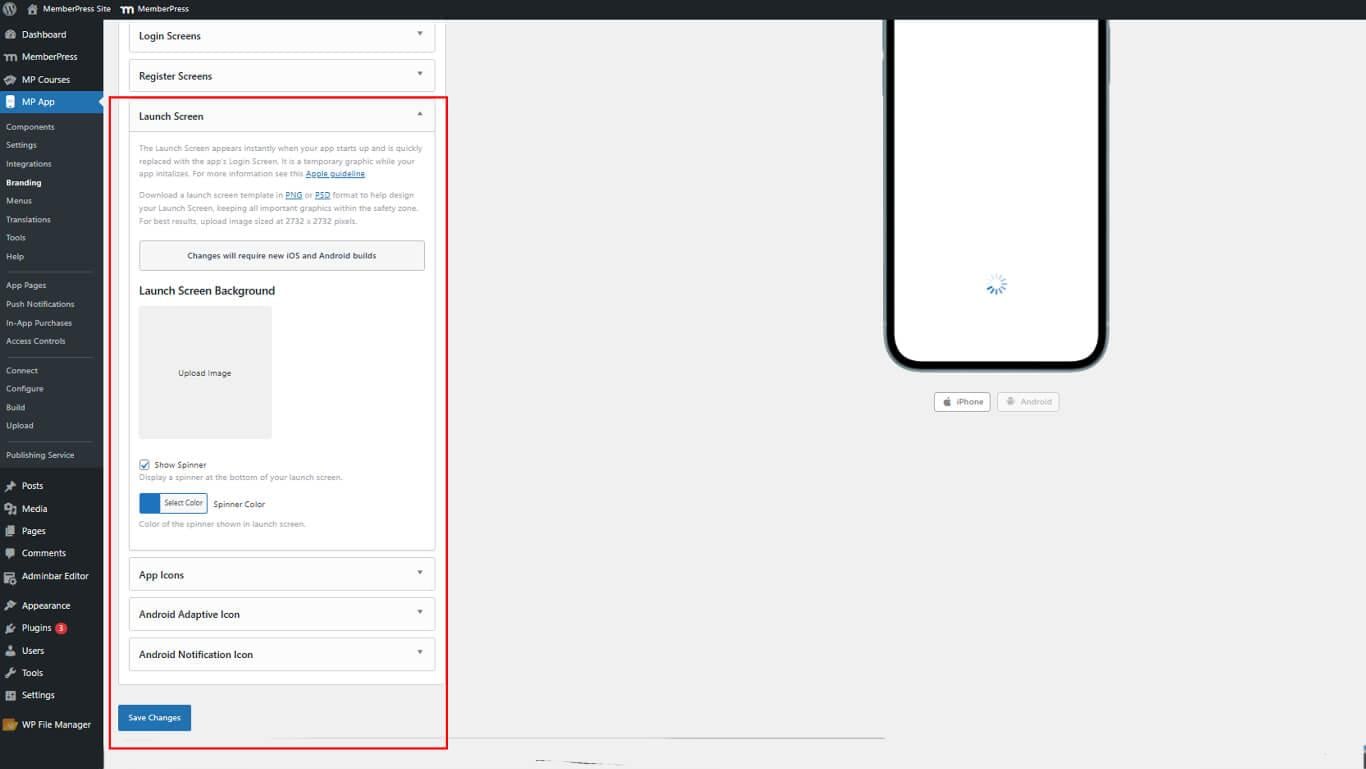
- Examinez l'aperçu animé montrant le comportement du spinner.
Configuration des icônes d'application
Les icônes des applications s'affichent sur les écrans d'accueil des appareils et dans les boutiques d'applications.
- Naviguez jusqu'à Tableau de bord > MP AppKit > Image de marque > Images.
- Localiser le Icônes d'application section.
- Cliquez sur Télécharger l'image.
- Cliquez sur le bouton Télécharger l'image à côté de l'icône de l'application Android.
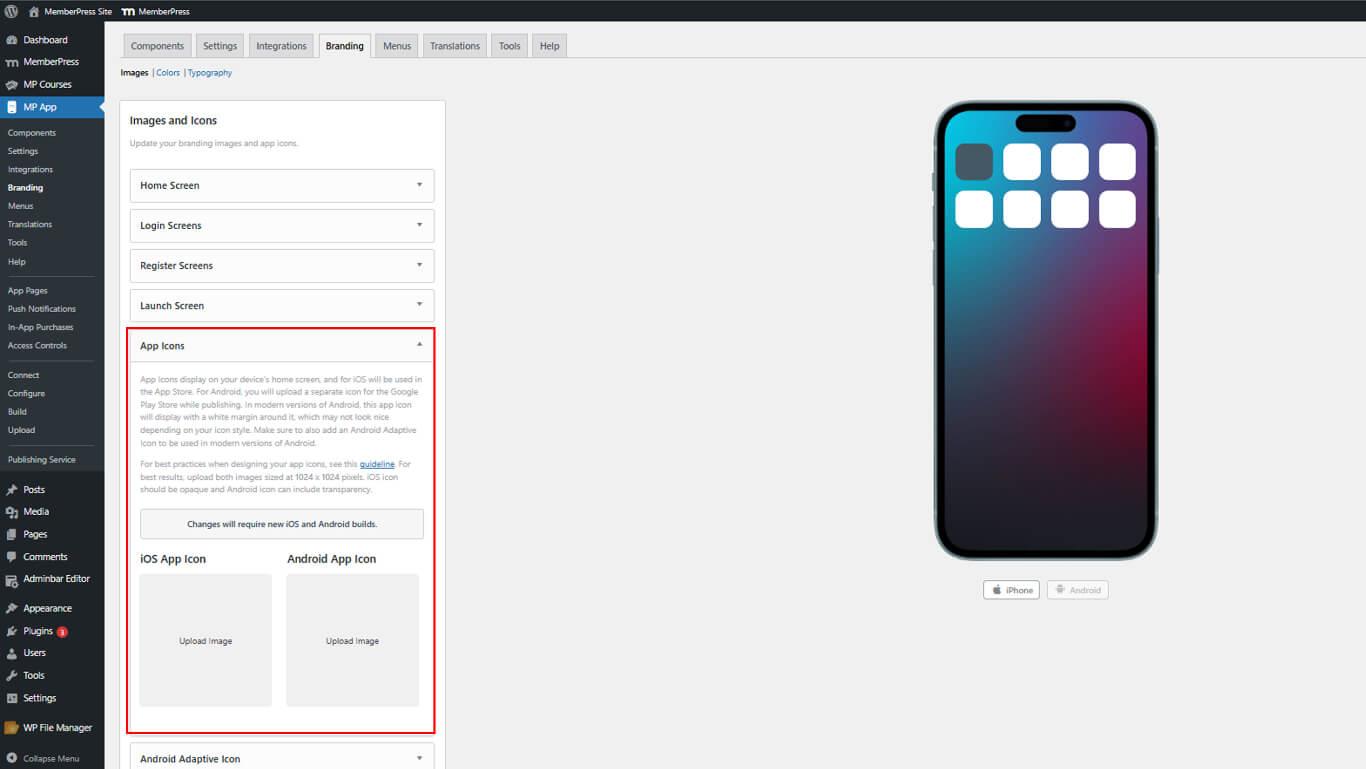
- Redimensionnez si nécessaire et cliquez sur Fin.
- Révision des icônes dans les maquettes d'appareils iPhone et Android.
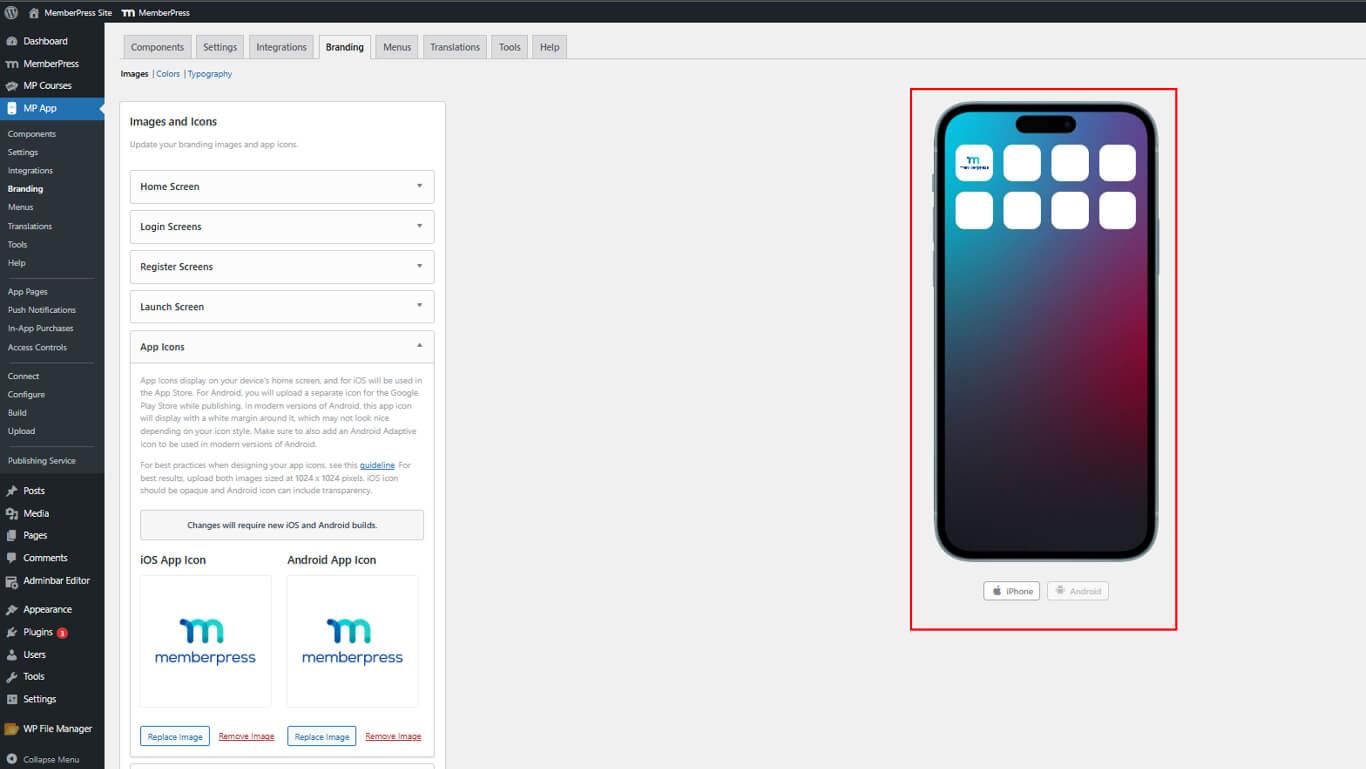
Des icônes distinctes pour iOS et Android permettent de gérer la transparence en fonction de la plateforme.
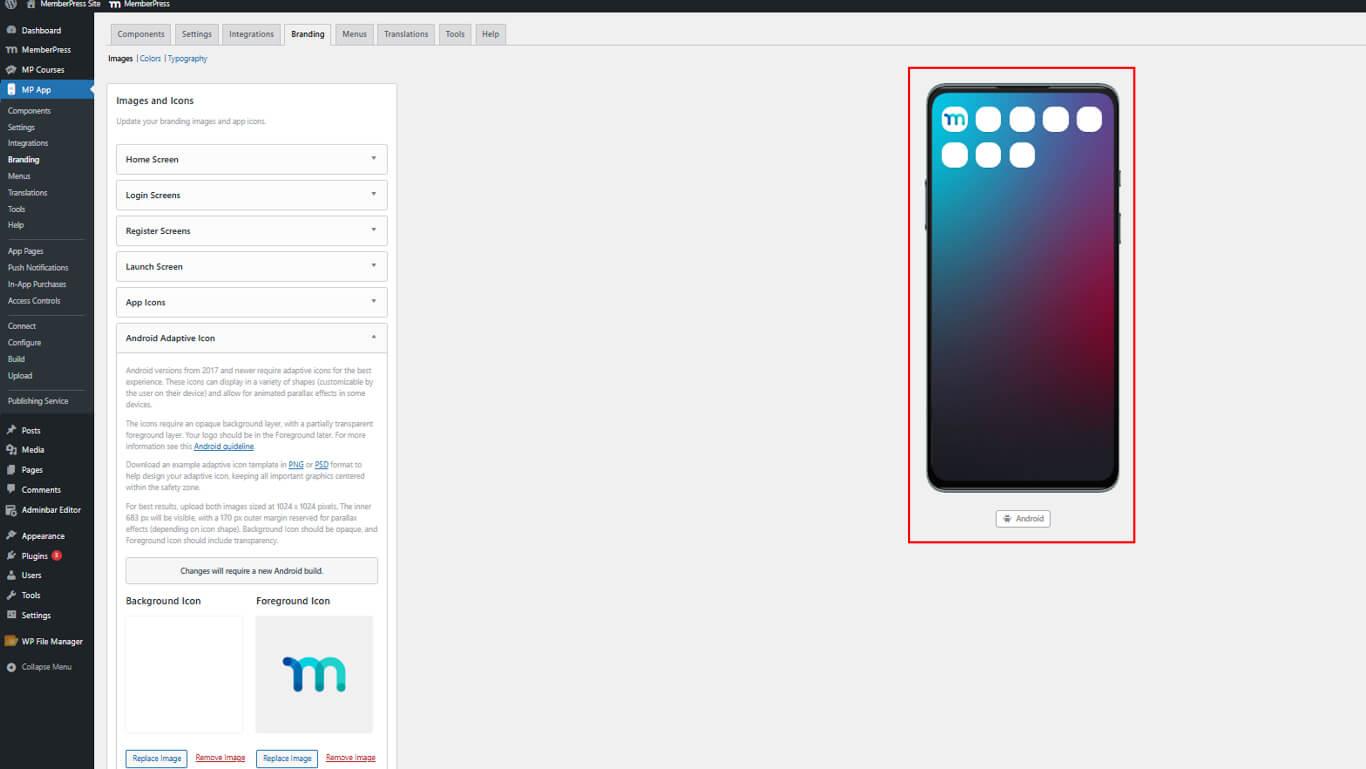
Configuration des icônes adaptatives Android
Les icônes adaptatives Android fournissent des couches d'avant-plan et d'arrière-plan pour un affichage flexible.
- Naviguez jusqu'à Tableau de bord > MP AppKit > Image de marque > Images.
- Localiser le Icône adaptative Android section.
- Cliquez sur Télécharger l'image.
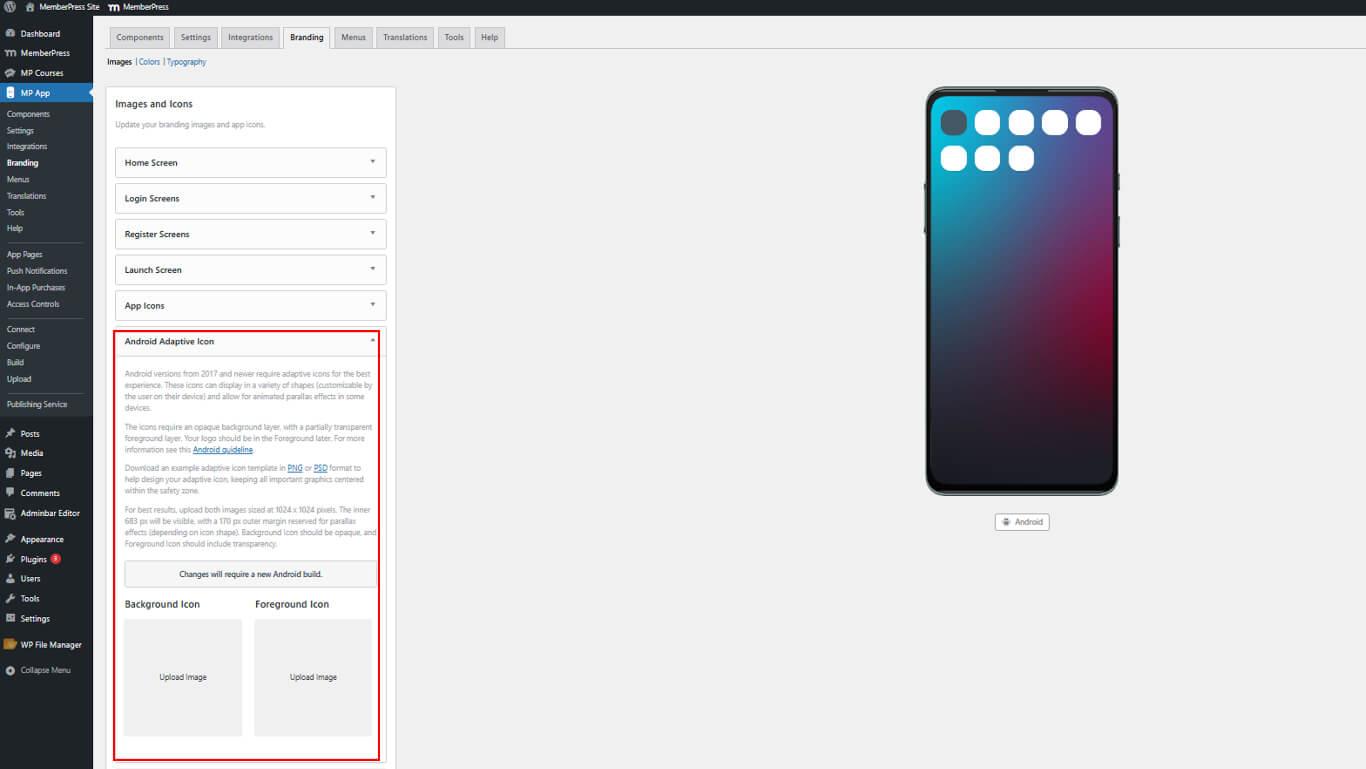
- Cliquez sur Fin après les ajustements éventuels.
- Examinez l'aperçu de l'icône adaptative montrant le comportement de la couche.
Configuration de l'icône de notification Android
Les icônes de notification s'affichent dans la zone de notification d'Android.
- Naviguez jusqu'à Tableau de bord > MP AppKit > Image de marque > Images.
- Localiser le Icône de notification section.
- Cliquez sur Télécharger l'image.
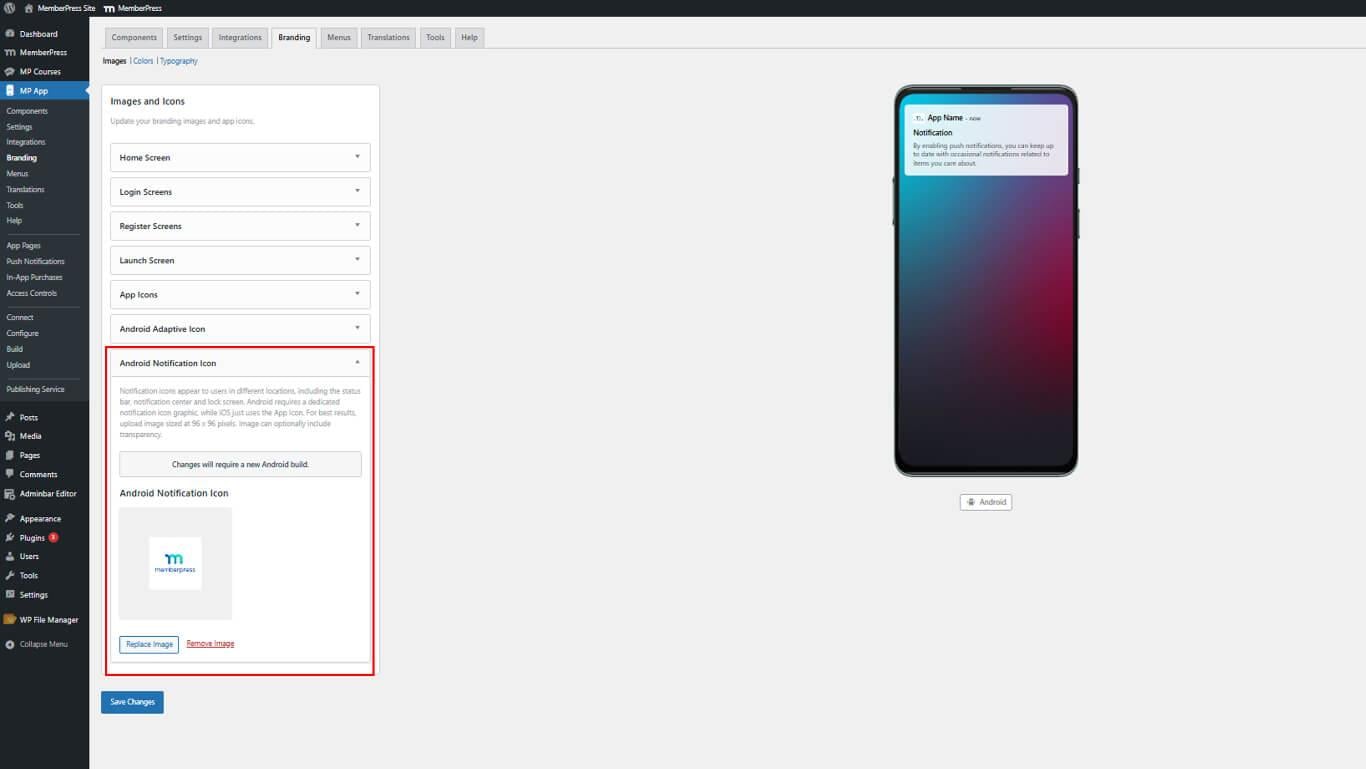
- Cliquez sur Fin après les ajustements éventuels.
- Examinez l'icône dans l'aperçu de la barre de notification.
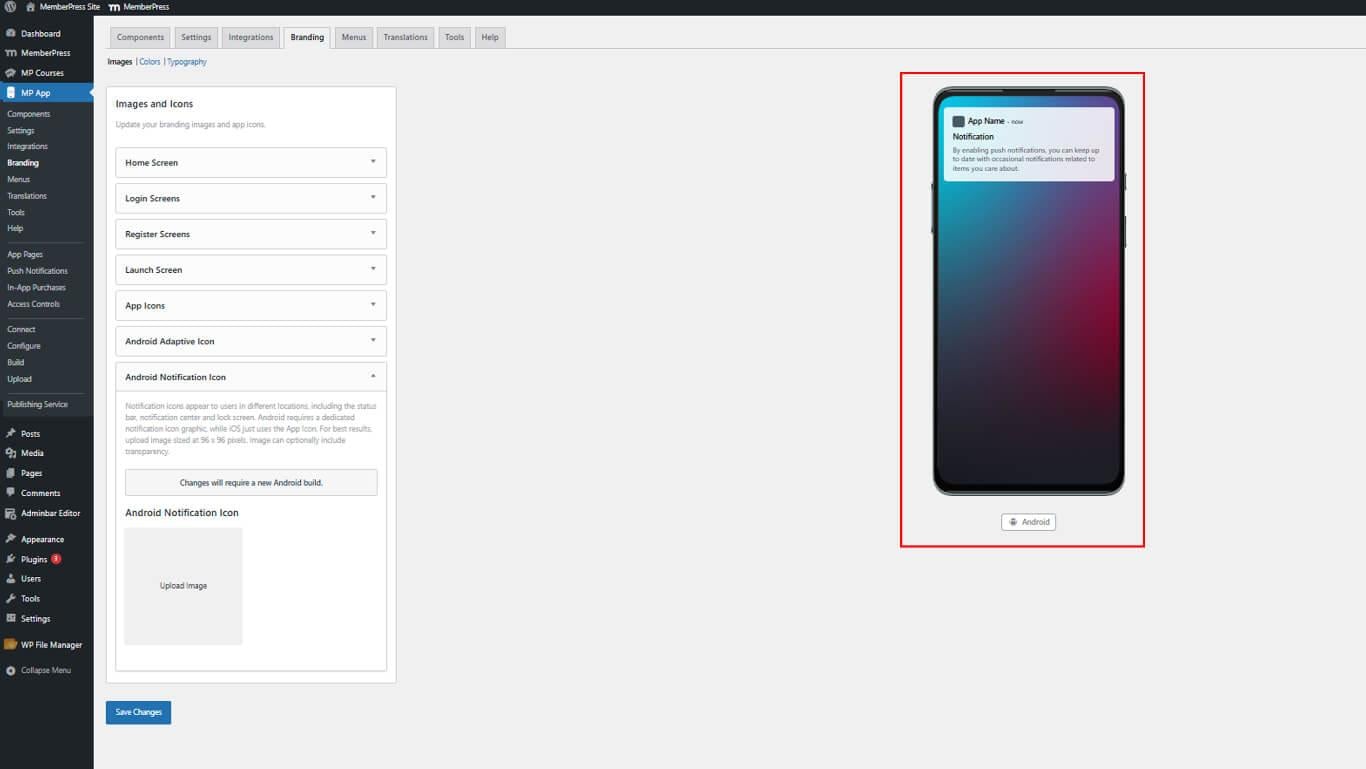
Les icônes de notification doivent utiliser des dessins simples et reconnaissables, visibles en petite taille.
Sauvegarde des modifications de configuration
Tous les téléchargements d'images et d'icônes doivent être sauvegardés avant de prendre effet.
- Faites défiler l'écran jusqu'au bas de la page Tableau de bord > MP AppKit > Image de marque > Images page.
- Cliquez sur Enregistrer les modifications.
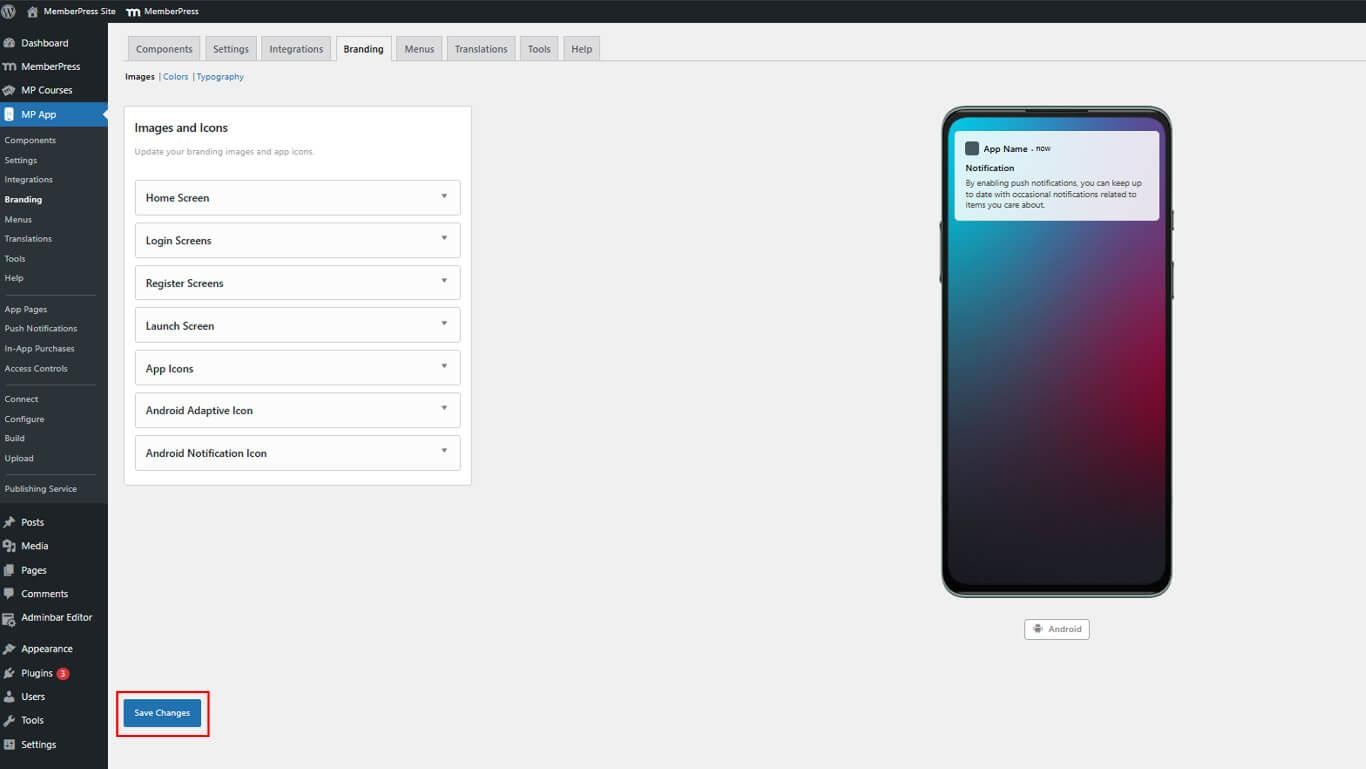
- Attendez le message de confirmation indiquant que l'enregistrement a réussi.










 FR
FR  EN
EN  ES
ES  DE
DE  PT
PT 