

Liens universels Apple Permettez aux URL de sites Web de s'ouvrir directement dans l'application iOS, éliminant ainsi les redirections Safari pour une navigation fluide. La configuration des liens universels nécessite la fonctionnalité Domaines associés dans le compte Apple Developer, la régénération du profil d'approvisionnement et l'activation des paramètres du plugin. Ce document explique comment activer les domaines associés, régénérer les profils, activer les liens universels et vérifier la configuration.
Comprendre les liens universels Apple
Les liens universels Apple relient les URL de sites Web aux écrans des applications mobiles. Lorsque les membres appuient sur des liens sur des appareils iOS, le contenu s'ouvre dans l'application plutôt que dans le navigateur Safari. Ce comportement crée des transitions fluides entre les expériences Web et les expériences applicatives.
Activation des domaines associés
La fonctionnalité Associated Domains doit être activée dans le compte Apple Developer avant la fonction Universal Links.
- Connectez-vous au compte Apple Developer à l'adresse appleid.apple.com.
- Naviguez jusqu'à Certificats, identifiants et profils section.
- Cliquez sur Identifiants dans la barre latérale.
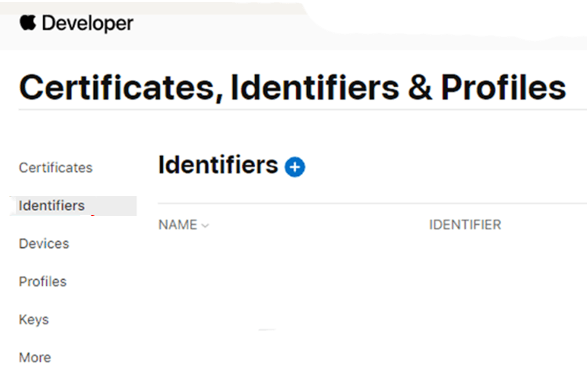
- Sélectionnez l'ID d'application MemberPress dans la liste des identifiants.
- Cliquez sur le bouton Capacités tabulation.
- Vérifier le Domaines associés case à cocher.
- Cliquez sur Économiser pour activer la fonctionnalité.
Régénération des profils d'approvisionnement
Les profils de provisionnement doivent être régénérés pour inclure la fonctionnalité Domaines associés.
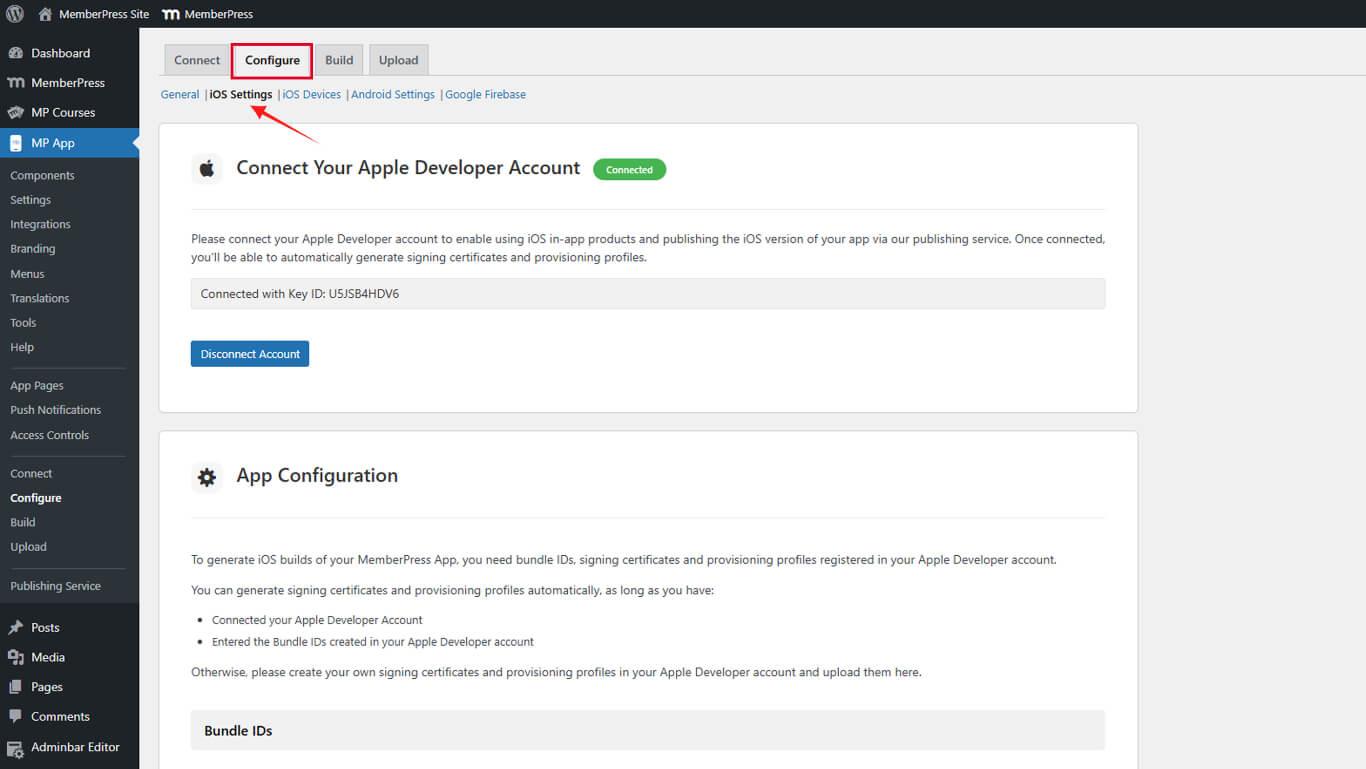
- Naviguez jusqu'à Tableau de bord > MP AppKit > Configurer > Réglages iOS.
- Faites défiler jusqu'à la Profils d'approvisionnement section.
- Décochez la case Générer automatiquement des profils d'approvisionnement case à cocher.
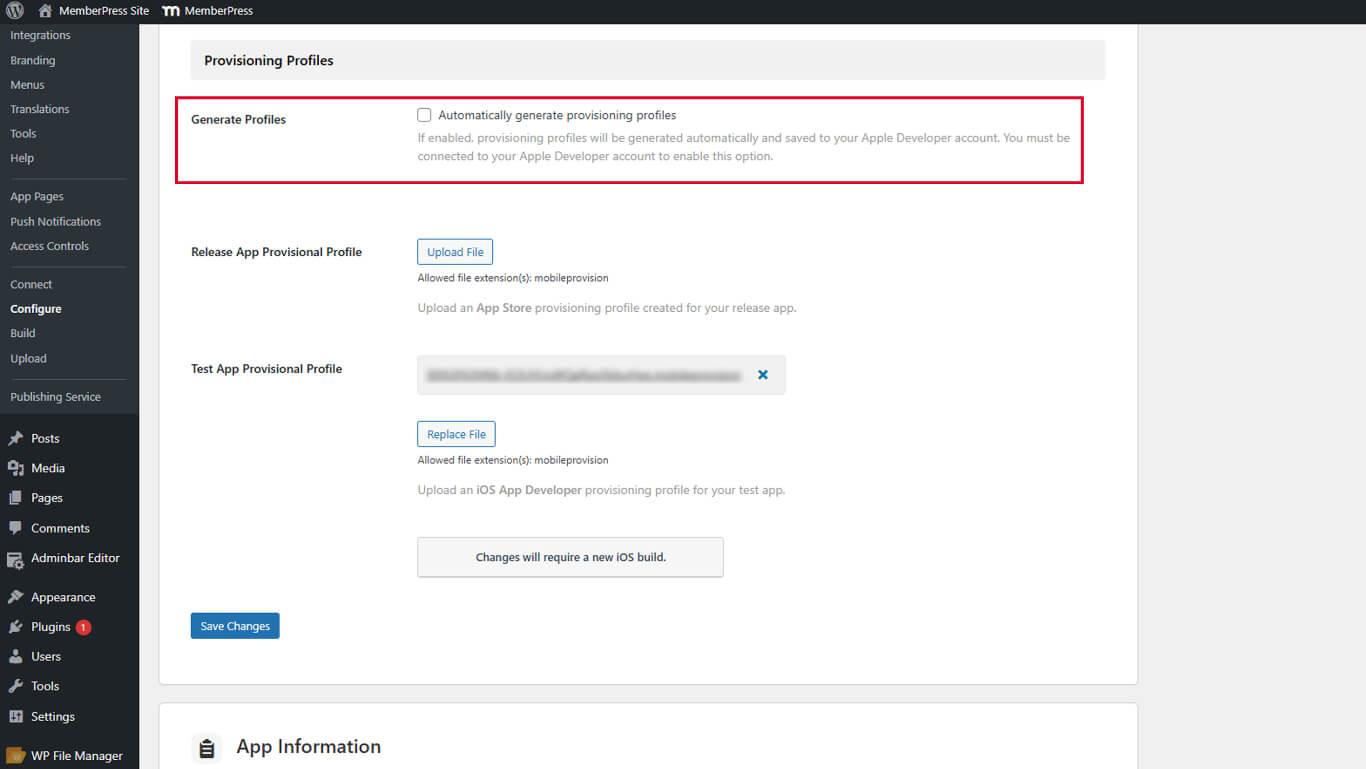
- Cliquez sur Enregistrer les modifications.
- Cliquez sur le bouton X à côté de chaque profil d'approvisionnement existant pour le supprimer.
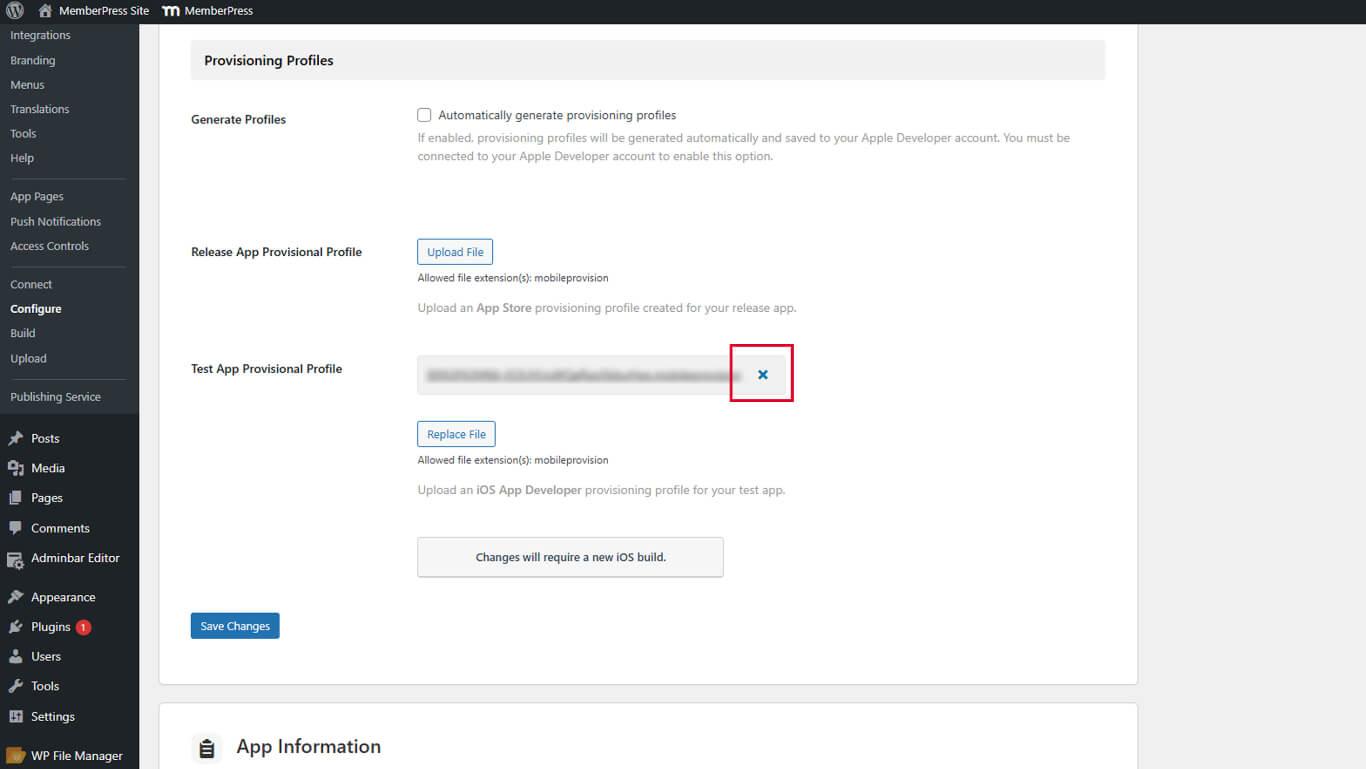
- Cliquez sur Enregistrer les modifications après avoir supprimé tous les profils.
- Vérifier le Générer automatiquement des profils d'approvisionnement case à cocher.
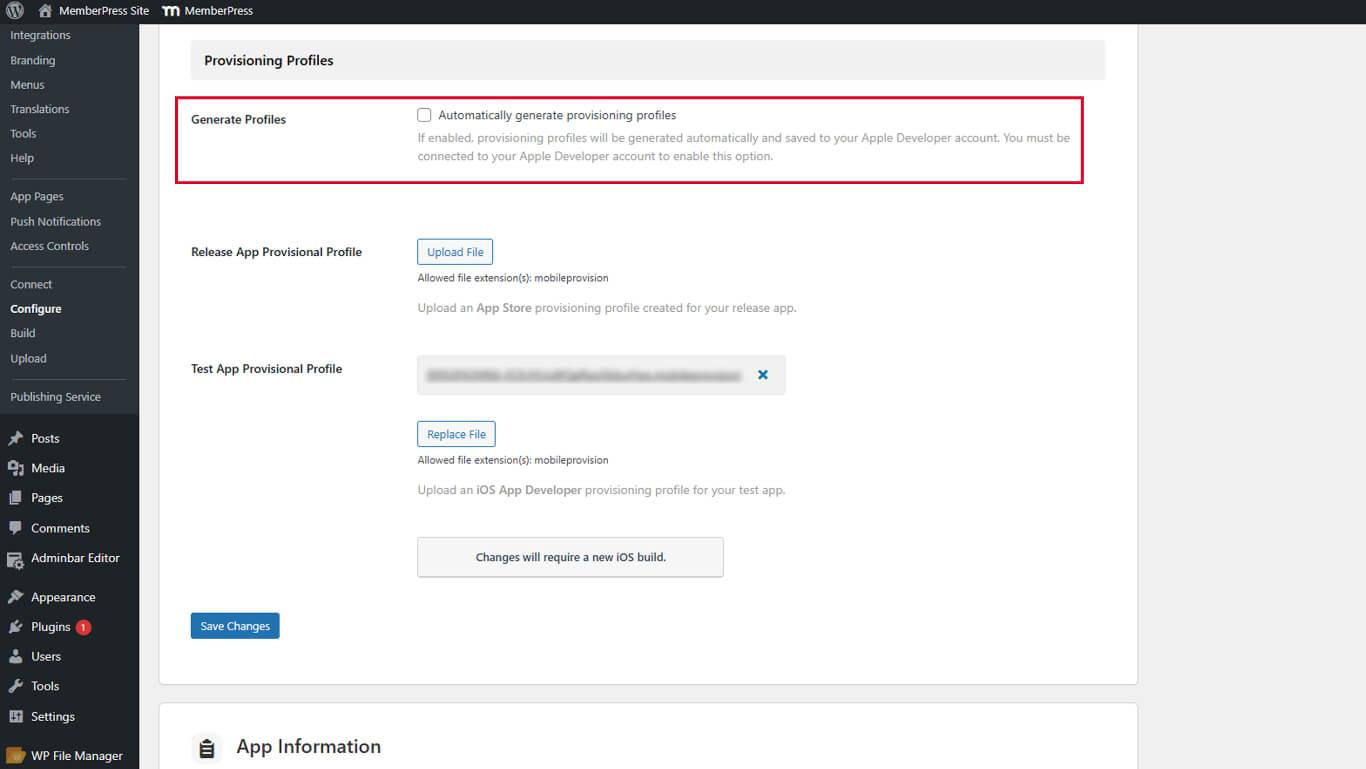
- Cliquez sur Enregistrer les modifications pour créer de nouveaux profils.
Les nouveaux profils d'approvisionnement incluent la fonctionnalité Domaines associés requise pour les liens universels.
Activation des liens universels
L'activation des liens universels s'effectue via la configuration des paramètres iOS.
- Naviguez jusqu'à Tableau de bord > MP AppKit > Configurer > Réglages iOS.
- Faites défiler jusqu'à la Liens universels section.
- Vérifier le Activer les liens universels case à cocher.
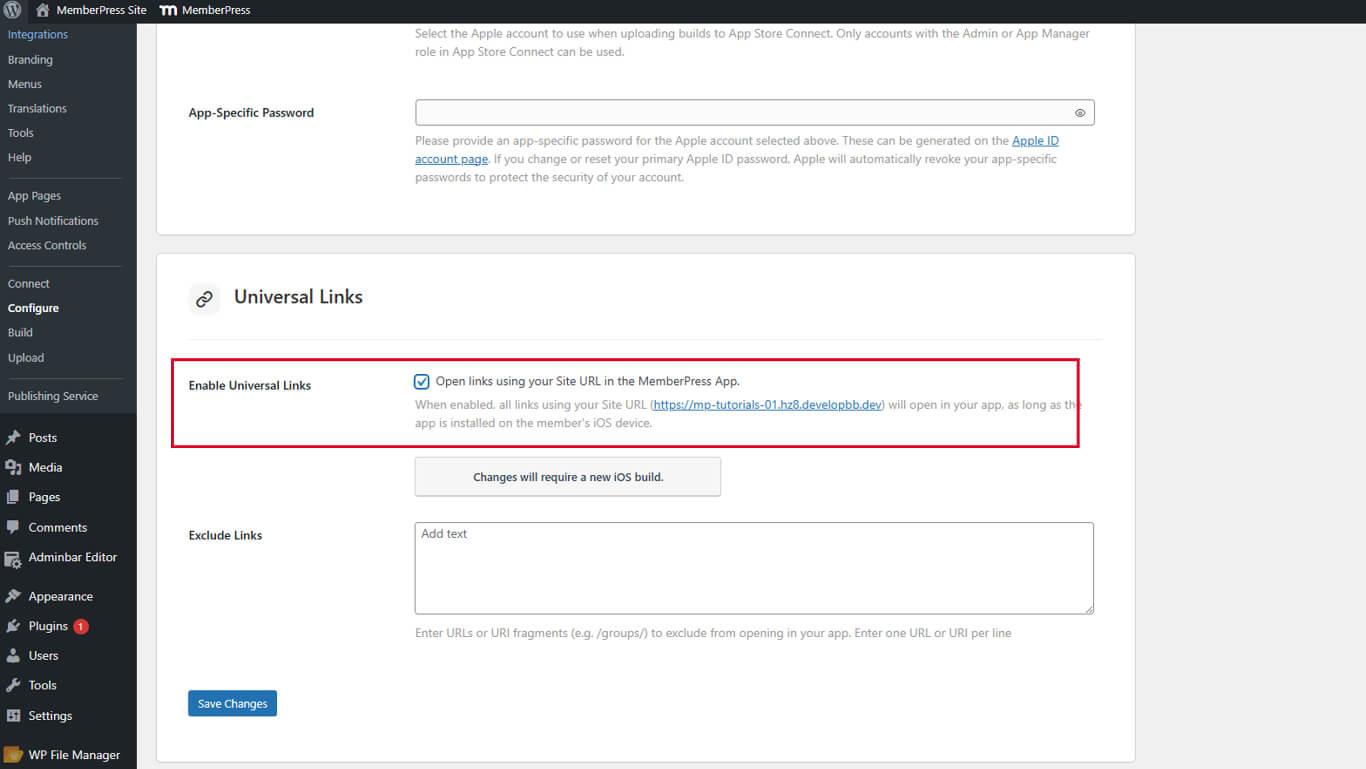
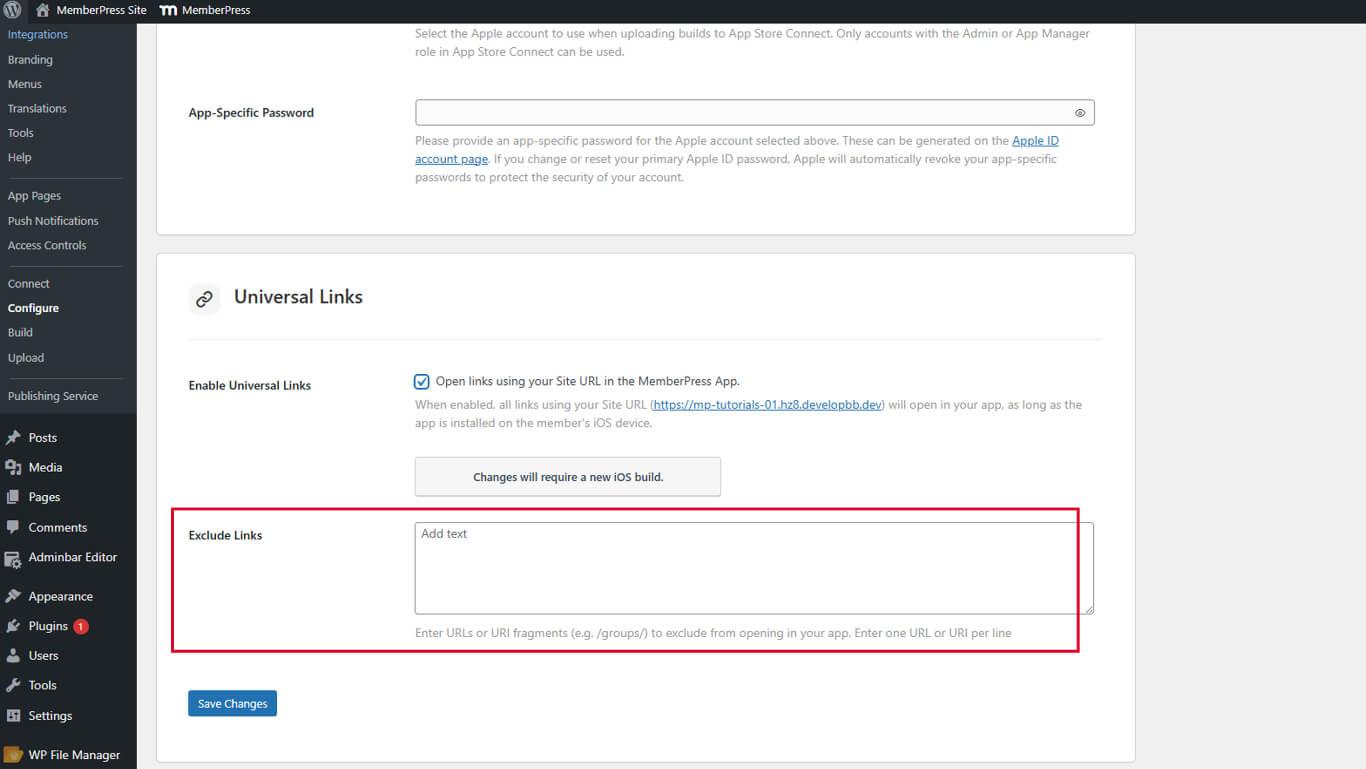
- Localiser le Liens exclus champ pour les exclusions d'URL facultatives.
- Saisissez les modèles d'URL à exclure de l'ouverture de l'application si nécessaire.
- Cliquez sur Enregistrer les modifications.
Comprendre les liens exclus
Le champ Liens exclus spécifie les modèles d'URL qui doivent s'ouvrir dans Safari plutôt que dans l'application.
Entrez les modèles d'URL ou les chemins d'accès qui ne doivent pas déclencher l'ouverture de l'application. Plusieurs exclusions peuvent être répertoriées, chaque modèle étant indiqué sur une ligne distincte.
Vérification du fichier d'association
La vérification du fichier d'association confirme la configuration correcte des liens universels.
- Ouvrez un navigateur Web sur n'importe quel appareil.
- Naviguez jusqu'à https://yourdomain.com/.well-known/apple-app-site-association/, en remplacement de votredomaine.com avec l'URL réelle du site.
- Vérifiez que la réponse JSON s'affiche dans le navigateur.
- Vérifiez que JSON contient les identifiants de l'application dans la réponse.
- Vérifiez que les chemins pris en charge apparaissent dans la structure JSON.










 FR
FR  EN
EN  ES
ES  DE
DE  PT
PT 