

L'intégration des polices Google permet de personnaliser la typographie en fonction des directives de style de la marque. L'importation de polices nécessite une clé API Google Fonts valide.
Ce document explique comment configurer la clé API, importer des polices et appliquer la typographie dans l'application.
Comprendre l'intégration des polices Google Fonts
Google Fonts offre de nombreuses options de polices de caractères pour personnaliser la typographie de votre application. La configuration de la clé API connecte l'application à la bibliothèque Google Fonts. Les polices importées peuvent être appliquées à divers éléments de l'interface, notamment le corps du texte, les titres et les étiquettes de navigation.
Configuration de la clé API Google Fonts
La configuration de la clé API permet la navigation et l'importation de polices.
- Naviguez jusqu'à Tableau de bord > MP AppKit > Intégrations > Google Fonts.
- Cliquez sur Obtenir une clé à côté du champ Clé API Google Fonts.
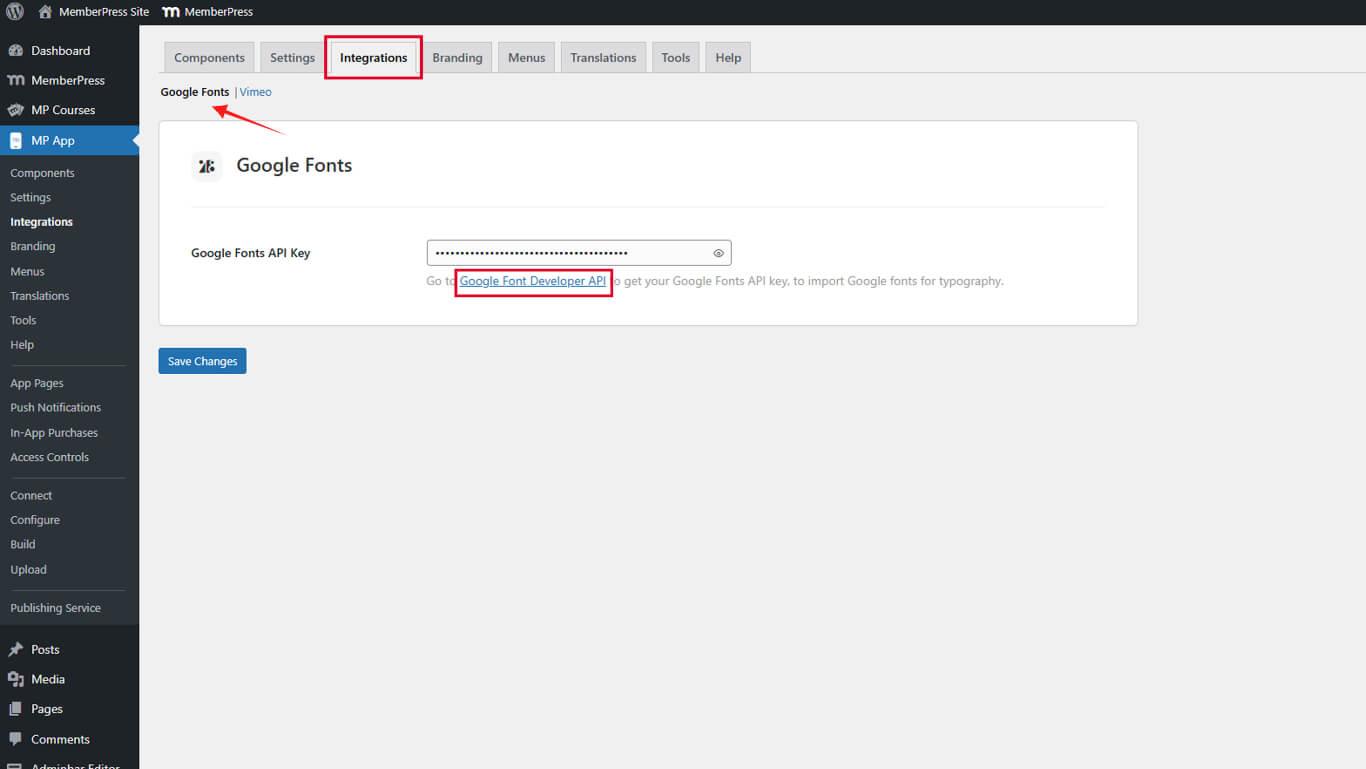
- La console Google Developers s'ouvre dans un nouvel onglet du navigateur.
- Faites défiler vers le bas et cliquez sur Obtenir une clé sur la page Obtenir et utiliser une clé API.
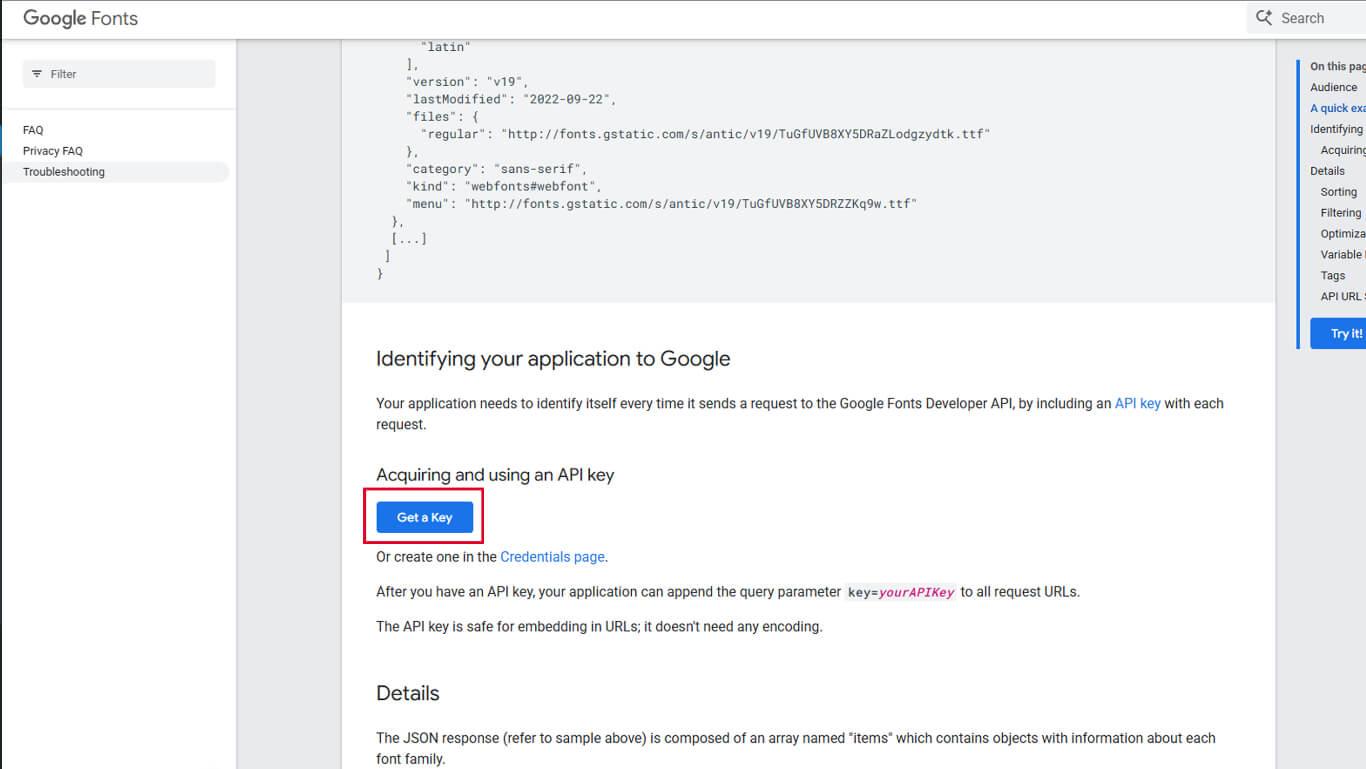
- Connectez-vous avec un compte Google si vous y êtes invité.
- Créez un nouveau projet ou sélectionnez un projet existant dans la liste.
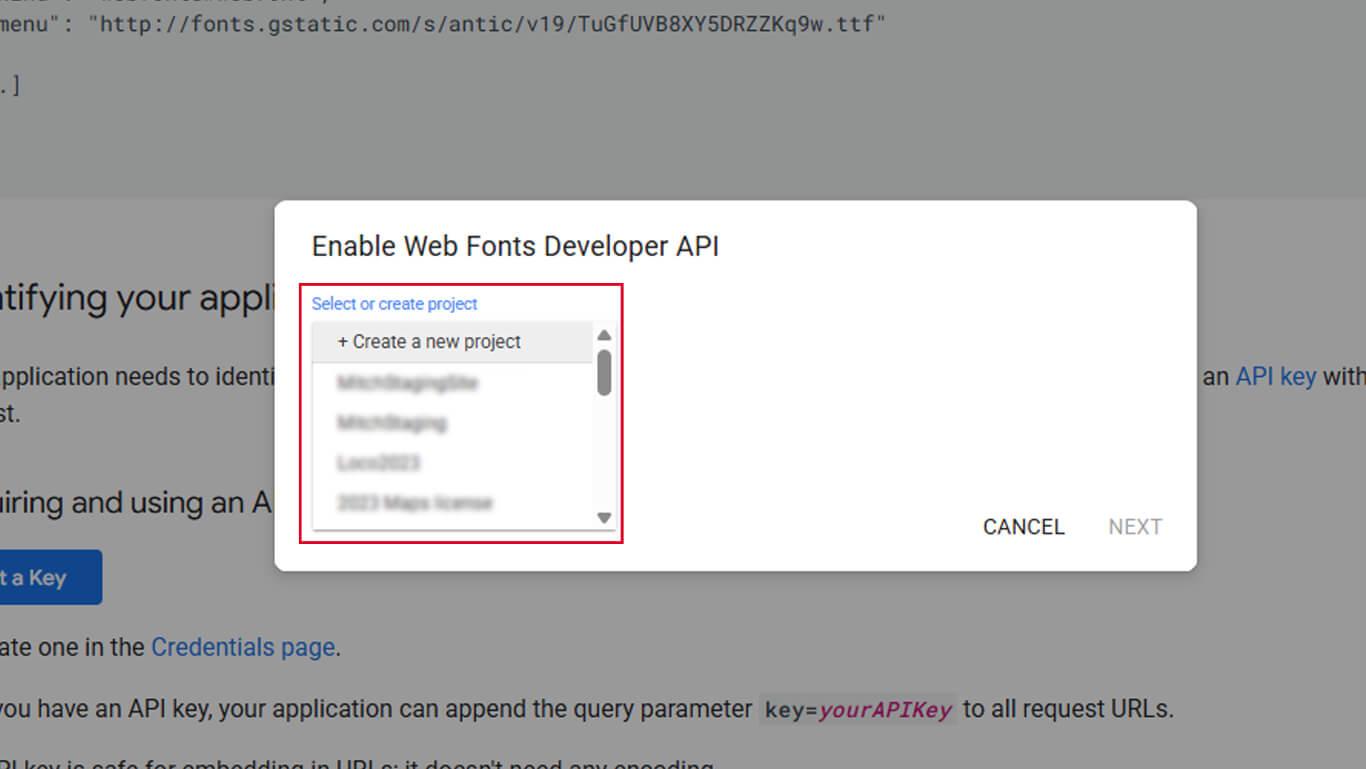
- Entrez un nom de projet dans le champ Nom du projet.
- Confirmer l'activation de l'API.
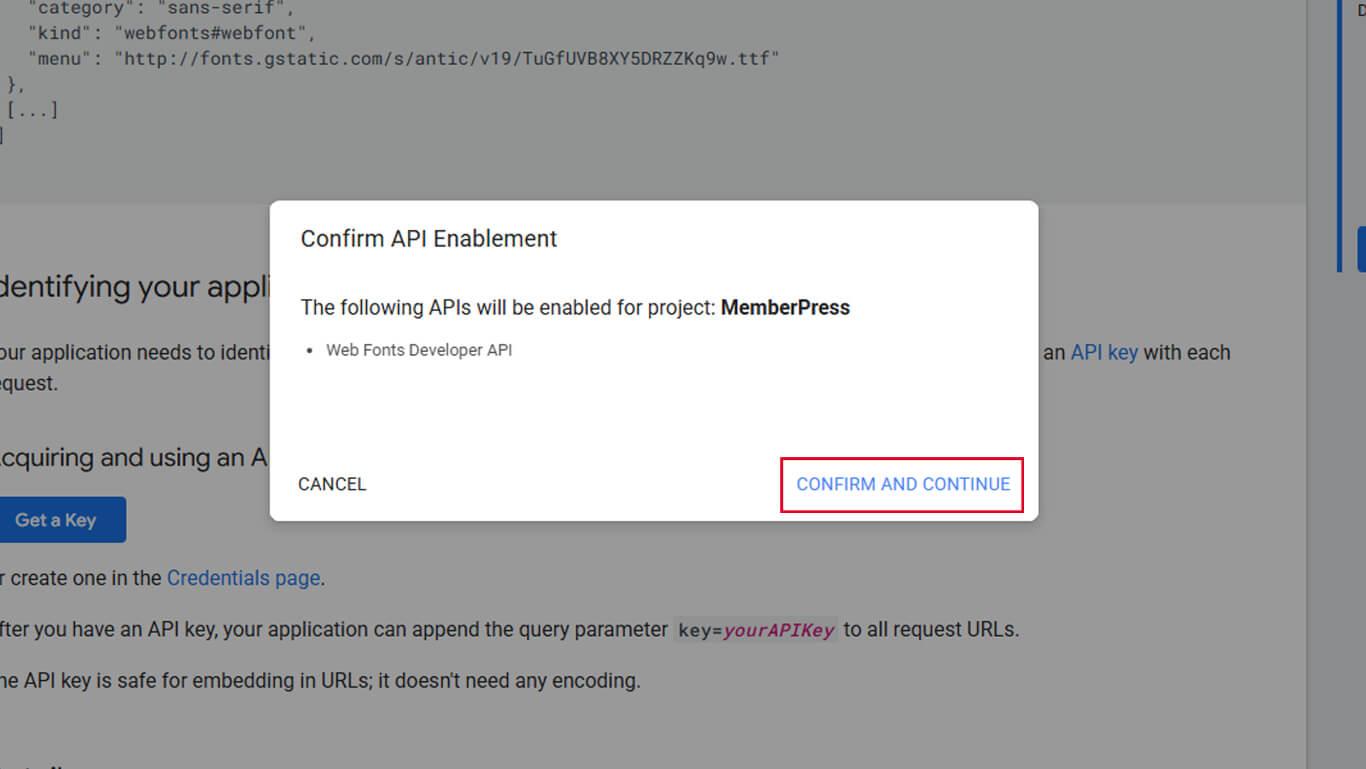
- Cliquez sur Afficher la clé.
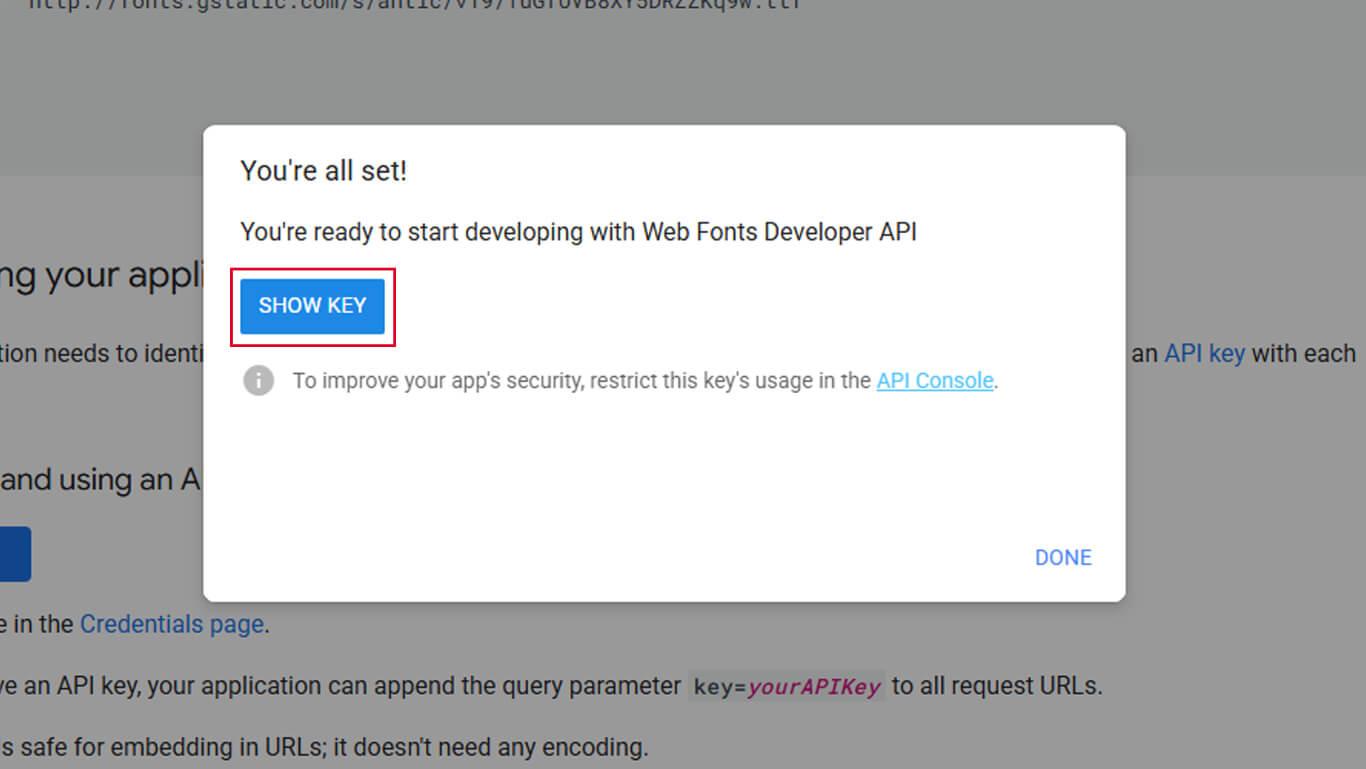
- Copiez la clé API générée à partir du champ affiché.
- Retour à Tableau de bord > MP AppKit > Intégrations > Google Fonts.
- Collez la clé API dans le champ Clé API Google Fonts.
- Cliquez sur Enregistrer les modifications.
Importation de polices Google
L'importation de polices ajoute des polices à la liste des polices disponibles pour la typographie de l'application.
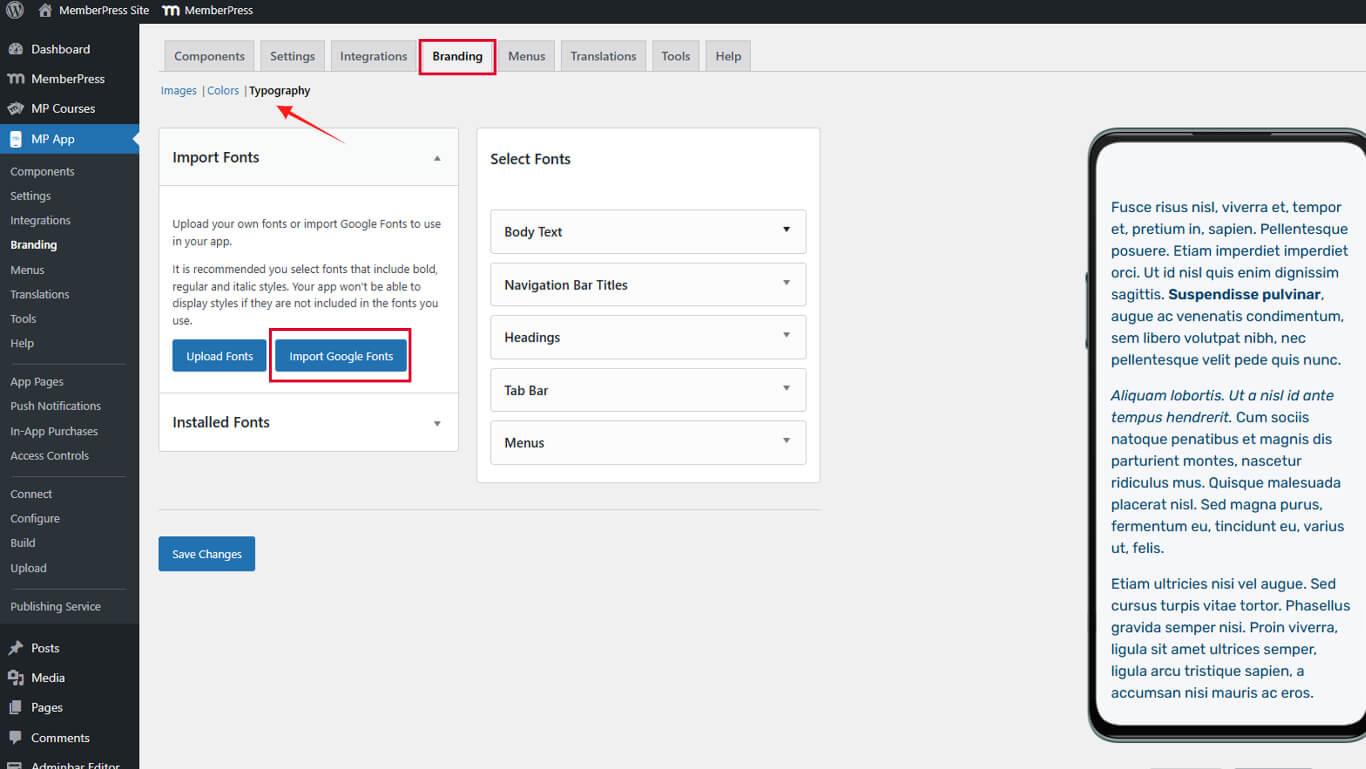
- Naviguez jusqu'à Tableau de bord > MP AppKit > Image de marque > Typographie.
- Localiser le Importer des polices Google section.
- Cliquez sur Importer des polices Google pour ouvrir le navigateur de polices.
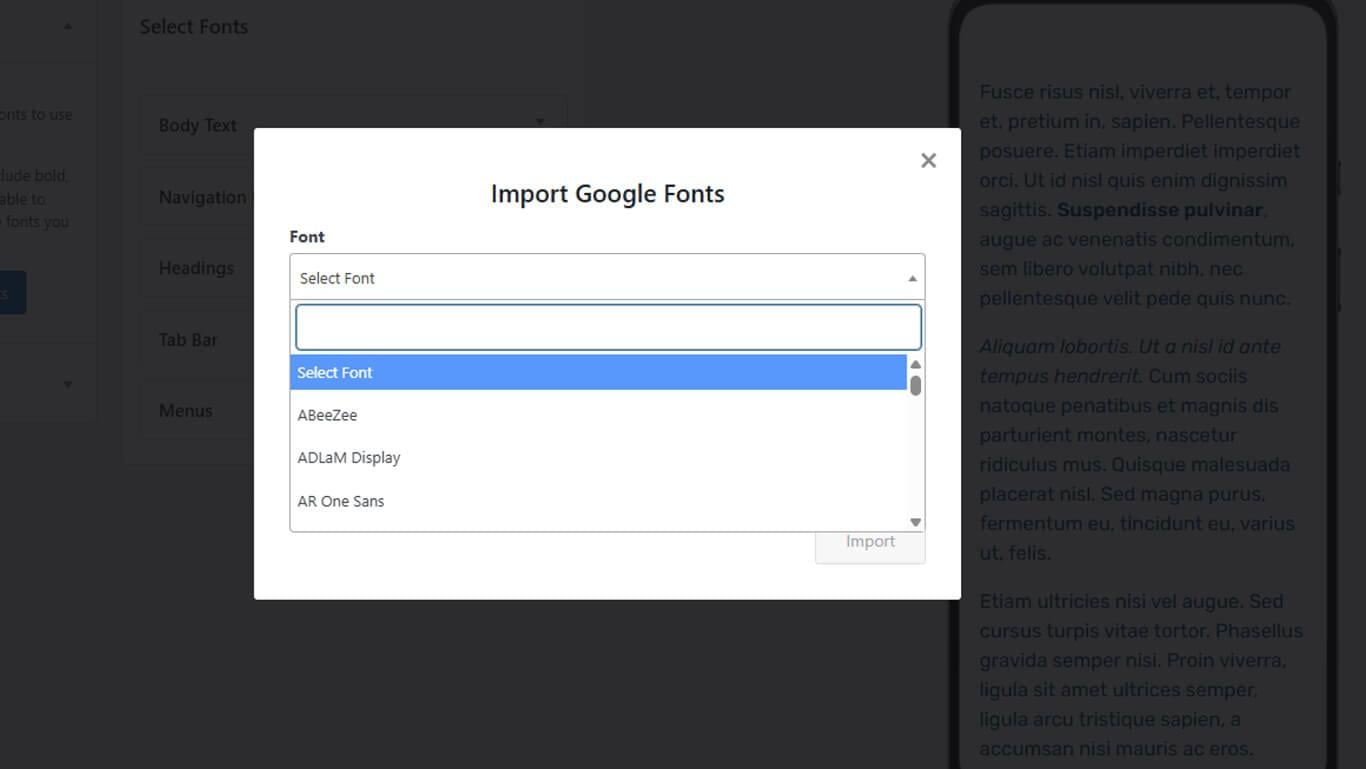
- Parcourez les polices disponibles ou utilisez le champ de recherche pour trouver des polices spécifiques.
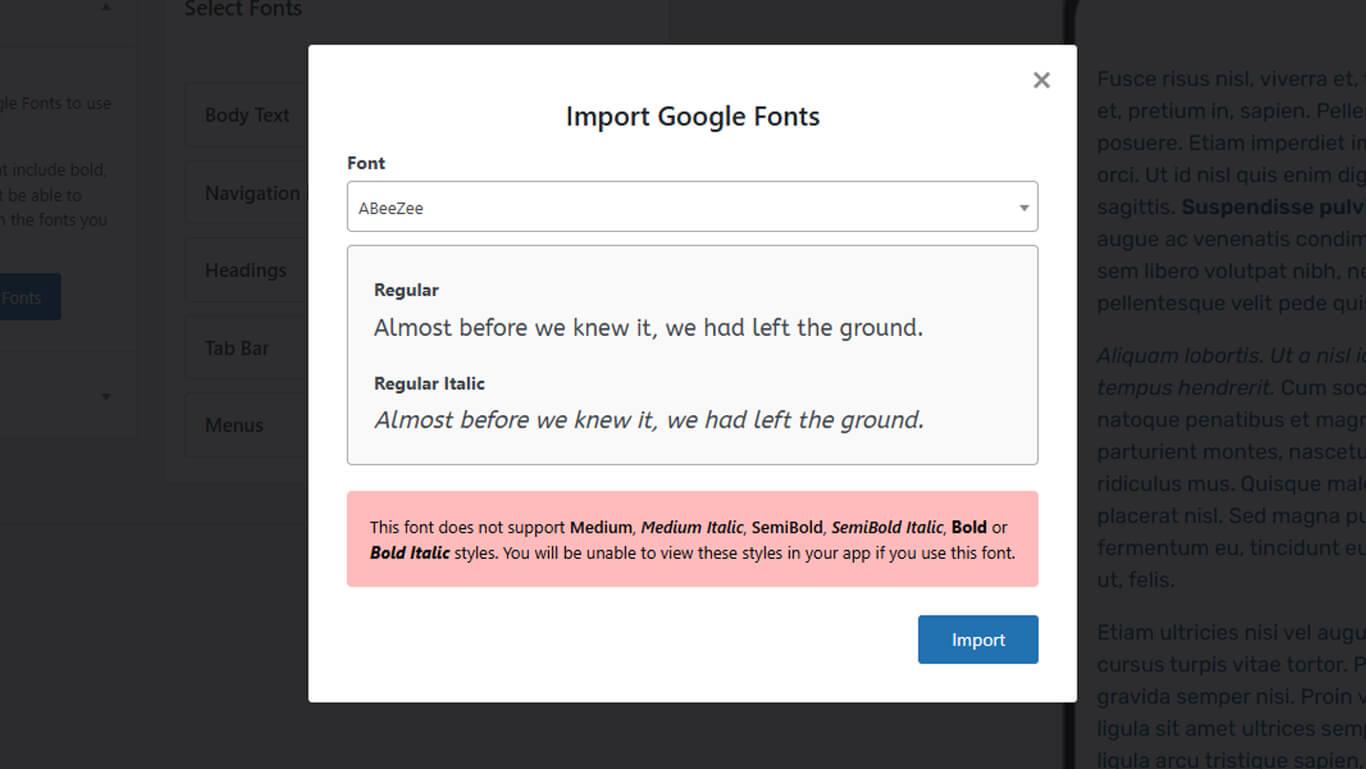
- Sélectionnez la police souhaitée dans les résultats de recherche ou dans la liste.
- Cliquez sur Importation pour ajouter la police aux polices disponibles.
Application des polices importées
Les polices importées apparaissent dans les paramètres typographiques pour être attribuées aux éléments de l'interface.
- Naviguez jusqu'à Tableau de bord > MP AppKit > Image de marque > Typographie.
- Faites défiler jusqu'à l'élément de l'interface nécessitant l'attribution d'une police.
- Sélectionnez la police souhaitée dans le menu déroulant des polices pour :
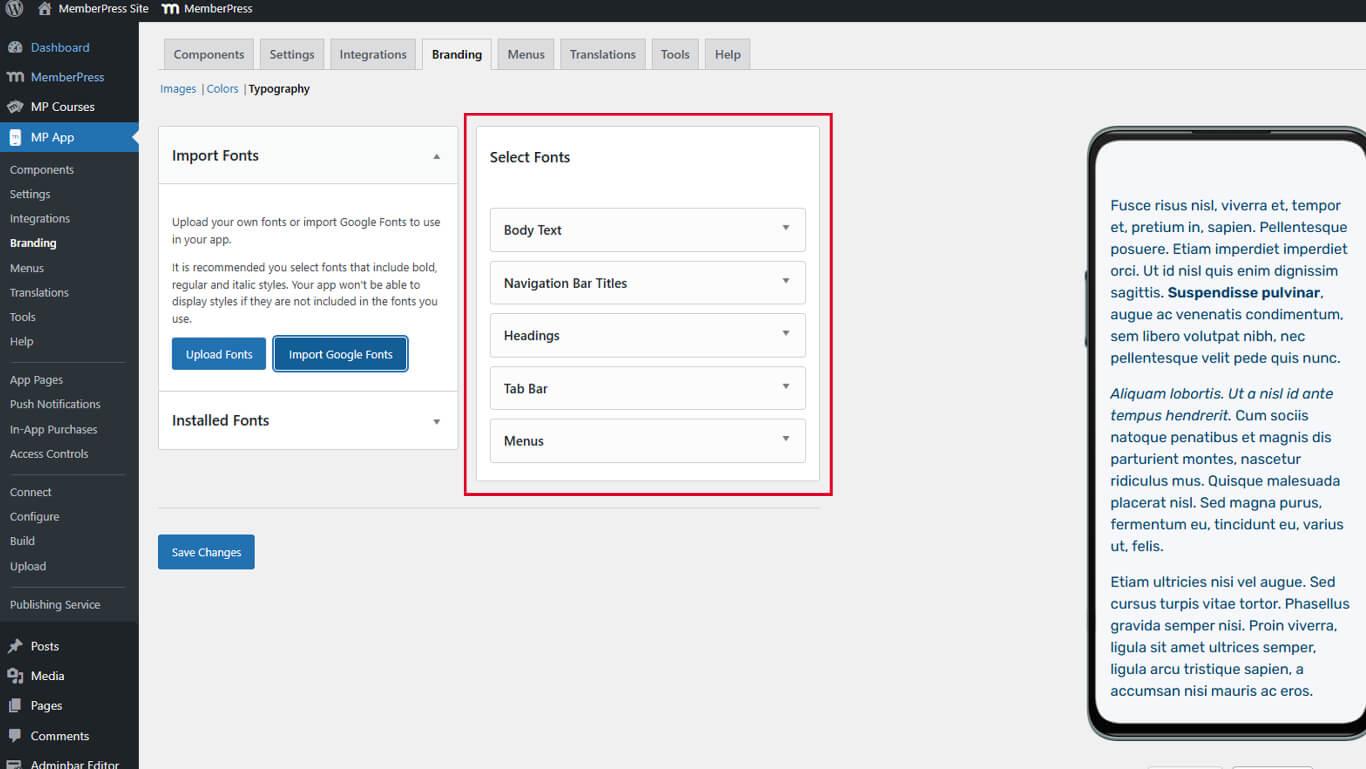
- Corps du texte pour la typographie du contenu principal ;
- Titres pour les niveaux de titre H1 à H6 ;
- Titres de la barre de navigation pour le texte d'en-tête ;
- Étiquettes de la barre d'onglets pour le texte de navigation inférieur ;
- Menus pour le texte des éléments du menu.
- Ajustez la taille des polices dans les champs correspondants si nécessaire.
- Configurez les styles de police supplémentaires selon vos besoins.
- Cliquez sur Enregistrer les modifications pour appliquer les sélections de polices.
Les modifications apportées aux polices s'appliquent globalement à tous les écrans de l'application utilisant les éléments d'interface sélectionnés.










 FR
FR  EN
EN  ES
ES  DE
DE  PT
PT 