

La configuration d'iOS MemberPress AppKit établit les bases de la génération de builds, de la synchronisation des achats in-app et de la publication d'applications.
Ce document explique comment créer ID de l'offre groupée, L'application peut également être enregistrée dans App Store Connect, automatiser la signature des certificats et le provisionnement des profils, enregistrer l'application dans App Store Connect et configurer les informations d'identification dans WordPress.
Comprendre les identificateurs d'offres groupées
L'identifiant de l'offre groupée identifie de manière unique l'application sur les plates-formes iOS. L'identifiant de l'offre groupée doit utiliser la notation du domaine inversé avec au moins deux segments séparés par des points. Les identifiants d'ensemble d'applications de test ajoutent .test à l'identifiant d'ensemble de version pour isoler les tests.
Création d'identificateurs d'offres groupées
La création de l'identifiant de l'offre groupée se fait dans le compte Apple Developer.
- S'inscrire à developer.apple.com.
- Naviguez jusqu'à Certificats, identifiants et profils.
- Cliquez sur Identifiants dans la barre latérale.
- Cliquez sur le bouton + pour créer un nouvel identifiant.
- Sélectionner ID de l'application des types d'identifiants.
- Cliquez sur Continuer de procéder.
- Saisir un Description pour l'identifiant de l'application.
- Entrez le Identifiant du bundle en utilisant la notation du domaine inversé.
- Vérifier Notifications push dans la liste des capacités.
- Vérifier Se connecter avec Apple dans la liste des capacités.
- Cliquez sur Continuer pour revoir la configuration.
- Cliquez sur Registre pour créer l'identifiant.
- Répétez les étapes 3 à 12 pour l'identifiant de l'ensemble d'applications de test, en ajoutant .test à l'identifiant.
Automatisation de la signature des certificats
L'automatisation des certificats de signature génère les certificats nécessaires à la signature des applications.
- Naviguez jusqu'à Tableau de bord > MP AppKit > Configurer > Réglages iOS.
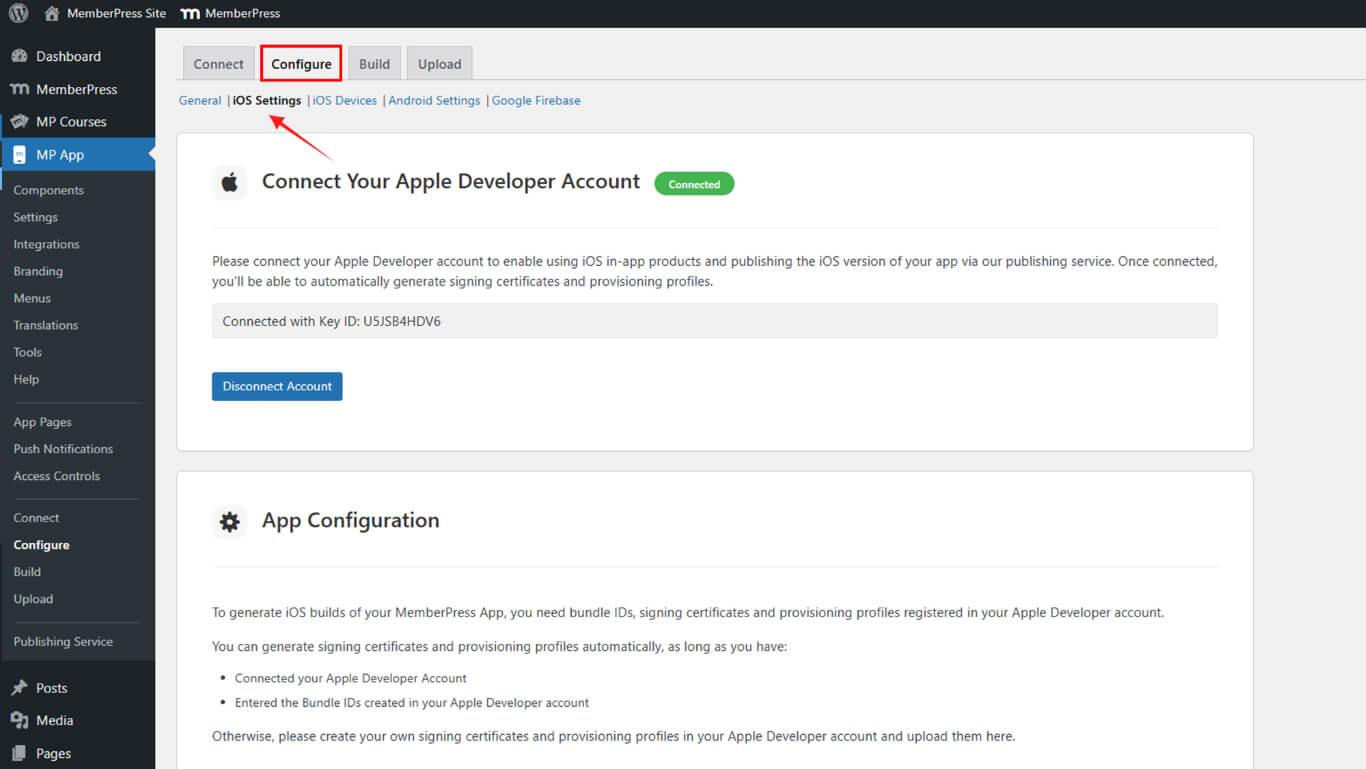
- Faites défiler jusqu'à la Signature de certificats section.
- Vérifier le Générer automatiquement des certificats de signature case à cocher.
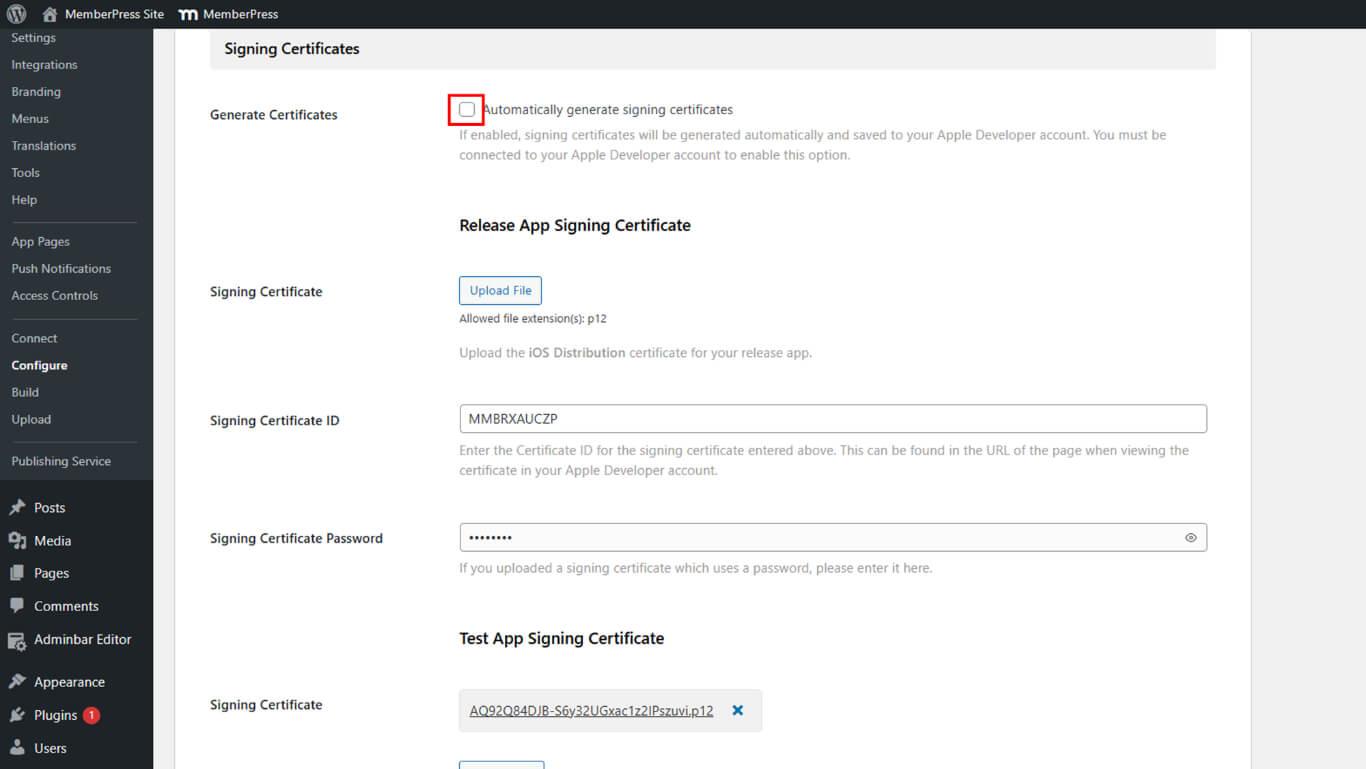
- Cliquez sur Enregistrer les modifications.
- Vérifiez que le certificat de signature de la version apparaît dans la liste des certificats.
- Vérifiez que le certificat de signature de test apparaît dans la liste des certificats.
Automatisation des profils de provisionnement
L'automatisation des profils de provisionnement permet de créer les profils nécessaires à la distribution des applications.
- Naviguez jusqu'à Tableau de bord > MP AppKit > Configurer > Réglages iOS.
- Faites défiler jusqu'à la Profils d'approvisionnement section.
- Vérifier le Générer automatiquement des profils d'approvisionnement case à cocher.
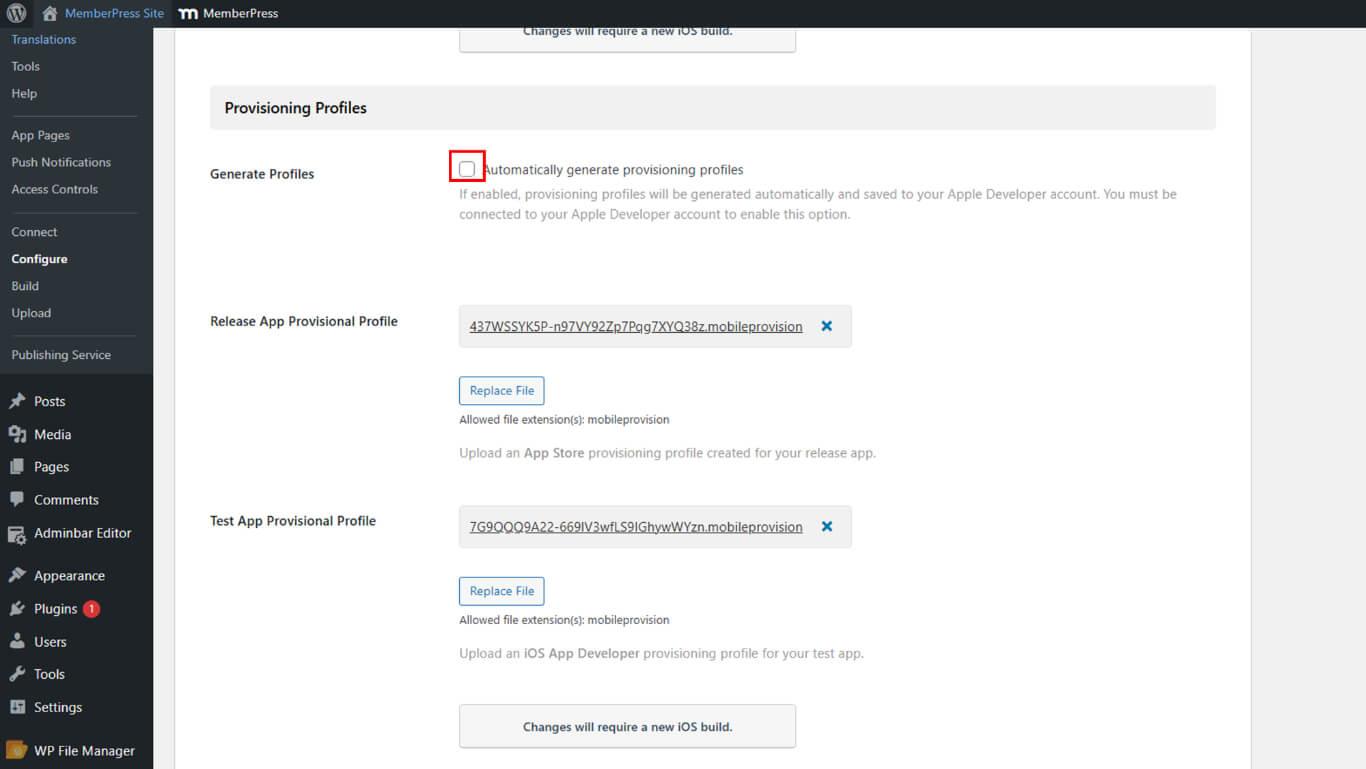
- Cliquez sur Enregistrer les modifications.
- Vérifiez que le profil de provisionnement Release apparaît dans la liste des profils.
- Vérifiez que le profil de provisionnement Test apparaît dans la liste des profils.
Enregistrer l'application dans App Store Connect
L'enregistrement d'une application dans App Store Connect permet de la soumettre et de la publier.
- S'inscrire à appstoreconnect.apple.com avec votre compte Apple Developer.
- Cliquez sur Mes applications dans la navigation.
- Cliquez sur le bouton + pour ajouter une nouvelle application.
- Sélectionner Nouvelle application dans le menu déroulant.
- Sélectionner iOS comme plateforme.
- Entrez le Nom de l'application dans le champ du nom.
- Sélectionner Langue principale dans la liste déroulante des langues.
- Sélectionner la version Identifiant du bundle dans la liste déroulante ID de l'offre groupée.
- Saisir un SKU à des fins de suivi interne.
- Définir Accès des utilisateurs sur Complet ou Limité.
- Cliquez sur Créer pour enregistrer l'application.
Importer les Bundle IDs dans WordPress
Les Bundle IDs doivent être importés dans WordPress pour la configuration de la construction.
- Naviguez jusqu'à Tableau de bord > MP AppKit > Configurer > Réglages iOS.
- Faites défiler jusqu'à la Section des identifiants d'offres groupées.
- Cliquez sur Rafraîchir les identifiants de l'offre groupée pour récupérer les identifiants du compte Apple Developer.
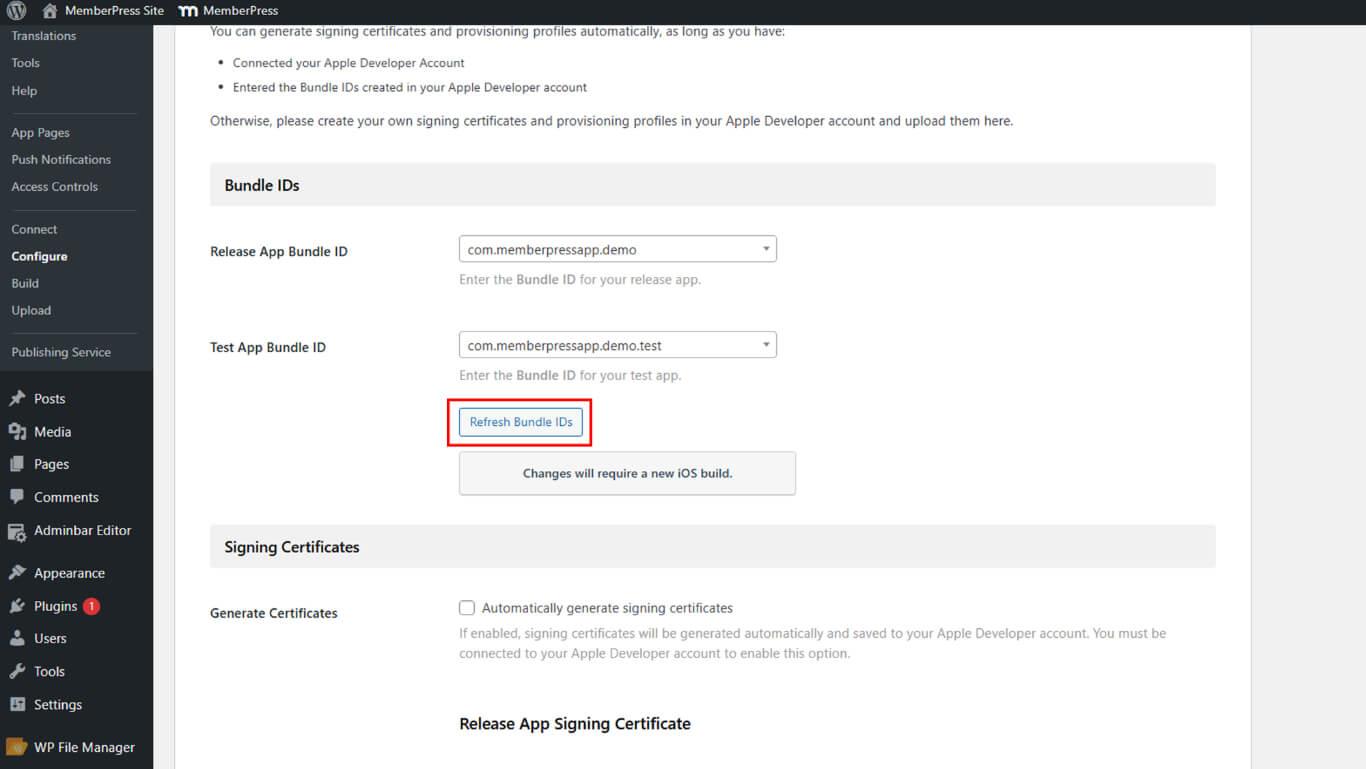
- Localiser le Release App Bundle ID liste déroulante.
- Sélectionnez l'identifiant de l'offre groupée de mise à disposition dans la liste déroulante.
- Localiser le ID de l'ensemble d'applications de test liste déroulante.
- Sélectionnez l'identifiant de l'ensemble de tests dans la liste déroulante.
- Faites défiler jusqu'à la Informations sur l'application section.
- Naviguez vers App Store Connect pour récupérer l'Apple App ID.
- Copiez l'identifiant Apple App ID à partir de App Information dans App Store Connect.
- Collez l'Apple App ID dans le champ Apple App ID de WordPress.
- Cliquez sur Enregistrer les modifications.
Génération d'un secret partagé spécifique à l'application
Le secret partagé spécifique à l'application permet de vérifier les achats effectués dans l'application.
- Accédez à App Store Connect à l'adresse suivante appstoreconnect.apple.com.
- Cliquez sur Mes applications dans la navigation.
- Sélectionnez l'application enregistrée dans la liste des applications.
- Faites défiler jusqu'à la Secret partagé spécifique à l'application section.
- Cliquez sur Gérer pour ouvrir la gestion des secrets partagés.
- Cliquez sur Générer un secret partagé spécifique à l'application.
- Copier la valeur secrète générée.
- Naviguez jusqu'à Tableau de bord > MP AppKit > Configurer > Réglages iOS dans WordPress.
- Localiser le Secret partagé spécifique à l'application domaine.
- Collez la valeur secrète copiée dans le champ.
- Cliquez sur Enregistrer les modifications.










 FR
FR  EN
EN  ES
ES  DE
DE  PT
PT 