

Les notifications push envoient des alertes en temps réel sur les appareils mobiles des membres. Ces alertes informent les membres des nouveaux contenus, des mises à jour de l'adhésion et des événements importants concernant le compte.
Ce document explique comment activer les notifications push, configurer l'intégration Firebase, gérer les types de notifications automatisées et envoyer des notifications manuelles aux membres.
Comprendre les notifications push
Les notifications push atteignent les membres instantanément sans nécessiter l'utilisation d'une application. Les notifications apparaissent sur l'écran de verrouillage de l'appareil et dans les centres de notification. Les membres peuvent appuyer sur les notifications pour ouvrir directement le contenu pertinent de l'application. Firebase Cloud Messaging assure la diffusion des notifications sur les plateformes iOS et Android. Une configuration adéquate garantit la fiabilité de la diffusion des notifications et l'engagement des membres.
Activation du composant de notifications push
Les notifications push doivent être activées avant de commencer la configuration.
- Naviguez jusqu'à Tableau de bord > MP AppKit > Composants.
- Localiser Notifications push dans la liste des composants.
- Basculer le Activer commutateur à Sur.
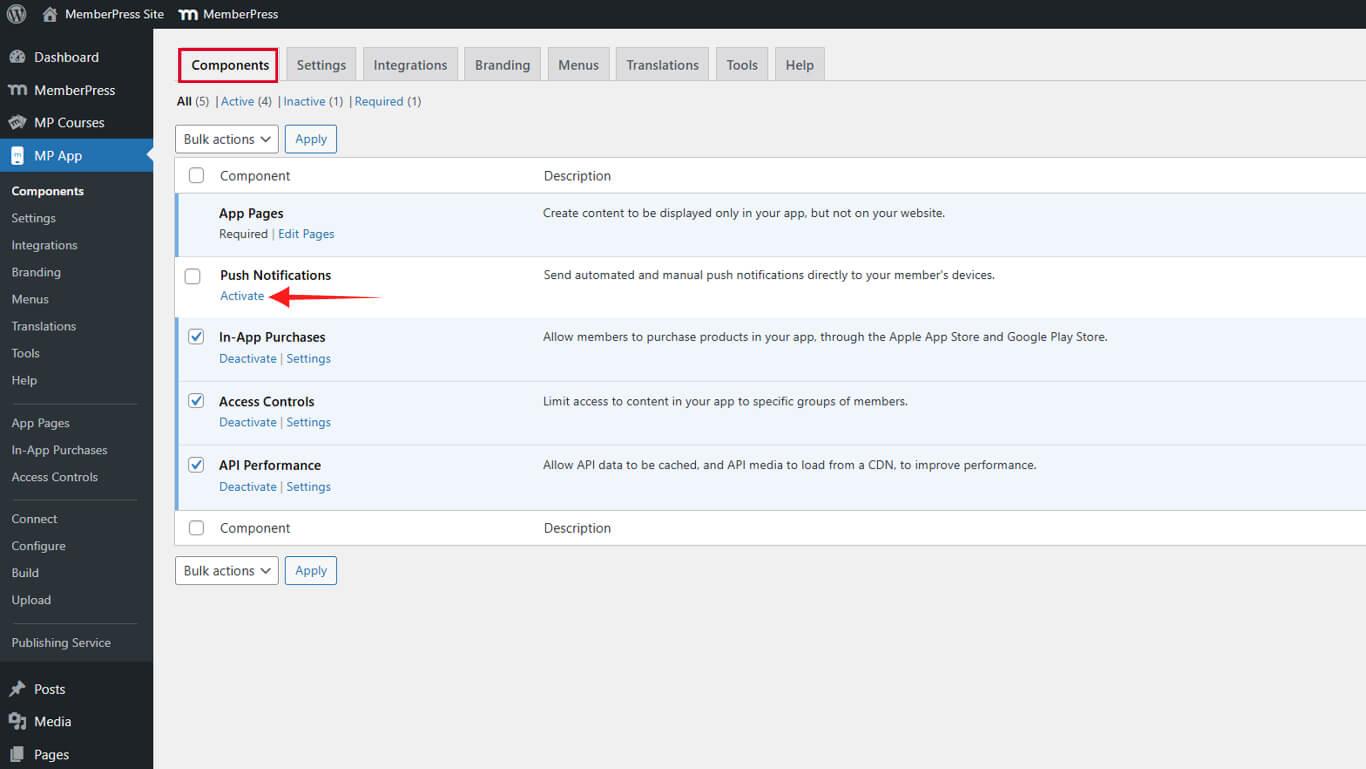
Le menu "Push Notifications" apparaît dans le tableau de bord de WordPress après l'activation.
Connexion de Firebase pour la diffusion de notifications
Firebase Cloud Messaging gère l'envoi de notifications aux appareils iOS et Android. La connexion nécessite la configuration du projet Firebase et le téléchargement des informations d'identification.
Création d'un projet Firebase
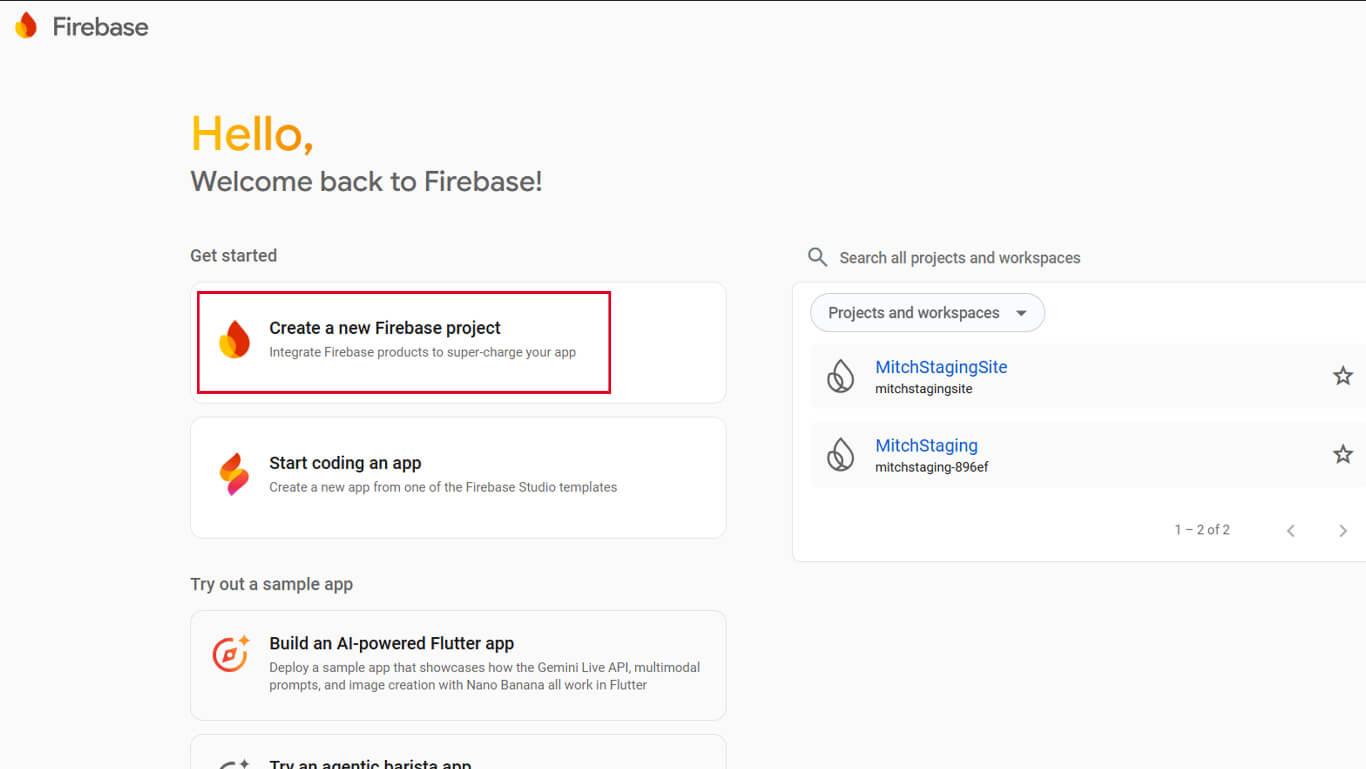
- Visitez la console Firebase à l'adresse suivante console.firebase.google.com.
- Cliquez sur Créer un nouveau projet Firebase ou sélectionnez un projet existant.
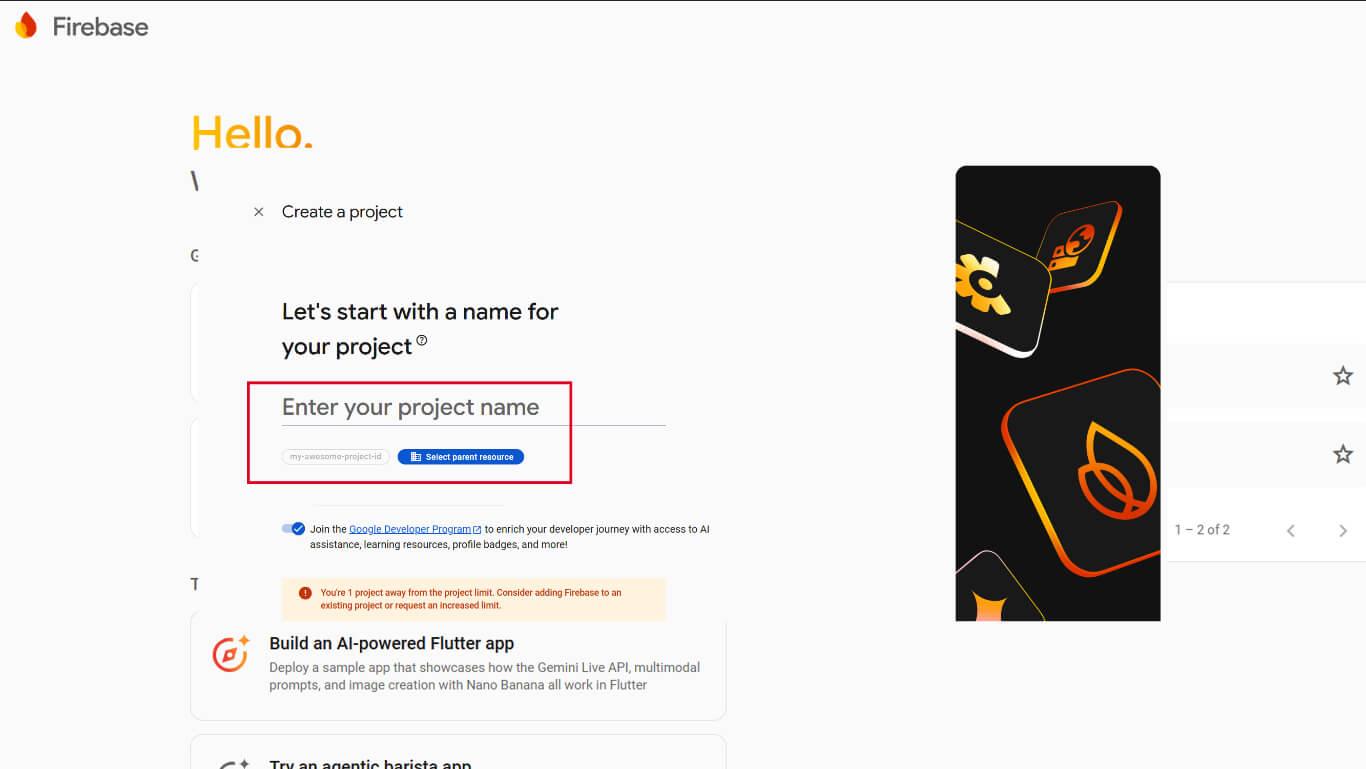
- Saisissez un nom de projet et cliquez sur Continuer.
- Attendez que la création du projet soit terminée.
La configuration du projet Firebase constitue la base de l'infrastructure de diffusion des notifications.
Ajouter une application iOS à Firebase
- Dans la console Firebase, sélectionnez le projet créé.
- Cliquez sur Ajouter une application.
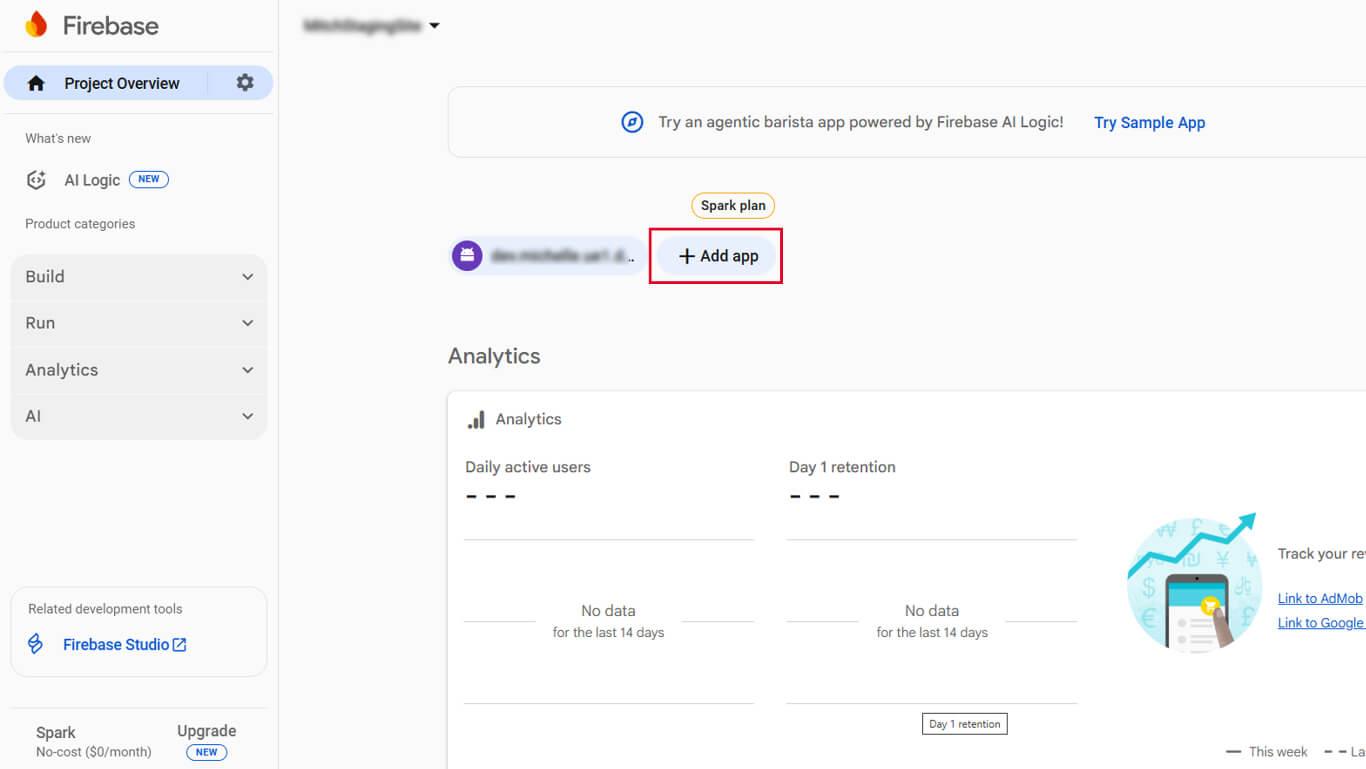
- Cliquez sur le bouton iOS pour ajouter une application iOS.
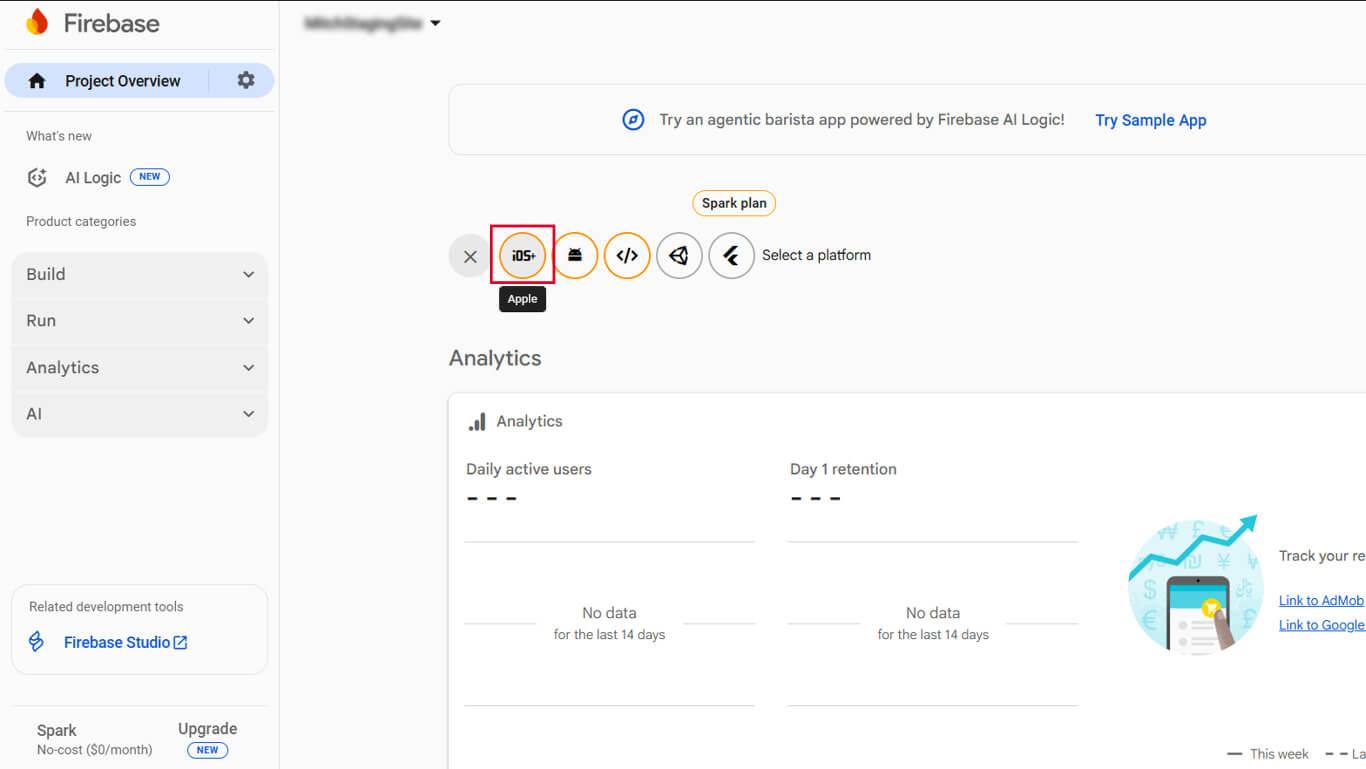
- Saisissez l'identifiant de l'ensemble iOS dans les paramètres de l'application MemberPress.
- Entrez un pseudo d'application et cliquez sur Enregistrer l'application.
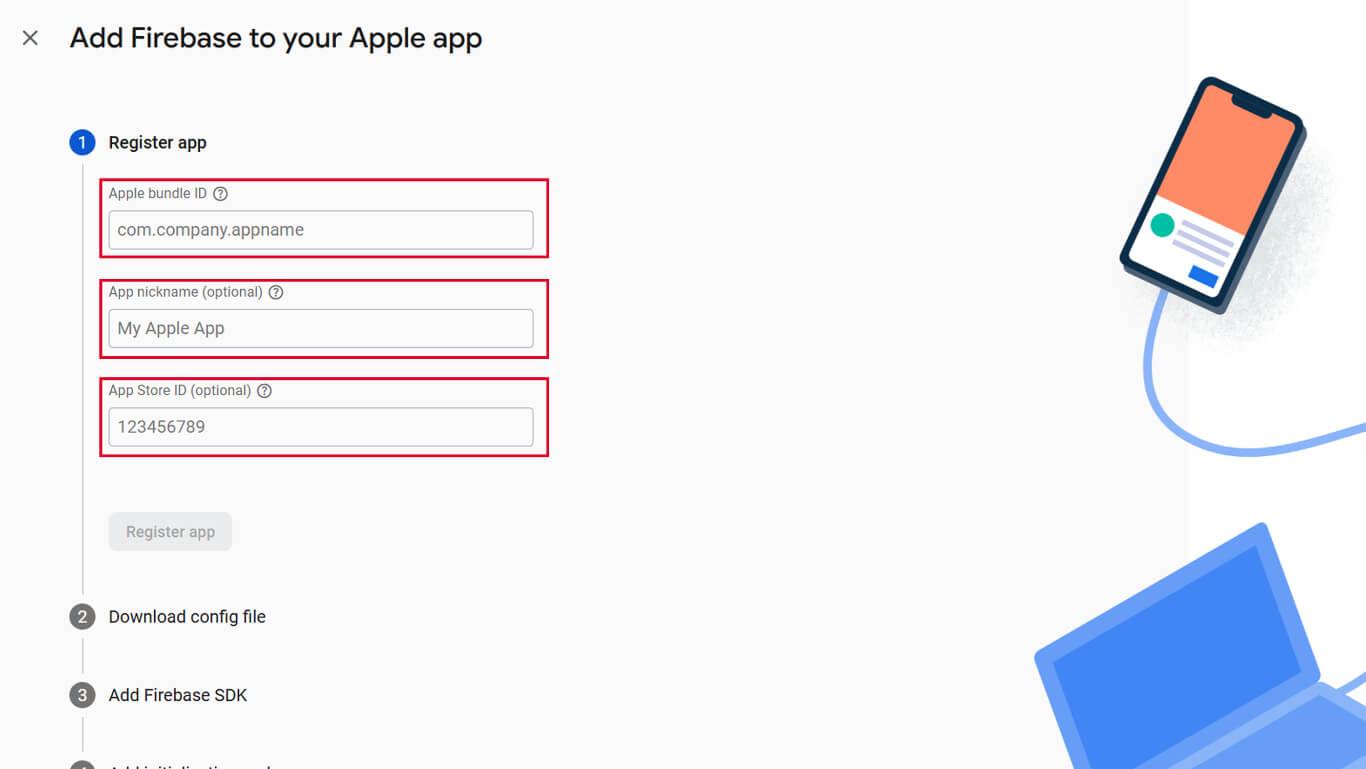
- Télécharger le GoogleService-Info.plist fichier.
- Cliquez sur Continuer à travers les étapes de configuration restantes.
Ajouter une application Android à Firebase
- Dans la console Firebase, sélectionnez le projet.
- Cliquez sur Ajouter une application.
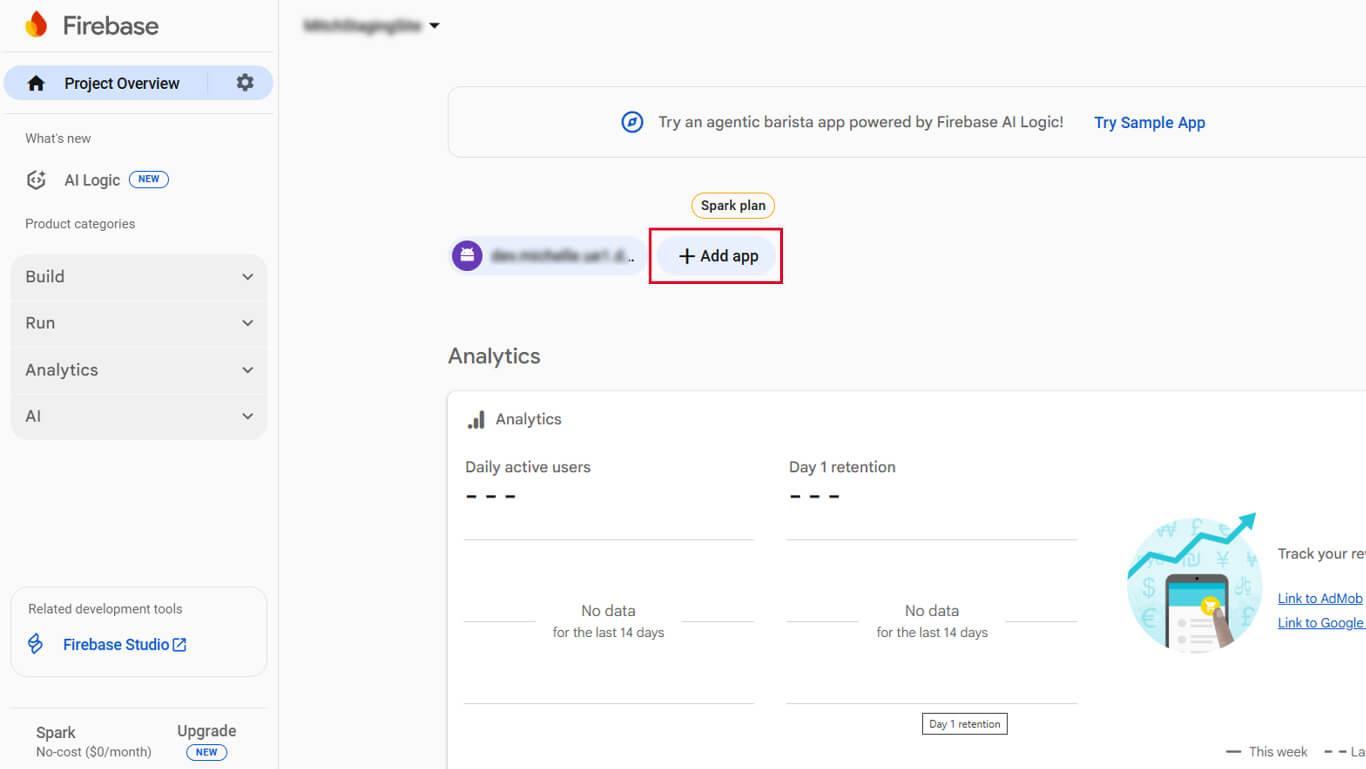
- Cliquez sur le bouton Android pour ajouter une application Android.
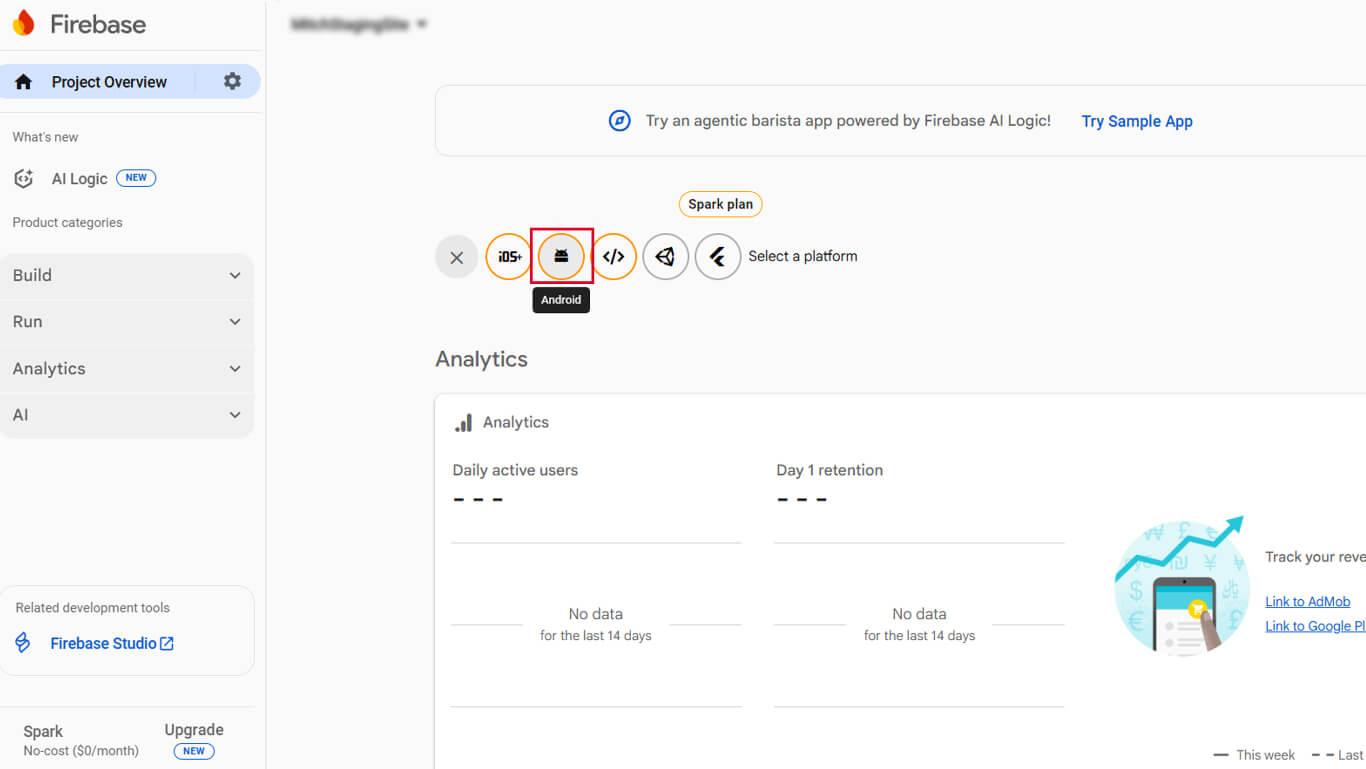
- Saisissez le nom du paquet Android dans les paramètres de MemberPress AppKit.
- Entrez un pseudo d'application et cliquez sur Enregistrer l'application.
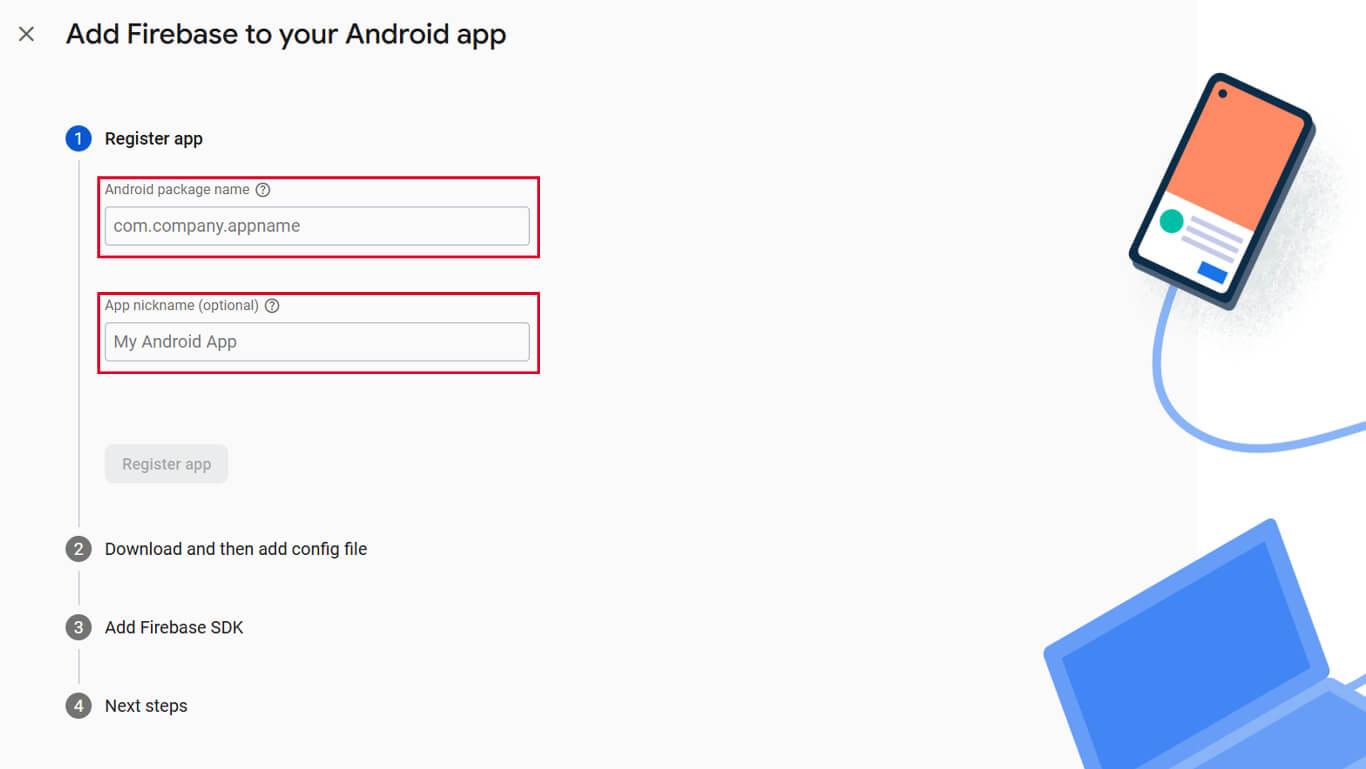
- Télécharger le google-services.json fichier.
- Cliquez sur Continuer à travers les étapes de configuration restantes.
Obtention des informations d'identification du serveur Firebase
- Dans la console Firebase, naviguez vers Paramètres du projet.
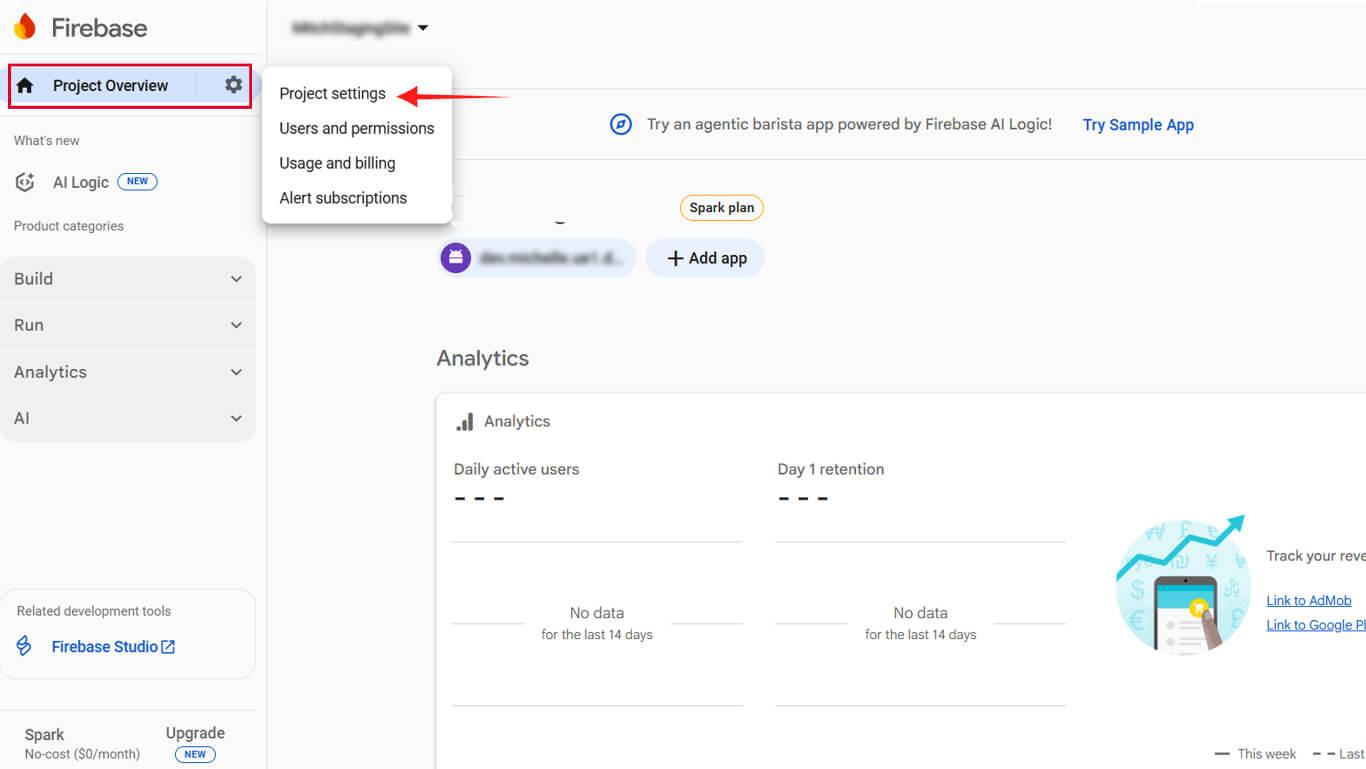
- Cliquez sur le bouton Messagerie cloud tabulation.
- Copier le Clé du serveur valeur.
- Copier le Identifiant de l'expéditeur valeur.
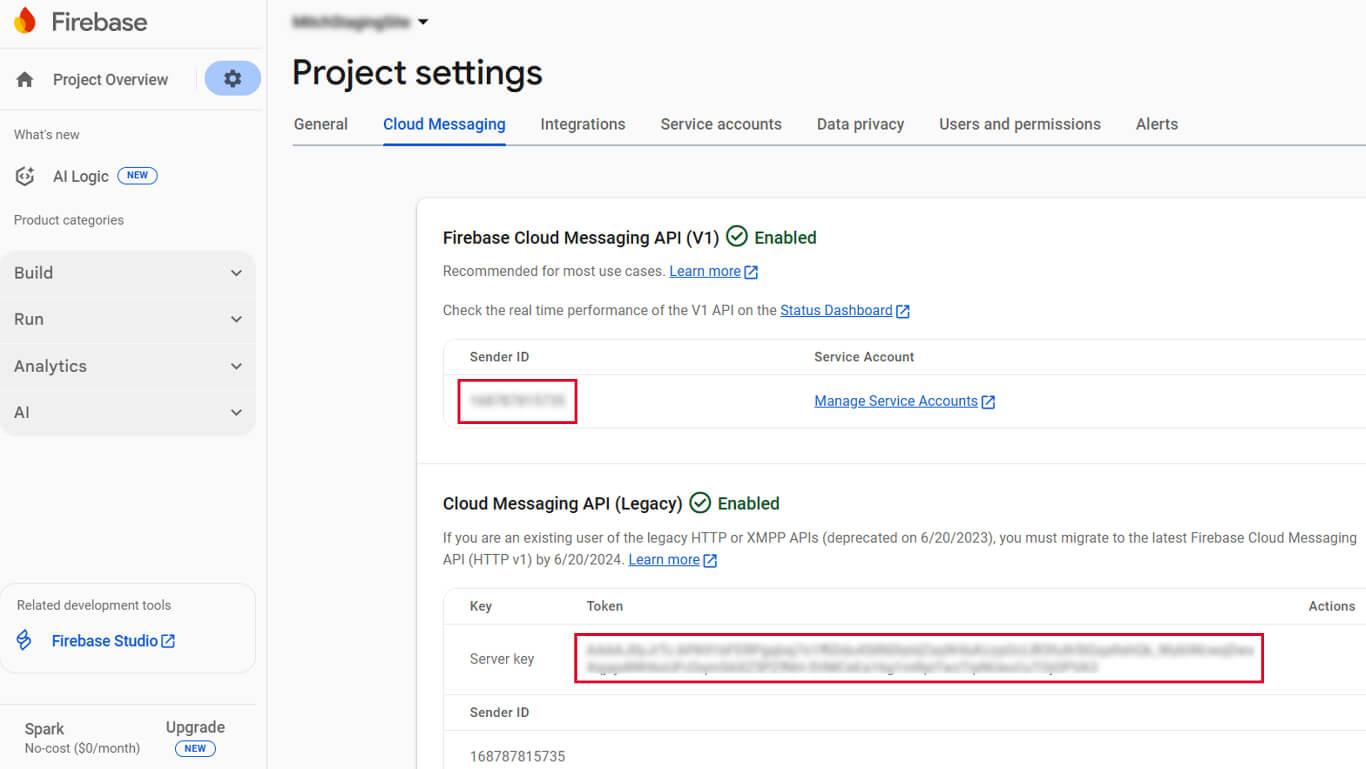
- Gardez ces valeurs accessibles pour la configuration de WordPress.
Les informations d'identification du serveur authentifient la communication de WordPress avec les serveurs Firebase.
Téléchargement de la configuration Firebase sur WordPress
- Naviguez jusqu'à Tableau de bord > MP AppKit > Configurer > Google Firebase.
- Cliquez sur Choisir un fichier sous Fichier de configuration Android.
- Sélectionnez le fichier téléchargé google-services.json fichier.
- Cliquez sur Choisir un fichier sous Fichier de configuration iOS.
- Sélectionnez le fichier téléchargé GoogleService-Info.plist fichier.
- Entrez le Clé du serveur dans le champ Clé du serveur.
- Entrez le Identifiant de l'expéditeur dans le champ ID de l'expéditeur.
- Cliquez sur Enregistrer les modifications.
Une configuration réussie permet d'envoyer des notifications push aux appareils membres.
Configuration des types de notifications automatisées
Les notifications automatisées se déclenchent en fonction d'événements spécifiques sans intervention manuelle. La configuration détermine les types de notifications que les membres peuvent recevoir.
- Naviguez jusqu'à Tableau de bord > MP AppKit > Paramètres > Notifications push.
- Localiser le Notifications automatiques section.
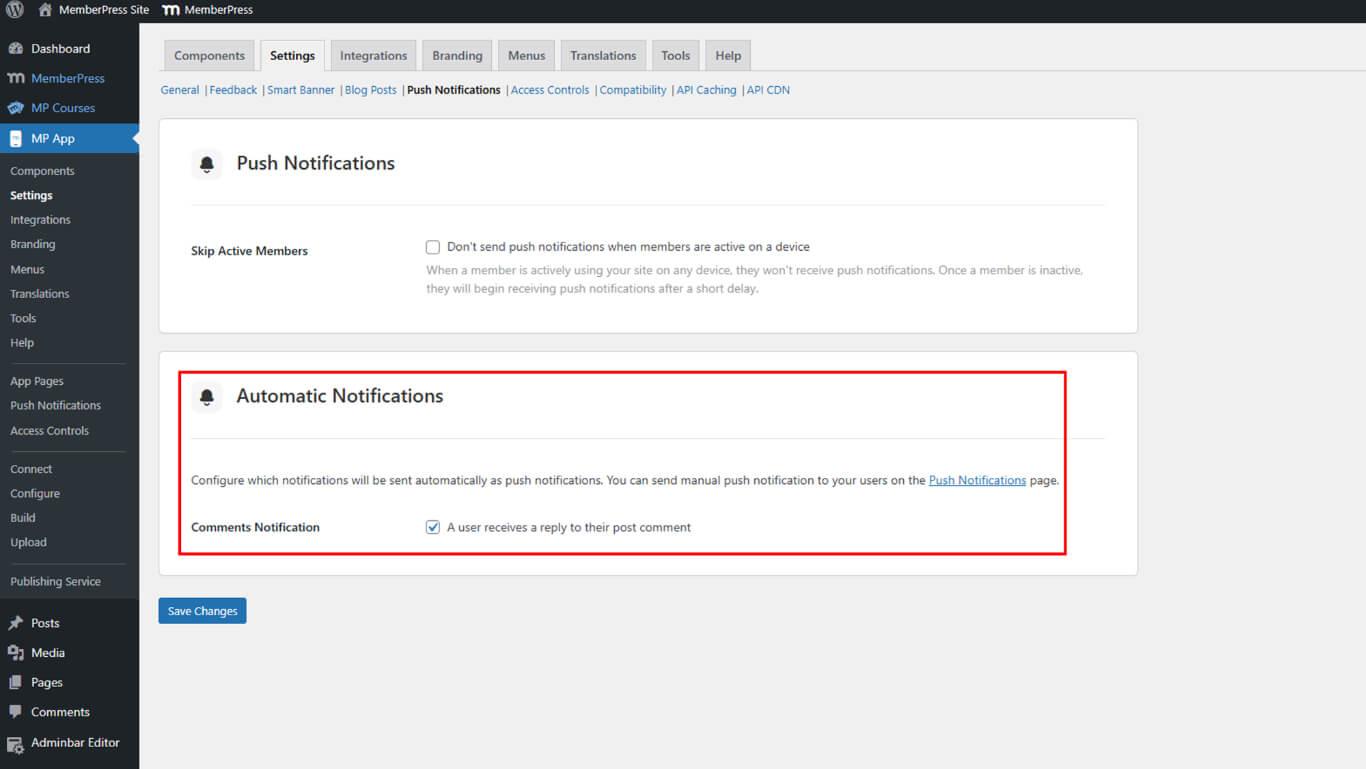
- Cliquez sur Enregistrer les modifications.










 FR
FR  EN
EN  ES
ES  DE
DE  PT
PT 