

Les menus de la barre d'onglets et de l'écran supplémentaire permettent une navigation primaire et secondaire dans les applications mobiles. La personnalisation des menus permet de créer des expériences de navigation adaptées à la structure de l'organisation et aux besoins des membres.
Ce document explique comment configurer les éléments de navigation, organiser les sections de menu, personnaliser les icônes et les couleurs, et prévisualiser les changements de navigation.
Comprendre la barre d'onglets et la navigation dans d'autres écrans
La barre d'onglets s'affiche en bas des écrans mobiles et permet d'accéder rapidement aux principales sections de l'application. Jusqu'à quatre éléments peuvent occuper les positions de la barre d'onglets, la cinquième position étant réservée au menu supplémentaire. La navigation dans l'écran supplémentaire contient des éléments secondaires auxquels on accède par l'icône du menu supplémentaire. L'organisation des menus et la sélection des icônes créent des expériences de navigation cohérentes qui favorisent l'engagement des membres et la découverte du contenu.
Accès aux paramètres du menu
La configuration des menus s'effectue dans l'interface de paramétrage des menus.
- Naviguez jusqu'à Tableau de bord > MP AppKit > Menus.
- Vérifiez le Menu de la barre d'onglets est actif.
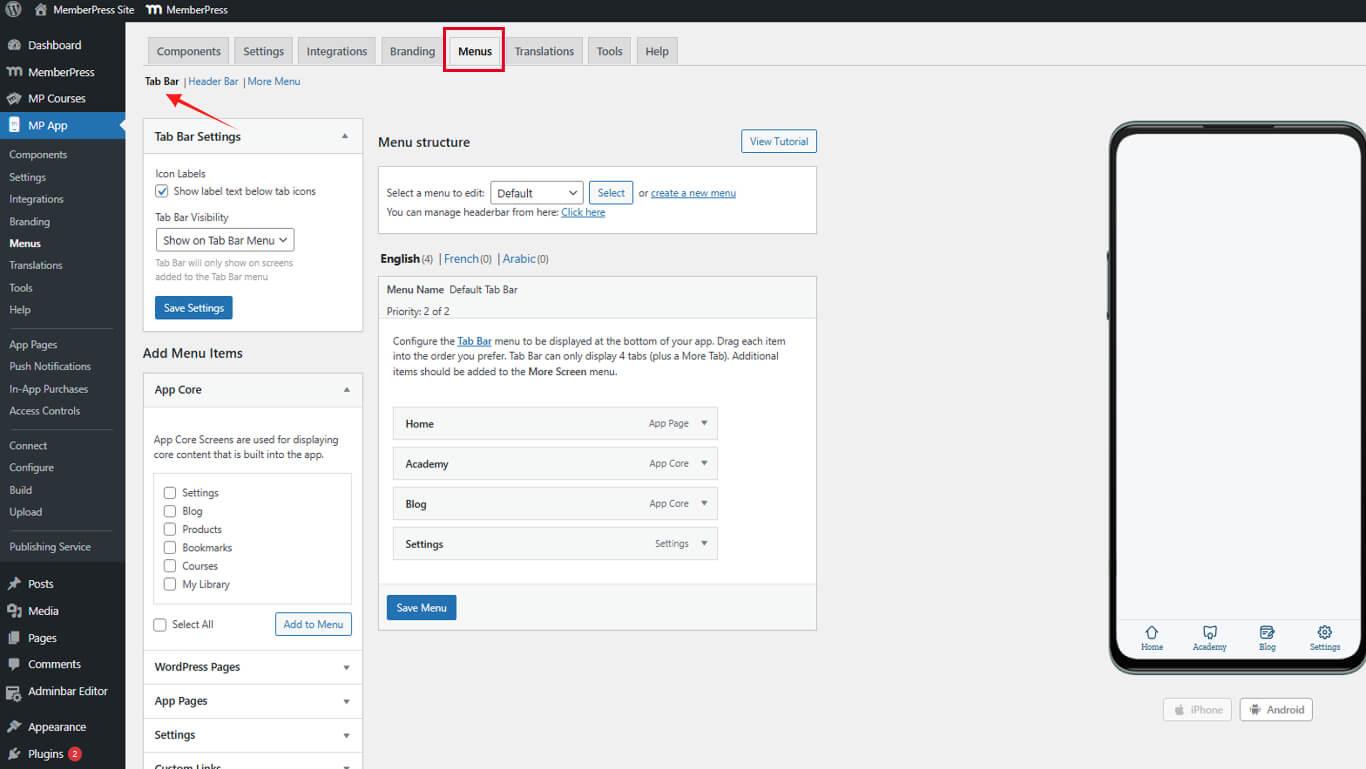
- Cliquez sur le bouton Menu Plus d'écran pour accéder à la navigation secondaire.
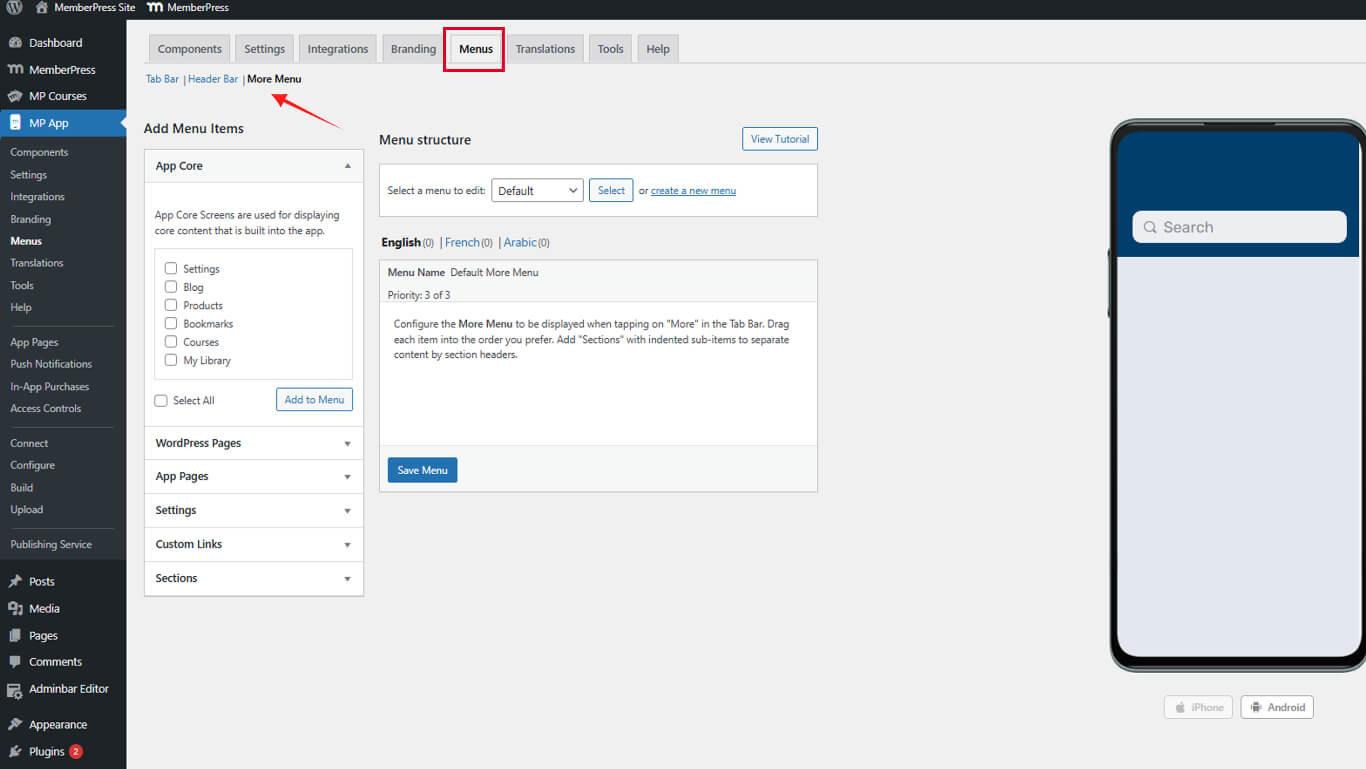
Les menus Barre d'onglets et Autres écrans sont configurés indépendamment avec des structures organisationnelles différentes.
Effacer les éléments de navigation existants
Le fait de commencer par des menus vides simplifie la reconfiguration de la navigation.
Effacer le menu de la barre d'onglets
- Naviguez jusqu'à Tableau de bord > MP AppKit > Menus.
- Cliquez sur le bouton Menu déroulant, puis sélectionnez Retirer pour chaque article.
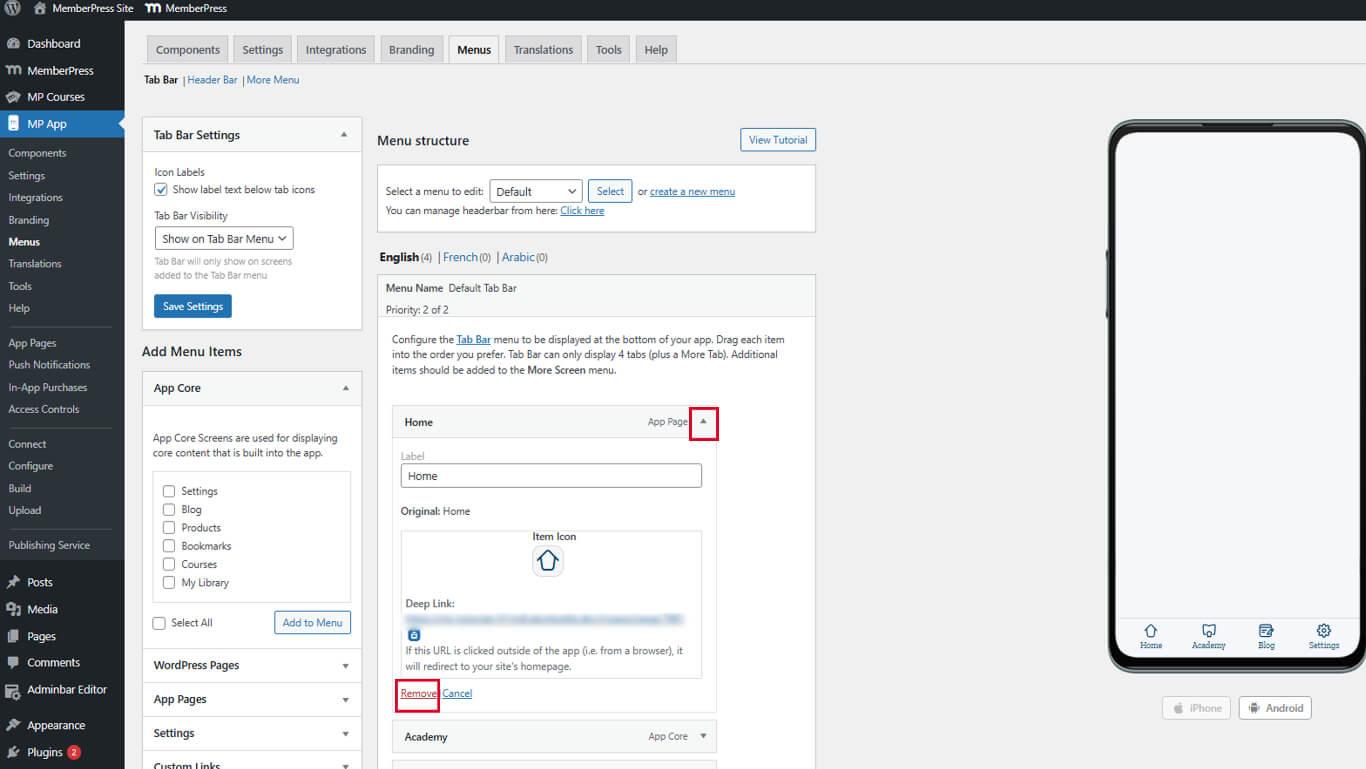
- Répétez l'opération jusqu'à ce que le menu de la barre d'onglets soit vide.
L'effacement des éléments existants permet d'éviter les conflits lors de la reconfiguration.
Effacer le menu de l'écran supplémentaire
- Cliquez sur le bouton Menu Plus d'écran tabulation.
- Localisez chaque élément de menu existant.
- Cliquez sur Retirer à côté de chaque élément.
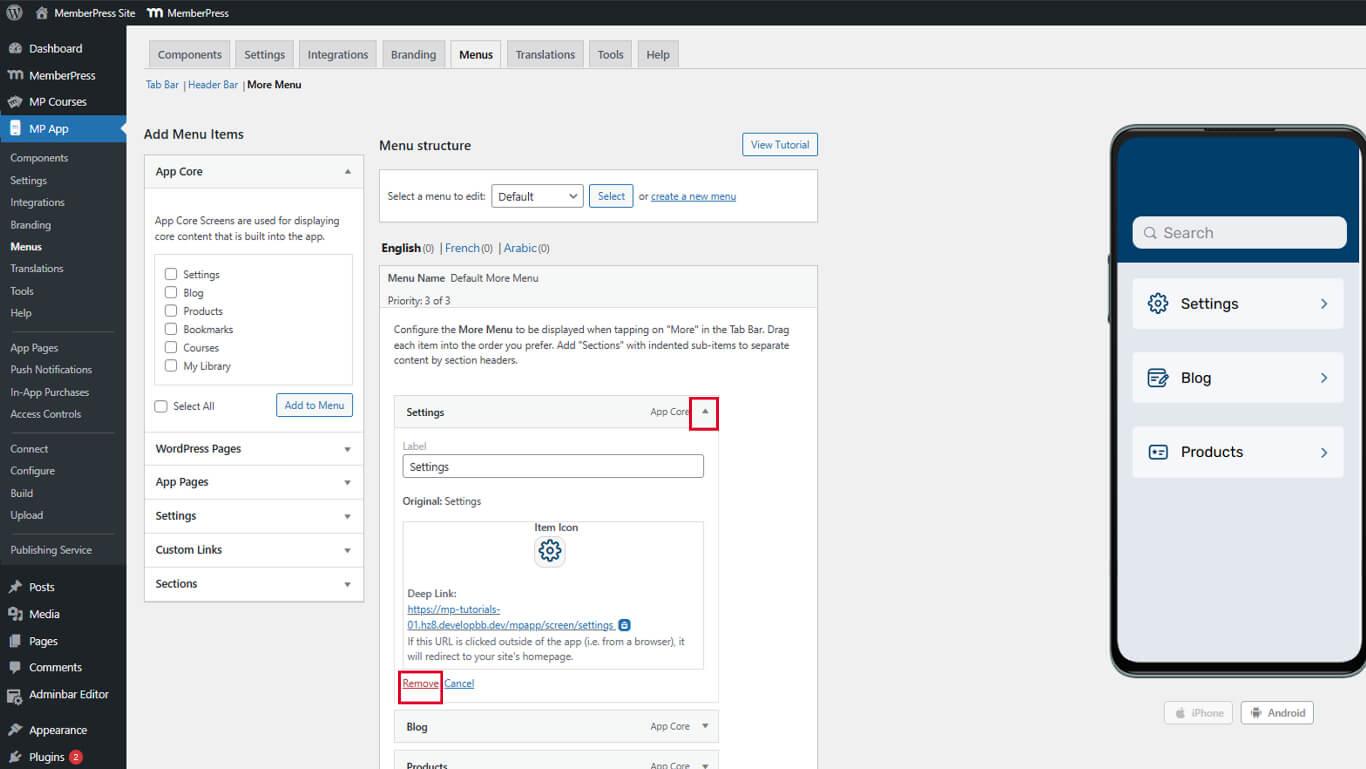
- Répétez l'opération jusqu'à ce que le menu Plus d'écran soit vide.
Les menus vides constituent une base propre pour une structure de navigation délibérée.
Ajout d'éléments au menu de la barre d'onglets
Les éléments de la barre d'onglets permettent une navigation primaire vers les sections fréquemment consultées.
Ajouter des écrans à l'application principale
- Naviguez jusqu'à Tableau de bord > MP AppKit > Menus.
- Localiser le Noyau de l'application dans les éléments disponibles.
- Trouver Paramètres et cliquez sur Ajouter au menu.
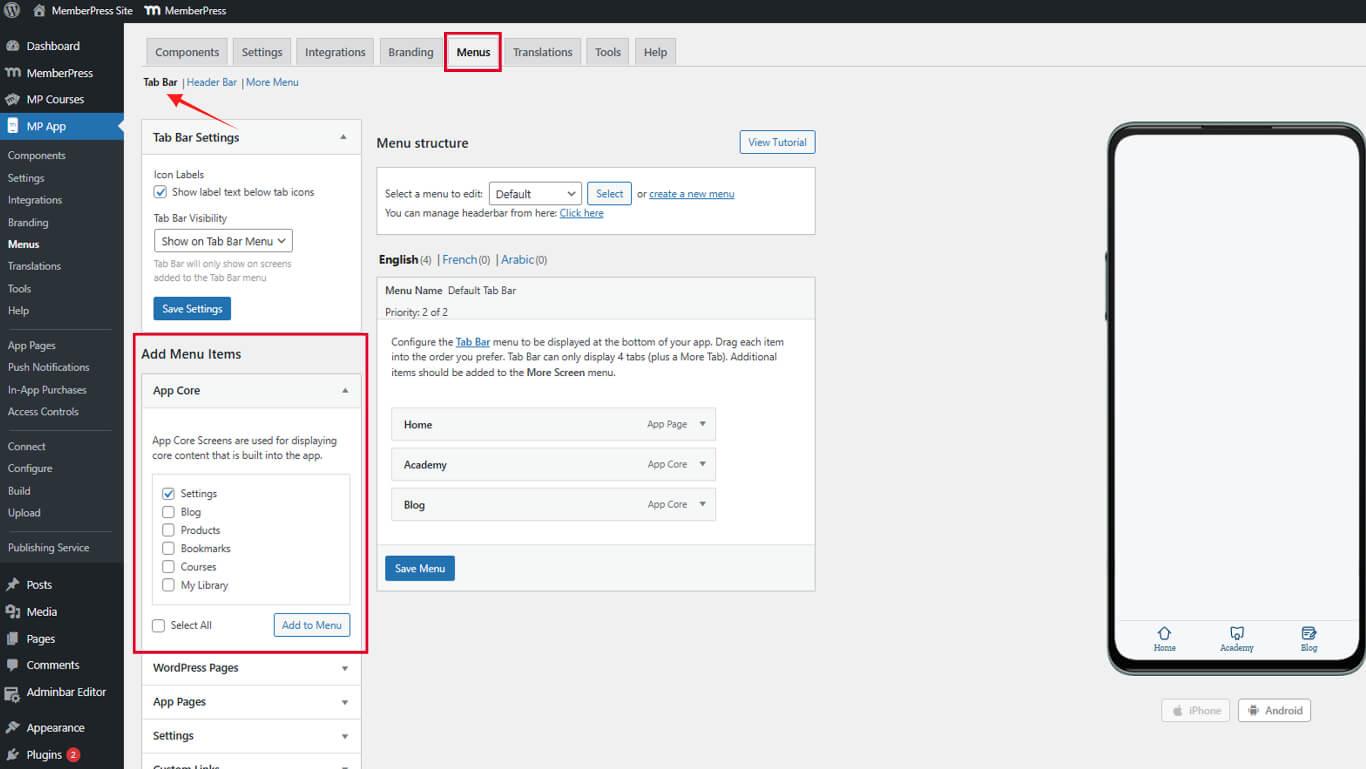
- Faites glisser les éléments du menu pour modifier l'ordre d'affichage.
- Cliquez sur le bouton Sauvegarder le menu.
Les paramètres doivent rester accessibles pour la gestion du compte et la configuration de l'application.
Ajouter des pages d'application
- Localiser le Pages de l'application dans les articles disponibles.
- Trouver la page d'application du foyer ou du groupe de membres.
- Cochez la case à côté du nom de la page.
- Cliquez sur Ajouter au menu.
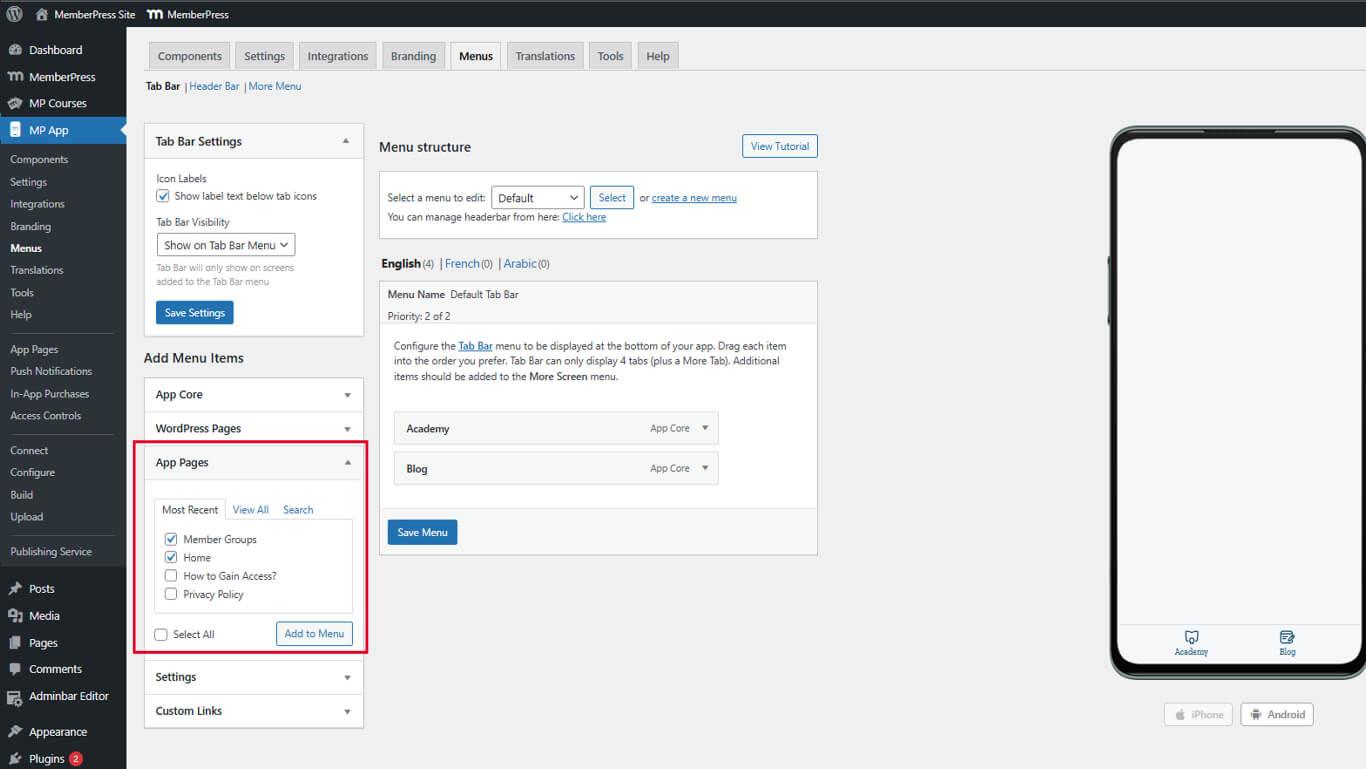
- Faites glisser l'élément à la position souhaitée dans l'ordre du menu.
- Cliquez sur le bouton Sauvegarder le menu.
Les pages d'application fournissent des destinations de contenu personnalisées pour les éléments de navigation.
Ajout d'un accès au blog
- Naviguez jusqu'à Tableau de bord > MP AppKit > Menus et faites défiler jusqu'à la Noyau de l'application section.
- Trouver Blog dans la liste des éléments disponibles.
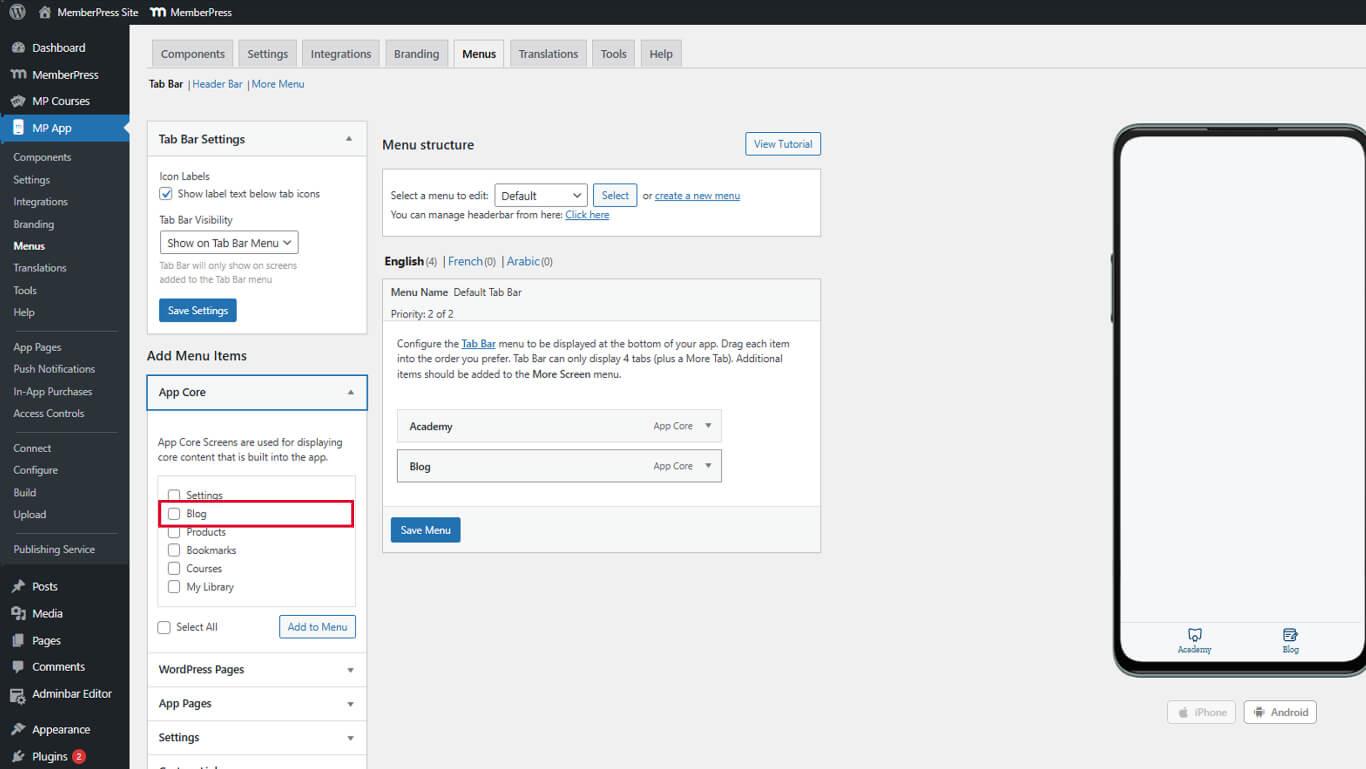
- Cliquez sur Ajouter au menu.
- Faites glisser le blog jusqu'à la position souhaitée pour la barre d'onglets.
- Cliquez sur le bouton Sauvegarder le menu.
L'accès aux blogs favorise la participation au contenu et la fidélisation des membres.
Ajout d'éléments au menu de l'écran supplémentaire
D'autres éléments de l'écran permettent une navigation secondaire vers des sections supplémentaires.
Ajout d'éléments de gestion de compte
- Naviguez jusqu'à Tableau de bord > MP AppKit > Menus.
- Cliquez sur le bouton Menu Plus d'écran tabulation.
- Localiser le Noyau de l'application section.
- Trouver Produits ou Signet dans les éléments disponibles.
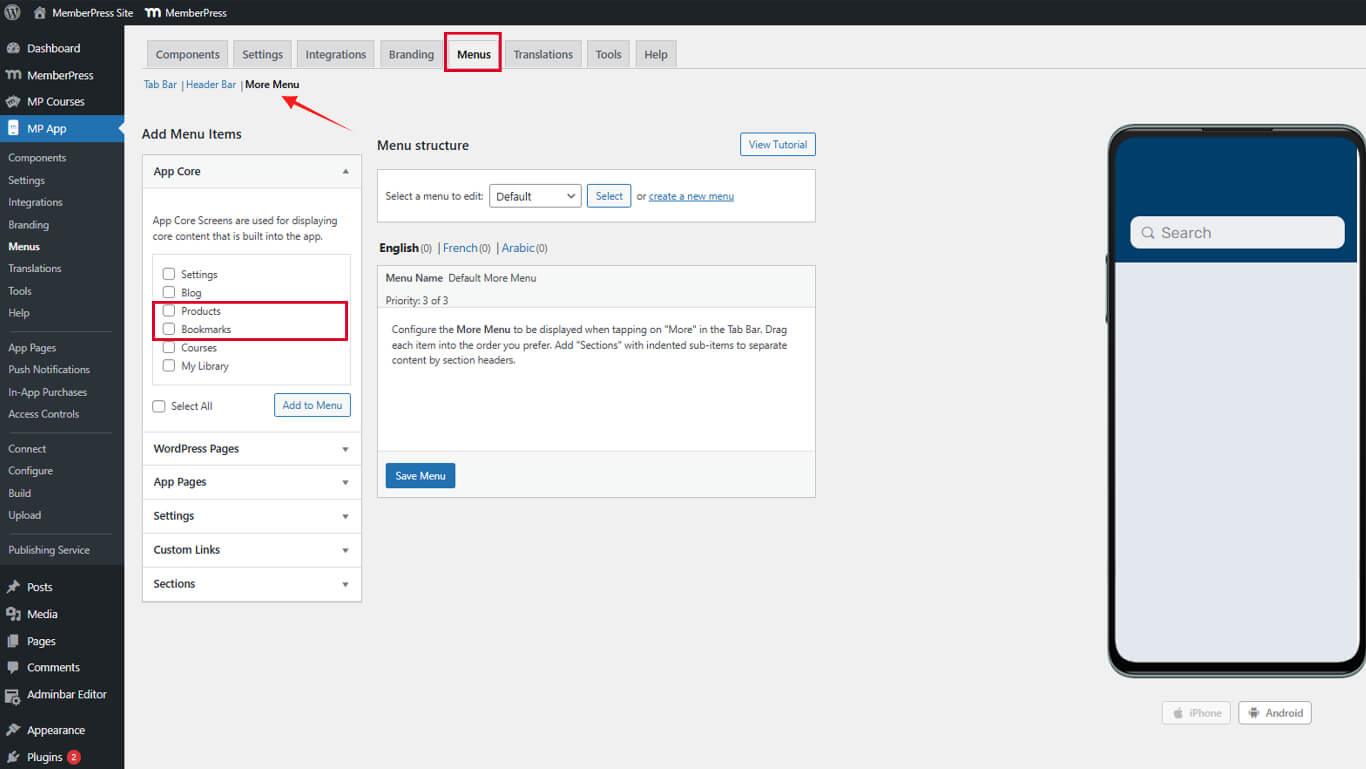
- Cliquez sur Ajouter au menu.
- Cliquez sur Ajouter au menu à côté de Paramètres.
- Cliquez sur le bouton Sauvegarder le menu.
Les éléments relatifs à la gestion des comptes doivent rester facilement accessibles, même dans le cadre d'une navigation secondaire.
Création de sections de menu
Les sections organisent les éléments de l'écran More Screen en groupes logiques.
Ajout d'en-têtes de section
- Naviguez jusqu'à Tableau de bord > MP AppKit > Menus.
- Cliquez sur le bouton Plus de menu tabulation.
- Localiser Sectionset cliquez sur Ajouter une section au-dessus de la liste des éléments du menu.
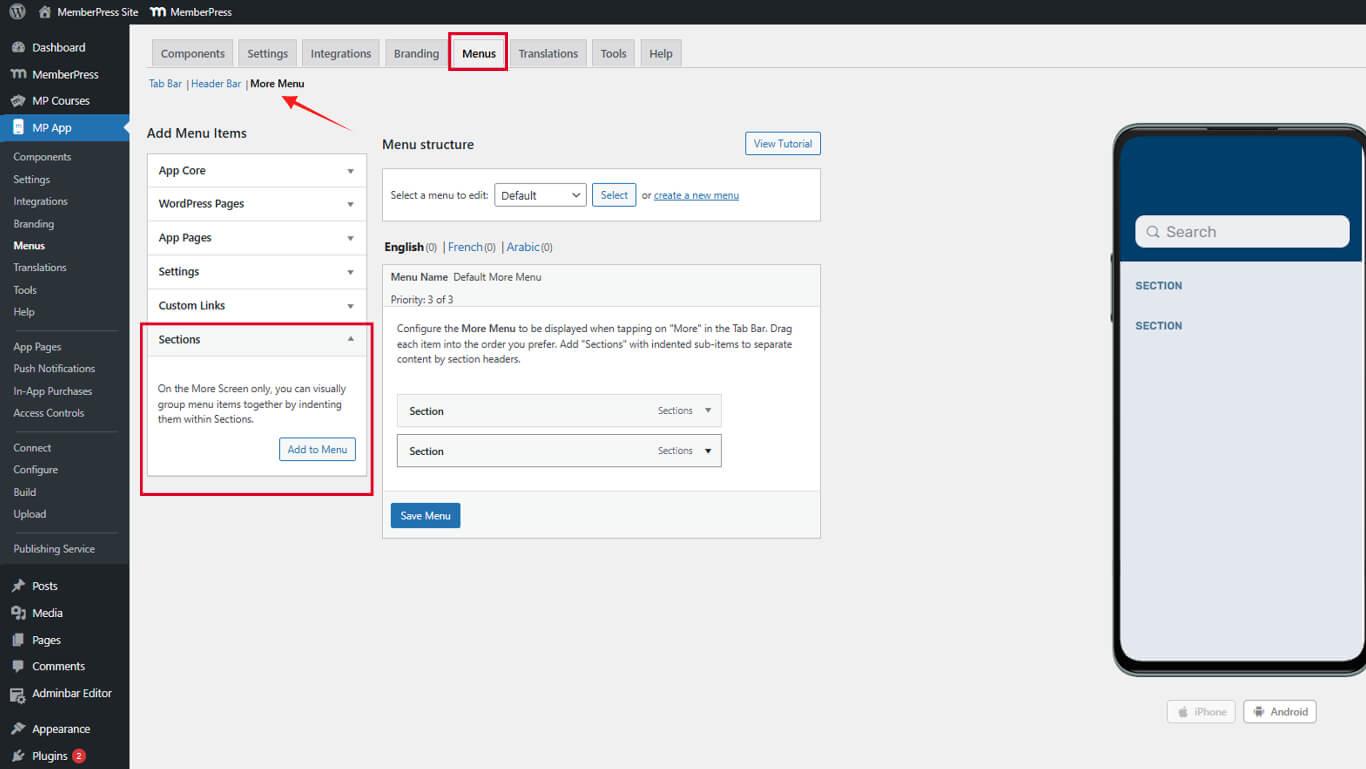
- Saisissez un nom de section dans le champ Titre de la section domaine.
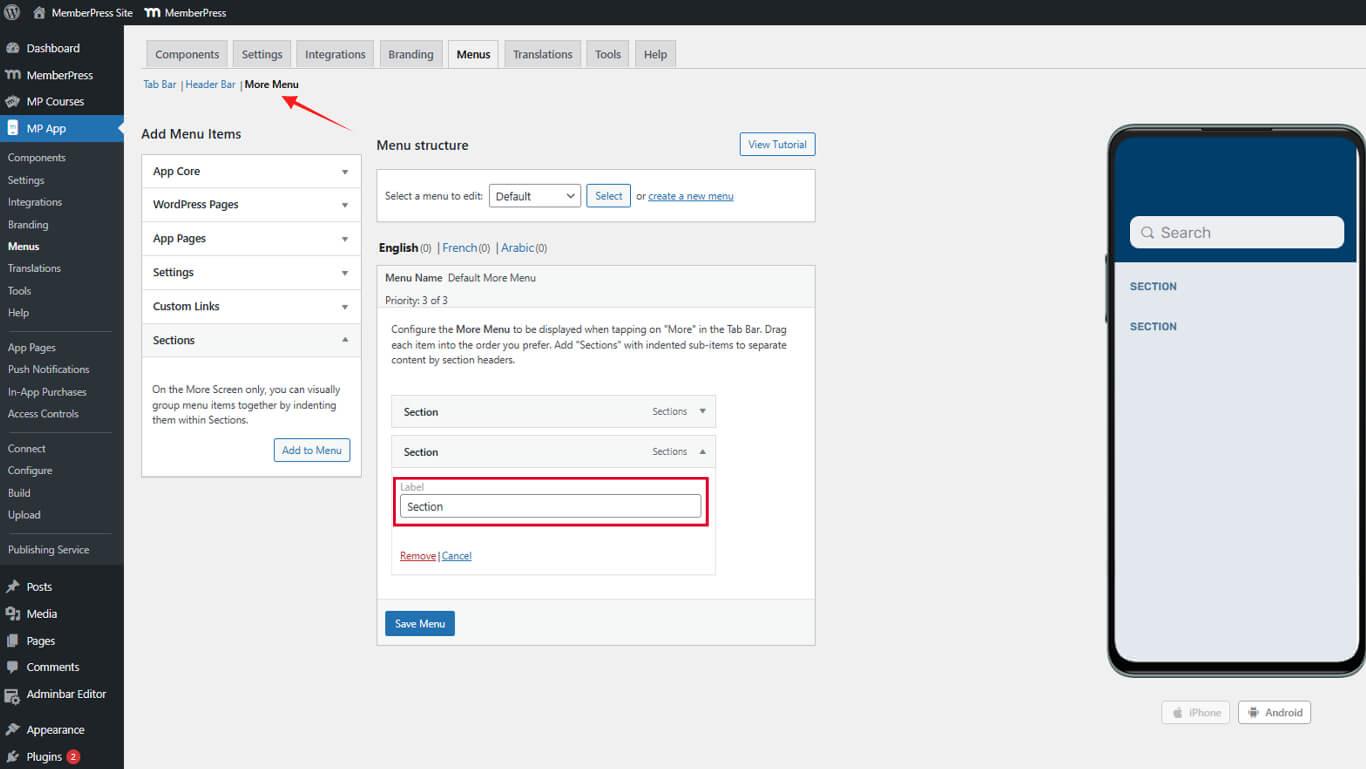
- Cliquez sur Ajouter une section pour créer la section.
Les en-têtes de section apparaissent sous forme d'étiquettes non cliquables dans le menu More.
Organiser les articles sous forme de sections
- Localisez les éléments de menu à regrouper dans une section.
- Faites glisser les éléments sous l'en-tête de la section concernée.
- Répéter l'opération pour tous les éléments nécessitant une organisation en sections.
- Cliquez sur le bouton Sauvegarder le menu.
L'indentation visuelle indique les relations hiérarchiques entre les sections et les éléments.
Personnalisation des icônes des éléments de menu
Les icônes fournissent des repères visuels de navigation et assurent la cohérence de la marque.
Sélection des icônes des éléments de la barre d'onglets
- Naviguez jusqu'à Tableau de bord > MP AppKit > Menus.
- Localisez un élément de menu nécessitant la personnalisation de l'icône.
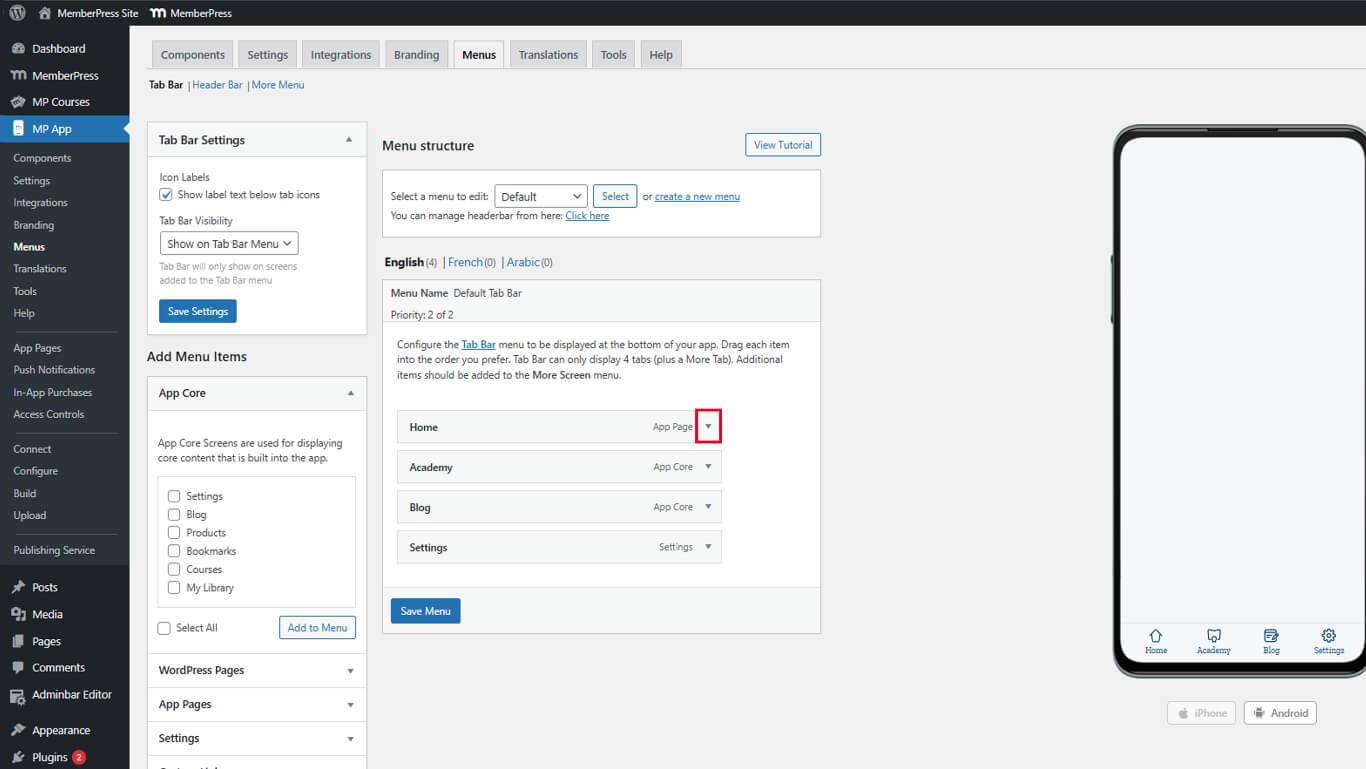
- Cliquez sur la flèche déroulante située à côté du nom de l'élément.
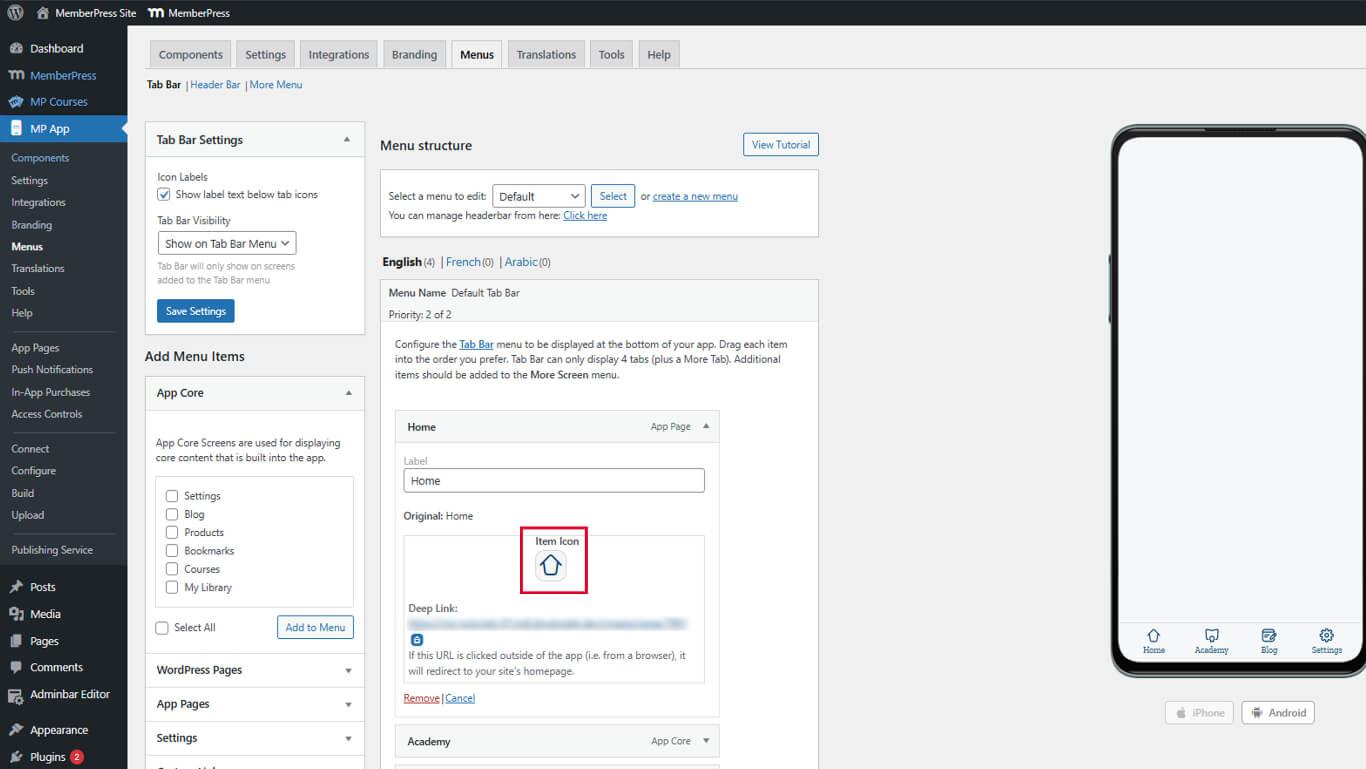
- Trouver le Icône d'élément section dans les paramètres avancés.
- Cliquez sur la boîte à icônes pour ouvrir le panneau de sélection des icônes.
- Parcourir les icônes disponibles dans le pack d'icônes.
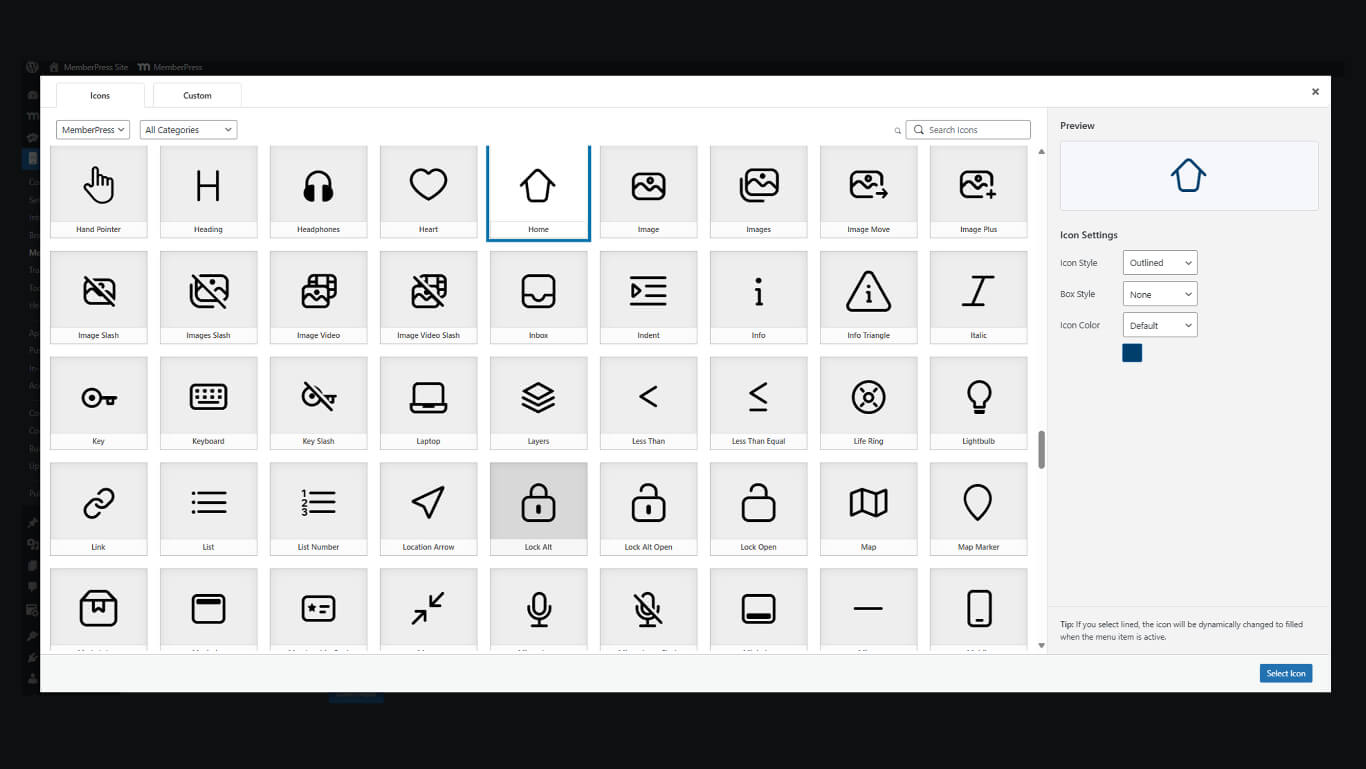
- Cliquez sur une icône pour la sélectionner.
- Cliquez sur le bouton Sélectionner l'icône pour appliquer l'icône.
- Cliquez sur le bouton Sauvegarder le menu.
Répétez ce processus pour tous les éléments de la barre d'onglets nécessitant des icônes personnalisées.
Sélection d'autres icônes d'éléments d'écran
- Cliquez sur le bouton Menu Plus d'écran tabulation.
- Localisez un élément de menu nécessitant la personnalisation de l'icône.
- Cliquez sur la flèche déroulante située à côté du nom de l'élément.
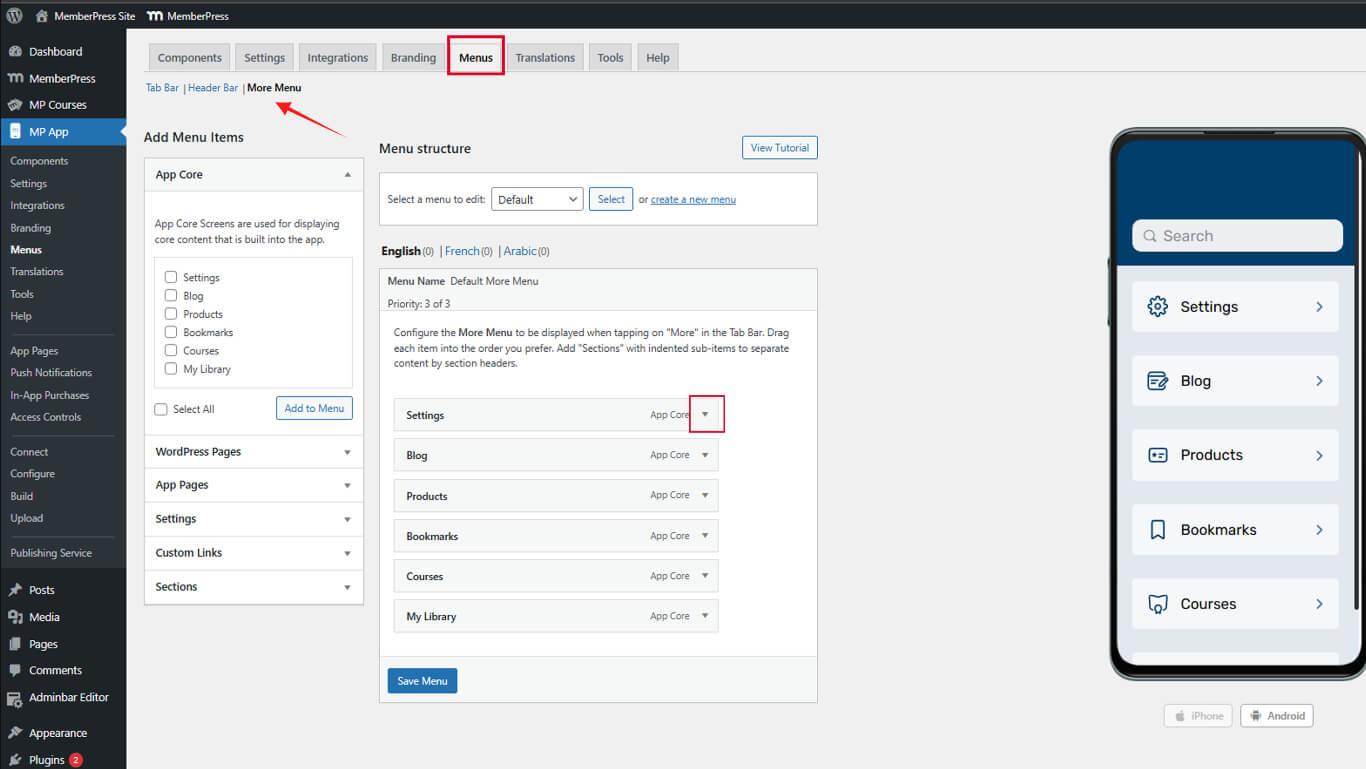
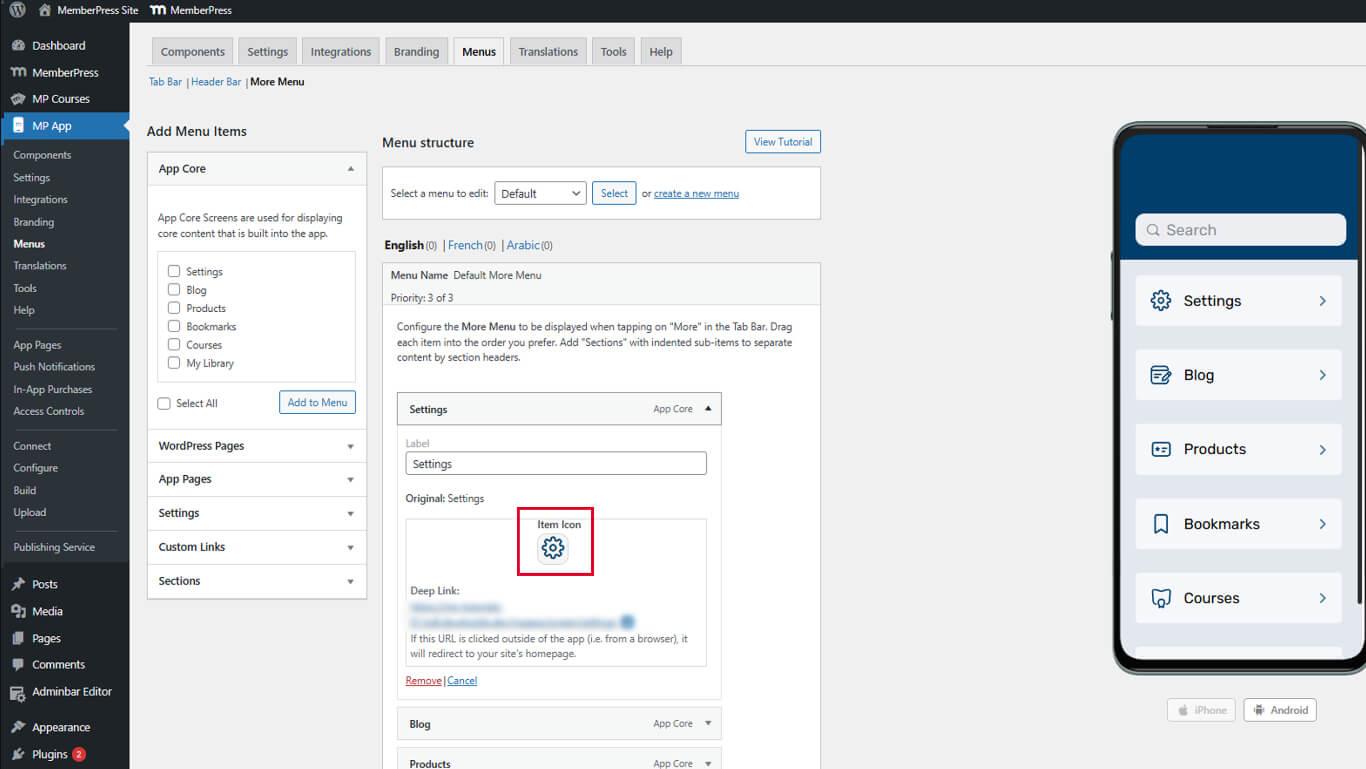
- Trouver le Icône d'élément section.
- Cliquez sur la boîte à icônes pour ouvrir le panneau de sélection des icônes.
- Sélectionnez une icône appropriée.
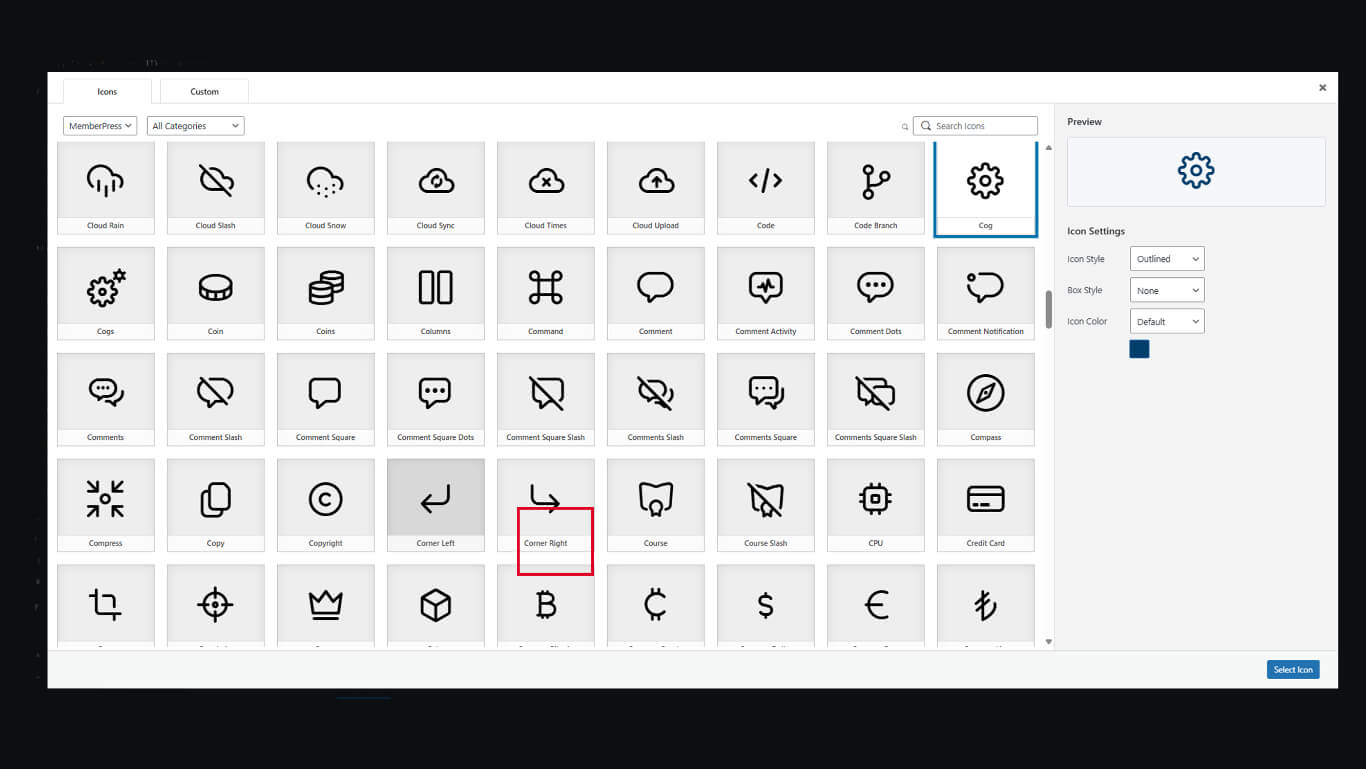
- Cliquez sur le bouton Sélectionner l'icône.
- Répéter l'opération pour d'autres éléments.
- Cliquez sur le bouton Sauvegarder le menu.
Les icônes "Plus d'écran" sont facultatives, mais elles améliorent la clarté de la navigation visuelle.
Personnalisation du texte des rubriques de menu
Le texte des éléments de menu fournit des étiquettes de navigation et une aide à l'accessibilité.
Modification des étiquettes des éléments
- Naviguez jusqu'à Tableau de bord > MP AppKit > Menus.
- Localisez un élément de menu nécessitant une modification de l'étiquette.
- Cliquez sur la flèche déroulante située à côté du nom de l'élément.
- Trouver le Étiquette domaine.
- Saisir un texte d'étiquette personnalisé remplaçant le texte par défaut.
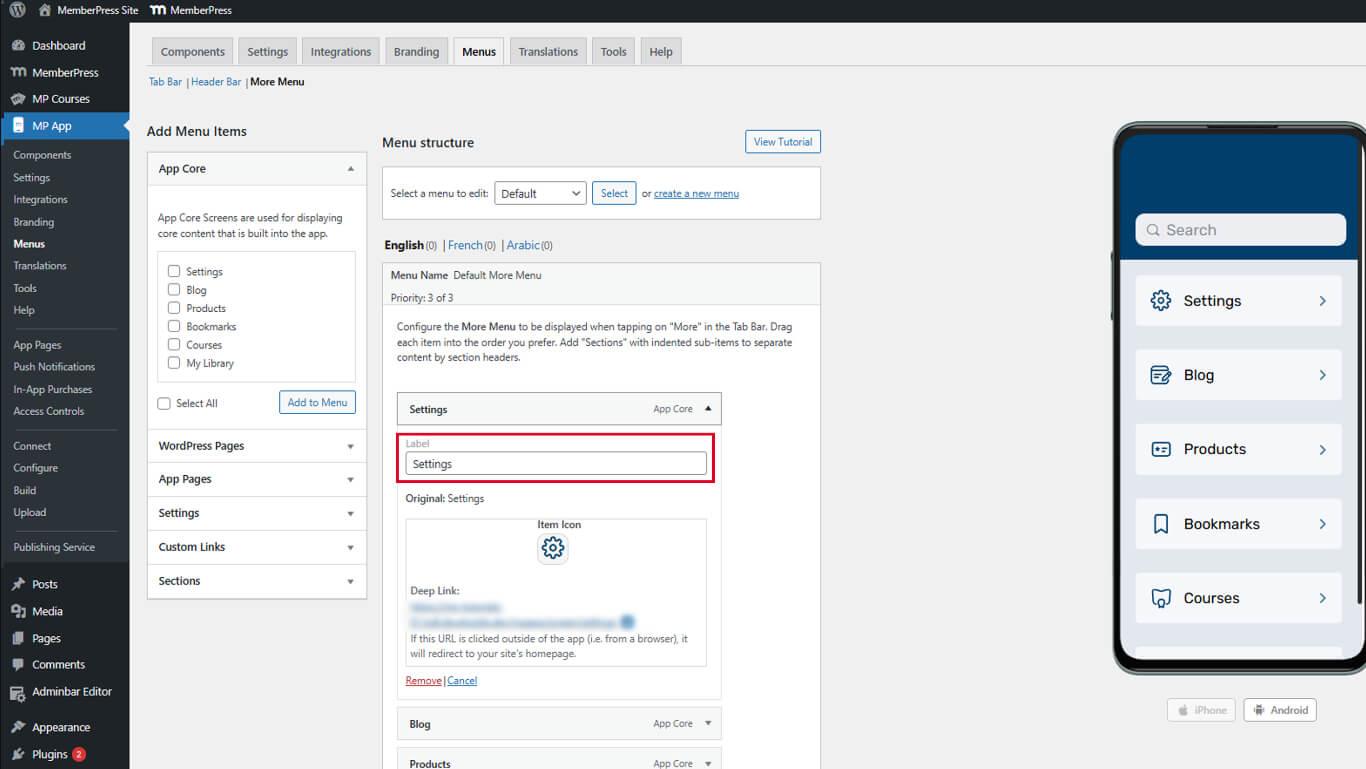
- Cliquez sur le bouton Sauvegarder le menu.
Les étiquettes personnalisées clarifient la navigation lorsque les noms par défaut sont ambigus.
Organiser l'ordre des éléments de menu
L'ordre des éléments influe sur l'accessibilité de la navigation et sur le flux de travail des membres.
Disposition des éléments de la barre d'onglets
- Naviguez jusqu'à Tableau de bord > MP AppKit > Menus.
- Vérifiez le Menu de la barre d'onglets est actif.
- Cliquez et faites glisser les éléments du menu pour réorganiser les positions.
- Placez les éléments les plus fréquemment consultés dans les positions les plus à gauche.
- Cliquez sur le bouton Sauvegarder le menu après avoir rangé les éléments.
Disposition d'autres éléments de l'écran
- Cliquez sur le bouton Menu Plus d'écran tabulation.
- Cliquez et faites glisser les éléments pour les réorganiser dans les sections.
- Faites glisser les sections pour réorganiser les groupes de sections.
- Classer les éléments dans un ordre logique ou basé sur la fréquence.
- Cliquez sur le bouton Sauvegarder le menu.
L'ordre des écrans doit refléter les relations logiques ou la fréquence d'utilisation.










 FR
FR  EN
EN  ES
ES  DE
DE  PT
PT 