

Les icônes de la barre d'onglets permettent la navigation principale dans les applications mobiles. La personnalisation des icônes améliore la cohérence visuelle et l'alignement de la marque. Ce document explique comment personnaliser les icônes de la barre d'onglets, appliquer des styles d'affichage et prévisualiser les modifications apportées aux icônes dans l'application.
Comprendre la configuration des icônes de la barre d'onglets
Les icônes de la barre d'onglets s'affichent au bas des écrans mobiles pour permettre une navigation rapide. Le pack d'icônes offre plusieurs options de style, notamment des variantes remplies, en contour, circulaires et carrées. Les icônes héritées restent disponibles pour les préférences d'apparence familières. La personnalisation des icônes affecte à la fois l'apparence visuelle et l'expérience de navigation des membres.
Comprendre la structure de la barre d'onglets
La structure de la barre d'onglets limite le nombre d'éléments de navigation directement accessibles.
Quatre articles au maximum peut être affiché dans la barre d'onglets principale. La cinquième position est automatiquement réservée au menu Plus.
Plus Menu débordement contient des éléments de navigation supplémentaires au-delà des quatre emplacements de la barre d'onglets. Les membres appuient sur l'icône Plus pour accéder à la navigation supplémentaire.
Cohérence des icônes améliore la clarté de la navigation. Utilisez des styles d'icônes similaires pour tous les éléments de la barre d'onglets afin d'obtenir un aspect cohérent.
Accéder aux paramètres de la barre d'onglets
La configuration des icônes de la barre d'onglets s'effectue dans l'interface des paramètres du menu.
- Naviguez jusqu'à Tableau de bord > MP AppKit > Menus.
- Localiser le Menu de la barre d'onglets section.
- Vérifiez que les éléments de navigation sont ajoutés au menu de la barre d'onglets.
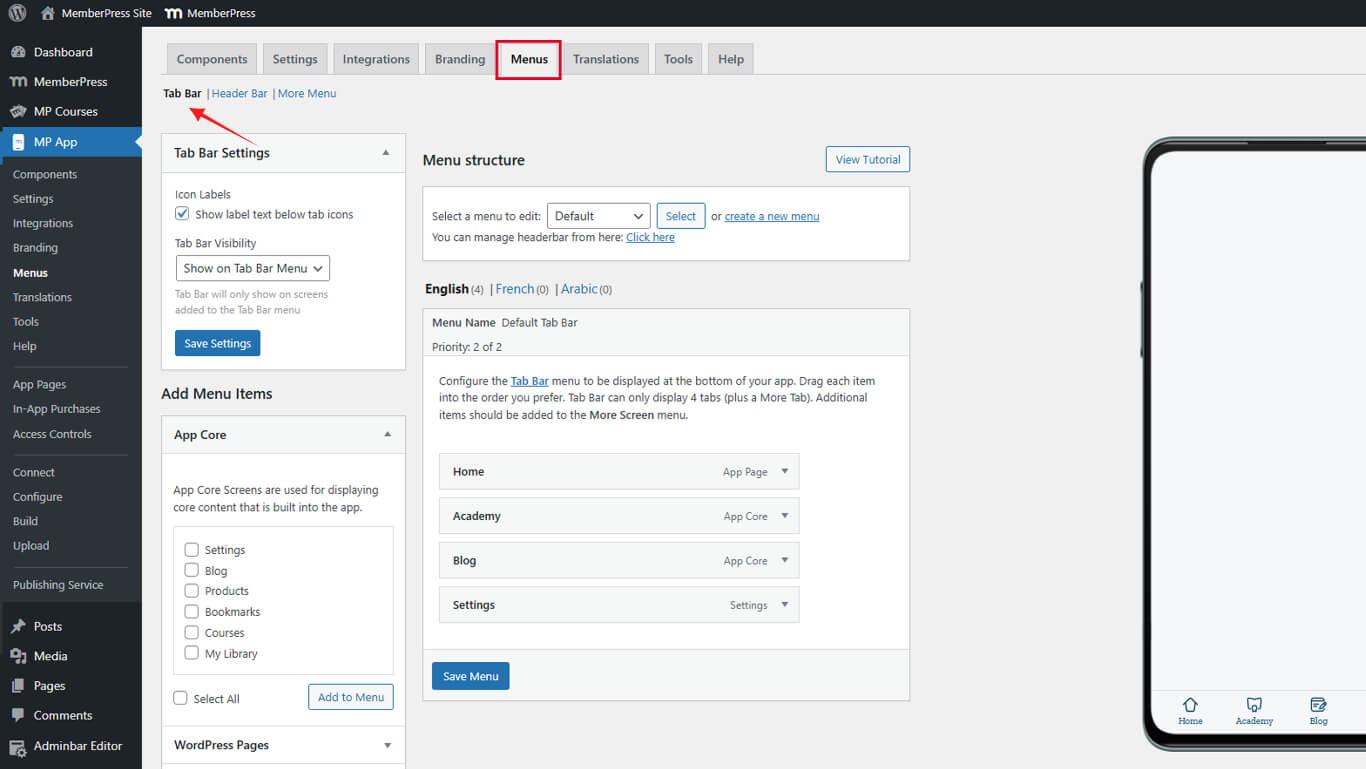
Personnalisation des icônes des éléments du menu de la barre d'onglets
Chaque élément du menu de la barre d'onglets prend en charge la personnalisation individuelle des icônes.
- Naviguez jusqu'à Tableau de bord > MP AppKit > Menus.
- Repérez l'élément du menu Barre d'onglets nécessitant une personnalisation de l'icône.
- Cliquez sur la flèche déroulante à côté du nom de l'élément du menu.
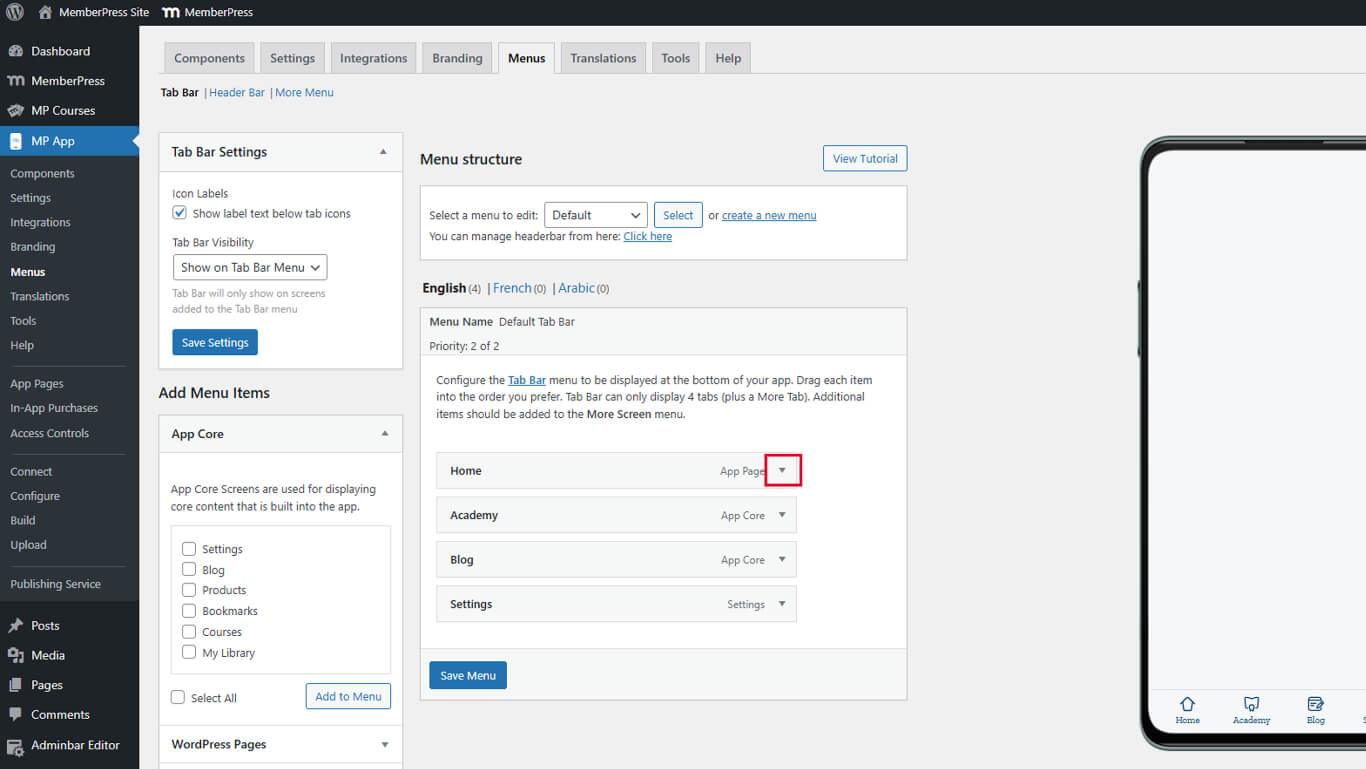
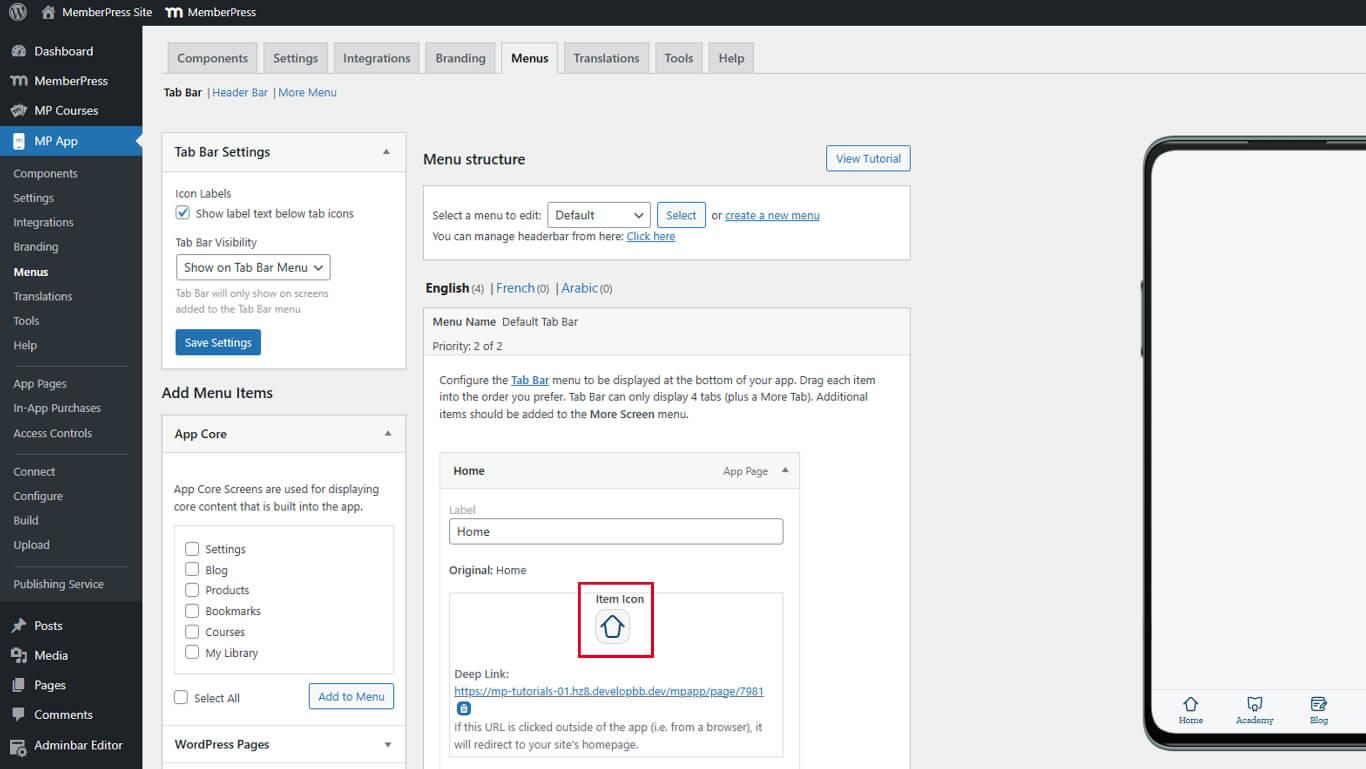
- Trouver le Icône d'élément section dans les paramètres avancés.
- Cliquez sur l'icône pour ouvrir le Panneau de sélection des icônes.
- Repérez l'icône représentant la fonction du menu et sélectionnez-la.
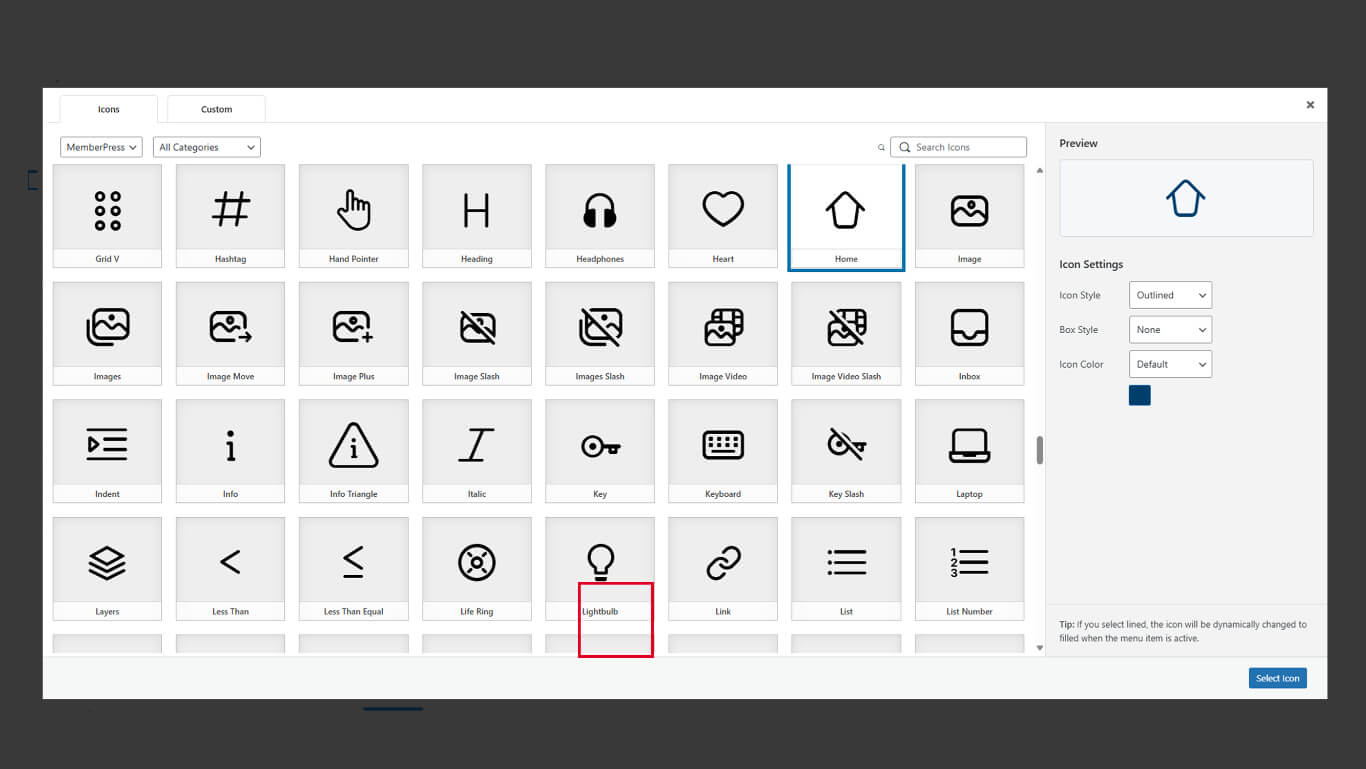
Configuration des styles d'affichage des icônes
Les styles d'affichage contrôlent l'apparence des icônes et leur mise en valeur visuelle.
Définition du style des icônes
- Localiser le Style icône menu déroulant dans le panneau de sélection des icônes.
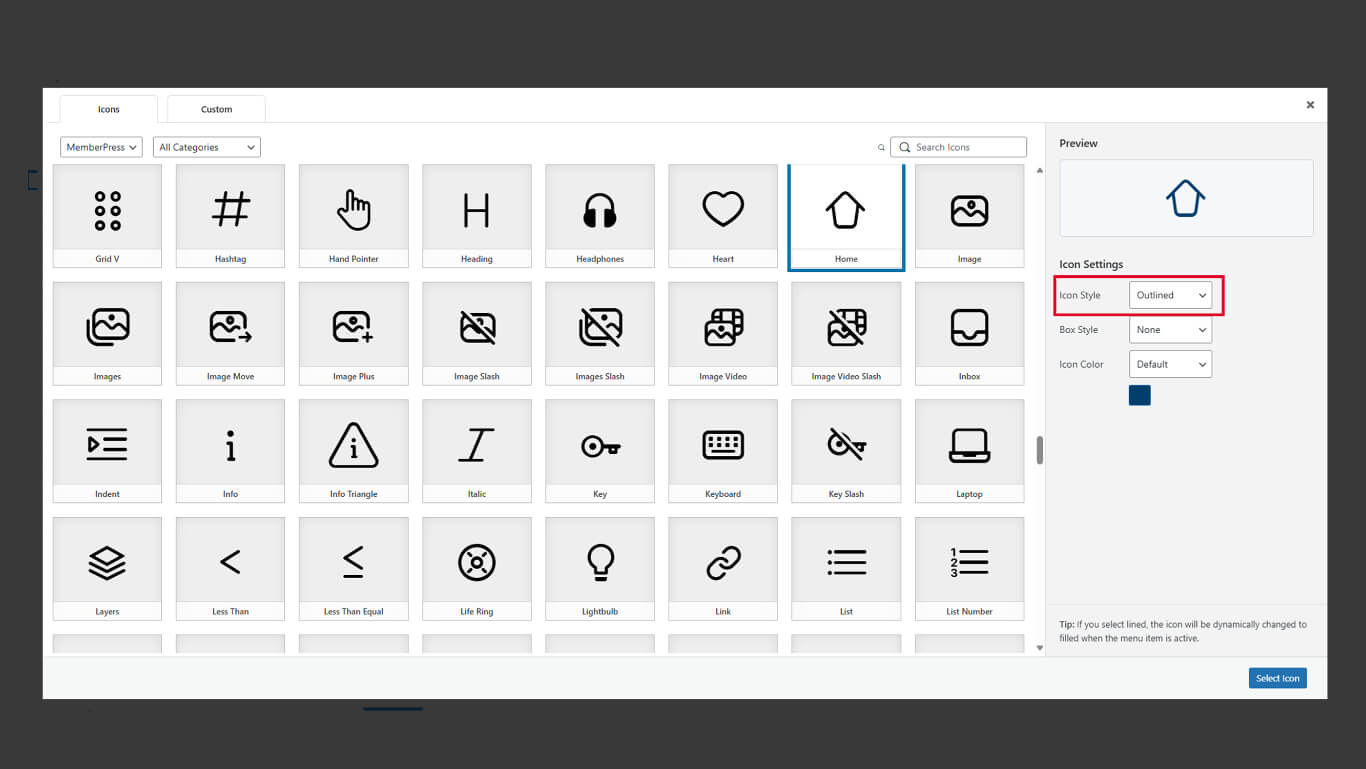
- Sélectionnez le style souhaité :
- Rempli pour les formes d'icônes pleines ;
- Aperçu pour les formes d'icônes basées sur des lignes.
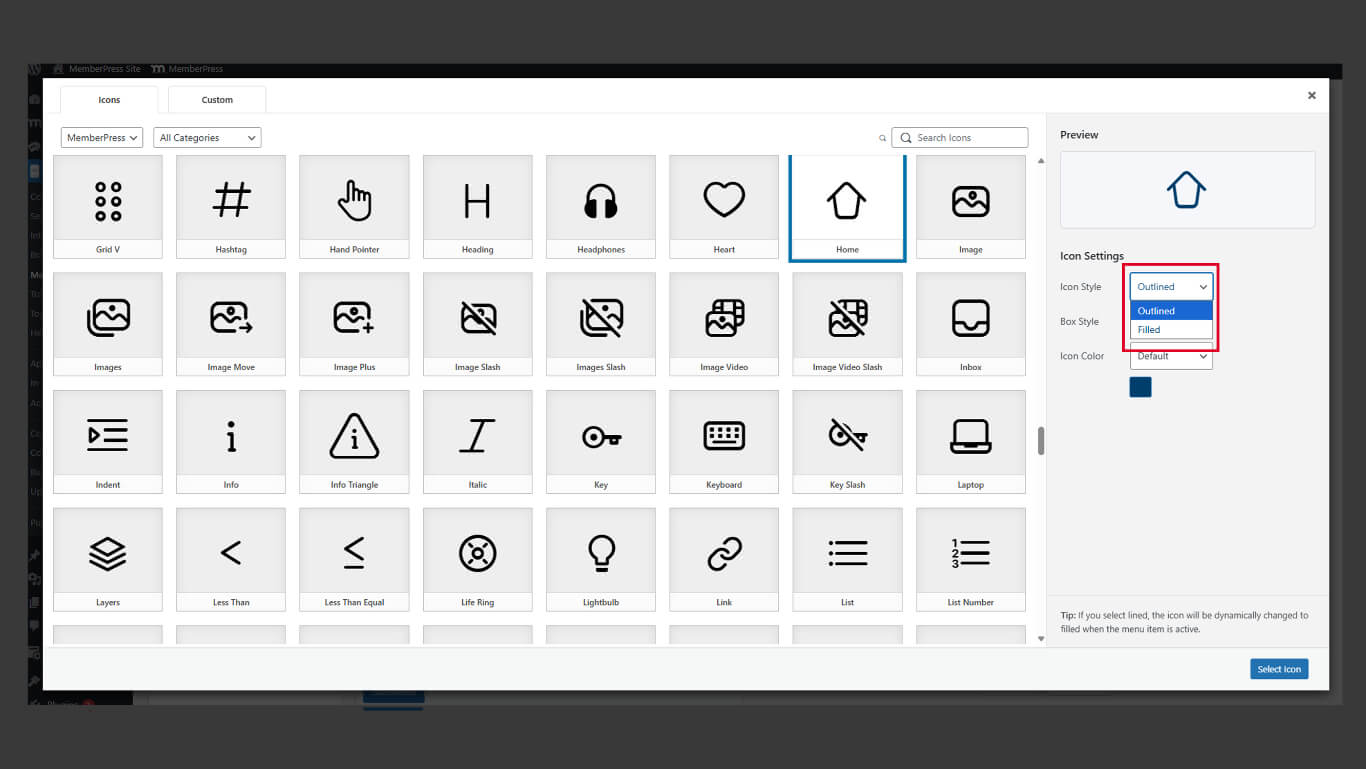
- Vérifiez l'aperçu de l'icône avec le style sélectionné.
Les styles remplis confèrent un poids visuel plus important aux états actifs. Les styles contour offrent un aspect plus léger aux états inactifs.
Définition du style de la boîte
- Localiser le Style boîte menu déroulant dans le panneau de sélection des icônes.
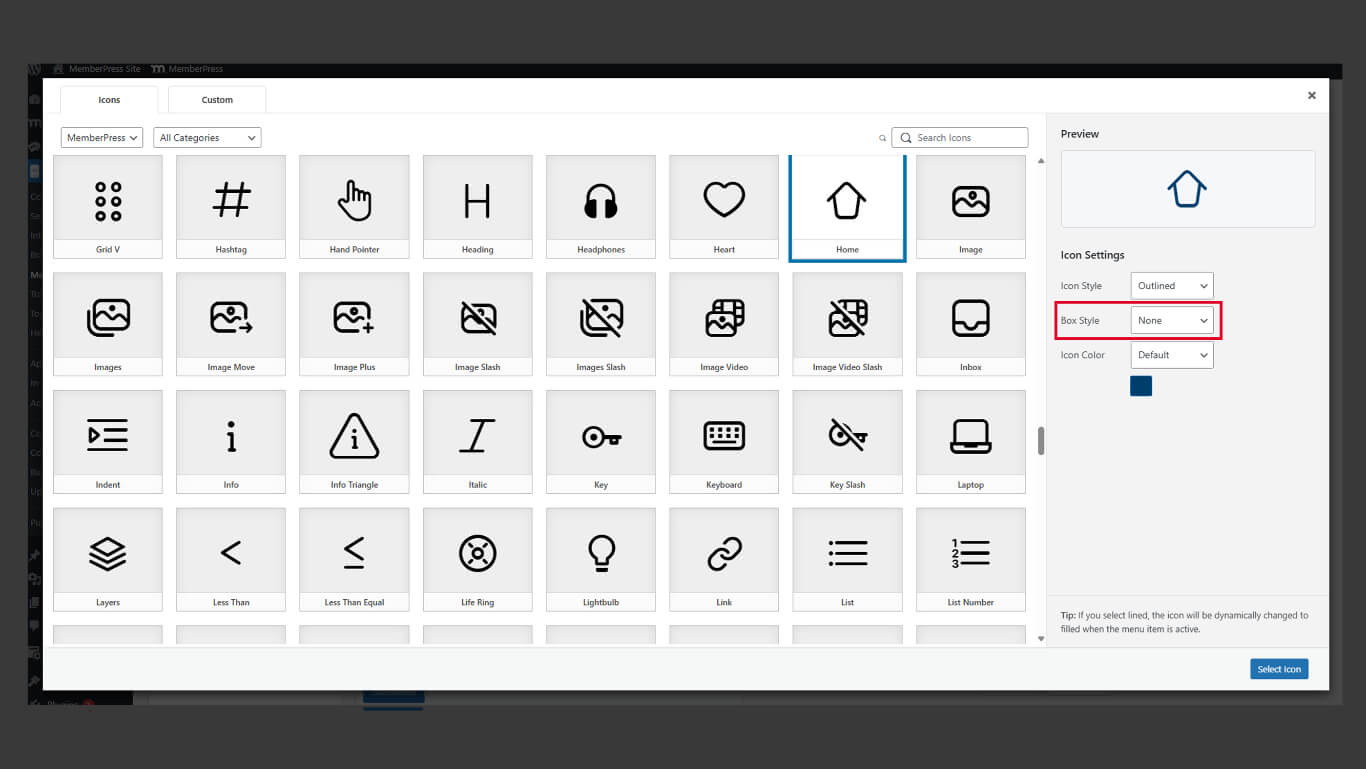
- Sélectionnez le style souhaité :
- Circulaire pour les arrière-plans d'icônes rondes ;
- Carré pour les arrière-plans d'icônes rectangulaires ;
- Aucun pour les icônes sans forme d'arrière-plan.
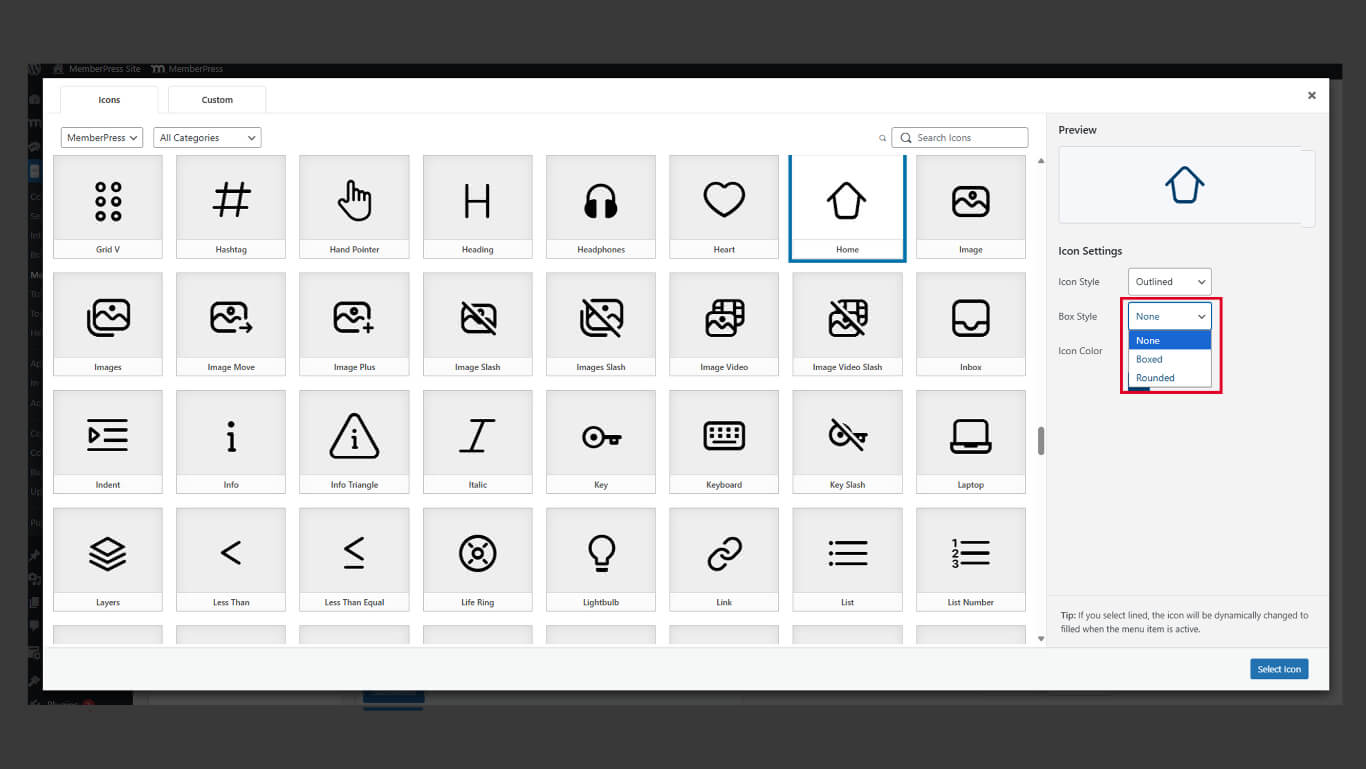
- Vérifiez l'aperçu de l'icône avec le style de boîte sélectionné.
Les styles de boîte ajoutent des conteneurs visuels autour des icônes. Les formes d'arrière-plan améliorent la taille des cibles tactiles et la cohérence visuelle.
Définition de la couleur de l'icône
- Localiser le Couleur de l'icône sélecteur dans le panneau de sélection des icônes.
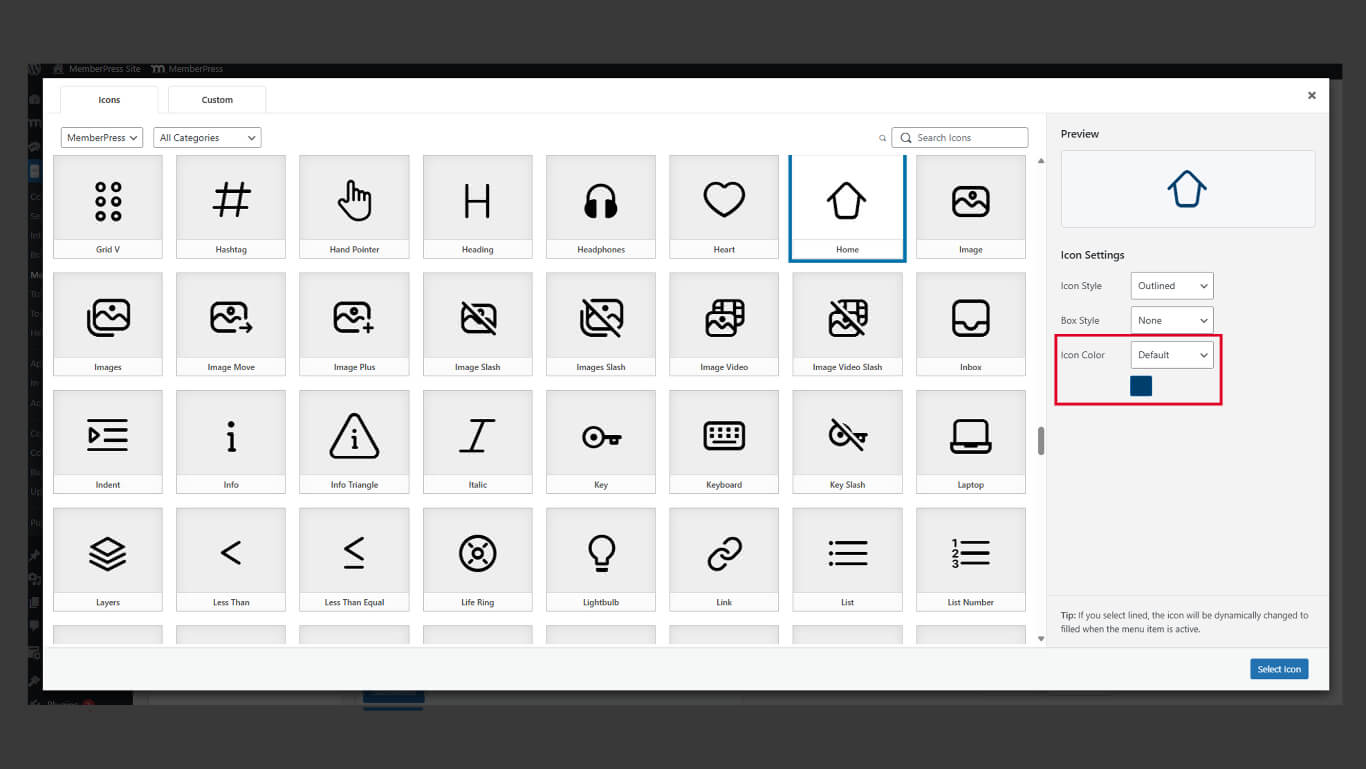
- Sélectionnez si vous souhaitez utiliser le style de couleur par défaut ou personnalisé.
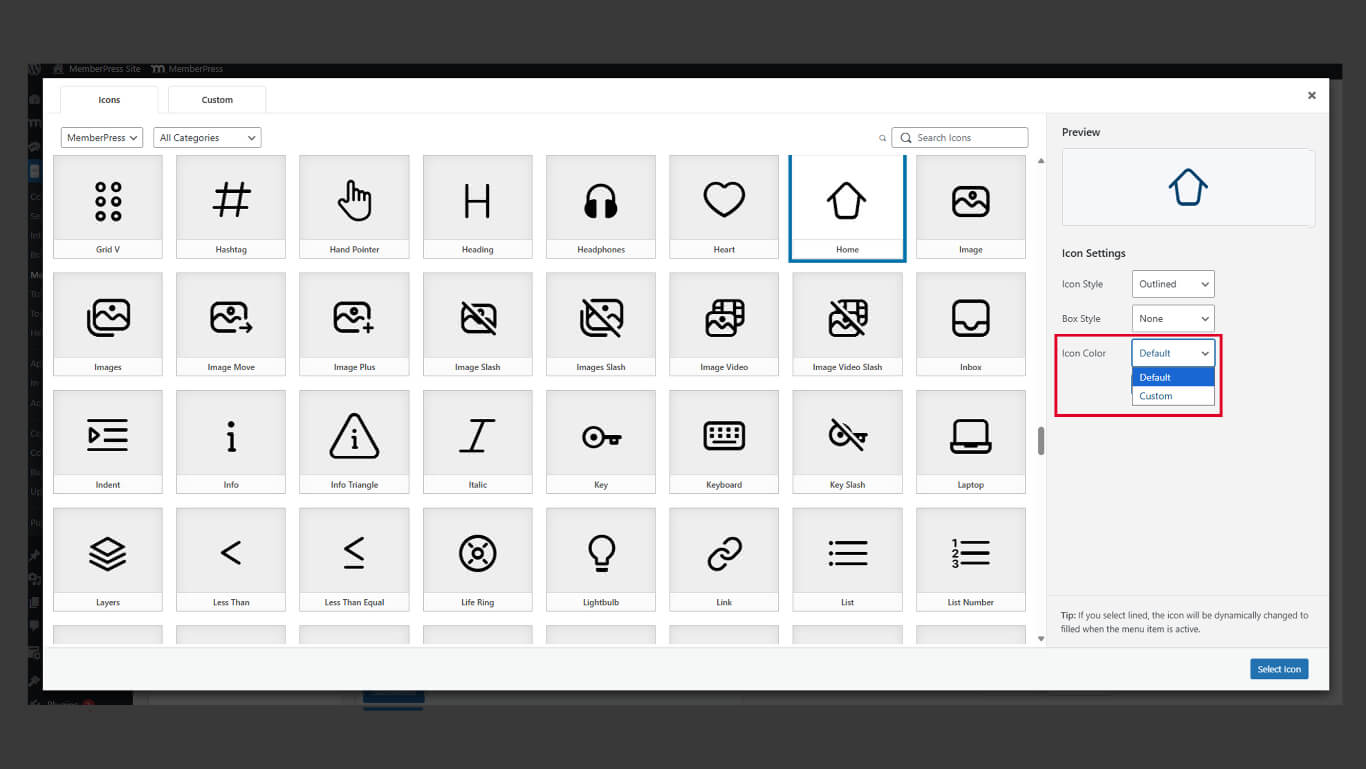
Les couleurs des icônes doivent présenter un contraste suffisant par rapport à l'arrière-plan de la barre d'onglets afin d'être bien visibles.
Utilisation du pack d'icônes Legacy
Les icônes héritées offrent une apparence familière aux applications utilisant des designs d'icônes antérieurs.
- Naviguez jusqu'à Tableau de bord > MP AppKit > Menus.
- Ouvrez le menu déroulant.
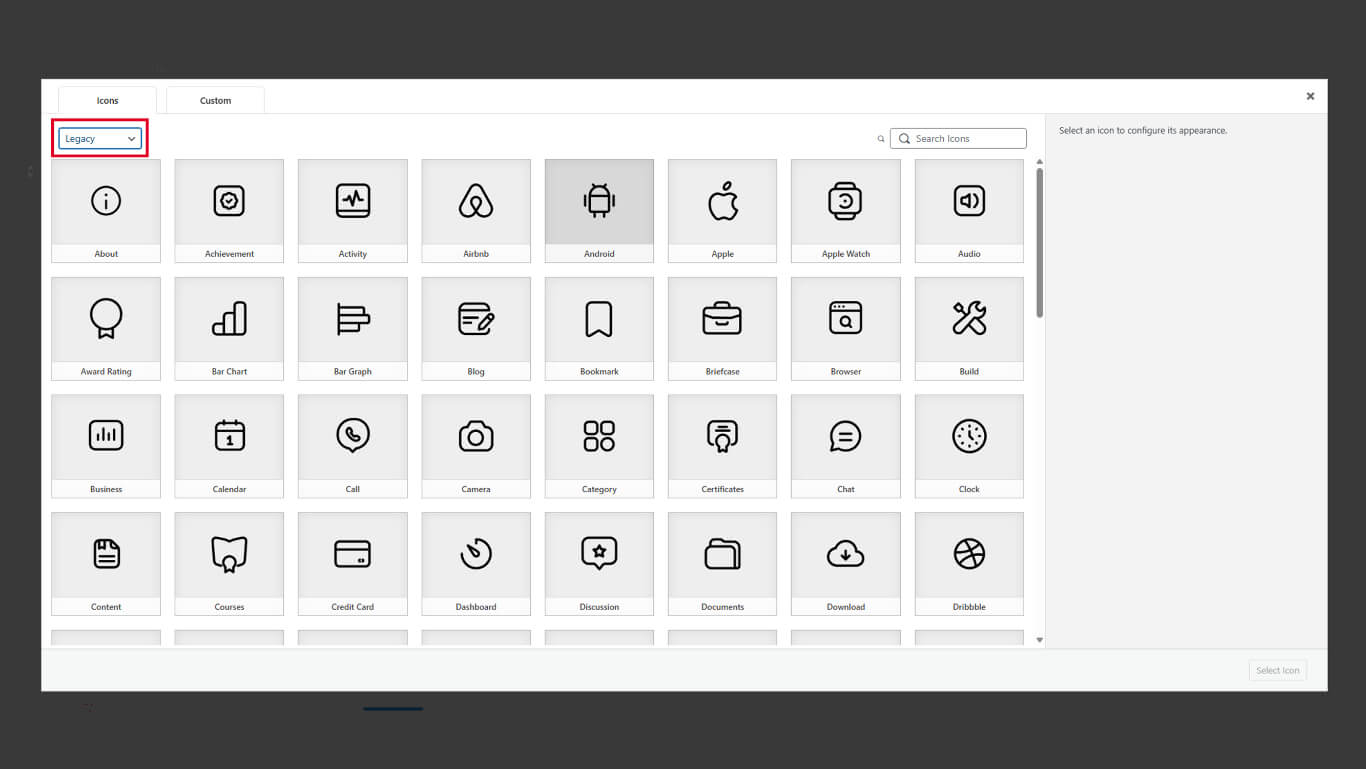
- Cliquez sur le bouton L'héritage tabulation.
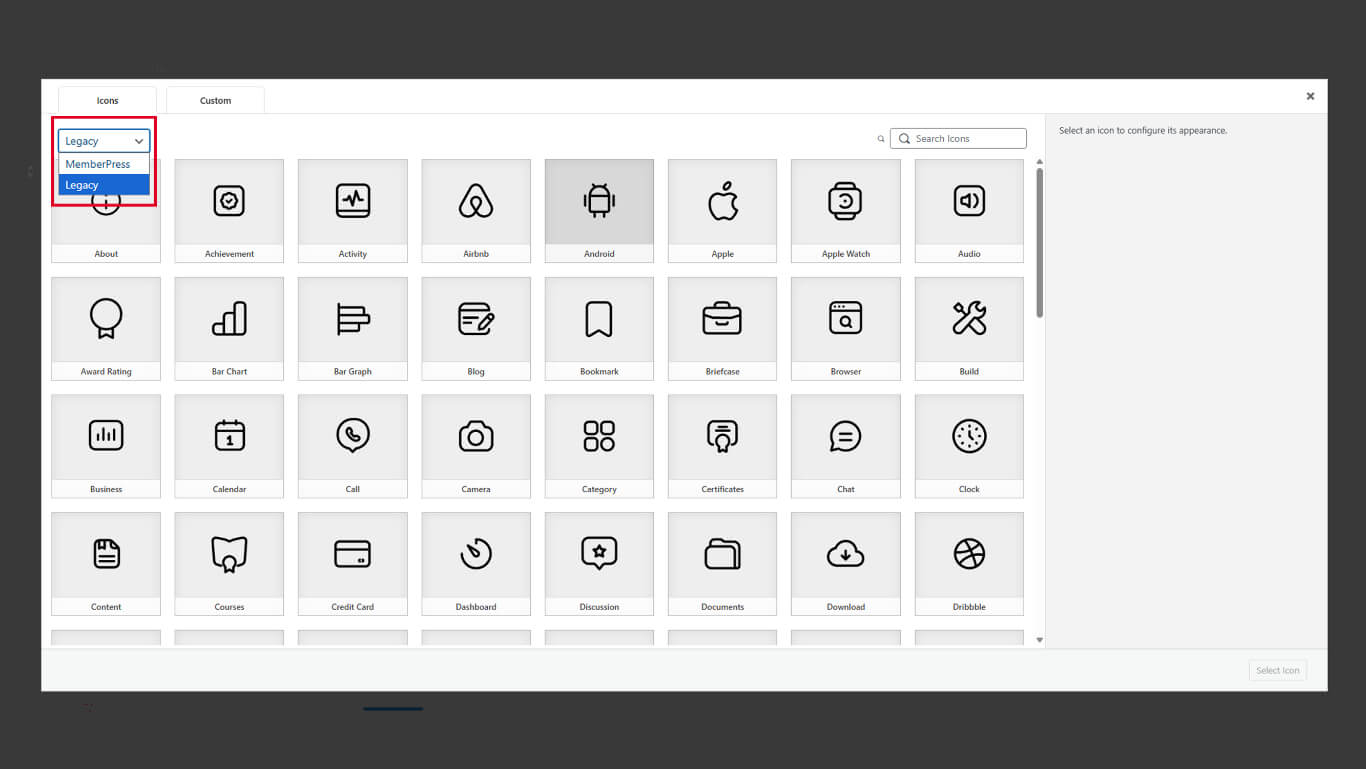
- Sélectionnez une icône dans le jeu d'icônes classique.
- Cliquez sur le bouton Sélectionner l'icône pour confirmer la sélection.
- Cliquez sur le bouton Sauvegarder le menu pour appliquer les modifications.
Les icônes héritées et mises à jour peuvent être mélangées dans le même menu de la barre d'onglets. Le choix d'un style cohérent améliore la cohésion visuelle.










 FR
FR  EN
EN  ES
ES  DE
DE  PT
PT 