

Le bloc Annuaire affiche des listes d'archives du contenu de WordPress dans les pages de l'application. Ce bloc crée des répertoires de contenu organisés avec des métadonnées personnalisables, des fonctionnalités de recherche et des options de filtrage.
Ce document explique comment ajouter le bloc annuaire, configurer les paramètres d'affichage et optimiser les listes d'annuaire pour favoriser l'engagement des membres.
Comprendre le bloc annuaire
Le bloc Annuaire présente des collections d'articles, de pages ou de types d'articles WordPress dans des formats de liste structurés. Les membres peuvent parcourir, rechercher et filtrer le contenu des répertoires. Le bloc prend en charge les images en vedette, les avatars d'auteur, l'affichage des métadonnées et les options de tri. Les blocs d'annuaire doivent occuper des pages entières de l'application, sans autre bloc, en raison des exigences de mise en page en plein écran.
Limitations des blocs d'annuaires
Les blocs-annuaire doivent occuper exclusivement la page. Les blocs multiples ne peuvent pas coexister avec les blocs répertoires sur la même page.
Exigence d'un seul bloc : Les blocs de répertoire doivent être les seuls blocs sur une page d'application. L'ajout de blocs supplémentaires entraîne des erreurs de configuration.
Disposition plein écran : Les blocs d'annuaire utilisent tout l'espace de l'écran pour une navigation optimale dans le contenu. Les mises en page mixtes avec d'autres blocs compromettent la fonctionnalité de l'annuaire.
Prévention des erreurs : Supprimer tous les autres blocs avant d'ajouter les blocs d'annuaire. N'ajoutez des blocs d'annuaire qu'aux pages d'application vides.
Ajout du bloc annuaire
Les blocs de répertoire sont ajoutés par l'intermédiaire de l'interface de l'éditeur de la page d'application.
- Naviguez jusqu'à Tableau de bord > MP AppKit > Pages de l'application.
- Cliquez sur Ajouter un nouveau pour créer une nouvelle App Page ou Editer une page vide existante.
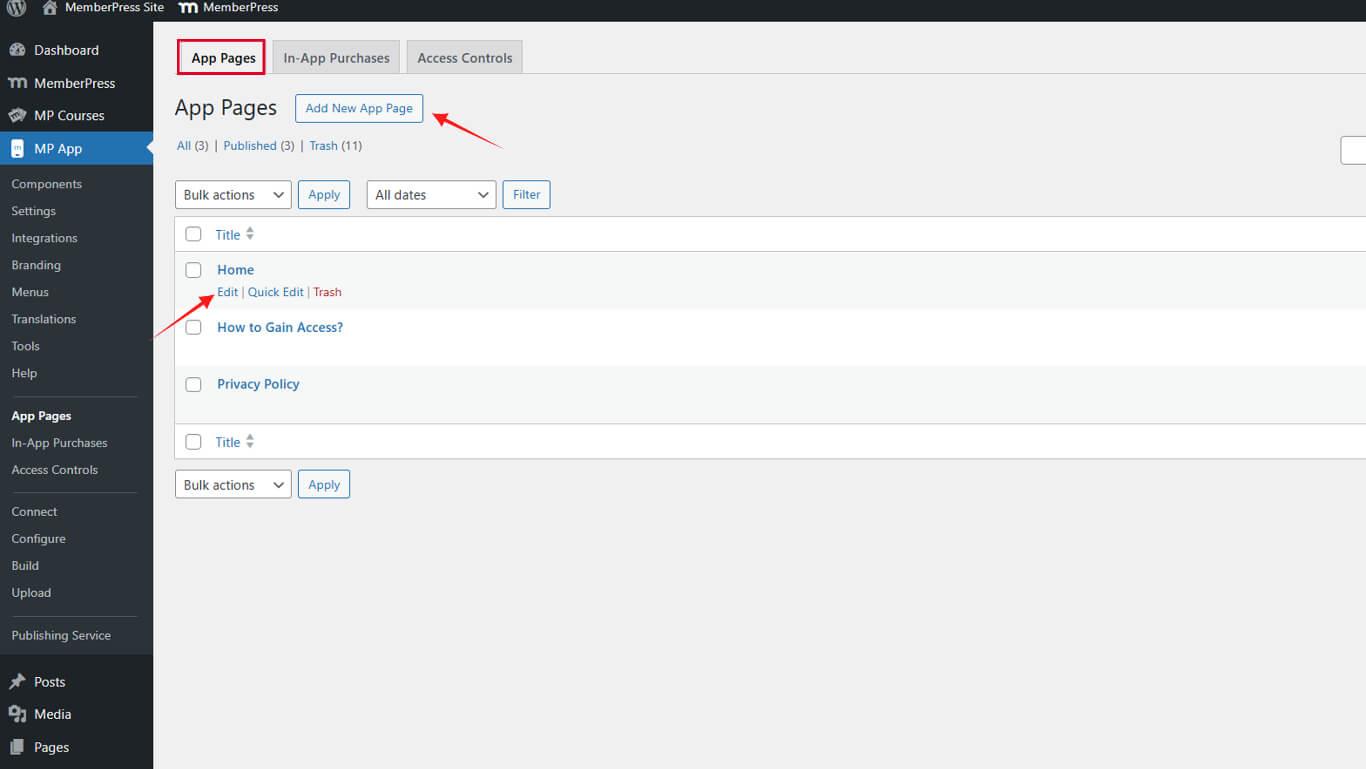
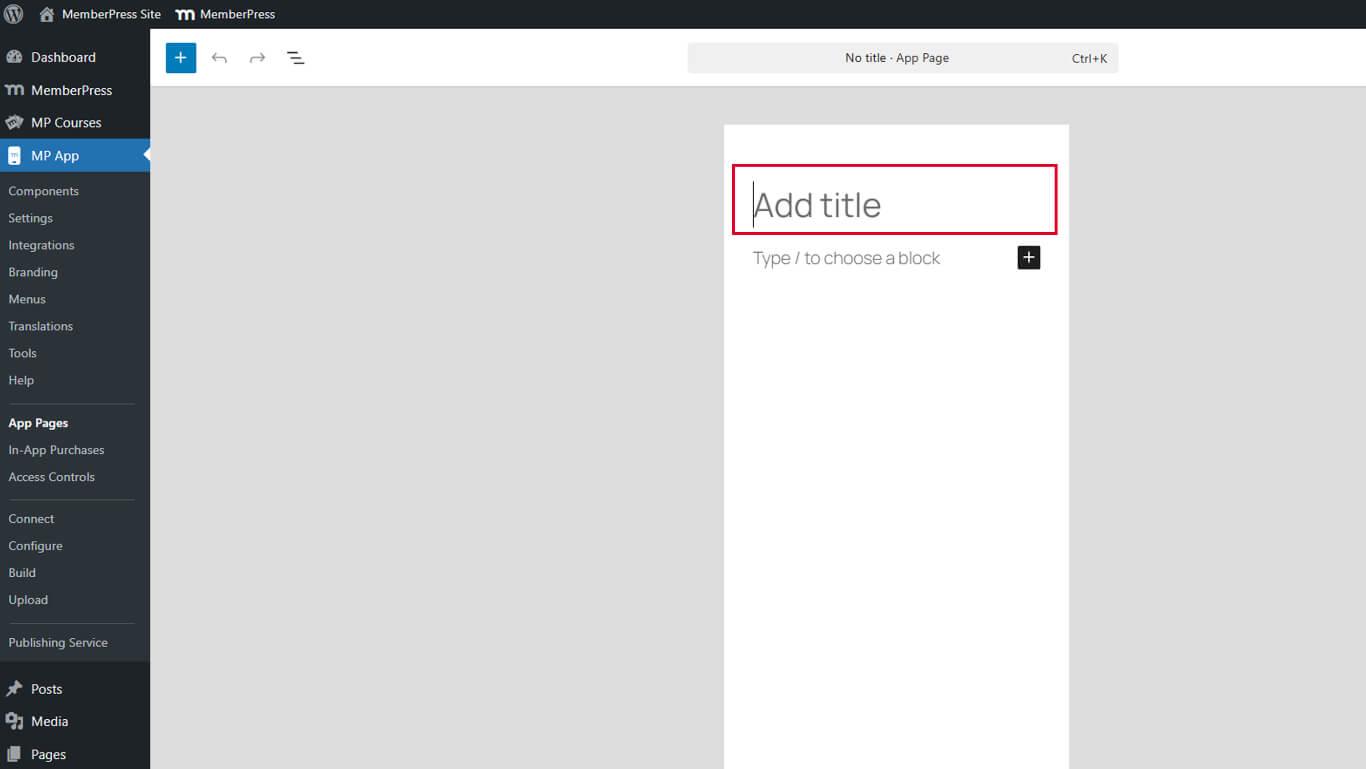
- Entrez un titre de page dans le champ Titre domaine.
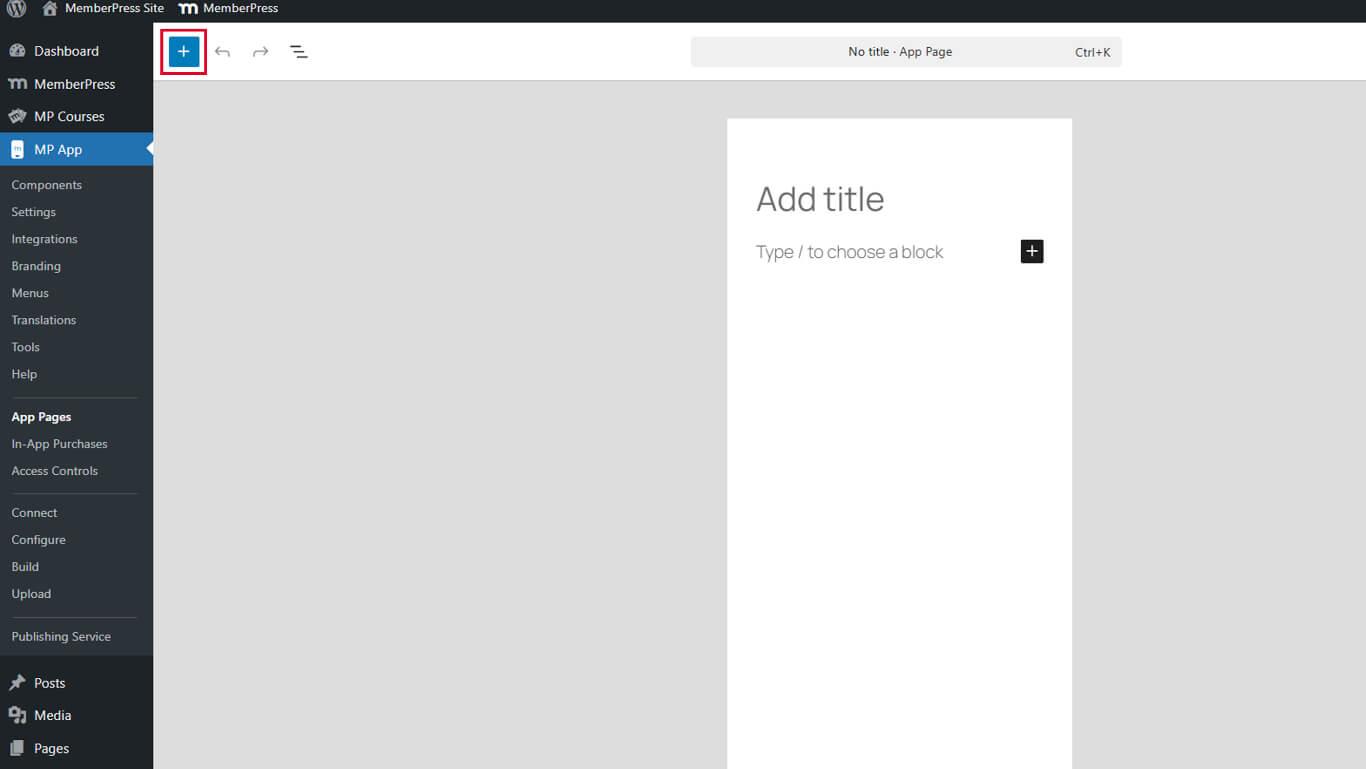
- Cliquez sur le bouton Inséreur de blocs à bascule dans la barre d'outils de l'éditeur.
- Entrer “Annuaire”dans le champ de recherche du bloc.
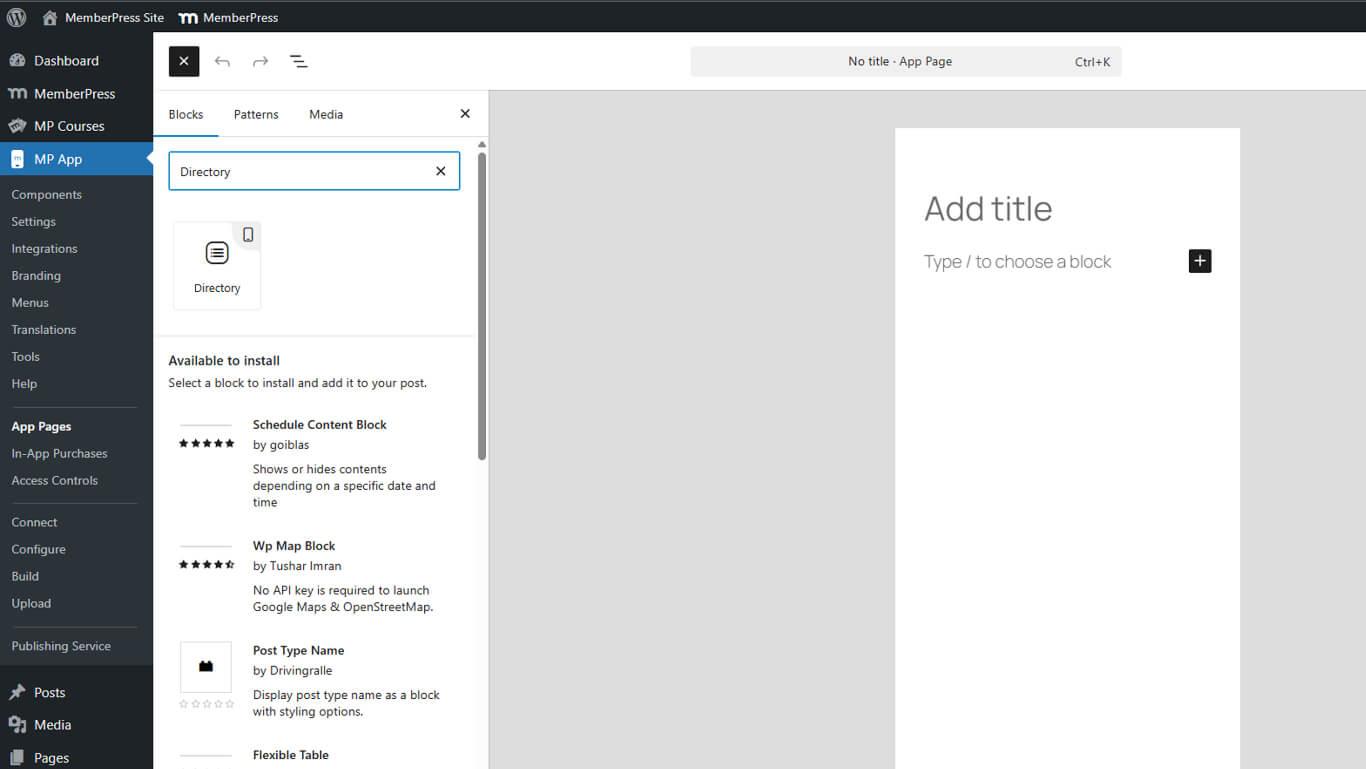
- Faire glisser le Bloc annuaire sur le canevas de la page.
- Cliquez sur Publier ou Mise à jour pour enregistrer la page.
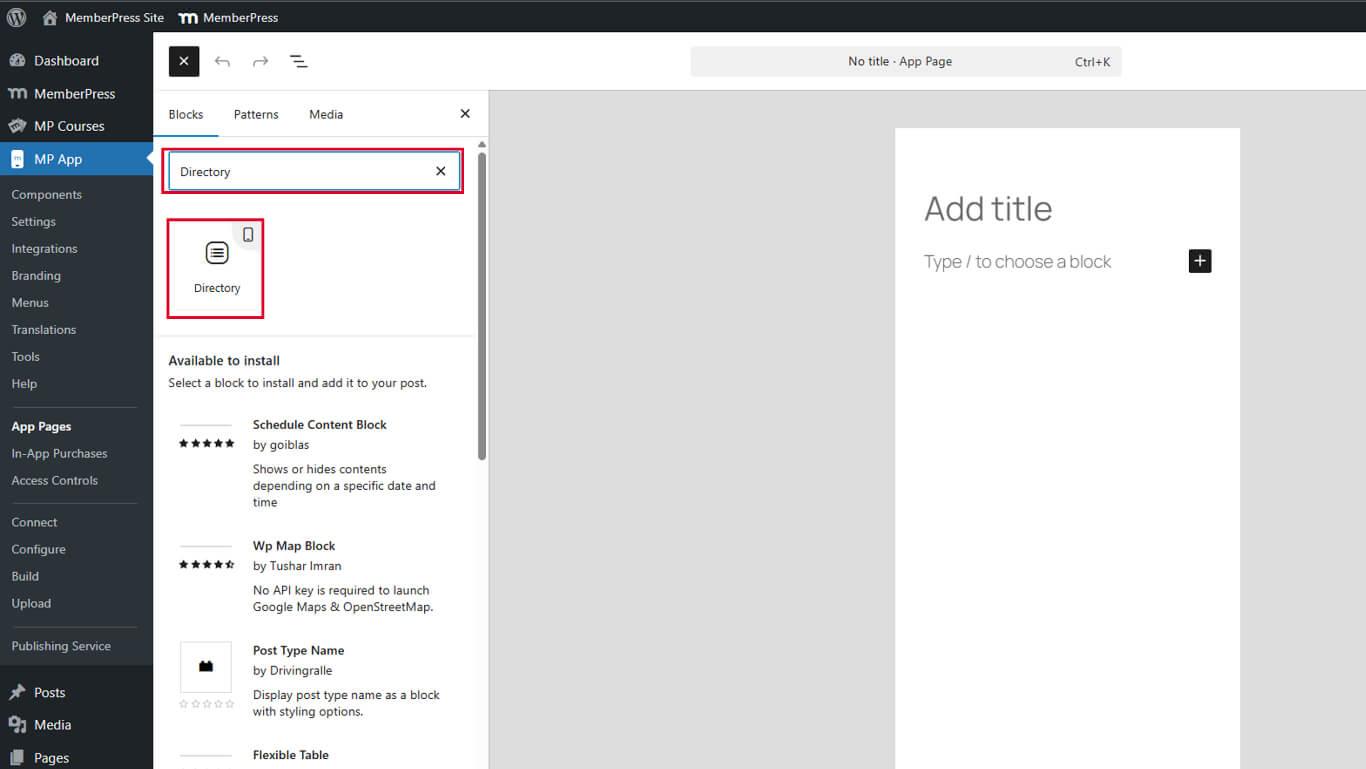
Le bloc annuaire affiche un aperçu du squelette avec des étiquettes de métadonnées après l'insertion.
Comprendre l'aperçu de l'annuaire
L'aperçu du squelette montre la structure du répertoire pendant la configuration.
Etiquettes de remplacement indiquent la position des champs de métadonnées. Les étiquettes s'affichent sous la forme “META 1”, “META 2”, “META 3” et “META 4”, représentant les emplacements de métadonnées disponibles.
Aperçu de la mise en page montre comment le contenu apparaîtra dans le répertoire. Le contenu réel remplit ces espaces réservés dans l'application publiée.
Conseils de configuration permet d'identifier les possibilités de personnalisation. Les espaces réservés indiquent visuellement l'emplacement des champs de métadonnées.
Configuration des paramètres de blocage de l'annuaire
Les paramètres du bloc d'annuaire contrôlent la source du contenu, les options d'affichage et le comportement de tri.
Sélection du type de message
La sélection du type de message détermine le contenu de l'annuaire.
- Sélectionner le bloc annuaire dans l'éditeur de pages.
- Localiser le Réglages des blocs à droite.
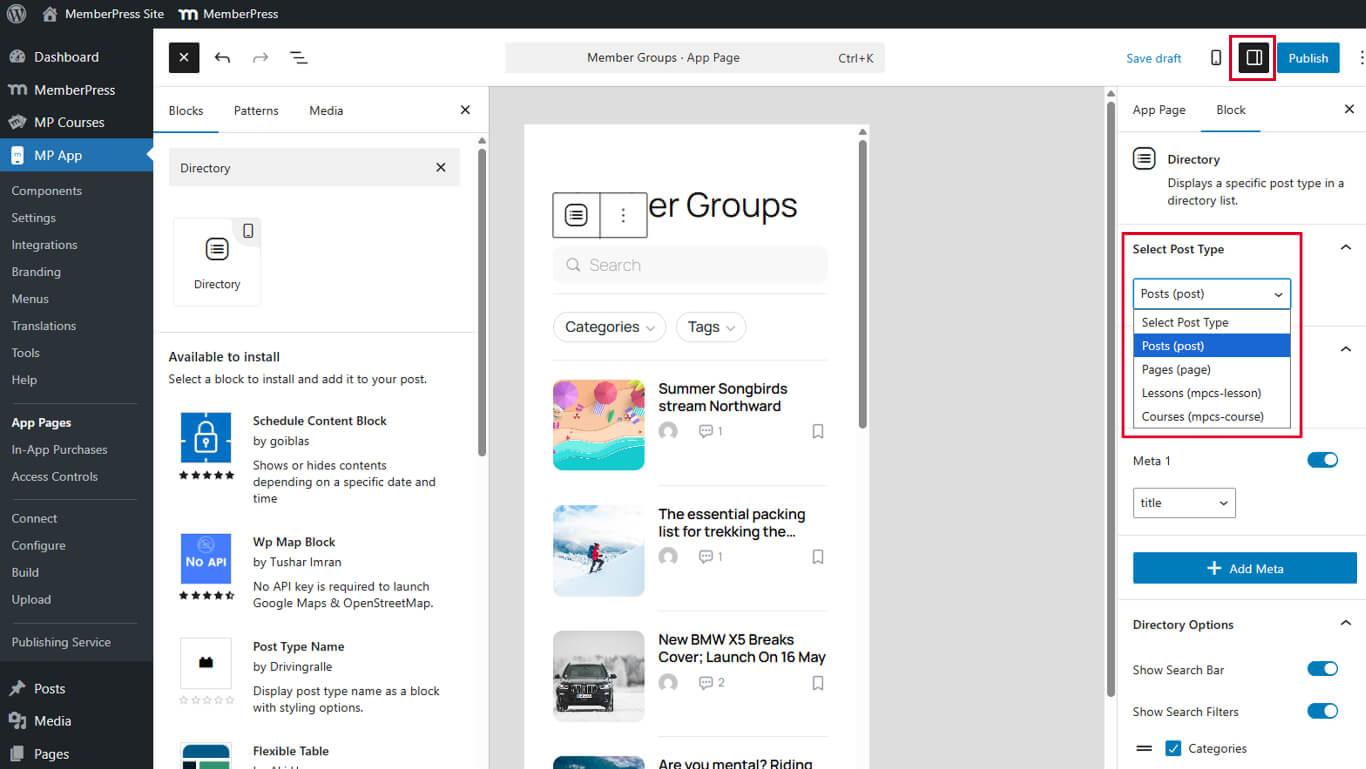
- Trouver le Sélectionner le type de message dans le menu déroulant sous Block Settings.
- Choisissez le type de message souhaité parmi les options disponibles :
- Postes pour les articles de blog ;
- Pages pour les pages WordPress ;
- Types d'articles personnalisés pour les types de contenus spécialisés.
- Cliquez sur Mise à jour/Publication pour enregistrer la page.
Le contenu de l'annuaire est mis à jour immédiatement en fonction du type de message sélectionné.
Activation des images en vedette
Les images en vedette fournissent un contexte visuel dans les listes de l'annuaire.
- Sélectionnez le bloc Annuaire dans l'éditeur de pages.
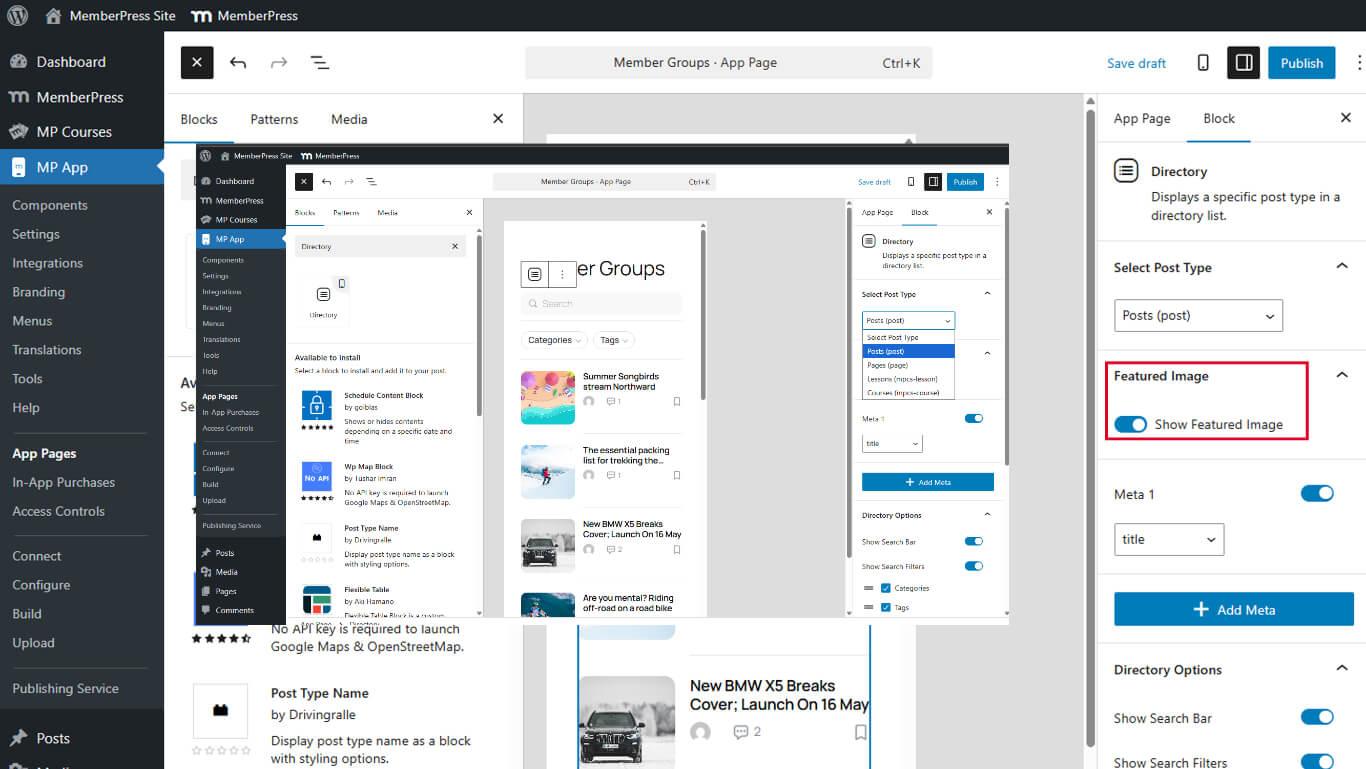
- Localiser le Afficher l'image en vedette dans les paramètres du bloc.
- Basculer l'interrupteur sur Sur pour activer l'affichage des images en vedette.
- Cliquez sur Mise à jour pour enregistrer la page.
Les images en vedette s'affichent sous forme de vignettes dans les éléments de la liste du répertoire lorsqu'elles sont disponibles. Les contenus sans images en vedette affichent des graphiques de remplacement.
Configuration de l'affichage des métadonnées
Les champs de métadonnées fournissent un contexte supplémentaire sur les éléments du répertoire. Il est possible d'afficher jusqu'à quatre champs de métadonnées par élément.
Ajout du premier champ de métadonnées
- Sélectionnez le bloc Annuaire dans l'éditeur de pages.
- Faites défiler jusqu'à la Métadonnées dans la section Paramètres du bloc.
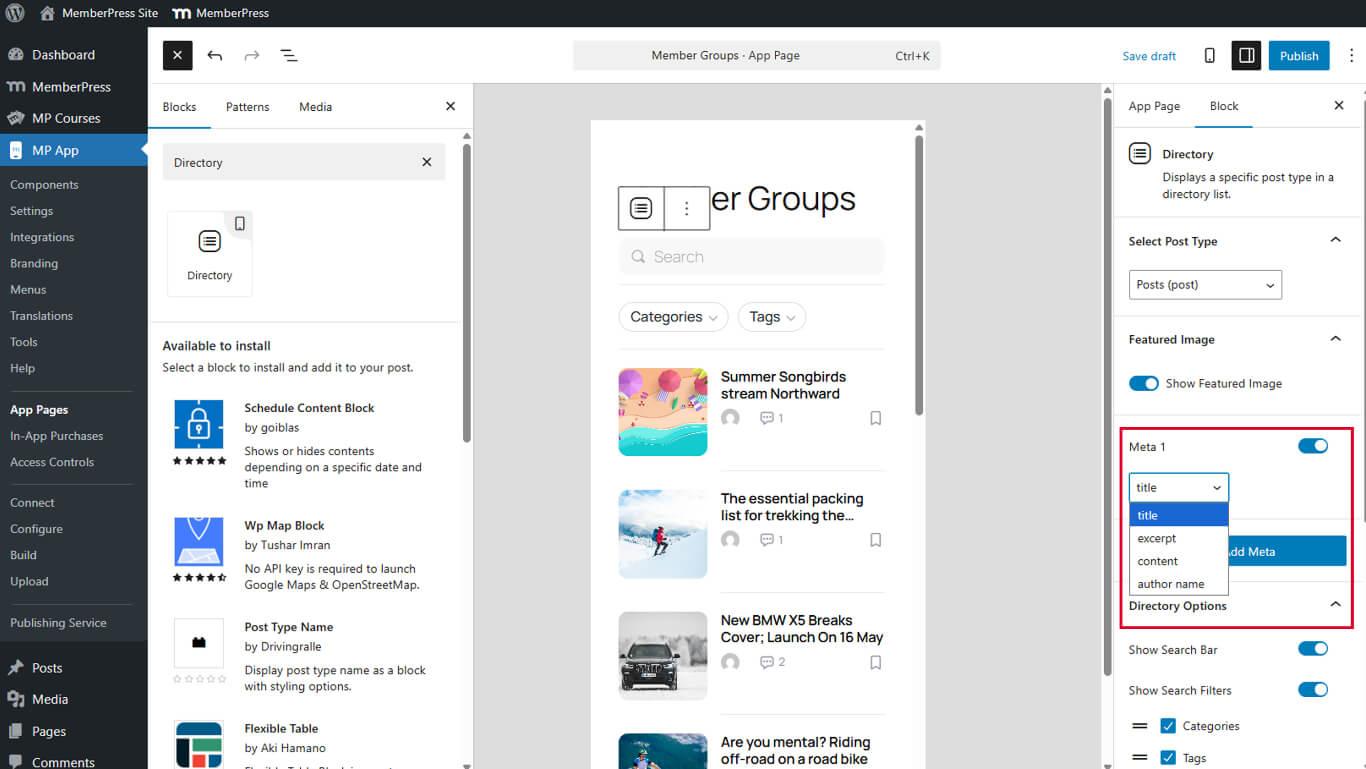
- Toggle Méta 1 à Sur.
- Sélectionnez le champ de métadonnées souhaité dans la liste des champs de métadonnées. Méta 1 liste déroulante :
- Titre
- Extrait
- Contenu
- Nom de l'auteur
- Cliquez sur Mise à jour pour enregistrer la page.
Le premier champ de métadonnées s'affiche dans l'espace réservé META 1.
Ajout de champs de métadonnées supplémentaires
- Cliquez sur Ajouter des méta sous le premier champ de métadonnées.
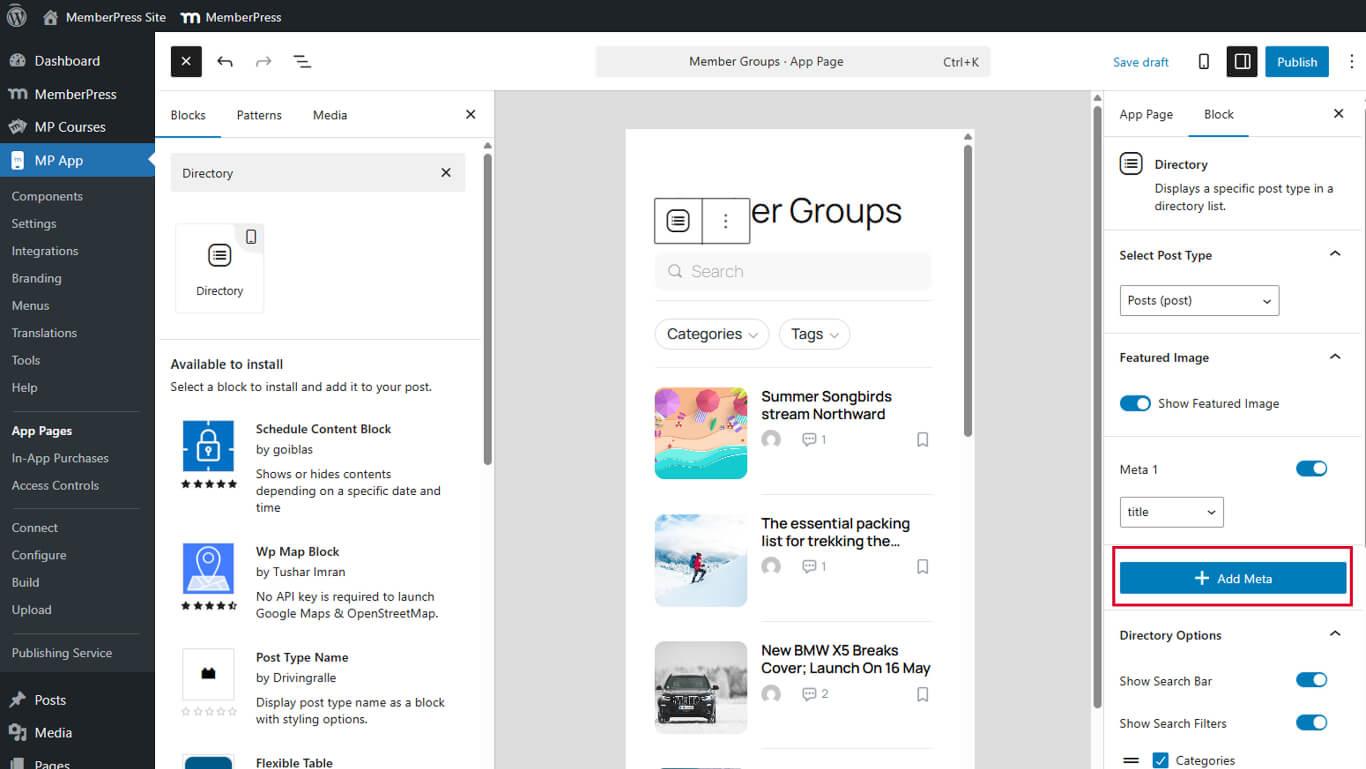
- Sélectionnez le champ souhaité dans la liste déroulante.
- Répétez les étapes 1 à 3 pour ajouter jusqu'à quatre champs de métadonnées au total.
- Cliquez sur Mise à jour pour enregistrer la page.
Les champs de métadonnées s'affichent dans l'ordre dans lequel ils ont été ajoutés. Réorganisez les champs en modifiant leur ordre de configuration.
Configuration des options de répertoire
Les options de l'annuaire permettent d'activer des fonctions interactives et d'améliorer l'affichage.
Activation de la fonction de recherche
Les barres de recherche permettent aux membres de trouver un contenu spécifique dans les annuaires.
- Toggle Afficher la barre de recherche à Sur.
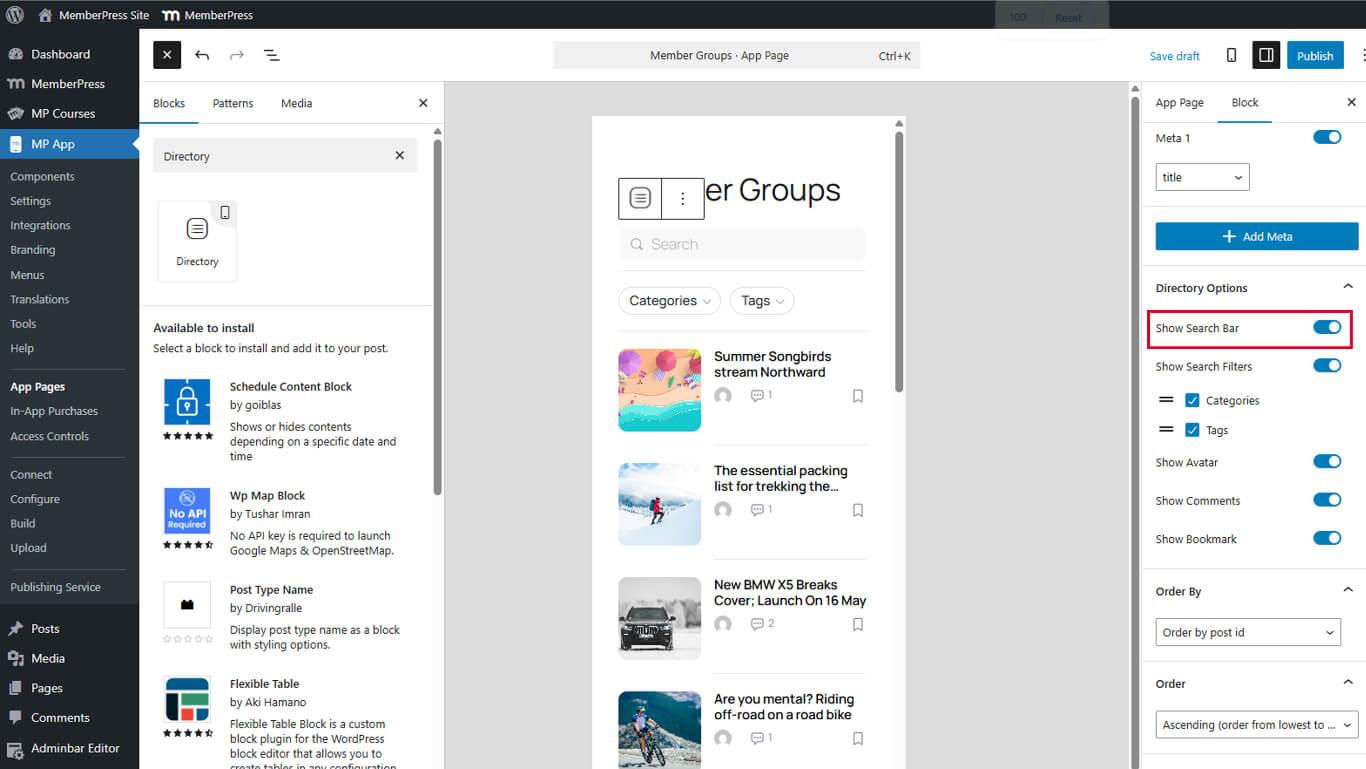
- Cliquez sur Mise à jour pour enregistrer la page.
Des barres de recherche apparaissent en haut des écrans de l'annuaire dans l'application publiée.
Activation des filtres de recherche
Les filtres de recherche permettent d'affiner les résultats de la recherche par catégories ou taxonomies.
- Toggle Afficher le filtre de recherche à Sur dans les options de l'annuaire.
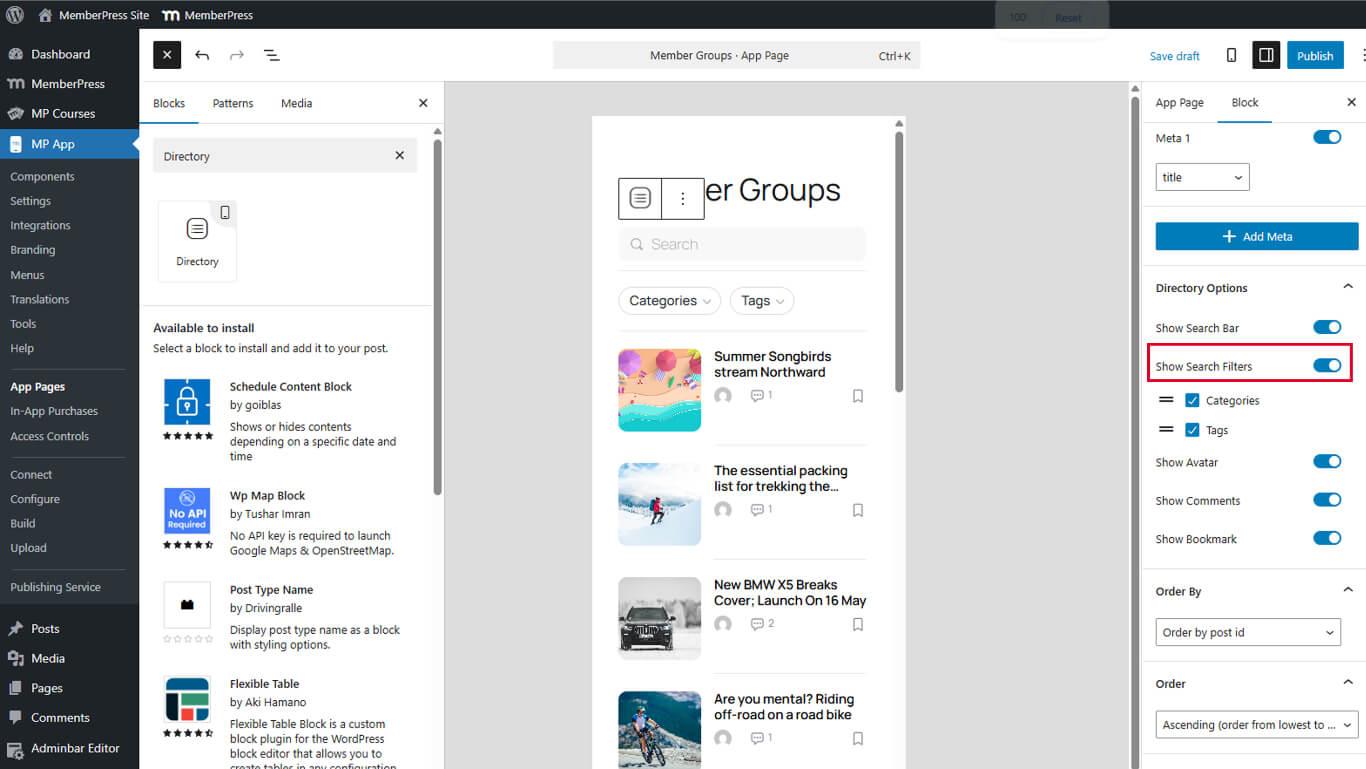
- Cliquez sur Mise à jour pour enregistrer la page.
Les filtres de recherche apparaissent à côté des barres de recherche lorsque les deux options sont activées. Les filtres permettent de sélectionner des catégories ou des étiquettes pour affiner les résultats.
Activation des avatars d'auteur
Les avatars d'auteurs permettent d'identifier visuellement les créateurs de contenu dans les listes d'annuaires.
- Toggle Avatar à Sur dans les options de l'annuaire.
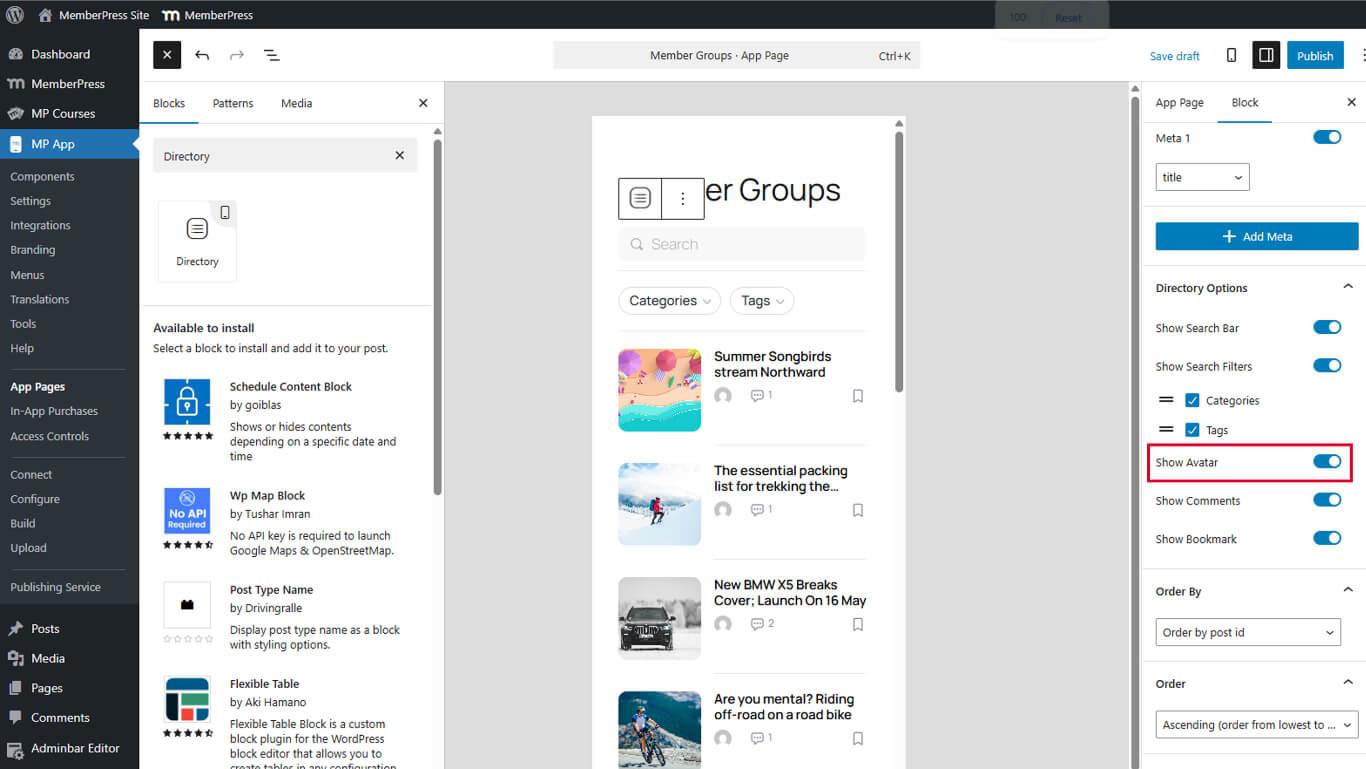
- Cliquez sur Mise à jour pour enregistrer la page.
Les avatars des auteurs s'affichent sous forme de petites images circulaires à côté des titres des contenus. Les avatars nécessitent des images de profil d'auteur configurées dans WordPress.
Activation du comptage des commentaires
Le nombre de commentaires indique l'activité de discussion sur les éléments de contenu.
- Toggle Afficher le commentaire à Sur dans les options de l'annuaire.
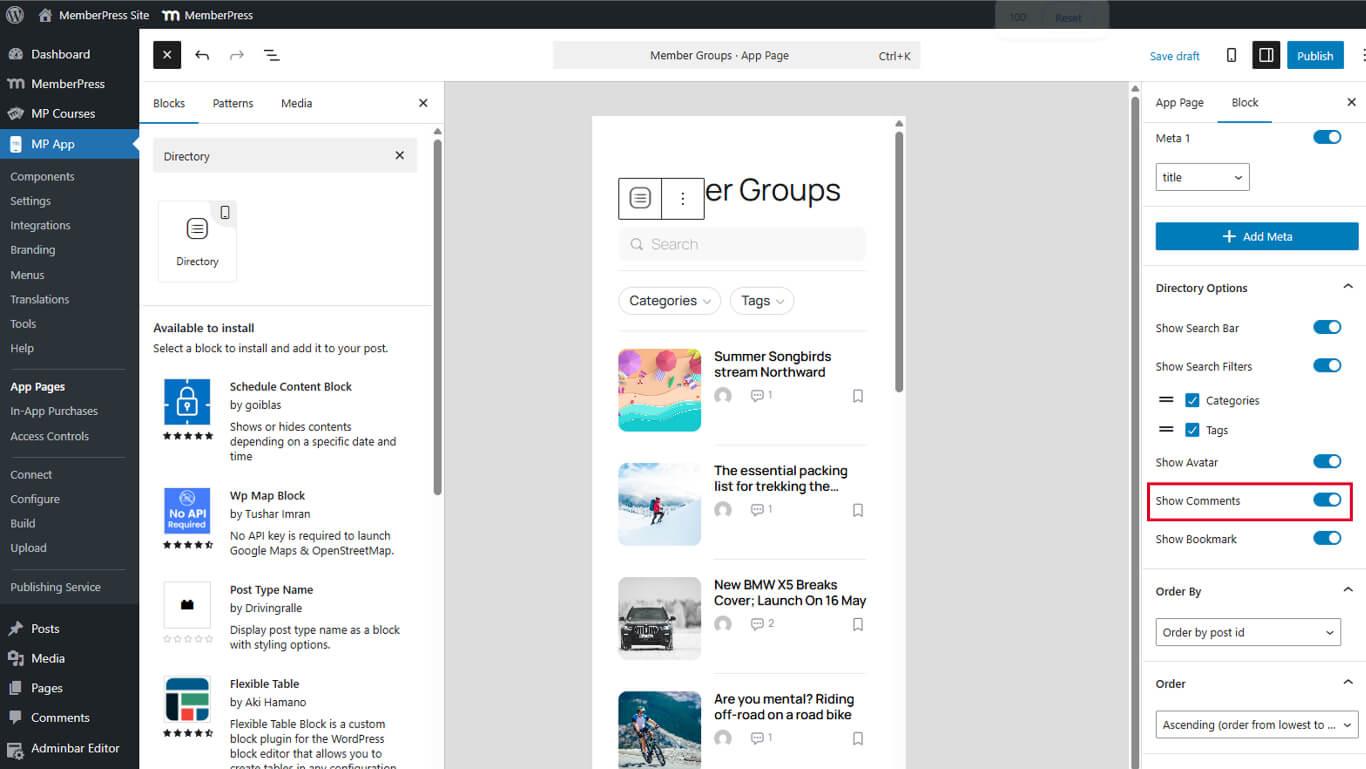
- Cliquez sur Mise à jour pour enregistrer la page.
Le nombre de commentaires s'affiche sous forme de chiffres avec des icônes de commentaires dans les listes de l'annuaire. Les chiffres sont mis à jour au fur et à mesure que les membres ajoutent des commentaires.
Activation des signets
Les signets permettent aux membres de sauvegarder du contenu pour y accéder plus tard.
- Toggle Afficher les signets à Sur dans les options de l'annuaire.
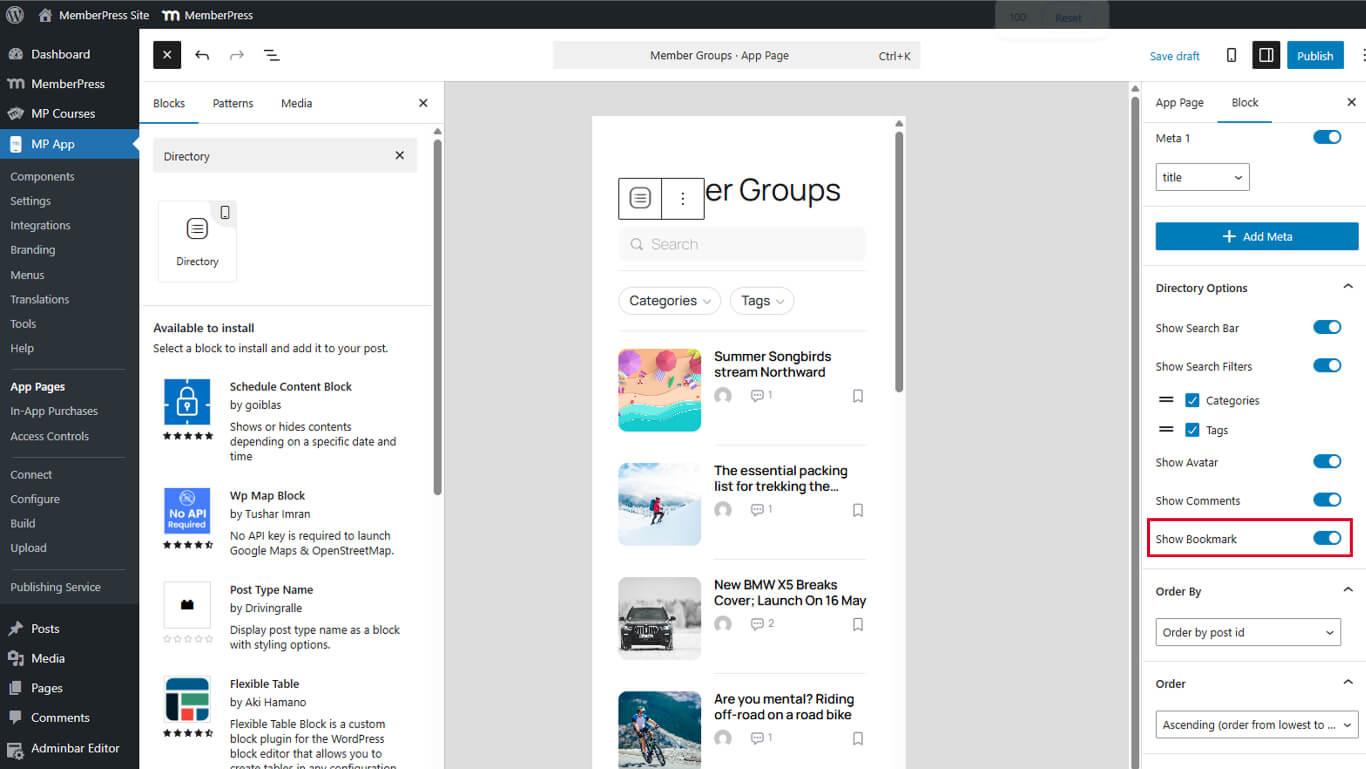
- Cliquez sur Mise à jour pour enregistrer la page.
Les icônes de signets s'affichent dans les listes de l'annuaire. Les membres appuient sur les icônes pour ajouter ou supprimer des signets.
Configuration des options de tri
Les options de tri permettent de contrôler l'ordre du contenu dans les répertoires.
Définition du champ Order By
- Sélectionner le bloc annuaire dans l'éditeur de pages.
- Localiser le Commander par dans le menu déroulant des paramètres du bloc.
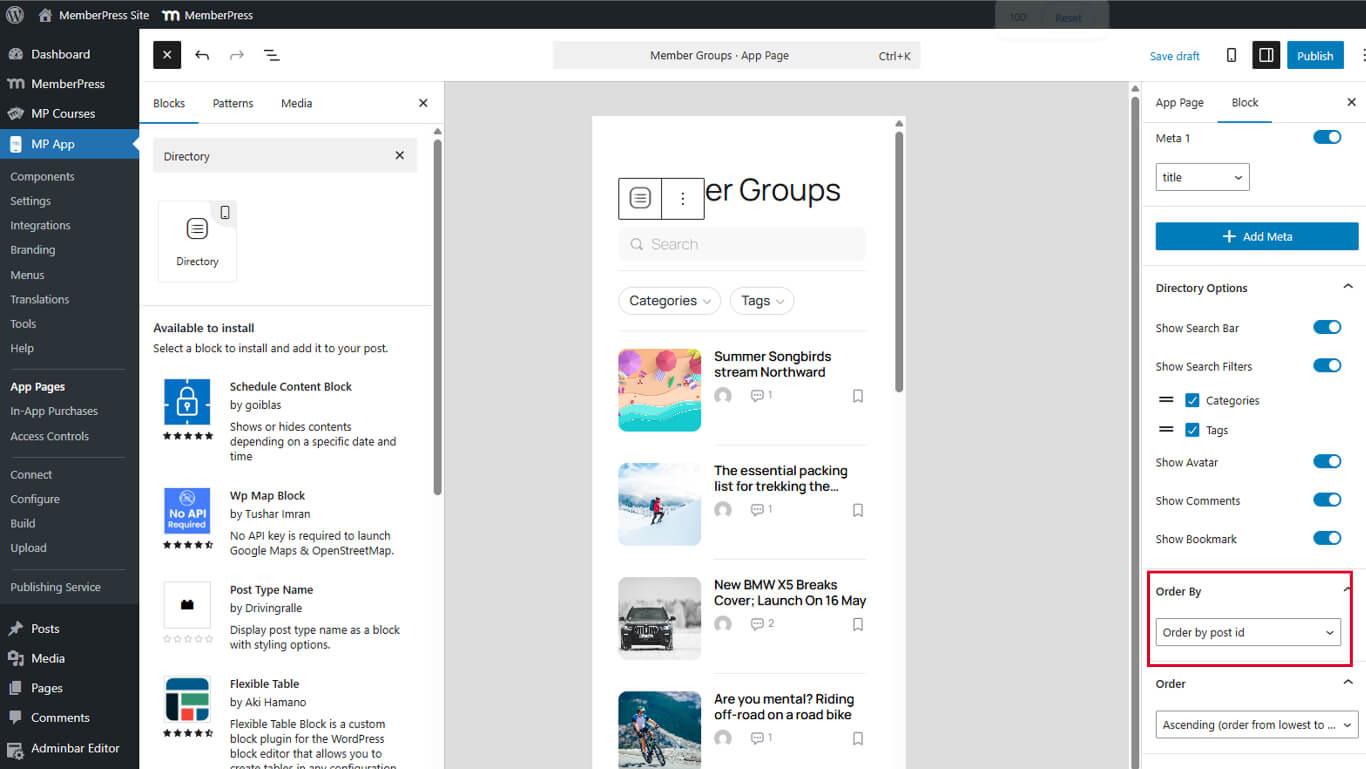
- Sélectionnez le champ de tri :
- Date pour un tri chronologique ;
- Titre pour le tri alphabétique ;
- Modifié pour le contenu récemment mis à jour ;
- Commande de menu pour les commandes manuelles.
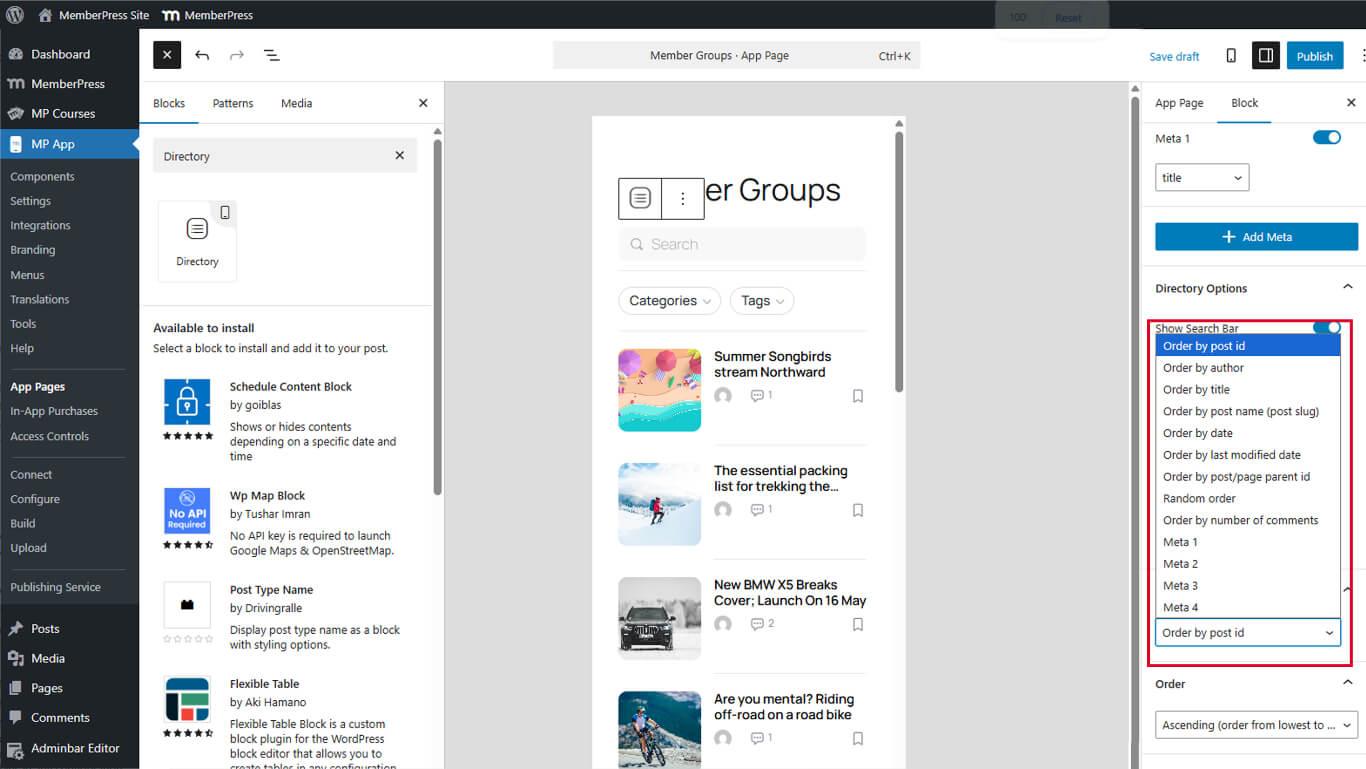
- Cliquez sur Mise à jour pour enregistrer la page.
Le champ de tri détermine l'attribut de contenu qui contrôle l'ordre d'affichage.
Fixation de l'ordre de direction
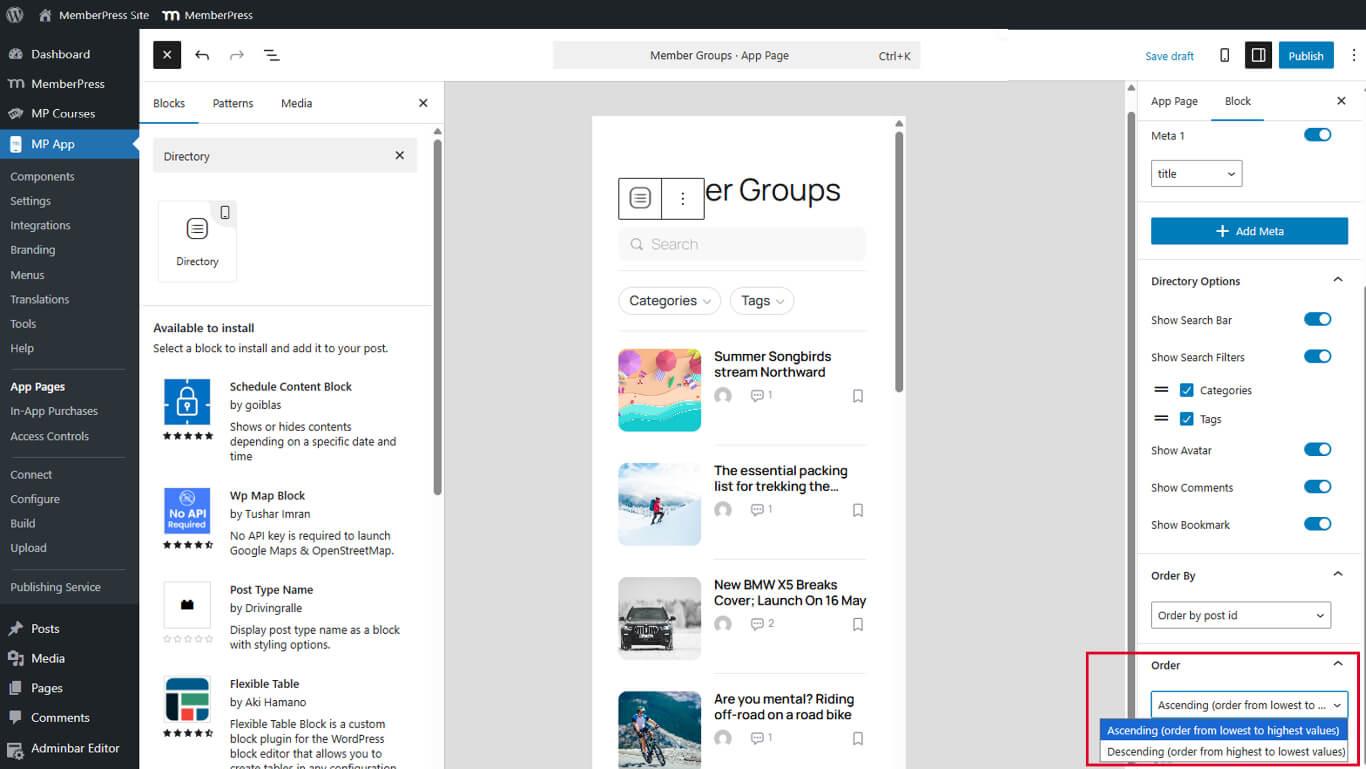
- Localiser le Commande sous Order By.
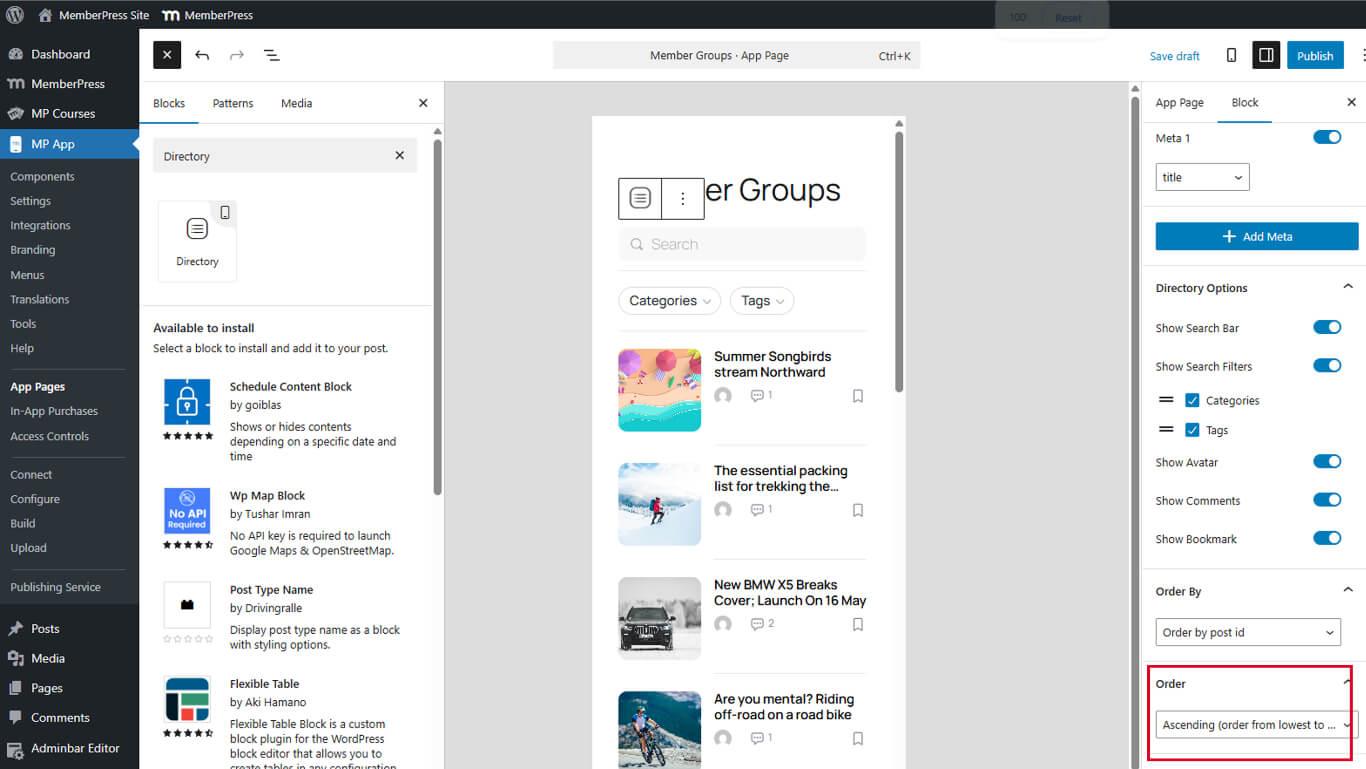
- Sélectionnez le sens du tri :
- Ascendante pour l'ordre A-Z ou l'ordre le plus ancien ;
- Descente pour l'ordre Z-A ou le plus récent.
- Cliquez sur Mise à jour pour enregistrer la page.
Le sens du tri (ordre) fonctionne en combinaison avec le champ de tri. Le tri par date décroissante affiche le contenu le plus récent en premier.
Suppression de blocs de répertoire
Les blocs de répertoire peuvent être supprimés lorsqu'ils ne sont plus nécessaires.
- Naviguez jusqu'à Tableau de bord > MP AppKit > Pages de l'application.
- Ouvrir la page contenant le bloc annuaire.
- Sélectionner le bloc annuaire dans l'éditeur.
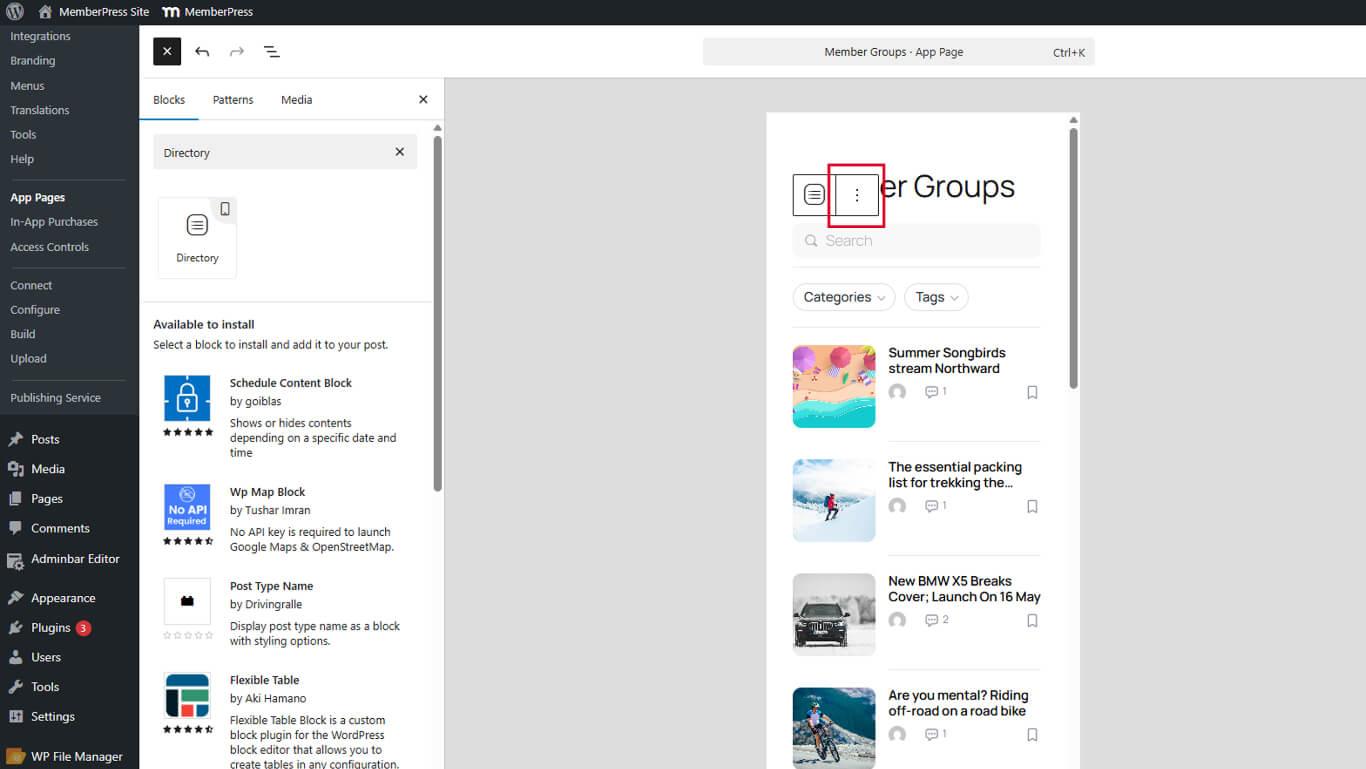
- Cliquez sur le bouton Options (trois points verticaux) dans la barre d'outils du bloc.
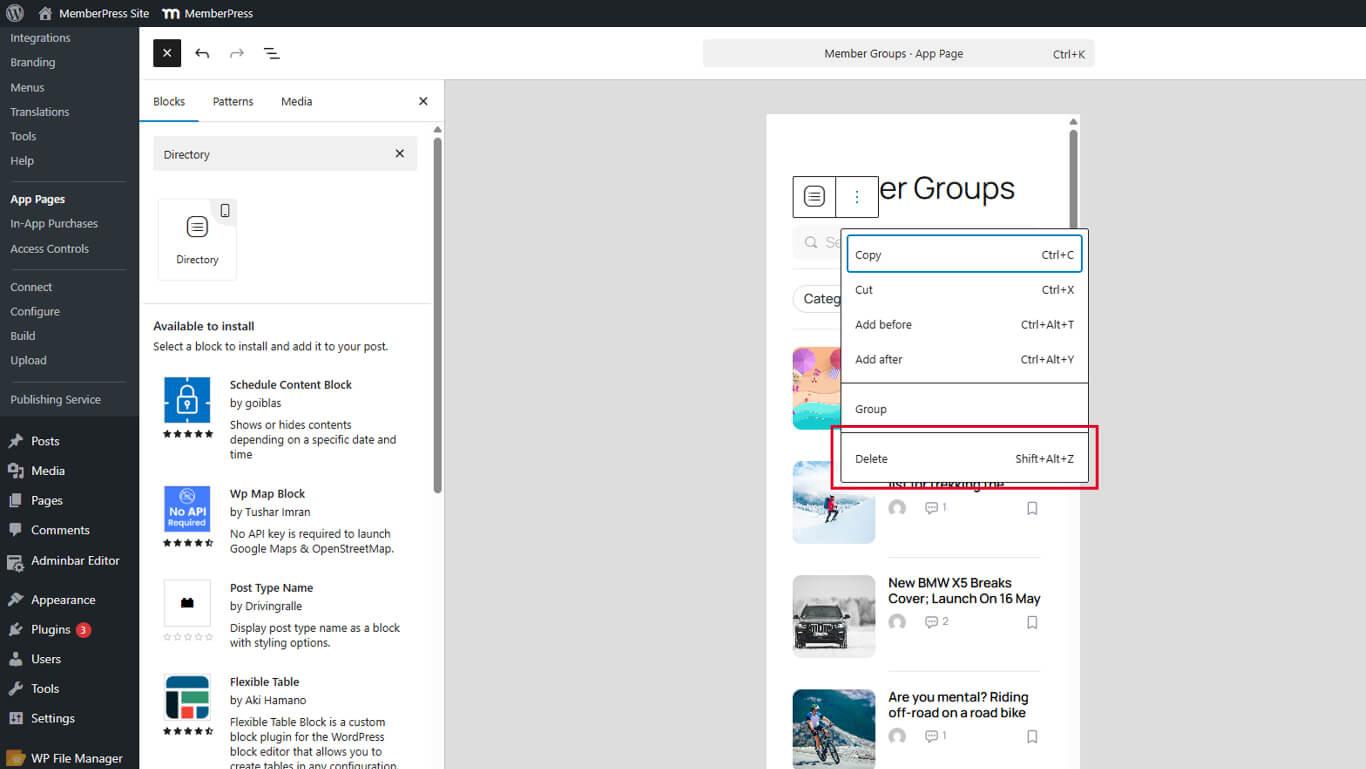
- Cliquez sur Supprimer.
- Cliquez sur Mise à jour pour enregistrer la page.
La suppression des blocs de répertoire permet d'ajouter d'autres types de blocs à la page.










 FR
FR  EN
EN  ES
ES  DE
DE  PT
PT 