

La typographie établit l'identité de la marque et améliore la lisibilité du contenu dans les applications mobiles. MemberPress AppKit prend en charge la configuration de polices personnalisées à l'aide de Google Fonts ou de fichiers de polices téléchargés.
Ce document explique comment importer des polices, attribuer une typographie aux sections de l'application et optimiser l'affichage du texte pour favoriser l'engagement des membres.
Comprendre la configuration typographique
La configuration typographique contrôle les familles, les styles et les tailles de polices dans toute l'application. Les polices personnalisées alignent l'apparence de l'application sur les directives de la marque et améliorent la cohérence visuelle. L'intégration de Google Fonts offre de nombreuses options de polices sans gestion de fichiers. Le téléchargement de polices personnalisées prend en charge les polices propriétaires de la marque. Une configuration typographique appropriée améliore la lisibilité tout en renforçant l'identité de la marque sur tous les écrans de l'application.
Comprendre les avantages de la typographie
La typographie personnalisée offre de multiples avantages en termes d'expérience utilisateur et d'image de marque.
Renforcement de l'identité de marque résulte d'une utilisation cohérente des polices de caractères. Les membres associent des polices spécifiques à la reconnaissance et à la confiance envers une marque.
Optimisation de la lisibilité s'améliore grâce à un choix approprié de polices. Des polices bien conçues améliorent la compréhension et réduisent la fatigue oculaire.
Cohérence du design résulte d'une typographie uniforme sur tous les écrans. L'utilisation cohérente des polices de caractères crée une apparence professionnelle et soignée.
Amélioration de l'accessibilité résulte d'un choix judicieux de la taille et de l'épaisseur des polices. Une typographie lisible répond aux besoins des membres ayant des capacités visuelles différentes.
Accéder aux paramètres typographiques
Toute la configuration de la typographie se fait dans l'interface de typographie de la marque.
- Naviguez jusqu'à Tableau de bord > MP AppKit > Image de marque > Typographie.
- Localiser le Importer des polices section.
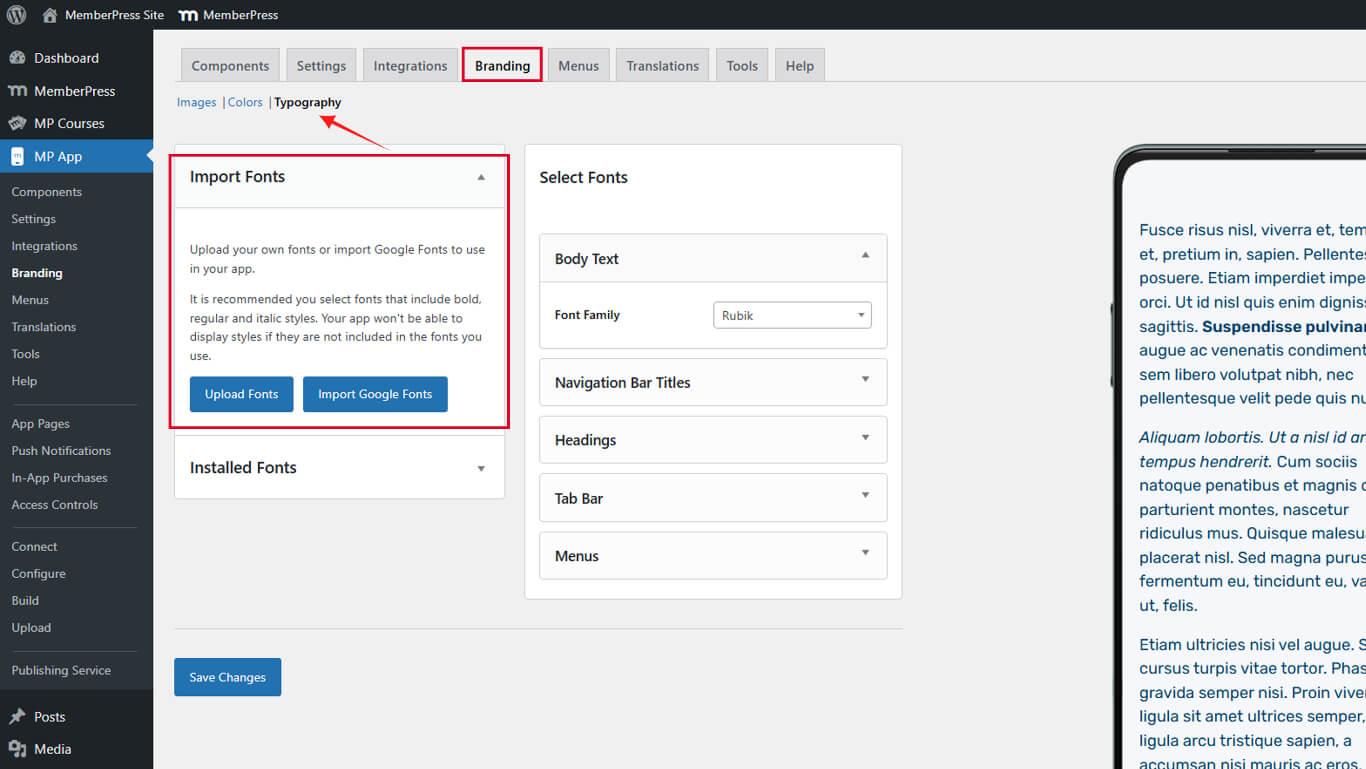
Les paramètres typographiques contrôlent à la fois l'importation des polices et l'attribution des polices spécifiques à chaque section.
Téléchargement de polices personnalisées
Les polices personnalisées ajoutent des polices propriétaires à la bibliothèque de polices de l'application.
- Naviguez jusqu'à Tableau de bord > MP AppKit > Image de marque > Typographie.
- Cliquez sur Télécharger les polices dans la section Importer des polices.
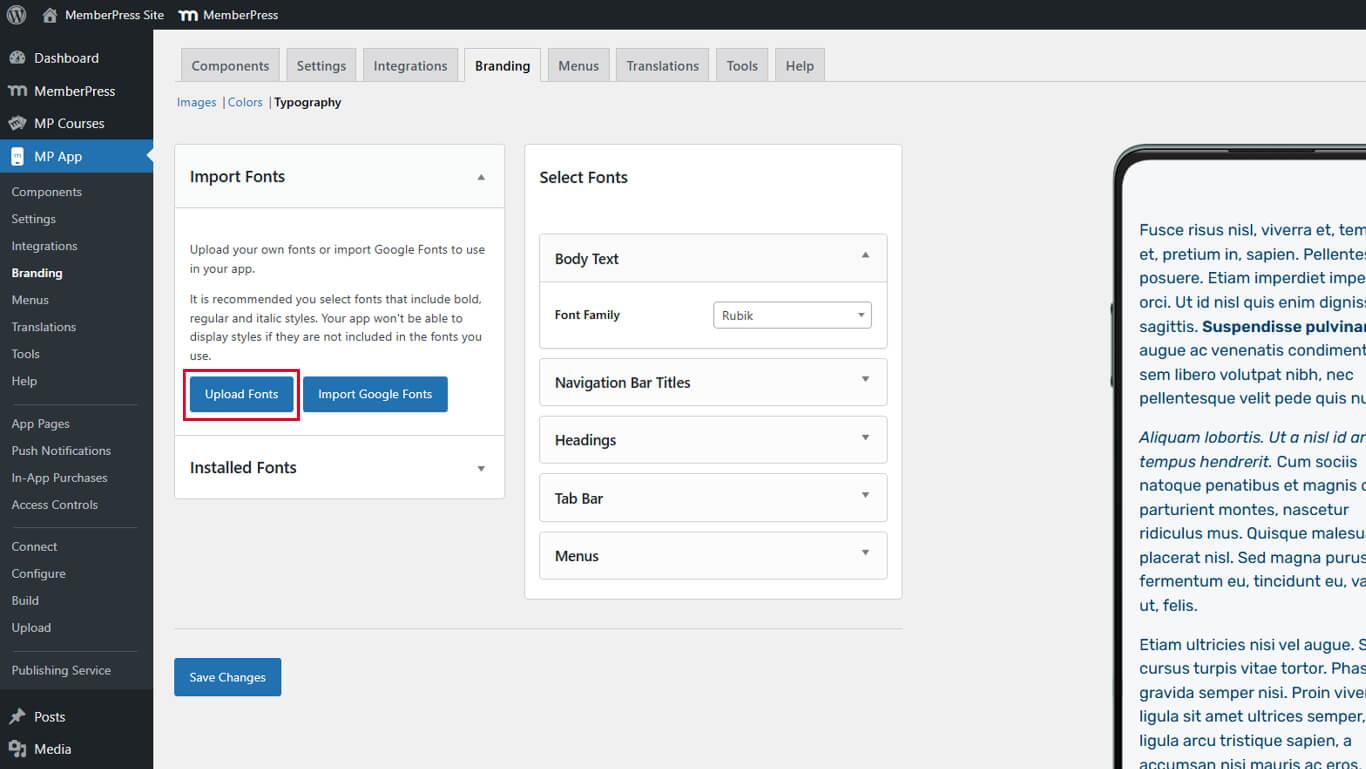
- Cliquez sur Choisir un fichier dans la boîte de dialogue de téléchargement.
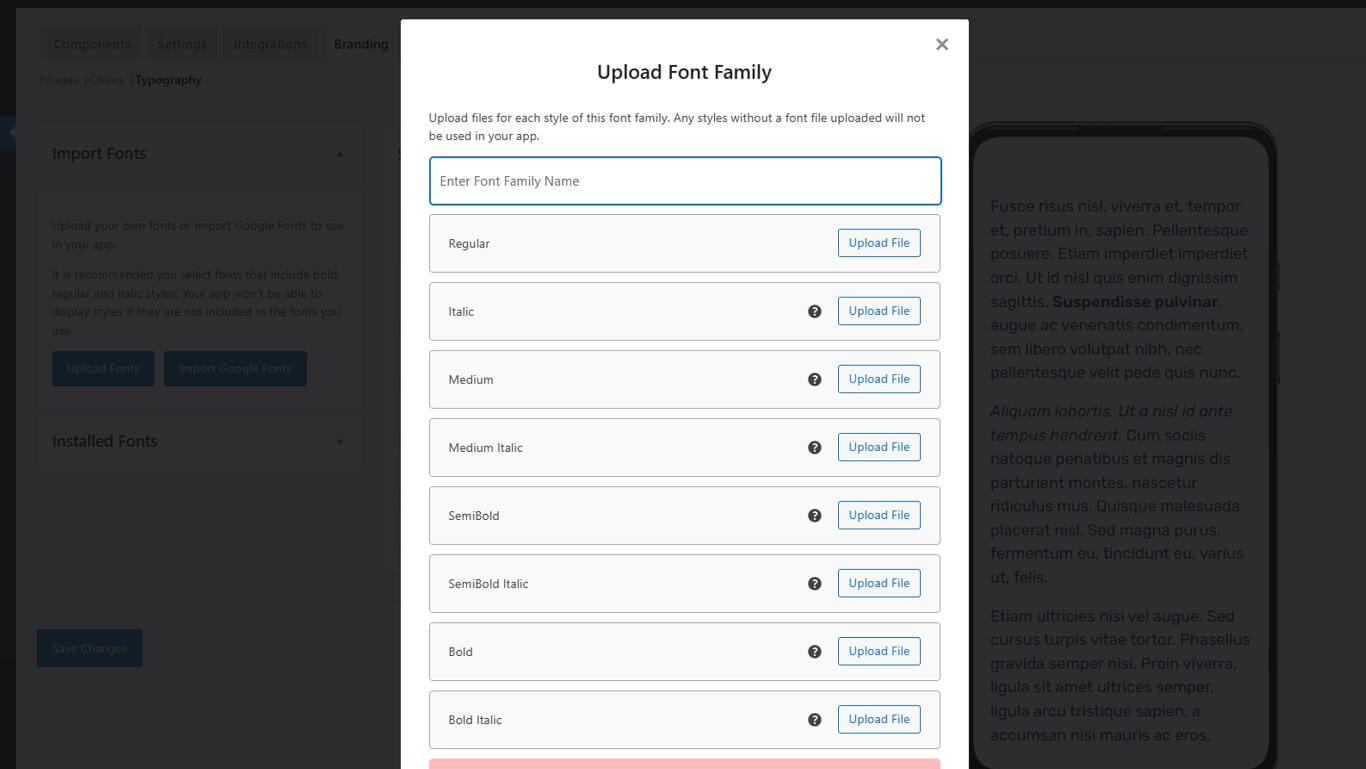
- Sélectionnez un fichier de police à partir de l'appareil.
- Vérifiez que le format du fichier est TTF, OTF ou WOFF.
- Cliquez sur Télécharger pour terminer l'importation.
- Vérifiez que la police apparaît sous Polices importées.
Les polices téléchargées sont immédiatement disponibles pour être attribuées aux sections de l'application.
Formats de fichiers de polices pris en charge
Les différents formats de polices offrent une compatibilité et des fonctionnalités variables.
Police TrueType (TTF) offre une large compatibilité entre les différentes plateformes. Les fichiers TTF fonctionnent de manière fiable dans la plupart des contextes.
Police OpenType (OTF) offre des fonctionnalités typographiques avancées. OTF prend en charge les jeux de caractères étendus et les ligatures.
Format de police ouvert pour le Web (WOFF) optimise la diffusion des polices pour les contextes Web. Les fichiers WOFF se compressent efficacement pour obtenir des tailles plus petites.
Téléchargez les polices dans le format correspondant aux fichiers source. Évitez de convertir les formats, car cela peut nuire à la qualité.
Importation de polices Google
L'intégration de Google Fonts ajoute des polices Web à la bibliothèque de polices de l'application.
- Naviguez jusqu'à Tableau de bord > MP AppKit > Image de marque > Typographie.
- Cliquez sur Importer des polices Google dans la section Importer des polices.
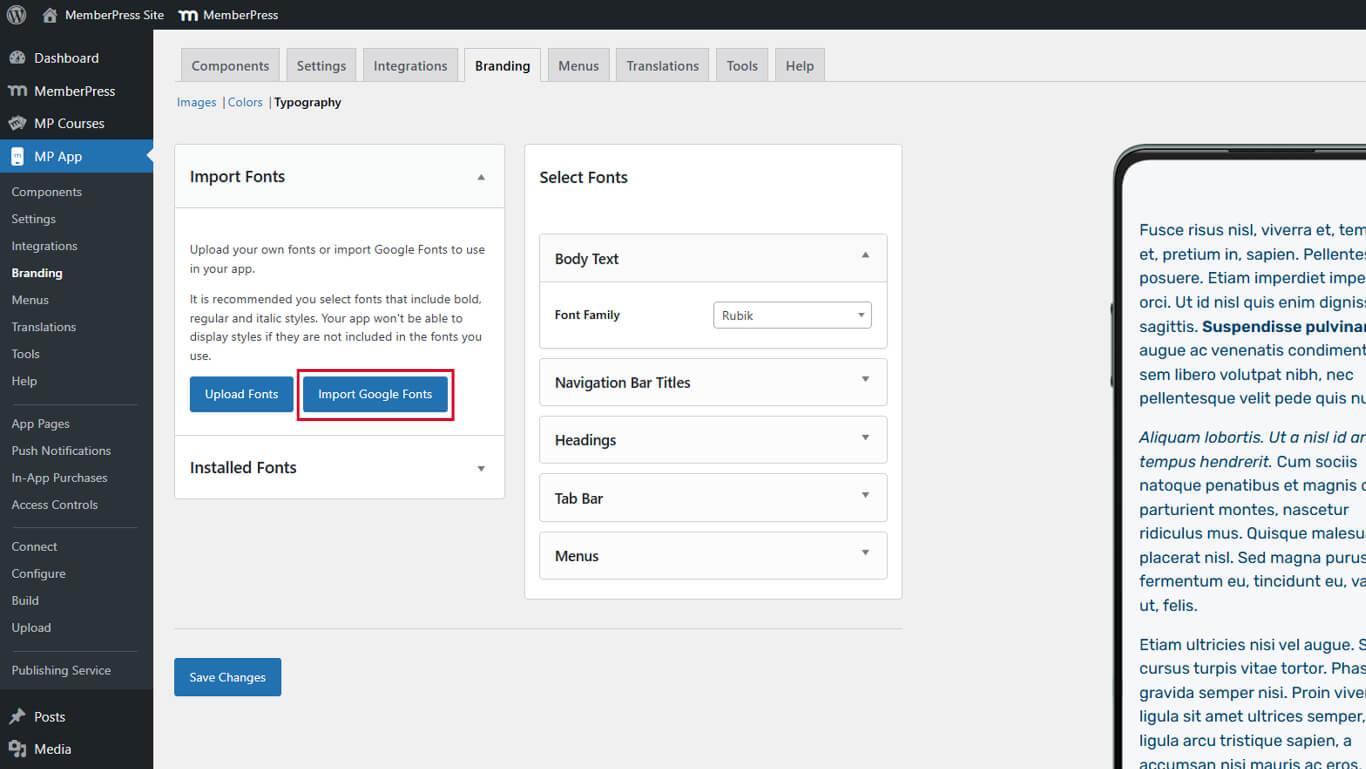
- Parcourez les polices disponibles ou utilisez le champ de recherche.
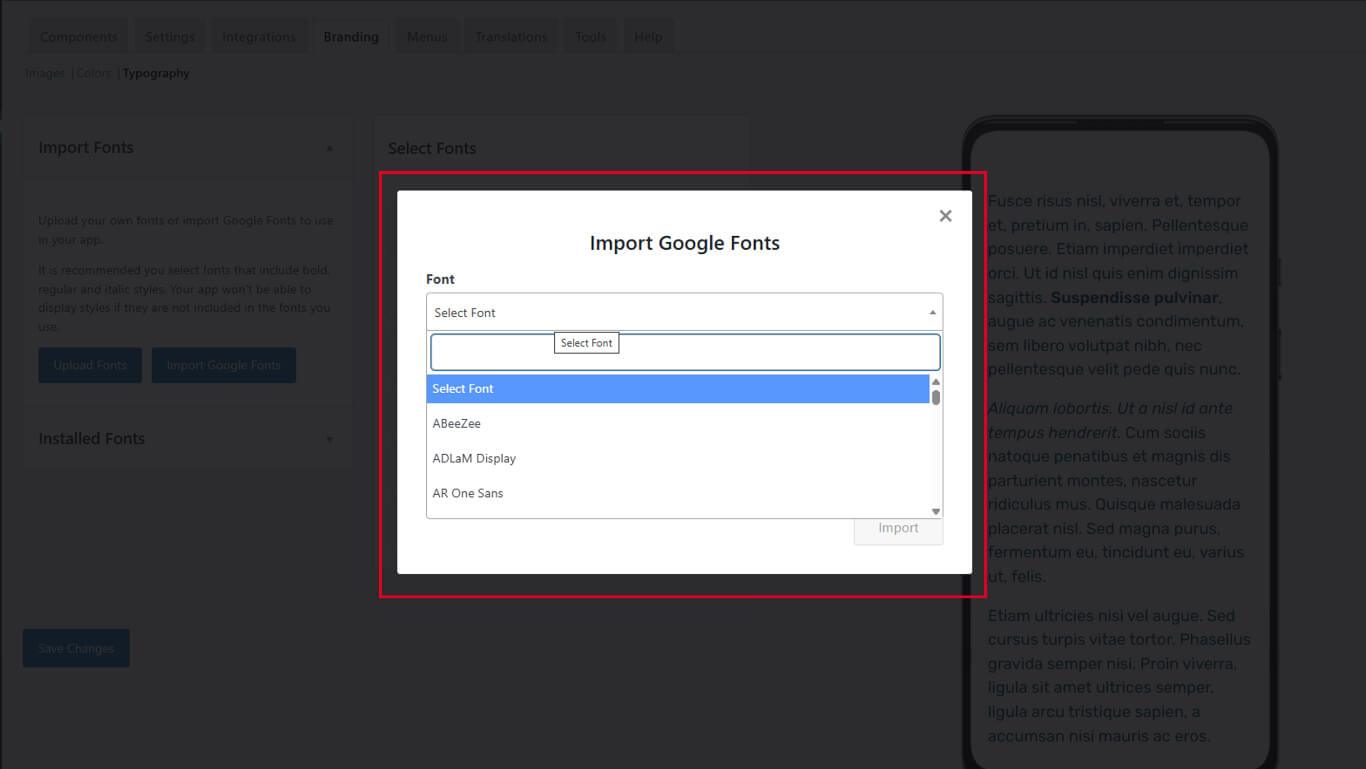
- Entrez un nom de police dans le champ de recherche pour filtrer les résultats.
- Cliquez sur le nom d'une police pour prévisualiser les styles et afficher les détails.
- Consultez les graisses et les styles de police disponibles dans l'aperçu.
- Notez tout avertissement de compatibilité pour la police sélectionnée.
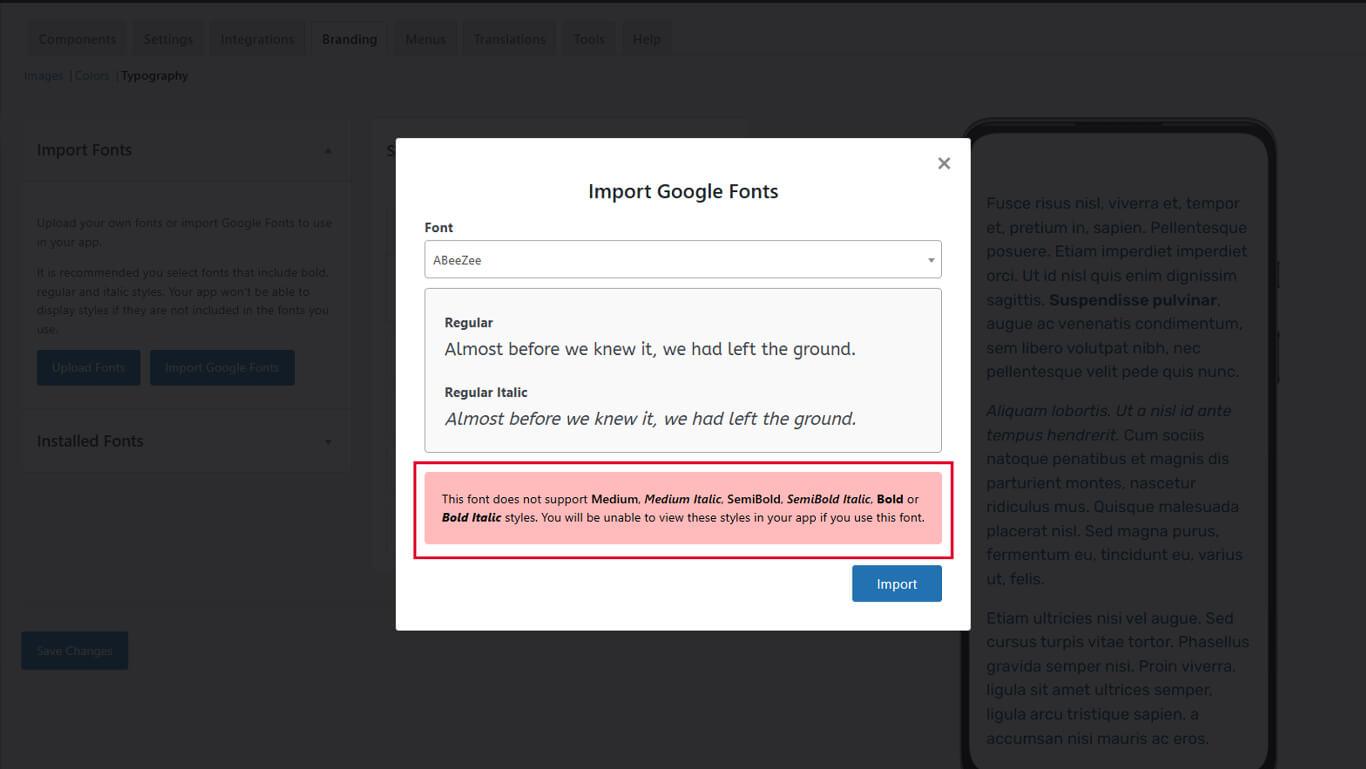
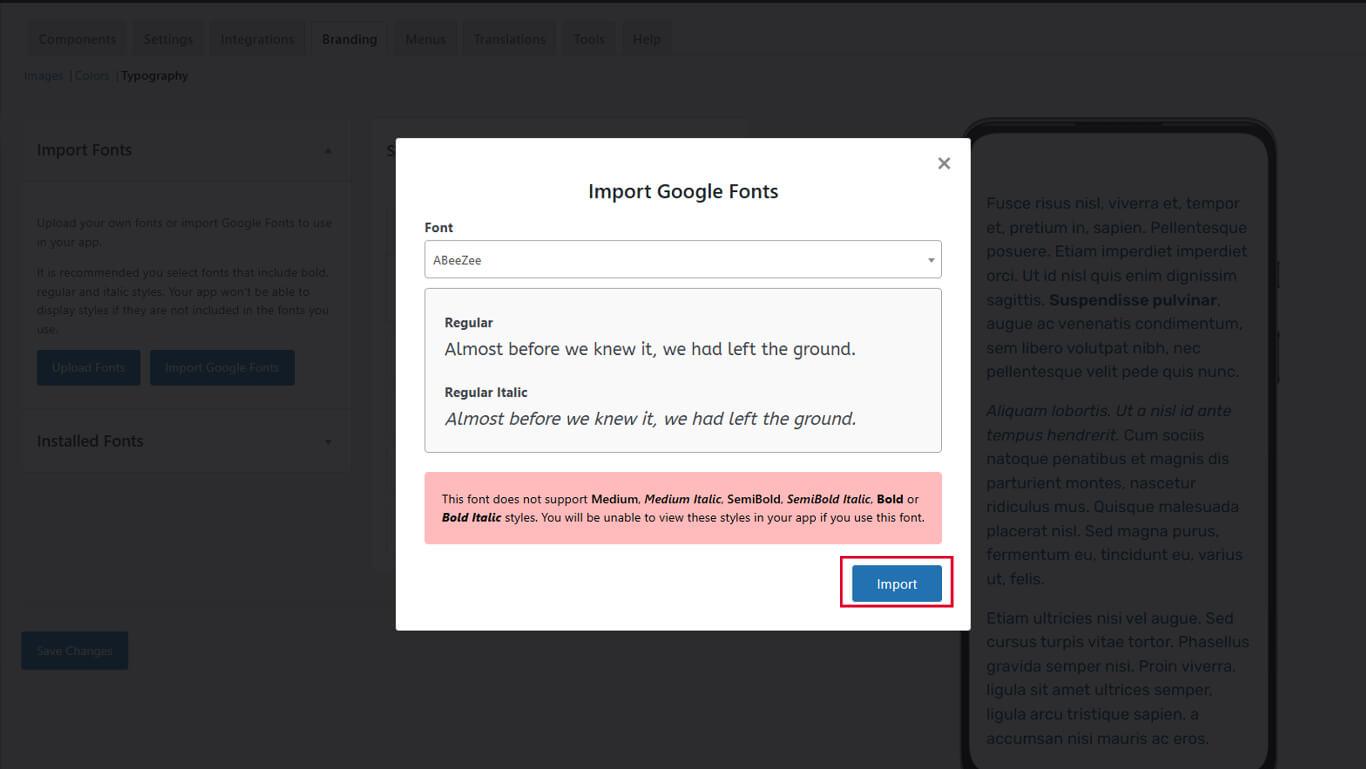
- Cliquez sur Importation pour ajouter la police à la bibliothèque.
- Vérifiez que la police apparaît sous Polices importées.
Les polices Google importées incluent automatiquement toutes les graisses et tous les styles disponibles.
Attribuer des polices aux sections de l'application
Les attributions de polices contrôlent la typographie pour des éléments d'interface spécifiques.
Attribution d'une police au corps du texte
Le corps du texte est le contenu principal de l'application.
- Naviguez jusqu'à Tableau de bord > MP AppKit > Image de marque > Typographie.
- Faites défiler jusqu'à la Corps du texte section.
- Cliquez sur le bouton Famille de polices liste déroulante.
- Sélectionnez une police.
- Vérifiez l'apparence dans le panneau d'aperçu en direct.
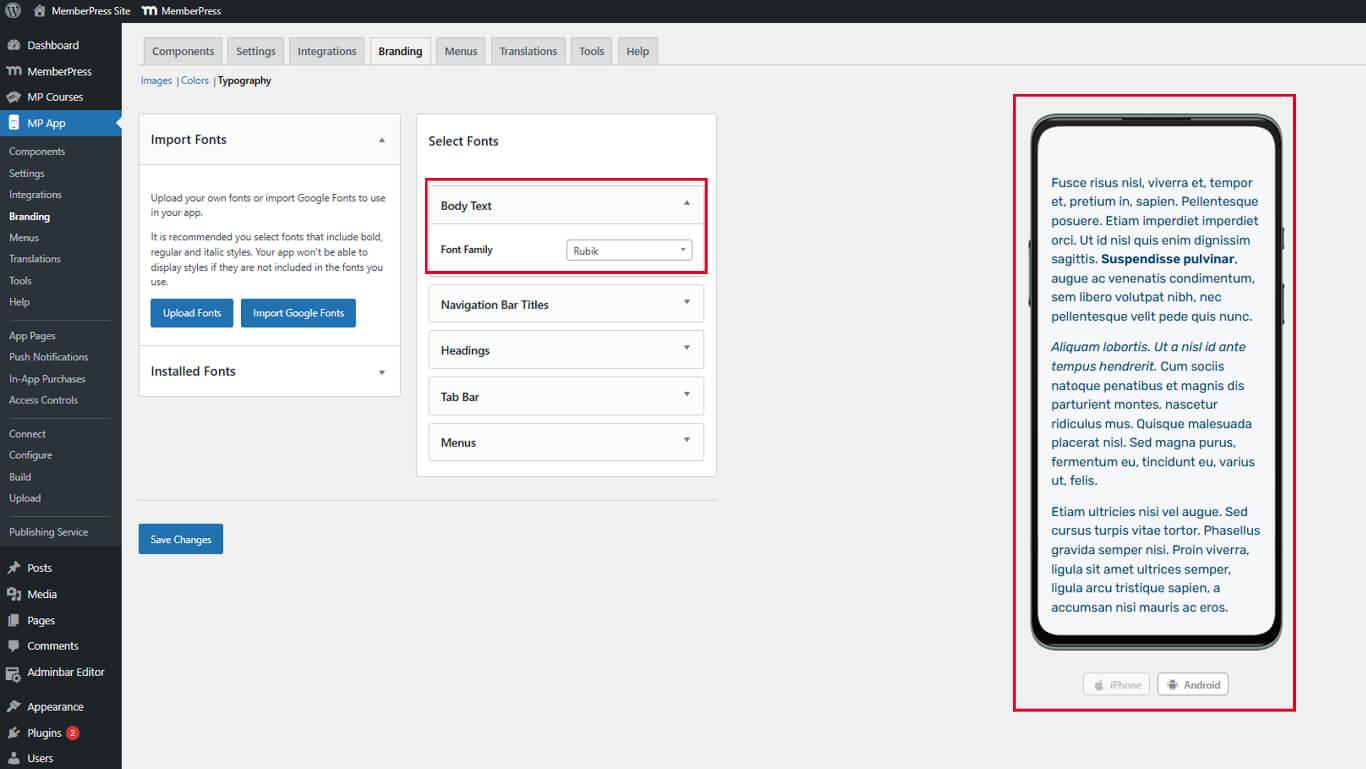
La police du corps du texte affecte les articles de blog, le contenu des pages et le texte général dans toute l'application.
Attribuer des titres à la barre de navigation Police
Les titres de la barre de navigation apparaissent dans les en-têtes des applications et les titres des pages.
- Localiser le Titres de la barre de navigation section.
- Cliquez sur le bouton Famille de polices liste déroulante.
- Sélectionnez une police.
- Vérifiez l'aperçu de la barre de navigation dans le panneau d'aperçu en direct.
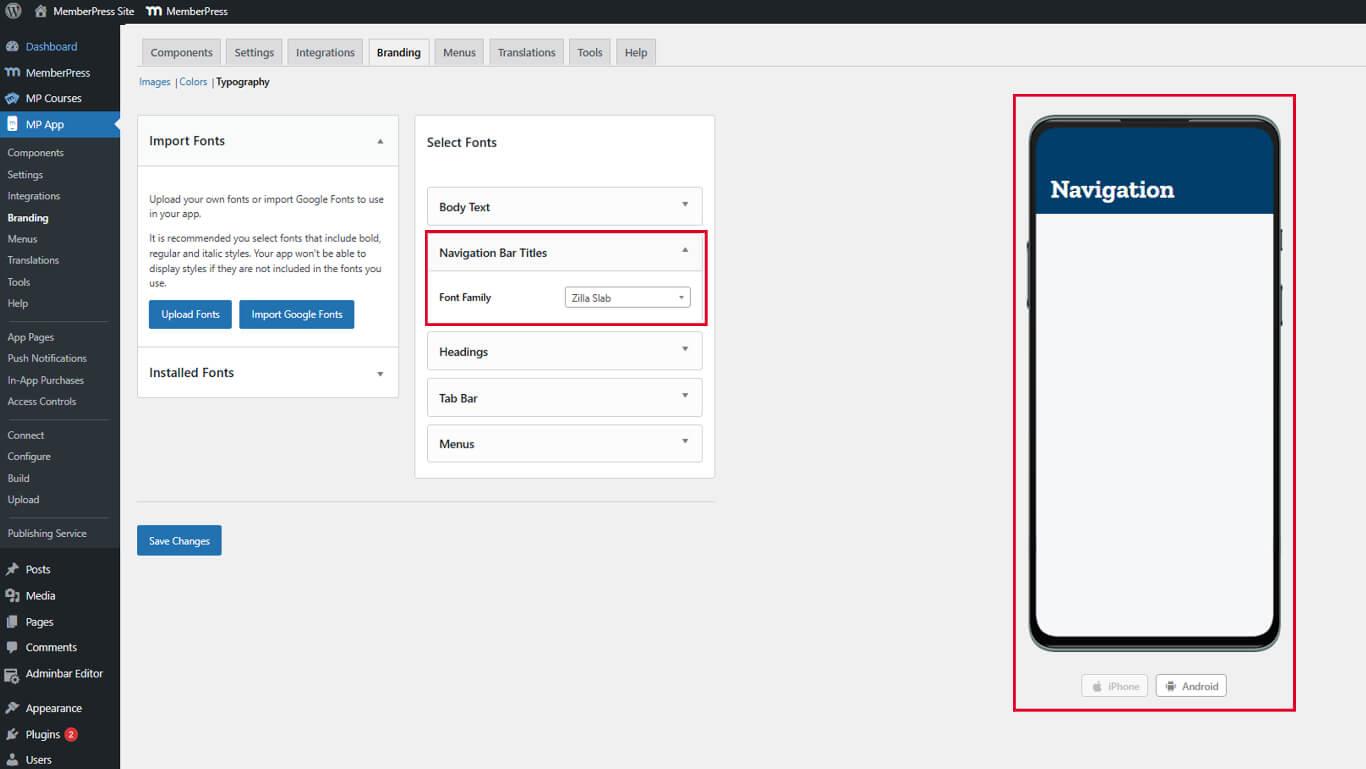
La typographie de la barre de navigation doit rester claire et lisible à des distances de visionnage normales.
Attribuer des titres Police
Les titres organisent le contenu grâce à un affichage visuel.
- Localiser le Titres section.
- Cliquez sur le bouton Famille de polices liste déroulante.
- Sélectionnez une police.
- Vérifiez la hiérarchie des titres dans le panneau d'aperçu en direct.
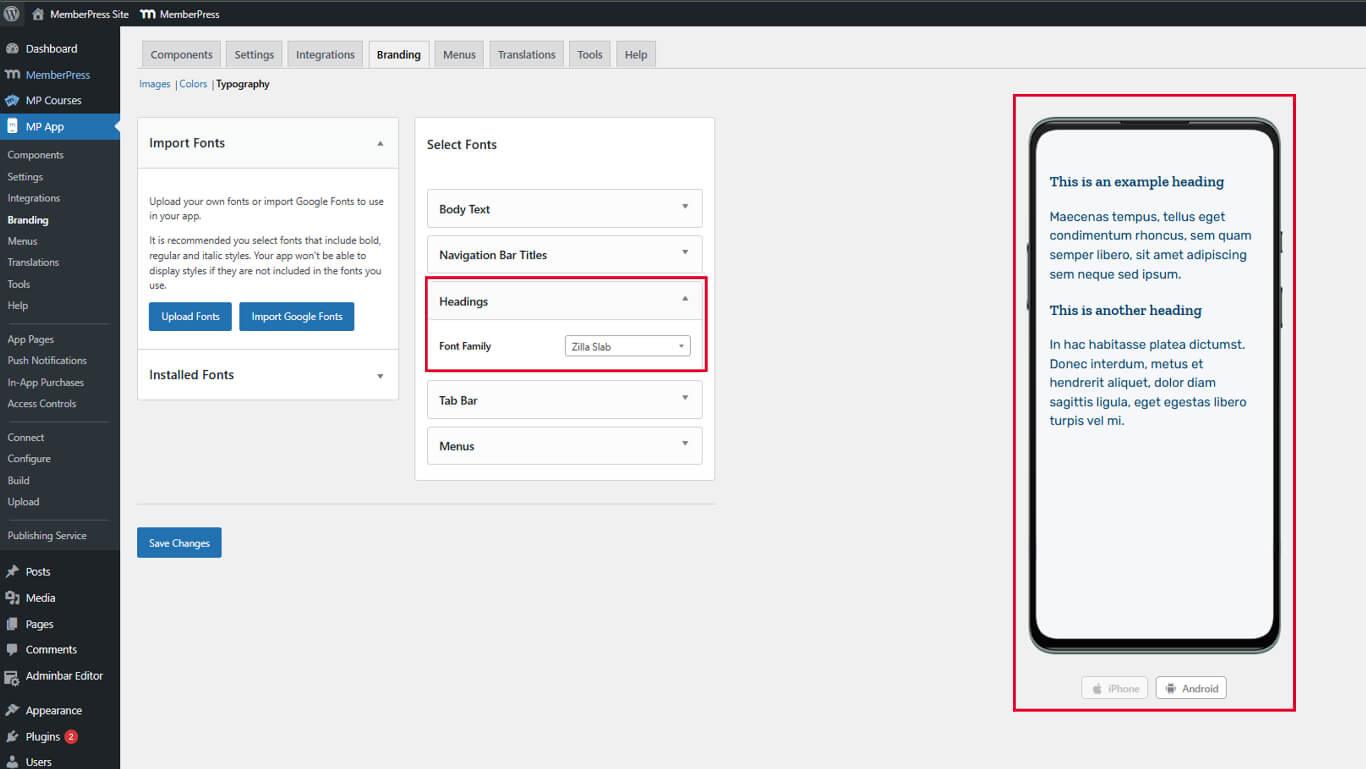
Les polices utilisées pour les titres doivent se distinguer clairement du corps du texte.
Attribuer des étiquettes à la barre d'onglets Police
Les étiquettes de la barre d'onglets identifient les options de navigation inférieures.
- Localiser le Étiquettes de la barre d'onglets section.
- Cliquez sur le bouton Famille de polices liste déroulante.
- Sélectionnez une police.
- Vérifiez l'aperçu de la barre d'onglets dans le panneau d'aperçu en direct.
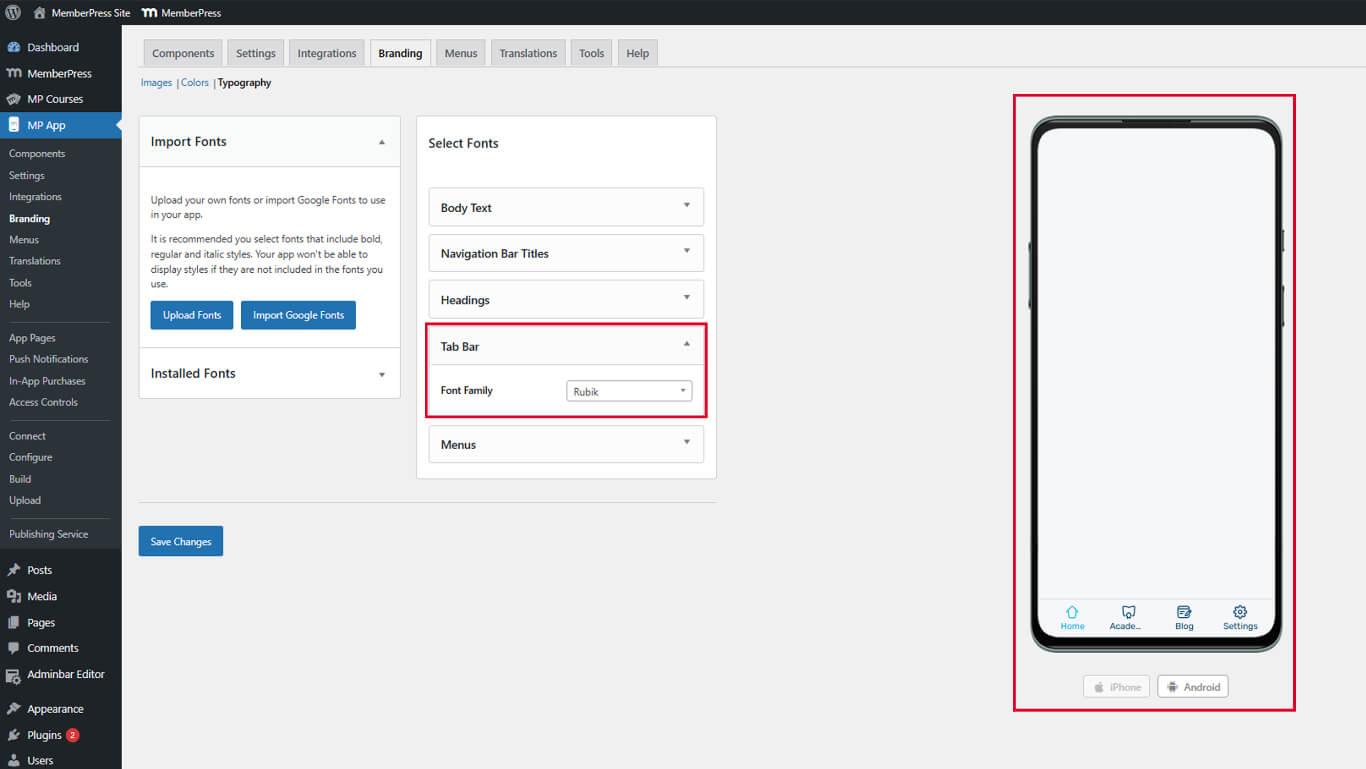
Les polices de la barre d'onglets doivent rester lisibles même en petite taille sur les écrans mobiles.
Attribution des polices de caractères aux menus
Les polices du menu contrôlent le texte des éléments de navigation dans la barre d'onglets et le menu Plus.
- Localiser le Menus section.
- Cliquez sur le bouton Famille de polices liste déroulante.
- Sélectionnez une police.
- Consultez l'aperçu du menu dans le panneau d'aperçu en direct.
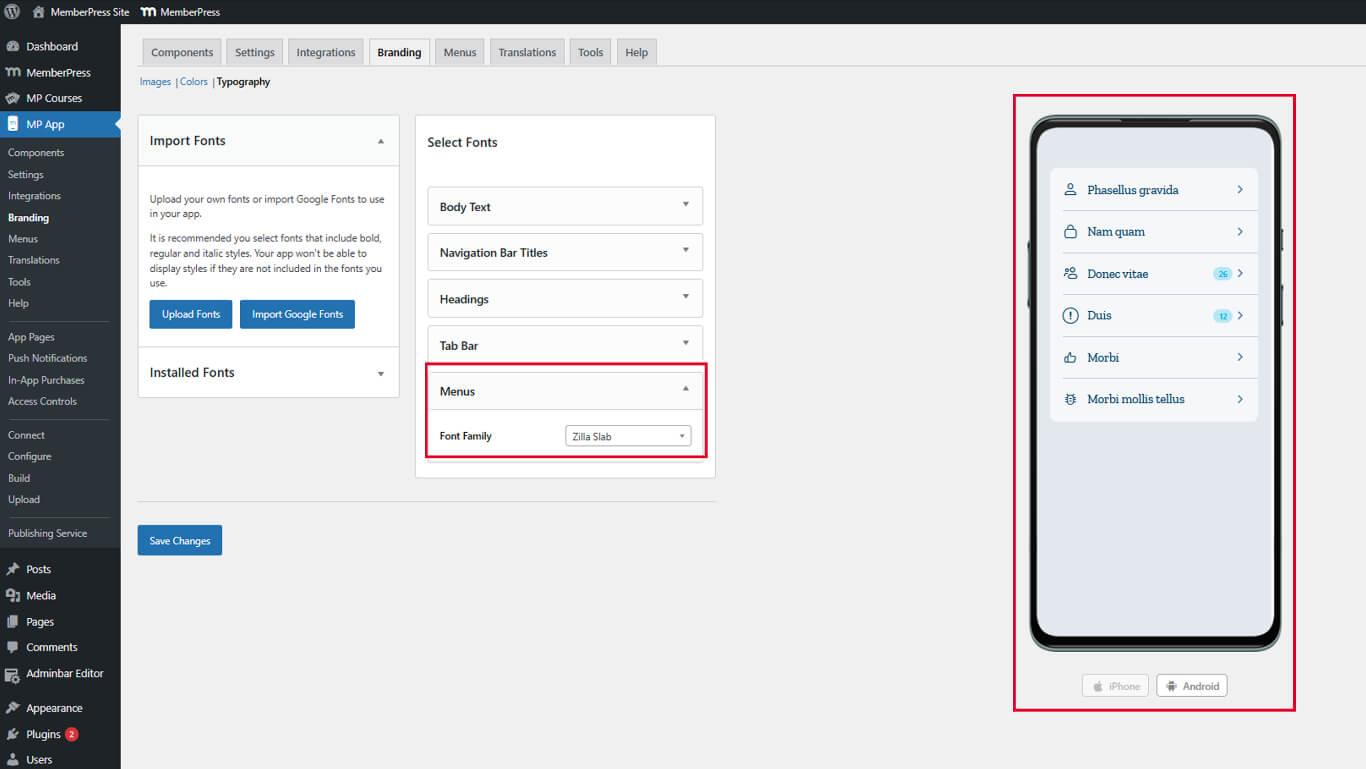
Les polices de caractères des menus doivent être lisibles pour permettre une navigation rapide.










 FR
FR  EN
EN  ES
ES  DE
DE  PT
PT 