

La connexion au compte Google Developer permet la synchronisation des produits in-app et la soumission de builds Android par le biais de services de publication automatisés.
Ce document explique comment créer un compte de service Google Cloud, activer les API requises, accorder les autorisations de Play Console et télécharger les informations d'identification vers WordPress.
Comprendre la connexion Google Developer
La connexion au compte Google Developer automatise les flux de travail pour la gestion des applications Android. L'authentification du compte de service offre un accès sécurisé aux services Google Play sans partage de mot de passe. Les comptes connectés permettent d'automatiser la synchronisation des produits et les processus de soumission des créations.
Création d'une application dans Google Play Console
La création d'applications dans Google Play Console constitue la base de la distribution d'applications Android.
- Accédez à la console Google Play à l'adresse suivante play.google.com/console.
- Cliquez sur le bouton Créer une application bouton.
- Entrez le nom de l'application dans le champ Nom de l'application domaine.
- Sélectionnez la langue par défaut dans le menu Langue par défaut liste déroulante.
- Sélectionnez l'option Application pour le type d'application.
- Choisissez si l'application est gratuite ou payante.
- Allez jusqu'à la section des déclarations.
- Vérifier le Politiques du programme des développeurs case à cocher.
- Vérifier le Législation américaine en matière d'exportation case à cocher.
- Cliquez sur Créer une application pour finaliser la création de l'application.
Création d'un projet Google Cloud
La création d'un projet Google Cloud fournit le conteneur pour les informations d'identification du compte de service.
- Accédez à Google Cloud Console à l'adresse suivante console.cloud.google.com.
- Connectez-vous avec les informations d'identification de votre compte Google.
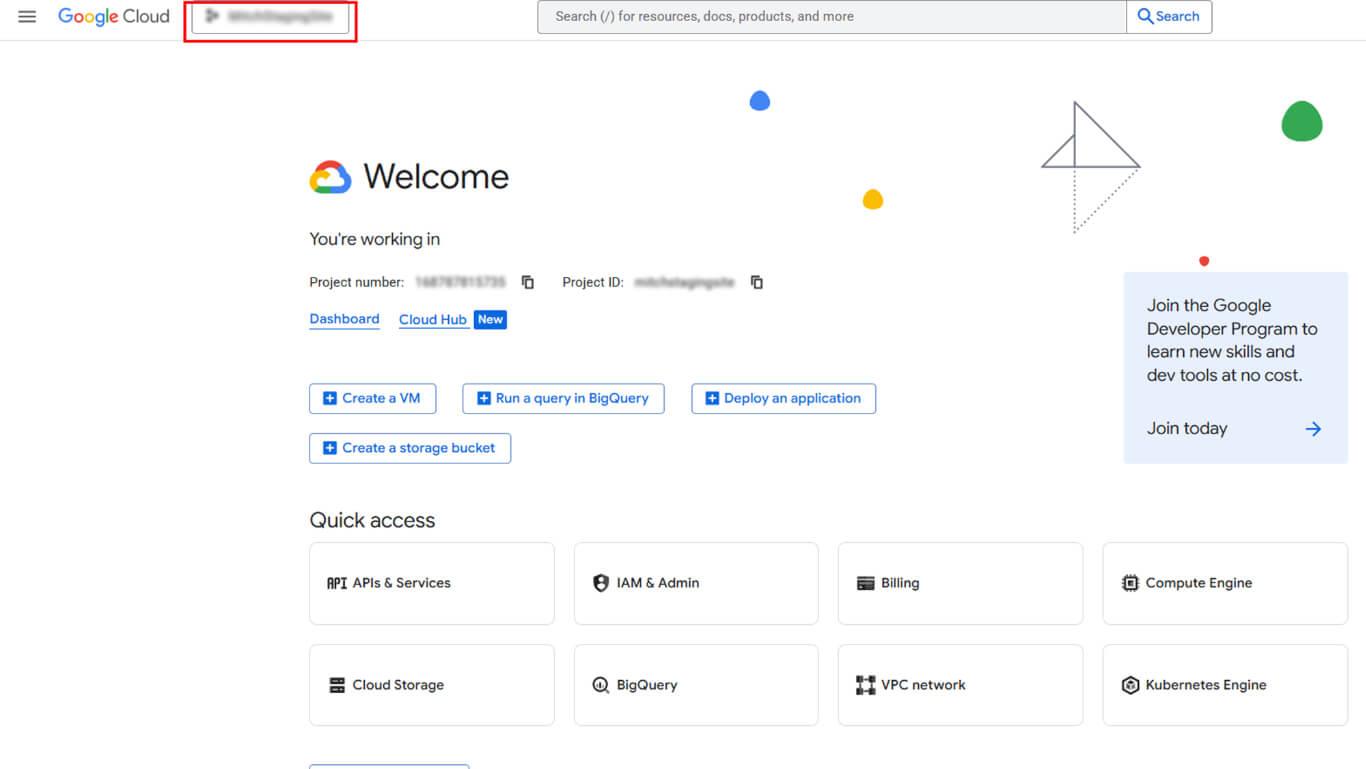
- Cliquez sur le sélecteur de projet en haut de la page.
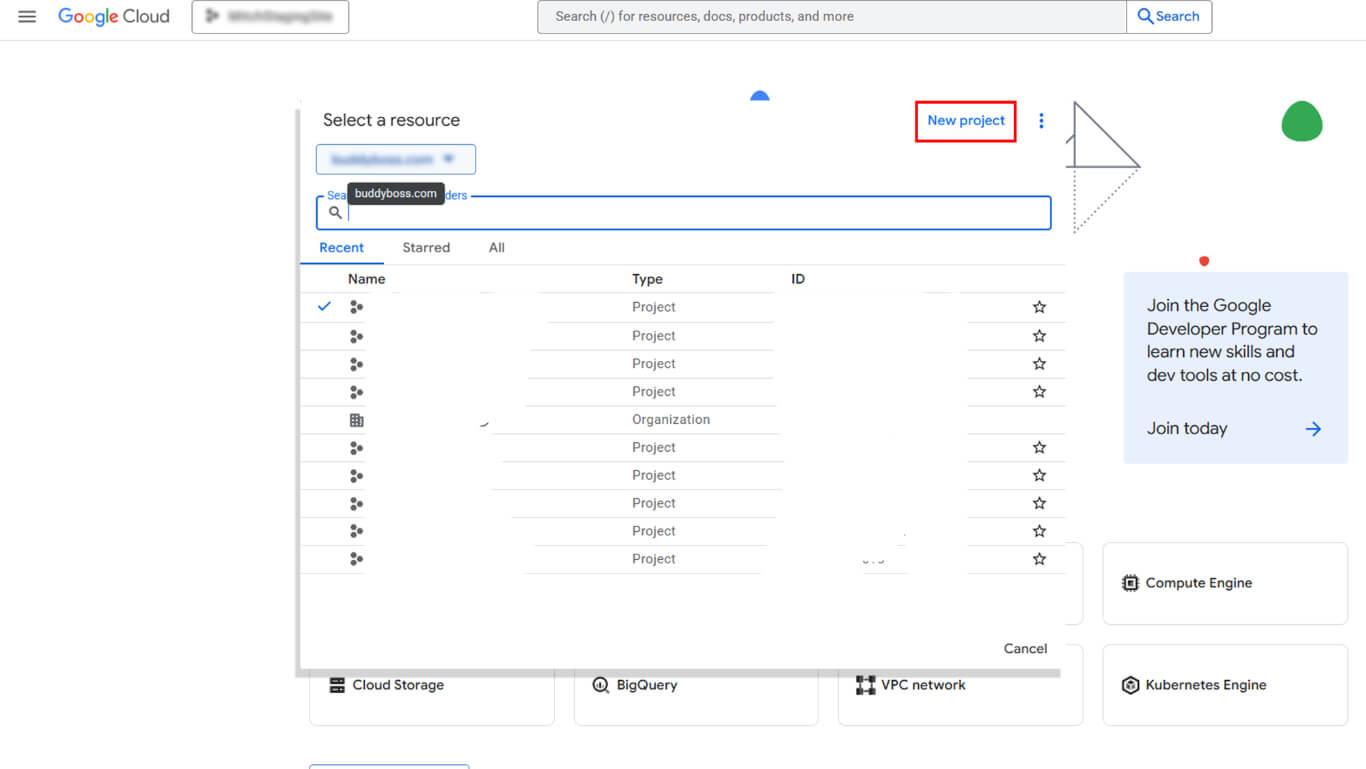
- Cliquez sur NOUVEAU PROJET dans la boîte de dialogue du sélecteur de projet.
- Saisissez un nom descriptif dans le champ Nom du projet domaine.
- Sélectionnez une organisation dans la liste Organisation le cas échéant.
- Sélectionnez un lieu dans la liste Localisation le cas échéant.
- Cliquez sur Créer pour finaliser la création du projet.
- Vérifiez que le nouveau projet est sélectionné dans le menu déroulant de l'en-tête.
Activation de Google Play Android Developer API
L'activation de l'API permet au compte de service d'accéder aux fonctionnalités de Google Play.
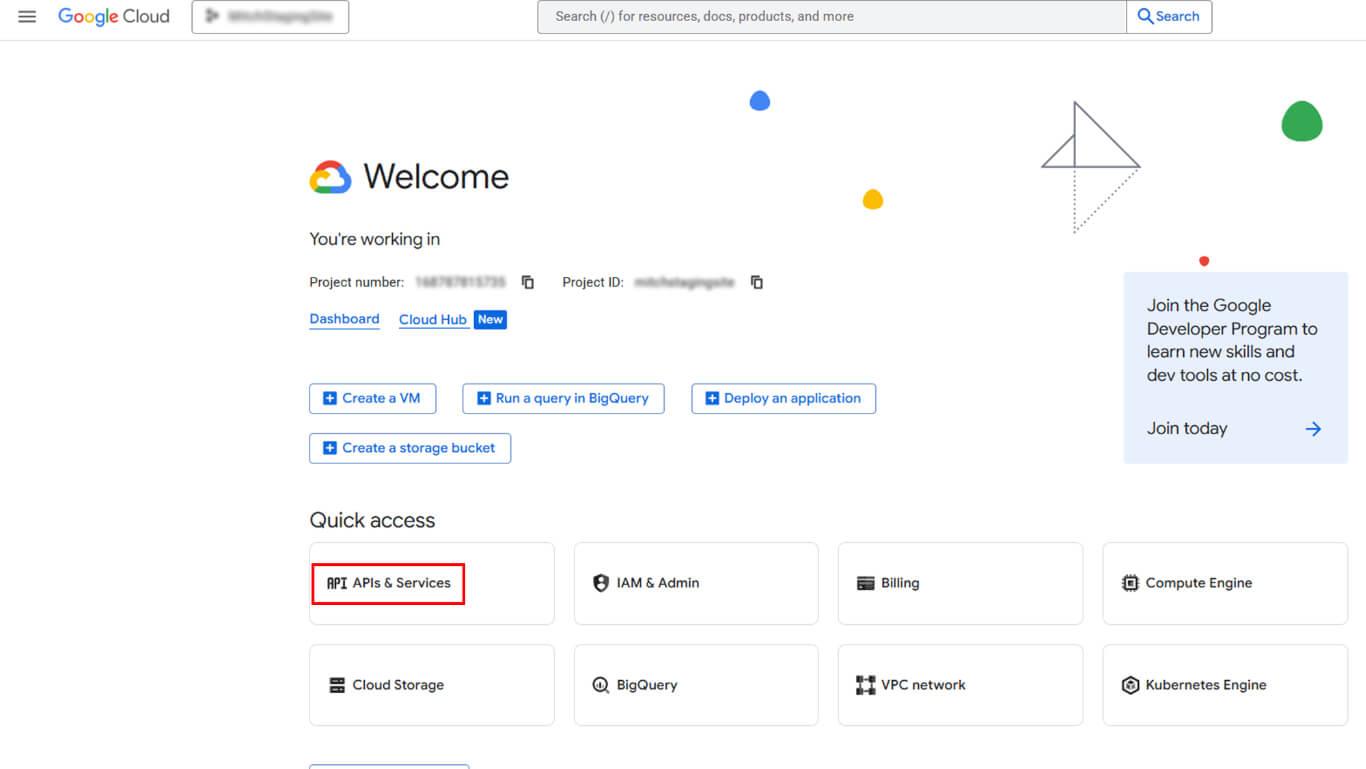
- Naviguez jusqu'à API et services > Activer les API et les services dans la console Google Cloud.
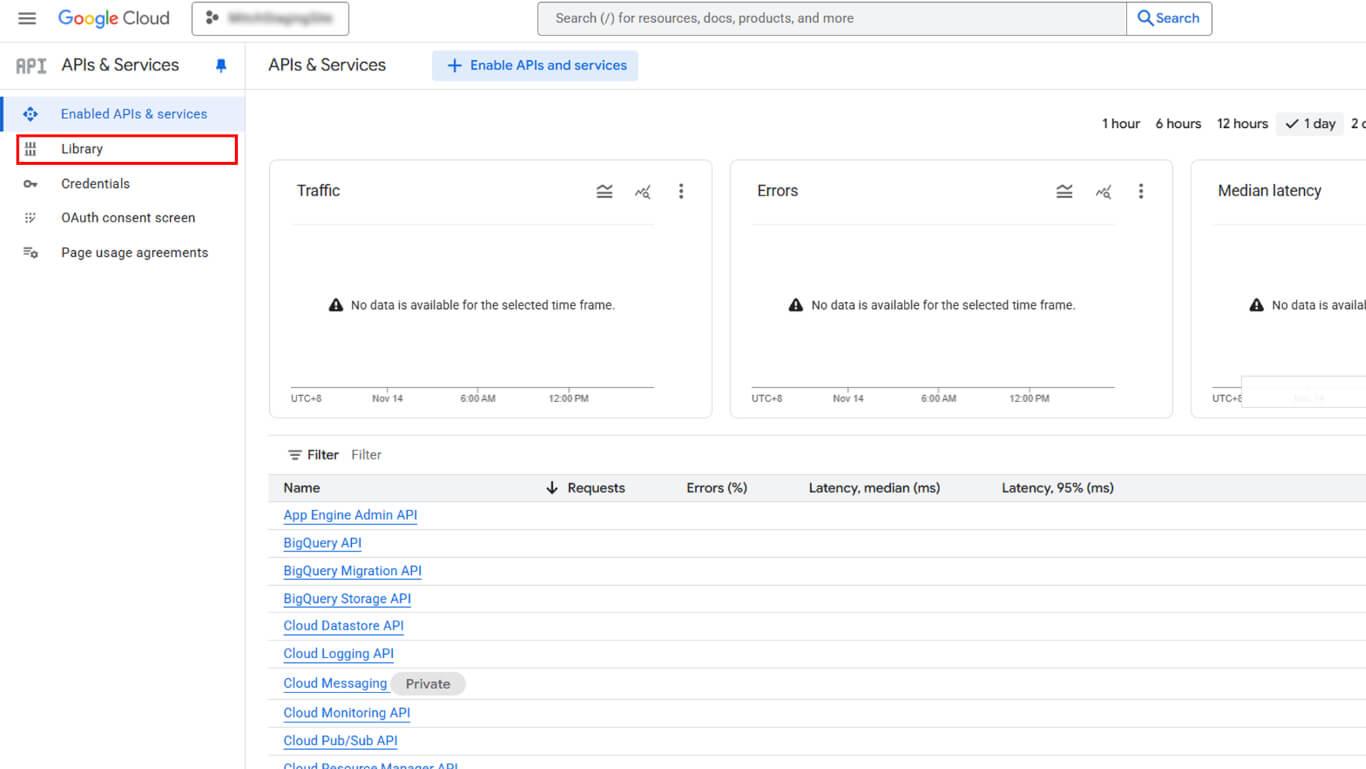
- Cliquez sur Bibliothèque pour ouvrir la bibliothèque API.
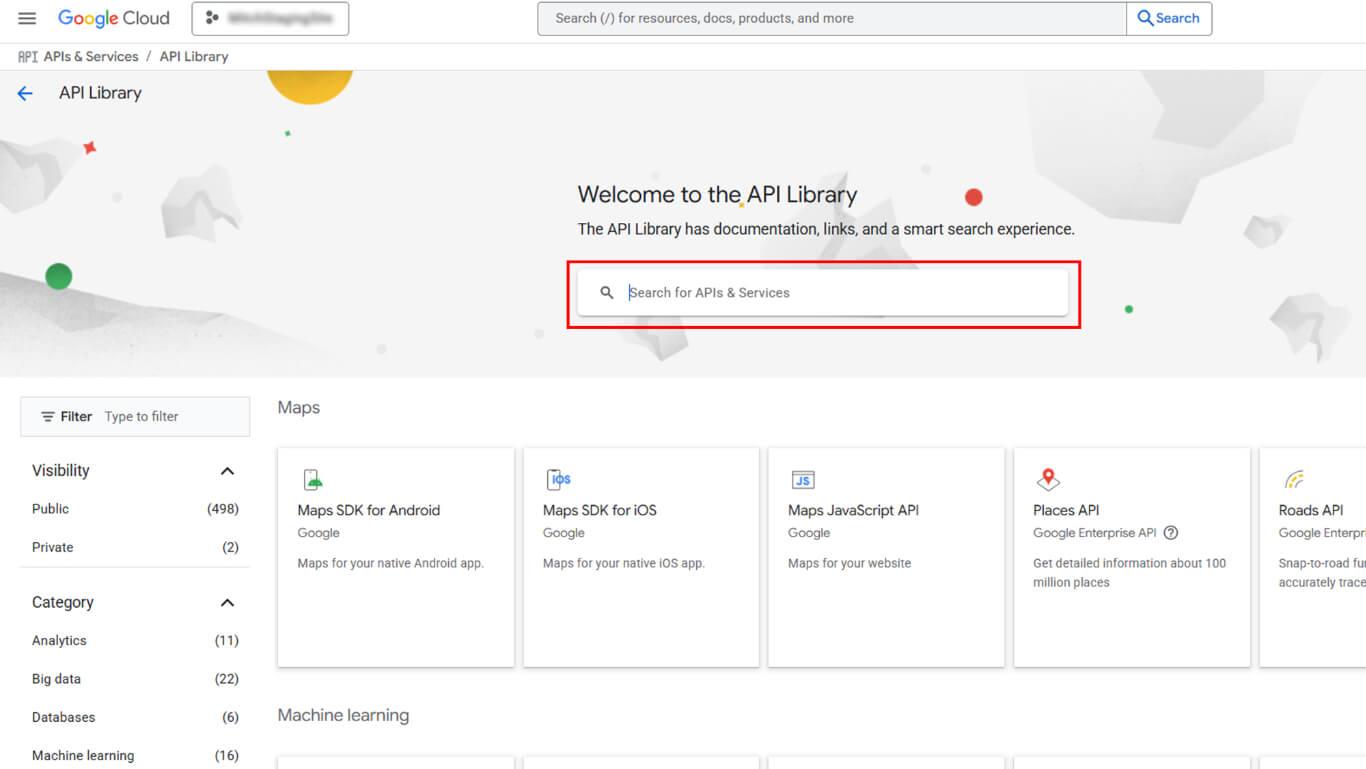
- Recherchez “Google Play Android Developer API” dans le champ de recherche.
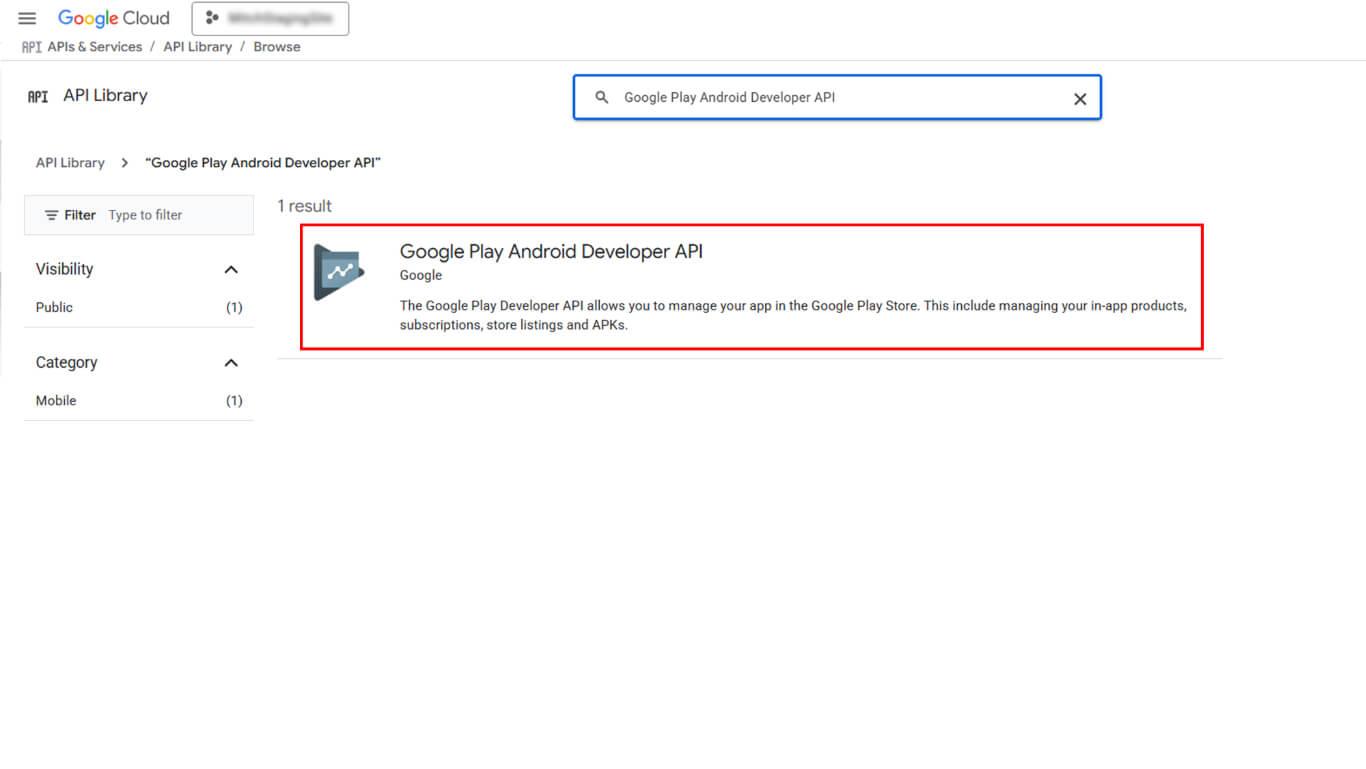
- Cliquez sur Google Play Android Developer API dans les résultats de la recherche.
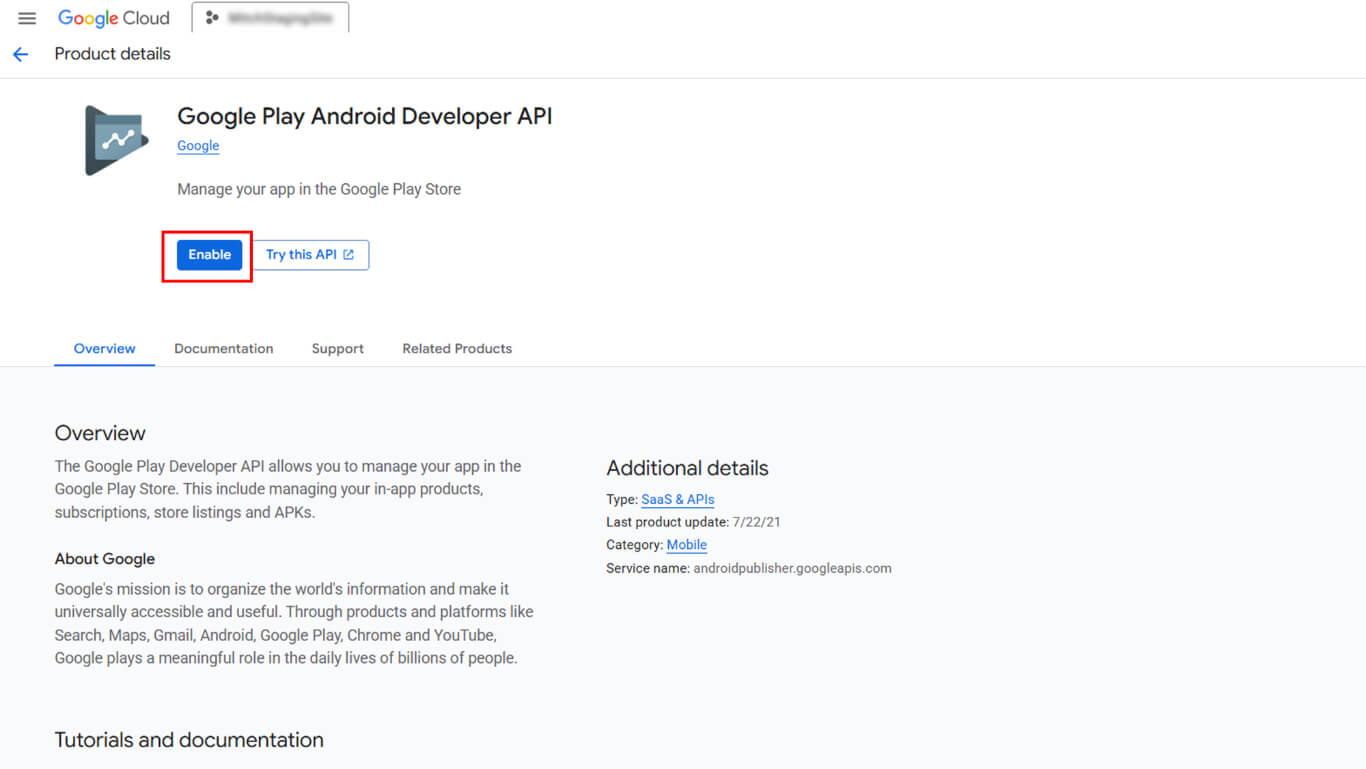
- Cliquez sur ENABLE pour activer l'API.
Création d'un compte de service
La création d'un compte de service génère des informations d'identification pour l'accès automatisé à Google Play.
- Naviguez jusqu'à API et services > Références dans la barre latérale de Google Cloud Console.
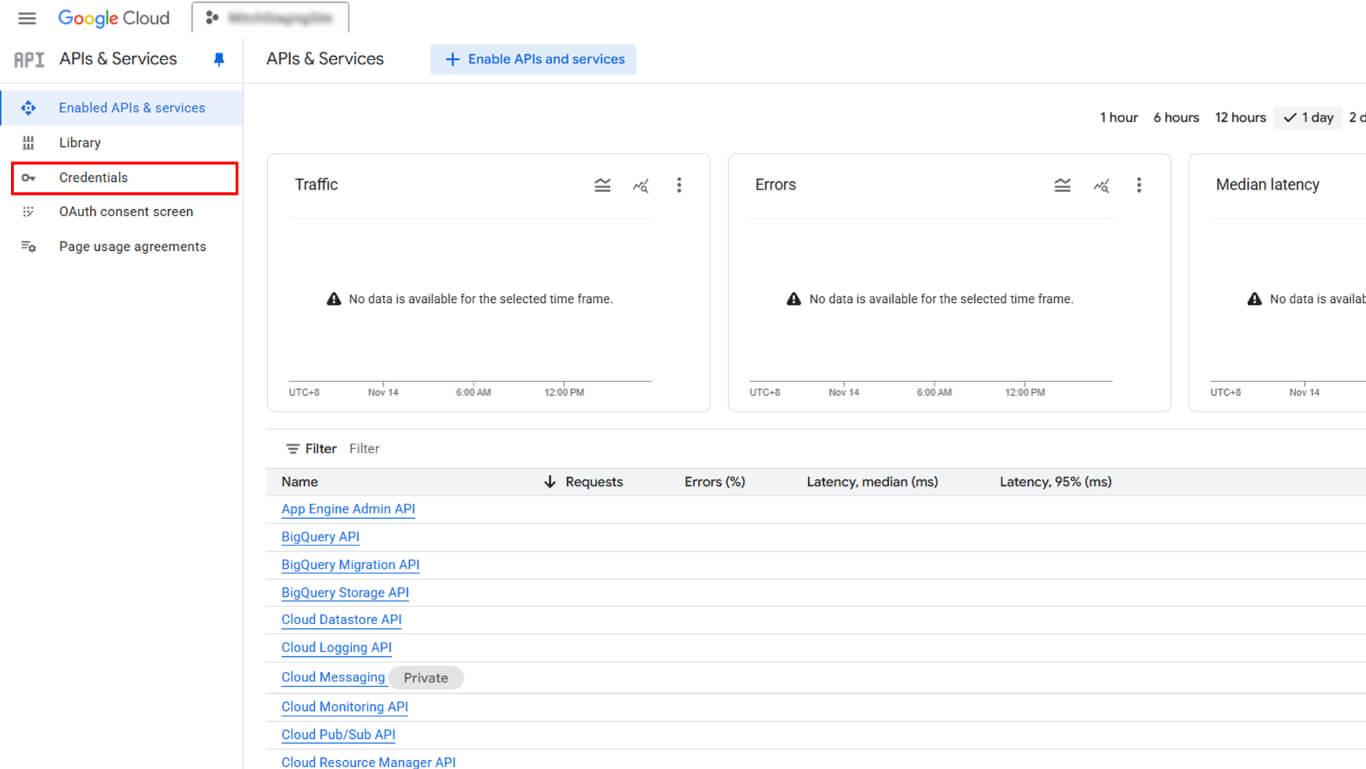
- Cliquez sur Créer des informations d'identification en haut de la page.
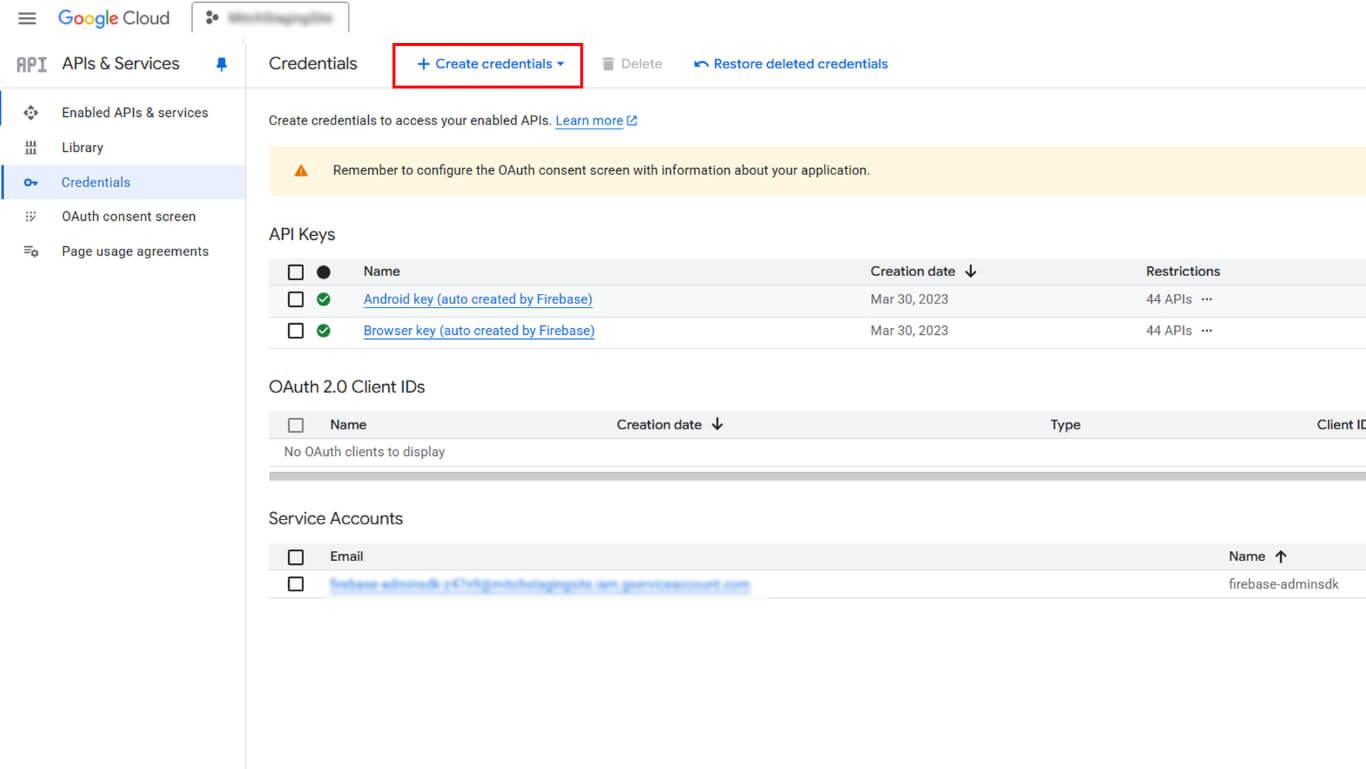
- Sélectionner Compte de service dans la liste déroulante du type d'informations d'identification.
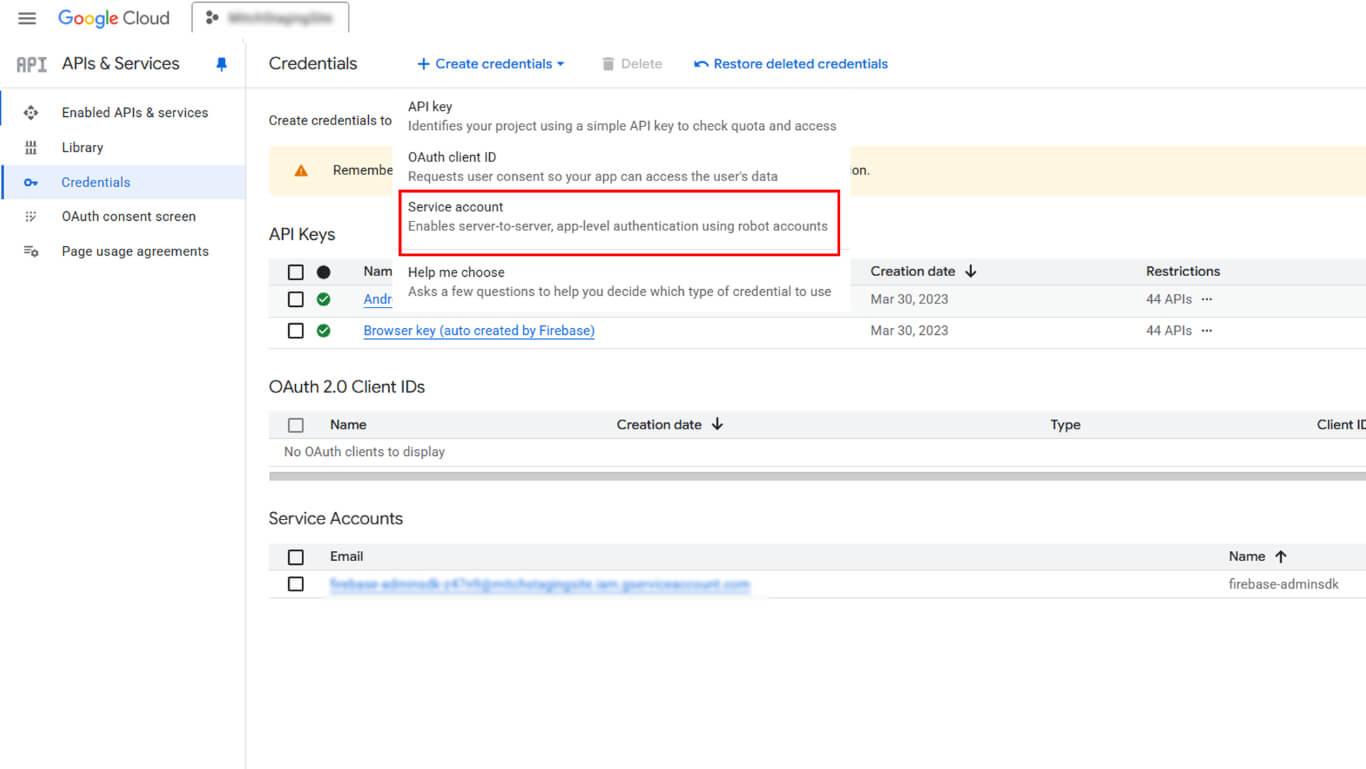
- Saisissez un nom descriptif dans le champ Nom du compte de service domaine.
- Cliquez sur Créer et poursuivre.
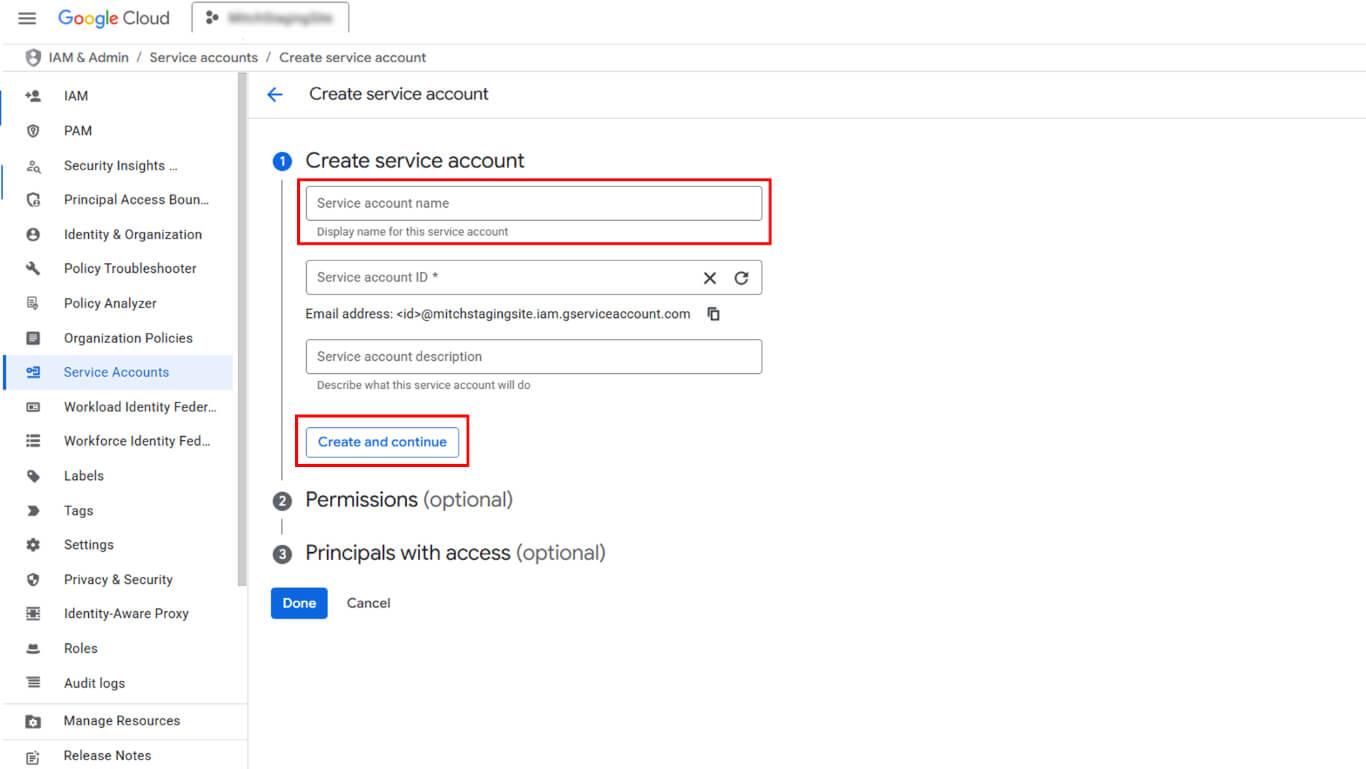
- Cliquez sur Sélectionnez un rôle sous Accorder l'accès à ce compte de service.
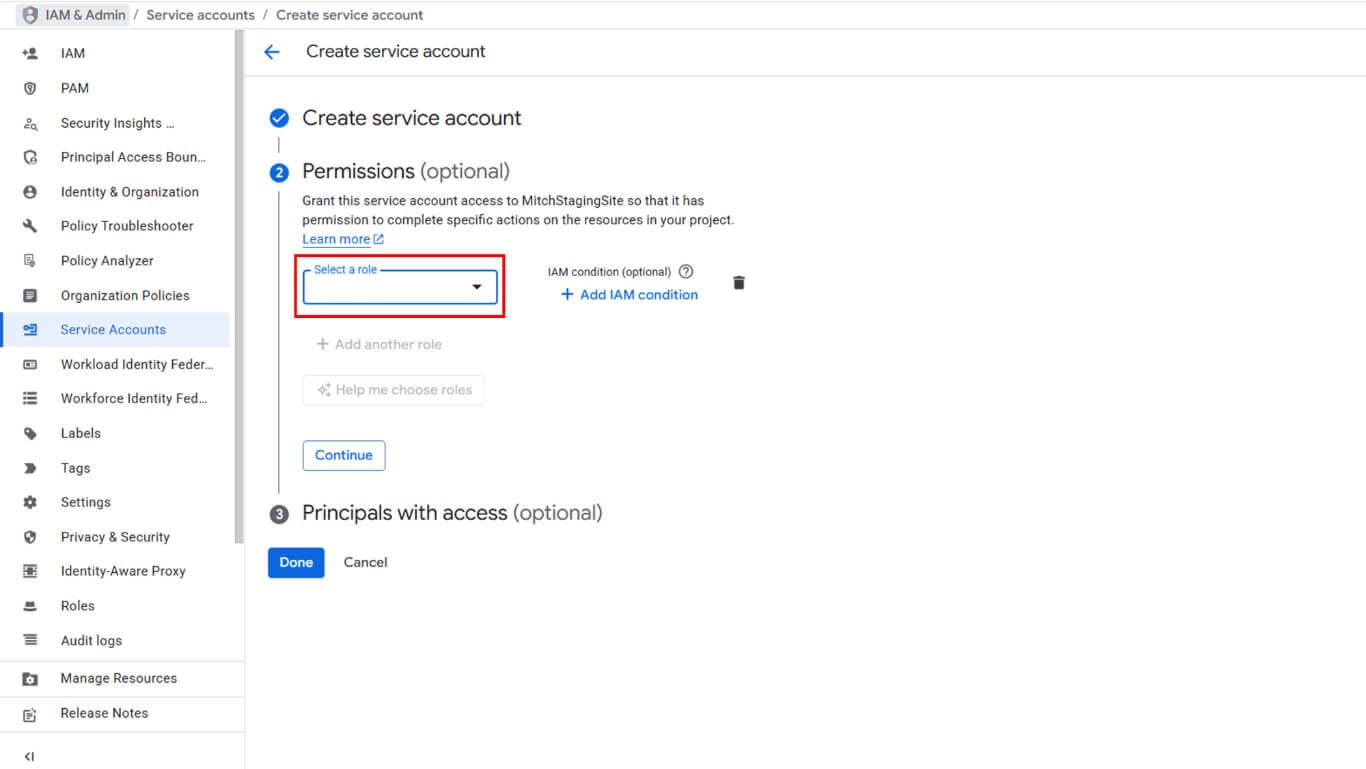
- Naviguez jusqu'à De base dans la hiérarchie des rôles.
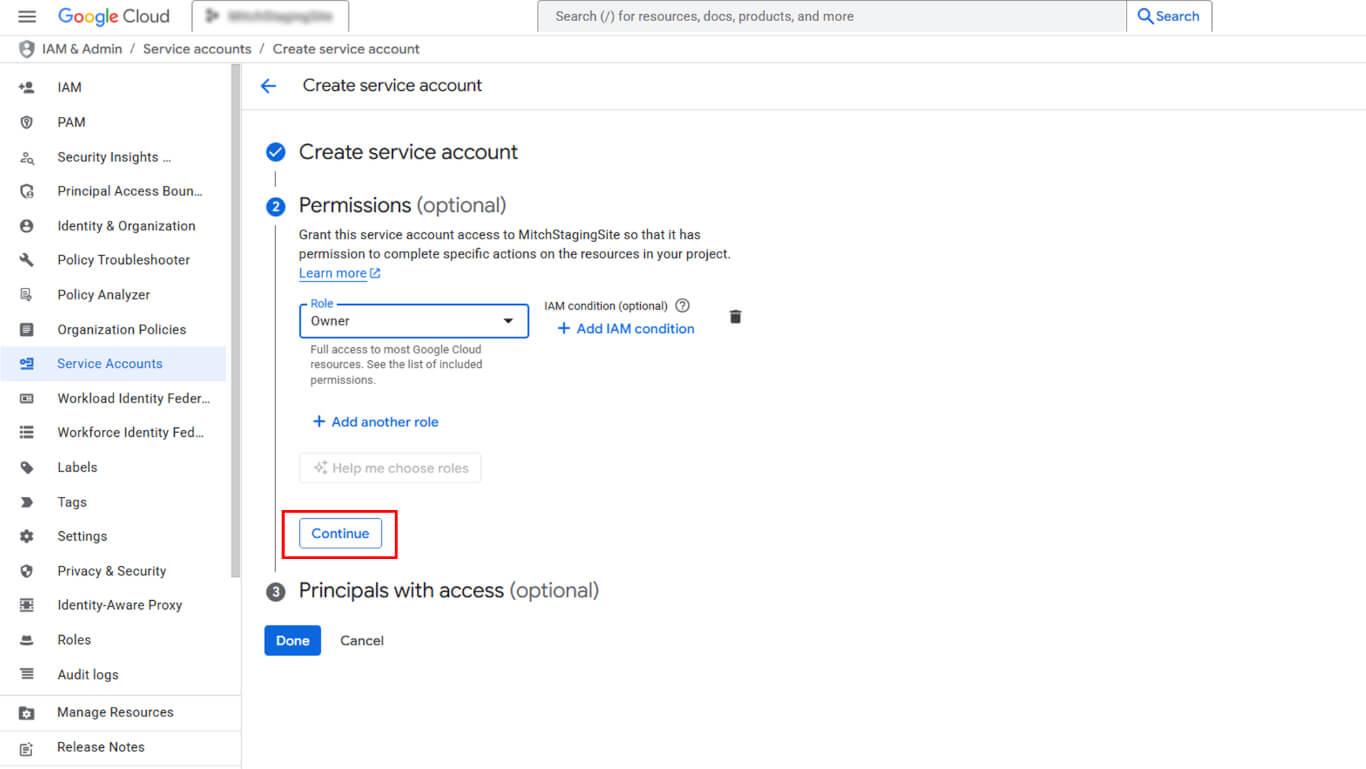
- Sélectionner Propriétaire dans les options de rôle.
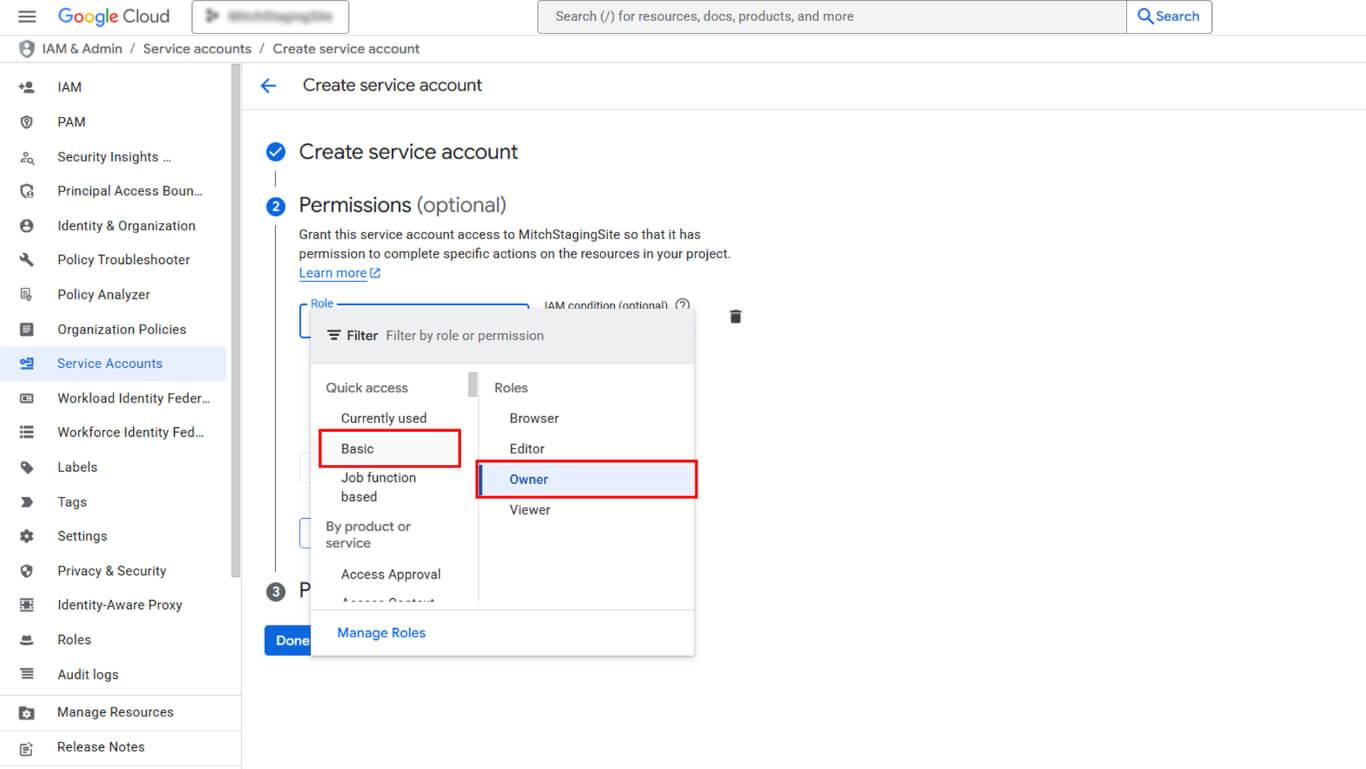
- Cliquez sur Continuer de procéder.
- Cliquez sur Terminé pour créer le compte de service.
Création d'une clé de compte de service
La génération de la clé du compte de service crée le fichier JSON nécessaire au téléchargement de WordPress.
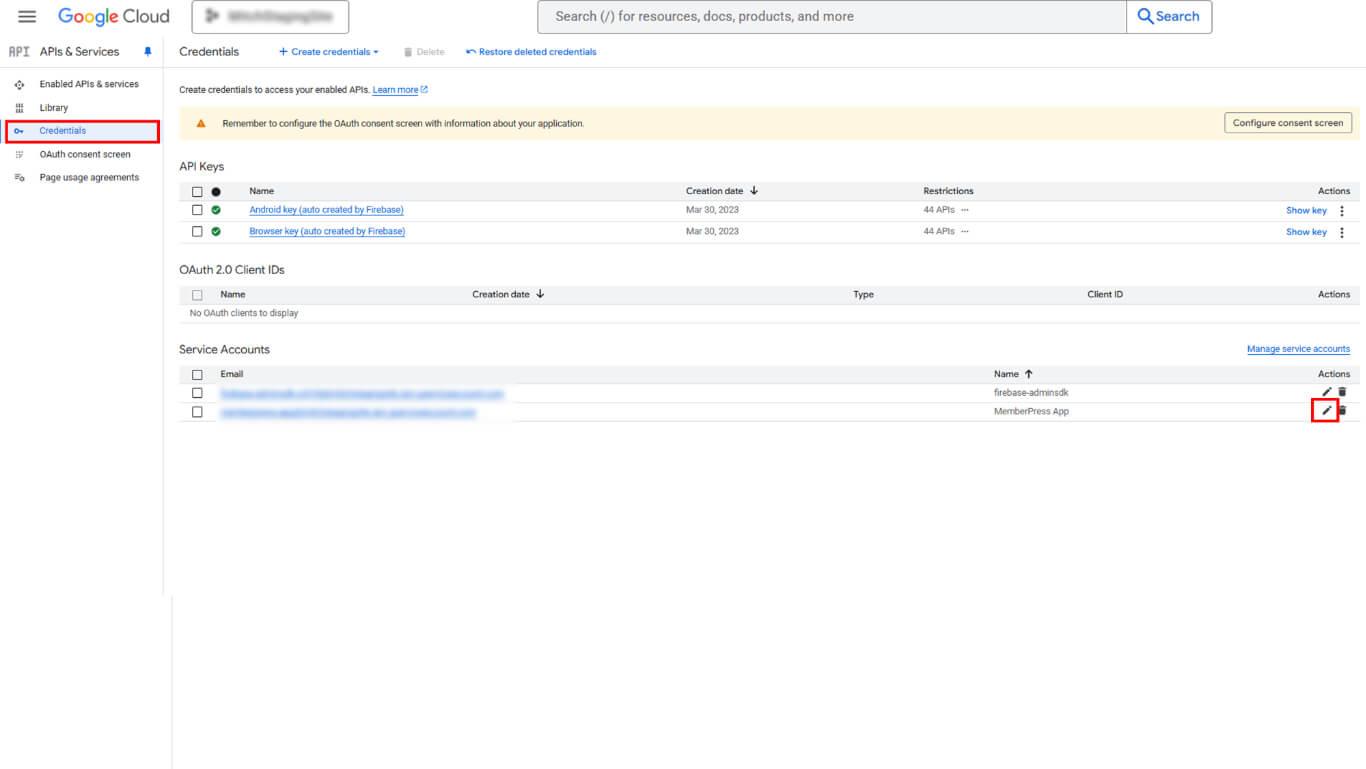
- Naviguez jusqu'à API et services > Références dans la barre latérale de Google Cloud Console.
- Localisez le compte de service créé dans la liste des comptes de service.
- Cliquez sur l'icône en forme de crayon à côté du nom du compte de service.
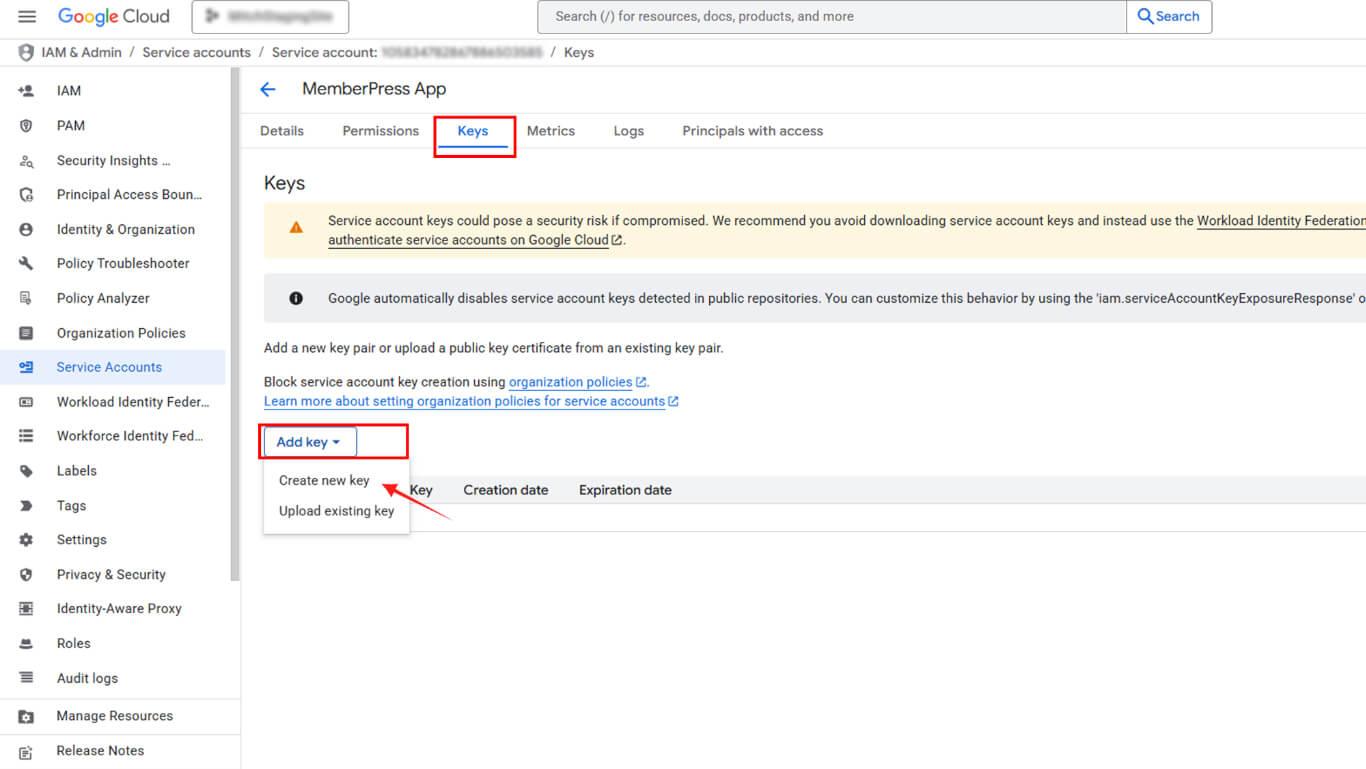
- Cliquez sur le bouton Clés tabulation.
- Cliquez sur le bouton Ajouter une clé liste déroulante.
- Sélectionner Créer une nouvelle clé dans les options.
- Sélectionner JSON comme type de clé.
- Cliquez sur Créer pour générer et télécharger la clé.
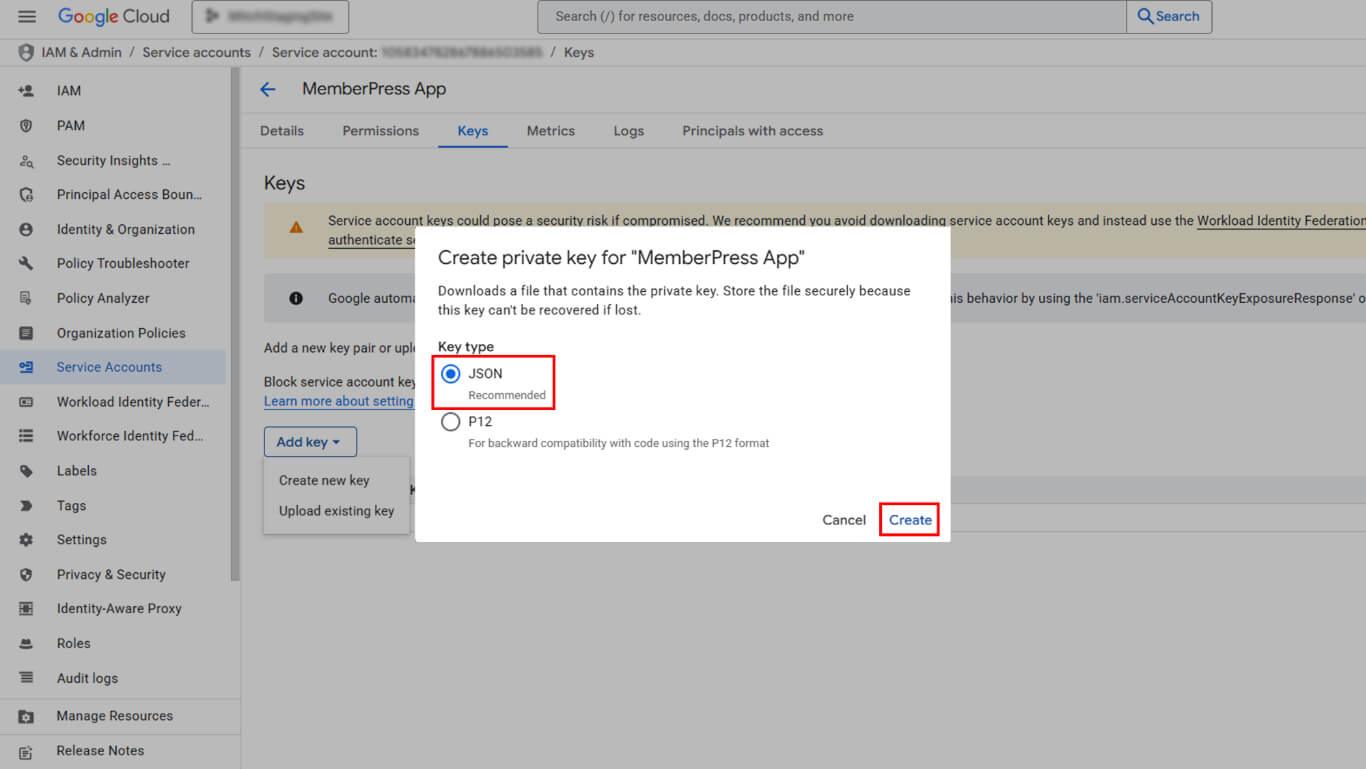
- Sauvegardez le fichier JSON téléchargé en toute sécurité.
- Copier le Courriel du compte de service à partir de la page de détails.
Octroi de permissions à la console de jeu
Les autorisations du compte de service permettent l'accès à la console de jeu pour les opérations automatisées.
- Accédez à la console Google Play à l'adresse suivante play.google.com/console.
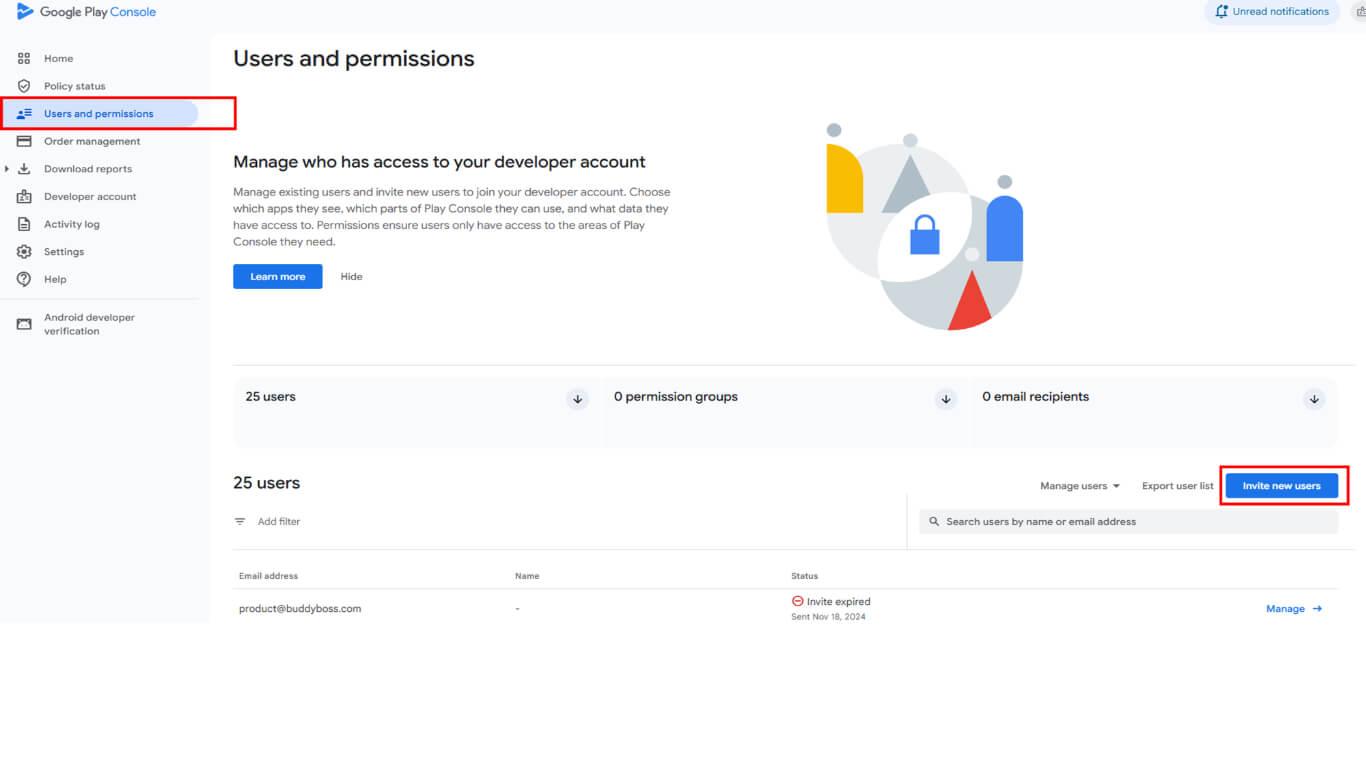
- Cliquez sur Utilisateurs et autorisations dans la barre latérale gauche.
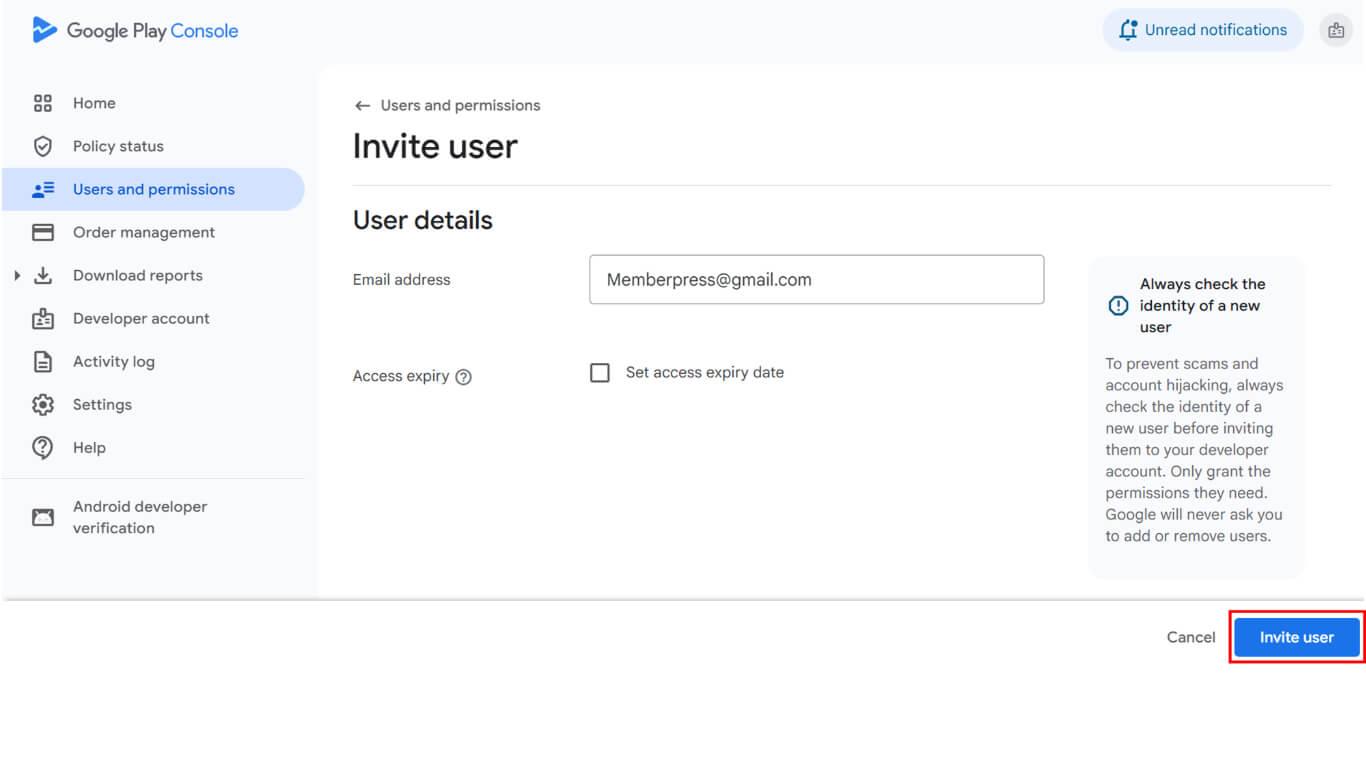
- Cliquez sur le bouton Inviter de nouveaux utilisateurs bouton.
- Collez l'email du compte de service dans le champ Adresse électronique domaine.
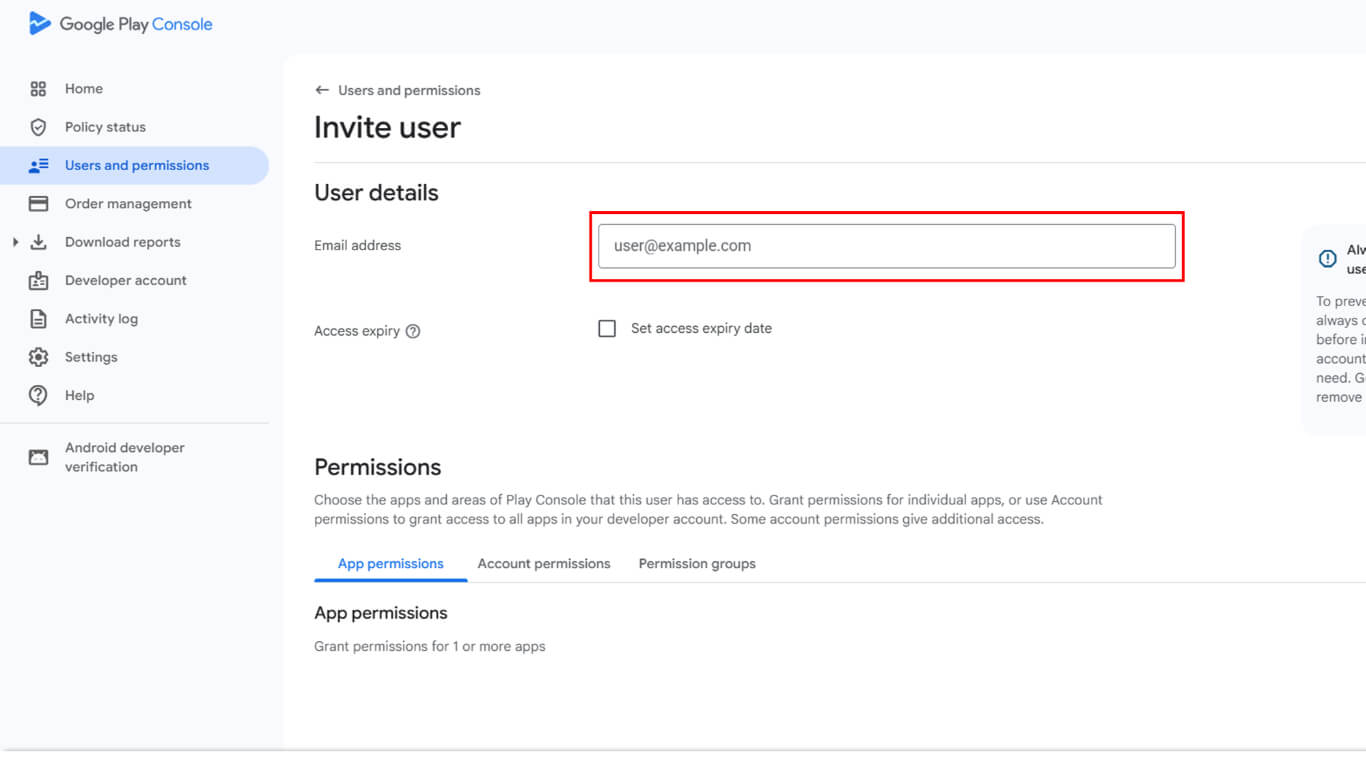
- Faites défiler vers le bas jusqu'à la rubrique Permissions d'utilisation section.
- Cliquez sur Ajouter une application pour sélectionner les applications accessibles.
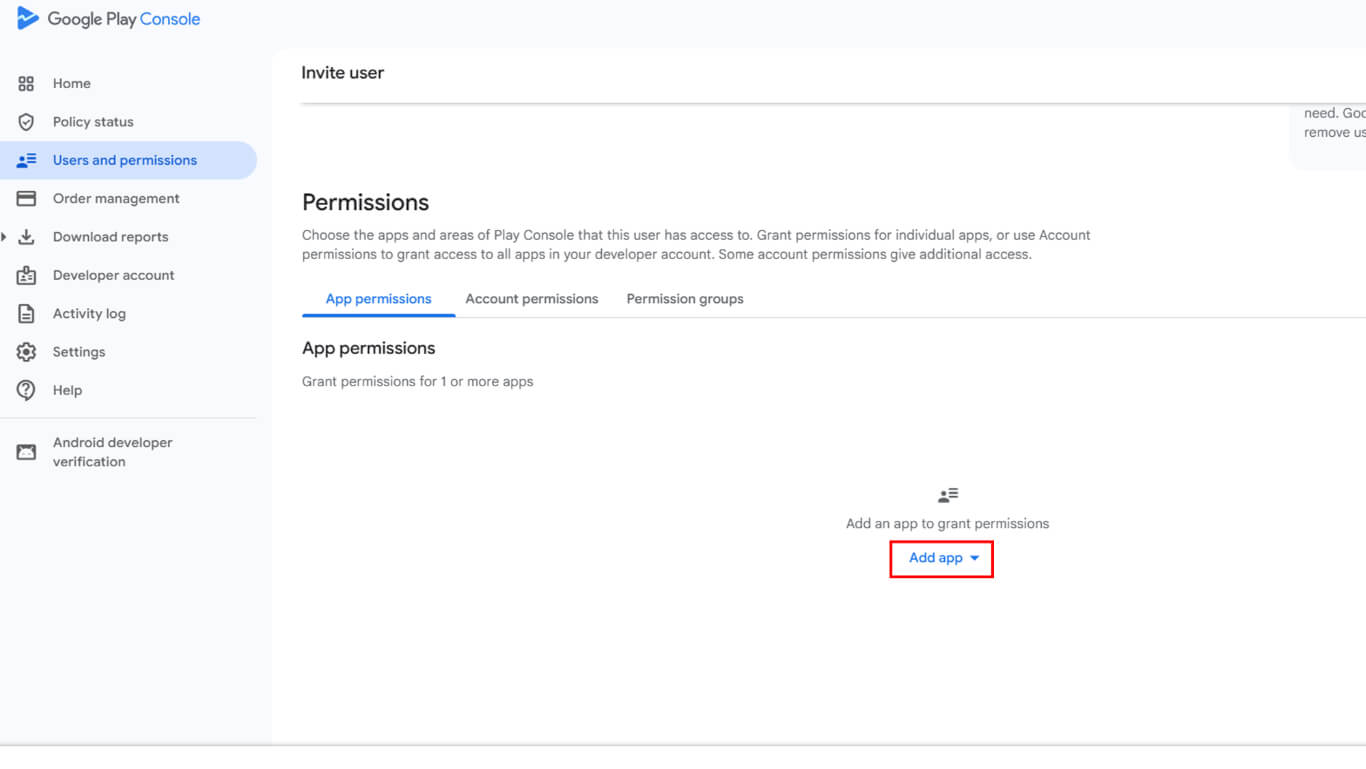
- Sélectionnez l'application dans la liste des applications disponibles.
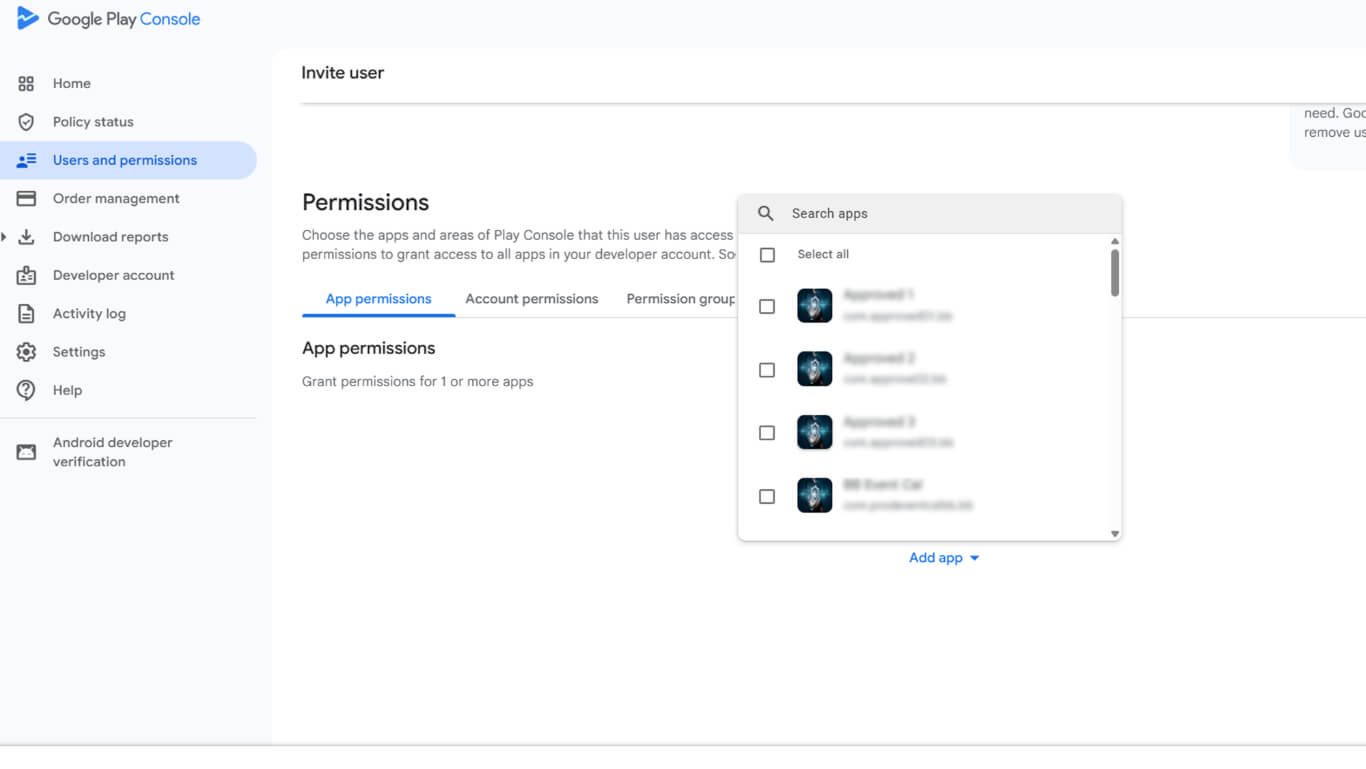
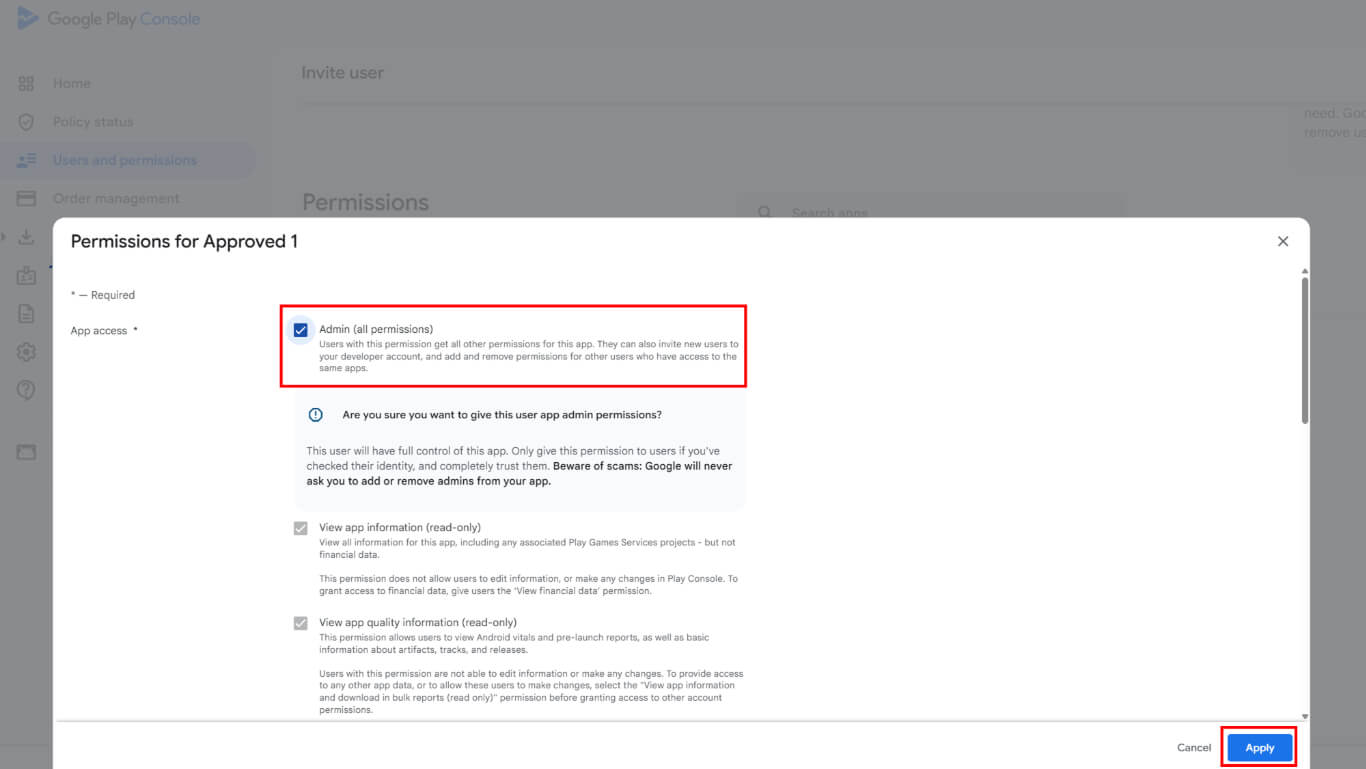
- Cliquez sur Appliquer pour confirmer la sélection de l'application.
- Sélectionner Administrateur sous Autorisations du compte pour un accès complet.
- Cliquez sur Inviter un utilisateur envoyer l'invitation.
- Naviguez jusqu'à Utilisateurs de ce groupe section.
- Ajouter l'utilisateur du compte de service au groupe.
- Vérifiez que le compte de service apparaît avec un Actif dans la liste des utilisateurs.
Téléchargement de la clé du compte de service sur WordPress
Le téléchargement de la clé du compte de service permet de connecter le compte Google Developer à WordPress.
- Naviguez jusqu'à Tableau de bord > MP AppKit > Configurer > Paramètres Android.
- Localiser le Connectez votre compte développeur Google section.
- Cliquez sur Télécharger le fichier pour ouvrir le sélecteur de fichiers.
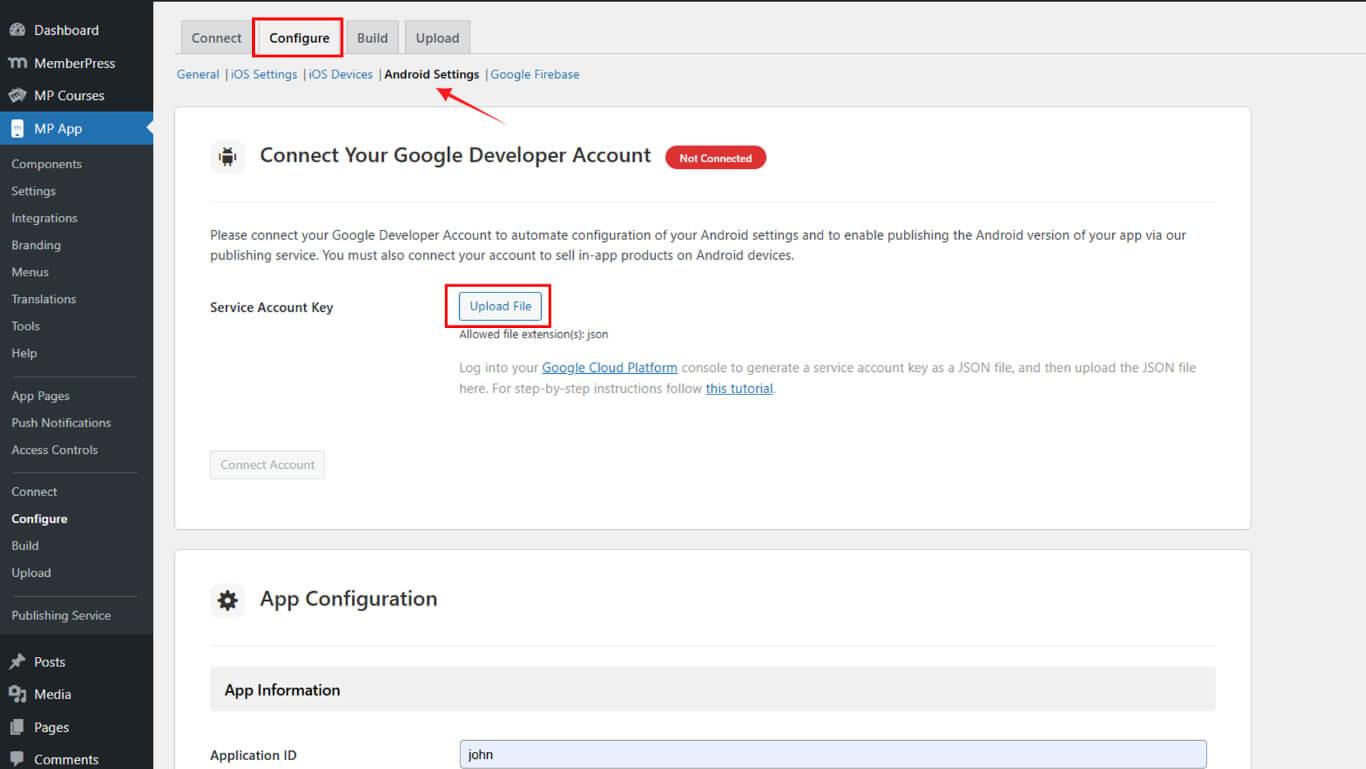
- Sélectionnez le fichier de clé JSON téléchargé depuis l'appareil.
- Cliquez sur Connecter le compte pour établir une connexion.
- Vérifier la couleur verte Connecté apparaît.
L'état connecté confirme la réussite de l'intégration avec le compte Google Developer.
Mise en place de tests internes
La configuration de test interne permet de tester l'application avant sa diffusion publique.
Naviguer vers les tests internes
- Accédez à la console Google Play à l'adresse suivante play.google.com/console.
- Sélectionnez l'application sur la page d'accueil.
- Cliquez sur Test et publication > Test interne dans la barre latérale.
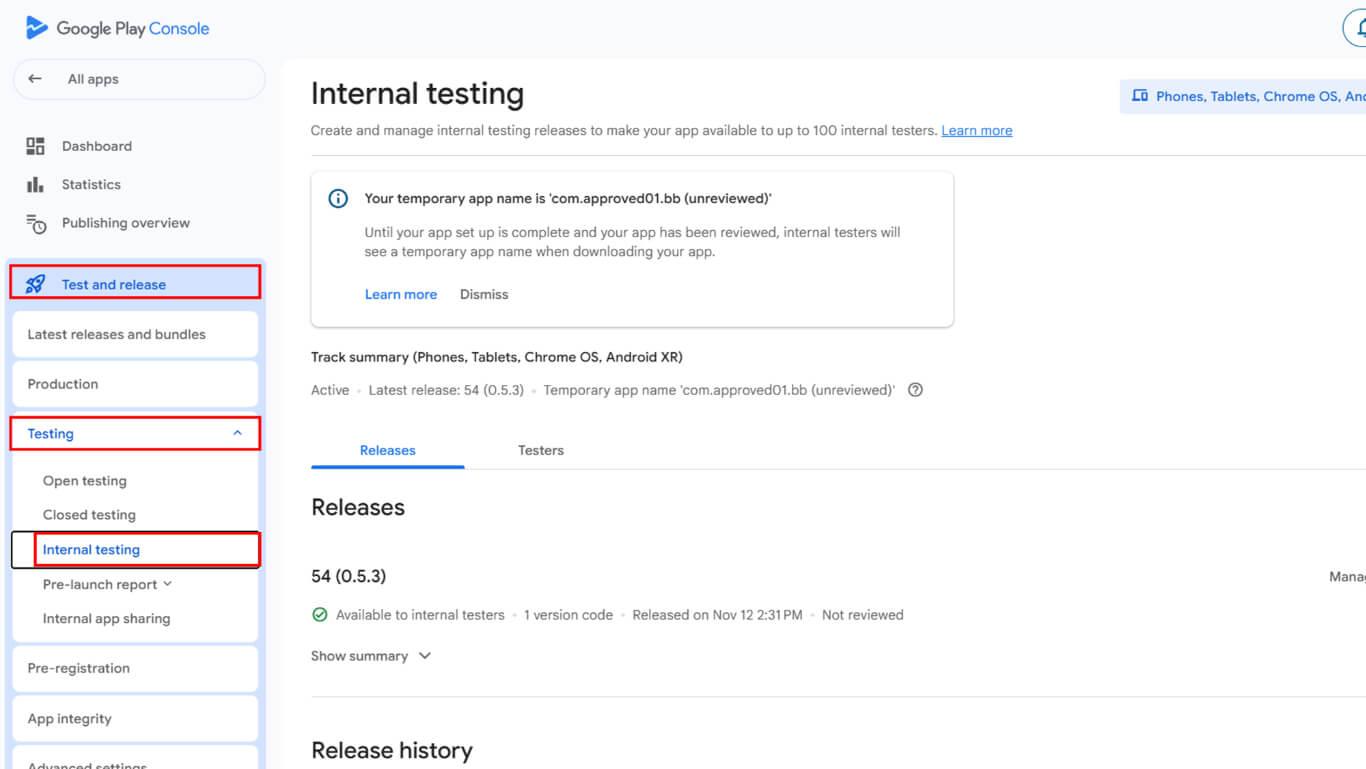
- Cliquez sur Créer une nouvelle piste si aucune piste n'existe.
- Ajoutez les adresses électroniques des testeurs ou les groupes Google dans la section des testeurs.
- Saisissez une URL de retour d'information ou une adresse électronique pour les rapports de bogues.
- Cliquez sur Économiser pour finaliser la configuration de la piste d'essai.
Création d'une nouvelle version
La création de la version prépare l'application à être distribuée aux testeurs.
- Naviguez jusqu'à Tests > Tests internes dans Google Play Console.
- Cliquez sur le bouton Créer une nouvelle version bouton.
- Localiser le Signature de l'application section.
- Cliquez sur Choisir la clé de signature.
- Sélectionnez l'option Utiliser la clé générée par Google option.
- Confirmez la sélection de la clé de signature.
Google Play signe toutes les versions à l'aide de la clé générée après confirmation de la sélection.
Demande de construction d'un OAA
La demande de construction de l'ensemble d'applications Android se fait par l'intermédiaire de l'interface de construction de WordPress.
- Naviguez jusqu'à Tableau de bord > MP AppKit > Construire.
- Cliquez sur le bouton Demander une compilation bouton.
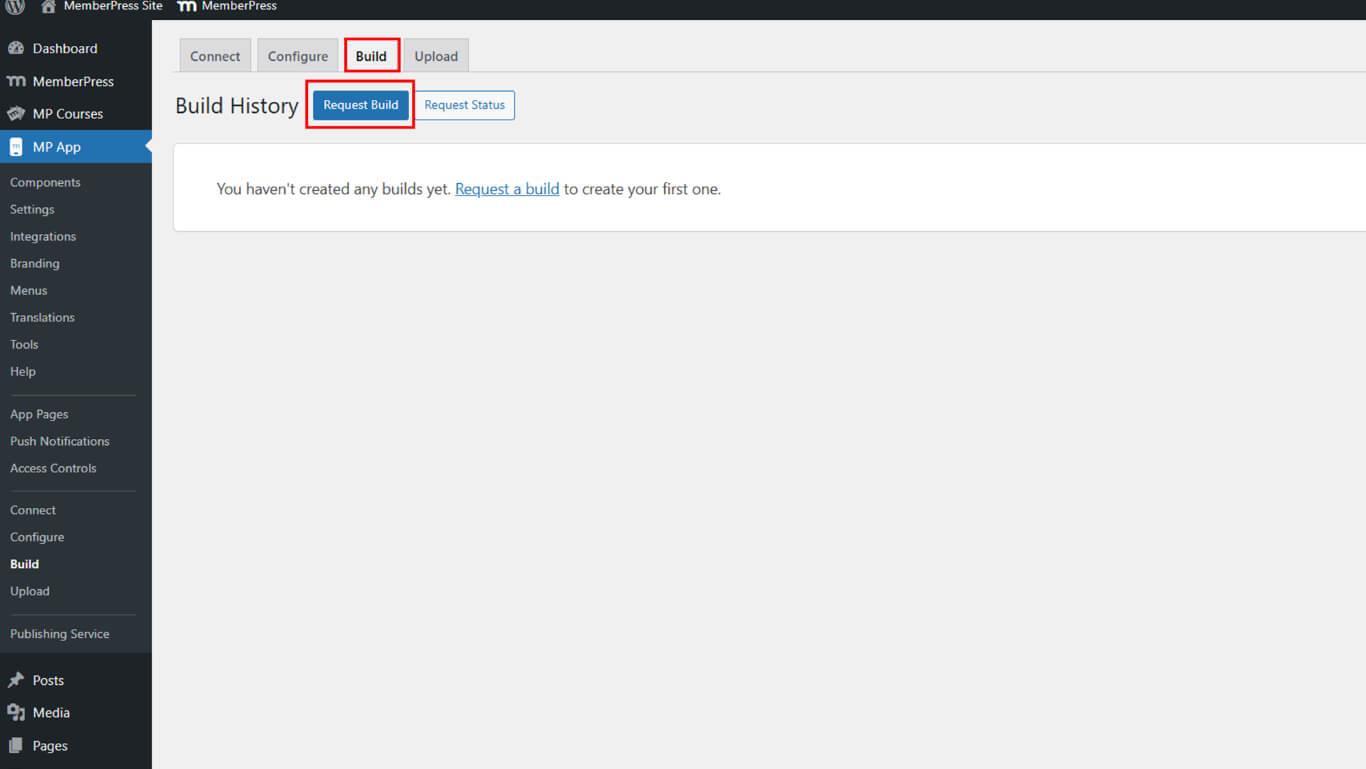
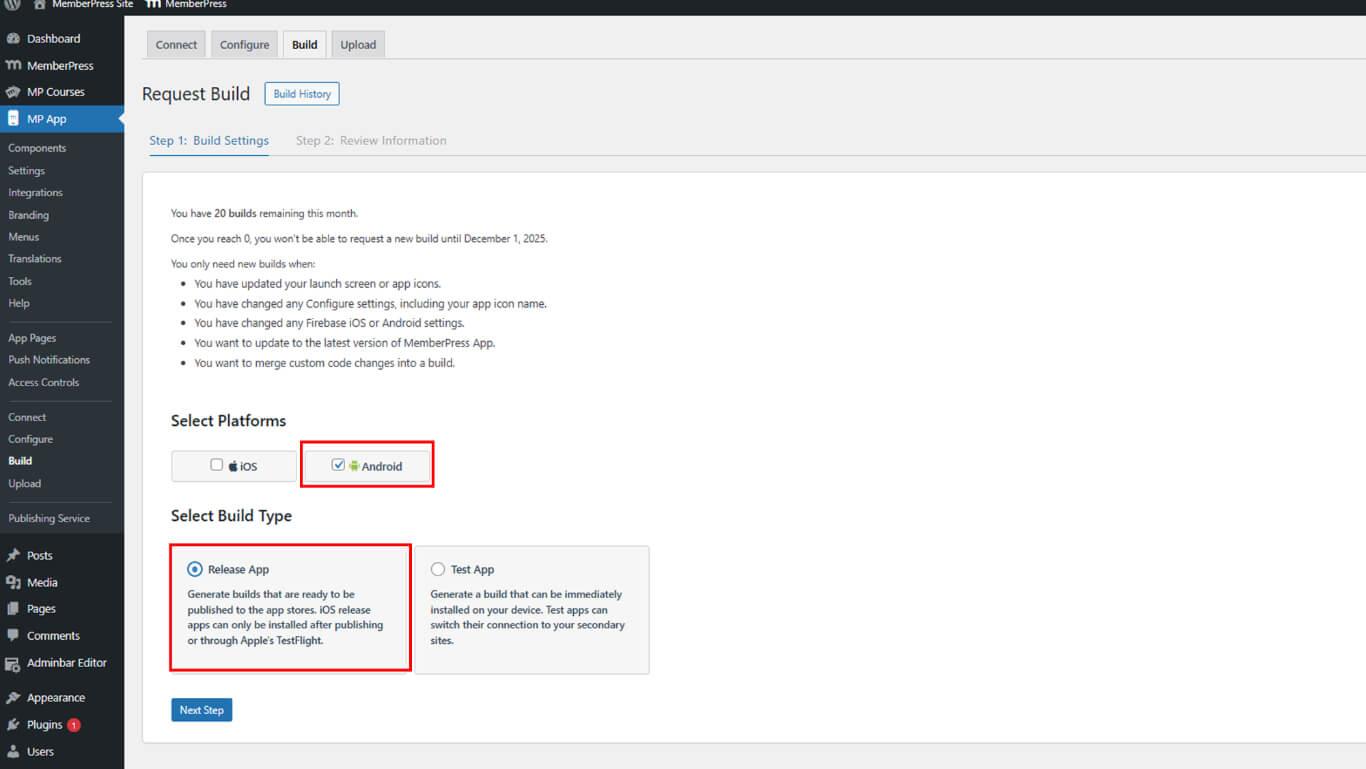
- Vérifier le Android case à cocher comme plateforme.
- Sélectionner Lancer l'application comme type de construction.
- Cliquez sur Prochaine étape de procéder.
- Cliquez sur Envoyer une demande de construction pour soumettre la demande.
- Contrôler le statut de la demande sous Historique de construction.
La construction est généralement terminée dans les 5 à 10 minutes suivant la soumission de la demande.
Téléchargement de l'AAB sur la console de jeu
Le téléchargement du fichier AAB vers la Play Console achève la préparation de la version.
- Naviguez jusqu'à la page Créer un communiqué dans la console Google Play.
- Faites défiler jusqu'à la Offres groupées d'applications section.
- Cliquez sur Télécharger pour ouvrir la sélection de fichiers.
- Naviguez jusqu'à Tableau de bord > MP AppKit > Construire > Historique de la construction dans WordPress.
- Cliquez sur Télécharger vers Google Play Console à côté de la construction achevée.
- Cliquez sur Télécharger la construction pour enregistrer le fichier AAB.
- Retournez à la boîte de dialogue de téléchargement de la console Google Play.
- Sélectionnez le fichier AAB téléchargé depuis l'appareil.
- Attendre la fin du téléchargement.
- Vérifier que le paquet d'applications téléchargé apparaît dans la version.
Remplir les déclarations obligatoires
Les déclarations de métadonnées doivent être complétées avant la publication.
- Examinez les messages d'erreur affichés concernant les métadonnées.
- Cliquez sur Déclaration complète pour répondre aux besoins.
- Accédez à la page de déclaration des identifiants publicitaires.
- Réponse Oui à “Does your app use advertising ID ?”, le cas échéant.
- Cliquez sur Économiser pour stocker la déclaration.
- Revenir à l'écran de validation.
- Cliquez sur Économiser pour finaliser la diffusion.
Les déclarations complétées permettent la publication de la mise en circulation sur le circuit de test interne.










 FR
FR  EN
EN  ES
ES  DE
DE  PT
PT 