

Les réseaux de diffusion de contenu (CDN) améliorent les performances des applications en diffusant les fichiers multimédias par l'intermédiaire de serveurs périphériques répartis dans le monde entier. Cette approche réduit la charge des serveurs et accélère la diffusion du contenu pour les utilisateurs du monde entier.
Ce document explique comment activer l'API CDN, configurer les paramètres CDN et optimiser la diffusion des médias dans l'application MP.
Comprendre l'API CDN
API CDN achemine les fichiers multimédias tels que les images, les documents et les vidéos via des serveurs CDN plutôt que via le serveur d'hébergement de WordPress. La première requête télécharge les médias vers le CDN, et les requêtes suivantes servent le contenu du domaine CDN. Ce processus réduit la latence et améliore les temps de chargement pour les utilisateurs de l'application.
Conditions préalables
Avant de configurer l'API CDN, assurez-vous que les conditions suivantes sont remplies :
- MemberPress AppKit plugin installés et activés ;
- Service CDN actif (CloudFront, StackPath, BunnyCDN ou autre fournisseur similaire) ;
- URL de base du CDN obtenue auprès du fournisseur de services CDN ;
- Accès à l'administration de WordPress pour gérer les paramètres du plugin.
Activation du composant de performances API
Le composant API Performance doit être activé avant que la configuration du CDN puisse commencer.
- Naviguez jusqu'à Tableau de bord > MP AppKit > Composants.
- Localiser Performances de l'API dans la liste des composants.
- Cliquez sur Activer..
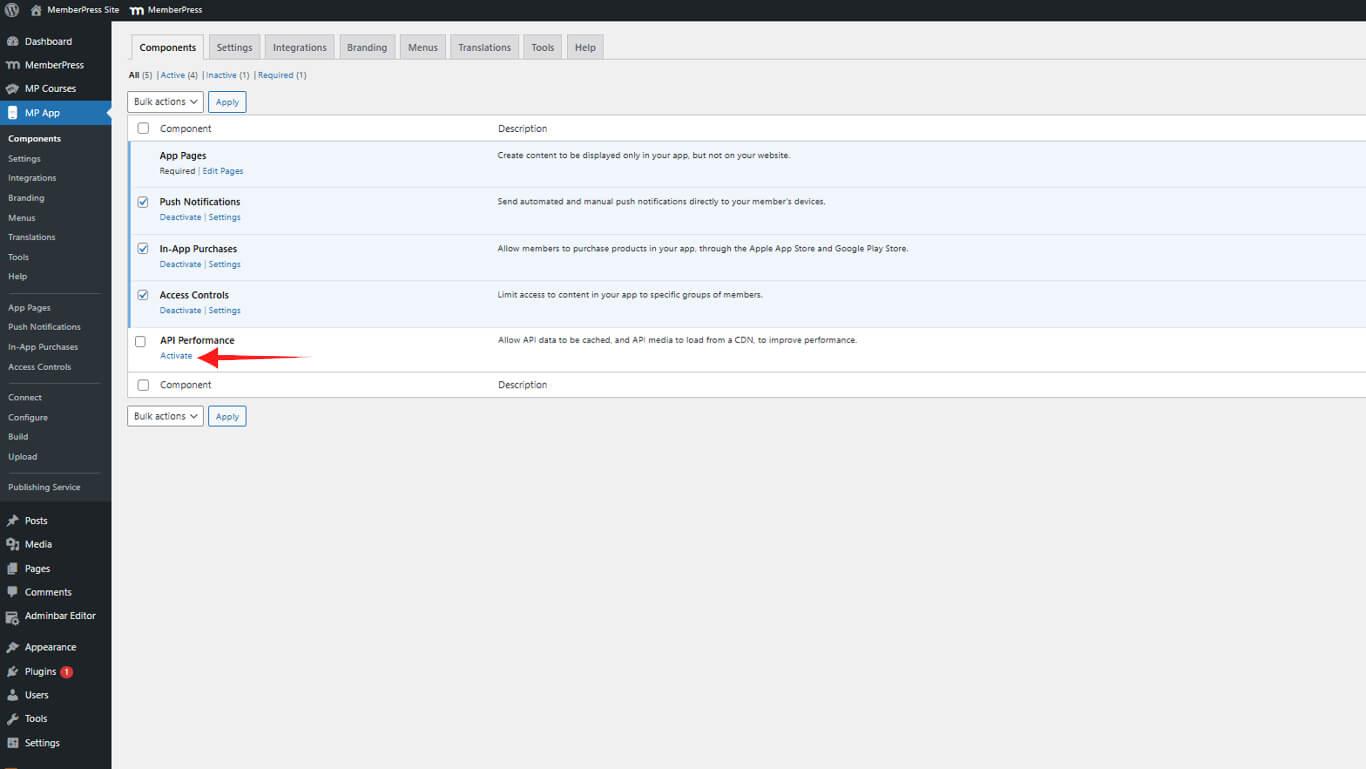
Le composant API Performance offre des fonctions d'optimisation, y compris l'intégration CDN et des capacités de mise en cache.
Configuration des paramètres du CDN
La configuration du CDN nécessite l'URL de base fournie par le fournisseur de services CDN.
- Naviguez jusqu'à Tableau de bord > MP AppKit > Paramètres > API CDN.
- Vérifier le Activer l'API CDN case à cocher.
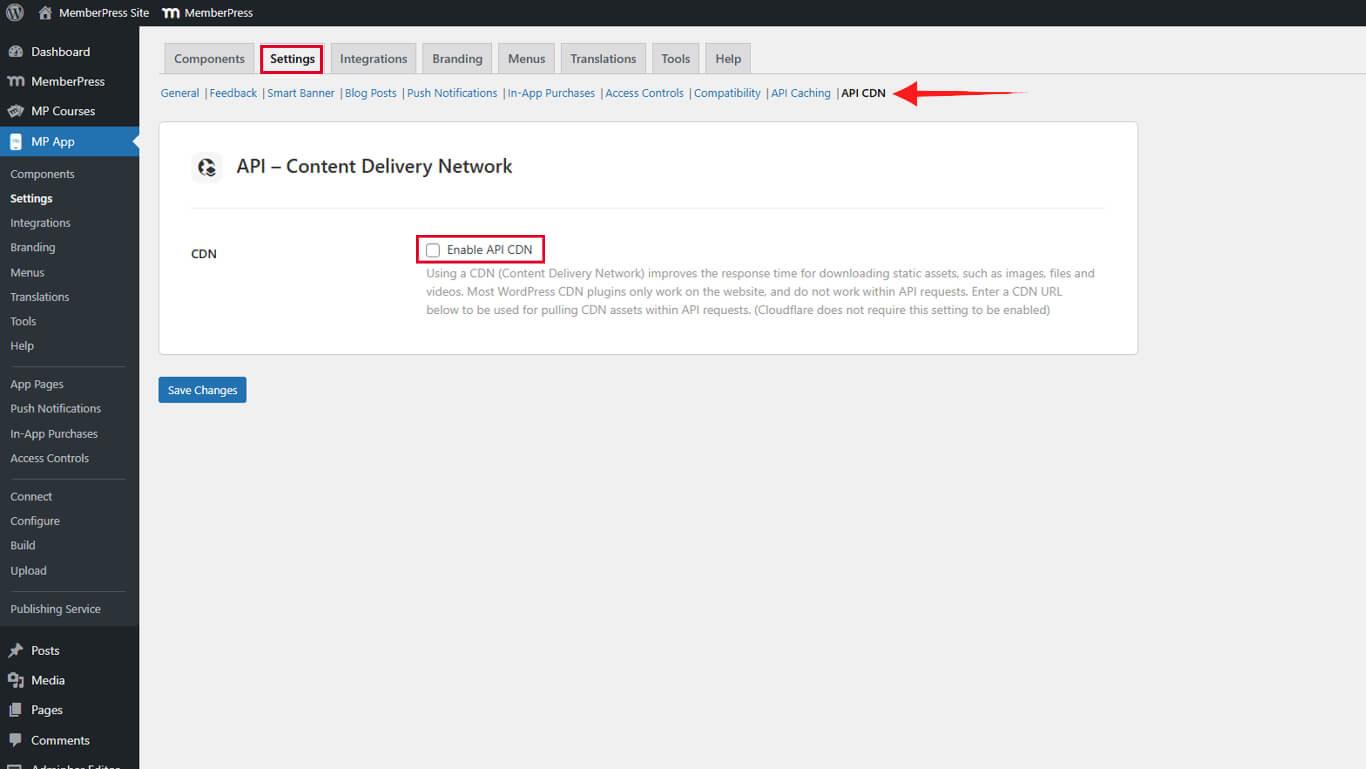
- Saisissez l'URL de base du CDN dans le champ URL de base du CDN sans barre oblique.
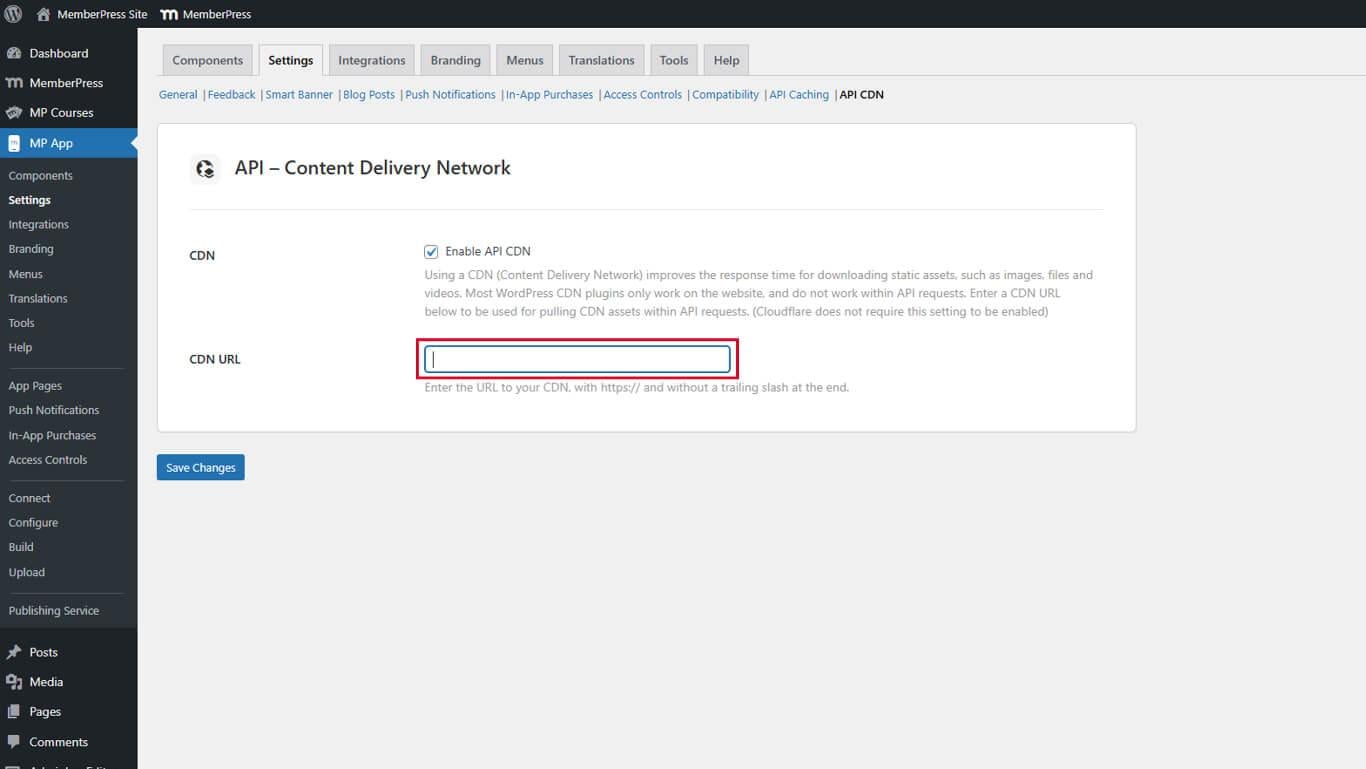
- Cliquez sur Enregistrer les modifications.
Exemple d'URL de base de CDN :
- CloudFront : https://d123456789abcd.cloudfront.net;
- StackPath : https://cdn.example.stackpathcdn.com;
- BunnyCDN : https://example.b-cdn.net.
Comprendre la diffusion de médias par CDN
API CDN traite les demandes de médias par le biais d'un système de diffusion en deux étapes qui optimise les performances après l'installation initiale.
Processus de première demande
Lorsqu'un utilisateur demande pour la première fois un contenu multimédia, la séquence suivante se produit :
- L'application envoie une requête au site WordPress pour obtenir le fichier multimédia.
- Le site WordPress récupère les médias à partir du stockage local.
- Le fichier multimédia est automatiquement téléchargé vers le CDN.
- Le CDN renvoie le média à l'utilisateur.
Cette demande initiale peut être soumise à des temps de chargement standard lorsque les médias sont téléchargés sur le CDN.
Processus de demande ultérieure
Après le téléchargement initial, les demandes ultérieures suivent un chemin optimisé :
- L'application demande les médias directement au domaine CDN.
- Le CDN sert les médias mis en cache à partir du serveur périphérique le plus proche.
- Les utilisateurs bénéficient de temps de chargement plus rapides grâce à la livraison de proximité.
Le CDN met en cache les fichiers multimédias en fonction des paramètres de durée de cache configurés dans le service CDN.
Optimiser les performances avec la mise en cache de l'API
La mise en cache de l'API complète la fonctionnalité CDN en réduisant les requêtes de base de données et en accélérant les temps de réponse de l'API. La combinaison de ces deux fonctionnalités maximise les performances de l'application.
- Naviguez jusqu'à Tableau de bord > MP AppKit > Paramètres > Mise en cache de l'API.
- Configurer les paramètres du cache en fonction du contenu.
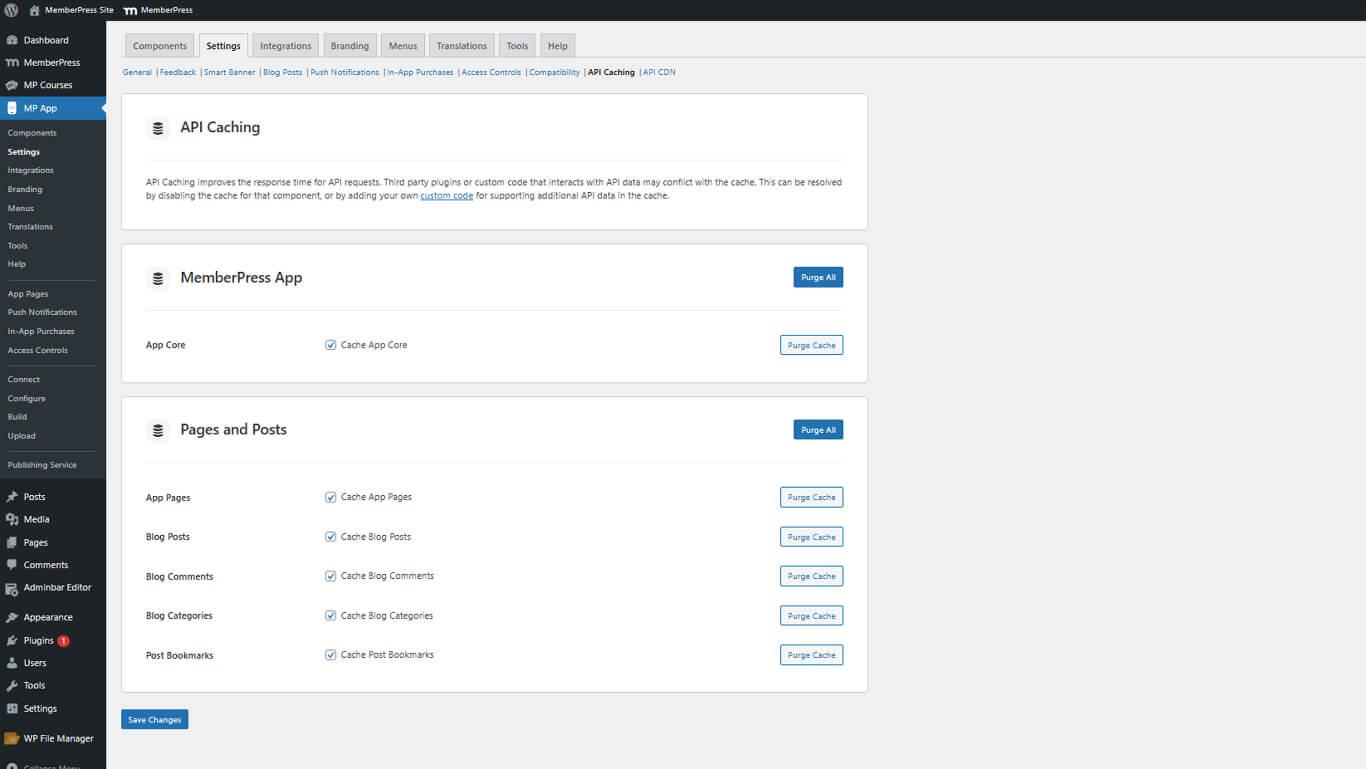
- Cliquez sur Enregistrer les modifications.
Les paramètres de mise en cache doivent permettre d'équilibrer les gains de performance et les exigences de fraîcheur du contenu. Examinez les paramètres de mise en cache de l Guide de configuration de la mise en cache de l'API pour les stratégies d'optimisation.










 FR
FR  EN
EN  ES
ES  DE
DE  PT
PT 