

Les applications de test Android permettent de tester et de développer rapidement l'application Android MemberPress sans avoir à la soumettre au Google Play Store. Les versions de test incluent la configuration du site, l'image de marque, les menus et le code personnalisé des dépôts GitHub.
Ce document explique comment filtrer les applications de test Android, les installer via un code QR et vérifier que l'installation s'est déroulée correctement.
Comprendre les applications de test Android
Les applications de test Android constituent une méthode d'installation rapide pour les activités de développement et d'assurance qualité. Les applications de test s'installent directement via un code QR sans passer par les processus de distribution ou d'approbation de Google Play.
Déploiement rapide permet de tester immédiatement les changements de configuration et les mises à jour. Les versions de test sont générées en quelques minutes, ce qui permet des cycles d'itération rapides pendant le développement.
Installation du code QR simplifie la distribution aux testeurs et aux parties prenantes. L'installation directe permet d'éviter les délais de soumission à l'app store et les exigences d'approbation.
Inclusion de la configuration intègre tous les paramètres du site, la marque et les configurations des menus. Les versions de test reflètent la configuration actuelle de WordPress au moment de la génération de la version de test.
Intégration de codes personnalisés inclut les personnalisations et les modifications liées à GitHub. Les versions de test compilent les modifications du code personnalisé pour validation avant le déploiement en production.
Achats simulés utiliser des prix fictifs sans traiter de transactions réelles. L'environnement de test permet de vérifier le flux d'achat sans implications financières.
Filtrage des applications de test Android
Le filtrage des builds permet de localiser des builds spécifiques de l'application de test dans l'historique des builds.
- Naviguez jusqu'à Tableau de bord > MP AppKit > Construire > Historique de la construction.
- Repérez les options de filtrage en haut de la page de l'historique de la construction.
- Sélectionner Application Android et test dans les options de la plate-forme.
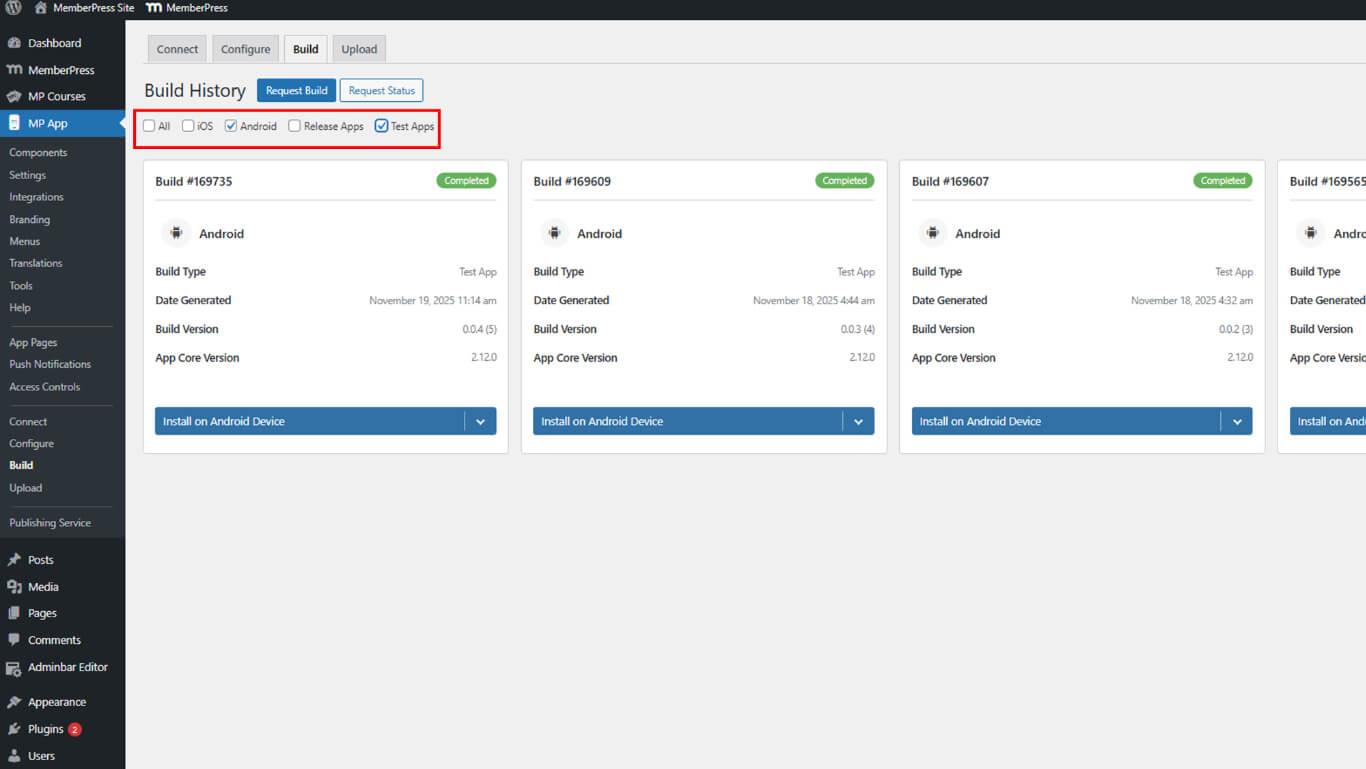
- Examinez la liste de builds filtrée qui n'affiche que les builds de l'application de test Android.
Les cartes de construction affichent des informations complètes sur la construction à des fins d'identification et de sélection.
Comprendre les informations relatives à la carte de crédit
Les cartes de construction fournissent des informations essentielles pour l'identification de la construction et la vérification de son statut.
Numéro de construction identifie des constructions spécifiques à l'aide d'identifiants séquentiels uniques. Les numéros de construction permettent une référence précise dans la communication et la documentation.
Indicateur d'état indique l'état actuel de la compilation, par exemple Complet ou Échec. La confirmation de l'état garantit que seules les versions réussies sont sélectionnées pour l'installation.
Type de plate-forme affiche les versions Android pour Android, en les distinguant des versions iOS. L'identification de la plateforme empêche les tentatives d'installation sur des appareils incompatibles.
Type de construction indique la classification de l'application de test ou de l'application de mise en production. La classification par type permet de sélectionner les versions appropriées pour les différents scénarios de test.
Horodatage de la date indique la date à laquelle la génération de la compilation s'est achevée. Les informations relatives à la date permettent d'identifier les versions les plus récentes pour l'installation.
Bouton d'installation permet d'accéder directement à l'interface d'installation. Un clic sur le bouton déclenche l'affichage du code QR pour la numérisation de l'appareil.
Installation de l'application Android Test
L'installation de l'application Test est disponible par balayage du code QR et par téléchargement direct.
- Naviguez jusqu'à Tableau de bord > MP AppKit > Construire > Historique de la construction.
- Localisez la version de l'application de test Android souhaitée dans la liste filtrée.
- Vérifier que l'état de la construction indique Compléter.
- Cliquez sur le bouton Installer sur un appareil Android sur la carte de construction.
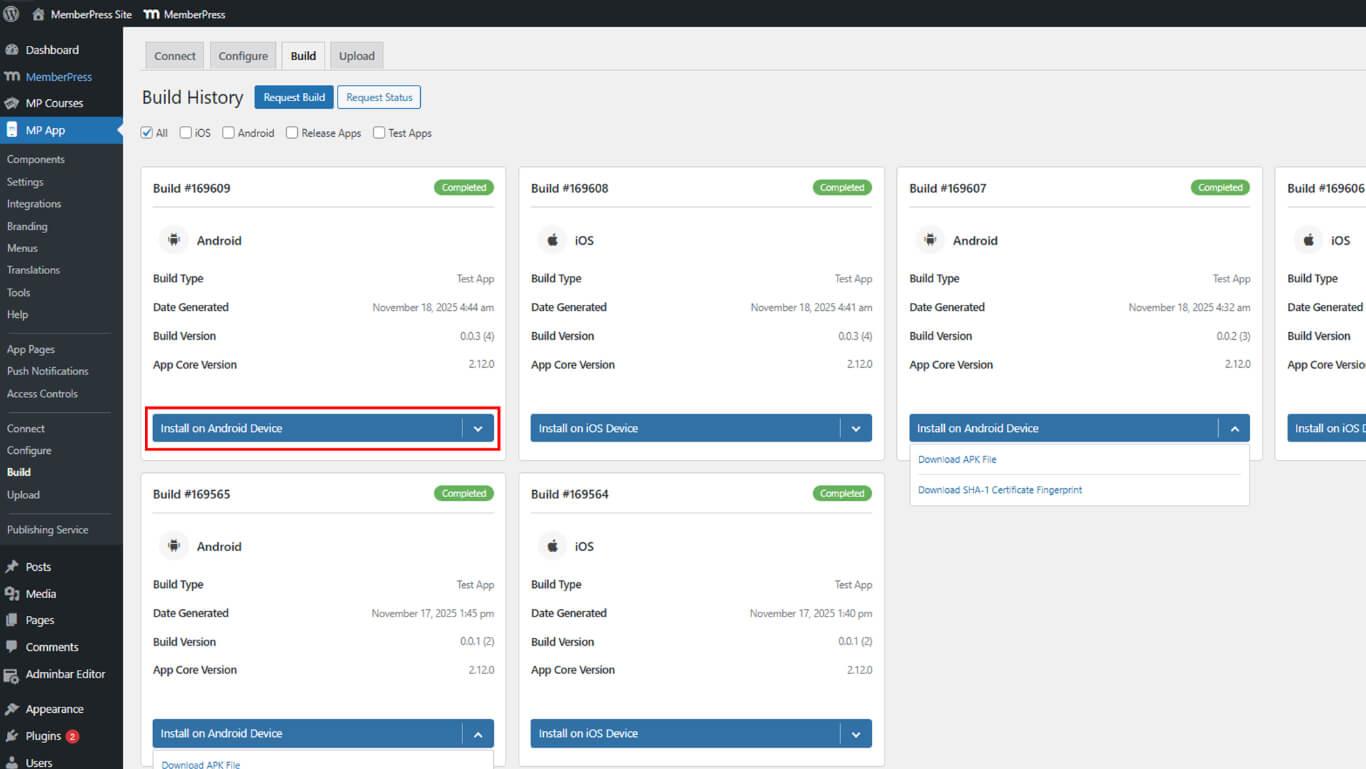
- Le code QR s'affiche dans l'interface pour être scanné.
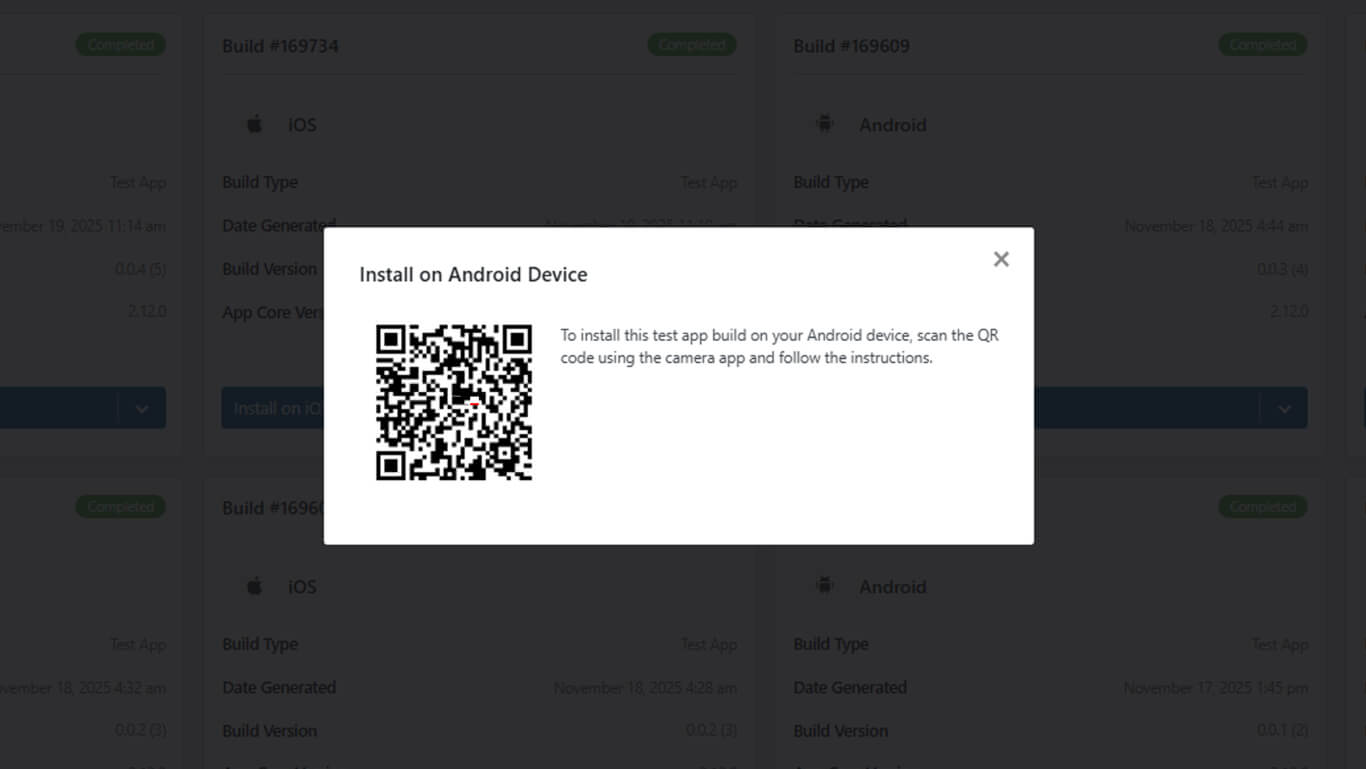
- Ouvrez l'application caméra sur un appareil Android.
- Pointez l'appareil photo sur le code QR affiché.
- Appuyez sur la notification ou le lien qui s'affiche après la numérisation.
- Le navigateur s'ouvre et redirige vers la page de téléchargement.
- Appuyez sur Télécharger la demande sur la page de téléchargement.
- Attendez que le téléchargement du fichier APK soit terminé.
- Appuyez sur Installer lorsque le téléchargement est terminé.
- Accorder les autorisations d'installation si l'appareil le demande.
- Appuyez sur Ouvrir une fois l'installation terminée pour lancer l'application.
Comprendre les exigences en matière d'installation
La réussite de l'installation de l'application de test dépend des paramètres et des autorisations spécifiques de l'appareil.
Autorisation de sources inconnues permet d'installer des applications en dehors du Google Play Store. Pour les appareils Android, ce paramètre doit être activé pour l'installation des applications de test.
Accès aux caméras permet de scanner le code QR pour récupérer le lien de téléchargement. L'autorisation de l'appareil photo doit être accordée à l'application appareil photo de l'appareil.
Autorisation de stockage permet le téléchargement de fichiers APK sur le stockage de l'appareil. Un espace de stockage suffisant doit être disponible pour le téléchargement et l'installation.
Connectivité du réseau permet de télécharger le fichier APK à partir des serveurs de construction. Une connexion WiFi ou de données mobiles doit être active pendant le processus d'installation.
Activation de l'installation de sources inconnues
L'autorisation de source inconnue permet l'installation de l'application Test en dehors du Google Play Store.
- Ouvrir le Paramètres sur un appareil Android.
- Naviguez jusqu'à Sécurité ou Vie privée des paramètres.
- Localiser le Installer des applications inconnues ou Sources inconnues option.
- Sélectionnez une application de navigation utilisée pour la numérisation de codes QR.
- Activer Autoriser à partir de cette source basculer.
- Revenez à la procédure d'installation et poursuivez le téléchargement.
Vérification de l'installation de l'application de test
La vérification de l'installation confirme le succès du déploiement de l'application de test sur l'appareil.
- Localisez l'icône de l'application sur l'écran d'accueil de l'appareil ou dans le tiroir d'applications.
- Vérifier que l'icône de l'application affiche la marque configurée.
- Appuyez sur l'icône de l'application pour la lancer.
- Attendez que l'initialisation et le chargement de l'application soient terminés.
- Vérifier que l'application affiche le contenu et la marque prévus.
- Tester la navigation de base pour confirmer sa fonctionnalité.
- Consultez les paramètres de l'application pour obtenir des informations sur la version de l'application.
Une installation réussie permet de tester et de valider immédiatement les fonctionnalités et la configuration de l'application.










 FR
FR  EN
EN  ES
ES  DE
DE  PT
PT 