

Les traductions de texte permettent de personnaliser le langage et les étiquettes de l'application en fonction des besoins linguistiques de la communauté ou des préférences vocales de la marque. Le panneau des traductions permet de mettre à jour les étiquettes par défaut et le texte de l'interface.
Ce document explique comment trouver, éditer et vérifier les traductions de texte dans l'application.
Comprendre la traduction de textes
La traduction de texte modifie les étiquettes d'interface, les messages et le contenu de l'application. Les traductions peuvent changer la langue ou reformuler le texte pour qu'il corresponde à la voix de la marque. Les modifications de la traduction s'appliquent globalement à tous les écrans de l'application où le texte original apparaît.
Groupe de travail sur les traductions
La configuration des traductions est disponible dans le panneau Traductions à l'adresse suivante Tableau de bord > MP AppKit > Traductions.
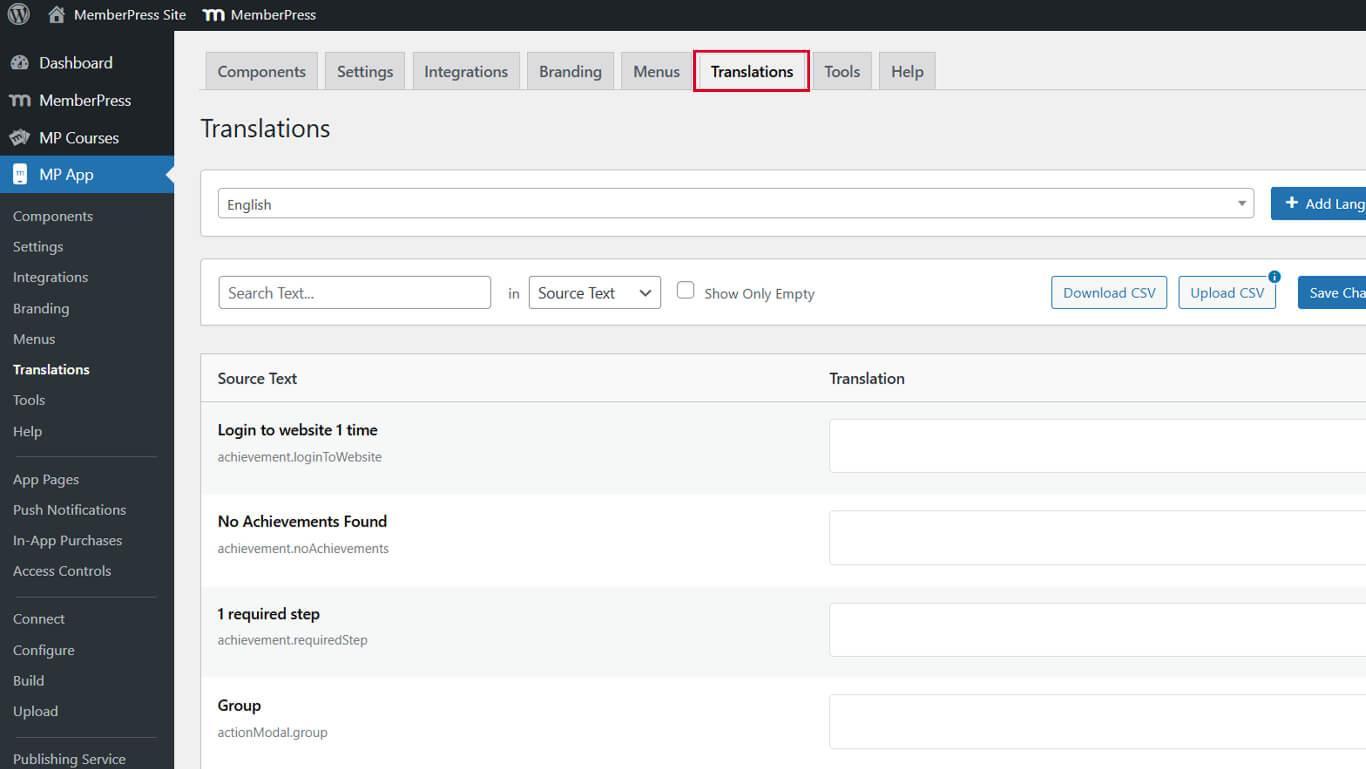
Ici, vous pouvez utiliser l'outil de recherche pour trouver les chaînes de texte disponibles et ajouter ou modifier des traductions.
Recherche de chaînes de texte
La recherche textuelle permet d'identifier les chaînes de caractères spécifiques qui nécessitent une traduction ou une personnalisation.
- Naviguez jusqu'à Tableau de bord > MP AppKit > Traductions.
- Saisir un mot ou une phrase dans la barre de recherche au sommet.
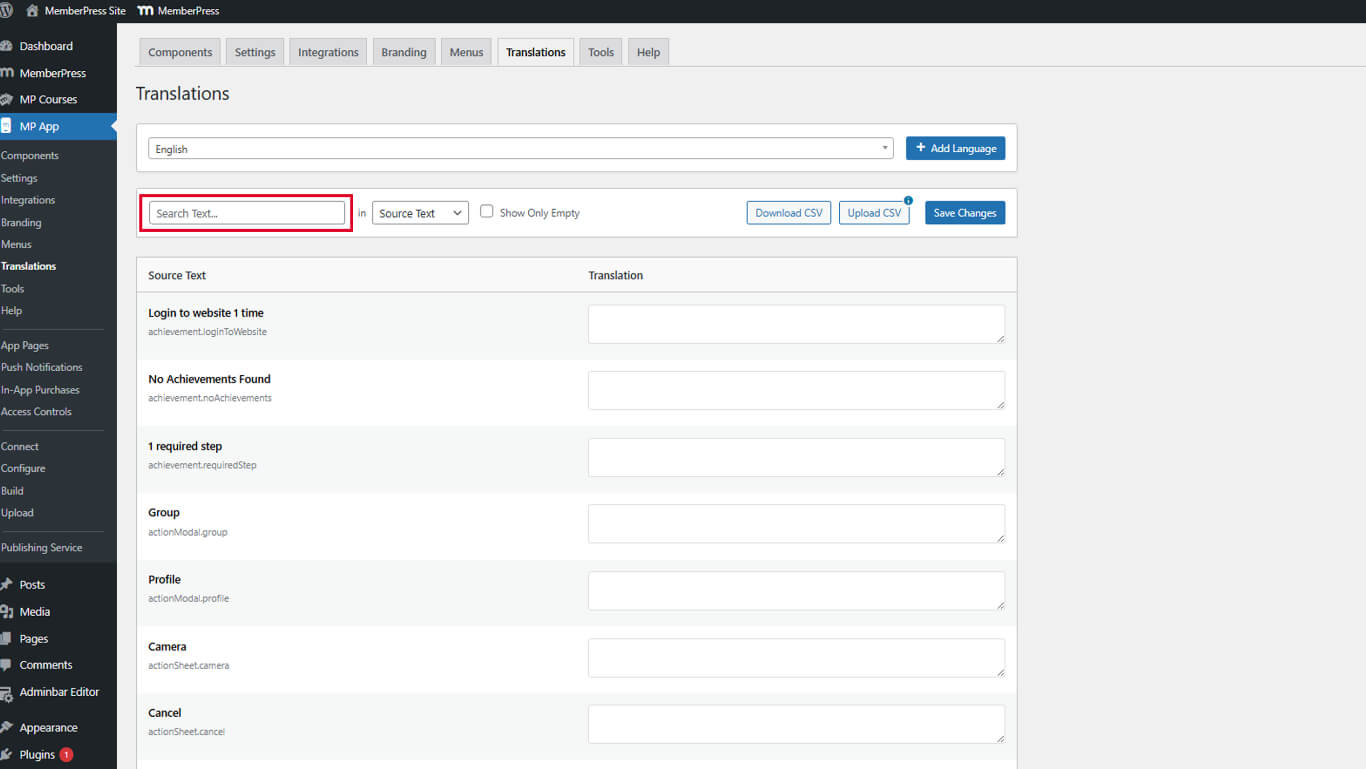
- Examinez la liste filtrée des chaînes contenant le terme recherché.
- Identifier les chaînes de caractères pertinentes nécessitant une traduction ou une modification.
Les résultats de la recherche affichent toutes les occurrences du terme dans l'application.
Ajout de traductions
Les champs de traduction acceptent un texte personnalisé dans n'importe quelle langue ou un libellé modifié.
- Naviguez jusqu'à Tableau de bord > MP AppKit > Traductions.
- Localiser la chaîne de caractères que vous souhaitez traduire.
- Cliquez dans le champ de traduction à côté du texte original.
- Saisir la traduction ou tout autre texte personnalisé.
- Cliquez sur Enregistrer les modifications pour appliquer la traduction.
- Répétez les étapes 2 à 5 pour toutes les chaînes que vous souhaitez traduire.
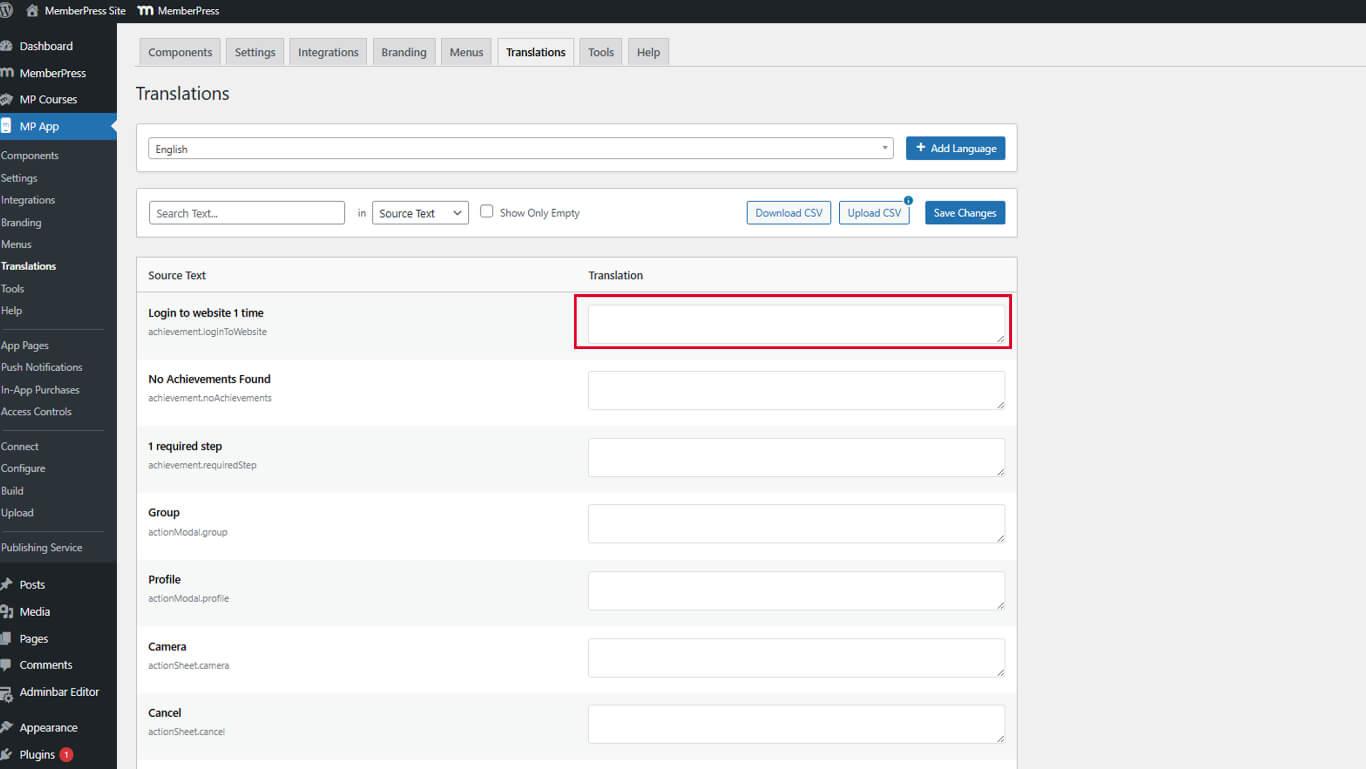
Les traductions permettent de changer la langue ou d'ajuster la formulation pour qu'elle corresponde à la voix de la marque.
Vérification des traductions dans l'application mobile
La vérification de la traduction confirme l'affichage correct sur les écrans de l'application.
- Ouvrez l'application MemberPress iOS/Android sur un appareil mobile.
- Naviguer vers les écrans où le texte traduit doit apparaître.
- Vérifiez que la traduction personnalisée s'affiche à la place du texte original.
- Vérifier que le texte traduit s'insère correctement dans les éléments de l'interface.
- Tester plusieurs écrans pour s'assurer de la cohérence de l'application de la traduction.
Les traductions s'appliquent immédiatement après l'enregistrement et la réouverture de l'application.










 FR
FR  EN
EN  ES
ES  DE
DE  PT
PT 