

Blog-Beiträge binden das Publikum ein, präsentieren Fachwissen und erhöhen die Mitgliederbindung in mobilen Anwendungen. Mit MemberPress AppKit können Sie Blog-Inhalte optimiert für mobile Geräte anzeigen.
In diesem Dokument wird erläutert, wie Sie die Blog-Seite zu App-Menüs hinzufügen, Blog-Beiträge erstellen und Inhalte für die mobile Anzeige optimieren.
Die Funktionsweise von Blogs verstehen
Die Blog-Funktion zeigt WordPress-Beiträge innerhalb der App-Oberfläche an. Mitglieder können über spezielle Navigationselemente in der Tab-Leiste oder im Menü „Mehr“ auf Blog-Inhalte zugreifen. In WordPress erstellte Beiträge werden automatisch im Blog-Bereich der App angezeigt. Ausgewählte Bilder und die Formatierung der Inhalte verbessern das Leseerlebnis auf Mobilgeräten.
Überprüfen Sie die Erstellen mehrerer Menüversionen Dokumentation für erweiterte Menükonfigurationsoptionen.
Hinzufügen der Blog-Seite zur Navigation der mobilen App
Die Blog-Seite muss zur App-Navigation hinzugefügt werden, bevor Mitglieder auf Blog-Inhalte zugreifen können.
Hinzufügen eines Blog-Menüelements zur Registerkartenleiste
- Navigieren Sie zu Dashboard > MP AppKit > Menüs > Registerkartenleiste.
- Suchen Sie die App-Kern Abschnitt im Bereich „Verfügbare Elemente“.
- finden. Blog in der App Core-Liste.
- Aktivieren Sie das Kontrollkästchen neben „Blog“.
- Klicken Sie auf Zum Menü hinzufügen.
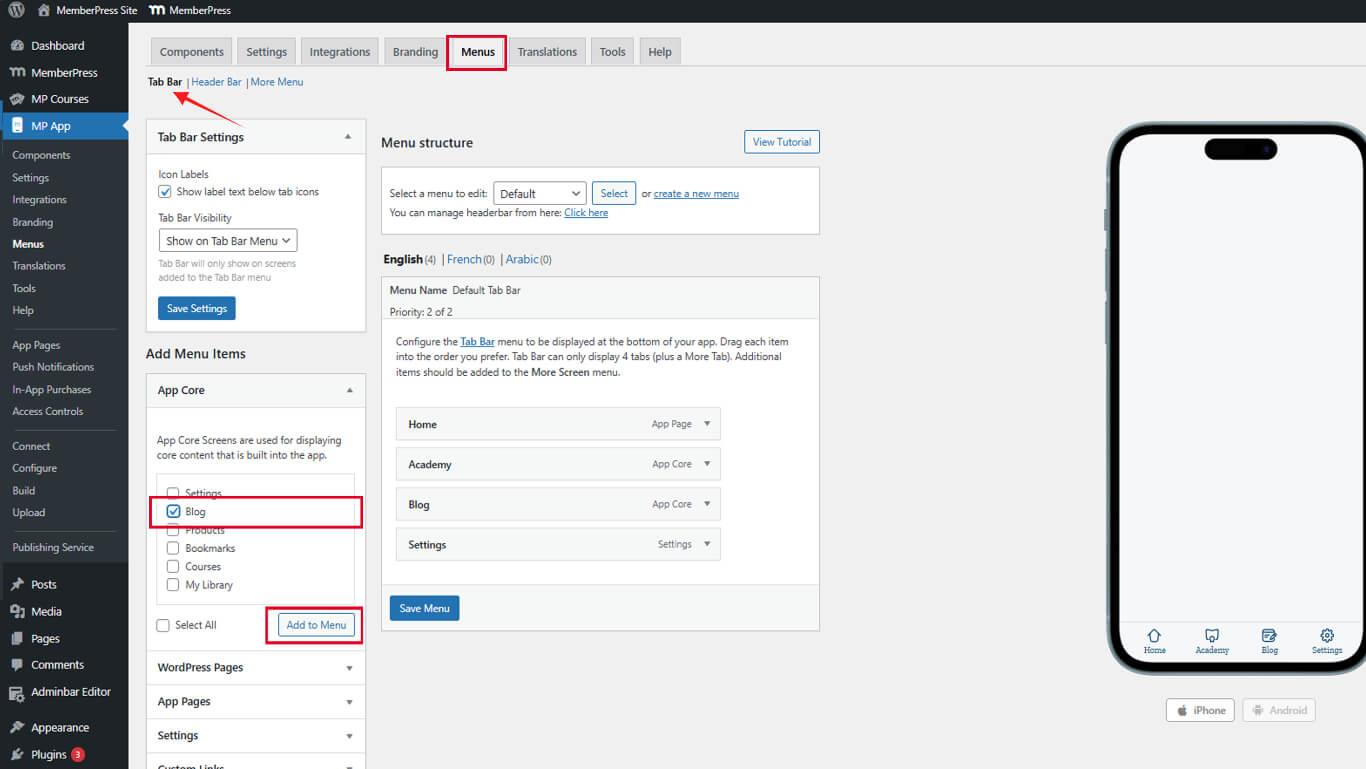
- Ziehen Sie den Blog-Eintrag an die gewünschte Position in der Menüordnung.
- Klicken Sie auf die Menü speichern.
Die Registerkarte Blog wird nach dem Speichern in der Registerkartenleiste der mobilen App (iOS/Android) angezeigt.
Hinzufügen eines Blog-Menüpunkts zum Menü Mehr
- Navigieren Sie zu Dashboard > MP AppKit > Menüs > Mehr Menü.
- Suchen Sie die App-Kern Abschnitt im Bereich „Verfügbare Elemente“.
- finden. Blog in der App Core-Liste.
- Aktivieren Sie das Kontrollkästchen neben „Blog“.
- Klicken Sie auf Zum Menü hinzufügen.
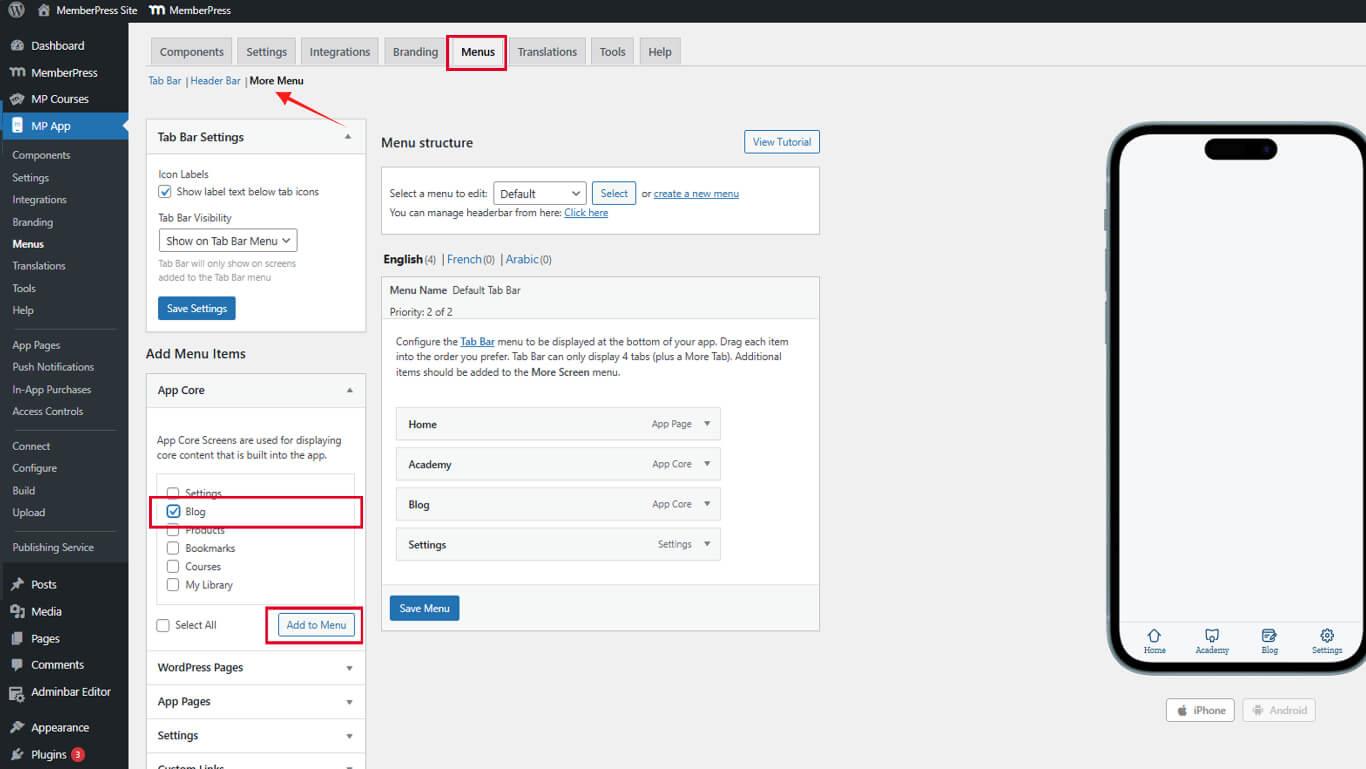
- Ziehen Sie den Blog-Eintrag an die gewünschte Position in der Menüordnung.
- Klicken Sie auf die Menü speichern.
Die Option „Blog“ erscheint nach dem Speichern im Menü „Mehr“.
Blog-Beiträge erstellen
WordPress-Beiträge erscheinen nach der Veröffentlichung automatisch im Blog-Bereich der App.
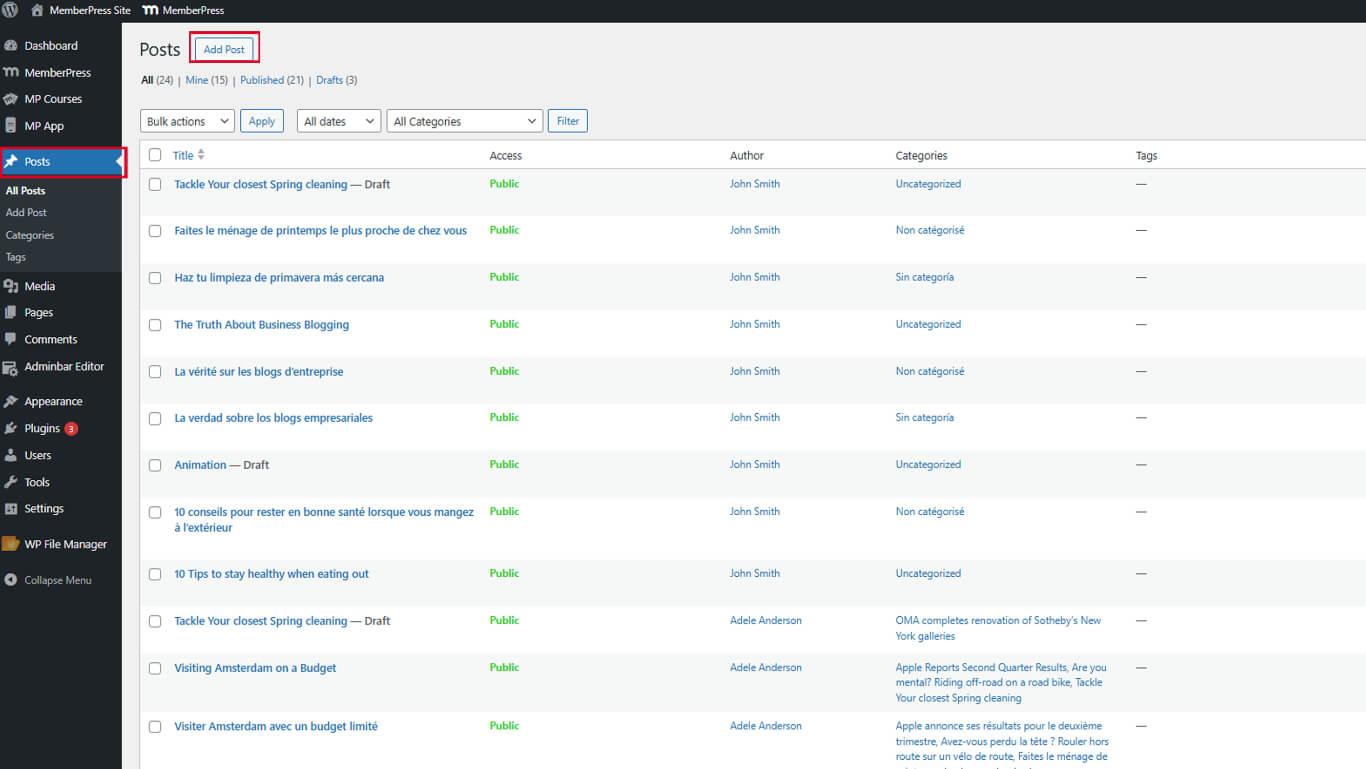
- Navigieren Sie zu Dashboard > Beiträge > Neu hinzufügen.
- Geben Sie einen aussagekräftigen Titel in das Feld Titel Feld.
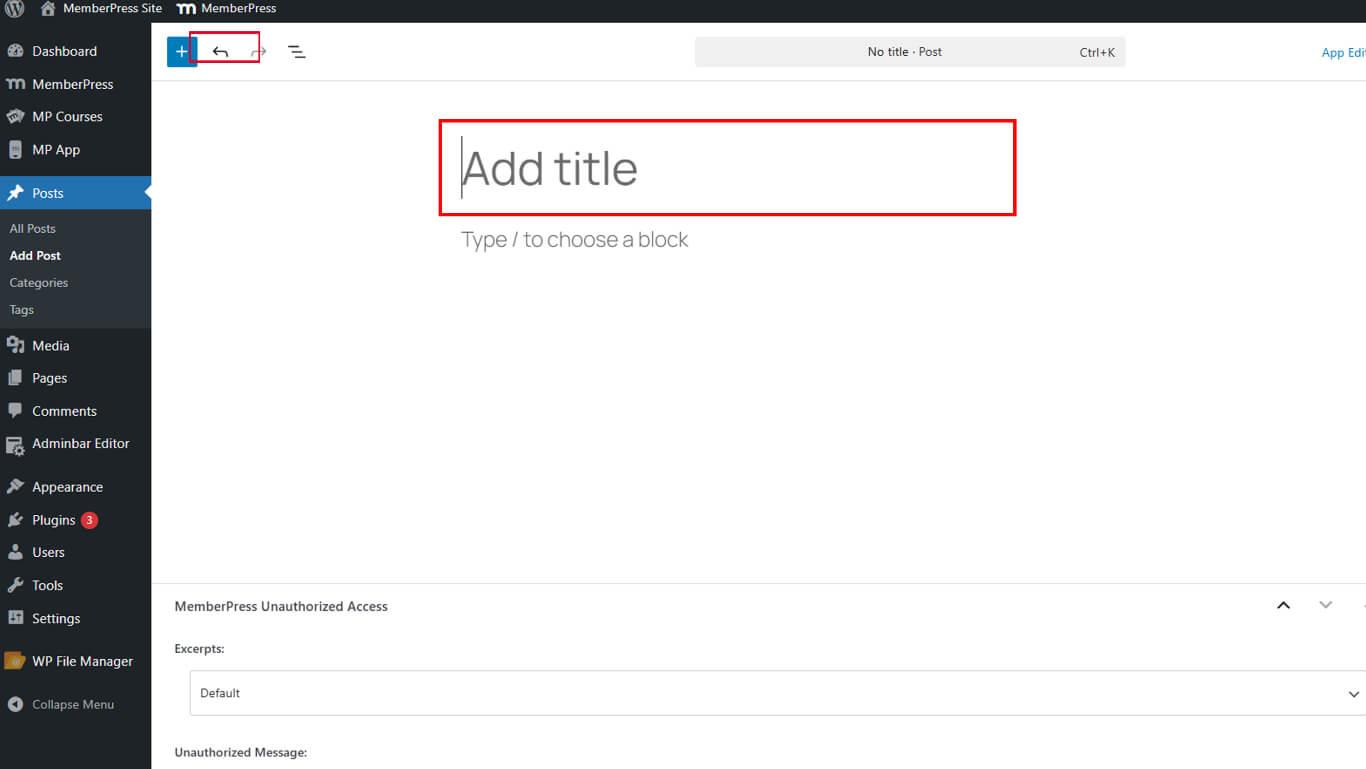
- Schreiben Sie den Inhalt des Beitrags im Block-Editor.
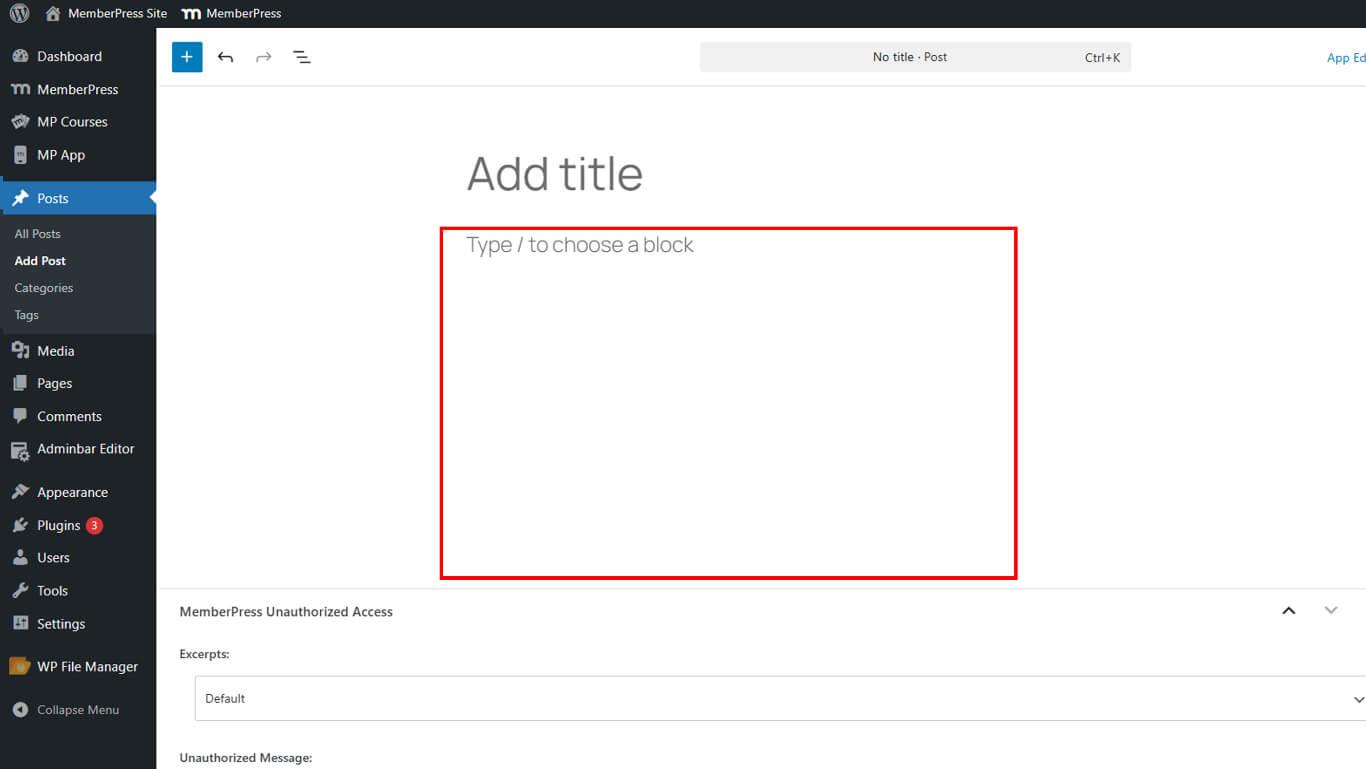
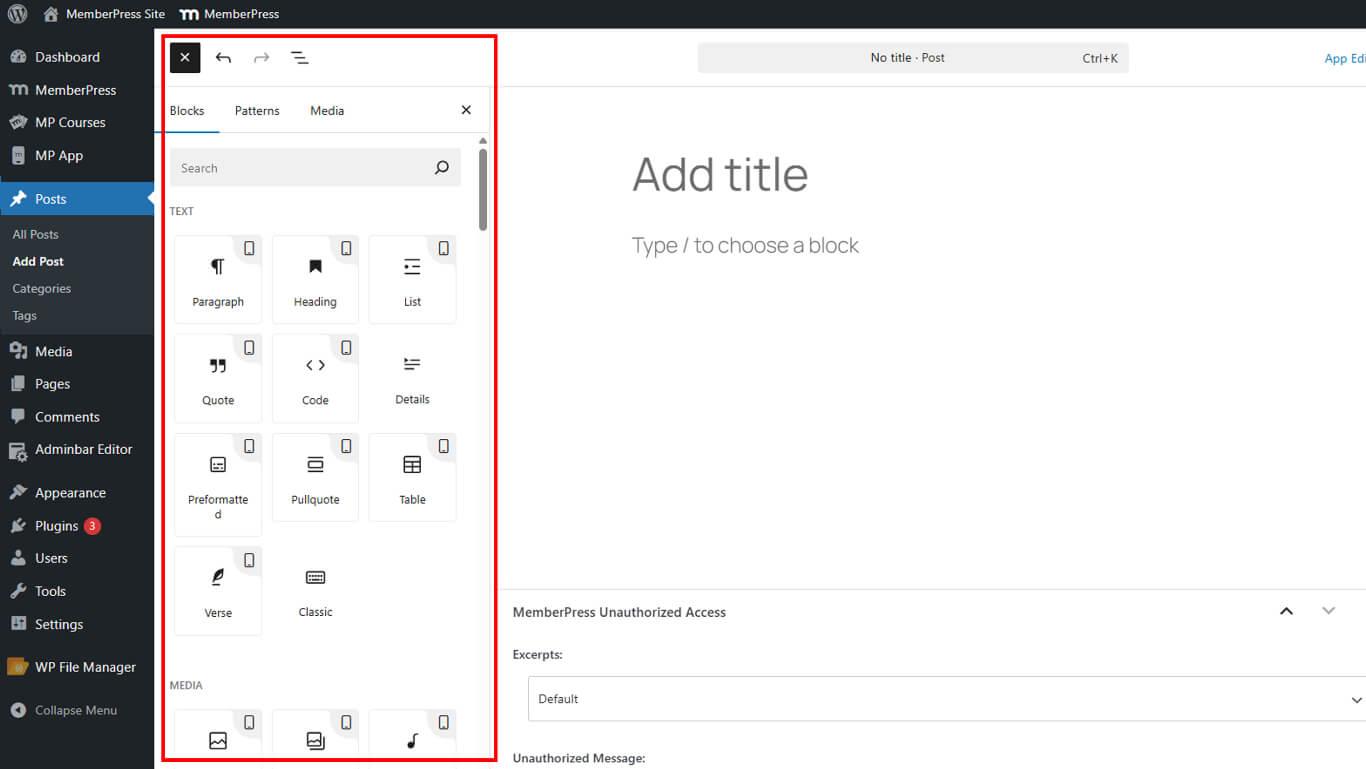
- Verwenden Sie Gutenberg-Blöcke, um Text zu formatieren, Bilder hinzuzufügen und Inhalte zu strukturieren.
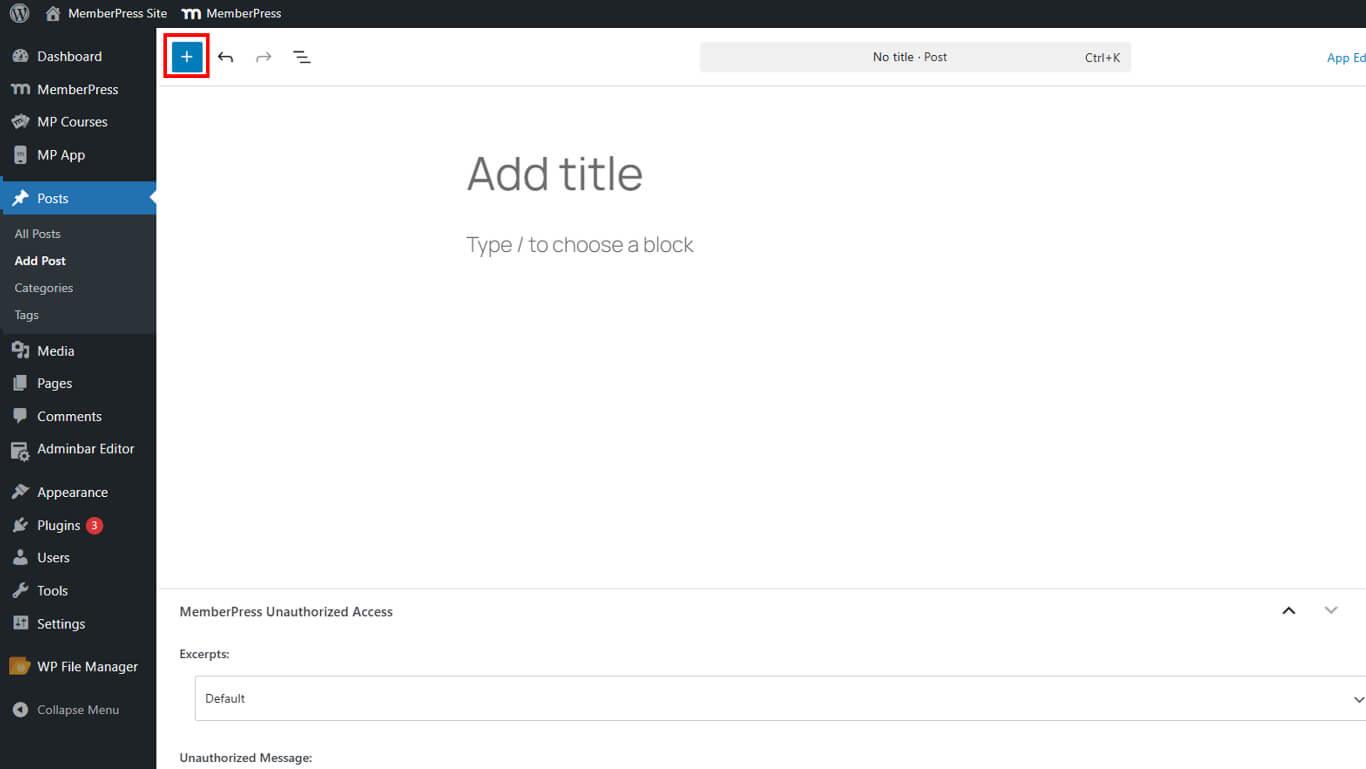
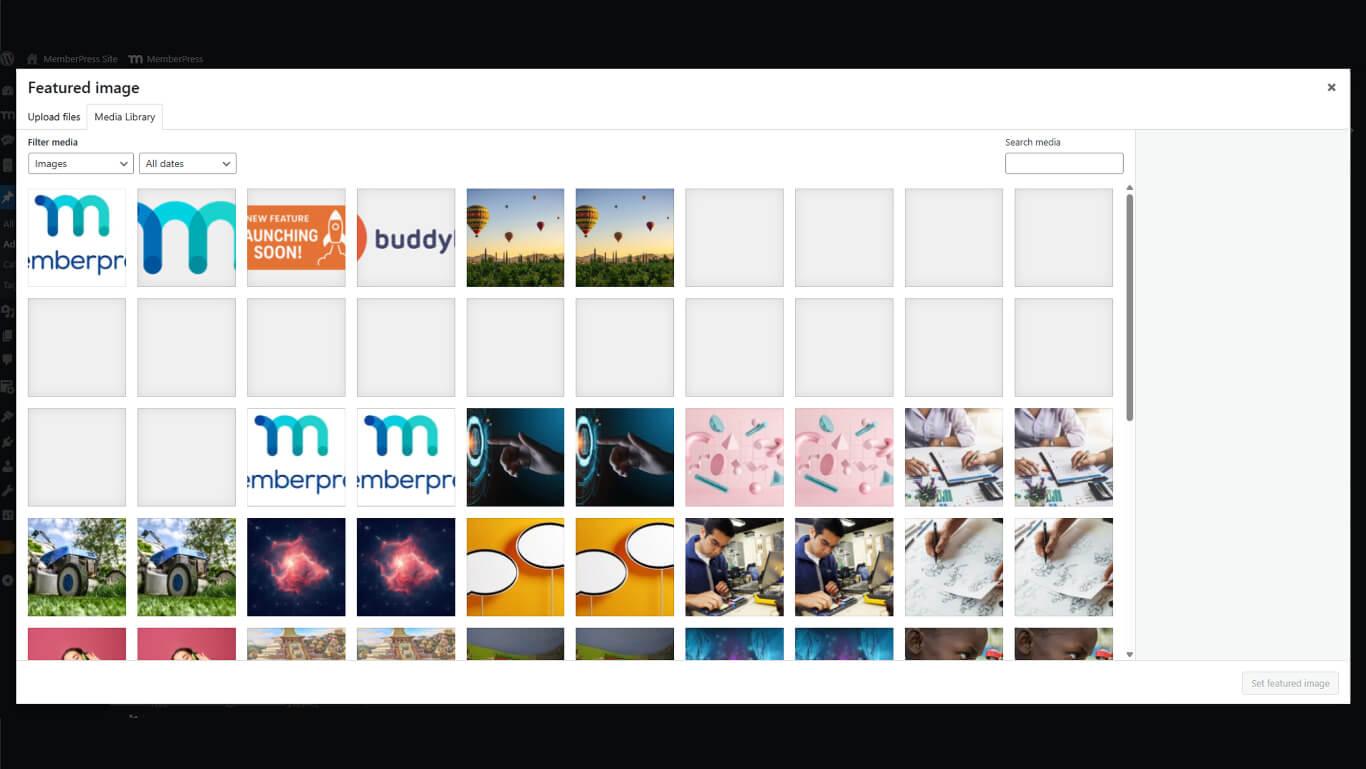
- Klicken Sie auf Vorgestelltes Bild festlegen in der rechten Seitenleiste.
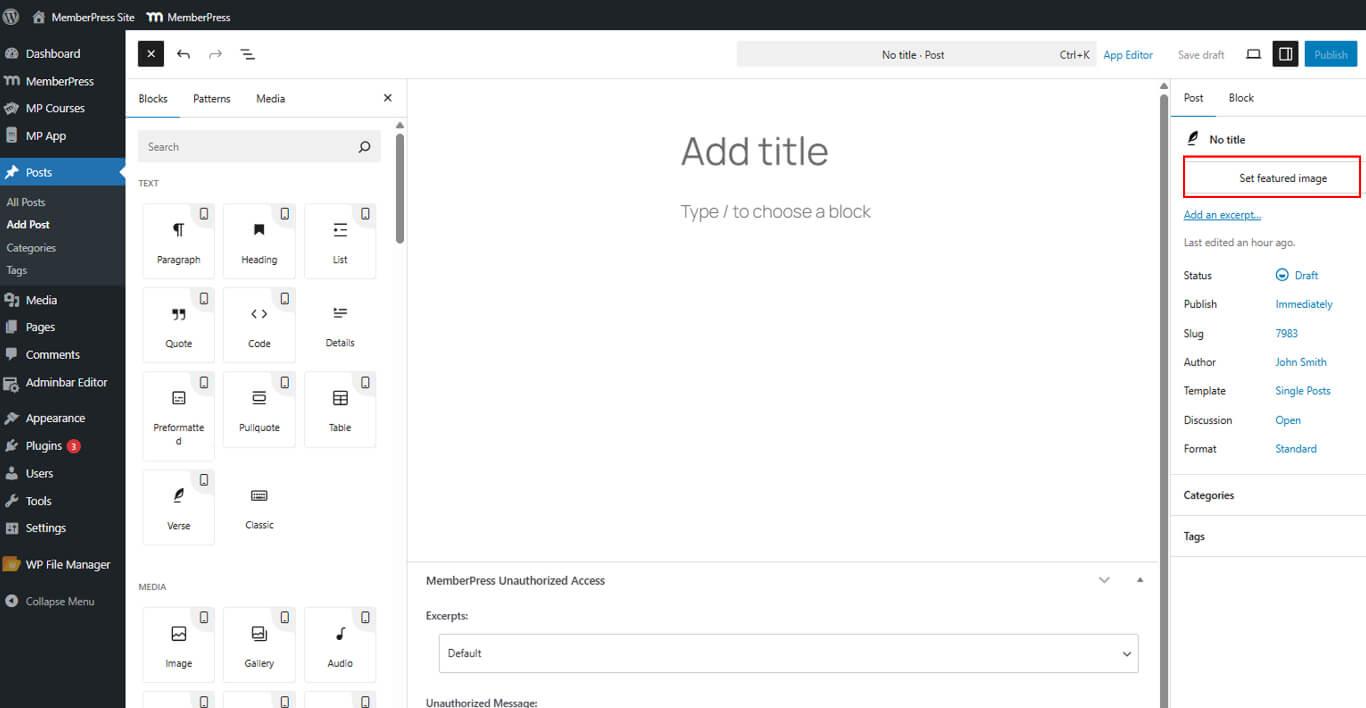
- Bild hochladen oder auswählen um den Beitrag in Blog-Listen darzustellen.
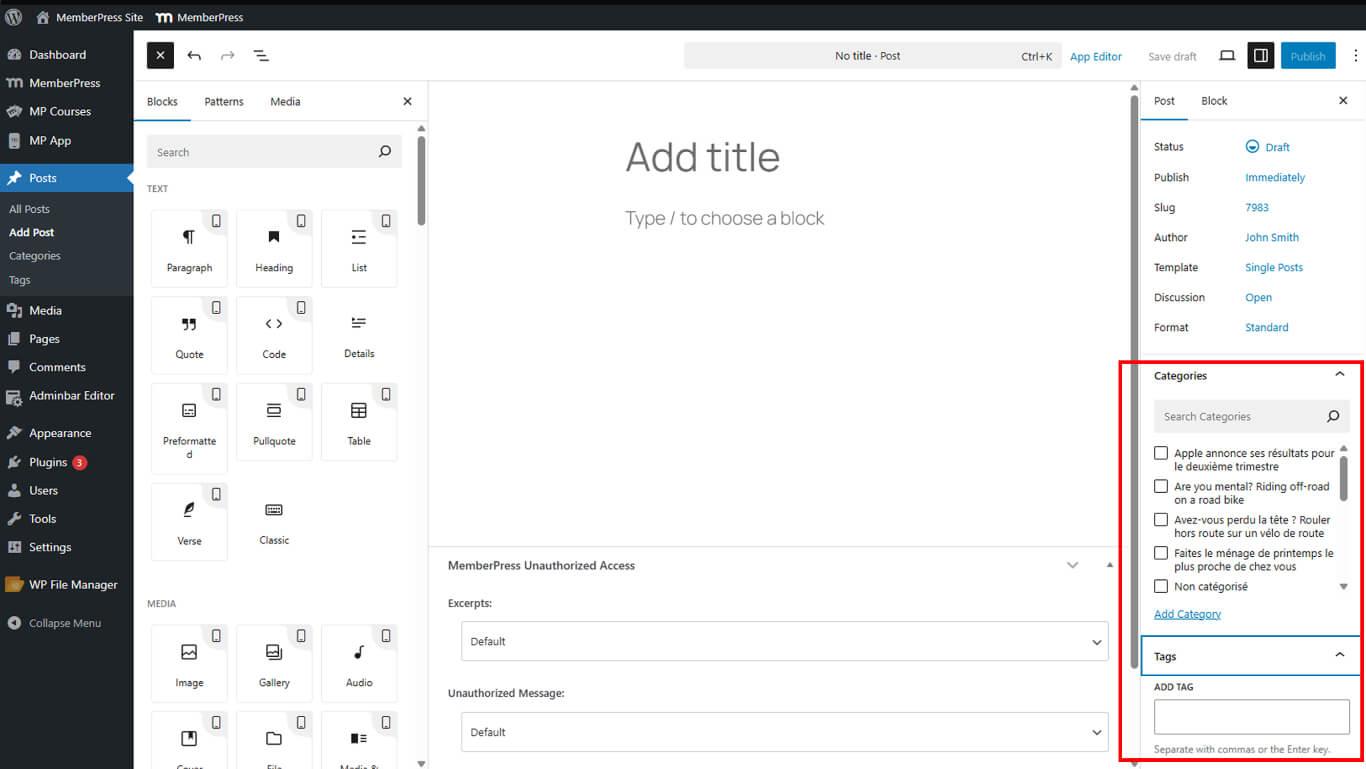
- Konfigurieren Sie bei Bedarf Beitragskategorien und Tags.
- Klicken Sie auf veröffentlichen. wenn der Inhalt vollständig ist.
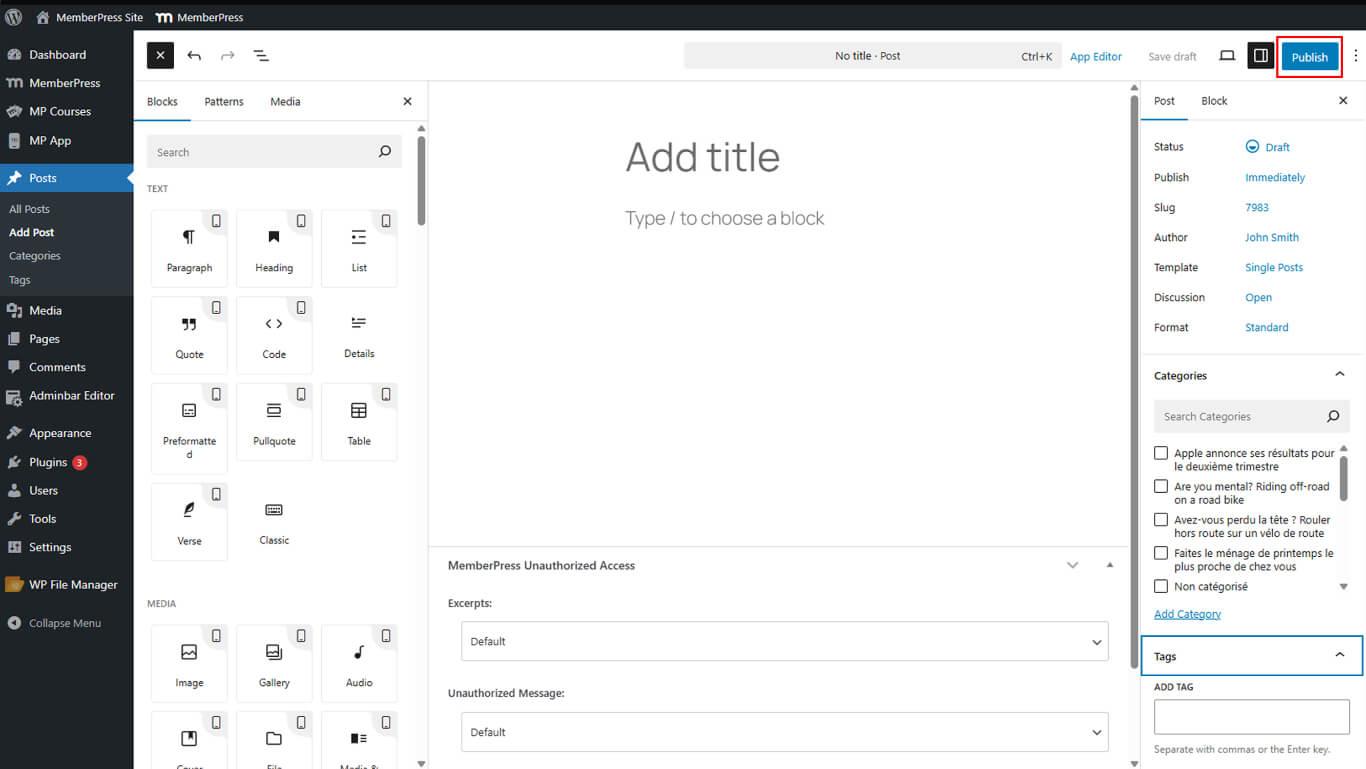
Veröffentlichte Beiträge erscheinen ohne zusätzliche Konfiguration sofort im Blog-Bereich der App.
Optimierung von Blogbeiträgen für die mobile App
- Wenn Ihr Beitrag nicht unterstützte Blöcke enthält, wird ein Warnung wird oben im Editor angezeigt.
- Um eine optimierte mobile Version bereitzustellen, wechseln Sie zu App-Editor Registerkarte und alternativen Inhalt hinzufügen.
Nach der Veröffentlichung erscheint der Beitrag automatisch innerhalb des Blog-Registerkarte in Ihrer MemberPress iOS/Android-App.










 DE
DE  EN
EN  ES
ES  FR
FR  PT
PT 