

Die Vorbereitung der MemberPress iOS-App für den Apple App Store erfordert korrekte MemberPress AppKit-Einstellungen und App Store Connect. Die Konfigurationsschritte gewährleisten die Einhaltung der Apple-Richtlinien und rationalisieren den Überprüfungsprozess.
In diesem Dokument wird erläutert, wie Sie die App in MemberPress AppKit vorbereiten, die Einstellungen in App Store Connect konfigurieren und zur Überprüfung im App Store einreichen.
Die Anforderungen des App Store verstehen
Für die Einreichung im Apple App Store sind bestimmte Konfigurationen und Informationen erforderlich, bevor die Überprüfung genehmigt wird. Apps müssen den Richtlinien von Apple entsprechen, einschließlich Datenschutzrichtlinien, Altersfreigaben und Inhaltsbeschränkungen. Die Konfiguration von In-App-Käufen, die Dokumentation der Datenschutzrichtlinien und die Zugangsdaten der Prüfer sind für die Einreichung obligatorisch. Eine ordnungsgemäße Vorbereitung verringert das Risiko einer Ablehnung und beschleunigt die Genehmigungsfristen.
Einrichten von In-App-Käufen
Die Konfiguration von In-App-Käufen ermöglicht die Monetarisierung durch App Store-Abrechnungen, falls zutreffend.
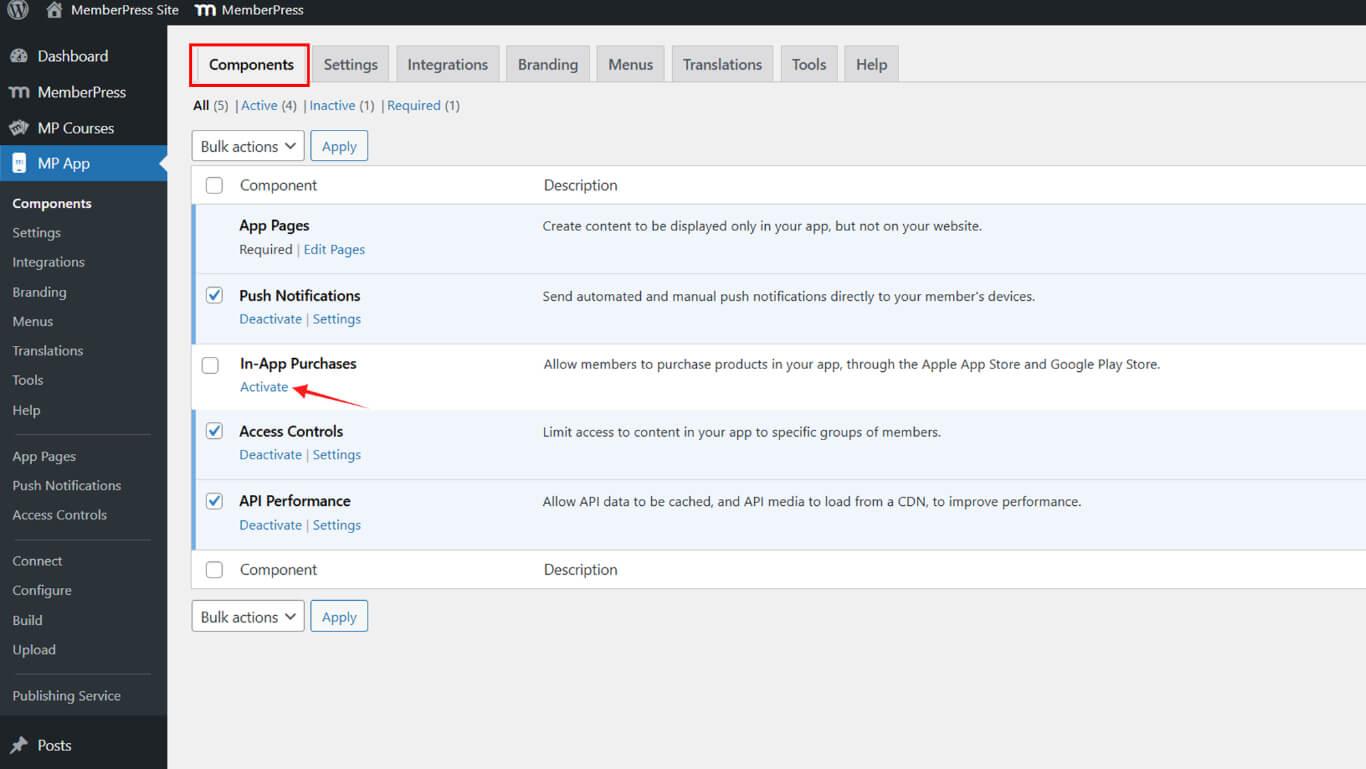
- Navigieren Sie zu Dashboard > MP AppKit > Komponenten.
- Aktivieren Sie In-App-Käufe.
iOS Release Build generieren
Die Erstellung des iOS Release Builds bereitet die App-Datei für die Einreichung im App Store vor.
- Navigieren Sie zu Dashboard > MP AppKit > Bauen.
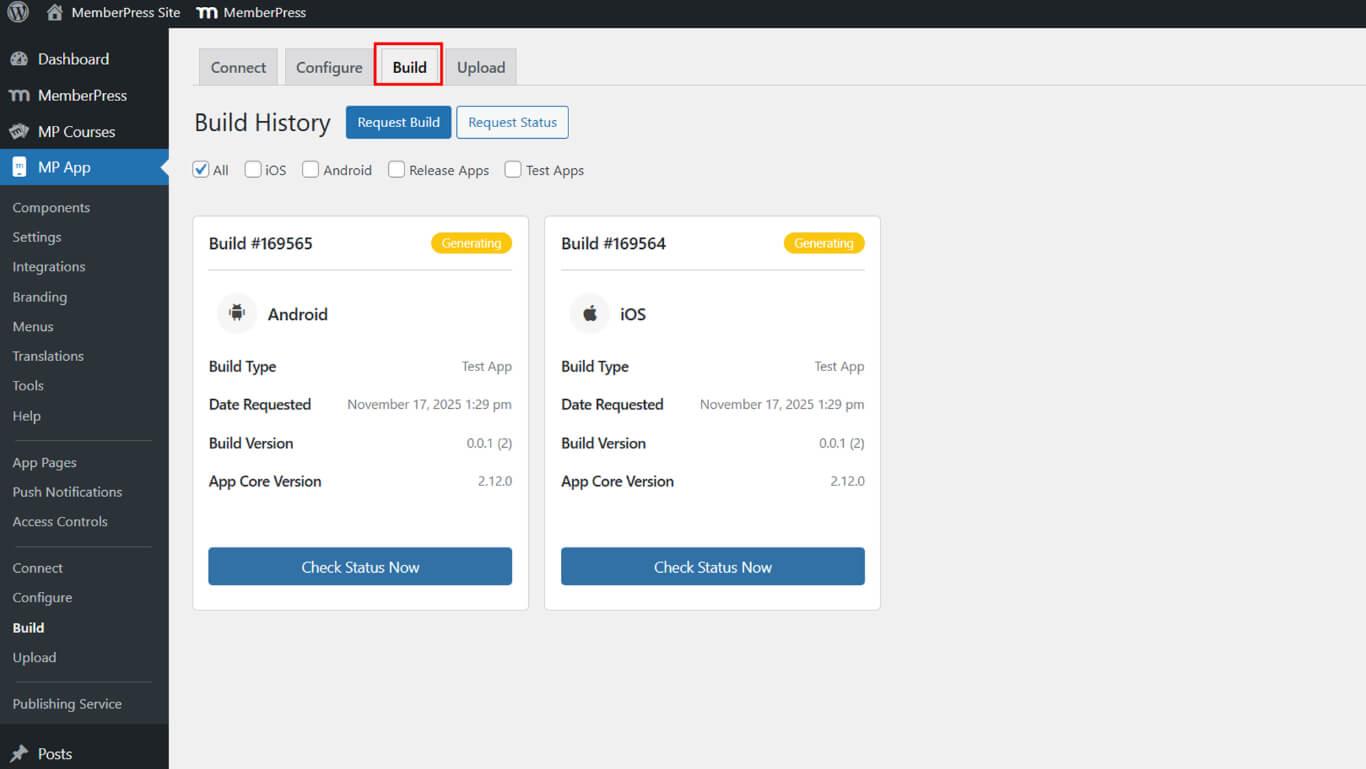
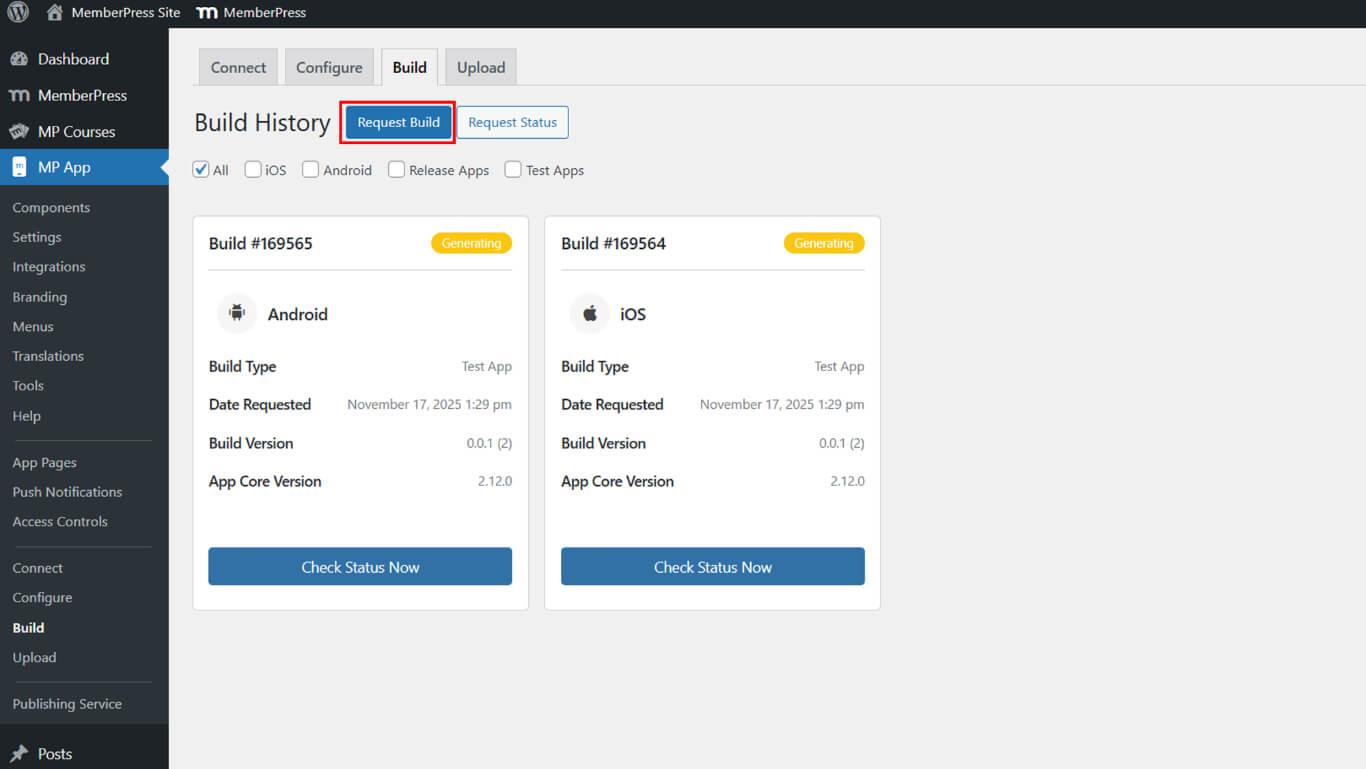
- Klicken Sie auf die Anfrage Bauen Sie Taste.
- Prüfen Sie die iOS Kontrollkästchen als Plattform.
- Wählen Sie App veröffentlichen als Build-Typ.
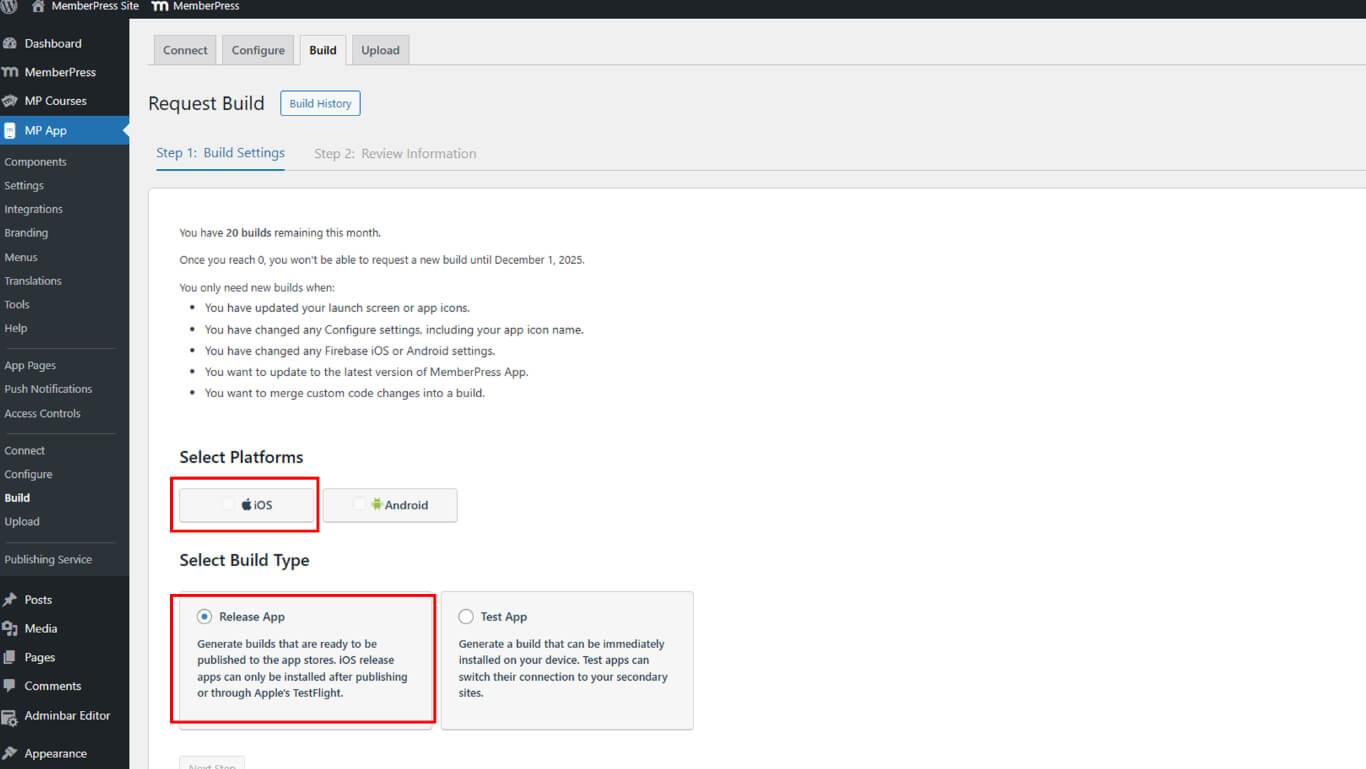
- Klicken Sie auf Weiter um fortzufahren.
- Klicken Sie auf Build-Anfrage senden den Antrag einzureichen.
- Überwachen Sie den Build-Status unter Entstehungsgeschichte.
Die Fertigstellung erfolgt in der Regel innerhalb von 5 bis 10 Minuten nach Einreichen der Anfrage.
Zugriff auf App-Informationen
Mit der Konfiguration der App-Informationen werden grundlegende App-Details in App Store Connect festgelegt.
- Melden Sie sich bei App Store Connect an unter appstoreconnect.apple.com.
- Klicken Sie auf Apps in der Navigation.
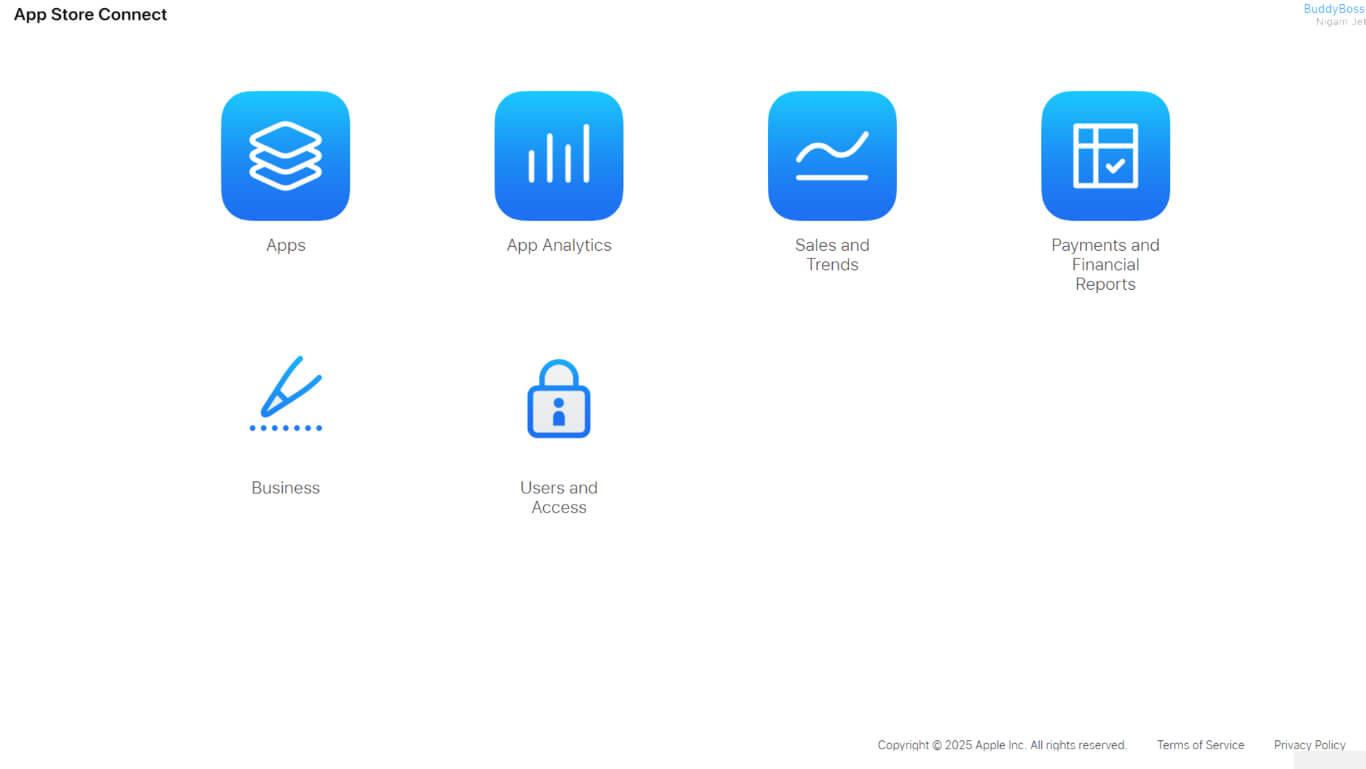
- Wählen Sie die App aus der Liste der Apps aus.
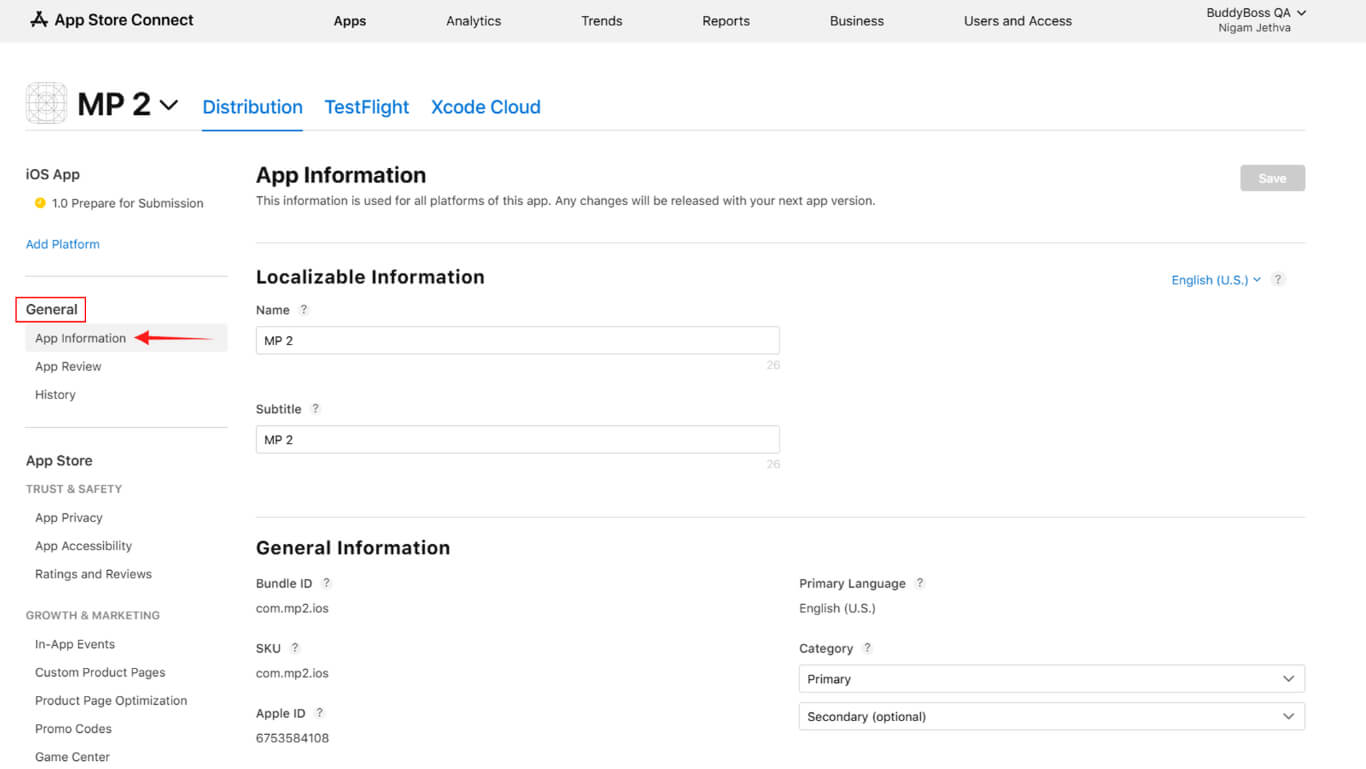
- Klicken Sie auf App-Informationen unter dem Abschnitt Allgemeines.
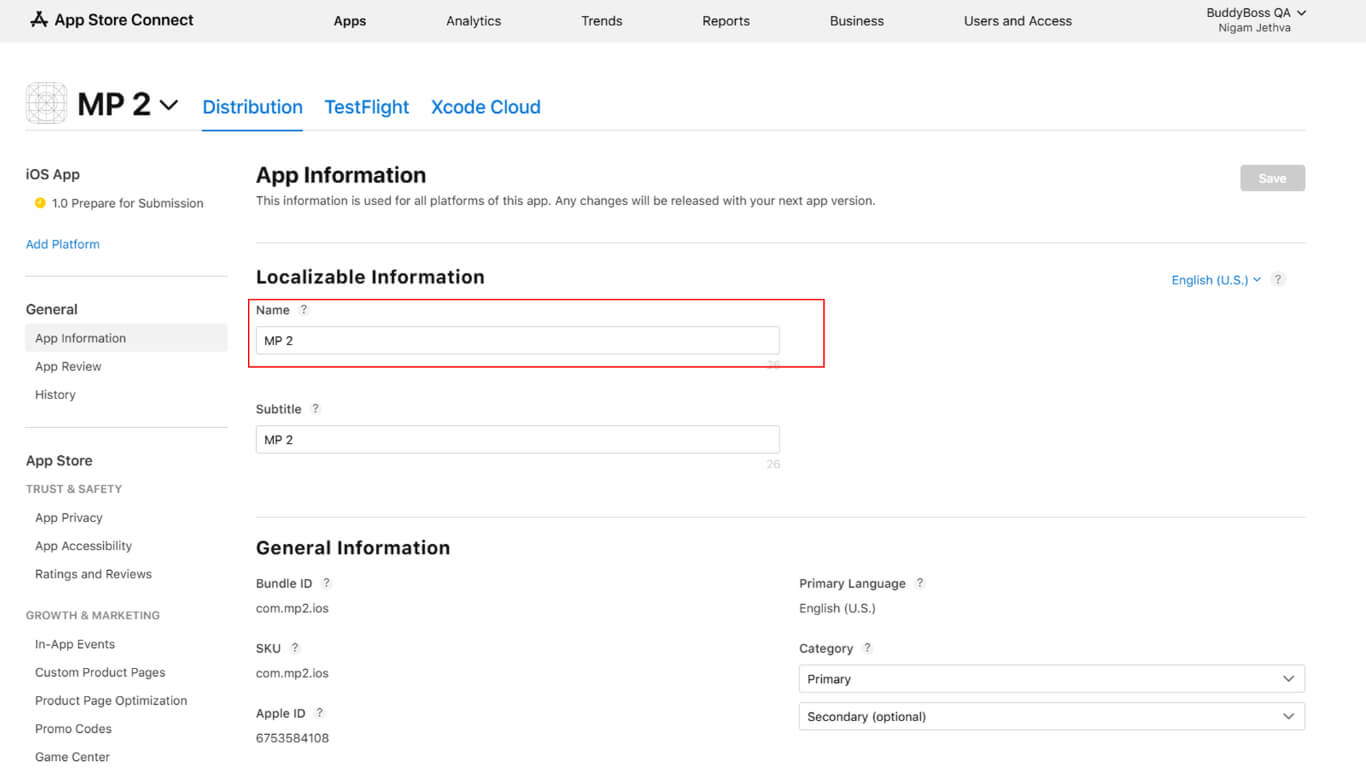
- Bestätigen oder aktualisieren Sie die App-Name im Namensfeld.
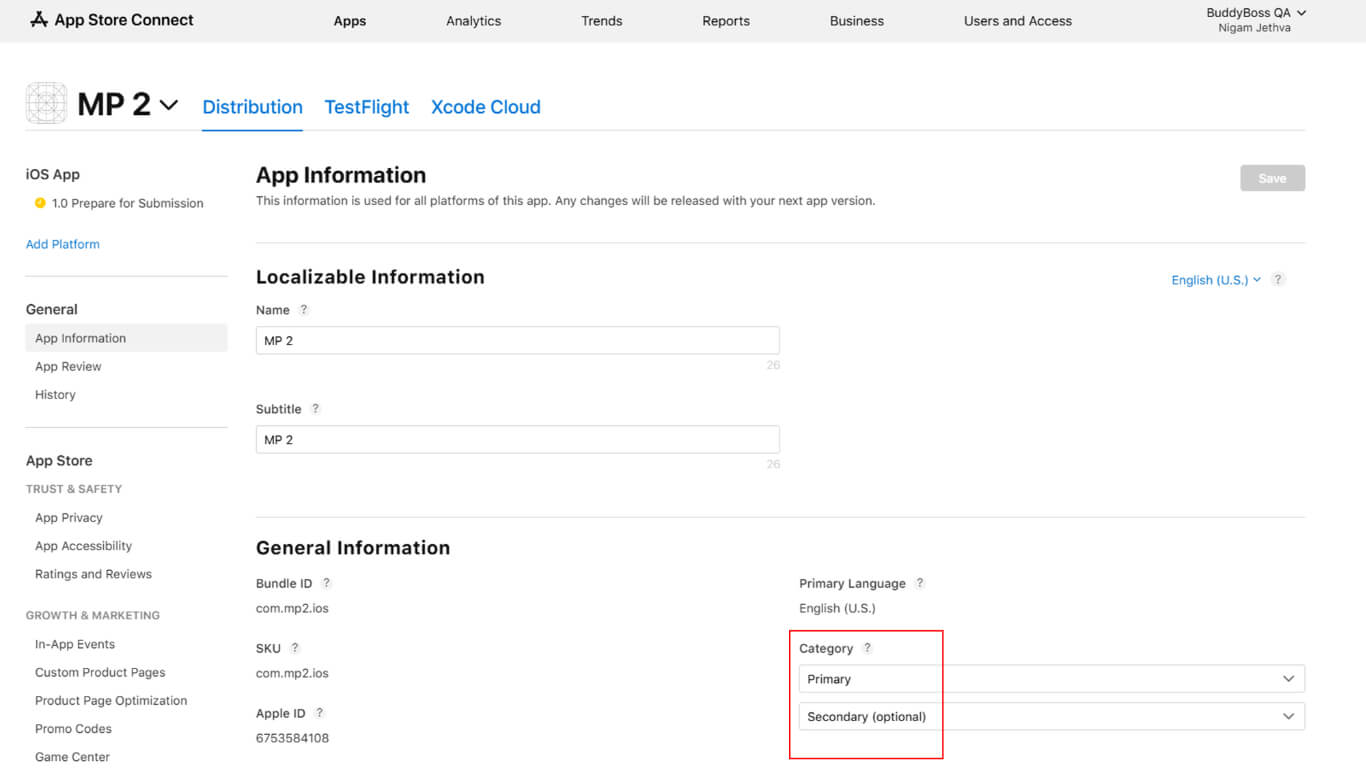
- Wählen Sie die Primäre Kategorie aus dem Dropdown-Menü der Kategorie.
- Wählen Sie Sekundäre Kategorie falls zutreffend.
- Geben Sie die Rechte an Inhalten Dritter an, wenn die App lizenzierte Inhalte enthält.
- Wählen Sie die Art der Lizenzvereinbarung:
- Die Standard-EULA von Apple für Standardbedingungen;
- Benutzerdefinierte EULA wenn Sie eine individuelle Lizenzvereinbarung anbieten.
- Vervollständigen Sie die Altersfreigabe Fragebogen genau zu beantworten.
- Klicken Sie auf Speichern Sie um App-Informationen zu speichern.
Preisgestaltung und Verfügbarkeit
Die Preiskonfiguration bestimmt die Kosten der App und die regionale Verfügbarkeit.
- Navigieren Sie zu Monetarisierung > Preisgestaltung und Verfügbarkeit im App Store Connect.
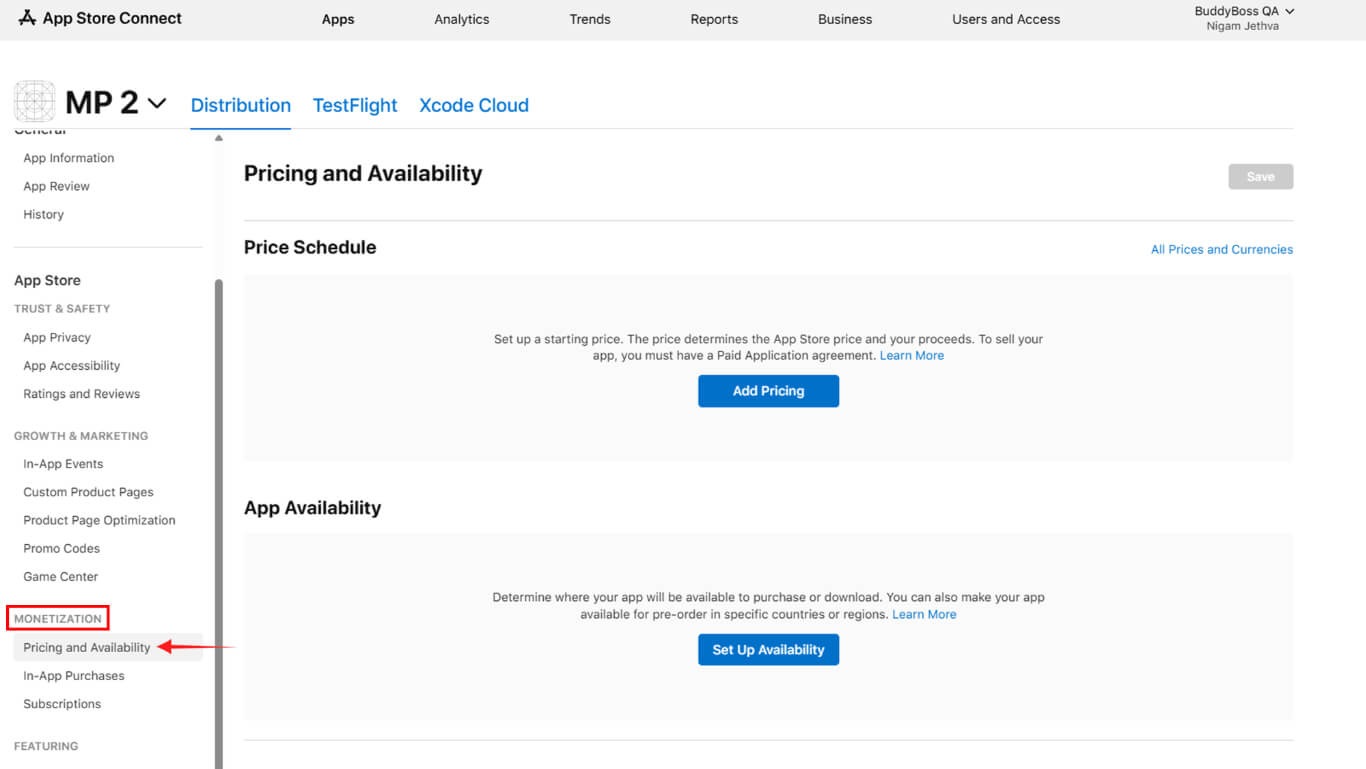
- Wählen Sie eine Preisstufe:
- Kostenlos für kostenfreie Anwendungen;
- Bezahlt für kostenpflichtige Anwendungen.
- Füllen Sie die Vereinbarung über kostenpflichtige Anwendungen aus, wenn Sie sich für eine kostenpflichtige Anmeldung entscheiden.
- Konfigurieren Sie die Verfügbarkeitsoptionen:
- Alle Regionen für die weltweite Verfügbarkeit;
- Ausgewählte Regionen für bestimmte Länder;
- Vorbestellung wenn Sie Käufe vor der Veröffentlichung aktivieren.
- Klicken Sie auf Weiter um die Auswahl zu überprüfen.
- Klicken Sie auf Bestätigen Sie um die Preiskonfiguration abzuschließen.
App-Datenschutzinformationen ausfüllen
Die App-Datenschutzkonfiguration legt die Praktiken der Datenerfassung und -nutzung offen.
- Navigieren Sie zu App Datenschutz > Vertrauen und Sicherheit im App Store Connect.
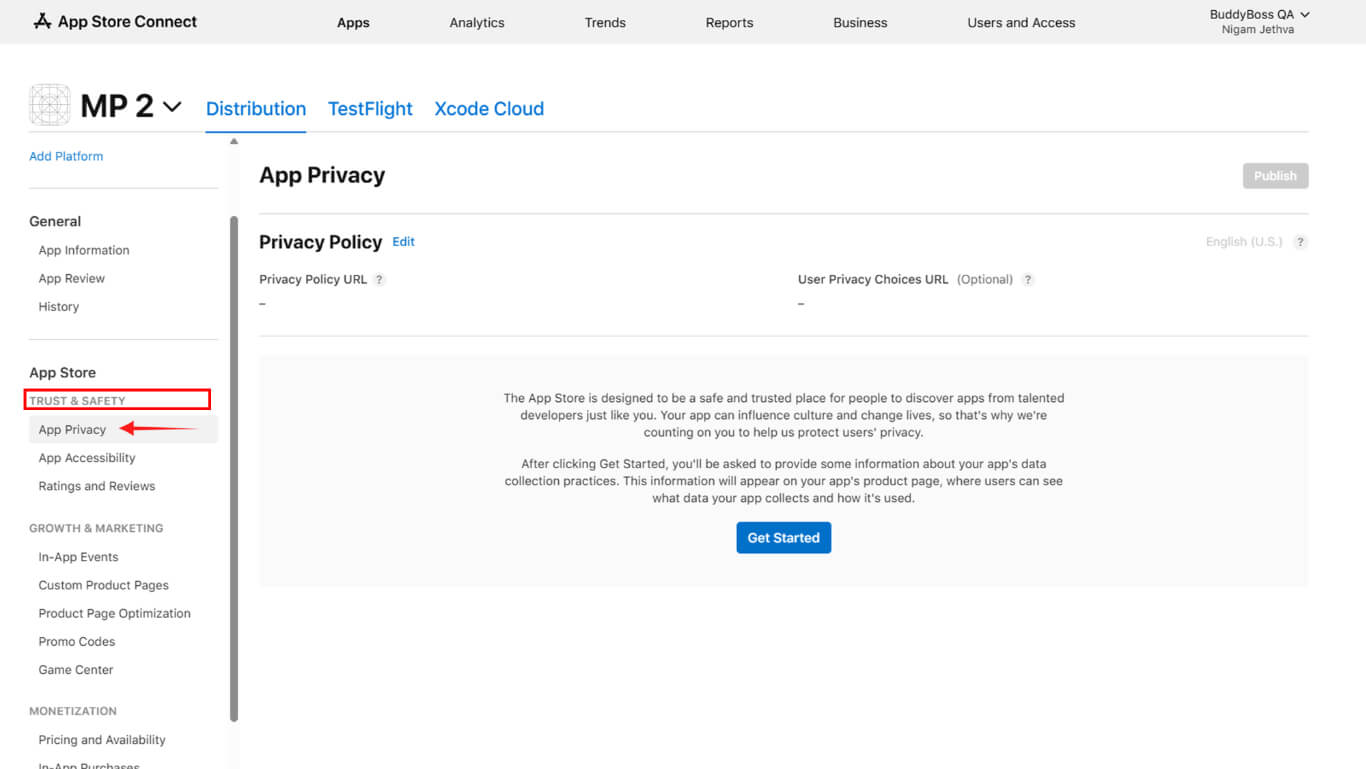
- Geben Sie die vollständige URL der Datenschutzrichtlinie in das URL-Feld ein.
- Klicken Sie auf Los geht's um den Fragebogen zum Datenschutz zu beginnen.
- Geben Sie alle von der App erfassten Datentypen an.
- Geben Sie den Zweck für jede Datenerhebungsart an.
- Geben Sie an, ob die Daten mit der Benutzeridentität verknüpft sind.
- Geben Sie an, ob die Daten für Tracking-Zwecke verwendet werden.
- Klicken Sie auf Speichern Sie nachdem Sie alle Abschnitte des Fragebogens ausgefüllt haben.
App-Version vorbereiten
Die App-Versionsvorbereitung erstellt den Übermittlungscontainer für Builds und Metadaten.
Neue Anwendungen enthalten die Version 1.0, die bei der Ersteinrichtung automatisch erstellt wird. Bestehende Apps erfordern eine manuelle Versionserstellung für Updates.
- Navigieren Sie zum app Seite in App Store Connect.
- Klicken Sie auf die + neben den Versionen, wenn Sie ein Update erstellen.
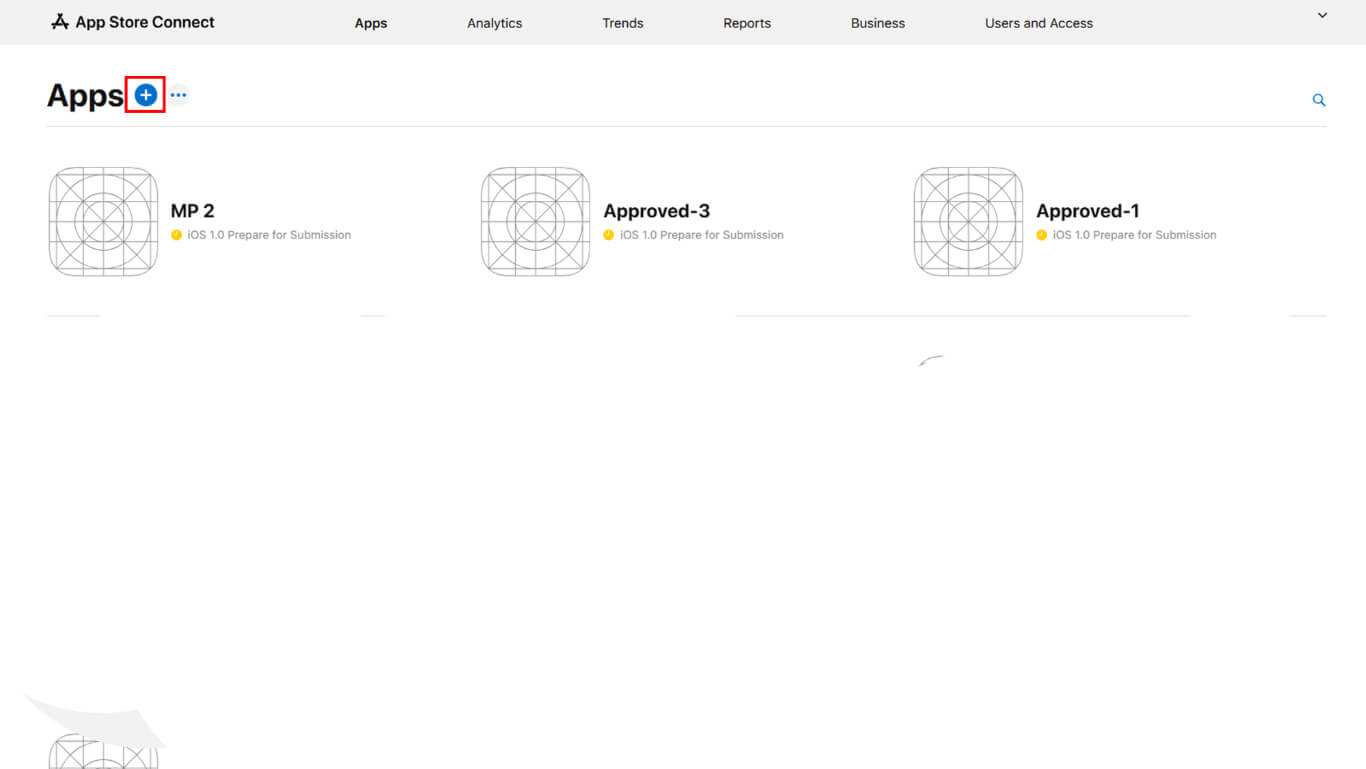
- Geben Sie die neue Versionsnummer ein, wenn Sie dazu aufgefordert werden.
- Warten Sie, bis alle laufenden Überprüfungen abgeschlossen sind, bevor Sie neue Versionen erstellen.
- Alternativ können Sie laufende Überprüfungen vor der Erstellung der Version abbrechen.
Hochladen von Screenshots
Das Hochladen von Screenshots zeigt potenziellen Nutzern die Oberfläche der App.
- Navigieren Sie zu der Versionsseite in App Store Connect.
- Blättern Sie zum Vorschauen und Screenshots Abschnitt.
- Klicken Sie auf hinzufügen unter der entsprechenden Gerätegrößenkategorie.
- Laden Sie mindestens ein Bildschirmfoto für die erforderlichen Anzeigegrößen hoch:
- iPhone 6,5-Zoll: 1242×2688 Pixel hoch oder 2688×1242 Pixel quer;
- iPhone 6,9-Zoll: 1290×2796 Pixel hoch oder 2796×1290 Pixel quer.
- Vergewissern Sie sich, dass das Bildschirmfotoformat JPG oder PNG im RGB-Farbraum ist.
- Ziehen Sie Screenshots, um die Anzeigereihenfolge zu ändern, wenn mehrere Screenshots hochgeladen werden.
Hinzufügen von App-Details
App-Details liefern beschreibenden Inhalt für den App-Store-Eintrag.
- Navigieren Sie zu der Versionsseite in App Store Connect.
- Eingabe Werbetext Hervorhebung der wichtigsten Funktionen der App im Werbetextfeld.
- Geben Sie eine umfassende Beschreibung im Beschreibungsfeld die Funktionalität der App erklären.
- Eingabe Schlüsselwörter zur Optimierung der Suche durch Kommata getrennt.
- Geben Sie die URL unterstützen Verlinkung zu Ressourcen des Kundensupports.
- Geben Sie die optionale Marketing-URL Verlinkung zur Werbe-Website.
- Geben Sie die Urheberrecht Informationen, einschließlich des Jahres und des Firmennamens.
- Aktualisieren Sie die Version Nummer, wenn sie sich von der ursprünglichen Version unterscheidet.
- Klicken Sie auf Speichern Sie zum Speichern von Anwendungsdetails.
Bereitstellung von App-Review-Informationen
App-Review-Informationen ermöglichen es den Apple-Reviewern, alle Funktionen der App zu testen.
- Navigieren Sie zu der Versionsseite in App Store Connect.
- Blättern Sie zum Informationen zur App-Überprüfung Abschnitt.
- Siehe Anmeldung erforderlich wenn die App eine Authentifizierung erfordert.
- Geben Sie eine gültige Benutzername in das Feld für den Benutzernamen des Demokontos ein.
- Geben Sie eine gültige Passwort in das Feld Passwort für das Demokonto ein.
- Eingabe Überprüfungsnotizen Erläuterung spezieller Prüfanweisungen.
- Laden Sie Anhänge hoch, wenn zusätzliche Unterlagen für die Überprüfung hilfreich sind.
- Geben Sie den Kontakt ein Name für die Kommunikation mit den Gutachtern.
- Geben Sie den Kontakt ein Rufnummer für dringende Fragen der Prüfer.
- Geben Sie den Kontakt ein E-Mail für die Korrespondenz mit den Gutachtern.
- Klicken Sie auf Speichern Sie zum Speichern von Überprüfungsinformationen.
Auswahl der Freigabeoptionen
Die Freigabeoptionen bestimmen, wann die App nach der Genehmigung verfügbar ist.
- Navigieren Sie zu der Versionsseite in App Store Connect.
- Blättern Sie zum Version Freigabe Abschnitt.
- Wählen Sie den bevorzugten Zeitpunkt für die Freigabe:
- Manuelle Freigabe nach der Genehmigung manuell zu veröffentlichen;
- Automatische Freigabe unmittelbar nach der Genehmigung zu veröffentlichen;
- Geplante Veröffentlichung zu einem bestimmten Datum und einer bestimmten Uhrzeit zu veröffentlichen.
- Geben Sie das Datum und die Uhrzeit der Veröffentlichung ein, wenn Sie eine geplante Veröffentlichung auswählen.
- Klicken Sie auf Speichern Sie um Freigabepräferenzen zu speichern.
Die manuelle Freigabe ermöglicht die Kontrolle über den genauen Zeitpunkt der Veröffentlichung nach der Genehmigung. Bei der automatischen Freigabe werden Anwendungen sofort nach der Genehmigung ohne weitere Maßnahmen veröffentlicht.
Einreichung zur Überprüfung
Mit der Einreichung der Überprüfung wird die App zur Bewertung an Apple geschickt.
- Navigieren Sie zu Dashboard > MP AppKit > Veröffentlichungsdienst > Apple App Store in WordPress.
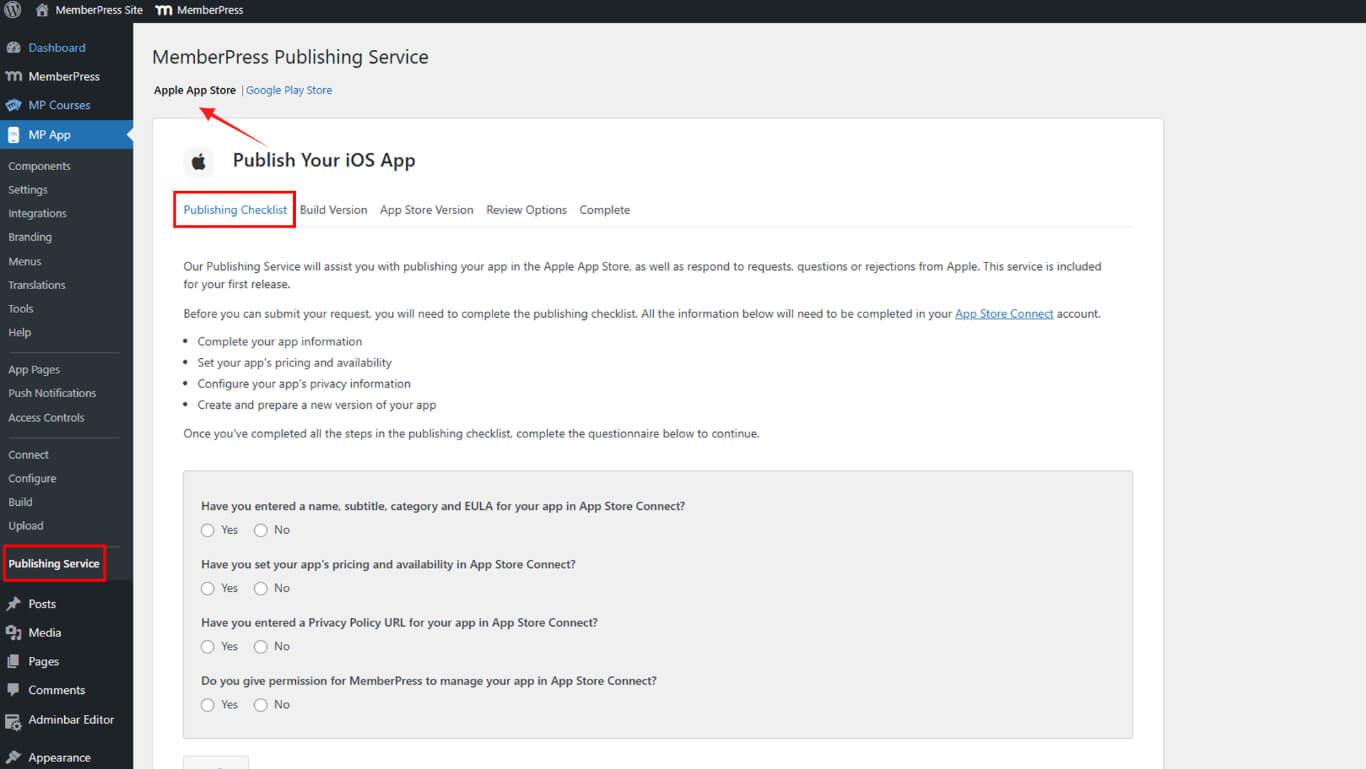
- Überprüfen Sie die Checkliste für die Einreichung, um sicherzustellen, dass alle Anforderungen erfüllt sind.
- Klicken Sie auf Einreichen um den Einreichungsprozess zu beginnen.
- Beantragen Sie optional eine Vorabprüfung, um die Chancen auf eine Genehmigung zu erhöhen.
- Das Veröffentlichungsteam lädt den Build hoch und bereitet die Veröffentlichung vor.
- Das Veröffentlichungsteam reicht die App bei Apple zur Prüfung ein.
- Überwachen Sie den Status der Einreichung in App Store Connect.
Das Publishing Team kümmert sich um den Build-Upload, die Vorbereitung der Veröffentlichung und die offizielle Einreichung bei Apple. Der Status der App wird während des Überprüfungsprozesses in App Store Connect aktualisiert.










 DE
DE  EN
EN  ES
ES  FR
FR  PT
PT 