

Android App Links ermöglichen eine enge Integration zwischen der mobilen App und der Website, sodass Mitglieder bestimmte URLs direkt in der App öffnen können. Die Konfiguration von App-Links schafft ein nahtloses mobiles Erlebnis und stellt sicher, dass Links zu Community-Inhalten im richtigen Kontext geöffnet werden.
In diesem Dokument wird erklärt, wie man Zertifikatsfingerabdrücke erhält, App Links aktiviert und die Konfiguration überprüft.
Verstehen von Android App Links
Android-App-Links verbinden Website-URLs mit bestimmten App-Bildschirmen. Wenn Mitglieder auf Android-Geräten auf die Links tippen, werden die Inhalte in der App und nicht in einem Webbrowser geöffnet. Dieses Verhalten schafft nahtlose Übergänge zwischen Web- und App-Erlebnissen.
Abrufen des SHA-256-Zertifikatsfingerabdrucks
Der Abruf von Zertifikatsfingerabdrücken aus der Google Play-Konsole ermöglicht die Überprüfung von App-Links.
- Melden Sie sich bei Google Play Console an unter play.google.com/console mit dem Google Developer-Konto.
- Navigieren Sie zu Alle Apps in der Konsole.
- Wählen Sie die App aus der Liste der Apps aus.
- Klicken Sie auf die Test und Freigabe tab.
- Navigieren Sie zu Integrität von Anwendungen > Signierung von Anwendungen.
- Suchen Sie die SHA-256-Zertifikat-Fingerabdruck für den App Signing Key.
- Kopieren Sie den SHA-256-Zertifikatsfingerabdruckwert.
Der Wert des Zertifikatsfingerabdrucks wird in der Konfiguration der MemberPress-App-Einstellungen verwendet.
Aktivieren von Android-App-Links
Die Aktivierung der App Links erfolgt über die Konfiguration der Android-Einstellungen.
- Navigieren Sie zu Dashboard > MP AppKit > Konfigurieren > Android-Einstellungen.
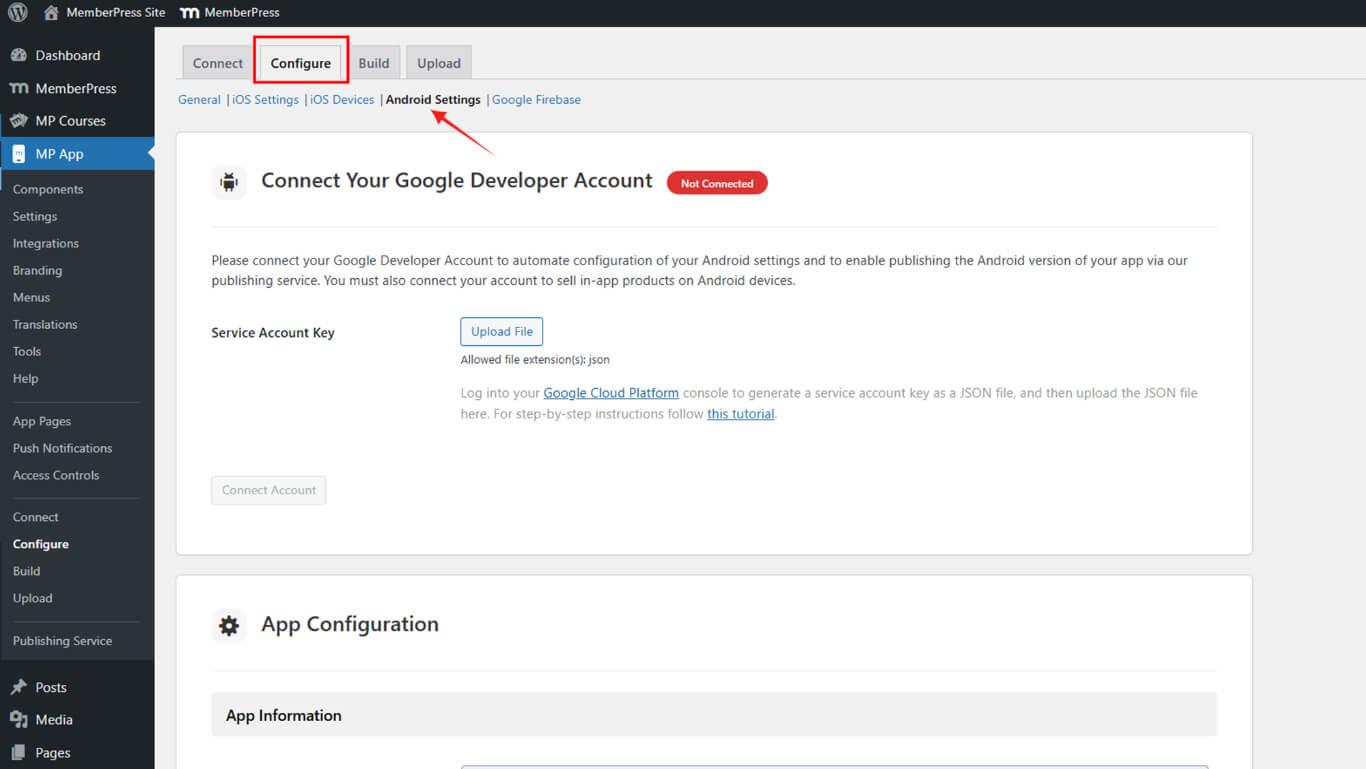
- Blättern Sie zum Link zur Android-App Abschnitt.
- Prüfen Sie die Android-App-Links aktivieren Kontrollkästchen.
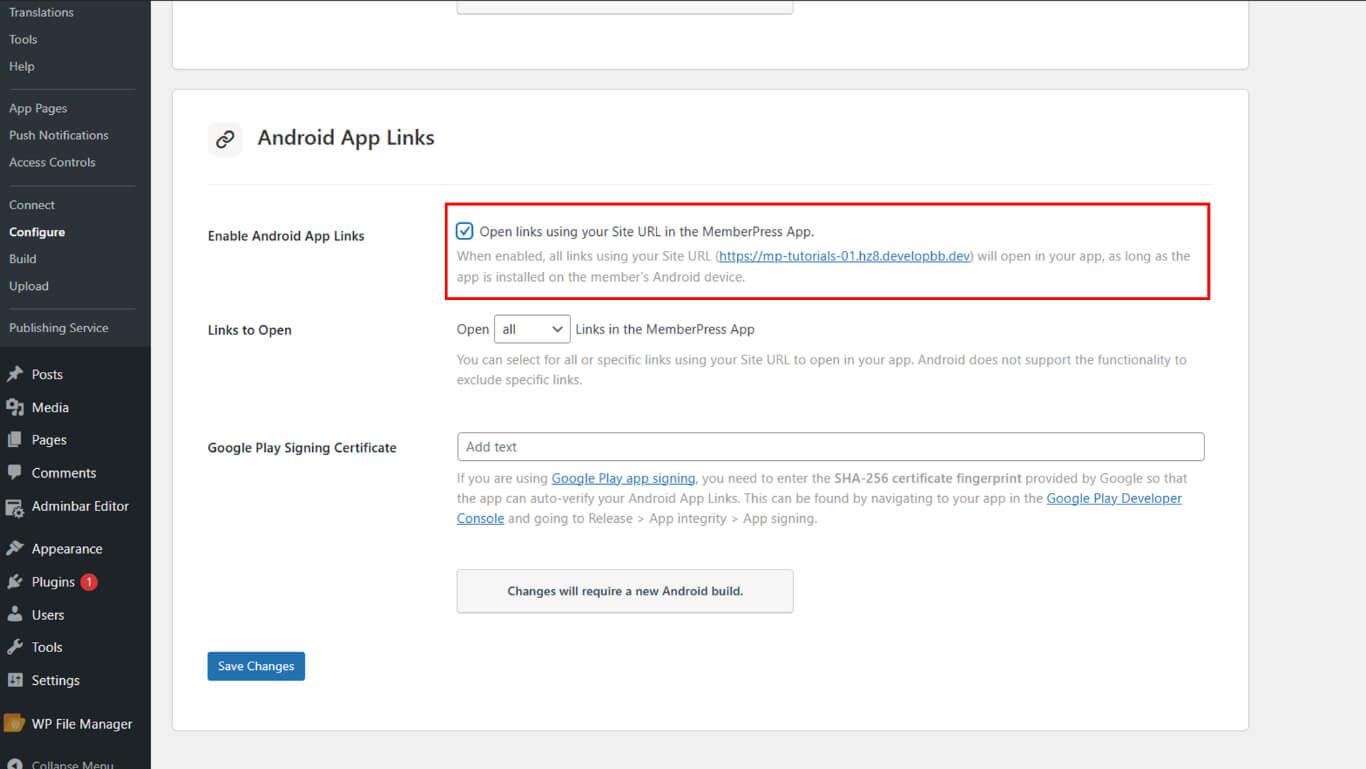
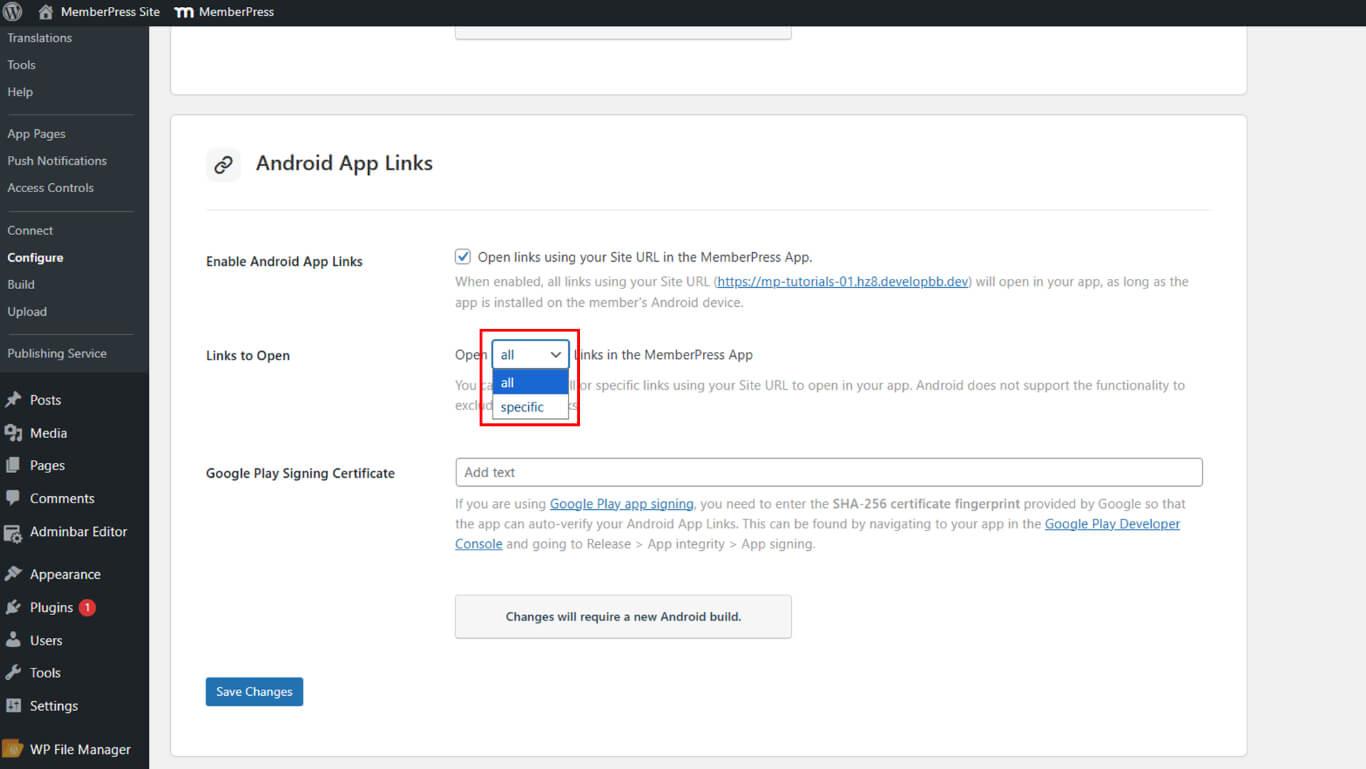
- Suchen Sie die Links zum Öffnen Option.
- Wählen Sie die bevorzugte Linkbehandlung:
- Alle um alle Website-Links in der App zu öffnen;
- Spezifische Links um nur ausgewählte URLs in der App zu öffnen.
- Fügen Sie den SHA-256-Zertifikatsfingerabdruck in das Feld Google Play Signing-Zertifikat Feld.
- Klicken Sie auf Änderungen speichern.
- Navigieren Sie zu Dashboard > MP AppKit > Bauen.
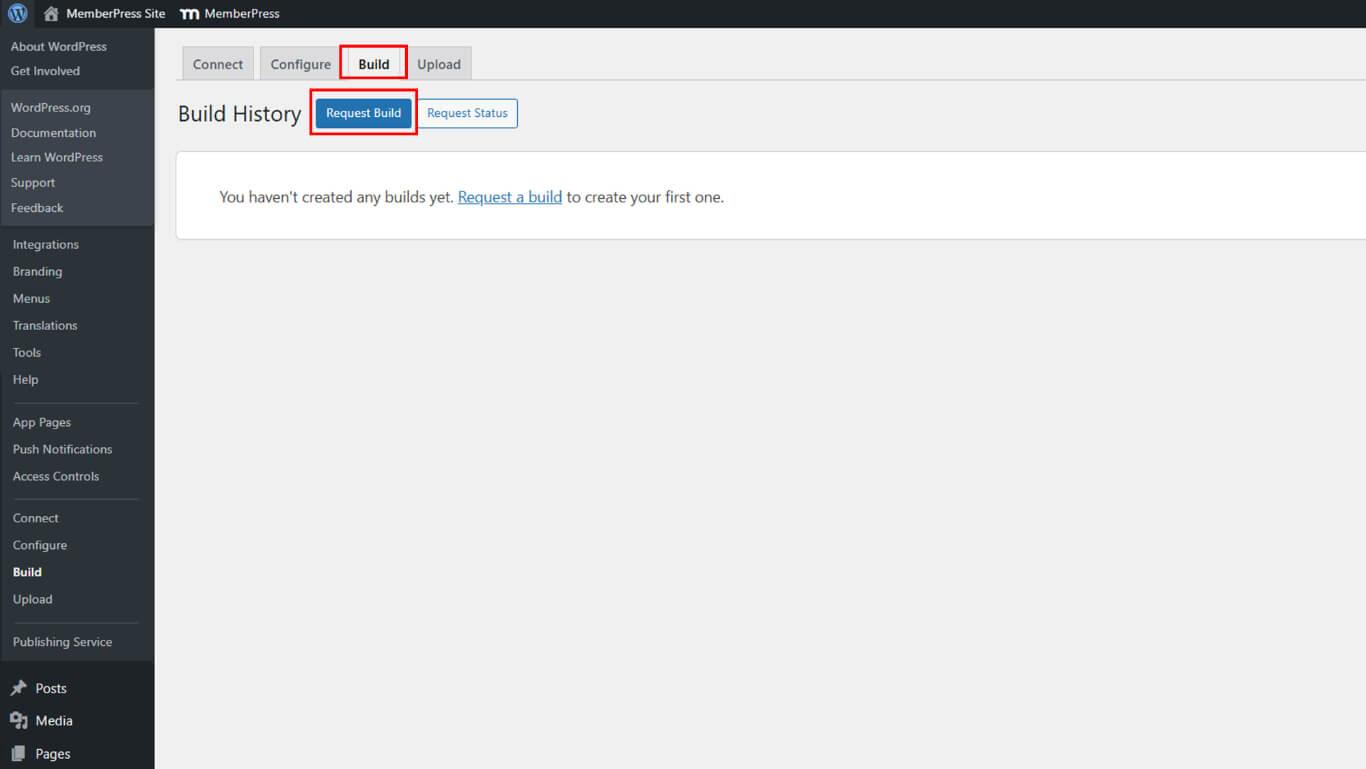
- Fordern Sie einen neuen Android-Build an, um die App-Links-Konfiguration anzuwenden.
Überprüfen der Asset-Verknüpfungen JSON-Datei
Die Überprüfung der Asset Links JSON-Datei bestätigt die korrekte Konfiguration von App Links.
- Öffnen Sie einen Webbrowser auf einem beliebigen Gerät.
- Navigieren Sie zu https://yourdomain.com/.well-known/assetlinks.json/, und ersetzt IhreDomain.de mit der tatsächlichen URL der Website.
- Überprüfen Sie, ob die JSON-Antwort im Browser angezeigt wird.
- Bestätigen Sie, dass JSON einen Eintrag mit dem SHA-256-Zertifikatsfingerabdruck enthält.
- Überprüfen Sie, ob der Paketname in der JSON-Struktur erscheint.
- Überprüfen Sie, ob alle hinzugefügten App Signing-Schlüssel in der Datei erscheinen.
Eine gültige JSON-Antwort bestätigt, dass Android die App Links-Zuordnung zwischen der Website und der App überprüfen kann.










 DE
DE  EN
EN  ES
ES  FR
FR  PT
PT 