

Die Konfiguration der Android-App erfordert die Einrichtung einer Anwendungs-ID, die Erstellung eines KeyStore-Zertifikats und die Registrierung der Anwendungs-ID in der Google Play Console. In diesem Dokument wird erläutert, wie Sie die Anwendungs-ID konfigurieren, KeyStore-Zertifikate erstellen und importieren sowie die Anwendungs-ID registrieren.
Anforderungen an die Anwendungs-ID verstehen
Die Anwendungs-ID identifiziert die App eindeutig im Google Play Store. Die Anwendungs-ID muss aus mindestens zwei durch Punkte getrennten Segmenten bestehen, die bestimmten Formatierungsregeln entsprechen. Eine korrekte Konfiguration der Anwendungs-ID verhindert Konflikte mit anderen Anwendungen.
Die Anforderungen an die Formatierung der Anwendungs-ID umfassen:
- Mindestens zwei durch Punkte getrennte Segmente;
- Jedes Segment beginnt mit einem Buchstaben.;
- Enthält nur Buchstaben, Zahlen und Unterstriche;
- Von keiner anderen App auf Google Play verwendet;
- Test-Builds hängen .test an die Anwendungs-ID an.
Anwendungs-ID festlegen
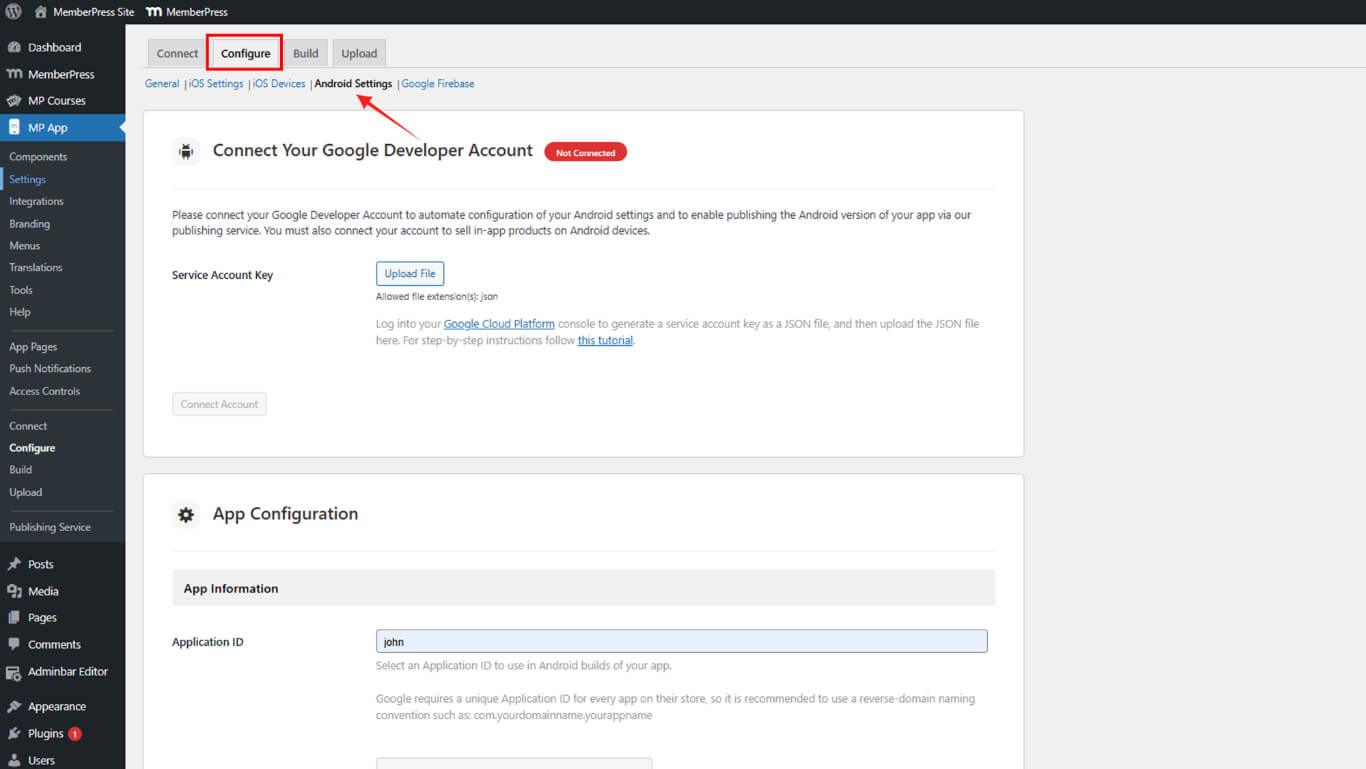
Die Konfiguration der Anwendungs-ID erfolgt in den Android-Einstellungen.
- Navigieren Sie zu Dashboard > MP AppKit > Konfigurieren > Android-Einstellungen.
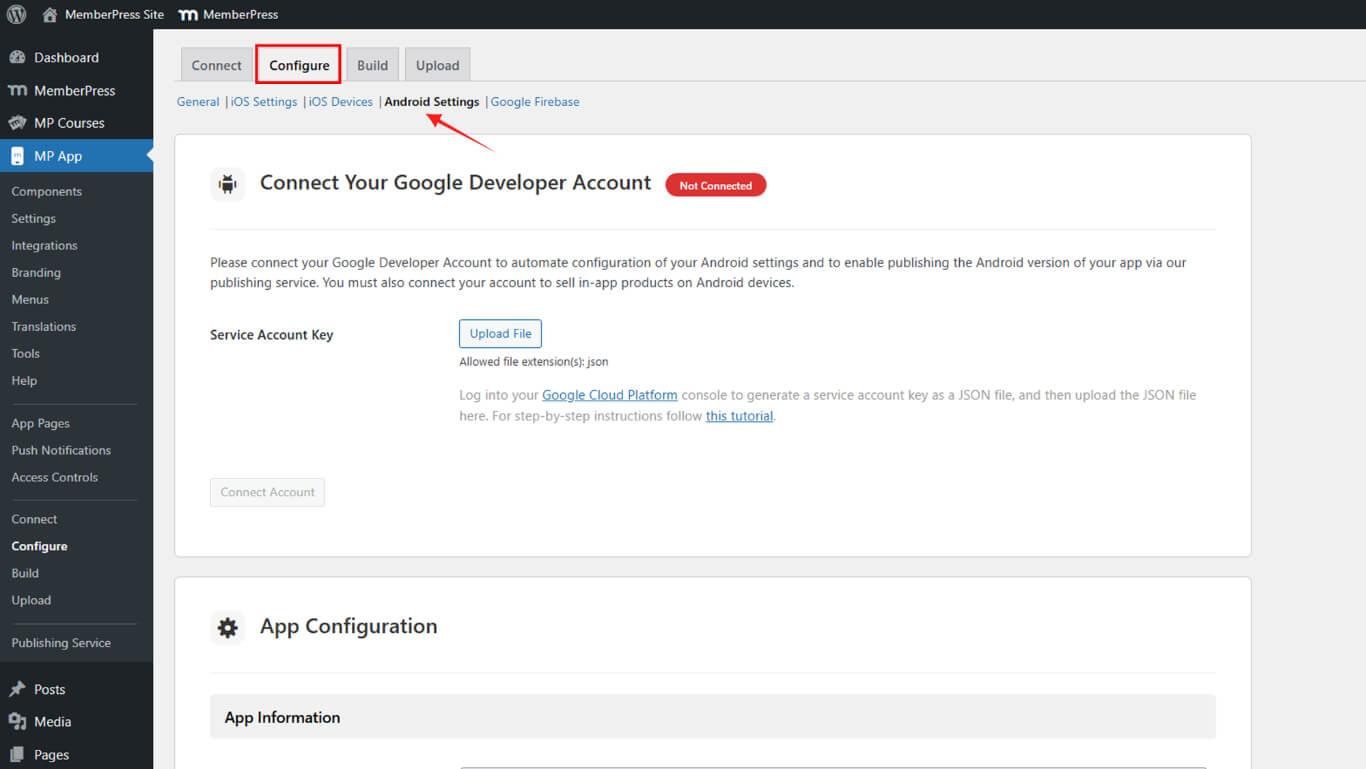
- Suchen Sie die App-Konfiguration Abschnitt.
- Geben Sie die ausgewählte Anwendungs-ID in das Feld „Anwendungs-ID“ ein.
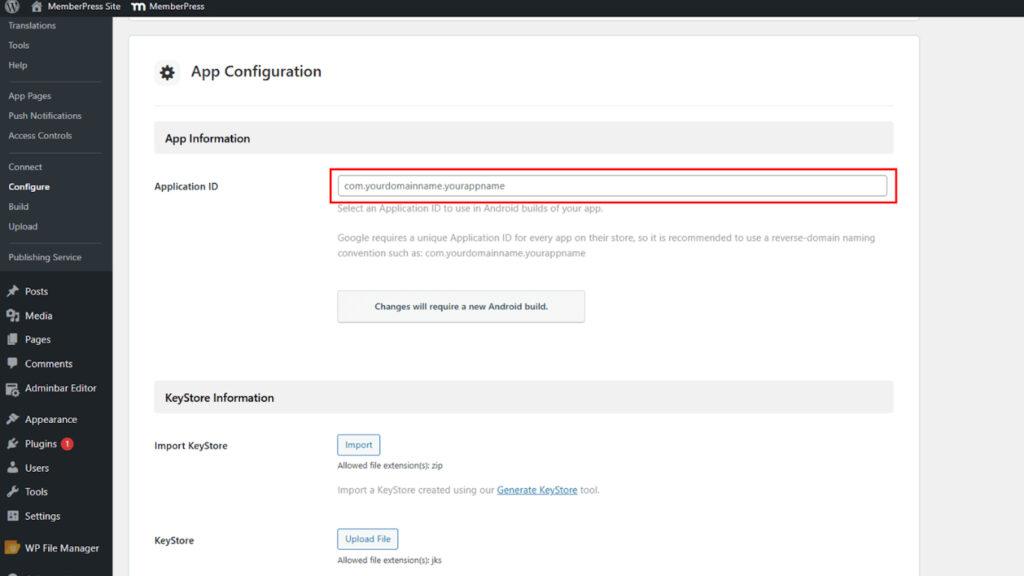
- Klicken Sie auf Änderungen speichern.
Die Reservierung der Anwendungs-ID erfolgt über die Registrierung in der Google Play Console, um Konflikte mit anderen Anwendungen zu vermeiden.
Generieren eines KeyStore-Zertifikats
Die KeyStore-Zertifikatserstellung erstellt das für Android-App-Builds erforderliche Signaturzertifikat.
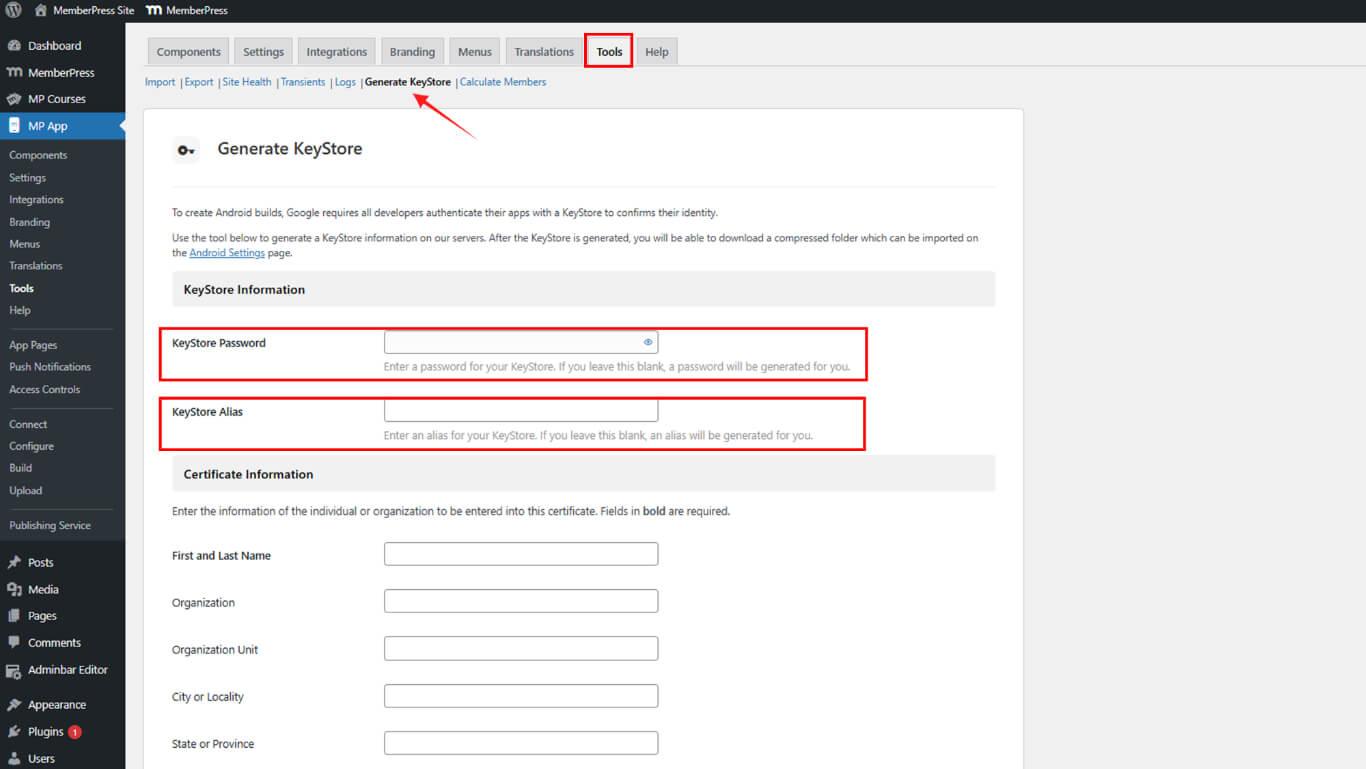
- Navigieren Sie zu Dashboard > MP AppKit > Werkzeuge > KeyStore generieren.
- Eingabe einer KeyStore-Passwort im Passwortfeld.
- Eingabe einer KeyStore-Alias im Feld „Alias“ eingeben oder leer lassen, damit es automatisch generiert wird.
- Eingabe Vorname im Feld für den Vornamen.
- Eingabe Nachname im Feld für den Nachnamen.
- Optional eingeben Organisation im Organisationsbereich.
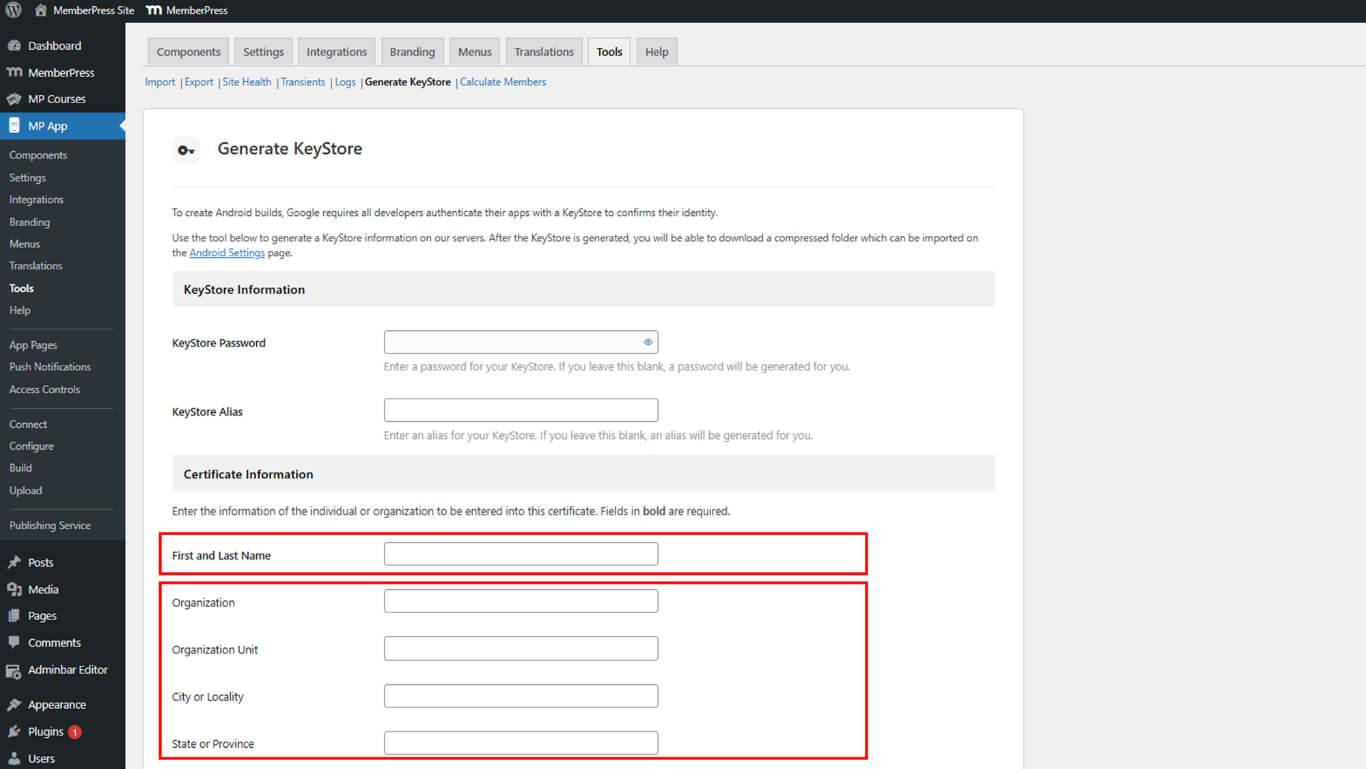
- Füllen Sie die restlichen Angaben zum Zertifikat nach Belieben aus.
- Klicken Sie auf Erzeugen Sie um den KeyStore zu erstellen.
- Aktivieren Sie das Kontrollkästchen, um die Verantwortung für die Sicherung des KeyStores zu bestätigen.
- Klicken Sie auf Herunterladen die ZIP-Datei mit dem KeyStore zu speichern.
Importieren des KeyStore-Zertifikats
Der KeyStore-Import fügt das generierte Zertifikat zu WordPress für die Build-Signierung hinzu.
- Navigieren Sie zu Dashboard > MP AppKit > Konfigurieren > Android-Einstellungen.
- Suchen Sie die KeyStore-Informationen Abschnitt.
- Klicken Sie auf Importieren um den Dateiauswahl-Dialog zu öffnen.
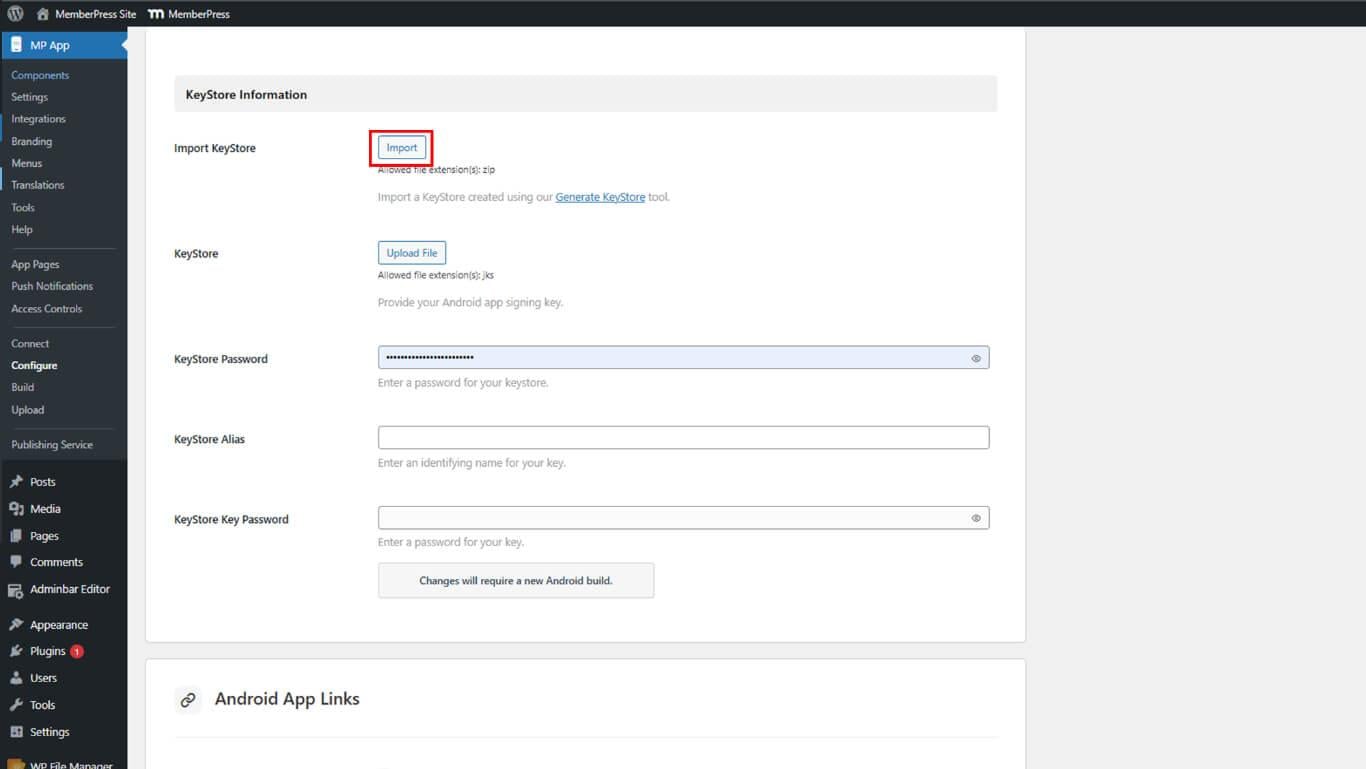
- Wählen Sie die heruntergeladene KeyStore-ZIP-Datei aus.
- Klicken Sie auf Änderungen speichern um den Import abzuschließen.
Registrieren der Anwendungs-ID bei Google Play
Die Registrierung der Anwendungs-ID reserviert die Kennung und verhindert, dass andere sie beanspruchen können.
- Erstellen Sie einen Release-App-Build unter Dashboard > MP AppKit > Bauen.
- Melden Sie sich bei Google Play Console an unter play.google.com/console.
- Navigieren Sie zu Alle Apps und wählen Sie die App aus.
- Klicken Sie auf Freigabe > Produktion in der Seitenleiste.
- Klicken Sie auf Neue Version erstellen mit der Erstellung der Veröffentlichung beginnen.
- Suchen Sie die App-Pakete Abschnitt.
- Klicken Sie auf Hochladen um den Dateiauswahl-Dialog zu öffnen.
- Wählen Sie die mit der Anwendungs-ID erstellte AAB-Datei aus.
- Klicken Sie auf Speichern Sie die Anwendungs-ID registrieren.










 DE
DE  EN
EN  ES
ES  FR
FR  PT
PT 