

Apple Universal Links ermöglichen es, Website-URLs direkt in der iOS-Anwendung zu öffnen, wodurch Safari-Umleitungen für eine nahtlose Navigation vermieden werden. Die Konfiguration von Universal Links erfordert die Funktion "Assoziierte Domänen" im Apple Developer-Konto, die Regeneration des Bereitstellungsprofils und die Aktivierung der Plugin-Einstellungen. In diesem Dokument wird erläutert, wie Sie Associated Domains aktivieren, Profile neu generieren, Universal Links aktivieren und die Konfiguration überprüfen.
Verstehen von Apple Universal Links
Apple Universal Links verbinden Website-URLs mit den Bildschirmen mobiler Apps. Wenn Mitglieder auf iOS-Geräten auf Links tippen, werden die Inhalte in der App und nicht im Safari-Browser geöffnet. Dieses Verhalten schafft nahtlose Übergänge zwischen Web- und App-Erlebnissen.
Assoziierte Domänen aktivieren
Die Funktion "Assoziierte Domänen" muss im Apple-Entwicklerkonto aktiviert sein, bevor die Universal Links funktionieren.
- Melden Sie sich beim Apple Developer Account an unter appleid.apple.com.
- Navigieren Sie zu Zertifikate, Identifikatoren und Profile Abschnitt.
- Klicken Sie auf Identifikatoren in der Seitenleiste.
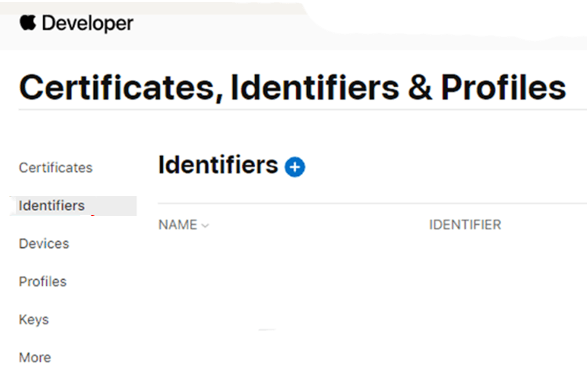
- Wählen Sie die MemberPress App ID aus der Liste der Identifikatoren.
- Klicken Sie auf die Fähigkeiten tab.
- Prüfen Sie die Assoziierte Domains Kontrollkästchen.
- Klicken Sie auf Speichern Sie um die Fähigkeit zu aktivieren.
Wiederherstellung von Bereitstellungsprofilen
Die Bereitstellungsprofile müssen neu generiert werden, damit sie die Funktion "Zugehörige Domänen" enthalten.
- Navigieren Sie zu Dashboard > MP AppKit > Konfigurieren > iOS-Einstellungen.
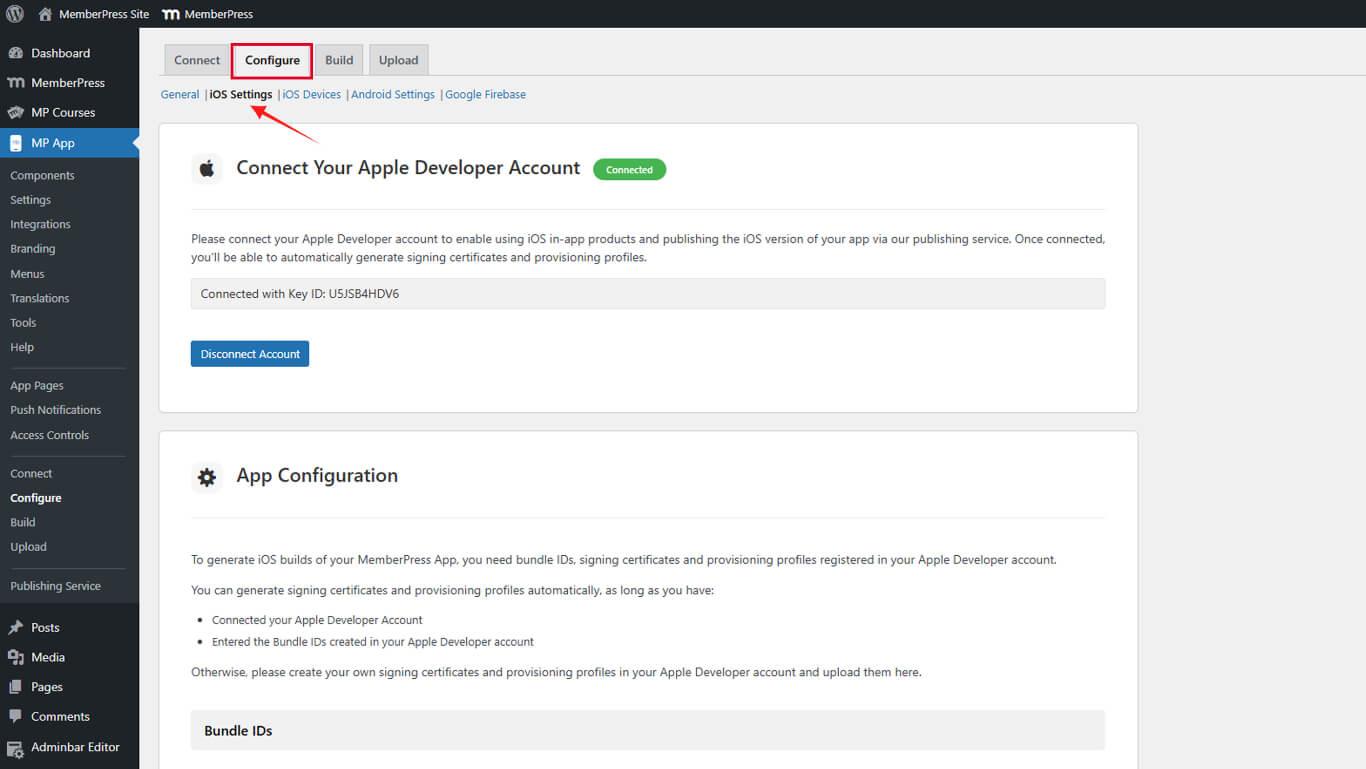
- Blättern Sie zum Bereitstellungsprofile Abschnitt.
- Deaktivieren Sie das Kontrollkästchen Provisioning-Profile automatisch generieren Kontrollkästchen.
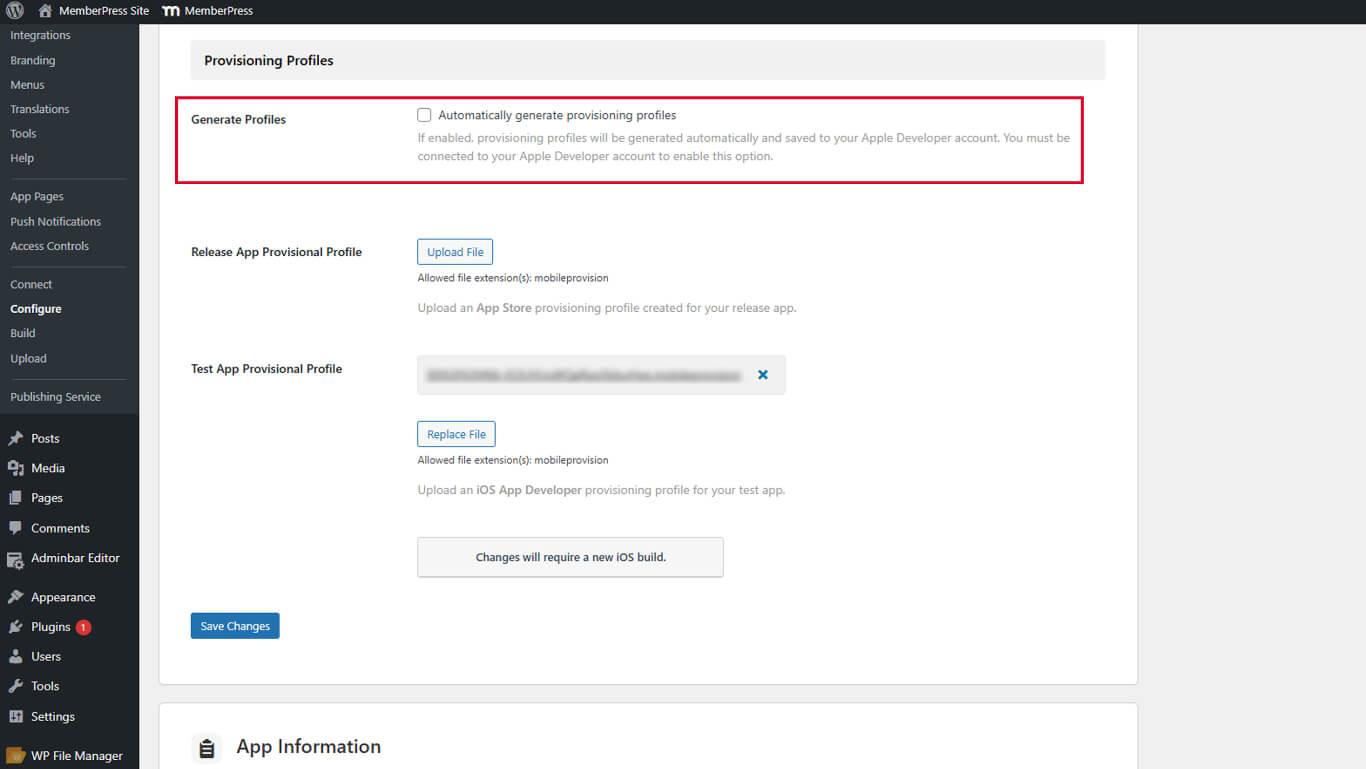
- Klicken Sie auf Änderungen speichern.
- Klicken Sie auf die X neben jedem vorhandenen Bereitstellungsprofil, um es zu löschen.
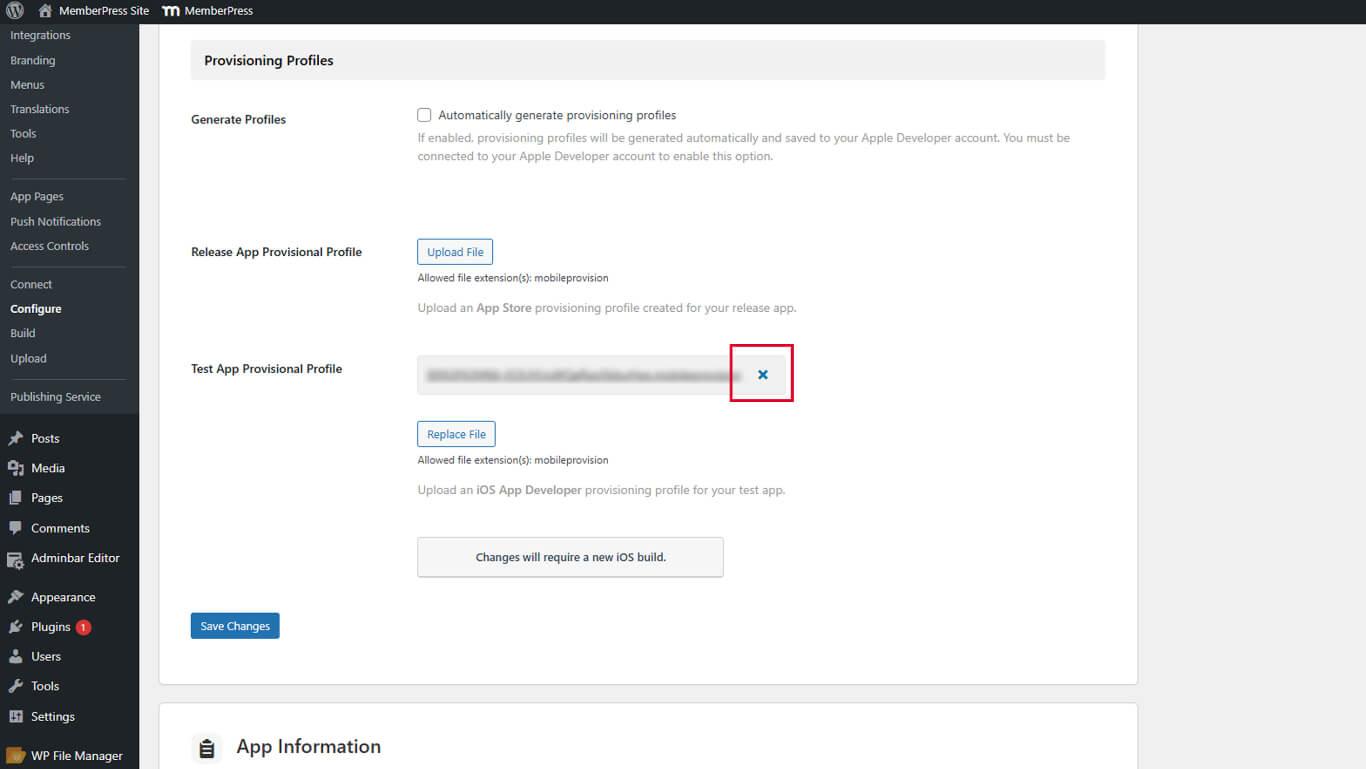
- Klicken Sie auf Änderungen speichern nachdem alle Profile gelöscht wurden.
- Prüfen Sie die Provisioning-Profile automatisch generieren Kontrollkästchen.
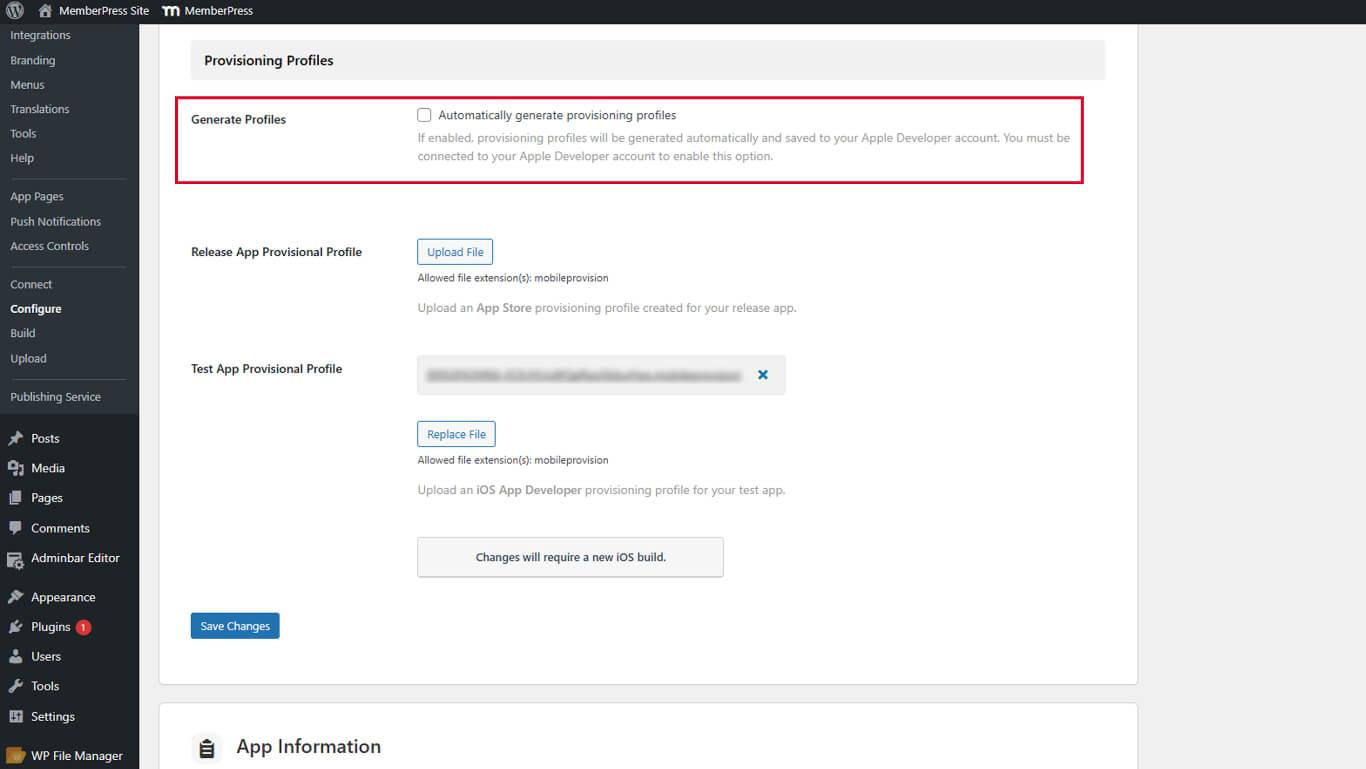
- Klicken Sie auf Änderungen speichern um neue Profile zu erstellen.
Die neuen Bereitstellungsprofile enthalten die für Universal Links erforderliche Fähigkeit der zugehörigen Domänen.
Aktivieren von Universal Links
Die Aktivierung von Universal Links erfolgt über die Konfiguration der iOS-Einstellungen.
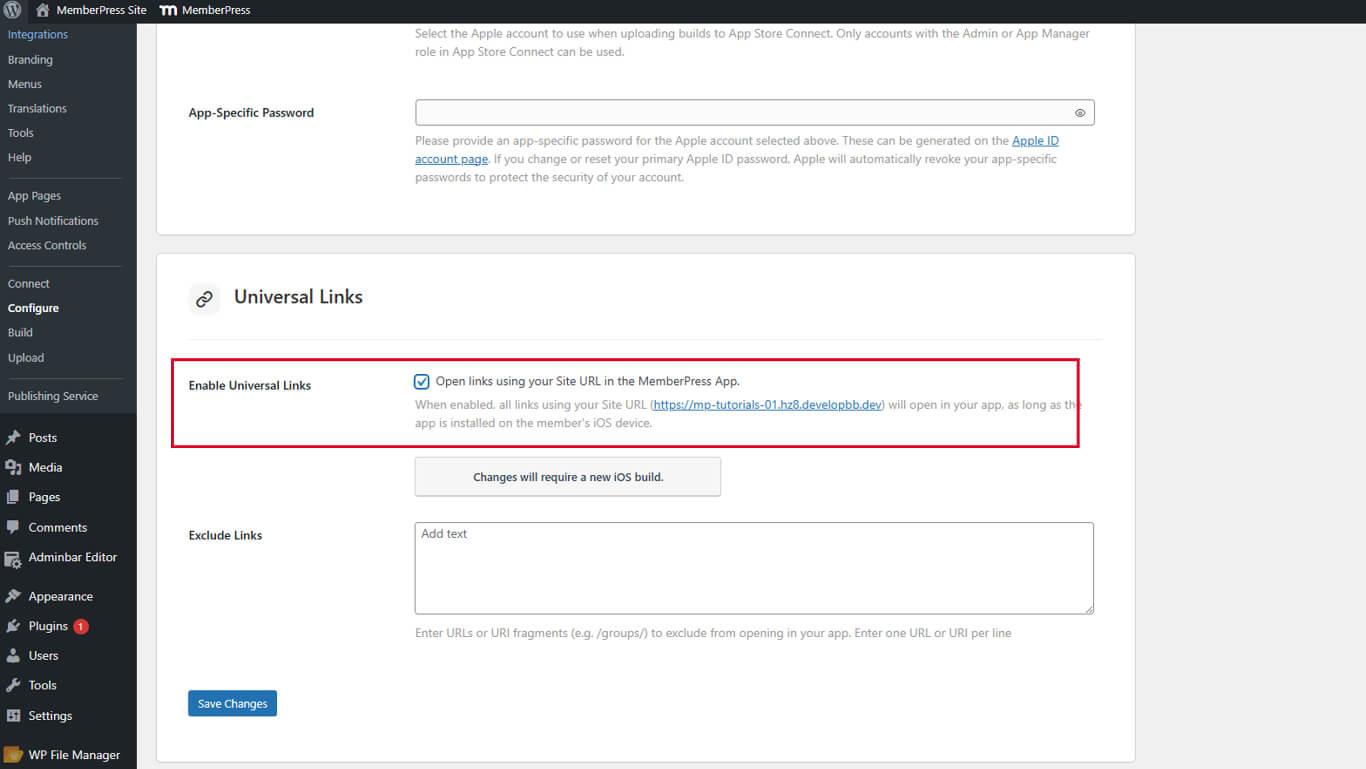
- Navigieren Sie zu Dashboard > MP AppKit > Konfigurieren > iOS-Einstellungen.
- Blättern Sie zum Universelle Links Abschnitt.
- Prüfen Sie die Universelle Links einschalten Kontrollkästchen.
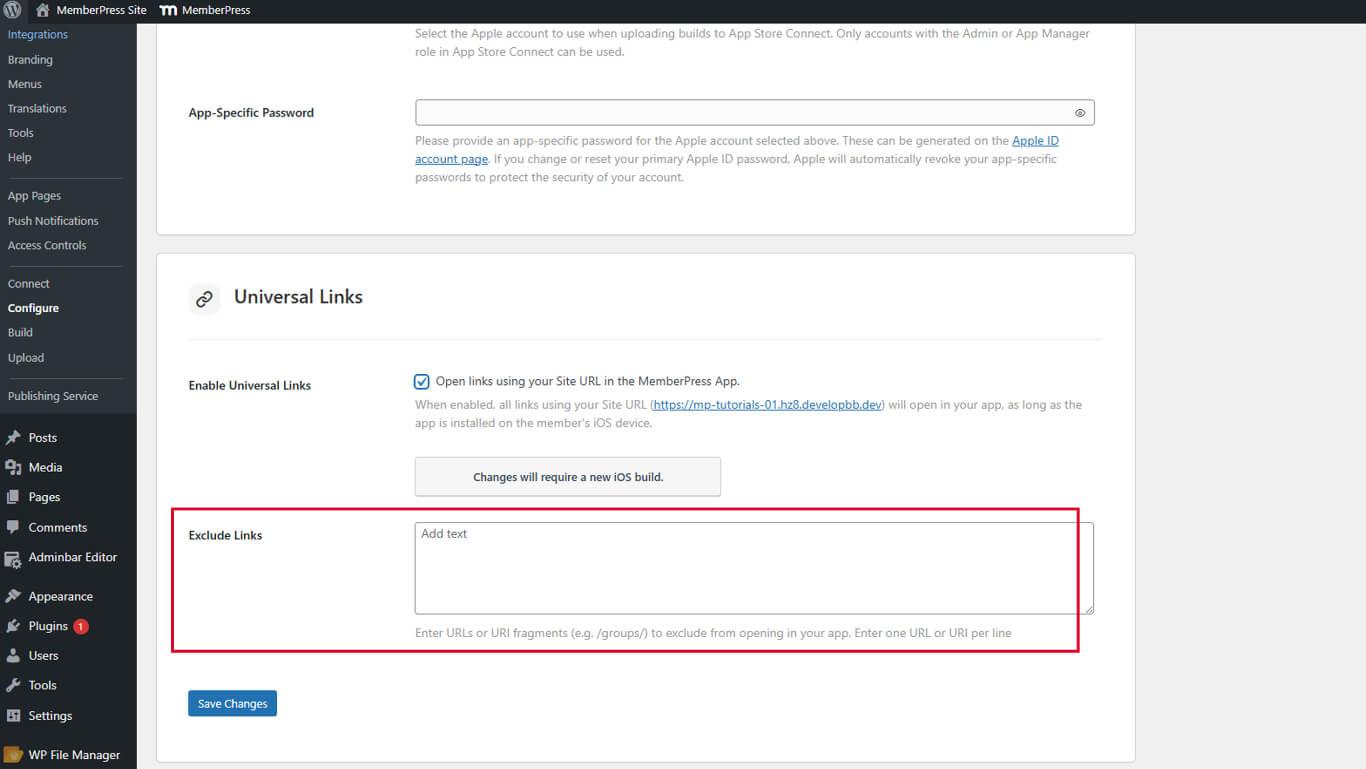
- Suchen Sie die Ausgeschlossene Links Feld für optionale URL-Ausschlüsse.
- Geben Sie bei Bedarf URL-Muster ein, die vom Öffnen der App ausgeschlossen werden sollen.
- Klicken Sie auf Änderungen speichern.
Verstehen von ausgeschlossenen Links
Das Feld Ausgeschlossene Links gibt URL-Muster an, die in Safari statt in der App geöffnet werden sollen.
Geben Sie URL-Muster oder Pfade ein, die nicht zum Öffnen der App führen sollen. Es können mehrere Ausnahmen aufgeführt werden, wobei jedes Muster in einer eigenen Zeile steht.
Überprüfen der Assoziationsdatei
Die Überprüfung der Zuordnungsdatei bestätigt die korrekte Konfiguration von Universal Links.
- Öffnen Sie einen Webbrowser auf einem beliebigen Gerät.
- Navigieren Sie zu https://yourdomain.com/.well-known/apple-app-site-association/, und ersetzt IhreDomain.de mit der tatsächlichen URL der Website.
- Überprüfen Sie, ob die JSON-Antwort im Browser angezeigt wird.
- Bestätigen Sie, dass JSON in der Antwort Anwendungskennungen enthält.
- Überprüfen Sie, ob die unterstützten Pfade in der JSON-Struktur erscheinen.










 DE
DE  EN
EN  ES
ES  FR
FR  PT
PT 