

Google Firebase Cloud Messaging ermöglicht Push-Benachrichtigungen auf Android- und iOS-Plattformen. Die Firebase-Integration ermöglicht Echtzeit-Benachrichtigungen für Mitglieder über die mobile Anwendung.
Dieses Dokument behandelt die Erstellung eines Firebase-Projekts, die Aktivierung der API, die Generierung von Serviceschlüsseln, die Registrierung von mobilen Anwendungen und das Hochladen von Konfigurationsdateien.
Firebase-Integration verstehen
Firebase Cloud Messaging liefert Push-Benachrichtigungen an Mitgliedergeräte auf iOS- und Android-Plattformen. Firebase V1 API bietet die aktuelle Messaging-Infrastruktur und ersetzt ältere Messaging-Systeme. Die ordnungsgemäße Firebase-Konfiguration erfordert die Projekterstellung, die API-Aktivierung, die Generierung eines Service-Kontos und die App-Registrierung für beide Plattformen.
Firebase-Projekt erstellen
Die Erstellung eines Firebase-Projekts bildet die Grundlage für die Bereitstellung von Push-Benachrichtigungen.
- Melden Sie sich bei der Firebase-Konsole an unter konsole.firebase.google.de.
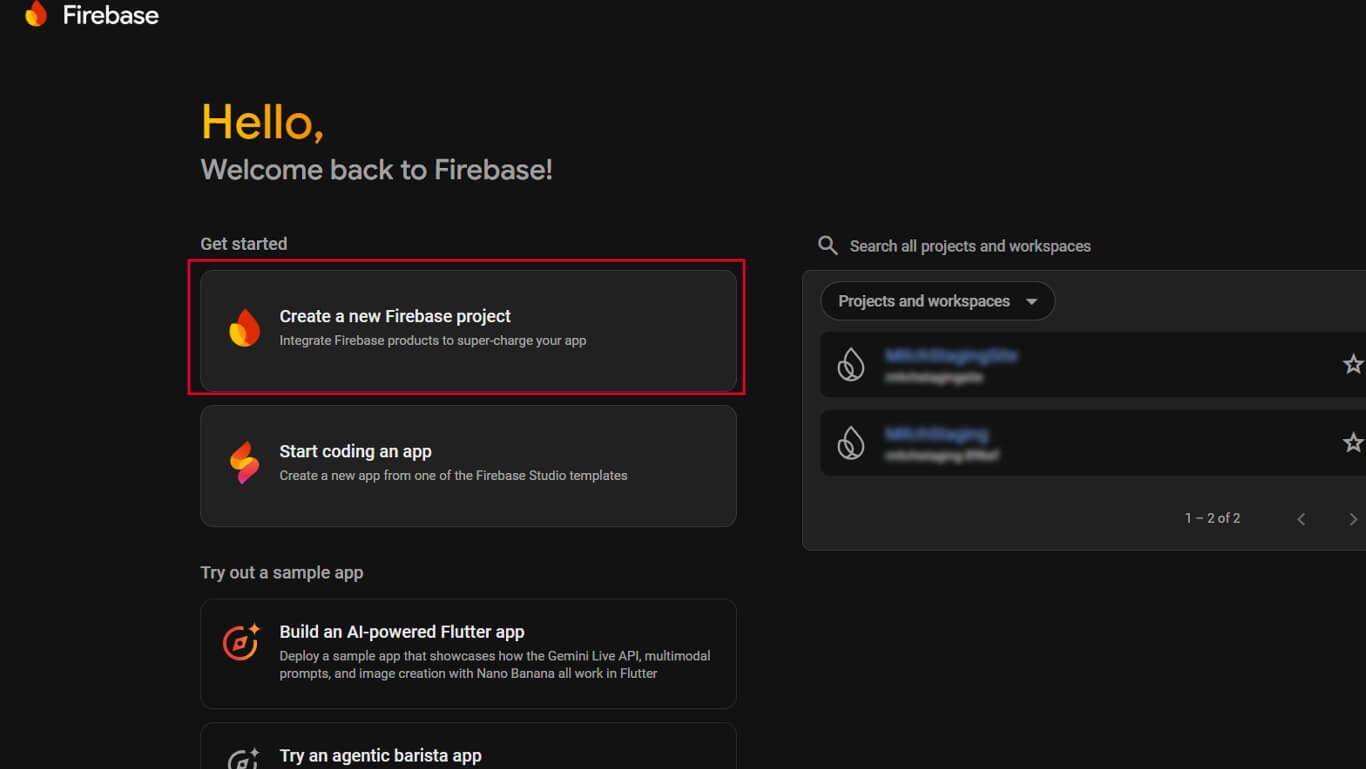
- Klicken Sie auf Erstellen Sie ein neues Firebase-Projekt auf der Seite Projekte.
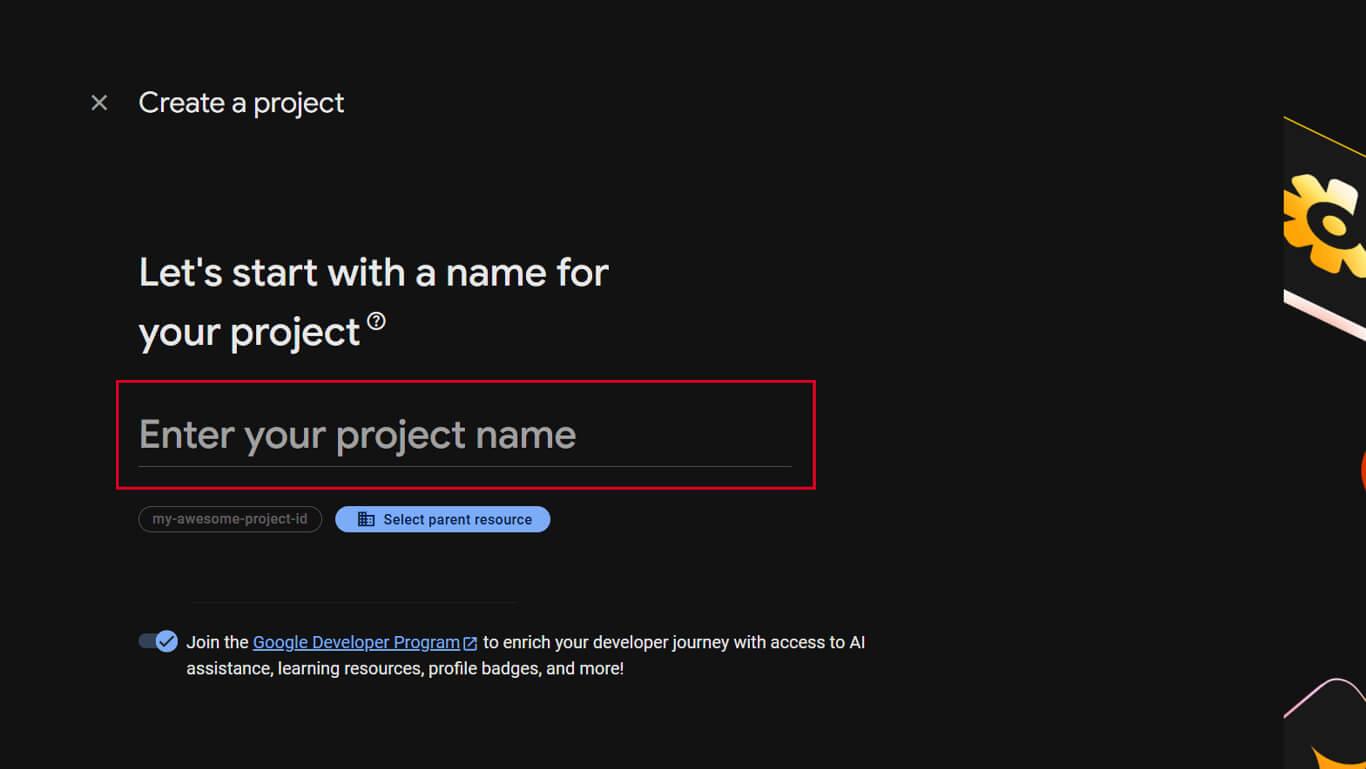
- Geben Sie einen Projektnamen in das Feld „Projektname“ ein.
- Klicken Sie auf Weiter um mit dem nächsten Schritt fortzufahren.
- Optional aktivieren Google Analytics durch Umschalten des Schalters.
- Wählen oder akzeptieren Sie den Standard Analytik Konto, falls aktiviert.
- Klicken Sie auf Projekt erstellen um die Projekterstellung abzuschließen.
- Warten Sie, bis die Projekteinrichtung abgeschlossen ist.
- Klicken Sie auf Weiter um das neue Projekt-Dashboard zu öffnen.
Aktivieren der Firebase Cloud Messaging-API
Die Firebase Cloud Messaging API muss aktiviert sein, bevor die Push-Benachrichtigungen funktionieren.
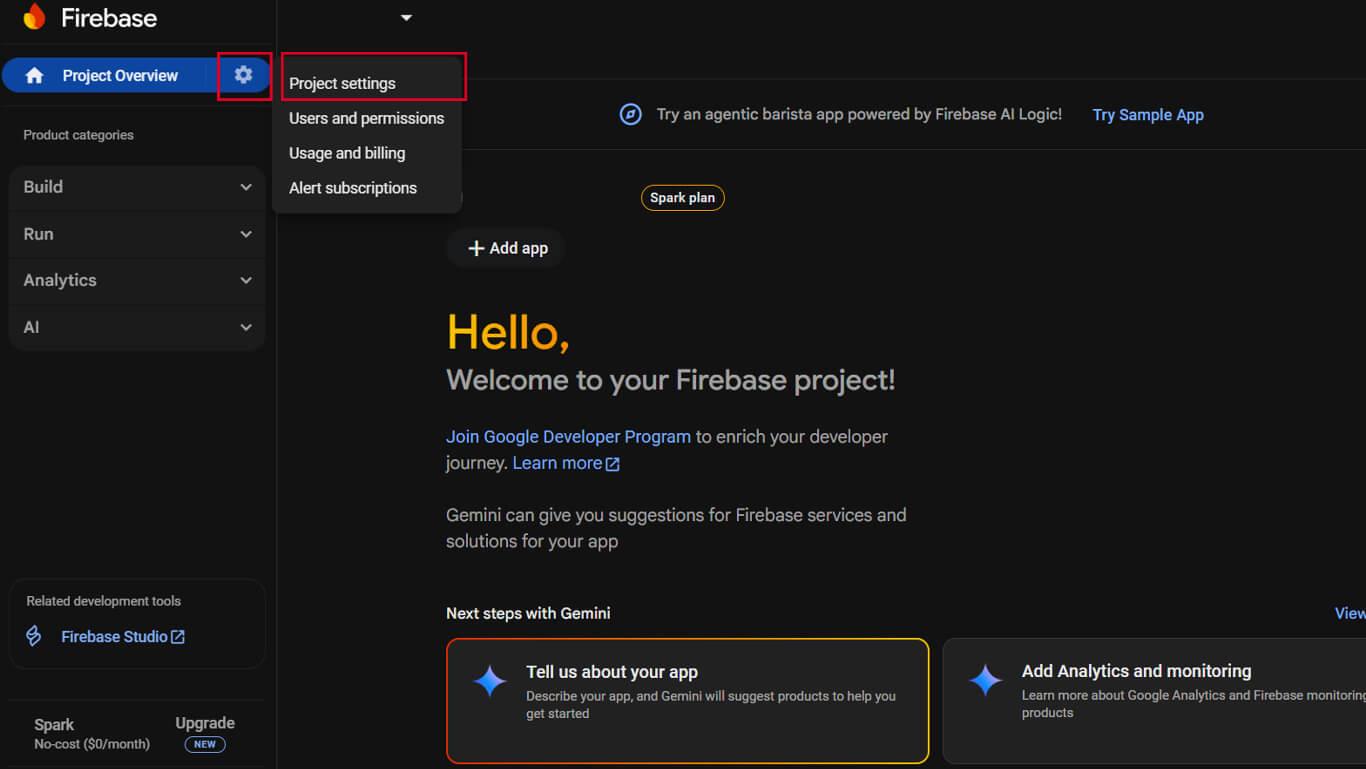
- Klicken Sie auf die Einstellungen Zahnradsymbol im Firebase-Projekt.
- Wählen Sie Projekt-Einstellungen aus dem Dropdown-Menü.
- Klicken Sie auf die Cloud-Messaging tab.
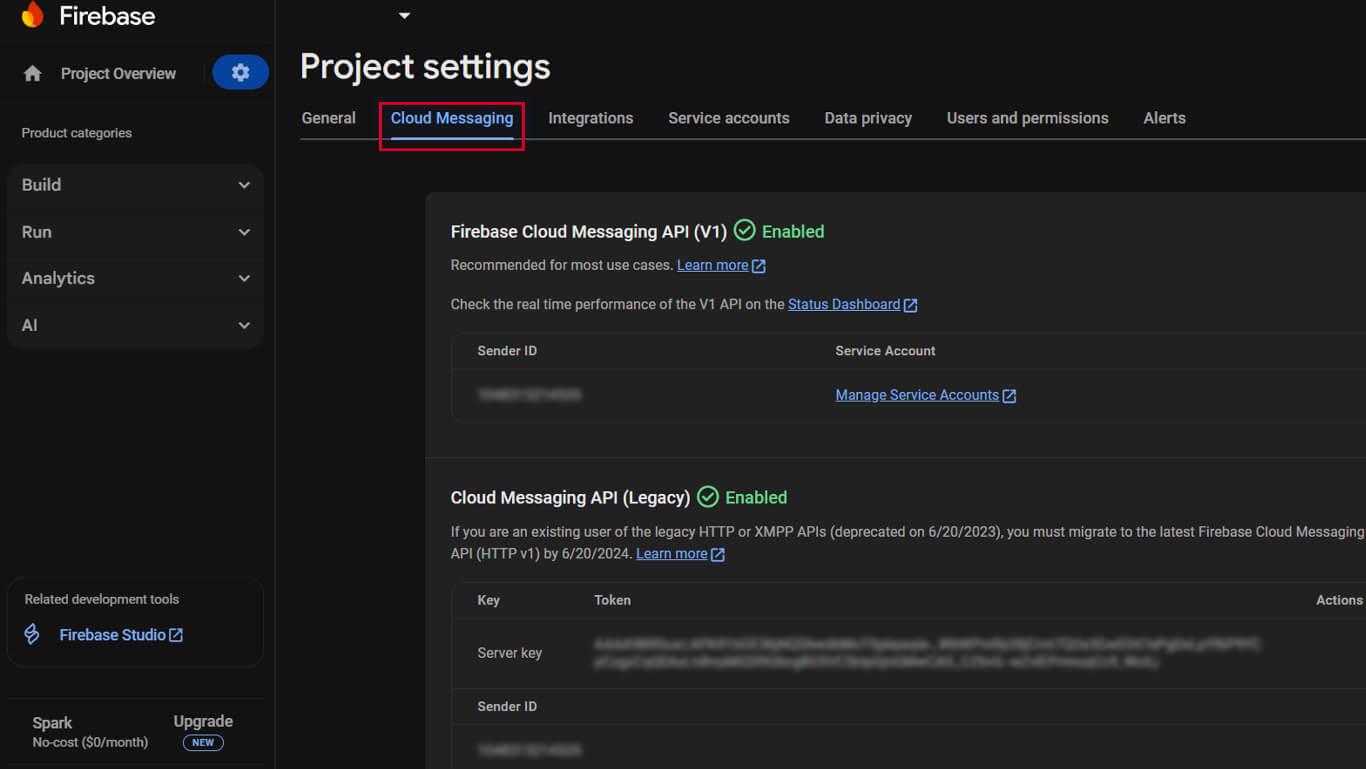
- Überprüfen Sie die Firebase Cloud Messaging API zeigt eine grüne “Aktiviert” Indikator.
- Wenn die Firebase Cloud Messaging API (V1) nicht aktiviert ist, klicken Sie auf das Menü ⋮.
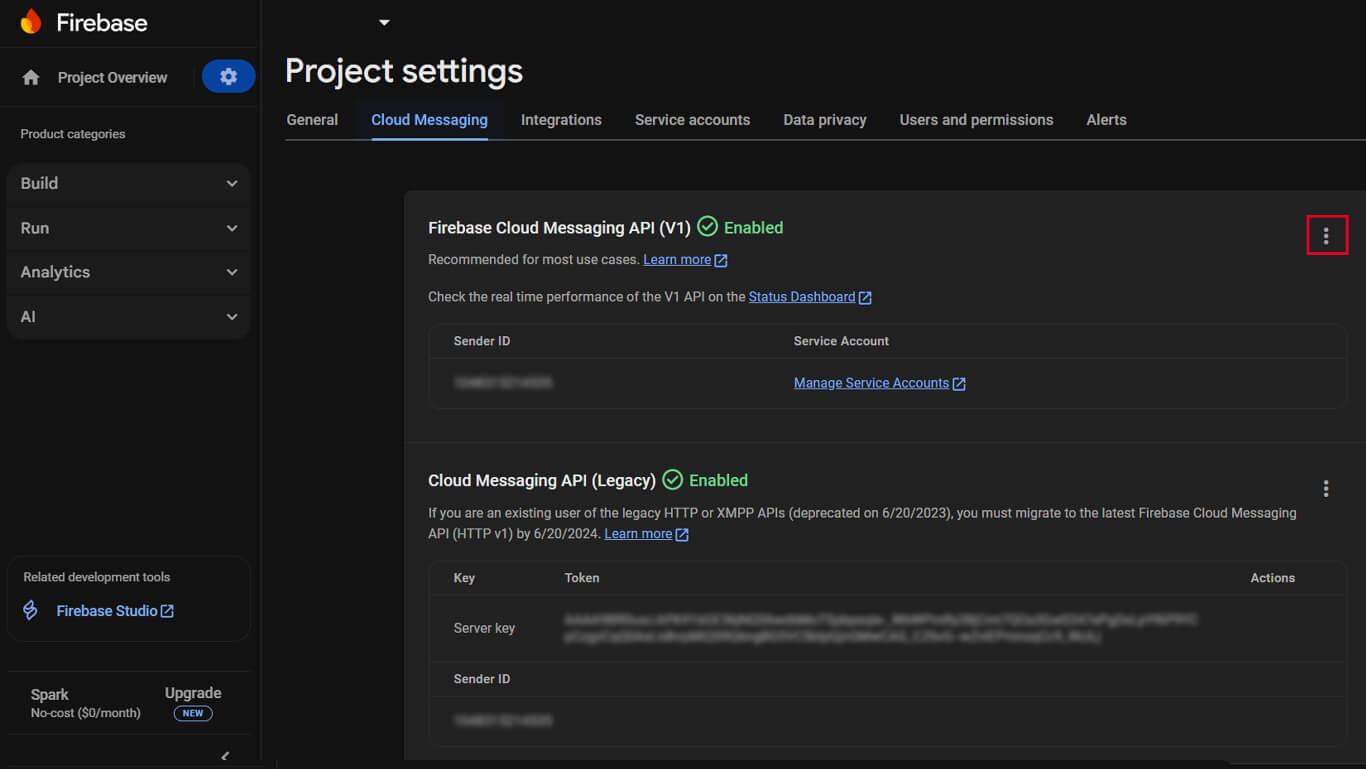
- Wählen Sie Verwalten der API in der Google Cloud Console aus dem Menü.
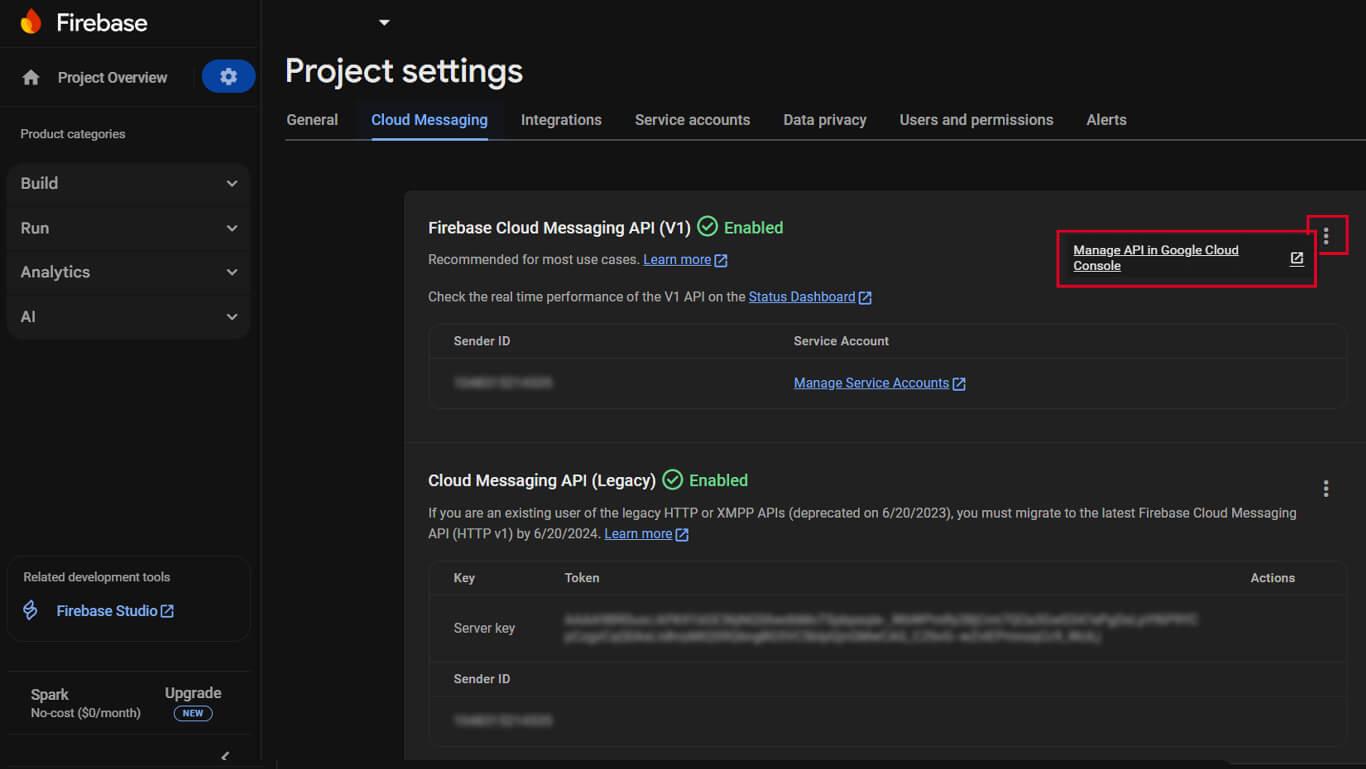
- Klicken Sie auf Aktivieren Sie über die Cloud Messaging API Seite.
- Bestätigen Sie die Anzeige des API-Status als “Aktiviert“.
Firebase Cloud Messaging API (V1) ersetzt die Legacy Cloud Messaging API für eine verbesserte Funktionalität.
Erzeugen des Firebase Service Kontoschlüssels
Der Schlüssel für das Dienstkonto ermöglicht die Authentifizierung für WordPress, um Push-Benachrichtigungen über Firebase zu senden.
- Navigieren Sie zu Projekteinstellungen > Dienstkonten in der Firebase-Konsole.
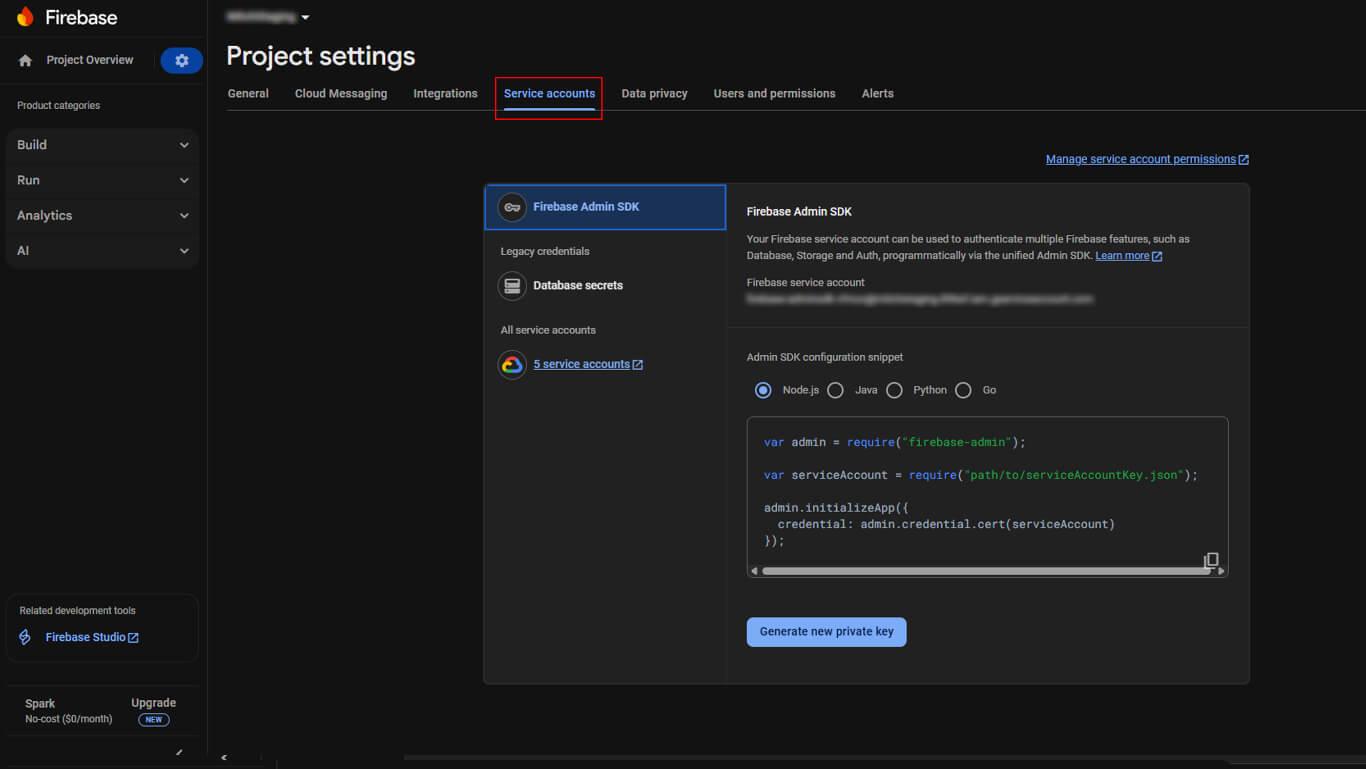
- Blättern Sie zum Firebase Admin SDK Abschnitt.
- Klicken Sie auf die Neuen privaten Schlüssel generieren Taste.
- Klicken Sie auf Schlüssel generieren in dem Bestätigungs-Pop-up.
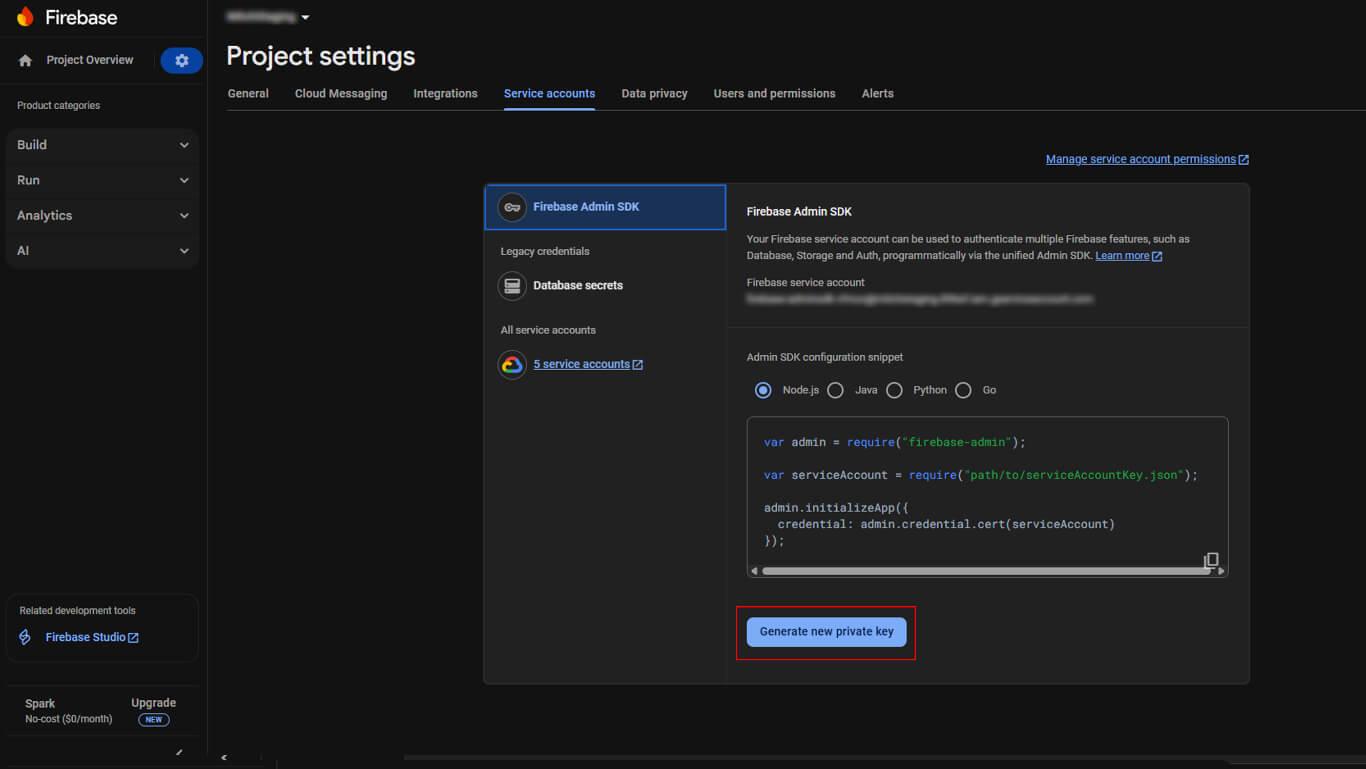
- Speichern Sie die heruntergeladene JSON-Datei an einem sicheren Ort.
Erstellen einer Firebase iOS App
Die iOS-App-Registrierung verbindet das MemberPress AppKit mit Firebase für iOS-Push-Benachrichtigungen.
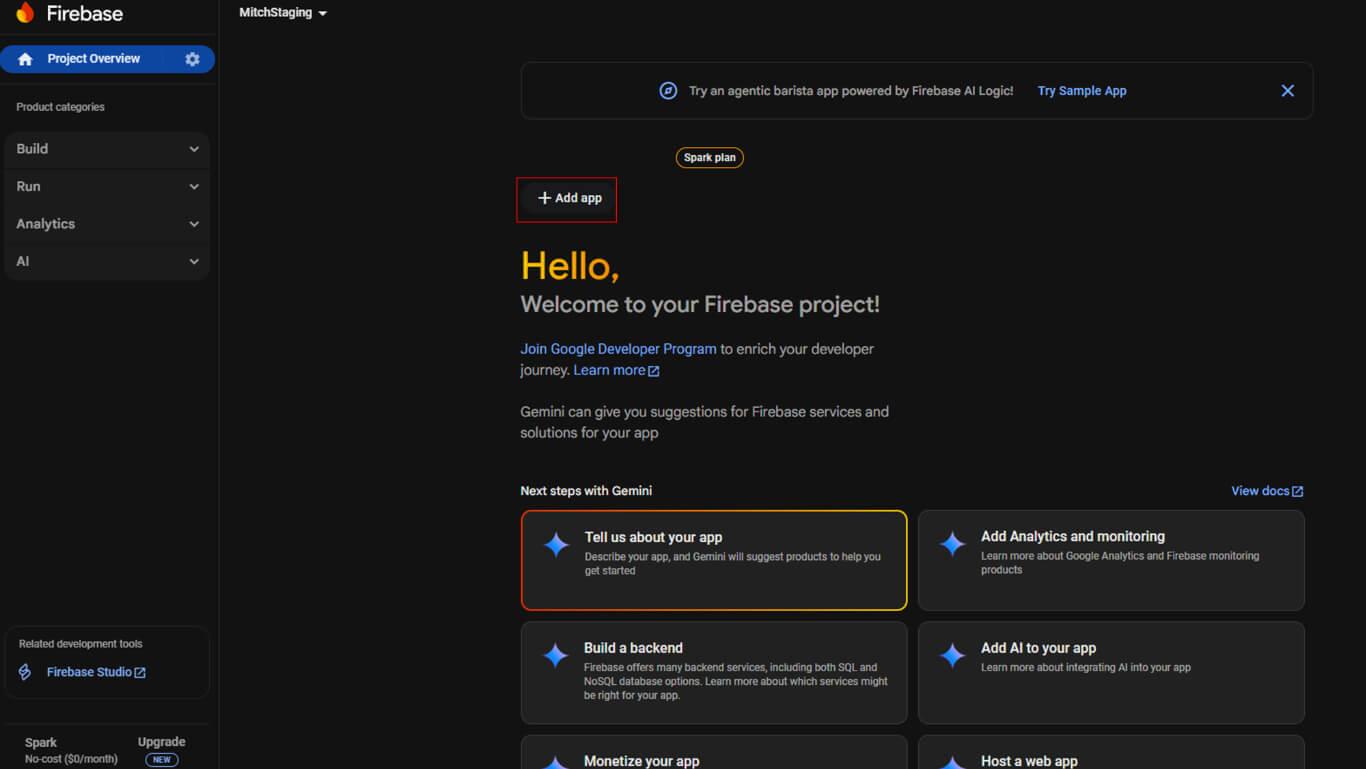
- Klicken Sie auf das + App hinzufügen auf dem Dashboard des Firebase-Projekts.
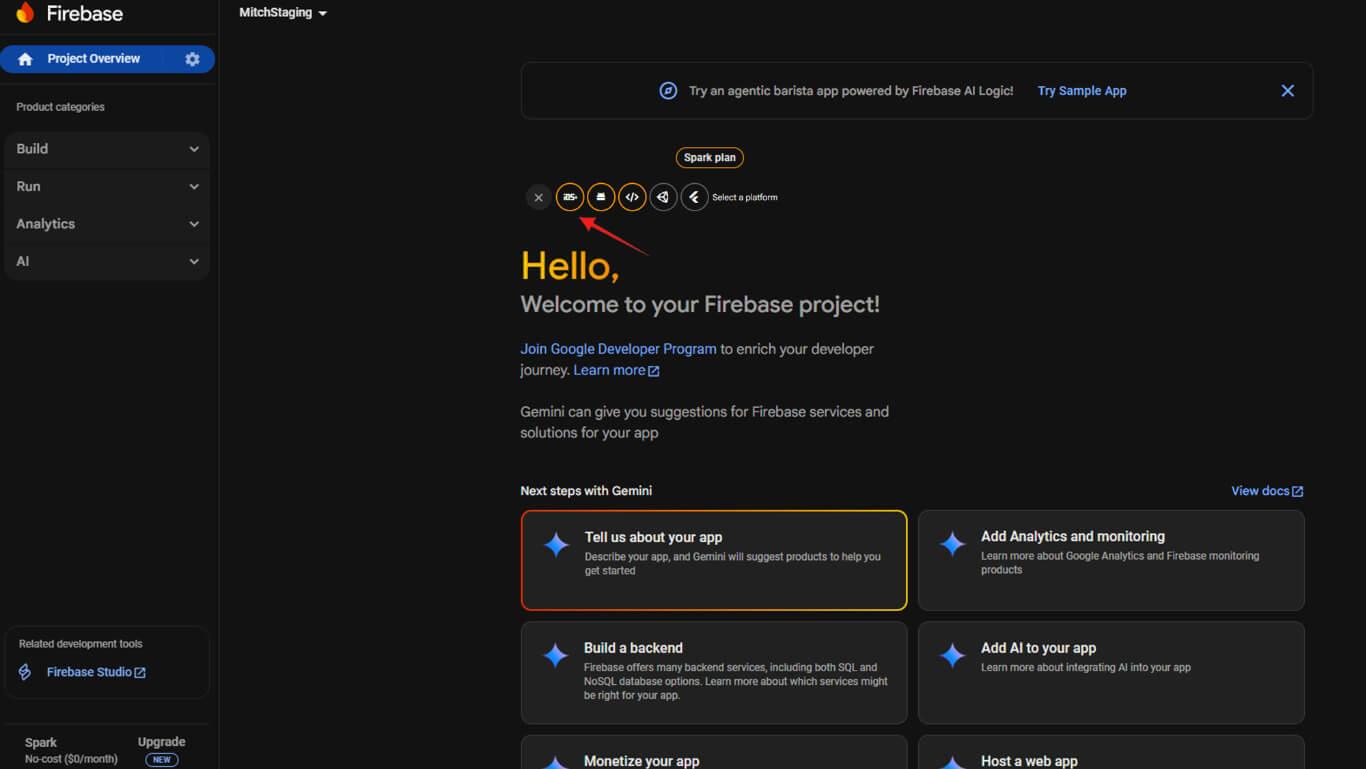
- Klicken Sie auf die iOS um die Registrierung der iOS-App zu starten.
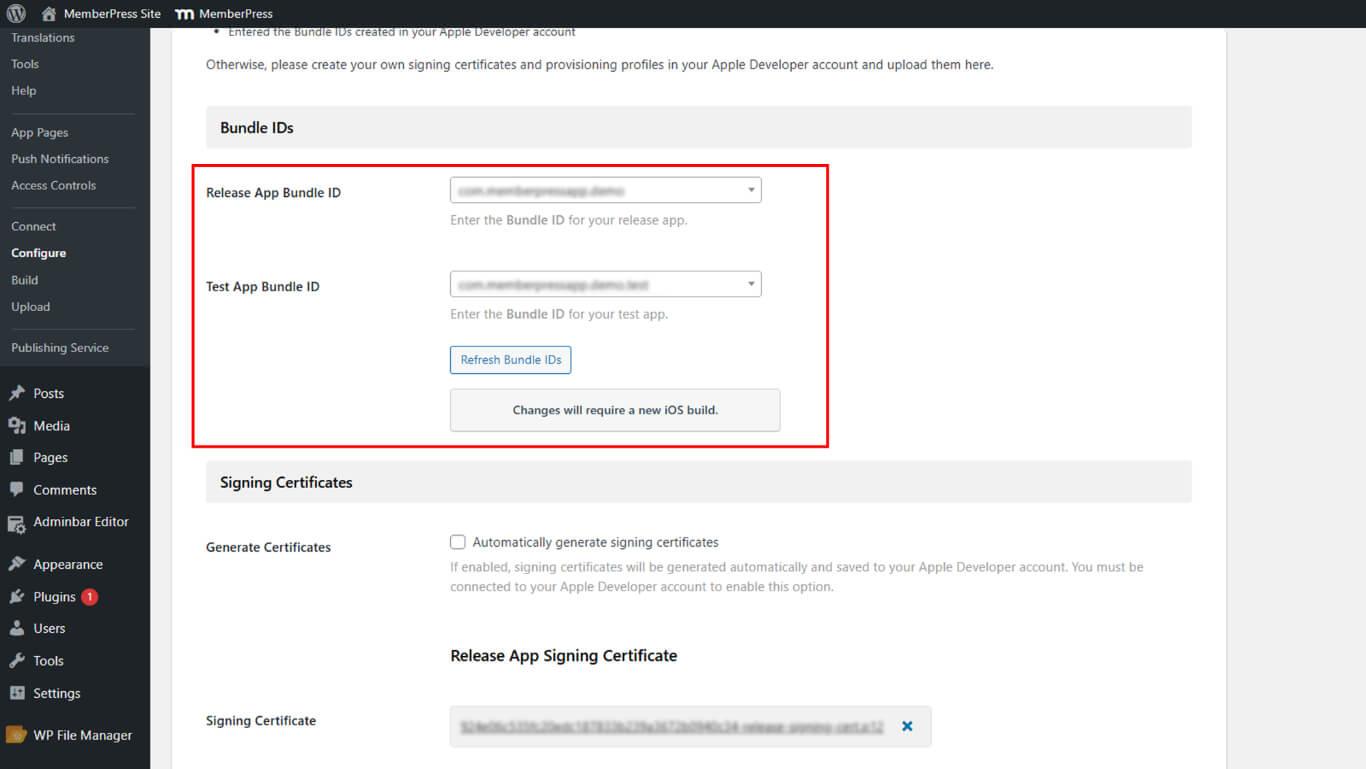
- Navigieren Sie zu Dashboard > MP AppKit > Konfigurieren > iOS-Einstellungen in WordPress.
- Kopieren Sie die Bundle-ID auf der iOS-Einstellungsseite.
- Kehren Sie zur Firebase-Konsole zurück und fügen Sie die Bundle-ID ein.
- (Optional) Fügen Sie Ihren App-Spitznamen und Ihre App Store ID hinzu.
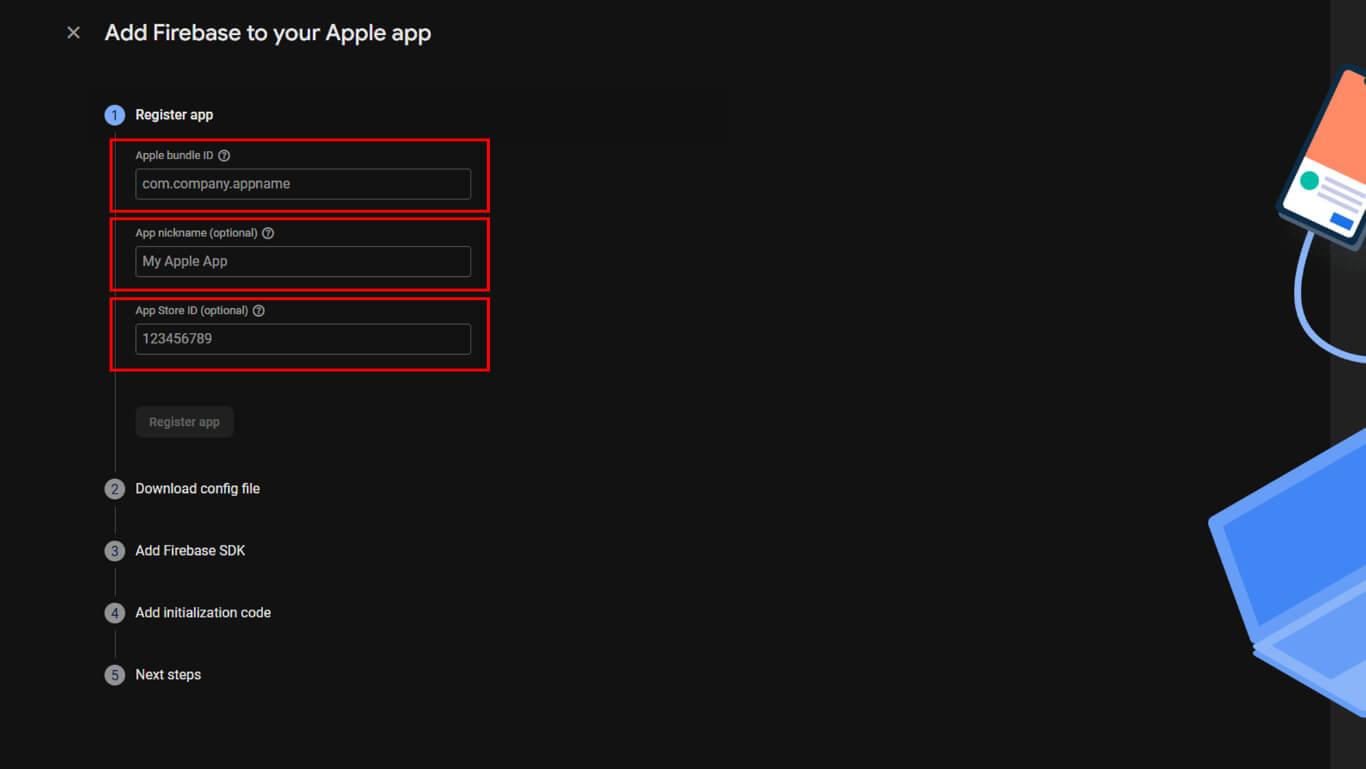
- Klicken Sie auf App registrieren um die iOS-App zu erstellen.
- Herunterladen der GoogleService-Info.plist Datei.
- Klicken Sie auf Weiter durch die restlichen Einrichtungsschritte.
- Klicken Sie auf Weiter zur Konsole um die Registrierung der iOS-App abzuschließen.
Firebase Android App erstellen
Die Android-App-Registrierung verbindet das MemberPress AppKit mit Firebase für Android-Push-Benachrichtigungen.
- Klick + App hinzufügen auf dem Firebase-Projekt-Dashboard, wenn es nicht bereits geöffnet ist.
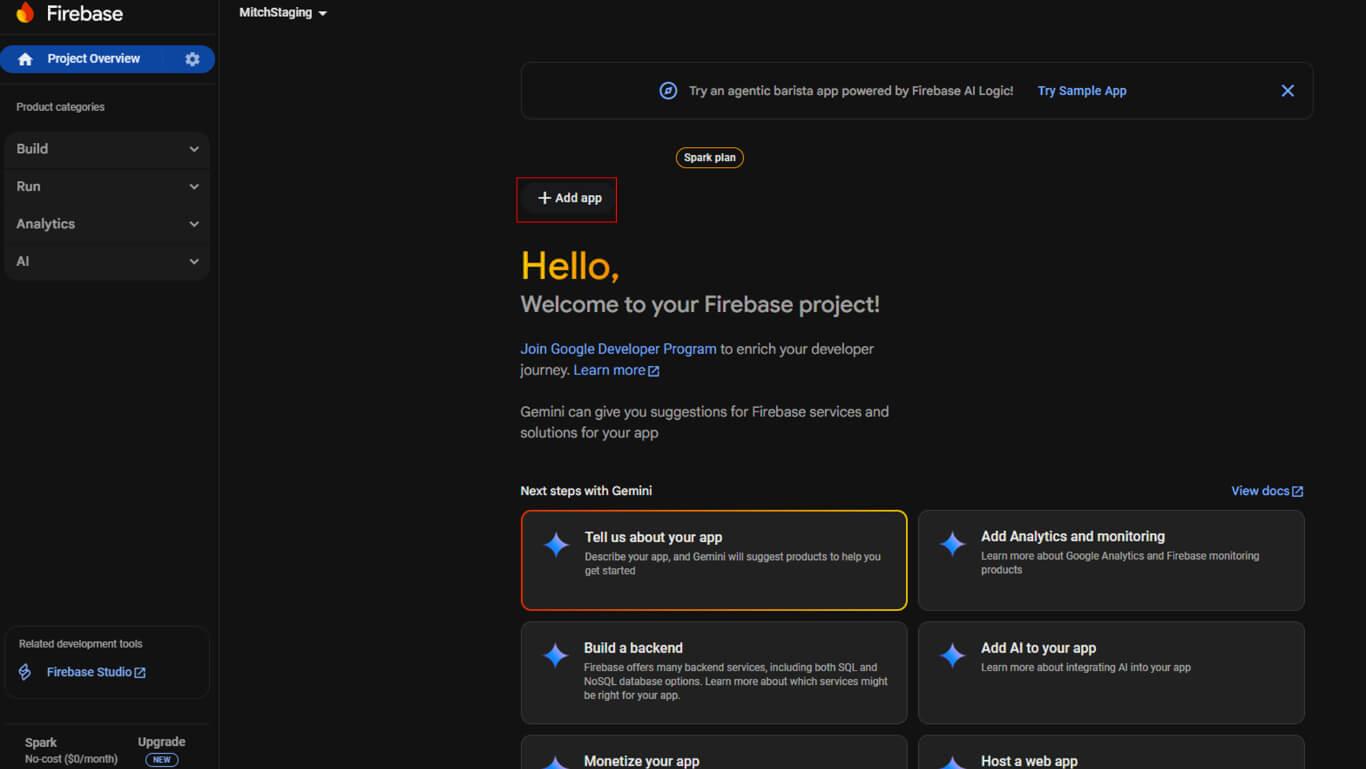
- Klicken Sie auf die Android Symbol, um die Registrierung der Android-App zu starten.
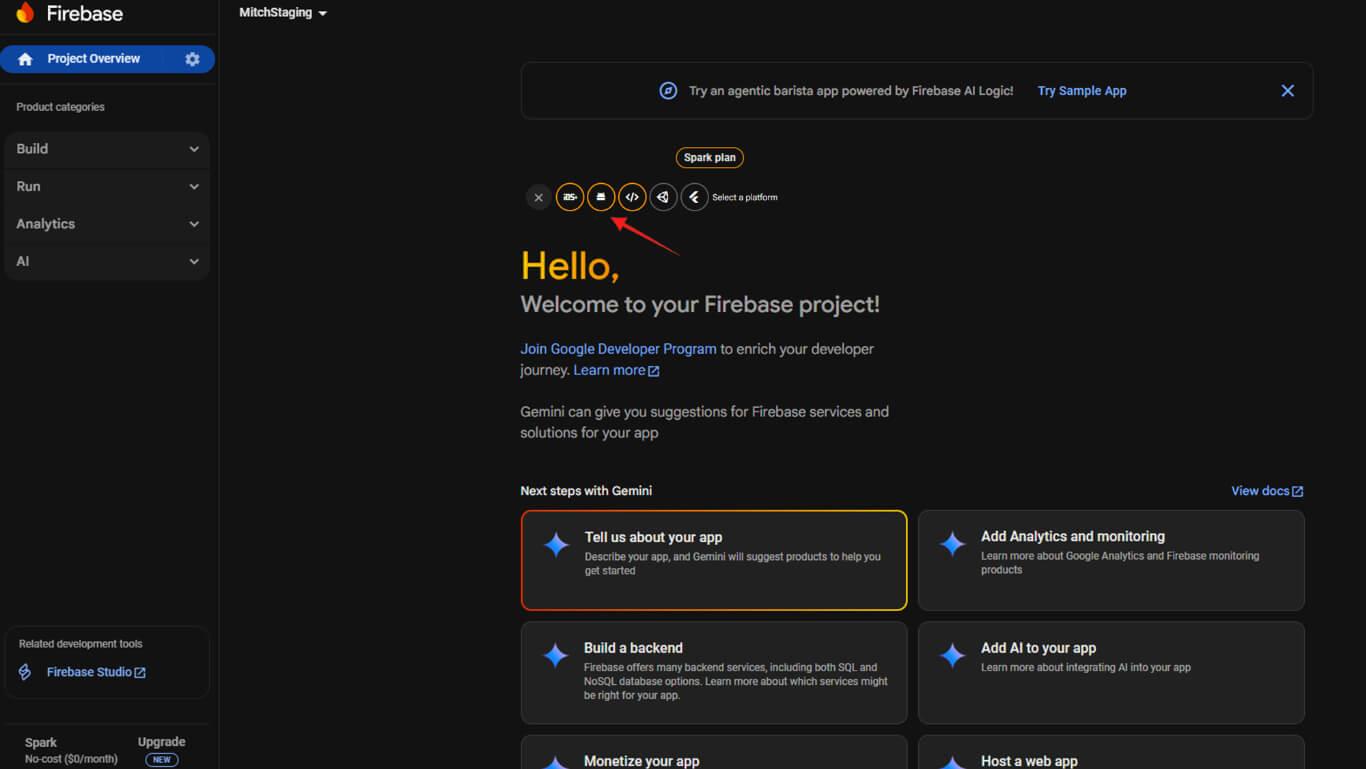
- Navigieren Sie zu Dashboard > MP AppKit > Konfigurieren > Android-Einstellungen in WordPress.
- Kopieren Sie die ID der Anwendung auf der Seite mit den Android-Einstellungen.
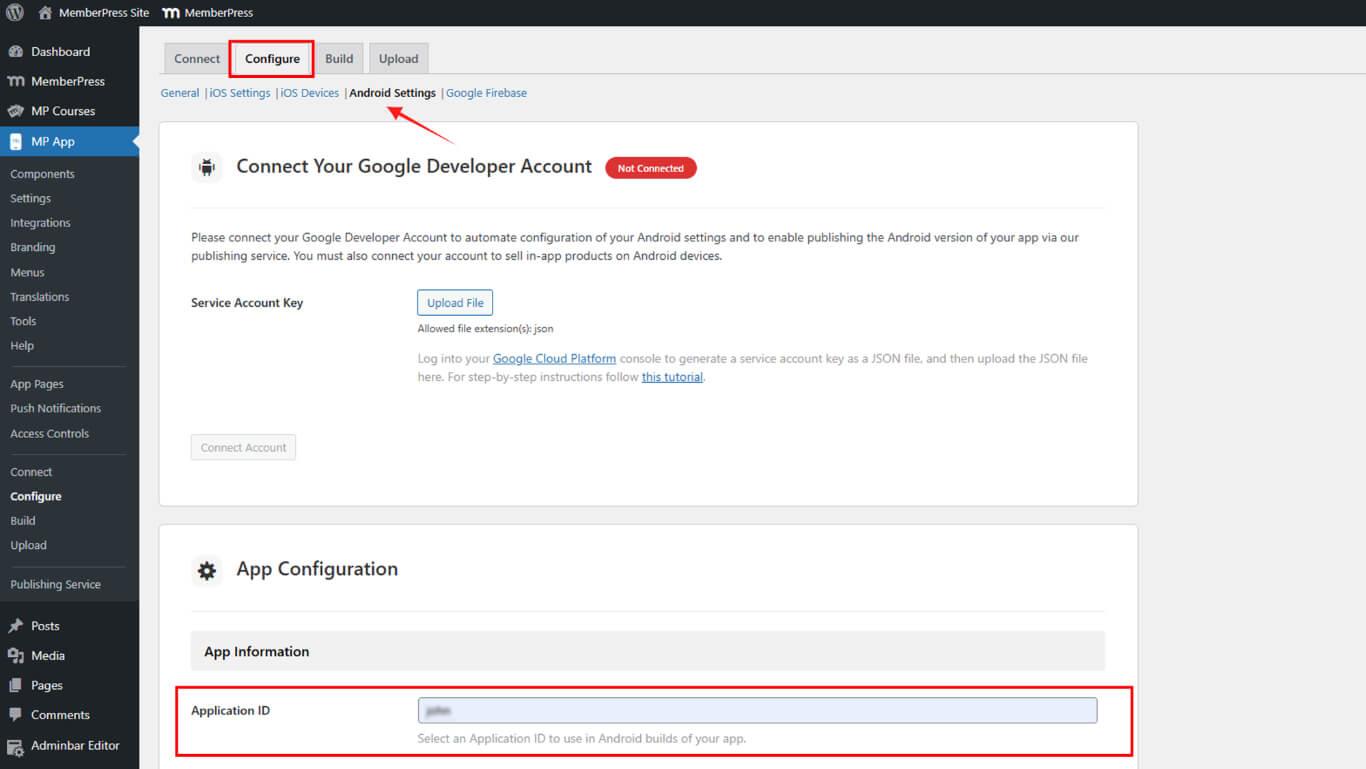
- Kehren Sie zur Firebase-Konsole zurück und fügen Sie die Anwendungs-ID ein.
- (Optional) Fügen Sie Ihren App-Spitznamen hinzu.
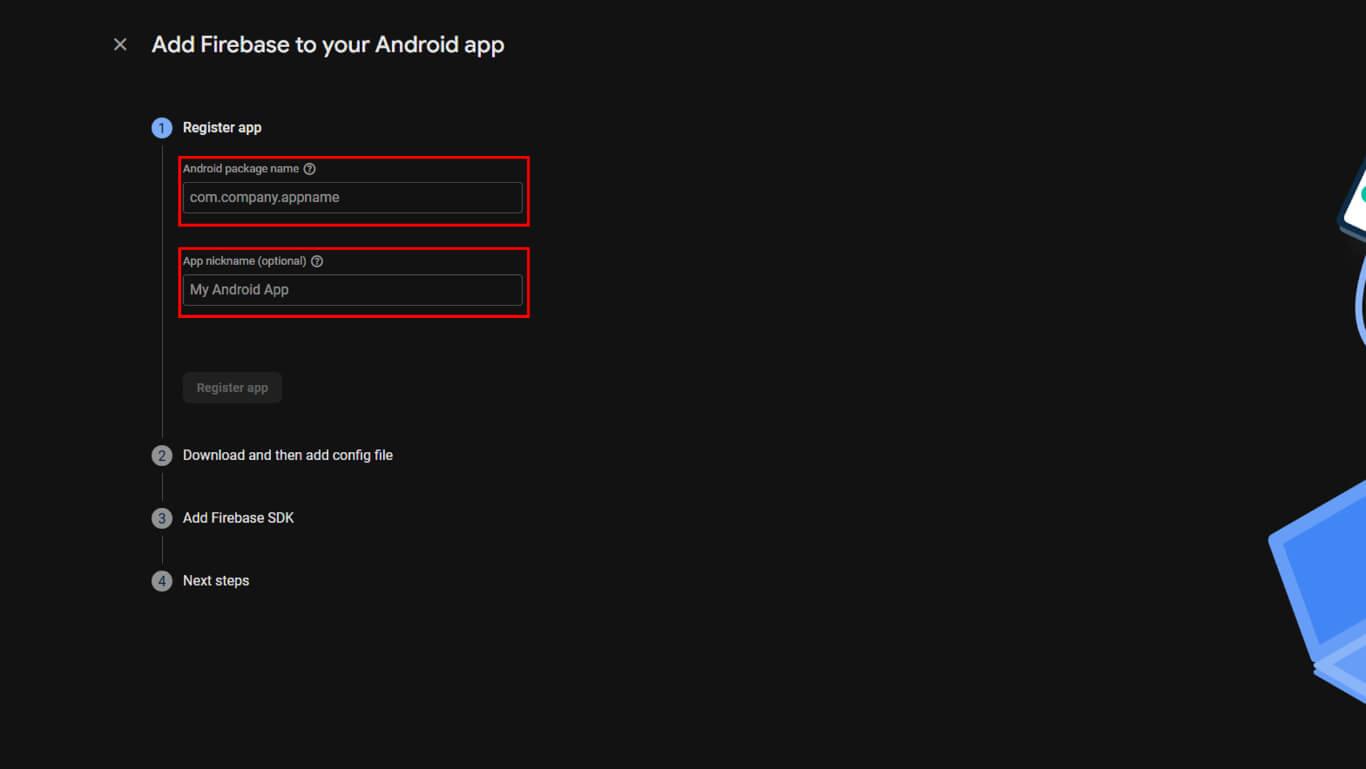
- Klicken Sie auf App registrieren um die Android-App zu erstellen.
- Herunterladen der google-services.json Datei.
- Klicken Sie auf Weiter durch die Schritte 2-4 des Einrichtungsassistenten.
- Klicken Sie auf Erledigt um die Registrierung der Android-App abzuschließen.
Verbindung von Firebase mit MemberPress AppKit
Die Firebase-Konfigurationsdateien müssen für die Push-Benachrichtigungsfunktion in WordPress hochgeladen werden.
- Navigieren Sie zu Dashboard > MP AppKit > Konfigurieren > Google Firebase.
- Suchen Sie die Firebase Cloud Messaging API V1 Abschnitt.
- Klicken Sie auf Hochladen neben dem Feld für den Schlüssel des Servicekontos.
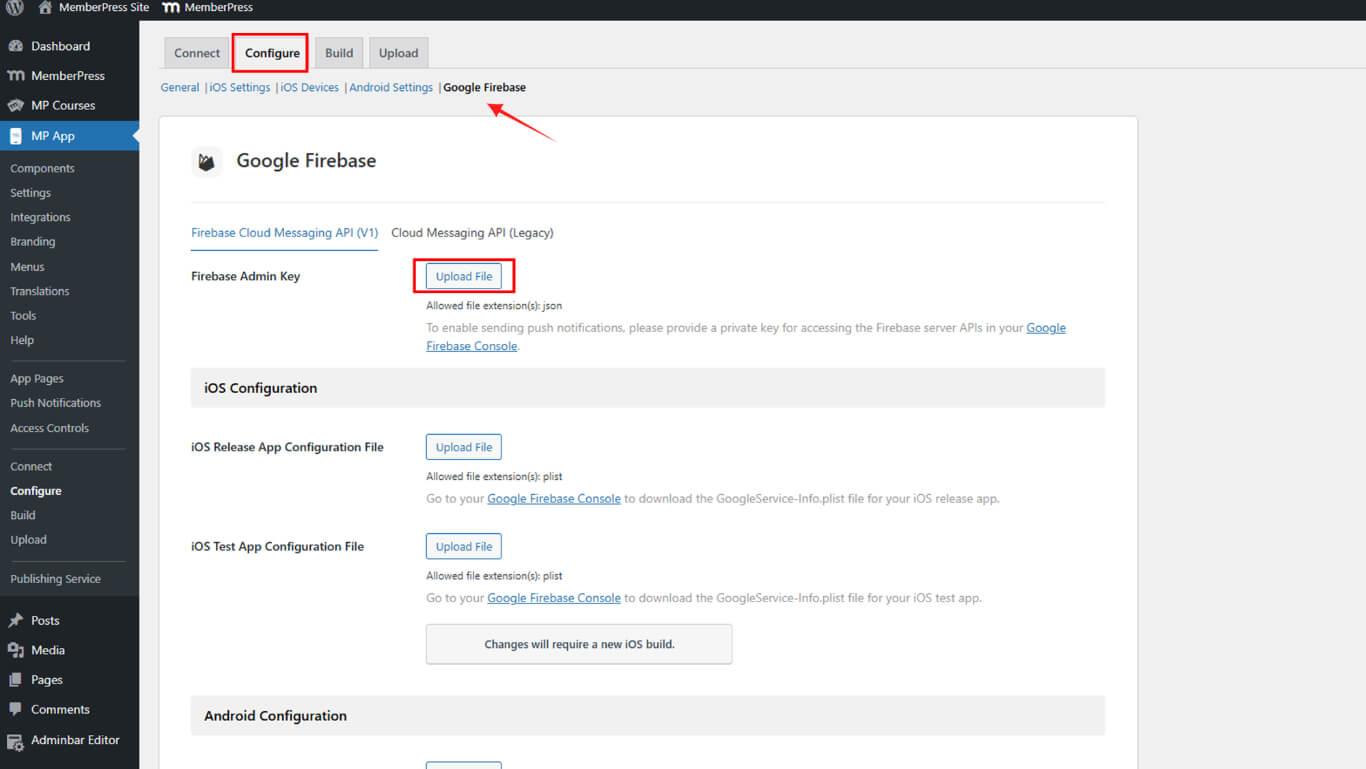
- Wählen Sie die heruntergeladene JSON-Dienstkontodatei aus.
- Klicken Sie auf Hochladen neben dem Feld iOS-Konfigurationsdatei.
- Wählen Sie die GoogleService-Info.plist Datei für iOS.
- Klicken Sie auf Hochladen neben dem Feld Android-Konfigurationsdatei.
- Wählen Sie die google-services.json Datei für Android.
- Optional können Sie die Konfigurationsdateien der Testanwendung in die Testabschnitte hochladen.
- Klicken Sie auf Einstellungen speichern um die Firebase-Konfiguration abzuschließen.
Die Firebase V1 API-Konfiguration ersetzt die Legacy Cloud Messaging API für eine verbesserte Bereitstellung von Push-Benachrichtigungen.
Überprüfen der Firebase-Konfiguration
Die Überprüfung der Firebase-Konfiguration gewährleistet die ordnungsgemäße Einrichtung der Push-Benachrichtigungsfunktion.
- Navigieren Sie zu Dashboard > MP AppKit > Konfigurieren > Google Firebase.
- Überprüfen Sie, ob die Schlüsseldatei für das Dienstkonto erfolgreich hochgeladen wurde.
- Bestätigen Sie, dass die iOS-Konfigurationsdatei im Abschnitt iOS angezeigt wird.
- Bestätigen Sie, dass die Android-Konfigurationsdatei im Abschnitt Android angezeigt wird.
- Prüfen Sie das Einstellungen speichern wurde nach dem Hochladen angeklickt.
- Navigieren Sie zur Firebase-Konsole und stellen Sie sicher, dass sowohl iOS- als auch Android-Apps angezeigt werden.
- Bestätigen Sie, dass die Firebase Cloud Messaging API ein “Aktiviert”Status".
Eine ordnungsgemäße Firebase-Konfiguration ermöglicht das Testen von Push-Benachrichtigungen und deren Zustellung an die Geräte der Mitglieder.










 DE
DE  EN
EN  ES
ES  FR
FR  PT
PT 