

Die iOS MemberPress AppKit-Konfiguration bildet die Grundlage für die Erstellung von Builds, die Synchronisierung von In-App-Käufen und die Veröffentlichung von Apps.
Dieses Dokument erklärt, wie man erstellt Bundle-IDs, Automatisieren Sie die Signierung von Zertifikaten und die Bereitstellung von Profilen, registrieren Sie die App in App Store Connect und konfigurieren Sie die Anmeldedaten in WordPress.
Bundle-Identifikatoren verstehen
Bundle-IDs identifizieren die App auf iOS-Plattformen eindeutig. Die Bundle-ID muss die Reverse-Domain-Notation mit mindestens zwei durch Punkte getrennten Segmenten verwenden. Test-App-Bundle-IDs hängen zur Isolierung von Tests .test an die Release-Bundle-ID an.
Erstellen von Bundle-Identifikatoren
Die Erstellung der Bundle-ID erfolgt im Apple Developer-Konto.
- Anmelden bei entwickler.apple.com.
- Navigieren Sie zu Zertifikate, Identifikatoren und Profile.
- Klicken Sie auf Identifikatoren in der Seitenleiste.
- Klicken Sie auf die + Schaltfläche, um eine neue Kennung zu erstellen.
- Wählen Sie App-IDs aus den Identifikator-Typen.
- Klicken Sie auf Weiter um fortzufahren.
- Eingabe einer Beschreibung für die App-Kennung.
- Geben Sie die Bundle-ID unter Verwendung der Reverse-Domain-Notation.
- Siehe Push-Benachrichtigungen in der Liste der Funktionen.
- Siehe Mit Apple anmelden in der Liste der Funktionen.
- Klicken Sie auf Weiter die Konfiguration zu überprüfen.
- Klicken Sie auf Register um die Kennung zu erstellen.
- Wiederholen Sie die Schritte 3 bis 12 für die Test-App-Bundle-ID und fügen Sie .test an die Kennung an.
Automatisierung von Signaturzertifikaten
Die Automatisierung der Signaturzertifikate generiert die erforderlichen Zertifikate für die App-Signierung.
- Navigieren Sie zu Dashboard > MP AppKit > Konfigurieren > iOS-Einstellungen.
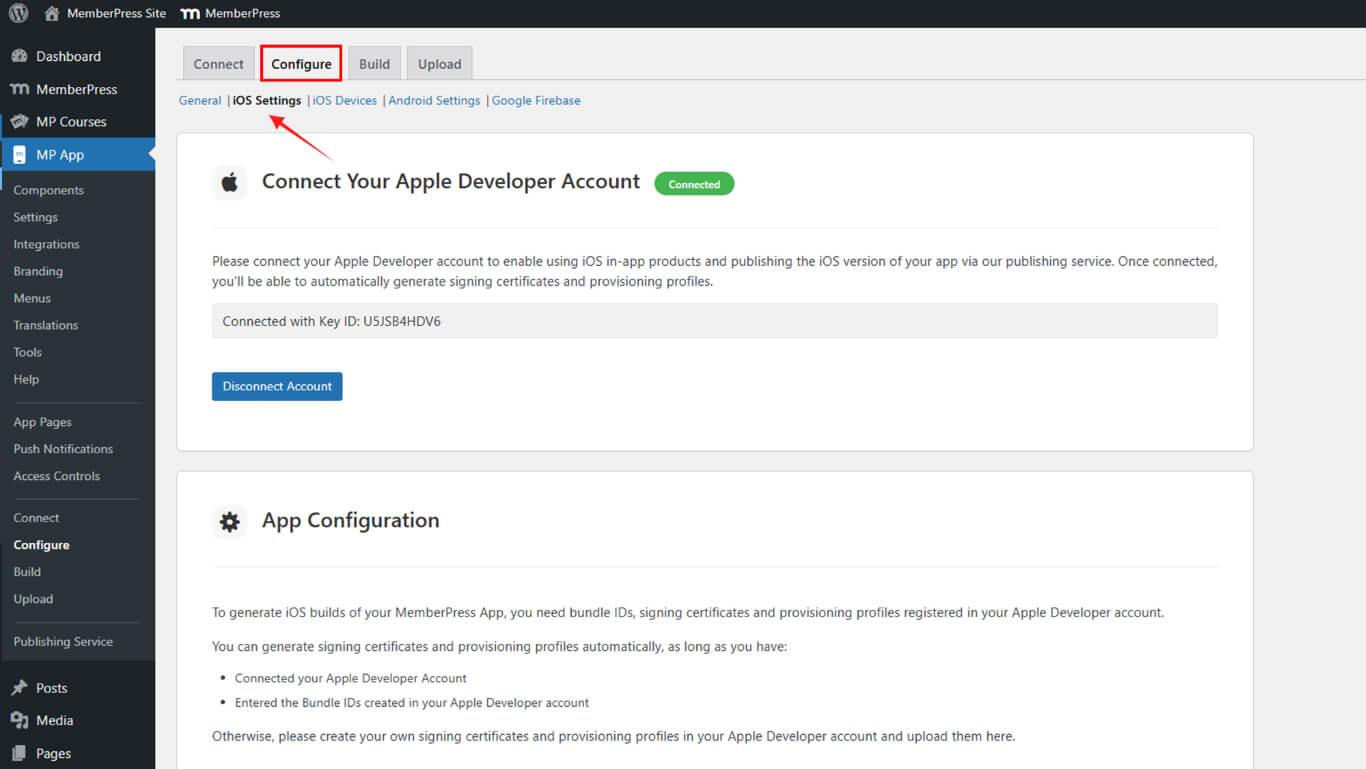
- Blättern Sie zum Signaturzertifikate Abschnitt.
- Prüfen Sie die Signaturzertifikate automatisch generieren Kontrollkästchen.
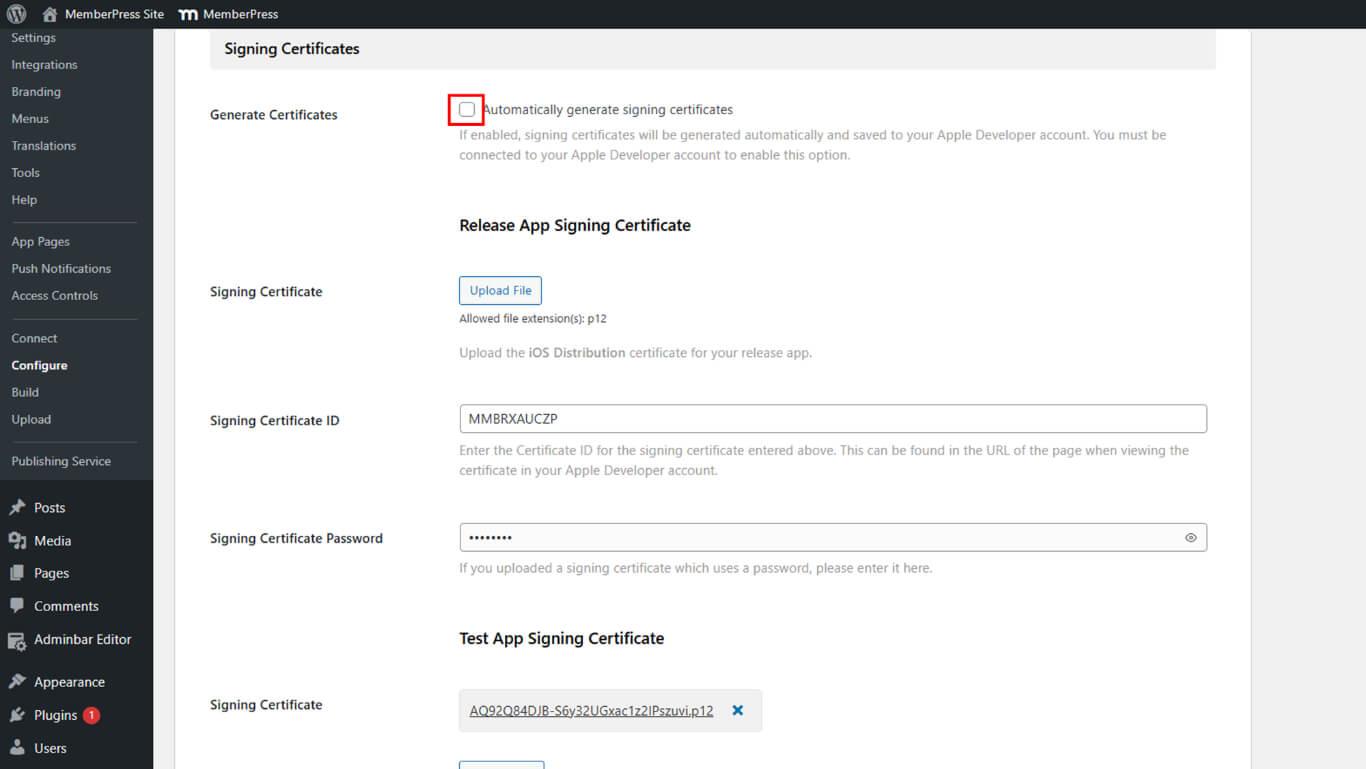
- Klicken Sie auf Änderungen speichern.
- Überprüfen Sie, ob das Release-Signaturzertifikat in der Zertifikatsliste angezeigt wird.
- Überprüfen Sie, ob das Test-Signaturzertifikat in der Zertifikatsliste angezeigt wird.
Automatisierung von Bereitstellungsprofilen
Die Automatisierung von Bereitstellungsprofilen erstellt die erforderlichen Profile für die App-Verteilung.
- Navigieren Sie zu Dashboard > MP AppKit > Konfigurieren > iOS-Einstellungen.
- Blättern Sie zum Bereitstellungsprofile Abschnitt.
- Prüfen Sie die Provisioning-Profile automatisch generieren Kontrollkästchen.
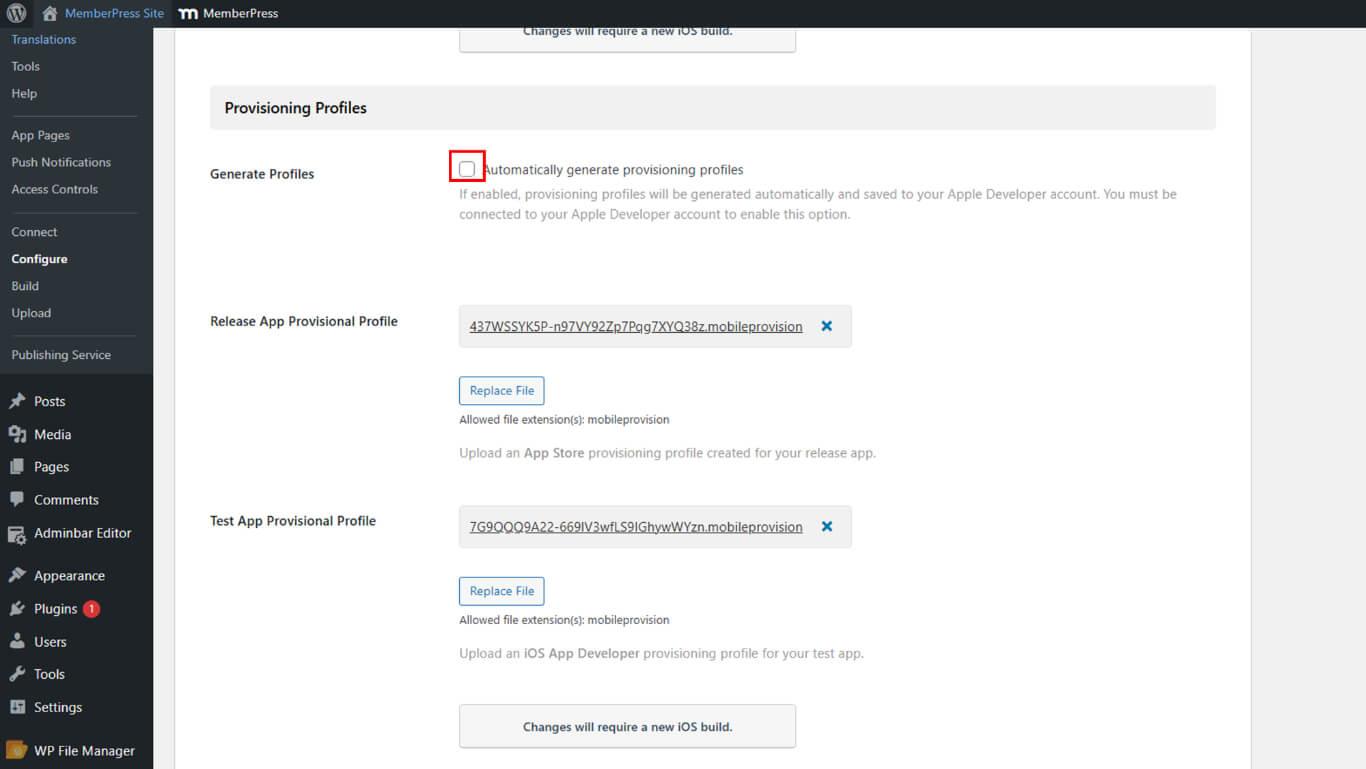
- Klicken Sie auf Änderungen speichern.
- Überprüfen Sie, ob das Bereitstellungsprofil „Release“ in der Profilliste angezeigt wird.
- Überprüfen Sie, ob das Testbereitstellungsprofil in der Profilliste angezeigt wird.
App im App Store Connect registrieren
Die Registrierung der App in App Store Connect ermöglicht die Einreichung und Veröffentlichung der App.
- Anmelden bei appstoreconnect.apple.com mit Ihrem Apple Developer-Konto.
- Klicken Sie auf Meine Apps in der Navigation.
- Klicken Sie auf die + Schaltfläche zum Hinzufügen einer neuen App.
- Wählen Sie Neue App aus dem Dropdown-Menü.
- Wählen Sie iOS als Plattform.
- Geben Sie die App-Name im Namensfeld.
- Wählen Sie Primäre Sprache aus dem Sprach-Dropdown-Menü.
- Wählen Sie die Version aus. Bundle-ID aus der Dropdown-Liste „Bundle-ID“.
- Eingabe einer Artikelnummer für interne Nachverfolgungszwecke.
- Set Benutzerzugriff auf Voll oder Begrenzt.
- Klicken Sie auf erstellen. die App zu registrieren.
Importieren von Bundle-IDs in WordPress
Bundle-IDs müssen für die Build-Konfiguration in WordPress importiert werden.
- Navigieren Sie zu Dashboard > MP AppKit > Konfigurieren > iOS-Einstellungen.
- Blättern Sie zum Abschnitt „Bundle-IDs“.
- Klicken Sie auf Bundle-IDs aktualisieren Identifikatoren aus dem Apple Developer-Konto abrufen.
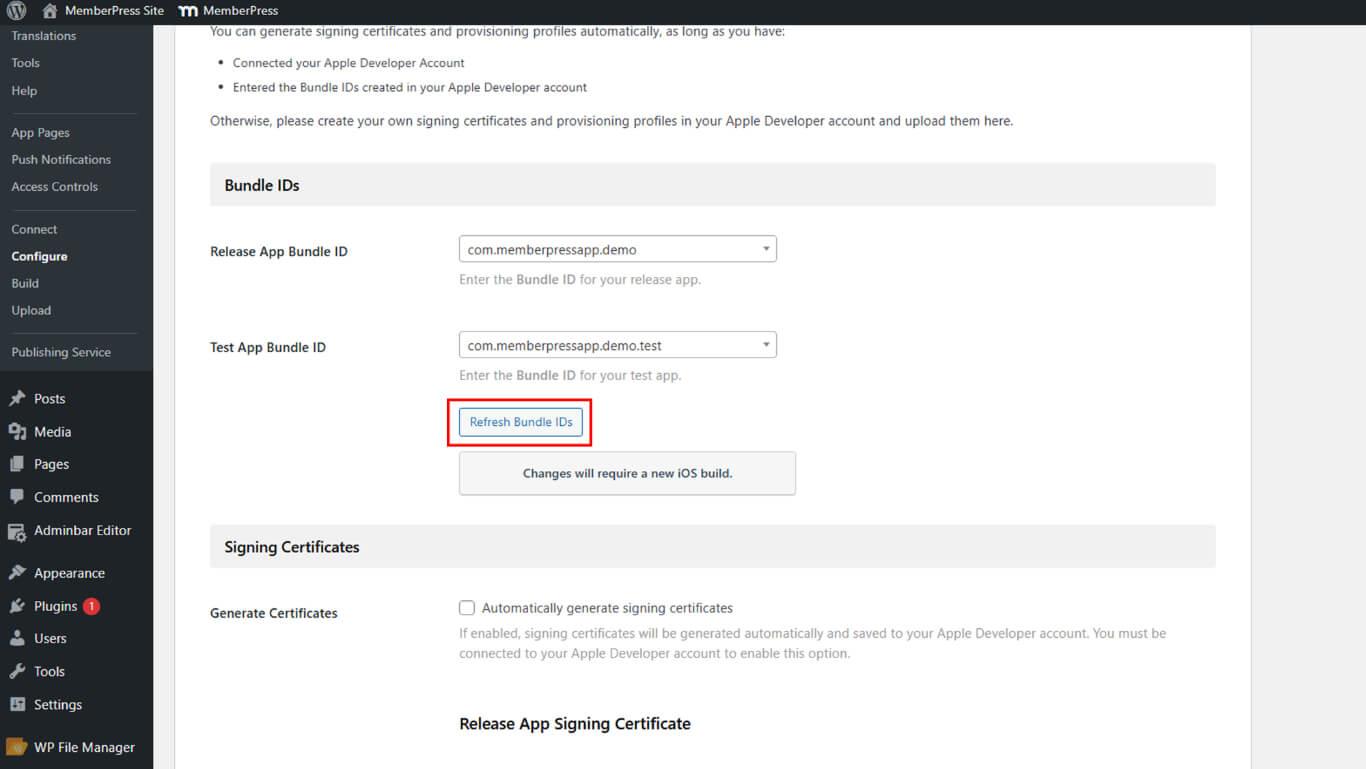
- Suchen Sie die App-Bundle-ID freigeben Dropdown.
- Wählen Sie die Release-Bundle-ID aus den Dropdown-Optionen aus.
- Suchen Sie die Test-App-Bundle-ID Dropdown.
- Wählen Sie die Test-Bundle-ID aus den Dropdown-Optionen aus.
- Blättern Sie zum App-Informationen Abschnitt.
- Navigieren Sie zu App Store Connect, um die Apple App-ID abzurufen.
- Kopieren Sie die Apple App-ID aus den App-Informationen in App Store Connect.
- Fügen Sie die Apple App ID in das Feld „Apple App ID“ in WordPress ein.
- Klicken Sie auf Änderungen speichern.
App-spezifisches gemeinsames Geheimnis generieren
App-spezifisches gemeinsames Geheimnis ermöglicht die Überprüfung von In-App-Käufen.
- Navigieren Sie zu App Store Connect unter appstoreconnect.apple.com.
- Klicken Sie auf Meine Apps in der Navigation.
- Wählen Sie die registrierte App aus der App-Liste aus.
- Blättern Sie zum App-spezifisches gemeinsames Geheimnis Abschnitt.
- Klicken Sie auf Verwalten Sie um die Verwaltung gemeinsamer Geheimnisse zu öffnen.
- Klicken Sie auf App-spezifisches gemeinsames Geheimnis generieren.
- Kopieren Sie den generierten geheimen Wert.
- Navigieren Sie zu Dashboard > MP AppKit > Konfigurieren > iOS-Einstellungen in WordPress.
- Suchen Sie die App-spezifisches gemeinsames Geheimnis Feld.
- Fügen Sie den kopierten geheimen Wert in das Feld ein.
- Klicken Sie auf Änderungen speichern.










 DE
DE  EN
EN  ES
ES  FR
FR  PT
PT 