

Die Verbindung mit dem Google Developer-Konto ermöglicht die Synchronisierung von In-App-Produkten und die Einreichung von Android-Builds über automatische Veröffentlichungsdienste.
In diesem Dokument wird erläutert, wie Sie ein Google Cloud-Dienstkonto erstellen, die erforderlichen APIs aktivieren, die Berechtigungen für die Play Console erteilen und die Anmeldedaten in WordPress hochladen.
Google Developer Connection verstehen
Die Verbindung mit einem Google-Entwicklerkonto automatisiert Arbeitsabläufe für die Verwaltung von Android-Apps. Die Authentifizierung über ein Dienstkonto ermöglicht einen sicheren Zugriff auf Google Play-Dienste ohne Weitergabe von Passwörtern. Verbundene Konten ermöglichen eine automatisierte Produktsynchronisierung und Build-Einreichungsprozesse.
App in Google Play Console erstellen
Die Erstellung von Apps in der Google Play Console bildet die Grundlage für den Vertrieb von Android-Apps.
- Navigieren Sie zur Google Play Console unter play.google.com/console.
- Klicken Sie auf die App erstellen Taste.
- Geben Sie den Namen der App in das Feld App-Name Feld.
- Wählen Sie die Standardsprache aus der Standardsprache Dropdown.
- Wählen Sie die App für den App-Typ.
- Wählen Sie aus, ob die App kostenlos oder kostenpflichtig ist.
- Scrollen Sie zum Abschnitt „Erklärungen“.
- Prüfen Sie die Richtlinien für das Entwicklerprogramm Kontrollkästchen.
- Prüfen Sie die US-Exportgesetze Kontrollkästchen.
- Klicken Sie auf App erstellen die App-Erstellung abzuschließen.
Google Cloud-Projekt erstellen
Die Erstellung eines Google Cloud-Projekts stellt den Container für die Anmeldedaten des Dienstkontos bereit.
- Navigieren Sie zur Google Cloud Console unter console.cloud.google.com.
- Melden Sie sich mit Ihren Google-Kontodaten an.
- Klicken Sie oben auf der Seite auf die Projektauswahl.
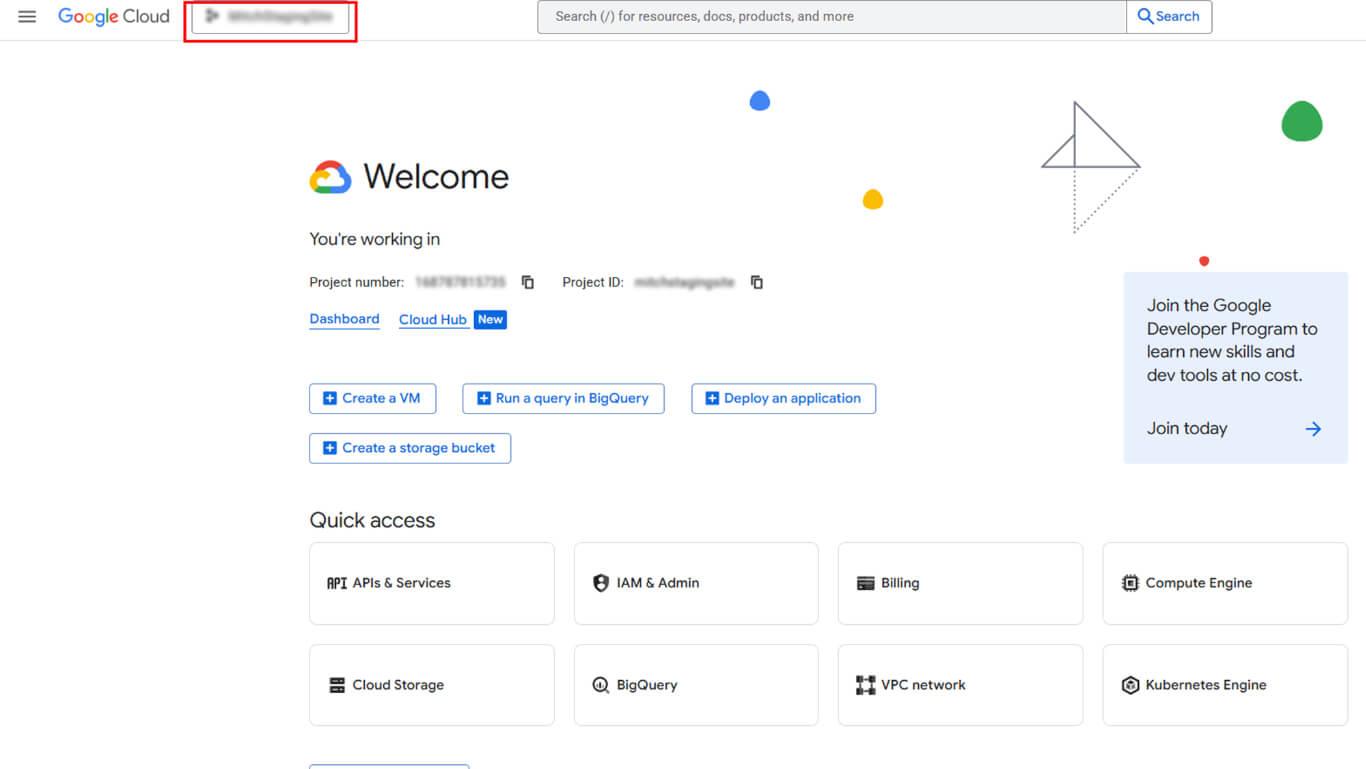
- Klicken Sie auf NEUES PROJEKT im Projektwahl-Dialogfeld.
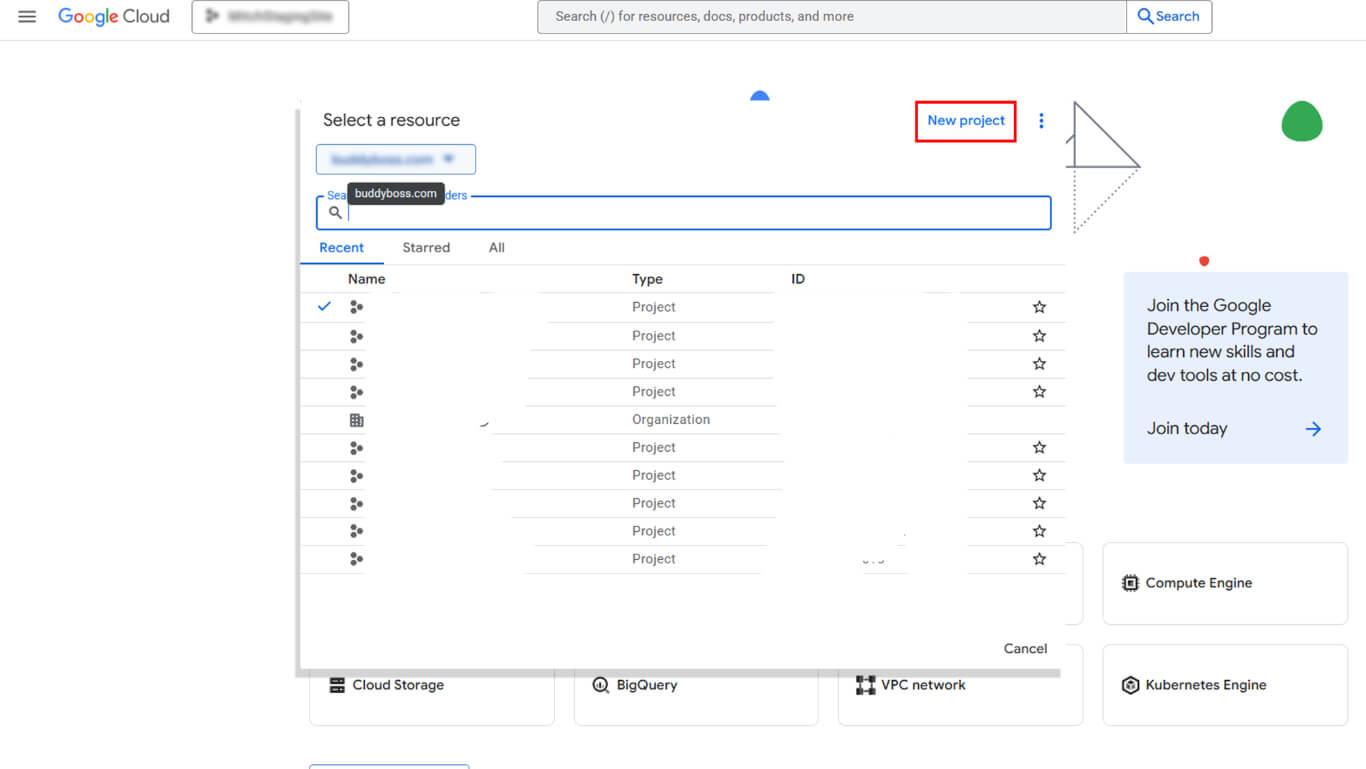
- Geben Sie einen beschreibenden Namen in das Feld Projektname Feld.
- Wählen Sie eine Organisation aus der Organisation Dropdown-Menü, falls zutreffend.
- Wählen Sie einen Standort aus der Standort Dropdown-Menü, falls zutreffend.
- Klicken Sie auf erstellen. um die Projekterstellung abzuschließen.
- Überprüfen Sie, ob das neue Projekt im Dropdown-Menü der Kopfzeile ausgewählt ist.
Google Play Android Developer API aktivieren
Die API-Aktivierung ermöglicht den Zugriff von Dienstkonten auf Google Play-Funktionen.
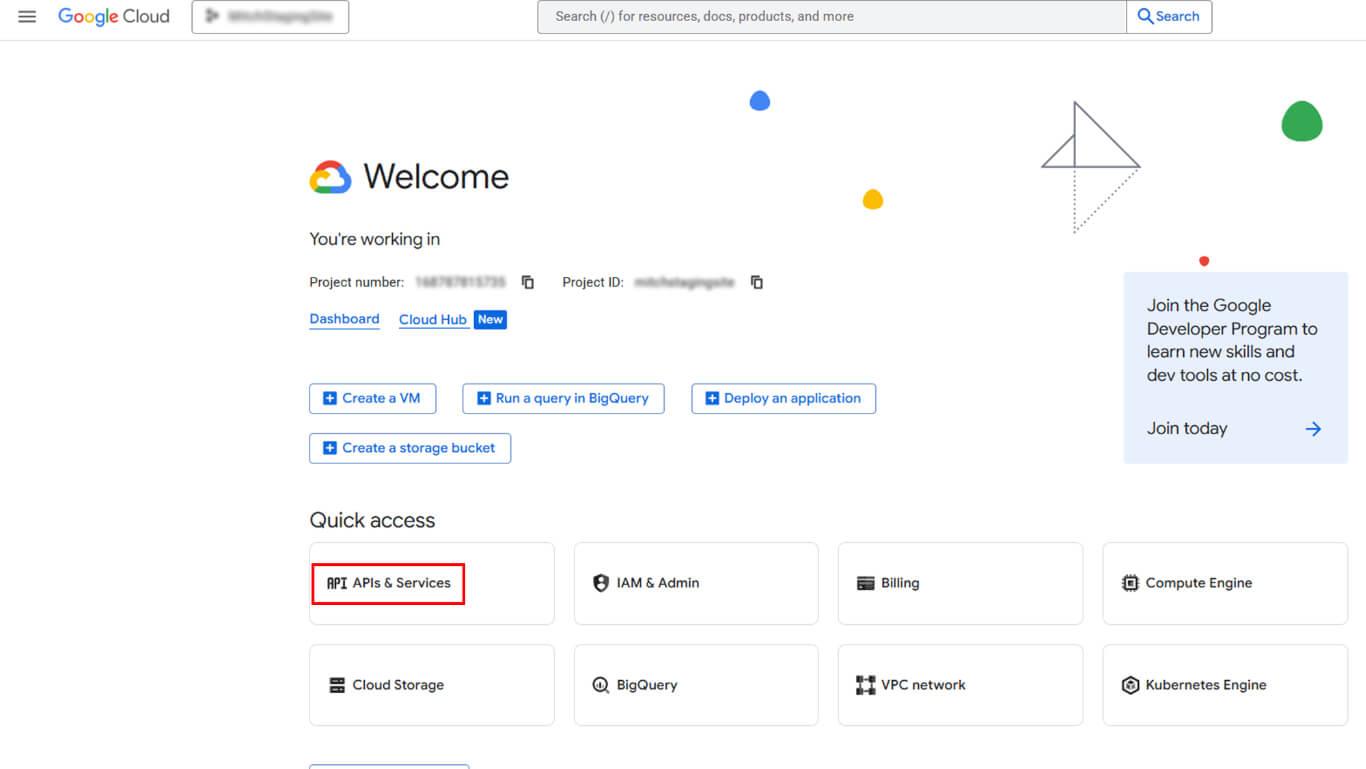
- Navigieren Sie zu APIs und Dienste > APIs und Dienste aktivieren in der Google Cloud Console.
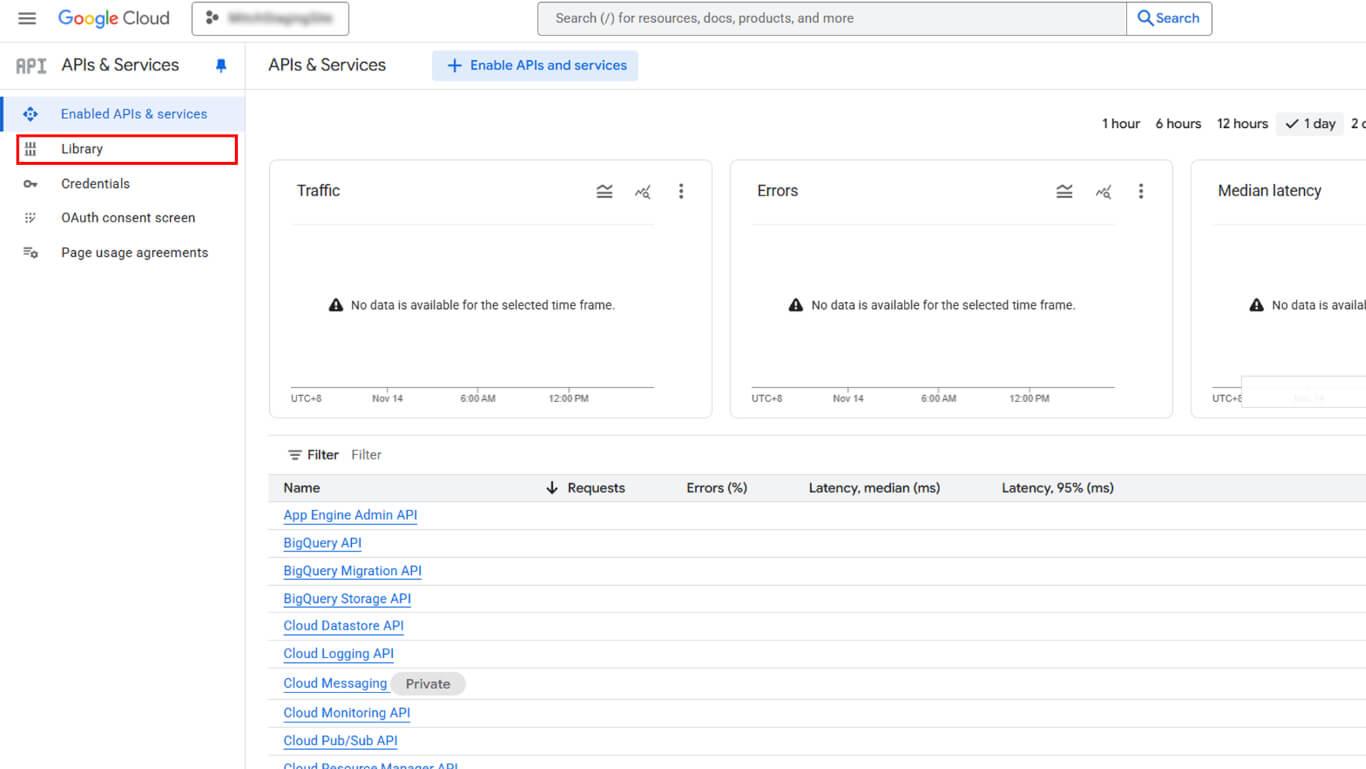
- Klicken Sie auf Bibliothek die API-Bibliothek zu öffnen.
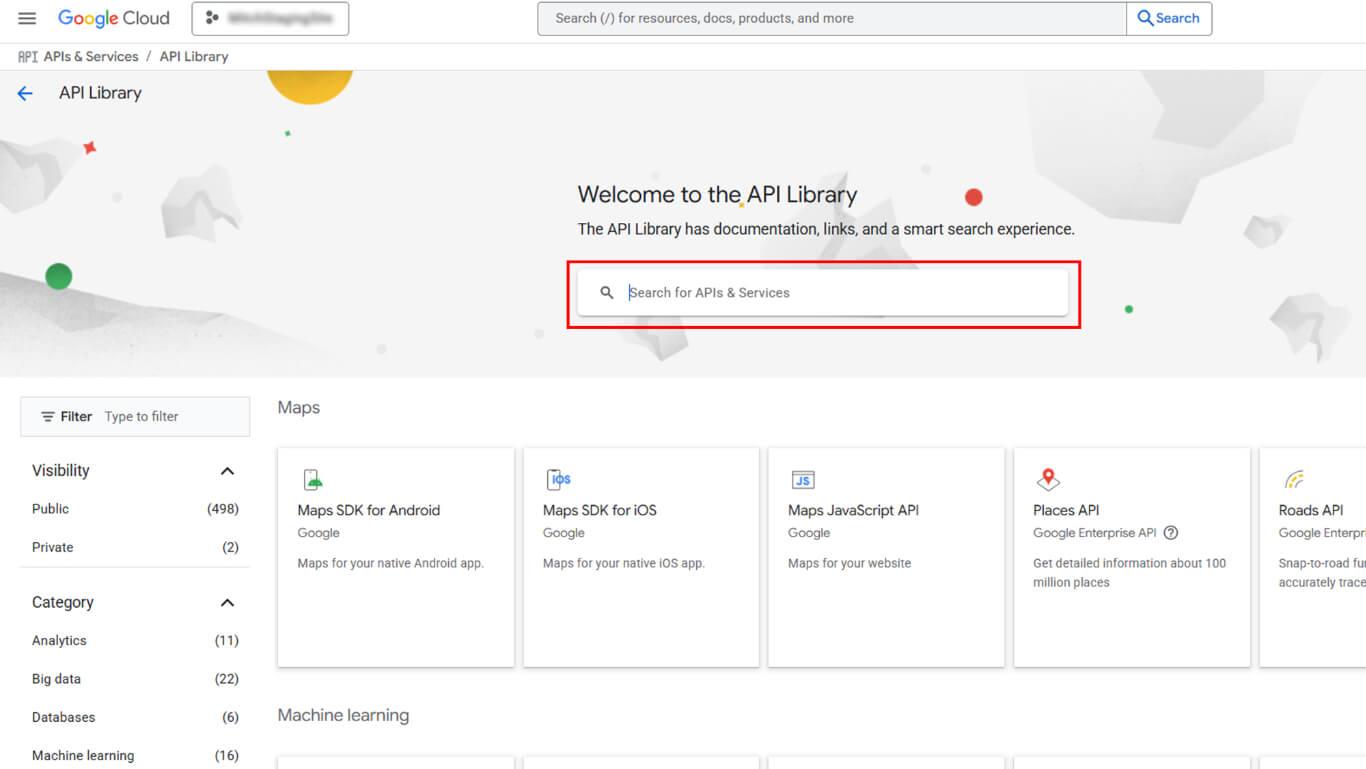
- Suchen Sie im Suchfeld nach “Google Play Android Developer API”.
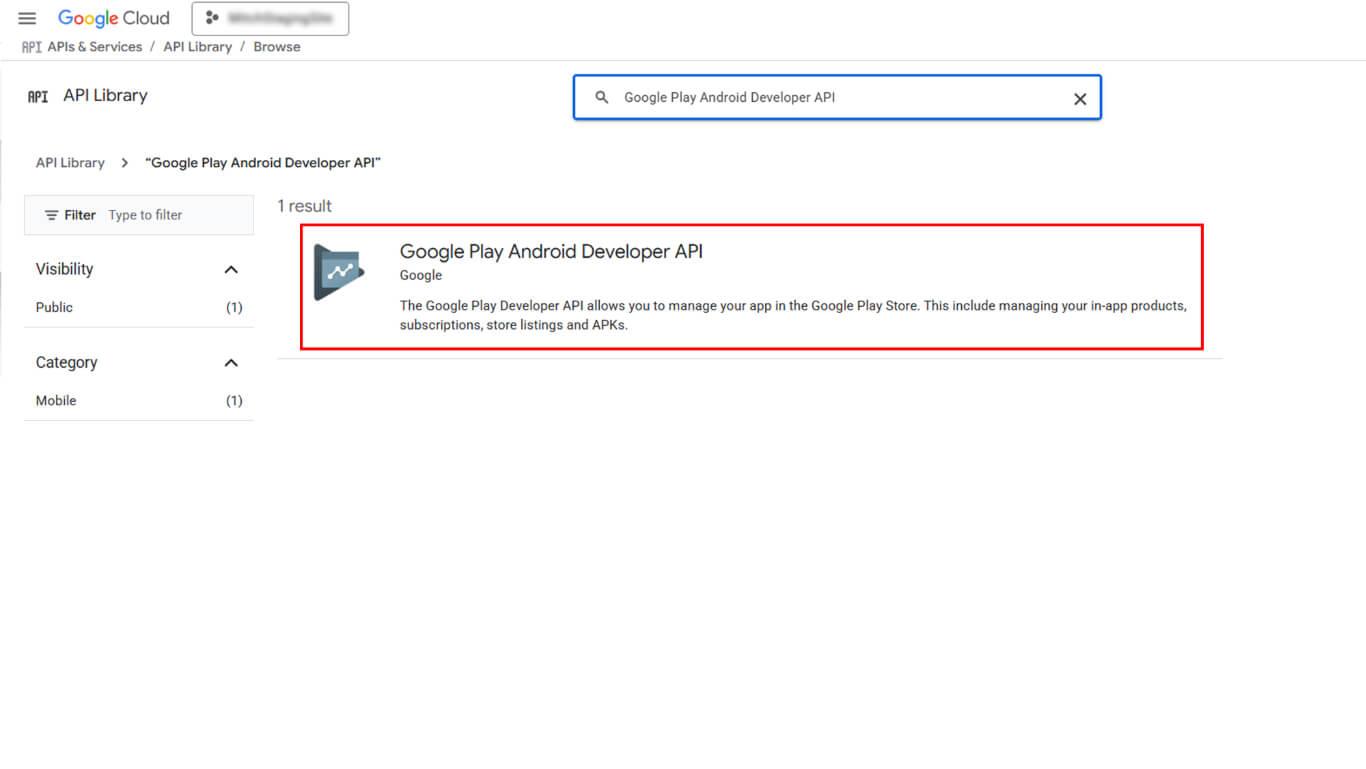
- Klicken Sie auf Google Play Android-Entwickler-API in den Suchergebnissen.
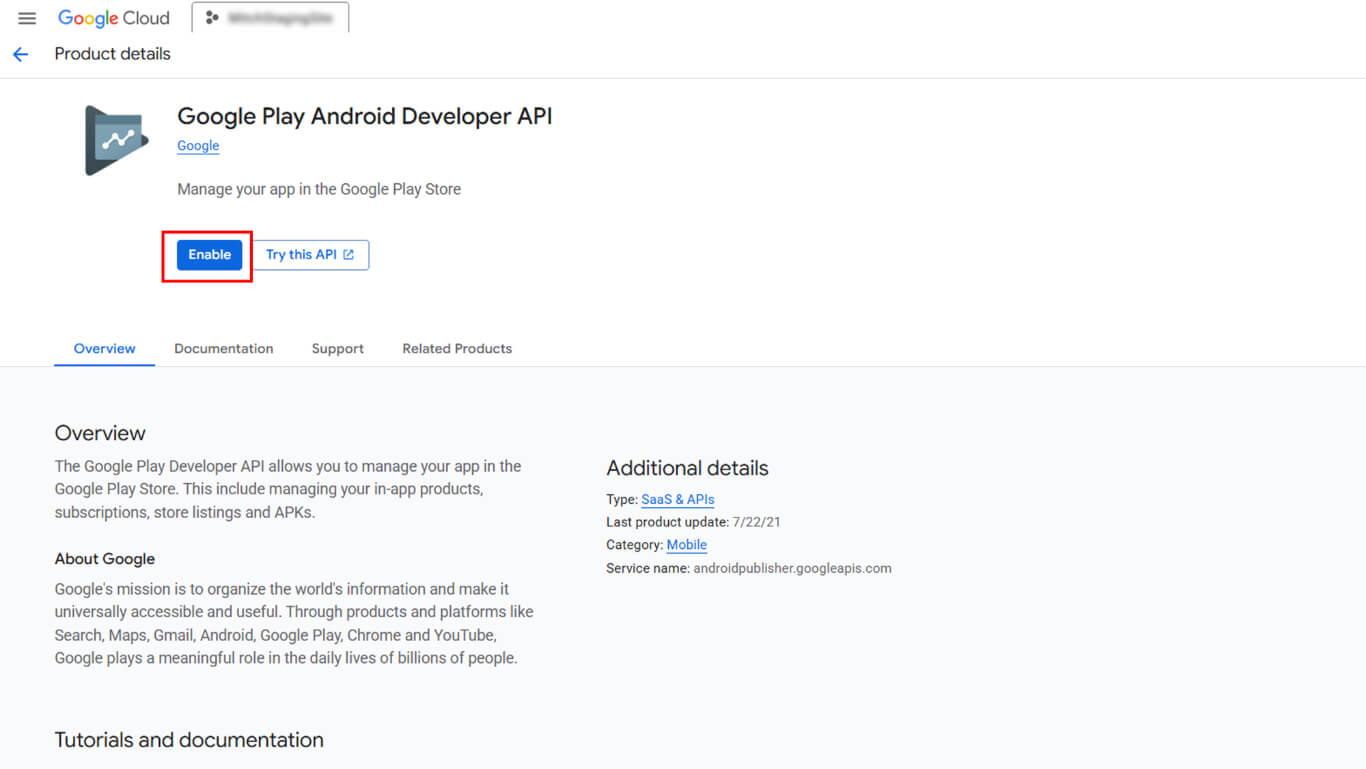
- Klicken Sie auf AKTIVIEREN um die API zu aktivieren.
Dienstkonto erstellen
Durch die Erstellung eines Dienstkontos werden Anmeldedaten für den automatisierten Zugriff auf Google Play generiert.
- Navigieren Sie zu APIs und Dienste > Berechtigungsnachweise in der Seitenleiste der Google Cloud Console.
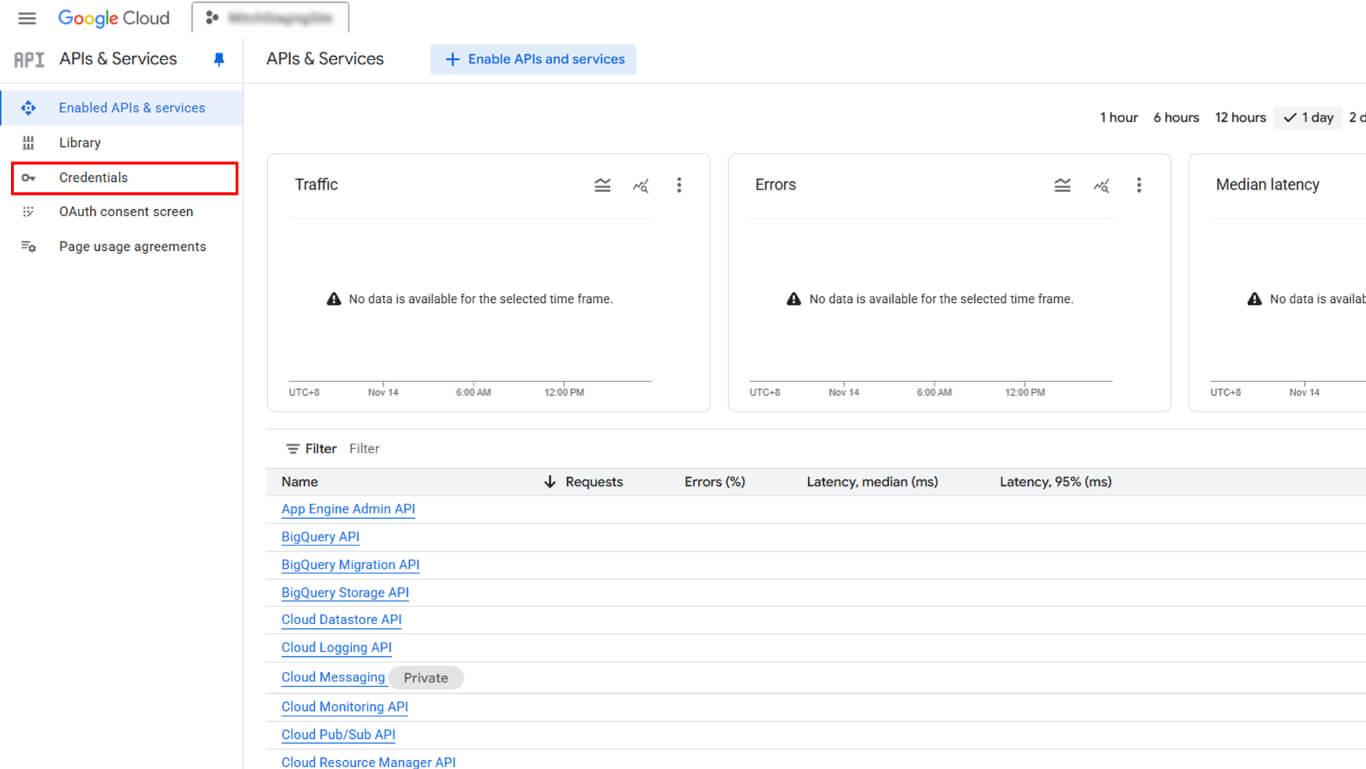
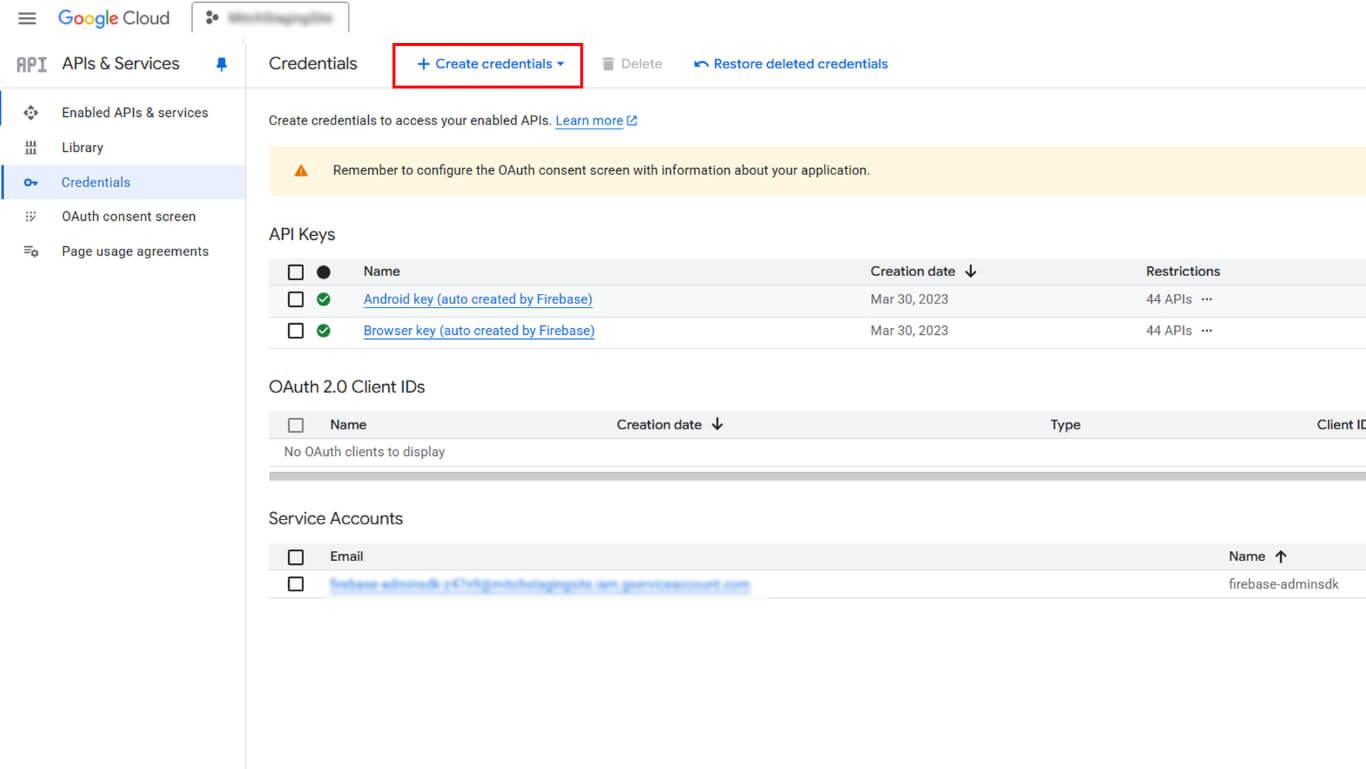
- Klicken Sie auf Anmeldedaten erstellen am oberen Rand der Seite.
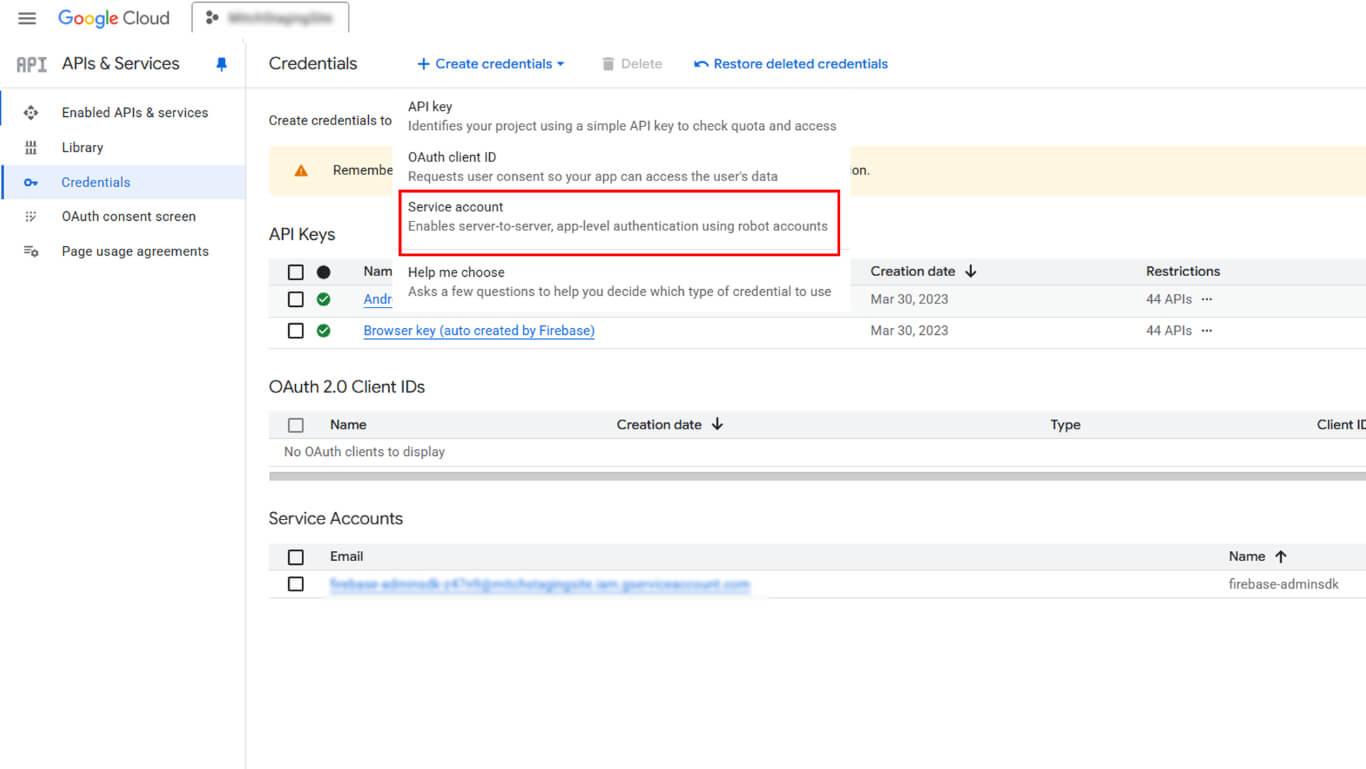
- Wählen Sie Dienstkonto aus der Dropdown-Liste „Anmeldedaten-Typ“.
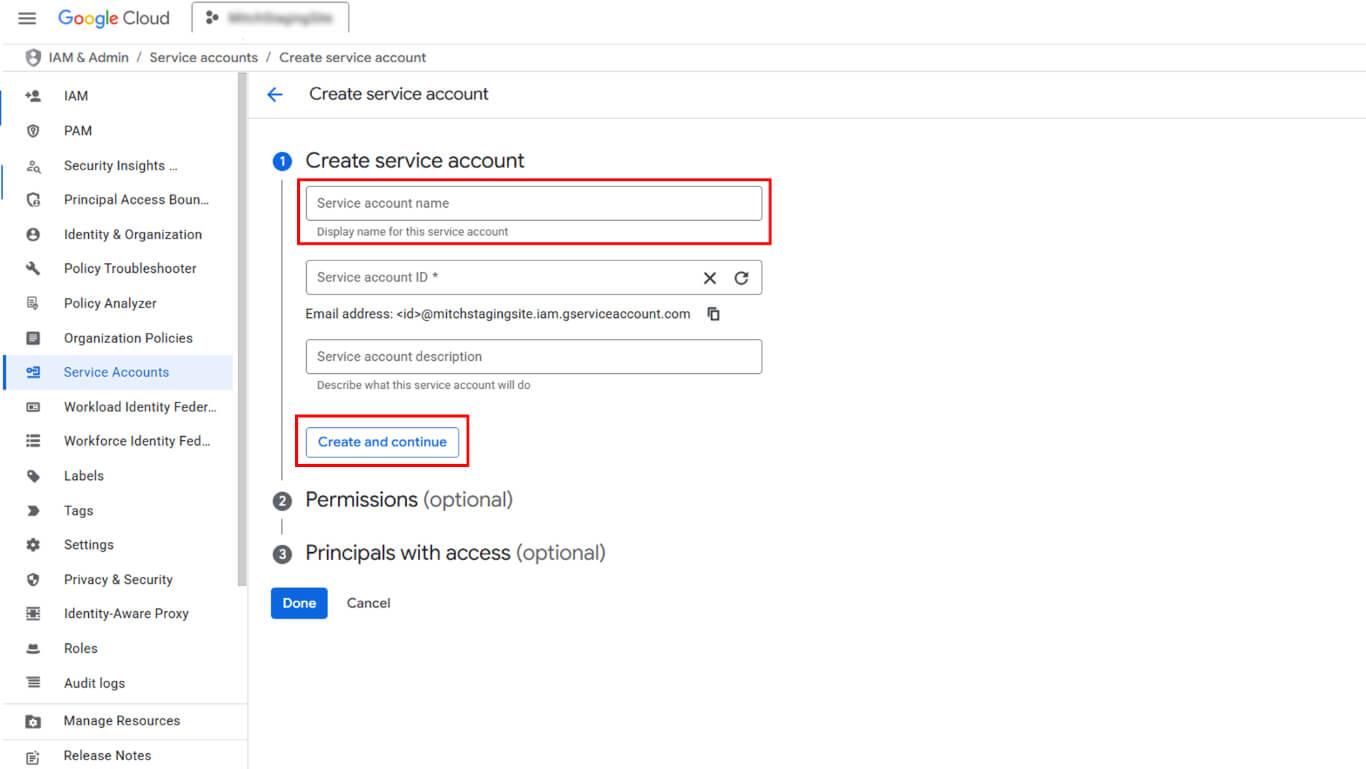
- Geben Sie einen beschreibenden Namen in das Feld Dienstkontoname Feld.
- Klicken Sie auf Erstellen und fortfahren.
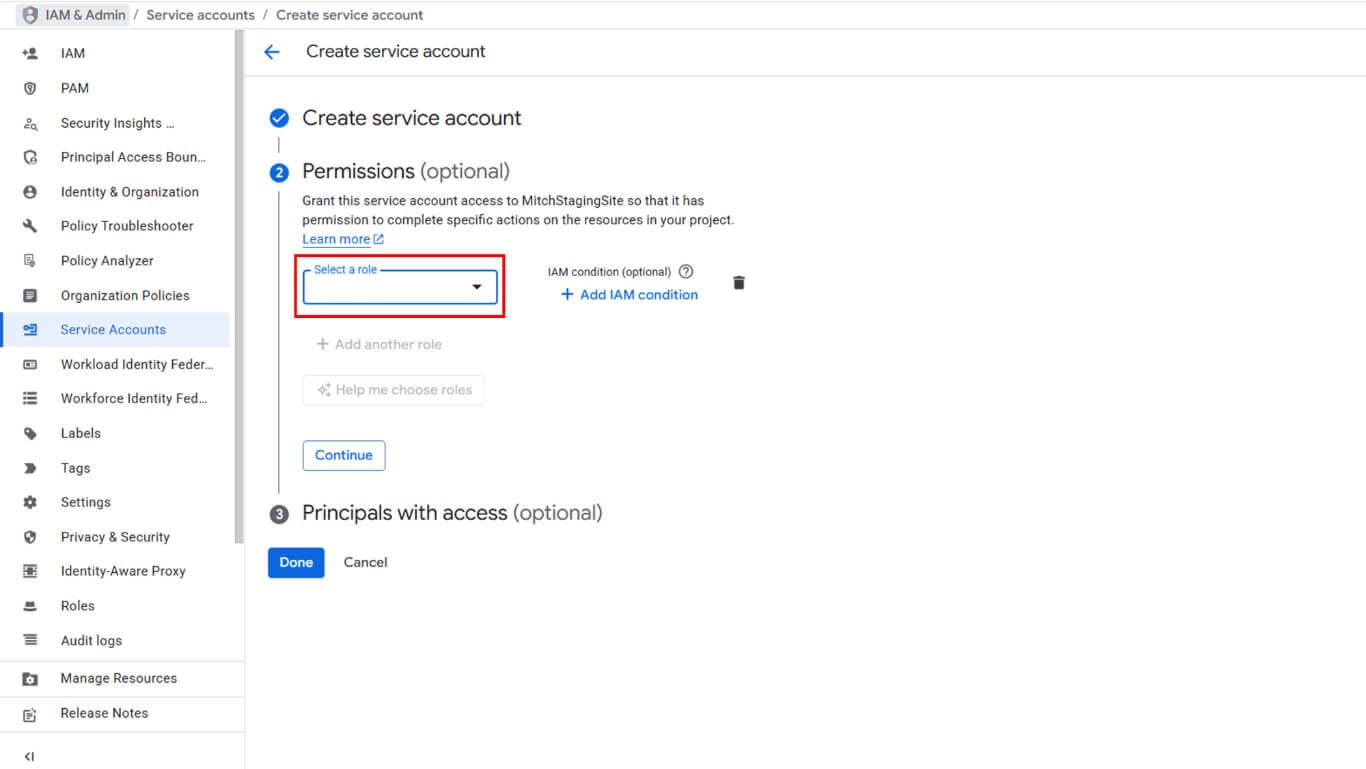
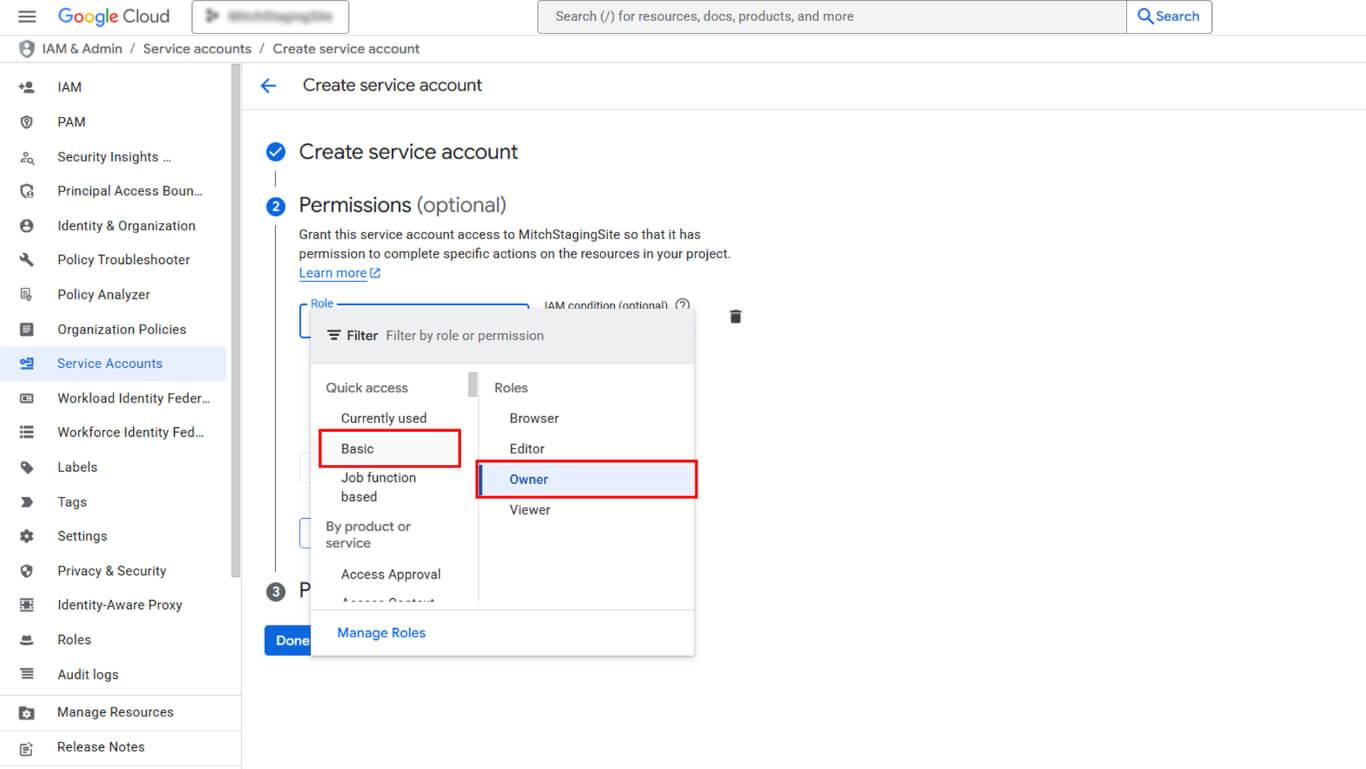
- Klicken Sie auf Wählen Sie eine Rolle aus Dropdown-Menü unter „Zugriff für dieses Dienstkonto gewähren“.
- Navigieren Sie zu Grundlegend in der Rollenhierarchie.
- Wählen Sie Eigentümer aus den Rollenoptionen.
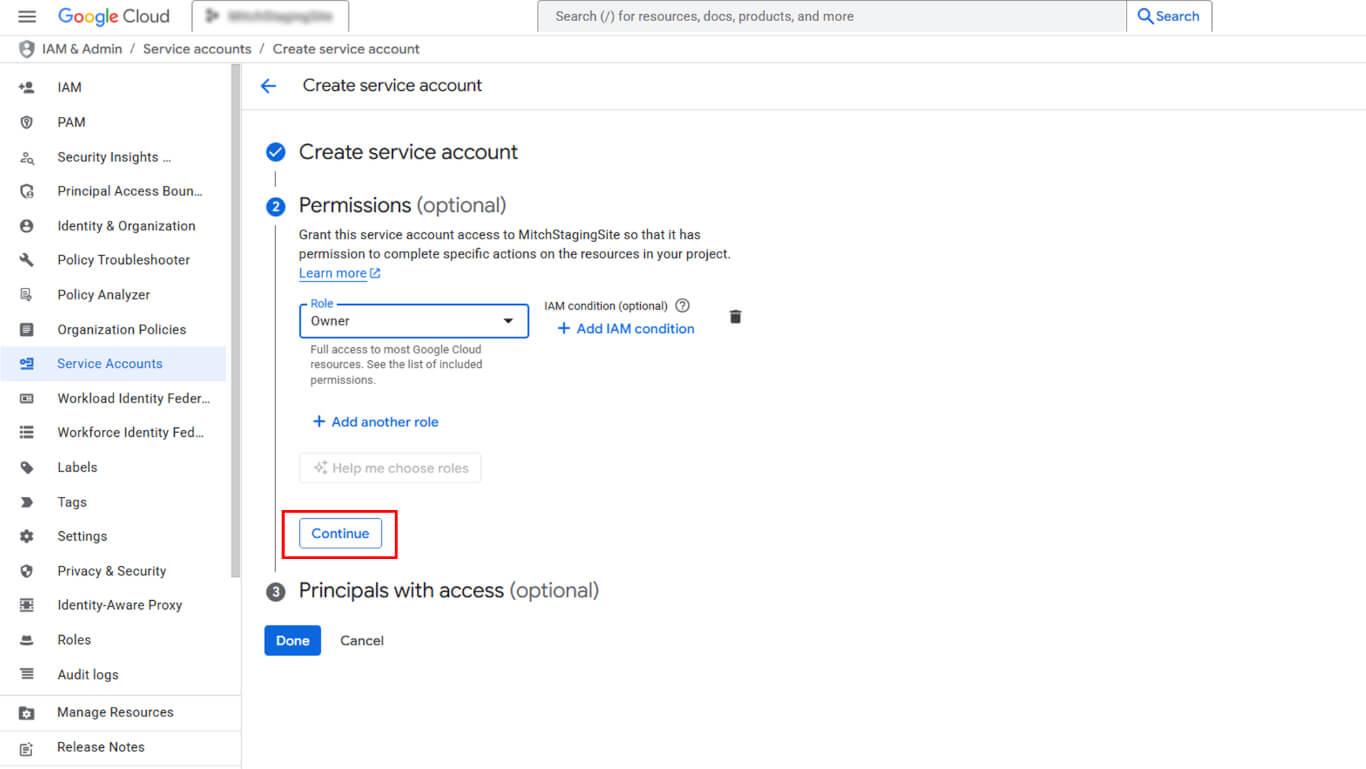
- Klicken Sie auf Weiter um fortzufahren.
- Klicken Sie auf Erledigt um das Dienstkonto zu erstellen.
Dienstkontoschlüssel generieren
Die Generierung des Dienstkontoschlüssels erstellt die für den WordPress-Upload erforderliche JSON-Datei.
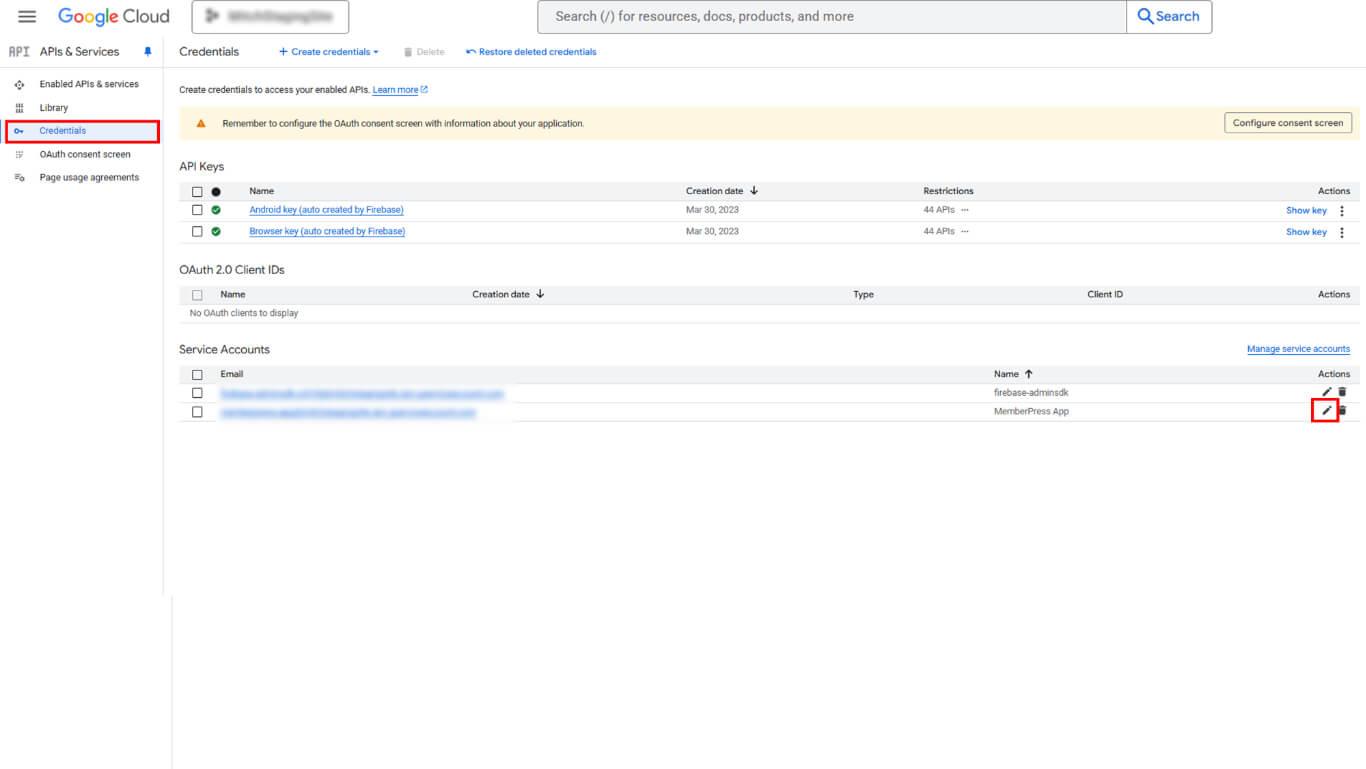
- Navigieren Sie zu APIs und Dienste > Berechtigungsnachweise in der Seitenleiste der Google Cloud Console.
- Suchen Sie das erstellte Dienstkonto in der Liste „Dienstkonten“.
- Klicken Sie auf das Stiftsymbol neben dem Namen des Dienstkontos.
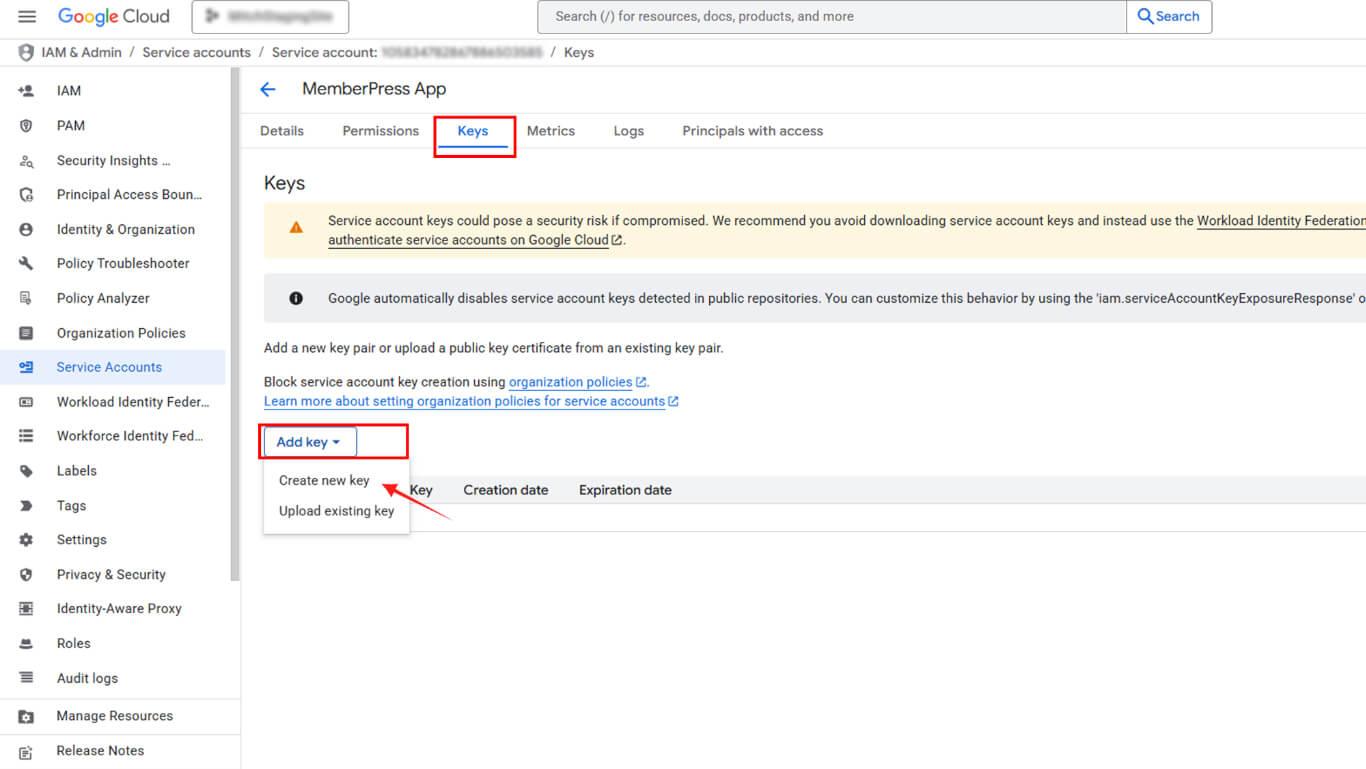
- Klicken Sie auf die Tasten tab.
- Klicken Sie auf die Schlüssel hinzufügen Dropdown.
- Wählen Sie Neuen Schlüssel erstellen aus den Optionen.
- Wählen Sie JSON als Schlüsseltyp.
- Klicken Sie auf erstellen. den Schlüssel generieren und herunterladen.
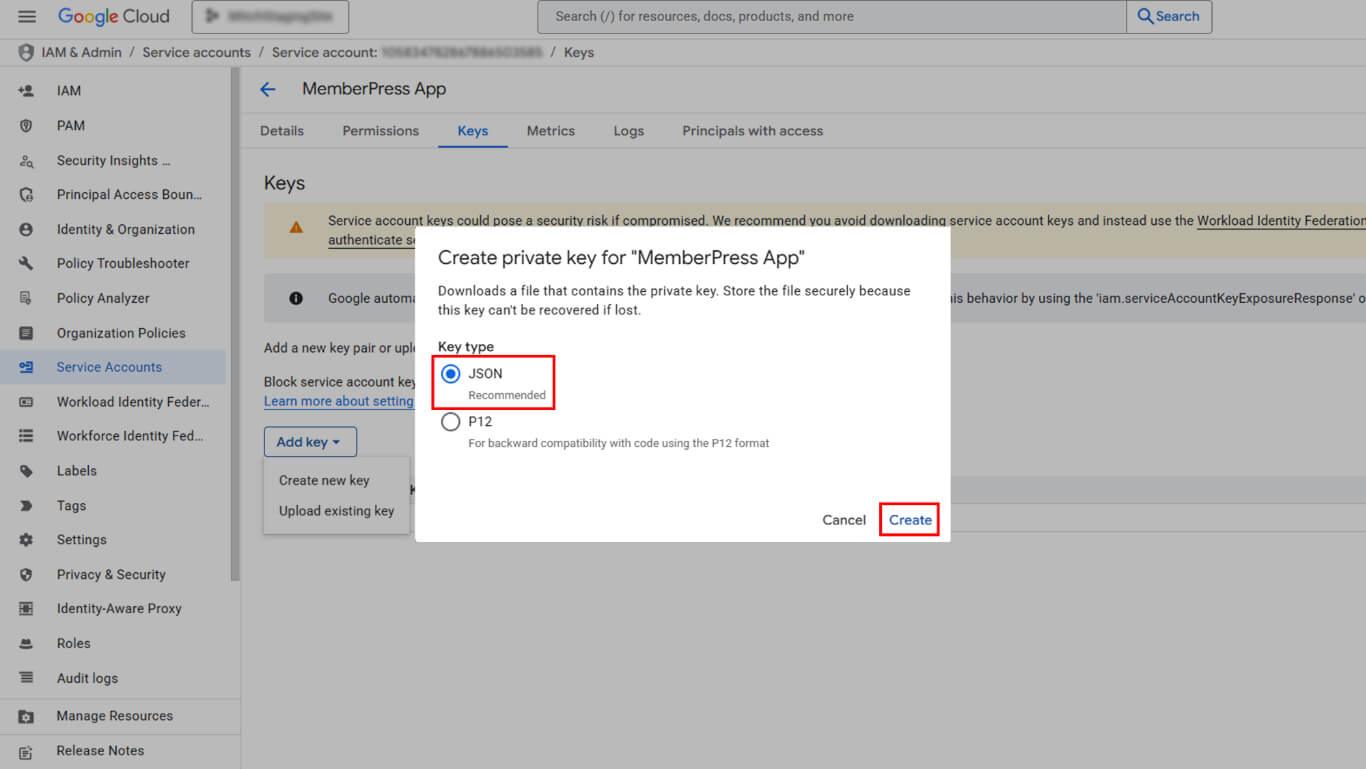
- Speichern Sie die heruntergeladene JSON-Datei sicher.
- Kopieren Sie die E-Mail-Adresse des Dienstkontos auf der Detailseite.
Play Console-Berechtigungen erteilen
Dienstkontorechte ermöglichen den Zugriff auf die Play Console für automatisierte Vorgänge.
- Navigieren Sie zur Google Play Console unter play.google.com/console.
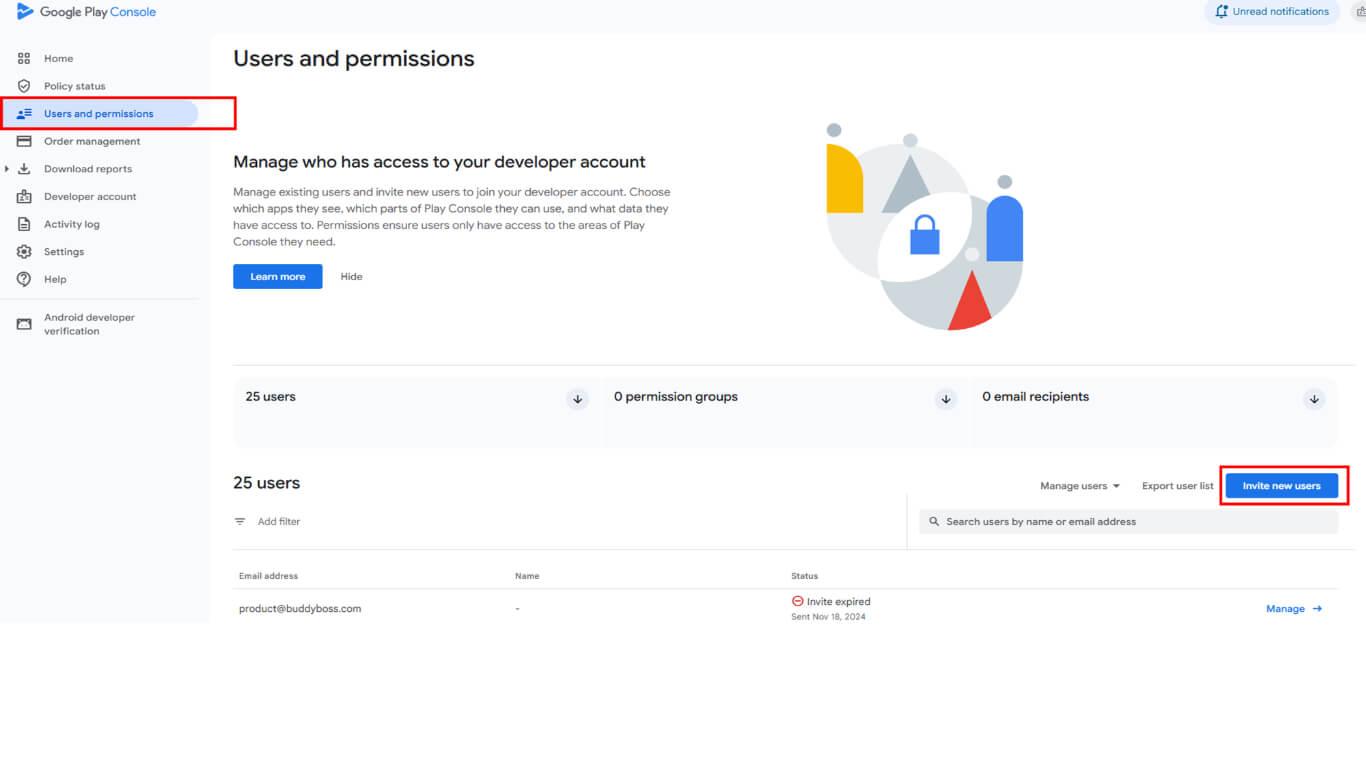
- Klicken Sie auf Benutzer und Berechtigungen in der linken Seitenleiste.
- Klicken Sie auf die Neue Benutzer einladen Taste.
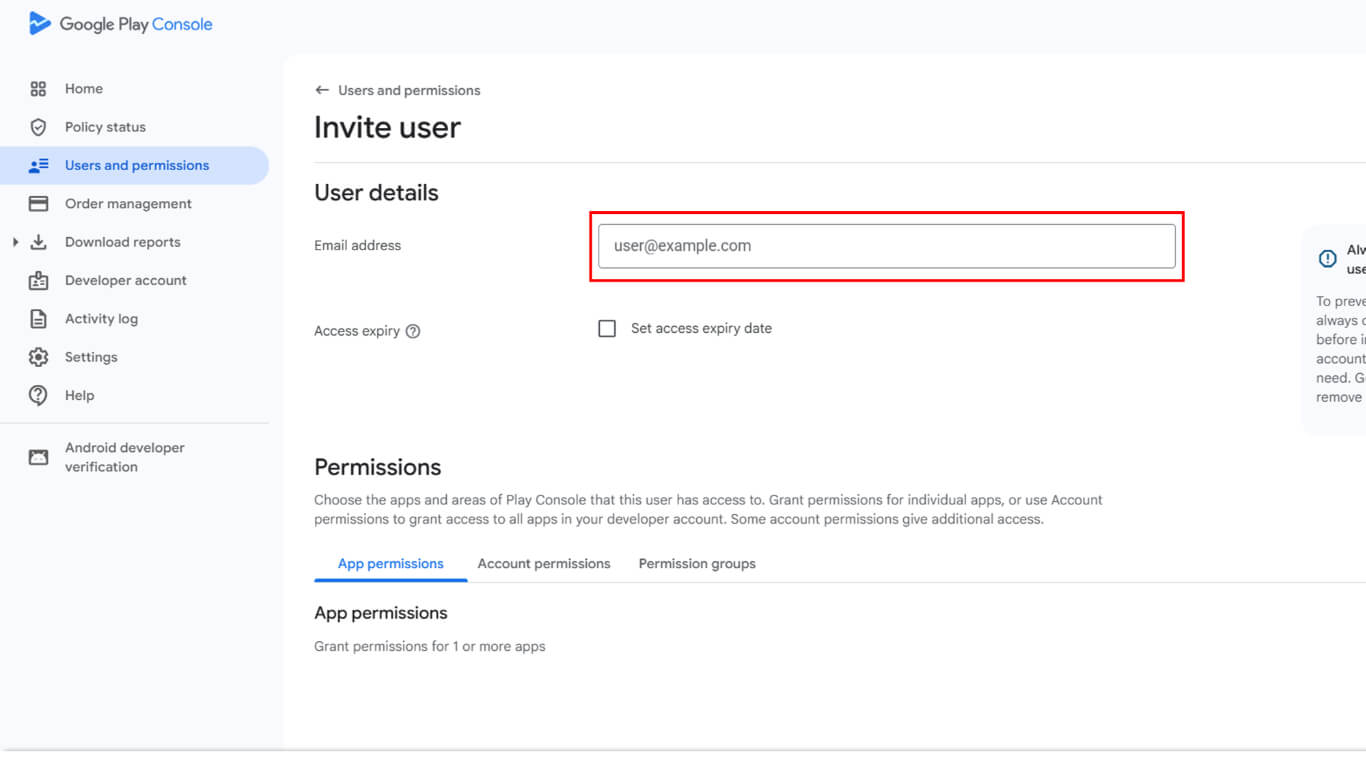
- Fügen Sie die E-Mail-Adresse des Dienstkontos in das Feld ein. E-Mail Adresse Feld.
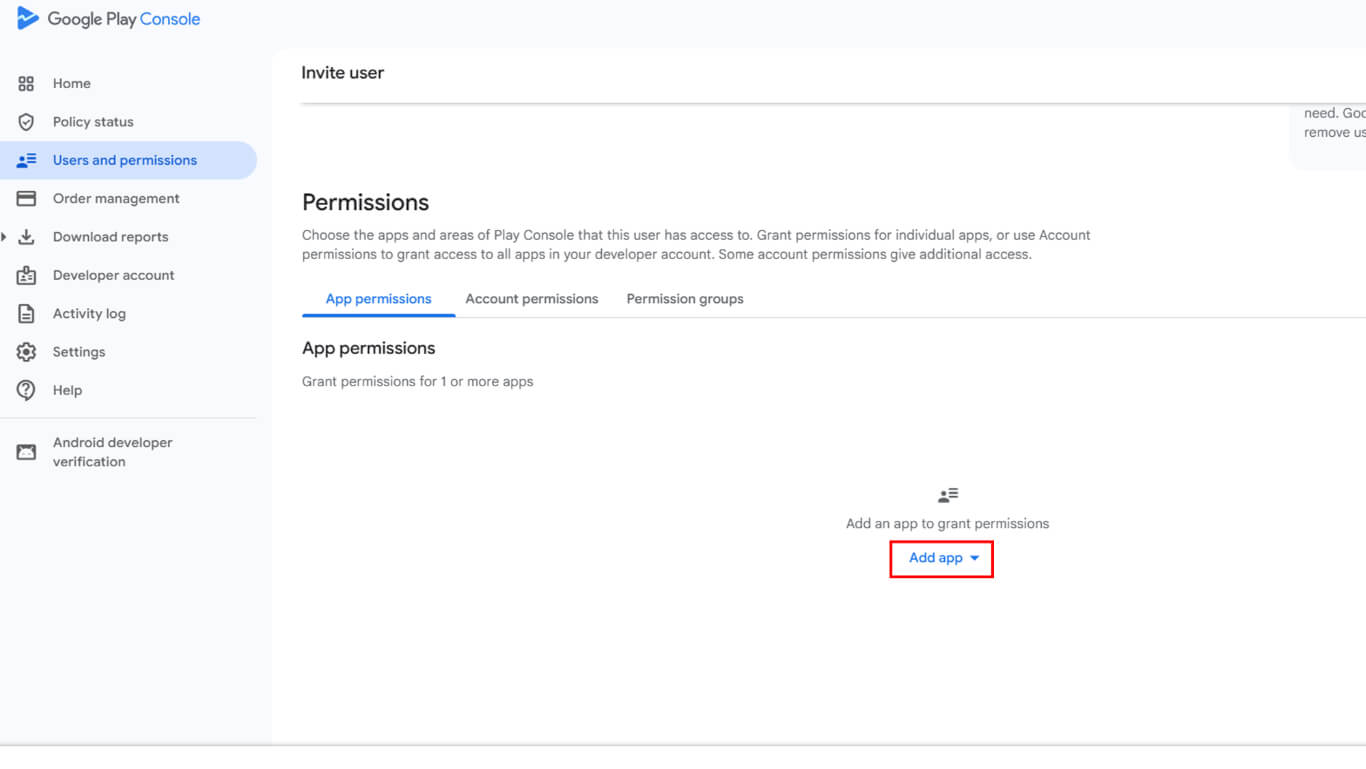
- Blättern Sie nach unten zum App-Berechtigungen Abschnitt.
- Klicken Sie auf App hinzufügen um barrierefreie Apps auszuwählen.
- Wählen Sie die App aus der Liste der verfügbaren Apps aus.
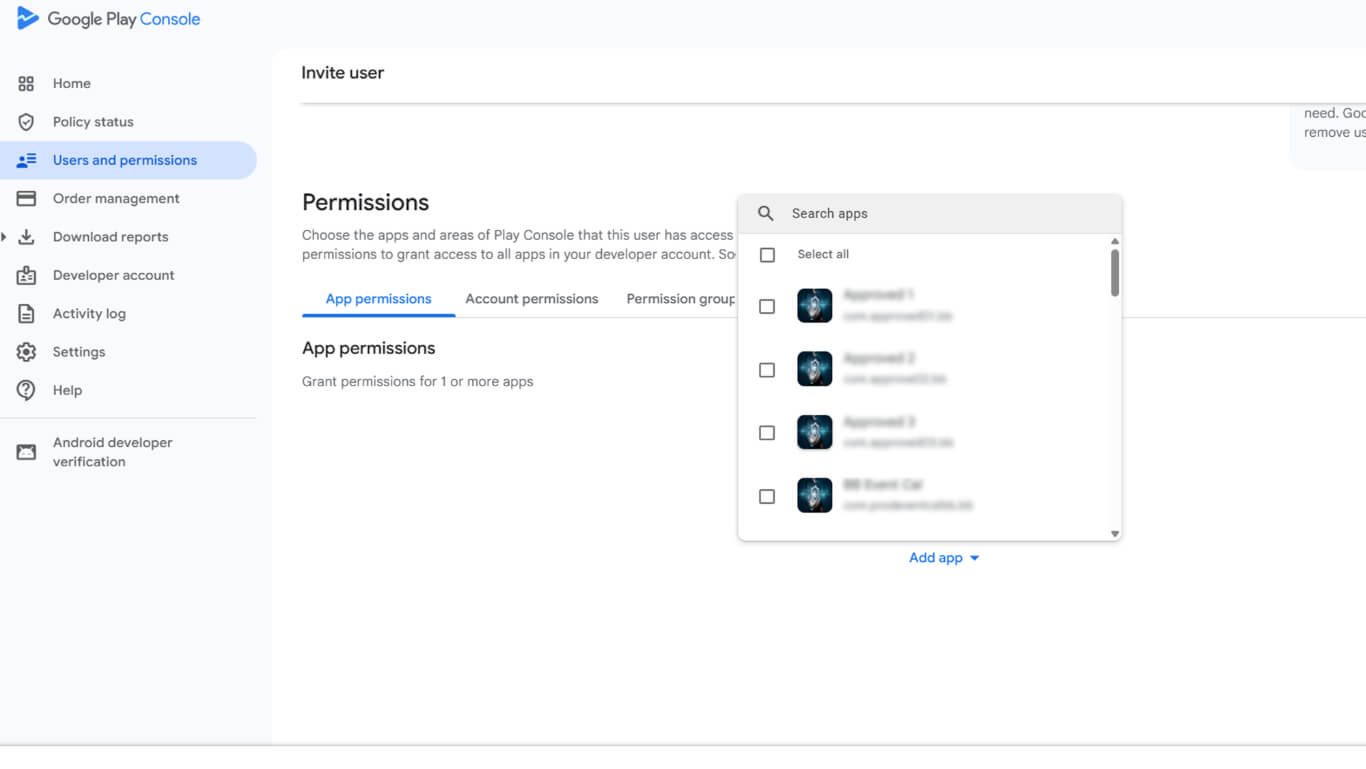
- Klicken Sie auf Bewerbung um die App-Auswahl zu bestätigen.
- Wählen Sie Verwaltung unter Kontoberechtigungen für uneingeschränkten Zugriff.
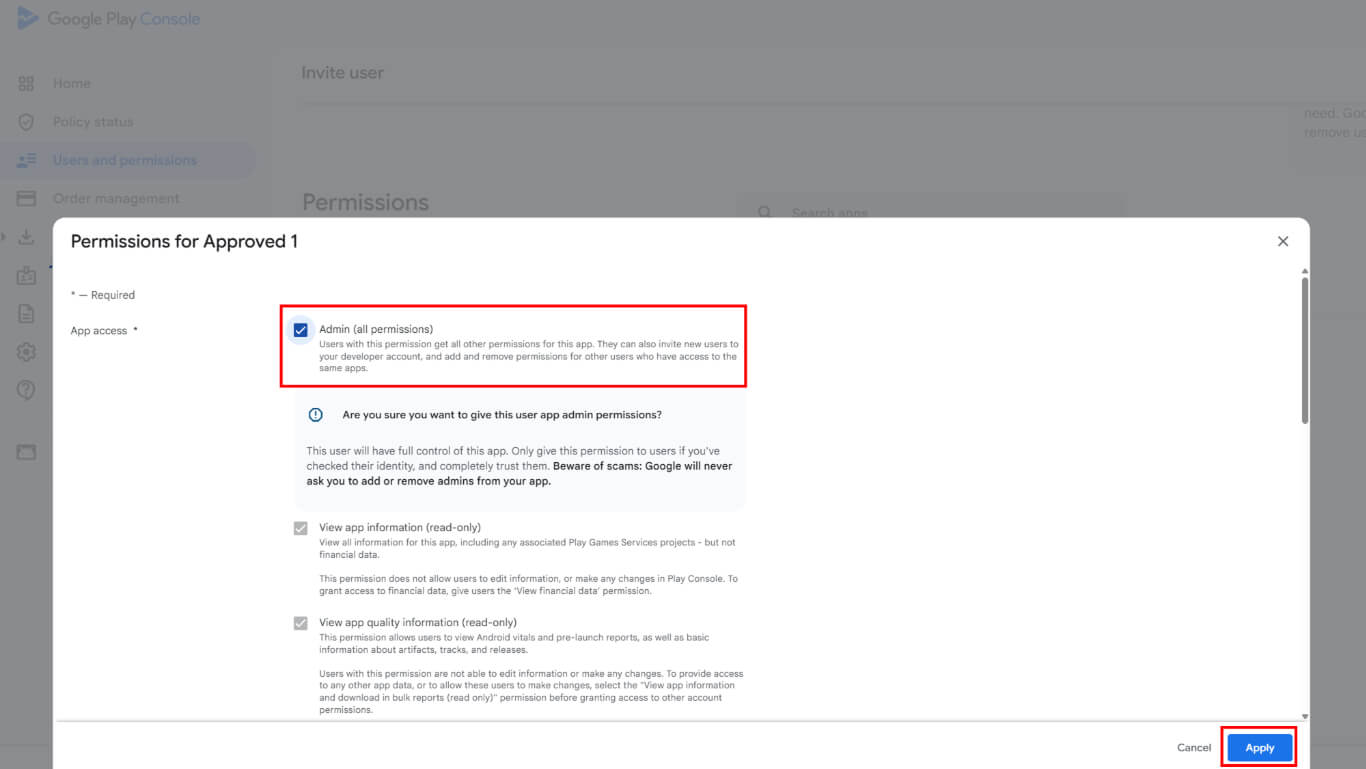
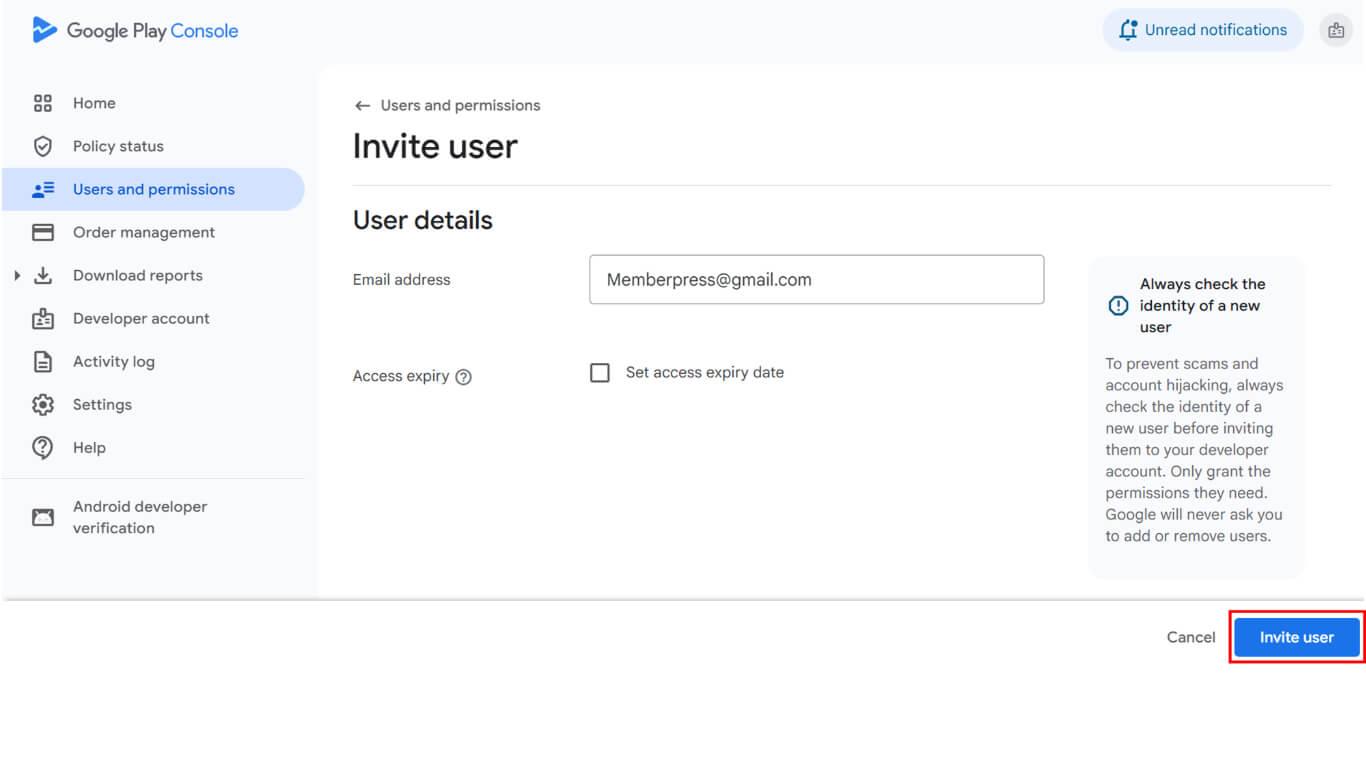
- Klicken Sie auf Benutzer einladen die Einladung zu versenden.
- Navigieren Sie zu Benutzer in dieser Gruppe Abschnitt.
- Fügen Sie den Benutzer des Dienstkontos zur Gruppe hinzu.
- Überprüfen Sie, ob das Dienstkonto mit einem Aktiv Status in der Benutzerliste.
Hochladen des Dienstkontoschlüssels zu WordPress
Durch das Hochladen des Dienstkontoschlüssels wird das Google-Entwicklerkonto mit WordPress verbunden.
- Navigieren Sie zu Dashboard > MP AppKit > Konfigurieren > Android-Einstellungen.
- Suchen Sie die Verbinden Sie Ihr Google-Entwicklerkonto Abschnitt.
- Klicken Sie auf Datei hochladen um den Dateiauswahl-Dialog zu öffnen.
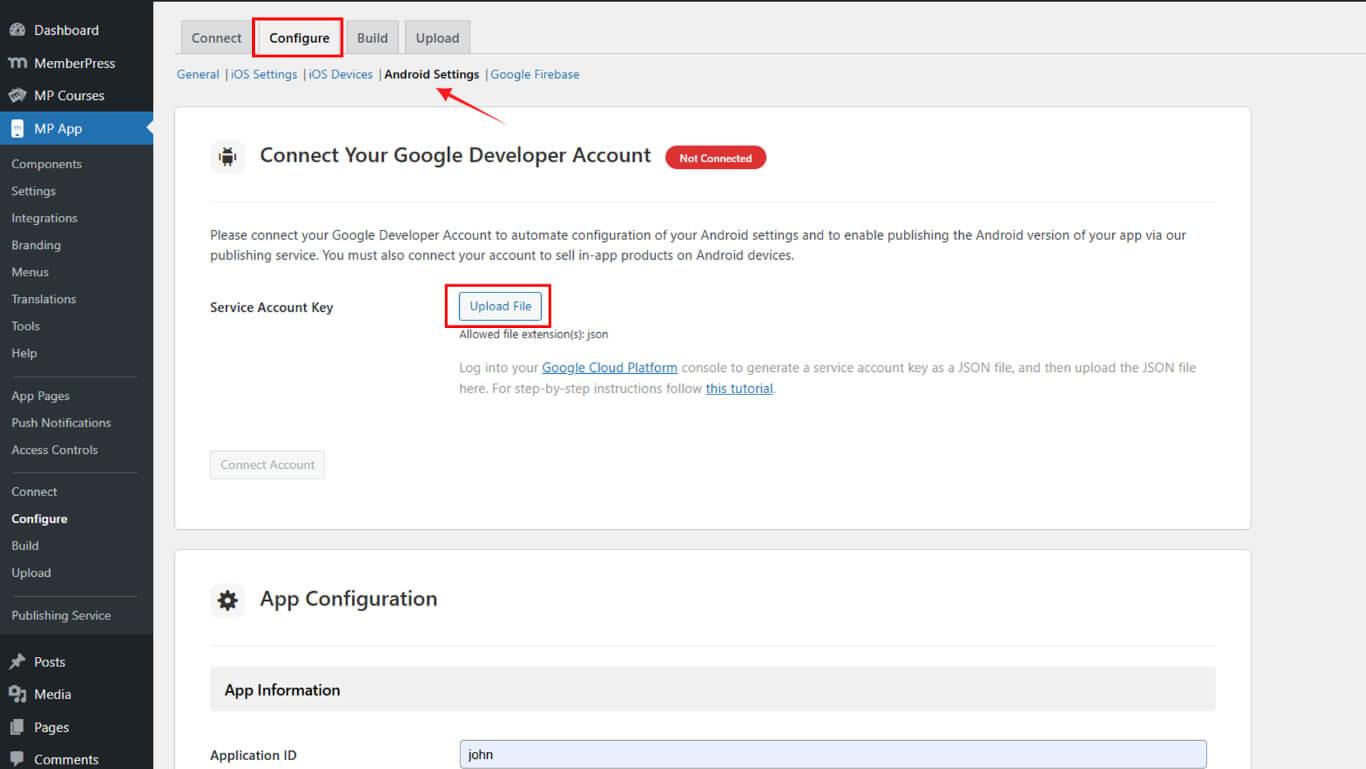
- Wählen Sie die heruntergeladene JSON-Schlüsseldatei vom Gerät aus.
- Klicken Sie auf Konto verbinden eine Verbindung herstellen.
- Überprüfen Sie das Grün Verbunden Anzeige erscheint.
Der Status "Verbunden" bestätigt die erfolgreiche Integration mit dem Google Developer-Konto.
Einrichtung interner Tests
Die interne Testkonfiguration ermöglicht das Testen von Apps vor der öffentlichen Veröffentlichung.
Navigieren zu internen Tests
- Navigieren Sie zur Google Play Console unter play.google.com/console.
- Wählen Sie die App auf der Startseite aus.
- Klicken Sie auf Test und Freigabe > Interne Tests in der Seitenleiste.
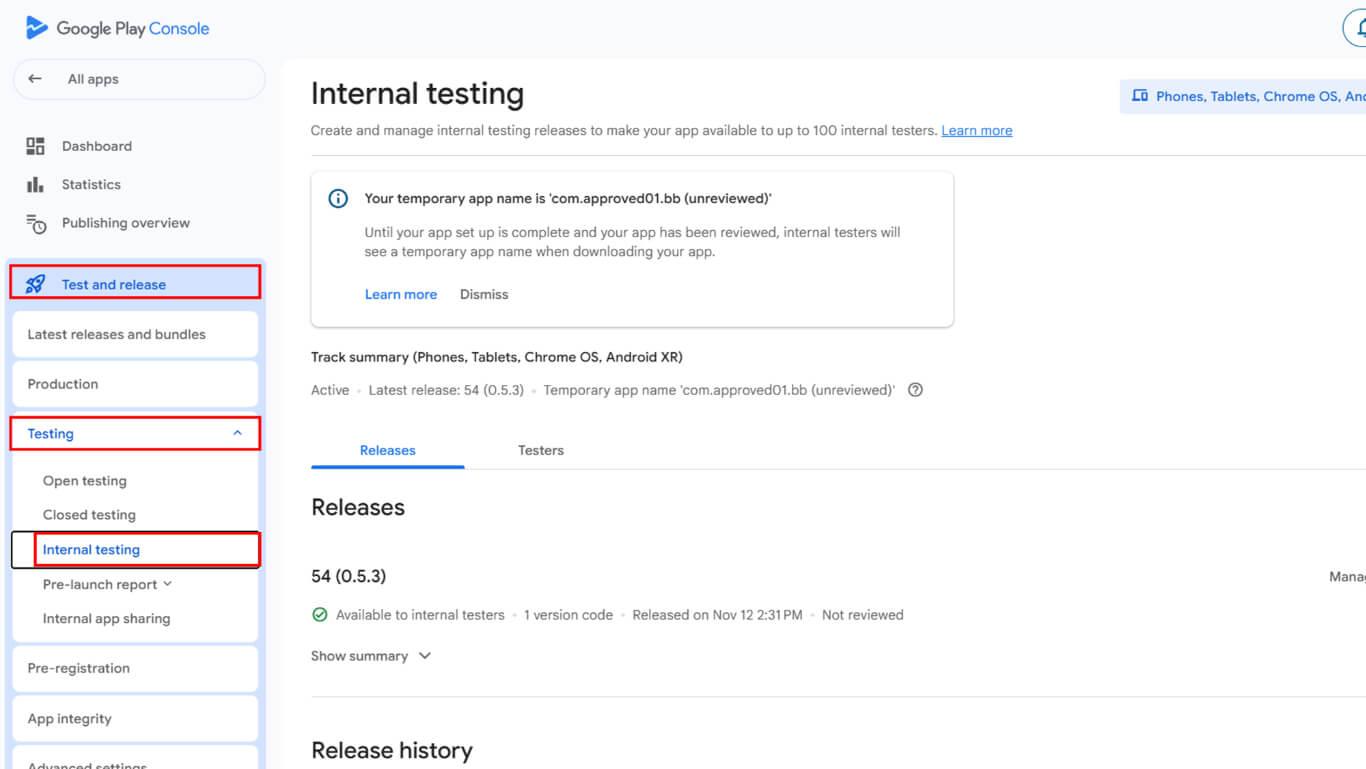
- Klicken Sie auf Neuen Track erstellen wenn kein Titel vorhanden ist.
- Fügen Sie E-Mail-Adressen von Testern oder Google-Gruppen im Abschnitt „Tester“ hinzu.
- Geben Sie eine Feedback-URL oder E-Mail-Adresse für Fehlerberichte ein.
- Klicken Sie auf Speichern Sie die Konfiguration der Teststrecke fertigzustellen.
Neue Version erstellen
Die Release-Erstellung bereitet die App für die Verteilung an Tester vor.
- Navigieren Sie zu Prüfung > Interne Prüfung in der Google Play Console.
- Klicken Sie auf die Neue Version erstellen Taste.
- Suchen Sie die App-Signierung Abschnitt.
- Klicken Sie auf Signaturschlüssel auswählen.
- Wählen Sie die Verwenden Sie den von Google generierten Schlüssel Option.
- Bestätigen Sie die Auswahl des Signaturschlüssels.
Google Play signiert alle Releases nach Bestätigung der Auswahl mit dem generierten Schlüssel.
AAB-Build anfordern
Die Erstellung eines Android App Bundles erfolgt über die WordPress-Build-Oberfläche.
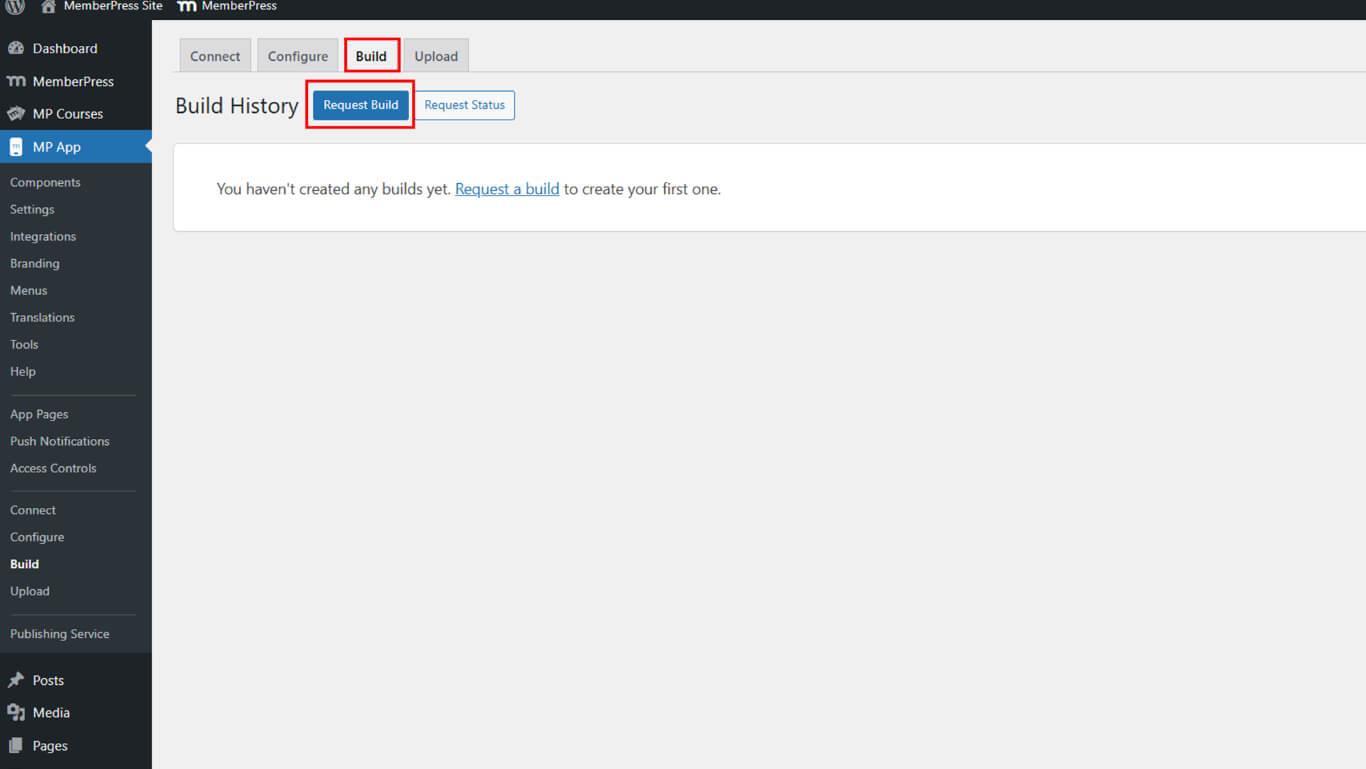
- Navigieren Sie zu Dashboard > MP AppKit > Bauen.
- Klicken Sie auf die Erstellen anfordern Taste.
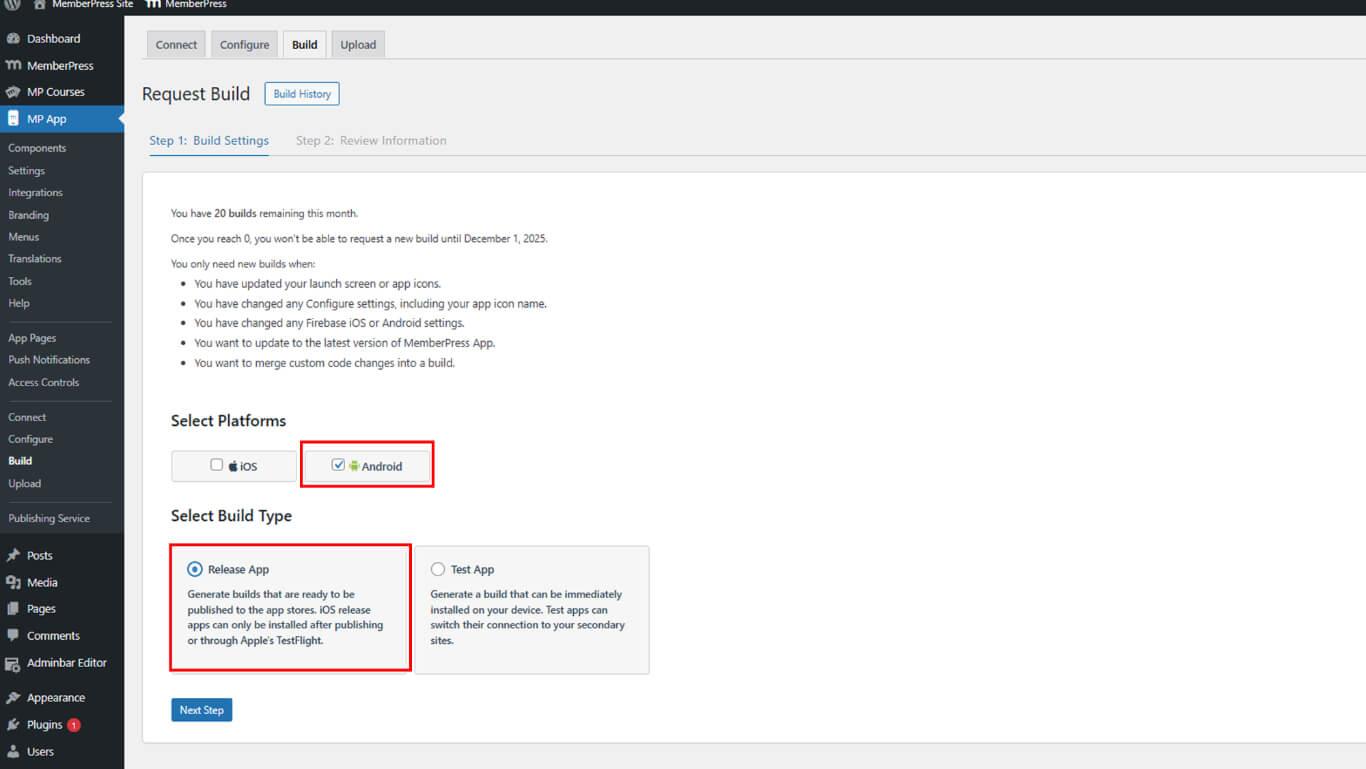
- Prüfen Sie die Android Kontrollkästchen als Plattform.
- Wählen Sie App veröffentlichen als Build-Typ.
- Klicken Sie auf Nächster Schritt um fortzufahren.
- Klicken Sie auf Build-Anfrage senden den Antrag einzureichen.
- Überwachen Sie den Status der Anfrage unter Entstehungsgeschichte.
Die Fertigstellung erfolgt in der Regel innerhalb von 5 bis 10 Minuten nach Einreichen der Anfrage.
AAB auf die Spielkonsole hochladen
Der Upload der AAB-Datei in die Play Console schließt die Vorbereitung der Veröffentlichung ab.
- Navigieren Sie zum Release erstellen Bildschirm in der Google Play Console.
- Blättern Sie zum App-Pakete Abschnitt.
- Klicken Sie auf Hochladen Dateiauswahl öffnen.
- Navigieren Sie zu Dashboard > MP AppKit > Aufbau > Aufbauverlauf in WordPress.
- Klicken Sie auf In die Google Play Console hochladen neben dem fertigen Bau.
- Klicken Sie auf Build herunterladen um die AAB-Datei zu speichern.
- Kehren Sie zum Upload-Dialogfeld der Google Play Console zurück.
- Wählen Sie die heruntergeladene AAB-Datei auf dem Gerät aus.
- Warten Sie, bis der Upload abgeschlossen ist.
- Überprüfen Sie, ob das hochgeladene App-Bundle in der Veröffentlichung angezeigt wird.
Erforderliche Erklärungen ausfüllen
Metadaten-Deklarationen müssen vor der Veröffentlichung ausgefüllt werden.
- Überprüfen Sie alle angezeigten Metadaten-Fehlermeldungen.
- Klicken Sie auf Vollständige Erklärung Anforderungen zu erfüllen.
- Navigieren Sie zur Seite mit der Erklärung zur Werbe-ID.
- Antwort Ja auf “Verwendet Ihre App eine Werbe-ID?”, falls zutreffend.
- Klicken Sie auf Speichern Sie die Erklärung zu speichern.
- Zurück zum Freigabebildschirm.
- Klicken Sie auf Speichern Sie nochmals, um die Veröffentlichung abzuschließen.
Abgeschlossene Erklärungen ermöglichen die Veröffentlichung in der internen Testumgebung.










 DE
DE  EN
EN  ES
ES  FR
FR  PT
PT 