

Das MemberPress AppKit-Plugin stellt eine Verbindung zu WordPress her und ermöglicht mobile Anwendungsfunktionen für Mitgliedsinhalte. In diesem Dokument wird erklärt, wie das MemberPress AppKit-Plugin installiert wird, wie es mit WordPress mit Lizenzanmeldeinformationen verknüpft wird und wie eine erfolgreiche Verbindung überprüft wird.
Verstehen von MemberPress AppKit Verbindung
Das MemberPress AppKit-Plugin bildet die Brücke zwischen WordPress-Mitgliedschaftsinhalten und mobilen Anwendungen. Die Plugin-Installation fügt die notwendigen Funktionen für die App-Konfiguration, Build-Generierung und Inhaltssynchronisation hinzu. Die Lizenzschlüssel-Authentifizierung verbindet die WordPress-Site mit den MemberPress AppKit-Diensten.
Herunterladen von MemberPress AppKit Plugin
Der Download des Plugins erfolgt über das Dashboard des MemberPress-Kontos.
- Loggen Sie sich in das MemberPress-Konto auf dem Kontoportal ein.
- Navigieren Sie zu Dashboard > Downloads.
- Suchen Sie das MemberPress AppKit-Plugin in der Liste der Downloads.
- Klicken Sie auf Herunterladen um die ZIP-Datei des Plugins zu speichern.
Installation von MemberPress AppKit Plugin
Die Plugin-Installation fügt die MemberPress AppKit-Funktionalität zu WordPress hinzu.
- Loggen Sie sich in das WordPress-Dashboard ein.
- Navigieren Sie zu Plugins > Neues Plugin hinzufügen.
- Klicken Sie auf die Plugin hochladen am oberen Rand der Seite.
- Klicken Sie auf Datei auswählen um die Dateiauswahl zu öffnen.
- Wählen Sie die heruntergeladene ZIP-Datei des MemberPress AppKit-Plugins.
- Klicken Sie auf Jetzt installieren um mit der Installation zu beginnen.
- Klicken Sie auf Aktivieren Sie nach Abschluss der Installation.
Bezug von MemberPress AppKit Lizenzschlüssel
Die Abfrage des Lizenzschlüssels ermöglicht die Verbindung des Plugins mit den MemberPress-Diensten.
- Loggen Sie sich in das MemberPress-Konto auf dem Kontoportal ein.
- Navigieren Sie zum Abonnements Abschnitt.
- Suchen Sie das MemberPress AppKit-Abonnement.
- Klicken Sie auf Verwalten Sie neben dem Abonnement.
- Kopieren Sie die Lizenzschlüssel auf der Seite angezeigt.
Verbinden von MemberPress AppKit
Die Eingabe des Lizenzschlüssels stellt eine Verbindung zwischen Ihrer Website und den MemberPress AppKit-Diensten her.
- Navigieren Sie zu Dashboard > MP AppKit > Verbinden.
- Suchen Sie die Lizenzschlüssel Feld.
- Fügen Sie den kopierten Lizenzschlüssel in das Feld ein.
- Klicken Sie auf Verbinden Sie eine Verbindung herstellen.
- Warten Sie auf die Bestätigungsmeldung für die Verbindung.
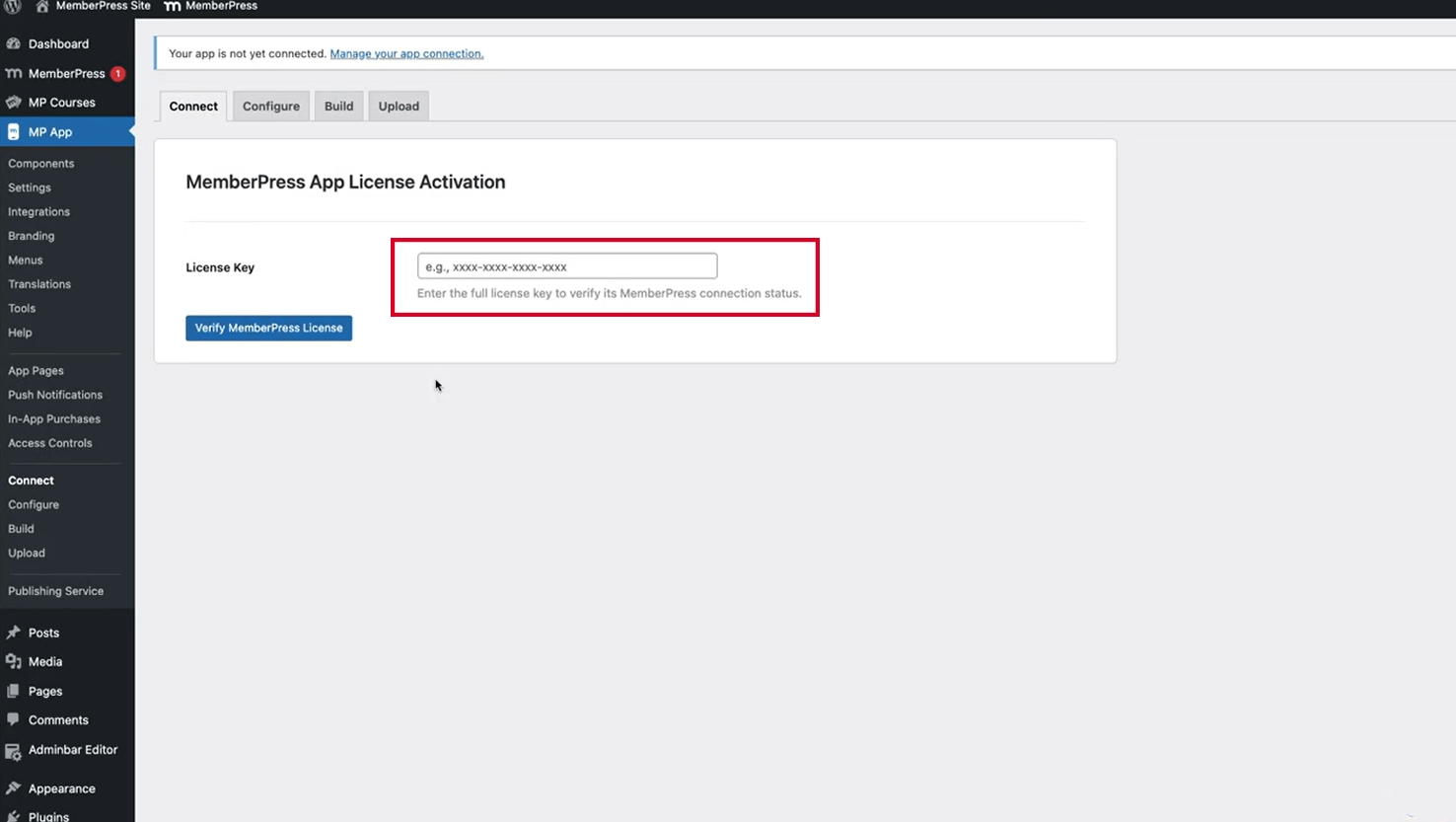
Die Verbindungsbestätigung zeigt die erfolgreiche Aktivierung des Plugins und den Zugriff auf den Dienst an. Das Plugin ist nun bereit für die App-Konfiguration und die Erstellung von Builds.
Überprüfen des Verbindungsstatus
Die Überprüfung der Verbindung bestätigt die ordnungsgemäße Einrichtung des Plugins.
- Navigieren Sie zu Dashboard > MP AppKit.
- Überprüfen Sie, ob auf der Seite Verbinden der Status Verbunden angezeigt wird.
- Überprüfen Sie, ob MemberPress AppKit-Menüpunkte in der Dashboard-Seitenleiste erscheinen.
- Navigieren Sie zu Dashboard > MP AppKit > Einstellungen um den Zugang zu bestätigen.
- Überprüfen Sie, ob die Einstellungsseiten ohne Verbindungsfehler geladen werden.
Eine erfolgreiche Verbindung ermöglicht den Zugriff auf alle MemberPress AppKit-Konfigurationsschnittstellen, einschließlich der Bereiche Komponenten, Einstellungen, Build und Menüs.










 DE
DE  EN
EN  ES
ES  FR
FR  PT
PT 