

Automatisieren Sie das Release-Management und die Umsatzberichterstattung in MemberPress AppKit mithilfe der Google Play Developer API.
Diese Anleitung führt Sie durch die Verknüpfung Ihres Google Cloud-Projekts, die Erstellung eines Dienstkontos, die Generierung eines JSON-Schlüssels und die Verbindung mit dem MemberPress AppKit-Plugin.
Anforderungen an Dienstkonten verstehen
Die Anforderungen an Dienstkonten definieren die notwendigen Konfigurationen für den automatisierten Zugriff auf die Google Play Console API und deren Verwaltung.
API-Zugriffsaktivierung ermöglicht MemberPress AppKit die programmatische Interaktion mit der Google Play-Konsole. Die Authentifizierung des Dienstkontos bietet einen sicheren, automatisierten Zugriff auf die App-Verwaltungsfunktionen.
Automatisierung des Release-Managements Ermöglicht das Hochladen von Builds und die Konfiguration von Releases ohne manuelle Konsoleninteraktion. Automatisierte Workflows optimieren die Prozesse für App-Updates und -Einreichungen.
Zugriff auf Umsatzberichte bietet den Abruf von Finanzdaten für Analyse- und Berichtszwecke. Dienstkonten greifen programmgesteuert auf Abonnementumsätze und Transaktionsinformationen zu.
Berechtigungs-Konfiguration Gewährt spezifische Berechtigungen für Dienstkonten für betriebliche Anforderungen. Durch die richtige Einrichtung von Berechtigungen wird sichergestellt, dass Dienstkonten die erforderlichen Verwaltungsaufgaben ausführen können.
JSON-Schlüssel-Authentifizierung verwendet sichere Anmeldedateien zur Überprüfung von Dienstkonten. Schlüsseldateien authentifizieren API-Anfragen, ohne Kontopasswörter preiszugeben.
Google Cloud-Projekt verknüpfen
Google Cloud-Projektverknüpfung verbindet MemberPress AppKit mit Google Play Developer API-Diensten.
- Navigieren Sie in Ihrem WordPress-Adminbereich zu Dashboard > MP AppKit > Konfigurieren > Android-Einstellungen > Verbinden Sie Ihr Google-Entwicklerkonto.
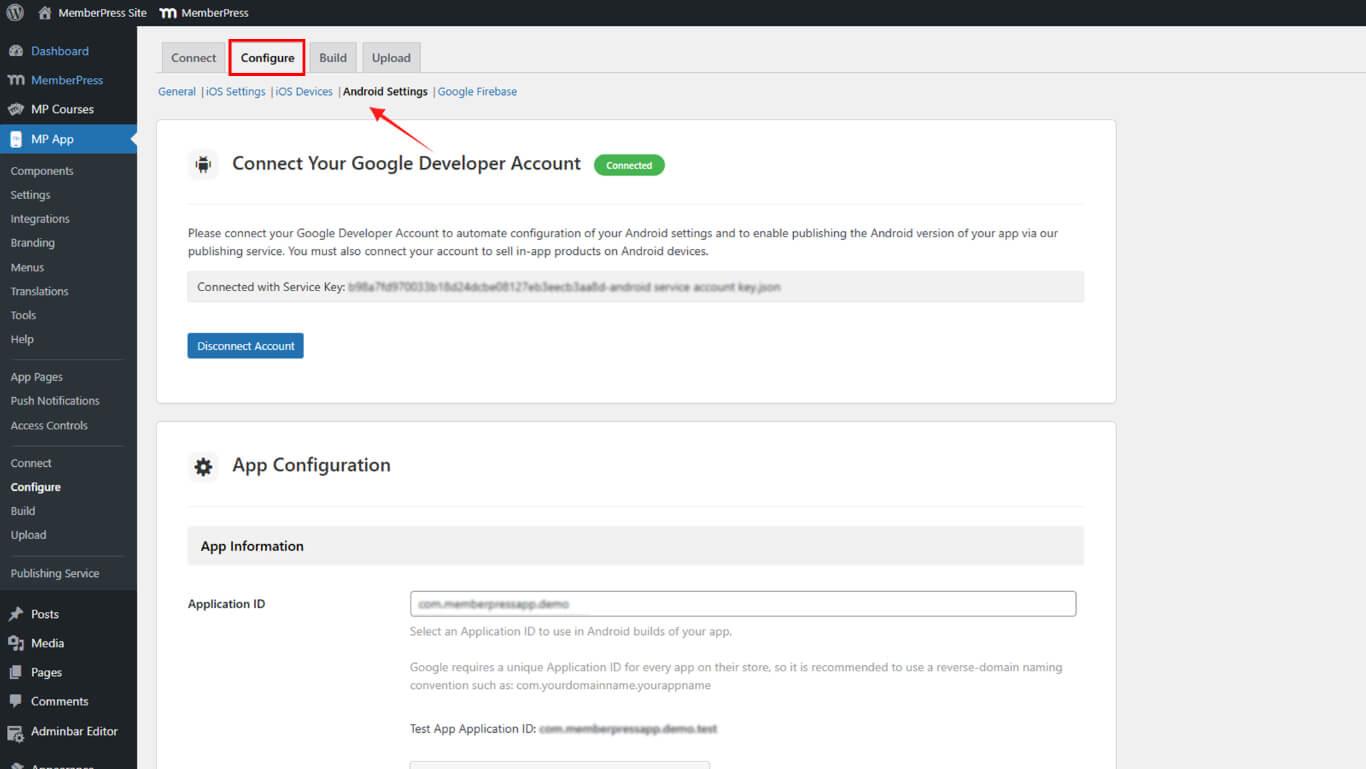
- Wenn Sie dazu aufgefordert werden, wählen Sie Vorhandenes Projekt verknüpfen oder Neues Projekt erstellen im Google Cloud-Dialogfeld.
- Vergewissern Sie sich, dass Ihr Projekt verknüpft ist, bevor Sie fortfahren.
Dienstkonto erstellen
Durch die Erstellung eines Dienstkontos wird eine Identität für automatisierte API-Interaktionen mit der Google Play Console festgelegt.
- Klicken Sie auf der Seite „API-Zugriff“ in WordPress auf Neues Dienstkonto erstellen.
- Klicken Sie im Popup-Fenster „Google Cloud“ auf die Schaltfläche Google Cloud-Plattform Link.
- Wählen Sie Ihr Projekt aus und klicken Sie auf Dienstkonto erstellen.
- Eingabe einer Name und klicken Sie erstellen..
- Unter Wählen Sie eine Rolle auswählen Basic > Eigentümer, dann klicken Sie auf Weiter.
- Klicken Sie auf Erledigt um die Einrichtung des Dienstkontos abzuschließen.
JSON-Schlüssel generieren
Die JSON-Schlüsselerstellung erstellt Authentifizierungsdaten für den API-Zugriff auf Dienstkonten.
- Kehren Sie zur Seite „API-Zugriff“ zurück, suchen Sie Ihr neues Dienstkonto und klicken Sie darauf. ⋮ > Schlüssel verwalten.
- Klicken Sie auf Schlüssel hinzufügen > Neuen Schlüssel erstellen.
- Wählen Sie JSON für den Schlüsseltyp und klicken Sie auf erstellen..
- Klicken Sie auf Erledigt um den Dialog zur Schlüsselverwaltung zu schließen.
Play Console-Berechtigungen erteilen
Die Berechtigungen der Play Console ermöglichen es dem Dienstkonto, bestimmte Verwaltungsvorgänge durchzuführen.
- Klicken Sie weiterhin unter „API-Zugriff“ auf Zugriff gewähren neben Ihrem Dienstkonto.
- Aktivieren Sie die folgenden Berechtigungen:
- App-Informationen anzeigen und Finanzberichte herunterladen;
- Finanzdaten, Bestellungen und Stornierungen anzeigen;
- Bestellungen und Abonnements verwalten;
- Entwürfe erstellen/bearbeiten/löschen;
- Freigabe für die Produktion;
- Geräte ausschließen und Play App Signing verwenden;
- Apps für Testzwecke freigeben;
- Testpfade und Testerlisten verwalten;
- Präsenz im Geschäft verwalten.
- Klicken Sie auf Benutzer einladen und dann Einladung senden.
Verbindungsschlüssel im MemberPress AppKit
Die Schlüsselverbindung schließt die Einrichtung der Dienstkontoauthentifizierung in WordPress für automatisierte API-Vorgänge ab.
- In WordPress gehen Sie zu Dashboard > MP AppKit > Konfigurieren > Einstellungen > API-Zugang für Entwicklerkonto.
- Unter Verbinden Sie Ihr Dienstkonto, klicken JSON-Schlüssel hochladen und wählen Sie die heruntergeladene Datei aus.
- Klicken Sie auf Änderungen speichern.
Bestätigen Sie, dass der Verbindungsstatus “Verbunden“.










 DE
DE  EN
EN  ES
ES  FR
FR  PT
PT 