

Die Lesezeichen-Funktion in der MemberPress-App (iOS/Android) ermöglicht es den Nutzern, ihre bevorzugten WordPress-Blogposts auf einem personalisierten Bildschirm zu speichern, um schnell darauf zugreifen zu können. Dies verbessert die Nutzererfahrung und erhöht das Engagement und die Beibehaltung der Inhalte.
Diese Anleitung führt Sie durch die Aktivierung von Lesezeichen in MemberPress AppKit, das Hinzufügen des Bildschirms zu Ihrem App-Menü und erklärt, wie Benutzer Lesezeichen setzen und ihre gespeicherten Beiträge verwalten können.
Verständnis der Lesezeichenfunktion
Die Anforderungen an die Lesezeichenfunktion definieren die Konfigurationen für die Speicherung der Inhalte der Mitglieder und für die Verwaltung der personalisierten Sammlungen.
Aktivierung von Lesezeichen aktiviert die Funktion zum Speichern von Inhalten, die es Mitgliedern ermöglicht, persönliche Beitragssammlungen anzulegen. Die Speicherfunktion verwandelt Gelegenheitsleser in engagierte Mitglieder, die Inhaltsbibliotheken aufbauen.
Menü-Integration fügt der Navigation den Bildschirm Lesezeichen hinzu, der direkten Zugriff auf gespeicherte Inhalte ermöglicht. Die Platzierung des Menüs bestimmt die Zugänglichkeit der Lesezeichen und das Nutzungsverhalten der Mitglieder.
Icon-Statusanzeige verwendet ein visuelles Feedback, das den Lesezeichenstatus für einzelne Beiträge anzeigt. Ausgefüllte Symbole zeigen gespeicherte Beiträge an, während umrandete Symbole ungespeicherte Inhalte anzeigen.
Behandlung des leeren Zustands zeigt eine informative Meldung an, wenn keine Lesezeichen vorhanden sind, um die Mitglieder zur Interaktion anzuleiten. Eindeutige leere Zustände verbessern die Auffindbarkeit von Funktionen und die anfängliche Nutzung.
Persistenz von Lesezeichen behält gespeicherte Inhalte über App-Sitzungen und Gerätewechsel hinweg bei. Die Cloud-Synchronisierung gewährleistet die Verfügbarkeit von Lesezeichen unabhängig vom Zugriffsgerät.
Aktivieren von Lesezeichen
Durch die Aktivierung von Lesezeichen wird die Funktion zum Speichern von Inhalten in der Anzeige von Blogposts und in der Benutzeroberfläche aktiviert.
- Gehen Sie in Ihrem WordPress-Dashboard zu Dashboard > MP AppKit > Einstellungen > Blogbeiträge.
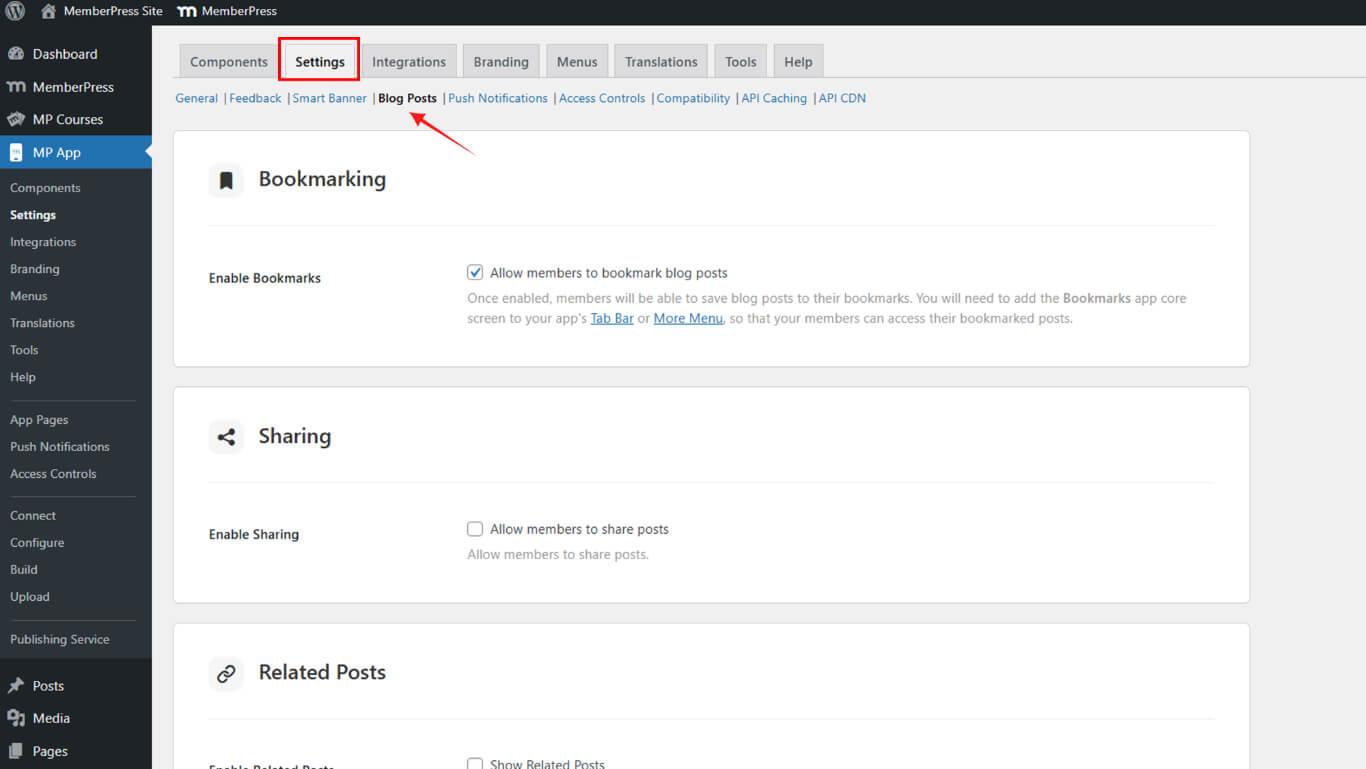
- Siehe Aktivieren von Lesezeichen.
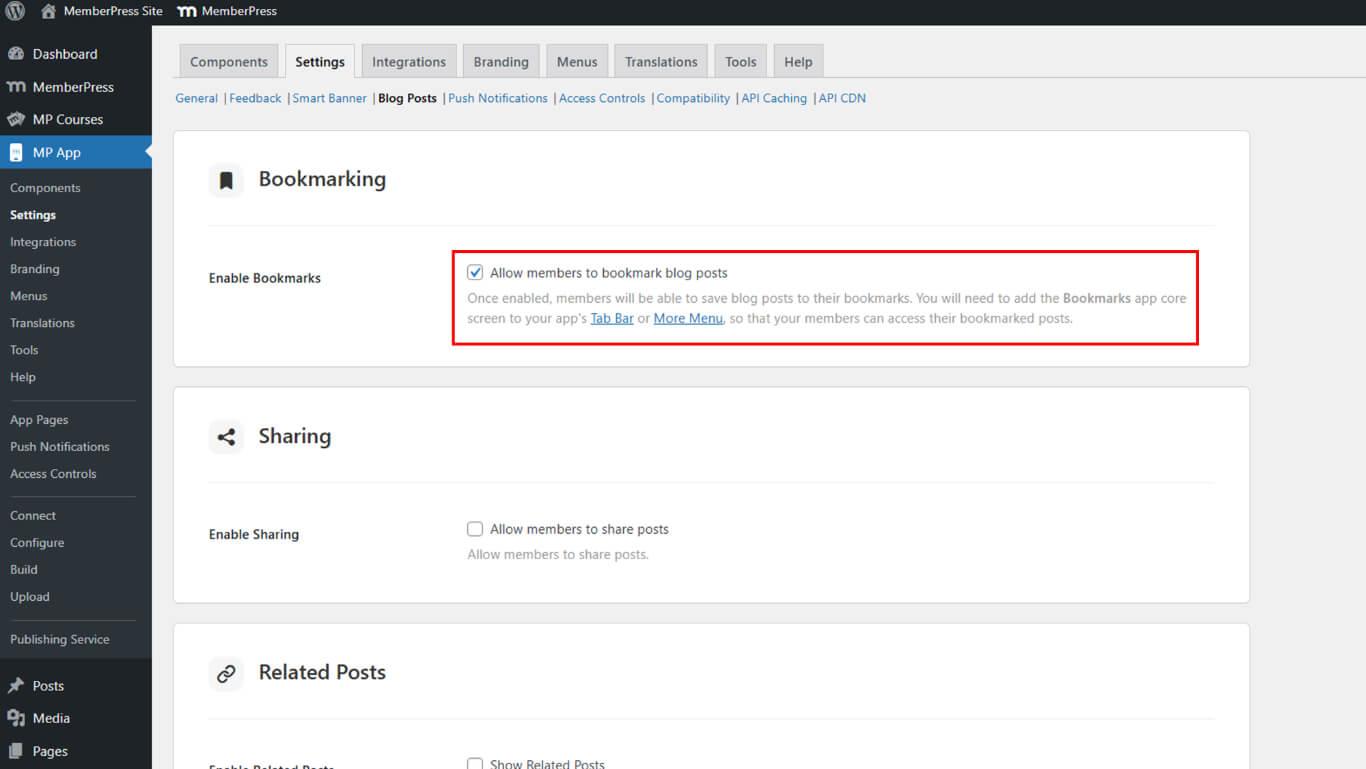
- Klicken Sie auf Änderungen speichern.
Hinzufügen zur Registerkartenleiste oder zum weiteren Menü
Die Menüintegration erweitert die Anwendungsnavigation um den Bildschirm Lesezeichen, der den Mitgliedern den Zugriff auf gespeicherte Inhaltssammlungen ermöglicht.
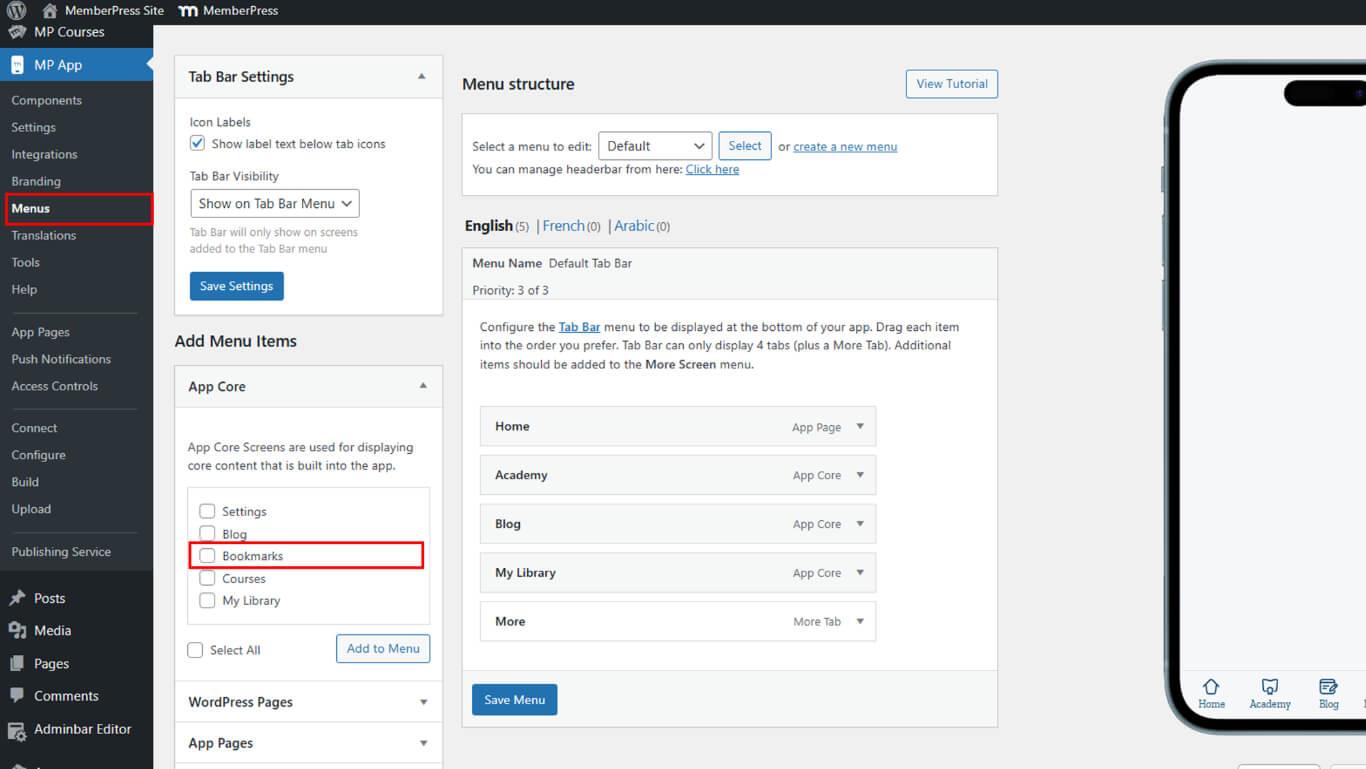
- Gehe zu Dashboard > MP AppKit > Menüs.
- Im Rahmen der App-Kernauswählen Lesezeichen.
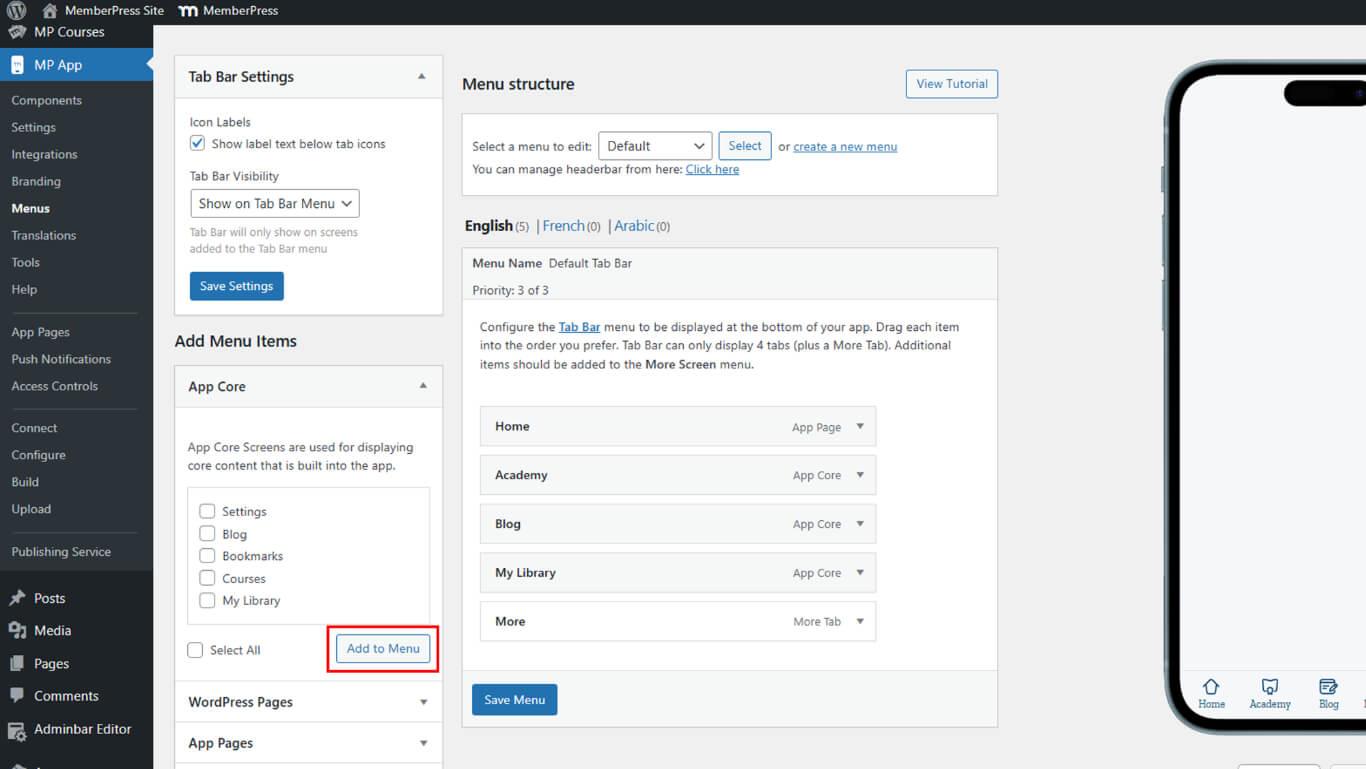
- Klicken Sie auf Zum Menü hinzufügen.
- Ändern oder veröffentlichen Sie das Menü bei Bedarf.
- Aktualisieren Sie die App, um die Änderungen zu übernehmen.
Lesezeichen für Blogbeiträge
Blogpost-Lesezeichen ermöglichen es den Mitgliedern, Inhalte zu speichern, um später darauf zuzugreifen und einen schnellen Zugriff über einen speziellen Bildschirm zu erhalten.
Speichern eines Beitrags
Durch das Speichern von Beiträgen werden einzelne Blog-Beiträge in die persönliche Lesezeichensammlung eines Mitglieds aufgenommen, um später darauf zugreifen zu können.
- Öffnen Sie die MemberPress iOS/Android-App und gehen Sie zum Bildschirm "Blogbeiträge".
- Tippen Sie auf das Lesezeichen-Symbol neben einem Beitrag.
- Das Symbol wechselt von umrandet zu ausgefüllt und bestätigt damit, dass es gespeichert wurde.
Gelesene Beiträge anzeigen
Die Anzeige von mit Lesezeichen versehenen Beiträgen zeigt die gespeicherte Inhaltssammlung des Mitglieds auf einem eigenen Bildschirm an, um den Zugriff zu erleichtern.
- Navigieren Sie über die Registerkartenleiste oder das Menü "Mehr" zum Bildschirm "Lesezeichen".
- Ihre gespeicherten Beiträge anzeigen.
Entfernen eines Lesezeichens
Das Entfernen von Lesezeichen löscht Beiträge aus der gespeicherten Sammlung, wenn das Mitglied keinen schnellen Zugriff mehr benötigt.
- Gehen Sie zum Bildschirm "Lesezeichen".
- Tippen Sie auf das ausgefüllte Lesezeichensymbol auf dem Beitrag, den Sie entfernen möchten.
- Das Symbol wird wieder umrandet, und der Beitrag verschwindet aus der Liste.










 DE
DE  EN
EN  ES
ES  FR
FR  PT
PT 