

Die Website-Authentifizierung sorgt dafür, dass Ihre Staging- oder Entwicklungs-Site privat bleibt, indem sie ein Kennwort erfordert, um sie anzuzeigen. Dies stellt sicher, dass Ihre Website verborgen bleibt, während die MemberPress iOS/Android-App zu Testzwecken auf API-Daten zugreifen kann.
Diese Anleitung führt Sie durch die Aktivierung des Passwortschutzes, die Überprüfung der Anmeldeaufforderung und die Aktualisierung der Passwort- und Hinweiseinstellungen.
Verständnis der Website-Authentifizierungsfunktion
Die Anforderungen an die Website-Authentifizierung definieren Konfigurationen zum Schutz von Staging- oder Entwicklungssites vor öffentlichem Zugriff bei gleichzeitiger Aufrechterhaltung der App-Konnektivität.
Aktivierung des Passwortschutzes schränkt den Zugriff auf die Website durch eine Authentifizierungsanforderung auf autorisierte Benutzer ein. Der Schutz stellt sicher, dass die Entwicklungsarbeit bis zum öffentlichen Start privat bleibt.
Erhaltung des API-Zugangs hält die App-Konnektivität trotz Authentifizierungsanforderungen aufrecht und ermöglicht so Tests und Entwicklung. Die App-Funktionalität läuft weiter, während die Website vor der Öffentlichkeit geschützt bleibt.
Benutzerdefinierte Hinweiskonfiguration zeigt den Besuchern der Authentifizierungsaufforderung eine informative Nachricht an, in der die Zugangsvoraussetzungen erläutert werden. Die Anpassung des Hinweises verbessert das Verständnis der Besucher für den Zweck der Authentifizierung.
Flexibilität bei der Passwortverwaltung ermöglicht es Administratoren, Anmeldeinformationen zu aktualisieren und so die Sicherheit während der Entwicklungsphasen aufrechtzuerhalten. Passwortänderungen werden sofort wirksam und schützen vor unberechtigtem Zugriff.
Inkognito-Verifizierung ermöglicht Authentifizierungstests ohne Beeinträchtigung des Browser-Cache und bestätigt die Schutzfunktionalität. Die Verifizierung stellt sicher, dass die Passwortaufforderung für nicht authentifizierte Besucher korrekt angezeigt wird.
Aktivieren des Passwortschutzes
Durch die Aktivierung des Passwortschutzes werden die Authentifizierungsanforderungen für den Website-Zugang aktiviert, während die App-API-Konnektivität erhalten bleibt.
- In WordPress gehen Sie zu Dashboard > MP AppKit > Einstellungen > Allgemein.
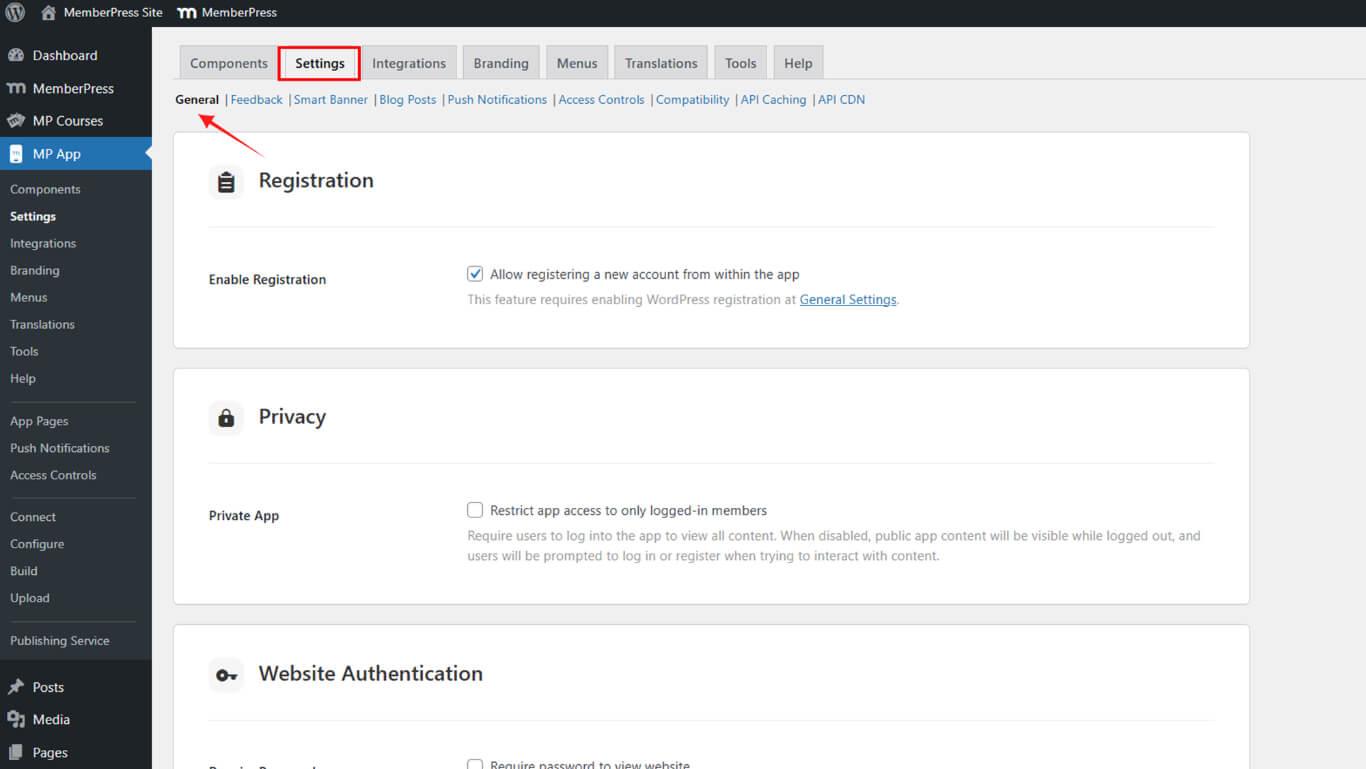
- Scrollen Sie zu Website-Authentifizierung.
- Prüfen Sie die Erforderliches Passwort.
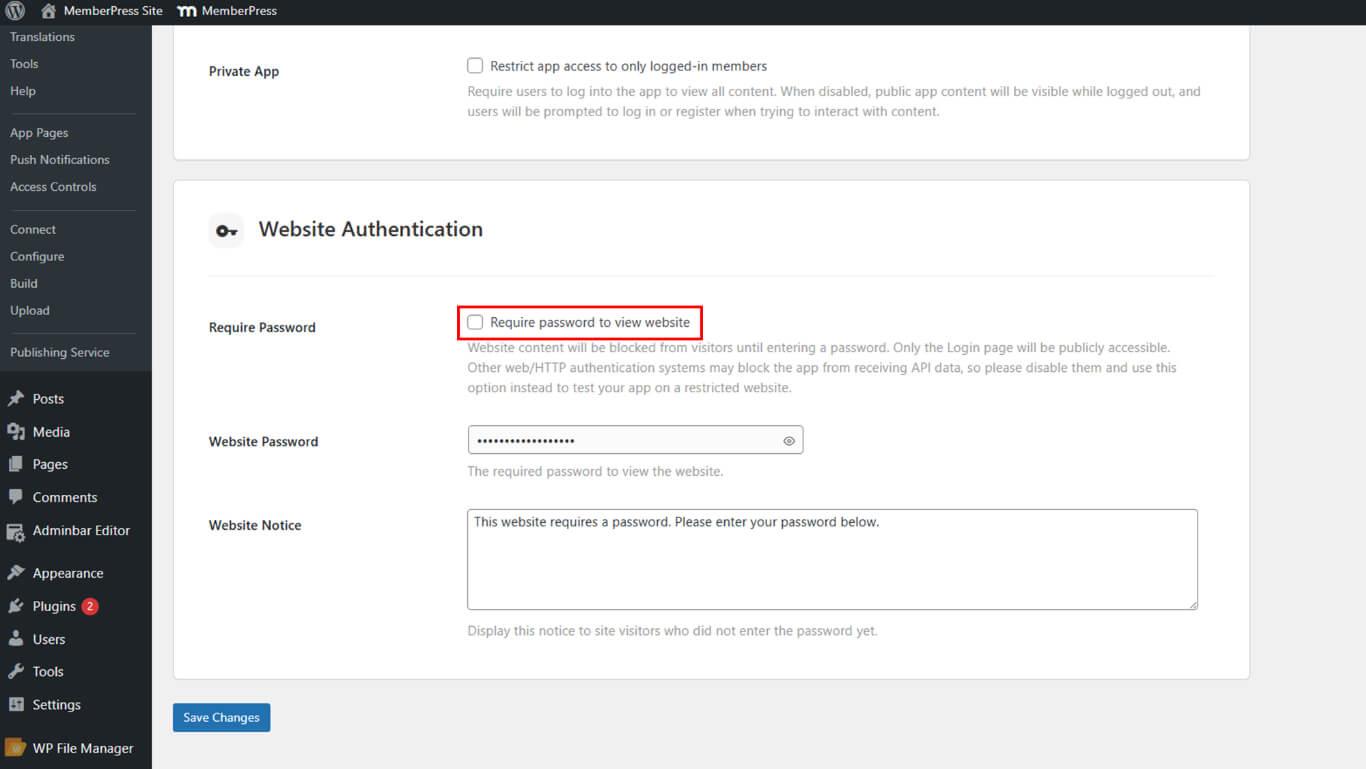
- Klicken Sie auf Änderungen speichern.
Überprüfung der Anmeldeaufforderung
Die Überprüfung der Anmeldeaufforderung bestätigt, dass die Authentifizierung für nicht authentifizierte Website-Besucher korrekt angezeigt wird.
- Öffnen Sie Ihre Website in einem Inkognito-Browserfenster.
- Überprüfen Sie die Passwortabfrage und den Hinweis auf Ihre Website.
- Testen Sie mit einem falschen und einem richtigen Kennwort, um das Verhalten zu bestätigen.
Passwort oder Hinweis aktualisieren
Durch die Aktualisierung von Passwörtern und Hinweisen werden die Authentifizierungsdaten und die Benachrichtigung der Besucher für den geschützten Zugang zur Website geändert.
- Gehe zu Dashboard > MP AppKit > Einstellungen > Allgemein > Website-Authentifizierung.
- Klicken Sie auf das Augensymbol, um das aktuelle Kennwort anzuzeigen.
- Aktualisieren Sie die Website-Passwort und Hinweis zur Website.
- Klicken Sie auf Änderungen speichern und überprüfen Sie in Incognito.










 DE
DE  EN
EN  ES
ES  FR
FR  PT
PT 