

Das MemberPress AppKit-Add-on bringt MemberPress-Mitgliedswebsites auf mobile Plattformen und ermöglicht den Mitgliedern einen bequemen Zugang über iOS- und Android-Apps. Für Kunden, die einen "hands-off"-Ansatz bevorzugen, bietet MemberPress einen Done-For-You (DFY)-Service an, bei dem das MemberPress-Team den gesamten App-Erstellungs- und Konfigurationsprozess verwaltet.
Um Push-Benachrichtigungen und andere Cloud-Dienste für die mobile App zu konfigurieren, benötigt das MemberPress-Team Eigentümerzugriff auf das Google Cloud Console-Projekt. Dieses Dokument enthält eine Schritt-für-Schritt-Anleitung, wie Sie MemberPress die erforderlichen Berechtigungen erteilen können.
Google Cloud IAM-Rollen verstehen
Google Cloud verwendet Identity and Access Management (IAM), um den Zugriff auf Ressourcen zu kontrollieren. Die wichtigsten Rollen, die für diese Konfiguration relevant sind, sind:
- Eigentümer: Vollständiger Zugriff auf alle Ressourcen und Einstellungen, einschließlich der Möglichkeit, IAM-Berechtigungen zu verwalten.;
- Herausgeber: Bearbeiten Sie den Zugriff auf alle Ressourcen, können jedoch keine IAM-Berechtigungen verwalten.;
- Betrachter: Schreibgeschützter Zugriff auf alle Ressourcen.
Das MemberPress-Team benötigt das Eigentümer Rolle zum Konfigurieren von Firebase, Push-Benachrichtigungen und anderen Diensten für die mobile App.
Voraussetzungen
Bevor Sie fortfahren, müssen die folgenden Anforderungen erfüllt sein:
- Eine aktive Google Cloud-Projekt;
- Zugriff als Eigentümer oder IAM-Administrator auf das Google Cloud Console-Projekt.
Gewährung von MemberPress-Eigentümerzugriff
- Navigieren Sie zum Google Cloud-Konsole und melden Sie sich mit dem Organisation Eigentümer-Anmeldedaten (der Benutzer, der die Organisation erstellt hat).
- In der oberen Leiste, aus dem Projekt-Dropdownwählen Sie die Projekt im Zusammenhang mit der mobilen App.
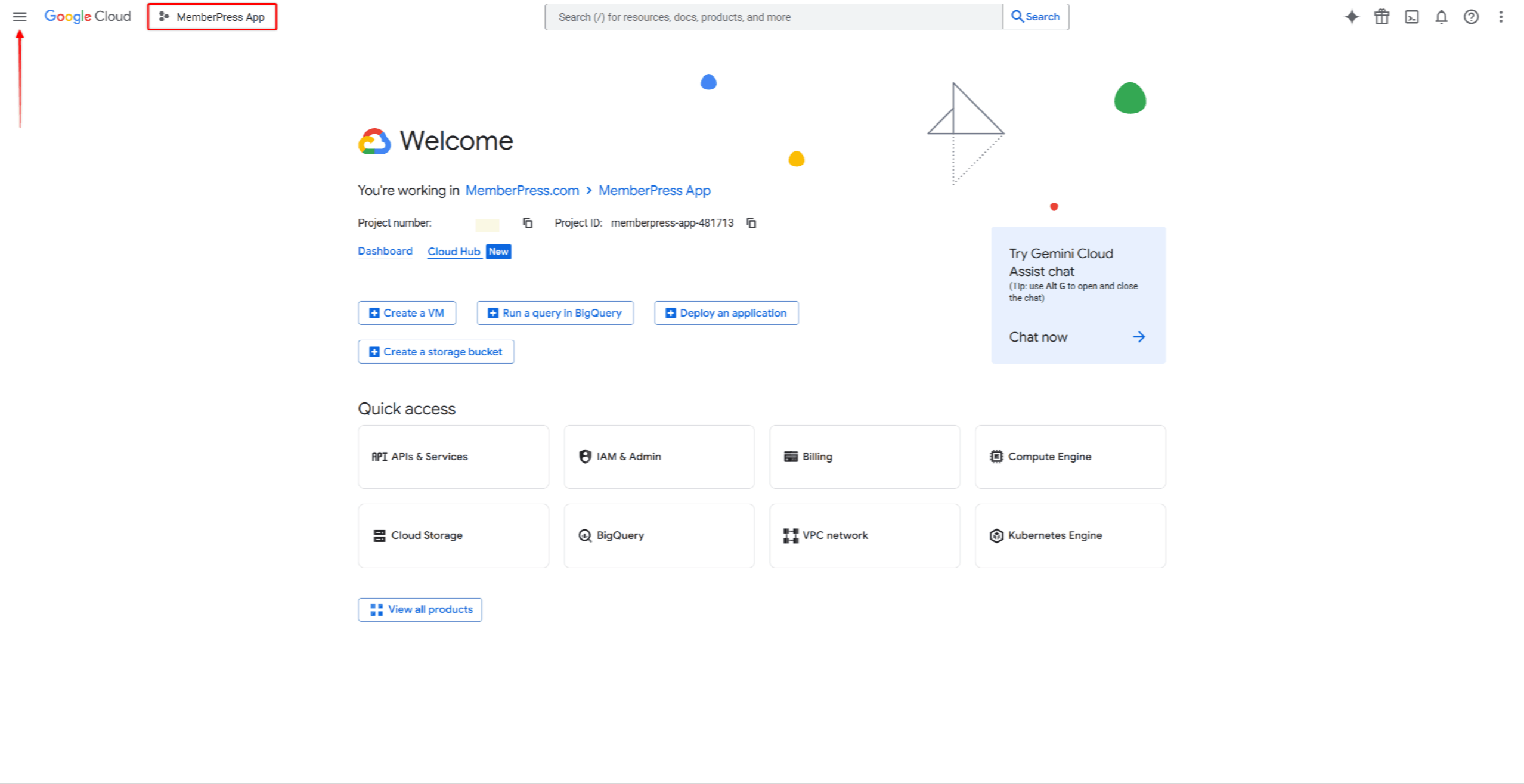
- Klicken Sie anschließend auf das Hamburger-Symbol, um das Navigationsmenü zu öffnen.
- Klicken Sie im Navigationsmenü auf der linken Seite auf IAM & Verwaltung.
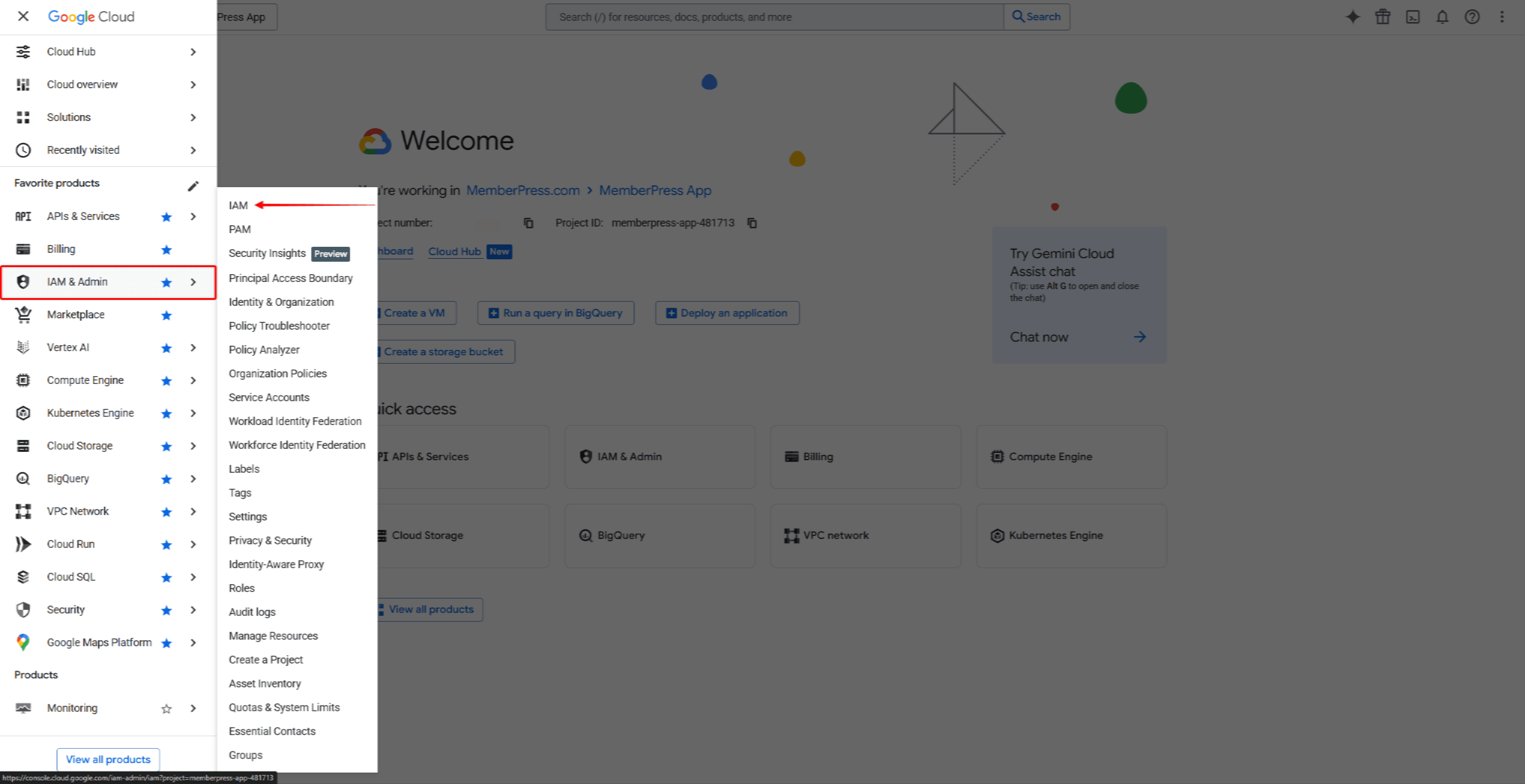
- Klicken Sie auf IAM aus dem Untermenü.
- Klicken Sie auf die Zugriff gewähren Schaltfläche oben auf der Seite.

- In der Neue Schulleiter Feld, geben Sie ein: appsup@memberpress.com
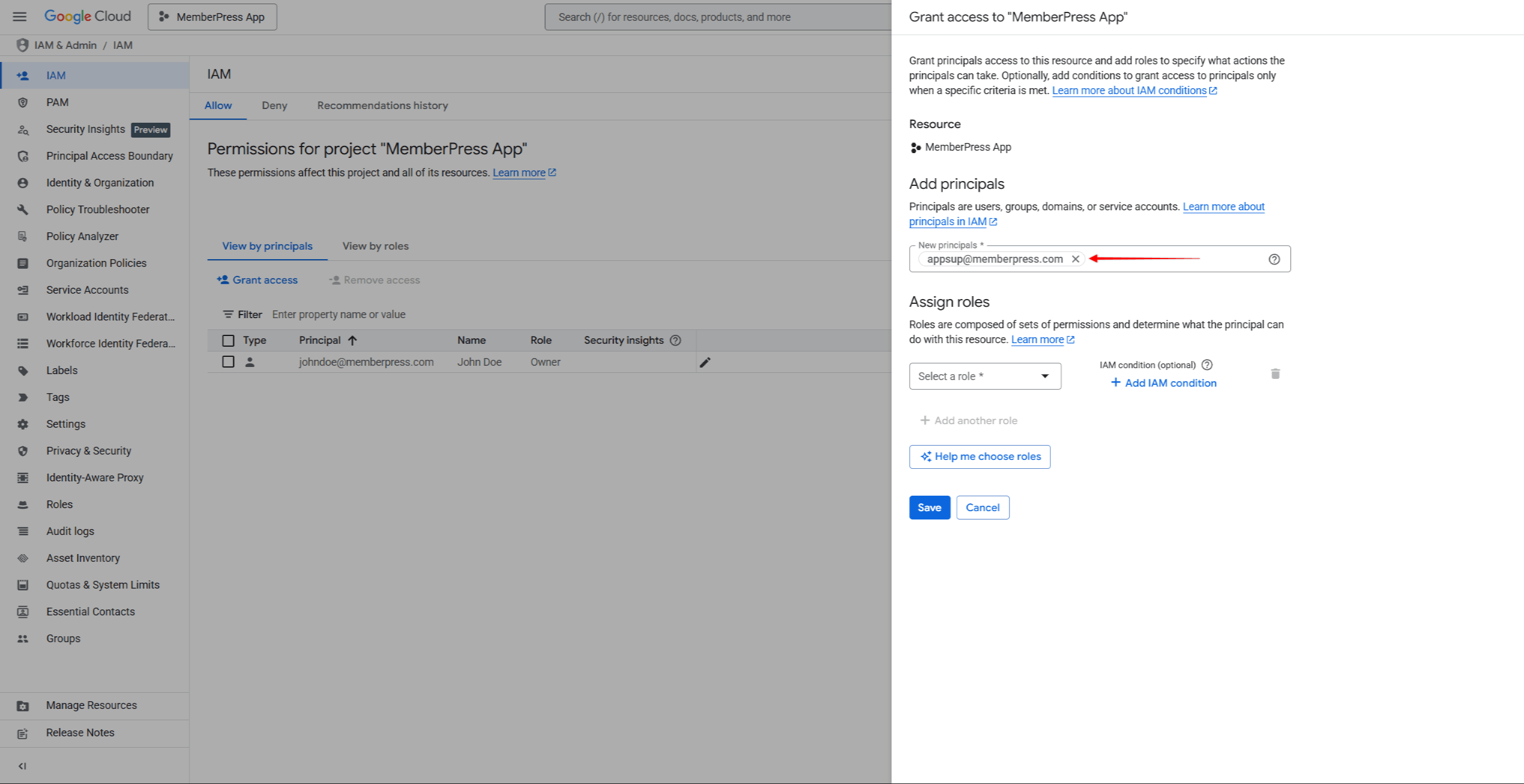
- Klicken Sie auf die Wählen Sie eine Rolle aus Dropdown-Menü. Auswählen Eigentümer von der Grundlegend Rollenkategorie oder suchen Sie nach dem Begriff “Eigentümer” in das Suchfeld ein.

- Klicken Sie auf Speichern Sie die Berechtigungen zu erteilen.
Die Das MemberPress-Team erhält automatisch eine E-Mail-Benachrichtigung. über den gewährten Zugang. Die Die Berechtigungen werden sofort wirksam..
Wichtige Hinweise
- Die Rolle 'Eigentümer“ gewährt vollständigen Zugriff auf alle Projektressourcen, einschließlich der Möglichkeit, die Berechtigungen anderer Benutzer zu verwalten.
- Im Gegensatz zu Einladungen in App Store Connect und der Google Play Console müssen Google Cloud IAM-Berechtigungen nicht akzeptiert werden. Der Zugriff wird sofort nach dem Speichern gewährt.
- Der gewährte Zugriff läuft nicht ab, sofern er nicht manuell widerrufen wird.
Überprüfung des Zugriffs
Nachdem Sie den Zugriff gewährt haben, überprüfen Sie, ob das MemberPress-Team in der Liste der IAM-Mitglieder angezeigt wird.
- Zurück zu IAM & Verwaltung > IAM in der Google Cloud Console.
- Suchen Sie nach appsup@memberpress.com in der Mitgliederliste.
- Prüfen Sie, ob die Eigentümer Die Rolle ist aufgeführt in der Rolle Spalte.
Fehlersuche
- Die Schaltfläche “Zugang gewähren” ist nicht sichtbar oder deaktiviertÜberprüfen Sie, ob das verwendete Konto über Eigentümer- oder IAM-Admin-Berechtigungen für das Projekt verfügt. Nur Benutzer mit diesen Rollen können IAM-Berechtigungen verwalten.
- Die E-Mail-Adresse wird nicht akzeptiert.: Vergewissern Sie sich, dass Sie die richtige E-Mail-Adresse eingegeben haben (appsup@memberpress.com). Die E-Mail-Adresse muss mit einem gültigen Google-Konto verknüpft sein.
- Das Projekt ist in der Projektauswahl nicht sichtbar.Überprüfen Sie, ob das Konto Zugriff auf das Projekt hat. Wenn das Projekt unter einem anderen Konto erstellt wurde, fordern Sie den Zugriff beim Projektinhaber an.
- Die Rolle „Eigentümer“ ist in der Rollenauswahl nicht sichtbar.: Blättern Sie durch die Rollenliste oder verwenden Sie die Suchfunktion. Die Eigentümer Die Rolle ist aufgeführt unter Grundlegend Rollen. Beachten Sie, dass einige Unternehmensrichtlinien die Vergabe der Eigentümerrolle einschränken können.
Zugriff widerrufen
Nach Abschluss des DFY-Dienstes kann der Zugriff auf Wunsch widerrufen werden.
- Navigieren Sie zum Google Cloud-Konsole und melden Sie sich an.
- Wählen Sie das Projekt aus. aus dem Projekt-Dropdown-Menü.
- Klicken Sie in der linken Seitenleiste auf IAM & Verwaltung > IAM.
- Finden Sie die appsup@memberpress.com Eintrag in der Mitgliederliste.
- Klicken Sie auf die Hauptbearbeiter bearbeiten (Bleistift-)Symbol neben dem Eintrag.
- Klicken Sie auf die Löschen Symbol neben dem Eigentümer Rolle.
- Klicken Sie auf Speichern Sie die Berechtigungen zu entfernen.
Alternativ können Sie alle Zugriffsrechte entfernen:
- Finden Sie die appsup@memberpress.com Eintrag in der Mitgliederliste.
- Aktivieren Sie das Kontrollkästchen. neben dem Eintrag.
- Klicken Sie auf Zugriff entfernen am oberen Rand der Seite.
- Bestätigen Sie die Entfernung im Dialogfeld.










 DE
DE  EN
EN  ES
ES  FR
FR  PT
PT 